

You can change the StoreCRM favorite button's colors, text, icon, width, and other options from the admin. These settings are applied to the favorite button shown on product pages in your store.
Configure the favorite button
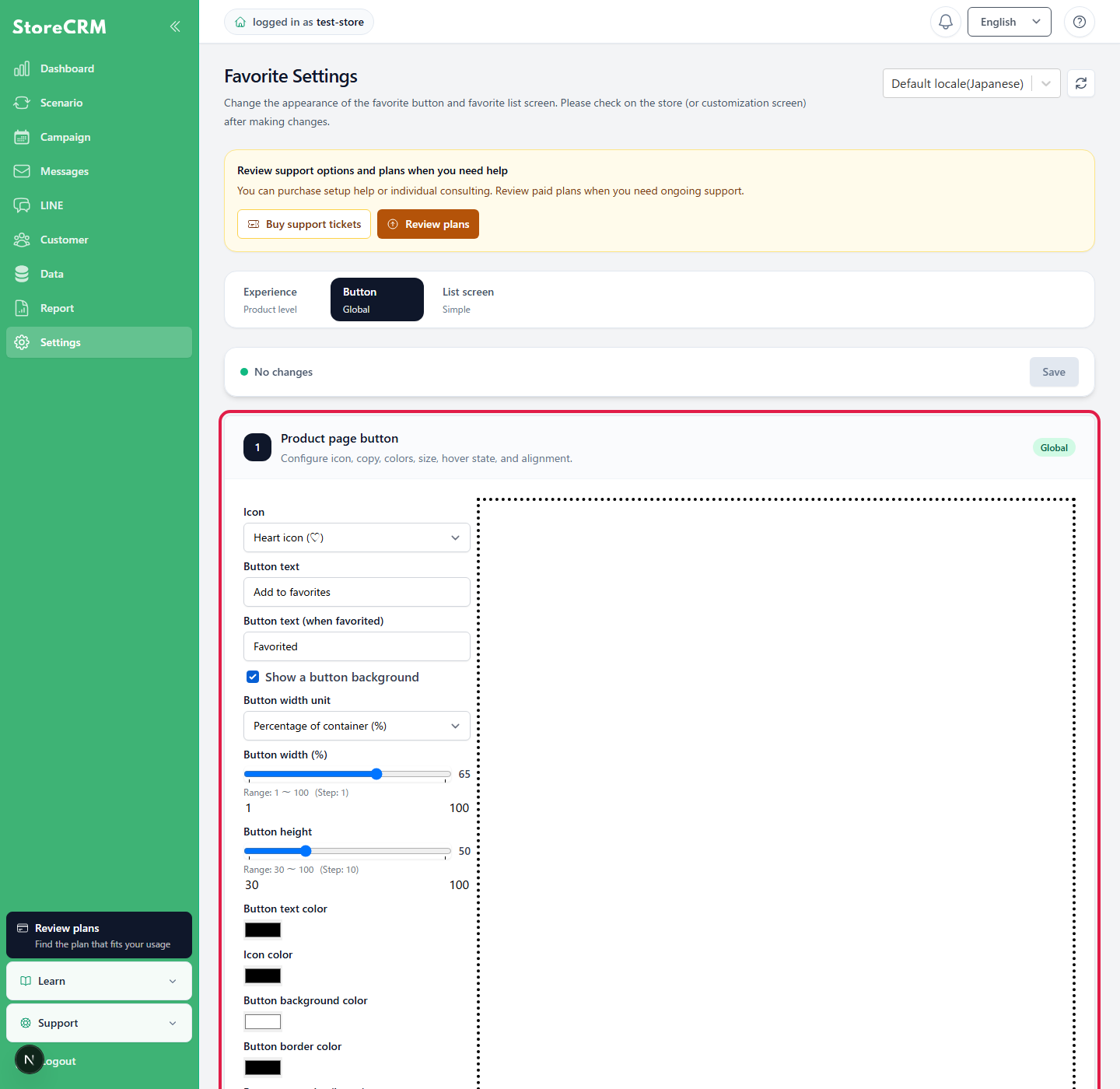
- StoreCRM管理画面の[お気に入り]→[お気に入り設定]を開きます。
- Select the [Favorite button] tab.
- Configure the button text, colors, icon, background, and other options.
- Check the preview on the right, then click [Save].
Set the button width as a percentage
Turn on [Use a button background] to select [Percentage of container (%)] under [Button width unit]. Enter a width from 1% to 100%. Without a background, the width adjusts automatically to the content.
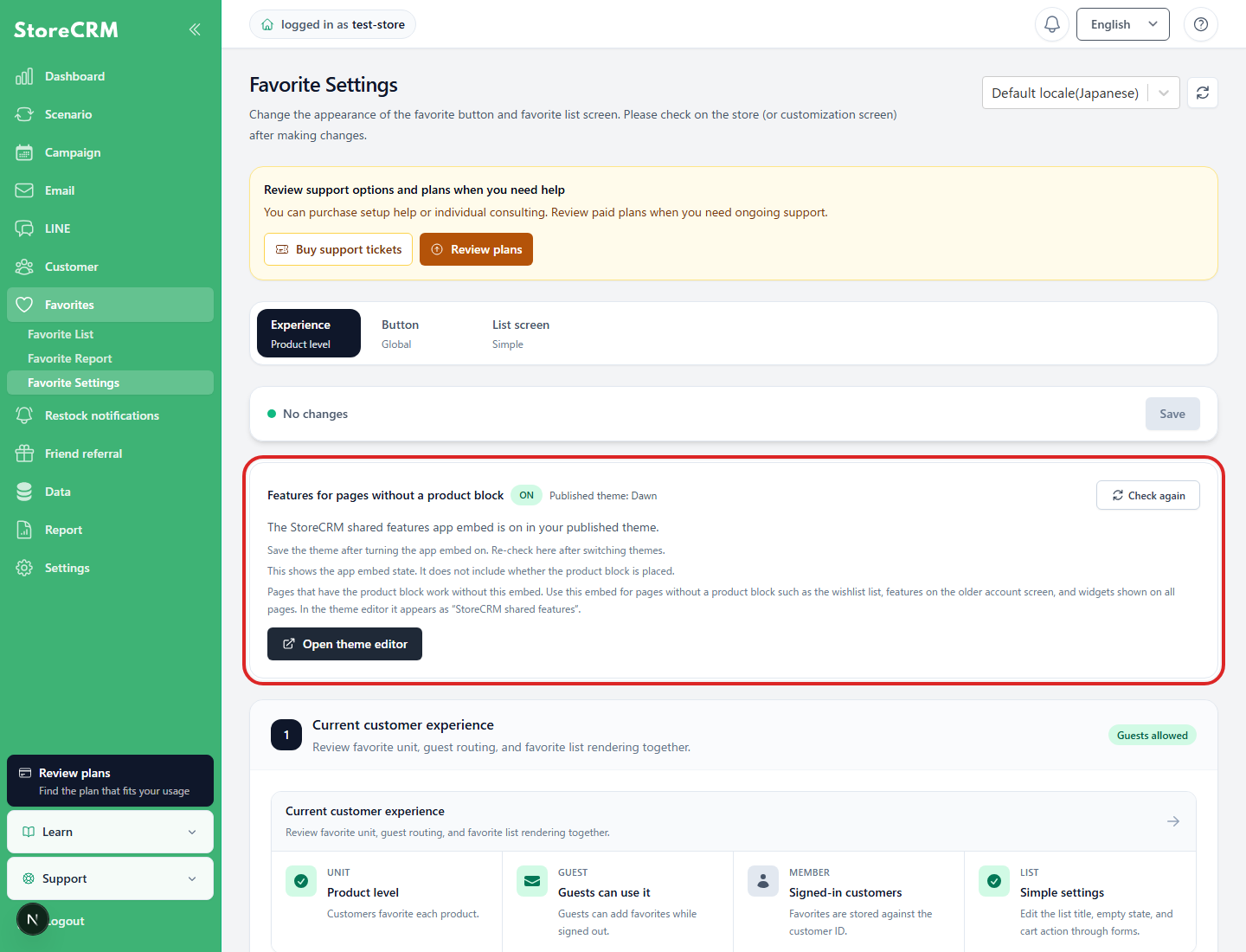
Check the features you need App Embed
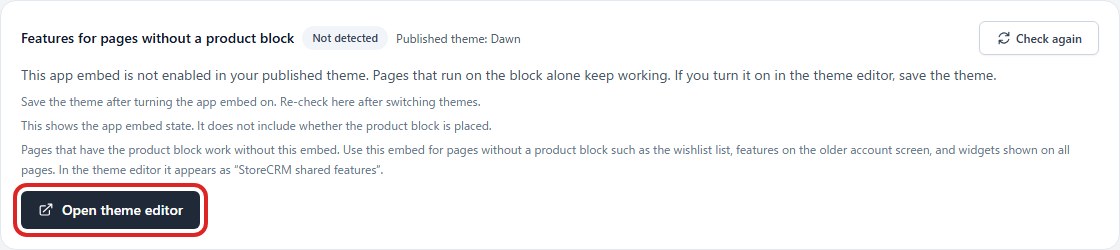
App Embed works even if it is off because the block itself reads common JavaScript.
App Embed [Common Features of StoreCRM] is necessary for a list of favoritess, pages with no product block, a traditional customer account, and all page common widgets. Check the state of the public theme on the StoreCRM settings screen, and select "Reconfirm" only if necessary.
Configure the Favorites page
Change the Favorites page display from the [List page] tab on the same settings screen. You can use Simple mode without code or Advanced mode to edit Liquid and CSS. For detailed editing instructions, seeCustomizing the Favorites page with Liquidfor more information.
Related pages
 English
  Japanese