

- Change the settings for the email sender name (sender), source email address, and reply-to email address for emails delivered from StoreCRM.
- You may choose to leave it unchanged and use the default. By default, it will display the name of your registered store in Shopify.
- In test mode, you can only send emails to email addresses registered with StoreCRM. Test mode cannot be deactivated in the test plan. To send an email to a customer,Standard PlanThe value must be changed to more than
Change email details sent from StoreCRM
Change the settings for the email sender name (sender), source email address, and reply-to email address for emails delivered from StoreCRM.
Example of detailed information in an email sent to a customer from StoreCRM
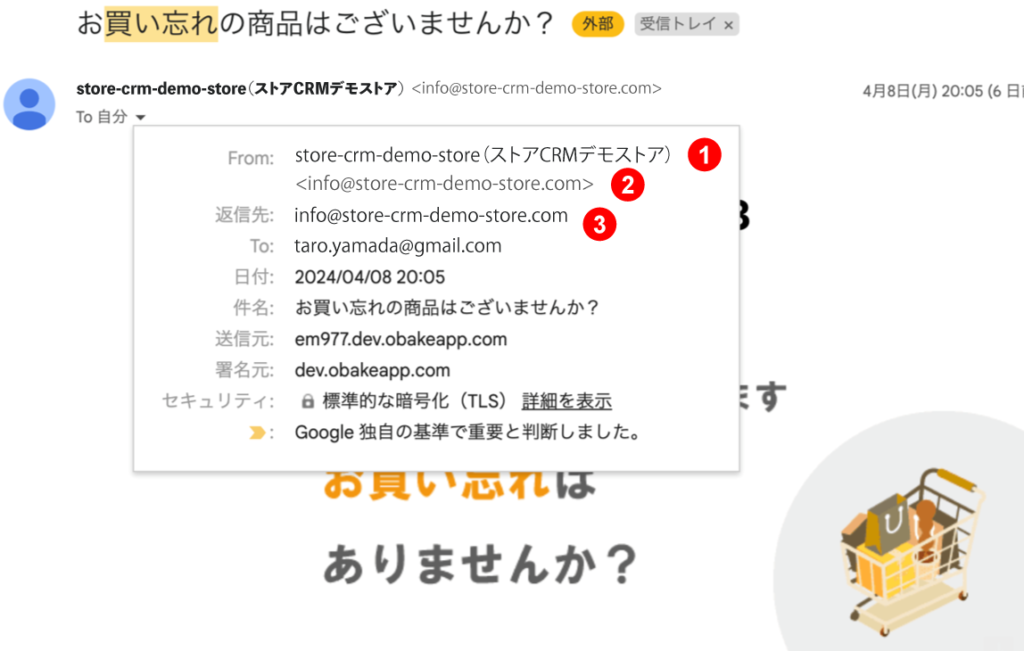
1. sender's name (sender)
The name of the store from which the e-mail was sent is displayed.
1-1. default use
The name of your registered store in Shopify will be displayed.
1-2. if you wish to make changes
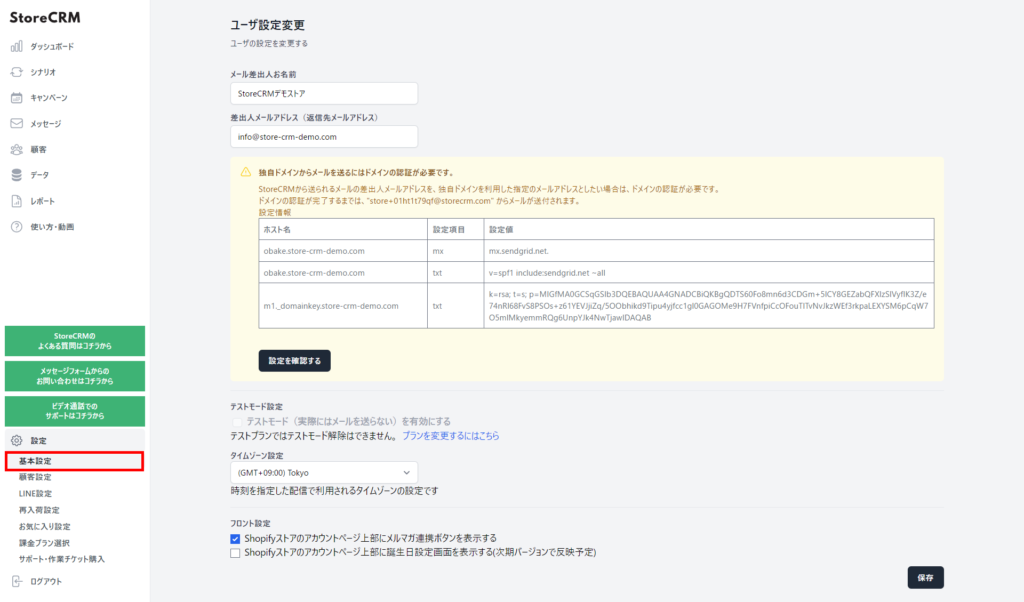
StoreCRM -> [Settings] -> [Basic Settings].changeCan be done.
2. sender's email address
The email address from which the email was sent is displayed.
2-1. default use
It will appear as "[email protected]."
2-2. if you wish to make changes
You can set up your own domain email. For instructions on how to set this up, please refer tothis way (direction close to the speaker or towards the speaker)for more information.
3. return email address
The e-mail address to which the e-mail is to be replied will be displayed.
3-1. when used by default
Your Shopify email address will be displayed.
3-2. if you wish to make changes
StoreCRM -> [Settings] -> [Basic Settings].changeCan be done.
What is test mode?
- static test modeallows you to send emails only to the email address registered with StoreCRM. Test mode cannot be deactivated for test plans.To send an email to a customer,Standard PlanThe value must be changed to more than
- Sales via email delivered via StoreCRM while in test mode will not be added to the settlement fee. Therefore, you can test the operation of the system completely free of charge.
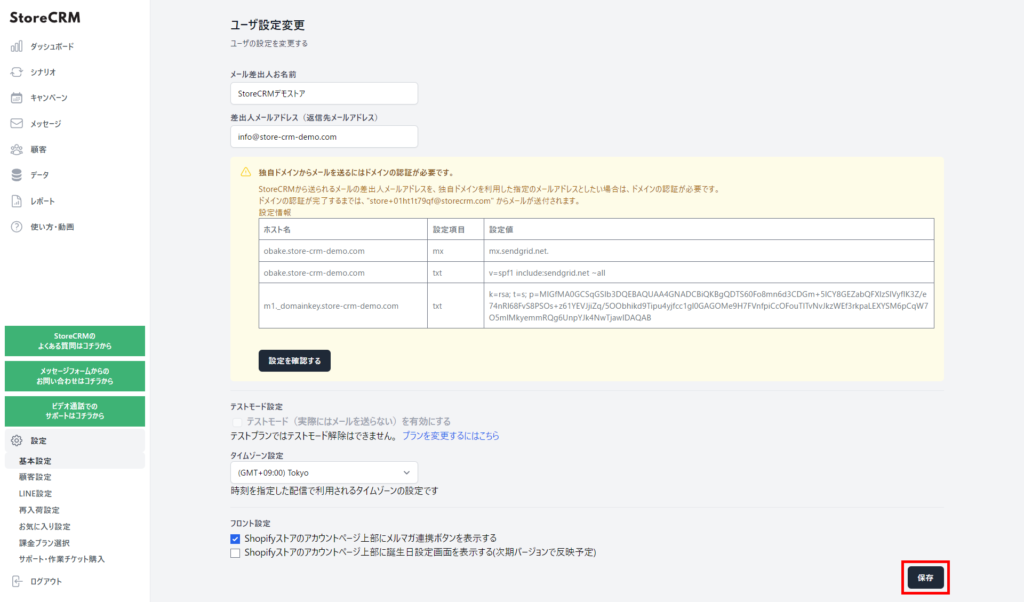
Change email details
1. click on StoreCRM → [Settings] → [Basic Settings].
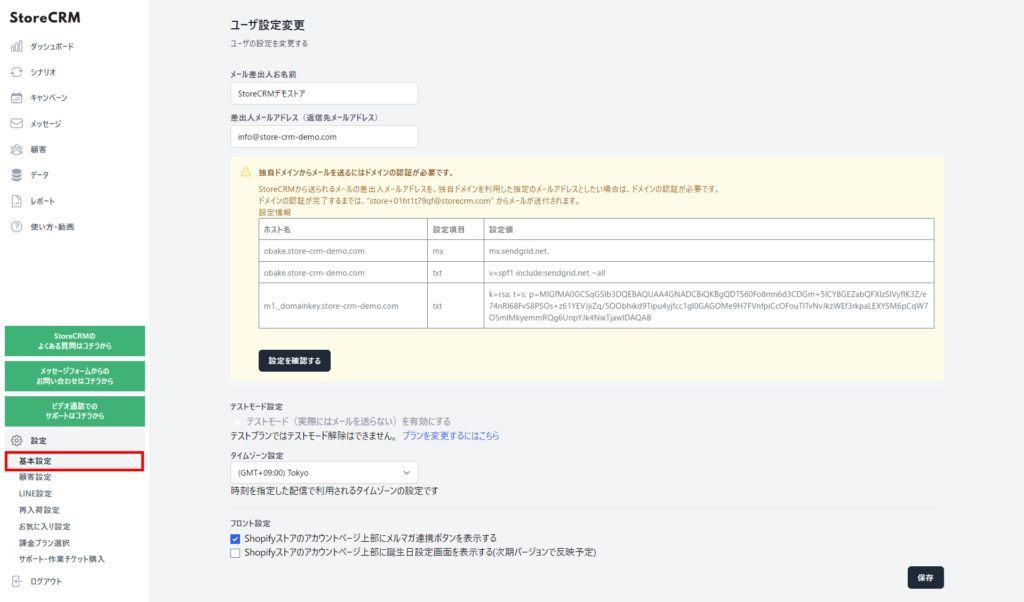
Enter the name of the sender of the e-mail.
Enter the name you wish to display for the mail sender's name (sender).
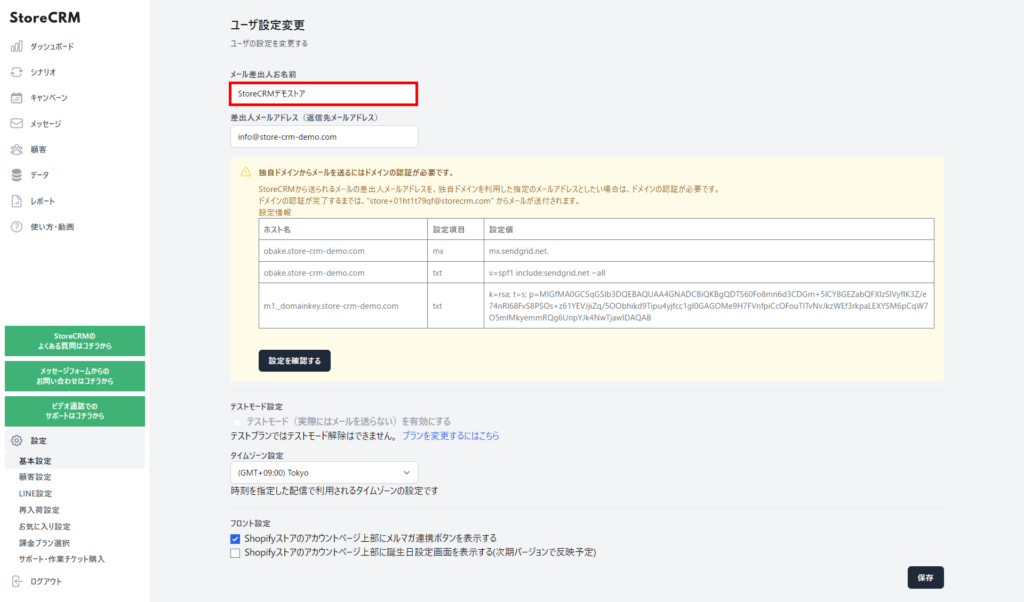
Enter the sender's email address (return email address).
- Gmail can also be set up.
- For Gmail, domain authentication is not required.
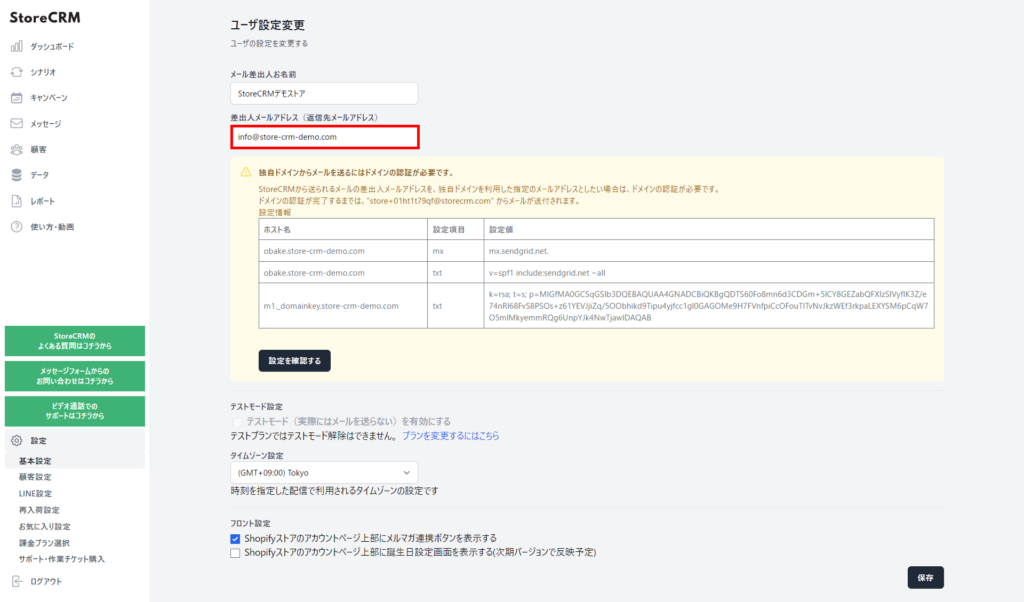
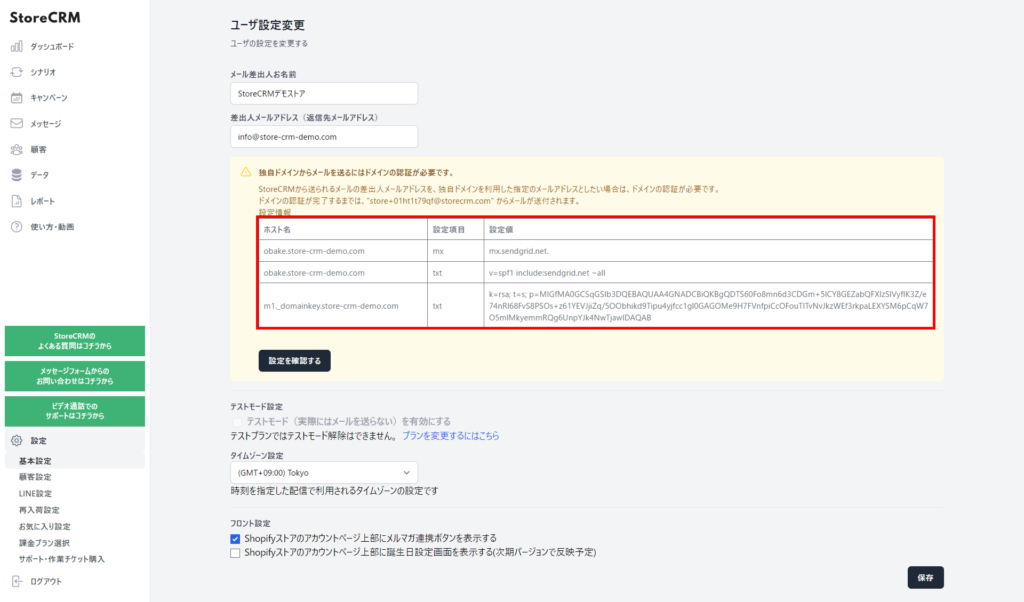
If you wish to use your own domain email address for the sender's email address (return email address), copy and paste this information into your domain administrator's DNS settings screen.
How to set up,this way (direction close to the speaker or towards the speaker)for more information.
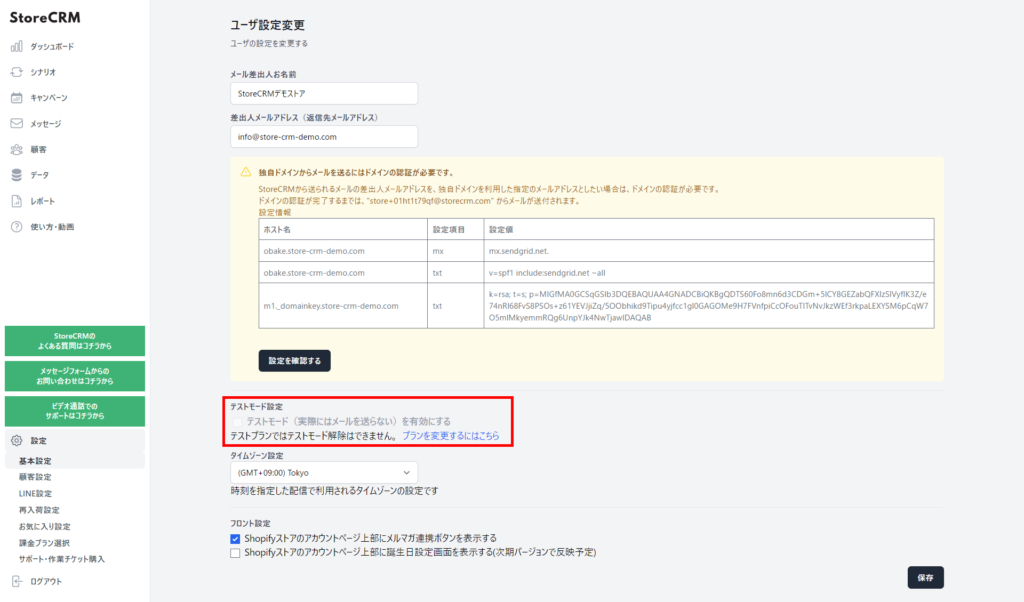
5. test mode setting.
- In test mode, you can only send emails to email addresses registered with StoreCRM.
- Test mode cannot be deactivated in the test plan.
- To send an email to a customer,Standard PlanThe value must be changed to more than
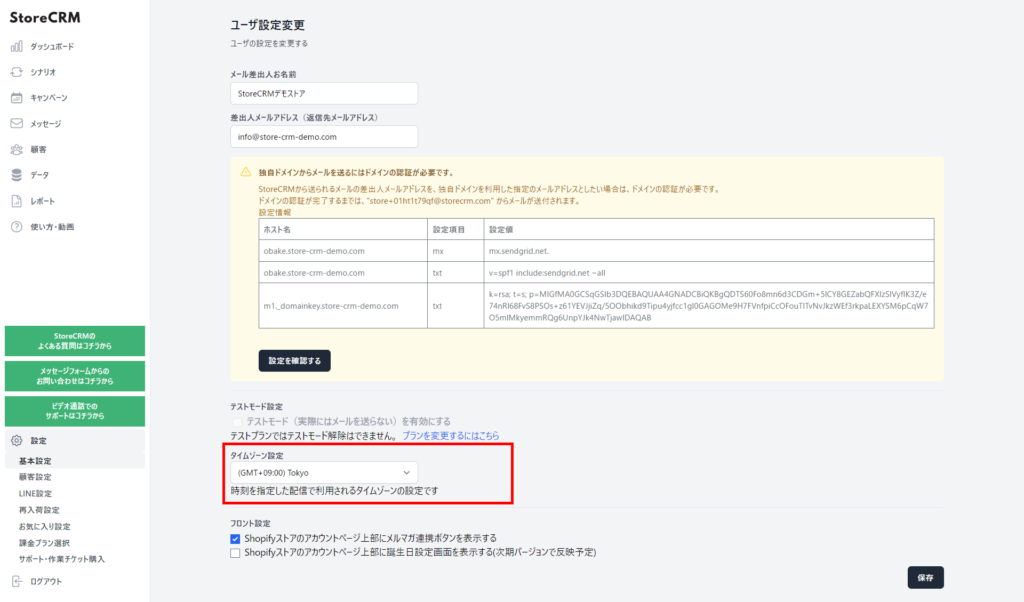
Set the time zone.
Set the time zone for time-specific delivery.
After completing the settings, click "Save".
Related Pages
 English
  Japanese