

- In StoreCRM, an email newsletter is called a campaign.
- To send an e-mail newsletter to a specific customer, do the following
- By distributing e-mail newsletters to specific customers, you can reduce the attrition rate of uninterested customers and increase open rates.
Related articles
Compare 7 essential Shopify email marketing apps for increasing sales
Watch the video to set up
See the manual and set it up.
Set up a campaign
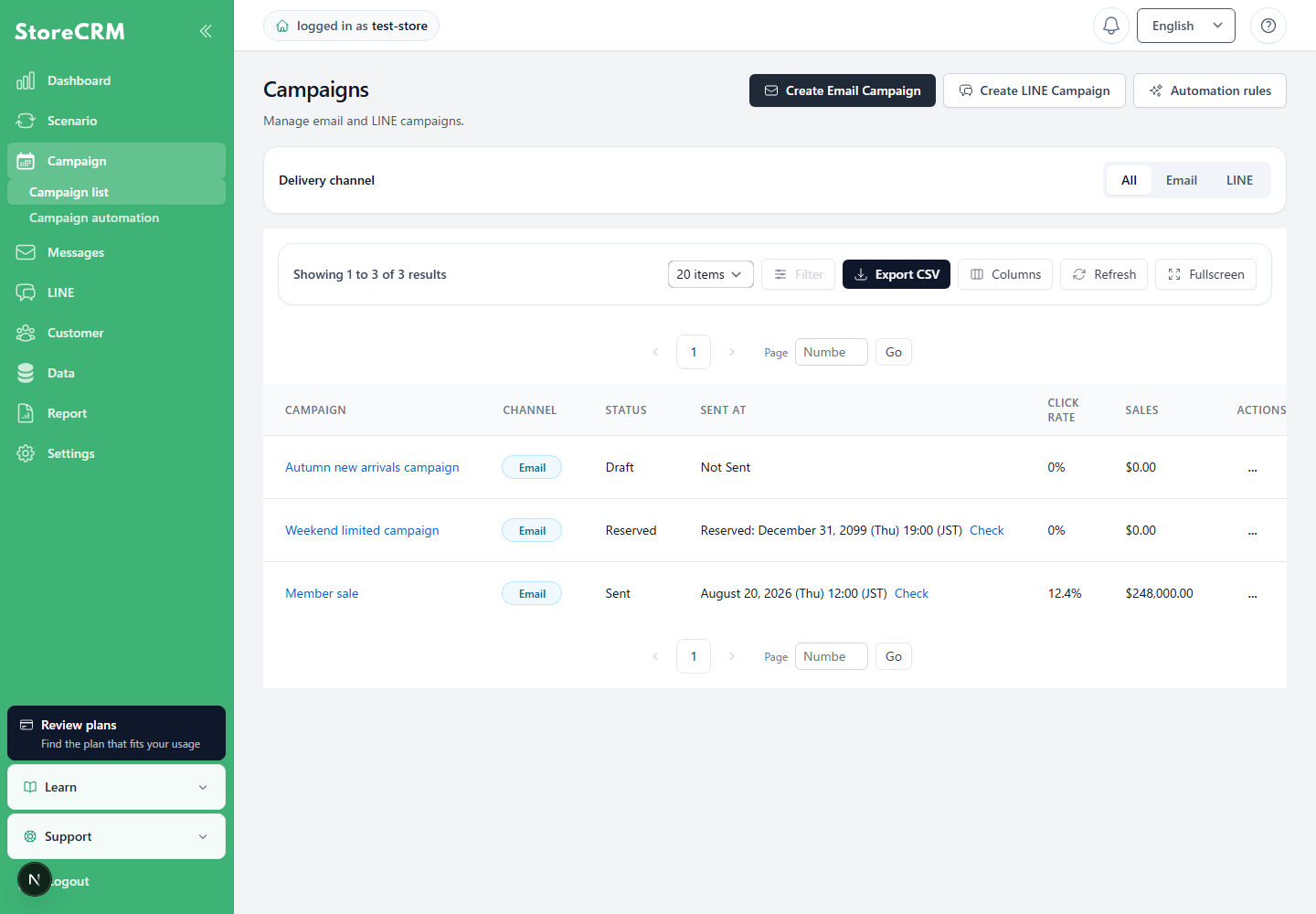
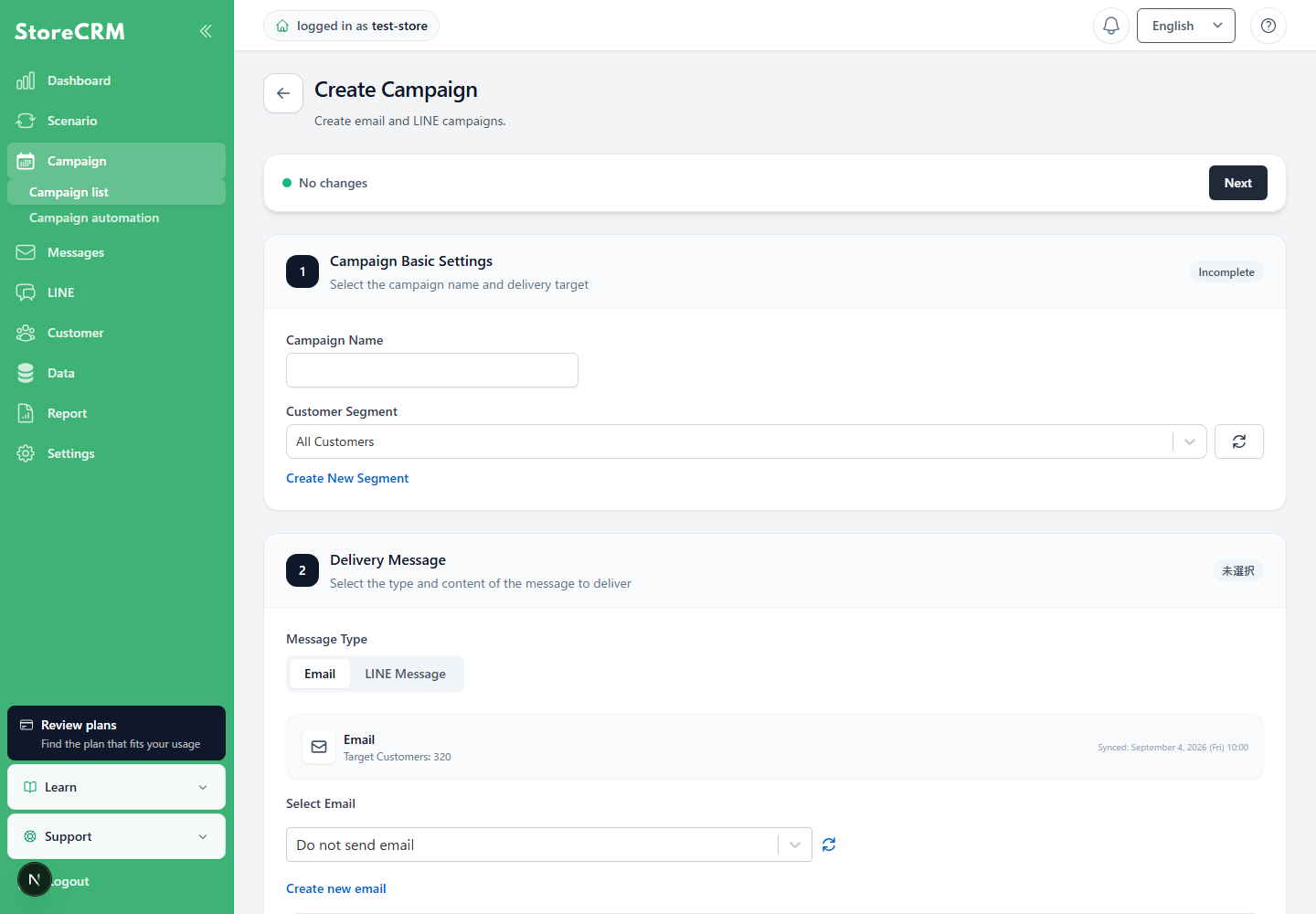
In StoreCRM, click on "Campaigns.
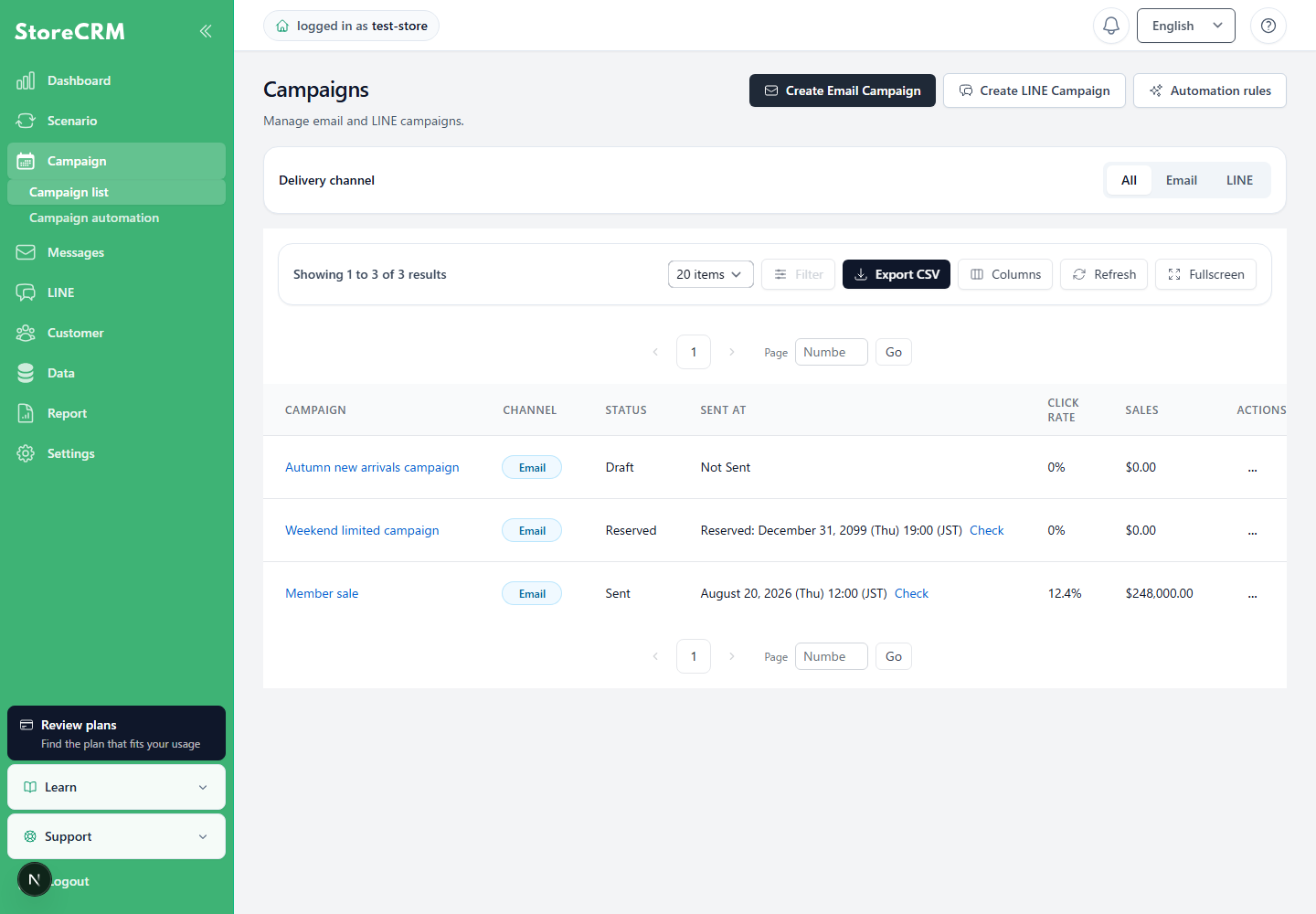
Click on "Add New Campaign.
3. campaign name date, etc., so that it is easy to understand if you make it unique.
As an example, "[Limited time only] We started the Kuroge Wagyu Beef Burger Set - 20241022".
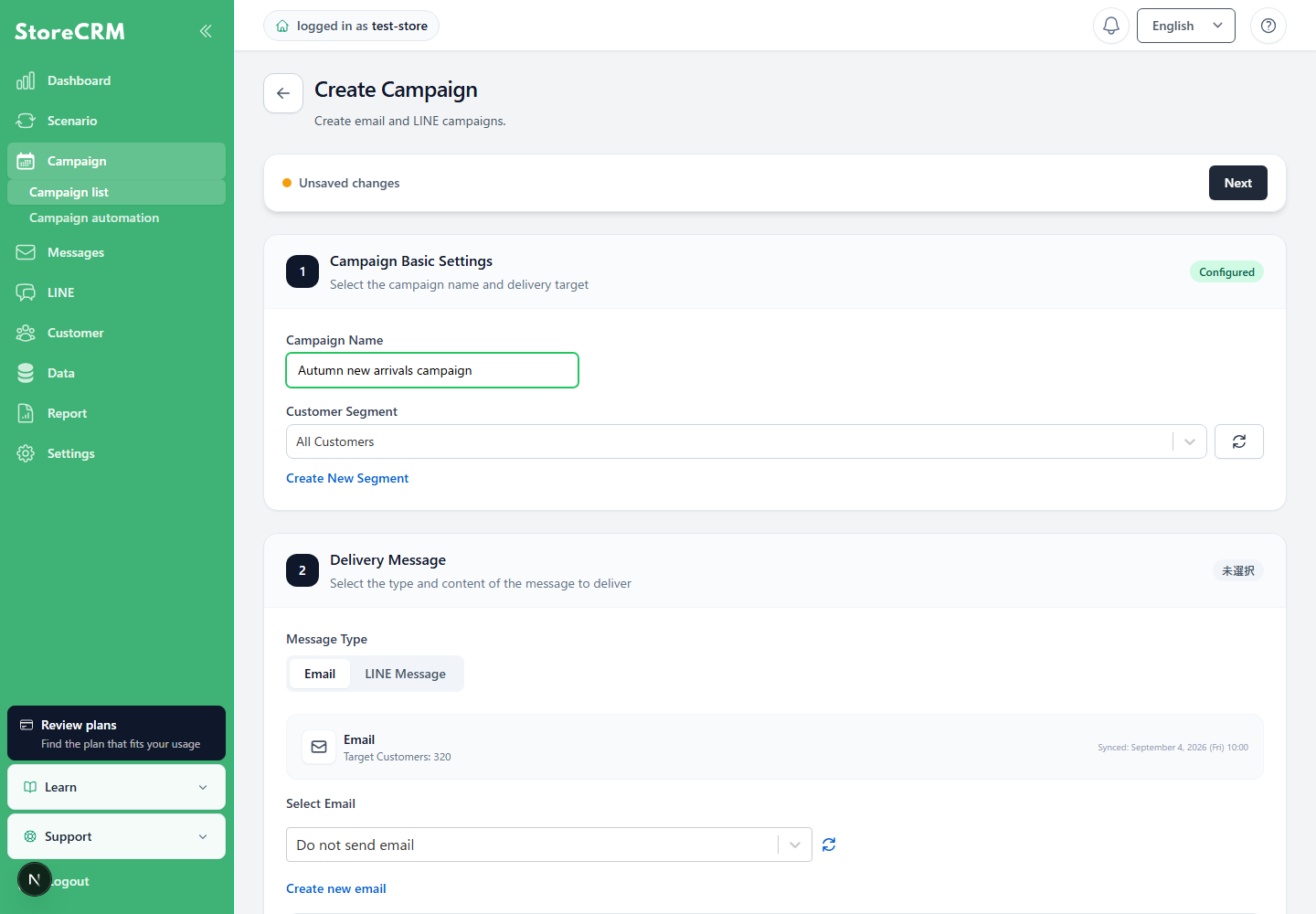
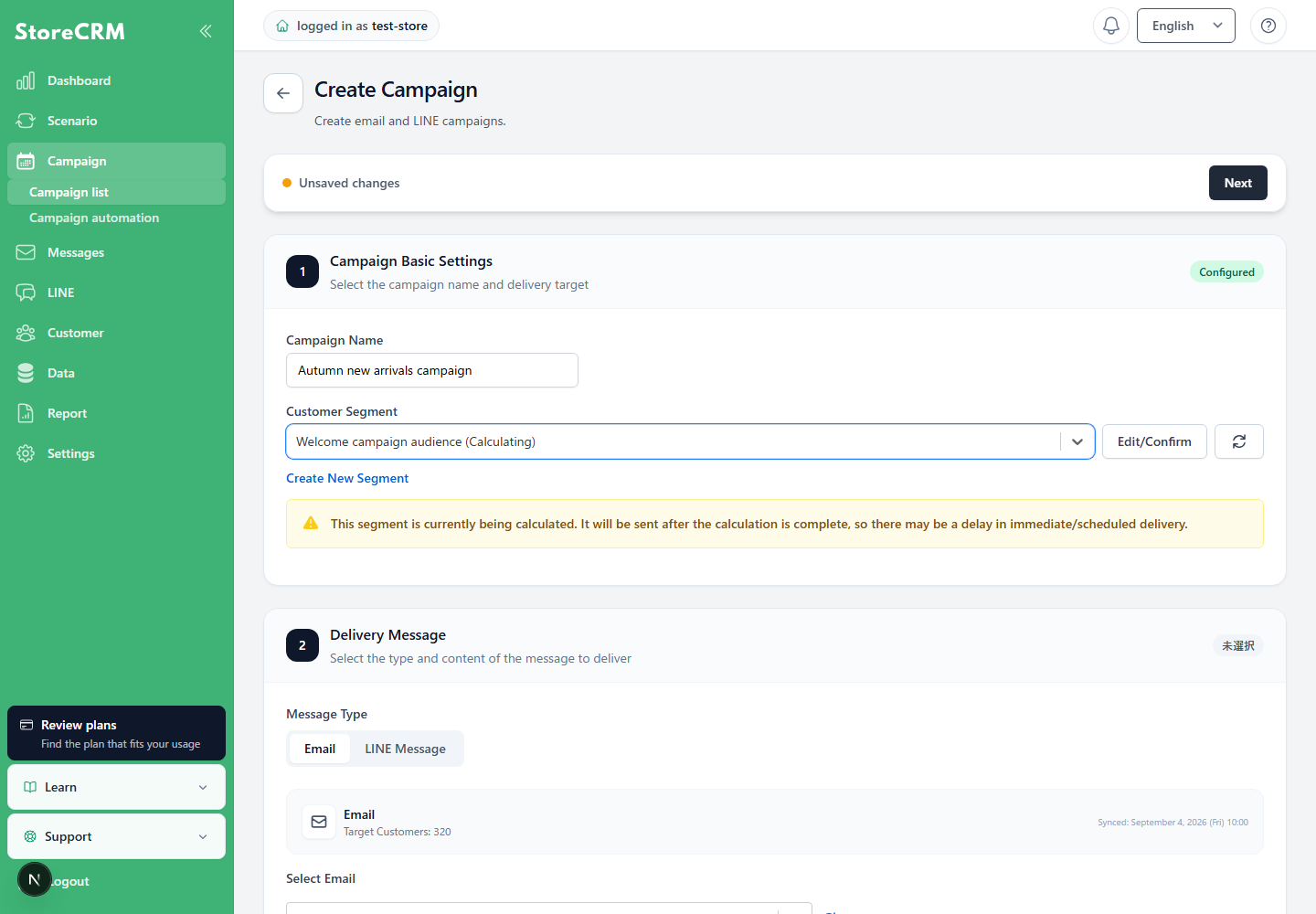
Select the customer segment.
- How to set up,here for more information.
- As an example, "[Limited time only] We started the Kuroge Wagyu Beef Burger Set - 20241022".
5. set up the mail.
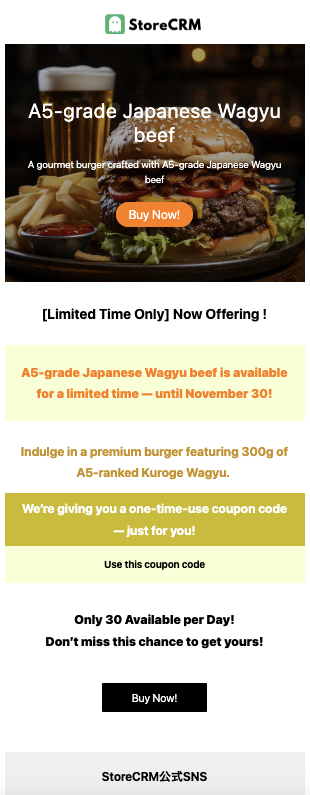
- Sending original e-mails with pictures of products and other information is expected to increase sales.
- If you want to send the original email, you can use the [.Mail ListWe recommend that you create the file in advance with [*].
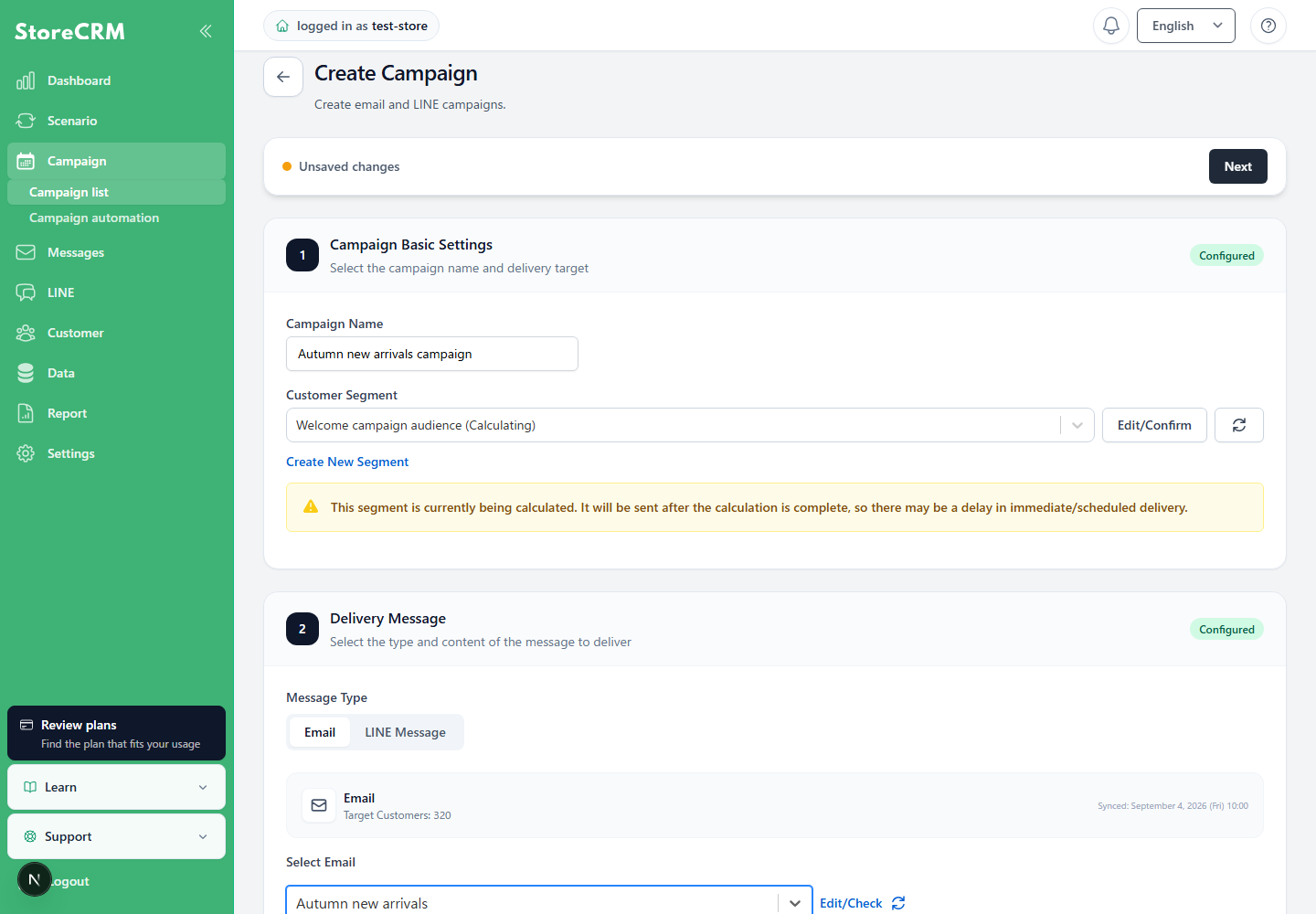
Example of composing an email
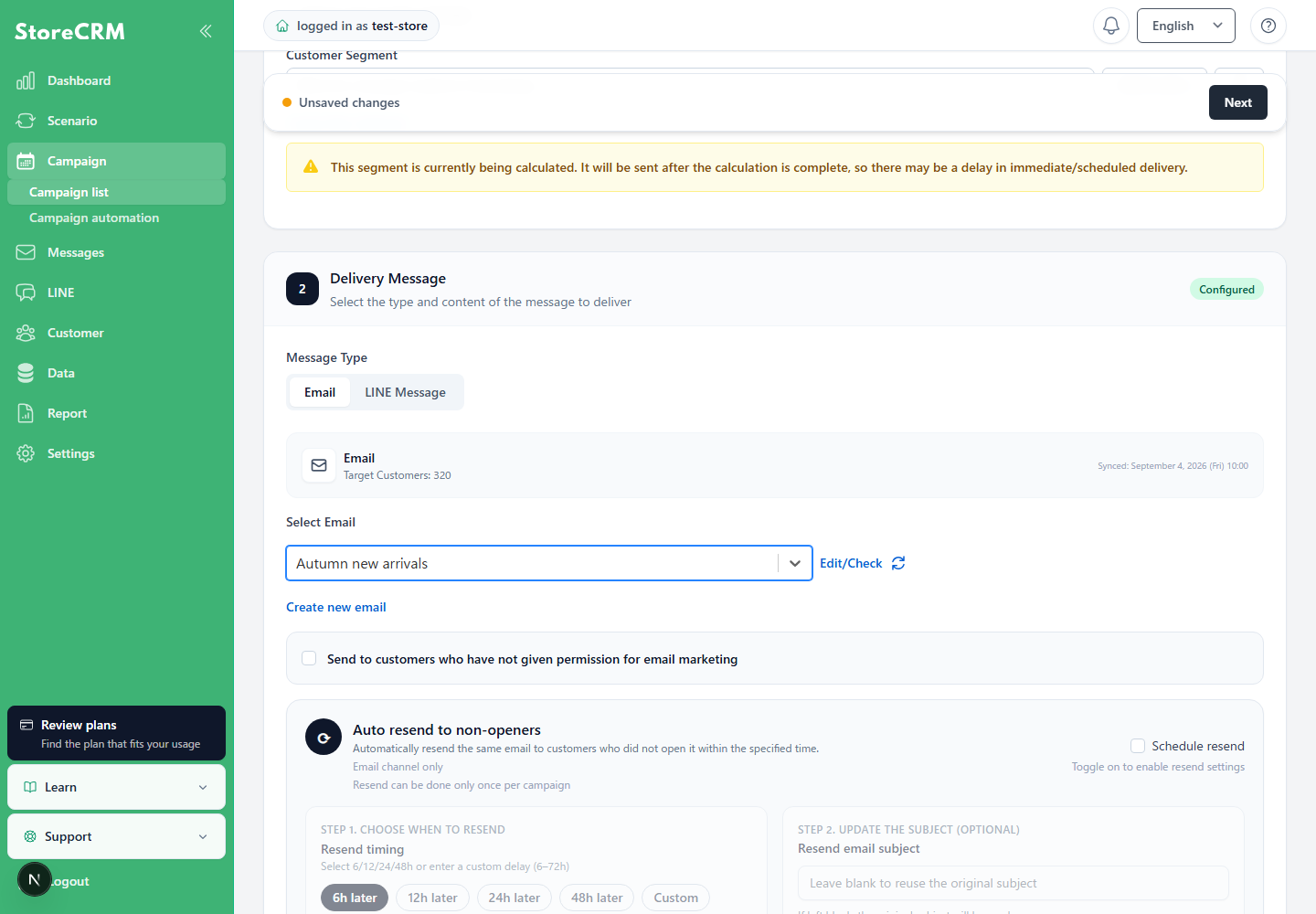
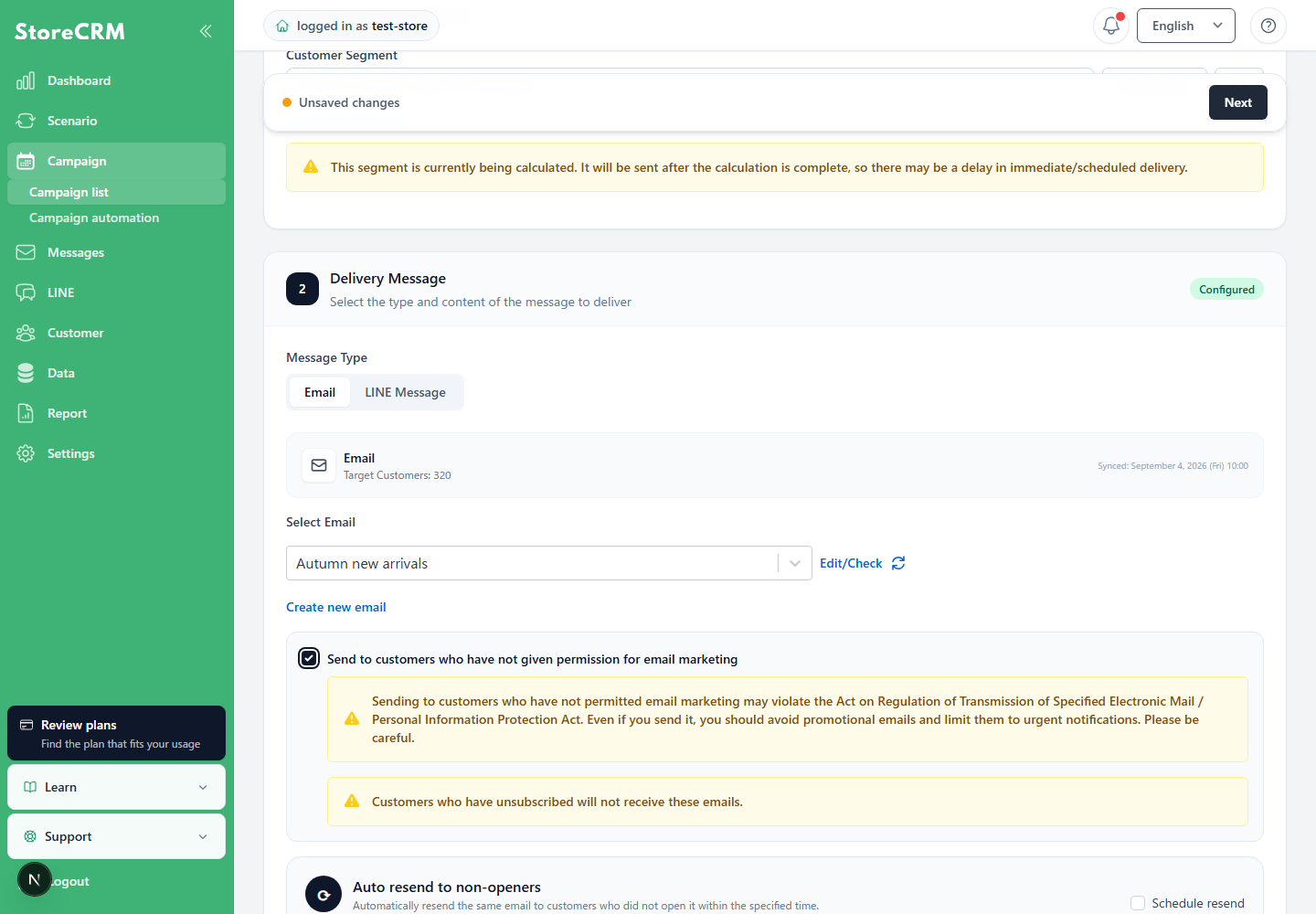
6. we recommend that you do not check the box [Send to customers who do not have permission to receive e-mail marketing].
This may violate the Specified Electronic Mail Law / Personal Information Protection Law. Even if you do send such e-mail, it should be limited to urgent notices, avoiding promotional e-mails.
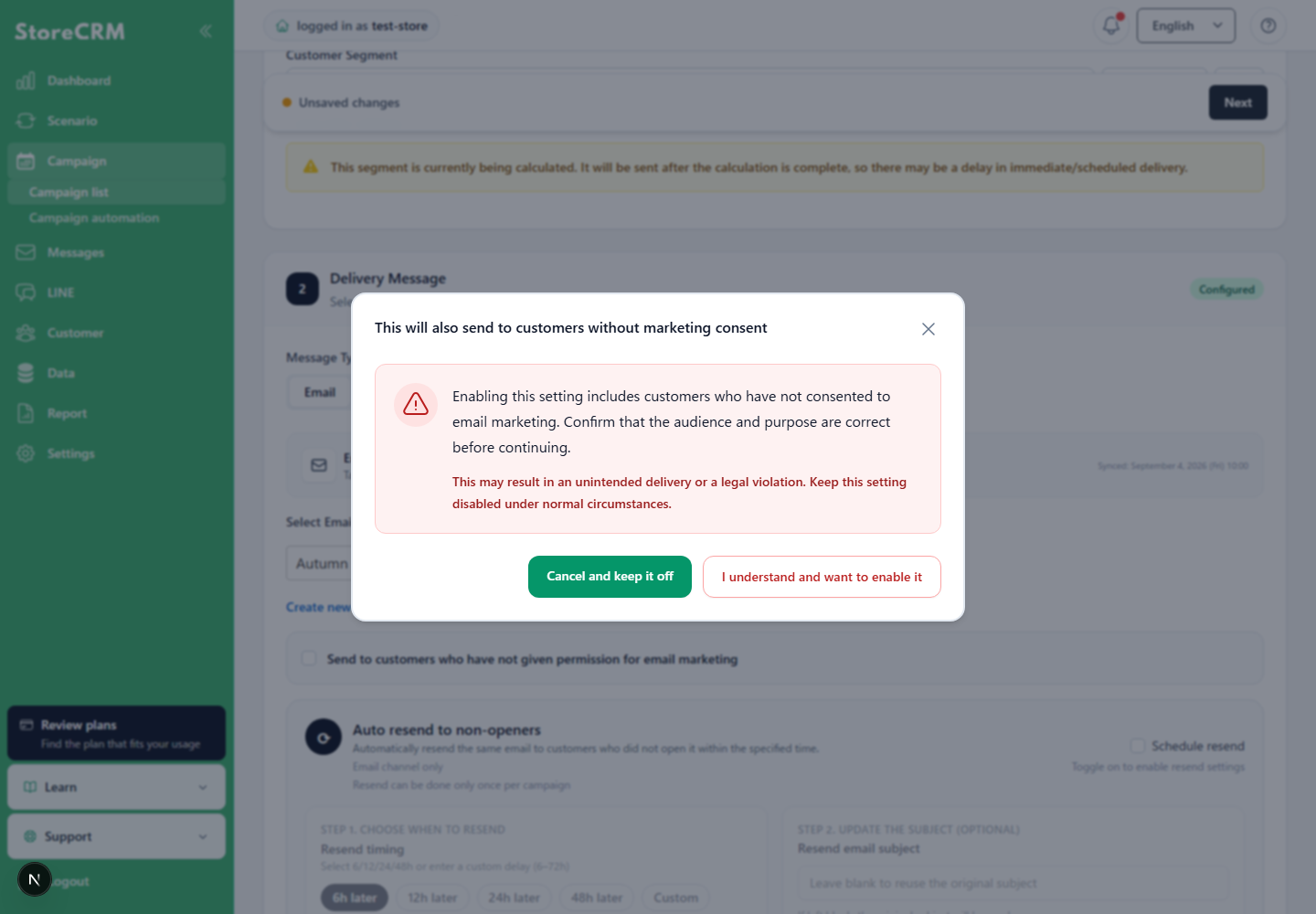
[Also send to customers who have not consented to email marketing]is off by default. Turning it on displays a safety confirmation dialog. Review the message and, only if you understand who will receive the campaign, click[Enable after confirming].
- [Cancel], the close button, the Esc key, and clicking outside the dialog do not enable the setting.
- No confirmation dialog is shown when you turn the setting off again.
- When you duplicate a campaign, this setting is turned off for safety.
Click "Next.
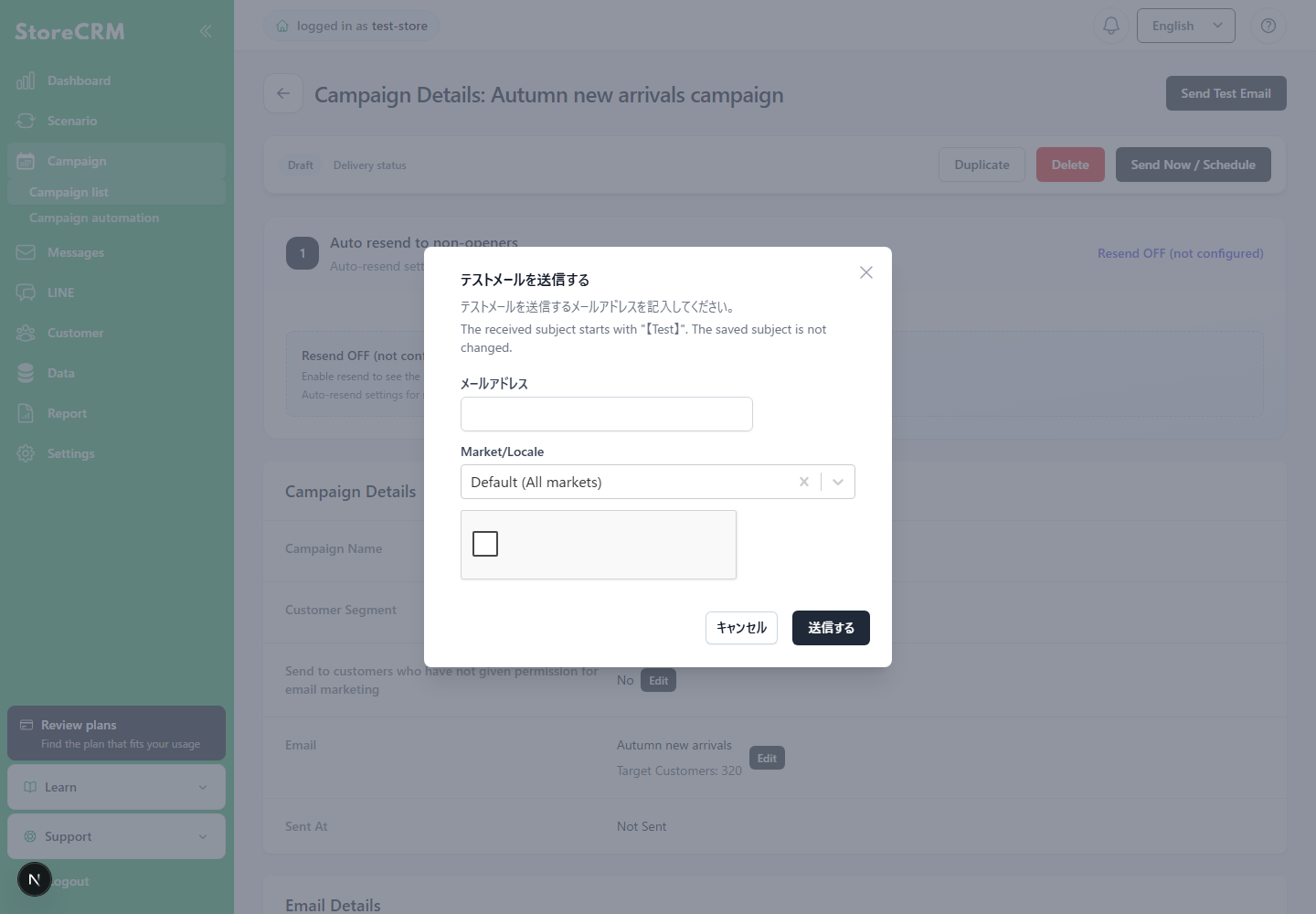
To send a test email, click "Send Test Email".
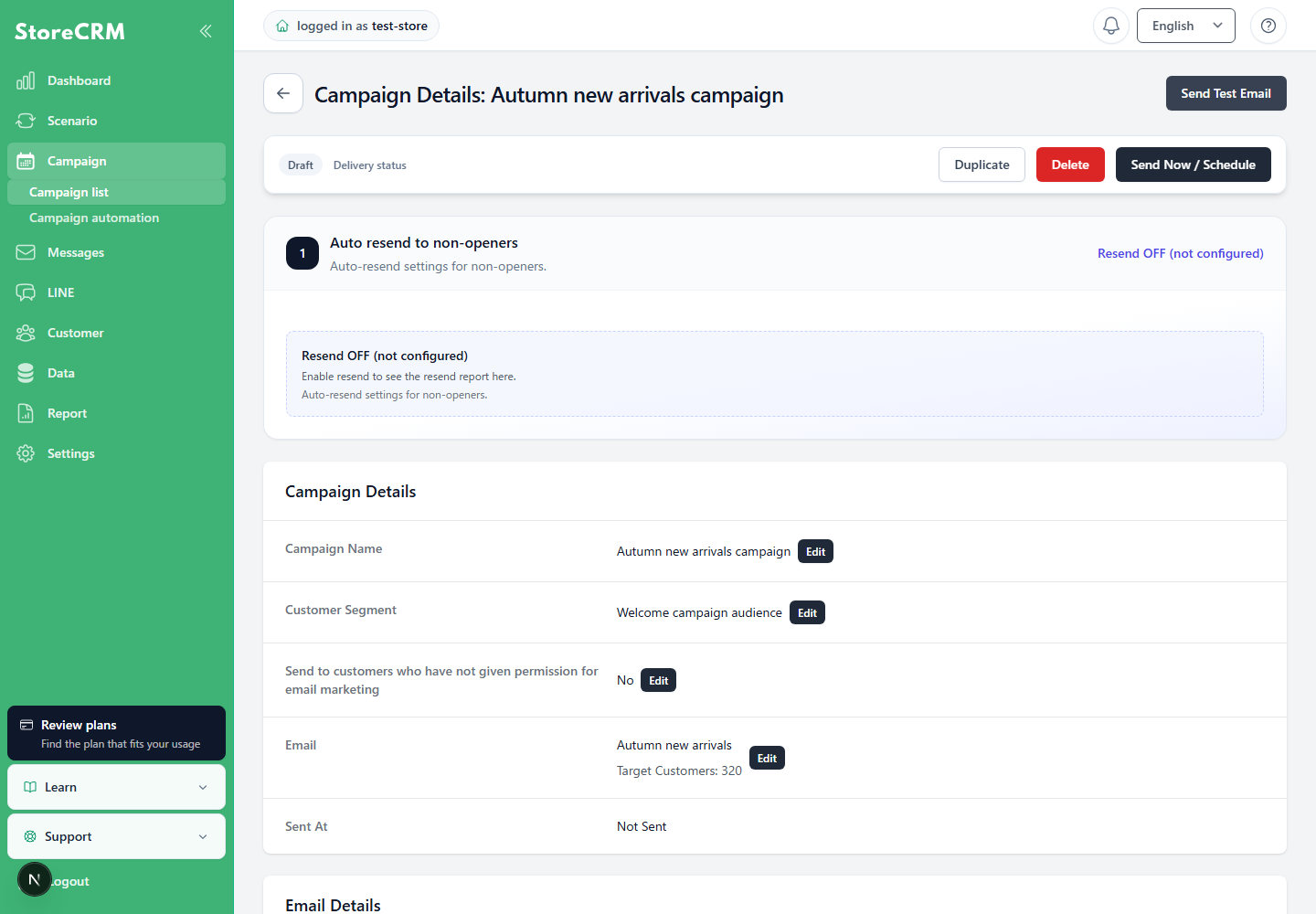
To send the email, click "Send Now/Schedule to Send.
Click on "Reserve for transmission" or "Send Now.
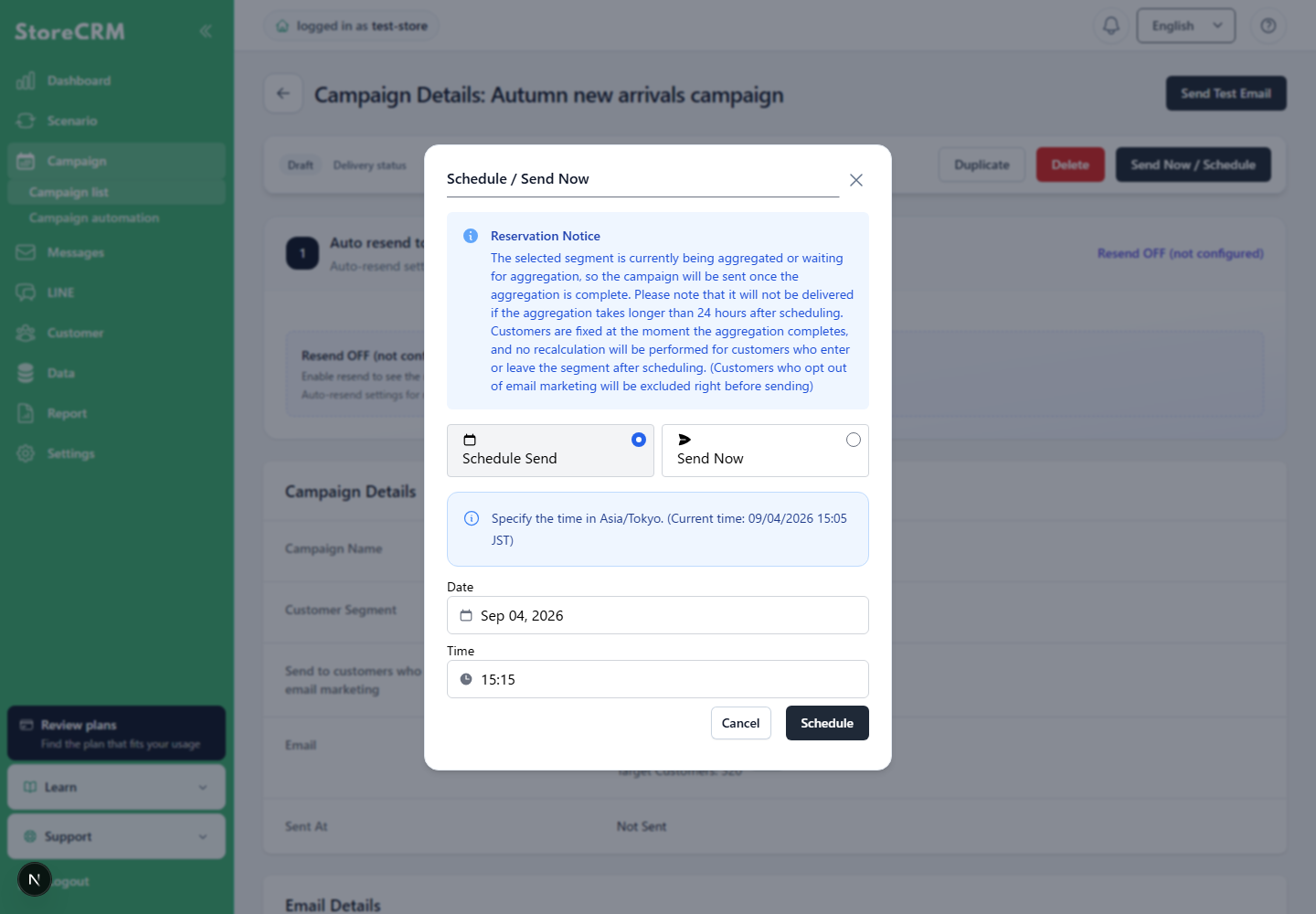
11. if you choose [Reserved for transmission], set the date.
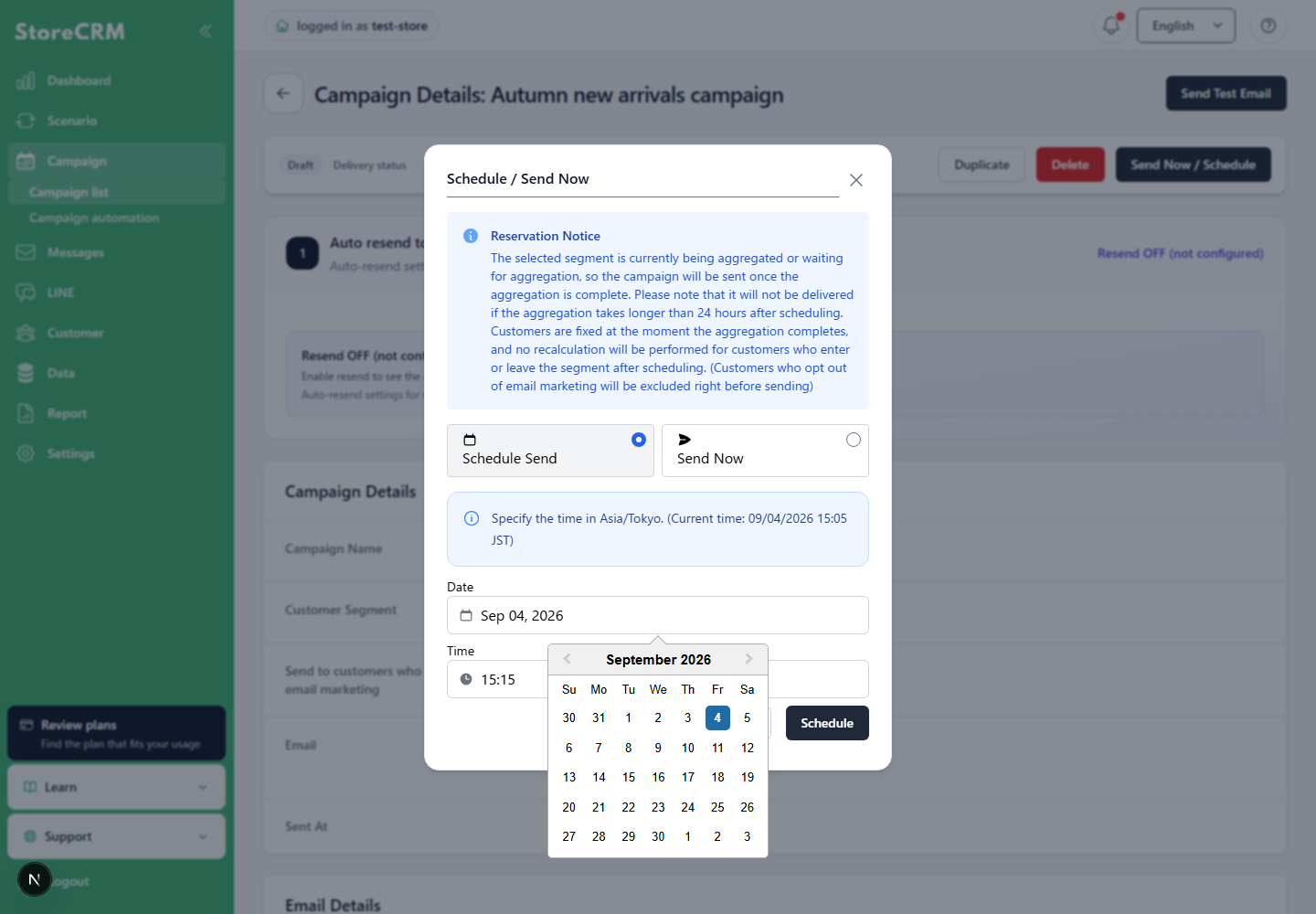
If you choose [Schedule Transmission], set the time.
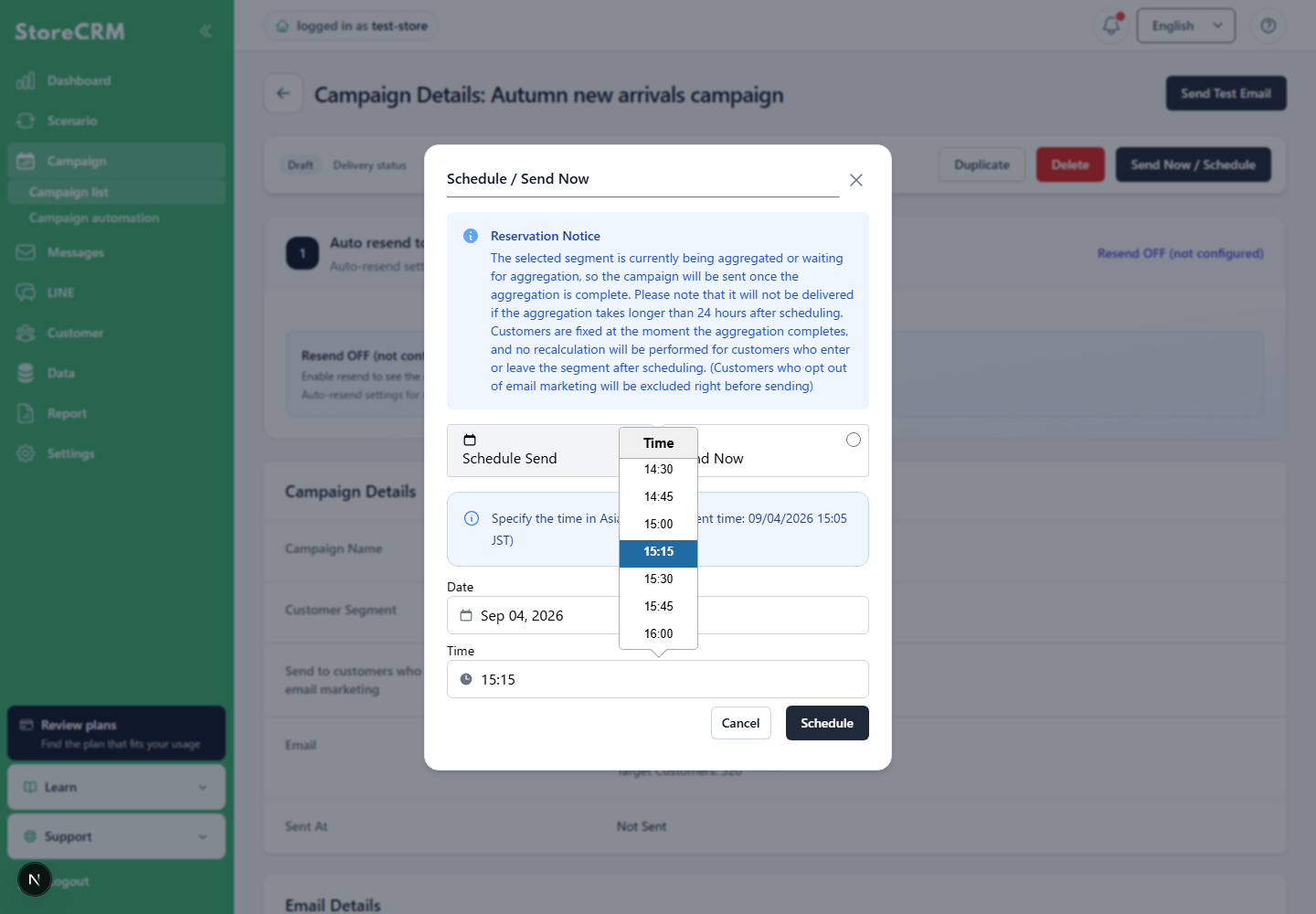
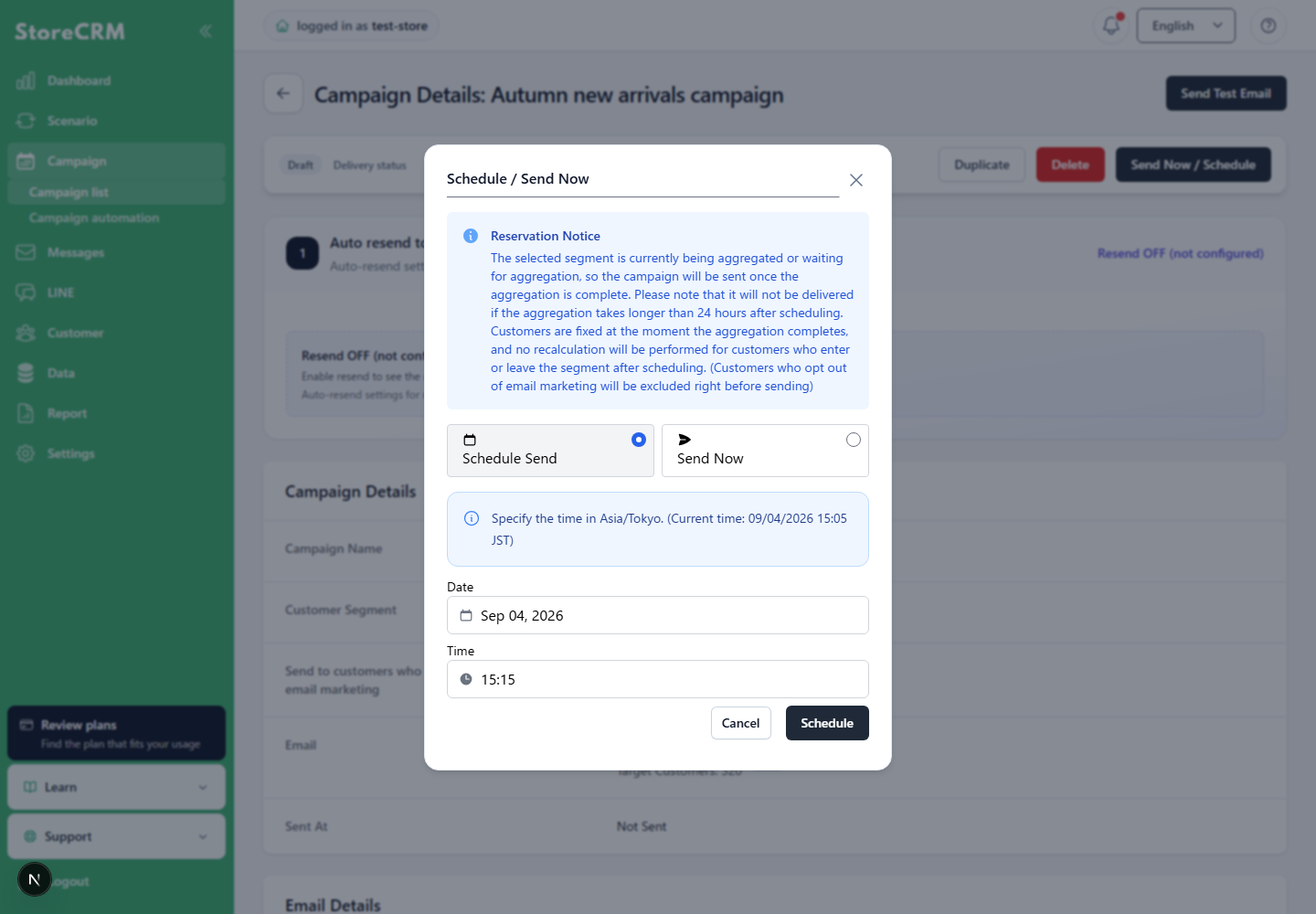
Enter the scheduled send date and time using the StoreCRM time zone setting.The campaign list and details primarily show browser time. When the browser and StoreCRM time zones differ, StoreCRM time is also displayed. Check both times before scheduling.
Click on "Make a reservation.
The reservation for sending e-mail has been completed.
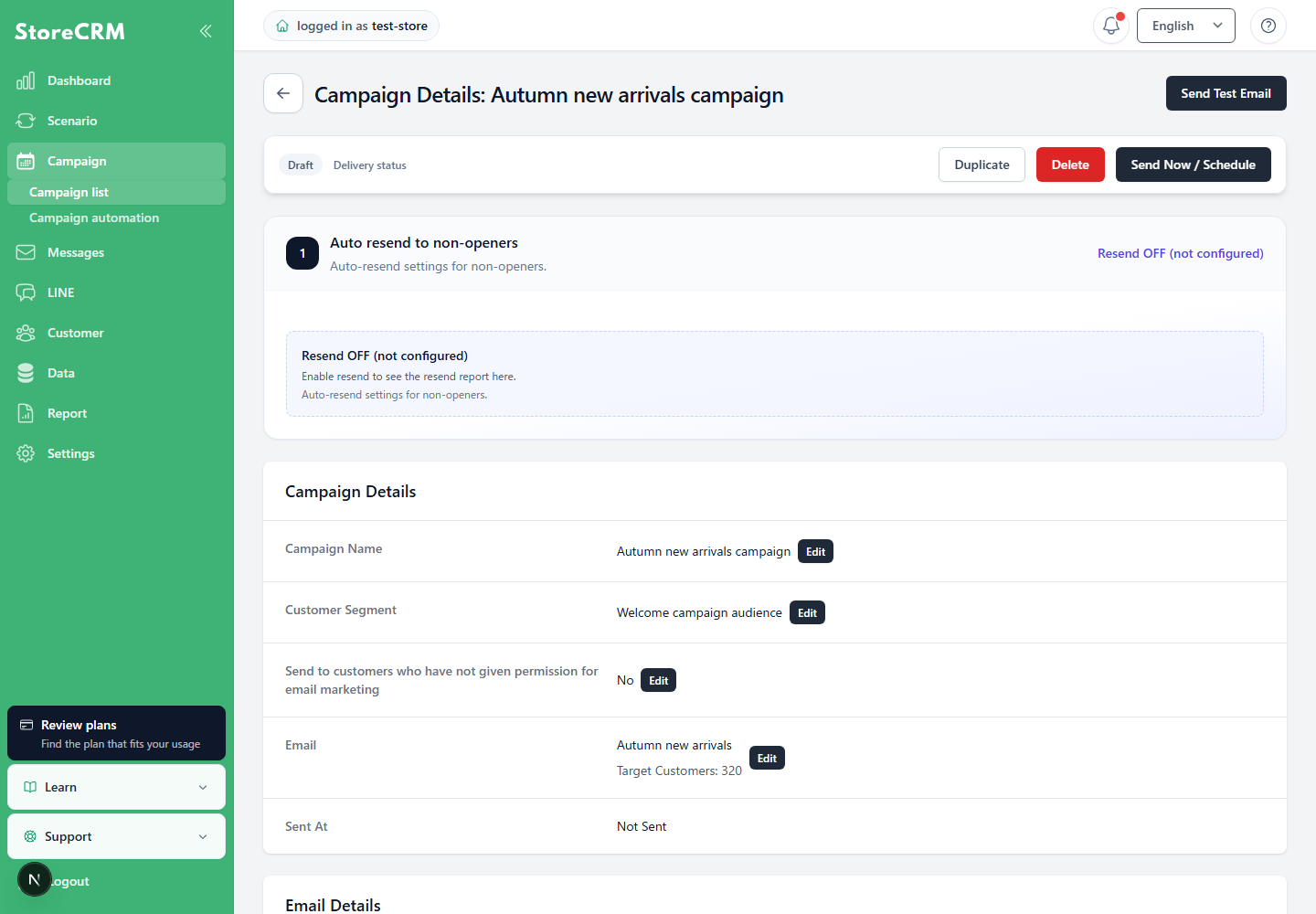
Review settings and actions on the campaign details screen
Open a campaign to review its audience, email settings, scheduled send time, and other details. Before sending, confirm that the target segment and the setting for customers without marketing consent are correct.
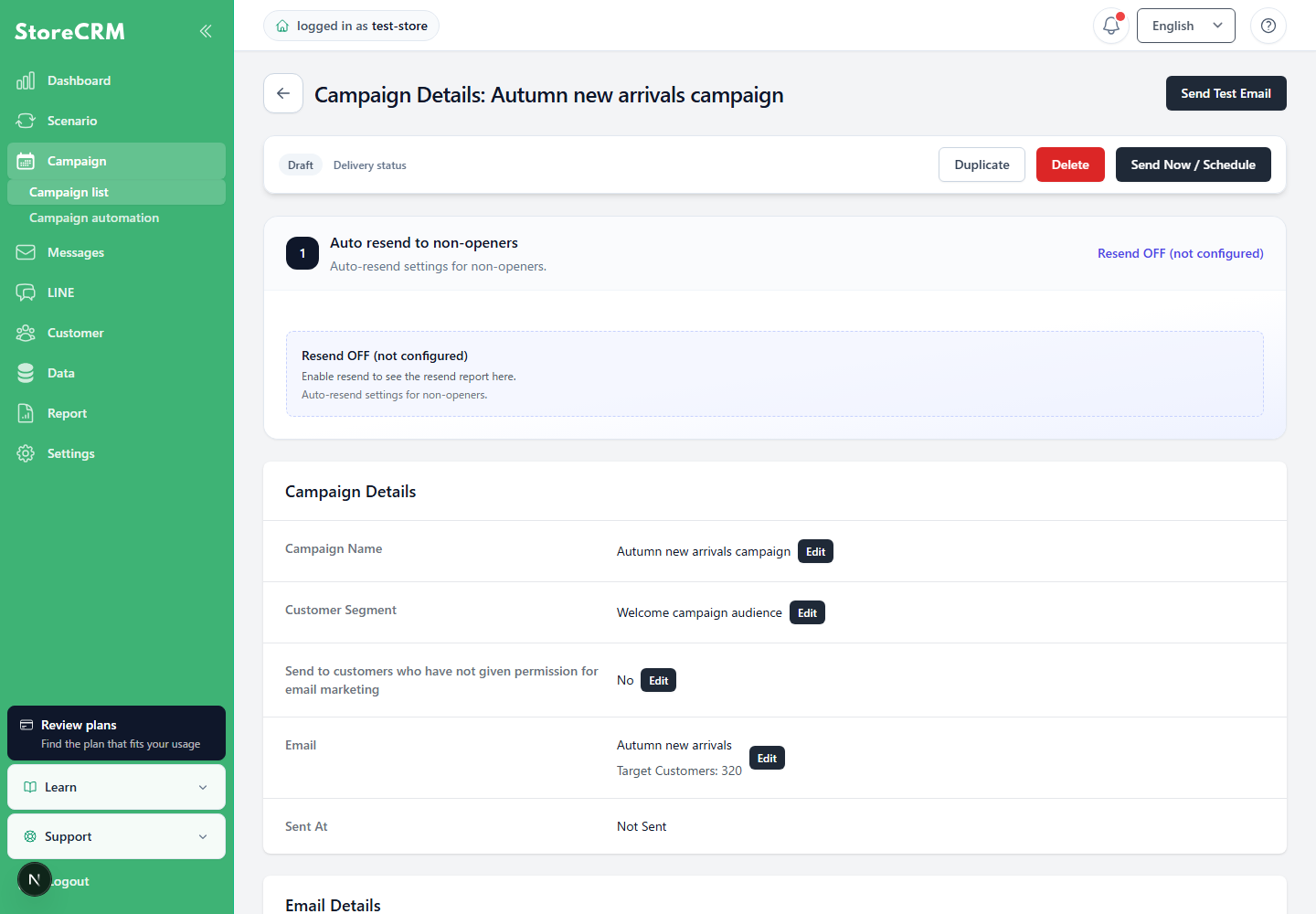
The actions at the top of the screen change with the campaign status. Only currently available actions are shown, such as edit, duplicate, delete, send now, and cancel schedule. For a duplicated campaign, confirm that sending to customers without marketing consent has been turned off.
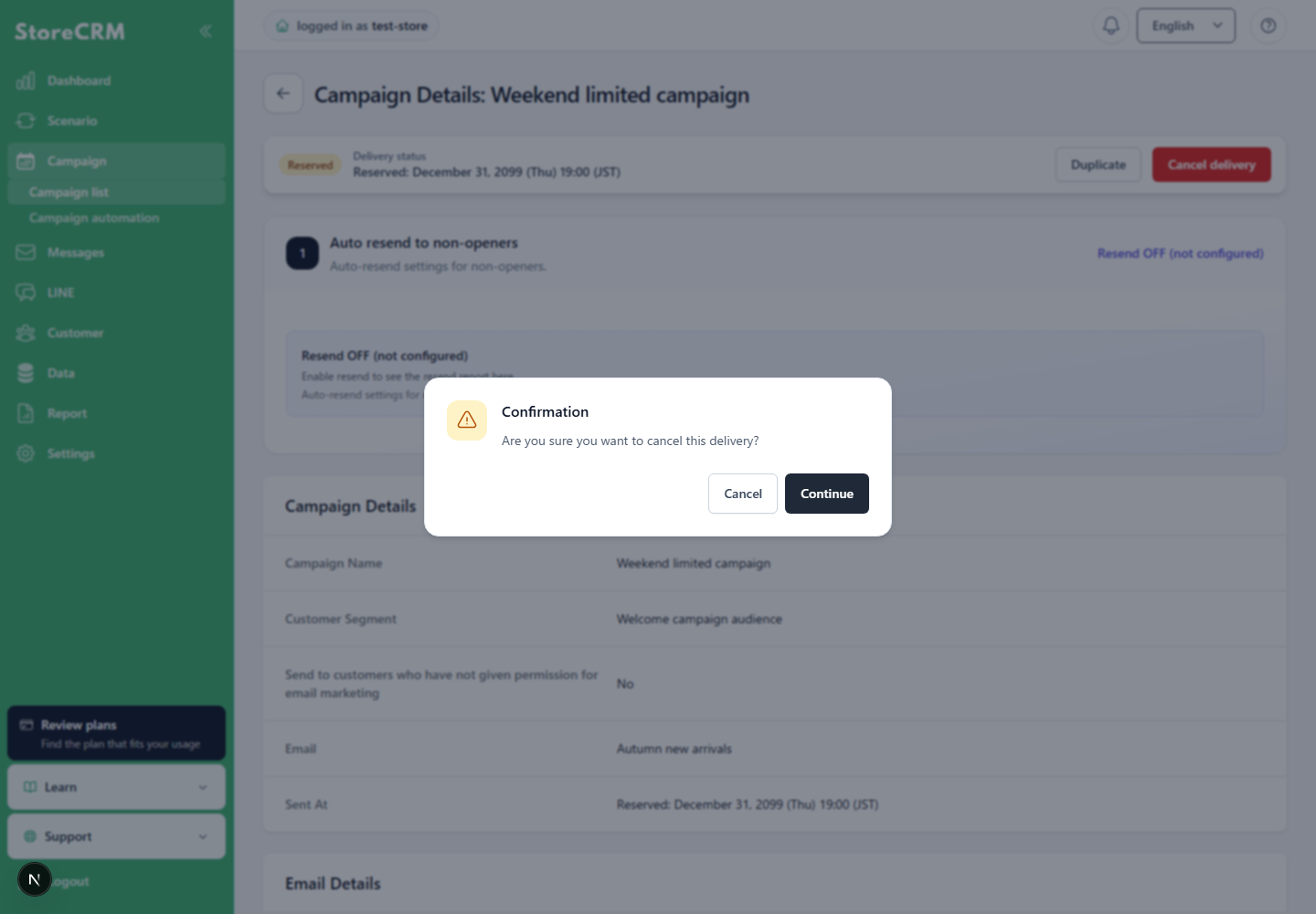
Cancel a scheduled send
For a scheduled campaign, click[Cancel schedule]to display a confirmation dialog. Review the message and confirm the cancellation. A scheduled send cannot be canceled within 15 minutes of its start time, and the cancel action is not shown while sending is in progress.
Set up customer segments
Create a customer segment to which you want to send the newsletter.
1. click on "Customer Segments" → "Create New Segment".
Set the name of the segment.
As an example, "[Limited time only] We started the Kuroge Wagyu Beef Burger Set - 20241022".
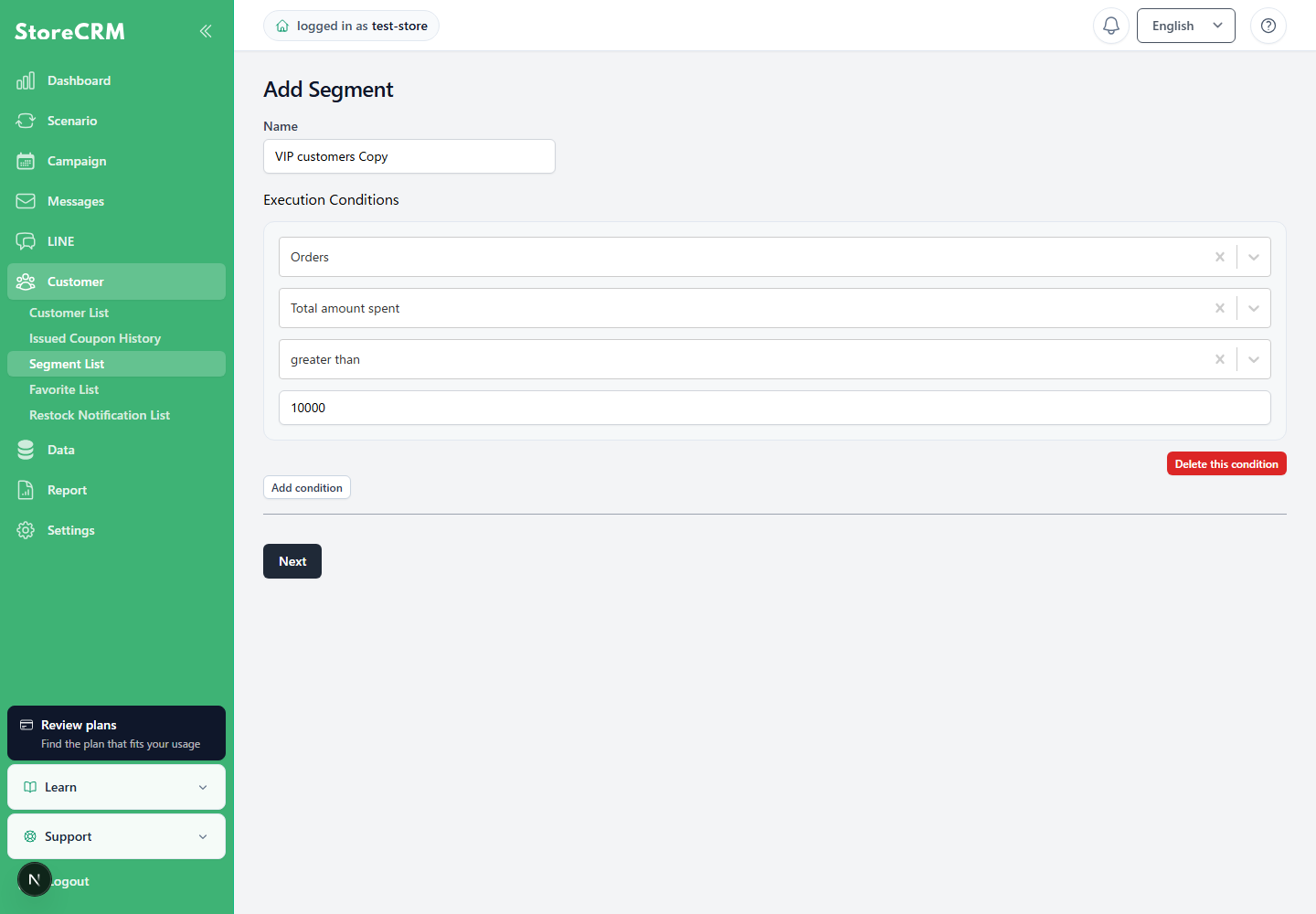
Set the execution conditions.
As an example, set up a customer who has never made a purchase.
- Customer
- Order count
- equal
- 0
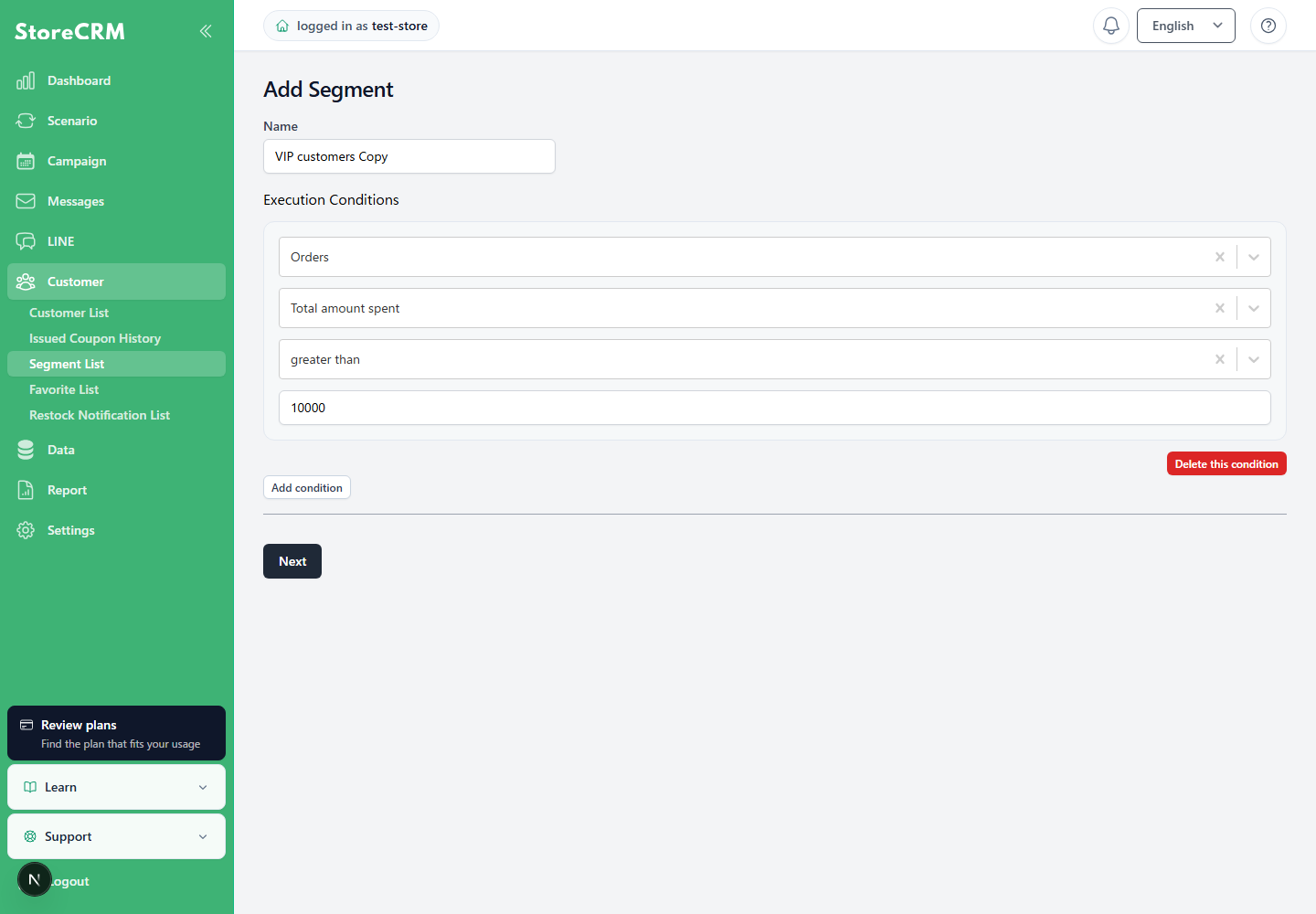
Click "Next.
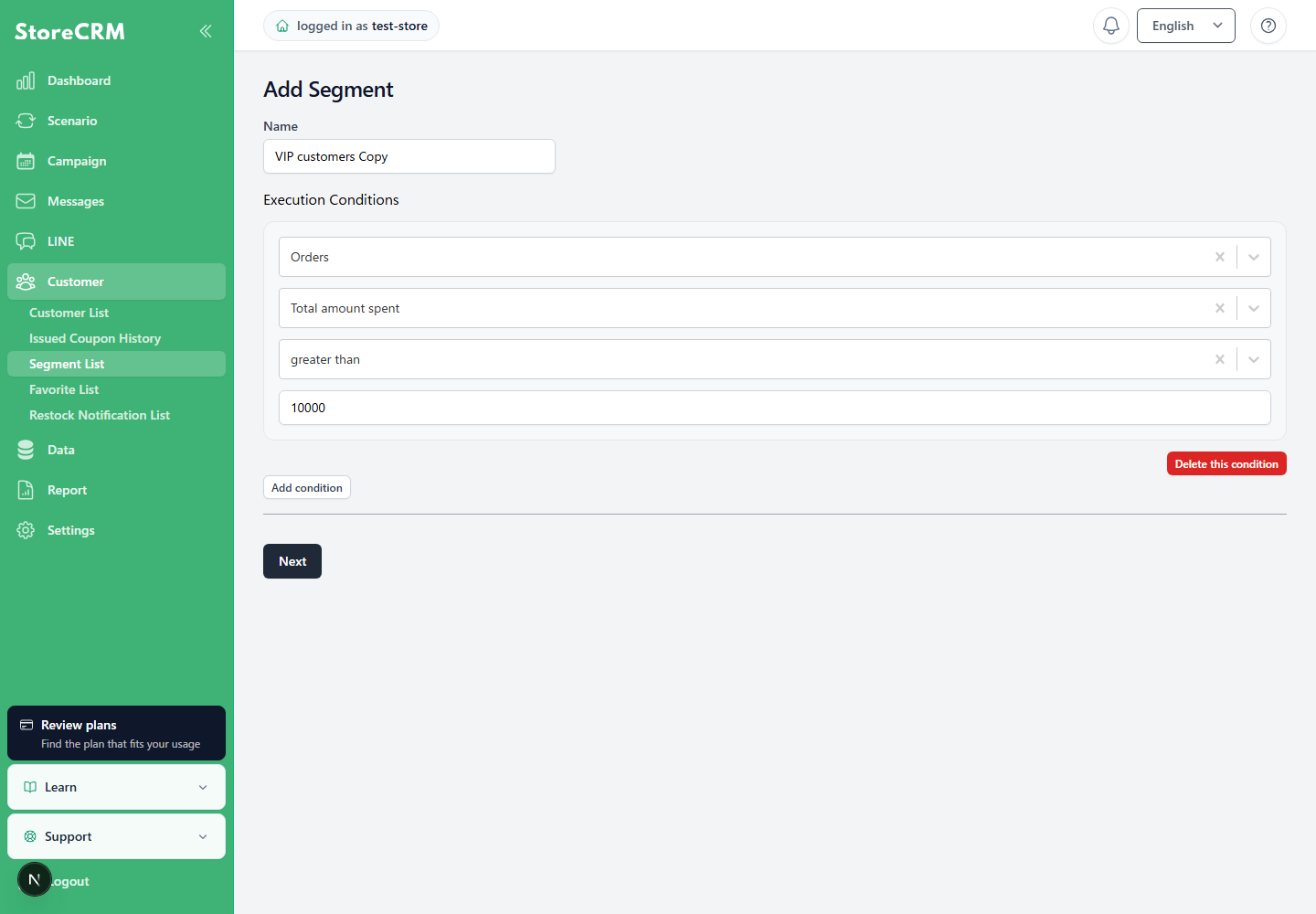
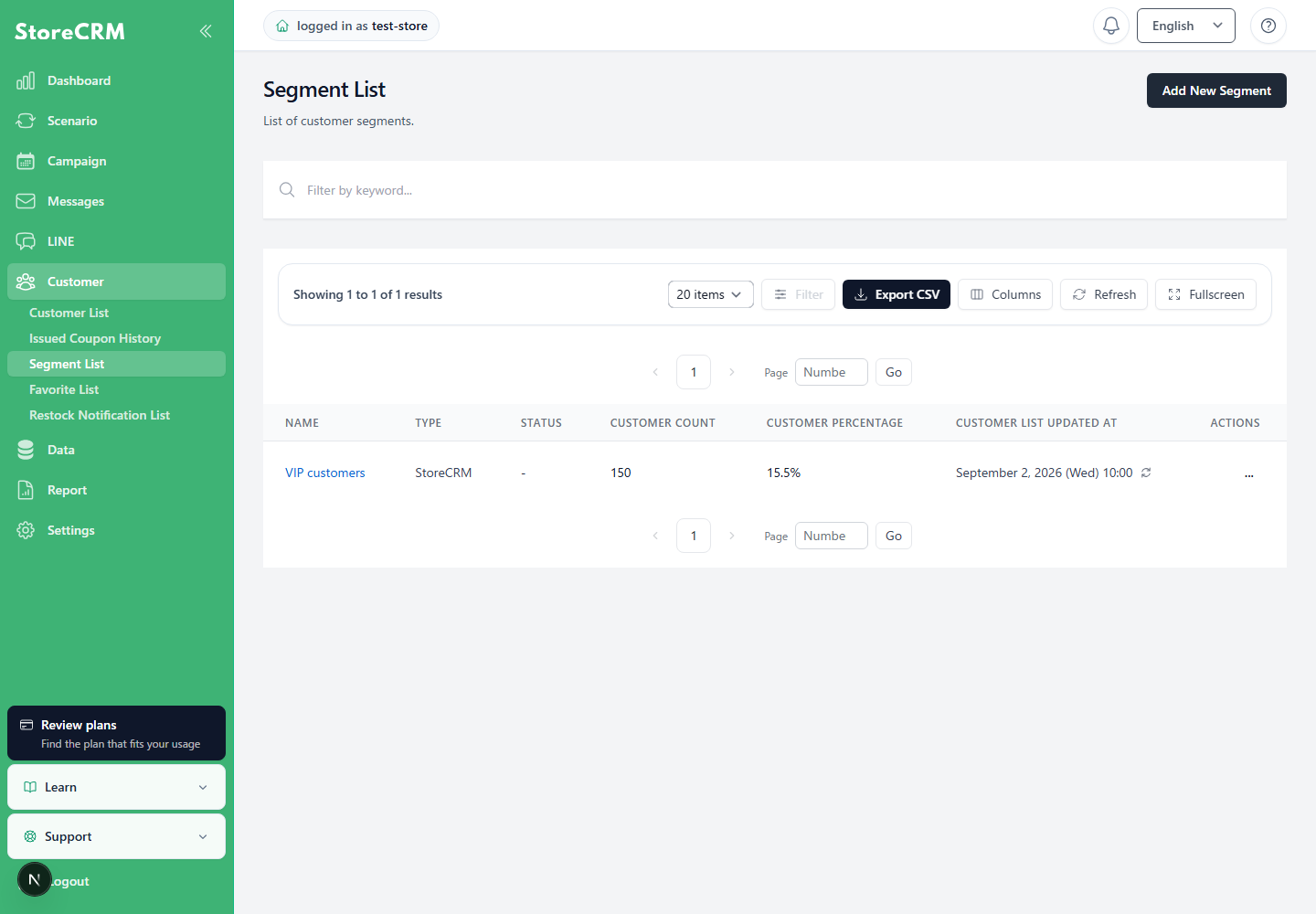
5. the customers who fit the criteria have been tabulated.
It may take some time to tally the data.
Choose the LINE bulk delivery mode
When selecting a LINE message in campaign creation or editing, you can enable efficient bulk delivery using multicast. It is off by default. Messages with customer-specific text or URLs use individual delivery. Review the audience, content, and mode, save, and test before sending.
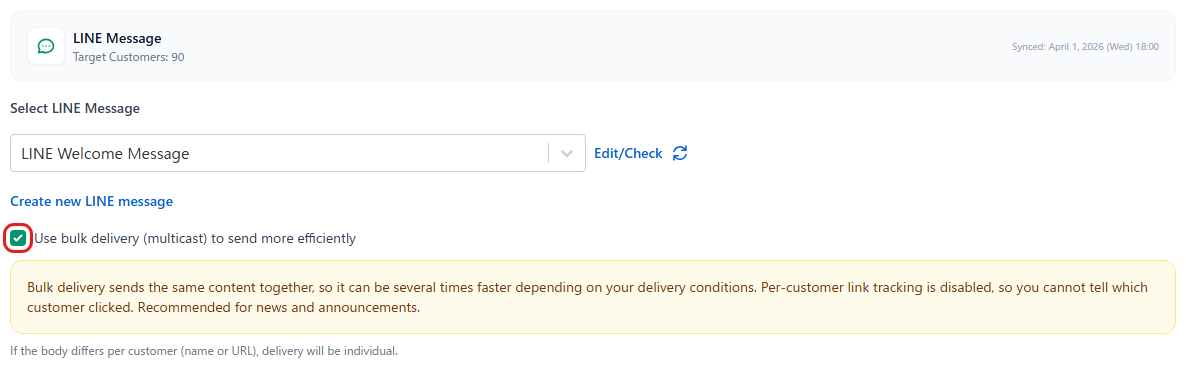
Bulk delivery with a common link attributes revenue and orders to the originating campaign and LINE message. Purchases by forwarded-link recipients or people outside the delivery audience may be included. Unidentified purchasers contribute to revenue and orders, but not purchasing customer counts or customer-specific filters. Do not interpret this as the same customer-level click measurement as individual delivery.
Check the transmission report
1. click on [Campaigns] -> "[Limited time offer] Kuroge Wagyu Beef Burger Set Hajimete - 20241022".
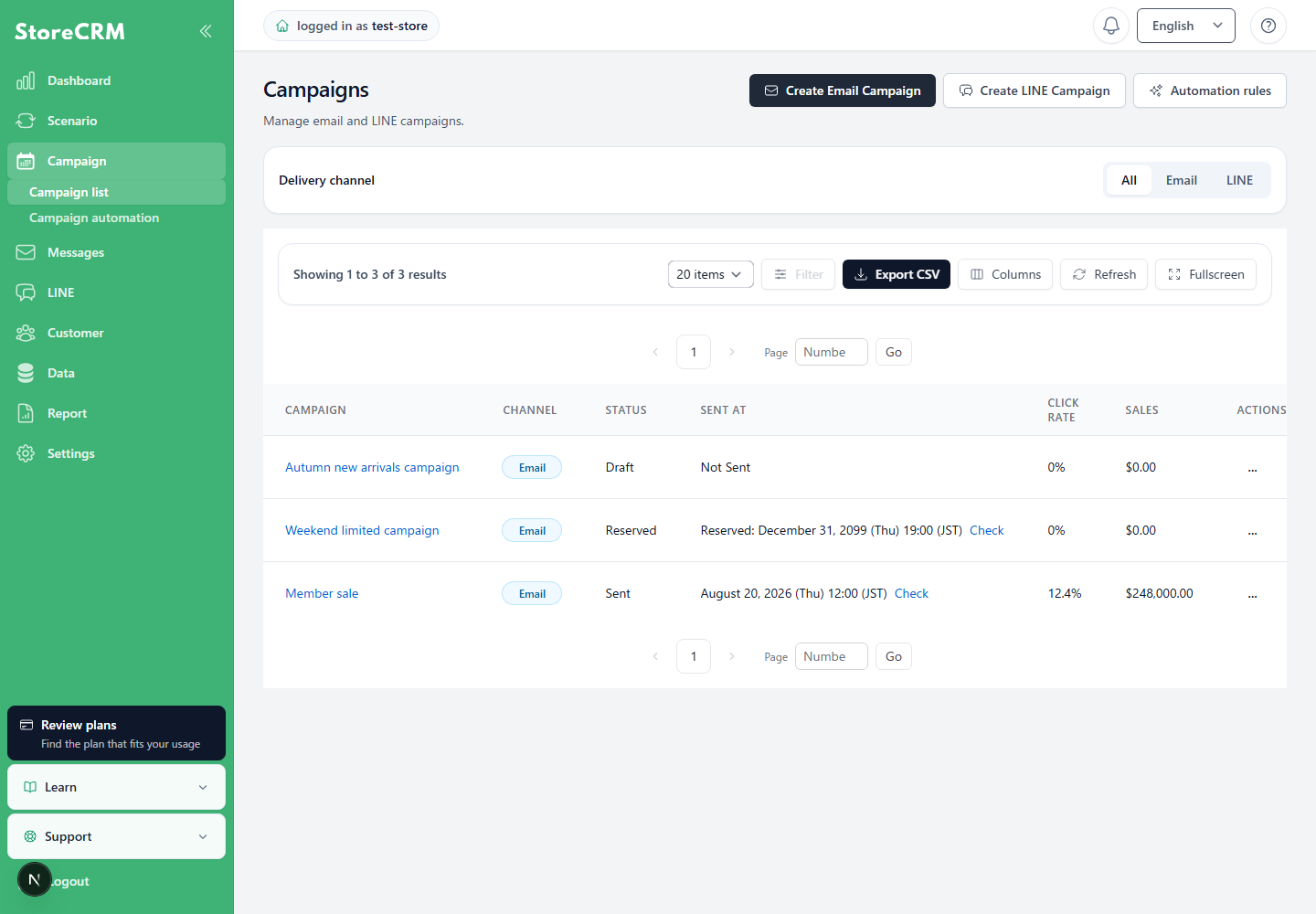
2. check the number of e-mails sent and sales via e-mail.
It may take up to 24 hours to reflect.
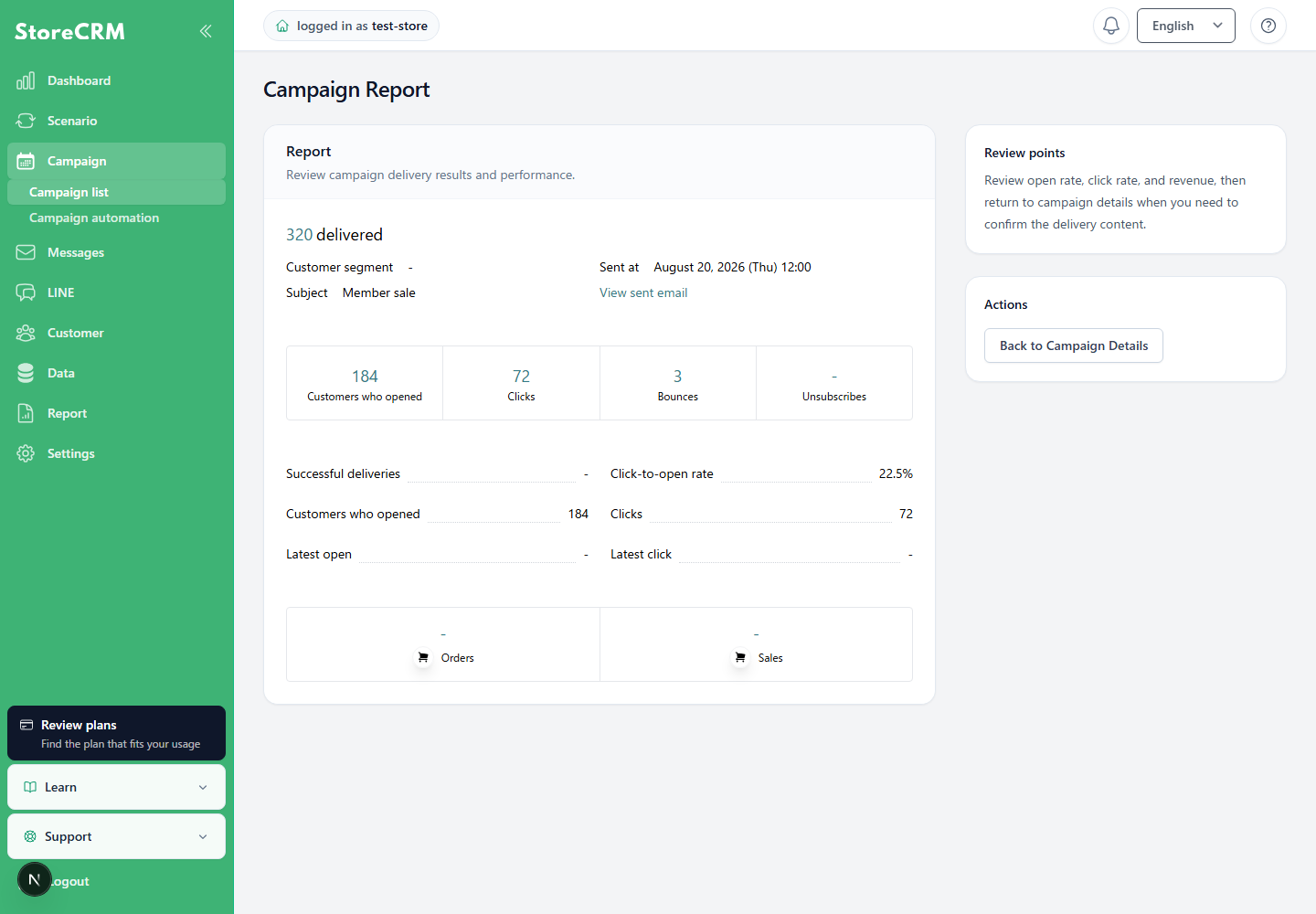
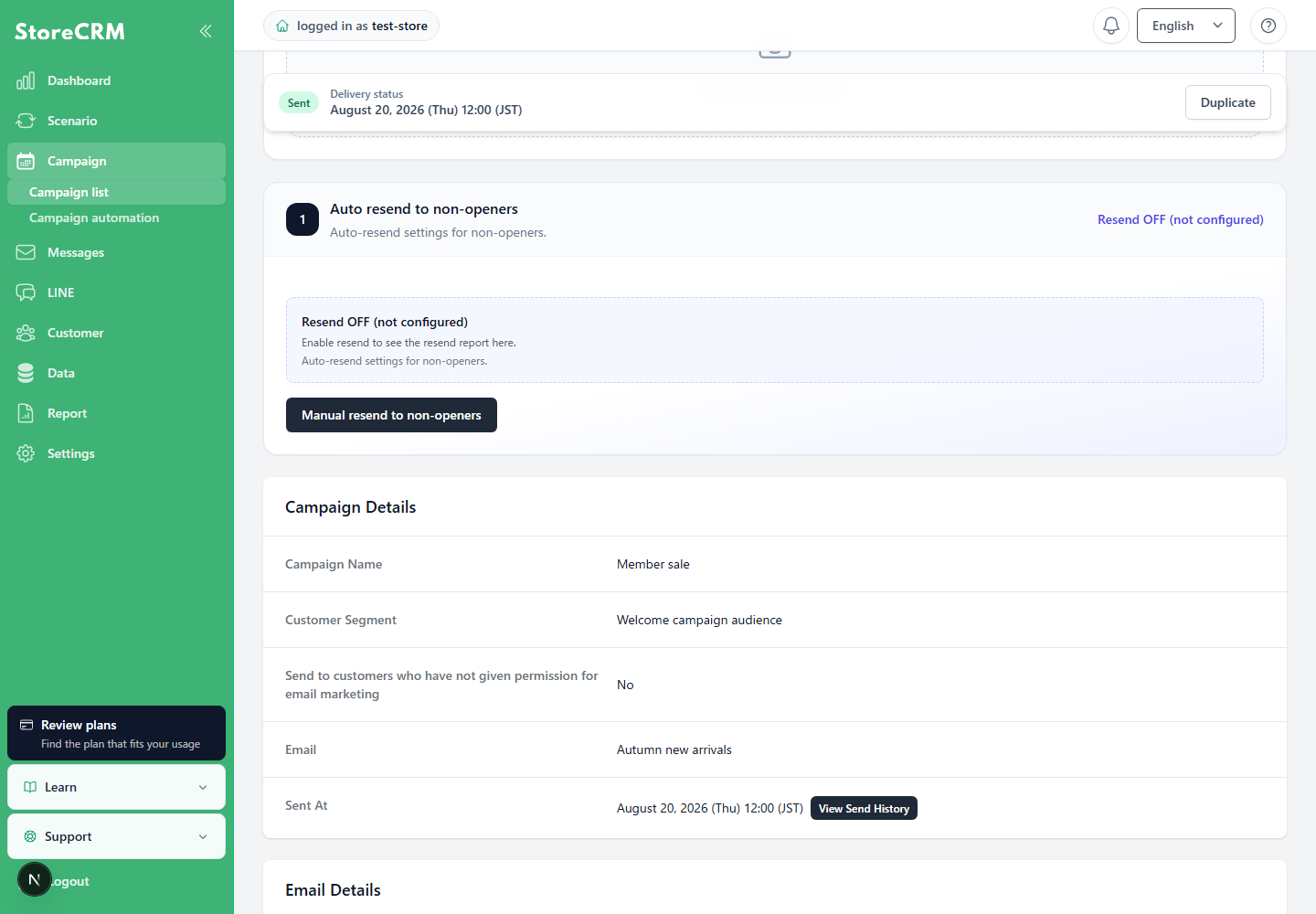
Click on "Confirm Destination List.
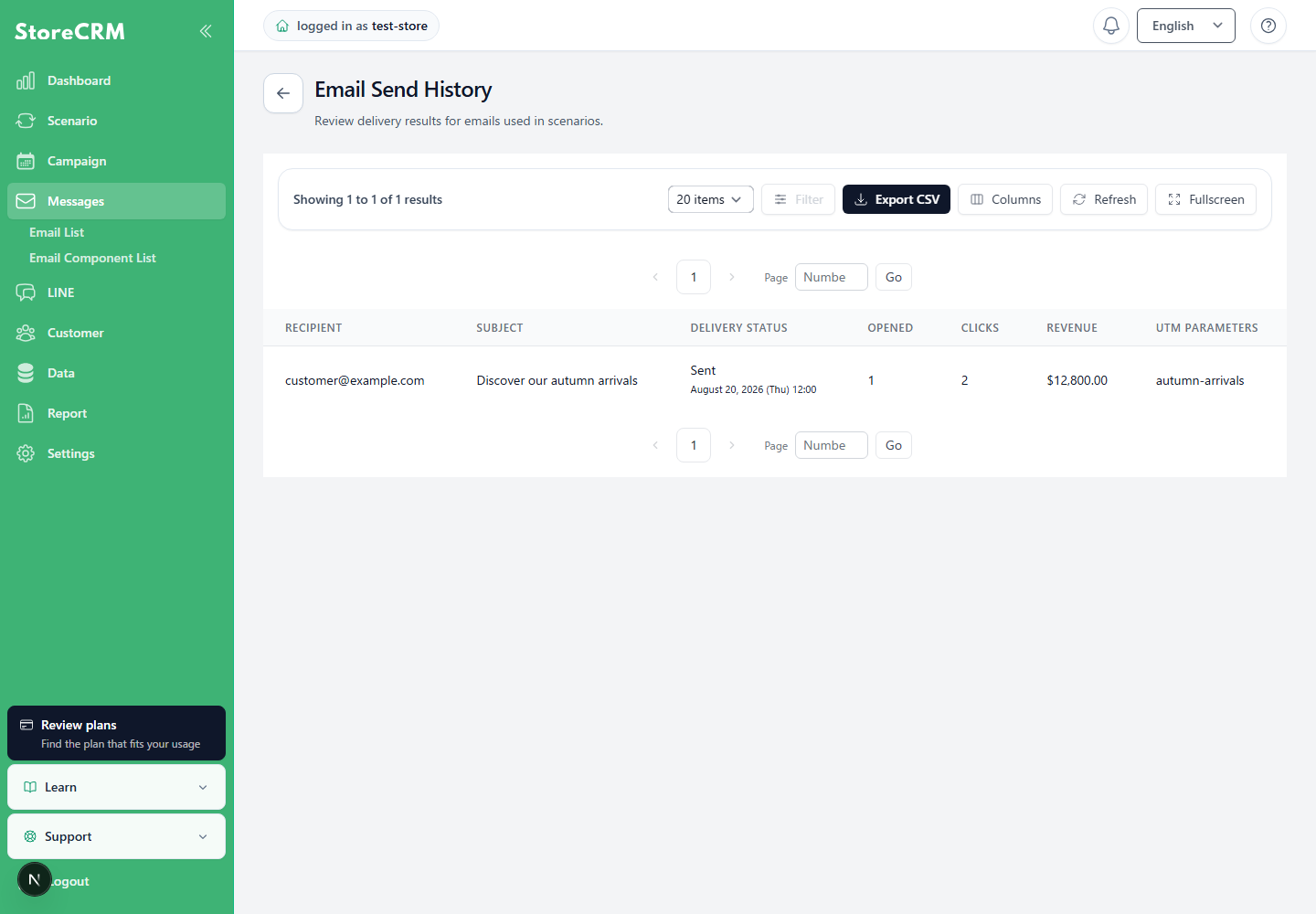
4. customers to whom the newsletter was sent and the numerical values of opens, clicks, sales, etc.
Related pages
 English
  Japanese