

The app fee will appear on your regular Shopify subscription invoice.
Therefore, you will pay by the payment method you have registered with Shopify.
For more information, please see the following section.
Frequently asked questions regarding billing information
Check not-billed entries in add-on billing history
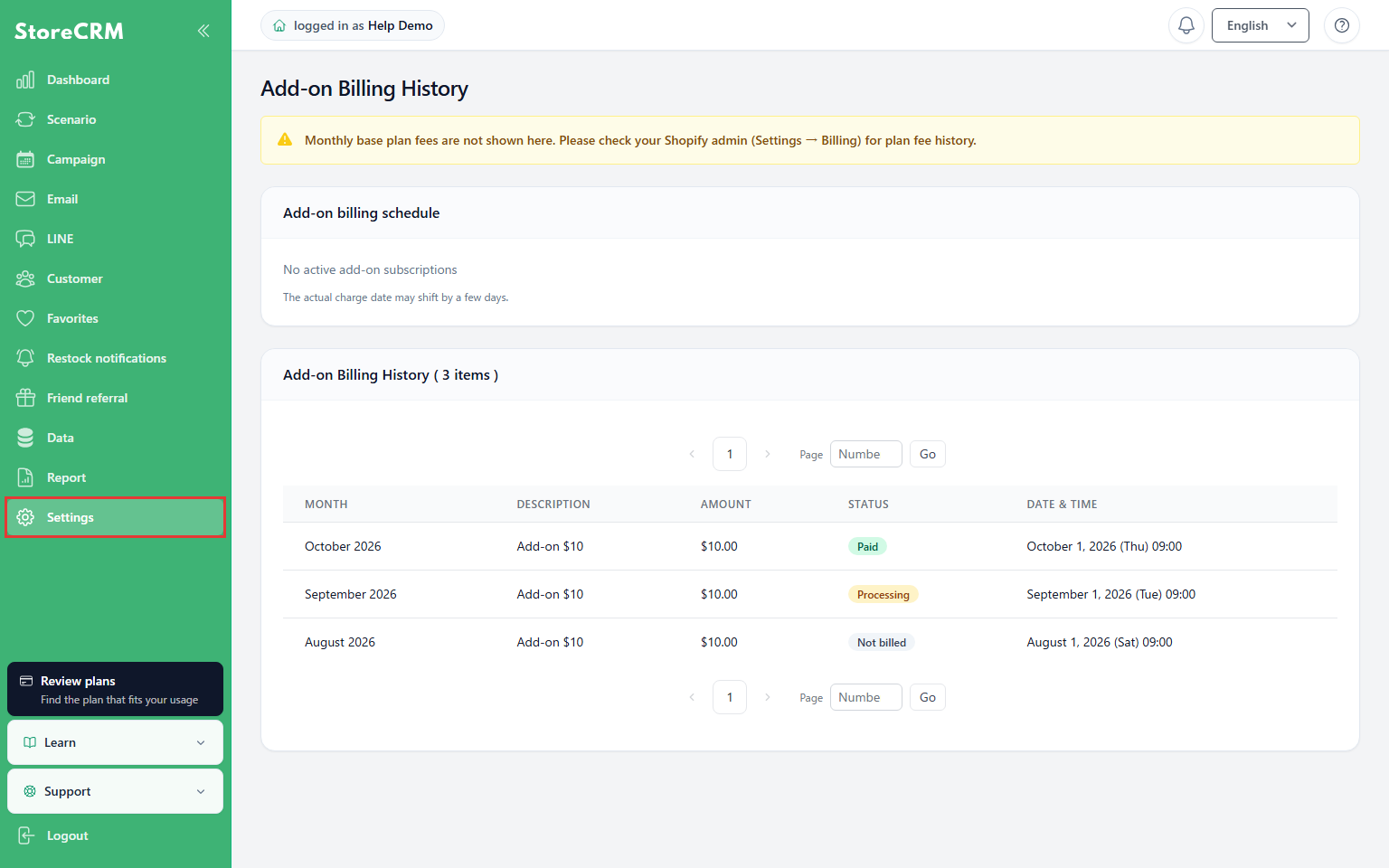
1. Open Settings
Where: StoreCRM left navigation
Click Settings.
Check: The settings menu opens.
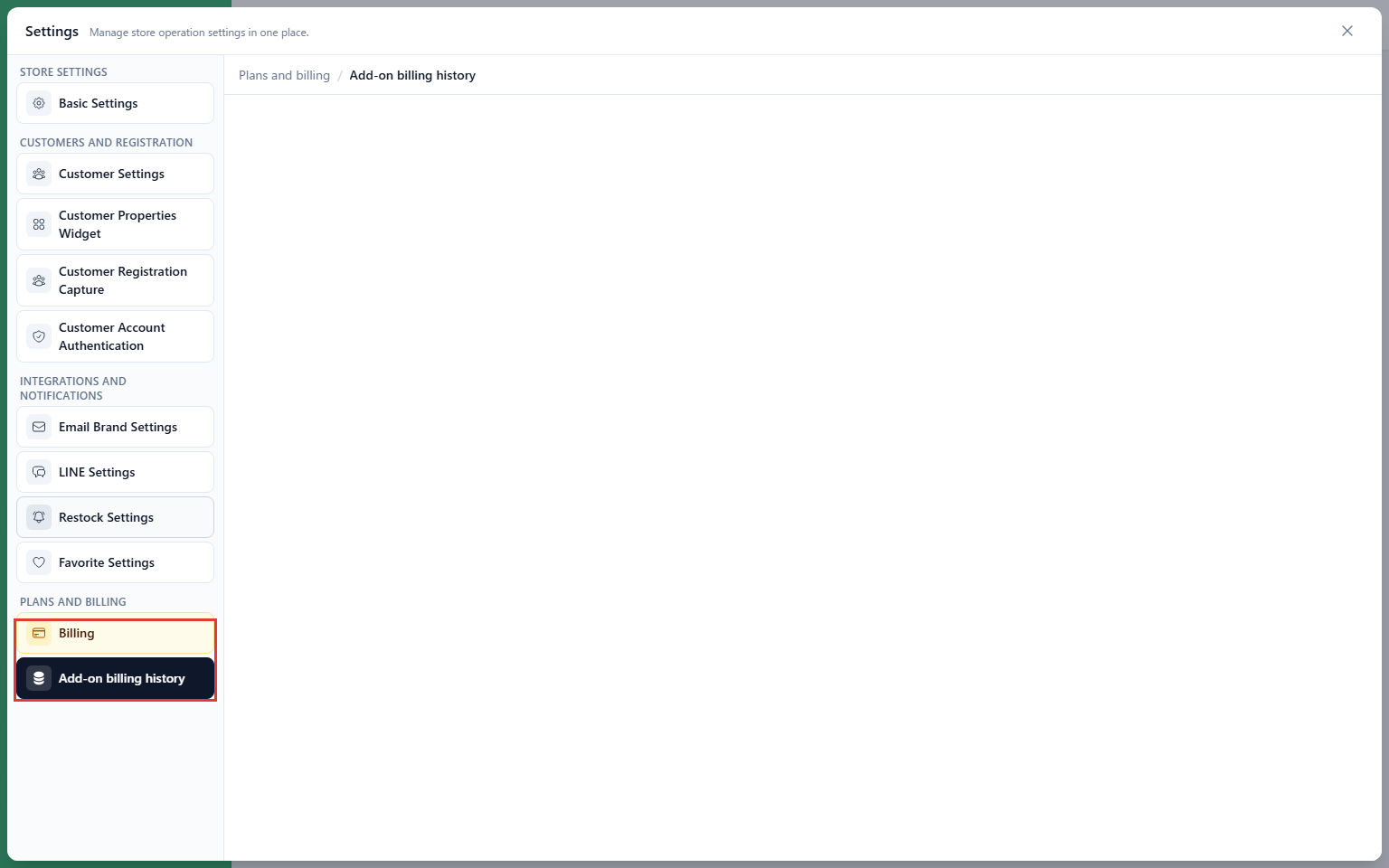
2. Select add-on billing history
Where: Plans and billing in Settings
Select Add-on billing history.
Check: Add-on billing schedules and history appear on the right.
3. Review the billing status
Where: Add-on billing history table
Match the billing period and description with the status. Distinguish 3 Not billed from Processing.
- 1 Paid — The add-on charge has completed.
- 2 Processing — The charge has not yet been confirmed as paid.
- 3 Not billed — The period closed without a charge, for example when an old period is skipped after the shop becomes available again.
Check: The example shows paid, processing, and not-billed entries.
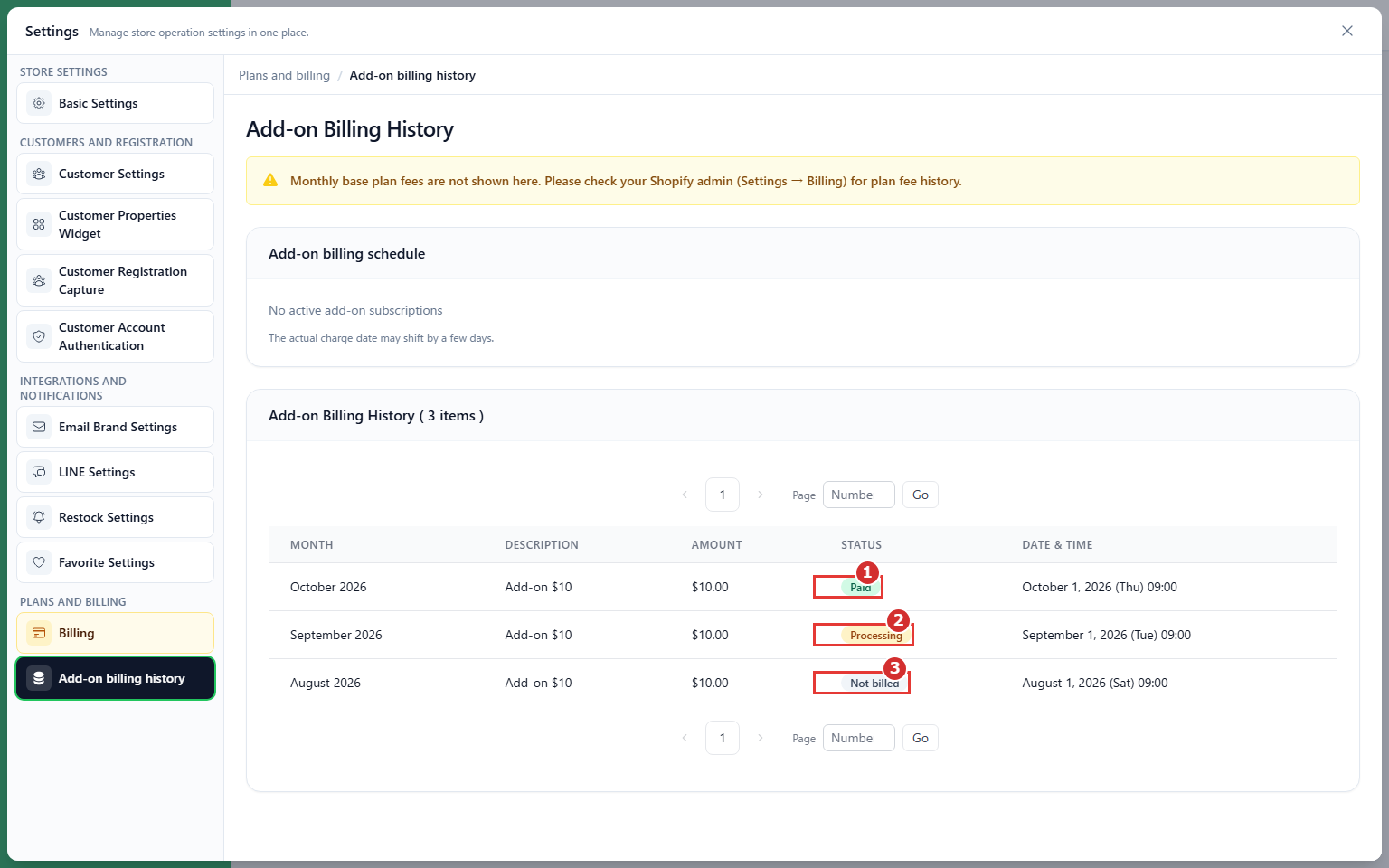
This screen contains add-on history, not the base monthly plan fee. Not billed does not indicate a refund of a previously paid charge or cancellation of the add-on.
Related pages
 English
 Japanese