

To add the Favorites feature to the product detail screen in Shopify, do the following
1. Introduction
This article explains the specific settings and notes for adding Shopify's "Favorites Feature" and "Favorites List Screen" using StoreCRM.
Introducing a "favorite" function to an e-commerce site is an important measure to improve the customer experience, as it saves customers the trouble of having to re-search for products they are interested in and makes it easier for them to find related products and special offers that interest them, starting with their favorite products.
The management can also improve the accuracy of marketing strategies by understanding the interests and needs of each customer, and create additional sales opportunities through additional proposals and campaign invitations (cross-selling and up-selling) based on favorite products.
StoreCRM does not require the introduction of other applications for the favorite function, and everything from the favorite function to measures using the favorite information can be realized only with this application.
The favorite function is beneficial to both the customer and the management, so we encourage you to implement it.
memo
This article will use the Dawn theme, a free theme.
Paid themes and customized themes may have different file structures.
Inquiry FormPlease feel free to contact us from
2. introduction of a favorite function (favorite button)
Goal of this item
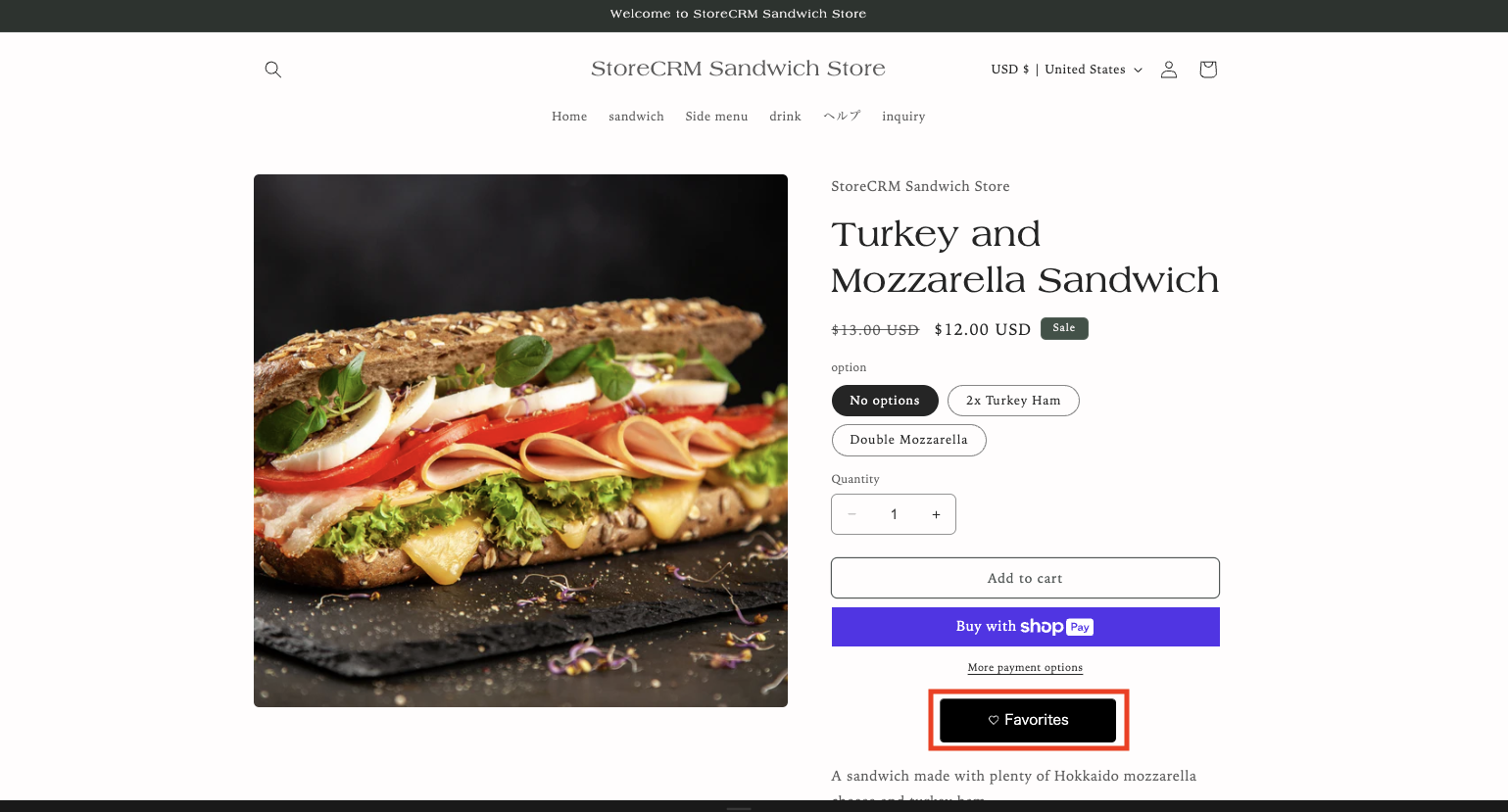
First, let's check the completed screen of the favorite function (favorite button) to be implemented this time.
The button in the red frame is the favorite button.
Open the theme customization screen for the implementation location.
attention (heed)
Since you will be editing the theme in the steps ahead, we recommend that you select "Duplicate" to copy the theme and edit the copied theme if you are unsure.
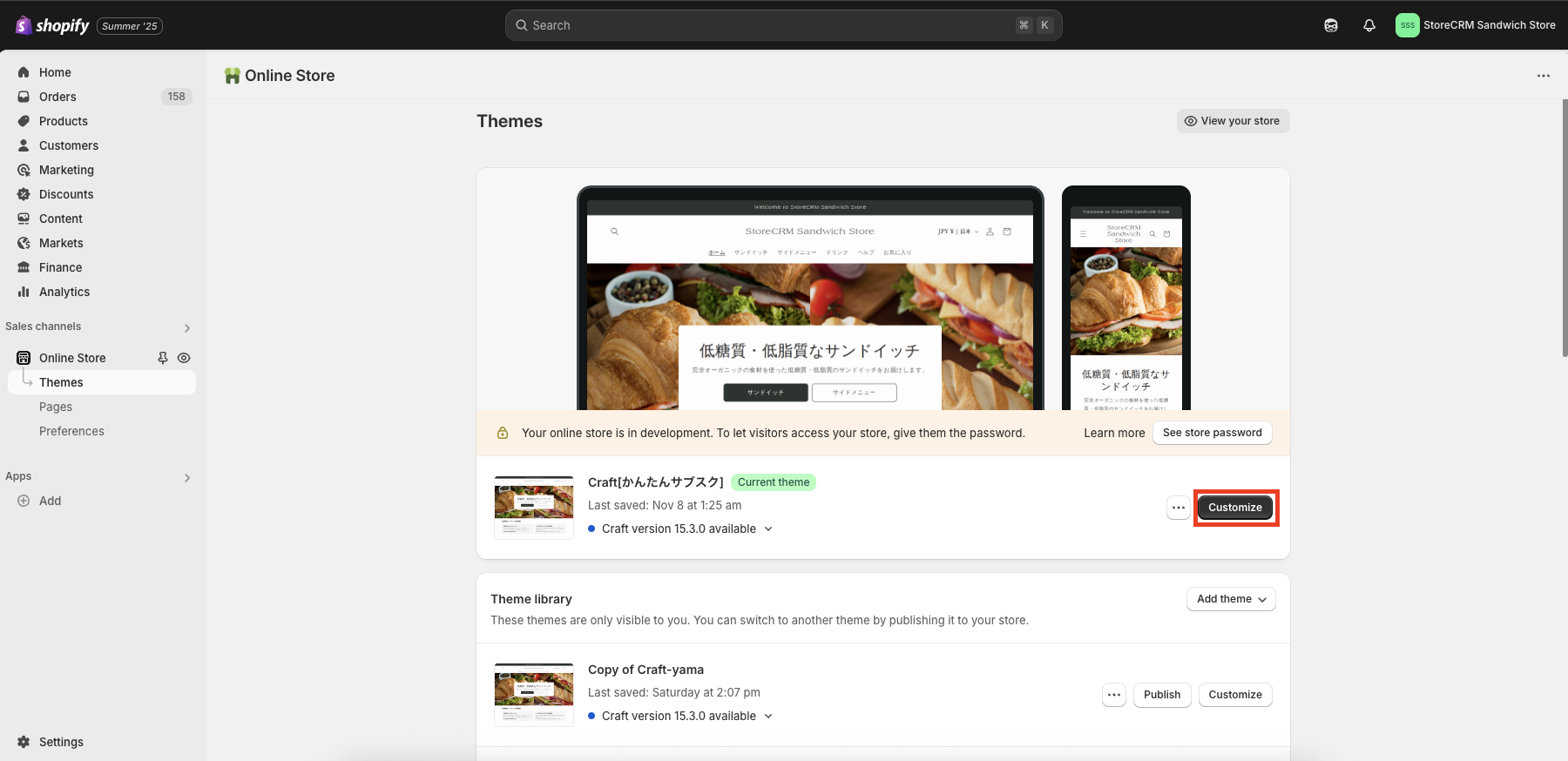
➀Go to [shopify admin] > [Sales Channels] > [Online Store] > [Themes] to open the list of themes.
Click Customize to the right of the theme you wish to edit.
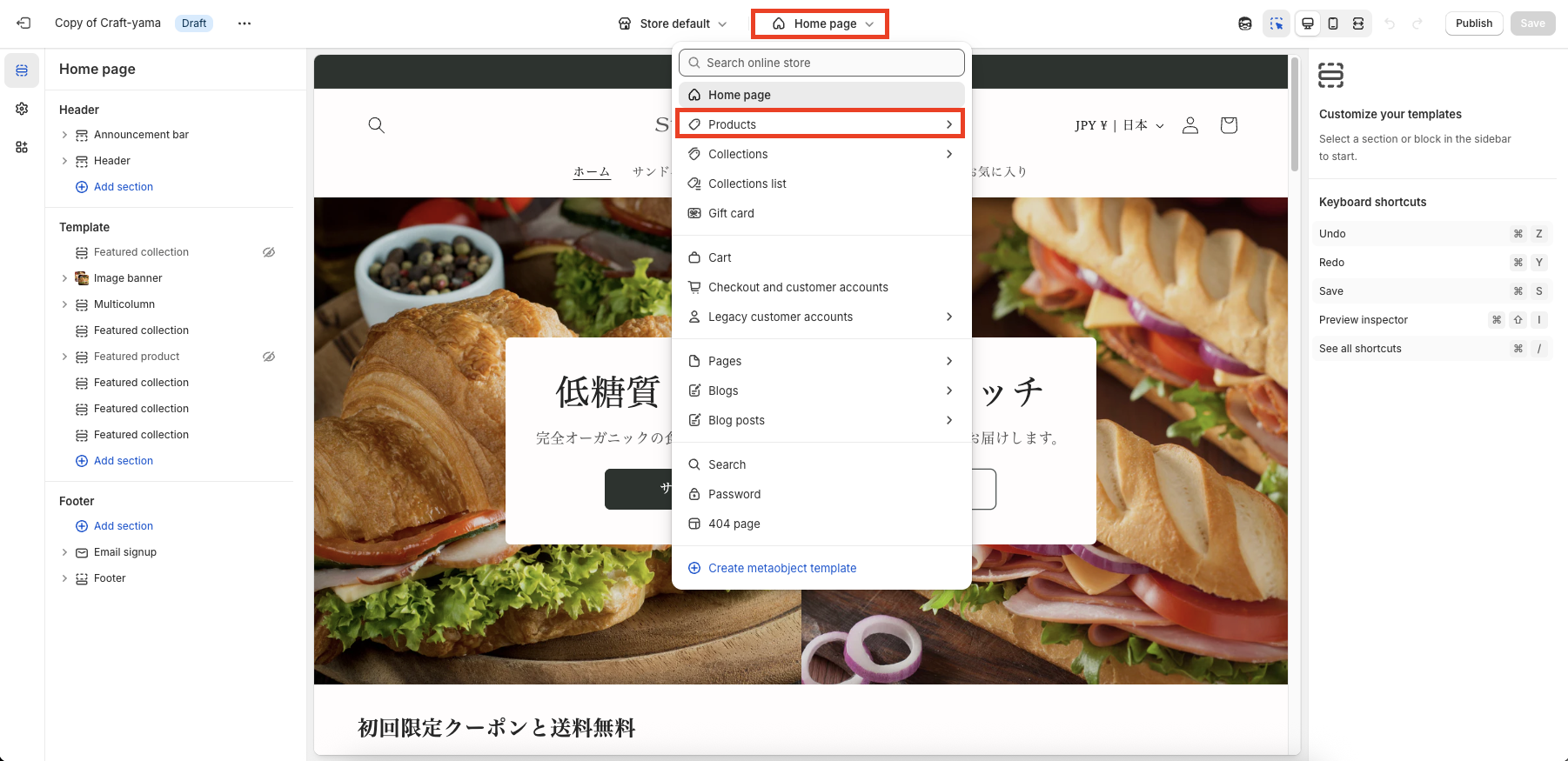
➁Click [Customize] to go to the theme customization screen. In this case, we will edit the product details screen, so click [Home Page] > [Products] at the top of the page.
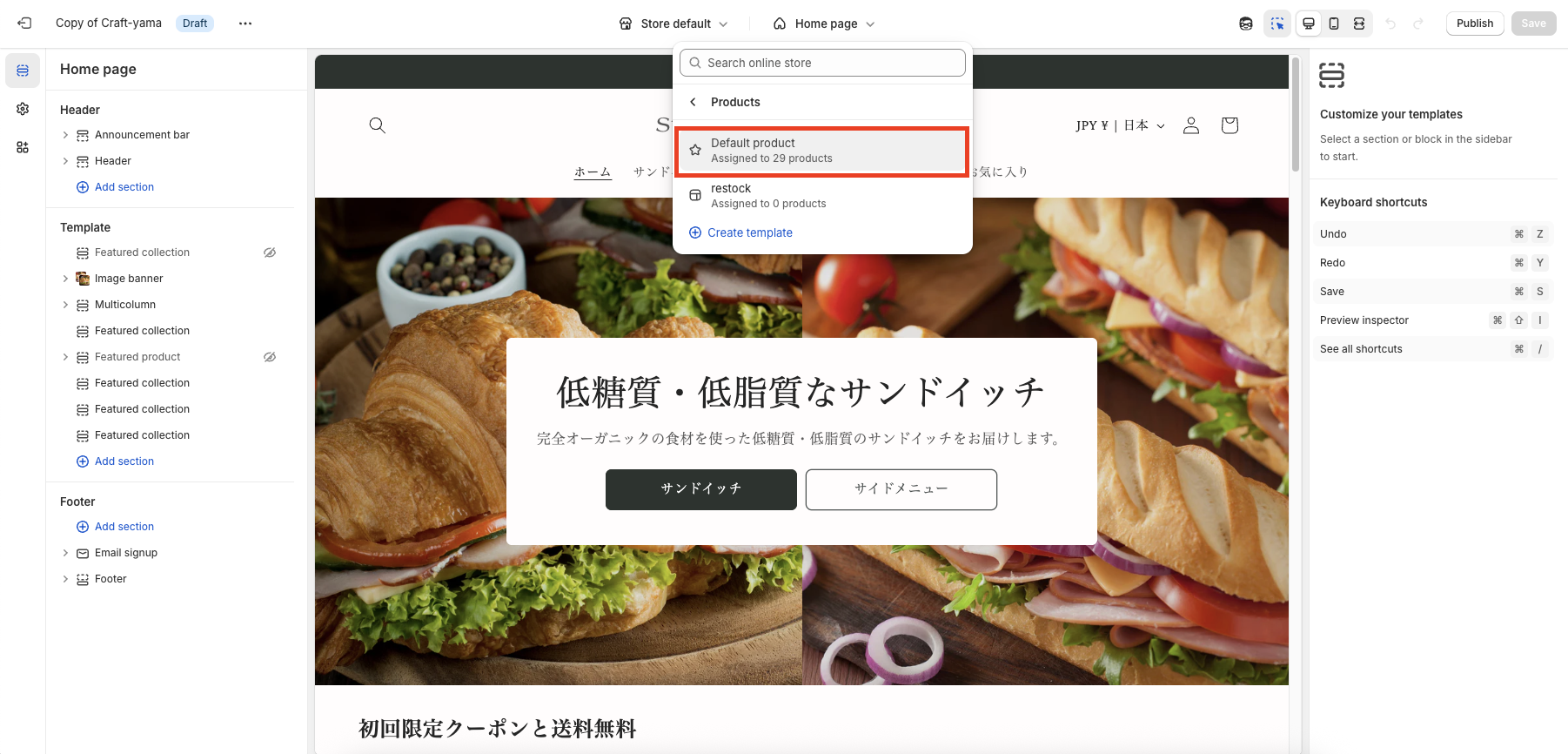
Click [Products] to see the list of templates for product detail pages, and select the template for which you wish to introduce the Favorite Button function.
If you want to apply the favorite button only to specific products, you can create a new template by copying an existing template from [Create Template], and introduce the button to the template you have created. In this case, we will create a template named [Default Products] and apply it.
Add an application block for the favorite function (favorite button)
- No code implementation is required to install the favorite function (favorite button) if you are using Theme 2.0 or later.
- This can be implemented by adding a theme block for the application, which will be explained in this section.
- If you are using Theme 1.0, you will find the following information on the product detail pageAdd codeThe following is a list of the most important factors that need to be taken into account when making a purchase.
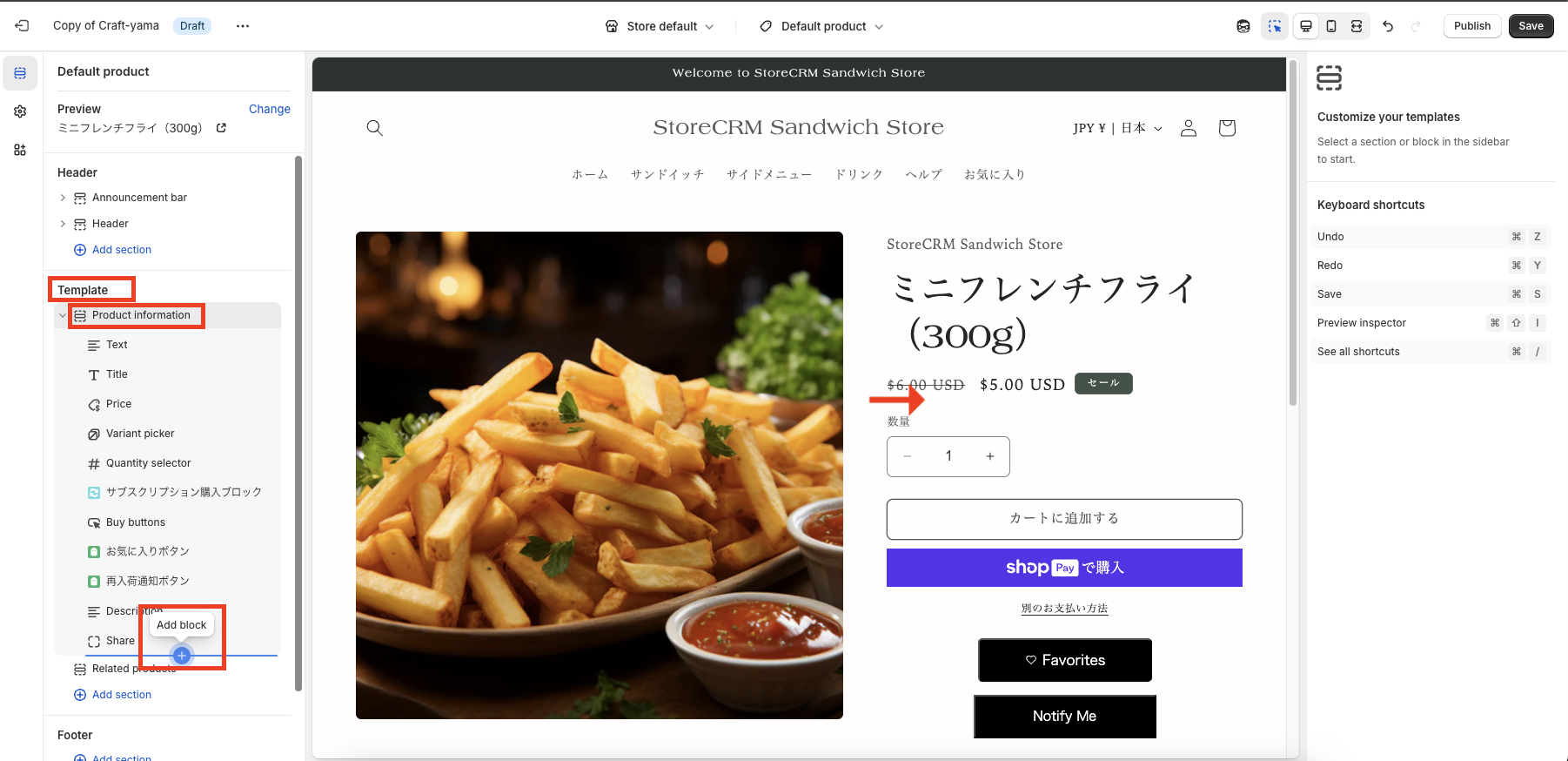
➀First, decide where you want to place the restocking notification button.
This time, we will place it at the bottom of [Product Price]. First, click [Product Information] > [Add Block] in the left menu.
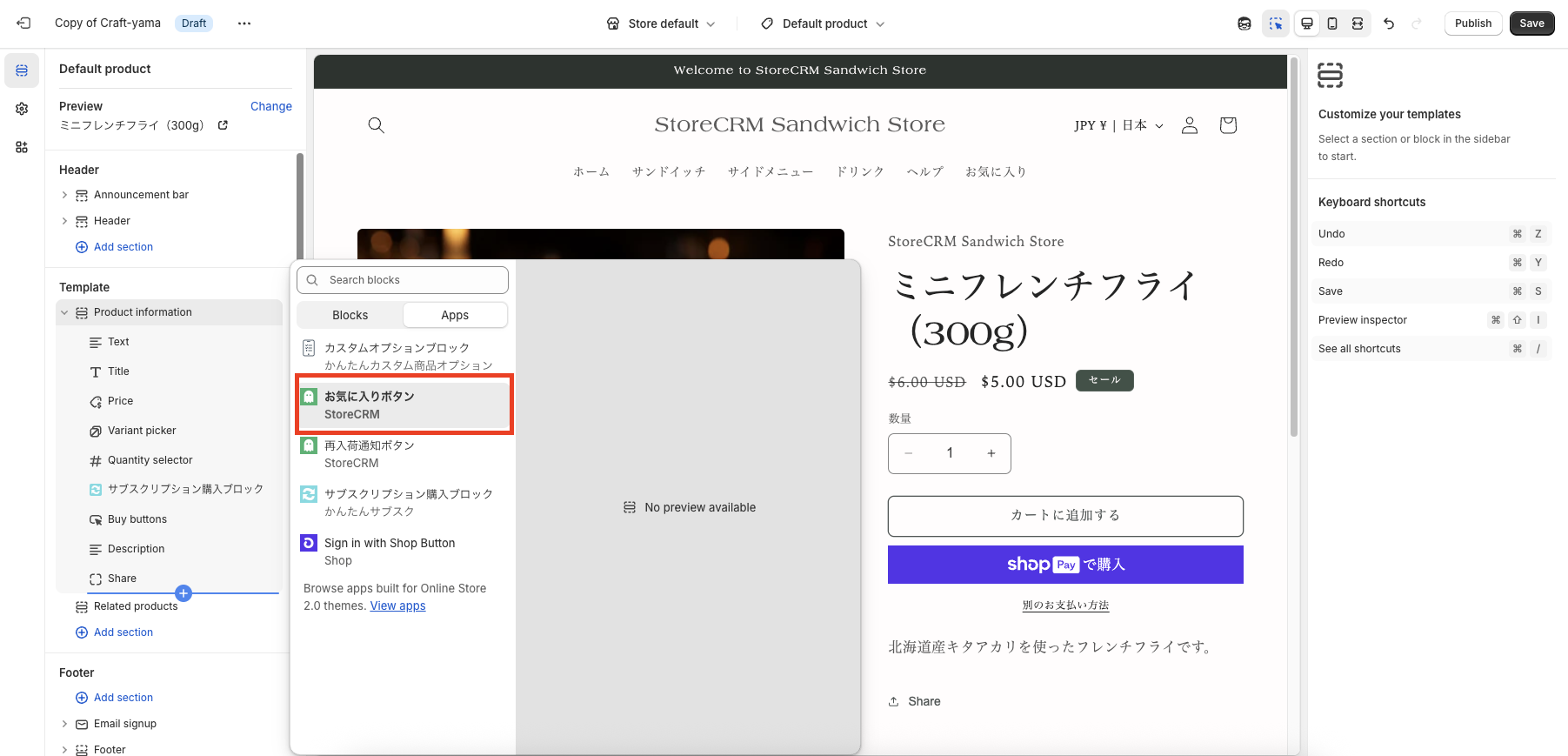
➁The block list will appear, switch the tab at the top to [Block]>[Apps].
In the application, click on the Favorites and Restock Notification button.
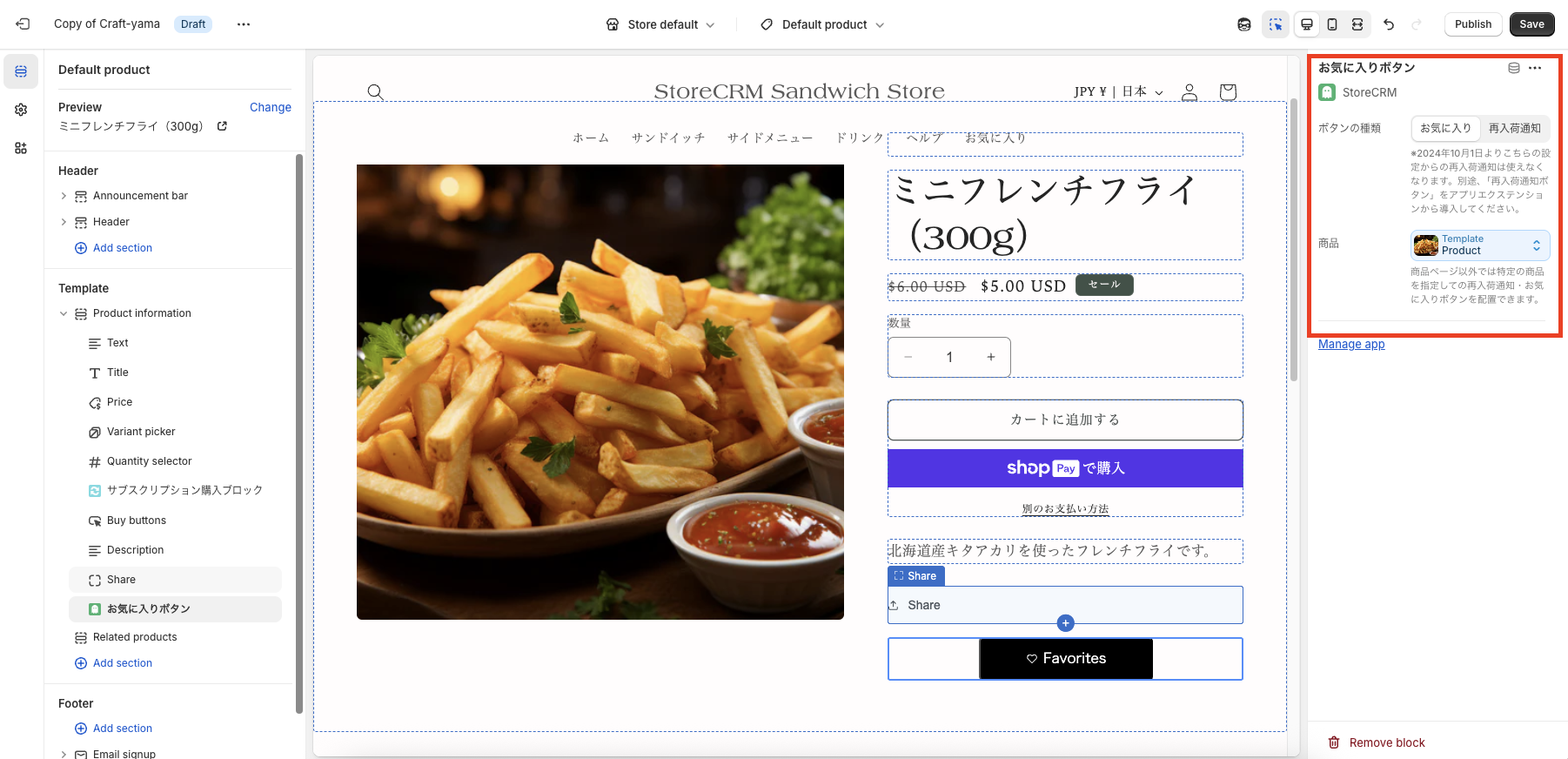
(3) If the item is successfully added, you will see a block of [Favorite/Restock Notification Button] at the bottom of [Product Information], so click on it.
The block settings screen will then appear, and confirm that the "Button Type" is set to "Favorite.
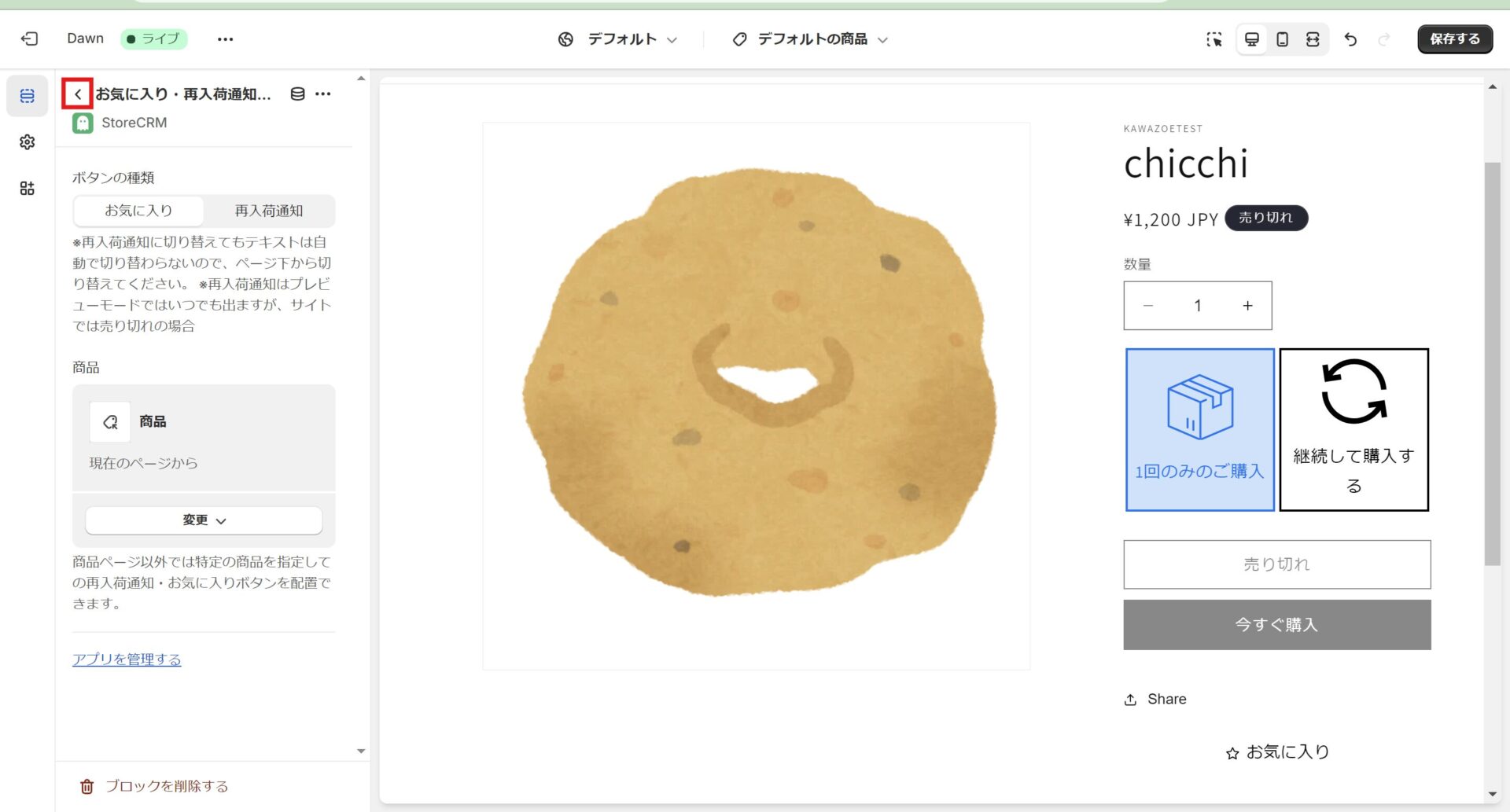
(4) Click the Back button to the left of [Favorites, Restock Notification...].
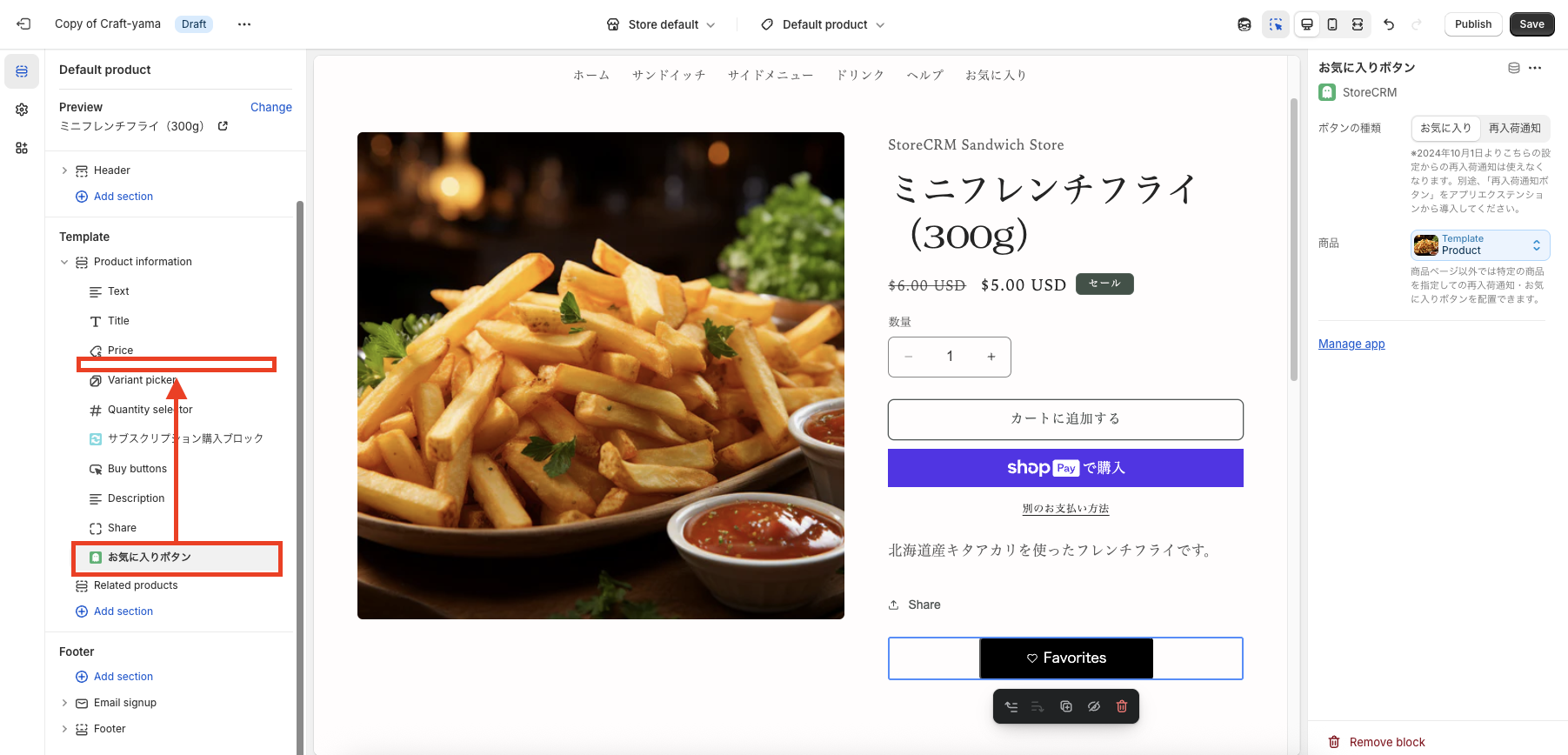
(5) Return to the Block List screen, and drag and drop the [Favorite/Restock Notification Button] at the bottom of the screen to move it under [Product Price].

(6) Make sure that the favorite button appears where you want it to appear and click the Save button.
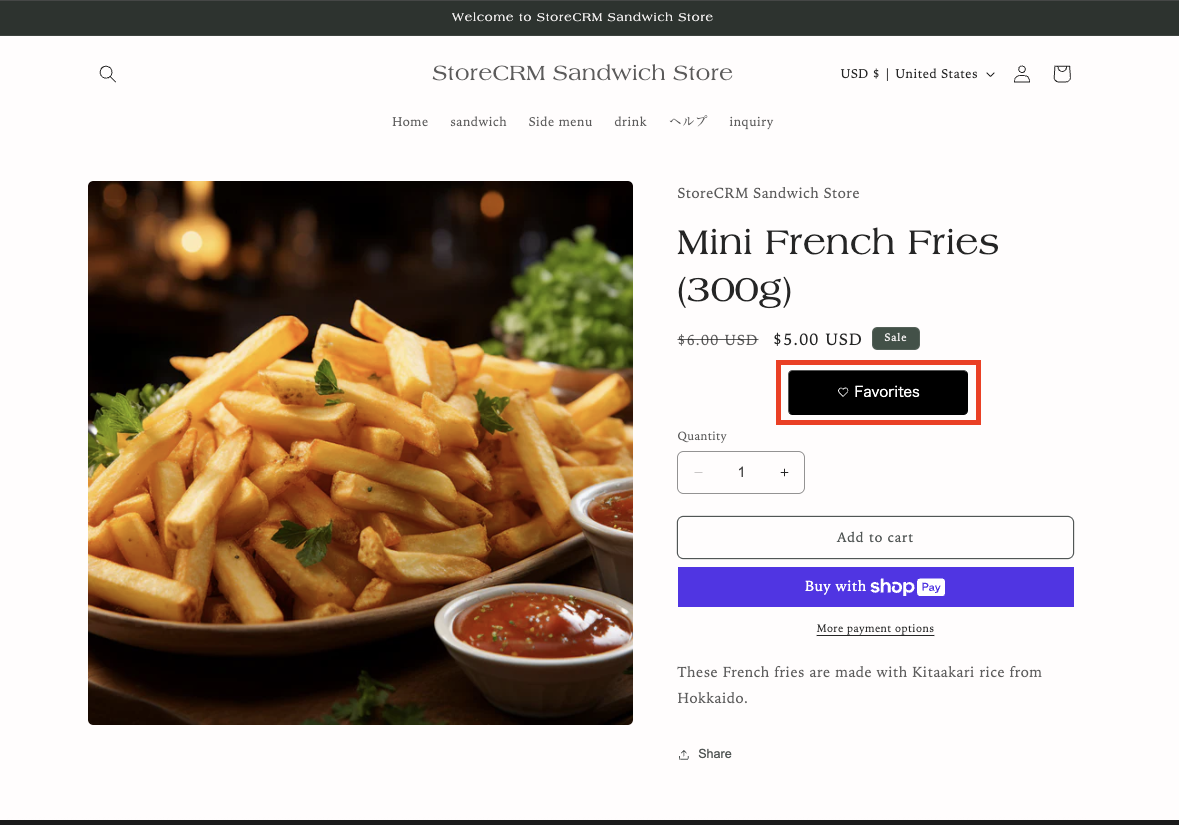
(7) Access the actual product page and confirm that the display switches to the favorite button by clicking it, and that it remains in the same state even after reloading the screen. This completes this section.
If the "Favorite" button is not displayed, please reconfirm that you have performed steps (1) through (6) correctly.
If you are using Theme 1.0
- If you are using Theme 1.0, please add the following code to the product detail page
- The product detail page can be found by clicking Shopify > [Sales Channels] > [Online Store] > [Themes] > [Edit Code] > search for "product".
- The file name depends on the Shopify theme you are using. Usually it is main-product.liquid, etc., but if you have a product.json file, it will be the filename.liquid written in the contents of that file.
- To find where to add it, for example, above the [add to cart] button, search for "buy-button" and so on.
お気に入りボタンの data-variants は id(バリエーションID)と title(バリエーション名)の2項目だけを出力してください。全項目を出力すると価格・SKU・画像などの情報がHTMLに含まれ、バリエーション数の多い商品でページ容量が大きくなります。以下のサンプルは必要項目だけを出力します。アイコンのみの場合は data-no-label を指定し、文言を表示する場合は指定しません。
この軽量版はお気に入りボタン専用です。メール・LINEの再入荷通知ボタンは在庫切れ判定に available も使用するため、id・title だけに変更しないでください。商品変数が product 以外の場合は、各参照をテーマに合わせて変更してください。
To add only favorite icons
<div class="storecrm-button"
data-type="wishlist-button"
data-product-id="{{ product.id }}"
data-variant-id="{{ product.selected_or_first_available_variant.id }}"
data-product-tags="{{ product.tags | json | escape }}"
data-no-label
data-variants="[{%- for v in product.variants -%}{"id":{{ v.id }},"title":{{ v.title | json | escape }}}{%- unless forloop.last -%},{%- endunless -%}{%- endfor -%}]"></div>To add labels such as favorite icon + favorite
<div class="storecrm-button"
data-type="wishlist-button"
data-product-id="{{ product.id }}"
data-variant-id="{{ product.selected_or_first_available_variant.id }}"
data-product-tags="{{ product.tags | json | escape }}"
data-variants="[{%- for v in product.variants -%}{"id":{{ v.id }},"title":{{ v.title | json | escape }}}{%- unless forloop.last -%},{%- endunless -%}{%- endfor -%}]"></div>既存の全項目出力コードを差し替える場合は、テーマを複製してから data-variants を軽量版へ変更してください。アプリ更新だけでは、テーマに手動で貼り付けたコードは変更されません。変更後はボタンの表示、選択中のバリエーションでの登録・解除、お気に入り一覧への反映を確認してください。
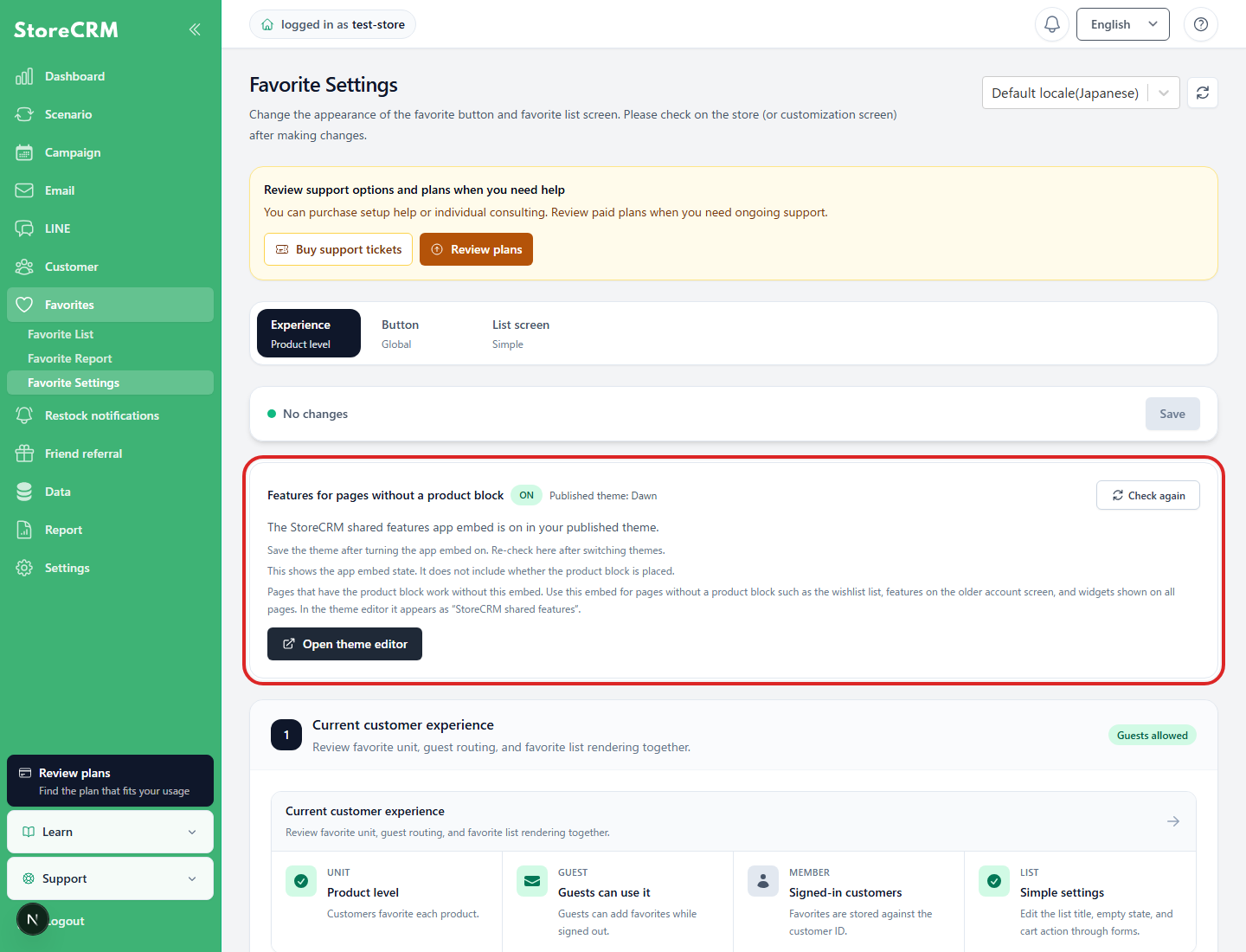
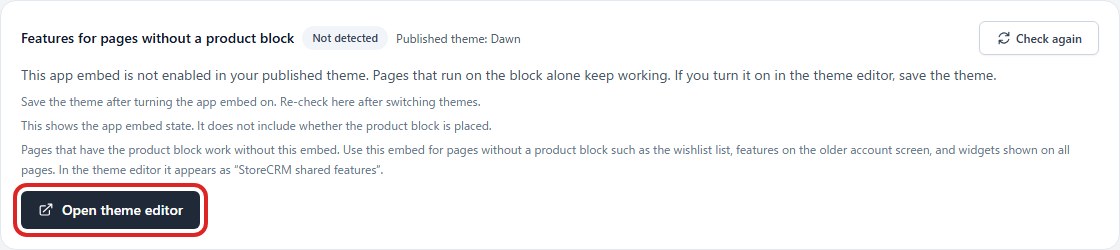
Check the features you need App Embed
App Embed works even if it is off because the block itself reads common JavaScript.
App Embed [Common Features of StoreCRM] is necessary for a list of favoritess, pages with no product block, a traditional customer account, and all page common widgets. Check the state of the public theme on the StoreCRM settings screen, and select "Reconfirm" only if necessary.
3. introduction of a favorite function (favorite list screen)
Goal of this item
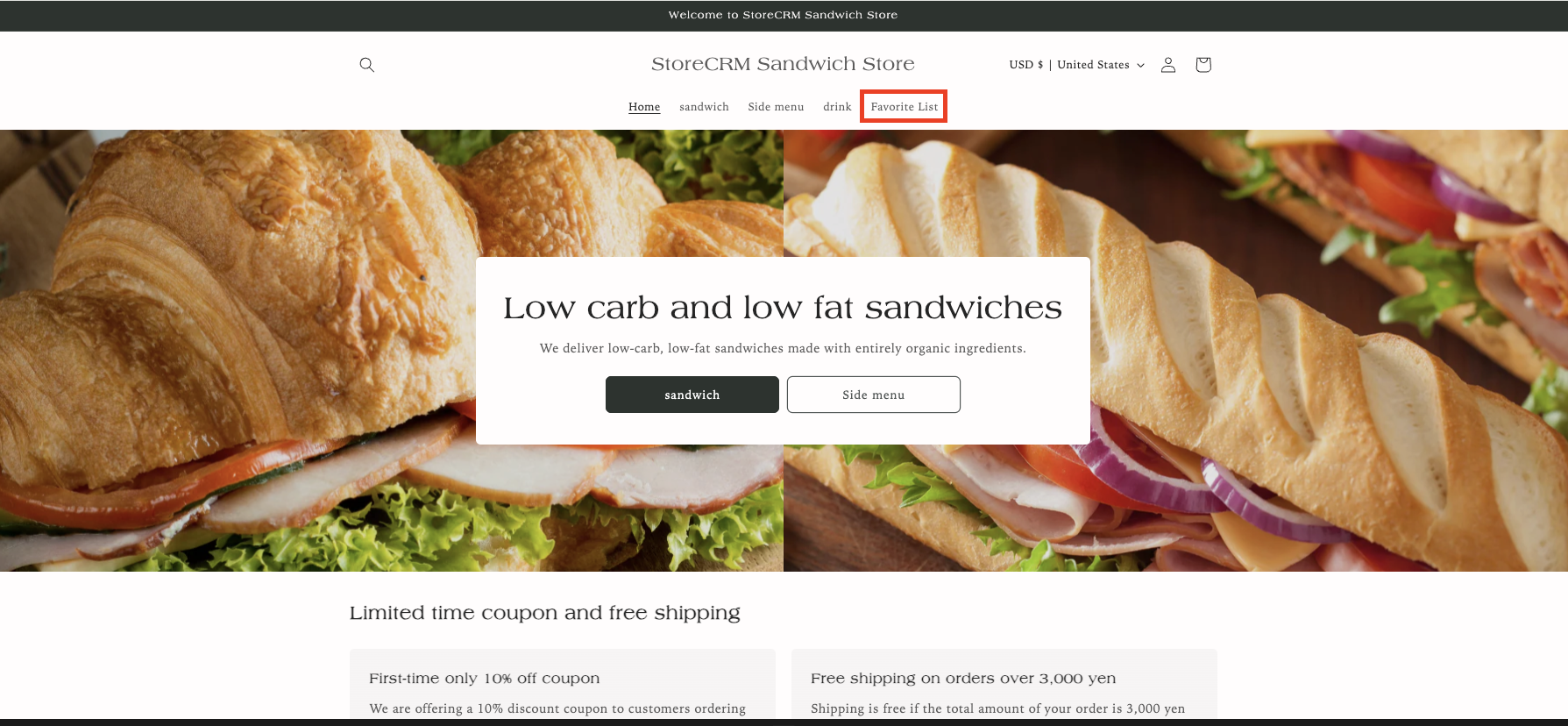
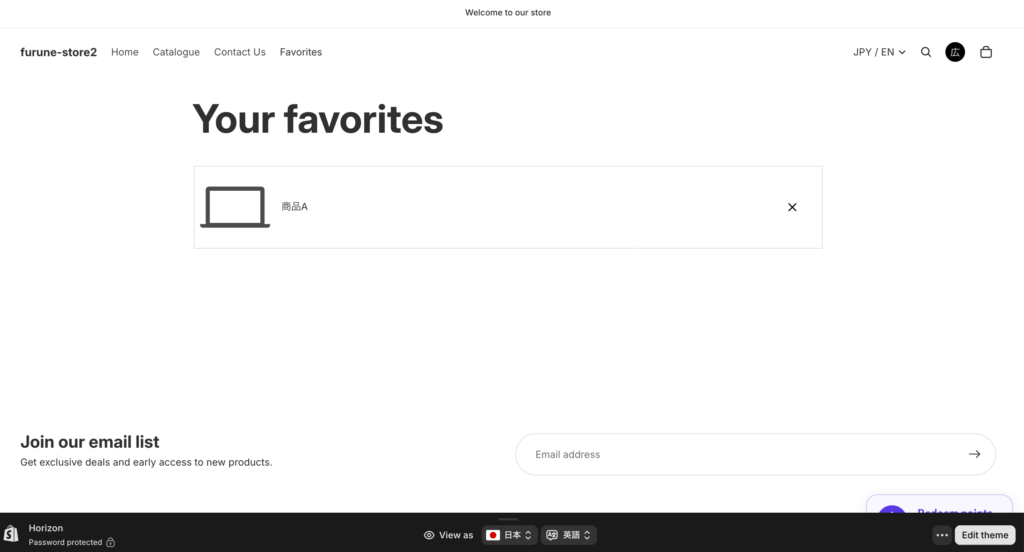
First, let's check the completed screen of the favorite function (favorite list screen) to be implemented this time.
The favorite list screen is automatically generated by the application, and can be introduced simply by setting the URL specified by the application in the menu, etc.
This time, we will introduce a menu item named "Favorite List" in the header menu.
Set the URL of the favorite list screen in the header menu
If you changed the App Proxy URL
Normally, use the following standard URL for the favorites list.
/apps/obake/favoritesOnly stores that have intentionally changed the App Proxy prefix or subpath in the Shopify admin screen will use the changed URL. After the change, StoreCRMSettings → Basic Settings → App Proxy URLPlease enter the URL in , confirm it, and replace the link in your favorites list once it has been verified.
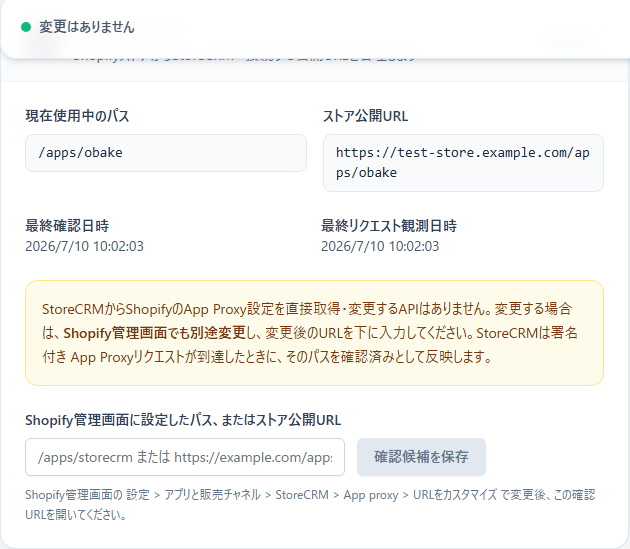
Stores that have not changed App Proxy will continue to/apps/obake/favoritesPlease use
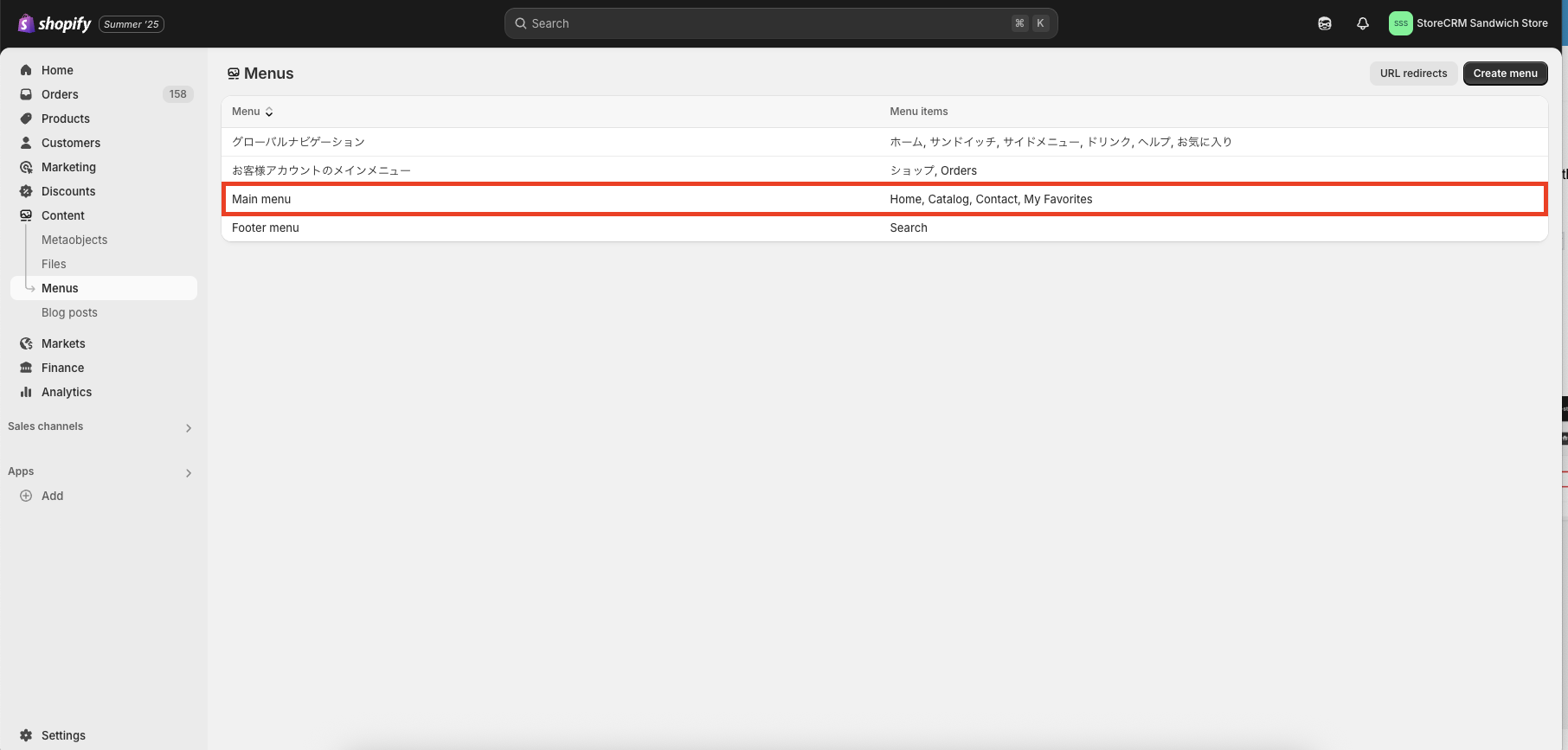
➀Open the menu list from [shopify admin] > [Contents] > [Menu].
This time, click on "Main menu" to add a link to the menu in the header.
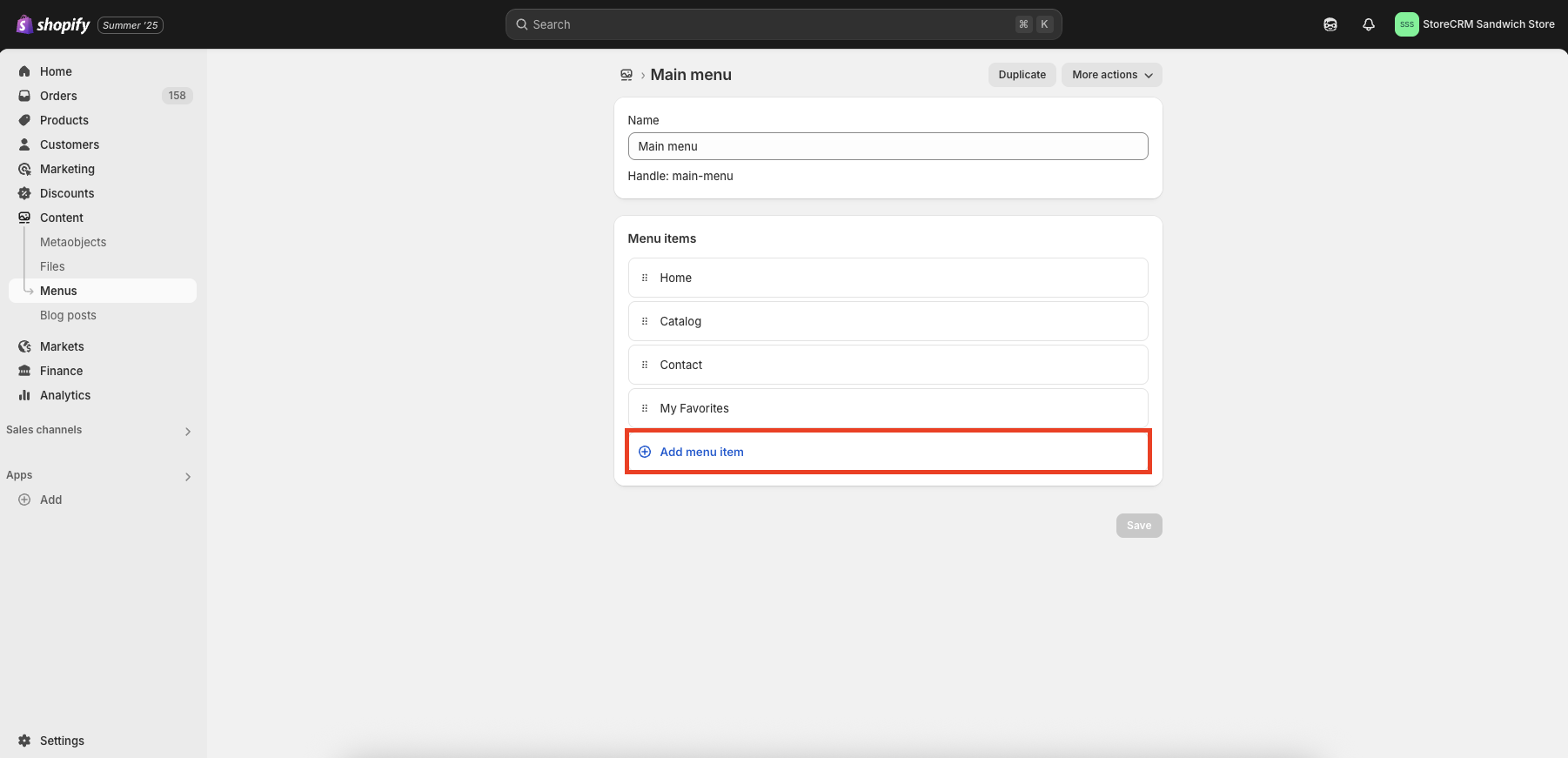
➁[Click on "Add Menu Item.
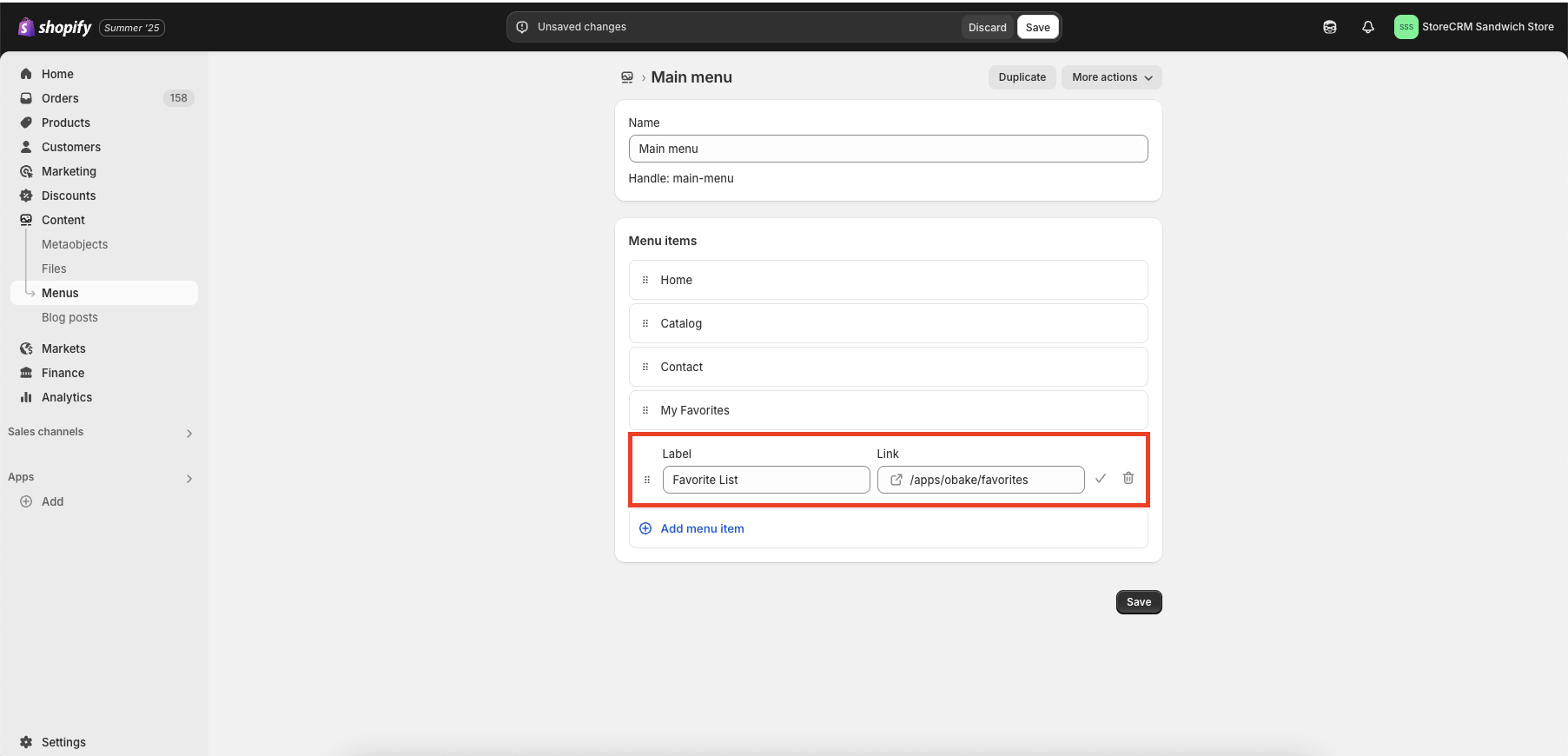
(iii)Enter the name and link in the fields that appear.
You can use any name you like, but in this case, enter [Favorite List Screen].
Enter the following for the URL. Click "Add" when you are finished.
/apps/obake/favorites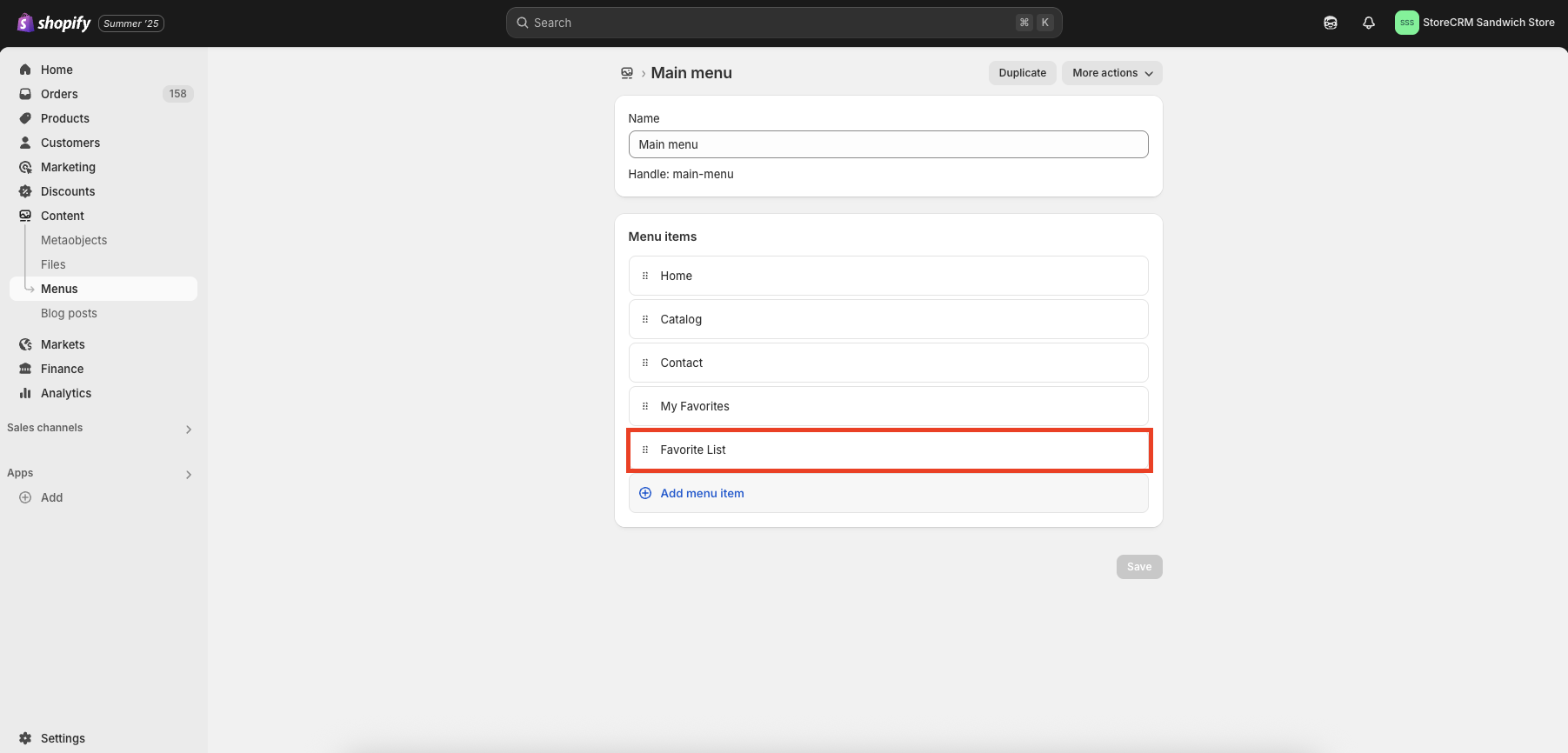
4)Make sure the name of the menu item you just added is added and click "Save" at the top of the screen.
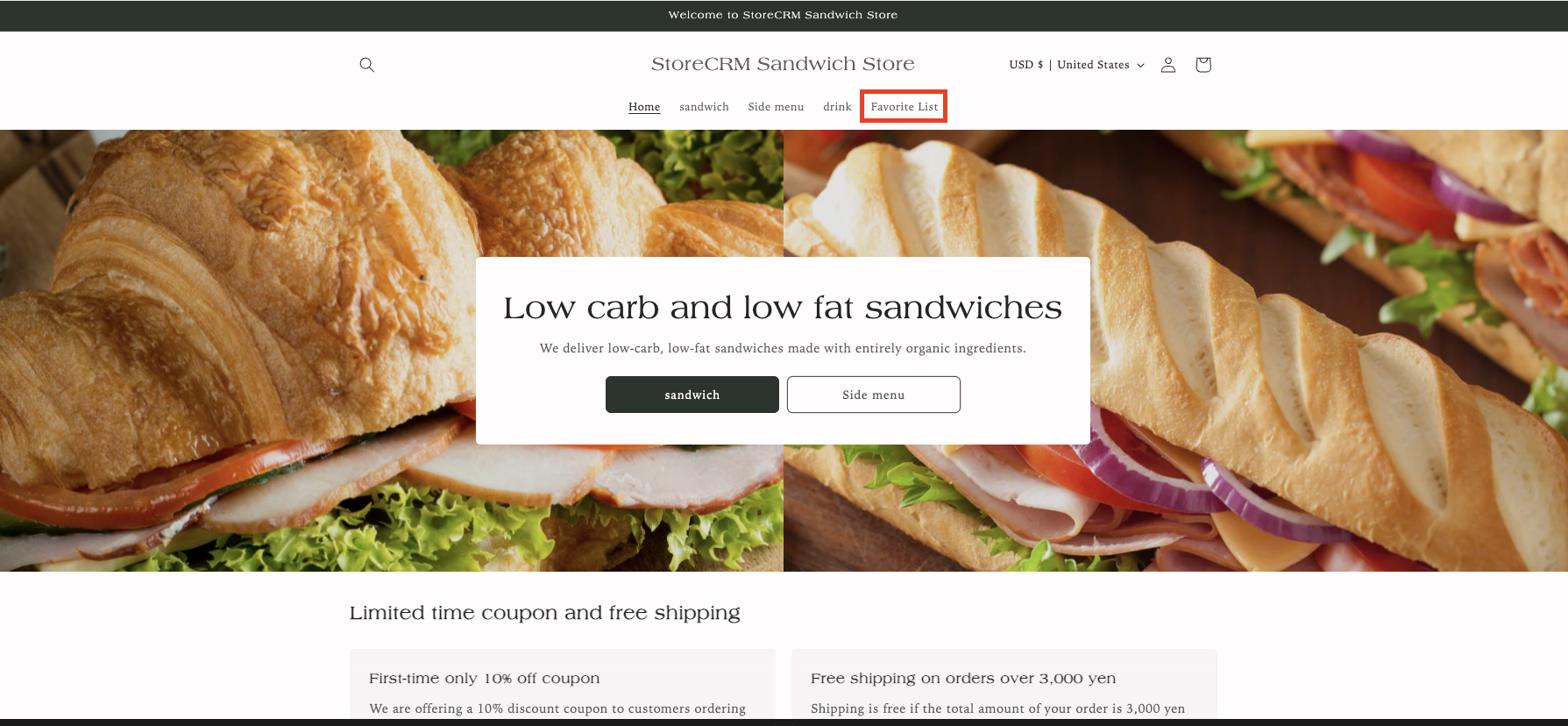
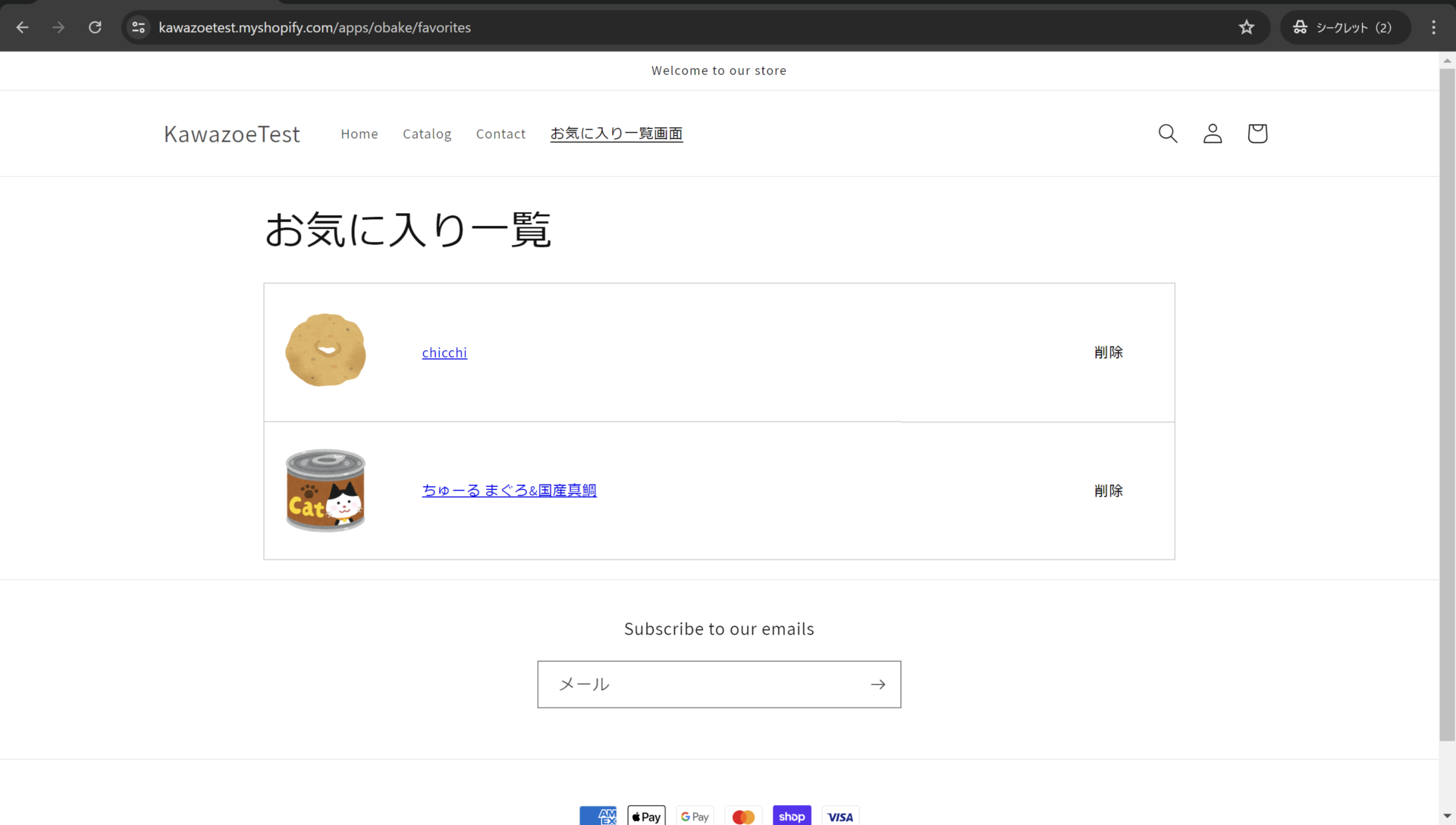
5)Access the home page and confirm that the menu you have set up has actually increased and that you can actually click on the link to go to the list of favorites screen. This completes this section.
If the "Favorite" button is not displayed, please reconfirm that you have performed steps (1) through (4) correctly.
Add a favorites list to the header menu in new customer accounts
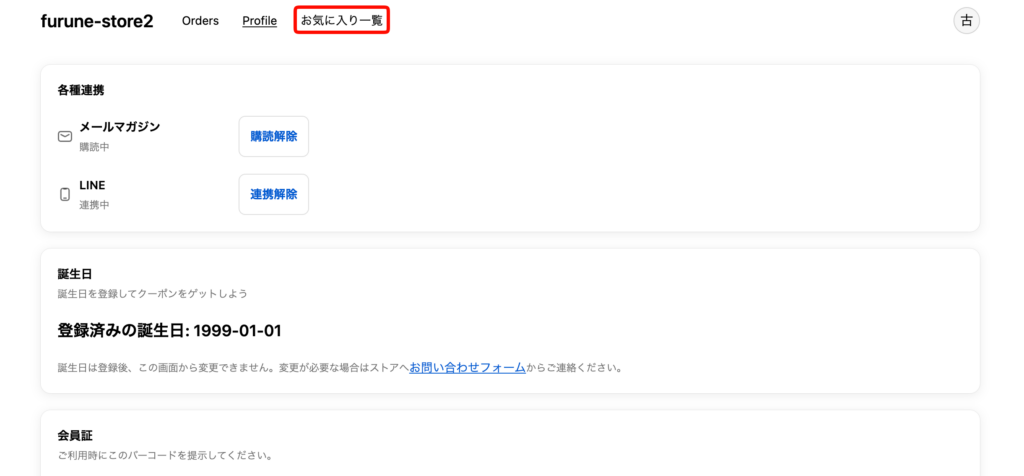
If you are using a new customer account, you can also add a link to the Favorites list screen in the header menu of your customer account.
If you have set up multiple markets, please refer to the next section."Switch the URL of the favorites list screen for each market"Please make the settings.
Goal of this item
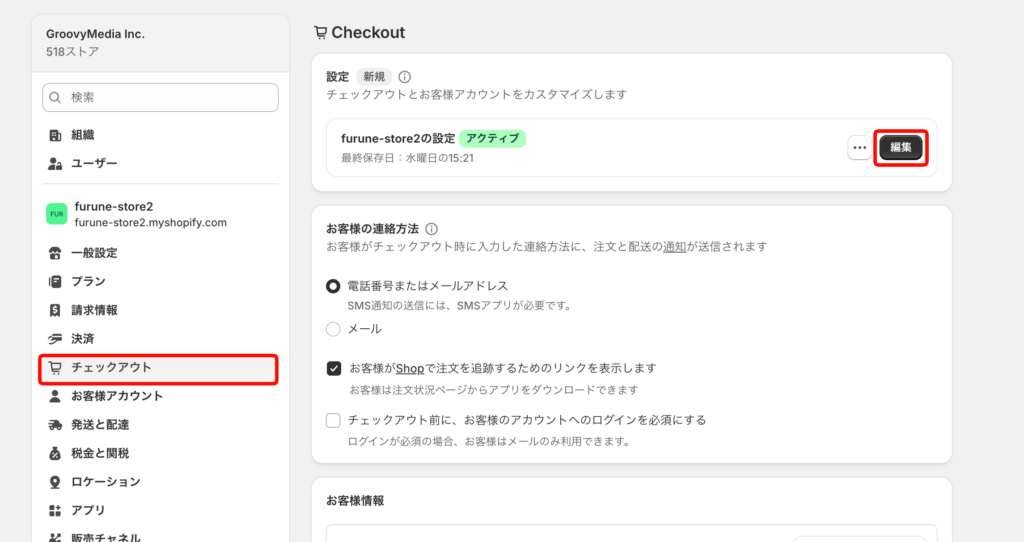
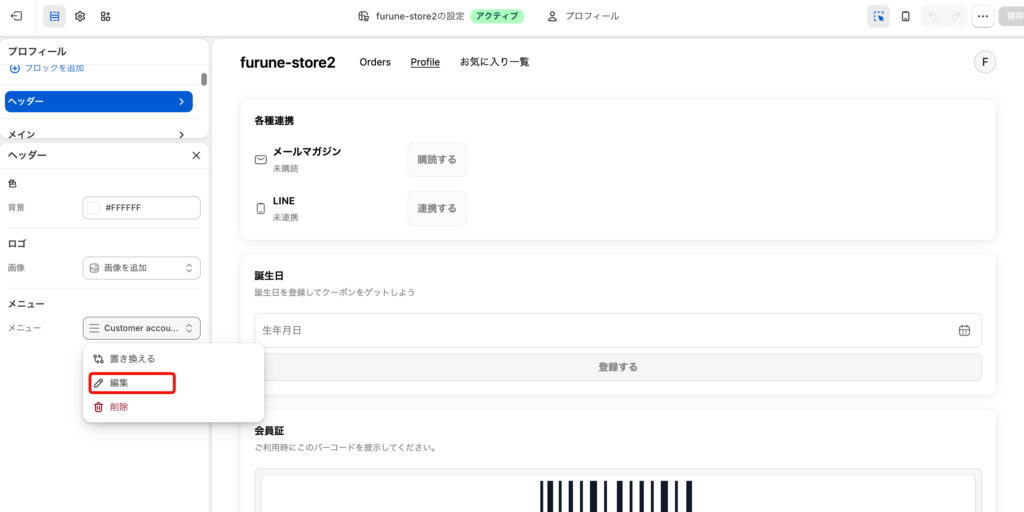
① Open [Shopify Admin Screen] > [Settings] > [Checkout] and click [Edit] under [Settings].
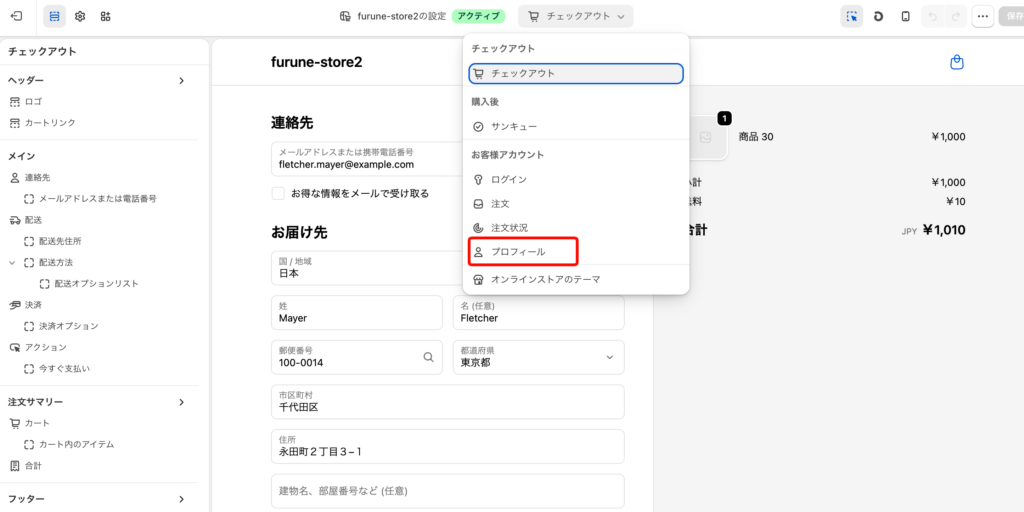
② Select [Profile] from the page selection menu at the top of the editing screen.
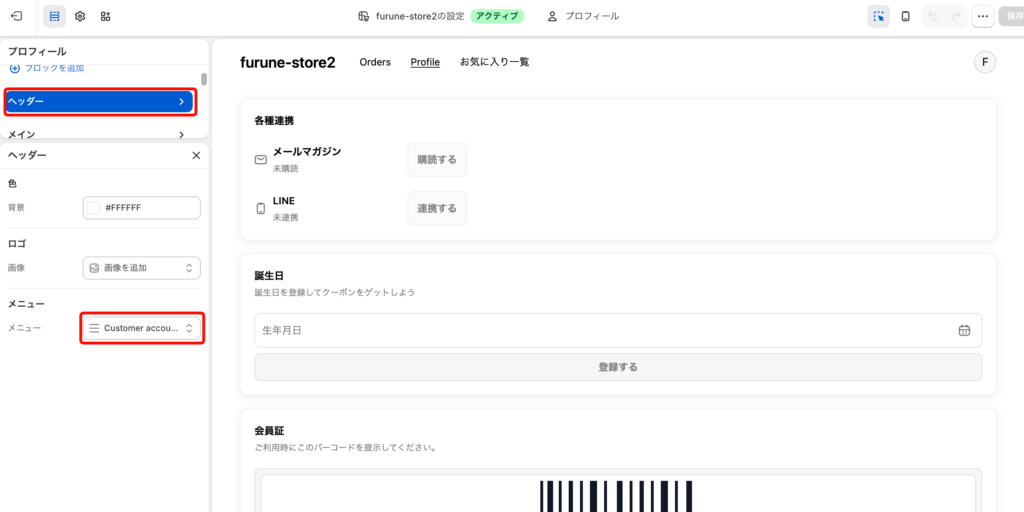
③Click [Header] from the left side and click the menu set in the header.
④Click “Edit”.
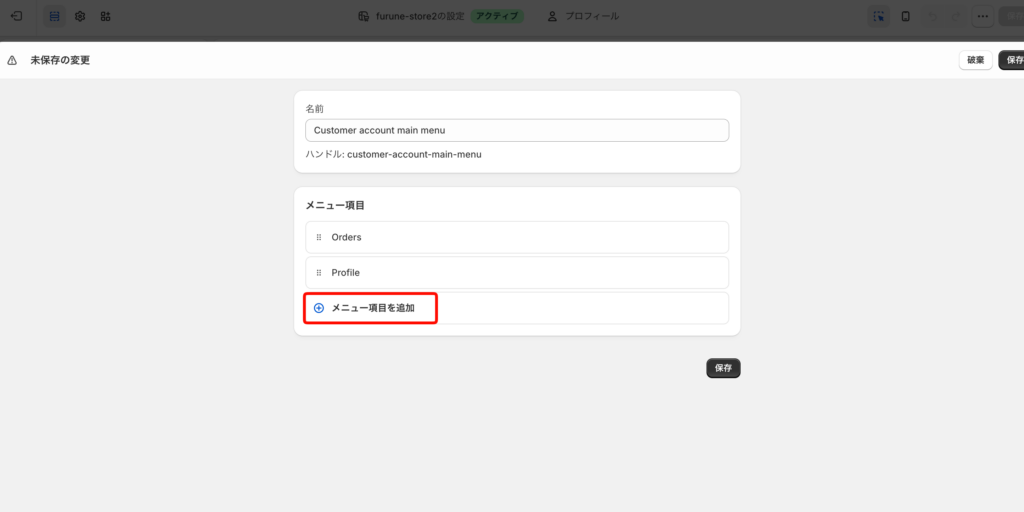
⑤Click [Add Menu Item].
⑥Enter the name and link and save.
The name is optional, but this time enter [Favorite List].
Enter the following URL for the link.
/apps/obake/favorites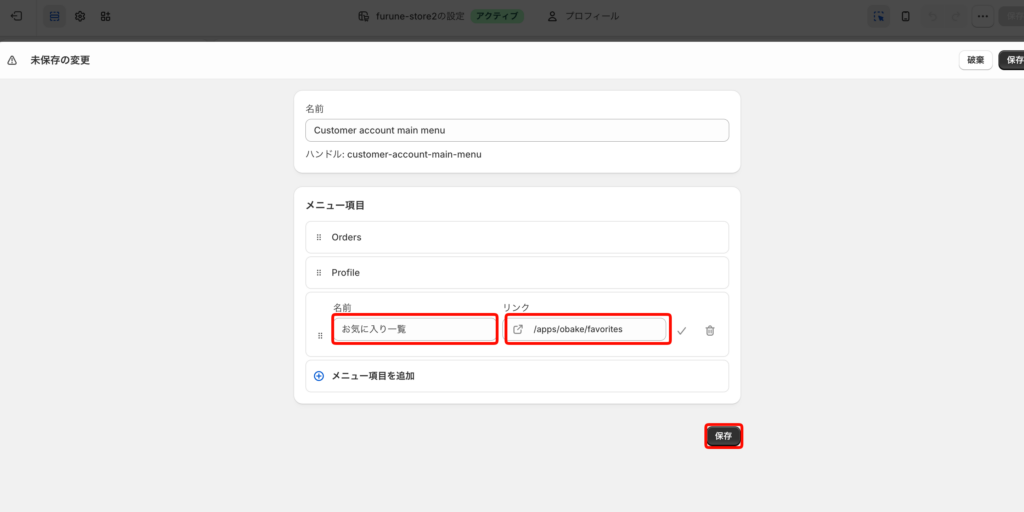
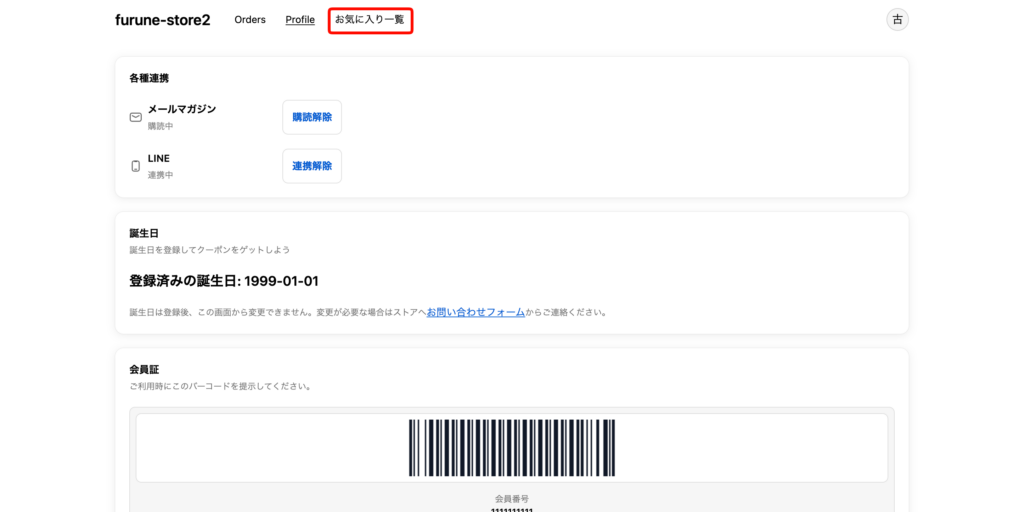
⑦ Please actually log in to your new customer account and check that [Favorites List] is displayed in the header menu and that clicking on it will take you to the Favorites List screen.
Use the appropriate favorites-list URL for each market
If you have multiple domains and languages set up with Shopify Markets,/apps/obake/favoritesIf you set it directly, the favorites list page corresponding to the displayed language will not be displayed.
By creating a redirect page using the steps below, you can transition to the favorites list screen according to the URL of the currently displayed market.
Regarding the multilingual settings for the favorites function,「Multilingual support for favorites and back-in-stock notifications」 for more information.
① Open the theme list from [Shopify Admin Screen] > [Sales Channels] > [Online Store] > [Themes] and click [Edit Code] from the menu of the theme you want to edit.
*Note: When editing a published theme, we recommend that you make a backup copy of the theme before editing.
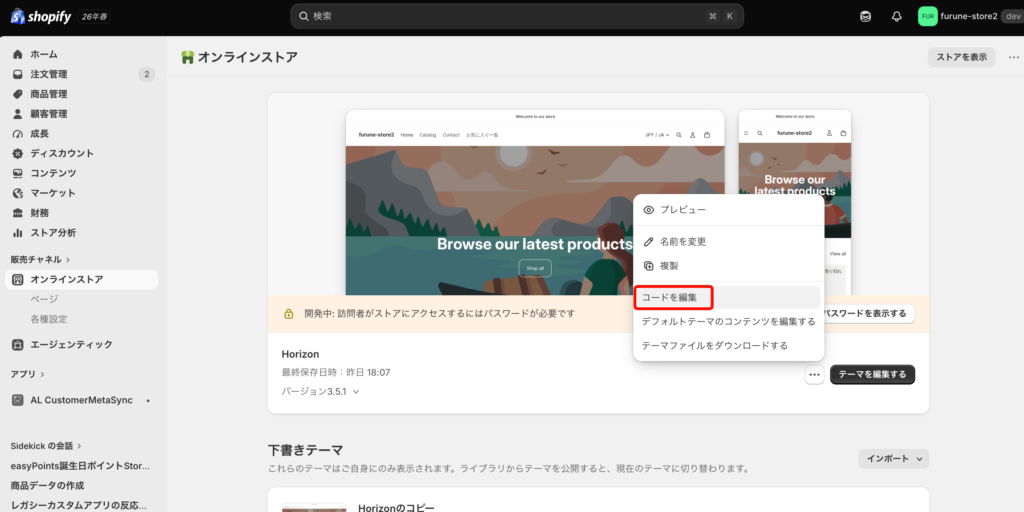
(2)sectionsCreate a new file in the directory. The file name is arbitrary, but this timefavorites-list-redirect.liquidfor this example.
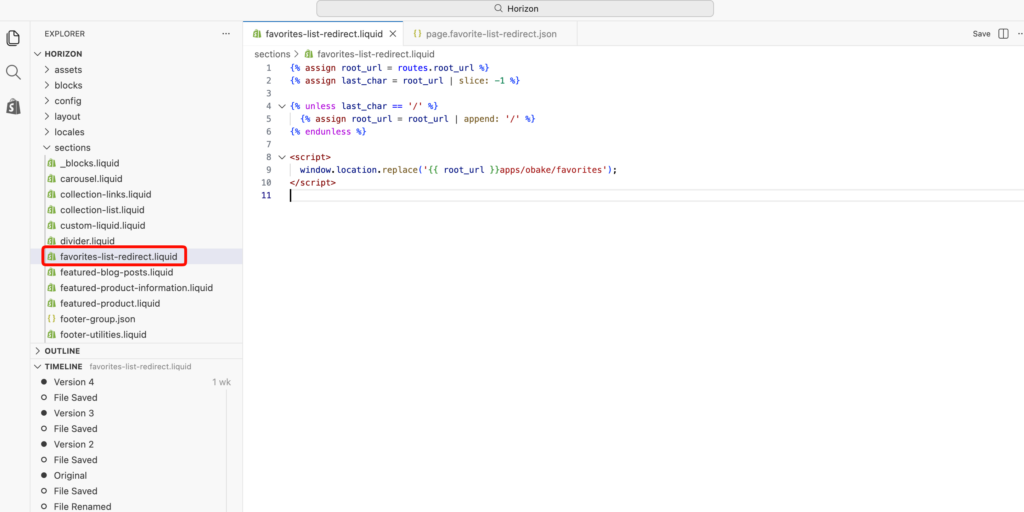
③ Enter the following code into the created file and save it.
{% assign root_url = routes.root_url %}
{% assign last_char = root_url | slice: -1 %}

{% unless last_char == '/' %}
  {% assign root_url = root_url | append: '/' %}
{% endunless %}

{% assign redirect_url = root_url | append: 'apps/obake/favorites' %}

<script>
  window.location.replace({{ redirect_url | json }});
</script>4)templatesCreate a new file in the directory. The file name is arbitrary, but this timepage.favorite-list-redirect.jsonfor this example.
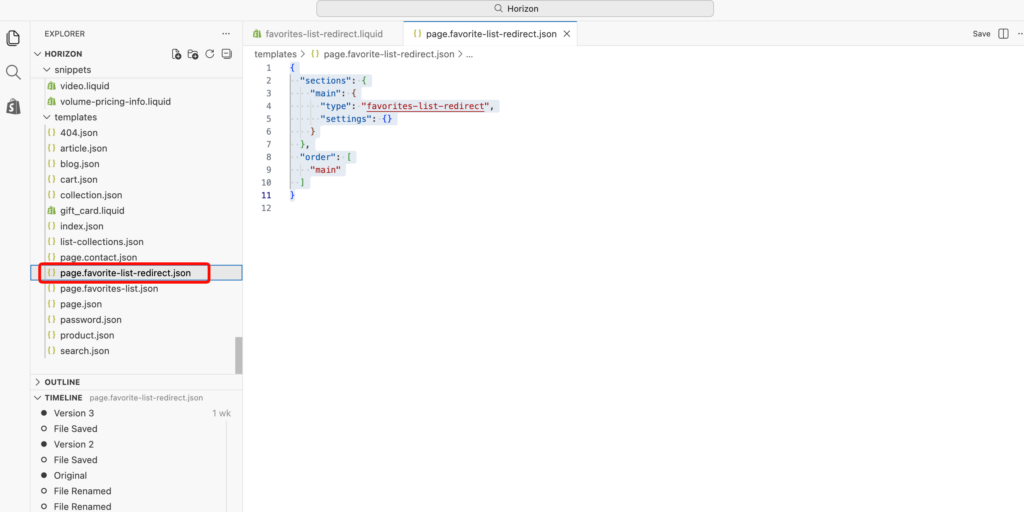
⑤ Enter the following code in the created file and save it.
{
  "sections": {
    "main": {
      "type": "favorites-list-redirect",
      "settings": {}
    }
  },
  "order": [
    "main"
  ]
}
⑥ Click [Add Page] from [Shopify Admin Screen] > [Sales Channels] > [Online Store] > [Pages].
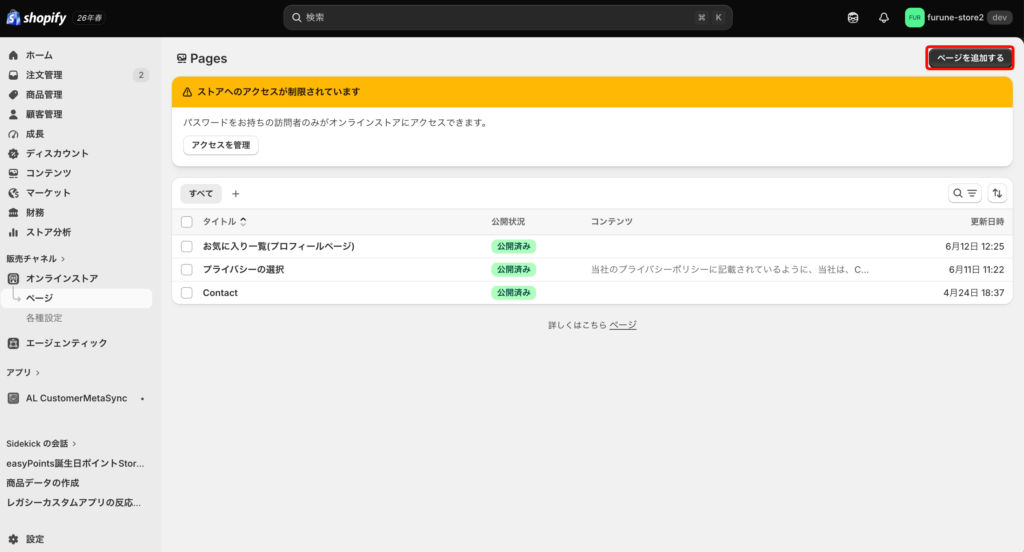
⑦Enter any title for the page title, select [favorite-list-redirect] that was added earlier from the code edit from the template, and save.
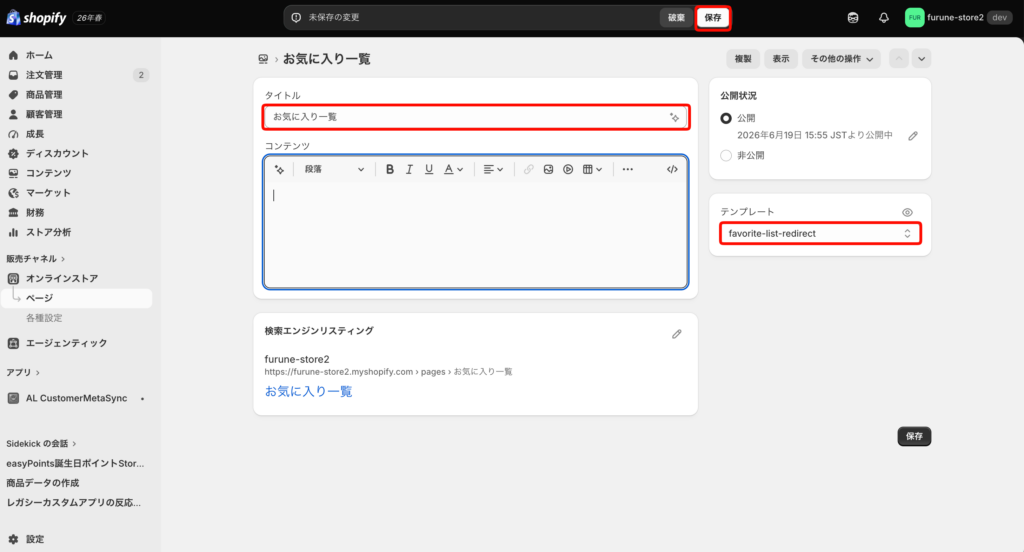
⑧ Click [Edit] for your customer account from [Shopify Admin Screen] > [Settings] > [Checkout] and select [Profile] from the page selection menu.
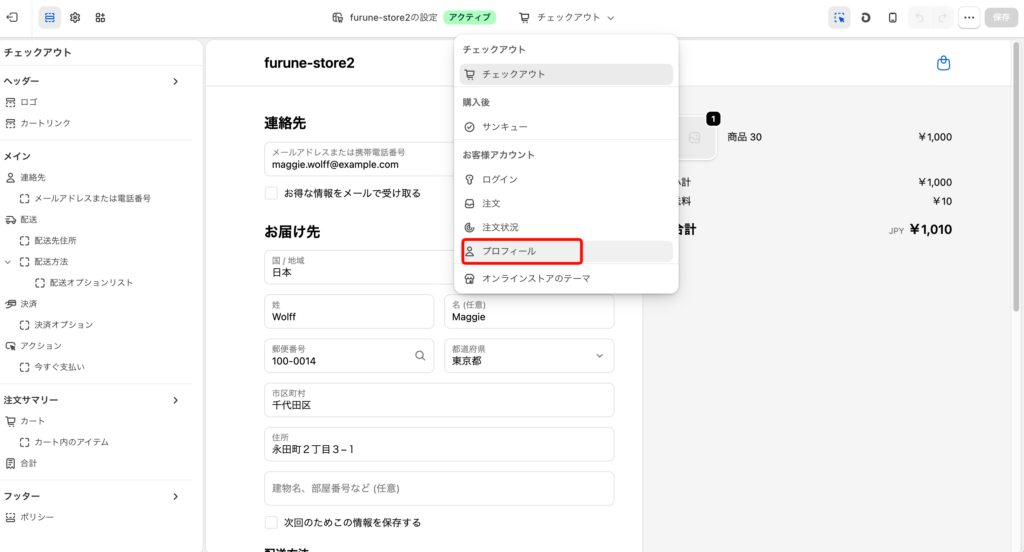
⑨Click [Header] from the left side, click the menu set in the header, and then click Edit.
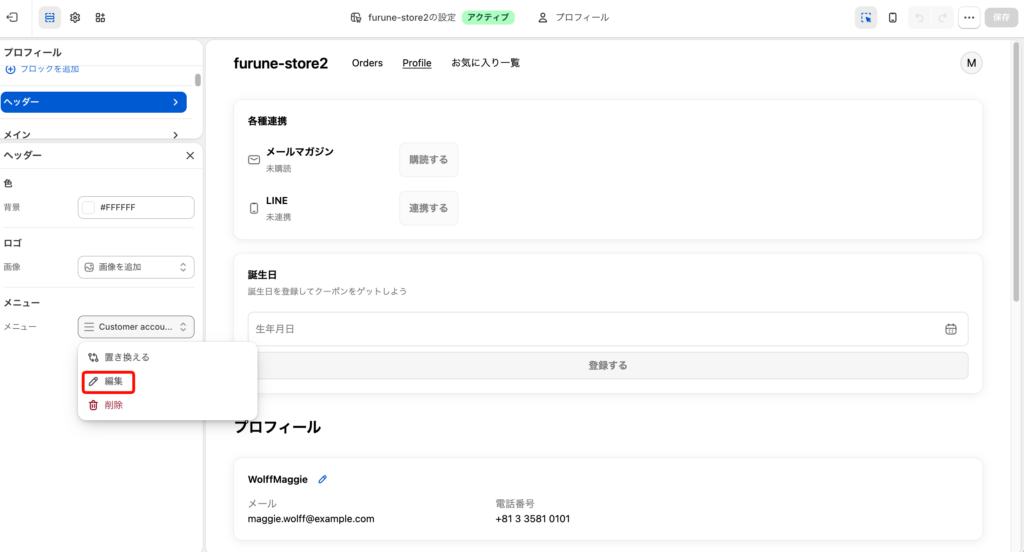
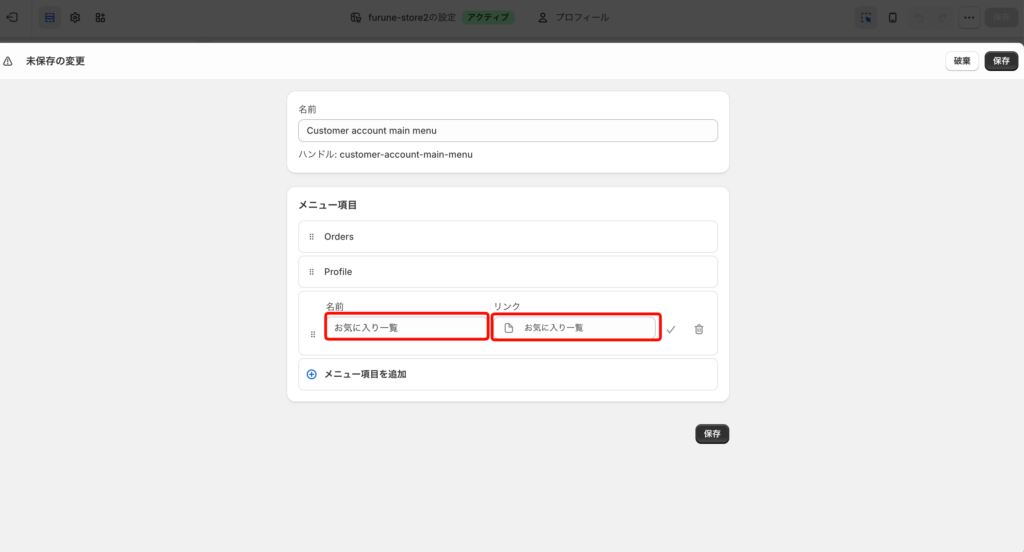
⑩Click [Add Menu Item].
⑪Enter the name and link and save.
The name is optional, but this time enter [Favorite List].
Set the link to the page you created earlier, "Favorites List."
⑫ Access the store in each market, log in to your new customer account, and click [Favorites List] in the header menu. Please make sure that you are redirected to the favorites list screen using the domain or language path that corresponds to the displayed market.
4. customize favorite buttons and favorite list screen
Customize favorite buttons and favorite list screen
StoreCRM provides a simple, unobtrusive favorite button and favorite list screen as standard in any store. However, if you want to customize the design down to the smallest detail, or if you want your favorite buttons to stand out more, you can customize the look and feel of the favorite buttons and favorite list screen from the application page.
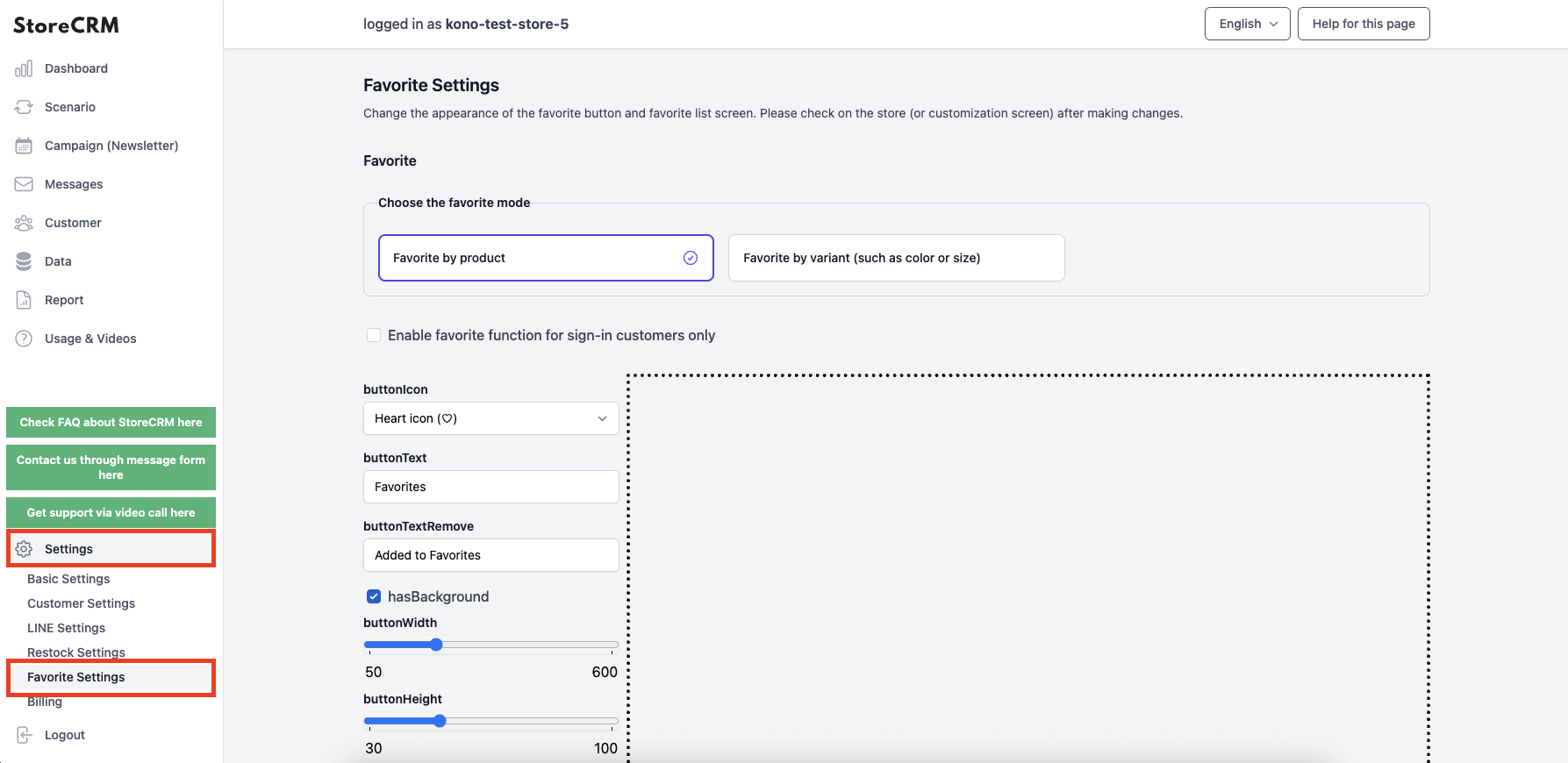
Open the (1) StoreCRM application screen. Click on "Settings" at the bottom left of the page, and then click on "Favorite Settings" that appears below it.
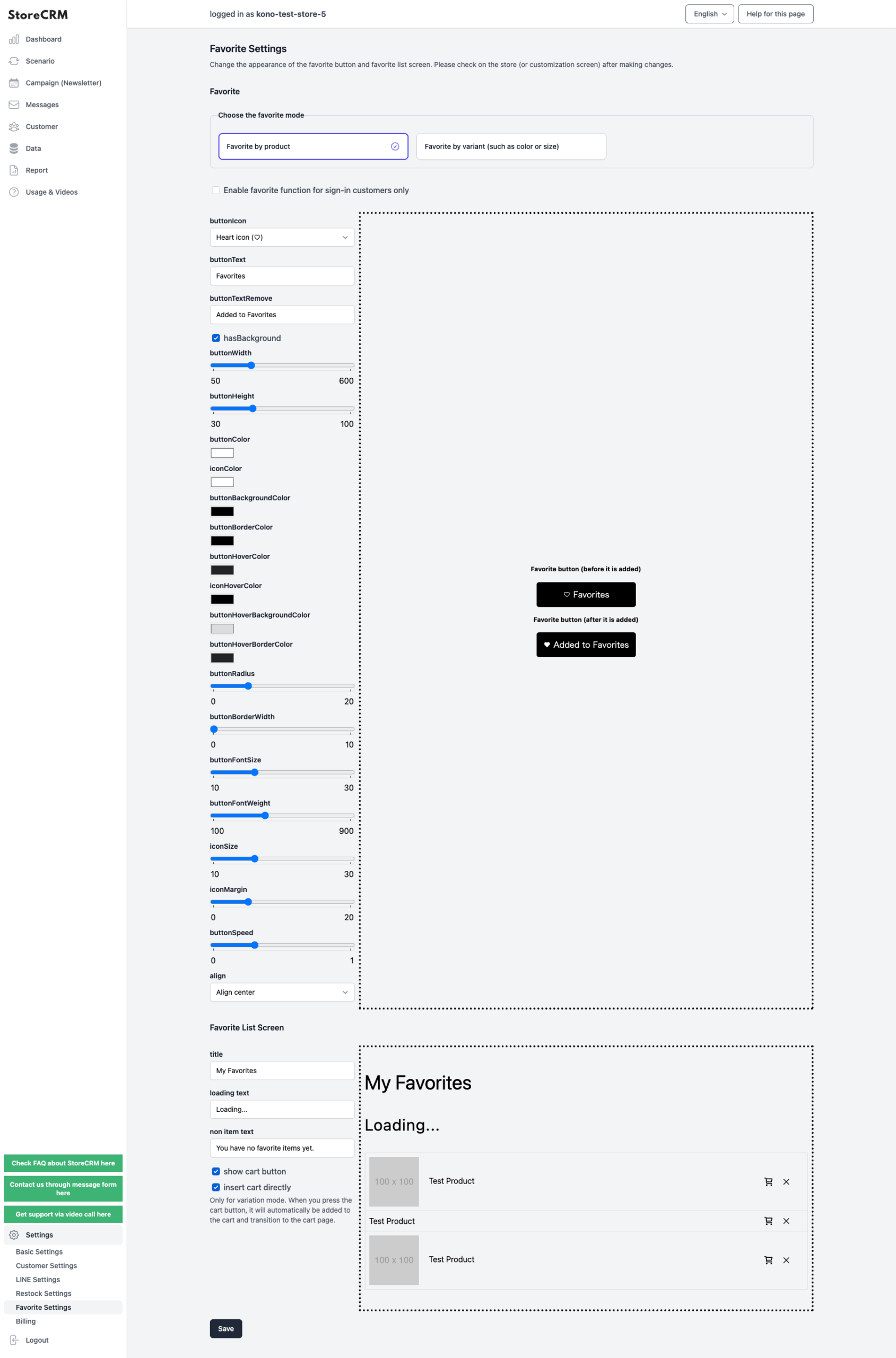
➁You can customize the wording, color, and size of the favorite buttons and favorite list screen to your liking by checking the preview on the right side.When you have finished customizing, do not forget to save your customizations by clicking the Save button at the bottom of the page at the end.
After saving, you can actually check from the store or theme preview to see if your customizations are reflected as you envisioned.
5. summary
By utilizing StoreCRM, various measures that could not be realized without adding a separate application, setting up a favorite function, or linking with other MA applications, such as the favorite function introduced this time, can be realized with this single application.
We are also preparing to create scenarios using the favorite registration information introduced this time, so please stay tuned for further information.
StoreCRM also provides free support for application setup (setup on behalf of the customer) and consulting services to help customers increase sales.
Inquiry FormPlease feel free to contact us from
Related pages
 English
  Japanese