

Drag and drop blocks into the email body to use them.
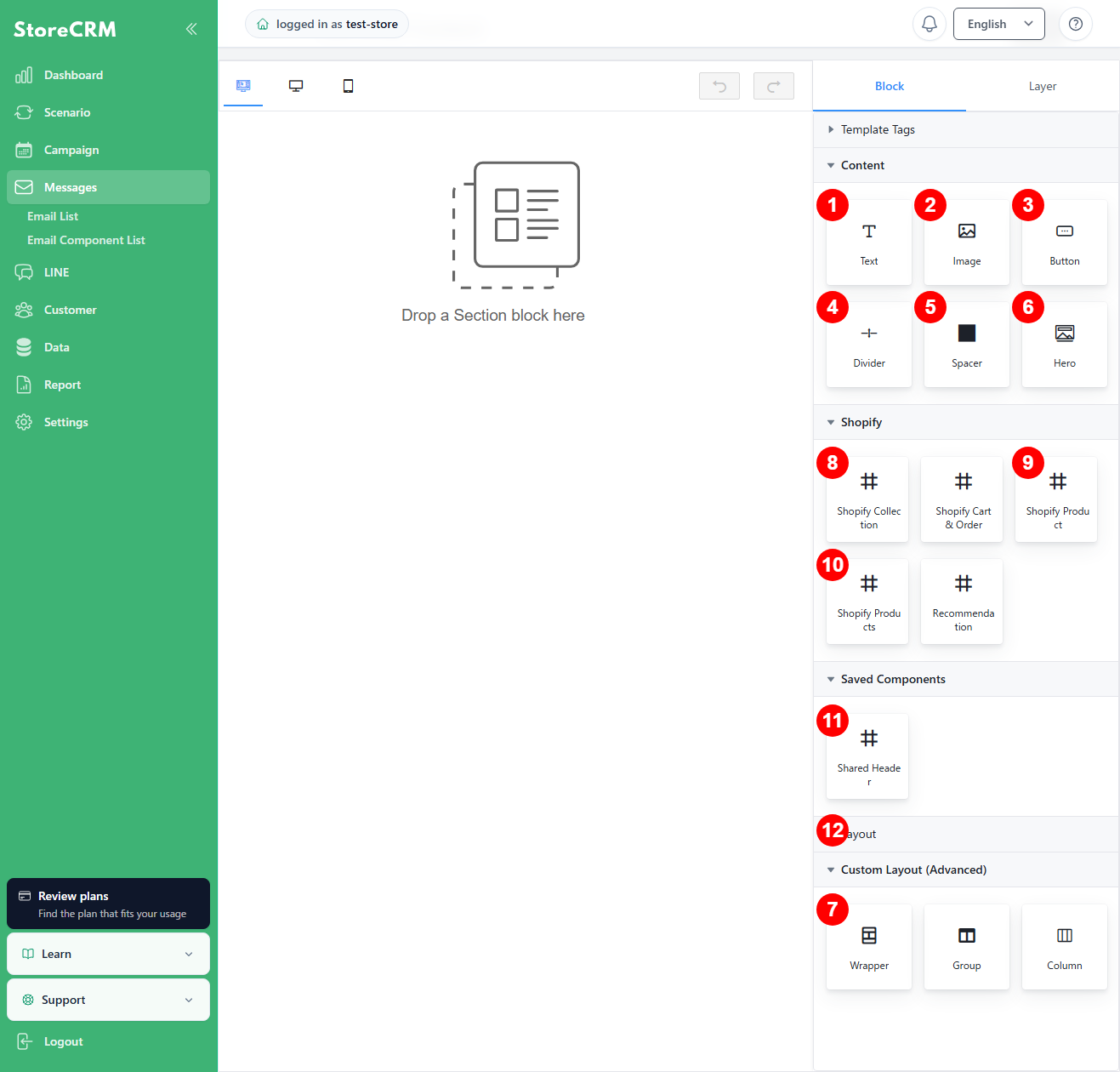
1. text
- You can insert text.
- Enter [Customer Name] to insert the customer name.
- [Entering "Continue Order Link" will insert a link that will take you to the customer's cart.
2. image
- Images can be inserted.
- In the right panel, specify the URL of the image.
- Size and margins can be set.
Select an image from Shopify
In the image settings, you can use Select from Shopify in addition to uploading from your device. Choose Product images or Shopify files, search by product name, Shopify product ID, or file name, then select the image.
Images larger than 10 MB are not displayed. The first time you use Shopify files, follow the on-screen instructions to allow file-viewing access. Images uploaded from a device for LINE must be JPEG or PNG and no larger than 10 MB.
3. button
- button can be inserted.
- Button colors and text can be edited.
- You can also insert links in the right panel.
4. dividing line
Separator lines can be inserted.
5. spacer
Vertical spaces can be inserted.
6. hero
You can insert the largest photo or image in an HTML email.
7. block
- It means a grouping of text or images to be inserted.
- Inserting a block and then placing text or an image will keep the layout intact.
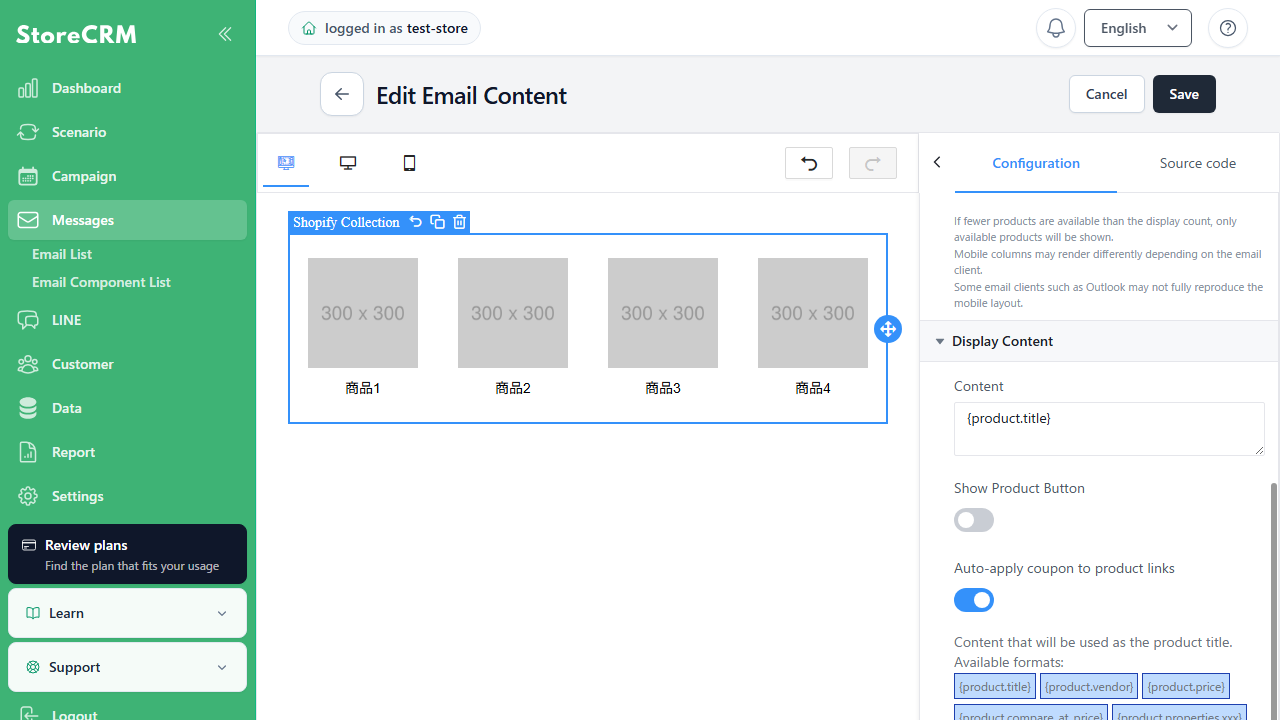
8. shopify collection
- Shopify.Collectionscan be inserted.
- If you have multiple collections, you can select collections in the right panel.
- You can set the display count from 1 to 10, the desktop columns from 1 to 4, and the mobile columns from 1 to 2.
- If the collection contains fewer products than the display count, only the available products are shown.
Show or hide product buttons
In a Shopify Collection block, use “Show Product Button” in the settings panel on the right to control whether each product displays a button. Turn it off when you want to show only the product image and name. Turn it on when you want the button to direct customers to the product page.
9. Shopify Product
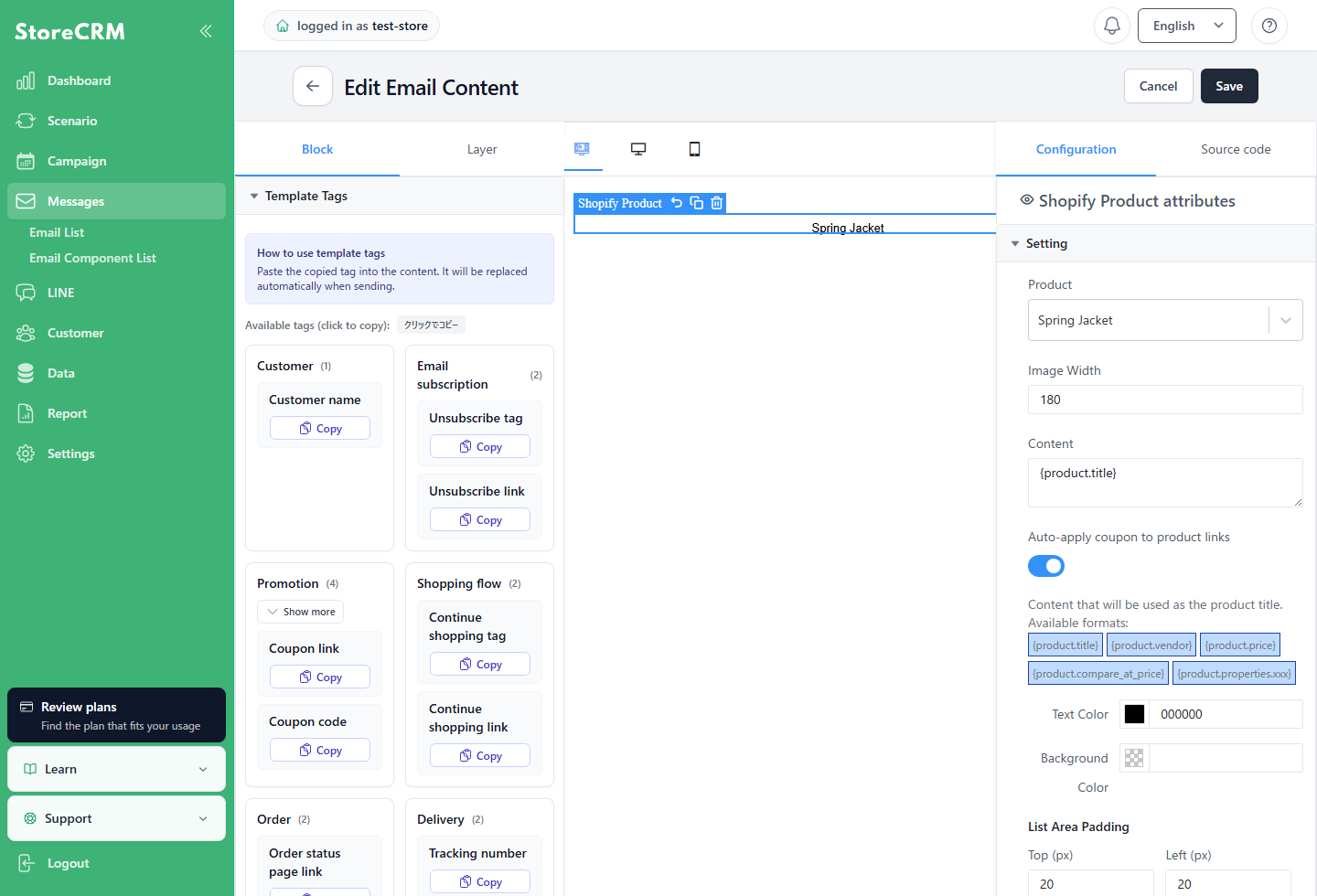
- You can insert one Shopify product.
- Select a product in the panel on the right and adjust the displayed details, such as the product name and price.
- When a scenario or campaign automatically issues a coupon, you can turn Auto-apply coupon to product links on or off for each block.
Show current and compare-at prices
In a Shopify Product block, you can display the current price and the compare-at price from Shopify. When the compare-at price is higher than the current price, it appears with a strikethrough. It is not displayed when it is the same as the current price or has not been set.
10. Shopify Products
You can display multiple selected products in a grid in the email body.
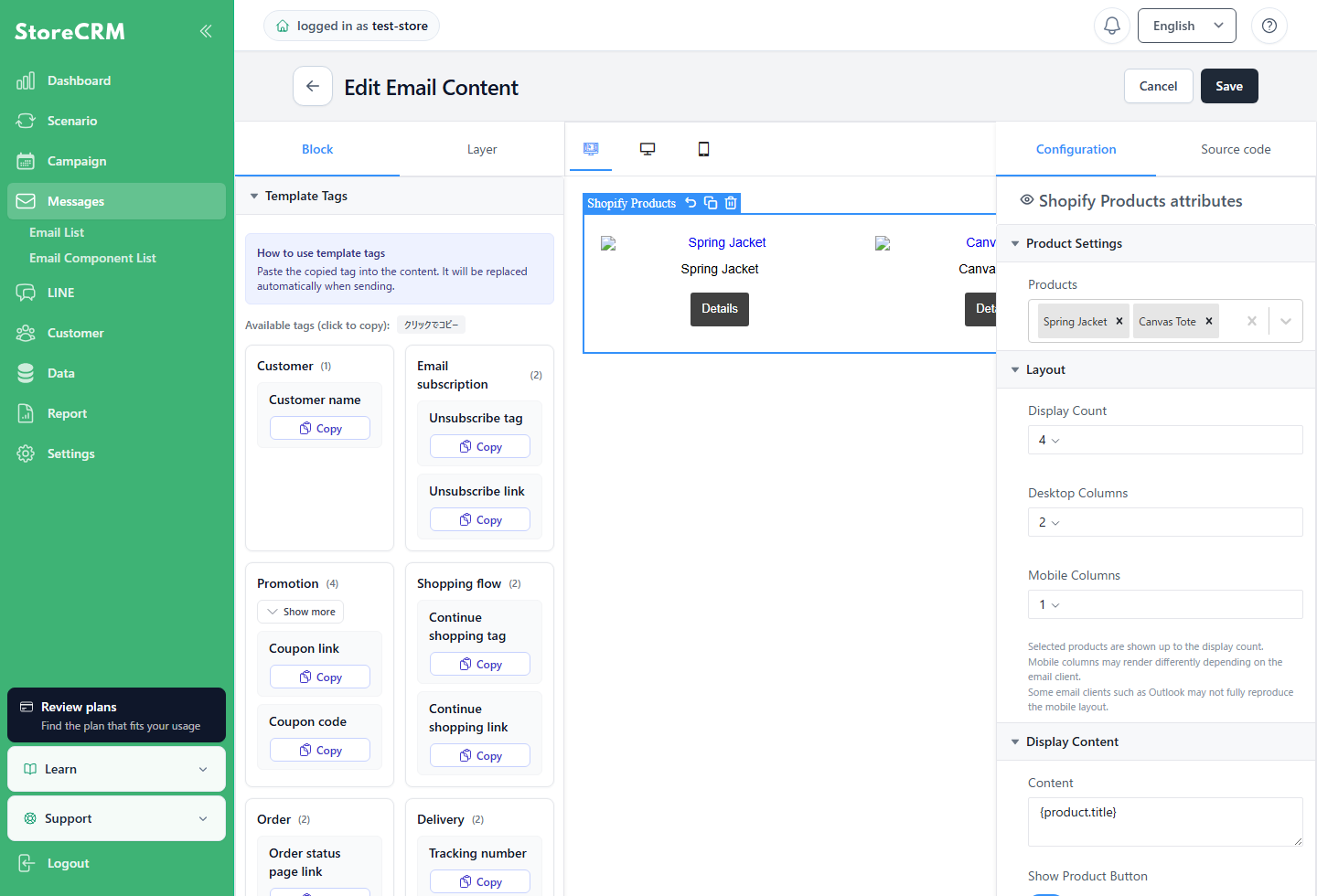
- Under Product Settings in the panel on the right, select the products you want to display.
- Under Layout, adjust the display count and the number of desktop and mobile columns. The defaults are 4 products, 2 desktop columns, and 1 mobile column.
- Under Content, combine
{product.title}with free text to customize the information shown for each product.
If you select more products than the display count, only products up to that count are shown.
11. Email Component
I've created it in advance for you.headerand ... andfooter (e.g. of a file), ,complementcan be inserted.
12. Column
- Insert when you want to split a block horizontally.
- You can select 2, 3, or 4 divisions.
Related pages
 English
  Japanese