

Customers who sign in through StoreCRM's external identity provider can change their own email address from the profile page in Shopify's new customer accounts. This page explains how to enable the feature for your store and how customers complete the change with a 6-digit verification code.
Table of Contents
- Requirements and what happens after a change
- 1. Enable email address changes for the store
- 2. Customer starts changing the email address
- 3. Send a verification code to the new email address
- 4. Confirm the change with the 6-digit verification code
- 5. Sign in with the new email address
- Verification code limits
- If the email does not arrive or the change cannot be completed
Requirements and what happens after a change
- The StoreCRM profile settings app block must be added to the profile page in Shopify's new customer accounts. This feature is not available with legacy customer accounts.
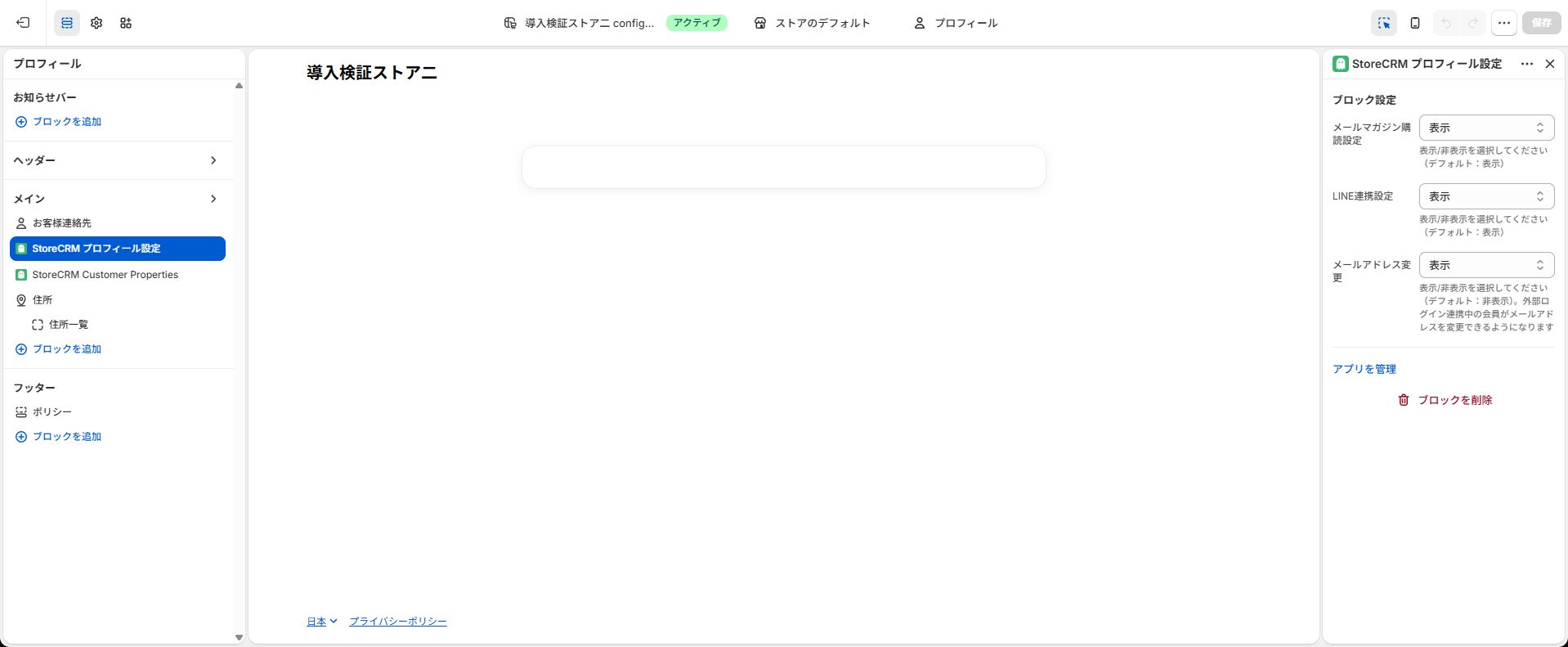
- Email address changes are hidden by default. Set Change email address to Show in the store configuration.
- The change button is displayed only for customers currently linked to the StoreCRM external identity provider.
- When the change is completed, the external identity provider link is removed and the email address is updated in Shopify and StoreCRM. The customer then signs in again with the new email address.
- For security, a completion notice is sent to both the old and new email addresses.
1. Enable email address changes for the store
- In Shopify admin, open Settings > Checkout, then click Customize for customer accounts.
- Open Profile in the checkout and accounts editor.
- Add or select the StoreCRM profile settings app block.
- In the app block settings, set Change email address to Show and save.
2. Customer starts changing the email address
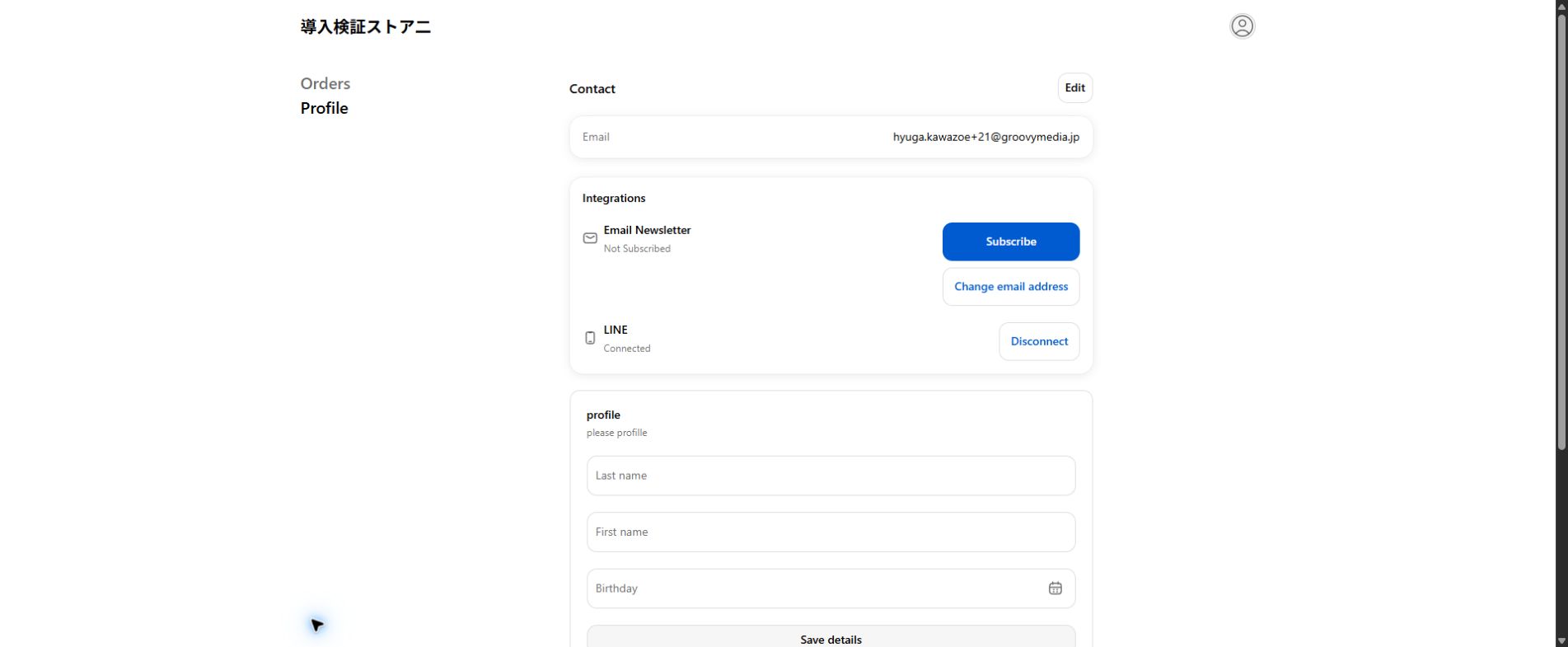
The customer signs in to the new customer account and opens Profile. Under Integrations, click Change email address.
3. Send a verification code to the new email address
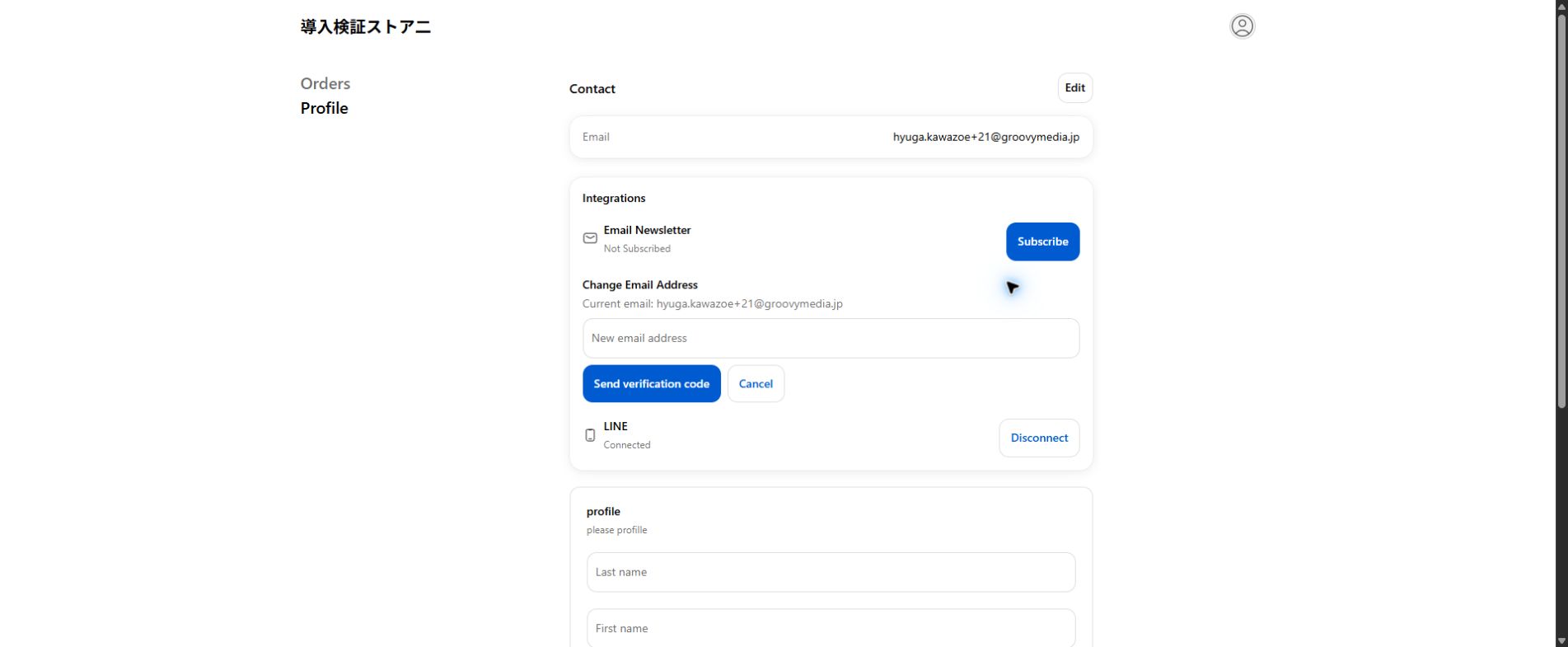
- Enter the New email address.
- Click Send verification code. A 6-digit verification code is sent to the new email address.
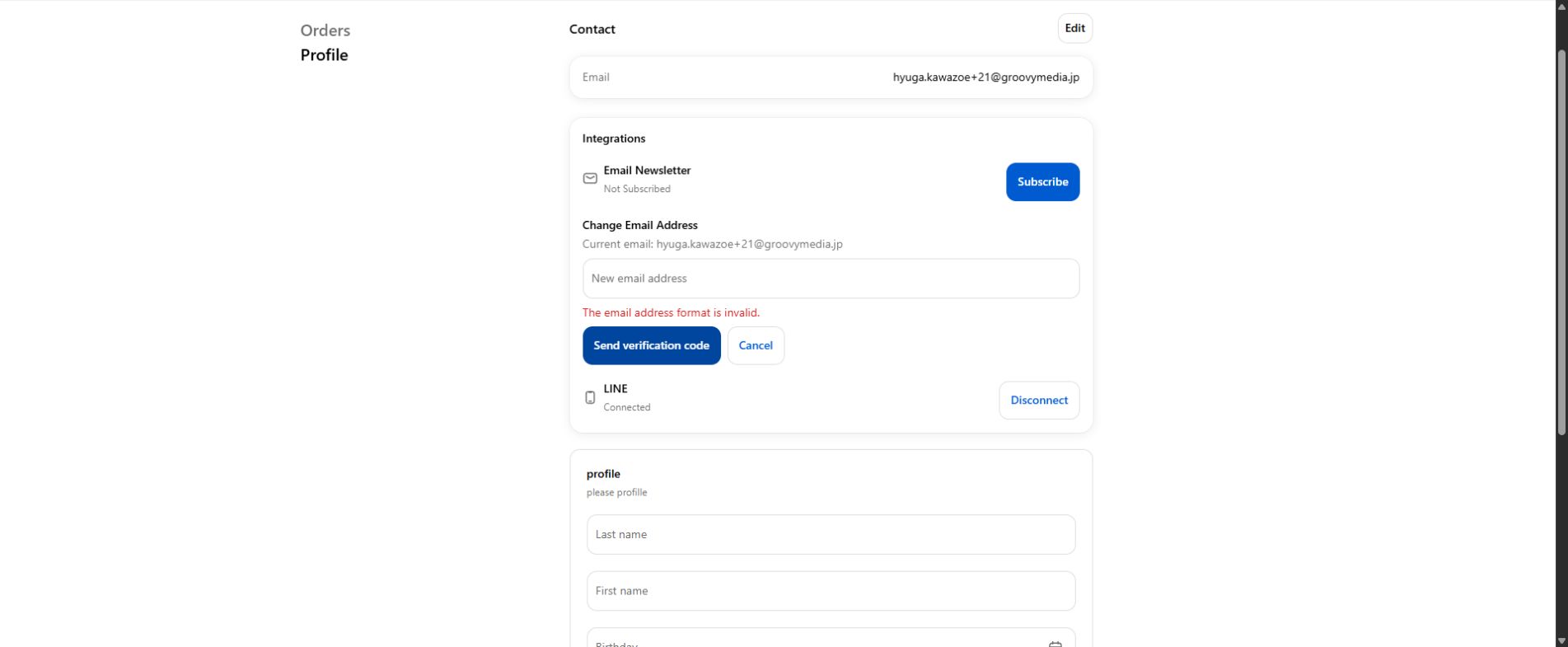
If the email address is empty or incorrectly formatted, an error appears. Check the address and try again.
4. Confirm the change with the 6-digit verification code
- Enter the 6-digit verification code sent to the new email address.
- Click Confirm change.
5. Sign in with the new email address
The change is complete when Your email address has been changed is displayed. The customer is signed out automatically and signs in again with the new email address from Sign in with new email.
Verification code limits
- The verification code is valid for 10 minutes.
- You can resend the code 60 seconds after it is sent. You can resend it up to three times for each change request.
- Entering an incorrect code five times locks the process for 30 minutes.
- The new email cannot match the current address or an address already used by another customer.
If the email does not arrive or the change cannot be completed
- Check the spam folder and confirm that the new email address was entered correctly.
- Even when StoreCRM is in test mode, the verification code is sent to the new email address entered by the customer.
- If an expiration, resend limit, or lock message is displayed, follow the on-screen instructions, wait as required, and restart the process.
- If Change email address is not displayed, check the store display setting, the profile settings app block, and the customer's external identity provider link status.
- If an update failure is displayed and the customer cannot sign in, do not repeat the operation. Contact StoreCRM support.
Related pages
 English
  Japanese