

Learn how to configure the Viewed a product and Abandoned after viewing a product conditions, and how to review targets, exclusion reasons, and results for a browse abandonment scenario.
Differences between the two browsing behavior conditions
- Viewed a product: Customers who viewed a target product page at least the specified number of times during the selected period. Customers who added the product to their cart or purchased it are also included.
- Abandoned after viewing a product: Customers who did not add to cart, begin checkout, or purchase after viewing, and for whom at least one matching product is still available for purchase.
A negative condition for customers with no product browsing history is not available.
Create a browsing behavior segment
- In StoreCRM, open Customer > Segment List and click Add New Segment.
- Enter a name and click Add condition.
- Select Viewed a product or Abandoned after viewing a product.
- Enter Period (days, 1–90) and Minimum count (1–10000).
- Under Scope, select All products, Product, Manual collection, or Product type, then specify the applicable product, collection, or product type.
- Click Next, review the matching customers, and save the segment if everything is correct.
Browsing data may take up to about 60 minutes to appear. You can use the segment in the customer list, CSV exports, campaigns, and scenario conditions.
Set conditions
Viewed a product selects customers with browsing history. Viewed a product but did not purchase selects customers who did not buy the target product after viewing it. Combine a 1–90 day lookback, view count, and all products, specific products, collections, or product types. No browsing history is not available as a condition.
Check the results
After saving the condition, switch between the included and excluded customer lists and review each exclusion reason. Filter by customer, product, and period, and export CSV when needed. In a scenario report, compare eligible, excluded, sent, purchased, and sales results using the same conditions and period.
If Browsing behavior (currently unavailable) is displayed
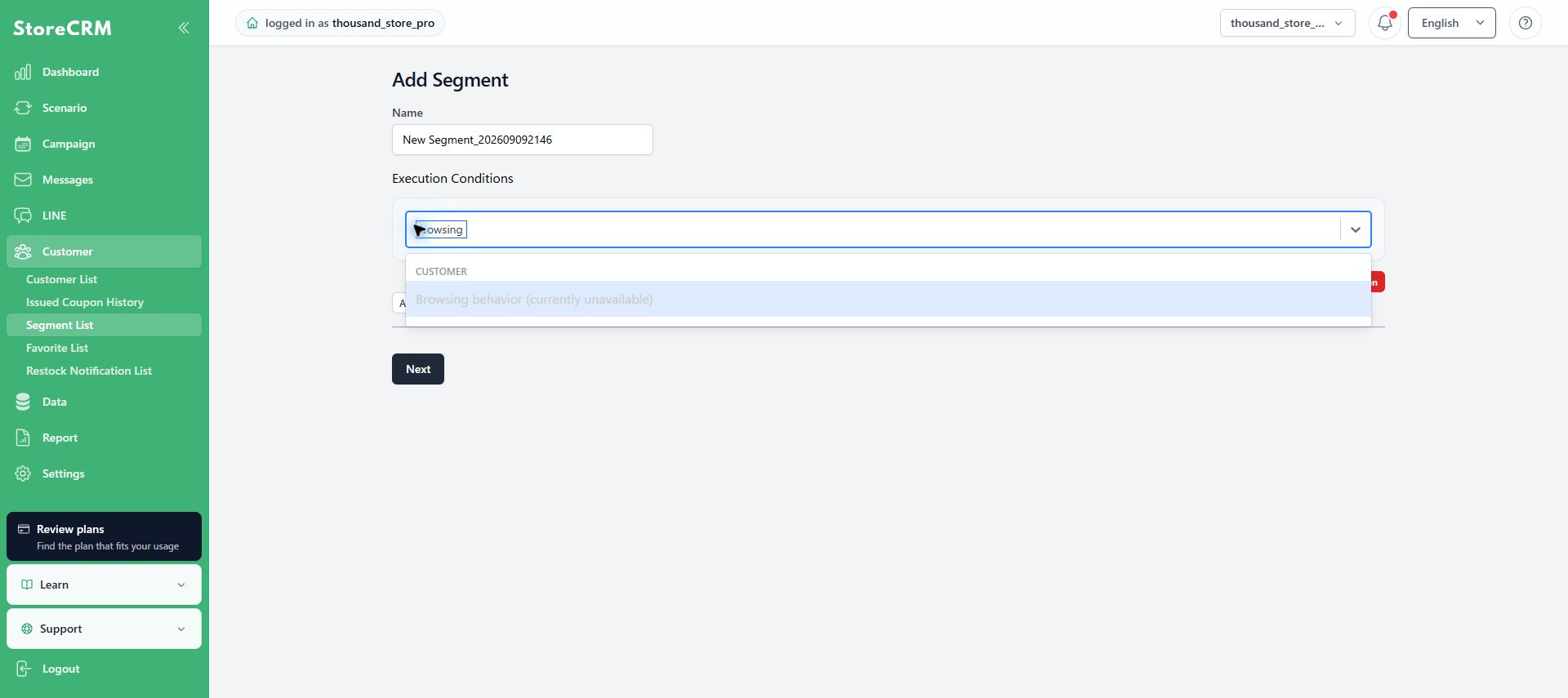
You cannot save a browsing behavior condition while this message is displayed. Check storefront browsing measurement, Shopify product synchronization, required permissions, and browsing-data processing. If the issue persists, contact StoreCRM support with the store name and a screenshot of this page.
Review browse abandonment scenario settings
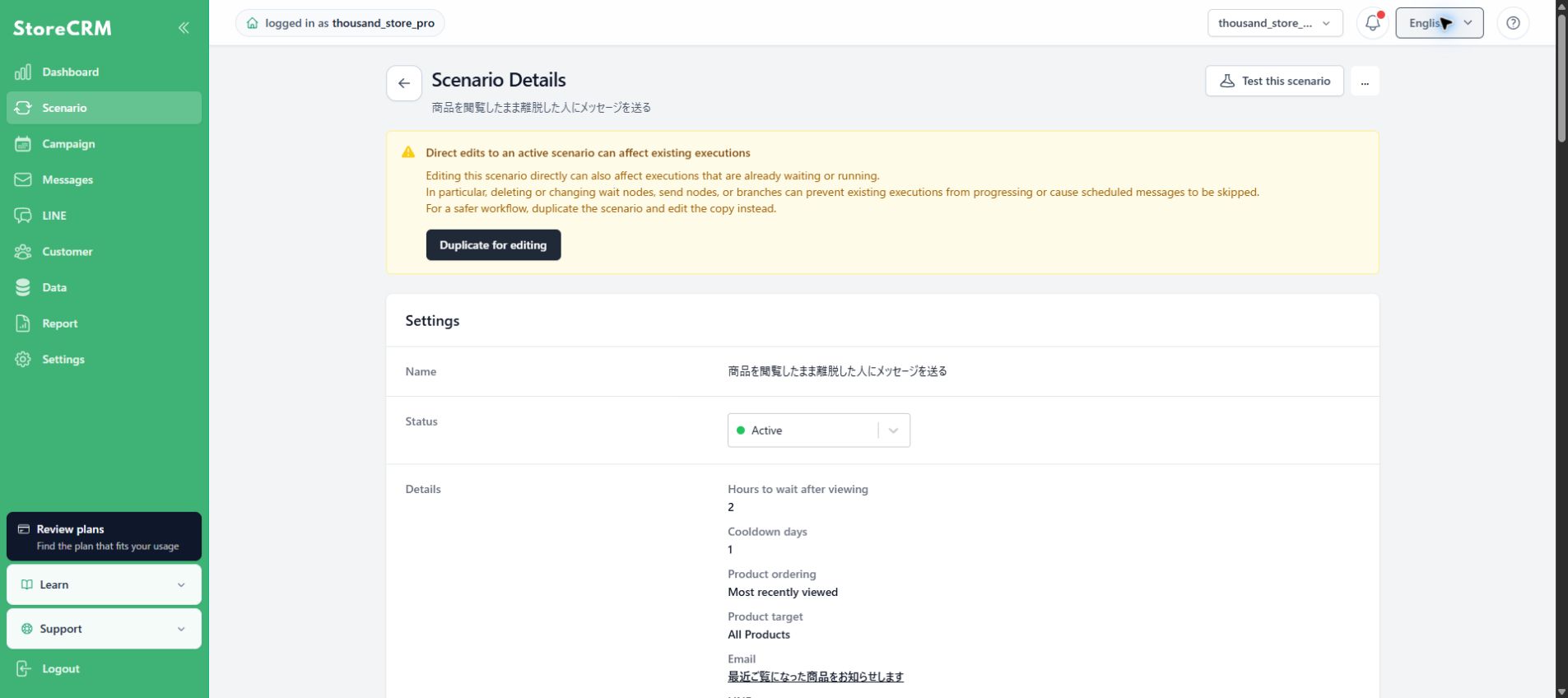
Open a browse abandonment scenario from Scenario to review the wait time after viewing, cooldown days, product order, target products, email, and LINE message. Changes to an active scenario can affect waiting or running executions, so use Duplicate for editing when making changes.
Review targets, exclusion reasons, and results
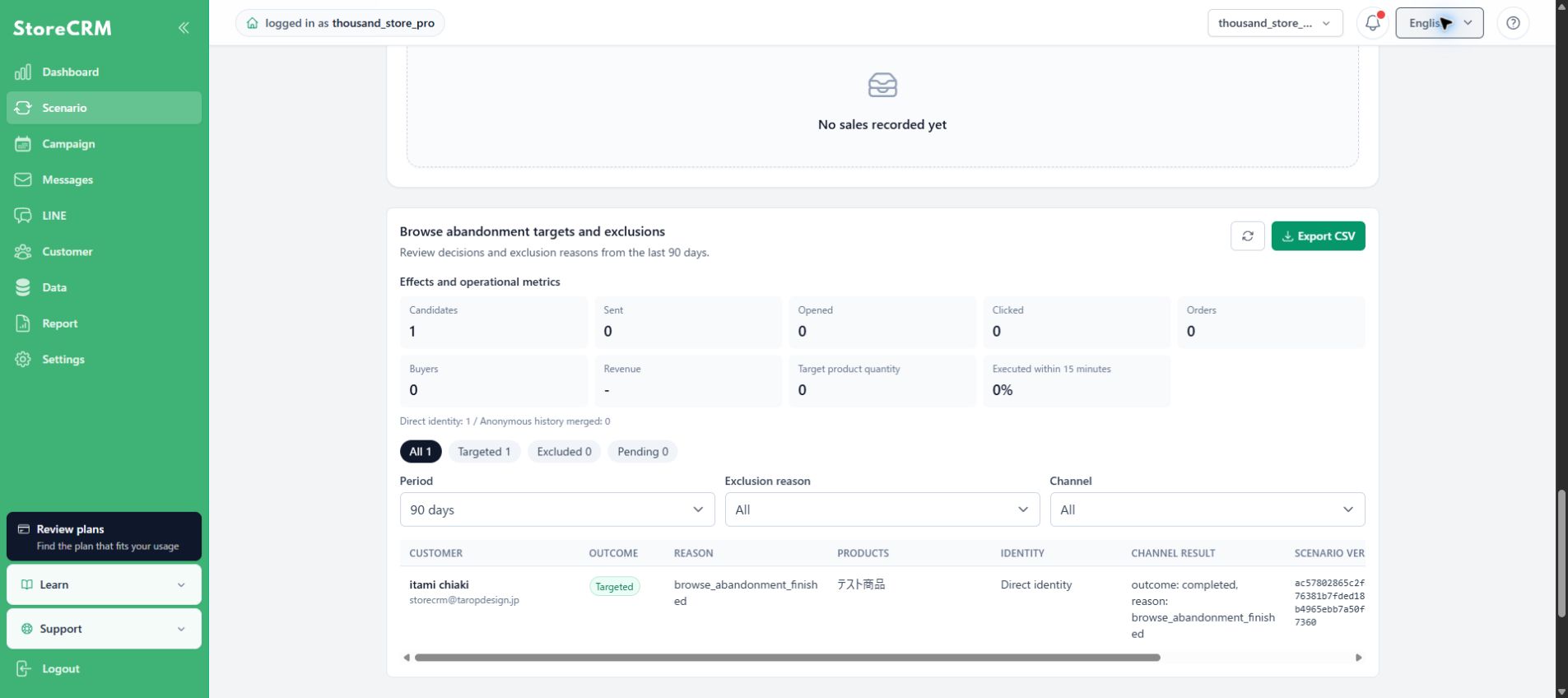
In Browse abandonment targets and exclusions on the scenario details page, you can review candidates, sent messages, opens, clicks, orders, buyers, revenue, target product quantity, and executions completed within 15 minutes for the last 90 days. The list also shows each customer's decision, target products, identity method, and channel result.
Switch between All, Targeted, Excluded, and Pending, then filter by period, exclusion reason, and channel. Exclusion reasons include cart detected, checkout detected, purchase detected, product unavailable, and cooldown active. Use Export CSV when needed.
Notes
- A standard browsing behavior segment finds customers matching its conditions. It does not automatically insert browsed products into an email.
- To display browsed products automatically in an email, use a product block configured to auto-select scenario products in the browse abandonment scenario email.
- Anonymous browsing history may be merged after a customer is identified. Review the breakdown under Direct identity / Anonymous history merged in Effects and operational metrics.
 English
  Japanese