

“Browse abandonment recovery” sends an email or LINE message to customers who viewed products without continuing to purchase.
Setup steps
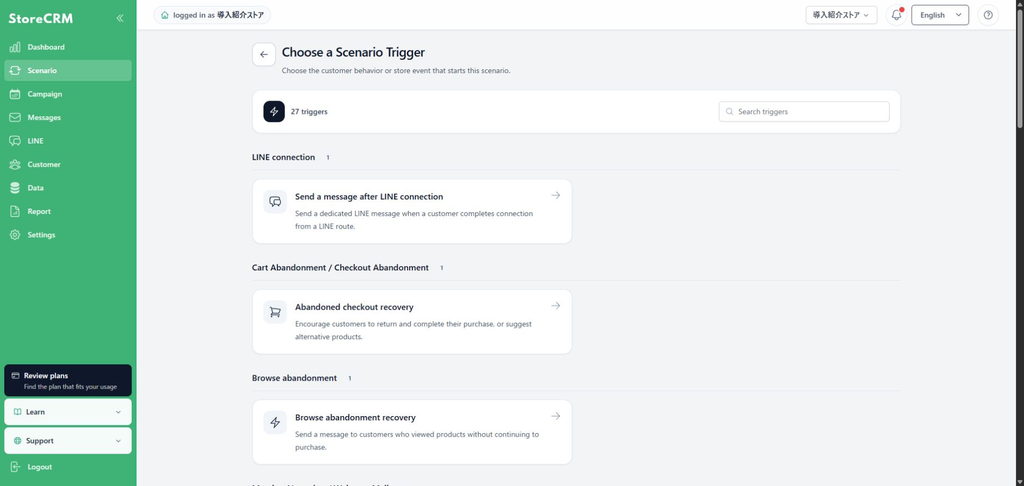
- Open Scenario → Add a new scenario.
- Under Browse abandonment, select Browse abandonment recovery.
- Set the target products, collections, or product types and the delay after the product view.
- Review the email or LINE message and save the scenario.
Set target products and delivery conditions
The waiting time is 2 to 48 hours after viewing, and the period not to be resent to the same customer is set in 1 to 30 days. Select from all products, specific products, collections and product types. If multiple products are specified, we will check how to choose products to use for messages such as new order / old order.
Set up a maximum of three messages
Choose your email, LINE, or both to send up to three stages. By e-mail, you can preview the number and link of the display product by using the abandoned product carousel. Check the waiting time for each stage and the end of the purchase, cart, and checkout.
Configure the dedicated send node and sending times
Use templates with abandoned browsing products in the dedicated Send browse abandonment message node. If a standard send node shows an incompatibility notice, open the flow, switch to the dedicated node, and select the email or LINE message.
Choose Use store settings, Limit for this node, or Do not limit in Sending time setting. For a node-specific limit, set both start and end times and save. Check the displayed effective time range and timezone.
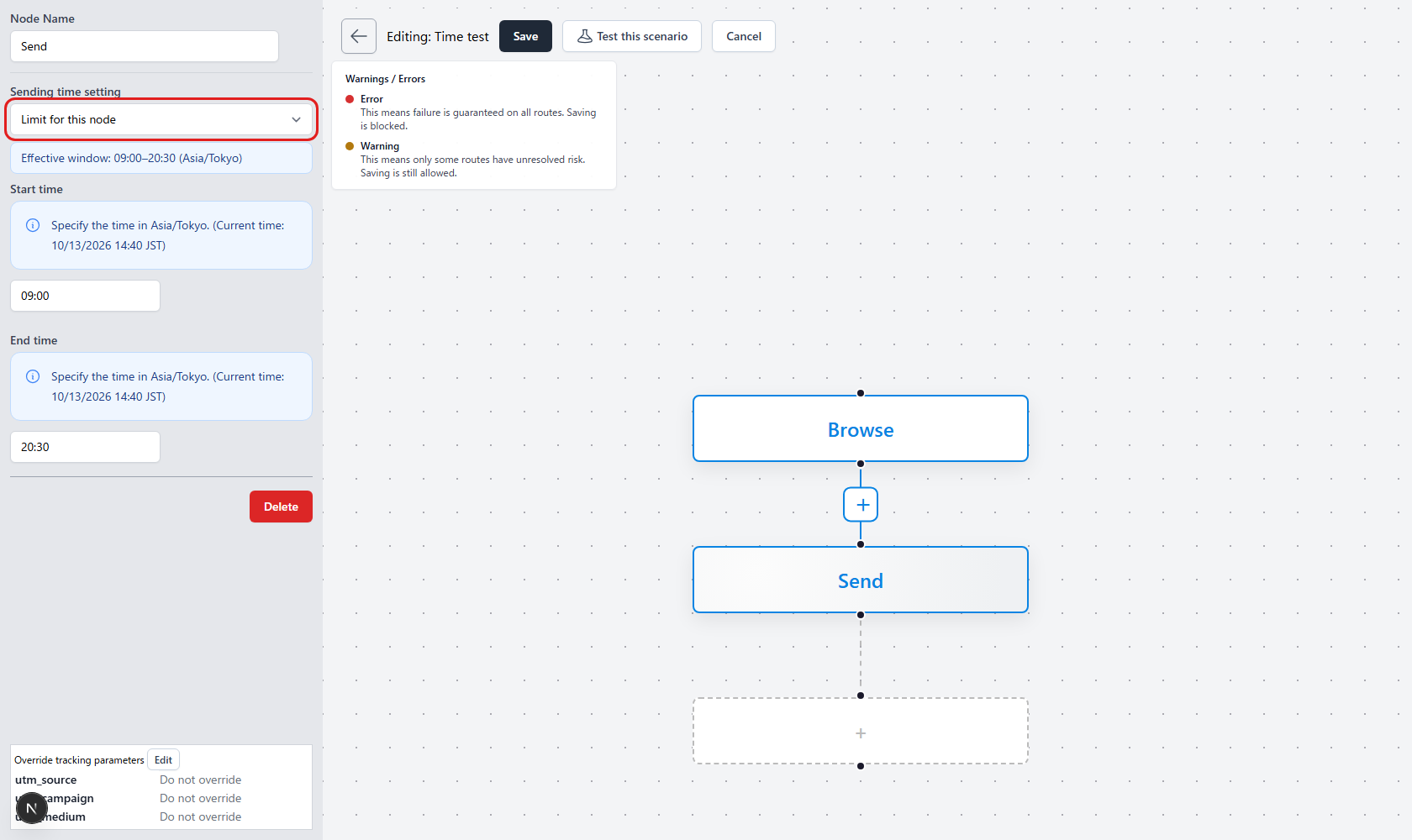
Messages outside the allowed hours are deferred to the next allowed time. For example, with 09:00–20:30 hours, a message at 20:31 waits until 09:00 the next day. Products, purchases, carts, checkouts, and consent are rechecked before sending; ineligible customers are not sent a message.
Check why a candidate was not sent
Unidentified browsing, tracking without consent, deleted customers, purchases, carts, checkouts, or the absence of purchasable products can prevent sending. Once login or registration identifies a customer in the same browser, recent anonymous history with consent may qualify. Browsing from different devices or browsers is not merged by inference.
Temporary retrieval or delivery failures may be held for retry. Email and LINE are evaluated against their respective permissions and connection states. If delivery is uncertain, inspect the candidate/exclusion panel and execution history before manually sending the same message again.
Test and activate the scenario
Check your permissions, then use a scenario test to review target customers, browsed products, exclusion reasons, message content, and exit conditions. Send actual email and LINE tests, verify that the intended products and links appear, and then activate the scenario. Anonymous browsing is reassigned to the same customer's history after a verified login or customer identification.
Show browsed products in an email
In an email, use a block that automatically selects candidate products from the scenario instead of choosing fixed products. The block to use differs depending on whether you want to show one product or multiple products.
Show one product
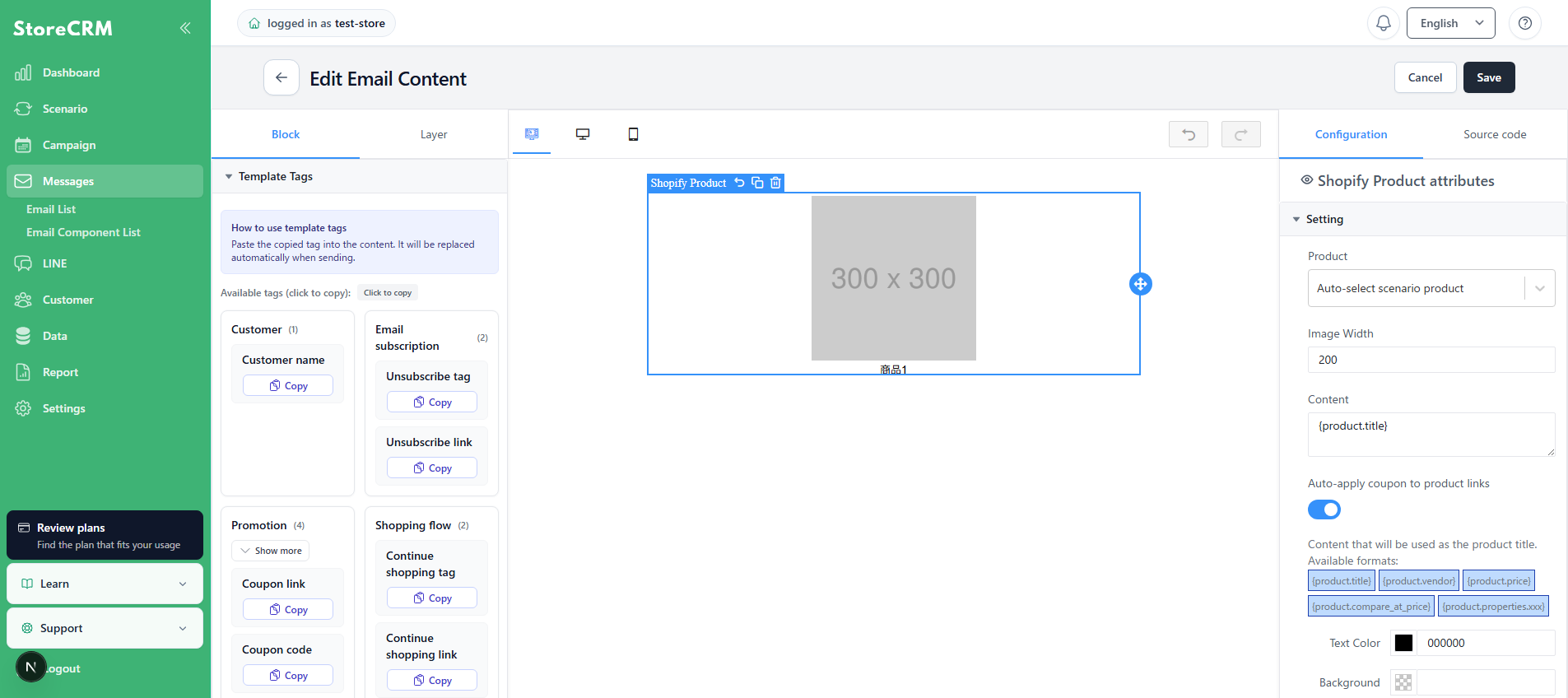
A browse abandonment email template normally contains one Shopify Product block. At send time, this block shows the first candidate product.
- Open the editor for the email used in the scenario.
- Select the product block in the email. To add one, drag Shopify Product from Block > Shopify on the left into the email.
- Under Product on the right, select Auto-select scenario product, and save the email. Do not select a fixed product.
Show multiple products
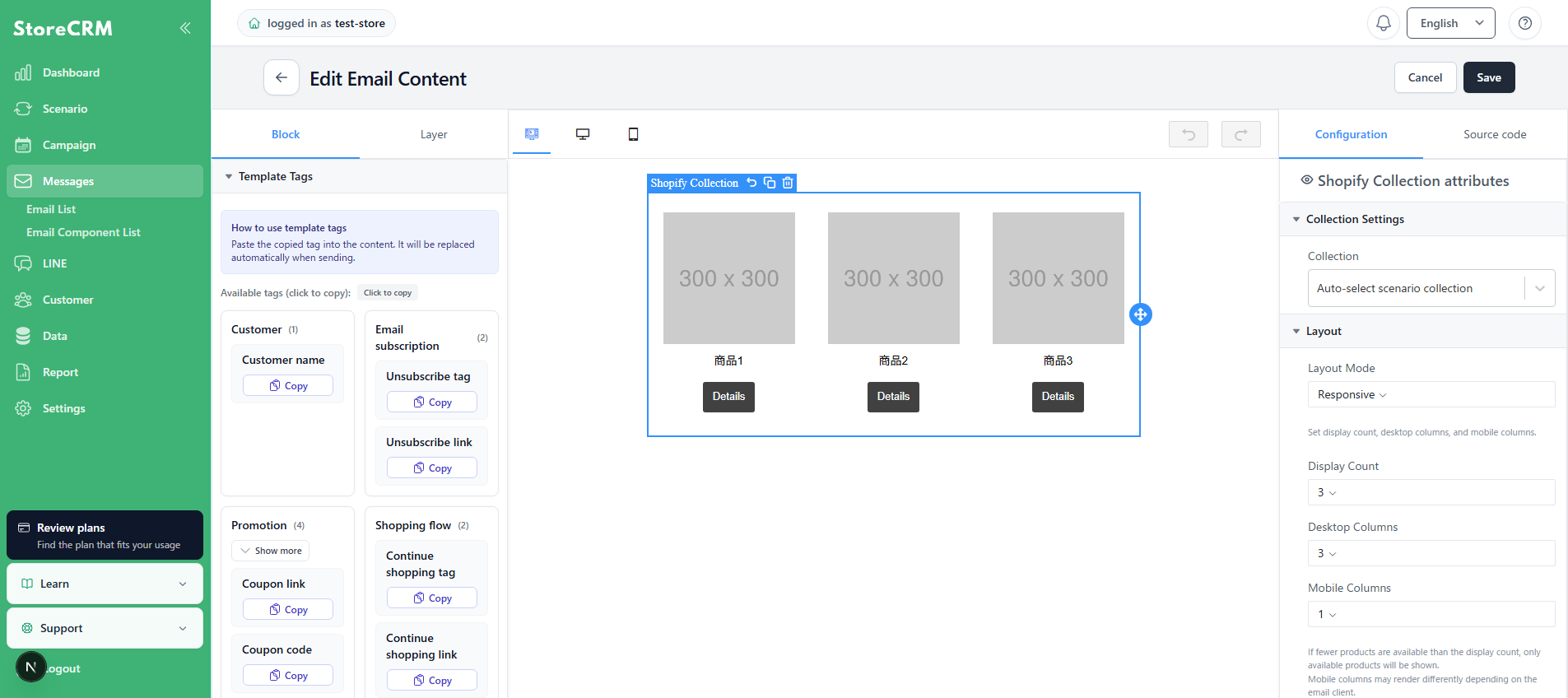
To show multiple browsed products, use the Shopify Collection block instead of Shopify Product. You can show up to 10 products.
- Remove the existing Shopify Product block from the template.
- Drag Shopify Collection from Block > Shopify on the left into the email, and select the block.
- Under Collection on the right, select Auto-select scenario collection.
- Set Layout Mode to Responsive and choose a Display Count from 2 to 10. Set Desktop Columns and Mobile Columns as needed.
- Review the preview and displayed content, and save the email.
Notes
- Shopify Products is for manually selecting fixed products. Do not use it to dynamically show multiple browse abandonment products.
- Do not use Shopify Product and Shopify Collection together in the same email. Include only one of them.
- If you select a fixed store collection in Shopify Collection, it will not be replaced with browsed products. Always select Auto-select scenario collection.
- The editor preview shows sample products. At send time, only purchasable candidate products are shown. If fewer products are available than the display count, only the available products are shown.
The candidate products are frozen at browse time. StoreCRM checks publication status and inventory again immediately before delivery and skips delivery when no products can be purchased. Email and LINE eligibility are evaluated independently using the applicable consent and friend-status rules.
Review the audience and results of browse abandonment campaigns
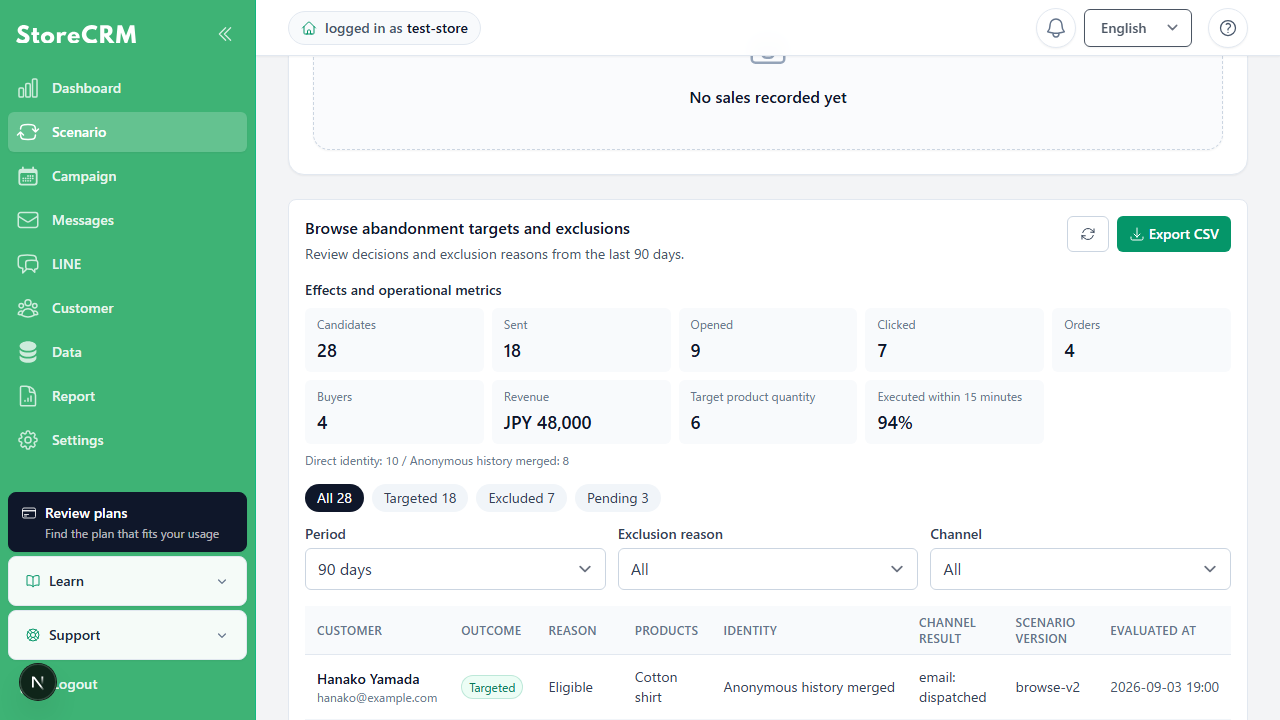
For a scenario triggered by browsing behavior, open [Browse abandonment audience and exclusions] in the scenario details to review candidate, sent, opened, clicked, and ordered counts, along with exclusion reasons. The default view covers the last 90 days. Filter by period, exclusion reason, and delivery channel, and export a CSV if needed.
Related pages
Related pages
Create a browsing behavior segment
 English
  Japanese