

The Shopify Flow action [StoreCRM: Disconnect LINE] automatically disconnects LINE in StoreCRM for the Shopify customer identified by the trigger. This page explains how to receive a disconnection event from CRM PLUS on LINE and how to use customer tags.
Before you begin
- Complete the connections between StoreCRM, Shopify, and your LINE Official Account.
- Install Shopify Flow and log in with permission to create workflows.
- Prepare a LINE-connected customer for testing.
Method 1: Apply disconnections from CRM PLUS on LINE
- In Shopify Admin, open [Apps] → [Shopify Flow], and click [Create workflow].
- Select CRM PLUS on LINE's [A customer disconnected social login] trigger.
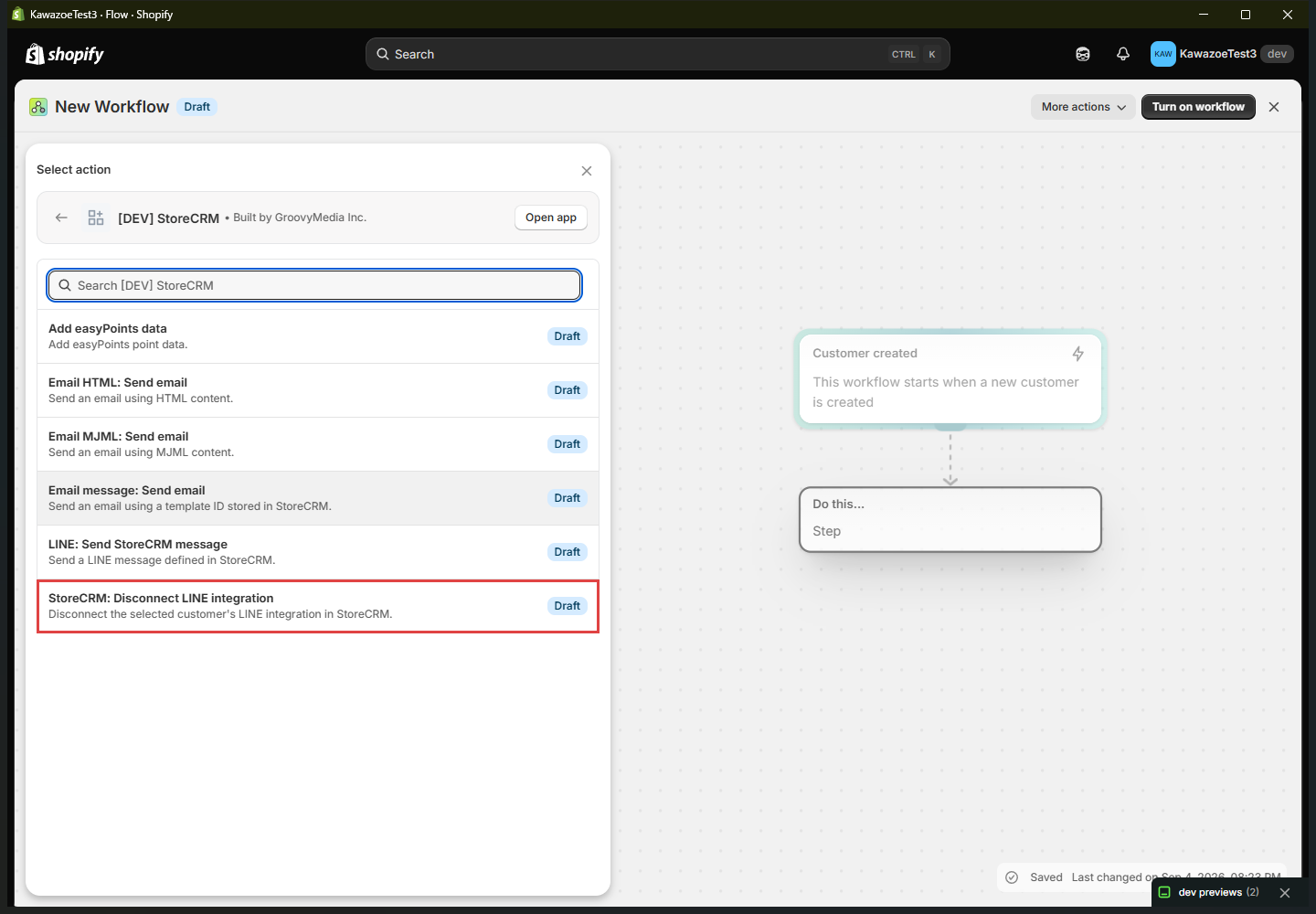
- In the next step, add an [Action] and select StoreCRM's [StoreCRM: Disconnect LINE].
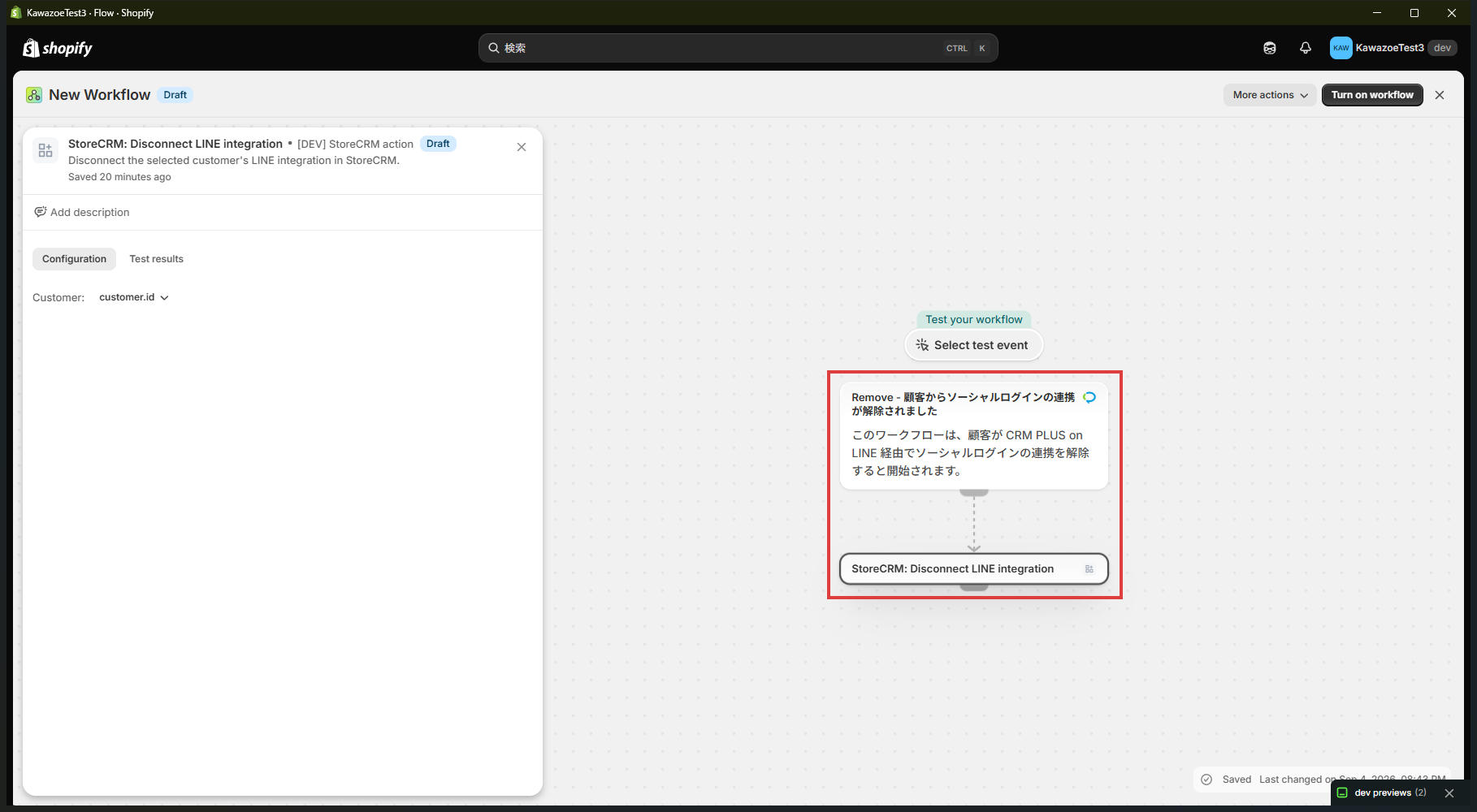
- In the required [Customer to disconnect from LINE] field, specify the Shopify customer passed by the trigger.
- Review the settings, save the workflow, and turn it on.
In the action list, select StoreCRM's [StoreCRM: Disconnect LINE].
Connect the CRM PLUS on LINE trigger to the disconnect action, and set the action's Customer field to the trigger'scustomer.id.
Note:This action disconnects LINE only in StoreCRM. It does not change thesocialplus.lineinformation in CRM PLUS on LINE.
Method 2: Disconnect when a customer tag is added
- Create a new workflow and select Shopify's [Customer tags added] trigger.
- Add a condition and configure the trigger'sTags (the tags added in this event) include a
deleted_accountsso the workflow continues only when it contains the specified tag. - Add [StoreCRM: Disconnect LINE] as the action.
- In the required [Customer to disconnect from LINE] field, specify the trigger's Shopify customer.
- Save the workflow and turn it on.
For the tag method, connect the Customer tags added trigger,deleted_accountscondition, and the StoreCRM disconnect action as follows.
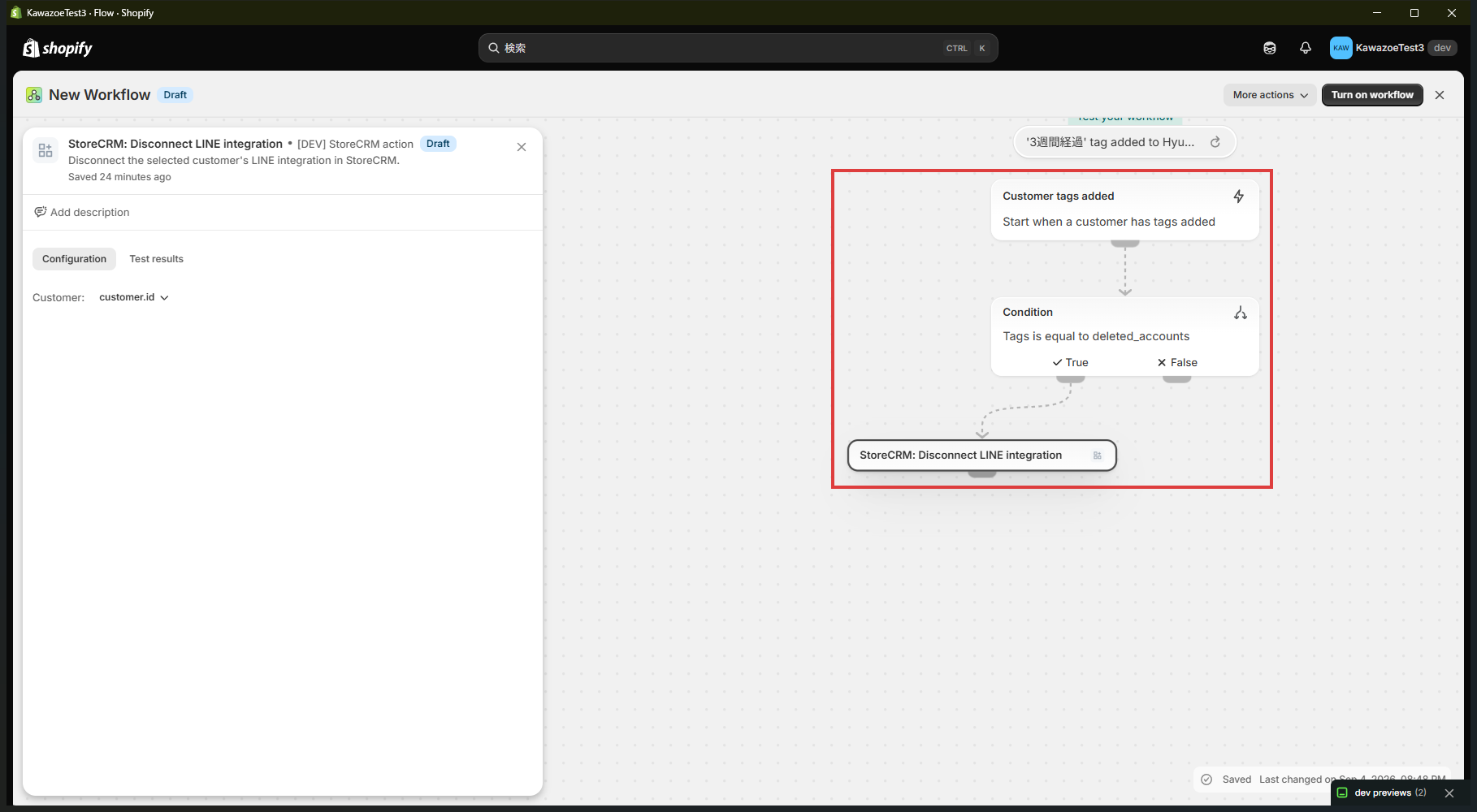
Important:Use the trigger's [Tags (the tags added in this event)] in the condition, not the list of all tags currently assigned to the customer. If you use all customer tags in the condition, adding another tag later, such asstorecrm-linemay run the disconnect action again.
Action settings
The only required field for [StoreCRM: Disconnect LINE] is [Customer to disconnect from LINE]. Do not enter a fixed customer ID; always specify the Shopify customer passed by the trigger. The action fails safely if it receives another type of object or a customer from another store.
Test and review the result
- Trigger the configured event using a LINE-connected test customer.
- Open the Shopify Flow run history and confirm that [StoreCRM: Disconnect LINE] succeeded.
- Open the customer details in StoreCRM and confirm that LINE is disconnected for the target customer.
- Confirm that the StoreCRM tags and metafields are removed in Shopify. The update may take up to approximately five minutes.
Behavior notes
- Even if the same LINE ID is linked to multiple customers, only the customer specified by the workflow is disconnected.
- Running the action again for an already disconnected customer is treated as successful and makes no additional changes.
- The action fails safely if the customer is blank, does not exist, or belongs to another store.
If LINE is not disconnected
- In the workflow run history, confirm that the run passed the condition and reached the StoreCRM action.
- Confirm that the trigger's Shopify customer is set in [Customer to disconnect from LINE].
- For the tag method, confirm that the condition references the tags added in the current event.
- Confirm that the target customer is connected to LINE in StoreCRM.
- If only the Shopify tags or metafields remain, wait up to five minutes and check again.
For email delivery actions, seeSend email through StoreCRM from Shopify Flowfor more information.
 English
  Japanese