

On confirmation screens for subscription, unsubscription, or LINE disconnection, review the requested change before running it. Opening the screen alone does not apply the change. Appearance and sign-in methods depend on the store settings.
Run a change from the store’s confirmation screen
1. Review the requested change
Where: A subscription or connection confirmation screen in the store
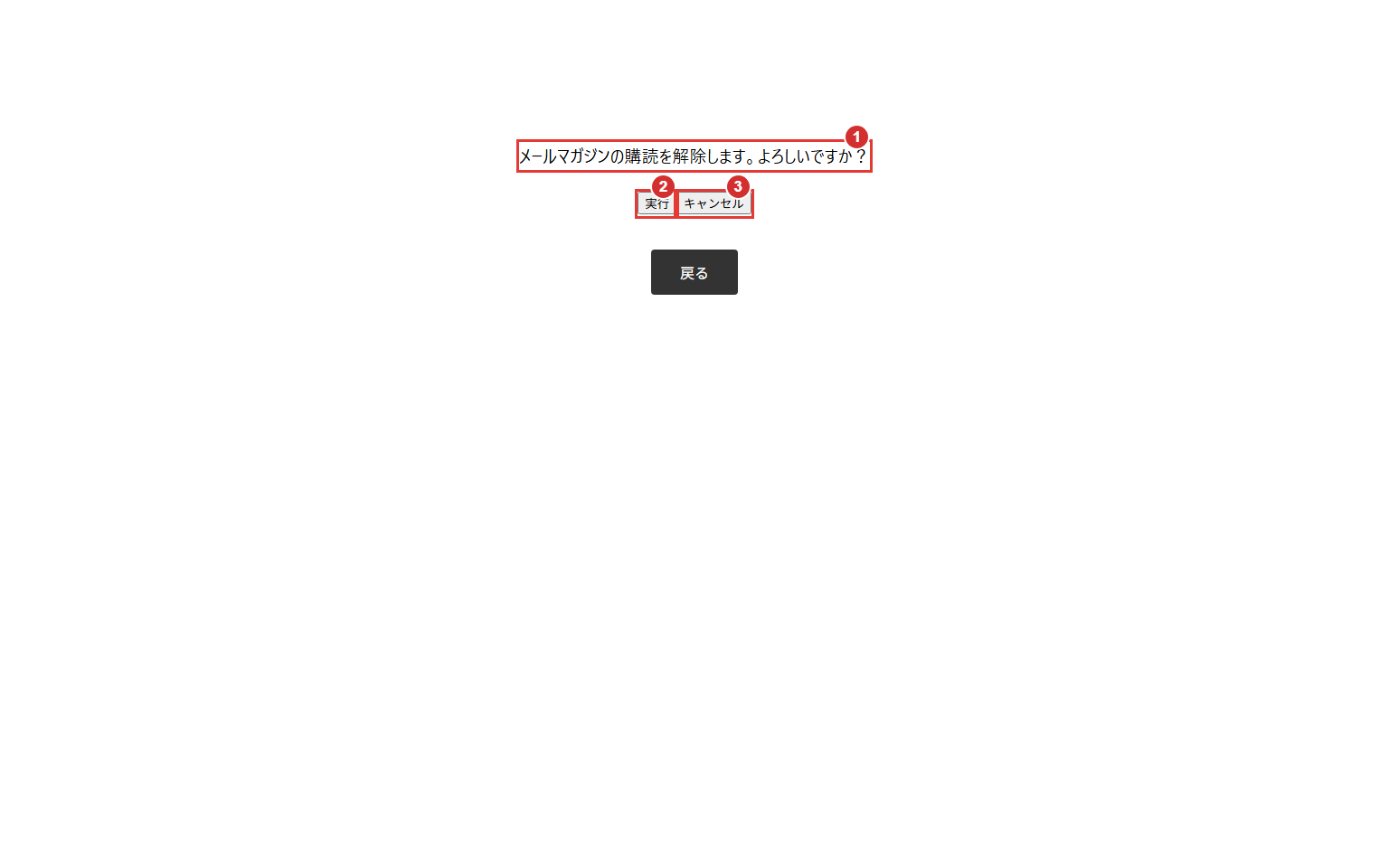
Read 1 the requested change and identify 2 実行 (Run) and 3 キャンセル (Cancel). This example is newsletter unsubscription; subscription and LINE disconnection show different confirmation text.
Check: Opening the confirmation screen alone does not change the subscription or LINE connection.
2. Run the reviewed change
Where: 実行 below the confirmation message
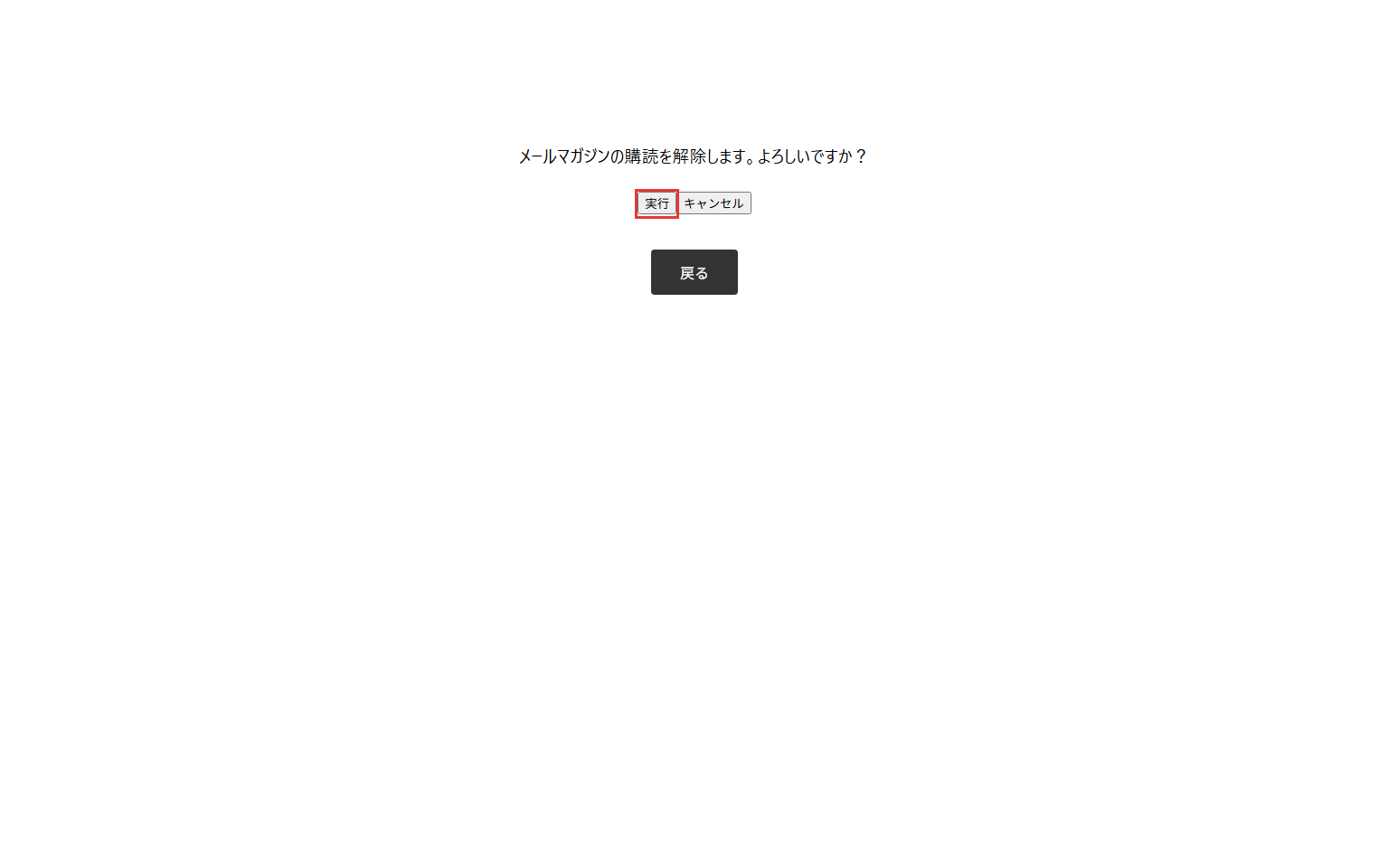
After checking the requested change, click 実行 (Run). Wait for the result instead of clicking repeatedly.
Check: Processing starts. Check the resulting message before treating the change as complete.
3. Review the completion message
Where: Result after running the change
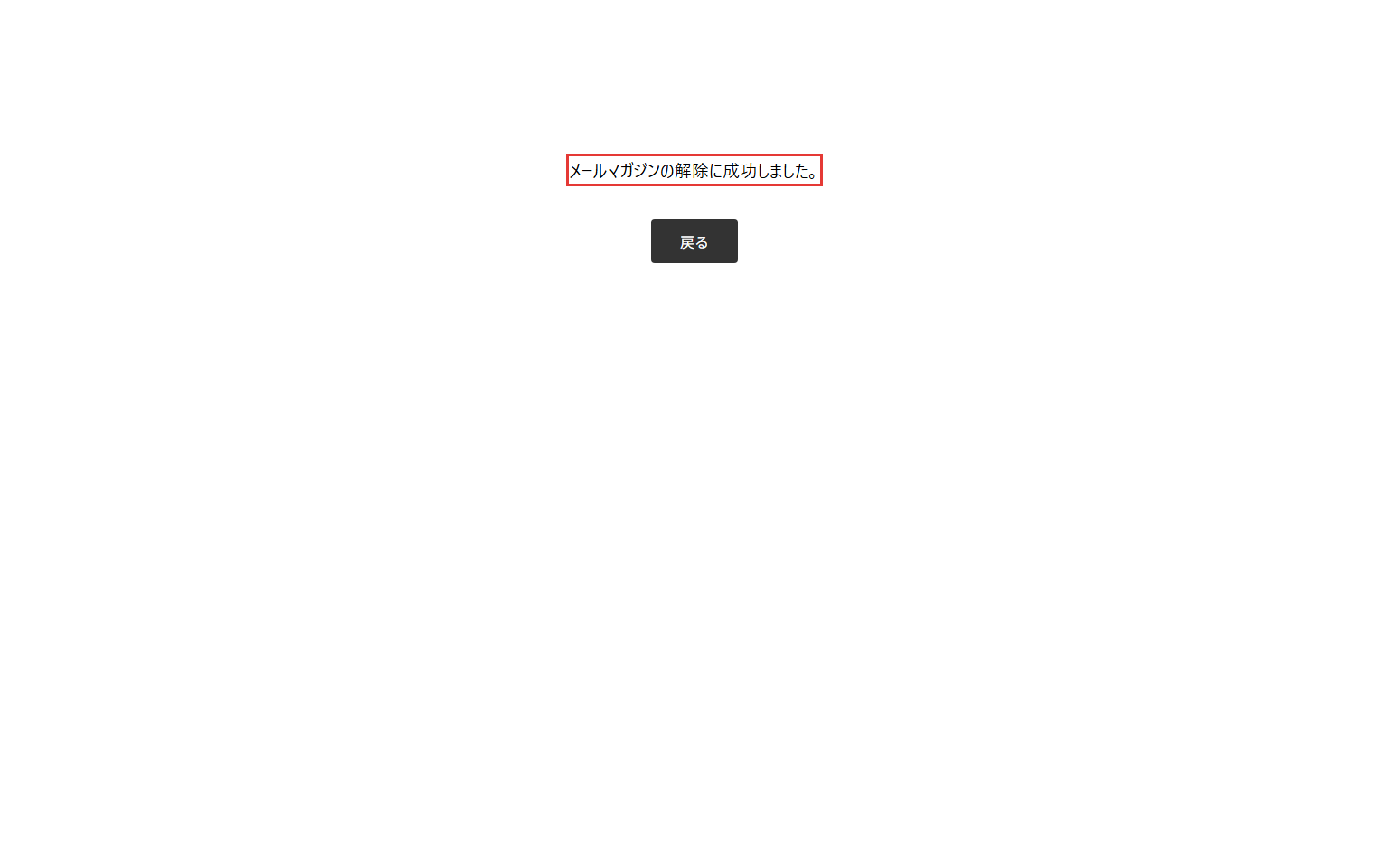
Check that the success message matches the intended operation. This example says that newsletter unsubscription succeeded.
Check: You can confirm the completed operation. Do not treat an error or sign-in request as completion.
Cancel without applying a change
1. Cancel before running the change
Where: キャンセル in the confirmation screen
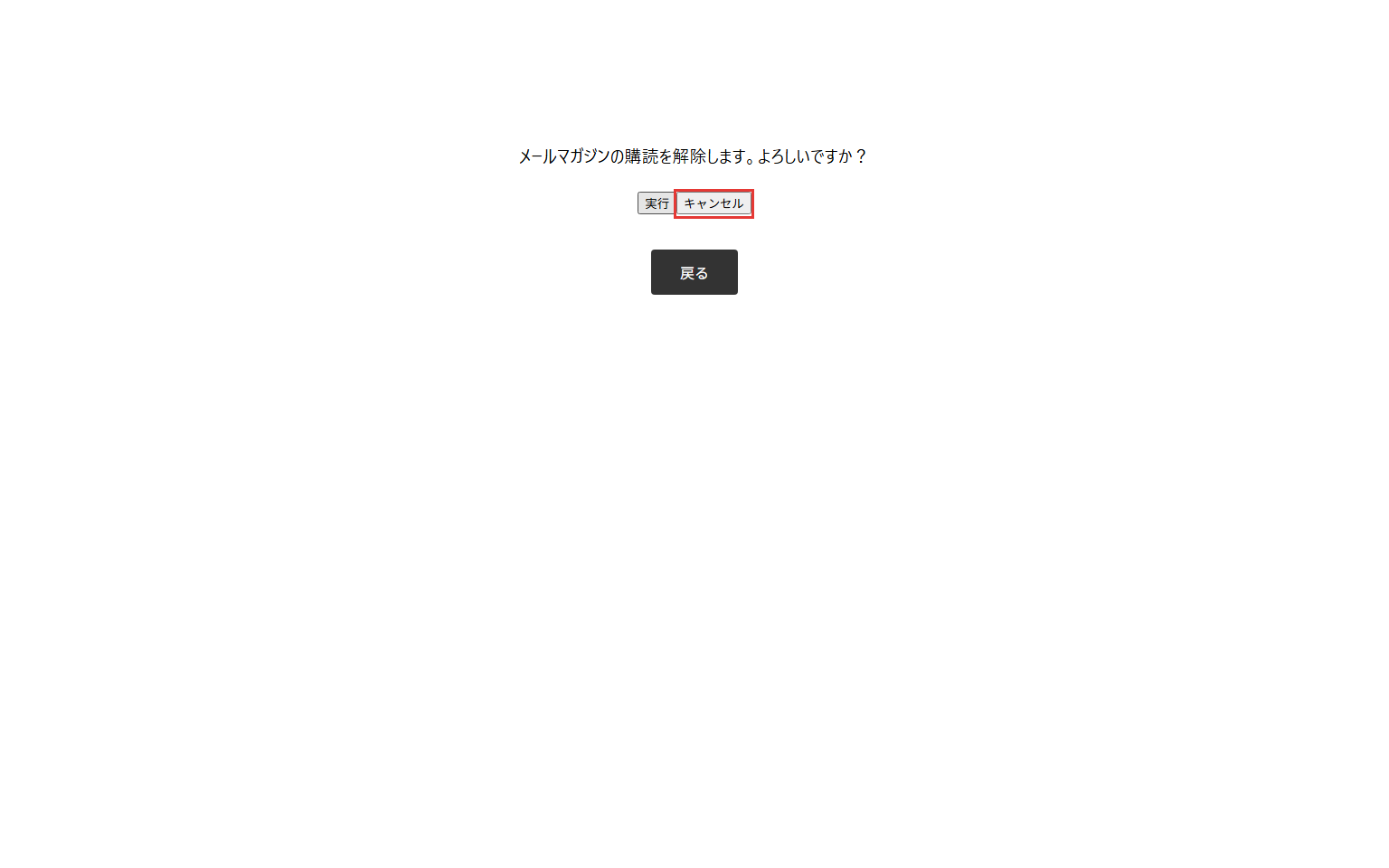
To abandon the change, click キャンセル (Cancel) before Run. This does not undo a change already completed.
Check: The operation is stopped without applying the change.
2. Confirm cancellation
Where: Result after cancelling
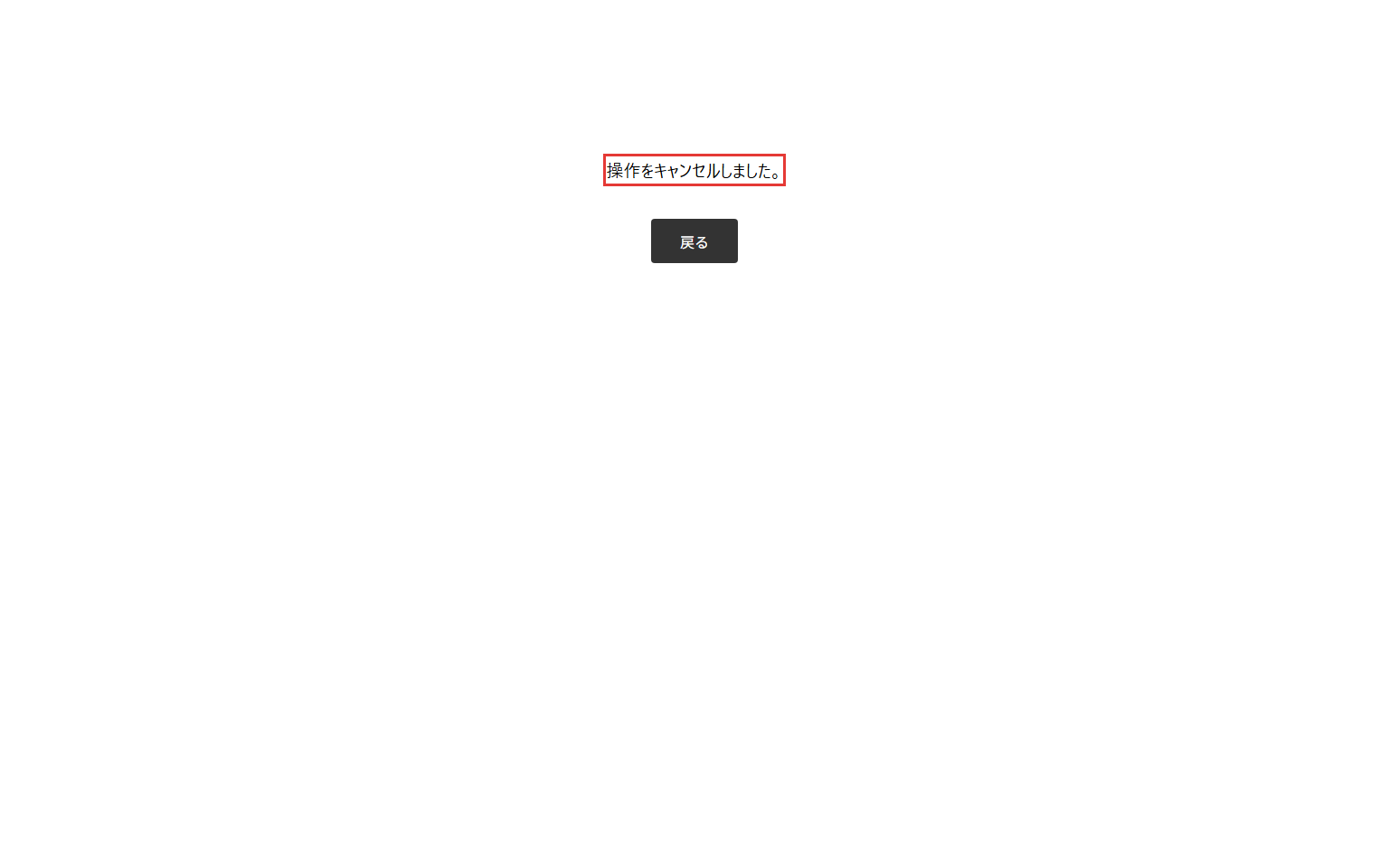
Check for the message that the operation was cancelled.
Check: The change was not run from this confirmation screen.
When sign-in or reauthentication is required
1. Recognize a sign-in requirement
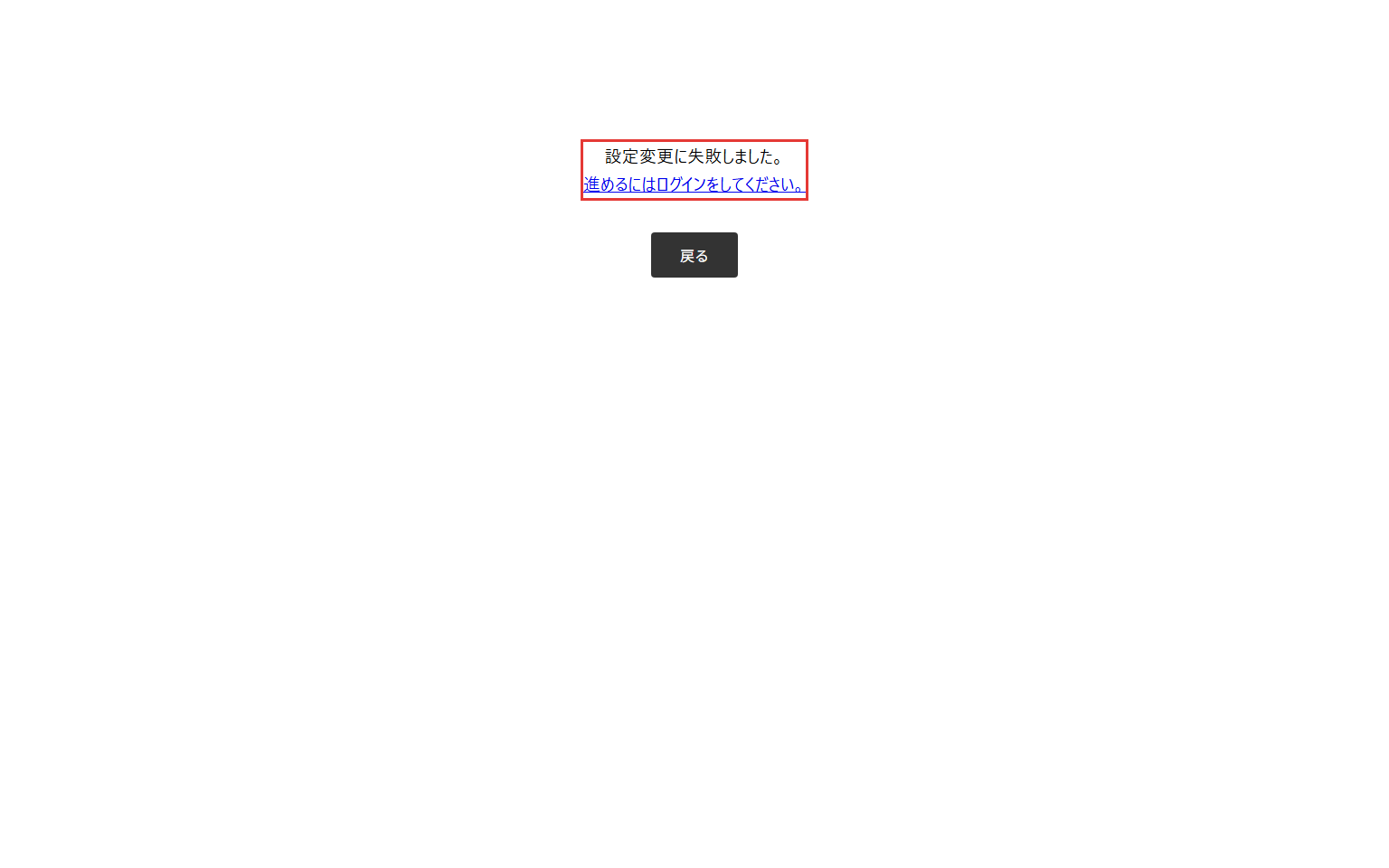
Where: Sign-in link below a failed-setting message
Use the displayed sign-in link when prompted. After signing in to the store, reopen the original confirmation screen and review the requested operation.
Check: You can recognize that the change cannot proceed before sign-in.
2. Recognize a reauthentication request
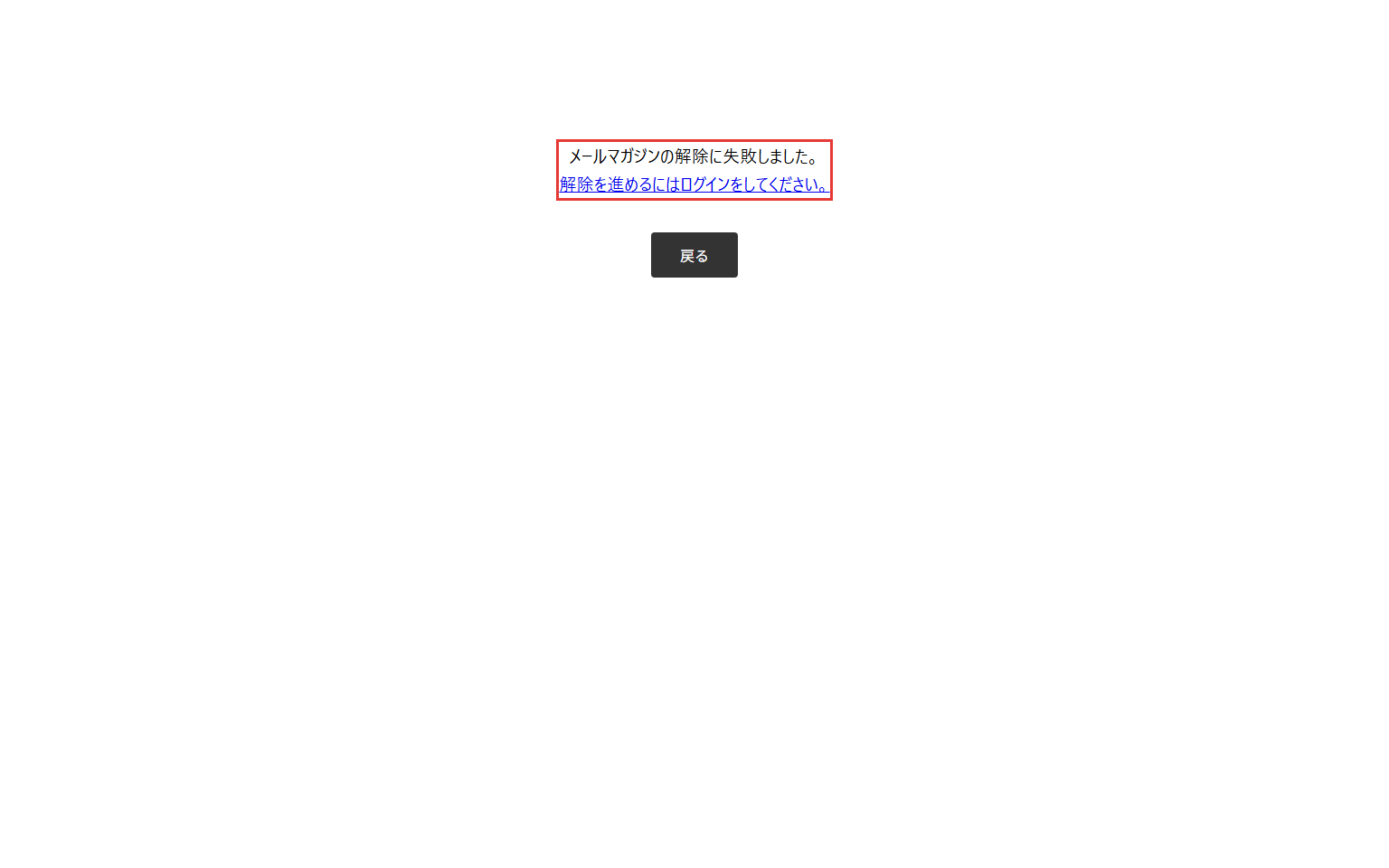
Where: Sign-in link after an unsubscribe failure
If unsubscription fails and requests sign-in even though you previously signed in, follow the link to sign in again. Then review the original confirmation screen; do not mistake this failure for success.
Check: You can distinguish a reauthentication requirement from a completed unsubscription.
 English
 Japanese