

The LINE dashboard shows linked-customer counts, delivery results, and aggregation status for a selected period.
Review LINE performance and aggregation status
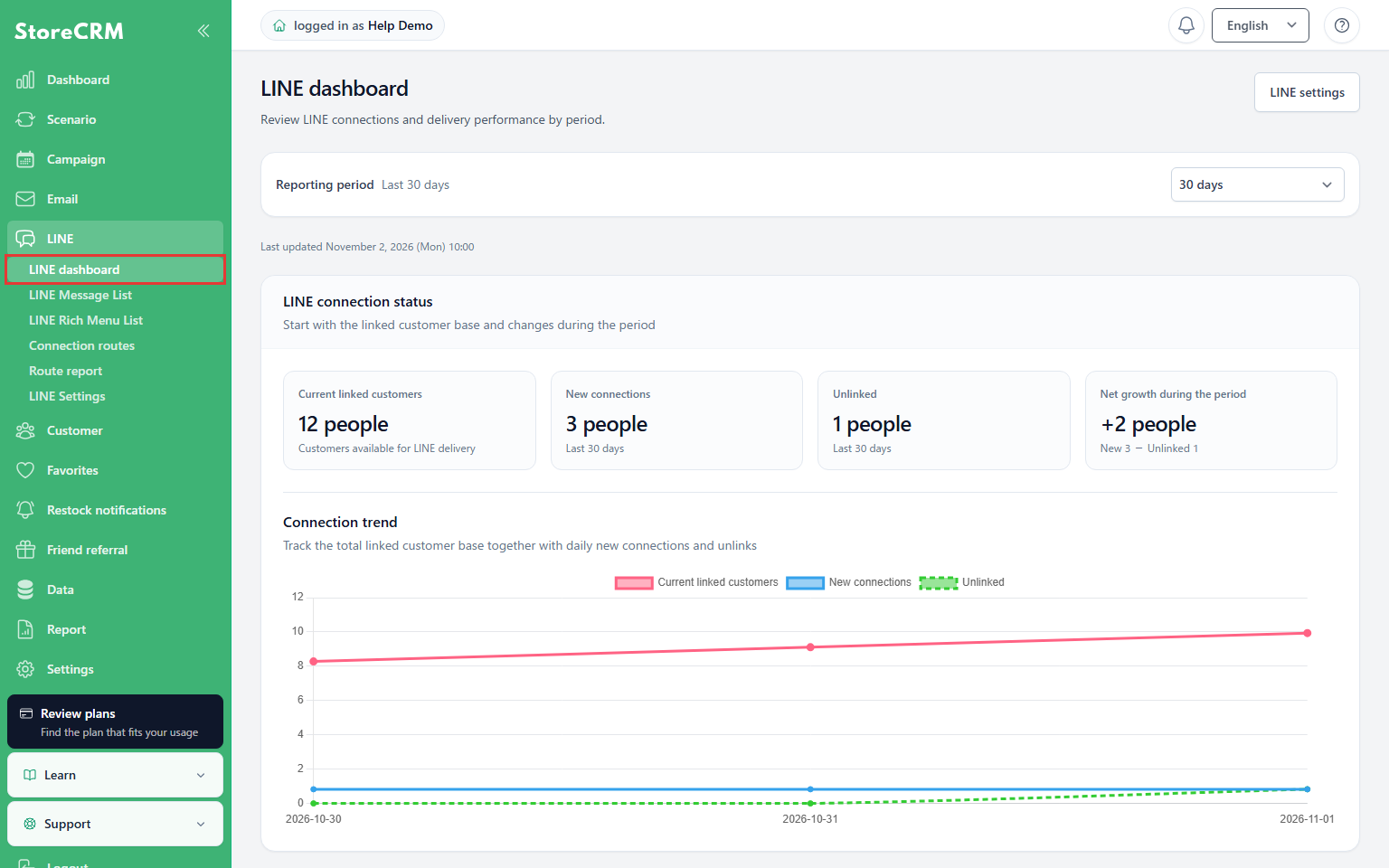
1. Open the LINE dashboard
Where: LINE in the left navigation
Click LINE dashboard.
Check: Connection status and delivery performance appear.
2. Choose the reporting period
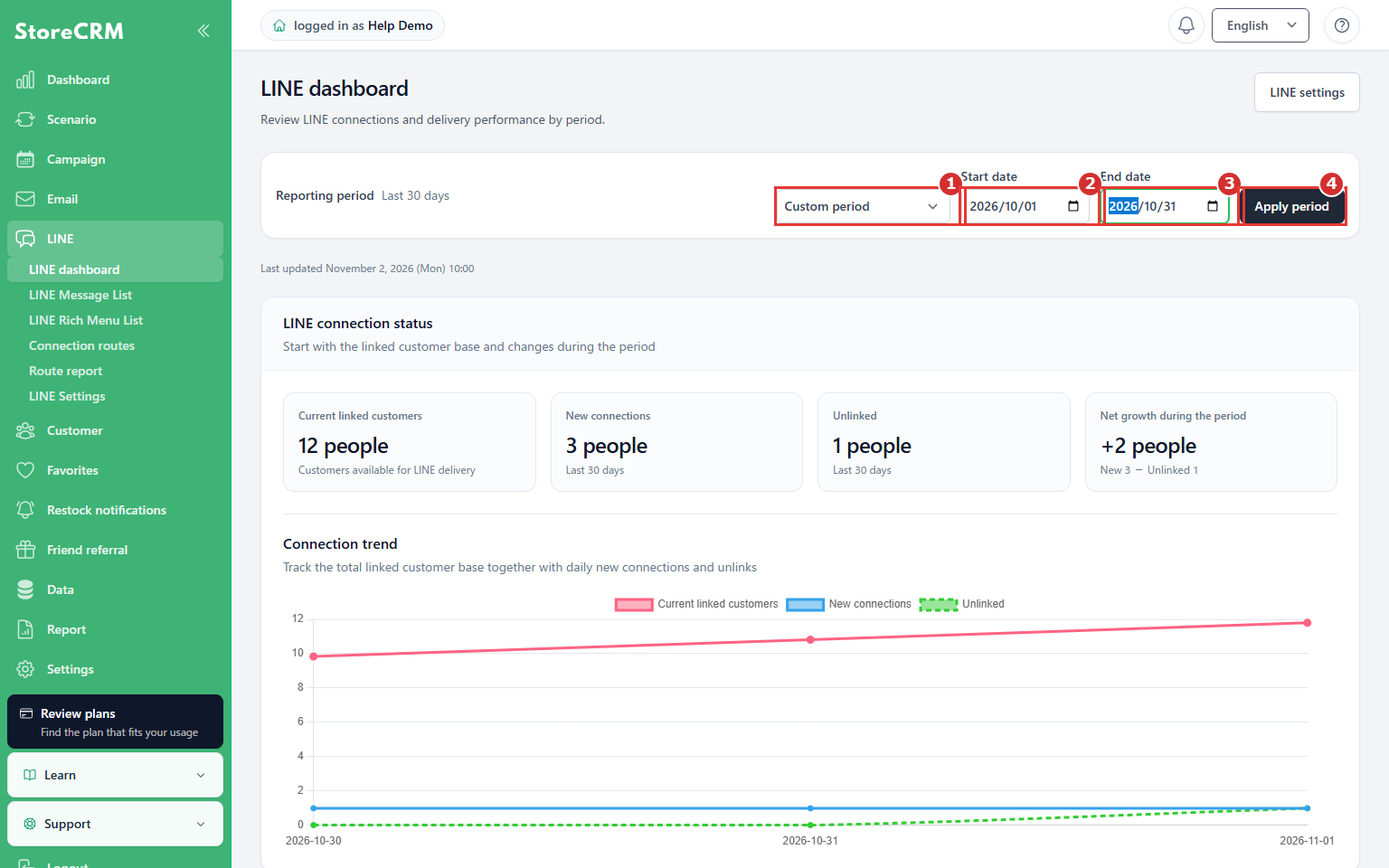
Where: Period controls at the top
Choose 7 days, 30 days, 3 months, or a custom period. For a custom period, follow controls 1–4.
- 1 Period — Select Custom period.
- 2 Start date — Enter the first day to include.
- 3 End date — Enter the same day or a later day.
- 4 Apply period — Apply the dates to the report.
Check: Delivery performance is shown for the applied period.
3. Review connections
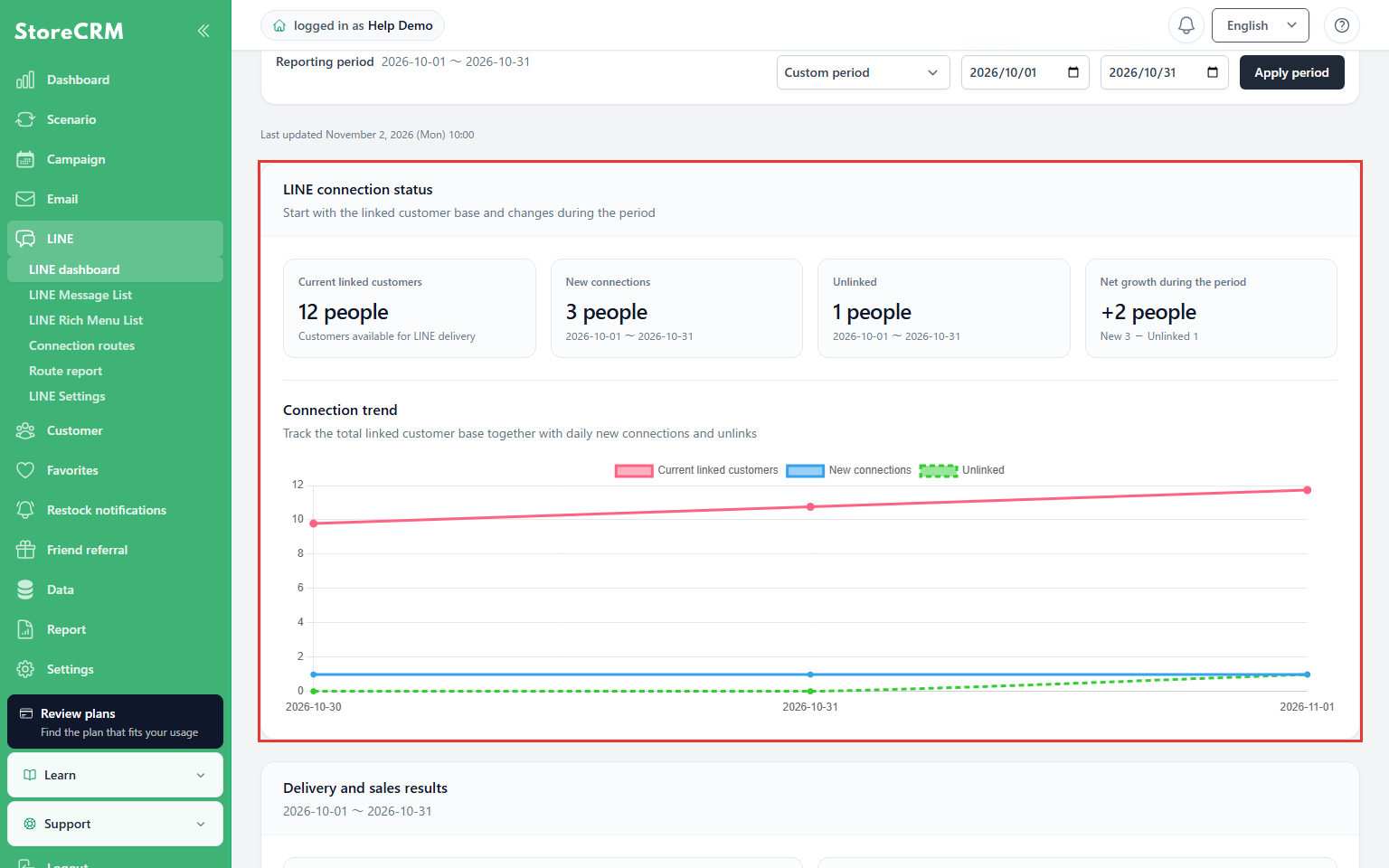
Where: LINE connection status
Review current connected customers and new connections, unlinks, and net growth for the period.
Check: Current totals and changes during the period are distinct. Current connections are not the same as new connections in the selected period.
4. Review delivery performance
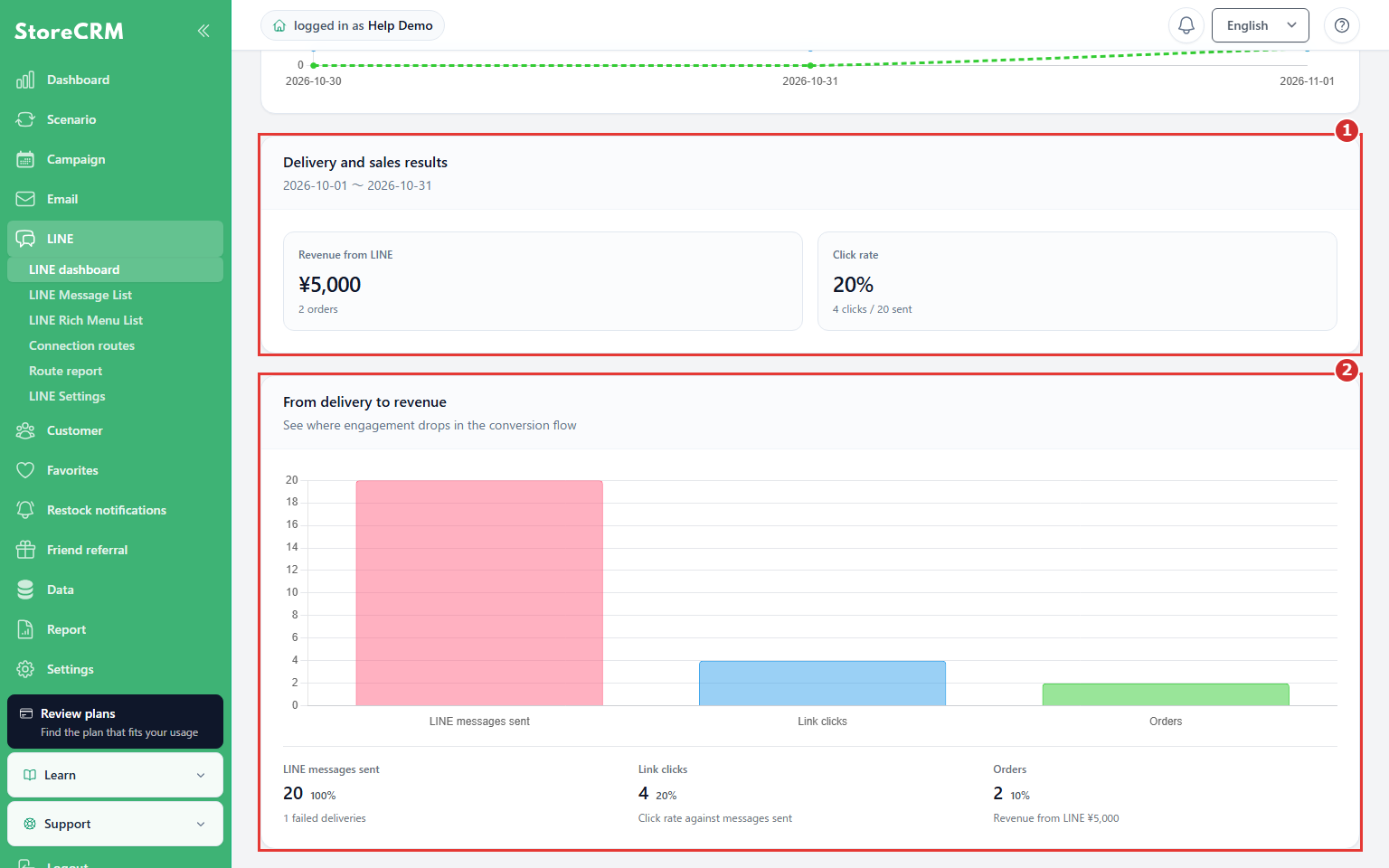
Where: Delivery performance cards
Review sends, failures, clicks, orders, and revenue, together with the displayed period and currency.
Check: Delivery results for the period are separate from customer connection counts.
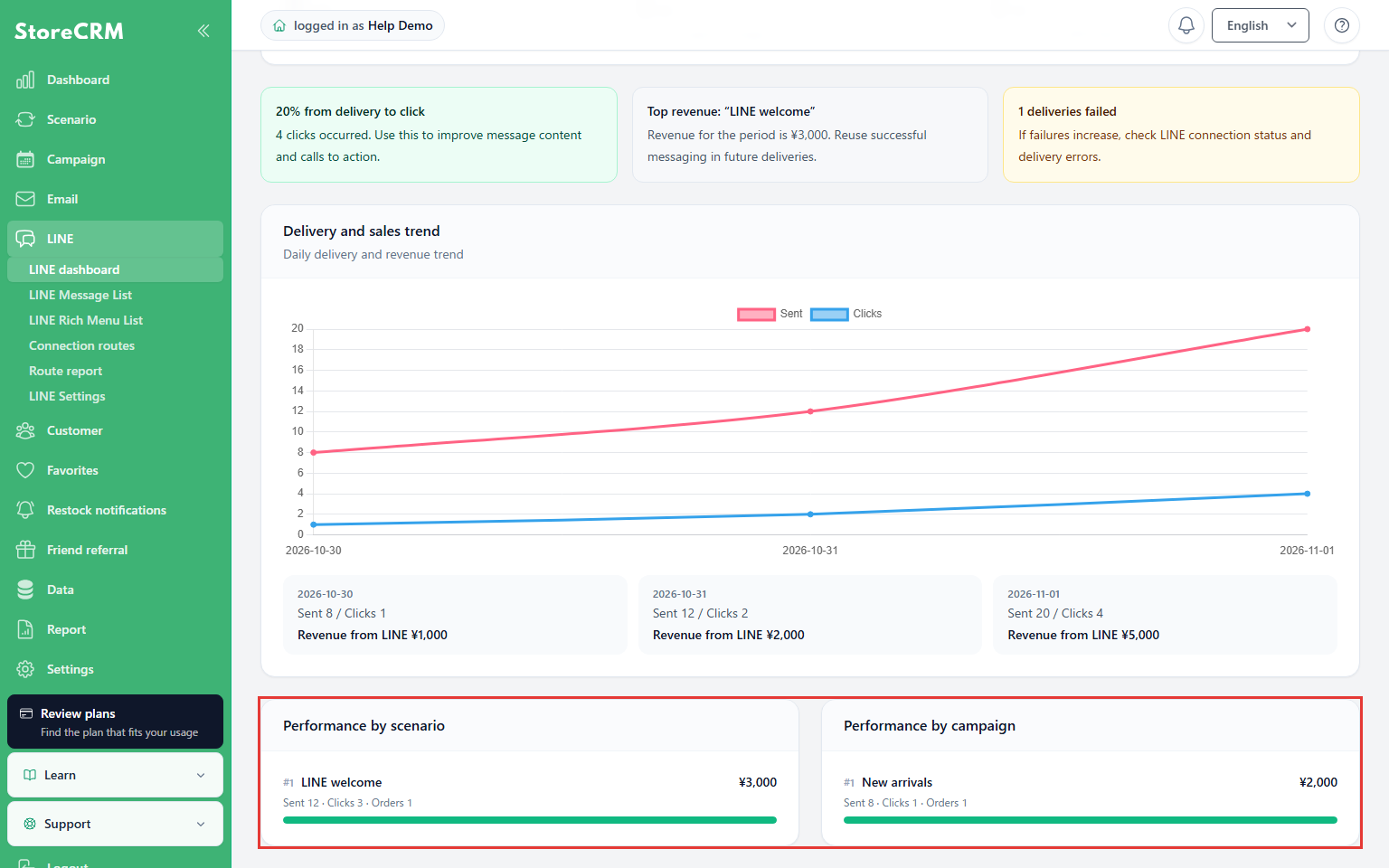
5. Compare scenarios and campaigns
Where: Breakdowns near the bottom
Compare delivery counts and outcomes for each scenario and campaign.
Check: You can identify which deliveries contributed results.
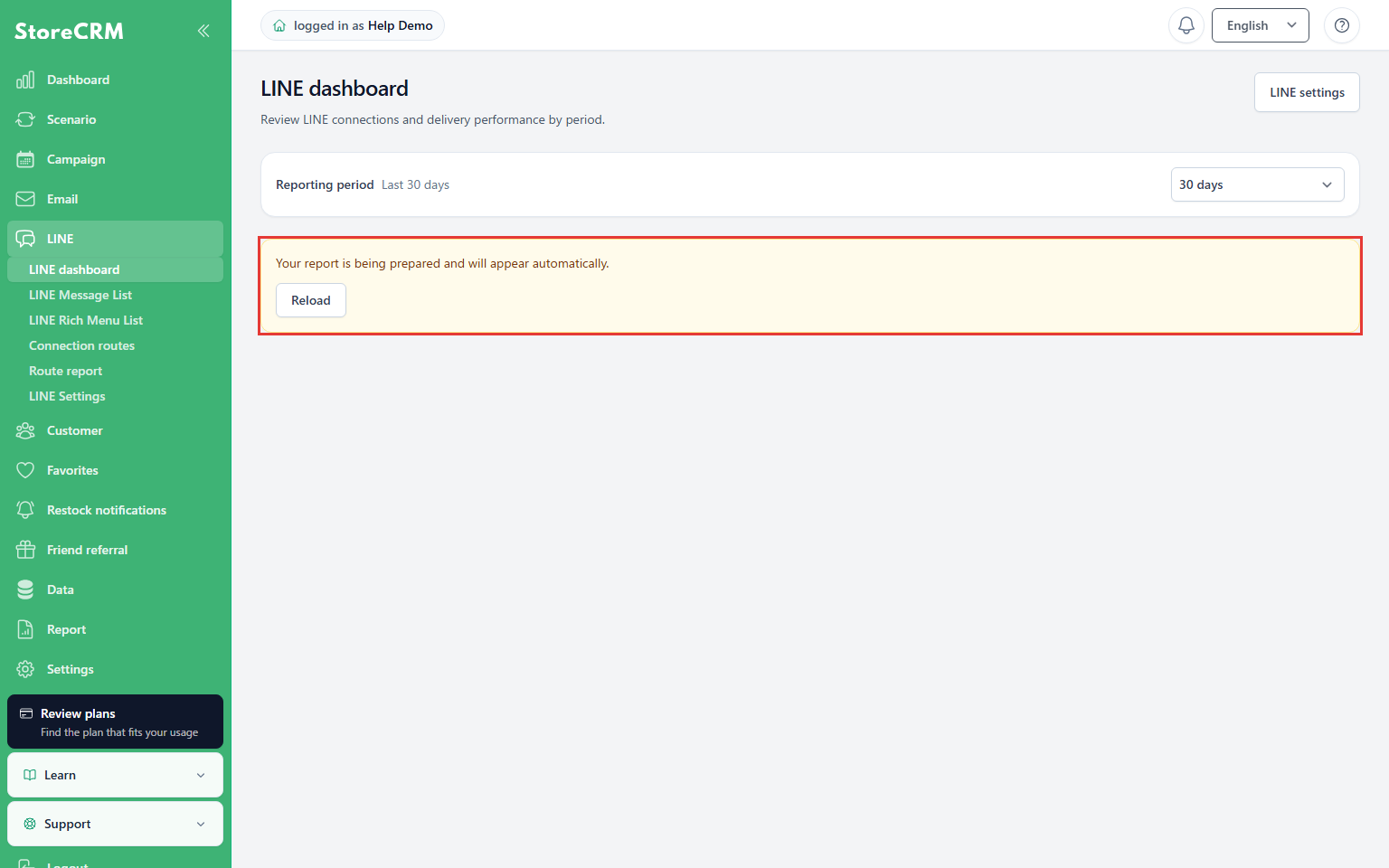
6. Recognize initial aggregation
Where: Aggregation status banner
When aggregation is in progress, wait for the results to appear automatically. If it takes longer and the message changes, use Reload.
Check: Aggregation in progress does not mean zero results.
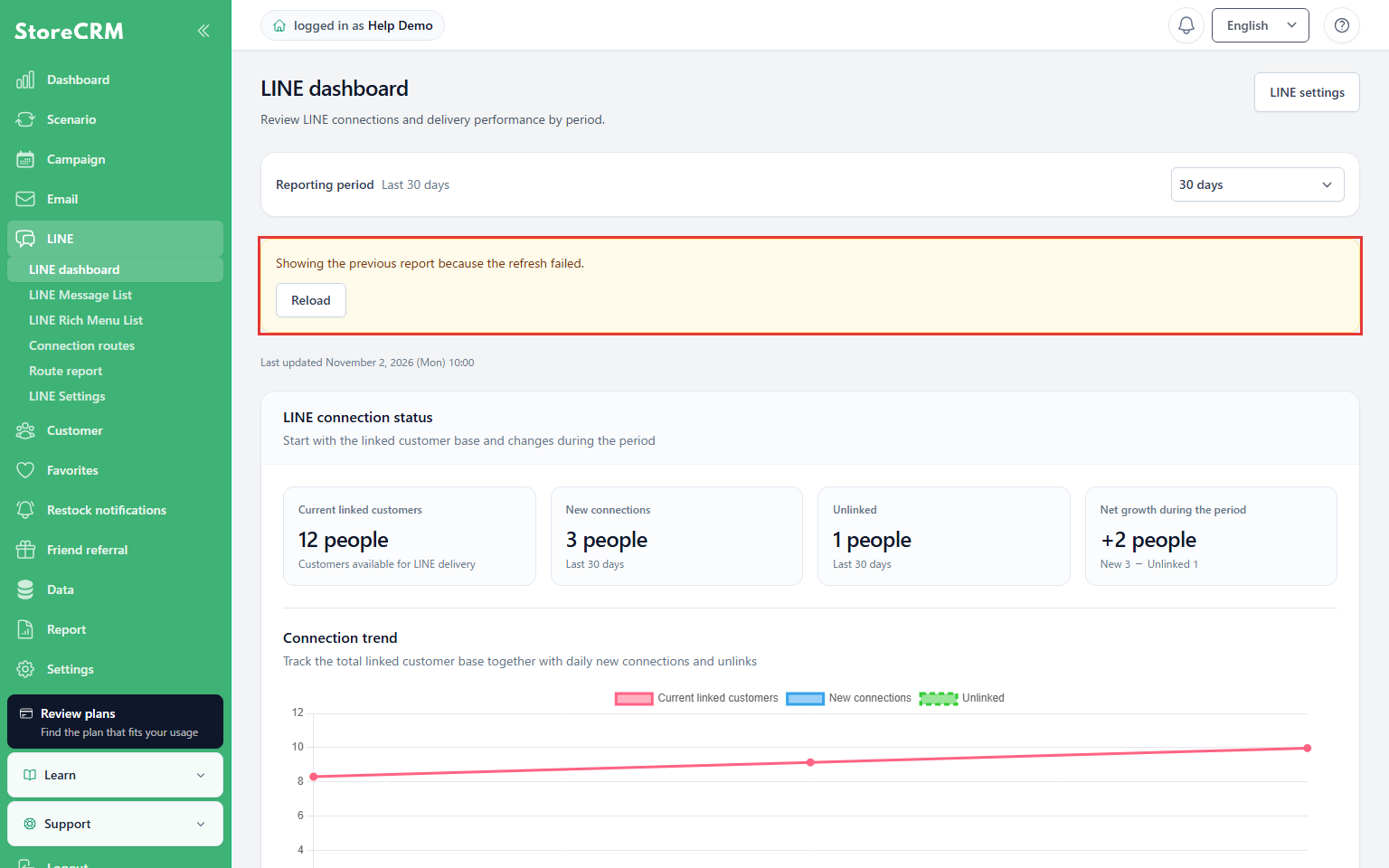
7. Recognize older results after a refresh failure
Where: Status banner at the top
If the latest results could not be fetched, recognize the values as previous results and click Reload.
Check: Previously available results remain visible after a failed refresh. Do not treat them as newly updated values.
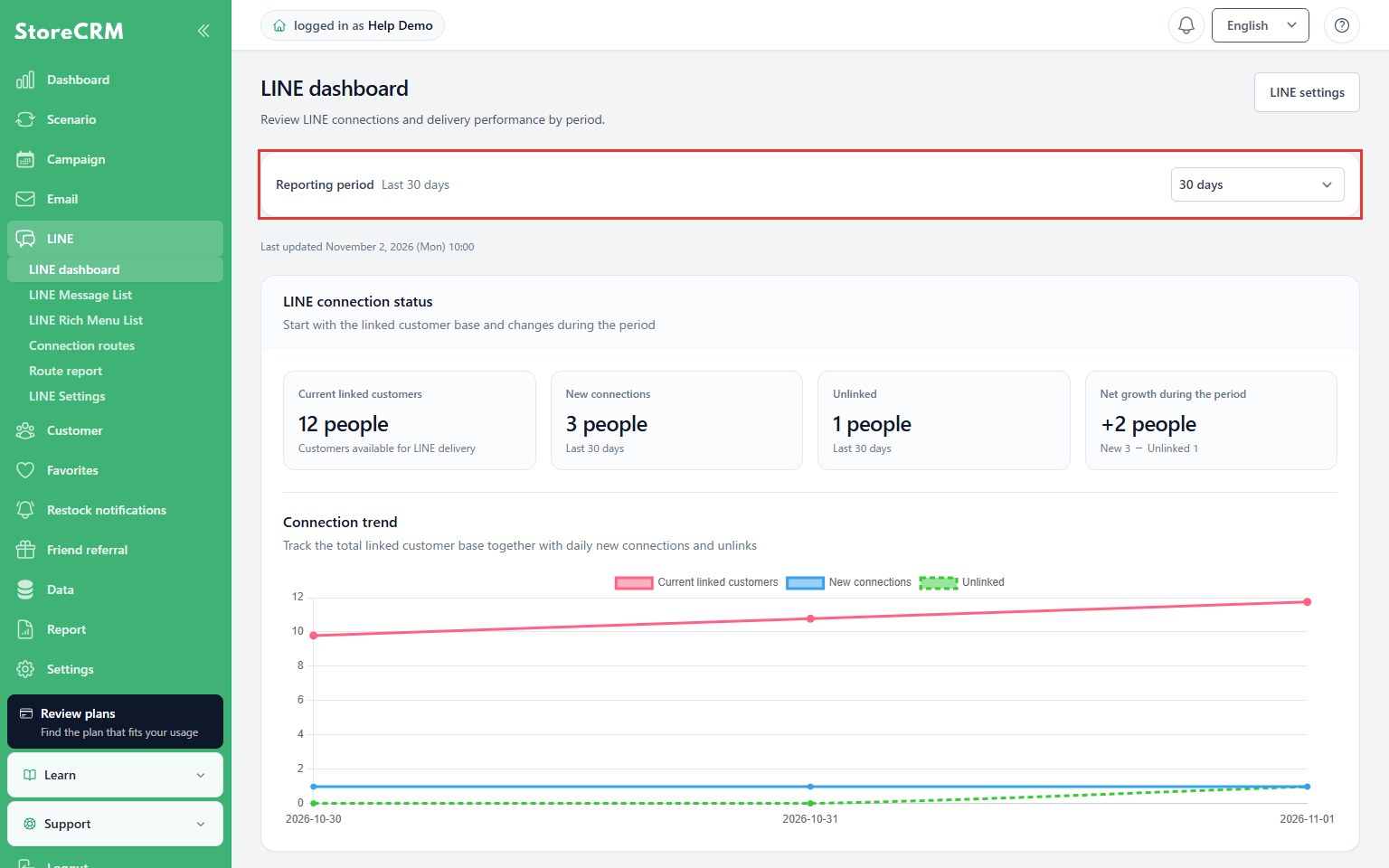
8. Check the last update after reloading
Where: Period and last-updated display
After reloading, confirm that the failure message disappears and check the last-updated time.
Check: You can identify when the refreshed results were generated.
For clicks through the shared tracking domain go.storecrm.com, recognized bots and automated link previews are excluded from click totals. Requests without identifying signals are still counted, so the value is not strict proof of human interaction. Previously recorded clicks are not retroactively recalculated by this change; comparisons across its introduction reflect this difference.
 English
 Japanese