

What individual messaging in INBOX does
In INBOX, select one customer who can be contacted by LINE and send an individual text message from your store. You can start even before the customer’s first inquiry. Use StoreCRM campaigns or scenarios for broadcast delivery.
Before starting, complete INBOX setup, staff membership, and LINE channel configuration and connection checks. Sending is unavailable when the customer has no LINE connection, has blocked the account, or cannot be uniquely identified. Resolve the reason shown before proceeding.
Start by searching for a recipient in INBOX
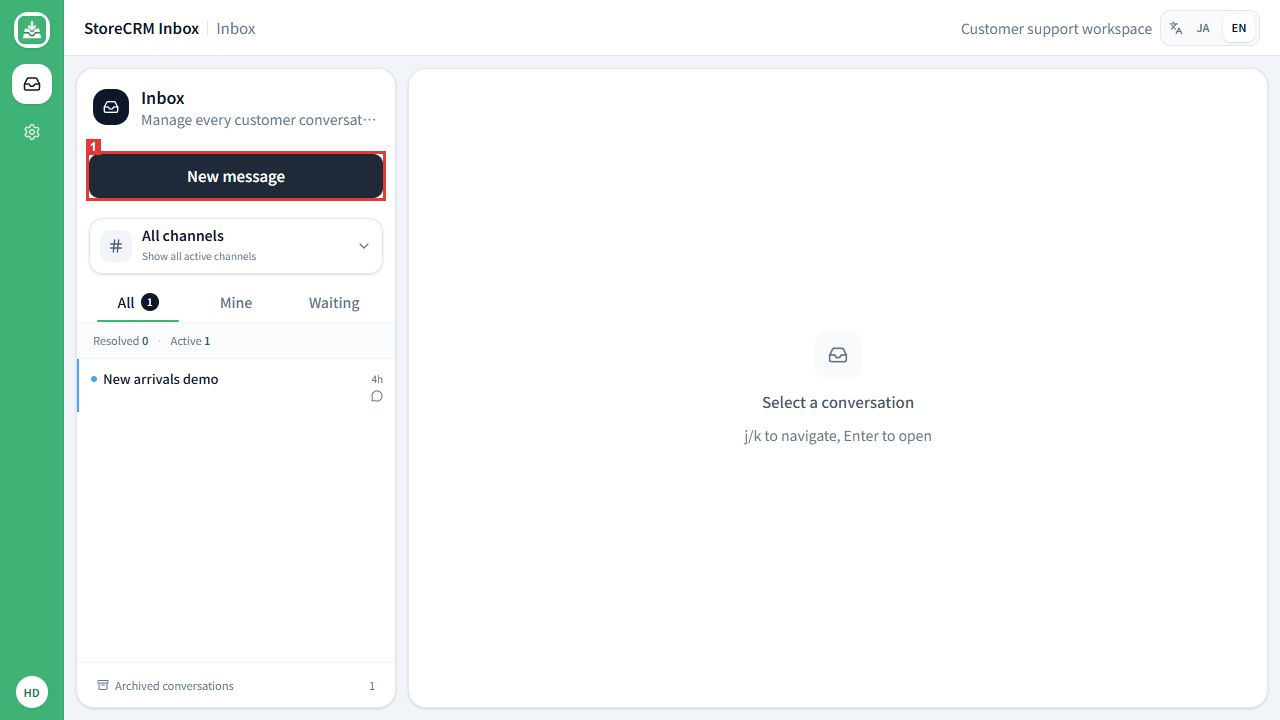
1. Open New message
Location: At the top of the INBOX conversation list
Select New message.
Check: The New LINE message dialog opens. Opening it does not send a message.
2. Search for a customer
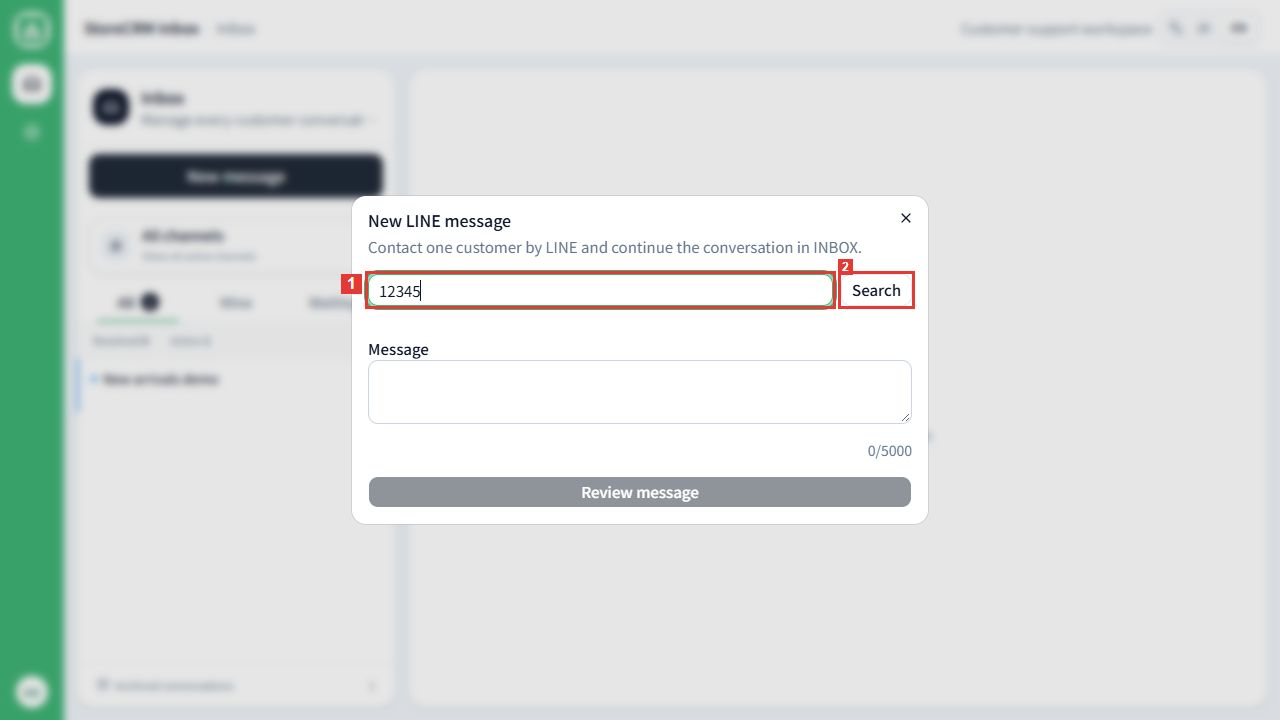
Location: Search in New LINE message
① Enter a name, email address, or Shopify customer ID, then select ② Search. This example uses Shopify customer ID 12345.
Check: Matching recipients appear. If none are shown, check your query and the customer’s LINE connection.
3. Select the recipient
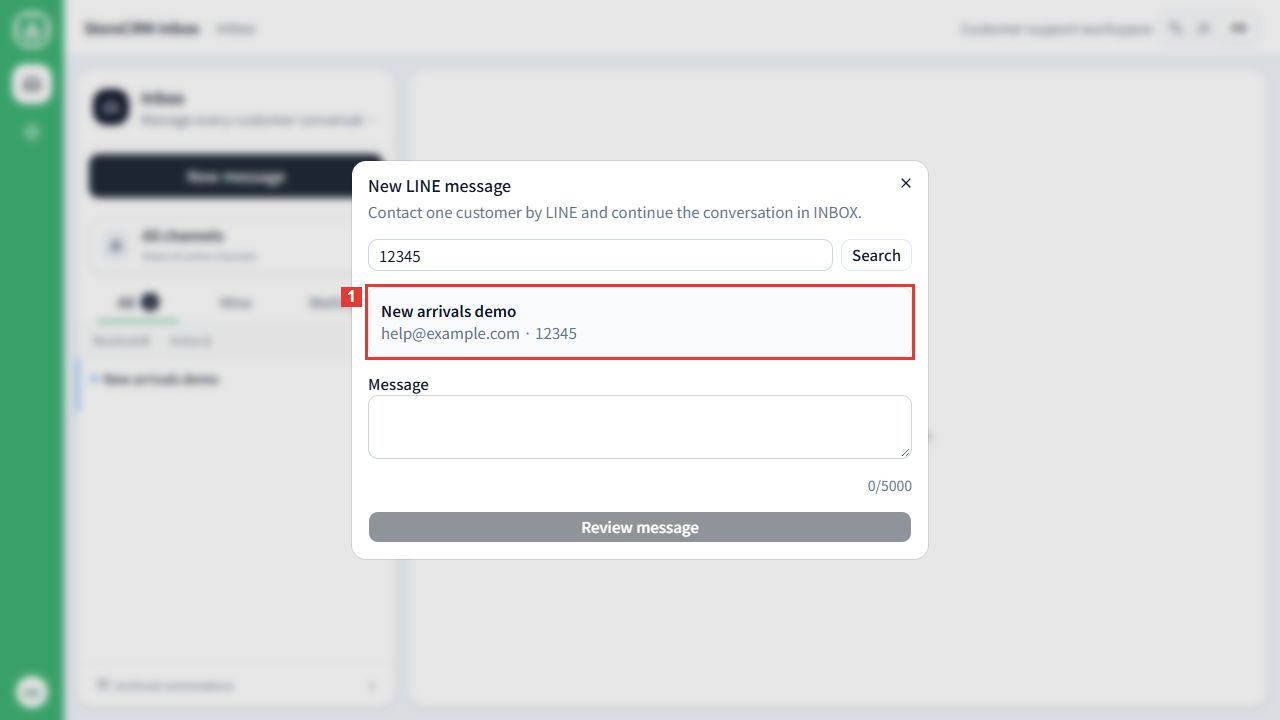
Location: Recipients
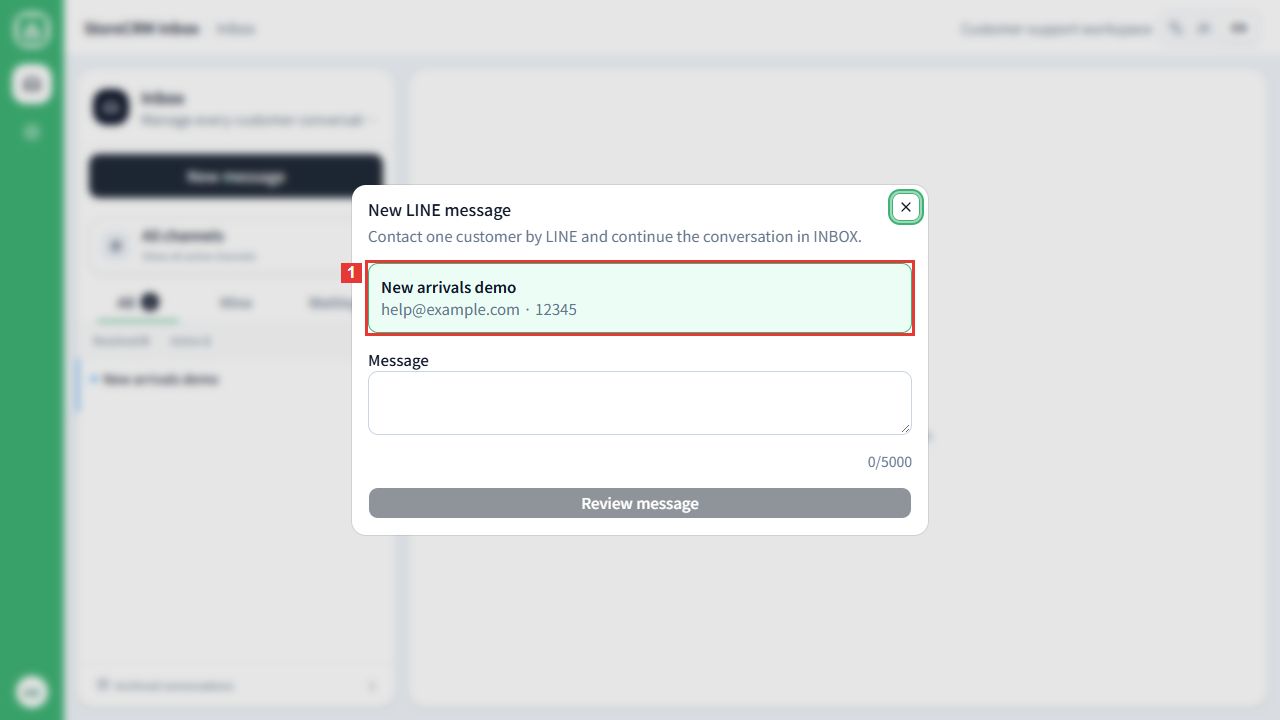
Compare the email and Shopify customer ID as well as the display name, then select one customer. Recipients marked unavailable cannot be selected.
Check: Verify that the intended customer is selected.
4. Enter the message and continue to review
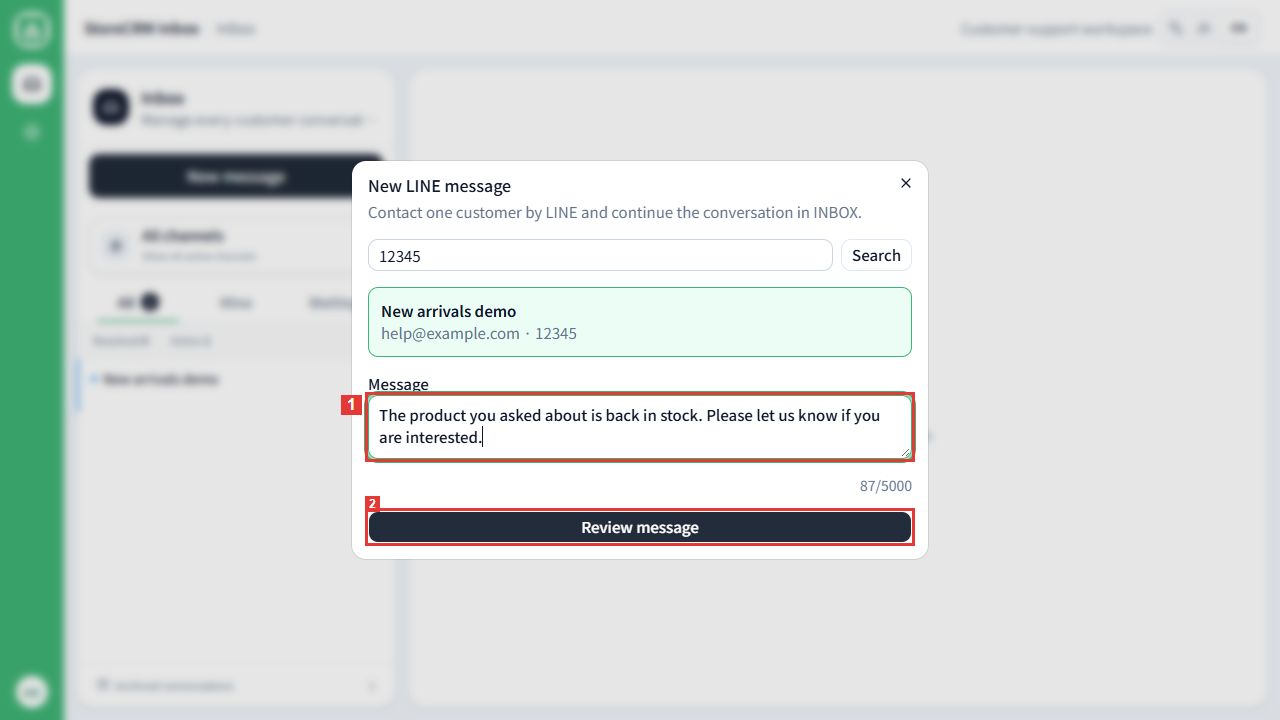
Location: Message
① Enter the individual text message, then select ② Review message. The body must not be empty and can contain up to 5,000 characters.
Check: The review screen shows the recipient, LINE official account, and body. The message has not been sent yet.
5. Review the details and send
Location: The New LINE message review screen
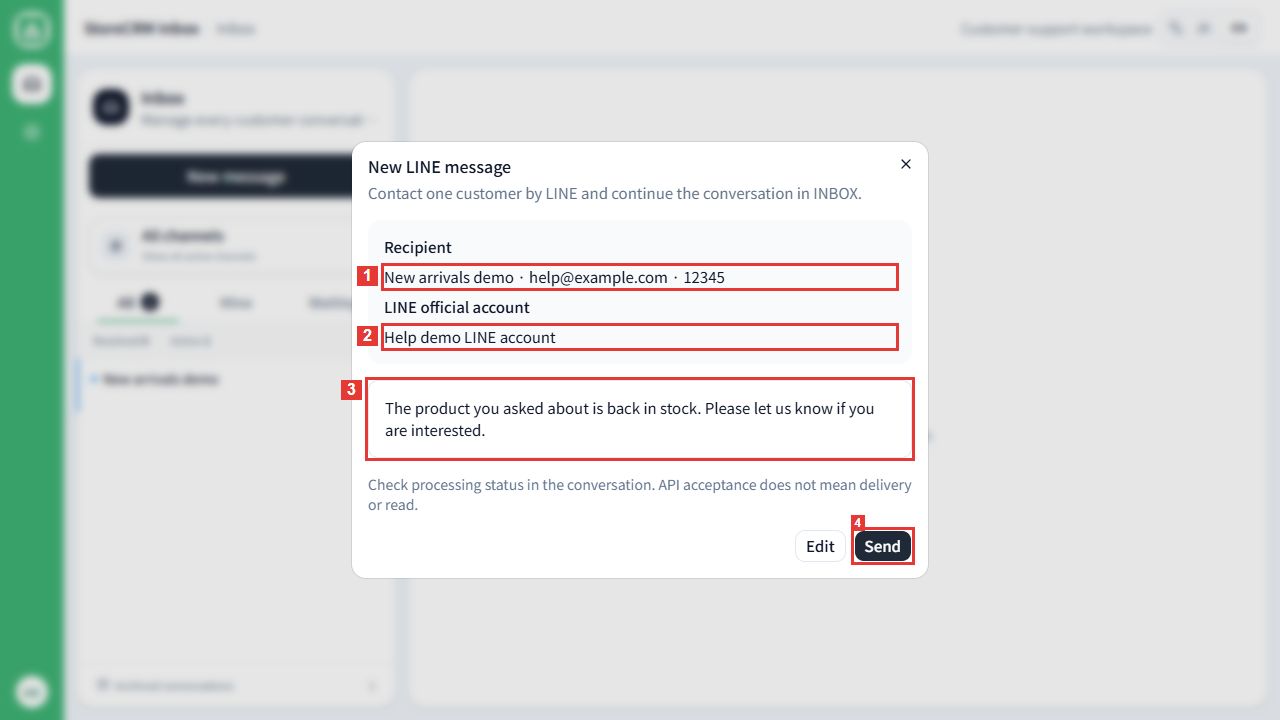
Review ① the recipient, ② the LINE official account, and ③ the message, then select ④ Send. Use Edit if corrections are needed.
Check: Send starts the real sending process. Closing the dialog before sending does not send the message.
6. Check processing status in the conversation
Location: The conversation opened after sending
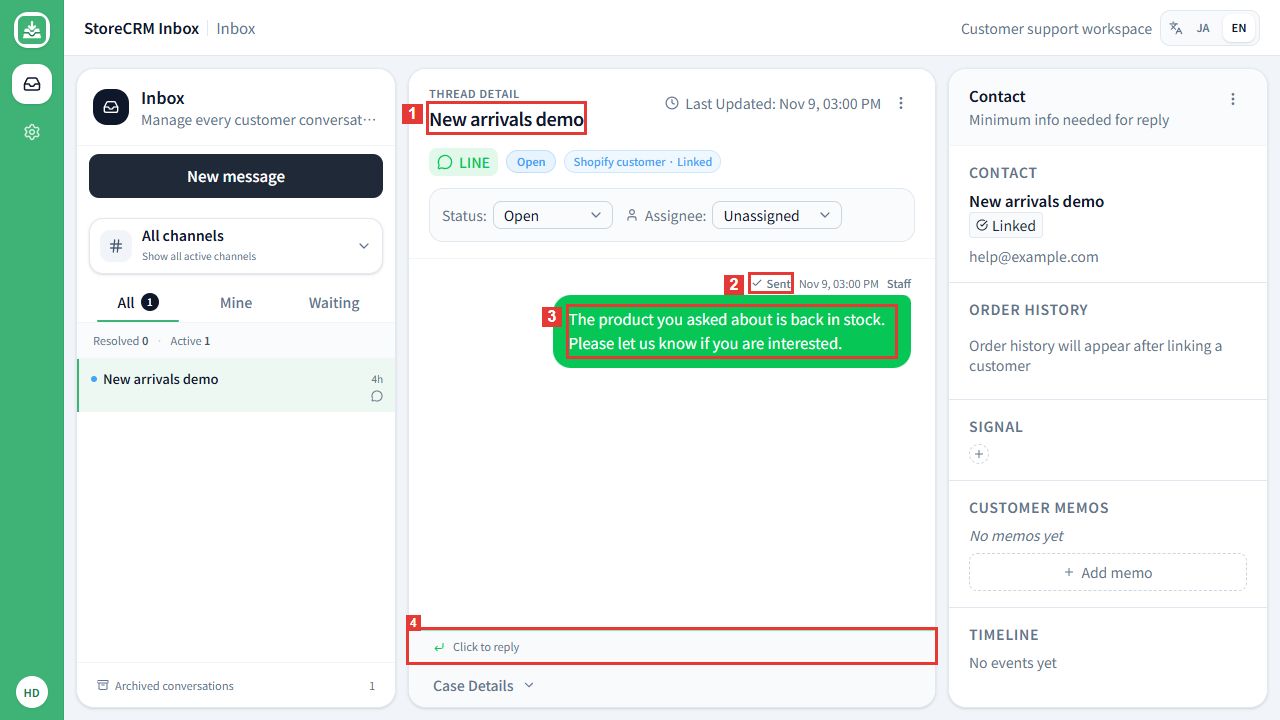
Check ① the customer, ② sending status, and ③ body. Subsequent customer replies appear in this conversation. Use ④ the reply area to continue the conversation.
Check: API acceptance or Sent alone does not establish delivery or read status. If a conversation already exists, the message continues in that conversation.
Start from a StoreCRM customer detail page
If you already know the customer, open INBOX from their StoreCRM details.
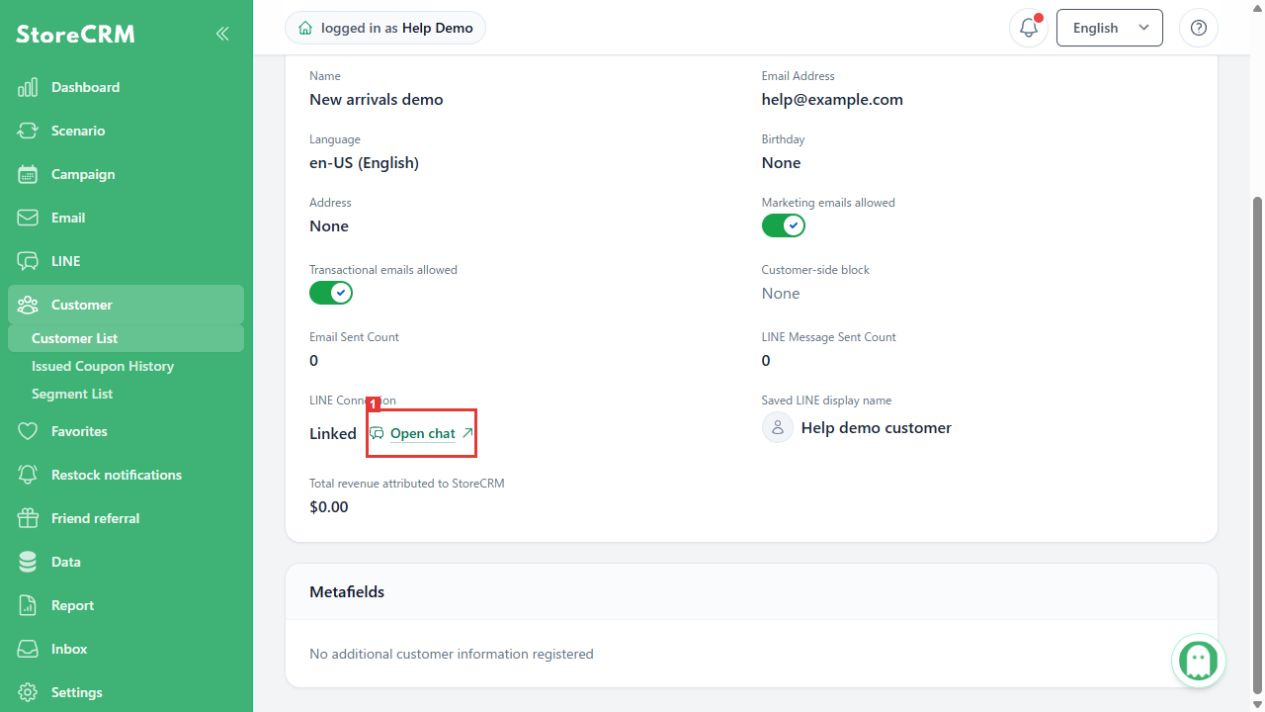
1. Open chat from the LINE connection field
Location: StoreCRM → Customer → The customer’s details → LINE Connection
Select Open chat in LINE Connection. This action may not appear when the customer is not linked or has blocked the account.
Check: The staff INBOX opens. This does not log you into the storefront as the customer.
2. Verify the selected customer
Location: New LINE message in INBOX
Compare the name, email, and Shopify customer ID. Then follow “Enter the message and continue to review” and the remaining steps above.
Check: Opening INBOX from customer details does not send a message. Follow any sign-in or access guidance shown.
If sending is unavailable or the result is unknown
Check the same request when the result is unknown
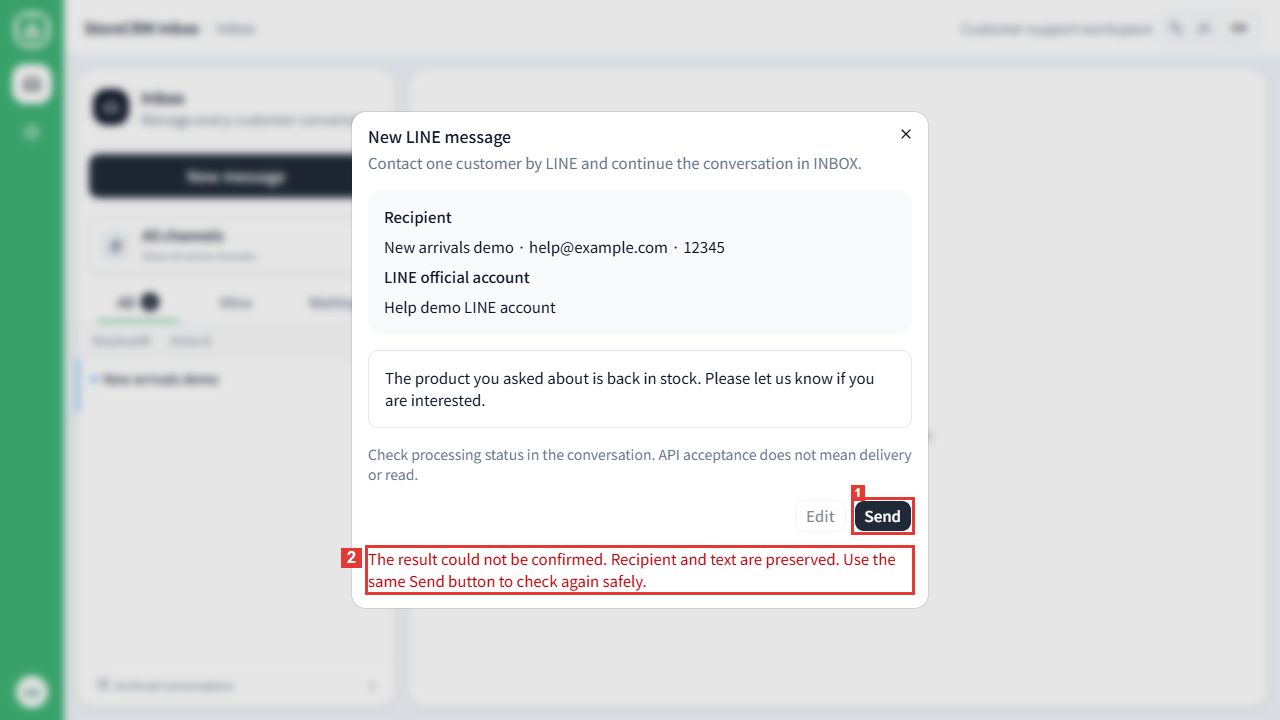
Location: The unknown-result notice on the review screen
When ② the unknown-result notice appears, the recipient and body are retained. After connectivity returns, use ① the same Send button to check again. Do not recreate the same content as a separate new message.
Check: Do not assume an unknown result means nothing was sent. If it remains unresolved, review the conversation and notice, then contact support.
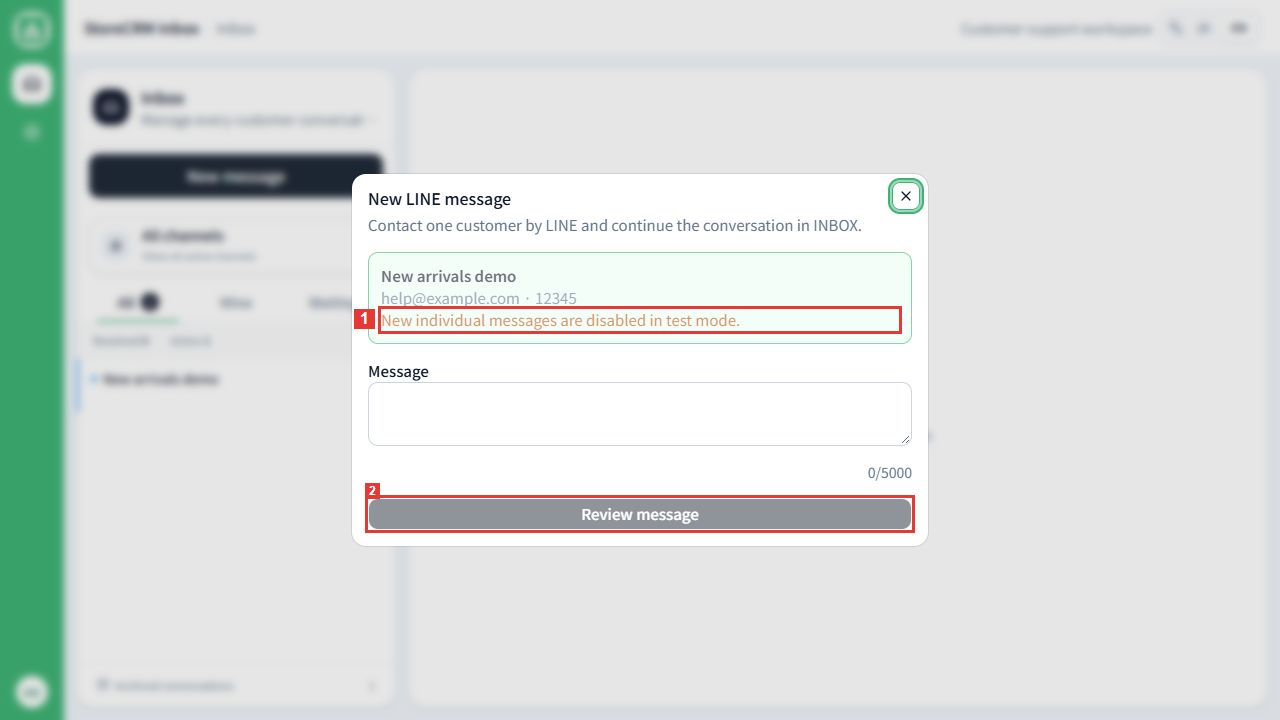
New individual sends are unavailable in test mode
Location: The recipient and review button
When ① the test-mode notice is shown, ② Review message is unavailable. The message is not automatically redirected to StoreCRM test recipients.
Check: Before live use, the store’s responsible staff should verify the configuration and actual recipient.
 English
 Japanese