

The Customer Properties widget displays input forms on Shopify profile, thank-you, and order status pages to collect additional customer information.
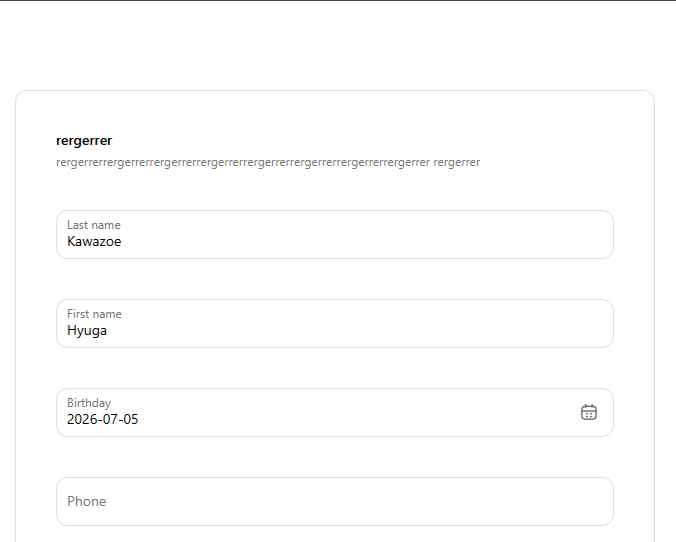
Manage collected fields in StoreCRM. Only fields enabled in StoreCRM appear in the Shopify widget. Entered values are saved to Shopify customer information or customer metafields. Birthdays are also saved as the customer's birthday in StoreCRM.
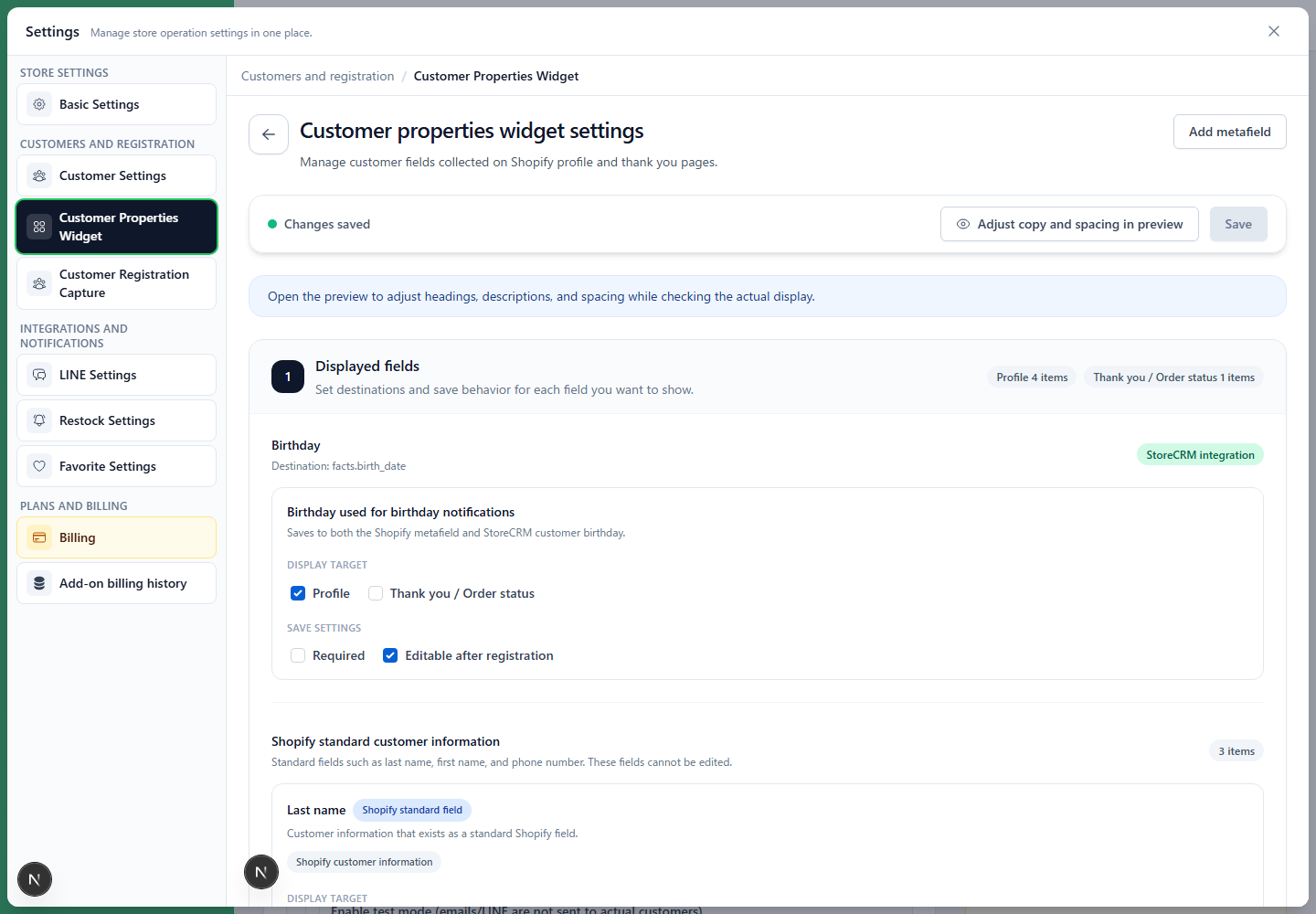
What you can do
- Collect standard Shopify customer information such as last name, first name, and phone number on profile and post-purchase pages
- Display customer custom metafields registered in StoreCRM as input fields
- Display Shopify customer metafields with choices as a select menu or radio buttons
- Display a terms consent checkbox and save the consent flag, consent time, terms URL, and terms version
- Configure visibility separately for Profile and Thank-you / order status
- Configure required status, editability after registration, and display order for each field
- Reorder fields separately for profile and thank-you / order status pages
- Configure headings, descriptions, and terms consent text for Japanese and English
- Collect birthdays and save them as StoreCRM customer birthdays for birthday notifications
Before configuring
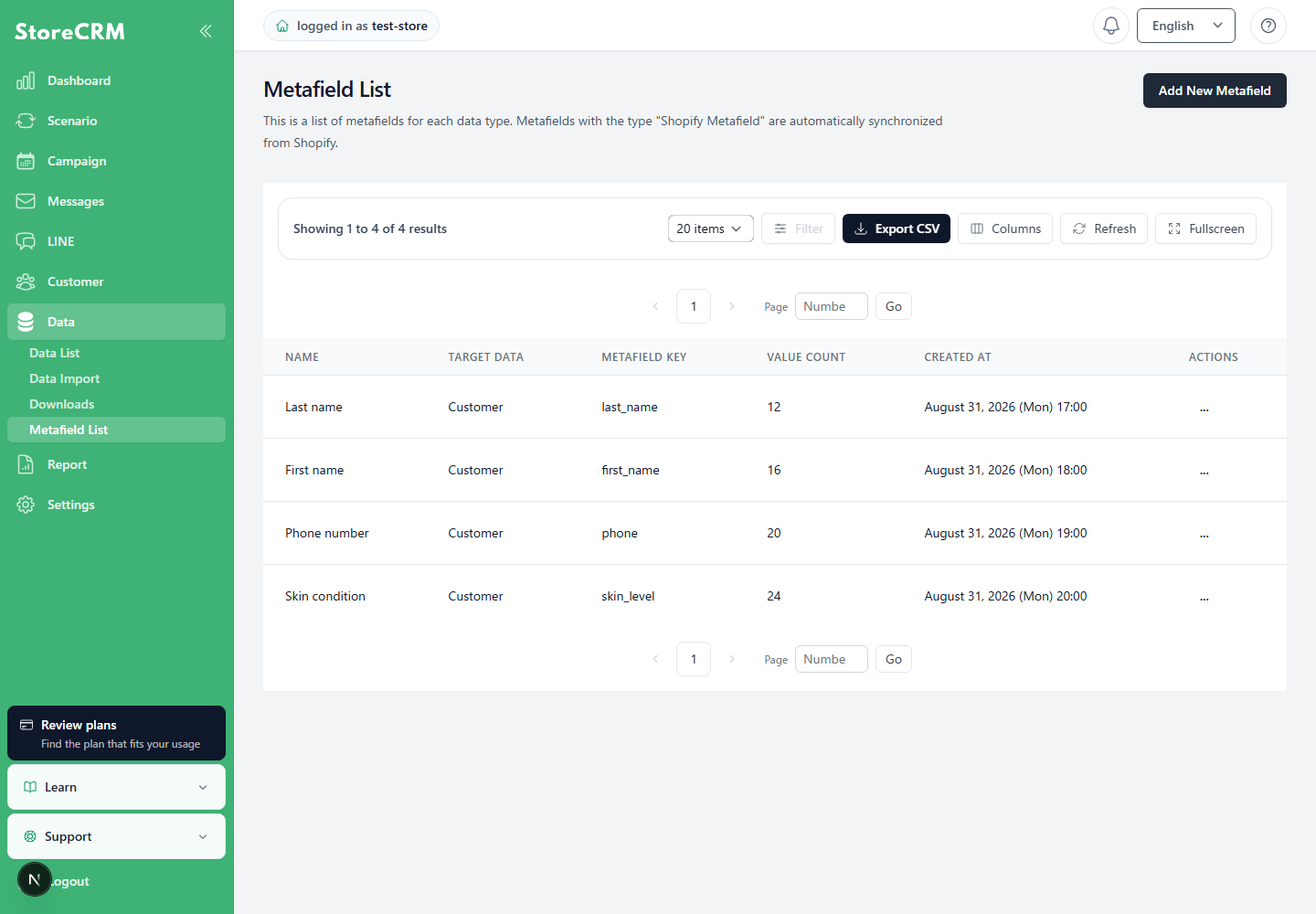
To display a custom field, first create a customer metafield under "Metafield list." Select "Customer" as the target data.
Custom field types supported by the widget areString, number, Boolean, date, date-time, and choice fields. Choice fields are available when choices are configured in the Shopify metafield definition. In StoreCRM, select either "Select" or "Radio" as the input method.
Configure terms consent as a dedicated field rather than a standard custom metafield. To display it, set the display text, link text, required terms URL, and optional terms version in StoreCRM.
Birthdays are dedicated fields, so a "Birthday / anniversary" metafield does not appear as a standard custom field. To collect dates unrelated to birthday notifications, such as anniversaries or pet birthdays, create a "Date" field.
If the StoreCRM Customer Properties block is not placed in Shopify, fields do not appear to customers even when enabled in StoreCRM. If the widget is missing, confirm that the block is enabled in the Shopify editor.
Add the app block in Shopify
Enabling fields in StoreCRM alone does not display them in Shopify. Add the StoreCRM app block to each required page in Shopify's checkout and accounts editor.
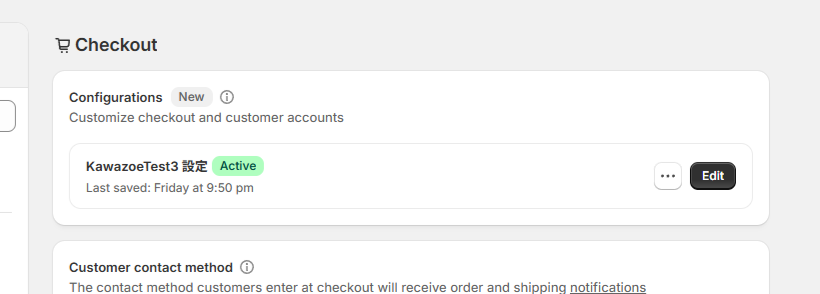
1. In Shopify admin, open [Settings] → [Checkout].
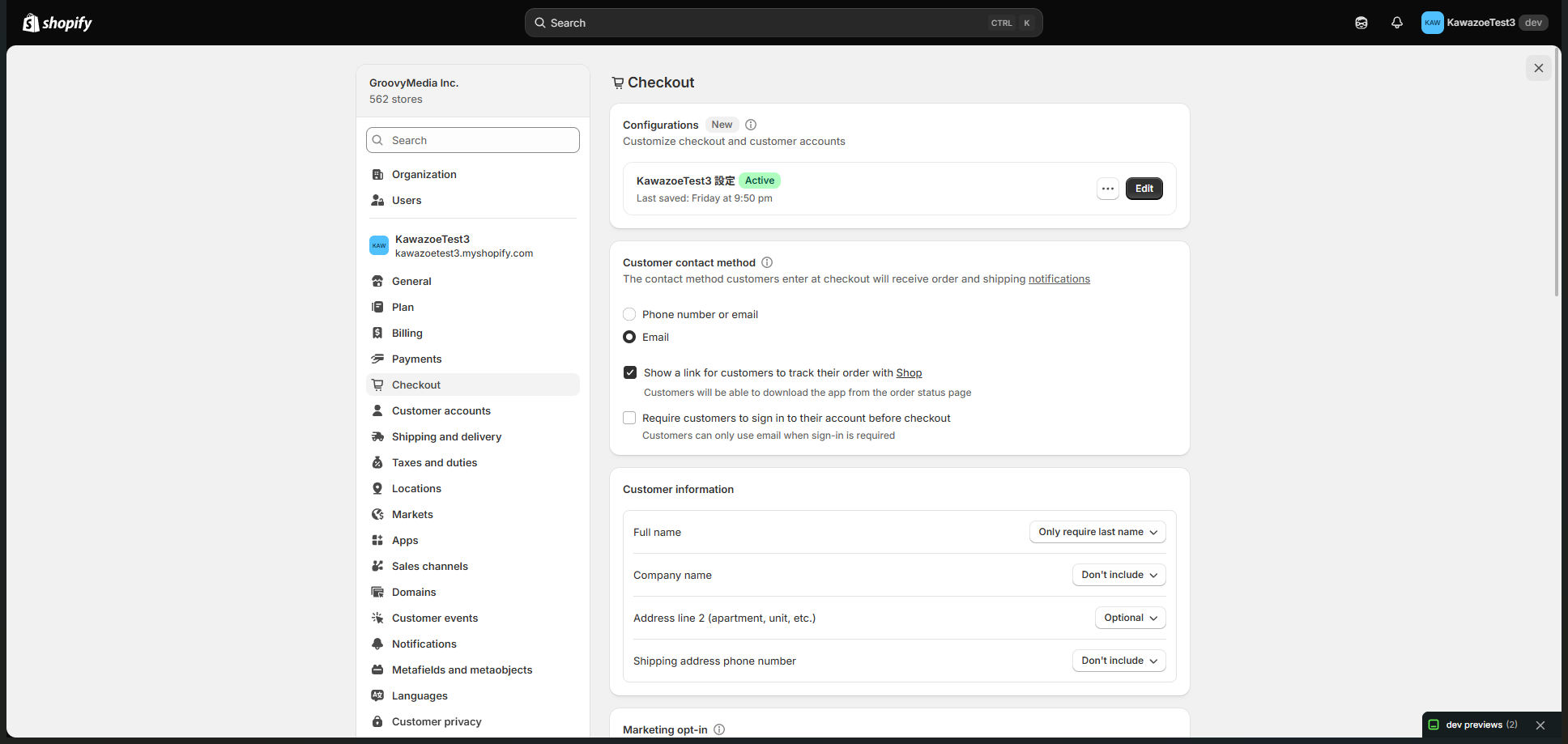
2. Under [Configurations], select the active checkout configuration and click [Customize].
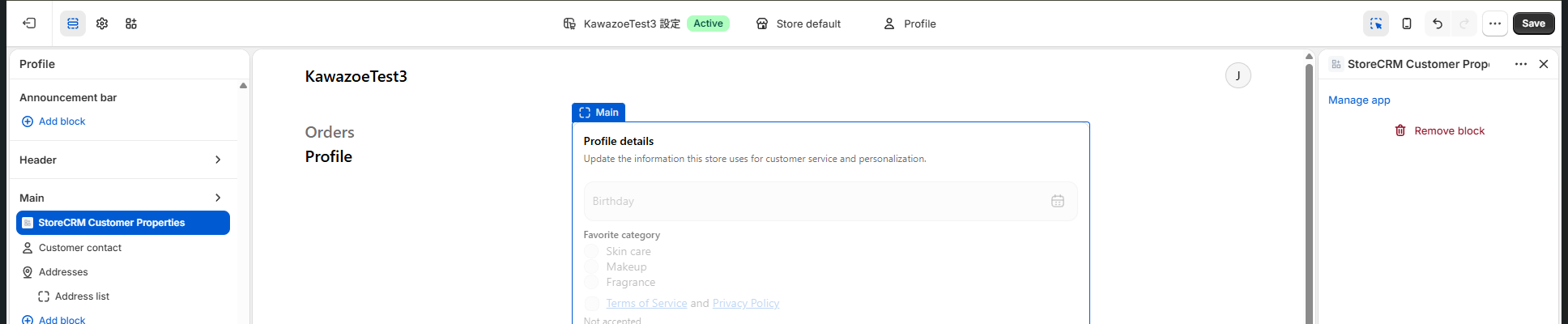
3. Open [Profile] in the checkout and accounts editor.
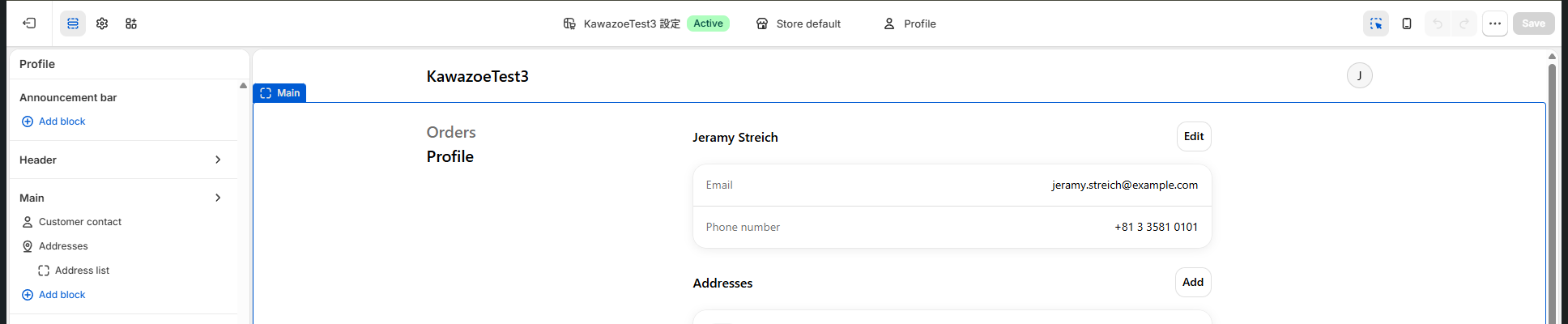
4. On each page where it should appear, add the`StoreCRM Customer Properties`block.
- To display it on profiles, add it to the Profile page.
- To display it after purchase, add it to the Thank you page.
- To display it on order confirmation, add it to the Order status page.
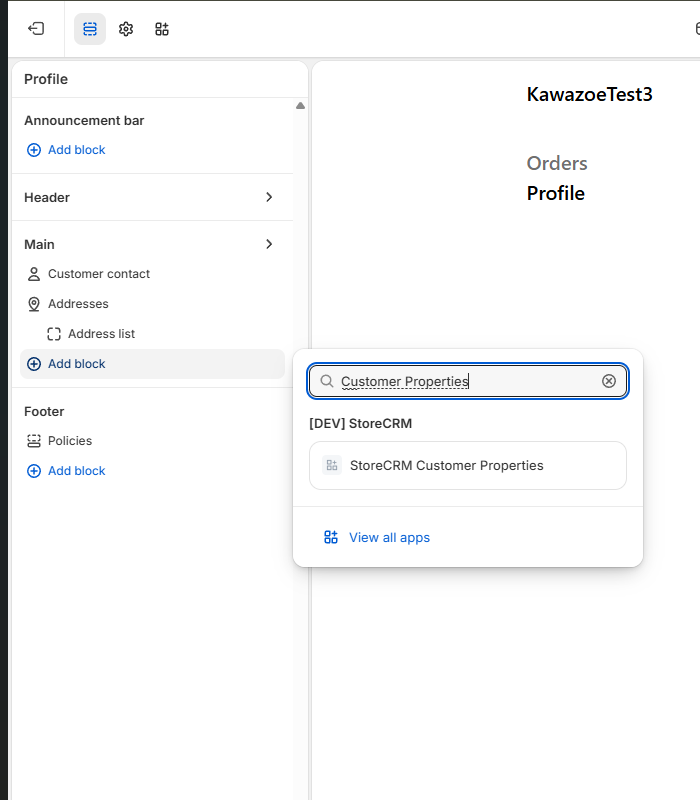
5. Adjust the block position by dragging and dropping it in the left sidebar.
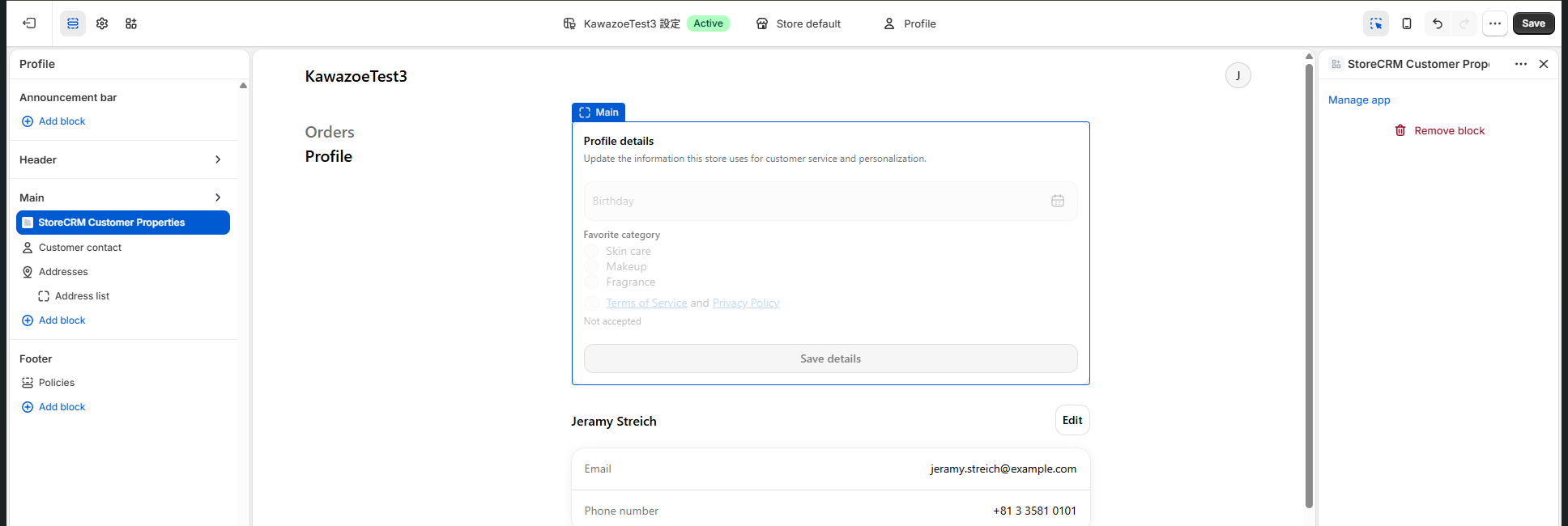
6. Click "Save."
To display the widget on both thank-you and order status pages, add the block to each page. The StoreCRM "Thank-you / order status" setting applies to both, but Shopify requires block placement on each page.
Configure StoreCRM
1. In StoreCRM, open "Customer Properties widget" under "Settings."
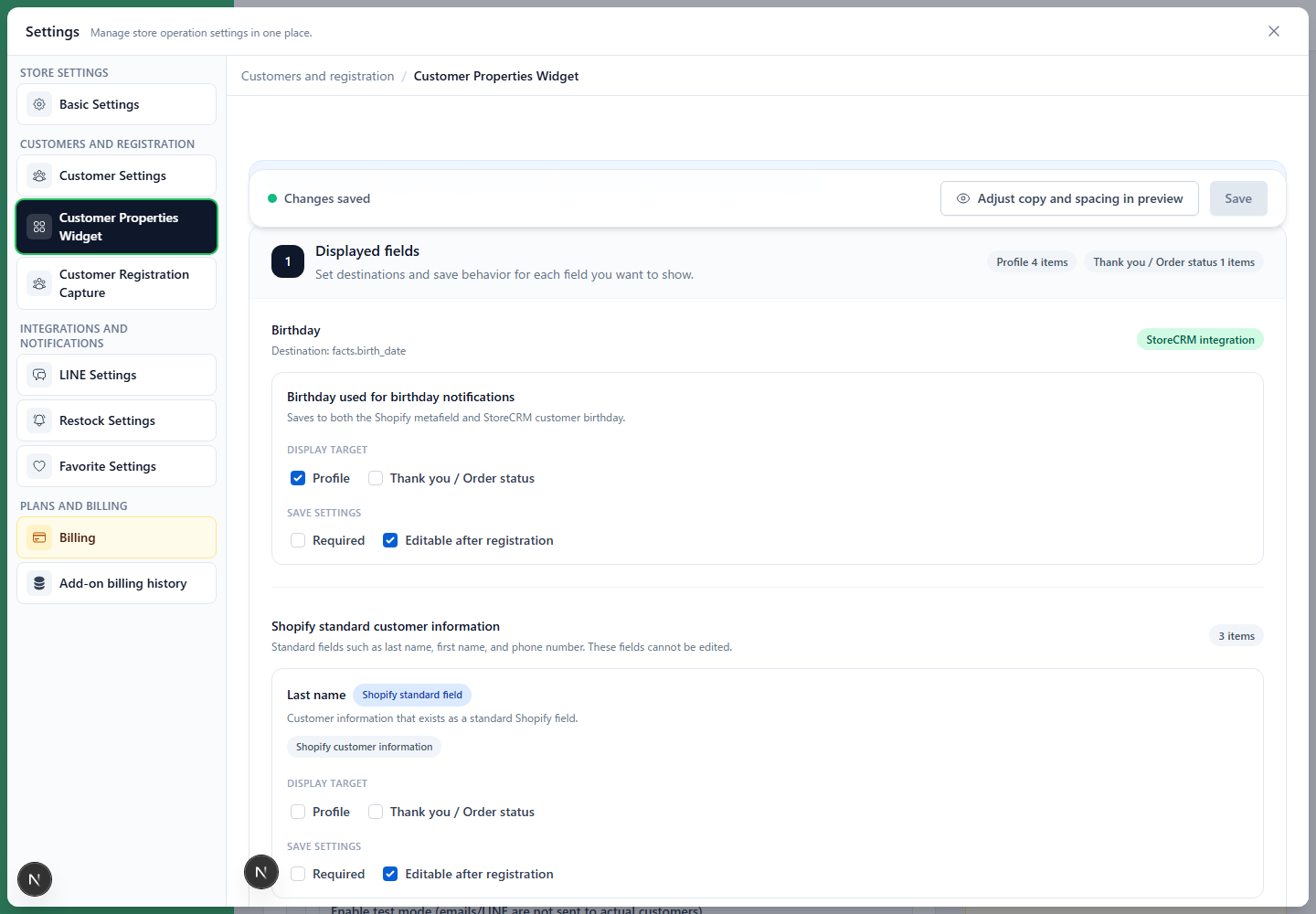
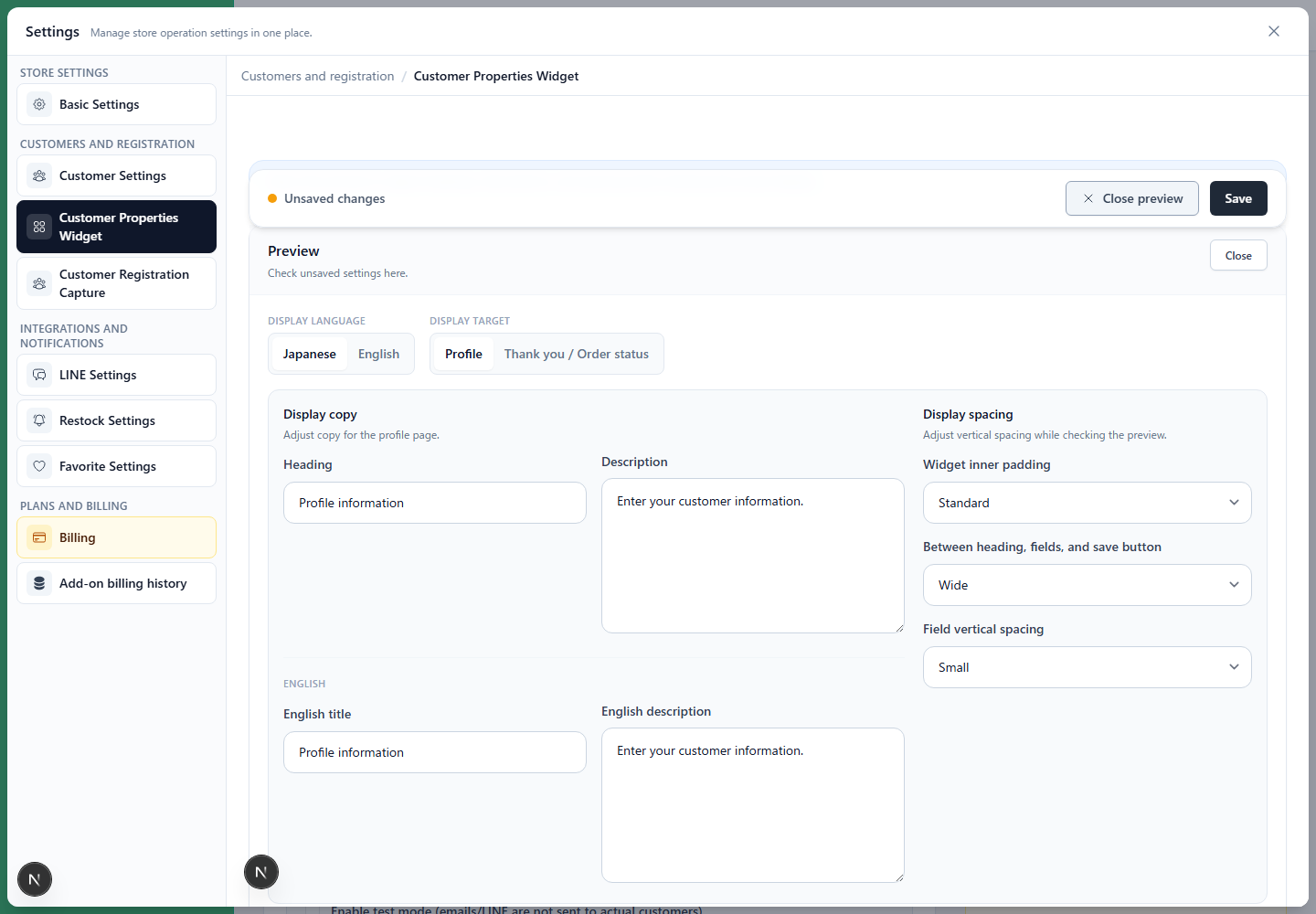
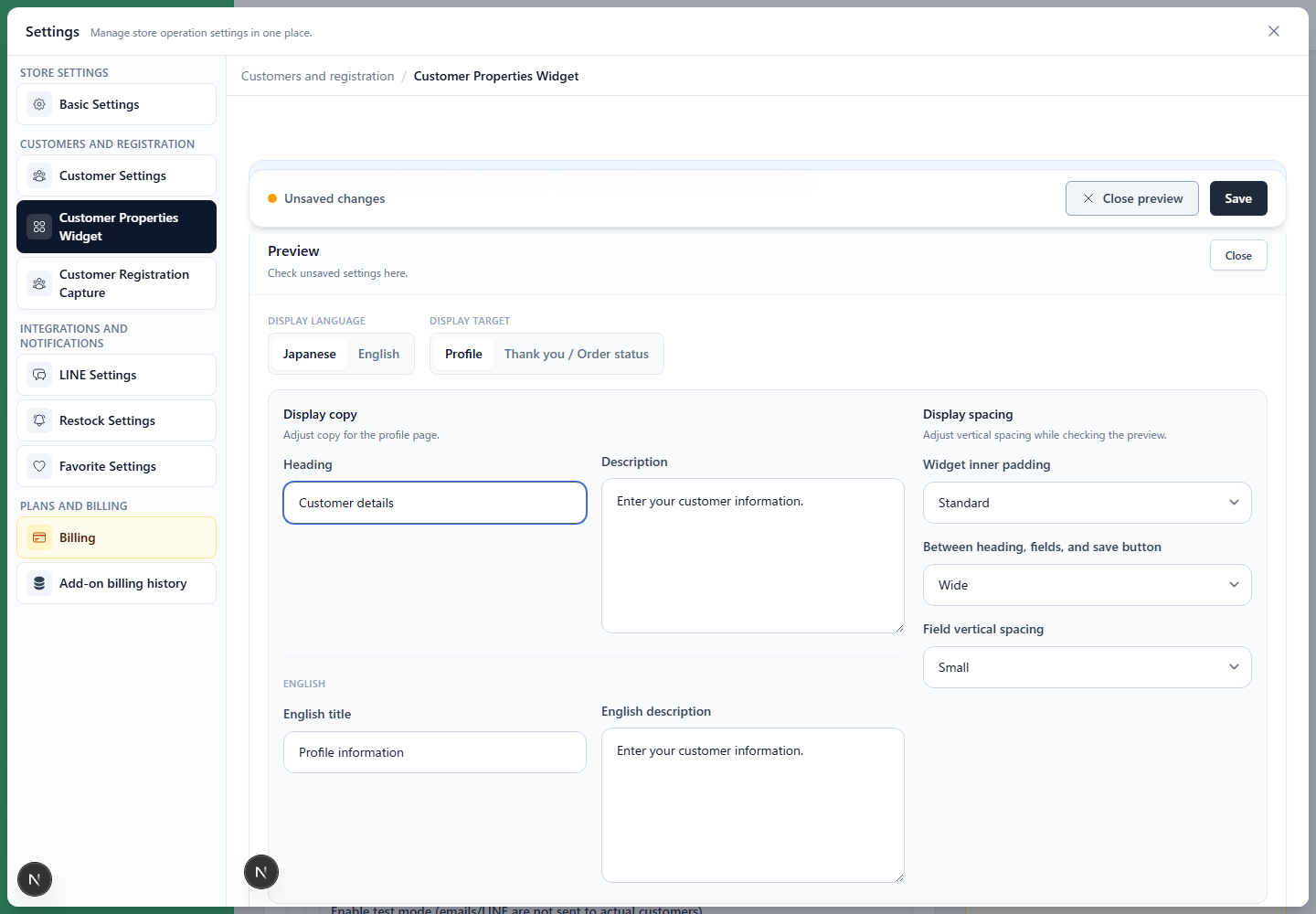
2. Under "Heading and description," enter text for the profile and thank-you / order status screens.
3. To collect birthdays, configure visibility and input rules under "Birthday."
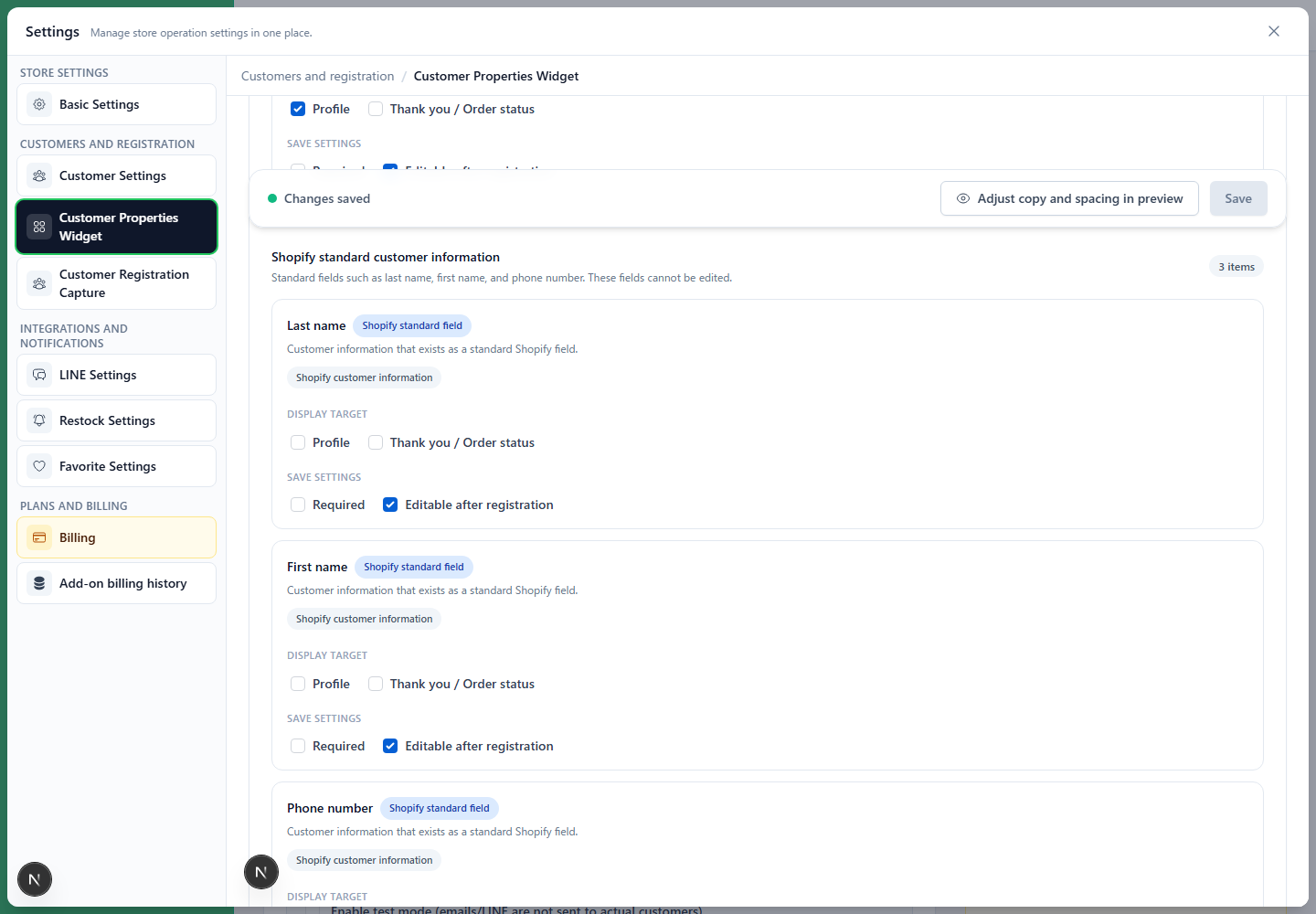
4. To collect names and phone numbers, configure visibility and input rules under "Standard Shopify customer information."
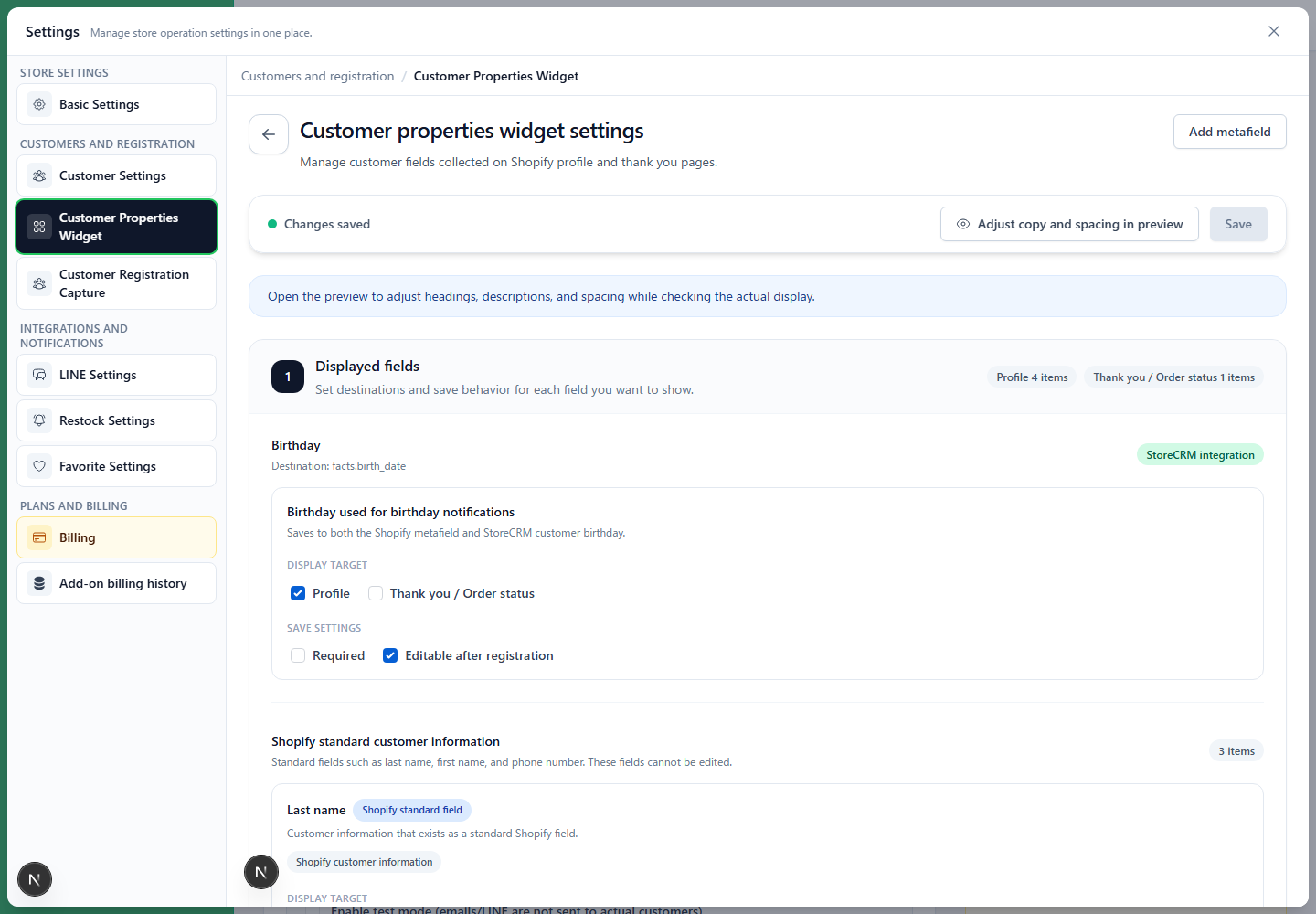
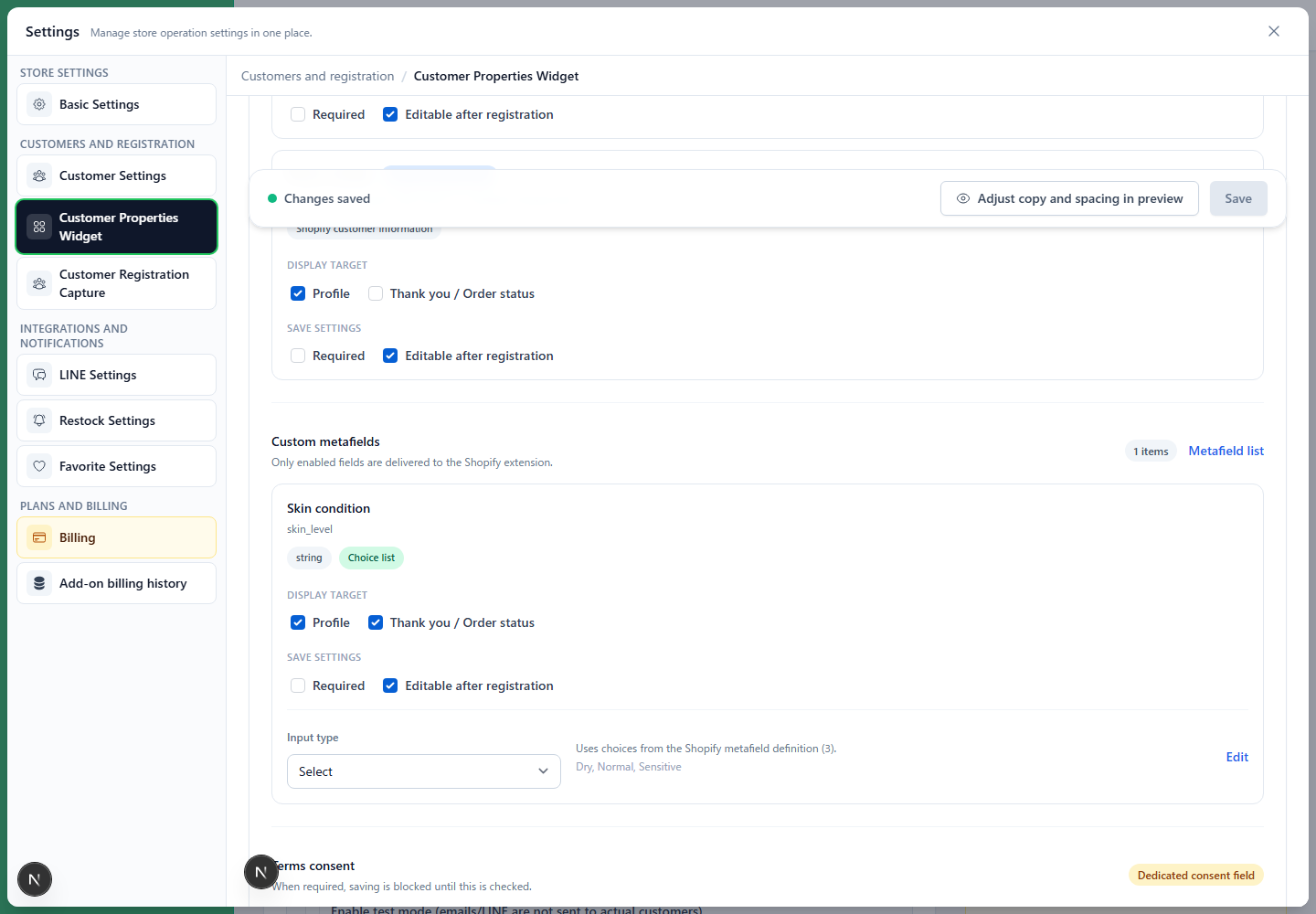
5. To collect custom metafields, configure visibility and input rules under "Custom metafields."
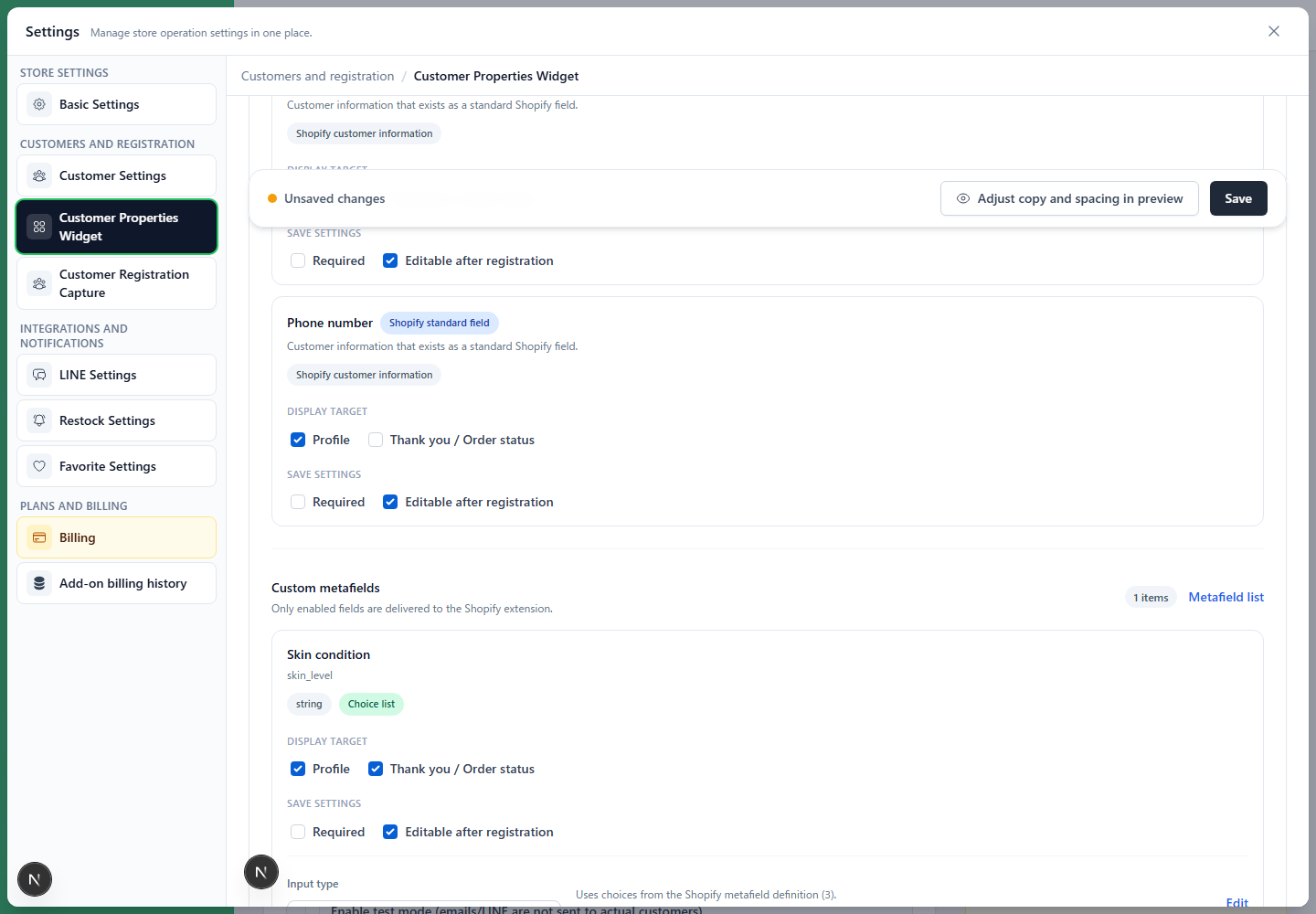
Select the input method for a choice field
A Shopify customer metafield with choices appears as "Choice list." Select "Select" or "Radio" as the input method.
| Input method | Usage |
|---|---|
| Select | Use for many choices or to reduce vertical space |
| Radio | Use for a small number of choices that should all be visible |
Choices come from the Shopify metafield definition. Edit that definition in Shopify to change them.
Configure terms consent
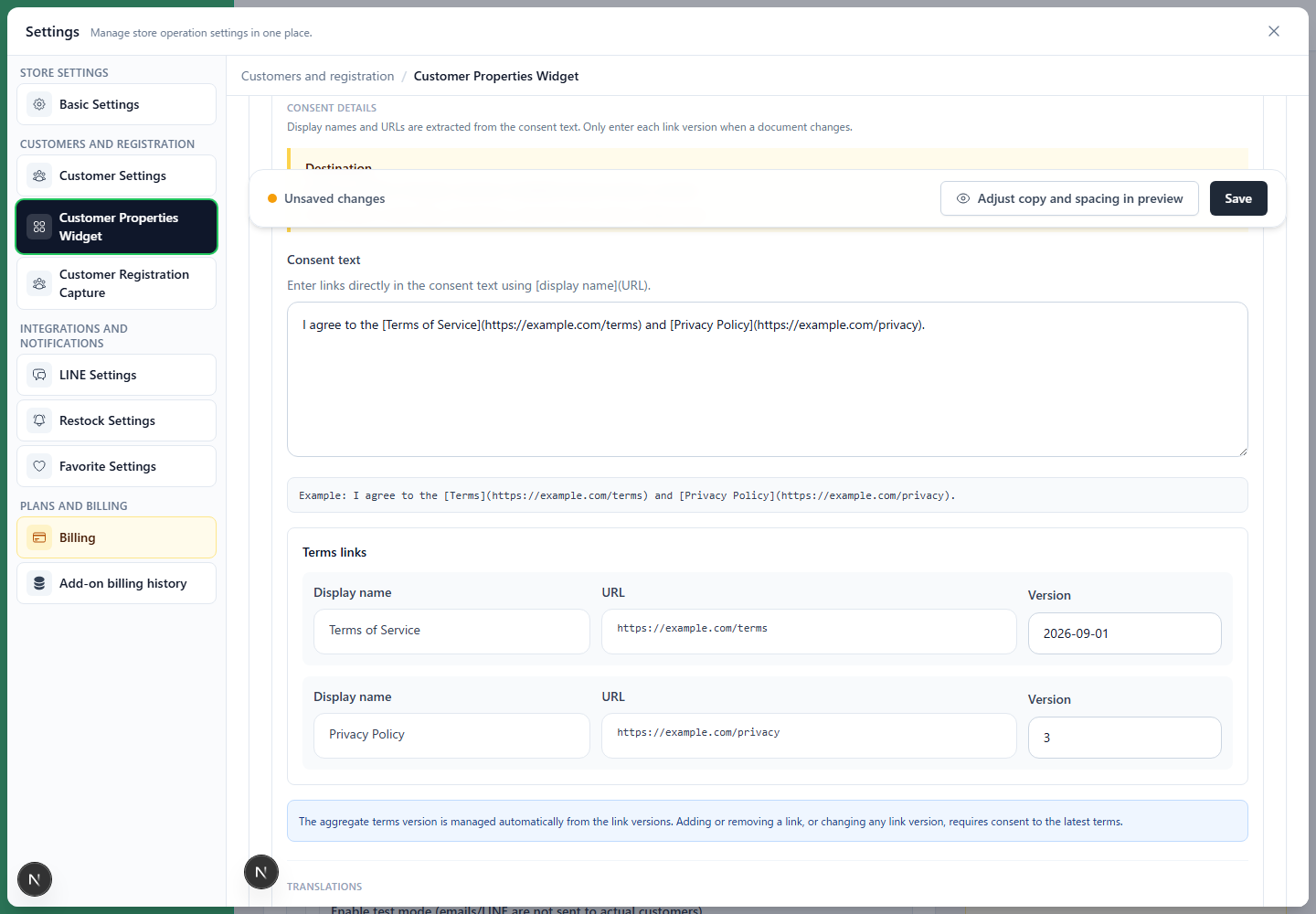
"Terms consent" displays a checkbox for agreeing to the terms.
- Select Profile or Thank-you / order status as the display location.
- Turn on "Required" to require consent.
- Enter the display text. Example:
I agree to the Terms of Service - Enter the link text. Example:
Terms of Service - Enter the Terms of Service URL.
- Optionally enter a version to manage terms versions.
- For English display, enter the English display text, link text, and terms URL in the English fields.
When required, customers cannot save without checking consent. This does not prevent checkout completion.
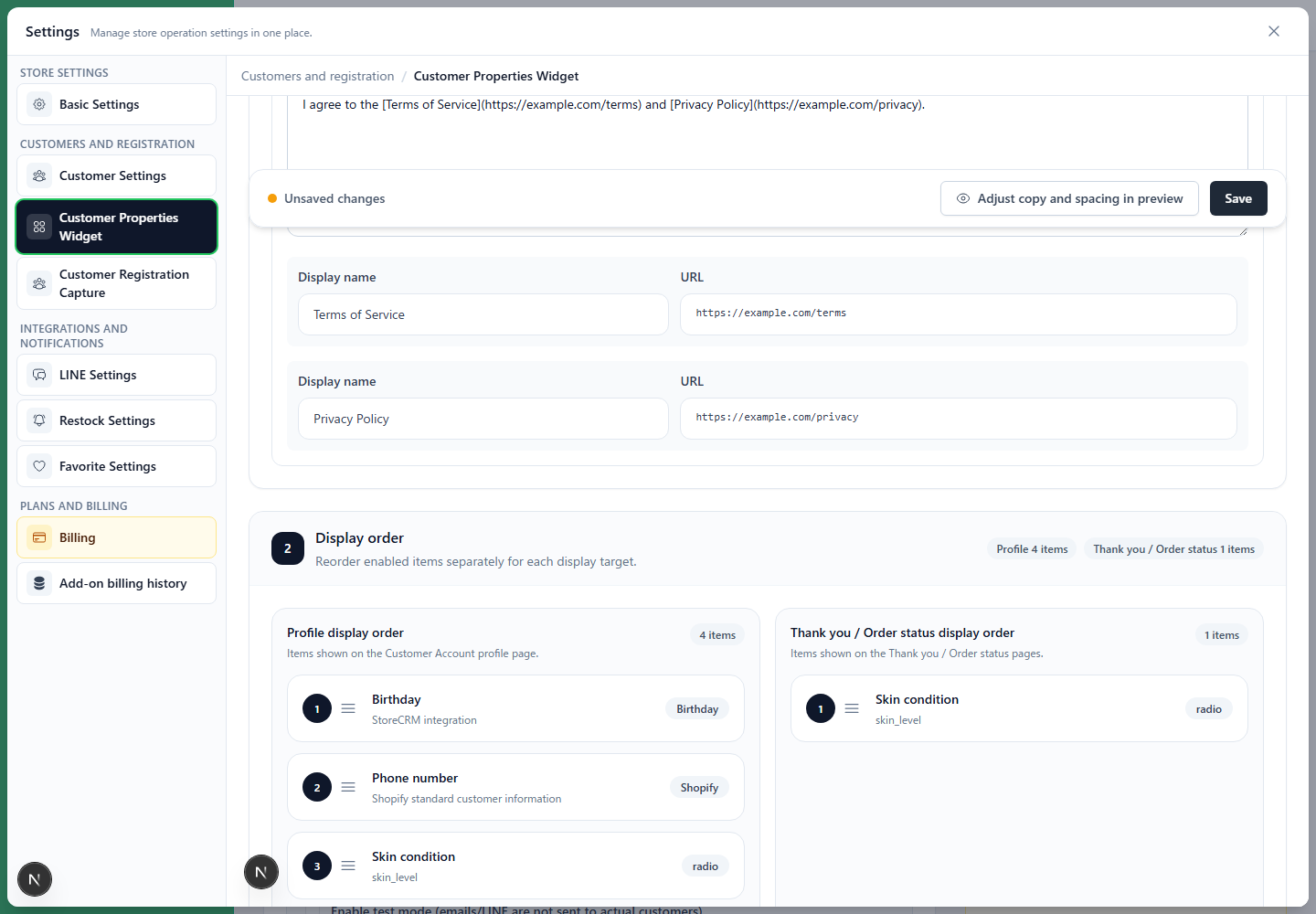
6. Under "Display order," arrange fields separately for profiles and thank-you / order status pages.
Drag and drop to change the order.
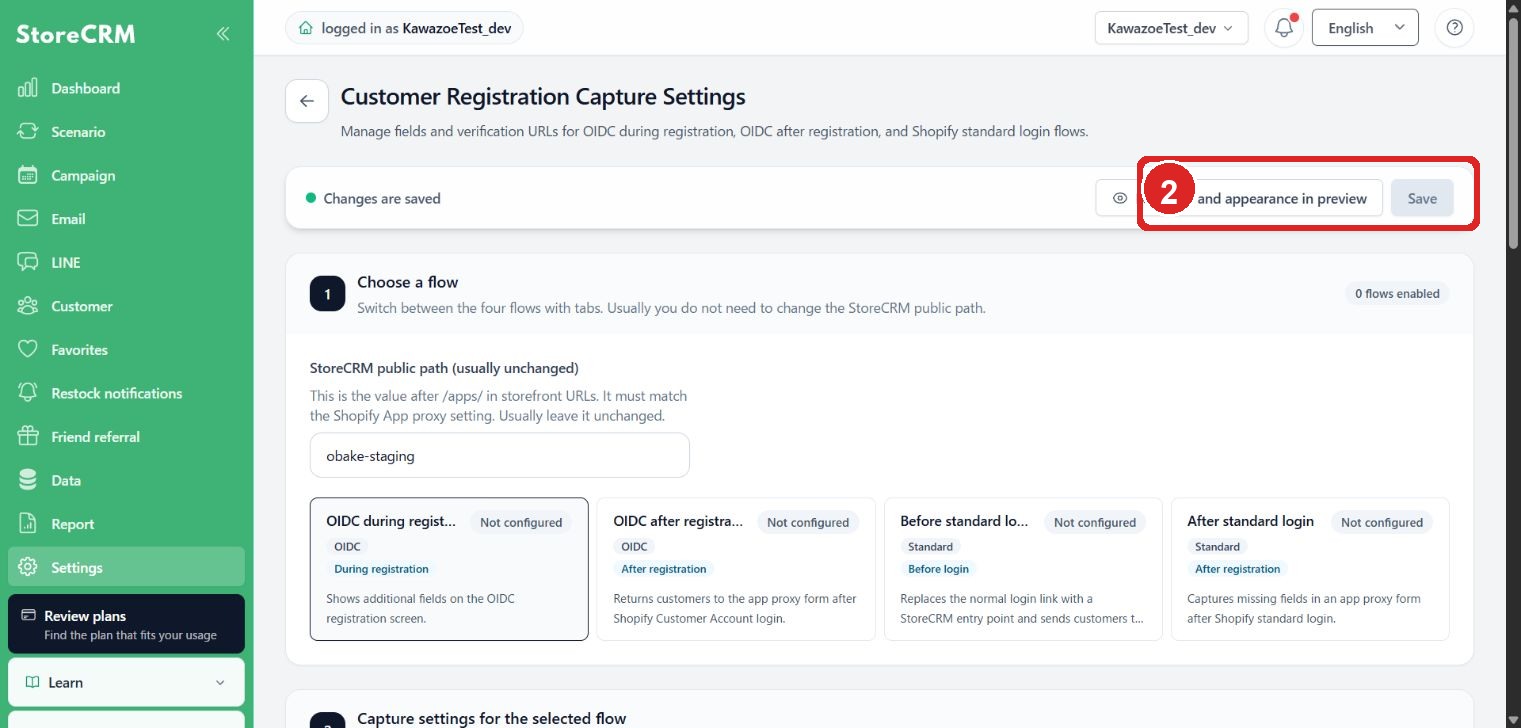
7. Click "Save."
Before saving, "You have unsaved changes" appears at the top. After saving, it returns to "Changes are saved."
Settings
| Settings | Description |
|---|---|
| Heading and description | The title and description displayed at the top of the Shopify widget. Configure them separately for profile and thank-you / order status pages. |
| Profile | Displays enabled fields on the Shopify Customer Account profile page. |
| Thank-you / order status | Displays enabled fields on post-purchase thank-you and order status pages. |
| Required | When enabled, the widget cannot be saved without this field. This does not prevent checkout completion. |
| Editable after registration | When on, customers can change existing values. When off, existing values are read-only on profiles and fields with existing values are hidden on thank-you and order status pages. |
| Display order | Only enabled fields can be reordered. Configure separate orders for profile and thank-you / order status pages. |
| Edit | A link to edit the custom metafield definition. Standard Shopify customer information has no edit link. |
Customer experience
Profile page
On the profile pageenabled fields appear in a list. Values already saved in Shopify appear as initial values.
Customers can add or change values for fields with "Editable after registration" on. With it off, an existing value is displayed read-only.
Thank-you and order status pages
Thank-you and order status pages can display additional questions immediately after purchase or during order review.
A field with an existing value is hidden when "Editable after registration" is off. Only fields without values or editable fields appear.
Birthday input format
The birthday widgets for the profile page and the thank-you/order-status pages use separate year, month, and day selectors. Saving updates the StoreCRM customer record and the Shopify customer metafield. If blank values are allowed, the customer can save without entering a birthday.
Saved to
| Field type | Saved to |
|---|---|
| Standard Shopify customer information | Shopify customer information such as last name, first name, and phone number |
| Custom metafield | Shopify customer metafield |
| Custom metafield with choices | Shopify customer metafield. The saved value is one of the choices in the Shopify metafield definition. |
| Birthday | Shopify birthday metafield and StoreCRM customer birthday |
| Terms consent | Shopify customer metafield storecrm.terms_consent |
The Shopify destination for birthdays uses the StoreCRM birthday metafield setting. If not configured facts.birth_date (the standard Shopify metafield) is used.
Terms consent saves the consent flag, consent time, terms URL, terms version, and display target. If a terms version is configured, consent saved for a different version is treated as not agreed.
When birthday is left blank
If a birthday is cleared and saved on the profile screen, both the Shopify birthday metafield and the birthday stored in StoreCRM are deleted. If birthday-based segments or automations are configured, confirm that the customer is excluded after deletion.
Recommended settings
| Purpose | Recommended settings |
|---|---|
| Complete member information on profiles | Enable "Profile" for name, phone number, and required custom fields. Turn off "Editable after registration" for values customers should not overwrite. |
| Collect a survey immediately after purchase | Enable "Thank-you / order status" for custom metafields. Enable "Required" for mandatory responses. |
| Collect birthdays for birthday notifications | Enable a display location for "Birthday." Also check StoreCRM birthday metafield settings when using birthday notifications. |
Notes
- Fields not enabled in StoreCRM do not appear in Shopify.
- Removing a field from the widget does not delete saved Shopify values or metafield definitions.
- The Shopify widget is hidden when the customer cannot be identified.
- Phone numbers are saved as Shopify customer information and must use a format accepted by Shopify.
- A future date cannot be saved as a birthday.
- Invalid number, date, or date-time formats cause an error when saving.
- Field names and descriptions appear exactly as entered here. This screen does not localize them by language.
- Choices are displayed from the Shopify metafield definition and cannot be edited in StoreCRM.
- Choice fields can save only values defined as choices in the Shopify metafield definition.
- A Terms of Service URL is required to display terms consent.
- Required terms consent blocks saving within the widget; it does not block checkout completion.
- Changing the terms version treats prior consent for another version as not agreed. Use this to obtain consent again after revising the terms.
Troubleshooting
The widget does not appear in Shopify
Confirm that at least one field has a display location enabled in StoreCRM. The widget is hidden when there are no fields to display.
Also confirm that the Shopify editor contains the StoreCRM Customer Properties block and that Shopify can identify the customer.
A custom metafield does not appear as an option
Confirm that the metafield target is "Customer." Metafields targeting products, orders, variants, or other data do not appear as widget options.
Birthdays are handled as a dedicated field and do not appear as custom metafield options.
Values cannot be saved
Check for missing required fields and validate number, date, date-time, and phone formats. Also confirm that a birthday is not in the future.
An existing value cannot be changed or does not appear after purchase
Fields with "Editable after registration" off cannot change existing values and are hidden on thank-you and order status pages when a value exists. Turn it on to allow re-entry.
A choice field cannot be displayed as Select or Radio
Confirm that choices are configured in the Shopify customer metafield definition. Fields without choices appear as standard inputs.
Terms consent cannot be saved
When required, consent cannot be saved without checking the box. Also confirm that a Terms of Service URL is entered in StoreCRM.
Related pages
 English
  Japanese