

StoreCRM AI Assistant helps you check how to perform operations, search help content, and create drafts such as email. In addition to the web-based AI Assistant, you can issue an AI API credential and use StoreCRM Skill/API integrations from supported external AI tools.
About MCP:StoreCRM does not currently provide an MCP server that can be registered with general-purpose MCP clients. You cannot connect by adding a StoreCRM URL directly to MCP settings in Claude Desktop, Codex, or similar tools. To use StoreCRM from an external AI tool, use the AI API credential described on this page and a supported StoreCRM Skill/API integration.
When using Codex or Claude Code:Use StoreCRM from Codex or Claude Codefor step-by-step instructions covering Skill download, installation, environment variables, connection verification, example requests, and web approval.
- Open the web AI Assistant
- Ask how to perform an operation
- Continue a conversation from the last 30 days
- Create a draft and review it on the web
- AI the draft created by AI to the screen
- Create an AI API credential for an external AI tool
- Store the displayed connection information securely
- Connect to a supported StoreCRM Skill/API integration
- Rotate or revoke a credential
- Approval and safety notes
- If the assistant cannot answer or connect
Open the web AI Assistant
Click the AI Assistant icon in the lower-right corner of StoreCRM. Enter your question or what you want to create, and click [Send]. Do not enter personal data, confidential information, tokens, or passwords.
Ask how to perform an operation
Ask a question such as “How do I create a scenario?” to see instructions and the StoreCRM help pages used as sources. Follow the source links to confirm the latest setup steps.
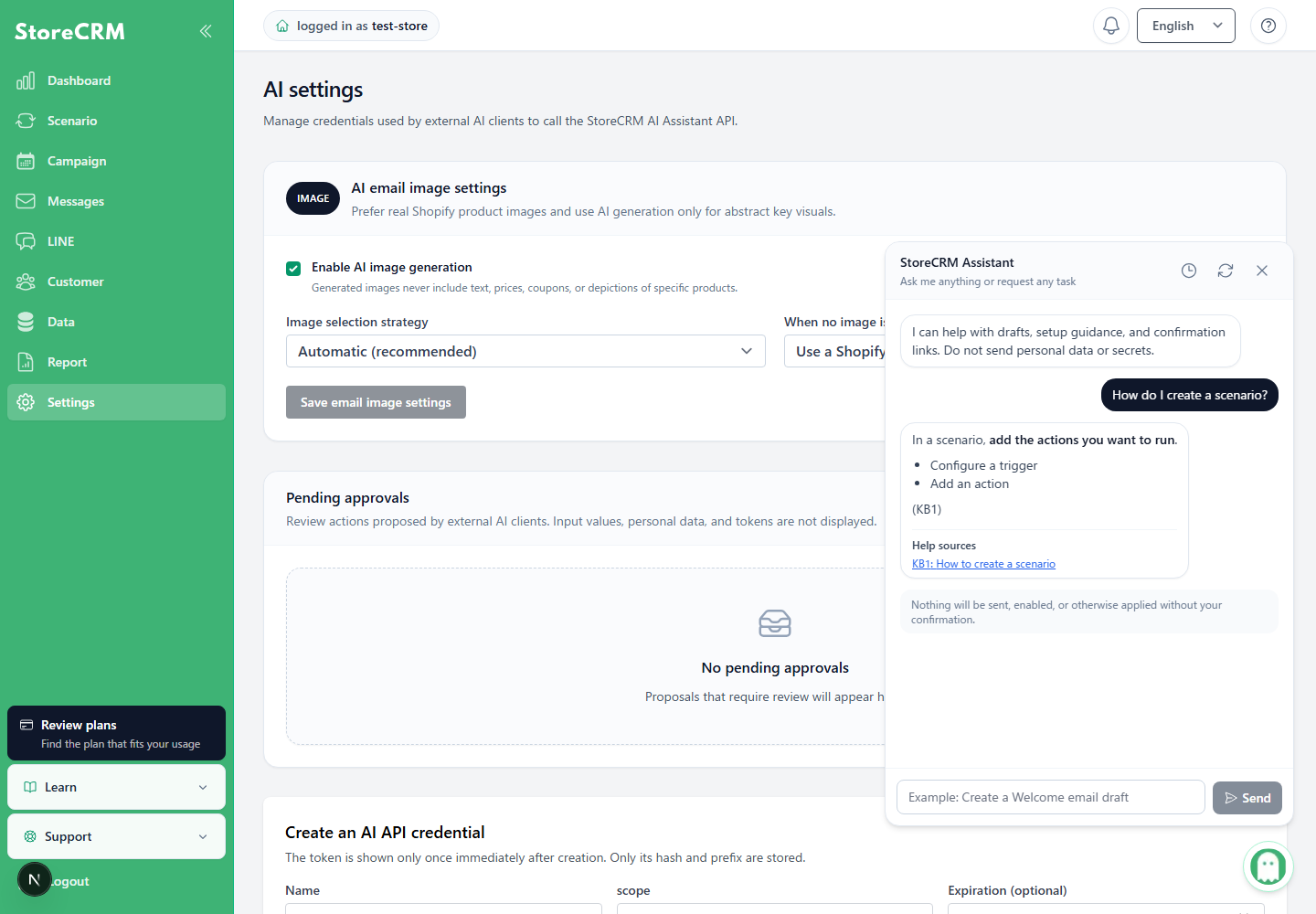
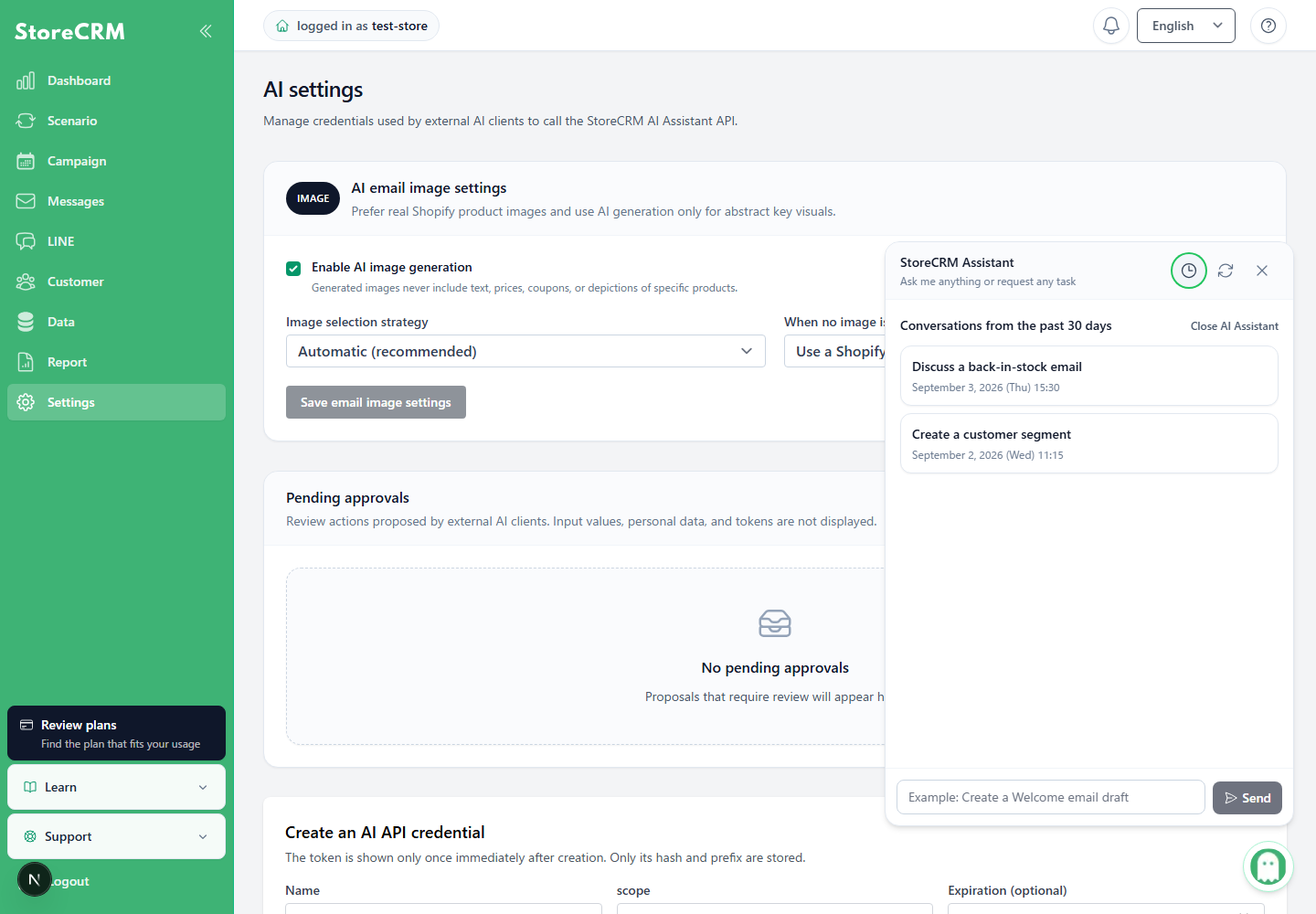
Continue a conversation from the last 30 days
Click the clock icon to view conversations from the last 30 days associated with the current staff member. Select a conversation to continue with its context.
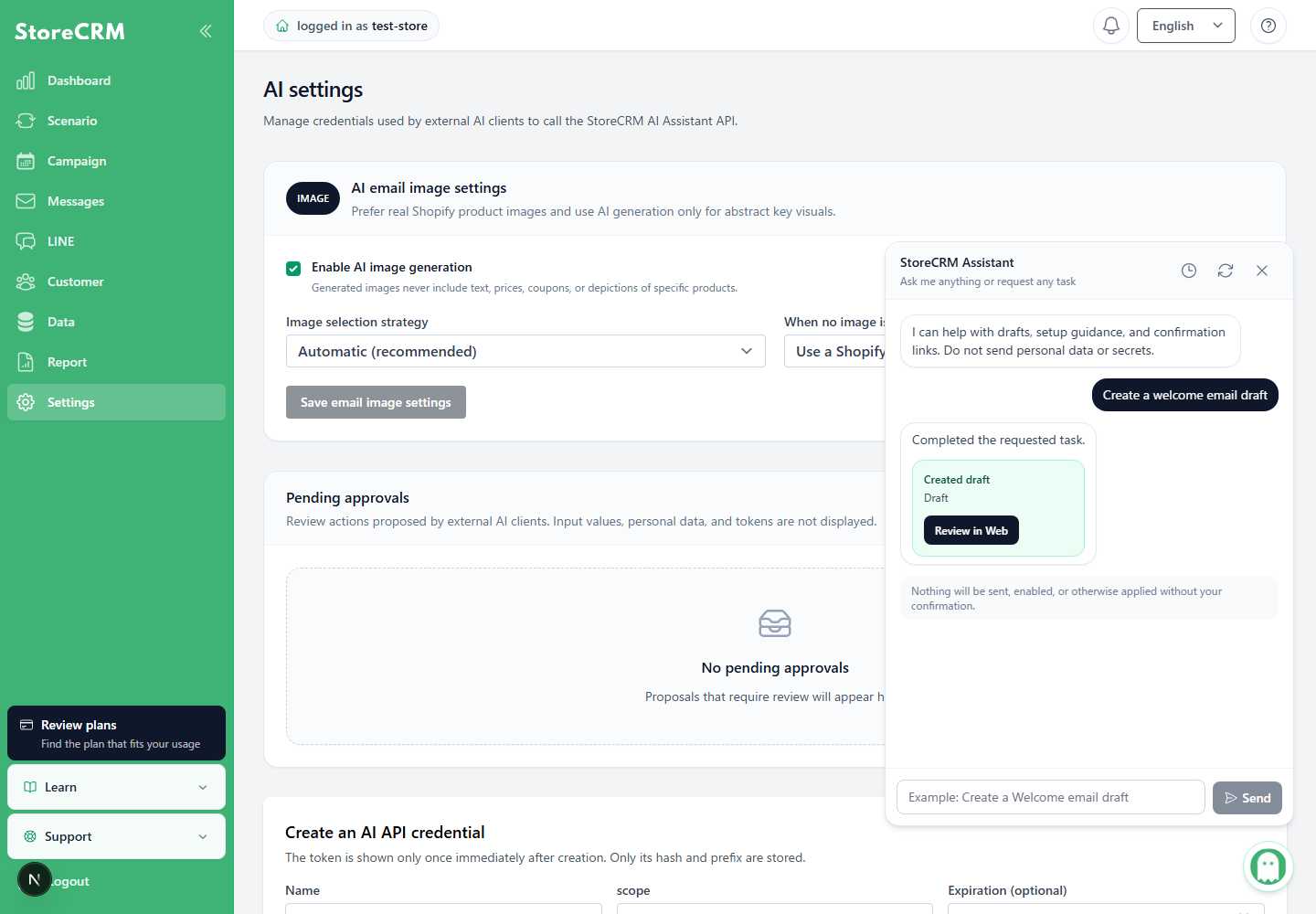
Create a draft and review it on the web
- Describe specifically what you want to create and its purpose.
- Review the generated draft summary and click [Review on web].
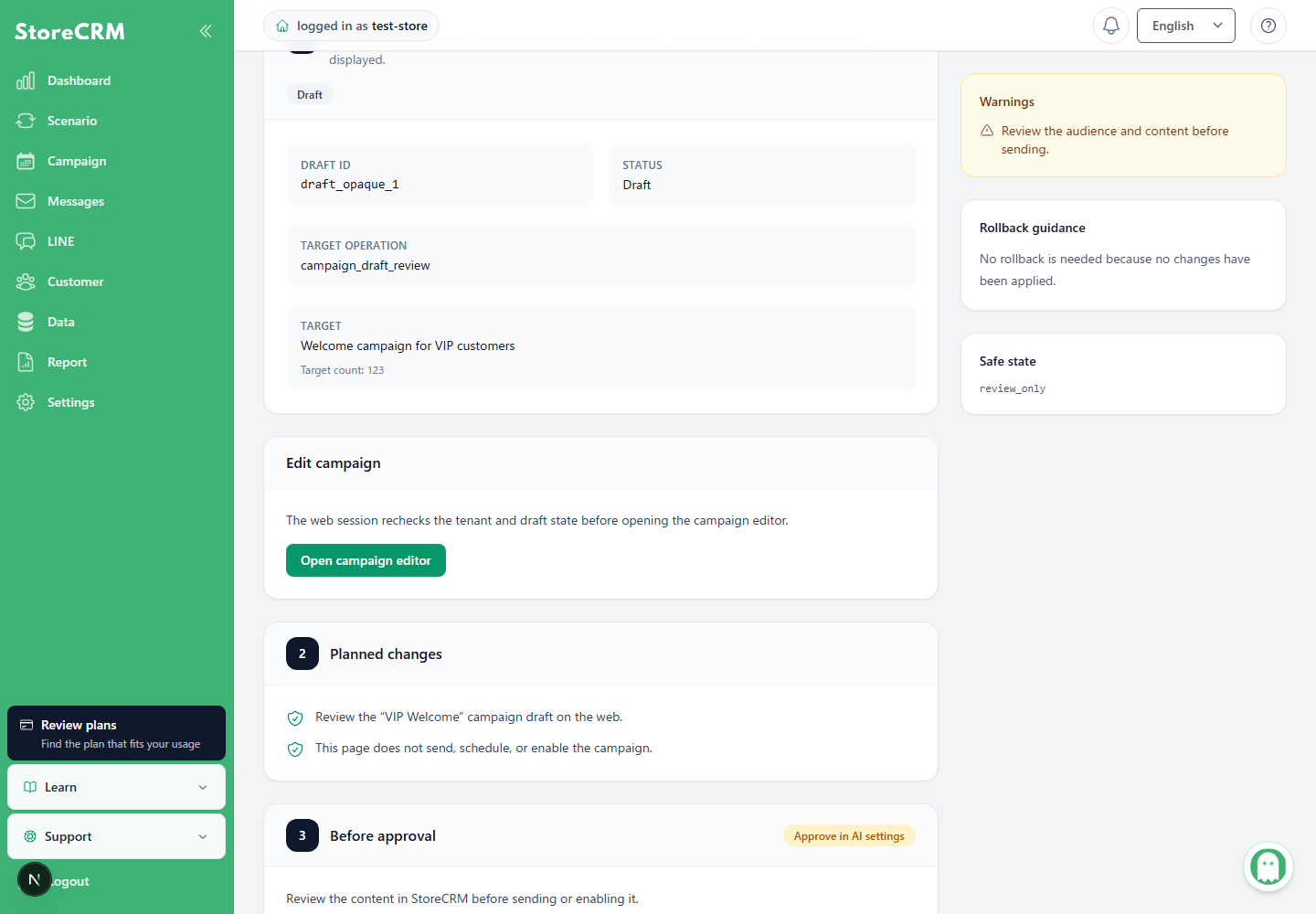
- On the review screen, check the draft ID, operation, number of affected items, planned changes, and safety status.
- Open the original StoreCRM screen, review the content and affected items again, and perform the required operation.
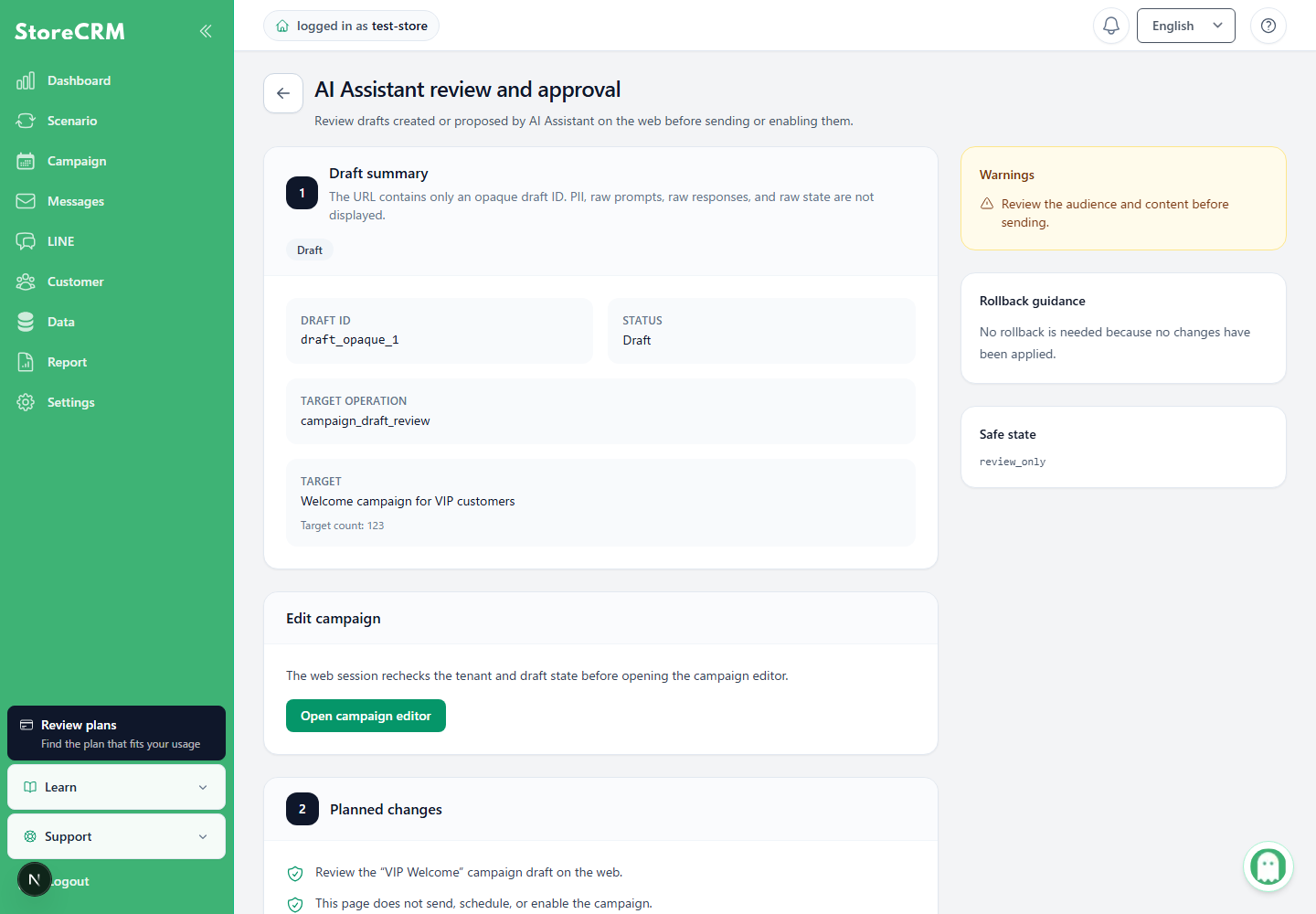
AI the draft created by AI to the screen
When AI Assistant creates a segment, campaign, scenario, or other resource, it automatically opens that resource's review and edit screen. The editing context for the AI-created resource is preserved after navigation.
- The campaign will be pre-filled to the creation screen. It is not automatically saved and automatically released.
- scenarios are created with the necessary email, LINE, segments, and other dependencies, and then transferred to the top-level flow editor.
- In the confirmation screen, check the target conditions, ex s, contents of transmission, order of execution, and unresolved references, and then make necessary corrections and save them.
- If the screen move or creation fails, open the result of the conversation and check the state without duplicate creation.
Create an AI API credential for an external AI tool
- In StoreCRM, open [Settings] → [AI Settings].
- Enter a name for the AI API credential. Use a name that identifies the device or tool, such as “Claude/Codex local.”
- Select a permission profile.
- Set an expiration date if needed, and create the credential.
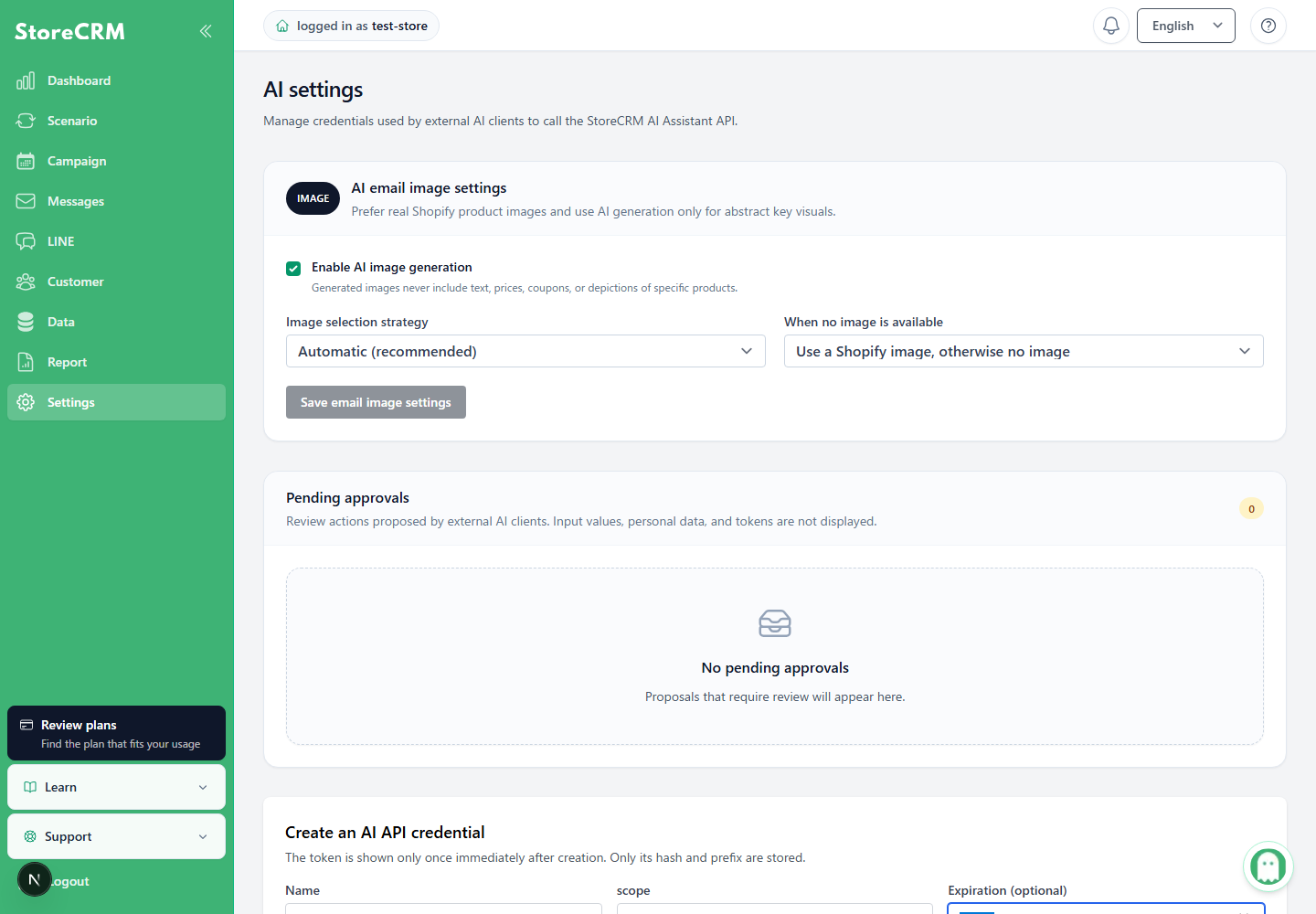
Choosing a permission profile
- read_only:Allows only reading, explanations, validation, and retrieval of masked information.
- draft_only (recommended):Allows creating and updating drafts in addition to reading. This profile is recommended for a first connection.
- elevated:Allows proposals for high-risk operations. It does not allow direct sending, deletion, or similar actions to run automatically without confirmation.
Select the minimum permissions required for the intended use and revoke credentials when they are no longer needed.
Store the displayed connection information securely
Immediately after creation, the raw token and the following environment variables are displayed once.
STORECRM_AI_API_BASE_URL=...
STORECRM_AI_API_TOKEN=...
STORECRM_TENANT_ID=...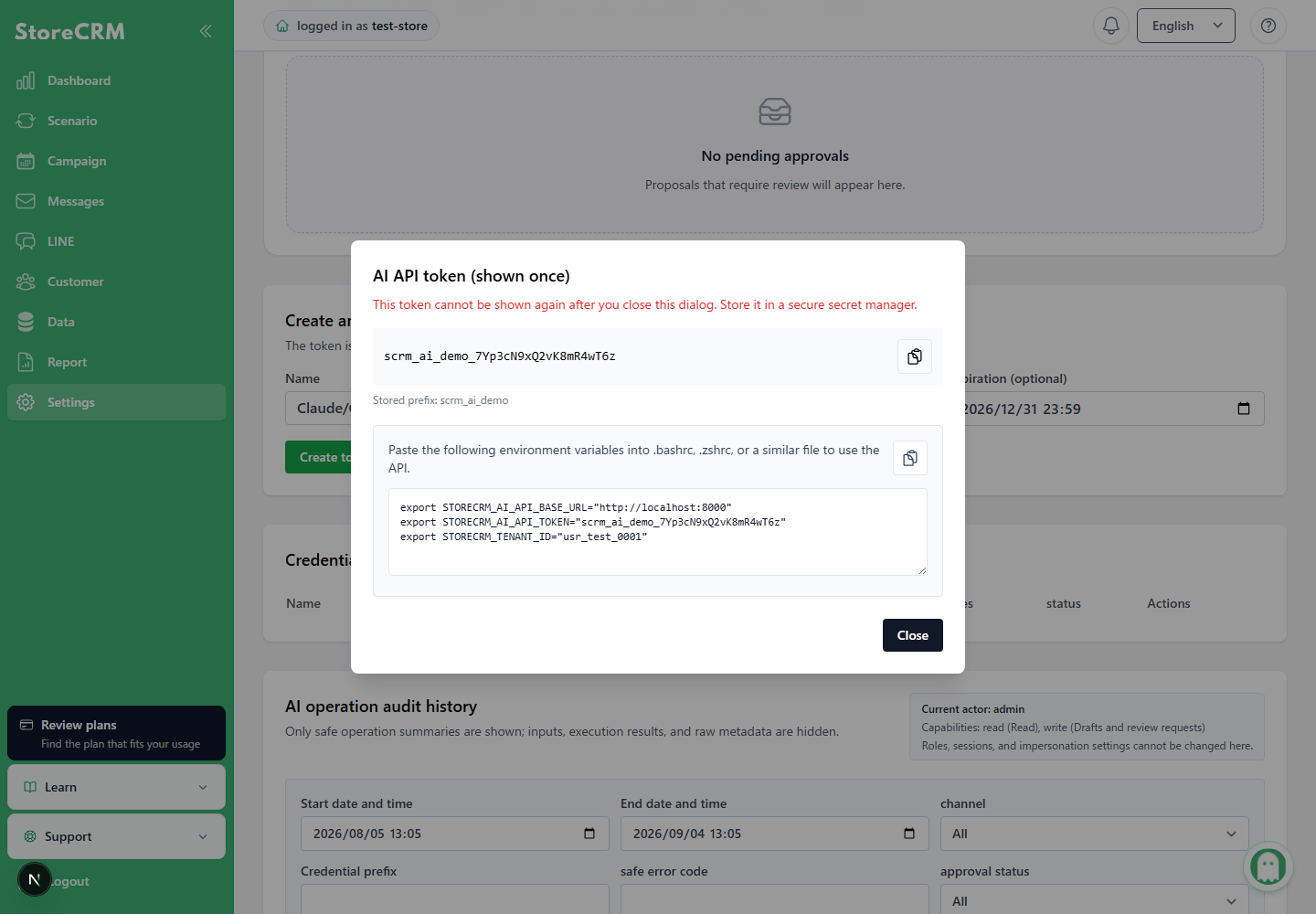
- Before closing the display, save them in secure environment variables or secret storage used by the external AI tool.
- Do not paste the token into source code, Git, Jira, chat, or help pages.
- The raw token cannot be displayed again after you close the screen. Issue a new one if it is lost.
Connect to a supported StoreCRM Skill/API integration
Follow the instructions for the supported StoreCRM Skill/API integration and set the three environment variables above. These values are not entered in the [MCP server URL] field of a general-purpose MCP client. After connecting, first ask a read-only question to confirm that the tenant and permissions are correct.
Rotate or revoke a credential
- Rotation:Issue a new token and update the external AI tool. The old token immediately becomes unusable.
- Revoke or delete:Revoke or delete the credential if a device is lost, a leak is suspected, or the integration is no longer used.
- Permission changes:Review permissions when the required operations change and continue using the minimum permissions needed.
Approval and safety notes
Operations from external AI tools are also subject to StoreCRM permissions, auditing, and draft protections. For sending, scheduling, activation, deletion, bulk updates, and similar operations, review the content and affected items on the original StoreCRM screen. Proposals requiring a web review session appear in the pending approvals list in AI Settings.
If the assistant cannot answer or connect
- Start a new conversation if the web conversation has expired.
- In the external AI tool, confirm that all three environment variables are set and contain no extra spaces or line breaks.
- Check the credential's expiration date, revocation status, and permission profile.
- The old token cannot connect after rotation. Update the external AI tool with the new value.
- A connection configured as an MCP server will not work. Use a supported StoreCRM Skill/API integration.
- If an AI result differs from the actual StoreCRM settings, treat the StoreCRM screen as authoritative.
 English
  Japanese