

Set up the availability of emails delivered from StoreCRM for each customer.
Types of emails delivered from StoreCRM
The types of emails delivered from StoreCRM are as follows
marketing email
- It is delivered to customers who have enabled the "Allow Contact" checkbox on the checkout screen, for example, when making a Shopify purchase.
- It is linked to the consent settings for receiving marketing emails in Shopify's [Customer Management].
- You can check the status of your marketing email settings by customer by going to Shopify -> [Customer Management] -> click on the customer -> [Marketing].
- Most scenarios, such as basket drop emails, cannot be delivered to customers who do not have [Marketing Email] permission enabled.
- Unsubscribing from StoreCRM will unsubscribe you from both marketing emails and mailings.
Send Email
- Non-marketing emails, such as order confirmations, will be delivered.
- This is not linked to the consent settings for receiving marketing emails in Shopify's [Customer Management].
- Unsubscribing from StoreCRM will unsubscribe you from both marketing emails and mailings.
Set marketing emails and whether or not to send emails to each customer
To set up marketing emails and whether or not to send email for each customer, do the following
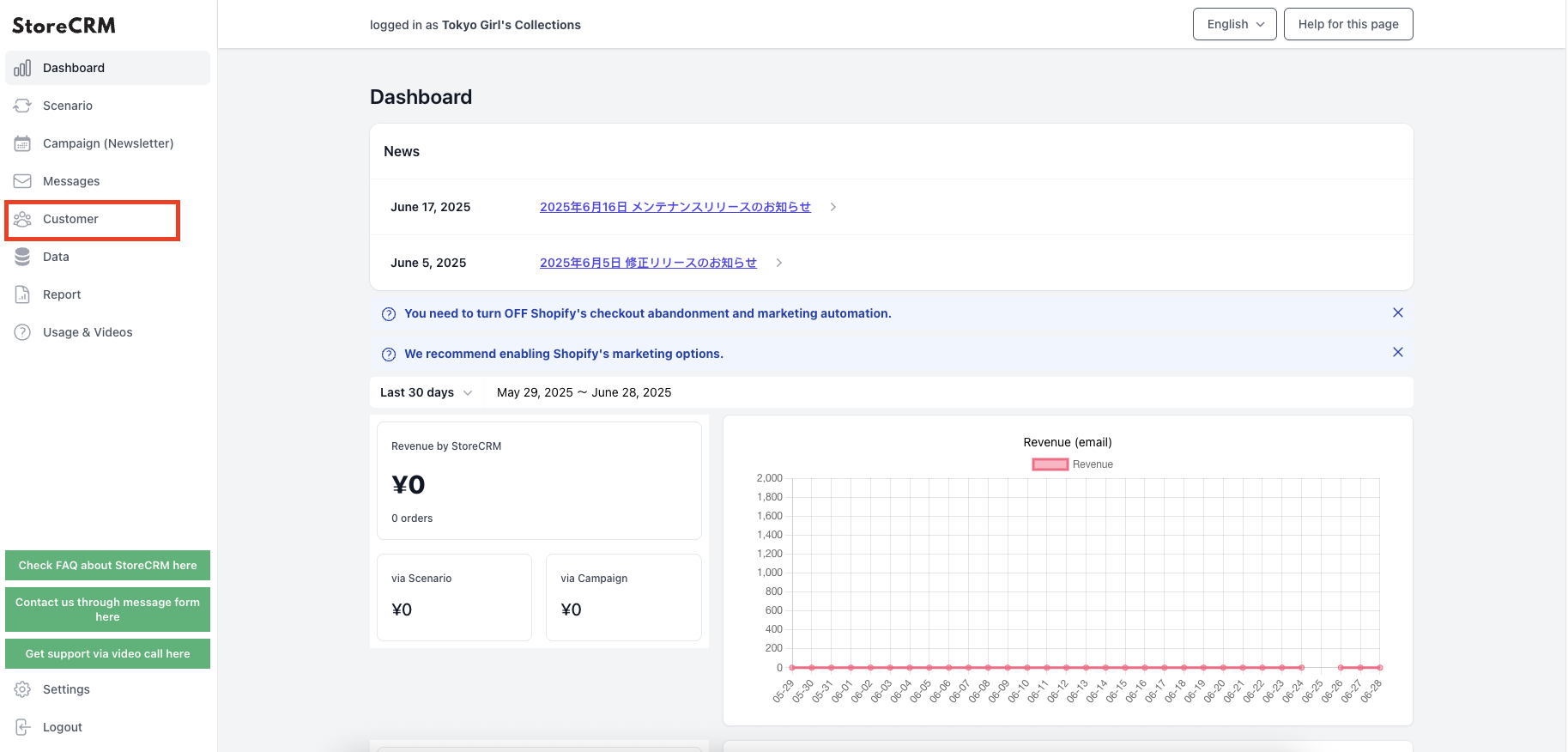
Click on "Customers.
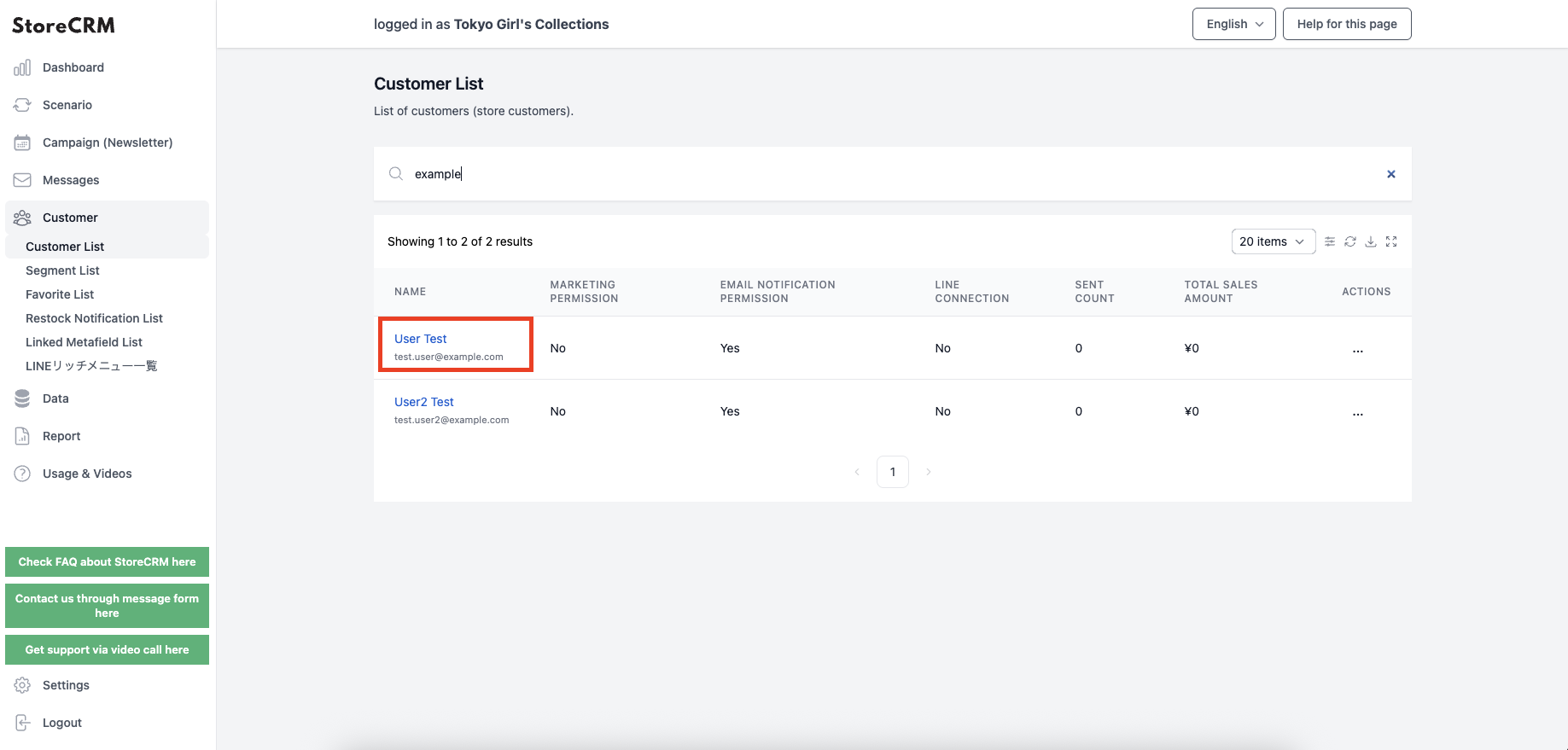
Click on the name of the customer for whom you wish to configure email settings.
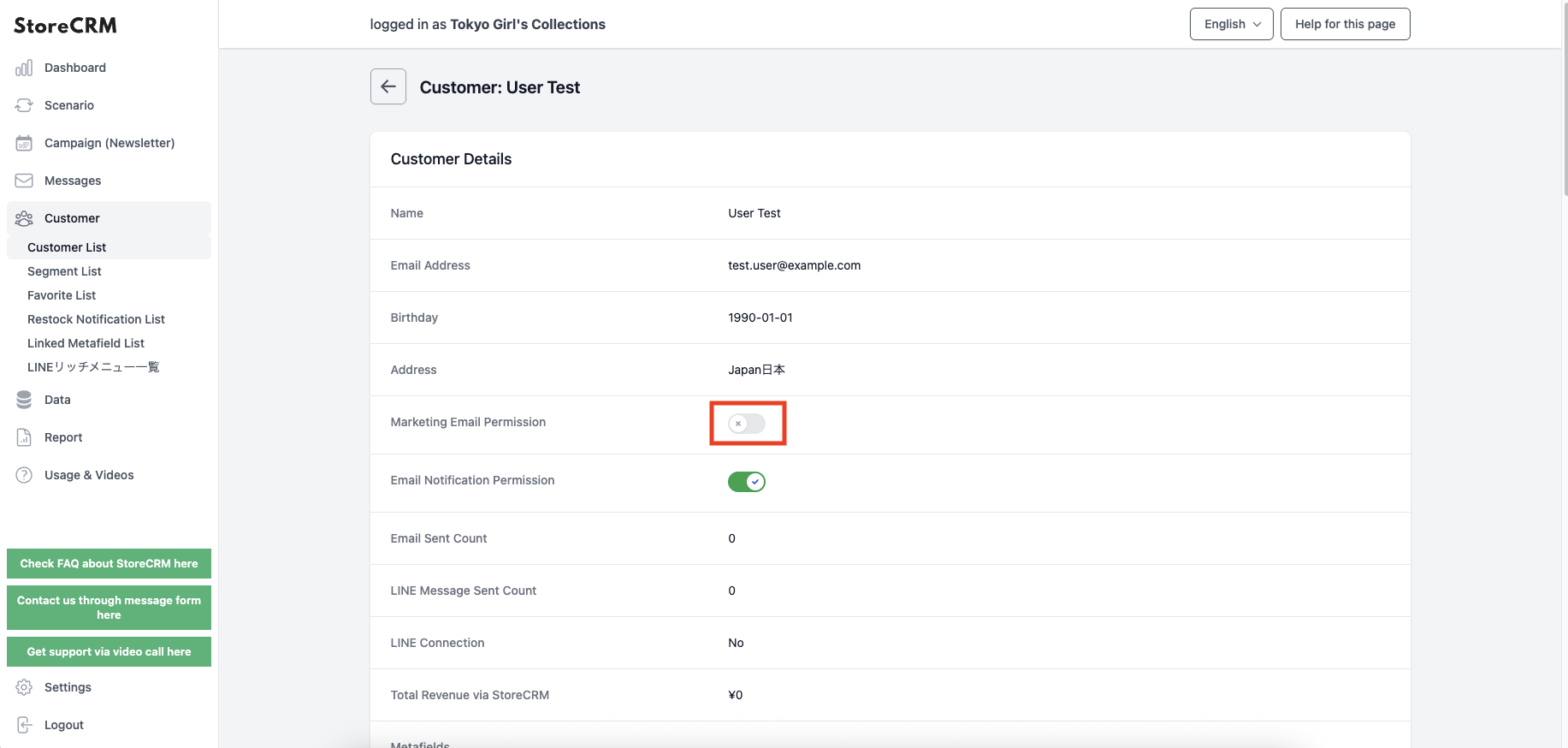
3. if you want to allow marketing emails, click to enable them.
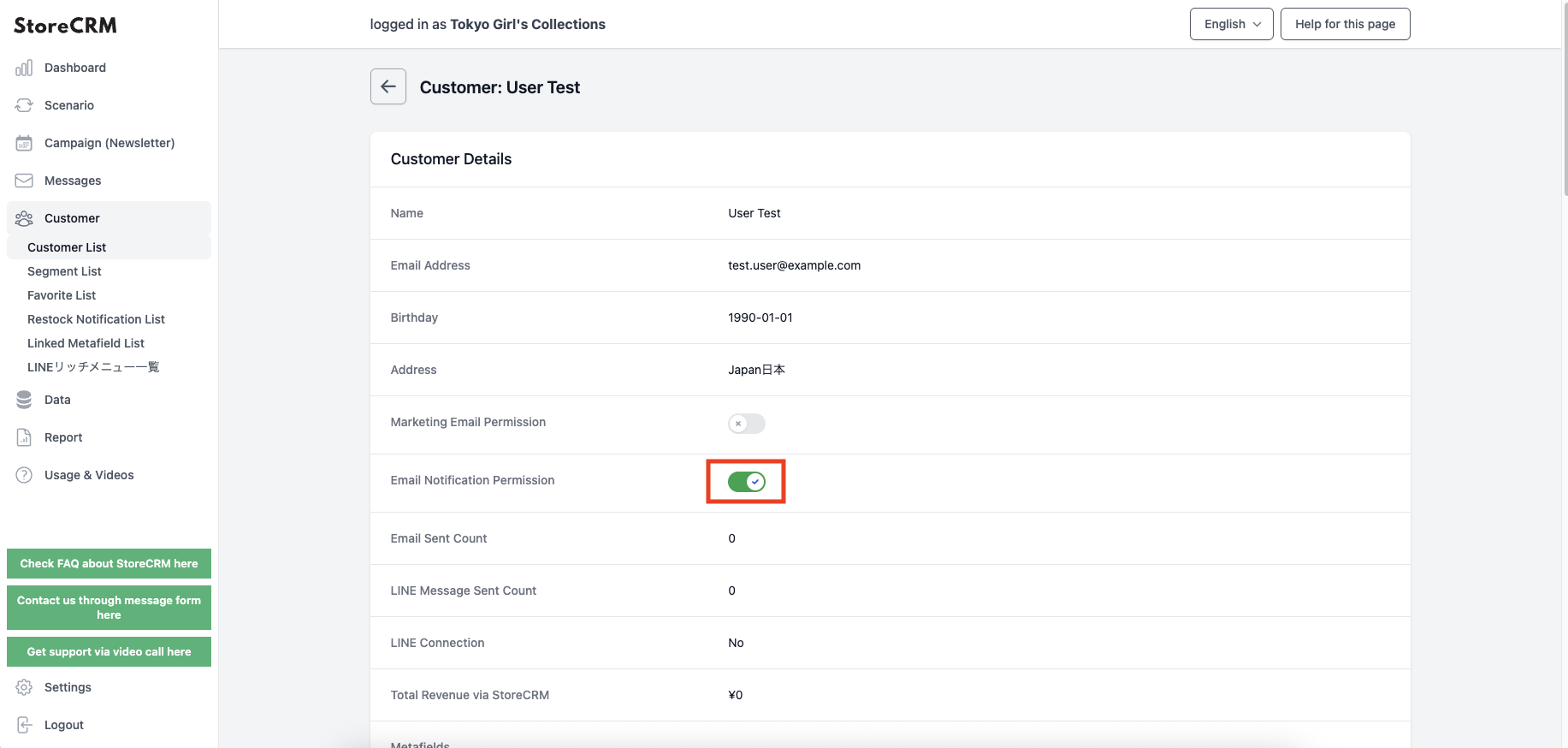
Click to disable if you do not want to allow the email to be sent.
Automatically opt out inactive bounced or blocked customers
Open Customers → Customer settings and enable automatic marketing opt-out for customers who have not responded after a bounce or block. It is off by default. Enter an integer from 1 to 3650 days (default: 180) and save. Reload to confirm the setting persists.
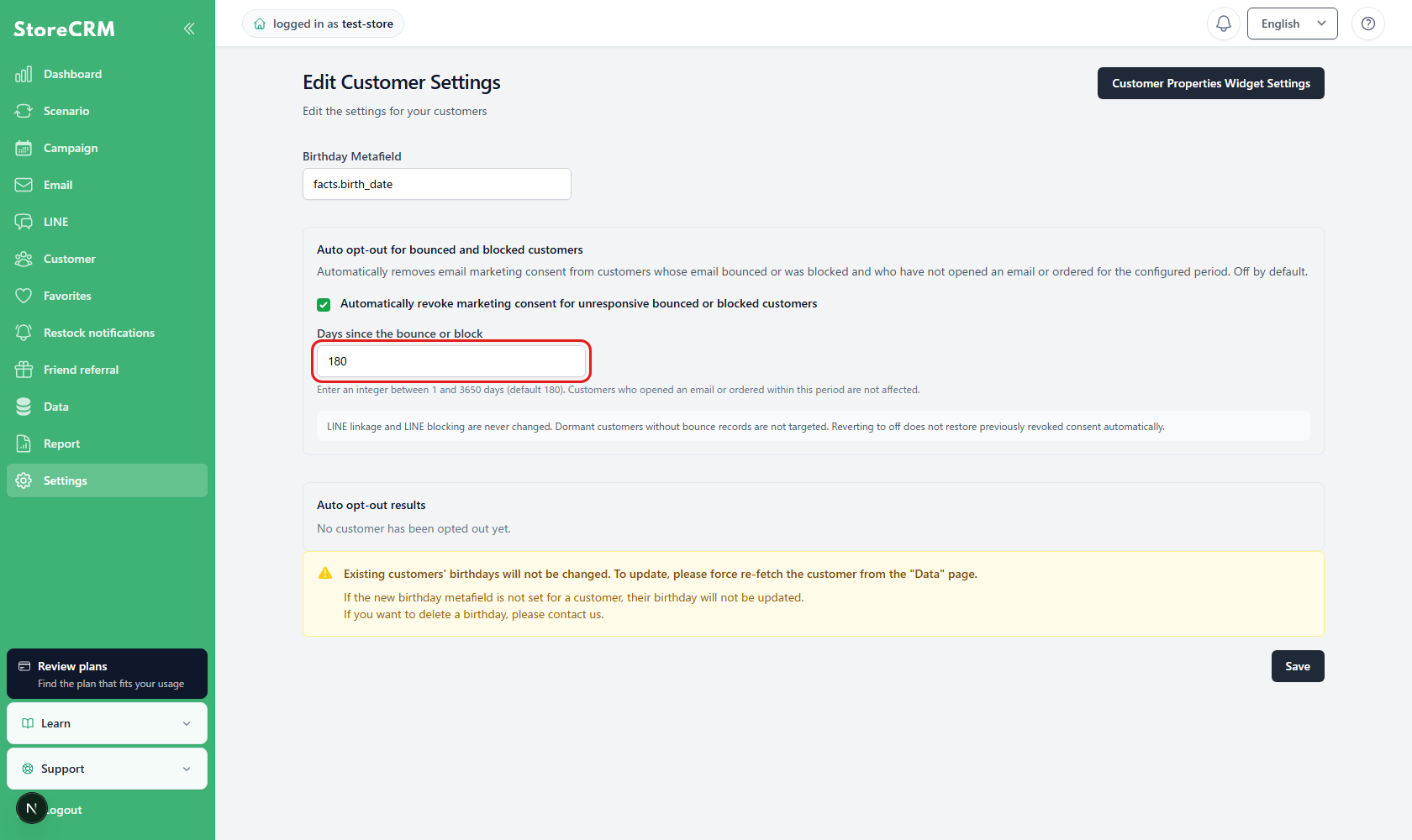
Only customers with email marketing permission, a bounce or block older than the configured period, and no email opens or orders during that period qualify. Dormant customers without a bounce or block are excluded. Review each customer in Automatic opt-out results on the same page.
After opt-out, customers without a LINE connection leave the active customer count. LINE-connected customers remain active; their LINE connection and block status are unchanged. Turning the feature off does not restore permissions already removed.
Related pages
 English
  Japanese