

Scenario sharing copies scenarios and related resources to another StoreCRM store. Issue a code in the source store, then preview and import it in the destination store. It does not transfer customer data or delivery history.
What is shared/not shared
| What's shared | What not to share |
|---|---|
| Up to 20 scenarios | Customers and segment membership |
| Related emails, LINE messages, and components | Delivery and execution history |
| Local Segment Condition | Credentials and external-integration secrets |
| Flow and dependencies | Shopify Unique ID/Image File |
Issue a sharing code
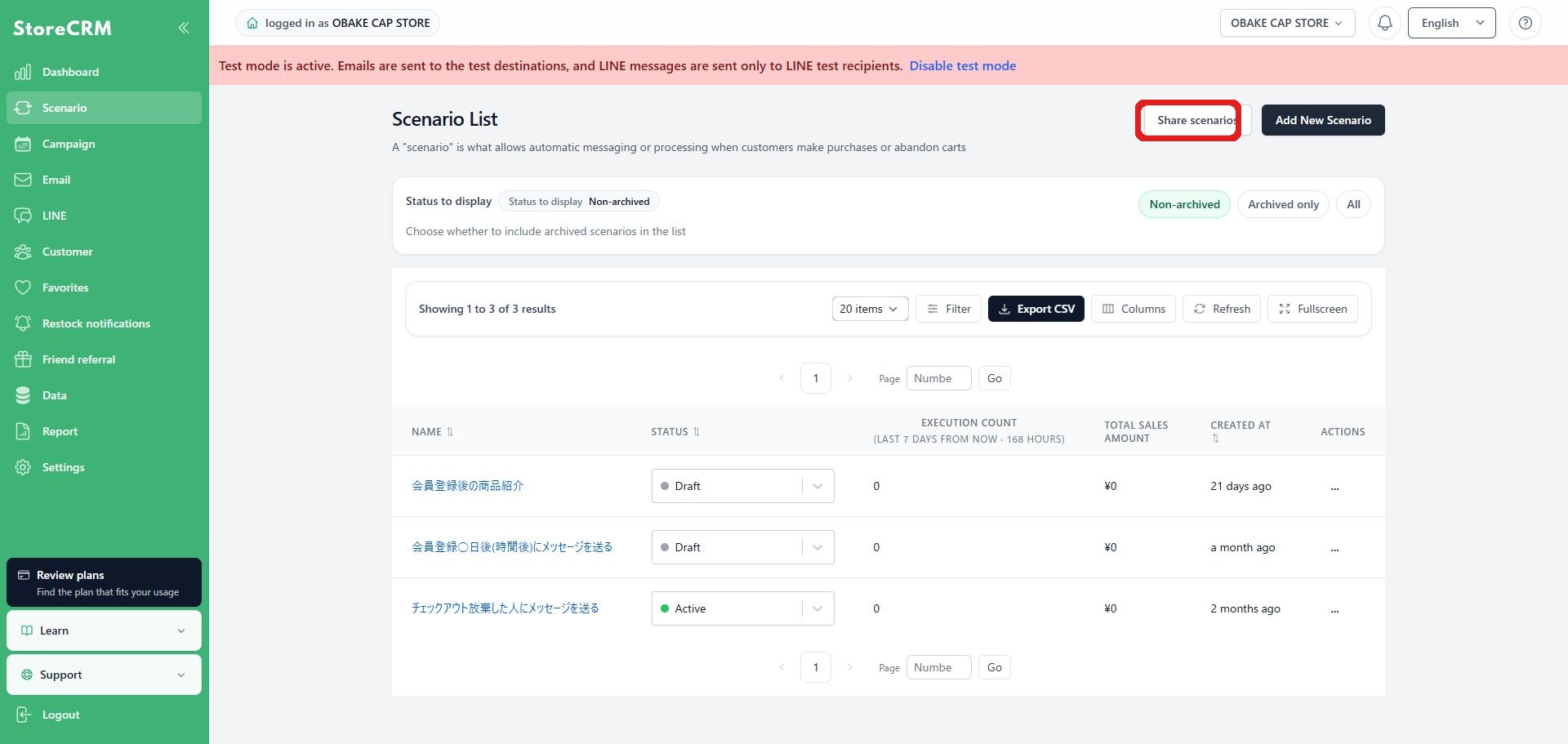
1. Open the sharing screen
Open Scenario sharing from the scenario list action menu. Issuing and importing use separate screens.
2. Choose a scenario
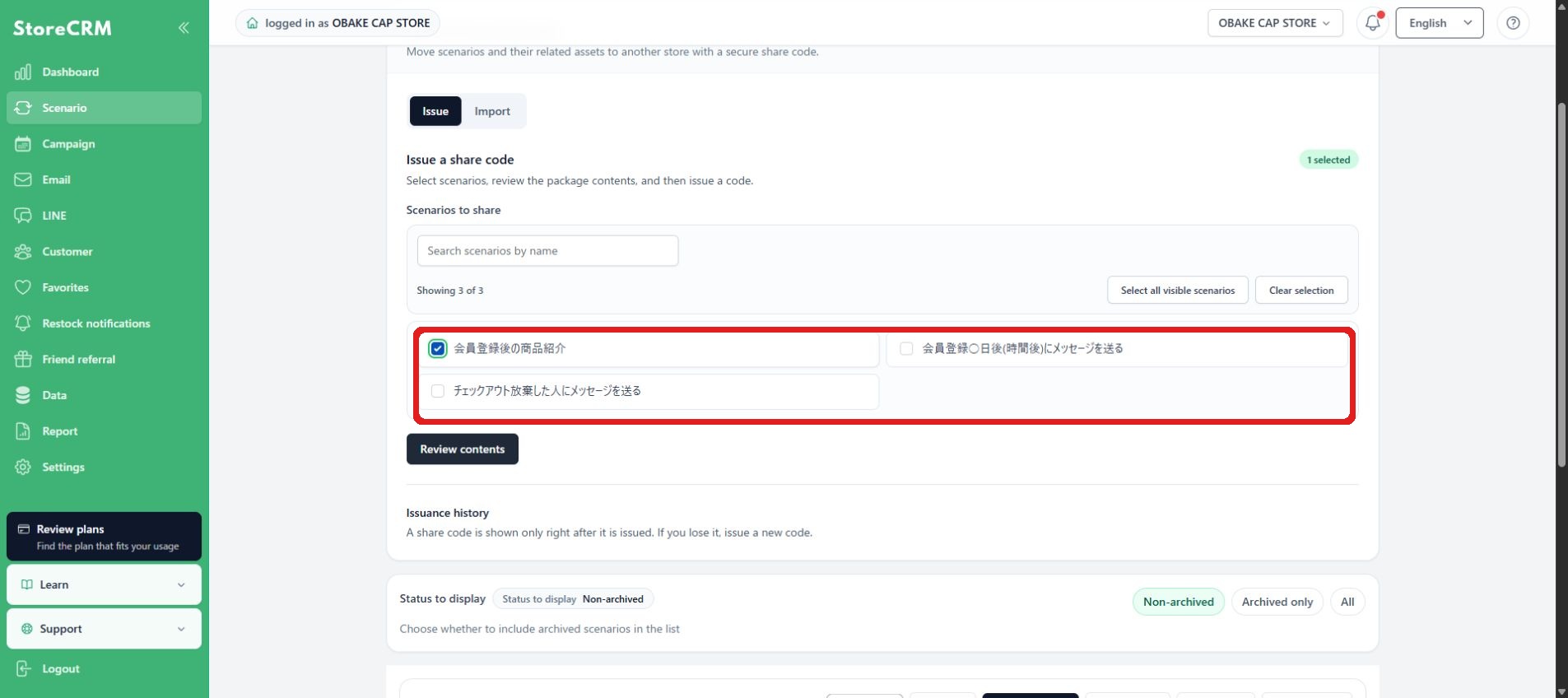
Use search and pagination to select up to 20 scenarios. Review the related resources and dependencies shown with them.
3. Review and issue code
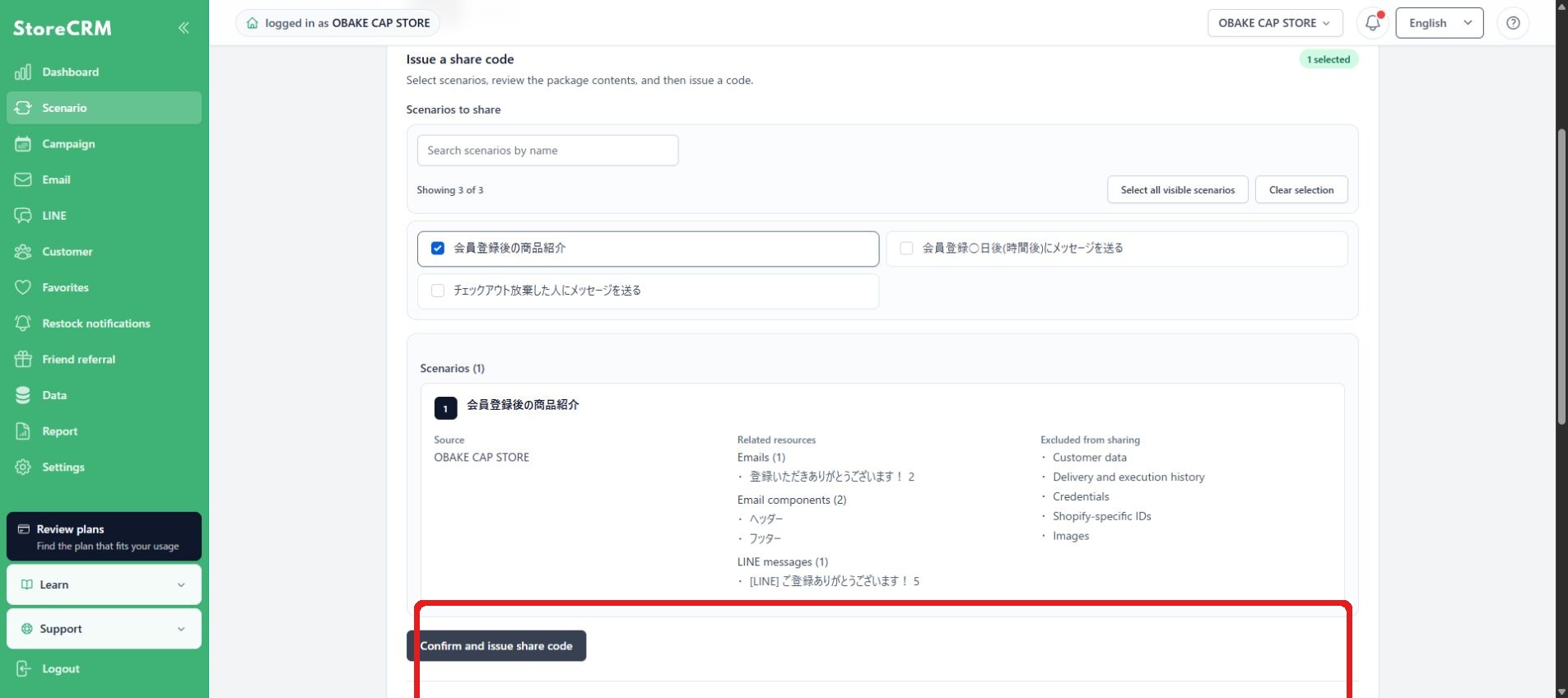
Review the selected scenarios and related resources, then issue the sharing code once. The code is valid for seven days and cannot be reused after one import. Send it securely to the destination-store operator.
Manage issued codes
In issue history, check the expiration date and the generating, issued, used, revoked, or failed status. Revoke an unused code when it is no longer needed. For security, the code itself cannot be shown again from history.
Import a sharing code
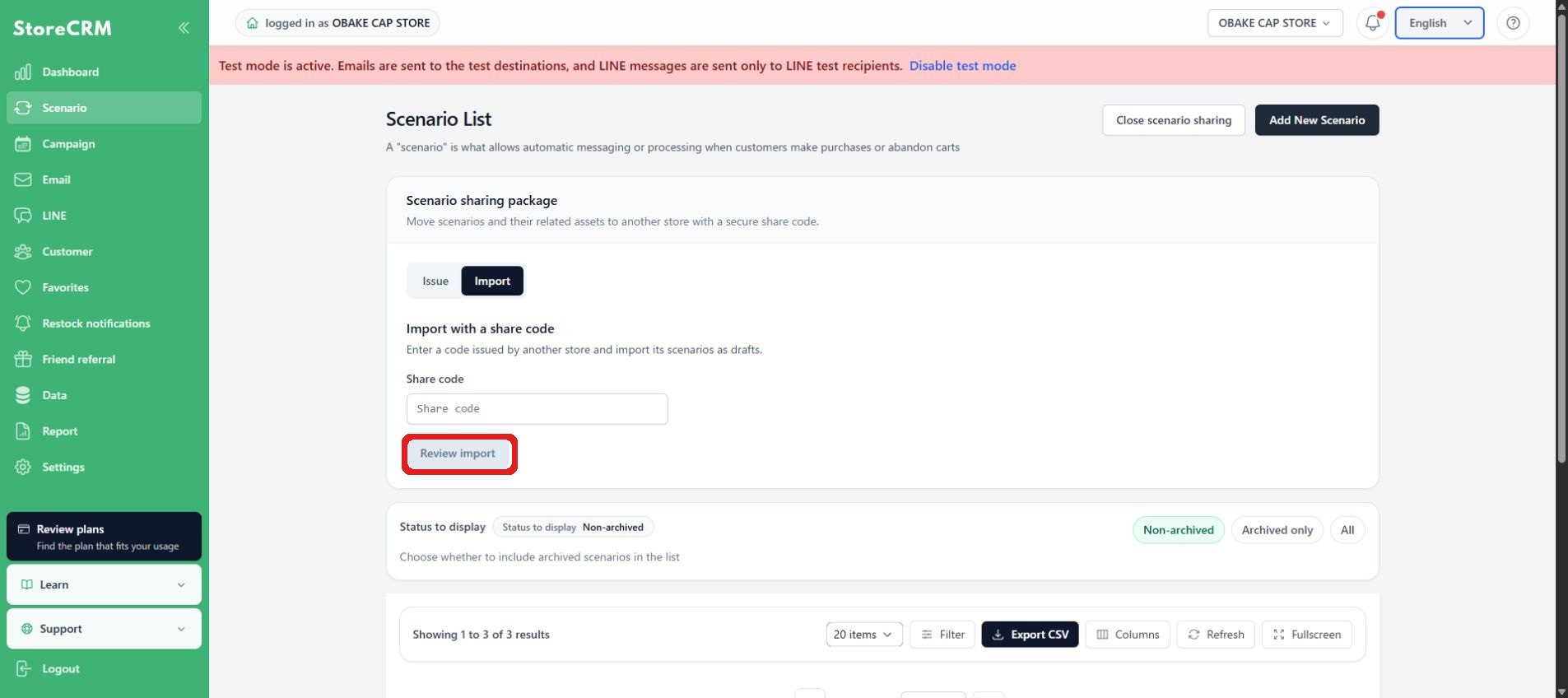
1. Enter the code and preview the package
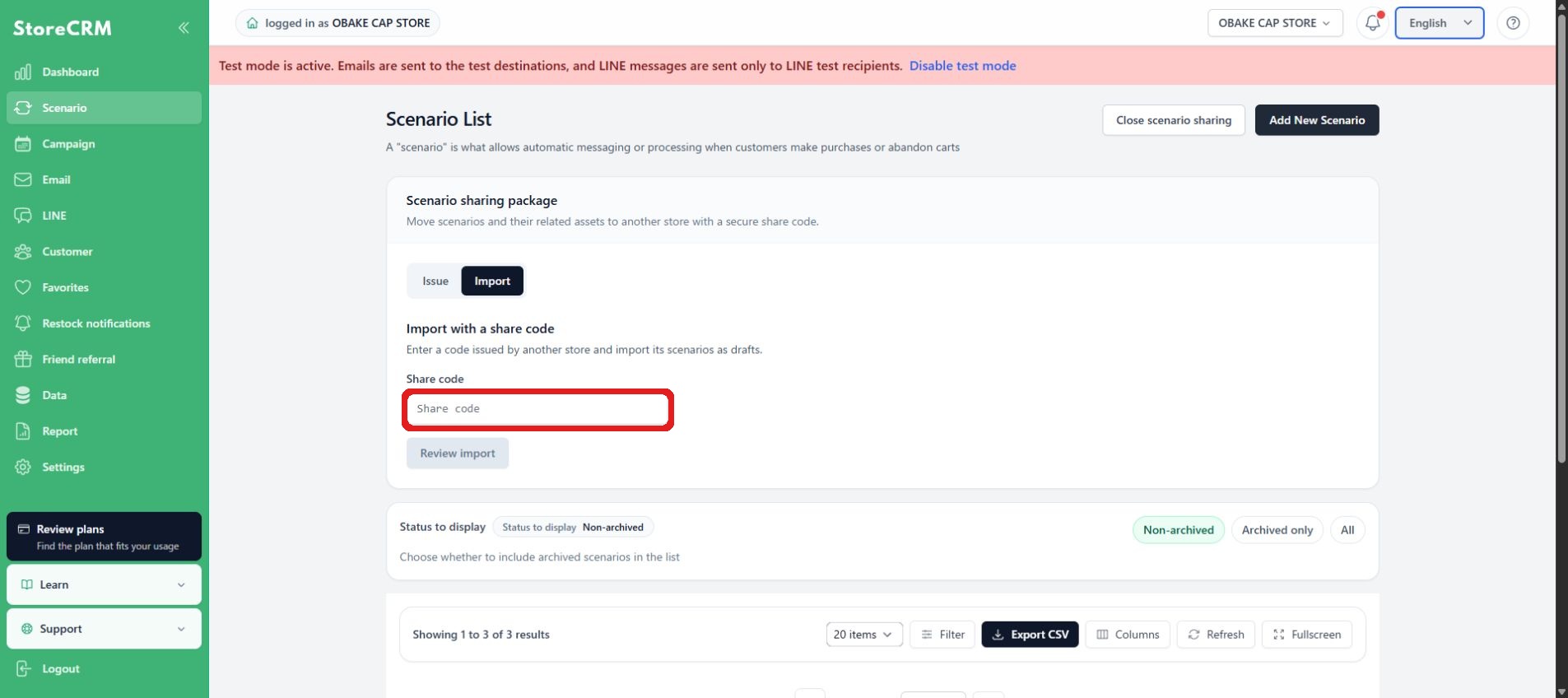
In the destination store, open Import and enter the code. Previewing does not consume the code; review the contents before confirming the import.
2. Review the import contents and confirm
Enter the share code and click Review import contents. Review the displayed scenarios, emails, LINE messages, components, and segments before confirming the import. The confirmation can only be performed once.
3. Replace unresolved draft items
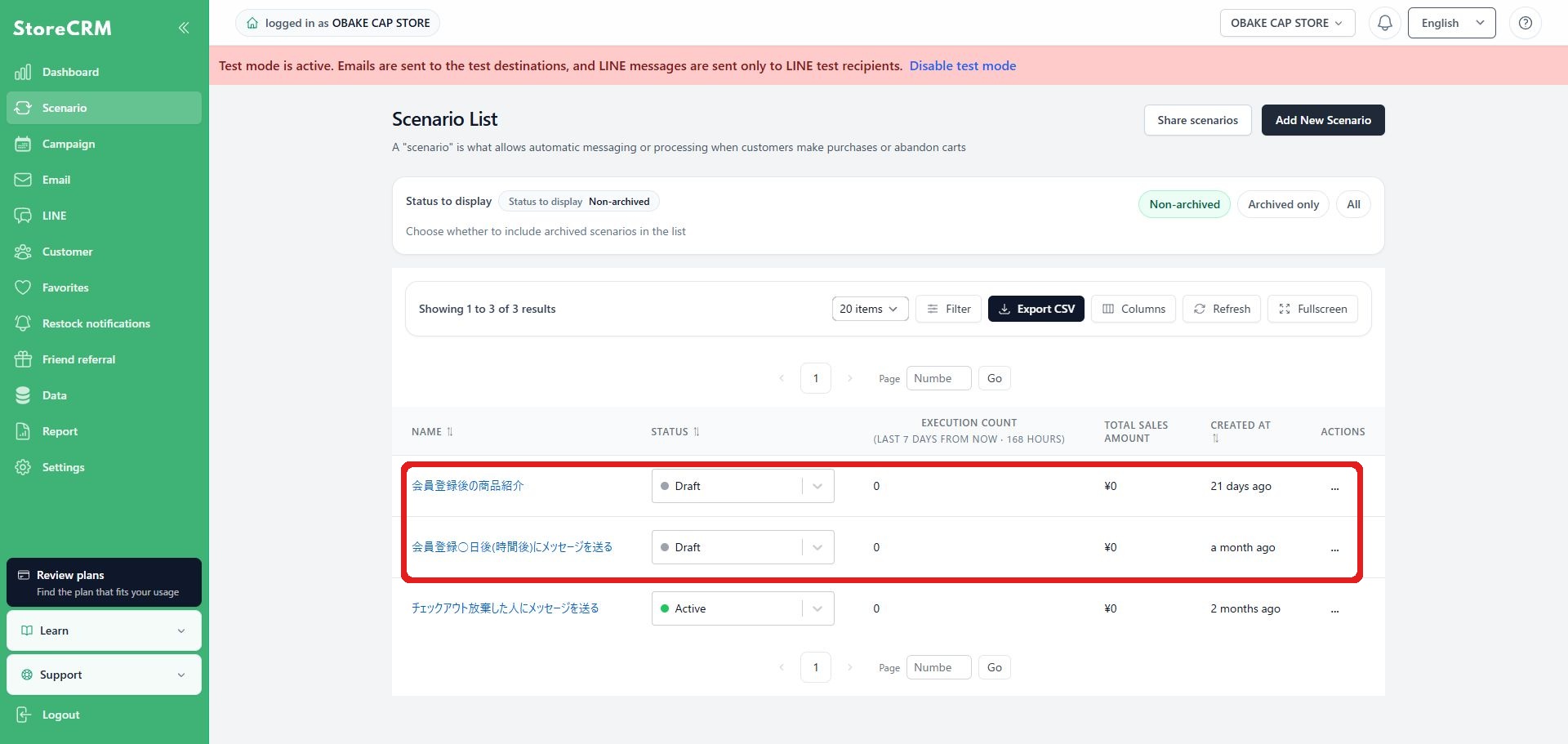
Imported scenarios are drafts. Replace store-specific references such as products, collections, segments, and external integrations with options from the destination store. Use search when there are more than 1,000 options. If you close the page, you can resume from the unresolved items.
Confirmation before publishing
- Check the sender, body, link, and image of the email and LINE.
- Review the segment conditions and exclusion criteria.
- Re-register settings that will not be shared, such as coupons, Shopify Flow, external integrations, etc.
- Run an automation test and confirm the execution path and message content before enabling the scenario.
If a sharing code cannot be imported
- Expired, used, or revoked codes cannot be used. Ask the source store for a new code.
- Staff members who only have import permission cannot issue sharing codes. Check their permissions.
- A scenario with unresolved references cannot be activated.
- If part of the import fails, review the reason in the history, then resume or retry without creating duplicates.
 English
  Japanese