

When you save a LINE message containing a Flex Message in StoreCRM, its format is checked automatically to confirm that it can be sent to the LINE API. This feature lets you correct JSON and link errors when saving and reduces delivery failures.
Open the settings screen
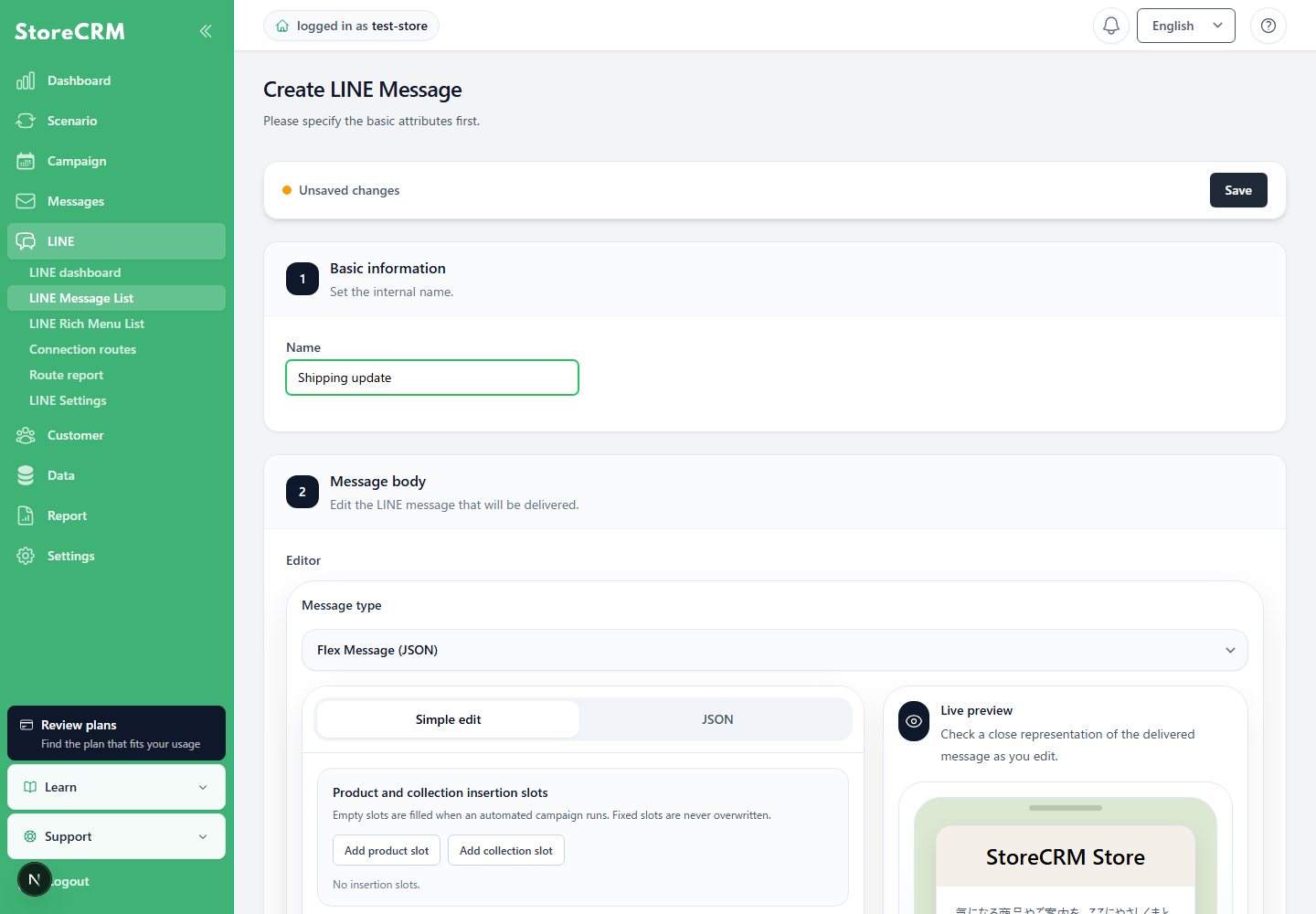
- In StoreCRM, open LINE → LINE message list.
- Click [Create LINE message] or edit an existing LINE message.
- Enter a name and message content, and add or edit a Flex Message.
- Click Save.
LINE API validation requires a valid LINE channel access token or a configured LINE channel ID and channel secret. If LINE is not configured, complete LINE setup first and confirm a test send.
What is checked when saving
- Whether the entire LINE message data is an array
- Whether the Flex Message content is a valid JSON object
- Whether the Flex Message structure conforms to LINE specifications
- Whether URLs in URI actions, images, and other components are non-empty and use a supported format
- Whether the LINE API accepts the message after template tags are replaced with sample validation values
URI actions support http:, ,https:, ,line:, ,tel:, ,mailto: . For component URLs such as images, url must use http: or https: .javascript: and URLs without a scheme are not supported.
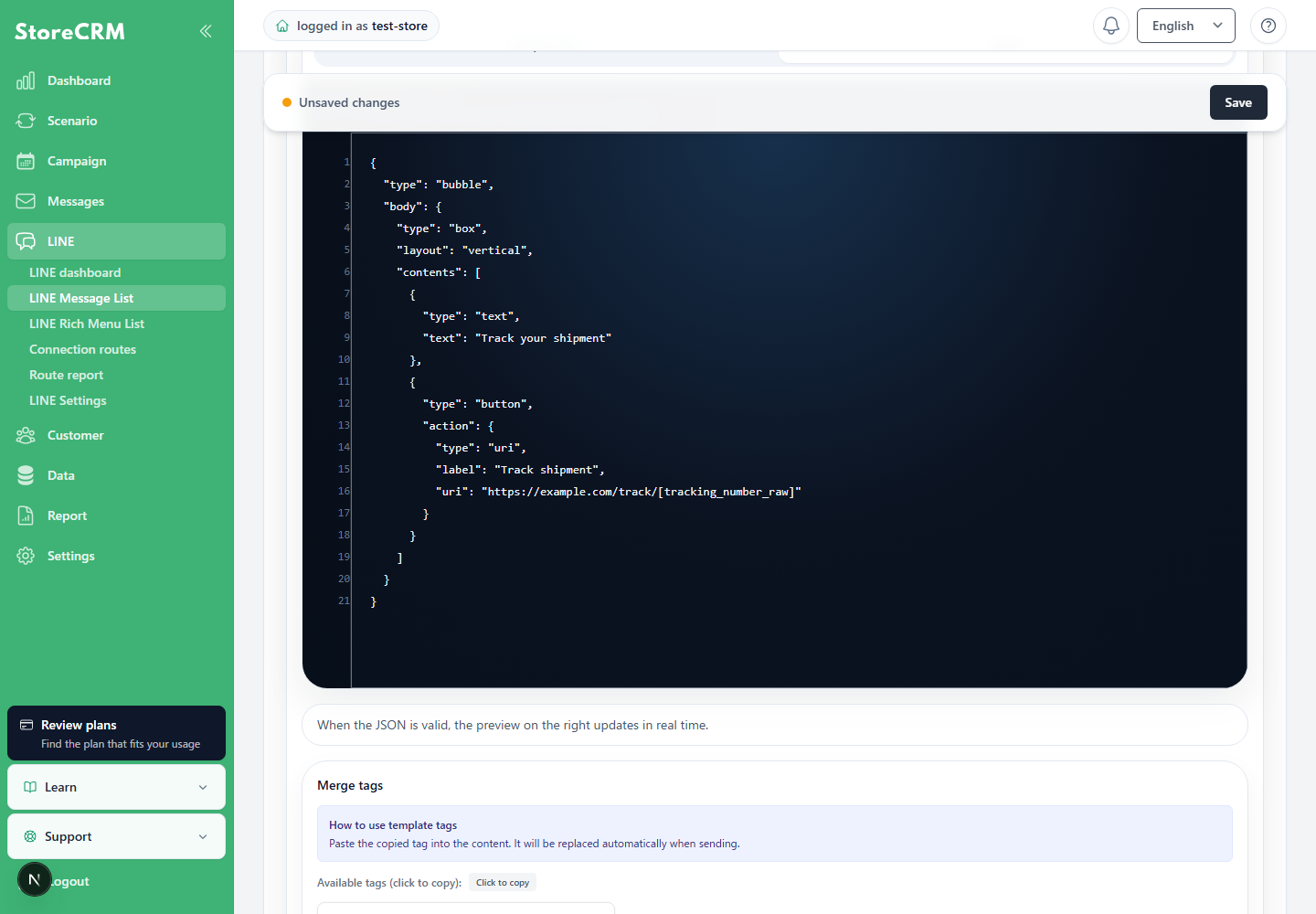
Use template tags in URLs
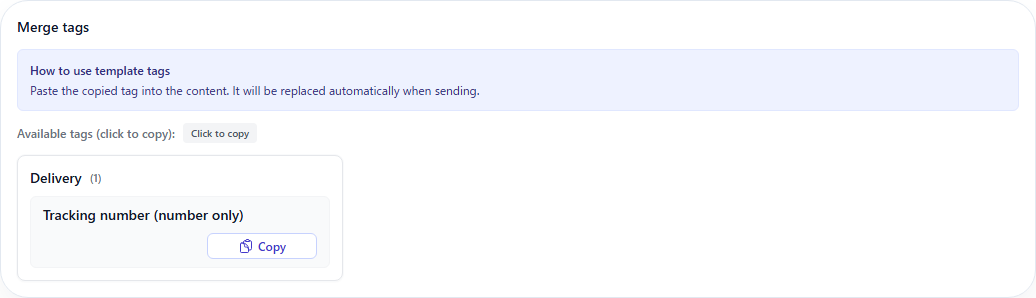
During save validation, StoreCRM template tags that are replaced at delivery time are substituted with safe sample values.[customer_name] is a display tag. Use separate tags intended for URLs.
| Tags | Usage |
|---|---|
[tracking_number] | This outputs display text such as “Tracking number: 12345.” Do not use it as a URL parameter. |
[tracking_number_raw] | This outputs only the tracking number. Use it when inserting the tracking number into a URL such as a shipment tracking link. |
If an error appears when saving
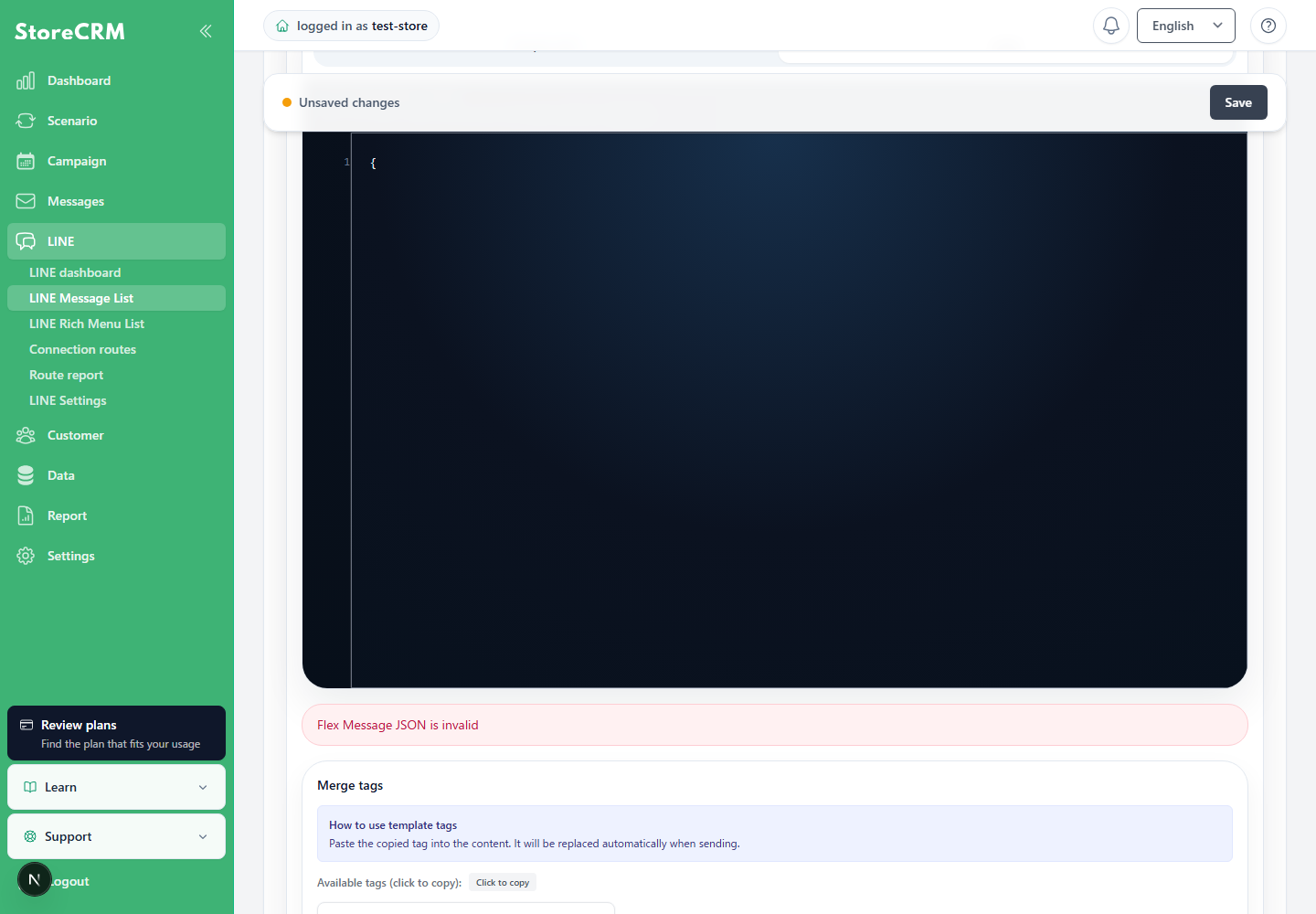
- Review the displayed error. Flex Message format errors may include system details.
- Confirm that the Flex Message JSON is a valid JSON object.
- Check the structure with LINE Flex Message Simulator.
- Check URI actions and image URLs for empty values, unsupported schemes, and spaces.
- If a display tag is used in a URL, replace it with a URL-specific tag.
- After making corrections, click [Save] again and confirm the completion message and navigation to the details screen.
If an invalid link is found during a test send
Even a message that was saved successfully can produce an empty URL or unsupported scheme after actual customer or order data is inserted into template tags. During a test send, StoreCRM validates the final Flex Message immediately before delivery. If an invalid link or structure is found, delivery stops and is shown as failed.
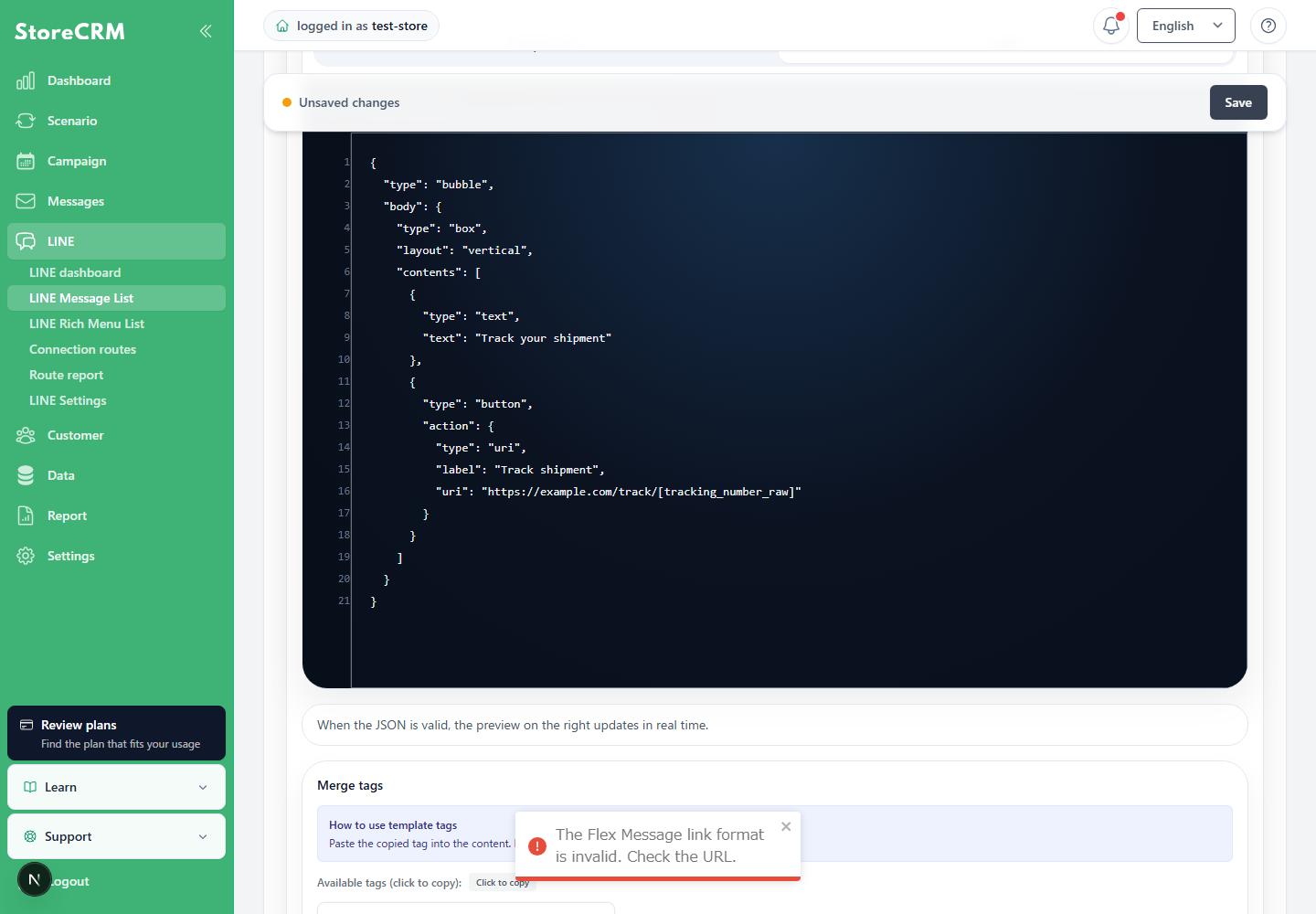
Review the delivery failure, correct the relevant links, template tags, and Flex Message structure, save the message, and run another test send under the same conditions.
Distinguish LINE test sends from normal deliveries
For a LINE test send, “【テスト送信・開始】” and “【テスト送信・終了】” are sent as separate messages before and after the content. “【テスト送信・失敗】” may appear when the content cannot be sent. These labels are added only to test sends and do not appear in normal deliveries.
Edit and save formatted text
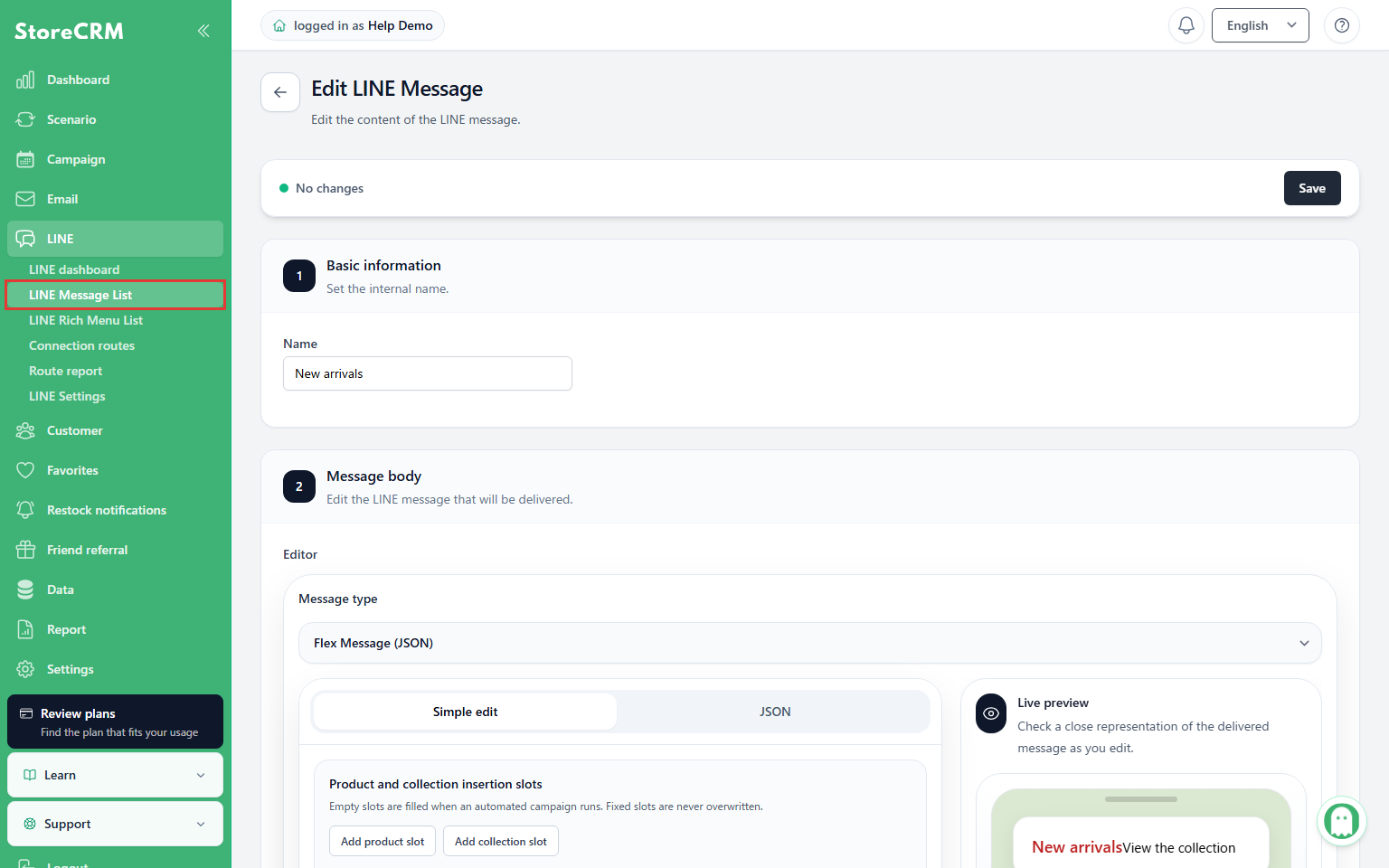
1. Open LINE Message List
Where: LINE in the left navigation
Click LINE Message List.
Check: The message list opens.
2. Choose a message
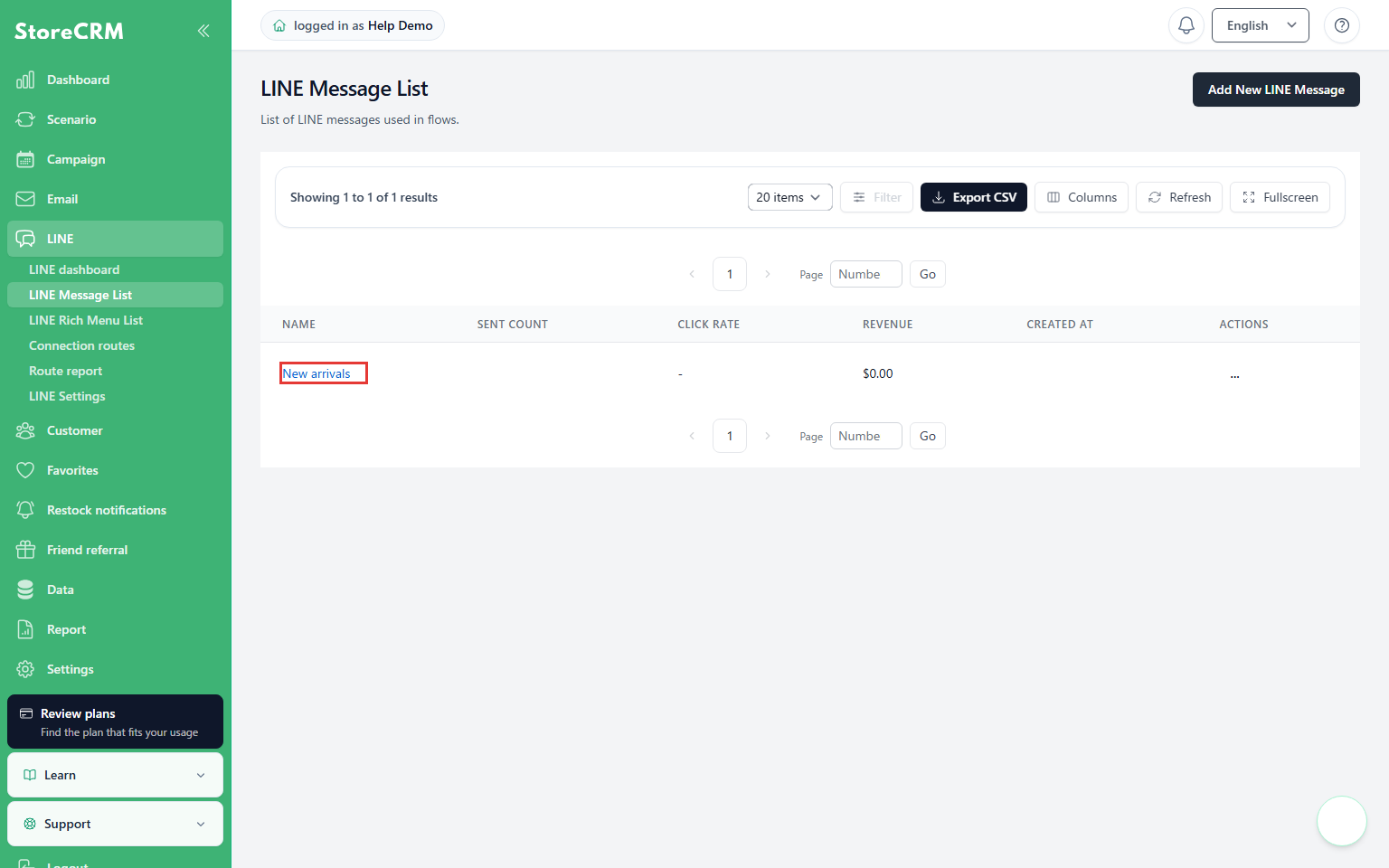
Where: Name column in LINE Message List
Click the name of the message to edit. “New arrivals” is an example.
Check: The selected message’s details open.
3. Open the body editor
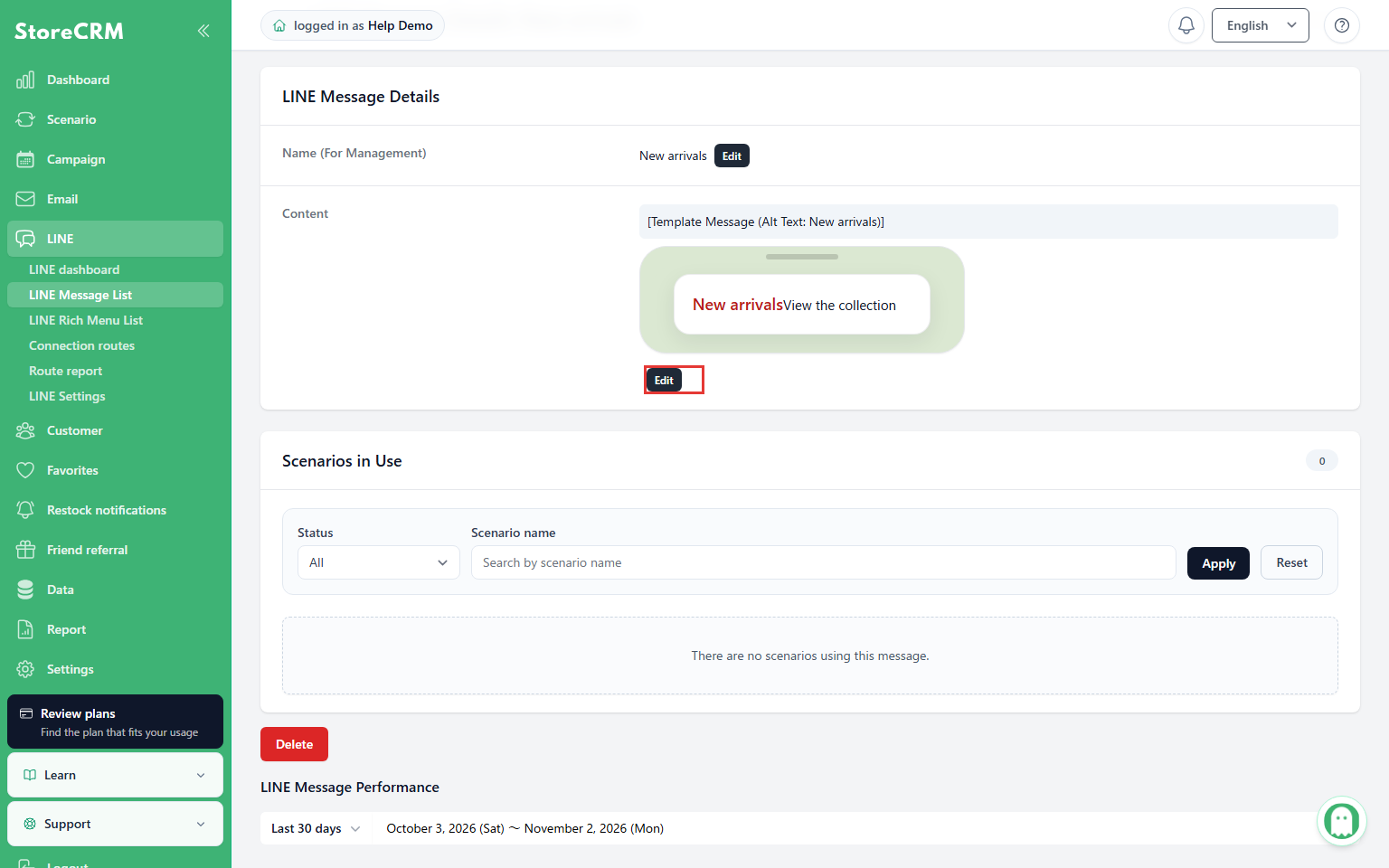
Where: Edit control in the Message body row of message details
Click Edit in the body row. Check the row label so that you choose body editing rather than the internal name.
Check: The message body editor opens.
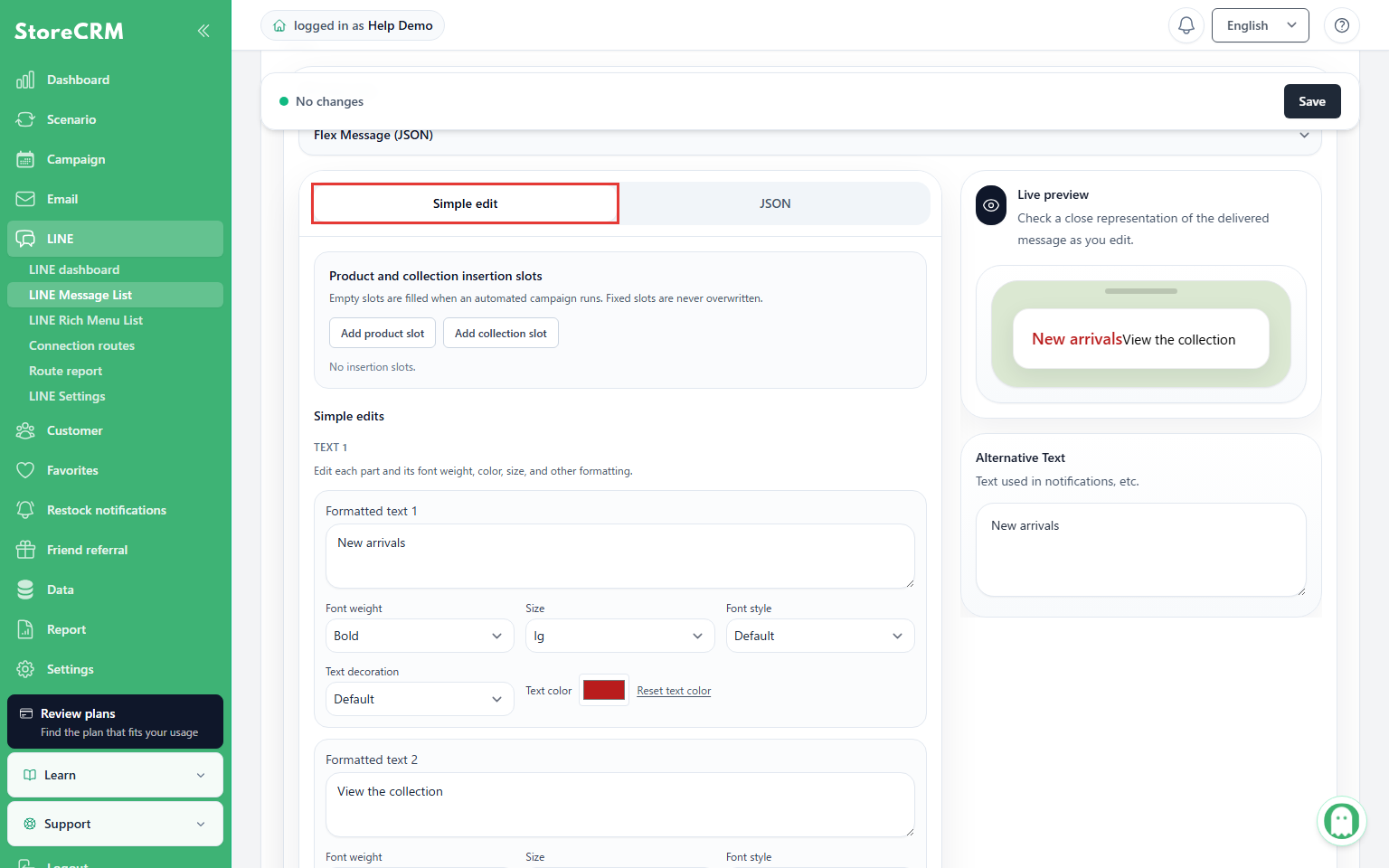
4. Choose Simple edit
Where: Tabs at the top of the Flex Message editor
Select the Simple edit tab.
Check: The text appears in separate fields for its formatting parts.
5. Edit one text part
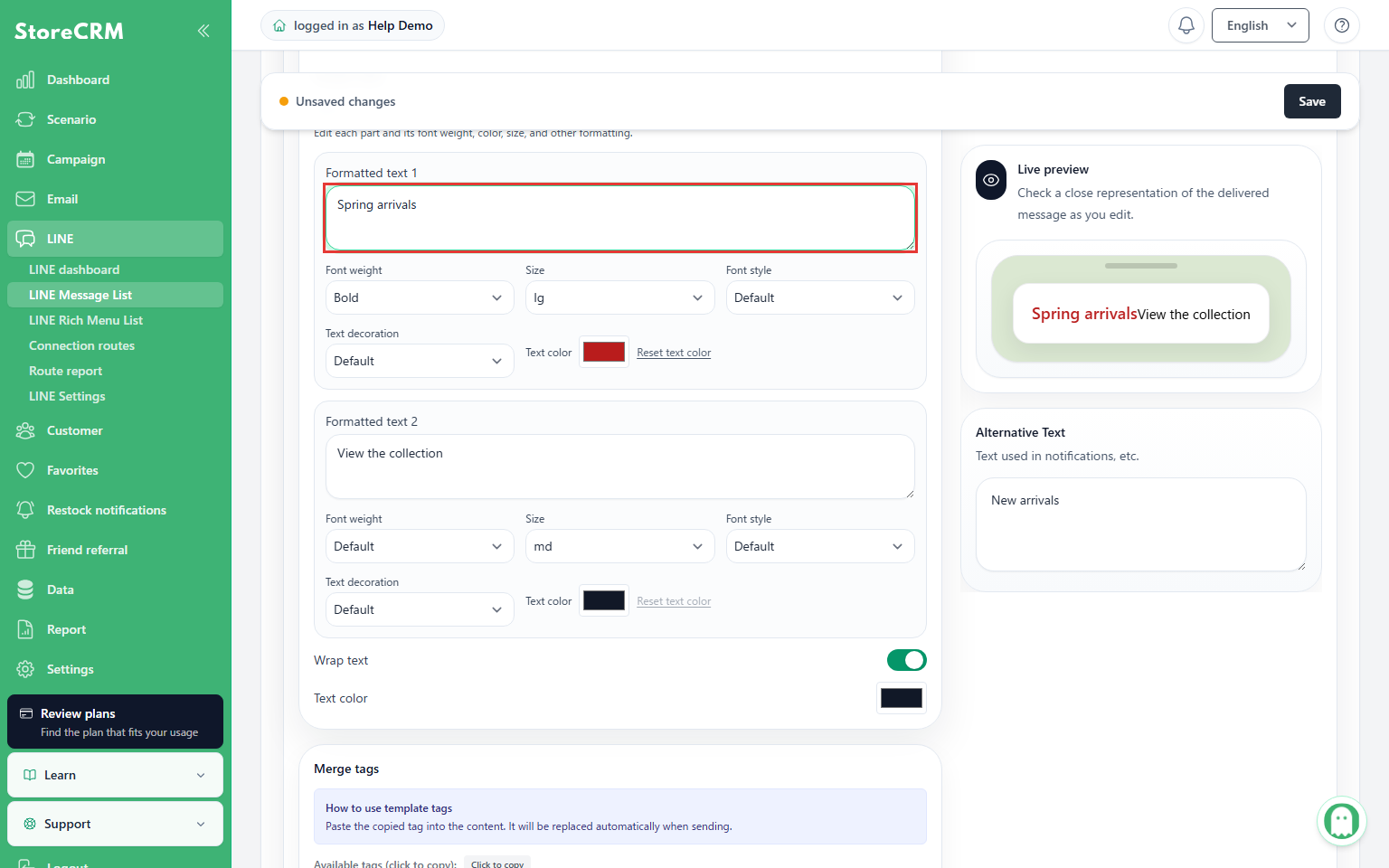
Where: Text field such as Formatted text 1
For example, enter “Spring arrivals.” Edit other formatted parts only if you intend to change them.
Check: The field and the preview update.
6. Set the text formatting
Where: Directly below the formatted text part you are editing
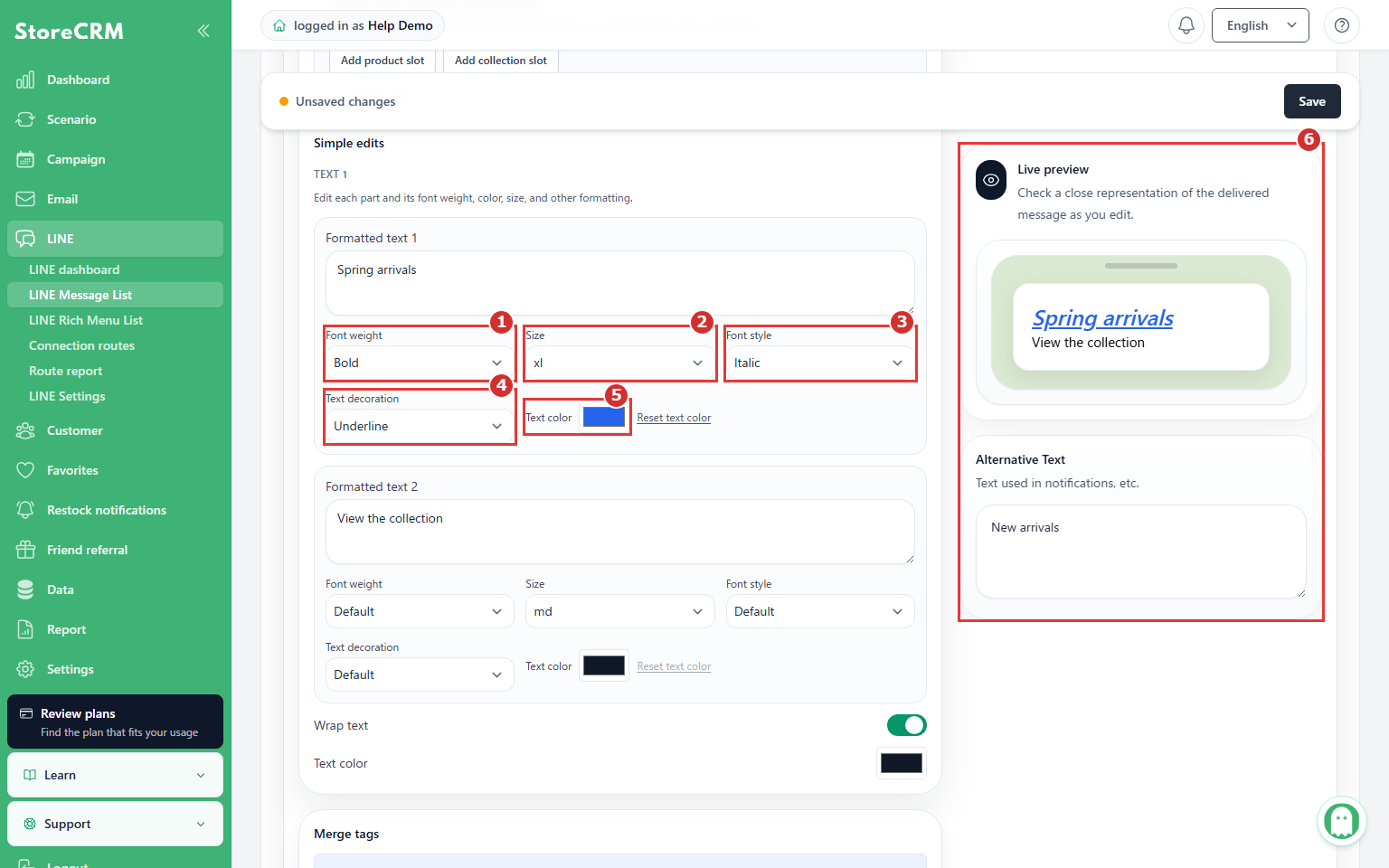
Numbered red boxes 1–6 identify the formatting controls for this text. Change only the properties you need, using the matching explanations below.
- 1 Font weight — Choose Regular or Bold.
- 2 Size — Choose a text size. The example uses xl.
- 3 Font style — Choose Italic when needed.
- 4 Text decoration — Choose Underline or Strikethrough. The example uses Underline.
- 5 Text color — Use the color swatch to choose a color. The example uses blue.
- 6 Live preview — Check the resulting text, formatting, line breaks, and links.
Check: The example uses bold, blue, xl, italic, and underline. The live preview reflects the changes.
7. Save the changes
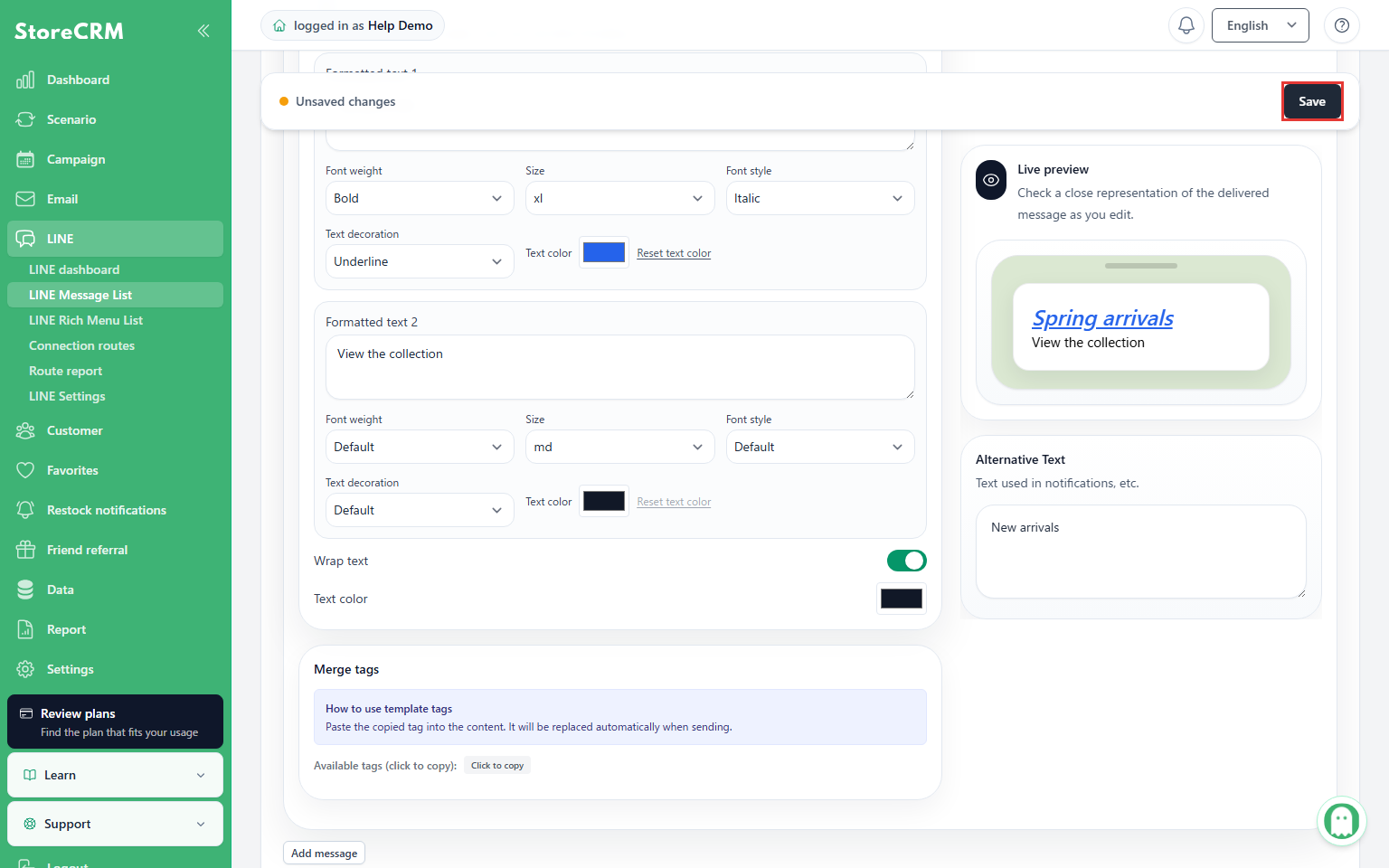
Where: Sticky save bar at the top of the screen
Click Save.
Check: A successful save returns you to message details.
8. Check the saved body
Where: Message body in the details screen
Confirm that the changed text and formatting appear.
Check: The updated body is shown in message details.
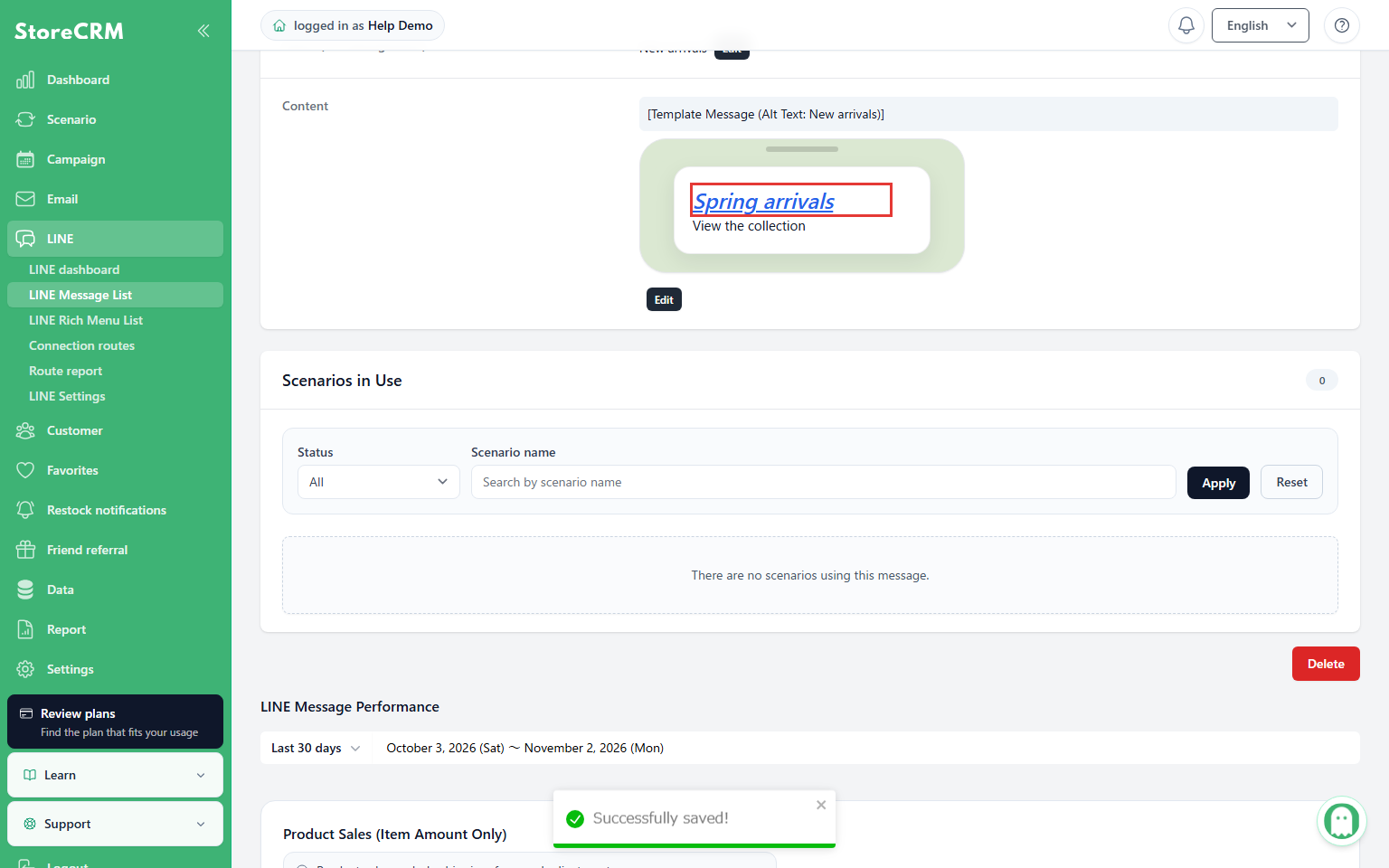
9. Reopen and verify
Where: Body editor of the same message
Reopen it using Edit in the body row and check the changed text and property values.
Check: The saved text and formatting persist after reopening.
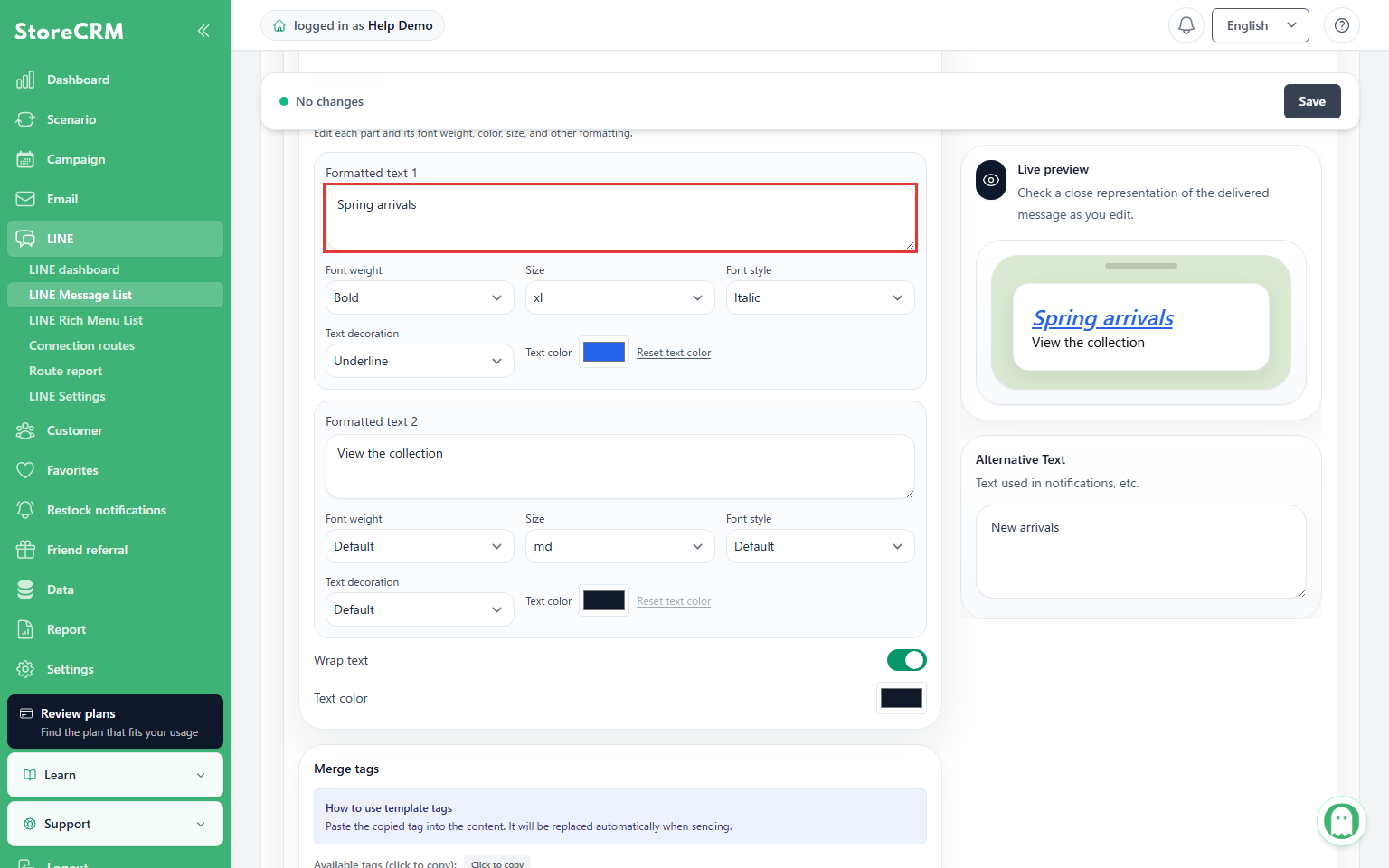
Default removes the explicit setting for that property. Reset text color resets only the color. Unchanged formatting and links are preserved. Empty formatted parts are removed on save; an entirely empty text element is removed as well. Whitespace and line-break-only parts remain.
Review a LINE campaign warning
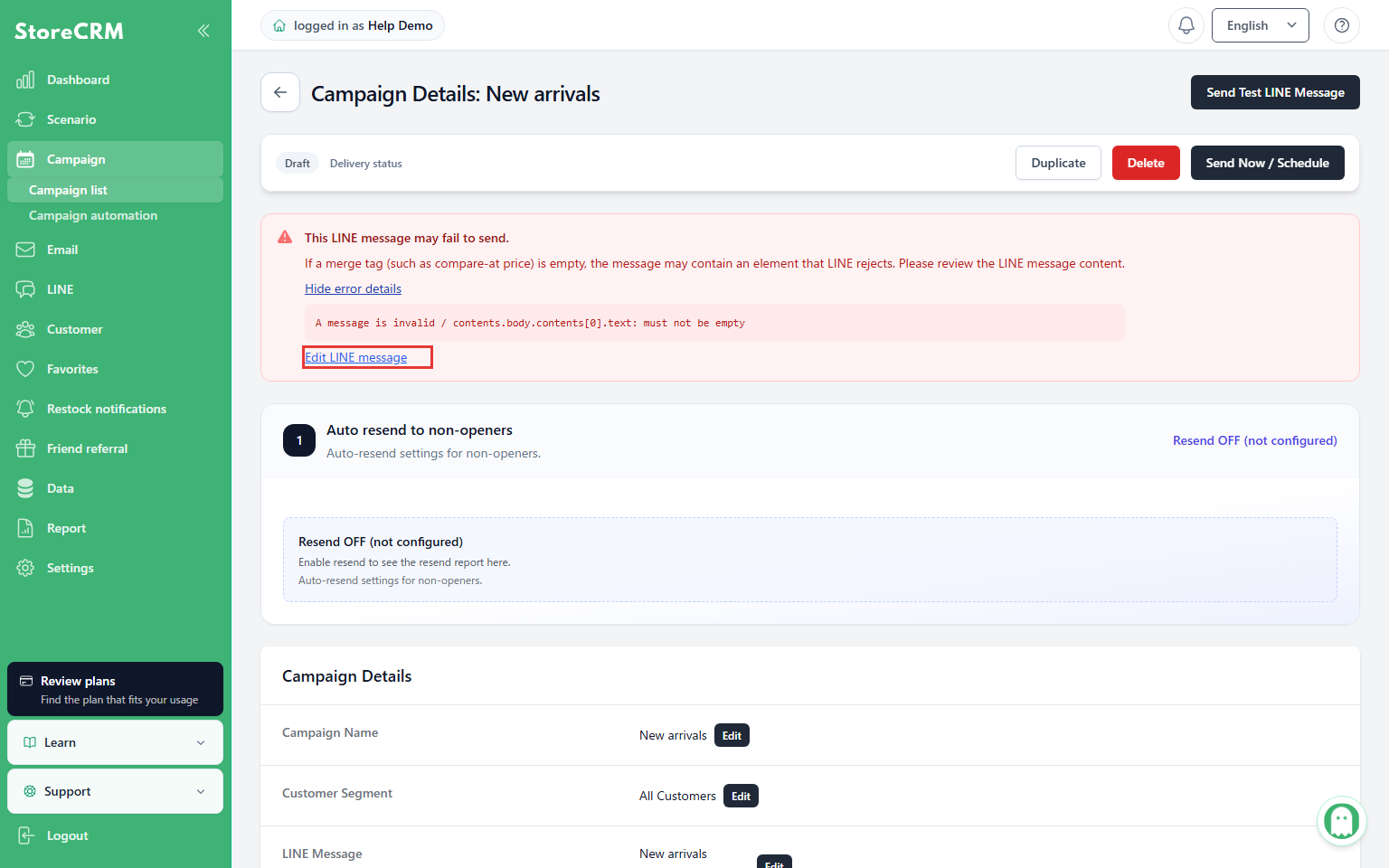
1. Read the sending warning
Where: Below the send controls in LINE campaign details
Read “This LINE message may fail to send” and its explanation.
Check: The warning identifies content that needs review, such as a merge tag that may become empty.
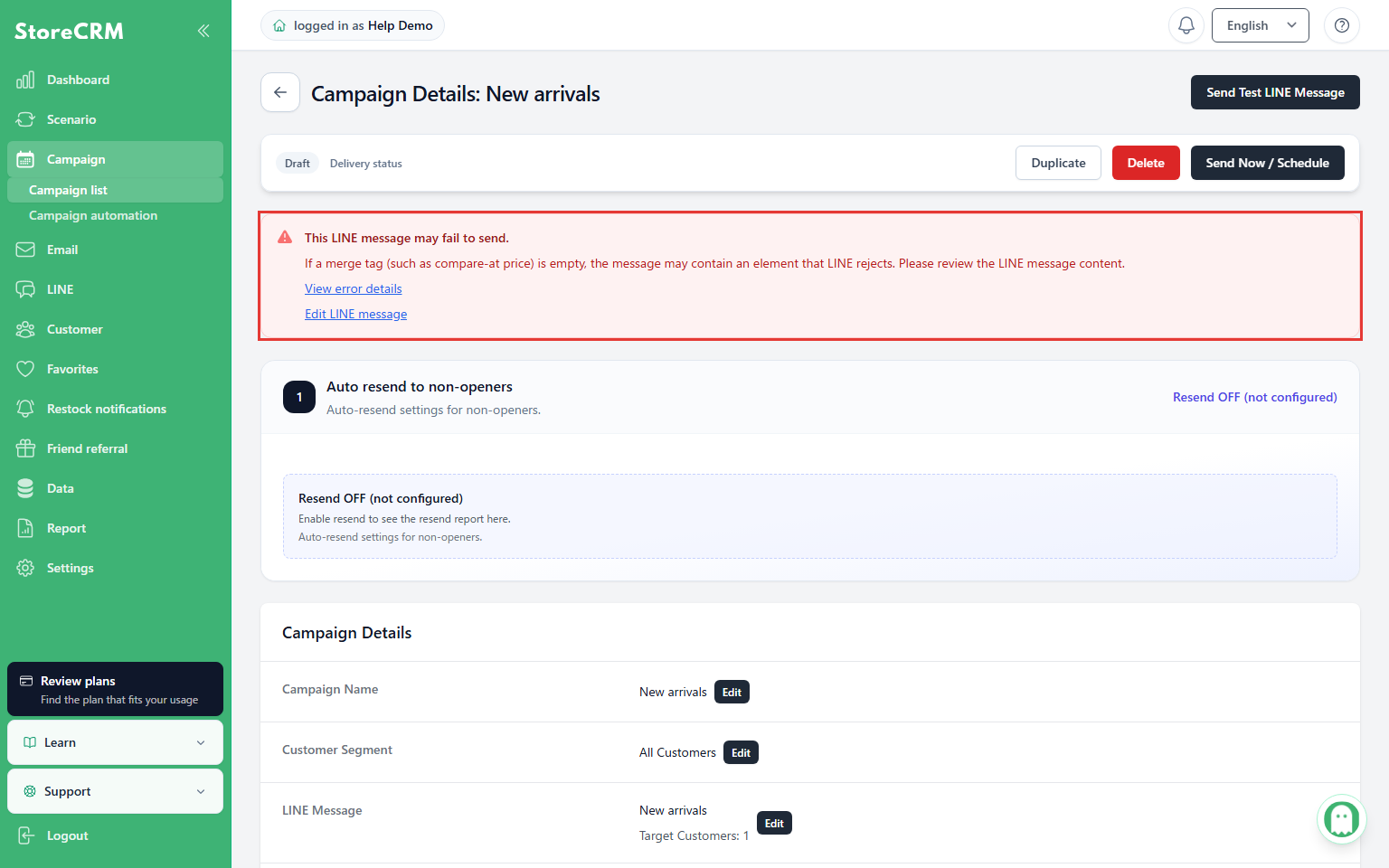
2. Open the error details
Where: View error details in the warning
Click View error details.
Check: The available error detail opens. This control is absent when the warning has no detail.
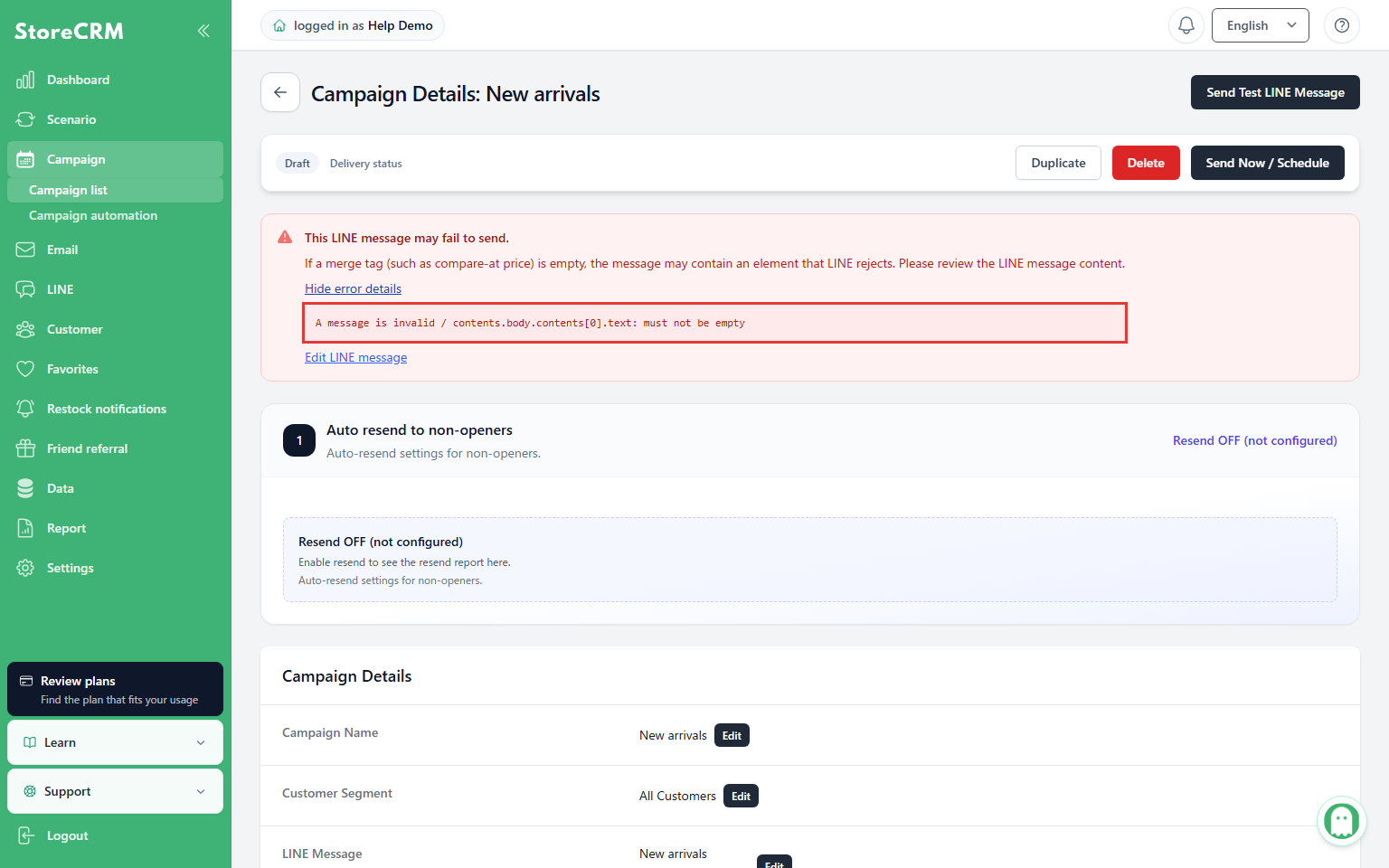
3. Open the linked LINE message
Where: Edit LINE message in the warning
Click the edit link. Review the content and use the editing and saving steps above when making changes.
Check: The relevant message editor opens.
4. Recheck campaign details
Where: Campaign details after saving the message
Reopen the campaign and review warnings and the audience.
Check: The example no longer shows a warning. Its absence alone does not guarantee delivery.
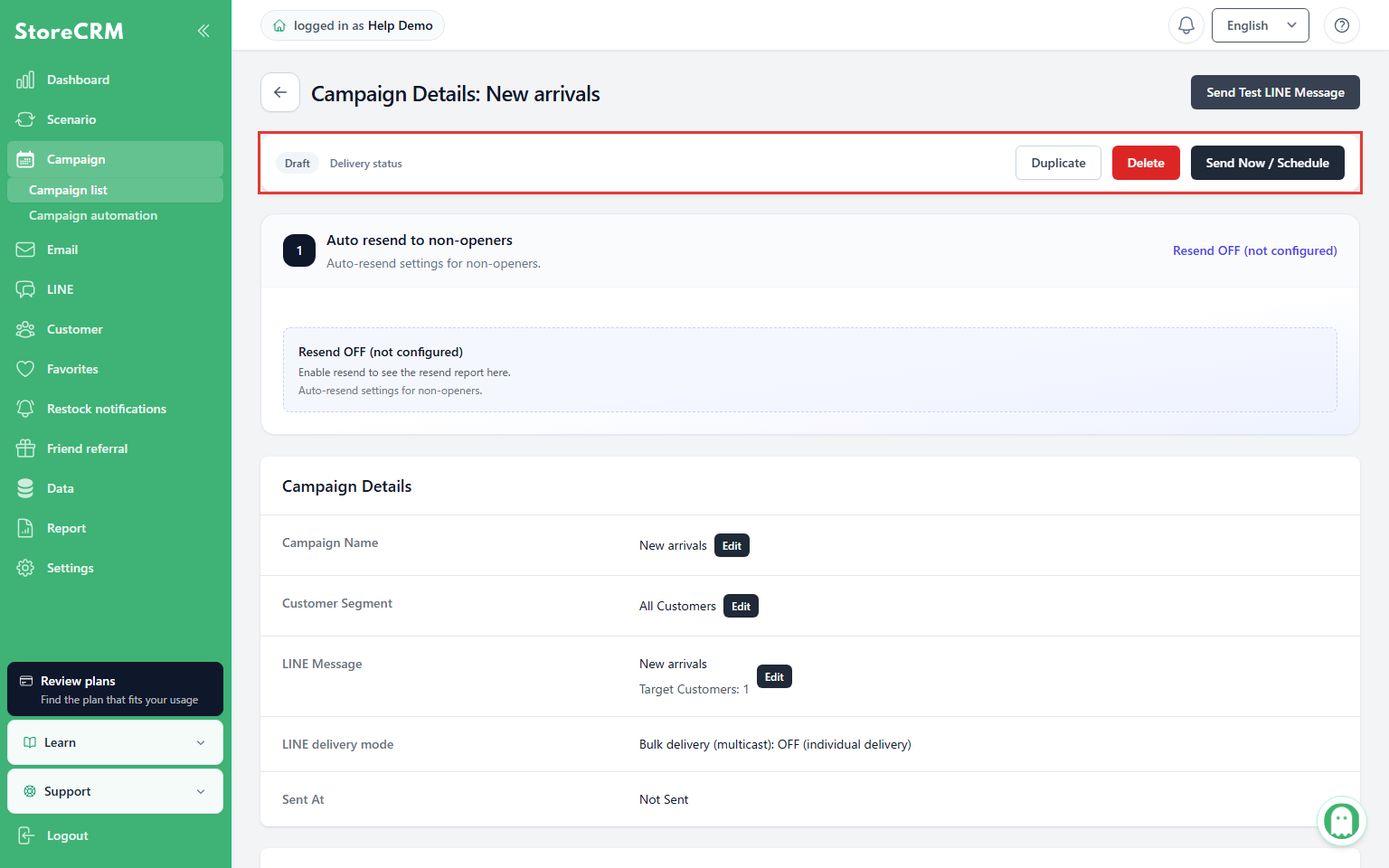
Warnings do not automatically block sending. Validation may be unavailable without a warning appearing. Cart and browse abandonment product carousels are not supported in regular campaigns. Use save-time validation and test sending as well.
Edit the text copied on tap
Open the message editor from LINE → LINE message list. In Flex Message Quick edit, find the copy action and change Text copied on tap, then save. This is separate from visible text and the action label, so you can change only what is copied.
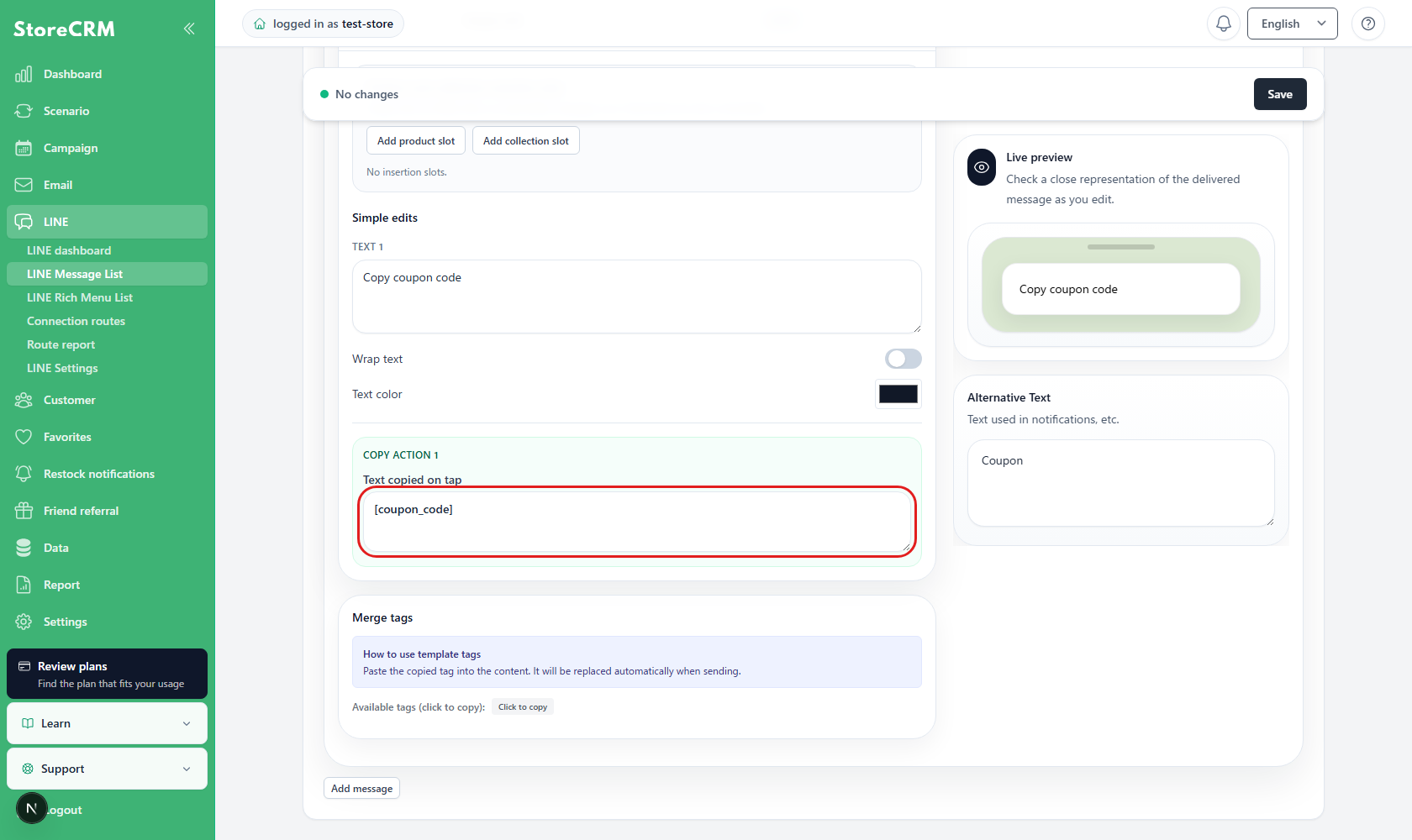
Enter coupon or other template tokens exactly and reopen the editor to confirm the value persists. Resolved values depend on the scenario’s coupon settings, so check both the message display and copied result with a LINE test send.
Use product and collection slots
In a LINE Flex Message, you can configure slots that are filled with products or collections at delivery time. A slot can use a fixed product or collection, or a product or collection supplied by a scenario or Campaign Automation.
StoreCRM validates the slots, links, and Flex Message structure when the message is saved and test-sent. In the preview, tapping an empty area without a configured link does not navigate anywhere. If a save error appears, check the slot source and URL.
 English
  Japanese