

Stores using Shopify Markets can configure StoreCRM favorites and restock notifications for each language.
This page explains the current process for configuring languages and markets in Shopify and selecting the display language in StoreCRM.
1. Add a language in Shopify
In Shopify, open [Settings] → [Languages] and review the currently published languages.
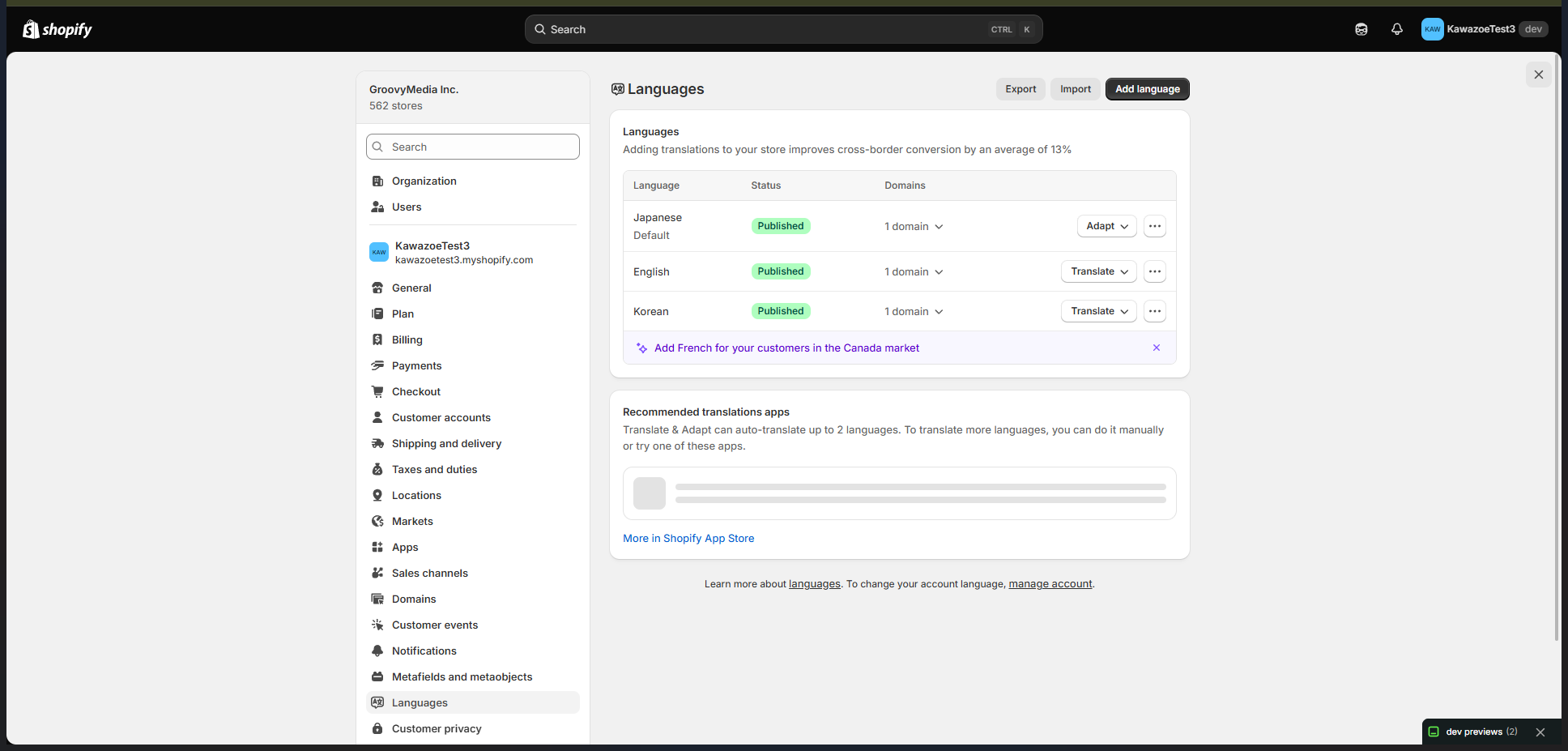
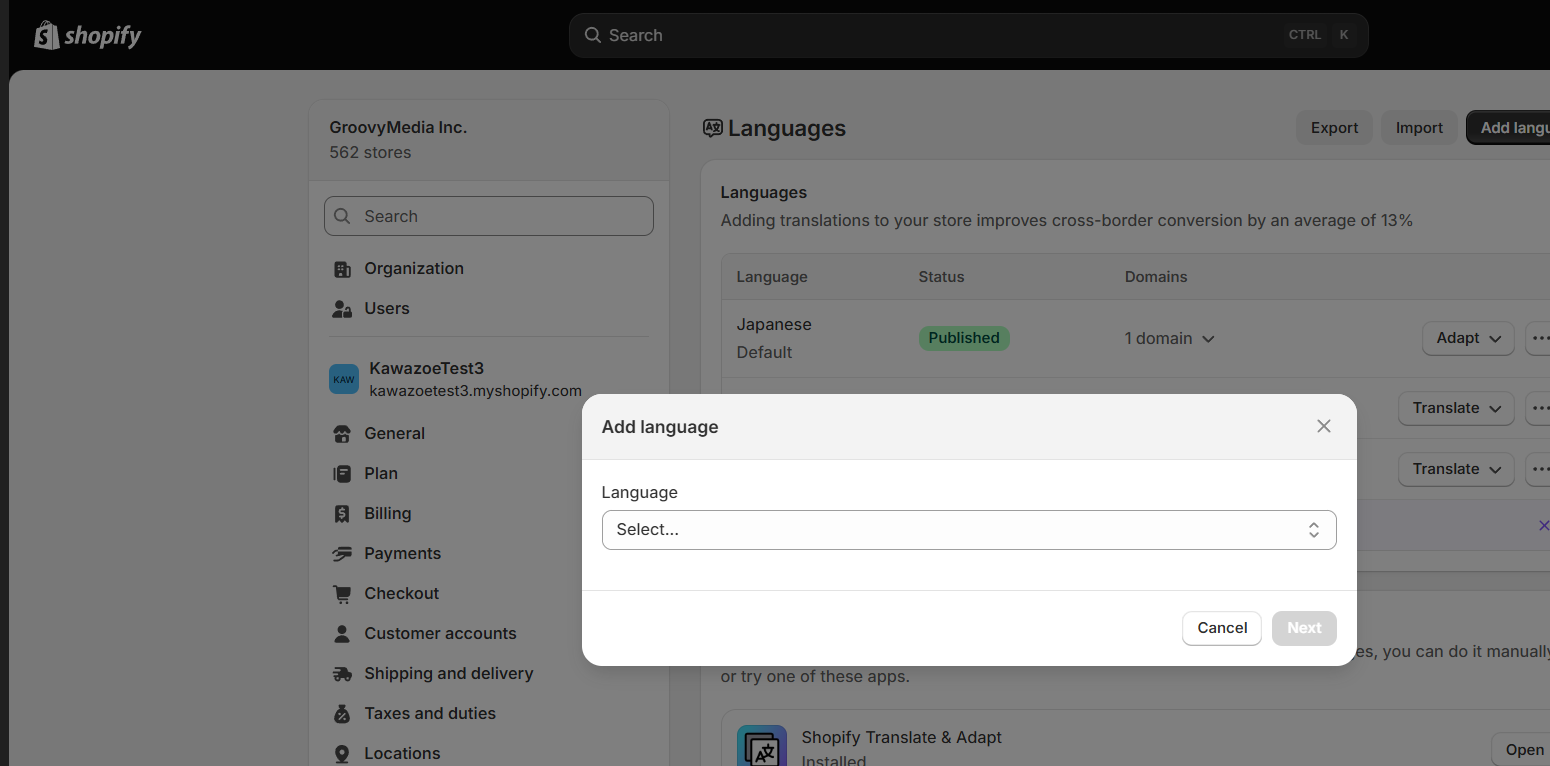
Click [Add language], select the language to add, and complete the on-screen steps.
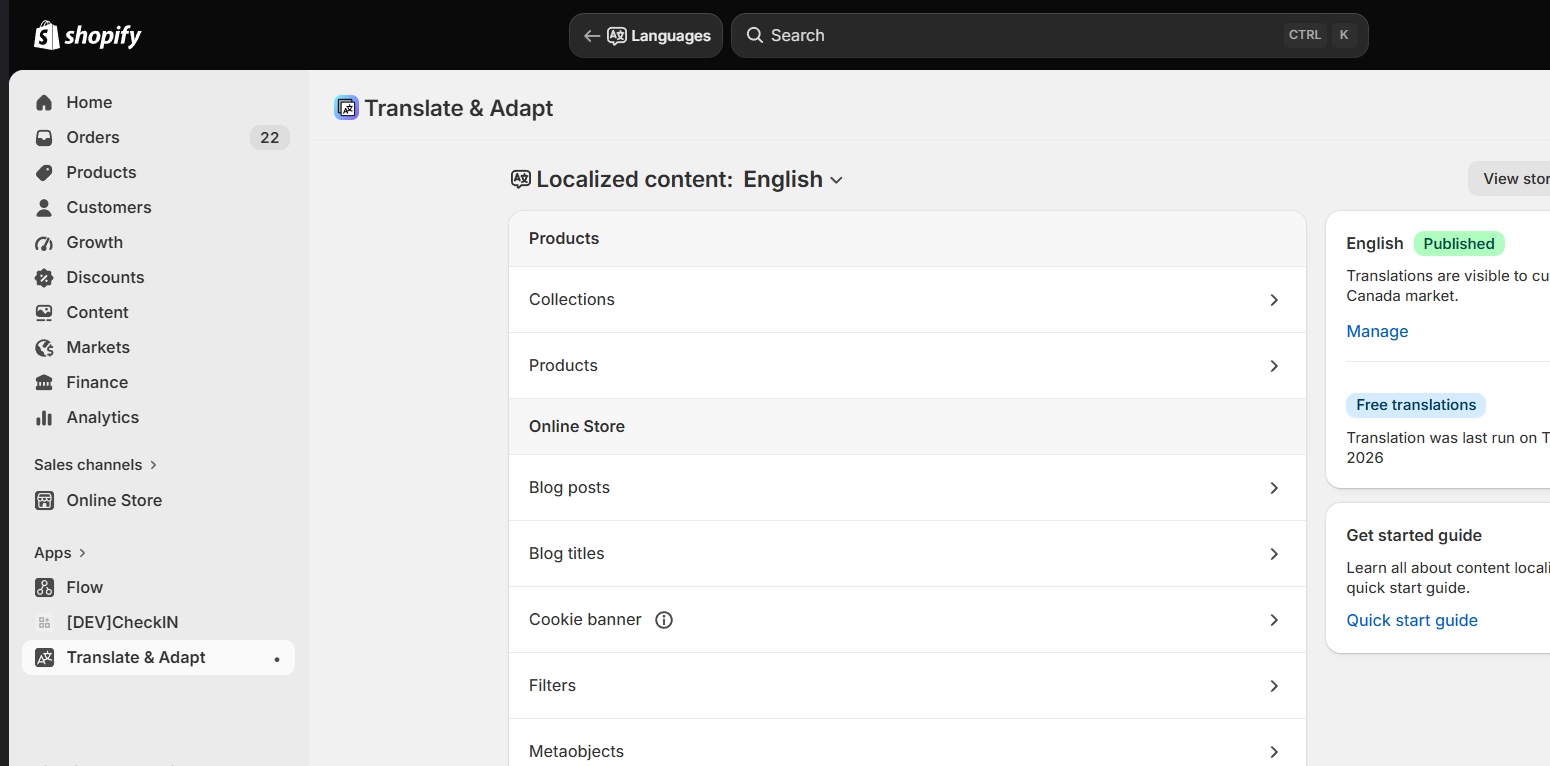
For the added language, open [Translate & Adapt] from [Translate], translate the content automatically or manually, and publish it.
2. Configure Shopify Markets
Open [Markets] in Shopify and select the target market. To add a destination, use [Create market].
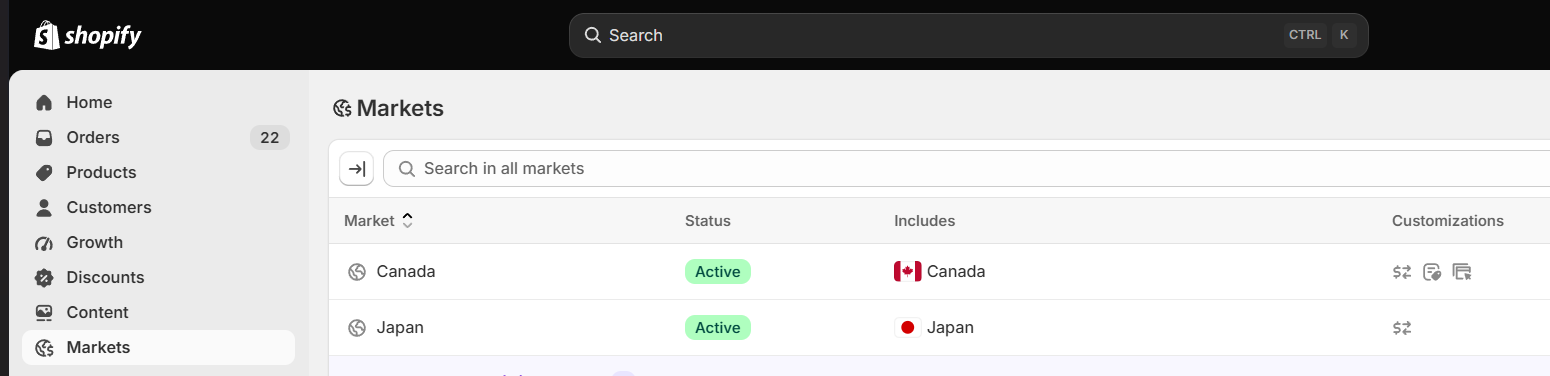
In the market details, review the included countries, currency, catalogs, domain, and language. Change only the settings you need.
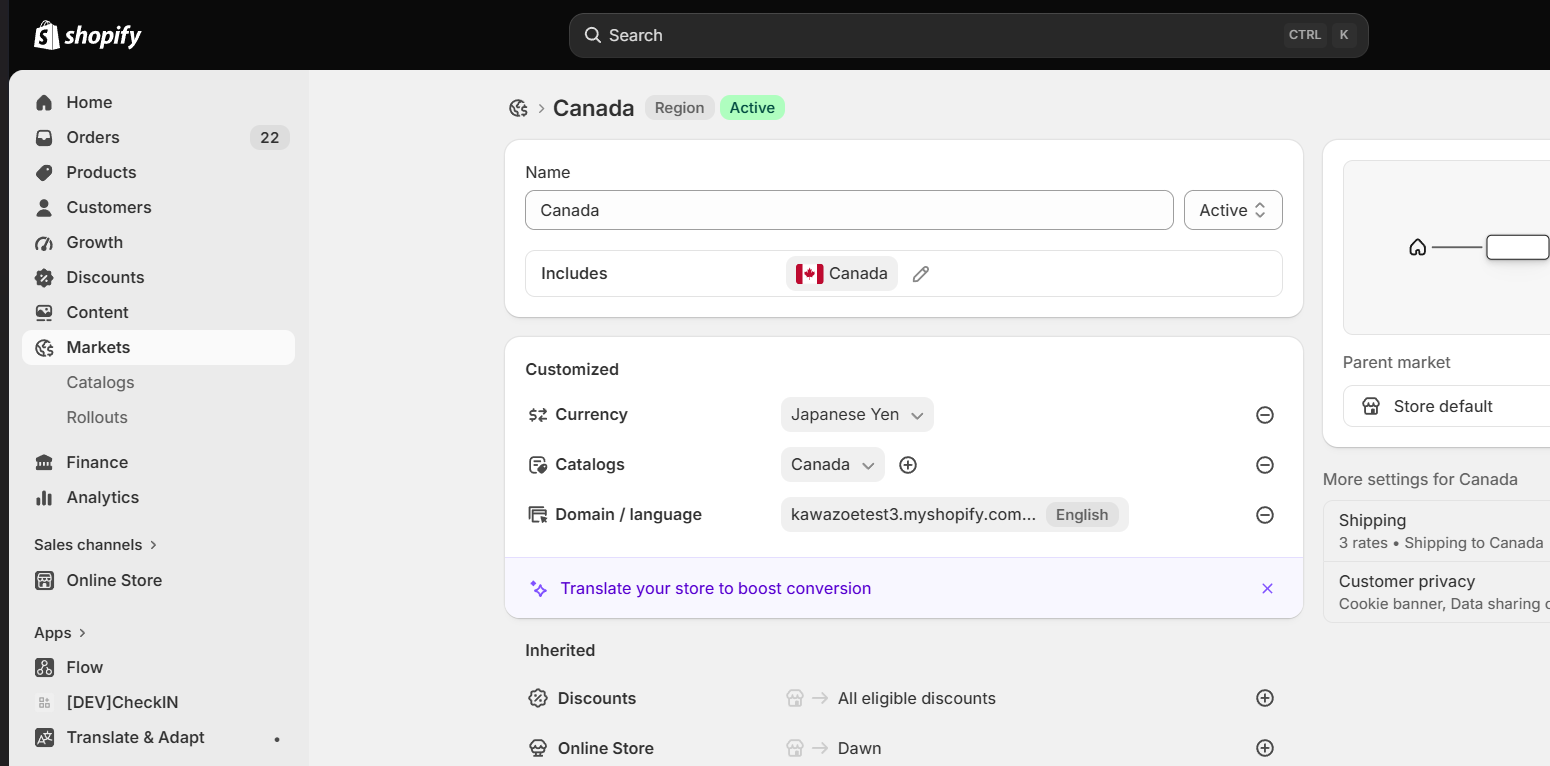
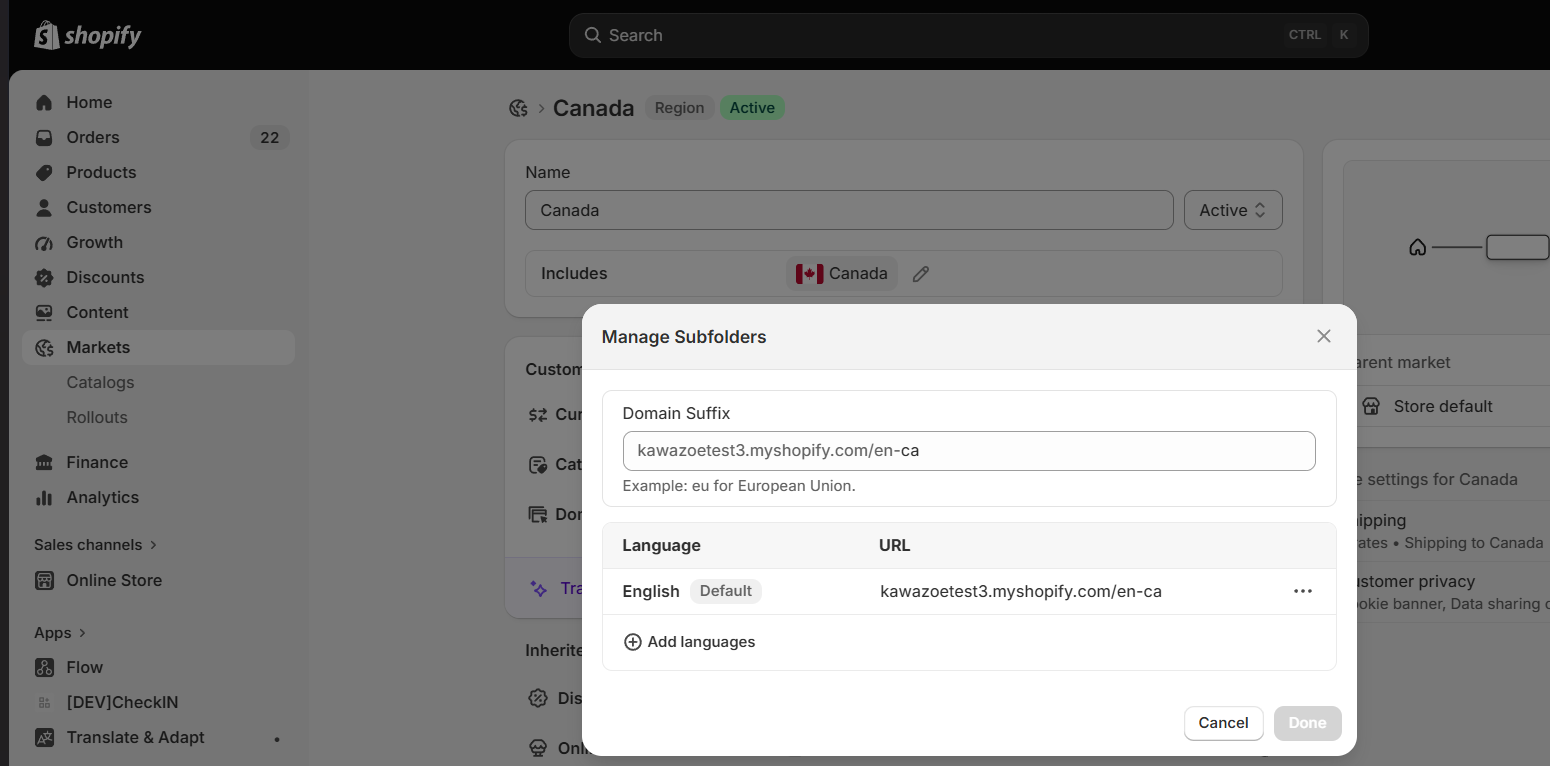
Open [Domain / language] and review the subfolder and assigned languages. Save any changes.
3. Select display languages in StoreCRM
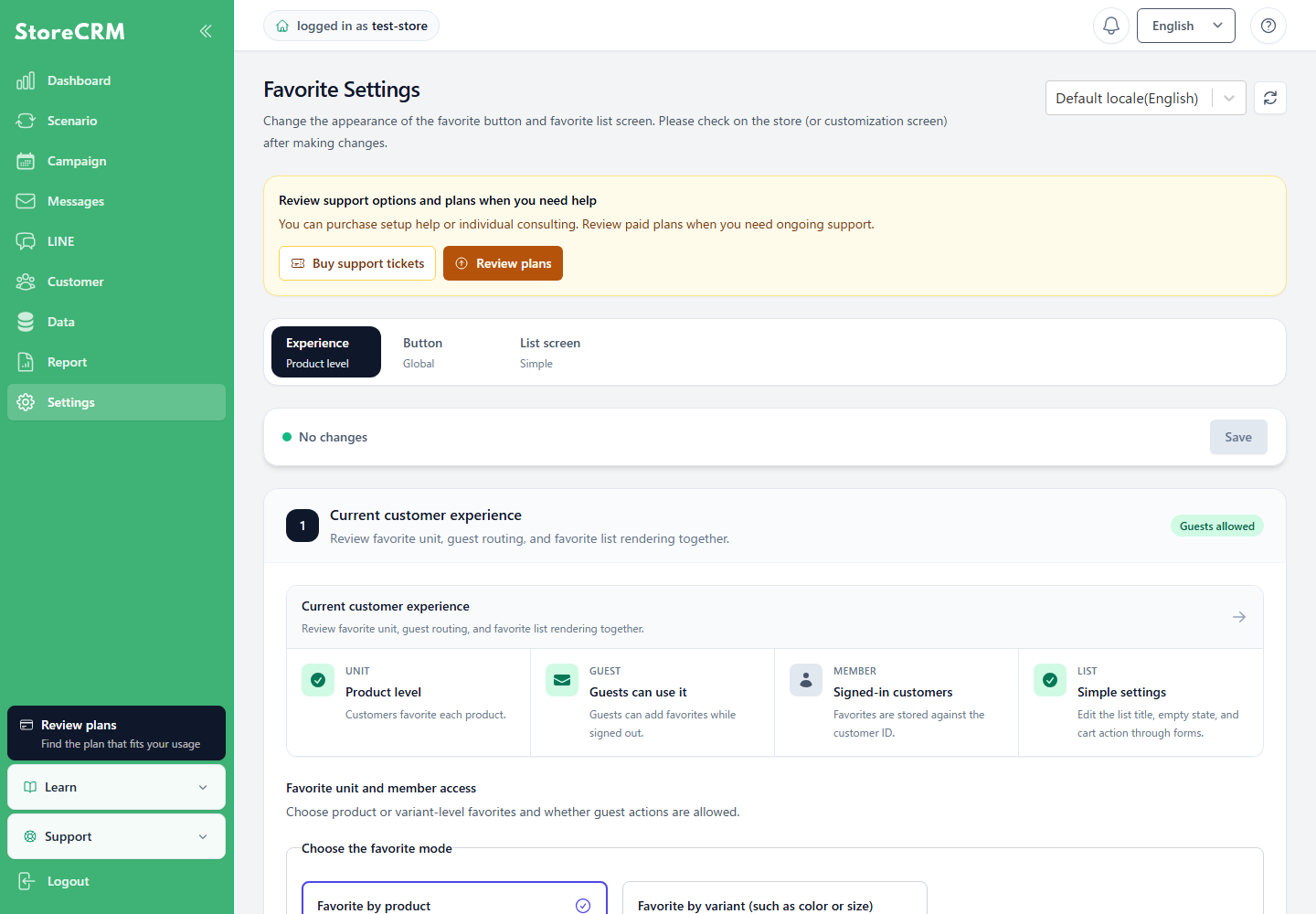
Open Favorites settings, select the language shown for the target store or market, and save. You can customize text and design for each language.
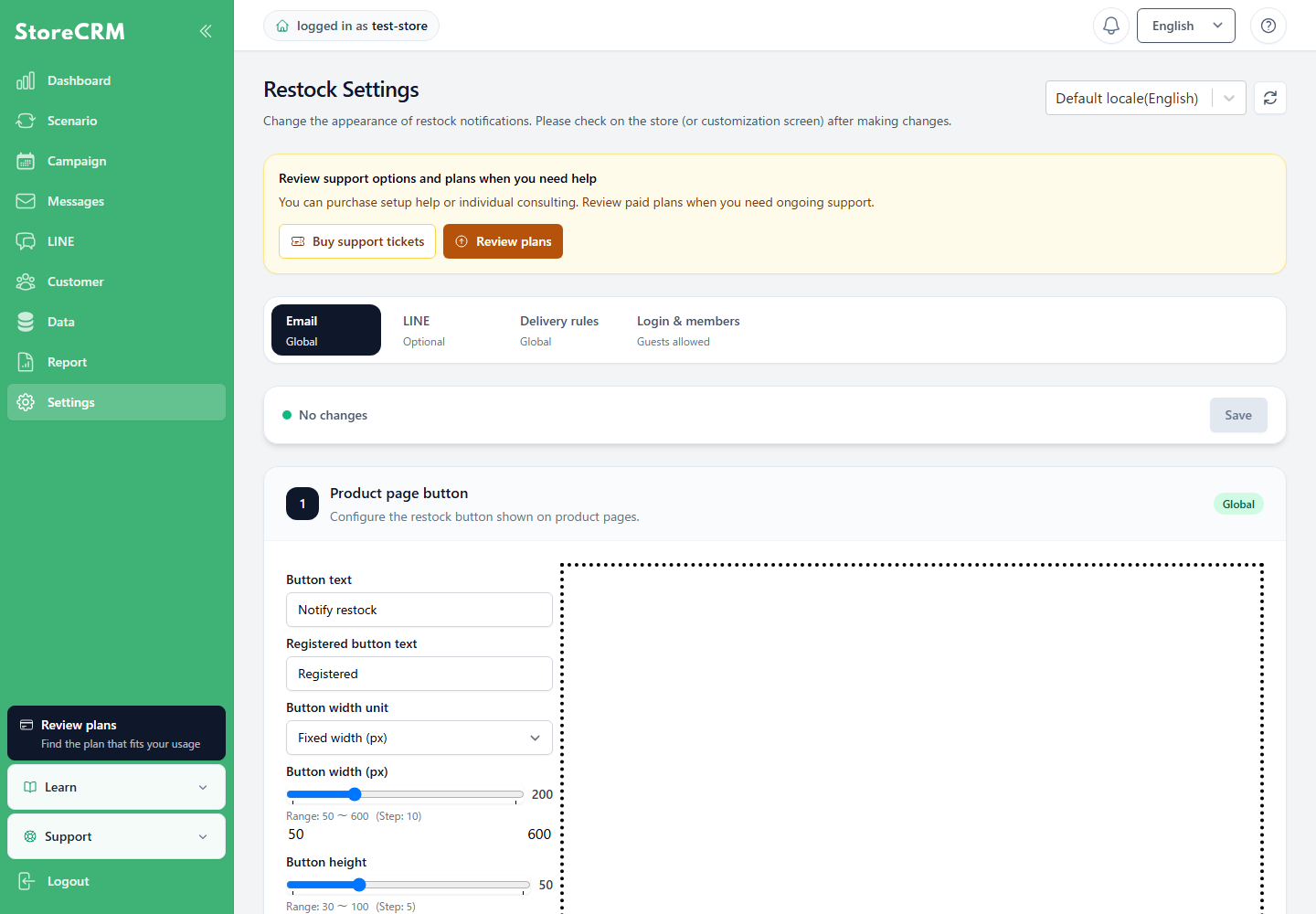
Open Restock notification settings, select the display language in the same way, review the text and design, and save.
Confirm that the languages published in Shopify match the languages available in StoreCRM.
 English
  Japanese