

- With StoreCRM and Shopify Flow, you can send a LINE message or email when a customer’s VIP rank increases or decreases.
- This example explains how to send a LINE Flex Message and an HTML email when a customer’s VIP rank increases.
Examples of measures that can be implemented
- Send out a LINE notifying you of special offers and other information when you increase your rank.
- Send emails informing you of special benefits when ranking up.
- Deliver both LINE and email within the same Flow
Send a line from StoreCRM at the timing of the rank increase.
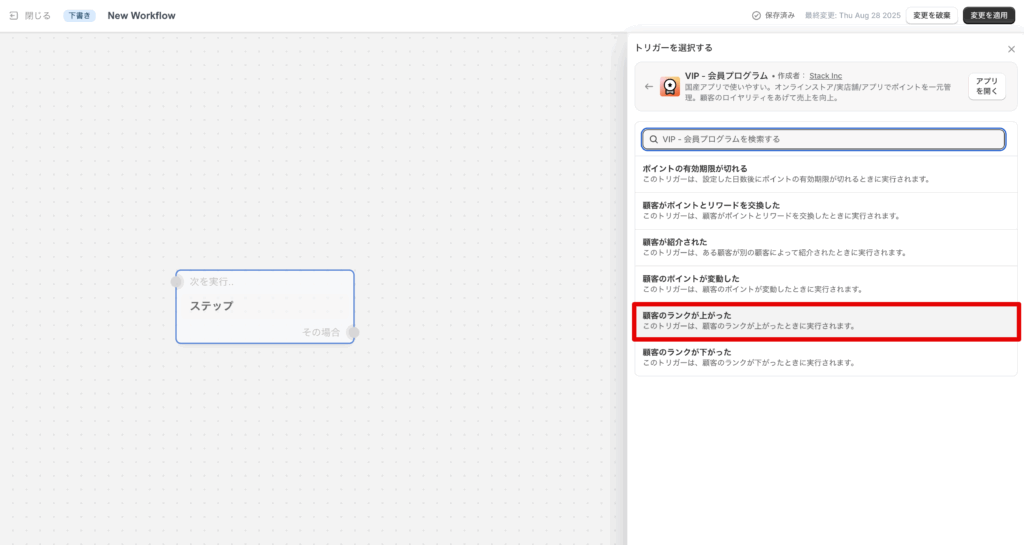
Create a Flow in Shopify Flow starting with the trigger "Customer rank increased" when the VIP's points change.
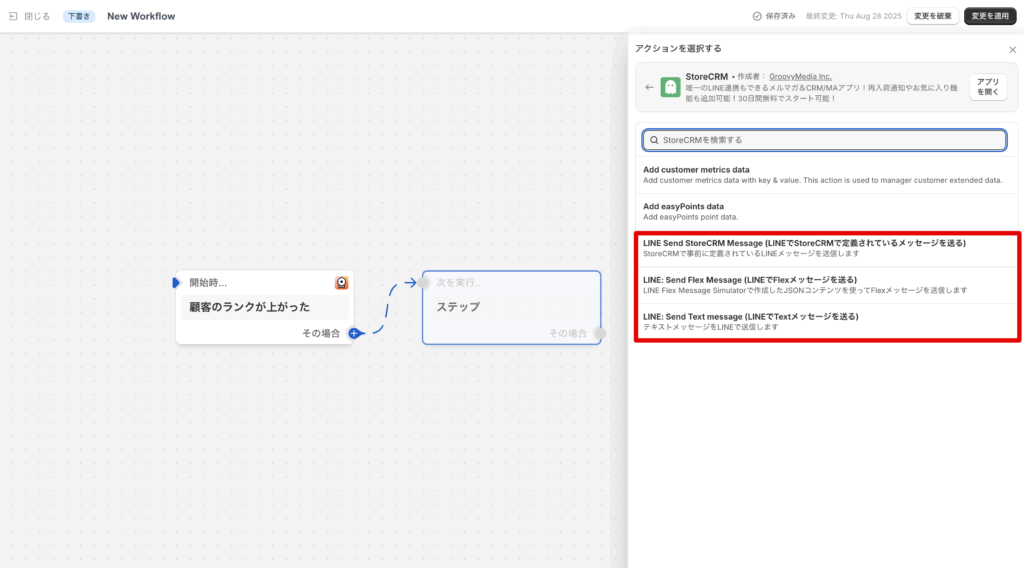
Next, select the StoreCRM action. There are three actions available for sending StoreCRM LINE:
LINE Send StoreCRM Message (Sends a message defined in StoreCRM using LINE)LINE: Send Flex Message (Send Flex message via LINE)LINE: Send Text message (Send Text message via LINE)
This time, we want to use the variable given by the VIP "customer's points changed" trigger in the LINE message, so we will use the "LINE: Send Flex Message (Send Flex message via LINE)” to proceed with the explanation.
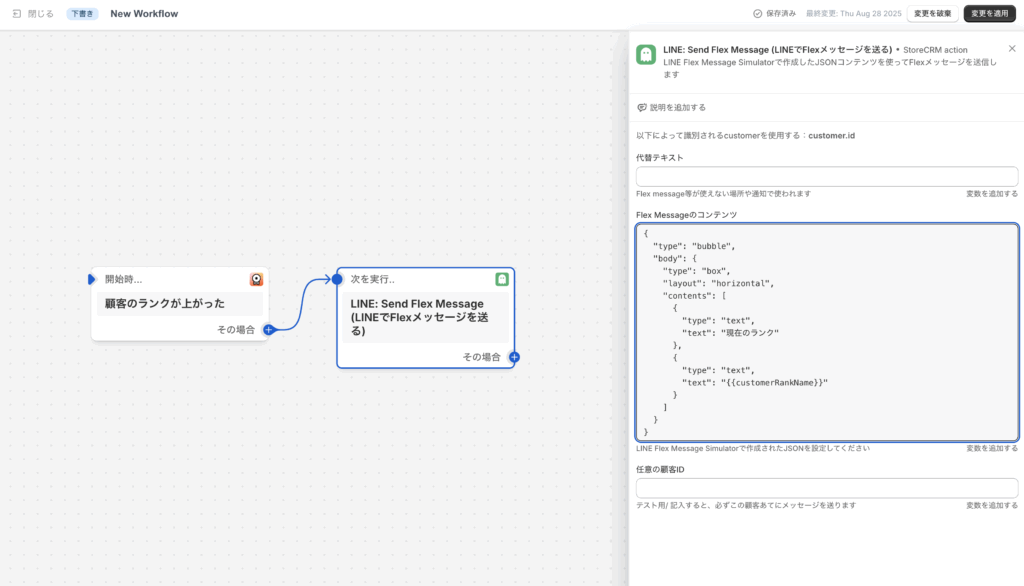
Of the three setting items in the "LINE: Send Flex Message" action, the alternative text and the Flex Message content are required fields.
The content of Flex Message must be entered in json format. json format code generated by Flex Message Simulator, for example, can contain variables given by the "Customer points changed" trigger, so that instead of text, the current The json format code generated by Flex Message Simulator or similar can be used to display the current number of points, etc., instead of the text.
{
  "type": "bubble", "body": {
  "body": {
    "type": "box", "layout": "horizontal", "body": { "type": "bubble", "body": {
    "layout": "horizontal", { "contents": ["text"]: ["text
    "contents": [
      {
        "type": "text", "text": "current rank", "text": "current rank
        "text": "current rank"
      },.
      {
        "type": "text", "text".
        "text": "{{customerRankName}}"
      }
    ]
  }
}
The contents of the Flex Message described here are as above.
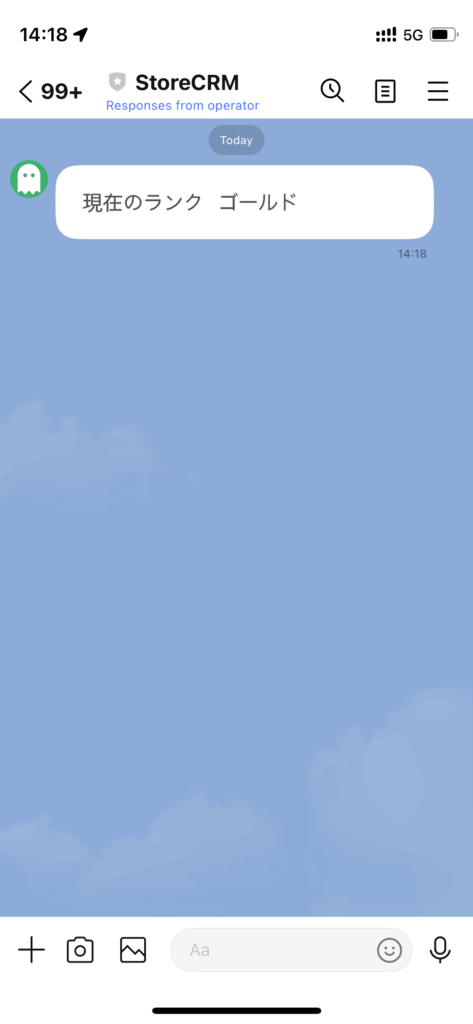
It is recommended to save the configured Flow and check the actual operation.
If the line is sent as shown in the image above, it is working fine.
Send an email from StoreCRM when your rank increases
Create a Flow in Shopify Flow starting with the trigger "Customer rank increased" when the VIP's points change.
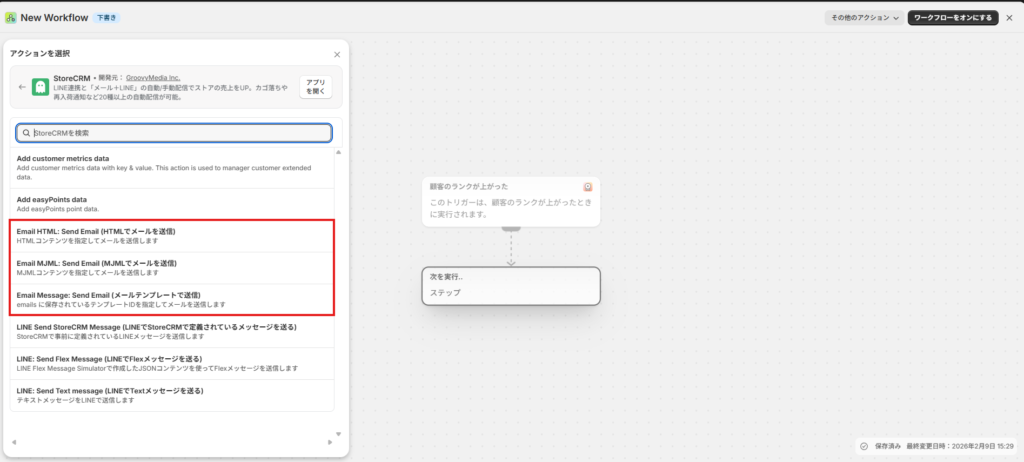
Next, select the StoreCRM action.
The following email sending actions are available in StoreCRM.
- Email Message: Send Email (send predefined email in StoreCRM)
- Email HTML: Send Email (Send HTML email)
- Email MJML: Send Email (Send MJML email)
This time, in order to utilize the variables passed from the trigger, Email HTML: Send Email I will explain using.
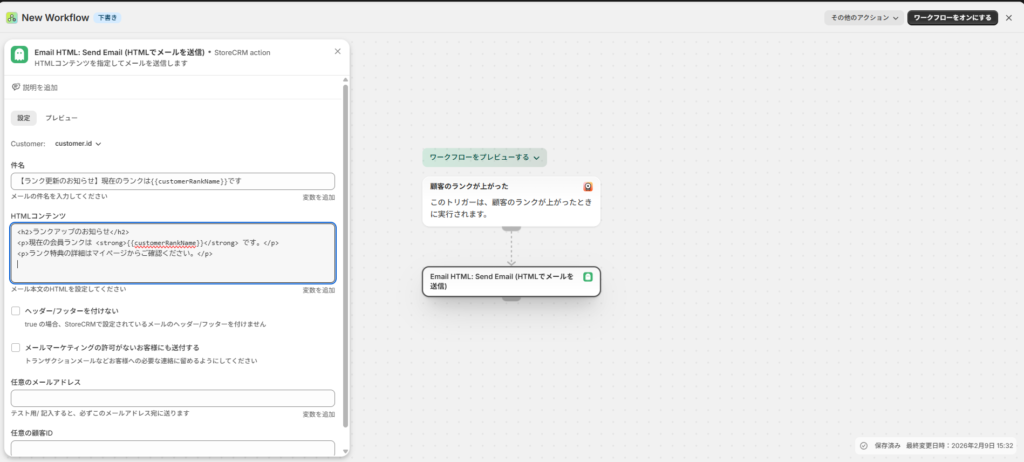
Email HTML: Send Email settings
Email HTML: The following settings are required for Send Email.
- Subject (subject)
- HTML body (html)
Similar to LINE, you can embed trigger variables in the subject and body text.
Example:
- Subject
[Notice of VIP rank update] Current rank is {{customerRankName}} - HTML body
<h2>ランクアップのお知らせ</h2>
<p>現在の会員ランクは <strong>{{customerRankName}}</strong> It is.</p>
<p>ランク特典の詳細はマイページからご確認ください。</p>
Optional setting items include the following.
- No header/footer...Setting item for sending with header/footer set on StoreCRM side
- Also send to customers without email marketing consent...If turned ON, email marketing will be sent to customers who have not received permission from Shopify. Please do not use it for promotional purposes, and only use it for non-promotional communications such as important announcements.
- Any email address...This is for testing purposes. If you enter your email address, all notifications will be sent to the email address you entered. Please enter it when confirming operation.
- Any customer ID...This is for testing purposes. If you enter an email address, all notifications will be sent to the email address associated with the customer you entered. Please enter it when confirming operation.
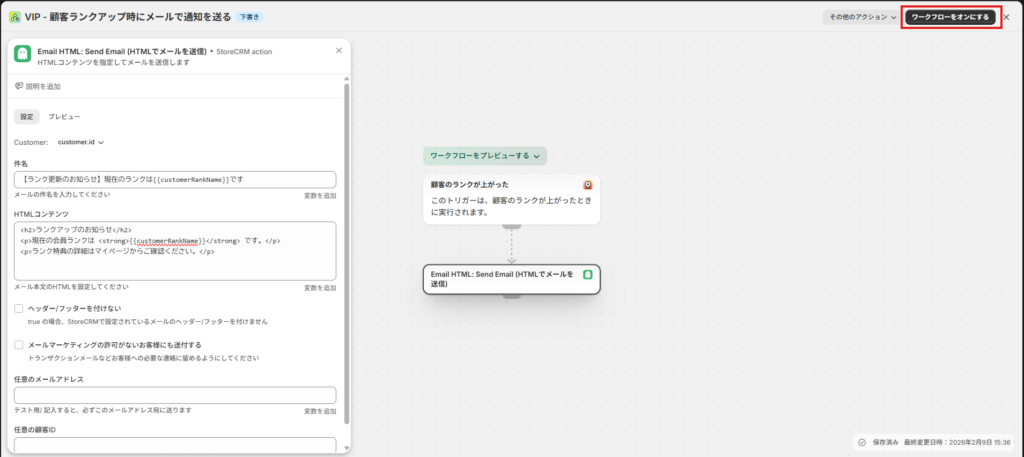
Once you have completed your settings, click Turn on workflow to save.
It is recommended to save the configured Flow and check the actual operation.
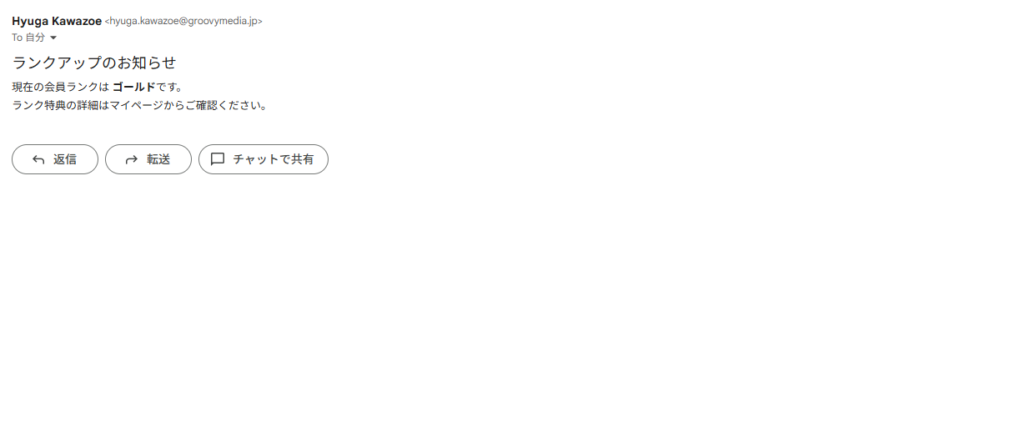
If the email is being sent as shown in the image above, it is working without any problems.
 English
  Japanese