

Overview
The sales attribution period specifies how long an order can be counted as revenue attributed to an email or LINE message sent from StoreCRM.
For example, with a 7-day period, orders placed within seven days of an interaction such as clicking an email or LINE message are counted as revenue attributed to StoreCRM.
The default setting is 30 days.
When you change this setting, sales attribution is recalculated in the background for orders from the last 90 days.
—
0. Before configuring
- Enter a whole number from 1 to 30 days.
- The initial value is 30 days.
- Changes can take up to approximately one day to appear.
- Previously aggregated data older than 90 days is not recalculated when this setting changes.
- While recalculation is running, revenue figures in reports and lists can temporarily appear partially updated.
1. Open the settings page
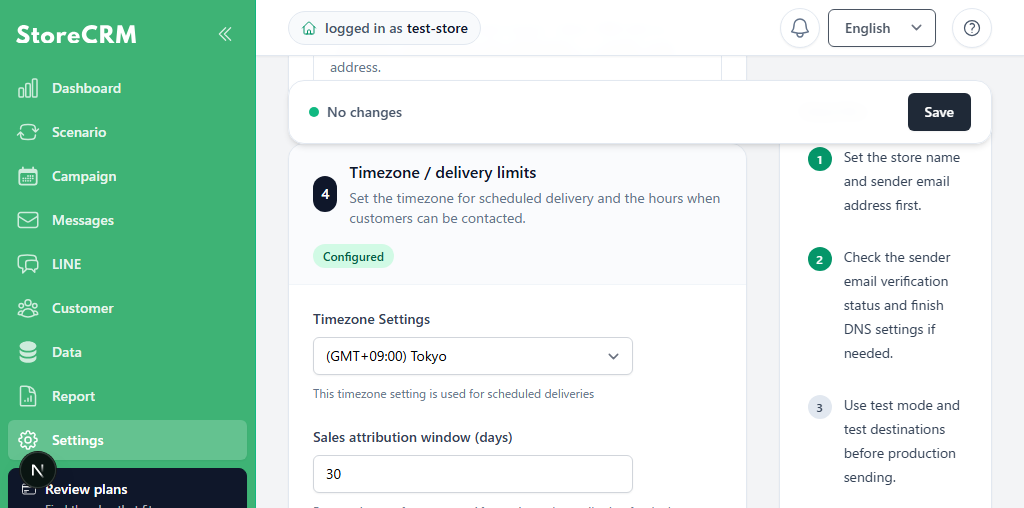
1. Open "Settings" from the sidebar
2. Go to the General settings screen
3. Find "Sales attribution period (days)" under "Time zone settings"
—
2. Change the sales attribution period
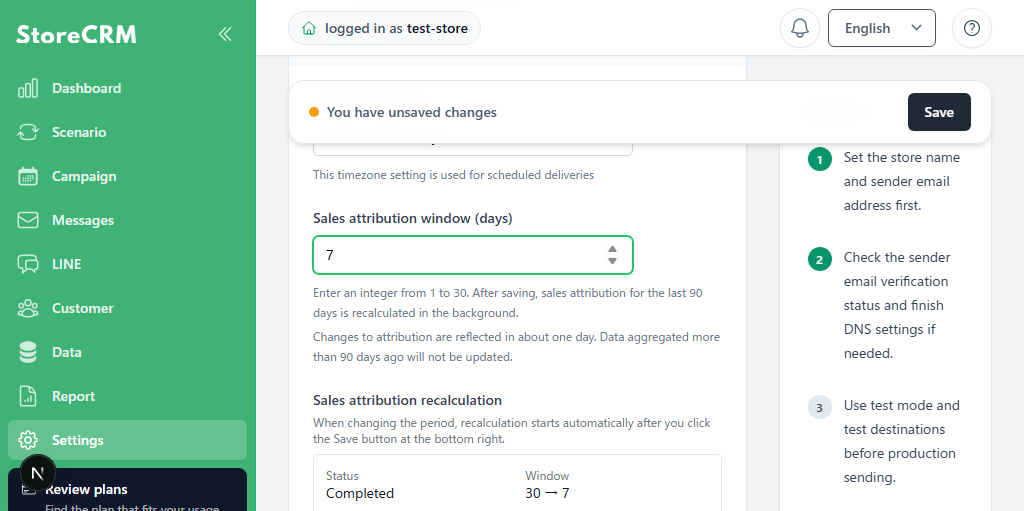
1. Enter a whole number from 1 to 30 in "Sales attribution period (days)"
2. Confirm that the entered value is correct
3. Click "Save" at the bottom of the page
4. Confirm that "Saved!" appears
After saving, if the period has changed, sales attribution recalculation starts automatically for the last 90 days.
Examples of invalid values
| Input value | Reason |
| 0 | Cannot be set because it is less than one day |
| 31 | Cannot be set because it exceeds the 30-day maximum |
| 7.5 | Decimal values are not accepted |
| Blank | Cannot be saved because this field is required |
3. Check the recalculation status
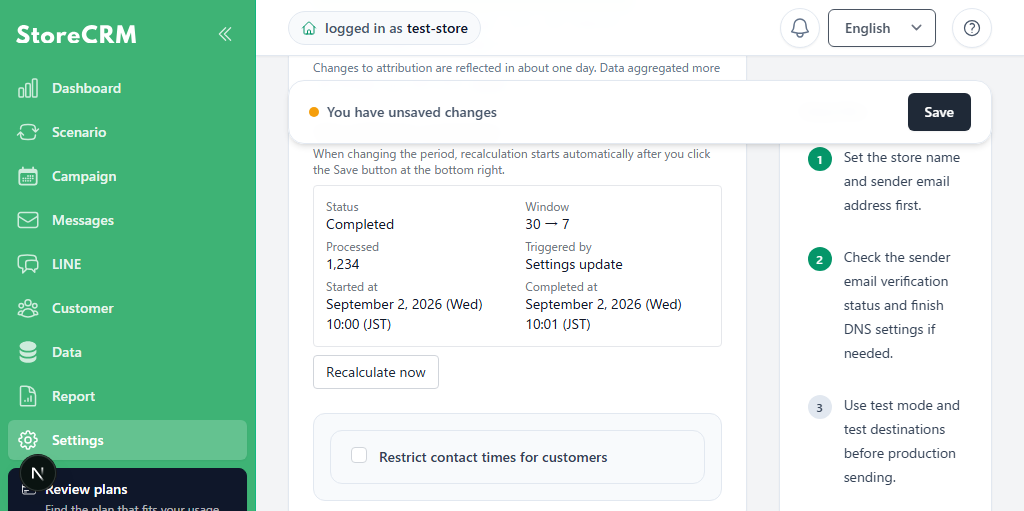
Check the latest recalculation status in the "Sales attribution recalculation" section.
Fields
| Item | Description. |
| Status | Recalculation progress |
| Processed records | Attribution period before and after the change |
| Trigger | Setting change or manual recalculation |
| Start time | Time when recalculation started |
| Completion time | Time when recalculation completed |
Statuses
| Status | meaning |
| No run history | Recalculation has not run yet |
| Queued | Waiting for recalculation to start |
| Running | Recalculation is running |
| Completed | Recalculation is complete |
| Failed | Recalculation failed Contact support |
| Superseded | A newer recalculation started, so the previous recalculation was canceled |
4. Recalculate manually
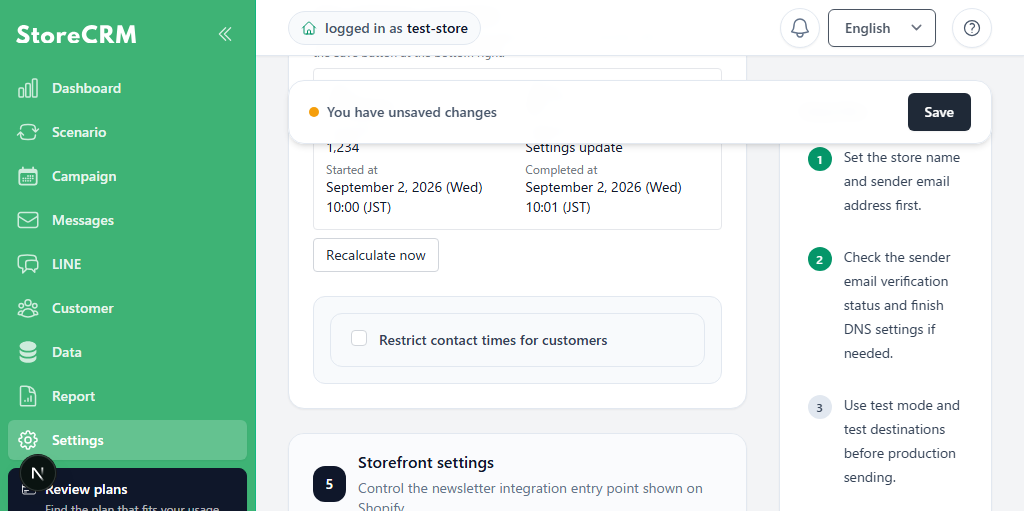
Even without changing the setting, you can manually recalculate using the current attribution period when needed.
1. Open Settings
2. Find the "Sales attribution recalculation" section
3. Click "Recalculate"
4. Confirm that the status changes to "Queued" or "Running"
5. Wait for completion and check revenue figures in reports and lists as needed
Use manual recalculation after correcting Shopify order data or when instructed by support.
5. Screens to check after changing the setting
After recalculation completes, check the following revenue figures.
- Product revenue in the email list and email details
- Product revenue in the LINE message list and LINE message details
- Revenue in the campaign list and campaign details
- Revenue in the automation list and automation-related screens
- Revenue metrics on report screens
Notes
Updates take time to appear
Recalculation after a setting change runs in the background. For stores with many orders, reports can take time to update. Allow approximately one day.
Recalculation covers the last 90 days
Automatic recalculation after a setting change covers orders from the last 90 days. Previously aggregated revenue data older than 90 days is not updated. Contact support if you need orders older than 90 days recalculated.
A shorter period can reduce attributed revenue
If you shorten the period, such as from 30 days to 7 days, previously attributed orders can become ineligible and revenue for email, LINE, campaigns, and automations can decrease.
A longer period can increase attributed revenue
If you extend the period, such as from 7 days to 30 days, previously ineligible orders can become eligible and attributed revenue can increase.
Each order is attributed to one source
Even when an order has multiple candidates, StoreCRM attributes each order to at most one email or LINE message.
The latest setting takes priority if changed during recalculation
If you change the attribution period while recalculation is in progress, the running or queued recalculation becomes "Superseded" and a new recalculation starts with the latest setting.
Test sends are excluded from revenue attribution
Activity associated with test emails or test LINE messages is not included in sales attribution.
Click and open counts do not change
This recalculation primarily updates revenue and order counts. Metrics such as clicks, opens, and unsubscribes are managed separately and are not updated when the attribution period changes.
Check before contacting support
If revenue differs from your expectations, check the following before contacting support.
1. The "Sales attribution recalculation" status is "Completed"
2. The configured period matches the intended number of days
3. The order was placed within the last 90 days
4. The order was placed within the configured period after the email or LINE message interaction
5. The order has not been deleted or invalidated in Shopify
 English
  Japanese