

StoreCRM member cards can be used as a LINE LIFF member card or as a profile member card on Shopify's new customer account profile page. They display a member-code barcode to customers connected to LINE or signed in to Shopify.
Where to configure it
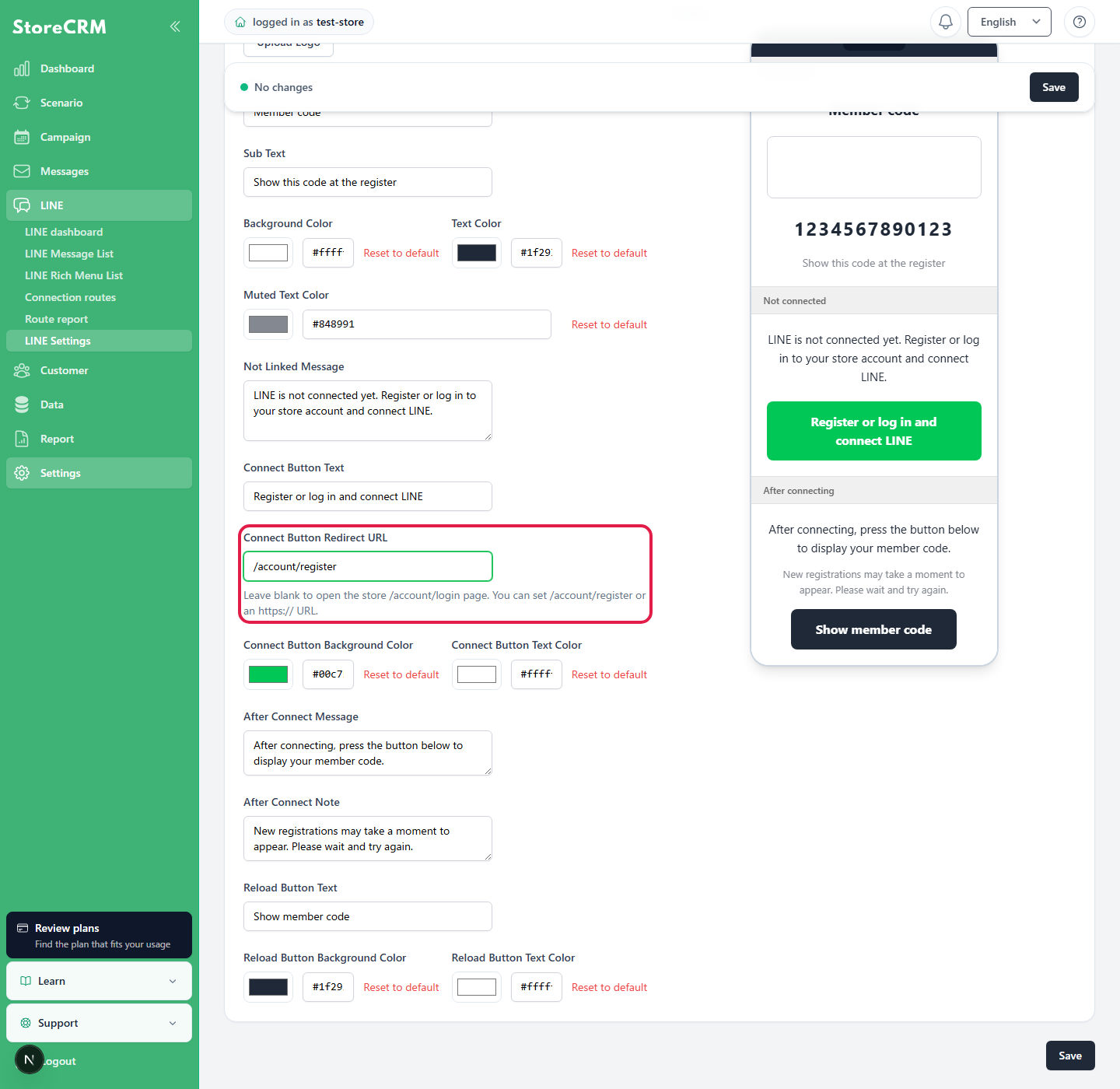
In the StoreCRM admin, open Settings → LINE Settings → LINE Member Card Settings. Configure the member card title, subtext, message shown before LINE is connected, connect button text, and connect button URL.
Use the LINE member card
To use the LINE member card, create a LIFF app in LINE Developers and enter its LIFF ID in StoreCRM. Set the LIFF endpoint URL to the LINE member card URL shown in StoreCRM.
- If the customer is connected to LINE, their member-code barcode is displayed.
- If LINE is not connected, the configured message and connect button are displayed.
- You can also change the post-connection message and reload button text on the same settings page.
Connect button URL when LINE is not connected
For the connect button URL shown before LINE is connected, specify the page where customers should log in or register. If left blank, the button opens the store login page.
/account/registerYou can specify a relative URL like this.https://example.com/account/registerYou can specify an absolute HTTPS URL like this.javascript:, ,data:, ,http://, ,//example.comUnsafe URLs like this cannot be saved.- A return-destination parameter is not added automatically after connection. If one is needed, provide the appropriate guidance on the destination page.
Display a profile member card in new customer accounts
On the profile page in Shopify's new customer accounts, you can add the "StoreCRM Member Card" app block. Because this block displays the member card for the signed-in Shopify customer, it can be used even if no LINE LIFF ID is configured.
- In the Shopify admin, go to Settings → Checkout and customize the customer account profile page.
- Add the "StoreCRM Member Card" block to the profile page.
- When the signed-in Shopify customer can be identified, the member-code barcode is displayed.
- If you use easyPoints or Smaregi customer codes, the information appears on the member card according to your StoreCRM integration settings.
- Legacy customer accounts, order details, the thank-you page, and order history pages are not supported.
 English
  Japanese