

To install StoreCRM, do the following
Watch the video and install
See the manual and install it.
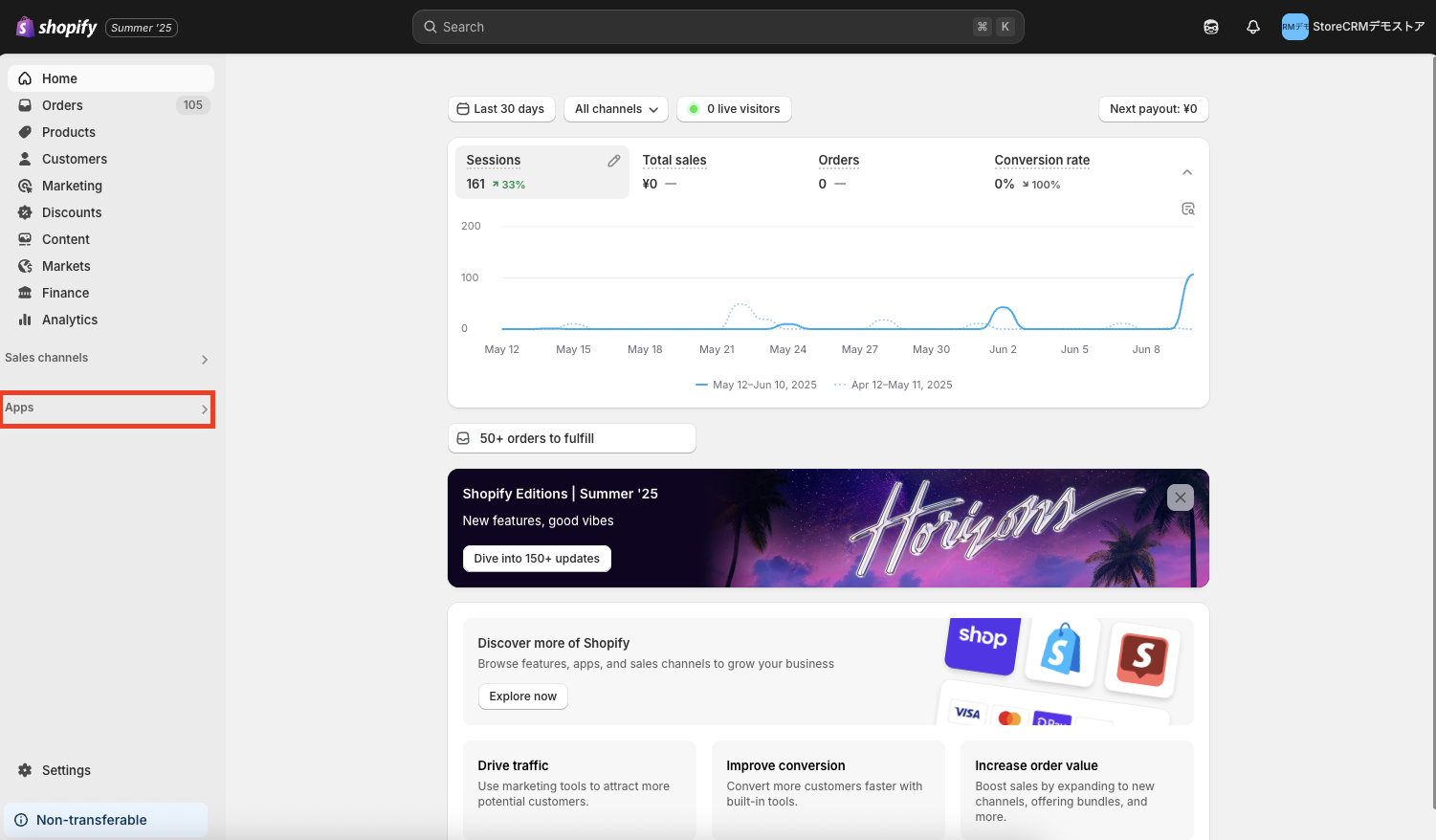
1. log in to Shopify → click on "Add App".
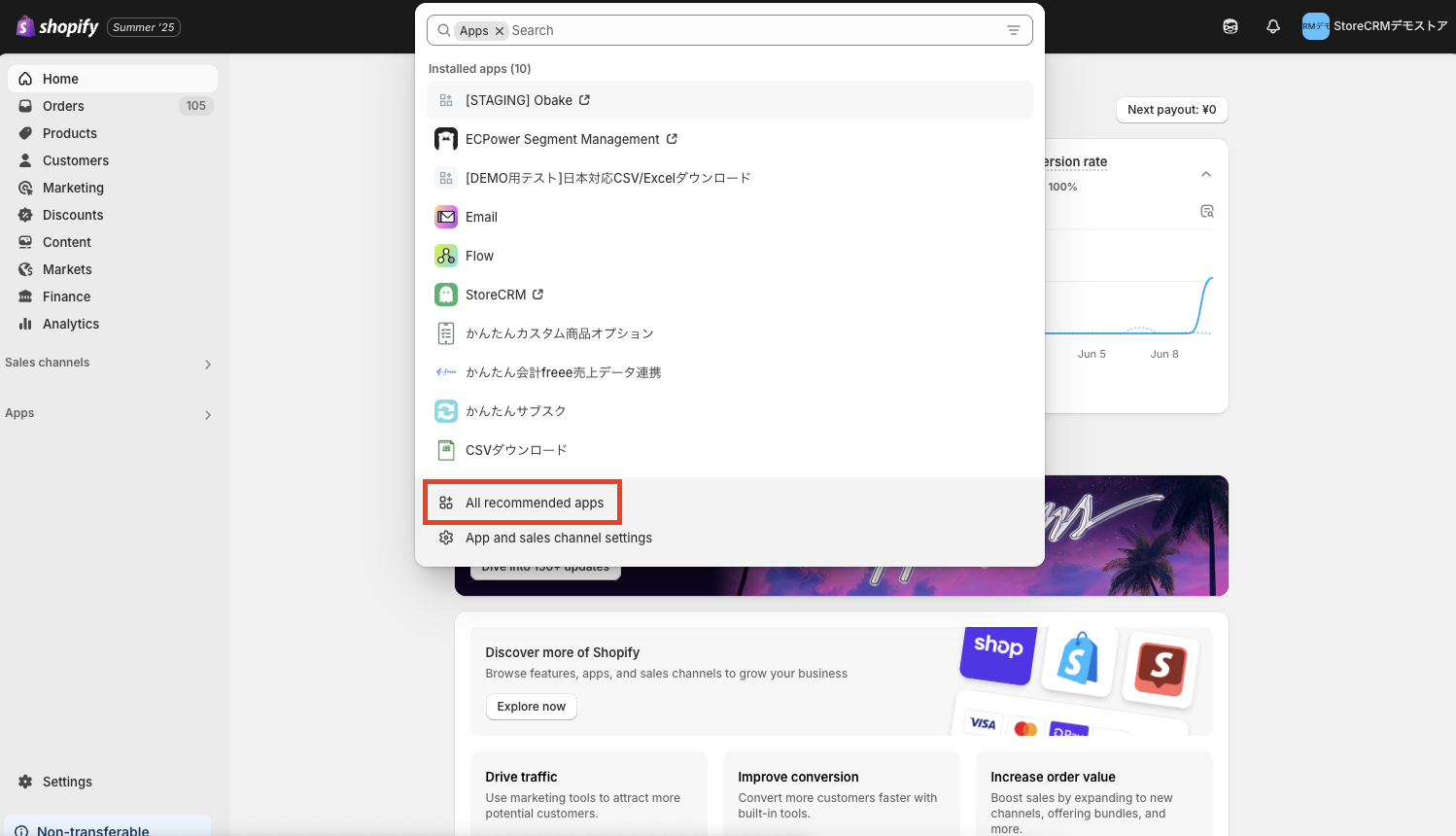
Click on "All Recommended Apps.
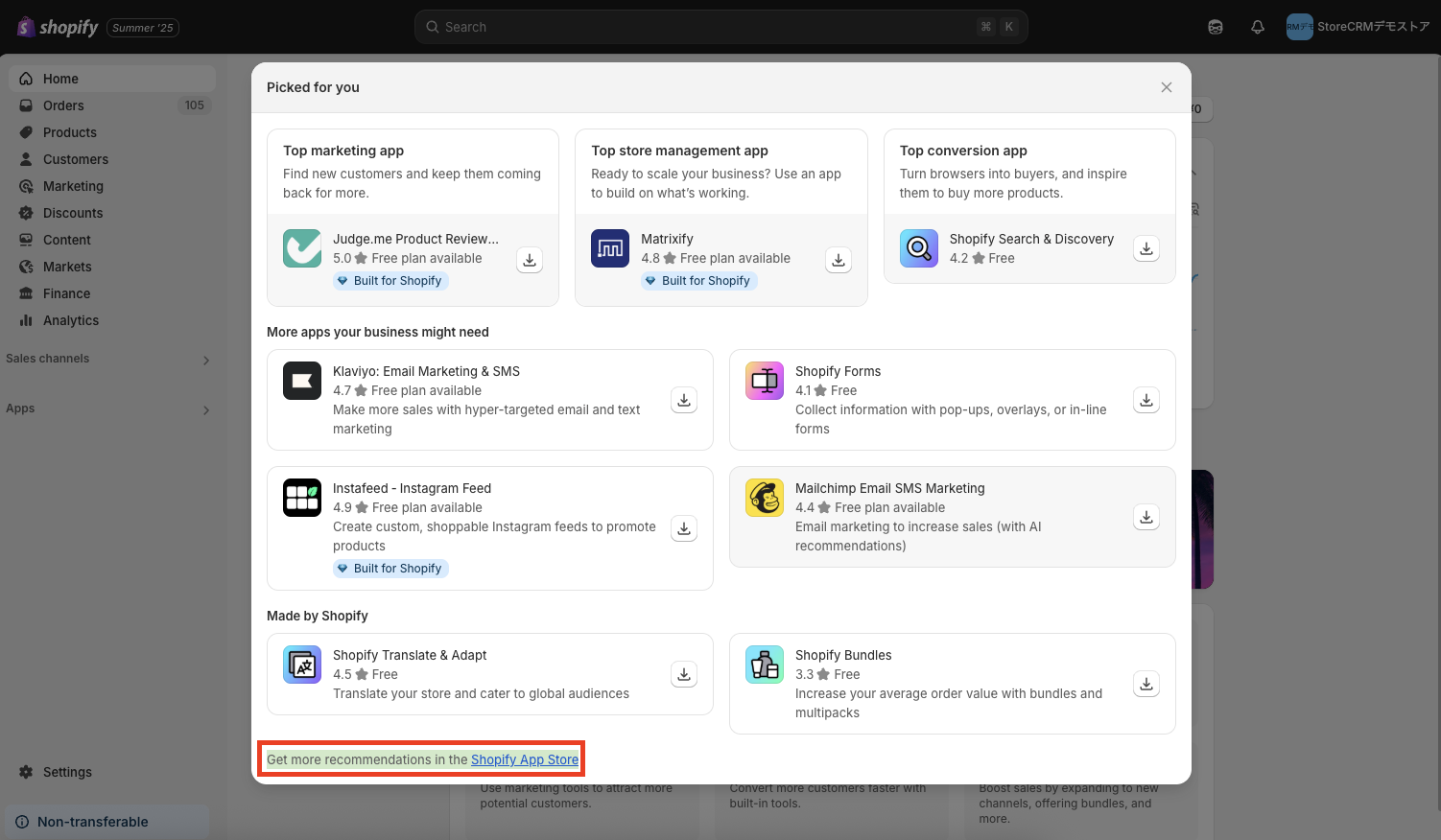
3. click on "Find more apps in the Shopify App Store.
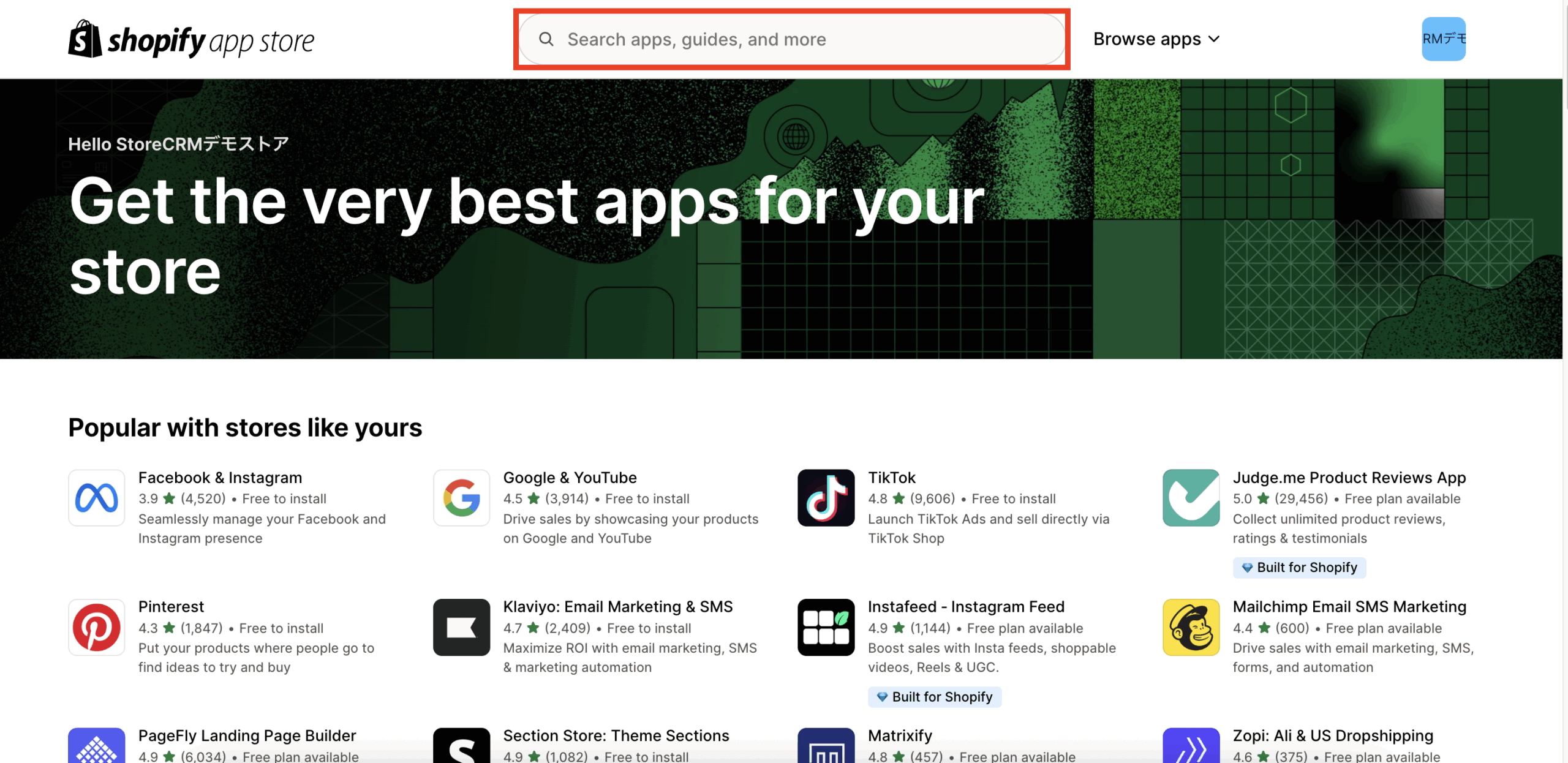
4. Shopify App Storeand search for "StoreCRM".
If not found,herePlease access it from
Click on "StoreCRM.
Click "Install.
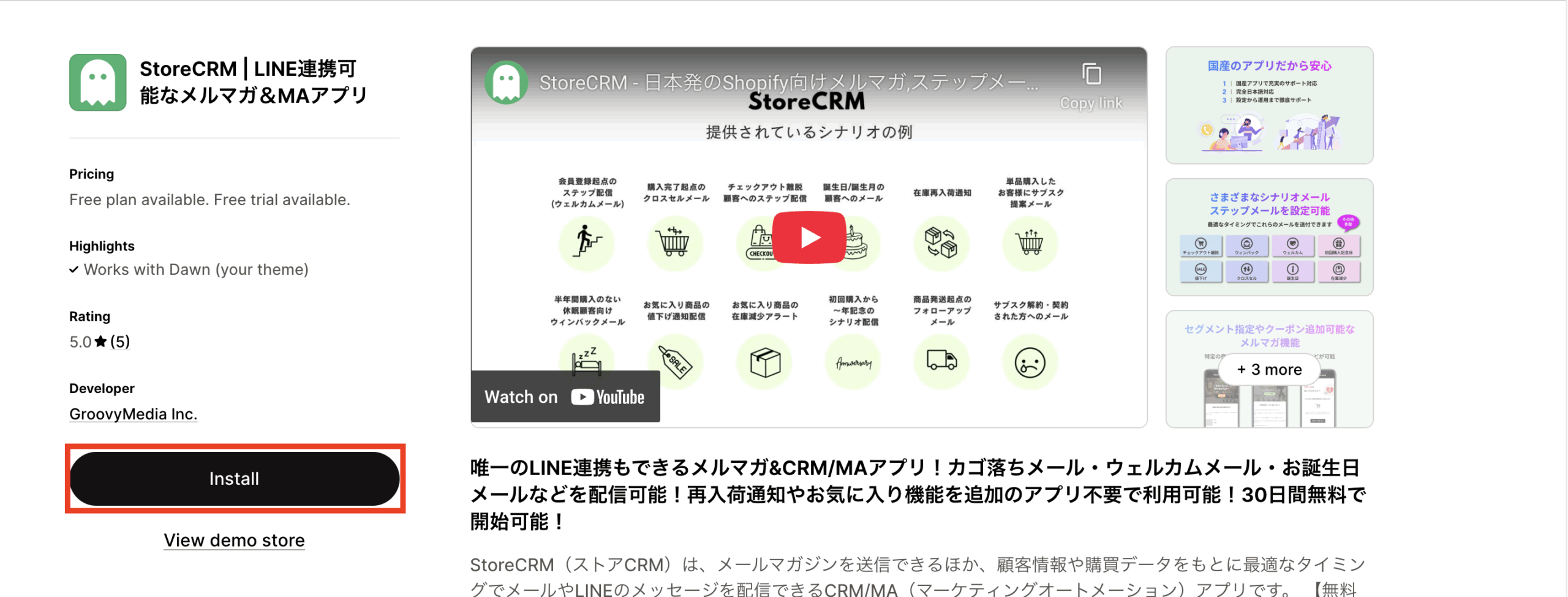
To continue setting up,here for more information.
When you receive a Shopify connection re-login notice
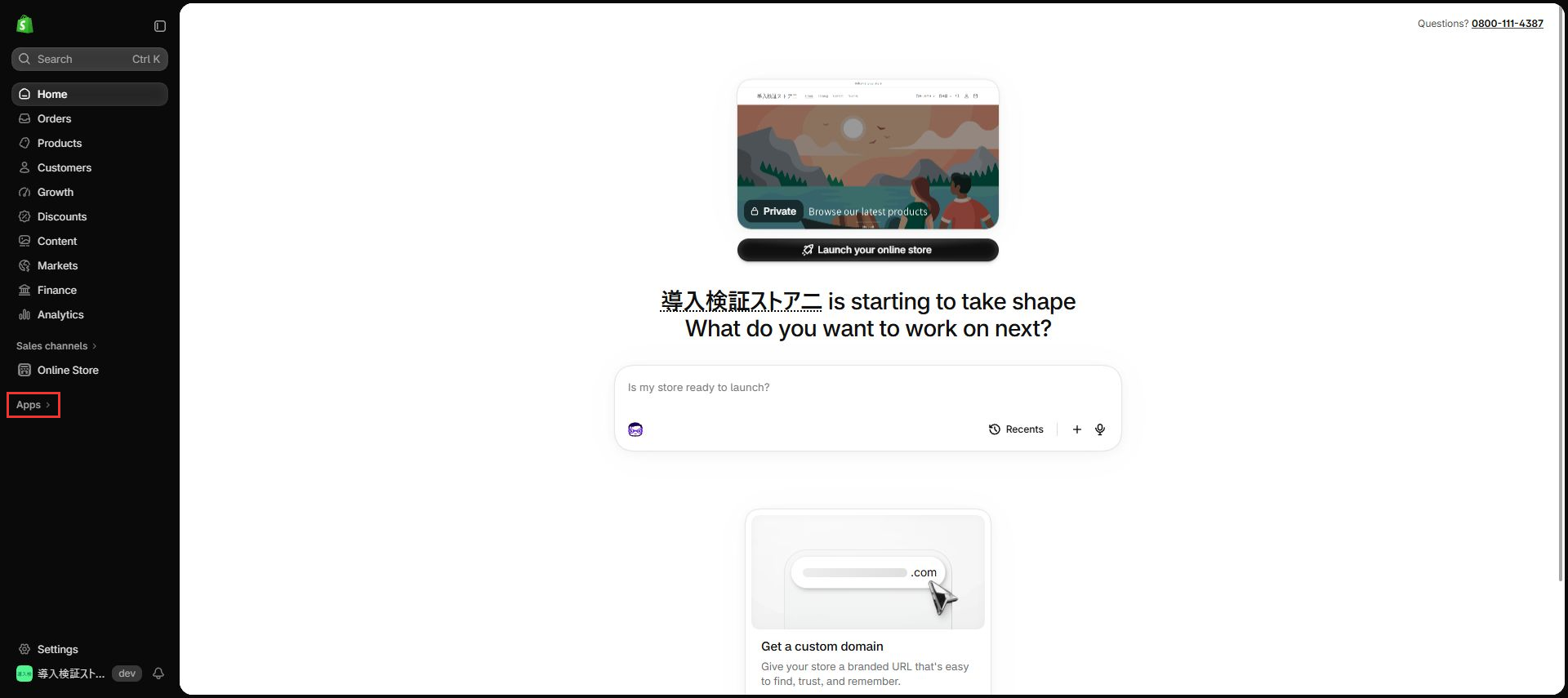
1. Open apps for the correct store
Where: Left navigation in Shopify admin while signed in
Check that this is the store named in the re-login notice, then click Apps. The store name in the screenshot is an example.
Check: The installed apps list opens.
2. Open StoreCRM
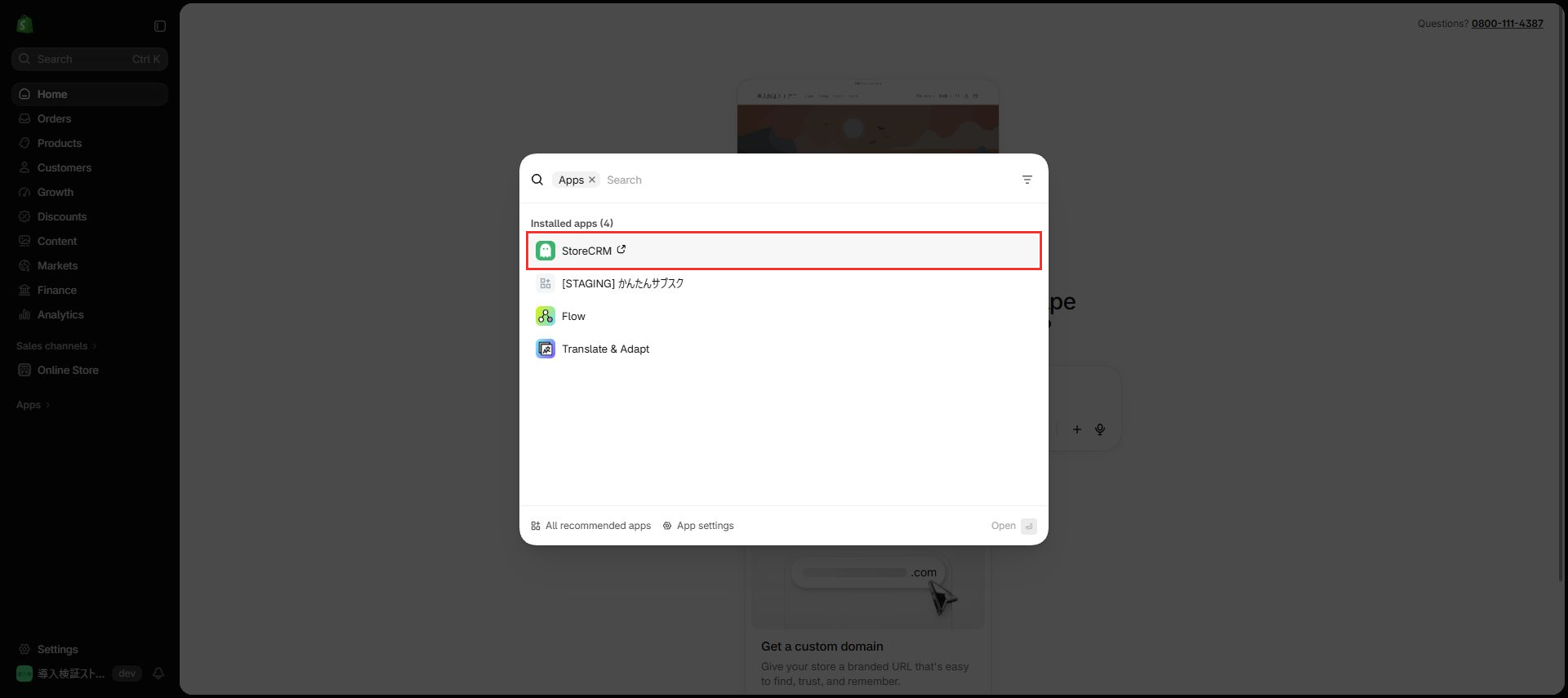
Where: Installed apps list
Click StoreCRM. You do not need to uninstall the app for this procedure.
Check: The app sign-in process starts, normally opening StoreCRM in a new tab.
3. Check the store in StoreCRM
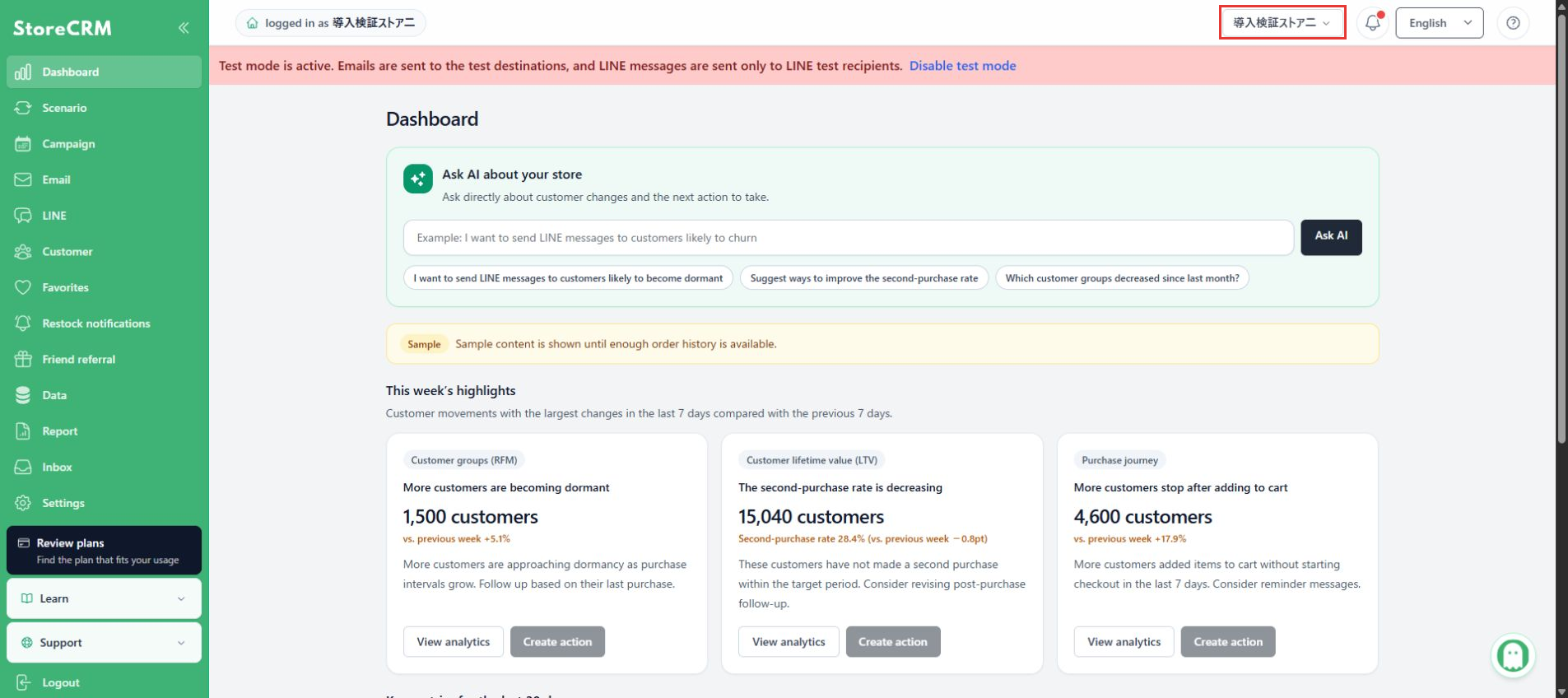
Where: Store name at the top of StoreCRM
Confirm that StoreCRM opens and the correct store name appears at the top. If the notice persists or the app does not open, contact support with the store and the displayed message.
Check: You can confirm app access for the intended store. This screen alone does not confirm completion of every sync process.
Check the store and request in the re-login notice. If an authentication or permission screen appears, review the store and requested permissions before completing it. This example did not display an additional permission screen. Contact support before uninstalling or reinstalling the app.
Related pages
 English
 Japanese