

You can configure StoreCRM restock notification buttons separately for email and LINE in the admin. Change their colors, text, icons, and width, then use the preview to check how they will look in your store.
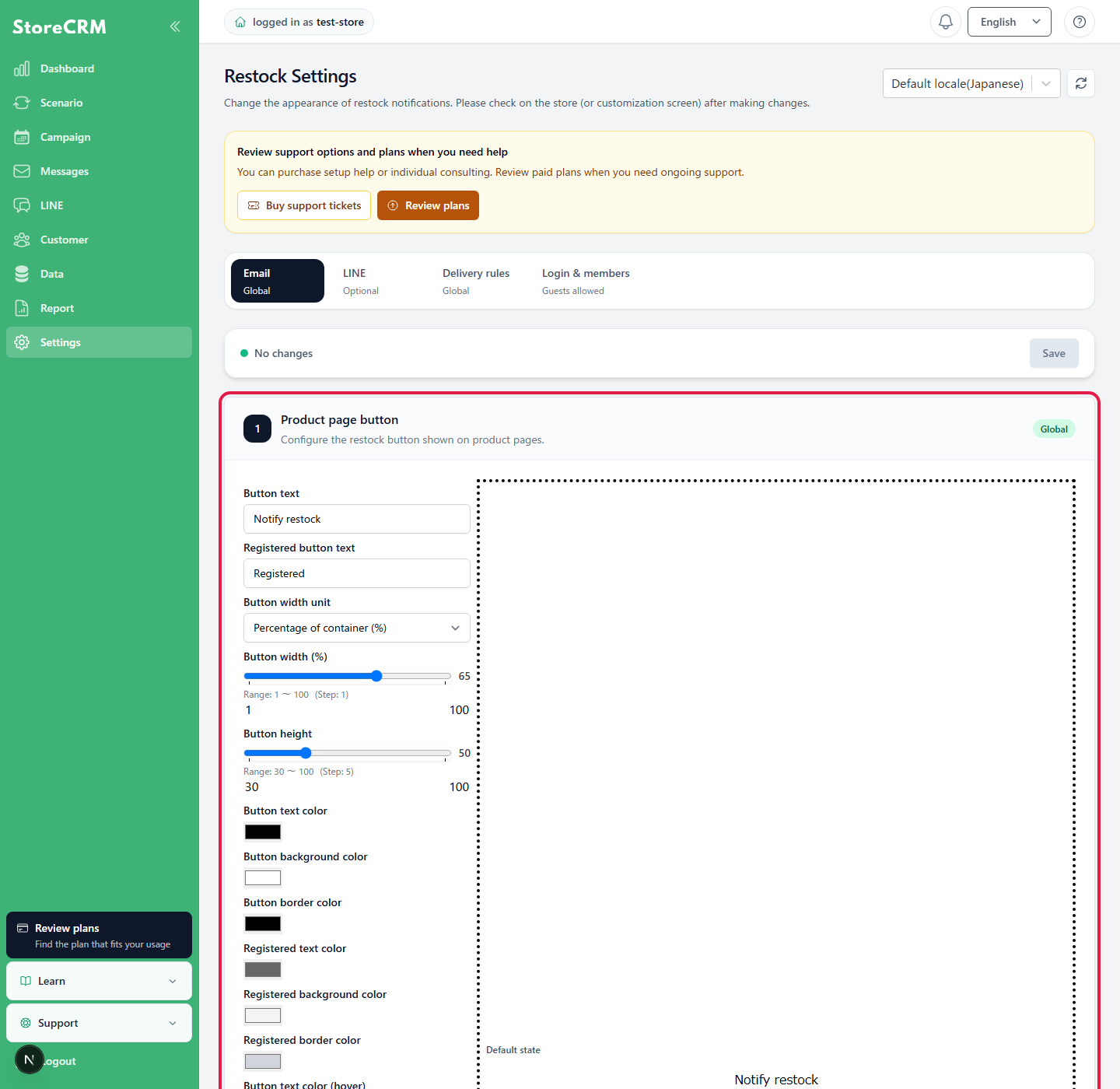
Configure the email restock notification button
- In the StoreCRM admin, open Restock notifications → Restock notification settings.
- Select the email button settings tab and adjust its text, colors, icon, and background.
- Under [Button width unit], select a fixed width or [Percentage of container (%)]. Enter a percentage from 1% to 100%.
- Check the preview and save your changes.
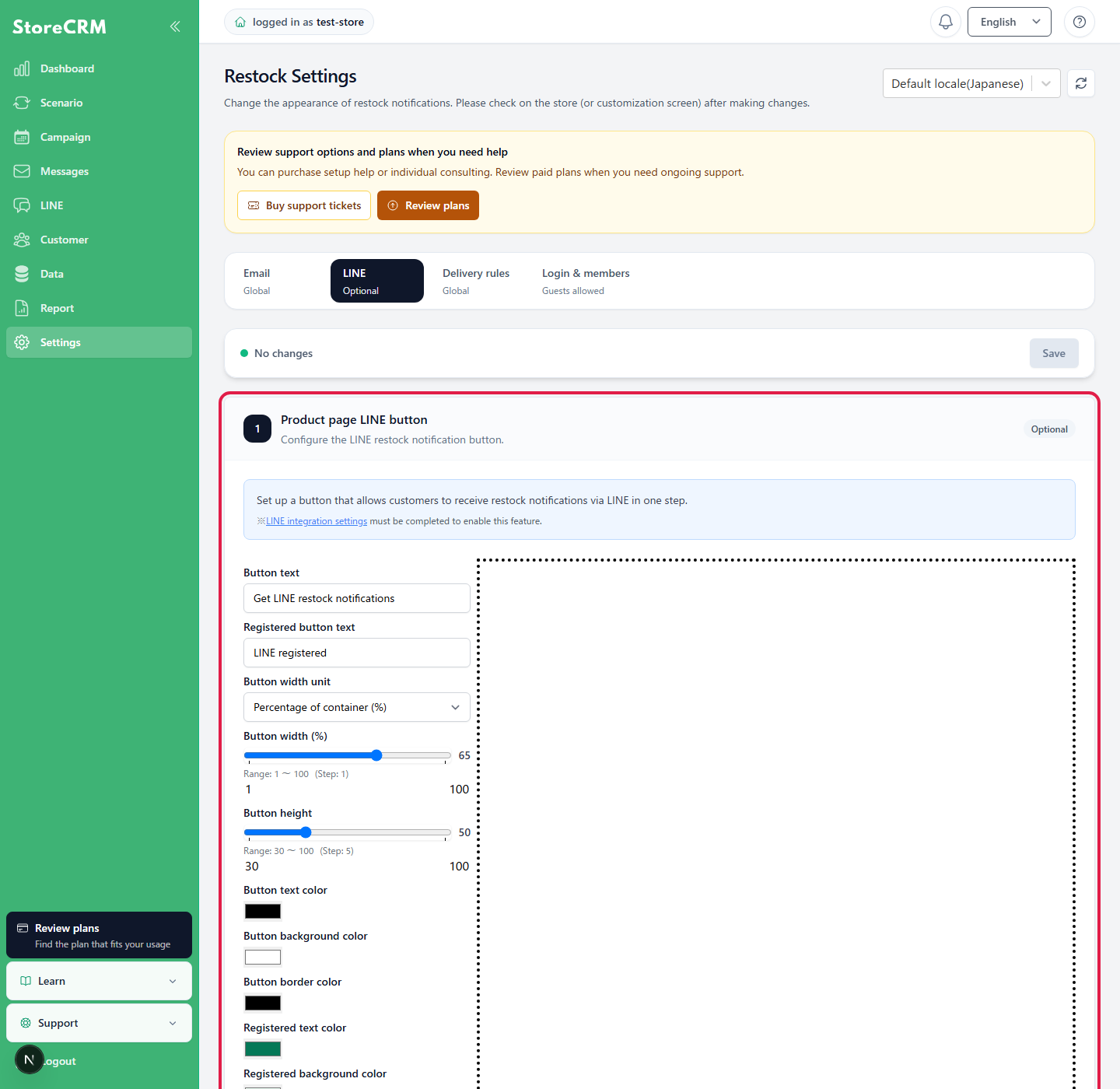
Configure the LINE restock notification button
On the LINE tab, you can separately configure the text, colors, icon, background, and width. Email and LINE values are saved independently, so check both if you use both notification methods.
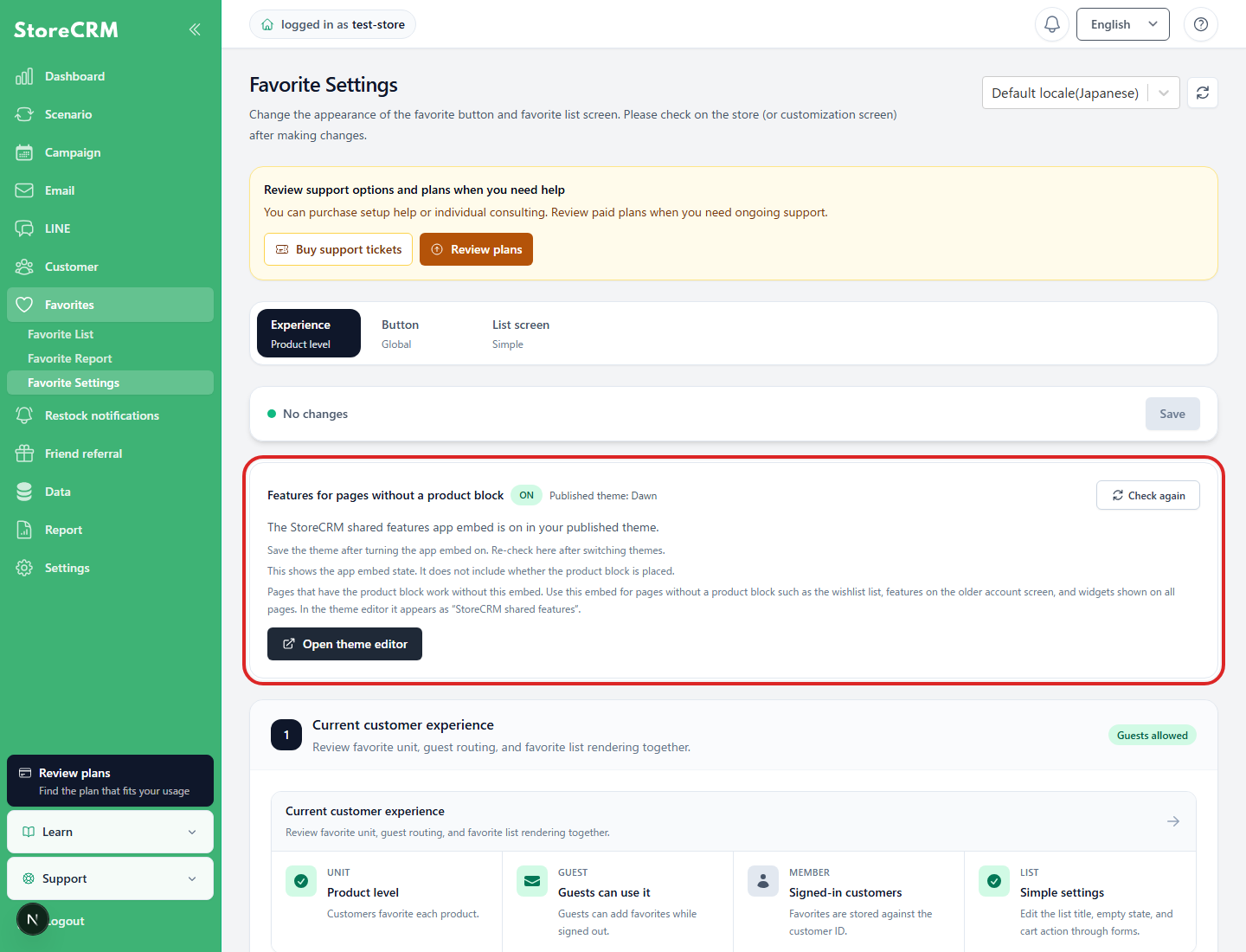
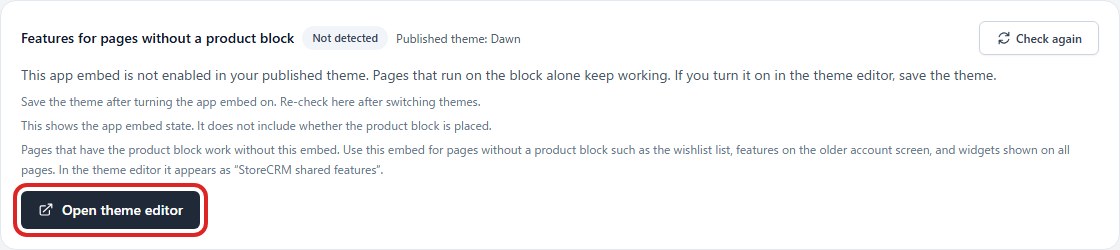
Check the features you need App Embed
App Embed works even if it is off because the block itself reads common JavaScript.
App Embed [Common Features of StoreCRM] is necessary for a list of favoritess, pages with no product block, a traditional customer account, and all page common widgets. Check the state of the public theme on the StoreCRM settings screen, and select "Reconfirm" only if necessary.
Configure SKU exclusions and staff notifications
Delivery rules include variant exclusions and staff email notifications for new requests. Excluded variants restrict both email and LINE registrations. Set up to five staff recipients; each notice counts toward email usage. See the SKU exclusion and staff notification sections in Send restock notification emails.
Check the result after configuration
After saving, open an out-of-stock product page. Confirm that the button for the notification method you use appears and that it leads to email-address registration or LINE connection.
Related pages
 English
  Japanese