

Friend referrals let an existing customer (the referrer) share a referral link or QR code. When the invitee meets the campaign conditions, StoreCRM issues a reward coupon to the referrer. StoreCRM manages campaign creation, storefront display, conversion evaluation, approval, and coupon issuance.
Requirements
- A USD 100 monthly add-on subscription is required. If the subscription is stopped, a grace period is shown; resubscribing restores access.
- The invitee coupon applies to all products in one-time purchases. It cannot be combined with other discounts or used for subscriptions.
- To appear in the store, add a referral app block to your public theme.
Create a Campaign
1. Activate the add-on to open the compose screen
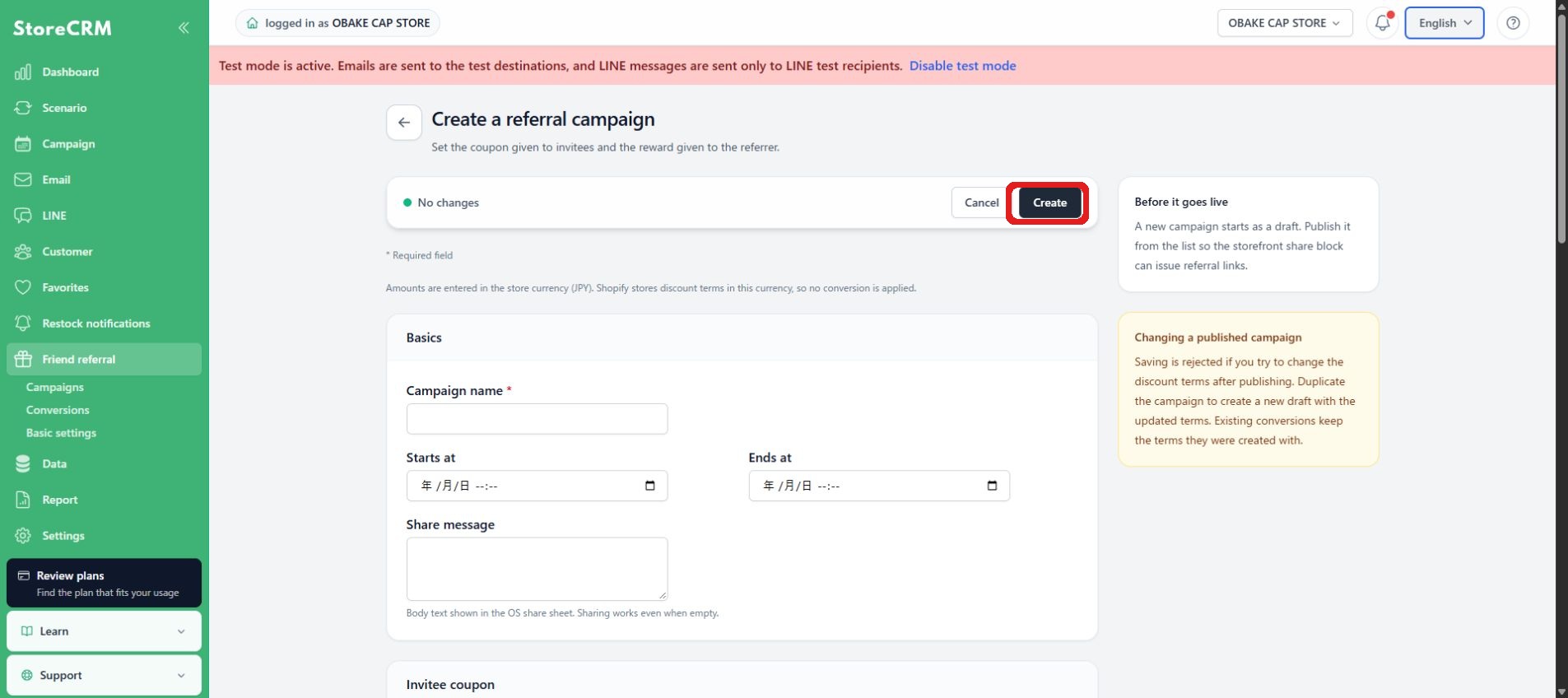
Go to Referrals on the left menu and activate the add-on from the user guide. Select Create Campaign from the list of campaigns.
2. Configure basic information and the campaign period
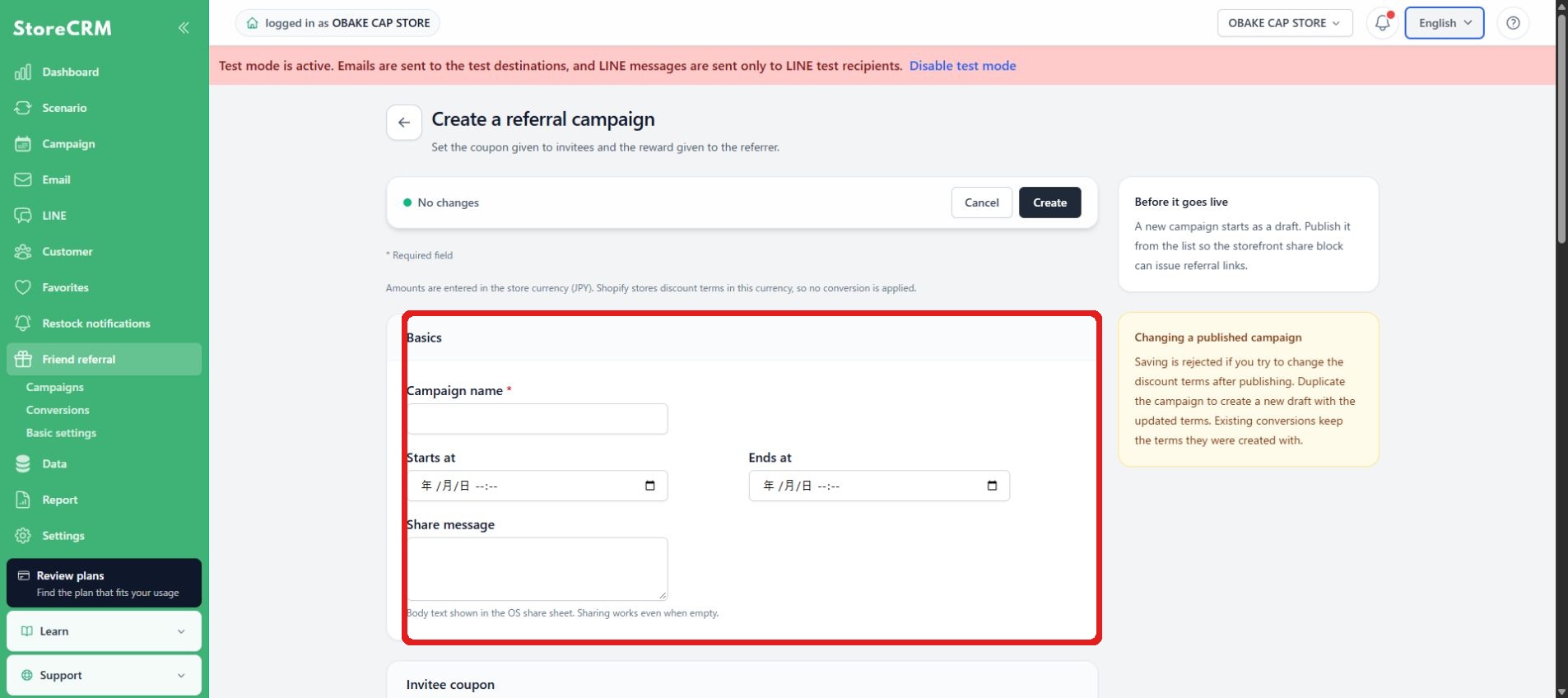
Set the campaign name, start date and time, optional end date and time, and sharing message. A newly created campaign is saved as a draft and is not available in the store until you publish it from the campaign list.
3. Configure the invitee coupon
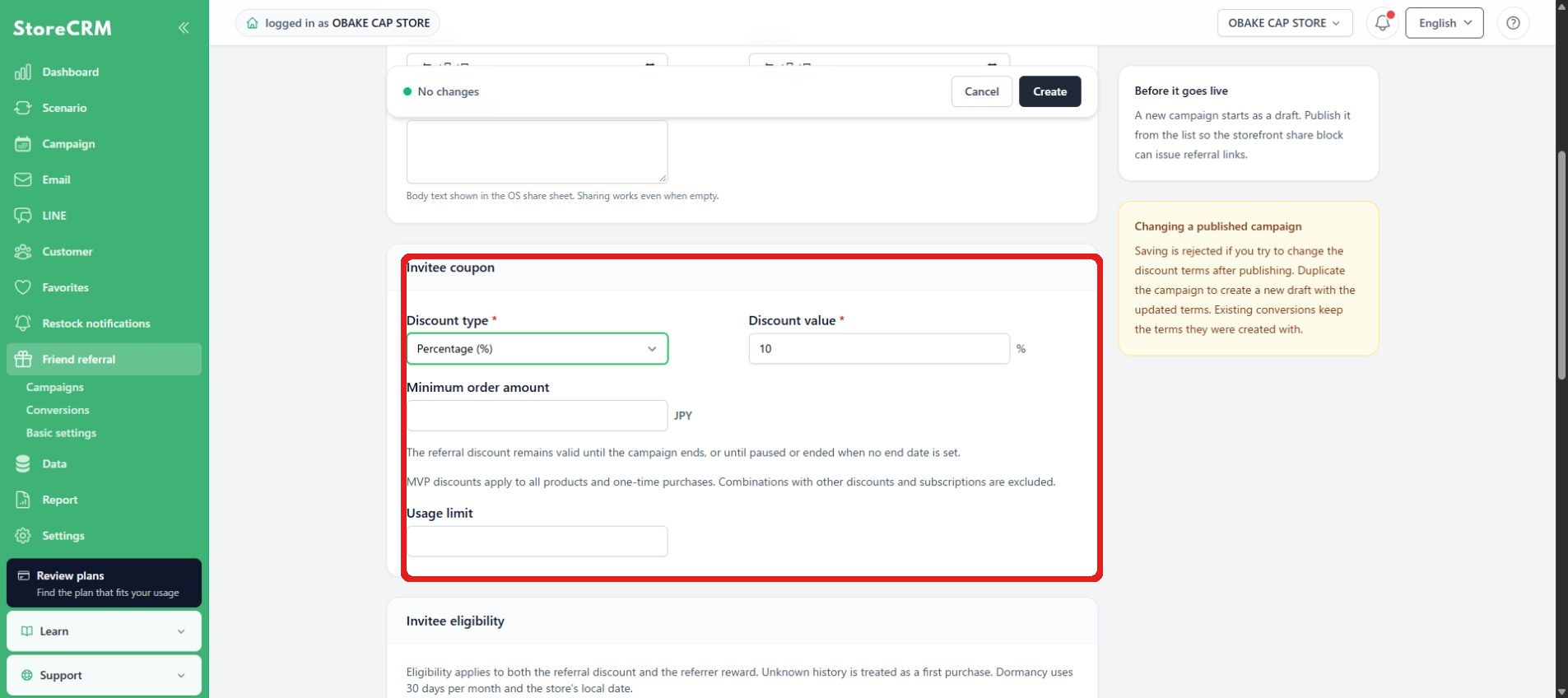
Set the percentage or fixed discount, minimum purchase amount, and usage limit. The invitee coupon remains valid until the campaign ends. Discount conditions cannot be changed after publication, so review them while the campaign is still a draft.
4. Configure referrer and invitee eligibility
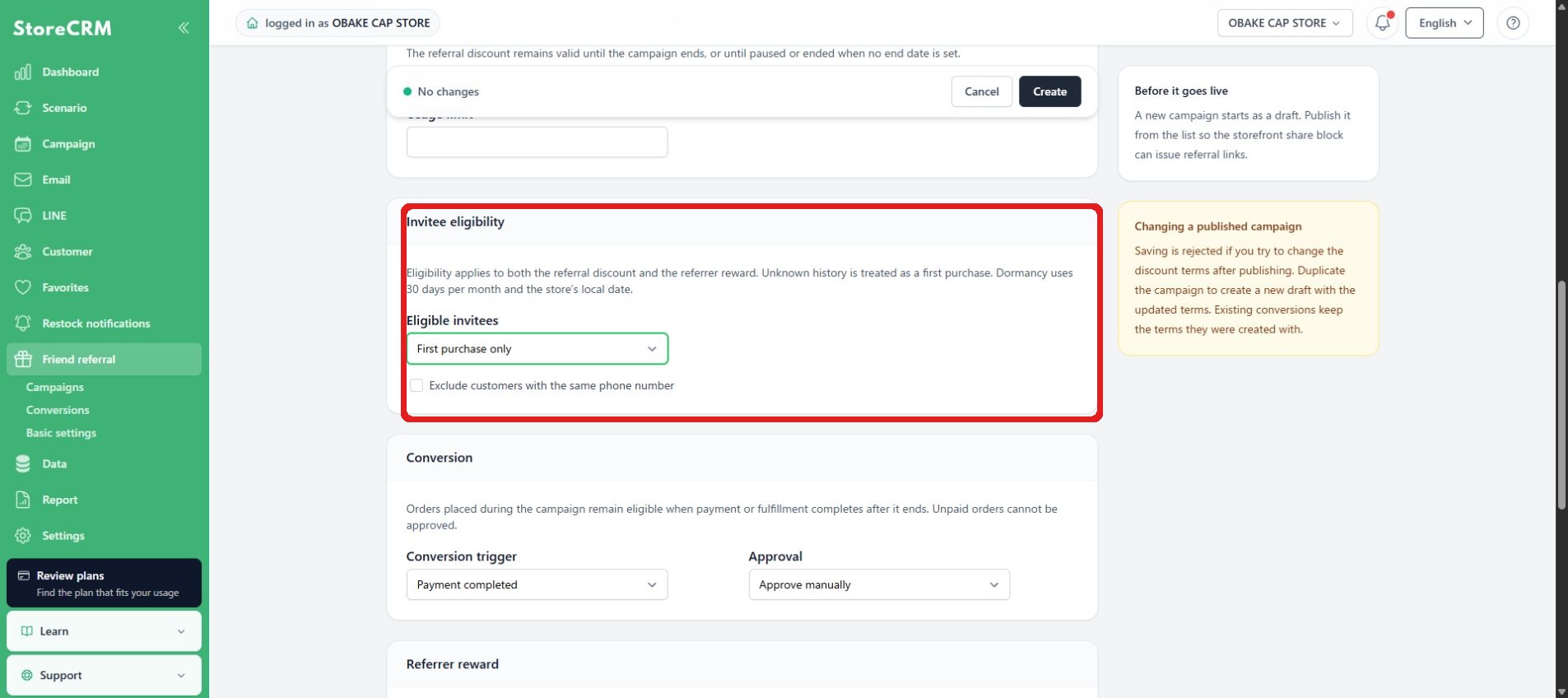
Use a segment to limit which customers can make referrals, then set invitee eligibility to First purchase only or First purchase or dormant customer. When dormant customers are included, specify the number of months and, if needed, exclude customers with the same phone number. Invitee eligibility applies to both the invitee discount and the referrer reward.
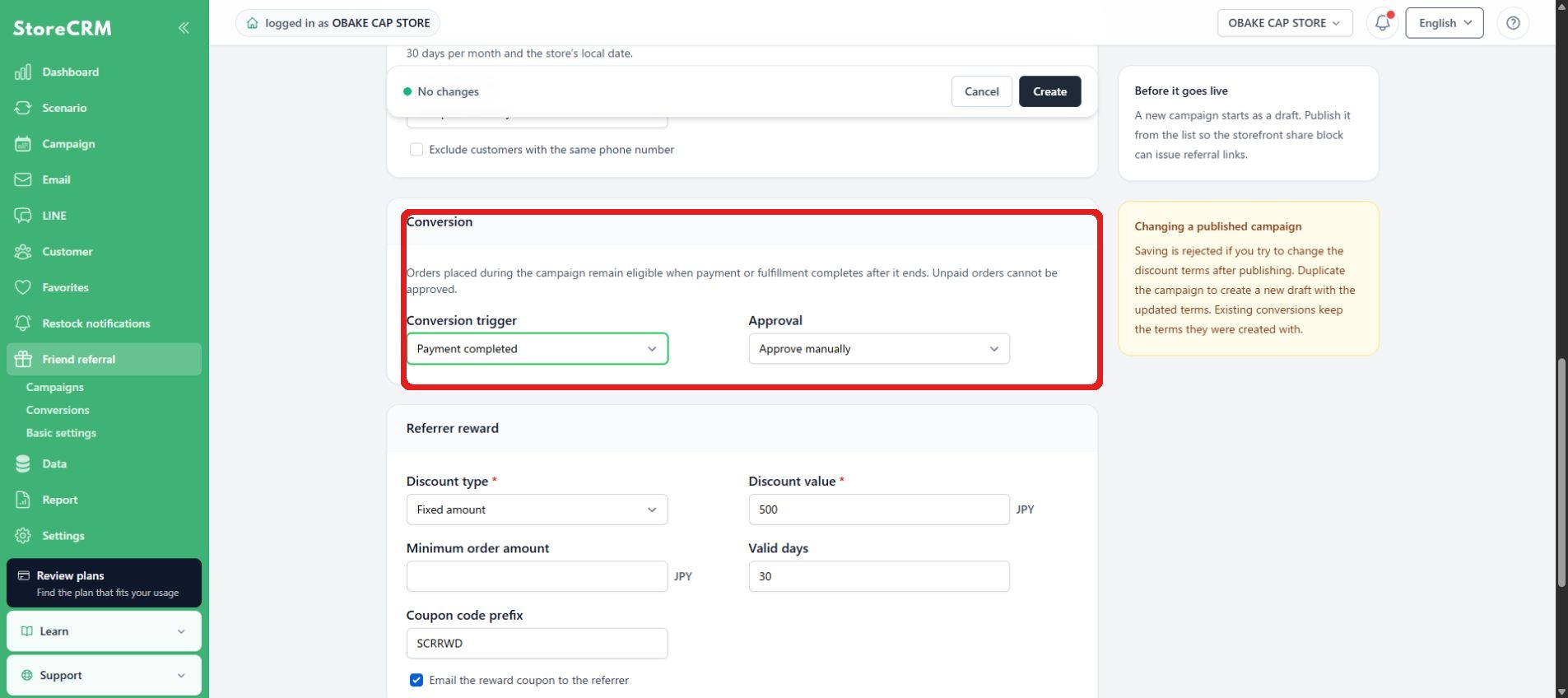
5. Set outcome conditions and approvals
Choose Payment completed or Fulfillment completed as the conversion trigger, then select manual or automatic approval. For automatic approval, specify the waiting period. When fulfillment is required, the waiting period starts after both payment and fulfillment are complete.
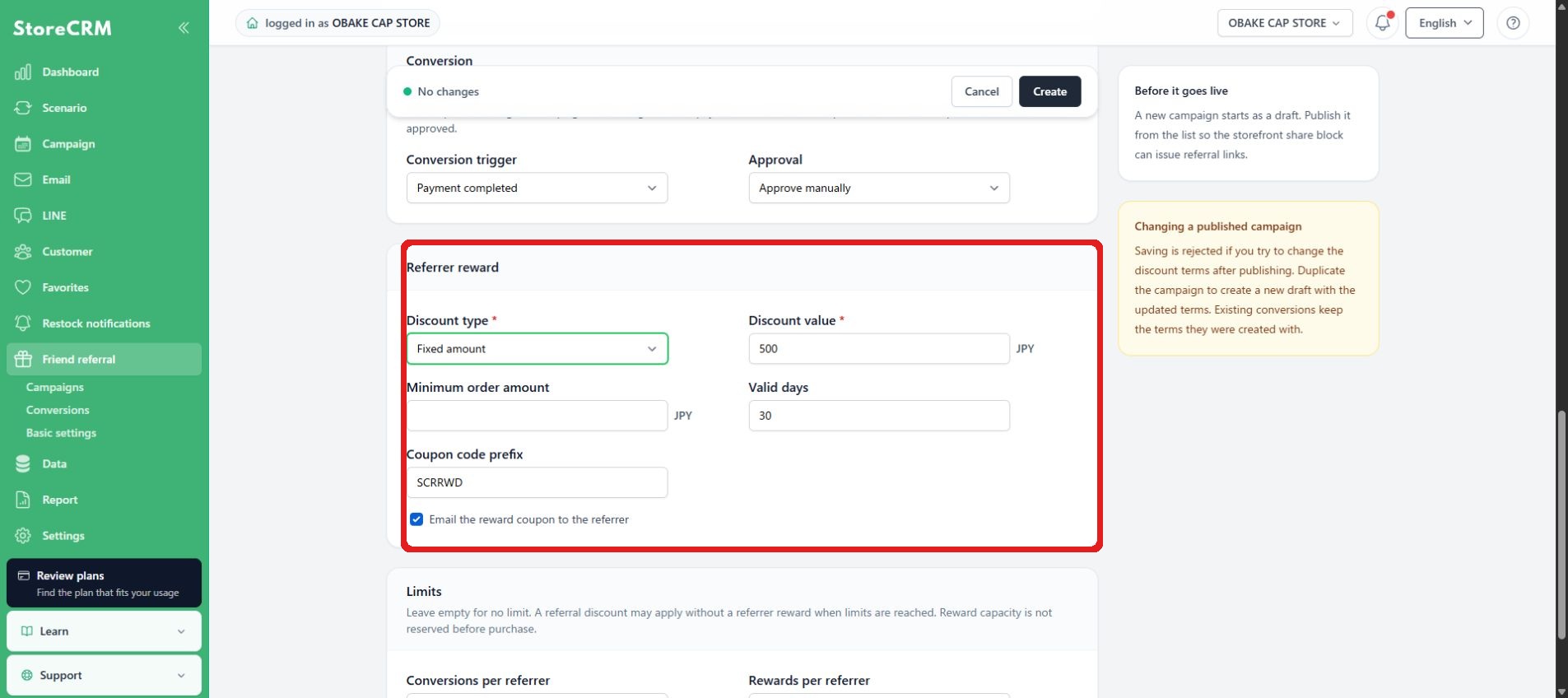
6. Set up rewards for your referrals
Set the discount type, discount value, minimum purchase amount, validity period, and code prefix for the referrer reward coupon. Enable Email the reward coupon when needed.
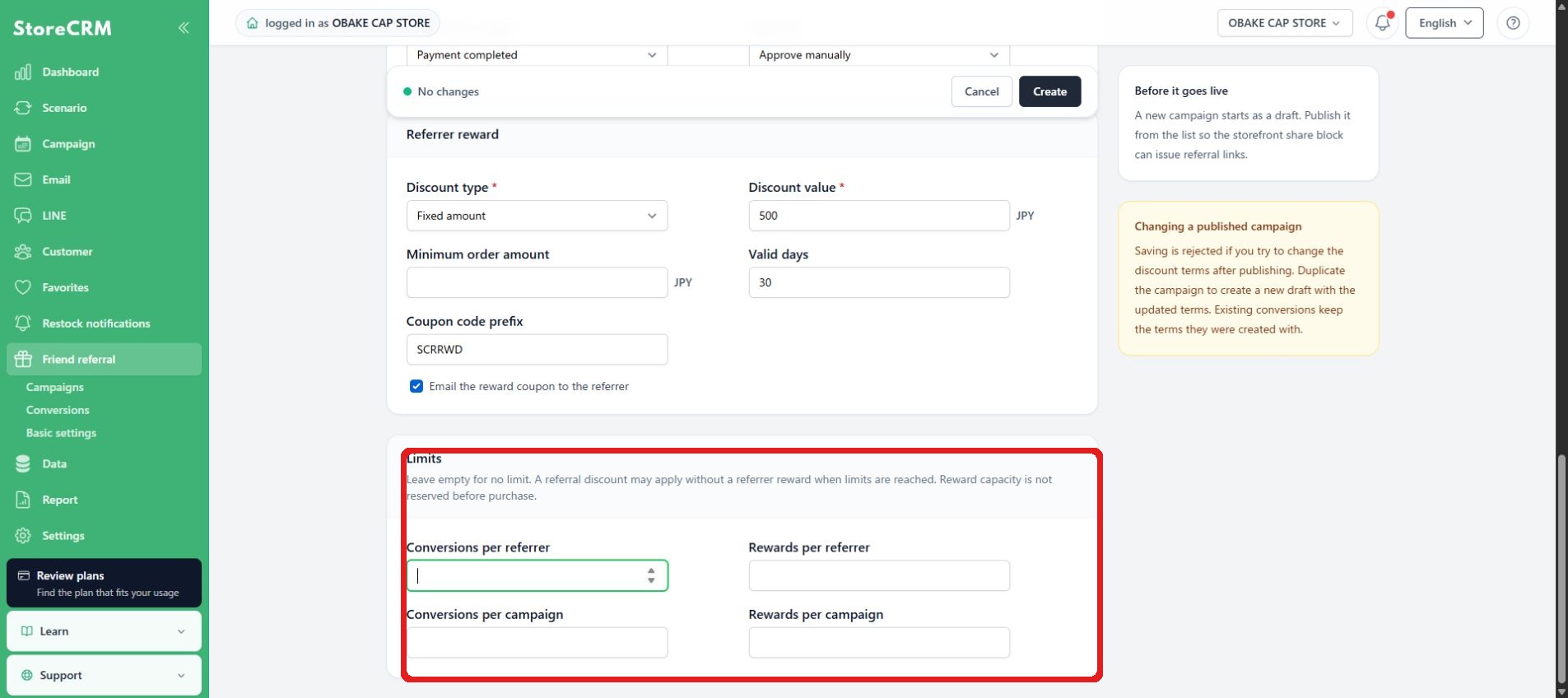
7. Set limits
Set limits per referrer and for the entire campaign. These limits cannot be changed after publication, so review the expected number of participants and your budget first.
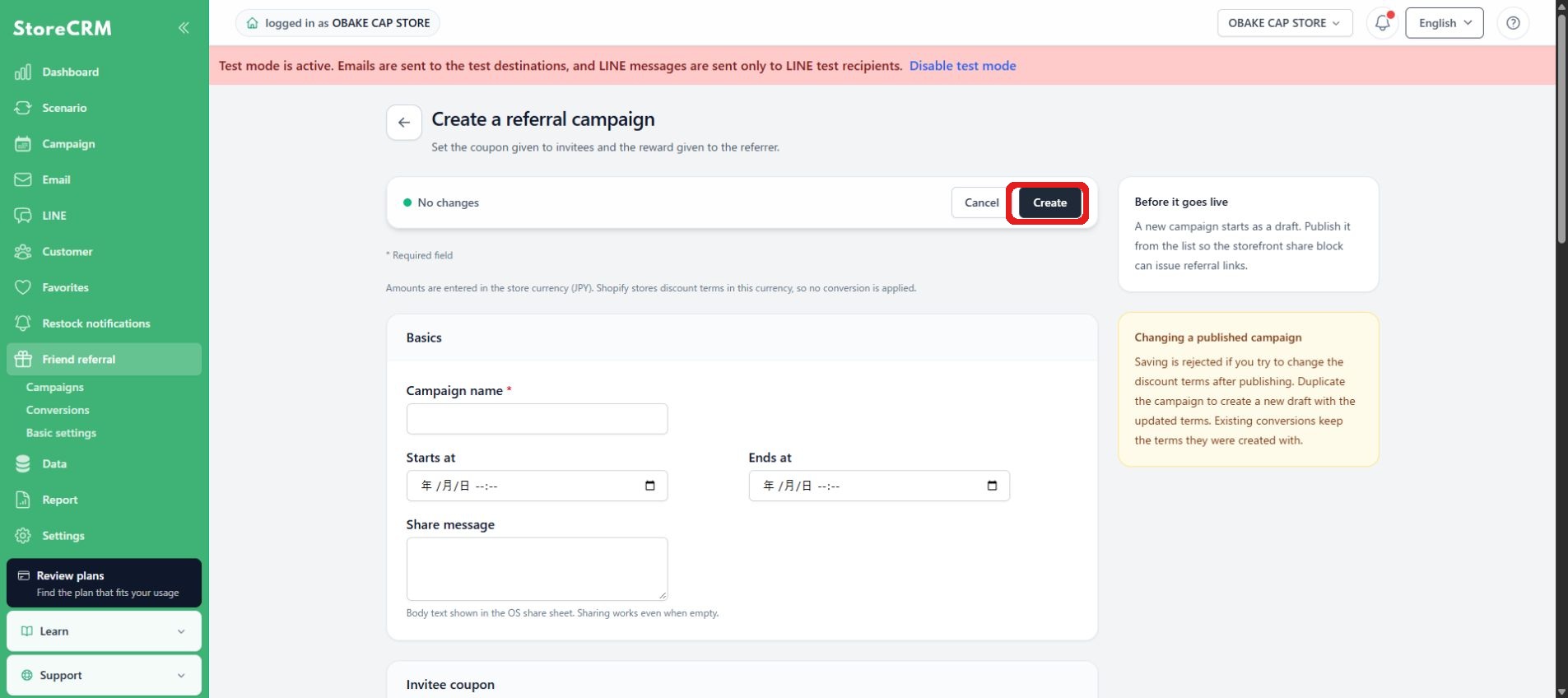
8. Publish
Review and publish your settings. Discount conditions and caps for active campaigns cannot be edited. Duplicate and create a new campaign if changes are needed.
Show referral block in store
- Add your referral app block in the Shopify Theme Editor.
- Set headings, descriptions, and banners, and enable QR codes and automatic coupon issuance if necessary.
- Review referral links, QR codes, copies, and sharing actions for logged-in customers.
- Also check to see if you are not logged in, ineligible, no campaigns, closed, capped, or have a communication error.
Manage a published campaign
You can pause, resume, end, or duplicate a campaign. Pausing stops new referrals; resuming accepts them again under the same conditions. An ended campaign cannot accept new referrals.
Review and evaluate conversions
In the list of achievements, check the status, judgment reason, referrer, referred person, inflow route, order, and coupon issuance status. Manual approvals review and approve or reject content. If you want to remove the misapproval, review the impact on the coupon before proceeding with the revocation action. You can filter by time period, status, and campaign to output a CSV.
If the block or coupon is unavailable
- If you don't see the block, check the add-on agreement, active campaigns, customer terms, and the placement of the block in the theme.
- If the coupon is not issued, check the achievement status, approval status, cap, and Shopify discount creation error.
- If saving the banner fails, check the format and capacity and try again.
- During a subscription grace period or suspension, follow the on-screen guidance and resubscribe if necessary.
 English
  Japanese