

CSV downloads let you create CSV files from data on each list screen and retrieve them from the Download list.
CSV files with a small number of rows are downloaded immediately. Large CSV files and full exports are generated in the background, and you receive an email when they are ready. You can close the screen while a file is being generated and check its status later in the Download list.
What you can do
- Request CSV generation from each list screen
- Export only displayed data or all records matching the current conditions
- Check CSV generation status in the Download list
- Download a generated CSV file again before it expires
- Review failed and expired CSV files in the list
Create a CSV file
1. In the StoreCRM admin, open the list screen you want to export as CSV.
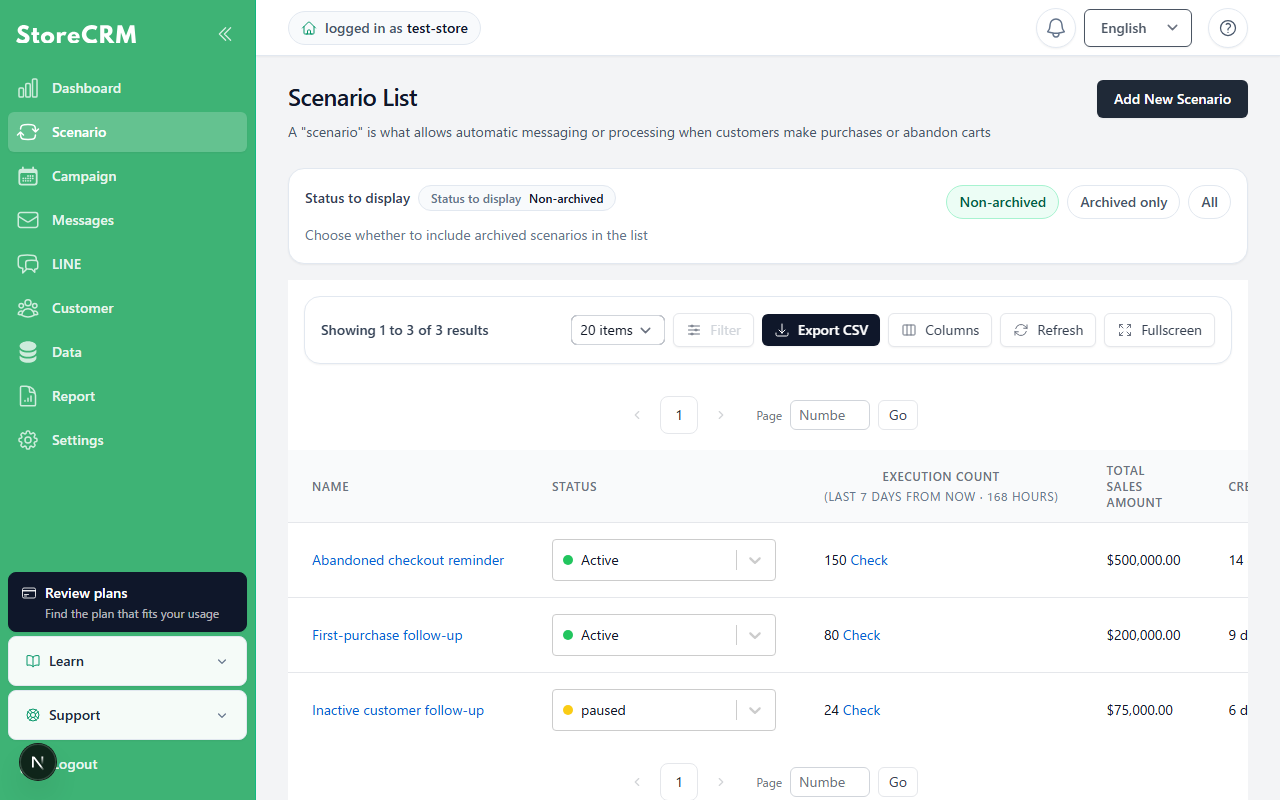
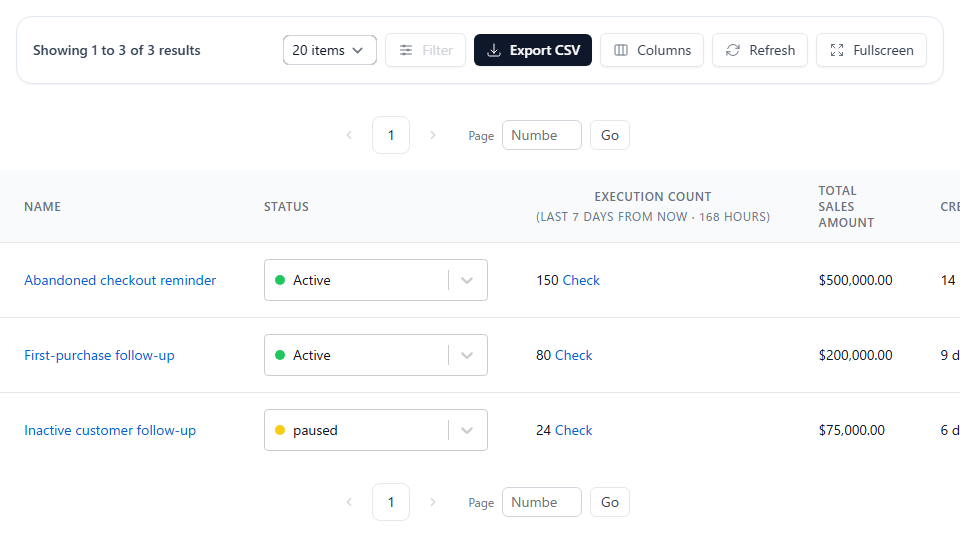
2. Adjust filters, search conditions, sorting, and the number of displayed rows as needed.

3. Click [Export CSV].
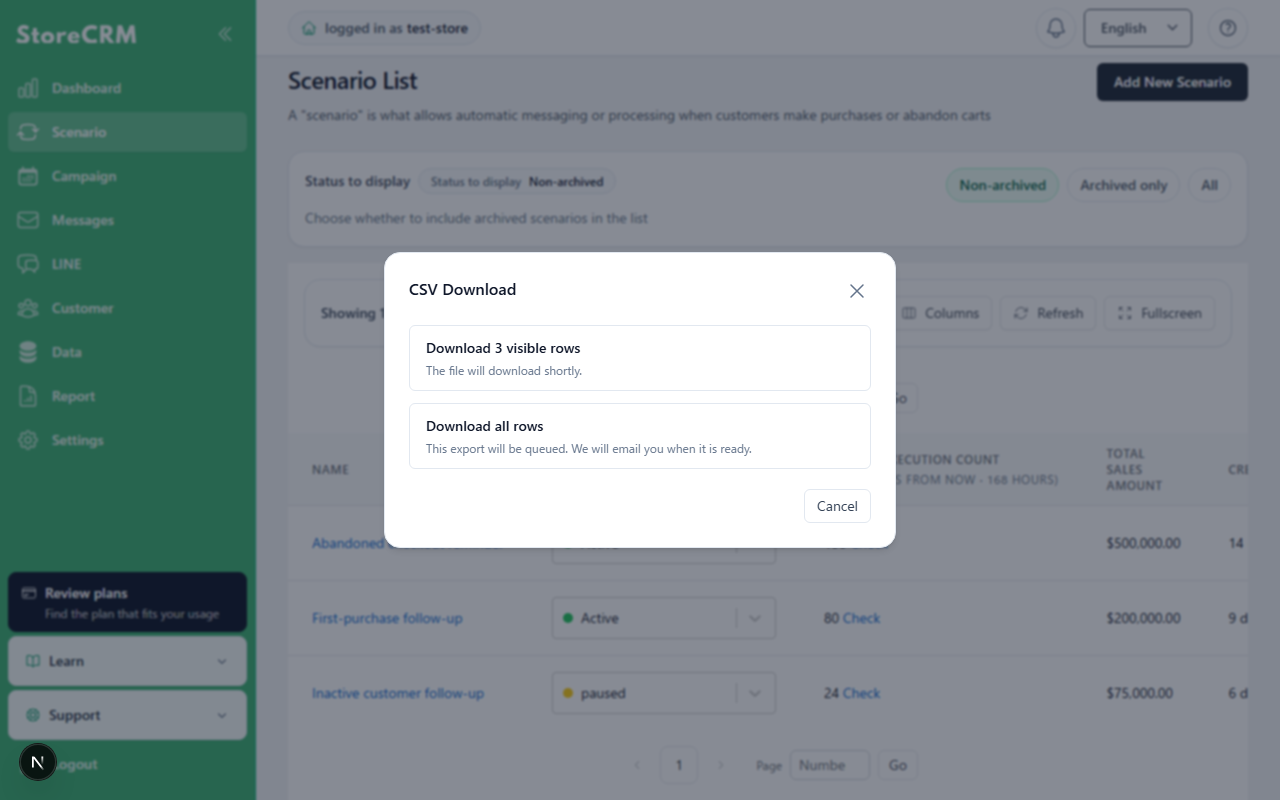
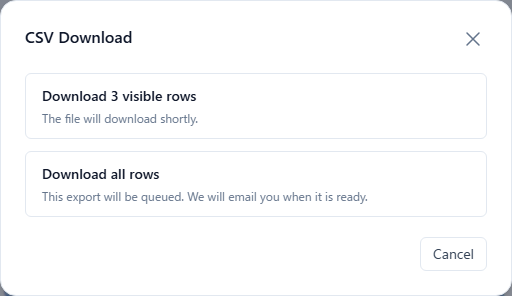
4. If options appear, select "Download displayed records" or "Download all records."

5. If the file can be generated immediately, the CSV download starts.
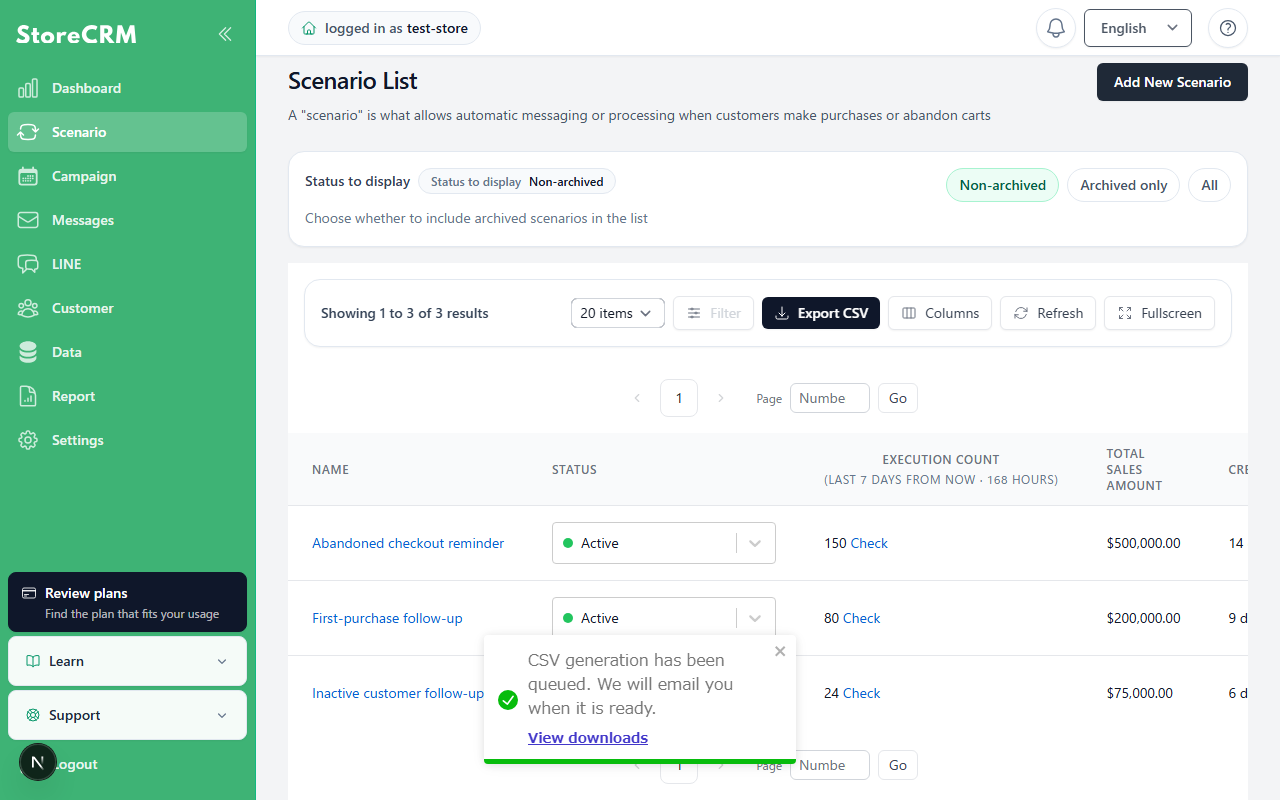
6. If the file is generated in the background, "CSV generation request received" appears. You receive an email when generation is complete.
You can continue working on the original screen after submitting a CSV request. Check its status under [Data] → [Download list].
Difference between "Currently displayed" and "All records"
| Type | Description | Behavior |
|---|---|---|
| Currently displayed only | Exports only the rows shown on the current list page. | Up to 50 records are downloaded immediately. For 51 or more records, you receive an email after generation is complete. |
| All records | Exports all records matching the current filter conditions. | The file is generated in the background regardless of the row count, and you receive an email when it is ready. |
Some screens show only "Download all records." CSV files for aggregated data, such as favorites and back-in-stock notification summaries, always include all records.
Check the Download list
1. In the StoreCRM admin, open [Data] → [Download list].
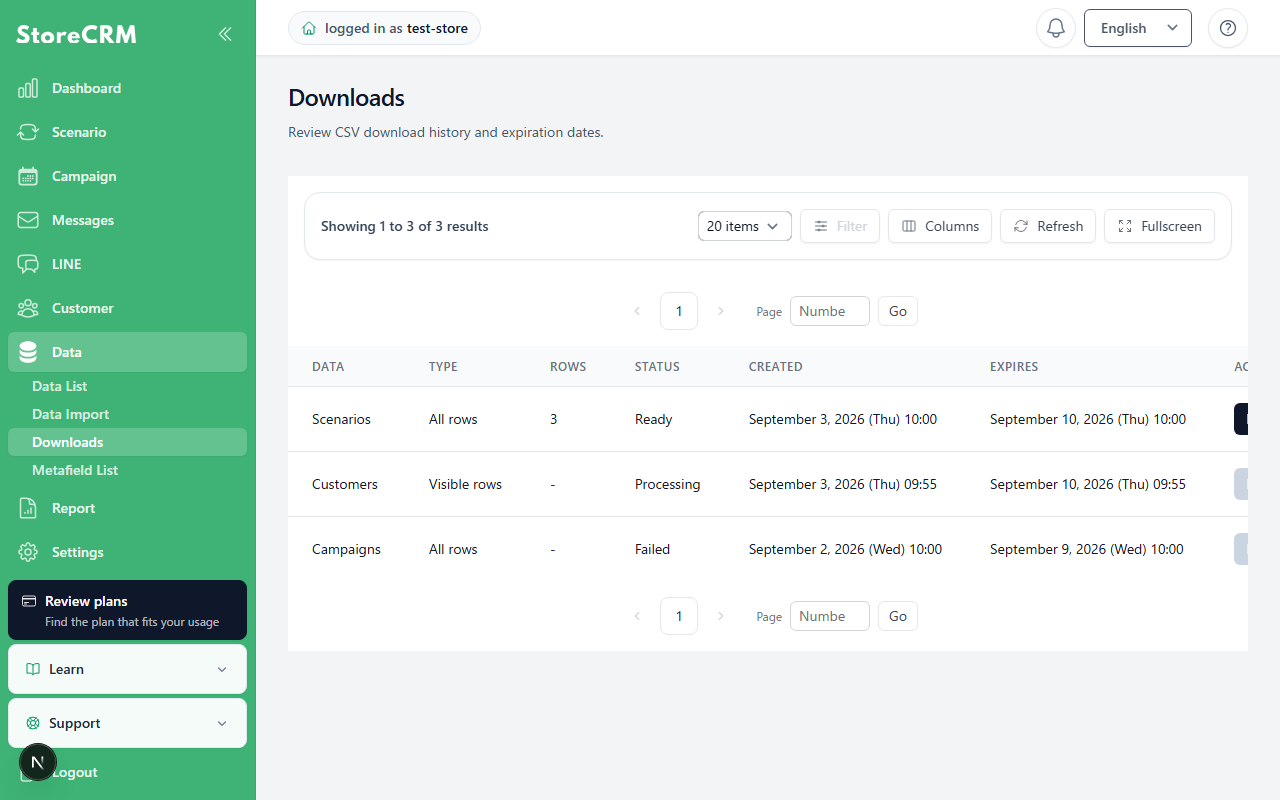
2. Check the status of the relevant CSV file.
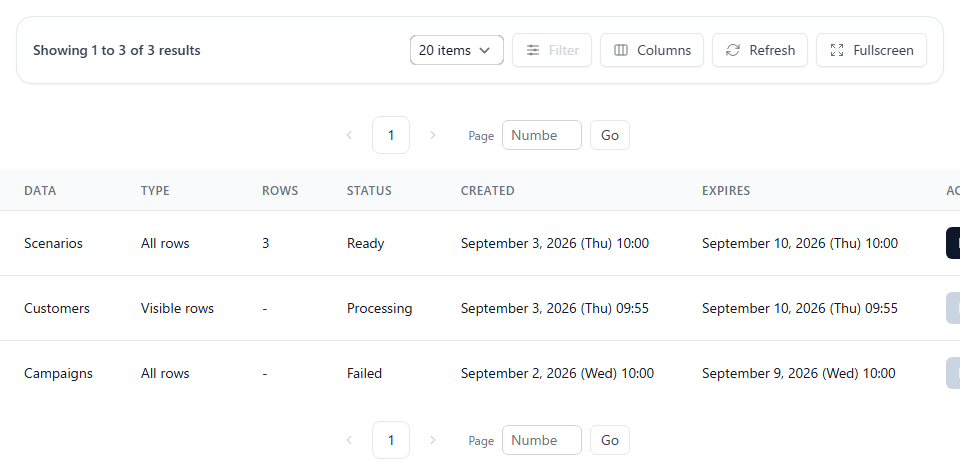
3. Click [Download] on a row whose status is [Ready].

You can review the following information in the Download list.
| Item | Description |
|---|---|
| Data type | The CSV category, such as customers, campaigns, or automation run history. |
| Type | "Currently displayed only" or "All records." |
| Row count | The number of rows in the generated CSV file. This can be blank before generation is complete. |
| Status | The CSV generation status. |
| Created at | The date and time when CSV generation was requested. |
| Download expiration | The deadline for downloading the CSV file. |
Status
| Status | Description | Action |
|---|---|---|
| Received | The CSV request has been received and is waiting to be processed. | Wait for generation to complete. |
| Processing | The CSV file is being generated. | Wait for generation to complete. |
| Ready | CSV generation is complete. | Select "Download" to retrieve the file. |
| Failed | CSV generation failed. | Review your conditions and request CSV generation again from the original list screen. |
| Expired | The download period has expired. | Request CSV generation again from the original list screen. |
Available CSV files
| Data type | File name |
|---|---|
| Customer | customers.csv |
| Customers with favorites | favorite_users.csv |
| Favorites summary | favorites.csv |
| Back-in-stock notification subscribers | restock_users.csv |
| Back-in-stock notification summary | restocks.csv |
| Coupon issuance history | scenario_coupon_issues.csv |
| Automation run history | scenario_executions.csv |
| Email delivery history | email_histories.csv |
| LINE delivery history | line_histories.csv |
| campaign | campaigns.csv |
| Scenario | actions.csv |
| Email templates | emails.csv |
| LINE message | line_messages.csv |
Download expiration
CSV files can be downloaded for seven days from their creation date. After the deadline, the Download list displays "Expired" and the file can no longer be downloaded.
If you need an expired CSV file, request CSV generation again from the original list screen.
Notes
- CSV files can contain personal information such as customer details and delivery history. Handle downloaded files carefully.
- You can download only CSV files created for the store you are currently logged in to. CSV files from other stores do not appear.
- "Currently displayed only" includes the rows shown on the current page. To include every record matching the filter conditions, select "Download all records."
- A full export can take some time to generate. Check the completion email or the status in the Download list.
- Even before the download expires, you cannot download the file until its status is "Ready."
Troubleshooting
The download button cannot be clicked
The download button is unavailable unless the status is "Ready." If the status is "Received" or "Processing," wait for generation to complete. If the status is "Failed" or "Expired," request CSV generation again from the original list screen.
The completion email does not arrive
Check your spam folder. Even if the email does not arrive, you can retrieve the CSV file when its status in the Download list is "Ready."
The email is sent to the Shopify account email address of the staff member who clicked the CSV button.
The CSV file is missing from the Download list
If you use multiple stores, confirm that you opened the store where the CSV was requested. CSV files are managed separately for each store.
The CSV row count is not what you expected
The CSV reflects the filters, search conditions, sorting, and displayed page at the time it was requested. After changing the conditions, generate the CSV you need again.
The download has expired
An expired CSV file cannot be downloaded again. Set the same conditions on the original list screen and request CSV generation again.
Related pages
 English
  Japanese