

StoreCRM's Advanced mode (Liquid) lets you edit the favorite list page structure, displayed product and variant information, and appearance.
This page explains the three input areas, values provided by StoreCRM, how to display more than 20 favorites, and customization examples you can copy.
- Check which features need App Embed
- Using Simple mode
- Configure and save favorite-list Liquid
- Roles of the three input areas
- Values passed from StoreCRM to Liquid
- Display more than 20 favorites
- How to modify the default code
- Three favorite list design examples
- Preview, save, and restore defaults
- Unsupported code and notes
Check which features need App Embed
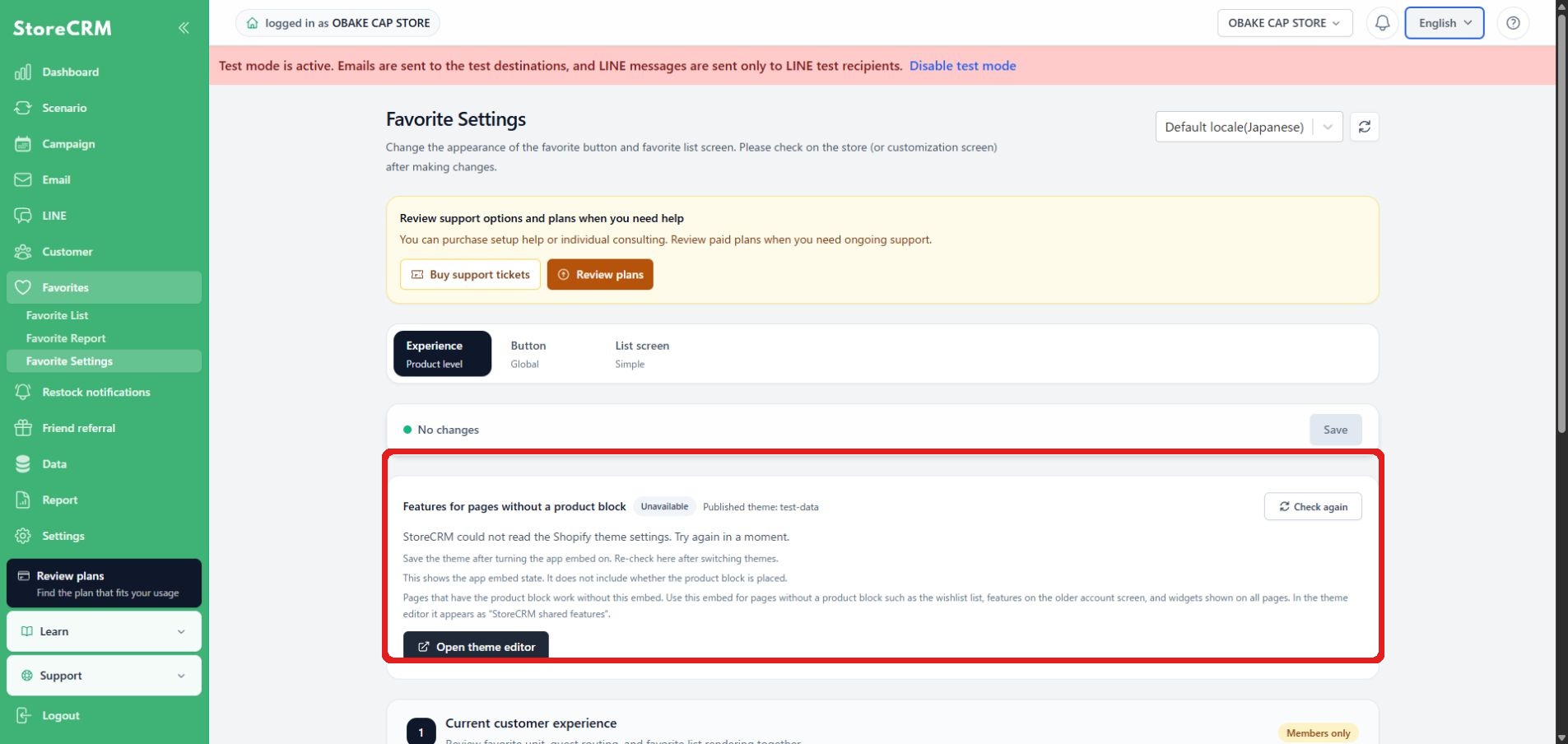
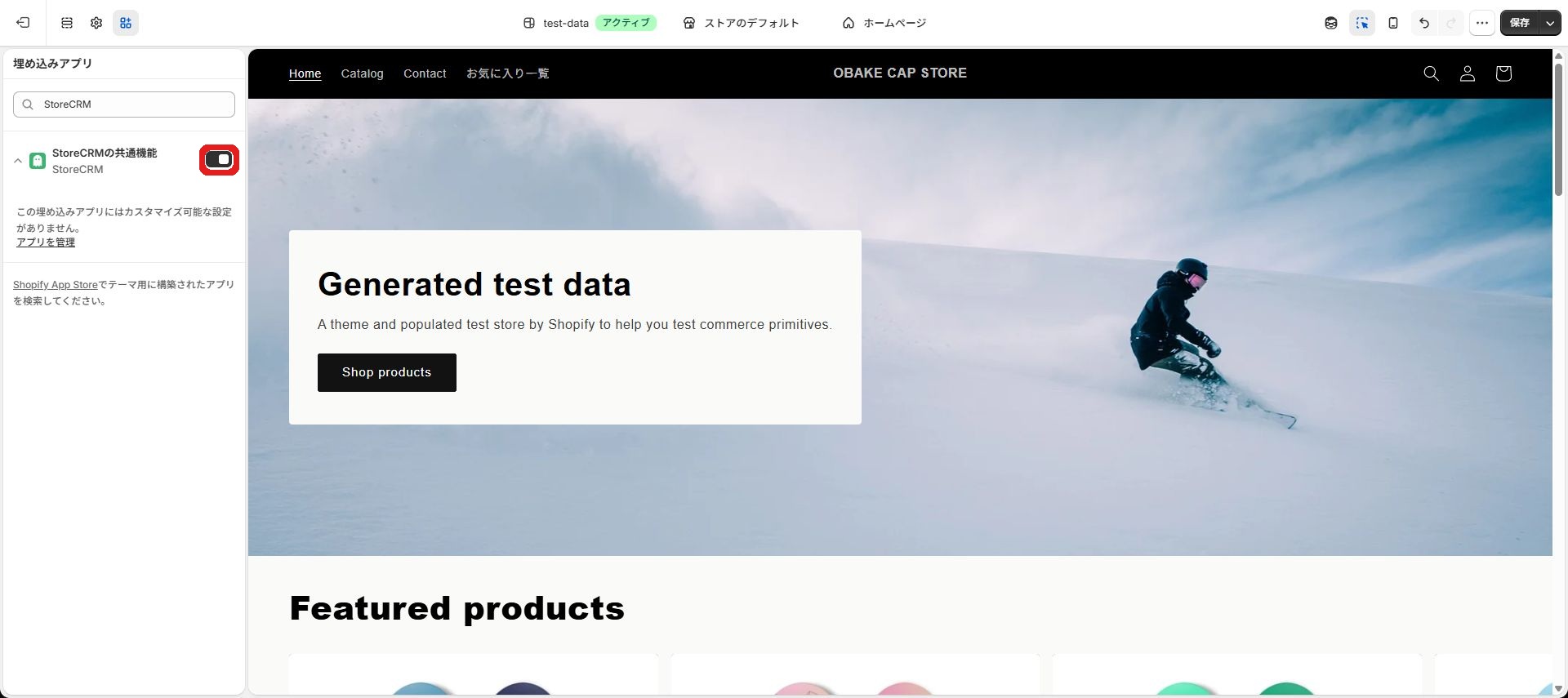
App Embed works even if it is off because the block itself reads common JavaScript.
App Embed [Common Features of StoreCRM] is necessary for a list of favoritess, pages with no product block, a traditional customer account, and all page common widgets. Check the state of the public theme on the StoreCRM settings screen, and select "Reconfirm" only if necessary.
Using Simple mode
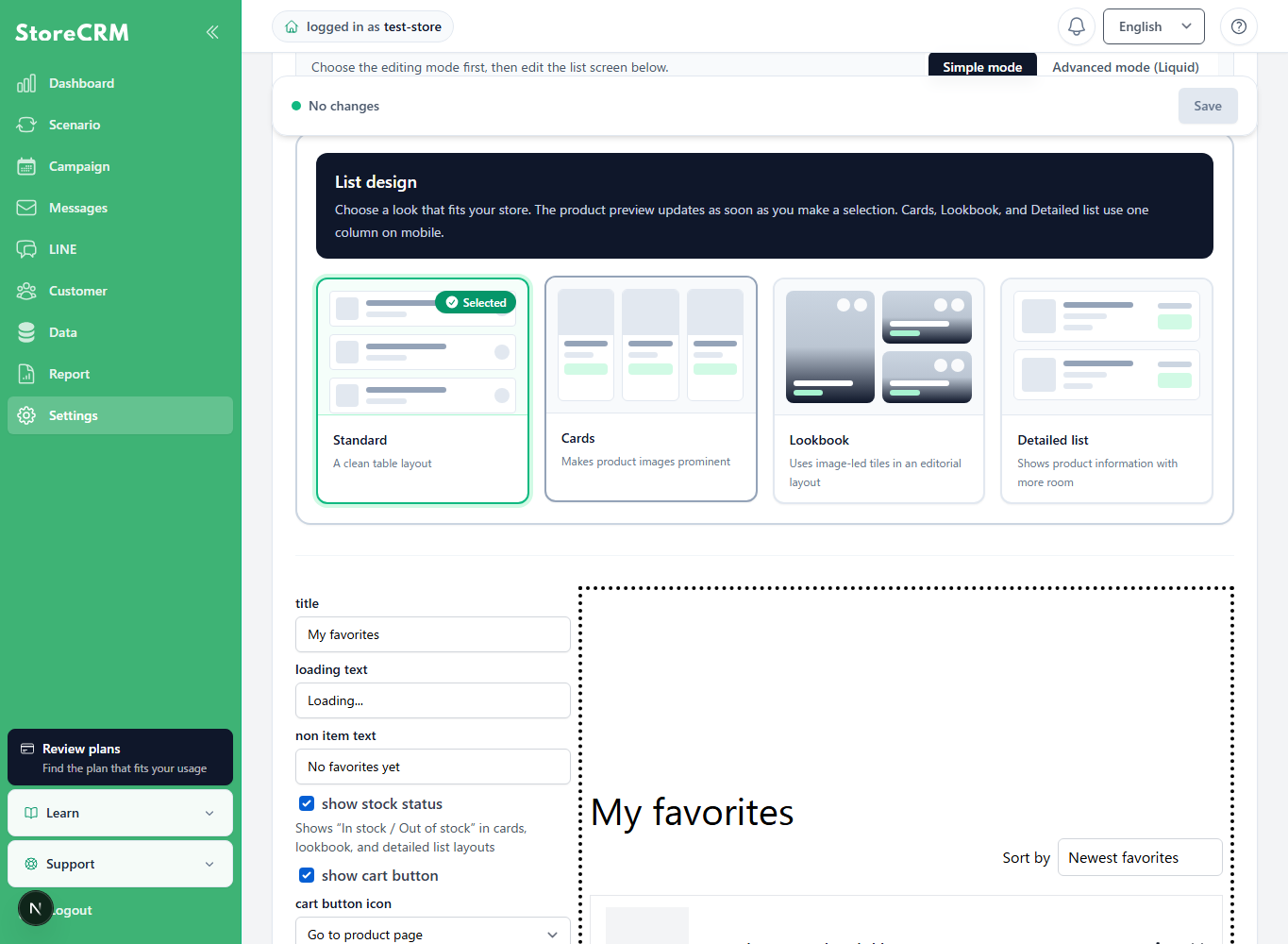
This page focuses on Advanced mode (Liquid). To adjust the list without editing code, use Simple mode on the [List screen] tab. Turn on [Standard display: show filtering and sorting] to provide sorting controls for both product-level and variant-level favorites.
A storefront preview appears on the right side of the settings screen. Check placement and wording before saving. Continue to Advanced mode below to edit Liquid or CSS.
Configure and save favorite-list Liquid
1. Open list settings
Where: Tabs in Favorite settings
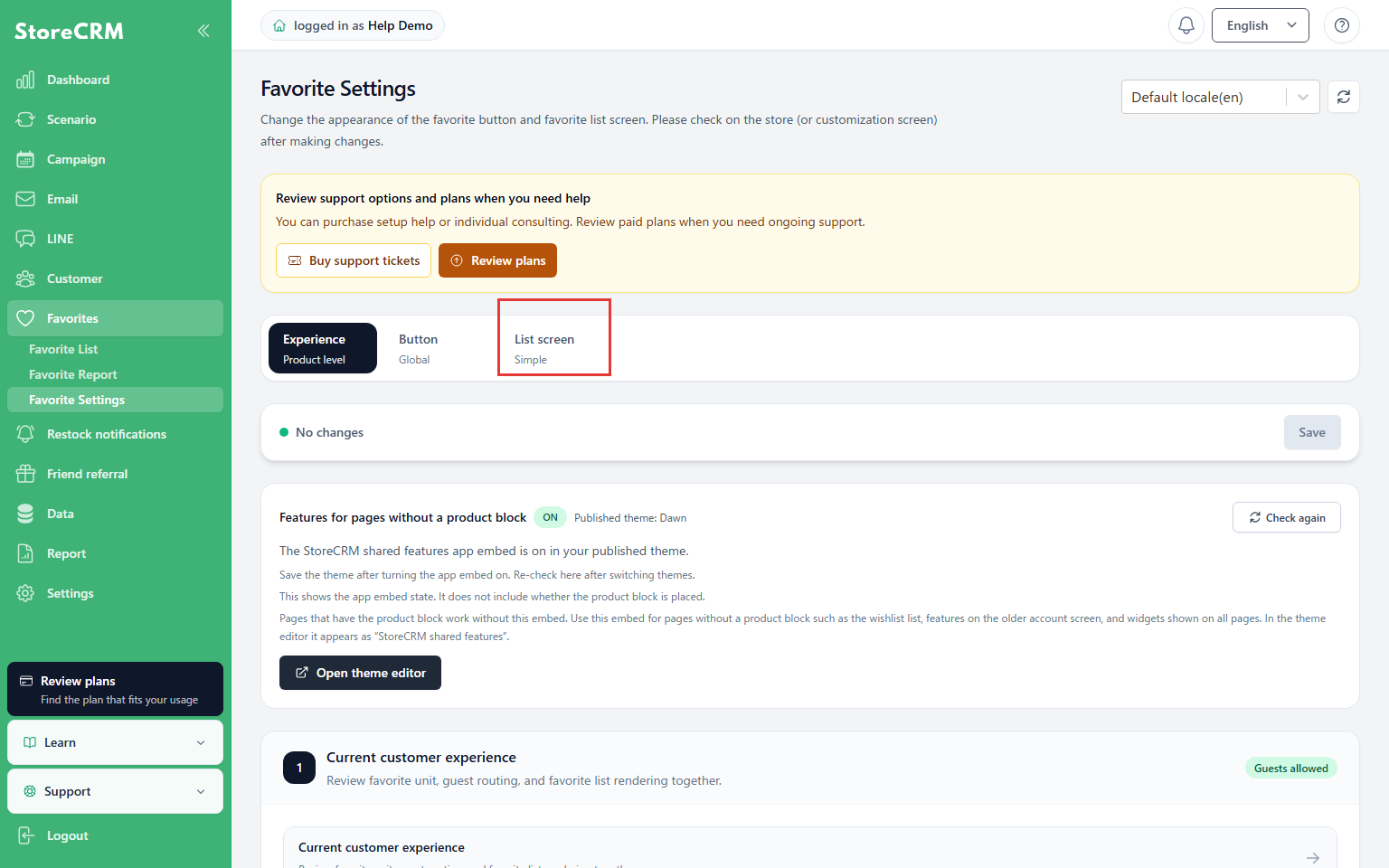
Select List page.
Check: The list display mode and settings appear.
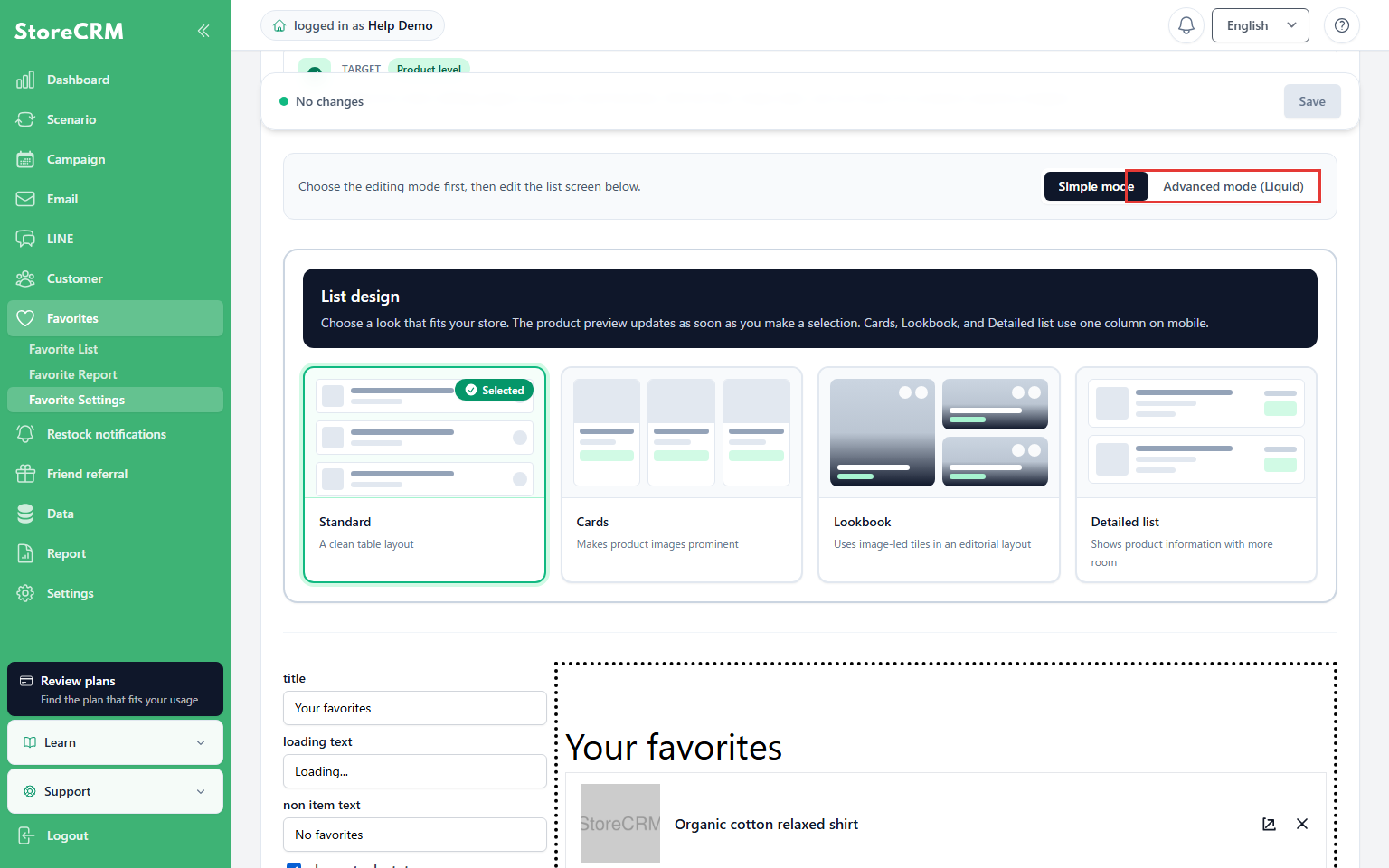
2. Choose advanced mode
Where: Display mode in list settings
Select Advanced mode (Liquid). Editing requires the store’s default language to be selected.
Check: Page, item, and CSS fields appear.
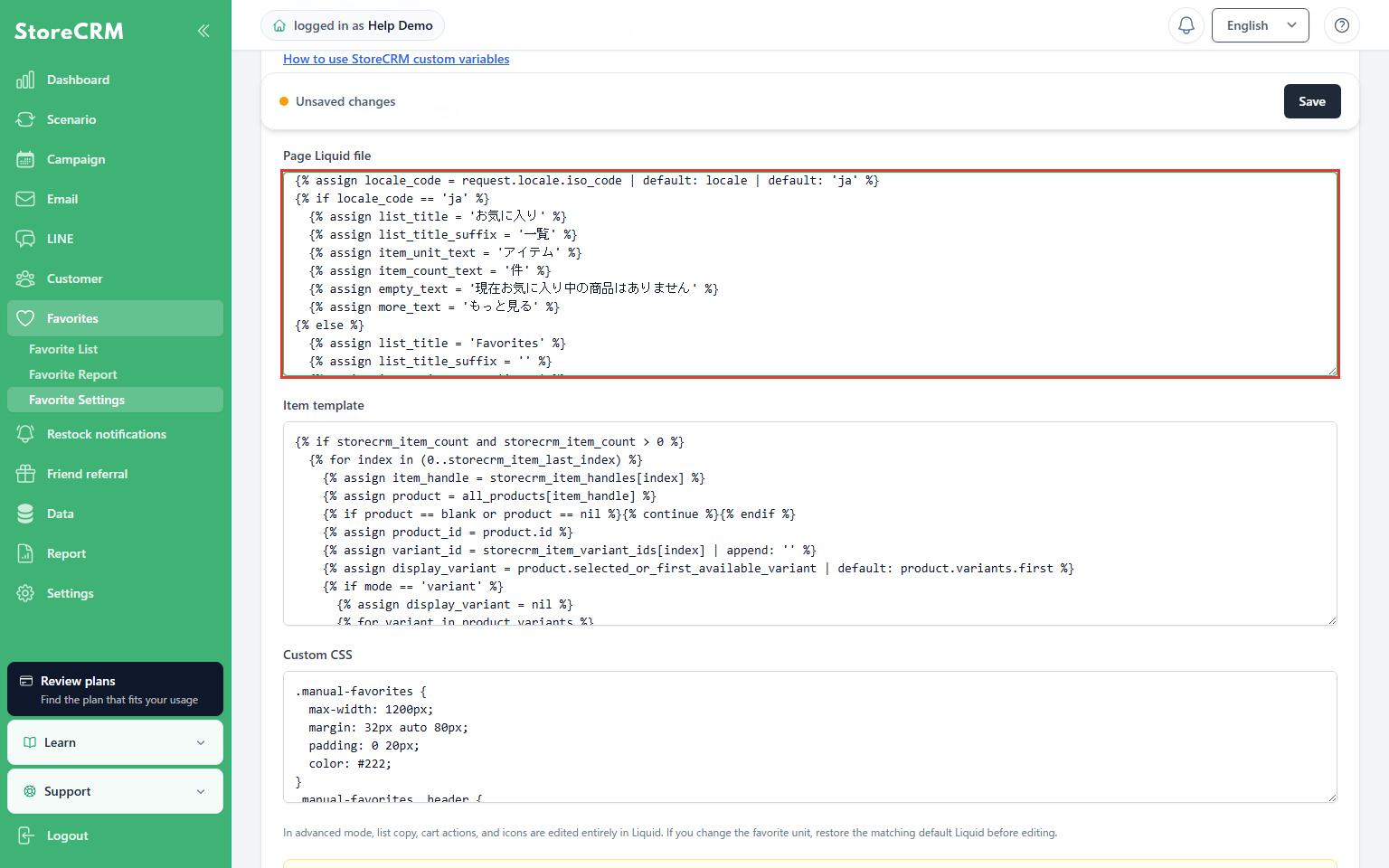
3. Enter the page Liquid
Where: Page Liquid file
Enter the common page code below. Keep the custom_css, favorite_items, and data-storecrm-items portions.
Check: The page heading and item insertion area are configured.
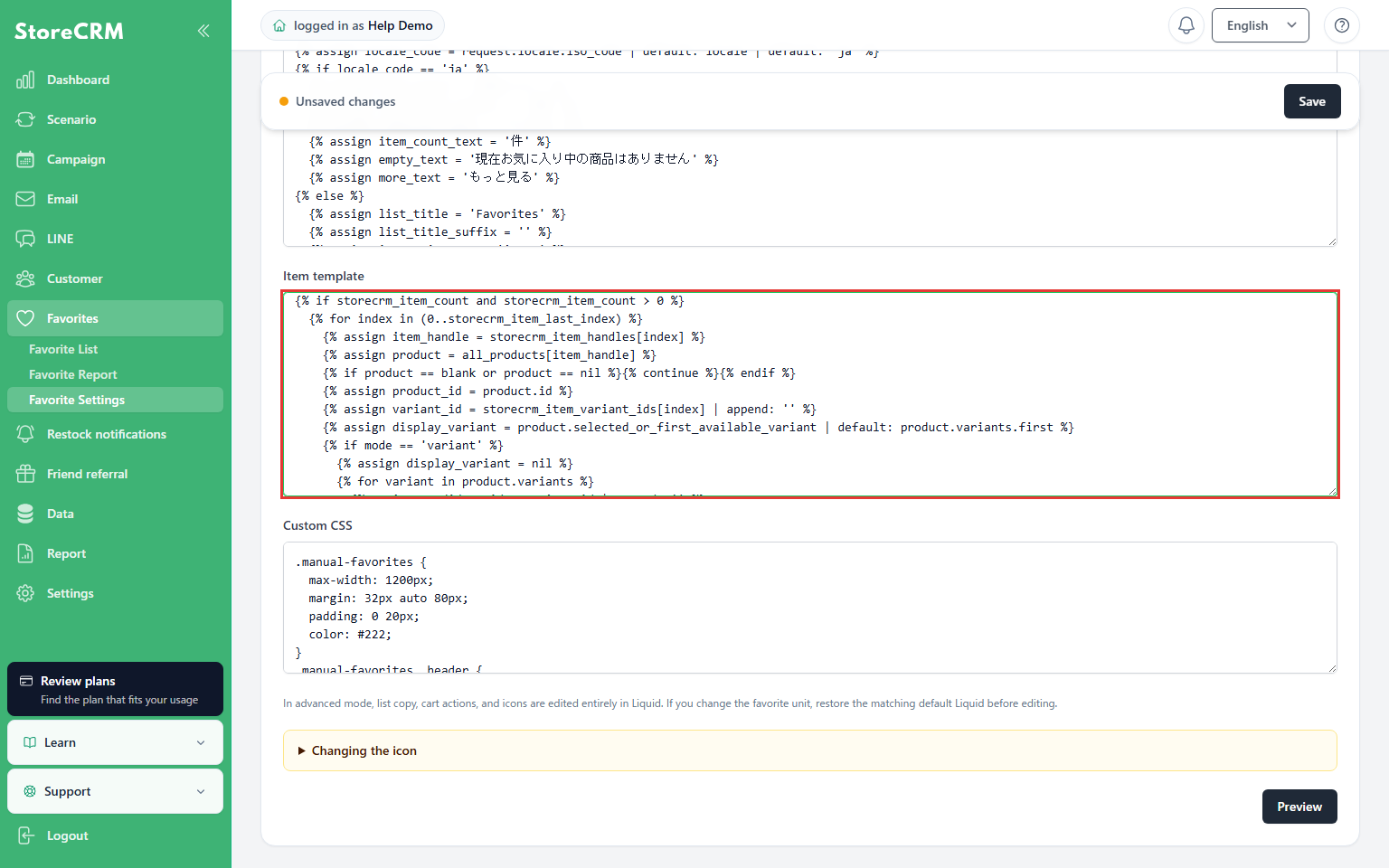
4. Enter the item Liquid
Where: Item template
Enter the common item code. The field corresponds to the selected favorite unit. Unresolved products or variants must be skipped rather than replaced with another variant.
Check: Product information and action buttons are configured.
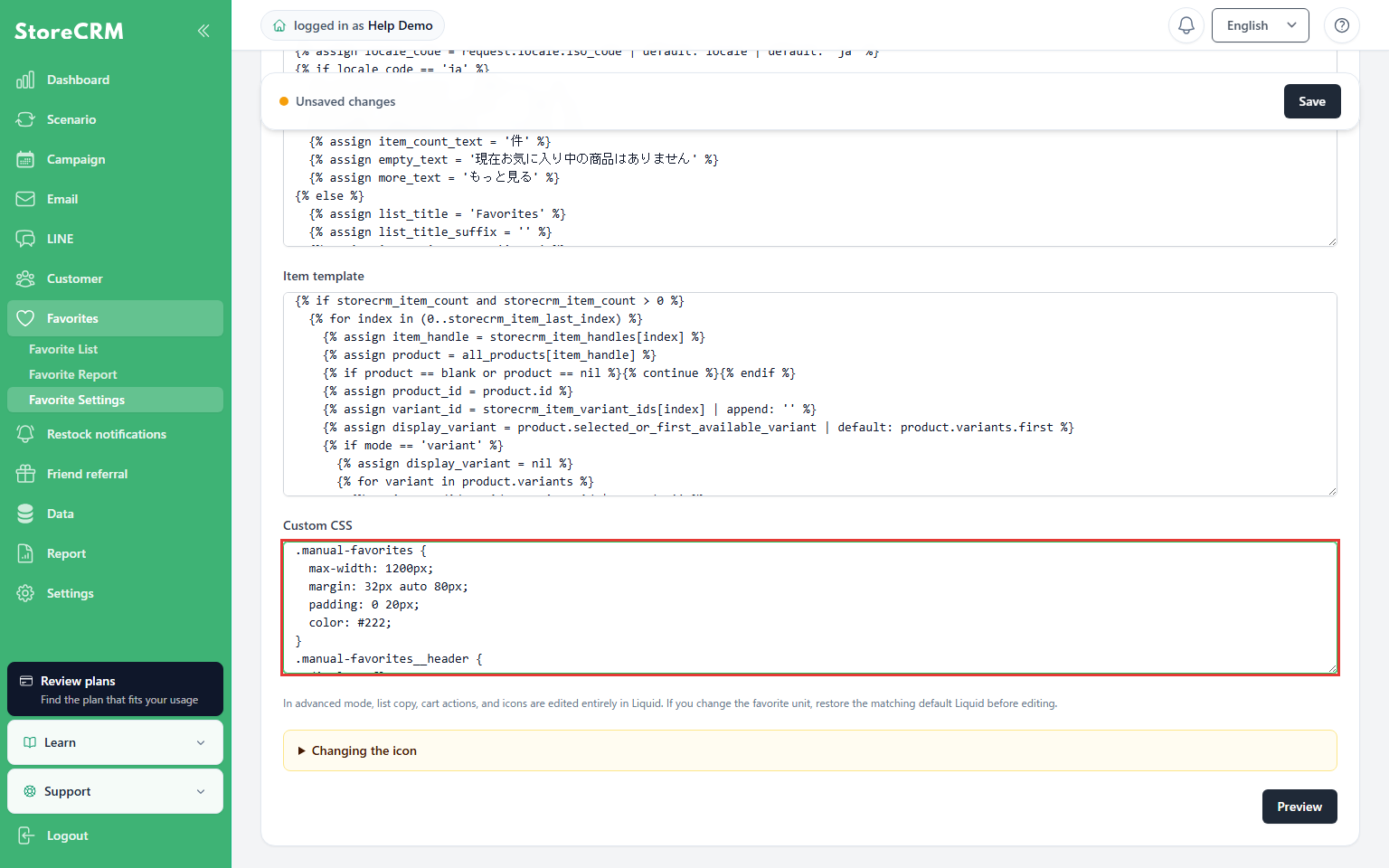
5. Enter the design CSS
Where: Custom CSS
Enter the CSS for your chosen example. Paste CSS only, without style tags.
Check: Colors, spacing, columns, and other visual properties are configured.
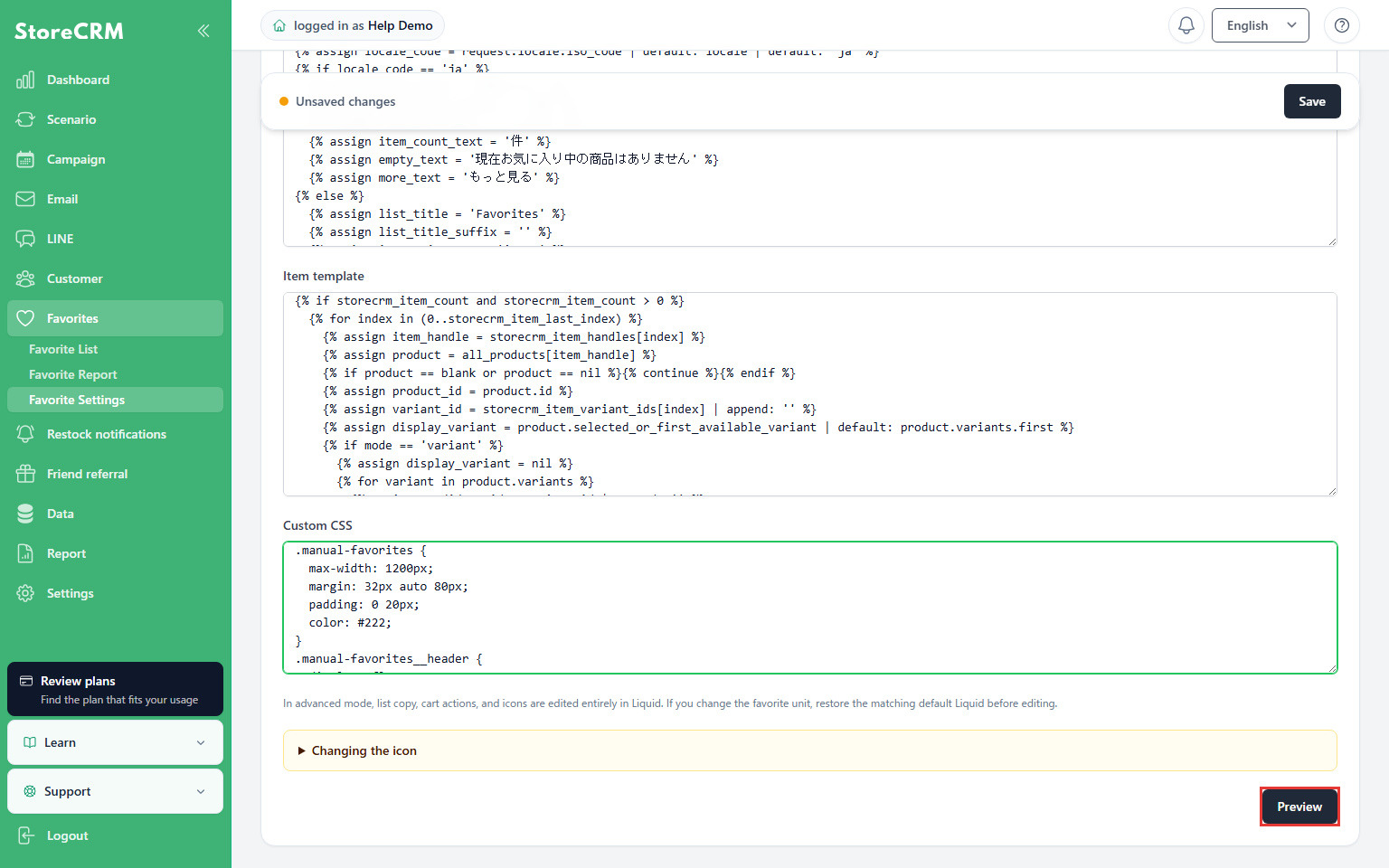
6. Open the preview
Where: Preview button in advanced mode
Click Preview.
Check: A sample list opens in a new tab.
7. Review the list appearance
Where: The opened preview
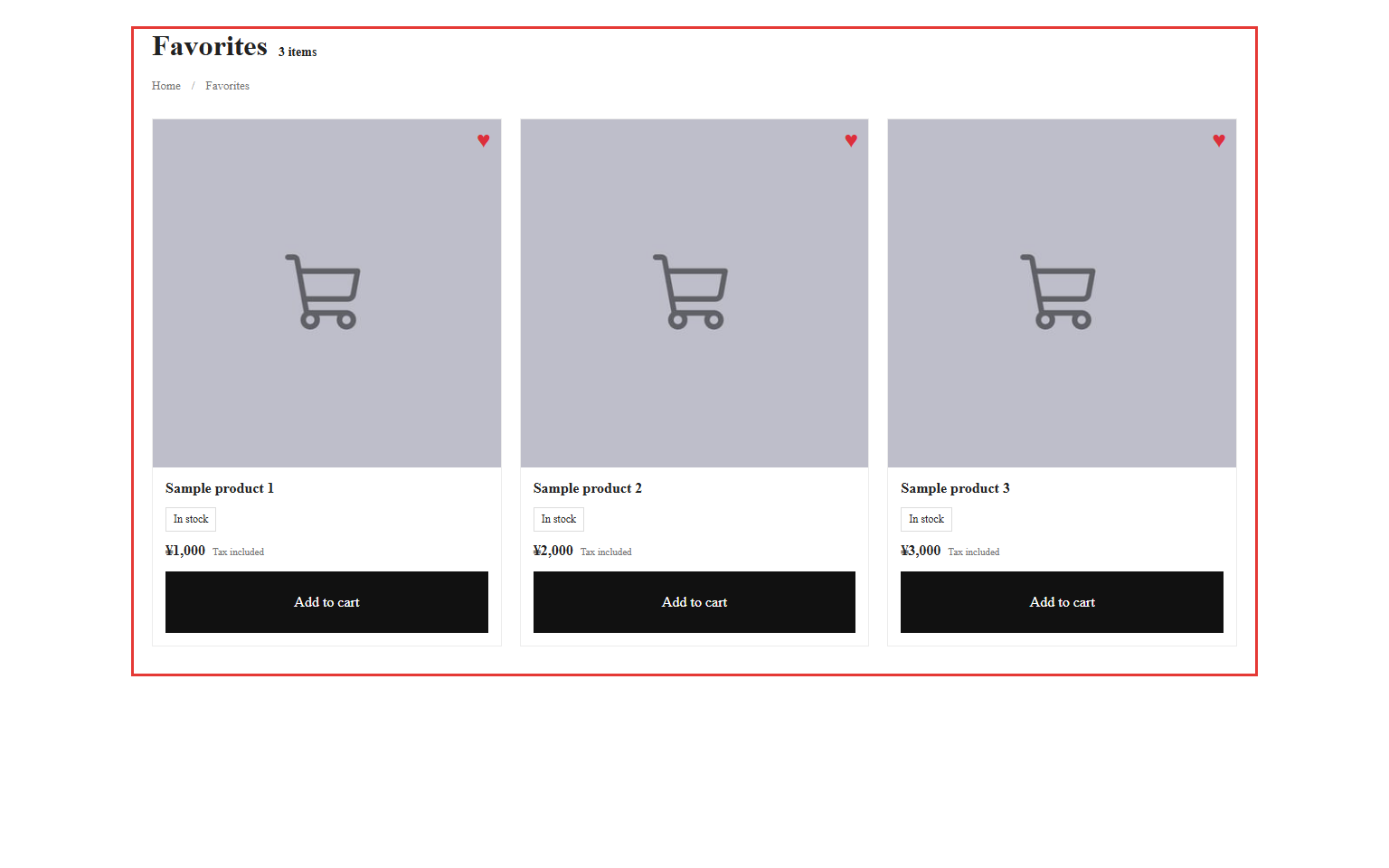
Review the heading, names, images, prices, availability, and button placement. This screenshot uses sample product data.
Check: You can review the chosen CSS and item structure. Products, variants, currency, and links still need to be checked on the live storefront.
8. Save the code
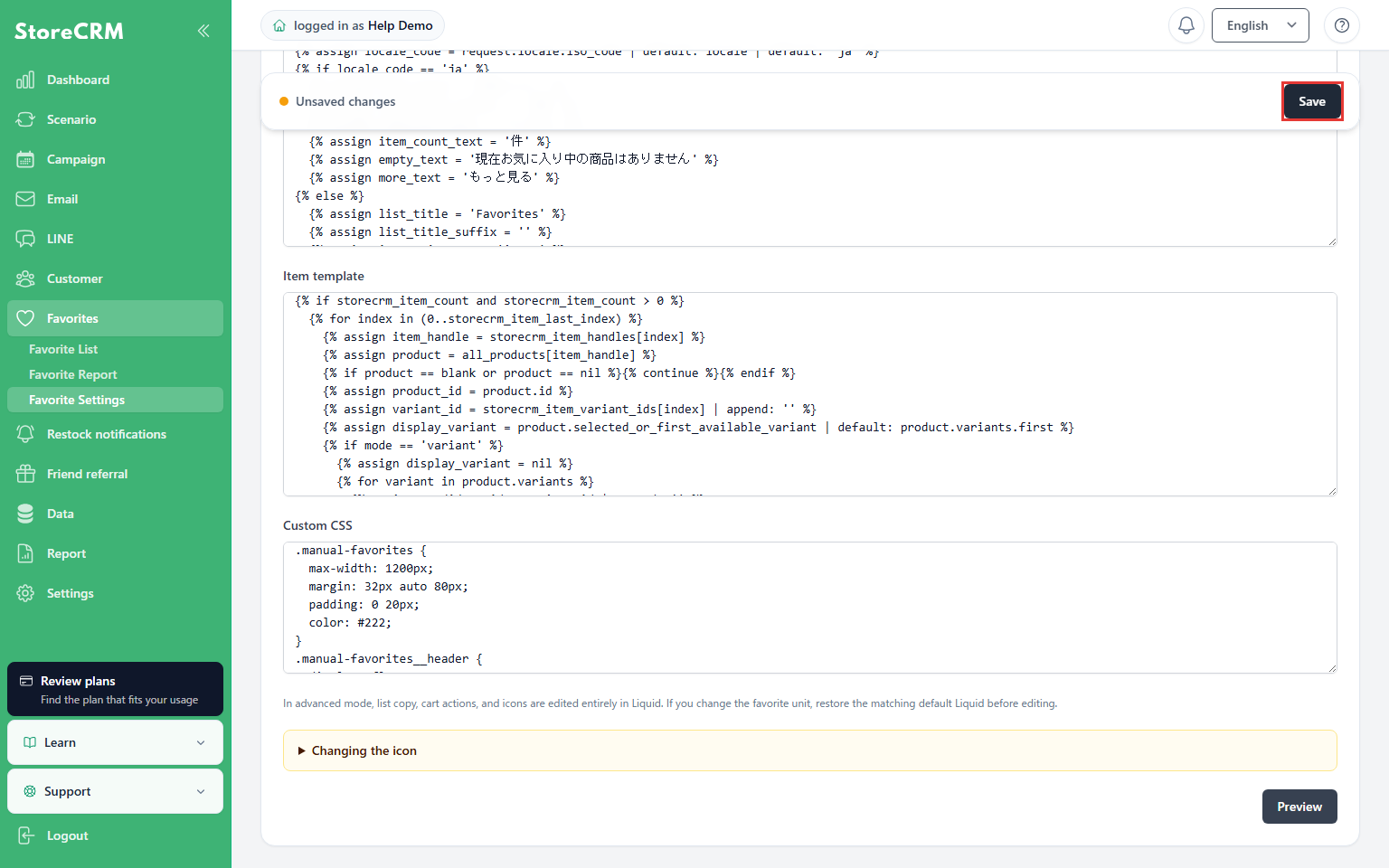
Where: Save bar at the top of settings
After reviewing the preview, return to settings and click Save.
Check: The Liquid, CSS, and display mode are saved.
9. Reopen the saved code
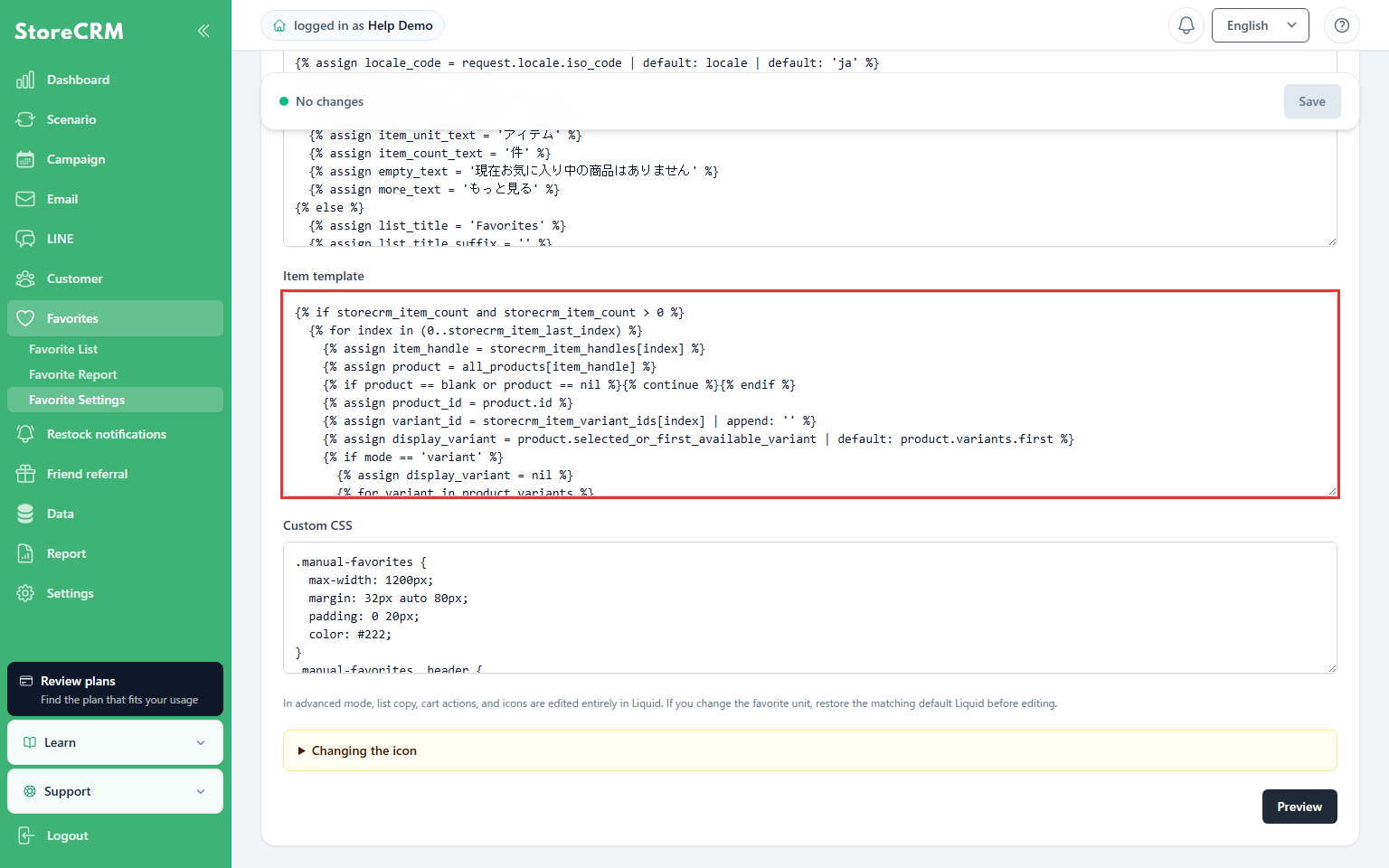
Where: Advanced mode in the reopened List page settings
Reopen settings, select List page, and confirm that the code remains in the fields.
Check: The saved content is retained.
Roles of the three input areas
The screen contains Page Liquid file, Item template, and Custom CSS input areas.
| Input area | Role | Main editable content |
|---|---|---|
| Page Liquid file | Defines the overall favorite list page. | Edit the heading, empty-state message, item insertion point, and Load more button. |
| Item template | Defines each item displayed in the list. | Edit the product image, name, stock status, add-to-cart button, and remove-from-favorites button. |
| Custom CSS | Controls the appearance of the page and items. | Edit colors, spacing, font sizes, columns, and mobile layout. |
Separate item templates are saved for product-level and variant-level favorites.
The screen shows only the template for the currently selected favorite unit.
For Product favorites edit the product template; for Variant favorites edit the variant template.
Page Liquid file
This template wraps the entire page.
StoreCRM uses the following three elements for rendering. Do not remove them.
{{ custom_css }}: insertion point for custom CSS{{ favorite_items }}: insertion point for rendered item templatesdata-storecrm-items: attribute used by StoreCRM to identify the item area
{{ favorite_items }}On the element containingdata-storecrm-itemsalso add
Item template
Reference the array provided by StoreCRM using the sameindexand render each item.
Item templates are not repeated automatically, so the template requires the following loop.
{% if storecrm_item_count and storecrm_item_count > 0 %}
  {% for index in (0..storecrm_item_last_index) %}
    {% assign item_handle = storecrm_item_handles[index] %}
    {% assign product = all_products[item_handle] %}
    {% if product == blank or product == nil %}{% continue %}{% endif %}
    {{ product.title | escape }}
  {% endfor %}
{% endif %}
Custom CSS
Style the page by targeting class names used in the Page Liquid file and item template.
<style>Enter CSS only without style tags.
Values passed from StoreCRM to Liquid
In advanced mode, use the product handles and variant IDs supplied by StoreCRM to resolve Shopify products and variants. Shopify Liquid objects are the source for display information.
Sources for product information
| Reference | Description |
|---|---|
product.title / product.url | The product title and URL for product-level display. |
product.featured_image | The product image. A placeholder can be used when no image is available. |
product.available | Product availability; evaluate it as the boolean true or false. |
variant.title / variant.url / variant.available | The target variant’s title, URL, and availability after resolving its ID. |
storecrm_item_handles[index] / storecrm_item_variant_ids[index] | The product handle and target variant ID used to resolve Shopify objects. |
Read the title, URL, image, availability, and price from the resolved Shopify product or target variant. Skip rows whose product cannot be resolved, and skip variant-mode rows whose requested variant ID cannot be found.
Use the sameindexto correctly combine values for the same item.
{% assign item_handle = storecrm_item_handles[index] %}
{% assign product = all_products[item_handle] %}
{% if product != blank and product != nil %}
  {% assign item_title = product.title %}
  {% assign item_url = product.url %}
  {% assign item_thumbnail = product.featured_image %}
  {% assign item_available = product.available %}
{% endif %}
Resolve the Shopify product object product with all_products[item_handle]. In variant mode, locate the variant whose ID matches the supplied ID.
storecrm_item_titlesremains in synchronized arrays for compatibility; do not use these values to substitute for a product whose Shopify object is unavailable.
If the requested variant is unavailable, do not display or add a different variant in its place.
Values for list control and actions
| Variable | Description | Main use |
|---|---|---|
storecrm_favorite_total_count | Total number of favorites | Determines whether there are no favorites. |
storecrm_item_count | Number of items loaded this time | Determines whether the current page has items. |
storecrm_item_handles[index] | Product handle | Passes the product to the add-to-cart operation. |
storecrm_item_variant_ids[index] | Variant ID | Used for adding to cart and removing variant-level favorites. |
storecrm_item_last_index | Last index of the array loaded this time | 0Loop from the starting index through this value. |
storecrm_has_next_page | Whether another page exists | Determines whether the Load more button appears. |
storecrm_next_cursor | Cursor for retrieving the next page | Set this on the Load more button without modifying the value. |
mode | Favorite unit | productorvariantis determined. |
Display more than 20 favorites
Advanced mode can load more than 20 favorites while using Shopify product data.
StoreCRM retrieves up to 20 items at a time and appends them to the same list.
Only the first page loads initially. Each click on Load more appends one additional page. Preview data is limited to 100 items, but all 100 do not load automatically. If loading fails, existing items remain visible and the same button allows retrying.
{% if storecrm_has_next_page and storecrm_next_cursor != blank %}
  <button
    type="button"
    class="manual-favorites__more storecrm_customlist_load_more"
    data-storecrm-next-cursor="{{ storecrm_next_cursor }}"
    style="display:none;"
  >
    Load more
  </button>
{% endif %}storecrm_next_cursoridentifies the next data set. Do not split or transform it.
The legacy single-template format is limited to 20 items.
If using the legacy format, migrate to the current separate Page Liquid file, Item template, and Custom CSS format.
How to modify the default code
The default Advanced mode code works as a favorite list without modification.
You do not need to understand all of the code. Edit the relevant input area for the desired change.
- To change text, edit headings and button labels in the Page Liquid file or Item template.
- To change colors, spacing, or columns, edit Custom CSS.
- To reposition product images or names, edit the item template HTML.
Required parts of the Page Liquid file
StoreCRM uses the following three elements to display favorites.
{{ custom_css }}: loads the content entered in Custom CSS.{{ favorite_items }}: displays favorite products.data-storecrm-items: tells StoreCRM where to display products.
{{ favorite_items }}must bedata-storecrm-itemsplaced inside the element with the required attribute. Do not move these two parts separately.
The Load more section loads favorites after the first 20. Keep it to display more than 20 items.
Required parts of the item template
The default code uses supplied handles and IDs to resolve Shopify products and display their data. You can rearrange the HTML around product images and titles or add classes.
the add-to-cart button'sdata-cart-Keep attributes beginning with the required prefix and the remove button'sdata-product-id, ,data-variant-id. Removing them prevents buttons from identifying the target product.
Product-level and variant-level templates are saved separately. Review both when using both favorite units.
What you can change with custom CSS
Custom CSS controls columns, image size, text color, spacing, and mobile layout. Edit only CSS when product information and button behavior should remain unchanged.
Three favorite list design examples
For the three examples below, first use the shared Page Liquid and item template, then switch Custom CSS for each example.
These examples read titles, URLs, images, availability, prices, and product types from Shopify objects. Unresolved rows are skipped rather than replaced with synchronized values.
Store name, menu, currency, and search shown above each example come from the Shopify theme and are not included in the code.
Page Liquid shared by all three examples
Paste the following code into Page Liquid file.
{% assign locale_code = request.locale.iso_code | default: locale | default: 'ja' %}
{% if locale_code == 'ja' %}
  {% assign list_title = 'お気に入り' %}
  {% assign list_title_suffix = '一覧' %}
  {% assign item_unit_text = 'アイテム' %}
  {% assign item_count_text = '件' %}
  {% assign empty_text = '現在お気に入り中の商品はありません' %}
  {% assign more_text = 'もっと見る' %}
{% else %}
  {% assign list_title = 'Favorites' %}
  {% assign list_title_suffix = '' %}
  {% assign item_unit_text = 'items' %}
  {% assign item_count_text = 'items' %}
  {% assign empty_text = 'There are currently no favorite items.' %}
  {% assign more_text = 'Load more' %}
{% endif %}

{{ custom_css }}

<section class="manual-favorites storecrm_favoritelist storecrm_customlist" data-storecrm-render-mode="advanced">
  <header class="manual-favorites__header">
    <h1 class="manual-favorites__title">
      {{ list_title }}<span class="manual-favorites__title-suffix">{{ list_title_suffix }}</span>
    </h1>
    <p class="manual-favorites__count">
      <span>{{ storecrm_favorite_total_count }}</span>
      <span class="manual-favorites__unit manual-favorites__unit--items">{{ item_unit_text }}</span>
      <span class="manual-favorites__unit manual-favorites__unit--count">{{ item_count_text }}</span>
    </p>
  </header>

  <nav class="manual-favorites__breadcrumb" aria-label="Breadcrumb">
    <a href="/">Home</a>
    <span aria-hidden="true">/</span>
    <span>{{ list_title }}</span>
  </nav>

  {% if storecrm_favorite_total_count == 0 %}
    <p class="manual-favorites__empty">{{ empty_text }}</p>
  {% endif %}

  <div class="manual-favorites__items" data-storecrm-items>
    {{ favorite_items }}
  </div>

  {% if storecrm_has_next_page and storecrm_next_cursor != blank %}
    <button
      type="button"
      class="manual-favorites__more storecrm_customlist_load_more"
      data-storecrm-next-cursor="{{ storecrm_next_cursor }}"
      style="display:none;"
    >
      {{ more_text }}
    </button>
  {% endif %}
</section>
Item template shared by all three examples
Next paste the following code into Item template.
This code checksmodeto determine the favorite unit and works for both product-level and variant-level templates.
{% if storecrm_item_count and storecrm_item_count > 0 %}
  {% for index in (0..storecrm_item_last_index) %}
    {% assign item_handle = storecrm_item_handles[index] %}
    {% assign product = all_products[item_handle] %}
    {% if product == blank or product == nil %}{% continue %}{% endif %}
    {% assign product_id = product.id %}
    {% assign variant_id = storecrm_item_variant_ids[index] | append: '' %}
    {% assign display_variant = product.selected_or_first_available_variant | default: product.variants.first %}
    {% if mode == 'variant' %}
      {% assign display_variant = nil %}
      {% for variant in product.variants %}
        {% assign candidate_id = variant.id | append: '' %}
        {% if candidate_id == variant_id %}
          {% assign display_variant = variant %}
          {% break %}
        {% endif %}
      {% endfor %}
      {% if display_variant == blank or display_variant == nil %}{% continue %}{% endif %}
    {% endif %}
    {% assign item_title = product.title %}
    {% assign item_url = product.url %}
    {% assign item_available = product.available %}
    {% assign item_image = product.featured_image %}
    {% if mode == 'variant' %}
      {% assign item_title = product.title | append: ' / ' | append: display_variant.title %}
      {% assign item_url = display_variant.url %}
      {% assign item_available = display_variant.available %}
      {% assign item_image = display_variant.featured_image | default: product.featured_image %}
    {% endif %}
    {% assign item_thumbnail = '' %}
    {% if item_image %}{% assign item_thumbnail = item_image | img_url: '400x400' %}{% endif %}
    {% assign item_category = product.type | default: product.vendor %}
    {% assign cart_variant_id = display_variant.id %}
    {% assign row_id = product_id %}
    {% if mode == 'variant' and variant_id != blank %}
      {% assign row_id = variant_id %}
    {% endif %}

    <article class="manual-favorite-item storecrm_customlist_id-{{ row_id }}">
      <a class="manual-favorite-item__image" href="{{ item_url | escape }}">
        {% if item_thumbnail != blank %}
          <img src="{{ item_thumbnail }}" alt="{{ item_title | escape }}" loading="lazy" decoding="async">
        {% endif %}
      </a>

      <div class="manual-favorite-item__body">
        {% if item_category != blank %}
          <p class="manual-favorite-item__category">{{ item_category | escape }}</p>
        {% endif %}

        <h2 class="manual-favorite-item__name">
          <a href="{{ item_url | escape }}">{{ item_title | escape }}</a>
        </h2>

        {% if item_available %}
          <p class="manual-favorite-item__status is-available">In stock</p>
        {% else %}
          <p class="manual-favorite-item__status is-unavailable">Out of stock</p>
        {% endif %}

        {% if display_variant != blank and display_variant != nil %}
          <p class="manual-favorite-item__price">
            <span class="manual-favorite-item__price-current">{{ display_variant.price | money }}</span>
            <span class="manual-favorite-item__price-tax">Tax included</span>
            {% if display_variant.compare_at_price and display_variant.compare_at_price > display_variant.price %}
              <span class="manual-favorite-item__price-before">{{ display_variant.compare_at_price | money }}</span>
            {% endif %}
          </p>
        {% endif %}

        <div class="manual-favorite-item__actions">
          {% if item_available and cart_variant_id != blank %}
            <a
              class="manual-favorite-item__cart"
              href="{{ item_url | escape }}"
              data-cart-variant-id="{{ cart_variant_id }}"
              data-cart-product-id="{{ product_id }}"
              data-cart-product-handle="{{ item_handle }}"
            >
              Add to cart
            </a>
          {% endif %}

          <a class="manual-favorite-item__view" href="{{ item_url | escape }}">View product</a>

          <a
            class="manual-favorite-item__remove"
            href="{{ item_url | escape }}"
            data-product-id="{{ product_id }}"
            {% if mode == 'variant' and variant_id != blank %}
              data-variant-id="{{ variant_id }}"
            {% endif %}
          >
            <span class="manual-favorite-item__heart" aria-hidden="true">♥</span>
            <span class="manual-favorite-item__remove-label">Remove favorite</span>
          </a>
        </div>
      </div>
    </article>
  {% endfor %}
{% endif %}
Simple card layout
Displays products as three-column cards with image, name, price, stock status, and cart button.
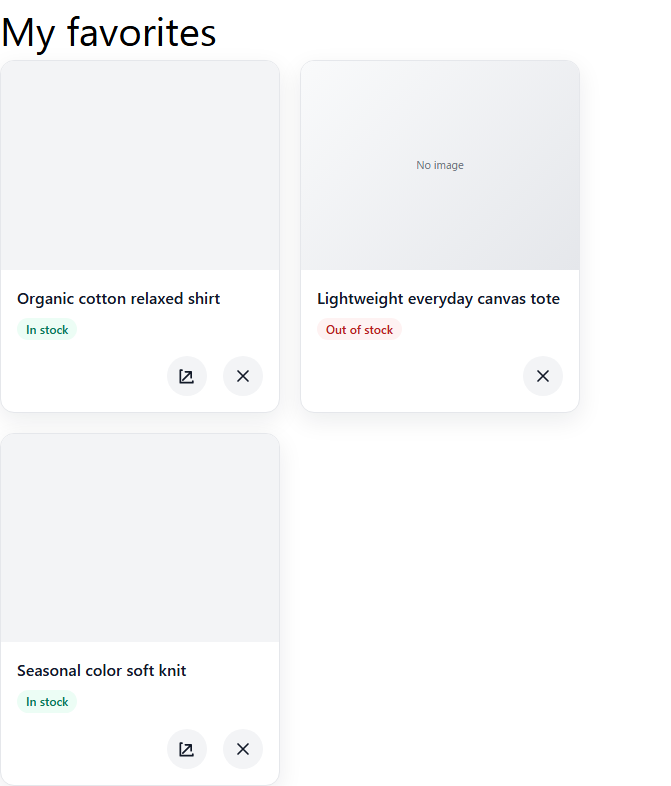
Paste the following code into Custom CSS.
.manual-favorites {
  max-width: 1200px;
  margin: 32px auto 80px;
  padding: 0 20px;
  color: #222;
}
.manual-favorites__header {
  display: flex;
  align-items: flex-end;
  gap: 12px;
  margin-bottom: 18px;
}
.manual-favorites__title {
  margin: 0;
  font-size: 32px;
}
.manual-favorites__title-suffix {
  display: none;
}
.manual-favorites__count {
  margin: 0 0 3px;
  font-size: 14px;
  font-weight: 700;
}
.manual-favorites__unit--count {
  display: none;
}
.manual-favorites__breadcrumb {
  display: flex;
  gap: 12px;
  margin-bottom: 28px;
  color: #777;
  font-size: 13px;
}
.manual-favorites__breadcrumb a {
  color: inherit;
  text-decoration: none;
}
.manual-favorites__items {
  display: grid;
  grid-template-columns: repeat(3, minmax(0, 1fr));
  gap: 24px 20px;
}
.manual-favorite-item {
  position: relative;
  border: 1px solid #ececec;
  background: #fff;
}
.manual-favorite-item__image {
  display: block;
  aspect-ratio: 1 / 1;
  overflow: hidden;
  background: #f6f6f6;
}
.manual-favorite-item__image img {
  width: 100%;
  height: 100%;
  object-fit: cover;
}
.manual-favorite-item__body {
  padding: 14px;
}
.manual-favorite-item__category {
  display: none;
}
.manual-favorite-item__name {
  margin: 0 0 12px;
  font-size: 16px;
}
.manual-favorite-item__name a {
  color: inherit;
  text-decoration: none;
}
.manual-favorite-item__status {
  display: inline-flex;
  margin: 0 0 12px;
  padding: 5px 8px;
  border: 1px solid #ddd;
  font-size: 12px;
}
.manual-favorite-item__status.is-unavailable {
  border-color: #e9b4b4;
  color: #b00020;
  background: #fff7f7;
}
.manual-favorite-item__price {
  display: flex;
  align-items: baseline;
  gap: 8px;
  margin: 0 0 14px;
}
.manual-favorite-item__price-current {
  font-size: 16px;
  font-weight: 700;
}
.manual-favorite-item__price-tax,
.manual-favorite-item__price-before {
  color: #777;
  font-size: 11px;
}
.manual-favorite-item__price-before {
  text-decoration: line-through;
}
.manual-favorite-item__actions {
  display: grid;
  gap: 10px;
}
.manual-favorite-item__cart {
  display: inline-flex;
  justify-content: center;
  align-items: center;
  min-height: 46px;
  padding: 10px 14px;
  border: 1px solid #111;
  color: #fff;
  background: #111;
  text-decoration: none;
}
.manual-favorite-item__view {
  display: none;
}
.manual-favorite-item__remove {
  position: absolute;
  top: 12px;
  right: 12px;
  color: #dc2f3b;
  text-decoration: none;
}
.manual-favorite-item__heart {
  font-size: 24px;
  line-height: 1;
}
.manual-favorite-item__remove-label {
  position: absolute;
  width: 1px;
  height: 1px;
  overflow: hidden;
  clip: rect(0 0 0 0);
}
.manual-favorites__more {
  display: flex;
  justify-content: center;
  min-width: 180px;
  margin: 32px auto 0;
  padding: 12px 20px;
}
@media (max-width: 749px) {
  .manual-favorites__items {
    grid-template-columns: repeat(2, minmax(0, 1fr));
    gap: 18px 10px;
  }
  .manual-favorite-item__body {
    padding: 10px;
  }
}
Simple list layout
Uses a smaller image with name, price, and action buttons in one row.
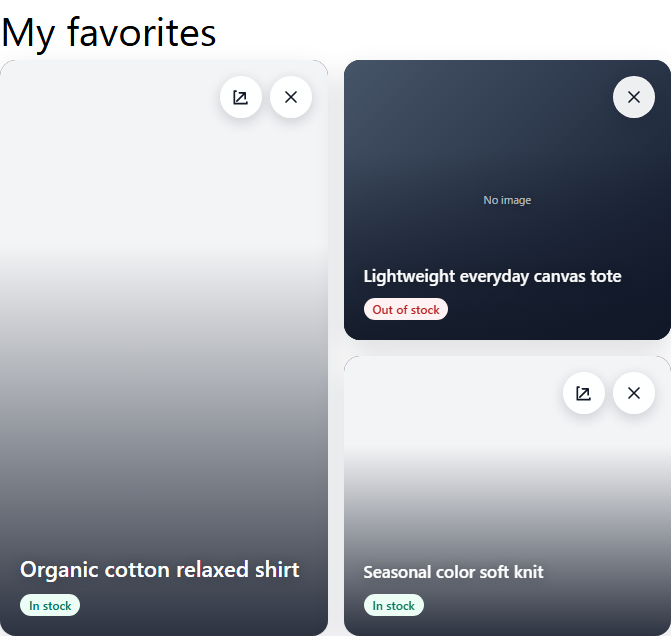
Paste the following code into Custom CSS.
.manual-favorites {
  max-width: 900px;
  margin: 32px auto 80px;
  padding: 0 20px;
  color: #222;
}
.manual-favorites__header {
  display: flex;
  align-items: flex-end;
  gap: 12px;
  margin-bottom: 18px;
}
.manual-favorites__title {
  margin: 0;
  font-size: 32px;
}
.manual-favorites__title-suffix {
  display: none;
}
.manual-favorites__count {
  margin: 0 0 3px;
  font-size: 14px;
  font-weight: 700;
}
.manual-favorites__unit--count {
  display: none;
}
.manual-favorites__breadcrumb {
  display: flex;
  gap: 12px;
  margin-bottom: 26px;
  color: #777;
  font-size: 13px;
}
.manual-favorites__breadcrumb a {
  color: inherit;
  text-decoration: none;
}
.manual-favorites__items {
  border-top: 1px solid #ddd;
}
.manual-favorite-item {
  position: relative;
  display: grid;
  grid-template-columns: 110px minmax(0, 1fr);
  gap: 24px;
  min-height: 165px;
  padding: 14px 0;
  border-bottom: 1px solid #ddd;
}
.manual-favorite-item__image {
  display: block;
  align-self: center;
  aspect-ratio: 1 / 1;
  overflow: hidden;
  background: #f5f5f5;
}
.manual-favorite-item__image img {
  width: 100%;
  height: 100%;
  object-fit: cover;
}
.manual-favorite-item__body {
  display: grid;
  grid-template-columns: minmax(0, 1fr) 150px;
  grid-template-rows: 1fr auto;
  column-gap: 24px;
}
.manual-favorite-item__category,
.manual-favorite-item__status {
  display: none;
}
.manual-favorite-item__name {
  grid-column: 1;
  grid-row: 1;
  margin: 0 0 8px;
  font-size: 15px;
}
.manual-favorite-item__name a {
  color: inherit;
  text-decoration: none;
}
.manual-favorite-item__price {
  grid-column: 1;
  grid-row: 2;
  display: flex;
  align-items: baseline;
  gap: 8px;
  margin: 0;
}
.manual-favorite-item__price-current {
  font-size: 15px;
  font-weight: 700;
}
.manual-favorite-item__price-tax,
.manual-favorite-item__price-before {
  color: #777;
  font-size: 11px;
}
.manual-favorite-item__price-before {
  text-decoration: line-through;
}
.manual-favorite-item__actions {
  grid-column: 2;
  grid-row: 1 / 3;
  align-self: end;
  display: flex;
  align-items: center;
  justify-content: flex-end;
}
.manual-favorite-item__cart {
  display: inline-flex;
  align-items: center;
  justify-content: center;
  min-height: 46px;
  padding: 10px 14px;
  border: 1px solid #111;
  color: #fff;
  background: #111;
  text-decoration: none;
}
.manual-favorite-item__view {
  display: none;
}
.manual-favorite-item__remove {
  position: absolute;
  top: 14px;
  right: 8px;
  color: #dc2f3b;
  text-decoration: none;
}
.manual-favorite-item__heart {
  font-size: 24px;
  line-height: 1;
}
.manual-favorite-item__remove-label {
  position: absolute;
  width: 1px;
  height: 1px;
  overflow: hidden;
  clip: rect(0 0 0 0);
}
.manual-favorites__more {
  display: flex;
  justify-content: center;
  min-width: 180px;
  margin: 32px auto 0;
  padding: 12px 20px;
}
@media (max-width: 749px) {
  .manual-favorite-item {
    grid-template-columns: 88px minmax(0, 1fr);
    gap: 12px;
  }
  .manual-favorite-item__image {
    grid-column: 1;
    grid-row: 1 / 3;
  }
  .manual-favorite-item__body {
    display: contents;
  }
  .manual-favorite-item__name {
    grid-column: 2;
    grid-row: 1;
  }
  .manual-favorite-item__price {
    grid-column: 2;
    grid-row: 2;
  }
  .manual-favorite-item__actions {
    grid-column: 1 / -1;
    grid-row: 3;
    justify-content: stretch;
    margin-top: 12px;
  }
  .manual-favorite-item__cart {
    width: 100%;
  }
}
Favorite list for a typical Japanese ecommerce site
Places product information in a bordered box with stock status, price, and three action buttons.
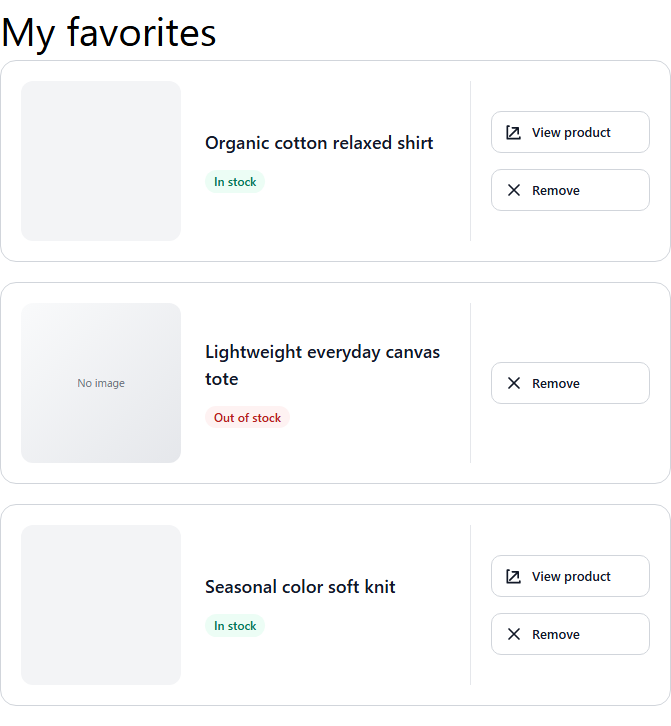
Remove all in the image was provided by legacy code.
Current Advanced mode does not support bulk removal, so it is not included below.
Paste the following code into Custom CSS.
.manual-favorites {
  max-width: 920px;
  margin: 32px auto 80px;
  padding: 0 20px;
  color: #2f2f2f;
}
.manual-favorites__header {
  display: flex;
  align-items: baseline;
  gap: 12px;
  margin-bottom: 14px;
  padding-bottom: 14px;
  border-bottom: 1px solid #ddd;
}
.manual-favorites__title {
  margin: 0;
  font-size: 24px;
}
.manual-favorites__count {
  margin: 0;
  font-size: 13px;
  font-weight: 700;
}
.manual-favorites__unit--items,
.manual-favorites__breadcrumb {
  display: none;
}
.manual-favorites__items {
  display: grid;
  gap: 12px;
}
.manual-favorite-item {
  display: grid;
  grid-template-columns: 120px minmax(0, 1fr);
  gap: 16px;
  padding: 14px;
  border: 1px solid #ddd;
  background: #fff;
}
.manual-favorite-item__image {
  display: block;
  align-self: center;
  aspect-ratio: 1 / 1;
  overflow: hidden;
  background: #f6f6f6;
}
.manual-favorite-item__image img {
  width: 100%;
  height: 100%;
  object-fit: cover;
}
.manual-favorite-item__body {
  display: grid;
  grid-template-columns: minmax(0, 1fr) 210px;
  grid-template-rows: repeat(4, auto);
  column-gap: 16px;
  align-content: center;
}
.manual-favorite-item__category {
  grid-column: 1;
  grid-row: 1;
  margin: 0 0 6px;
  color: #777;
  font-size: 12px;
  text-transform: uppercase;
}
.manual-favorite-item__name {
  grid-column: 1;
  grid-row: 2;
  margin: 0 0 8px;
  font-size: 16px;
  line-height: 1.6;
}
.manual-favorite-item__name a {
  color: inherit;
  text-decoration: none;
}
.manual-favorite-item__status {
  grid-column: 1;
  grid-row: 3;
  align-self: flex-start;
  justify-self: start;
  margin: 0 0 8px;
  padding: 5px 9px;
  border: 1px solid #ddd;
  color: #555;
  font-size: 12px;
}
.manual-favorite-item__status.is-unavailable {
  border-color: #e9b4b4;
  color: #b00020;
  background: #fff7f7;
}
.manual-favorite-item__price {
  grid-column: 1;
  grid-row: 4;
  display: flex;
  align-items: baseline;
  gap: 8px;
  margin: 0;
}
.manual-favorite-item__price-current {
  font-size: 19px;
  font-weight: 800;
}
.manual-favorite-item__price-tax,
.manual-favorite-item__price-before {
  color: #777;
  font-size: 11px;
}
.manual-favorite-item__price-before {
  text-decoration: line-through;
}
.manual-favorite-item__actions {
  grid-column: 2;
  grid-row: 1 / 5;
  align-self: center;
  display: grid;
  gap: 8px;
}
.manual-favorite-item__cart,
.manual-favorite-item__view,
.manual-favorite-item__remove {
  display: inline-flex;
  align-items: center;
  justify-content: center;
  min-height: 38px;
  padding: 8px 14px;
  text-decoration: none;
}
.manual-favorite-item__cart {
  border: 1px solid #111;
  color: #fff;
  background: #111;
}
.manual-favorite-item__view {
  border: 1px solid #333;
  color: #222;
  background: #fff;
}
.manual-favorite-item__remove {
  border: 1px solid #ddd;
  color: #777;
  background: #fff;
}
.manual-favorite-item__heart {
  display: none;
}
.manual-favorites__more {
  display: flex;
  justify-content: center;
  min-width: 180px;
  margin: 32px auto 0;
  padding: 12px 20px;
  border: 1px solid #2f2f2f;
  color: #2f2f2f;
  background: #fff;
}
@media (max-width: 749px) {
  .manual-favorite-item {
    grid-template-columns: 92px minmax(0, 1fr);
    gap: 12px;
    padding: 10px;
  }
  .manual-favorite-item__image {
    grid-column: 1;
    grid-row: 1 / 5;
  }
  .manual-favorite-item__body {
    display: contents;
  }
  .manual-favorite-item__category,
  .manual-favorite-item__name,
  .manual-favorite-item__status,
  .manual-favorite-item__price {
    grid-column: 2;
  }
  .manual-favorite-item__actions {
    grid-column: 1 / -1;
    grid-row: 5;
    margin-top: 10px;
  }
}
Preview, save, and restore defaults
Preview
Click Preview to check the current Liquid and CSS before saving.
Preview does not save changes. Click Save after confirming the result.
Preview supports up to 100 products. Also test the published page with zero, one, and more than 20 items.
Restore defaults
Restore defaults replaces the Page Liquid file, both product and variant item templates, and Custom CSS with default content.
This also resets the item template for the unit not currently shown.
Restoring defaults does not save automatically. Review the content and click Save.
To preserve customizations, copy the Page Liquid, both item templates, and CSS to a text file before restoring defaults.
Unsupported code and notes
- Script tags are not supported.
onclickInline event handlers on HTML elements are not supported.- URLs that execute scripts are not supported.
{{ custom_css }}, ,{{ favorite_items }}, ,data-storecrm-itemsmust not be removed.- Attributes used for removing favorites or adding to cart
data-must not be removed without checking their purpose.
Before major Liquid or CSS changes, save the original content and verify appearance and behavior in both preview and the actual store.
 English
 Japanese