

You can add a button to the Thank You page, which is displayed when a customer purchases a product, to subscribe to a newsletter or link to LINE. To do so, please follow the steps below.
1. open theme customization
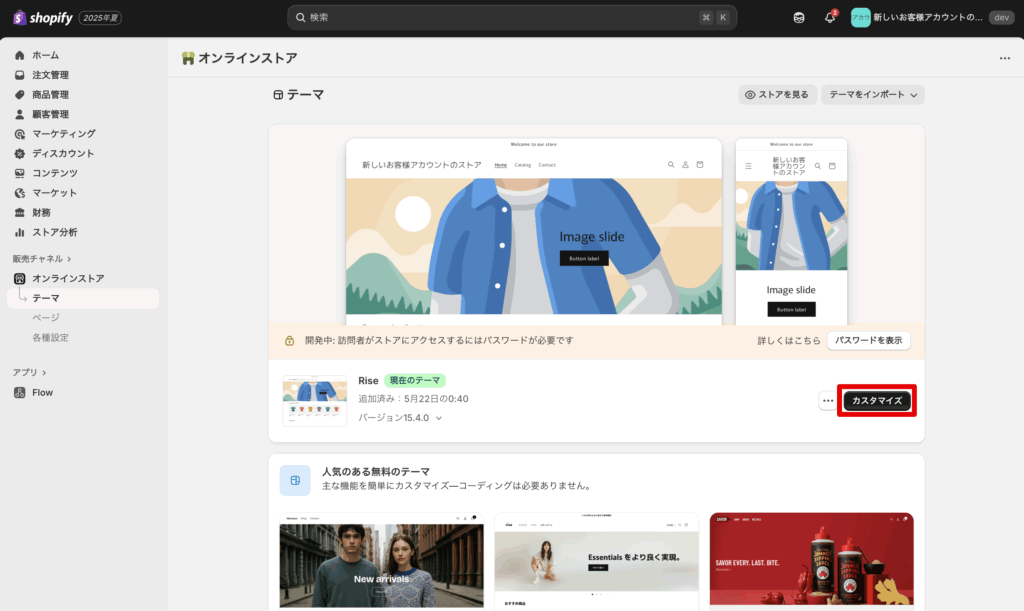
Buttons are added through theme customization.
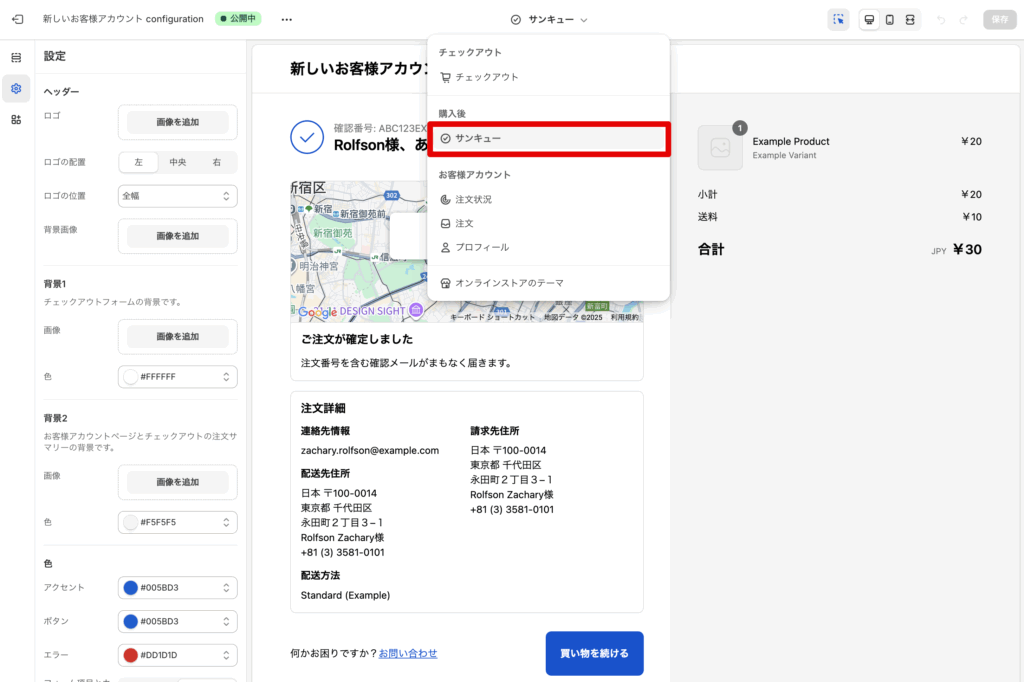
Open the Thank You Page edit screen from Customize Theme.
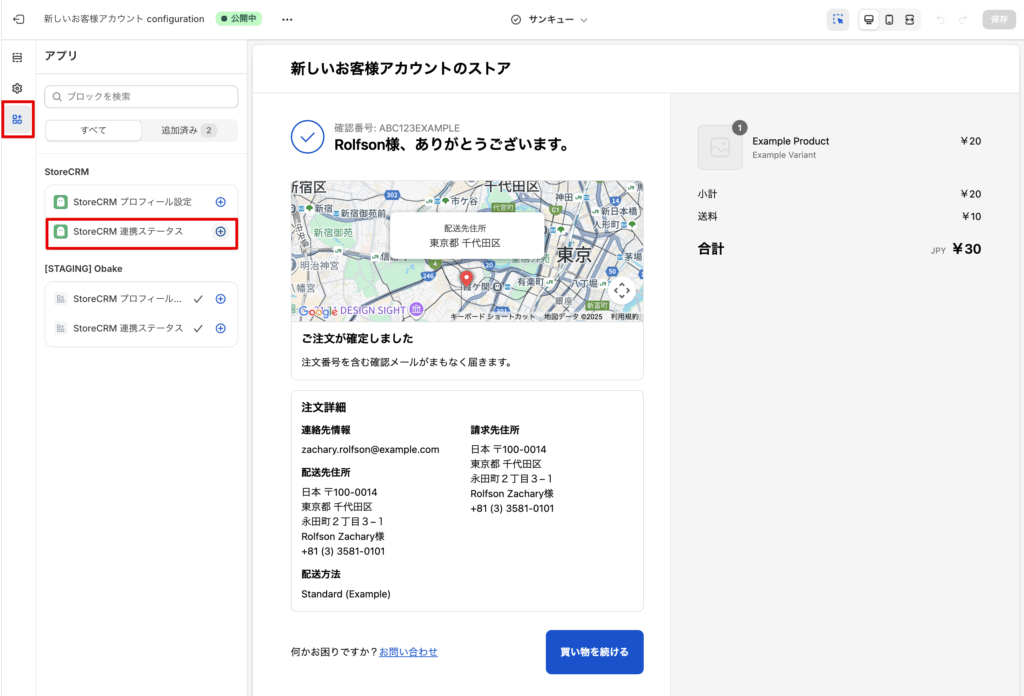
3. add StoreCRM integration status from the app
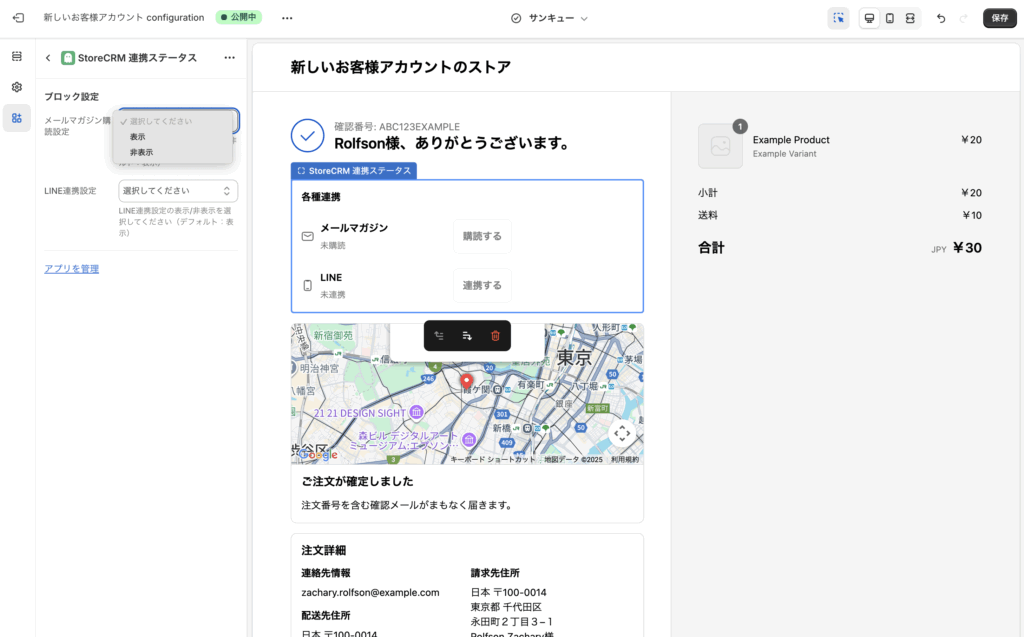
Select whether or not to display each of the buttons you have added.
5. Verify the LINE integration widget and connection status
To display LINE integration, add the“StoreCRM LINE Integration Widget”in the checkout editor. If LINE integration is also displayed by the legacy checkout extension, turn it off there to avoid duplicate entry points.
The standalone StoreCRM LINE connection widget can appear even when LINE display is turned off in the older extension. It appears for both connected and unconnected customers when their LINE connection status can be retrieved. It is hidden when the customer is unavailable or the status request fails, so check it using an actual test order.
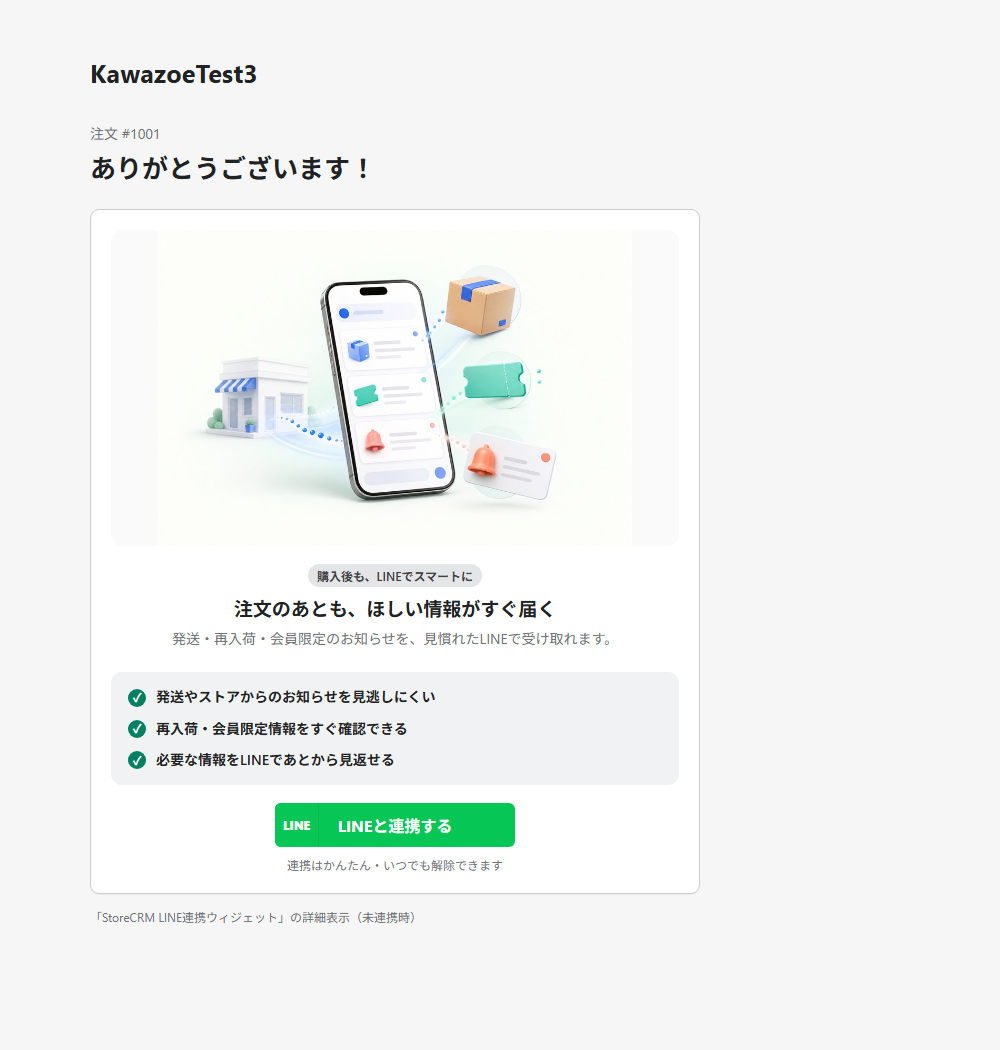
- Make sure that LINE Login and the Messaging API have been configured.
- Customers who are not connected will see a connection button, while connected customers will see their connected status.
- If you change the settings or the status does not update, reload the page and check the connection status again.
- Confirm that the same connection status appears on both the Thank You page and the Order Status page.
Finally, place a test order and verify the display and button behavior for both unconnected and connected customers.
6. We recommend placing a test order to verify the behavior
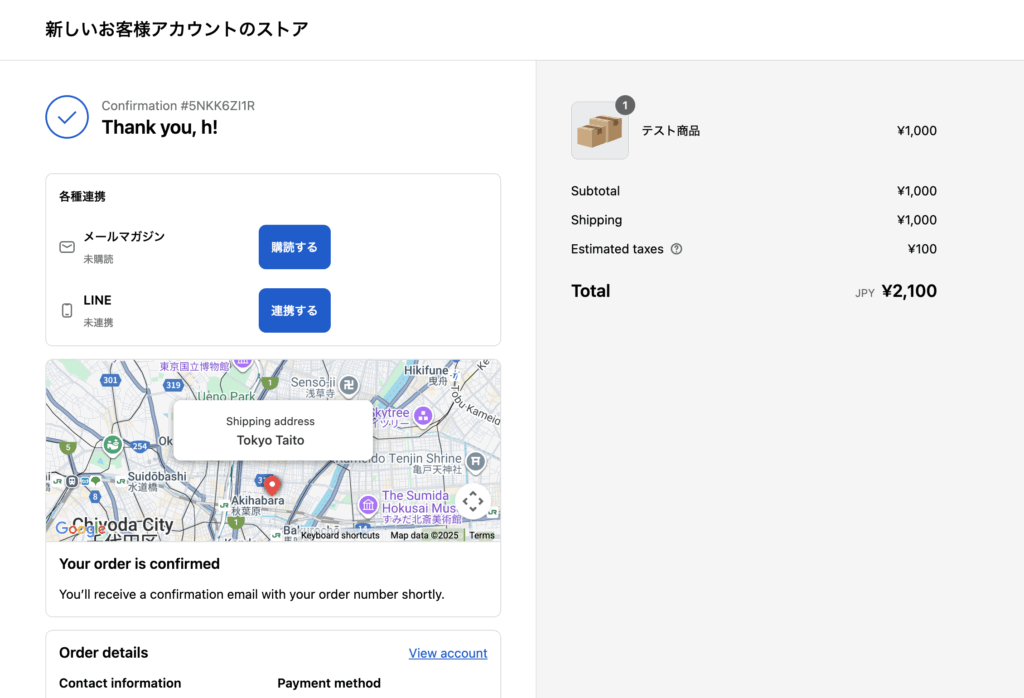
On the Thank You page when you purchase an item, it will appear as shown in the image above.
Related pages
 English
  Japanese