

- View customers registered in your Shopify store and StoreCRM.
- Customer data registered in the Shopify store is automatically synced to StoreCRM.
View detailed customer information
1. click on StoreCRM -> [Customers] -> [Customer List].
A list of Shopify store customers will be displayed.
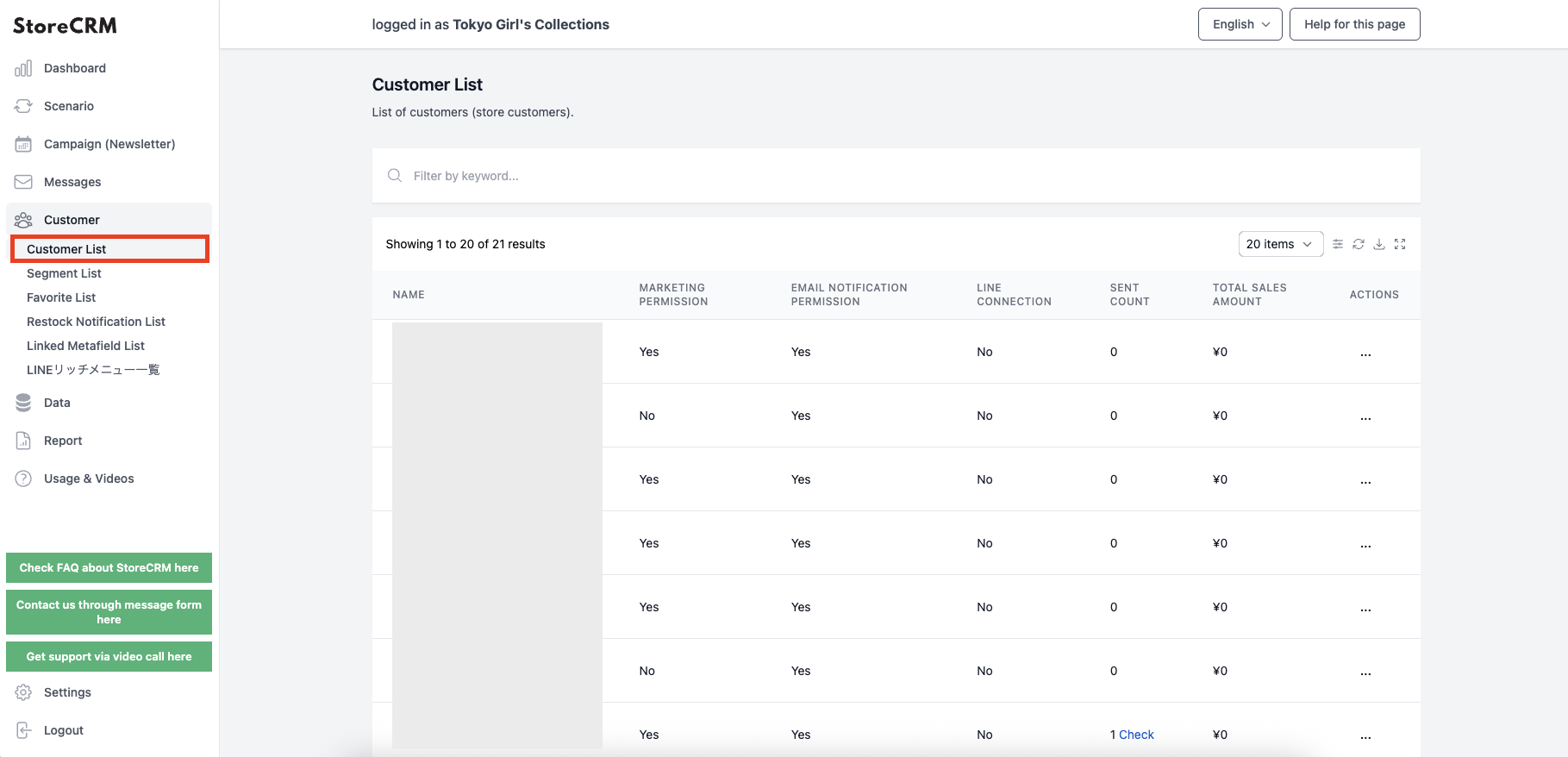
Click on the customer's name.
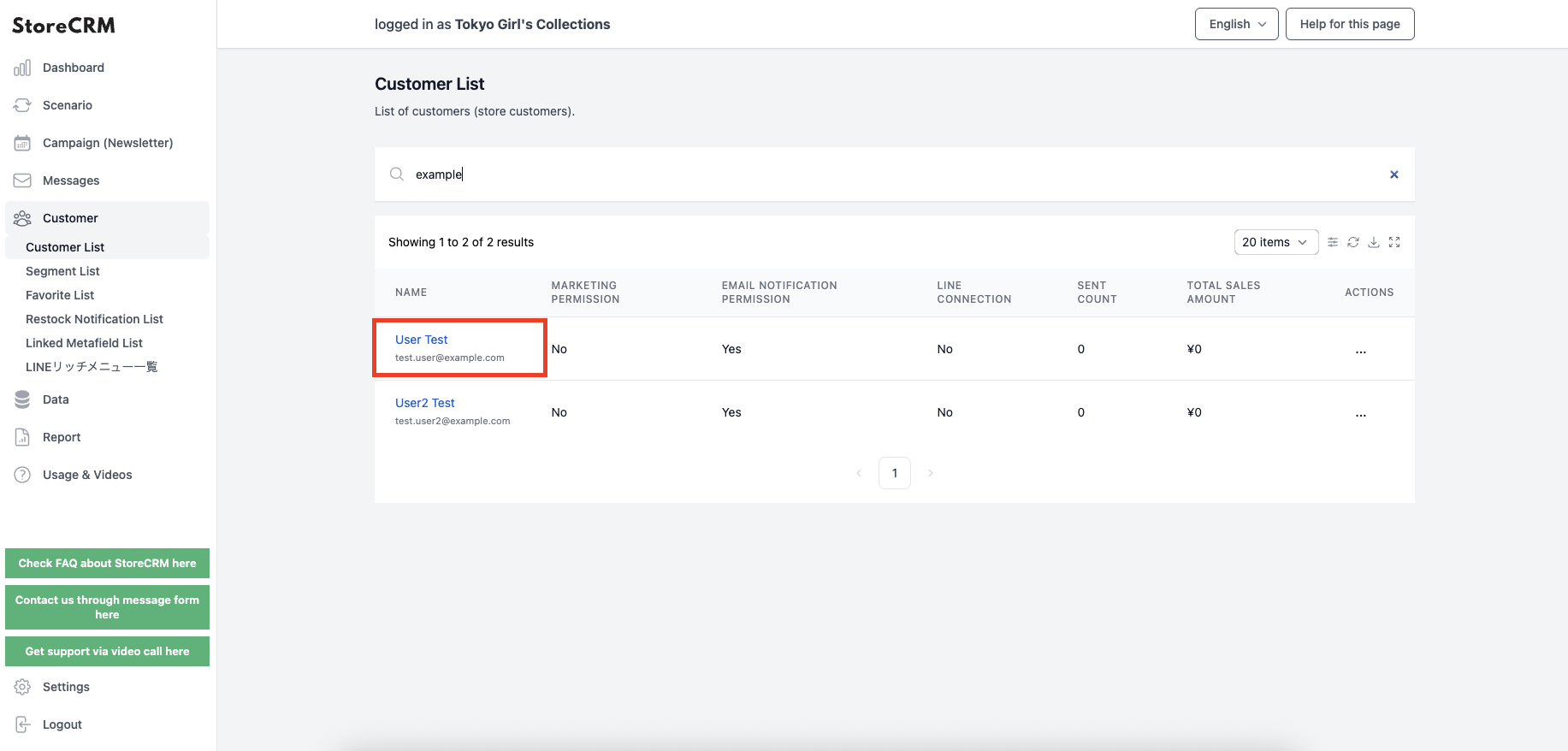
Detailed customer information is displayed.
- If you need to modify your name, email address, address, etc., please go to Shopify -> [Customer Information].
- Data is updated automatically, but if you want to update it immediately, you can do so by clicking on [dataClick on [Customer] → [Customer] → [Reacquisition].
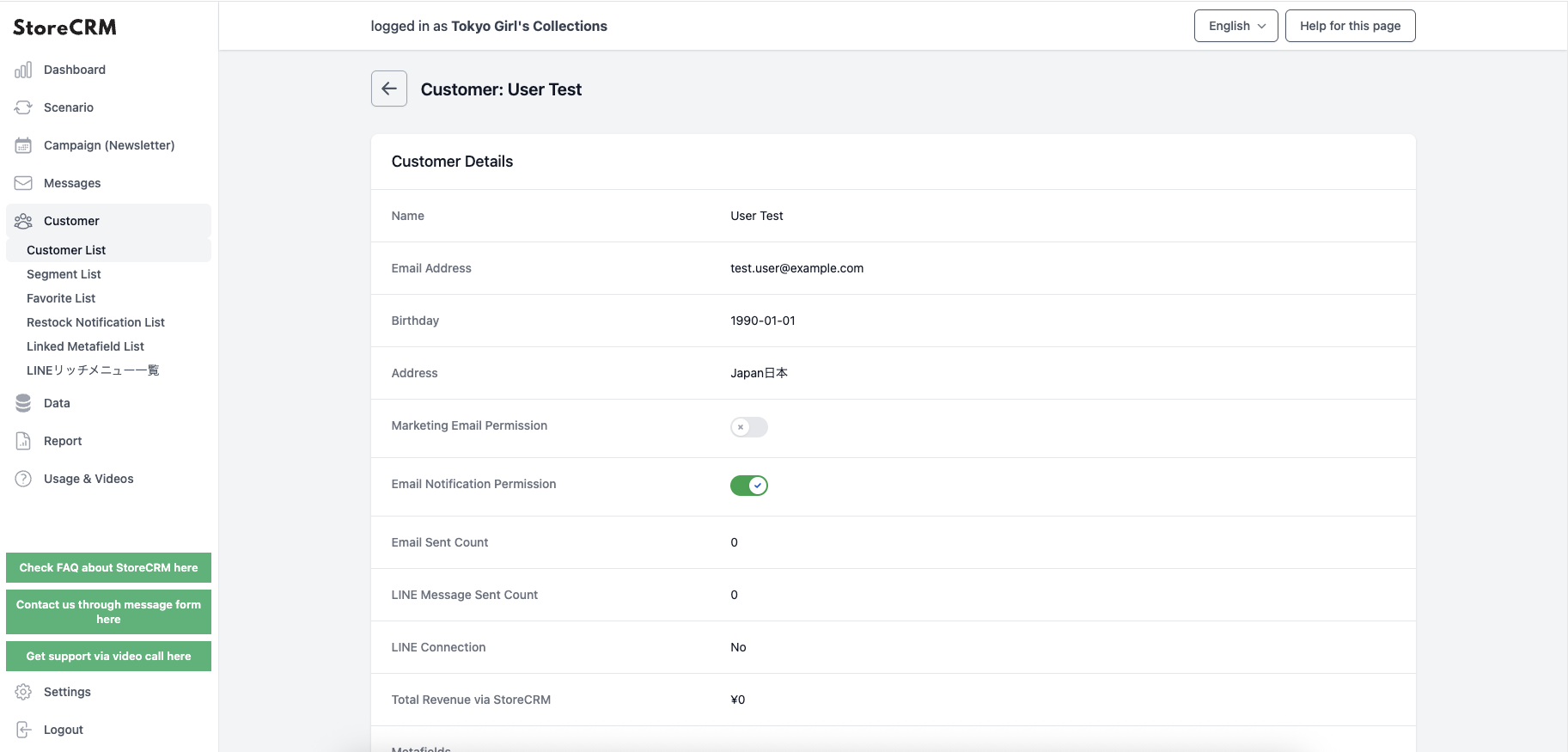
Check the LINE display name and profile image
For a customer connected to LINE, the customer detail page shows the saved LINE display name and profile image. The display name does not replace the Shopify customer name and is not used for search or CSV exports. The saved profile is removed when the LINE connection is explicitly disconnected.
The display name or image may not appear immediately for older connection data. The page uses the latest profile information safely stored in StoreCRM and does not contact LINE every time the customer detail page is opened.
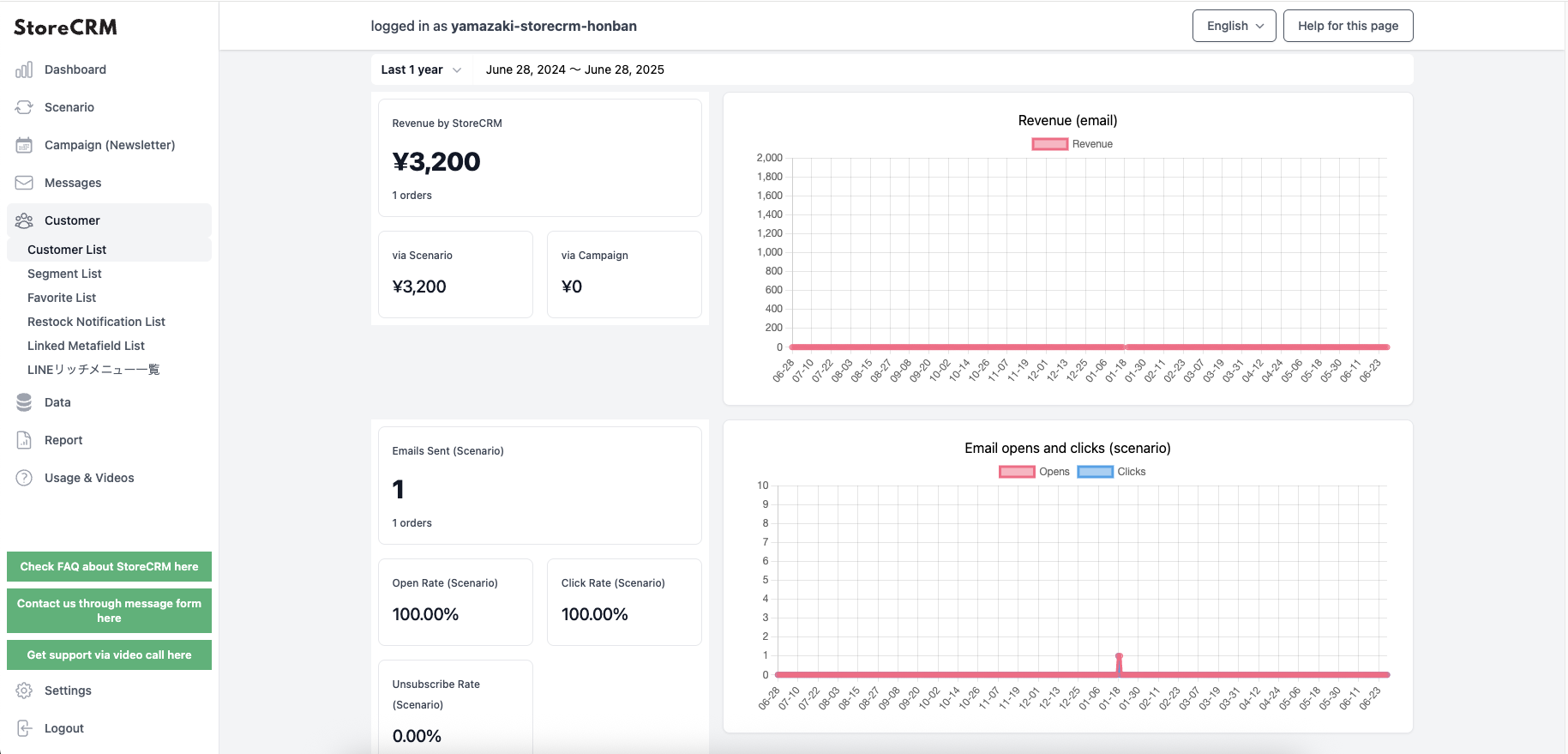
Check sales, number of emails sent, open rates, and click rates
The number of emails and LINE messages delivered, open rates, and click rates can be confirmed by StoreCRM.
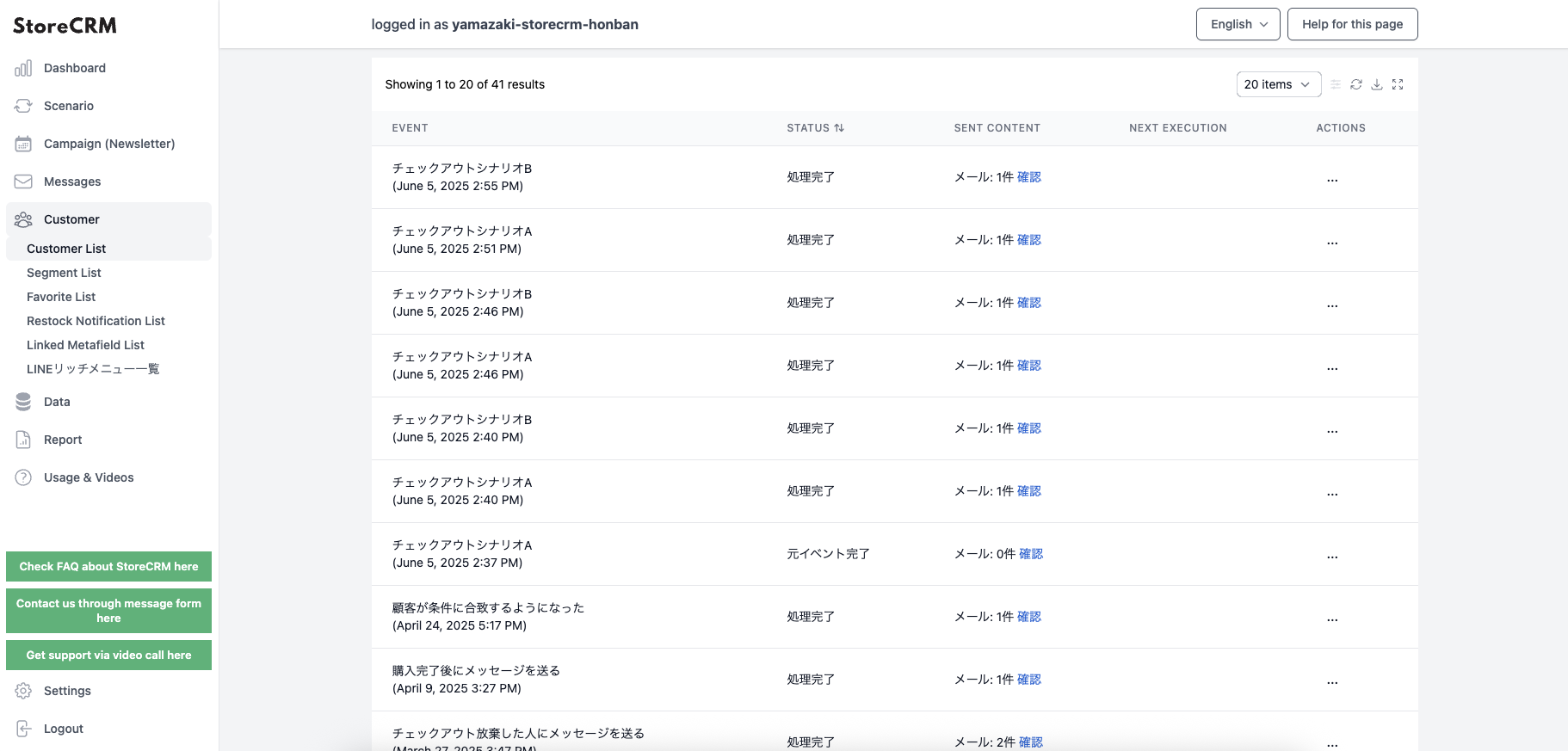
Check scenario execution history
- You can check the history of scenario execution by customer.
- Click [Sent Contents] → [Confirm] to confirm the contents of the sent e-mail.
- Click [Next Execution] -> [Execute from 1] to deliver the configured step e-mail from 1.
- Click [Next Execution] → [Pause] to pause the configured step mail.
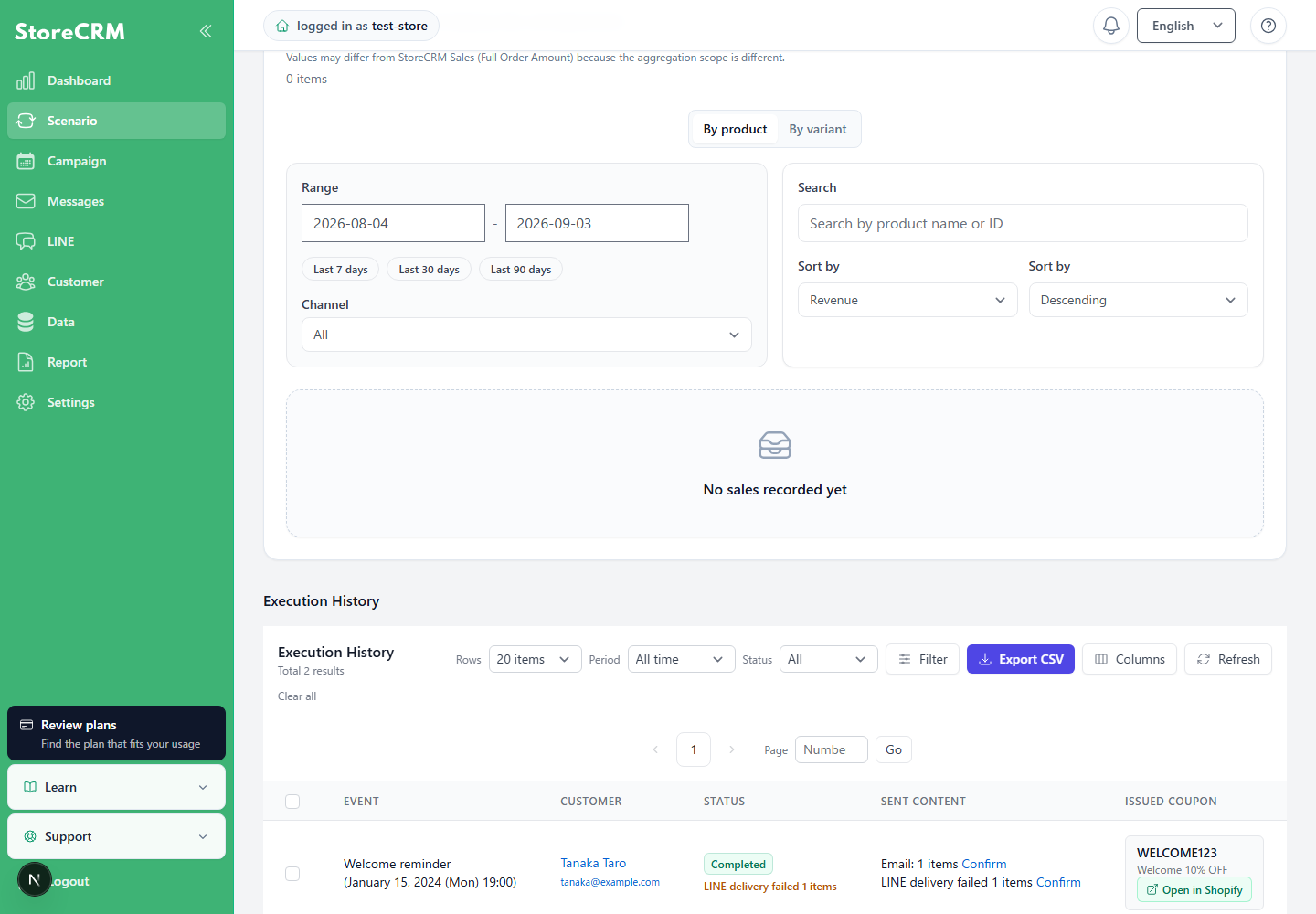
The execution result may show[Completed]while the same row also shows[N LINE delivery failures]. This means that the scenario finished processing, but LINE messages could not be delivered to some customers.
Click[View]next to the failure count to open the LINE delivery history. Check the affected customer's LINE connection status and whether they can receive messages.
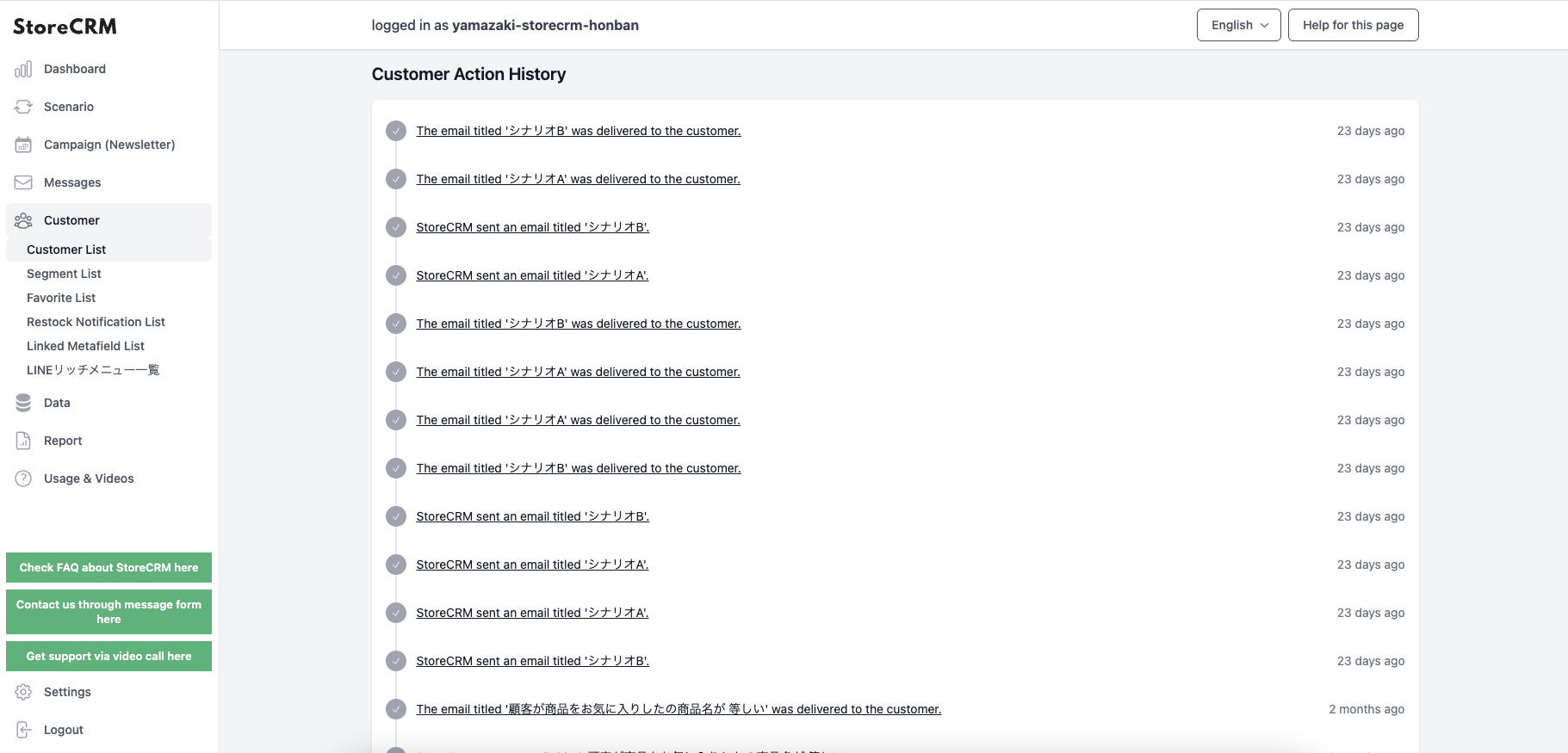
Check customer action history
You can check the history of emails and lines sent to customers, opened, and purchased.
Related pages
 English
  Japanese