

Email and LINE messages created in StoreCRM can present coupons issued by a scenario.
Coupon Type
- There are two types of coupons that can be added to StoreCRM emails.
- Coupon code to be entered manually at the checkout screen
- Automatic coupon URL to apply the discount on the checkout screen
- To add a coupon, enter [coupon_code] or [coupon] in the body of the email selected in the scenario to automatically add a unique string of coupons to the email.
| Coupon Type | Coupon Samples | meaning | How to add |
|---|---|---|---|
| Coupon code | Store CRM-. RQ9R NC7W | Customers can receive discounts by manually entering the information on the checkout screen. | In the body of the email, add [coupon Enter [_code]. |
| Automatic Coupon URL | https:// sample. myshopify. com/ discount/ Store CRM-. JNF PHHI7 | Customers accessing via this URL will automatically have the coupon applied at the checkout screen. | Enter [coupon] on the e-mail link entry screen. |
Choose the discount title in Shopify
Select View Discounts or View Coupon Codes in Shopify’s discount titles. The code issued in the code display will be the Shopify discount title.
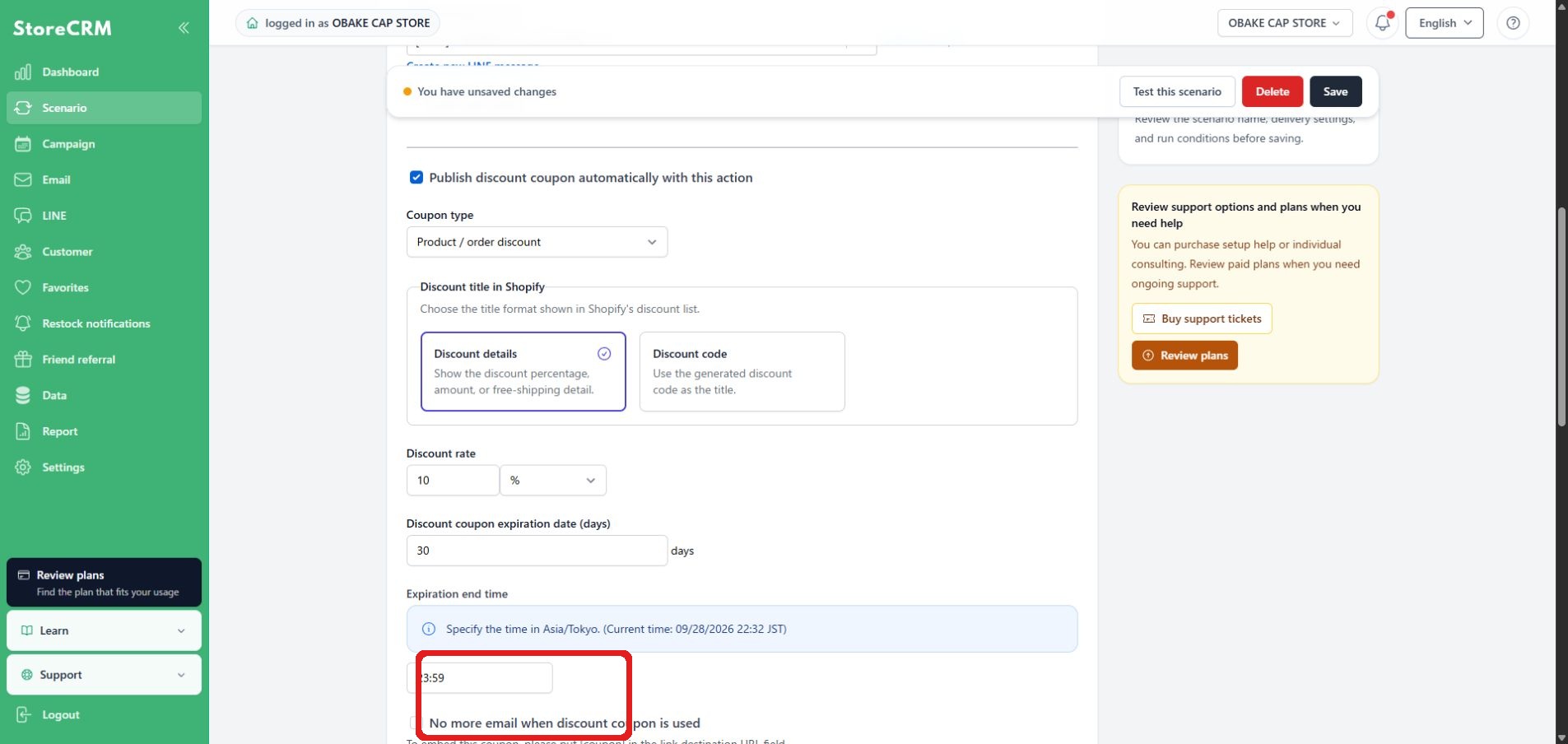
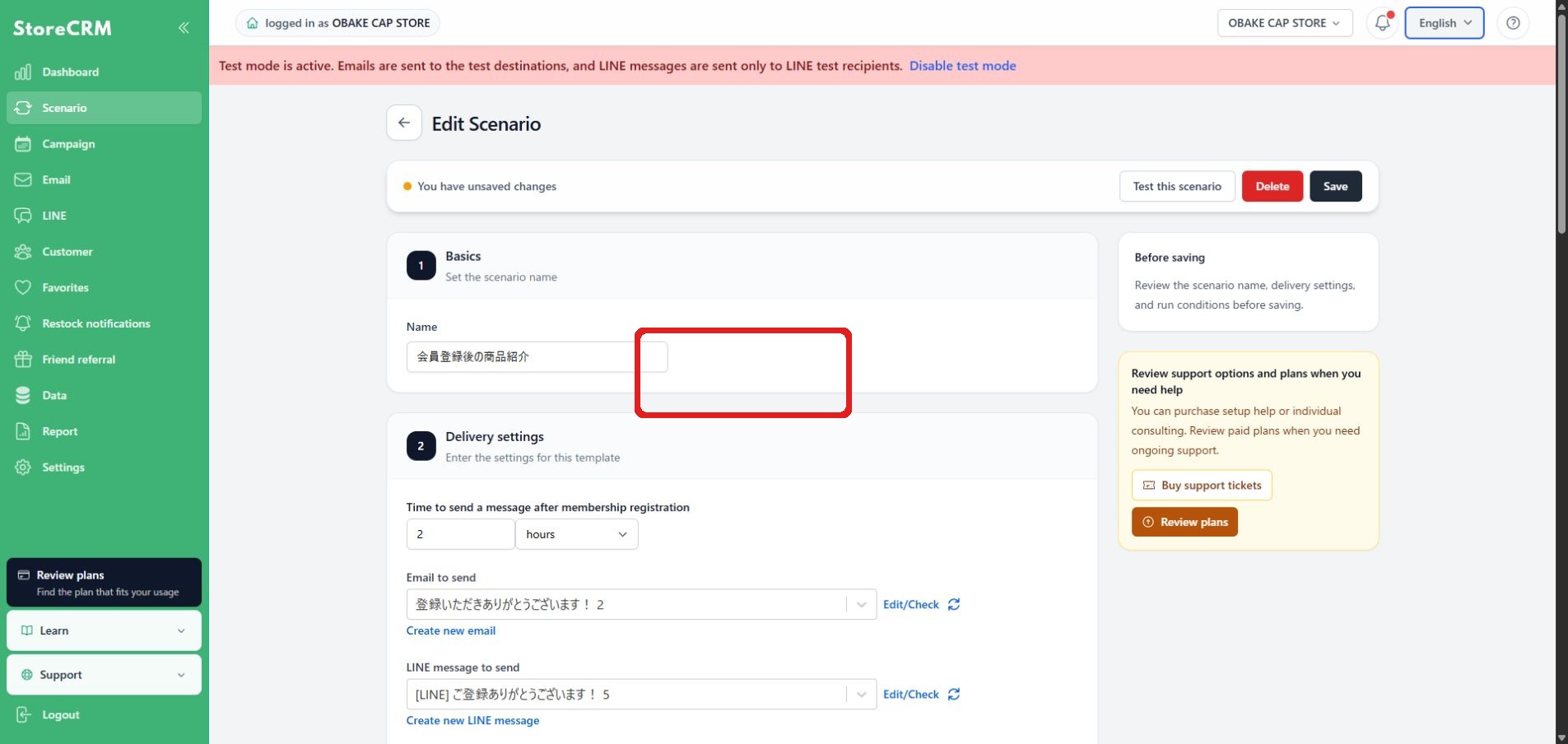
In the test issuance, "(test)" or "(Test)" are attached according to the language. The pre-created discount title will not be updated automatically.
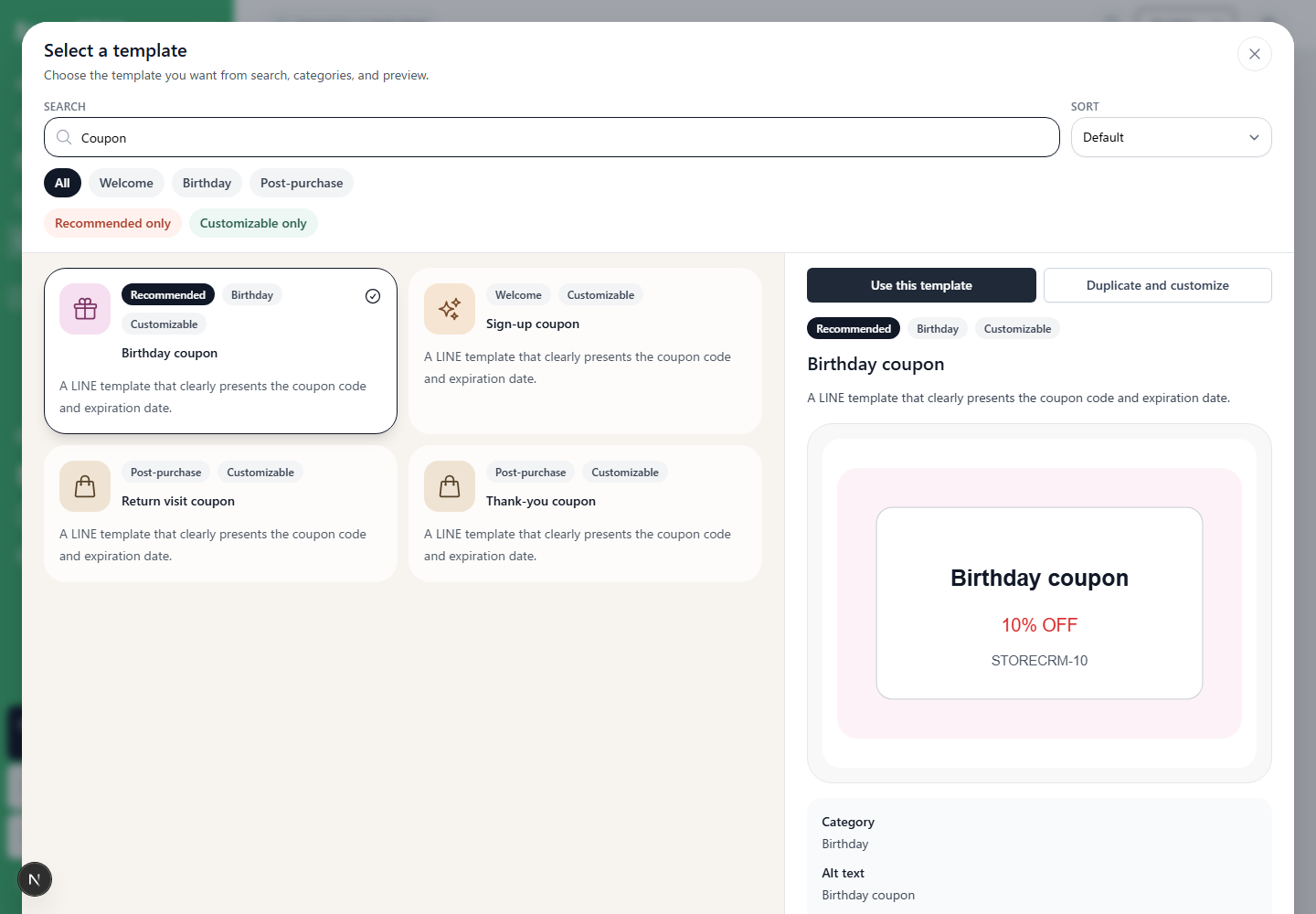
Use LINE coupon templates
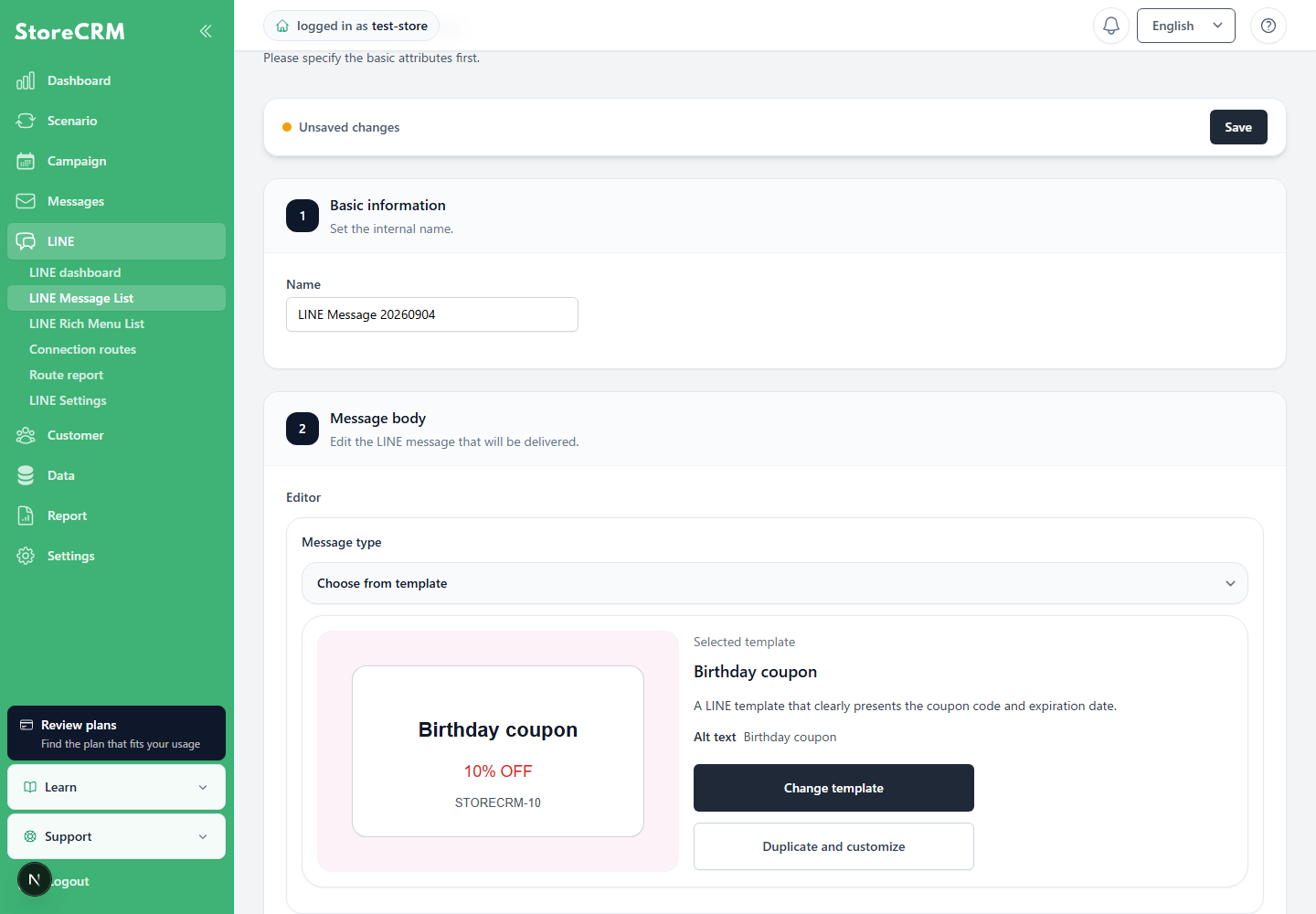
On the LINE message creation screen, set the message type to [Select from templates] to choose coupon templates for a customer's birthday, birth month, first-purchase anniversary, or follow-up after their latest order. Each template includes a coupon code, copy action, expiration date, and link to the purchase screen.
Customize the selected template
Select [Use this template] to use it as-is, or [Duplicate and customize] to create an editable copy. For a copied template, review the alternative text, coupon information, links, and notes before saving.
Configure coupon issuance in a scenario
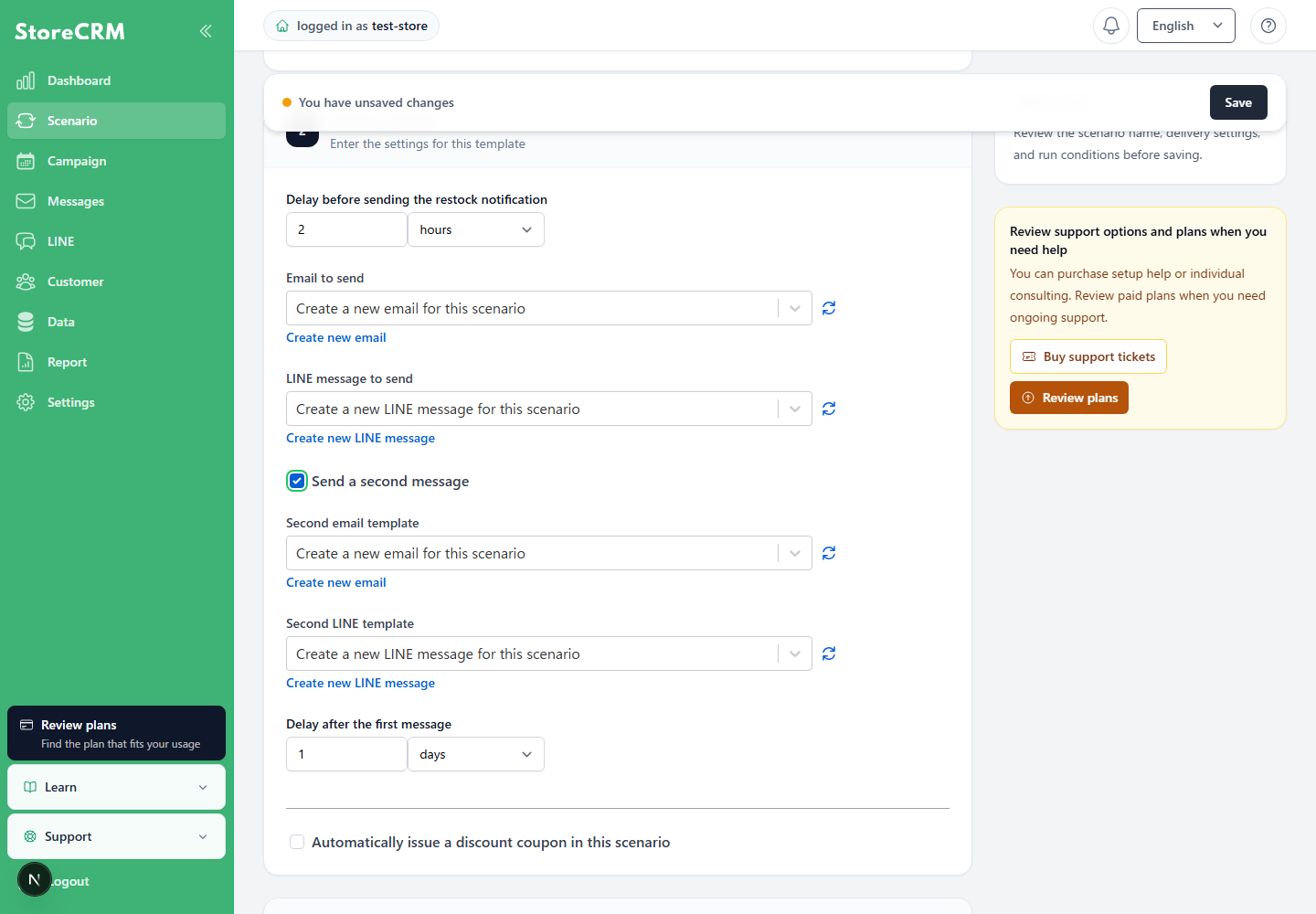
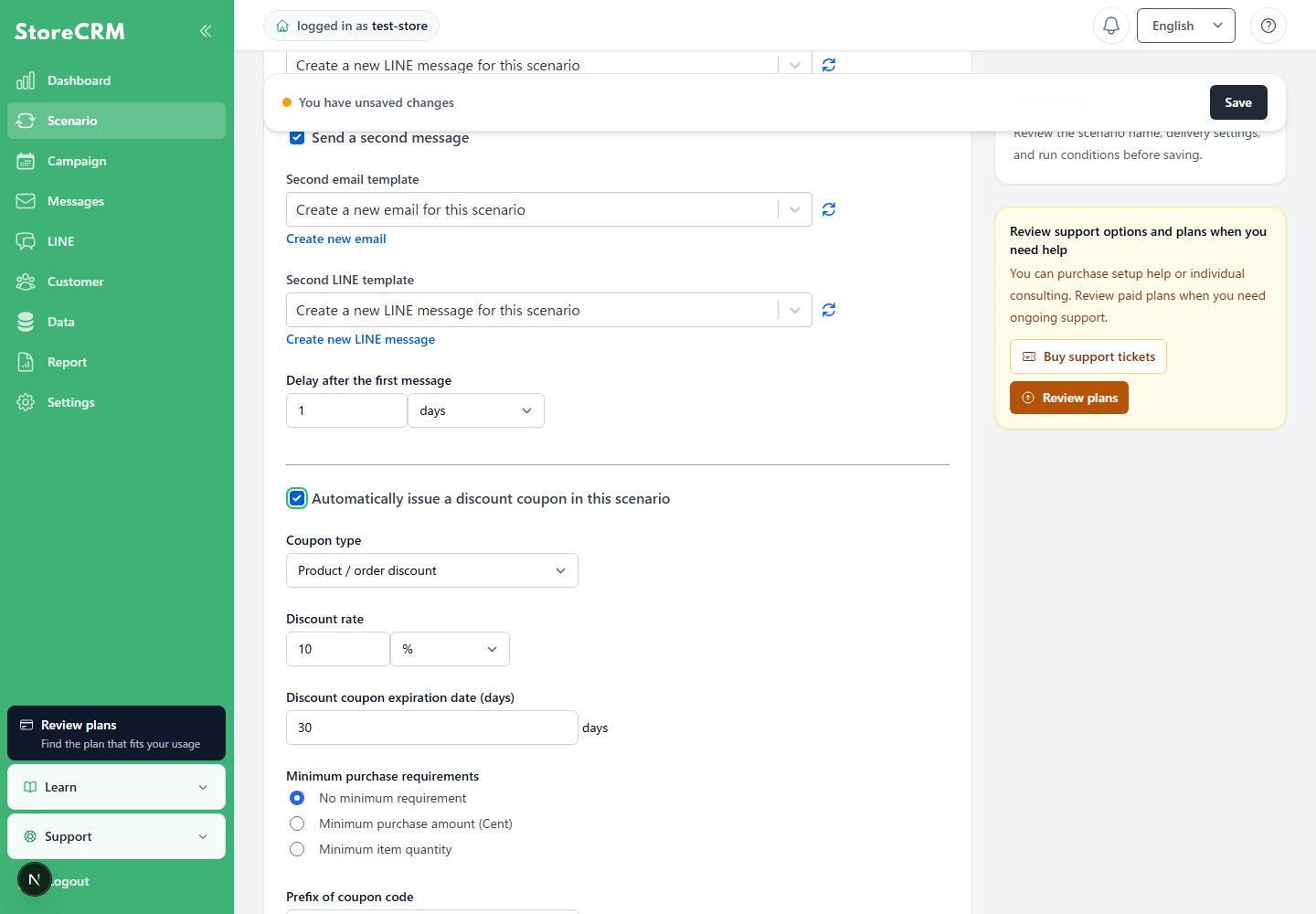
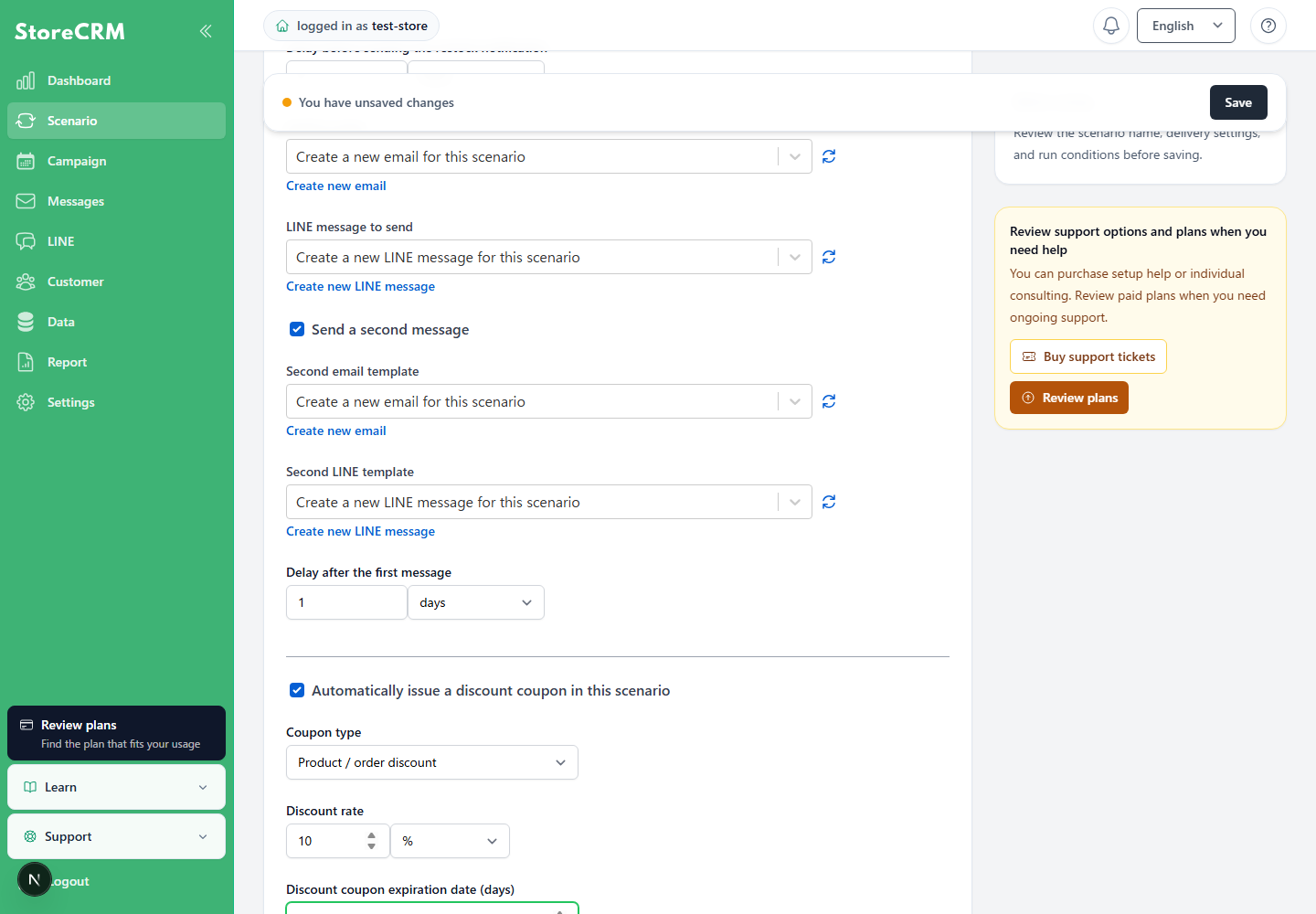
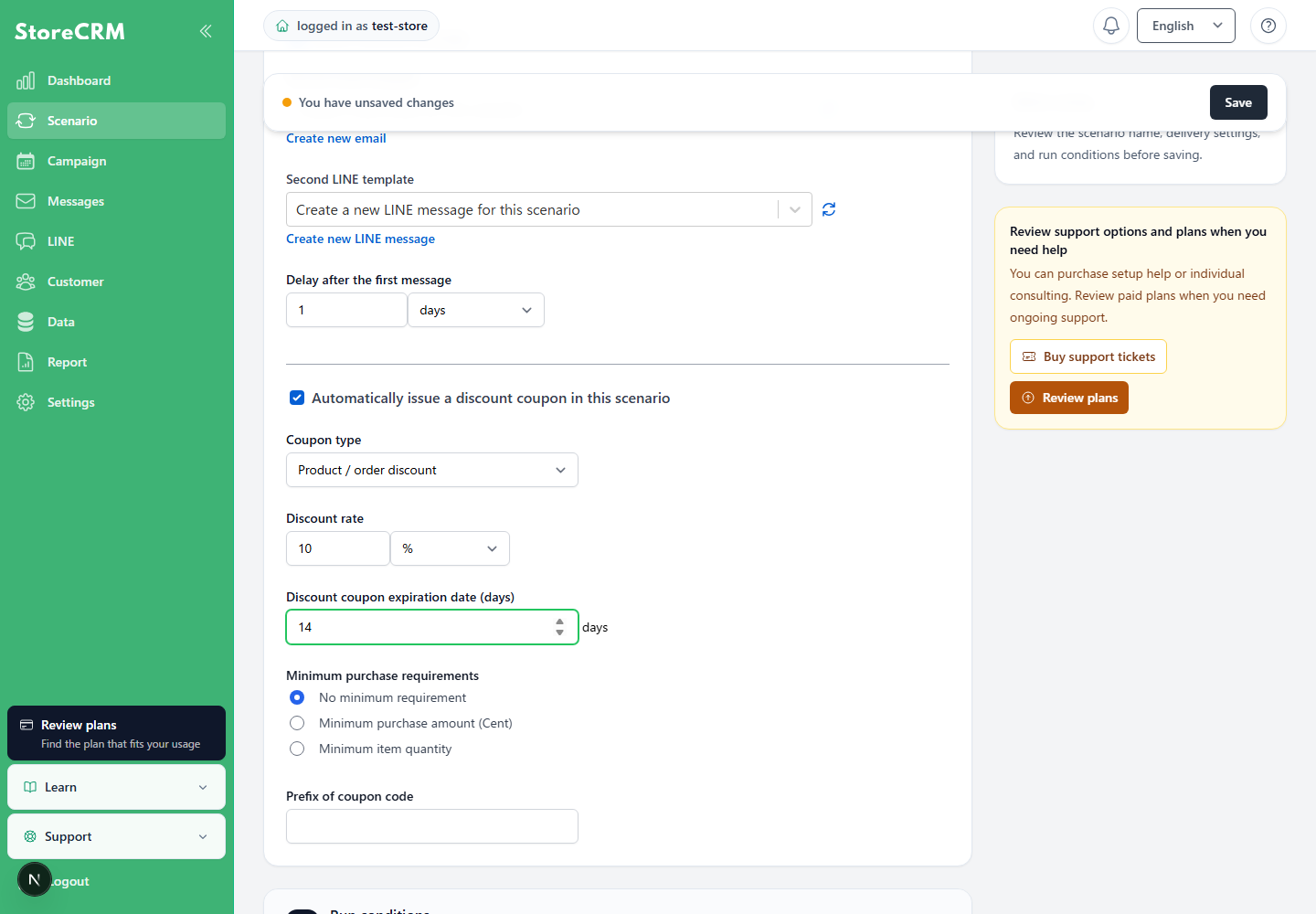
Selecting a LINE template alone does not issue a coupon for each recipient. In the relevant scenario, enable [Automatically issue discount coupons in this scenario], and configure the discount rate, expiration period, coupon-code prefix, and other settings.
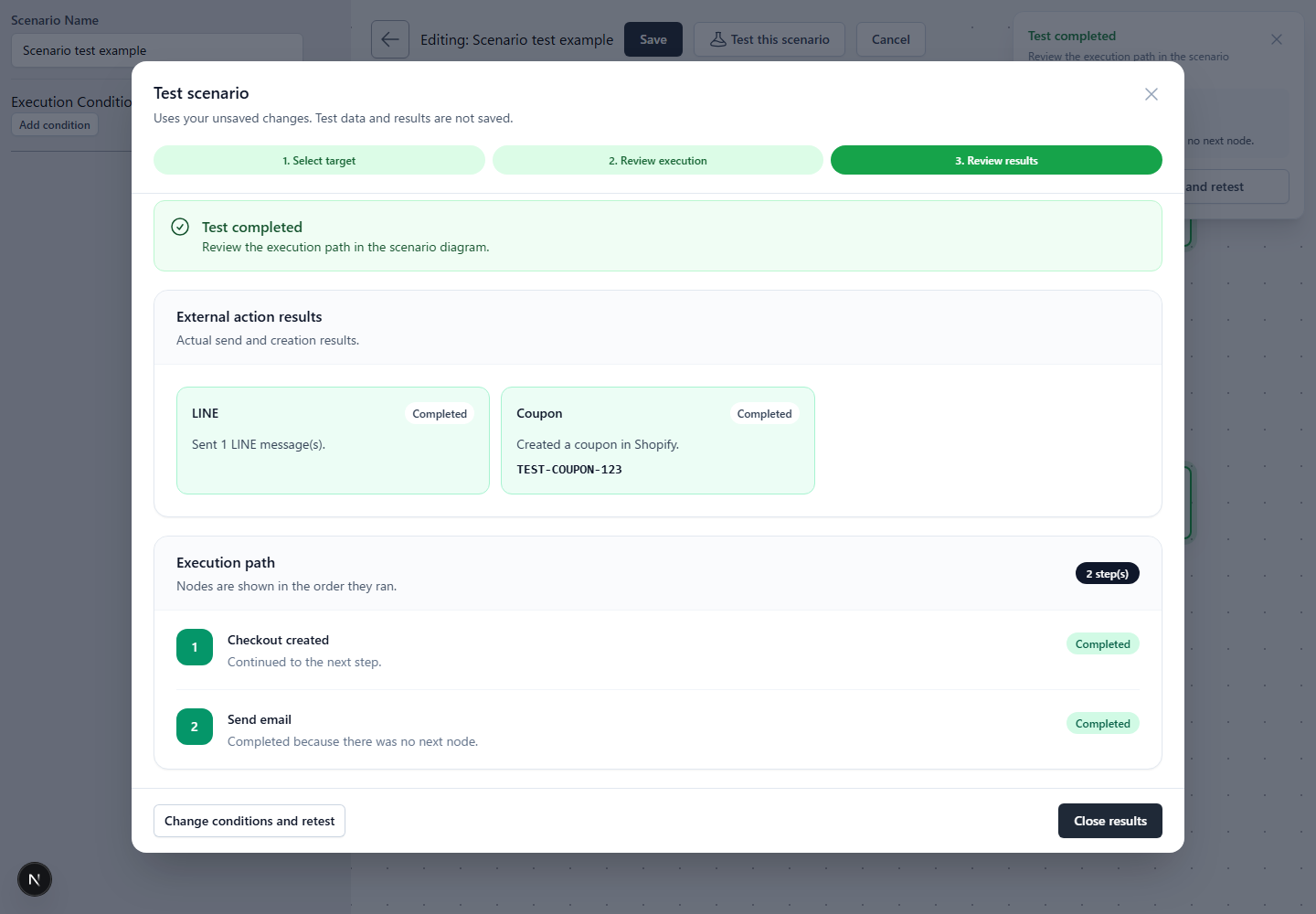
During a test send,[coupon_code]displays a safe sample code. A unique code is issued for each recipient only during an actual send. Before sending in production, review LINE delivery and coupon issuance in [External processing results] in the test result.
Set the coupon expiration period
Enter a discount coupon validity period from 0 to 3,650 days. Enter 0 to create a coupon with no expiration date.
If an end time is set, the coupon expires at that time in the store's time zone.
Add Coupon Code
Add a coupon that customers can manually enter at checkout to receive a discount.
1. add [coupon_code] in the body of the email.
Click "Save".
Coupons have been added.
3. the email set in the scenario is deliveredThe unique string coupon is added when the coupon is
- The coupon code "StoreCRM-RQ9RNC7W" has been added to the body of the email.
- Customers can manually enter this coupon on the checkout screen to receive the discount.
Add an automatic coupon URL
Customers accessing via this URL will automatically have the coupon applied at the checkout screen.
In the body of the email, add a string and a [coupon] link.
Click "Save".
An automatic coupon URL has been added.
3. the email set in the scenario is deliveredThe unique string automatic coupon URL is added when the
- URLs such as "https://sample.myshopify.com/discount/StoreCRM-JNFPHHI7" have been added to the body of the email.
- Customers accessing via this URL will automatically have the coupon applied at the checkout screen.
Free shipping coupons
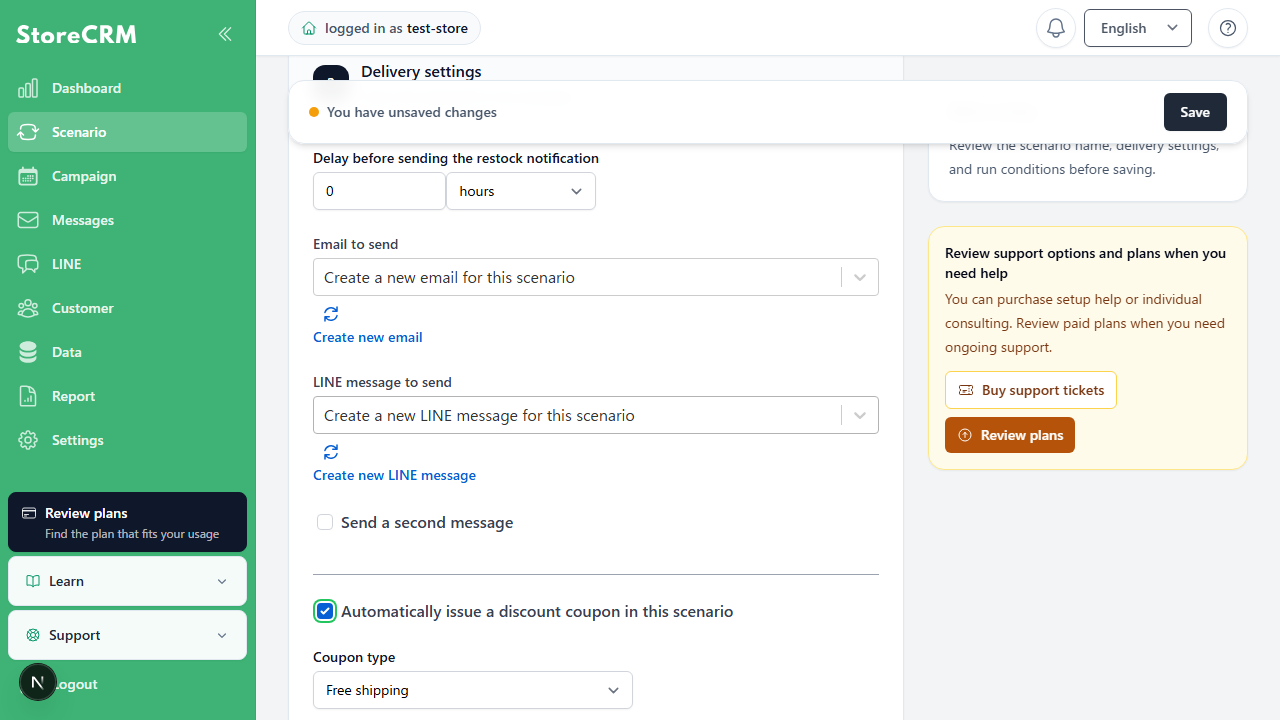
Under Coupon type, selectFree shipping. Configure the maximum shipping amount to discount, minimum purchase requirements, expiration period, combinations with other discounts, and usage limits. Leave the shipping amount limit blank for no limit.
Automatically applying coupons to Shopify Product blocks
For newly added Shopify Product blocks,Automatically apply coupon to product linksis off by default. Turn it on only when needed. Existing templates and saved block settings are not changed.
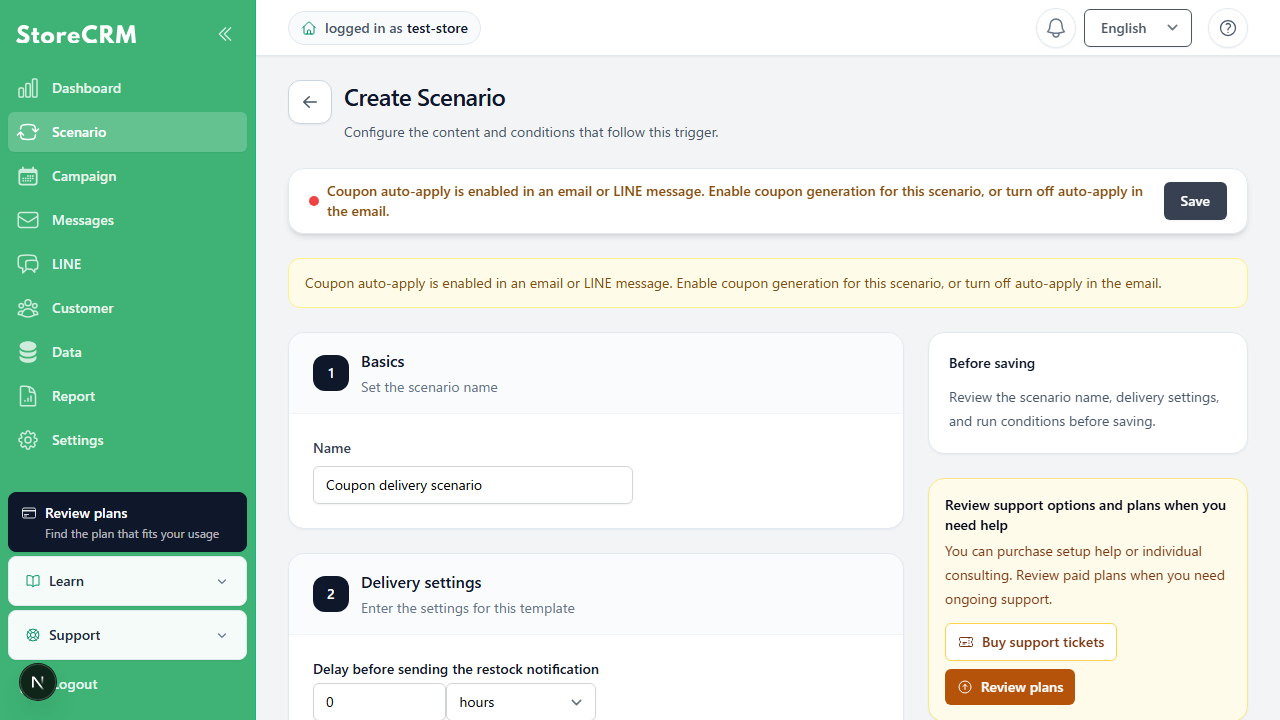
You cannot save a scenario that uses an email with automatic coupon application enabled but does not issue coupons. Add a coupon generation node or turn off automatic application in the email editor.
The discount coupon settings in the flow editor also show combinable discount types and the maximum number of uses. Enter 0 for the maximum number of uses to make it unlimited.
Automatically apply coupons to product links
When a scenario or campaign automatically issues discount coupons, you can automatically apply the coupon to product links in Shopify Product, Shopify Products, Shopify Collection, and Recommendation blocks in the email editor.
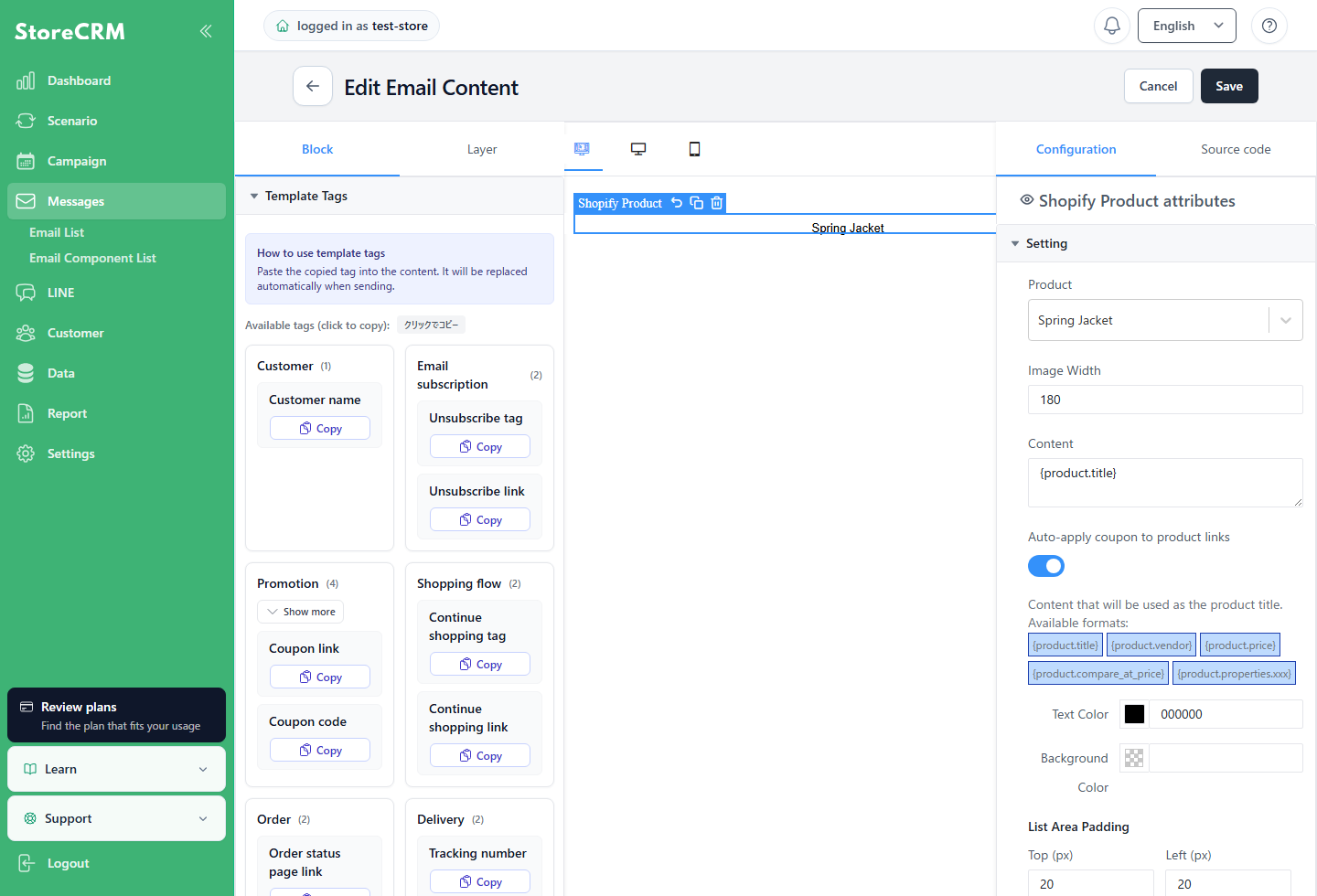
When [Automatically apply coupon to product links] is ON for a block, its product links are converted to coupon application URLs when the message is sent, and customers are then redirected to the relevant product page. Existing templates treat this setting as ON when it has not been explicitly set. Turn it OFF for blocks where you do not want automatic application.
Related pages
 English
  Japanese