

- The test mode allows you to check the operation of StoreCRM completely free of charge.
- In Test mode, email and LINE delivery to actual customers is stopped and messages are sent only to test recipients.
- Emails are sent to the addresses configured under [Test recipient email addresses] in StoreCRM.
- LINE messages from scenarios and campaigns are sent only to customers whose email address matches a [Test recipient email address], who have connected LINE, and who can receive messages.
- If there is no eligible LINE test recipient, the LINE message is not sent to actual customers.
- To send email and LINE messages to customers in production,Standard planor higher and disable Test mode.
- Sales via email delivered via StoreCRM while in test mode will not be added to the settlement fee. Therefore, you can test the operation of the system completely free of charge.
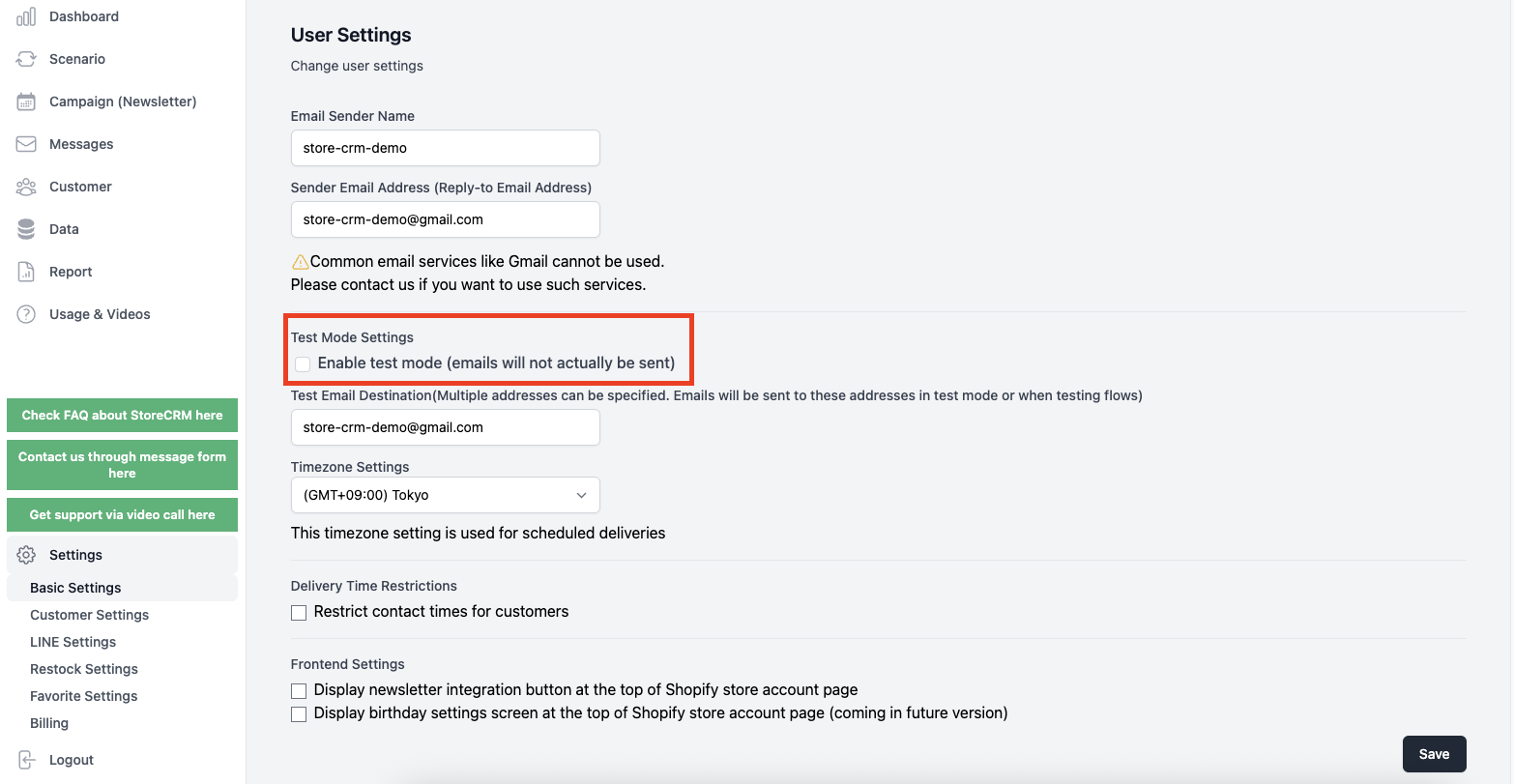
Check if it is in test mode
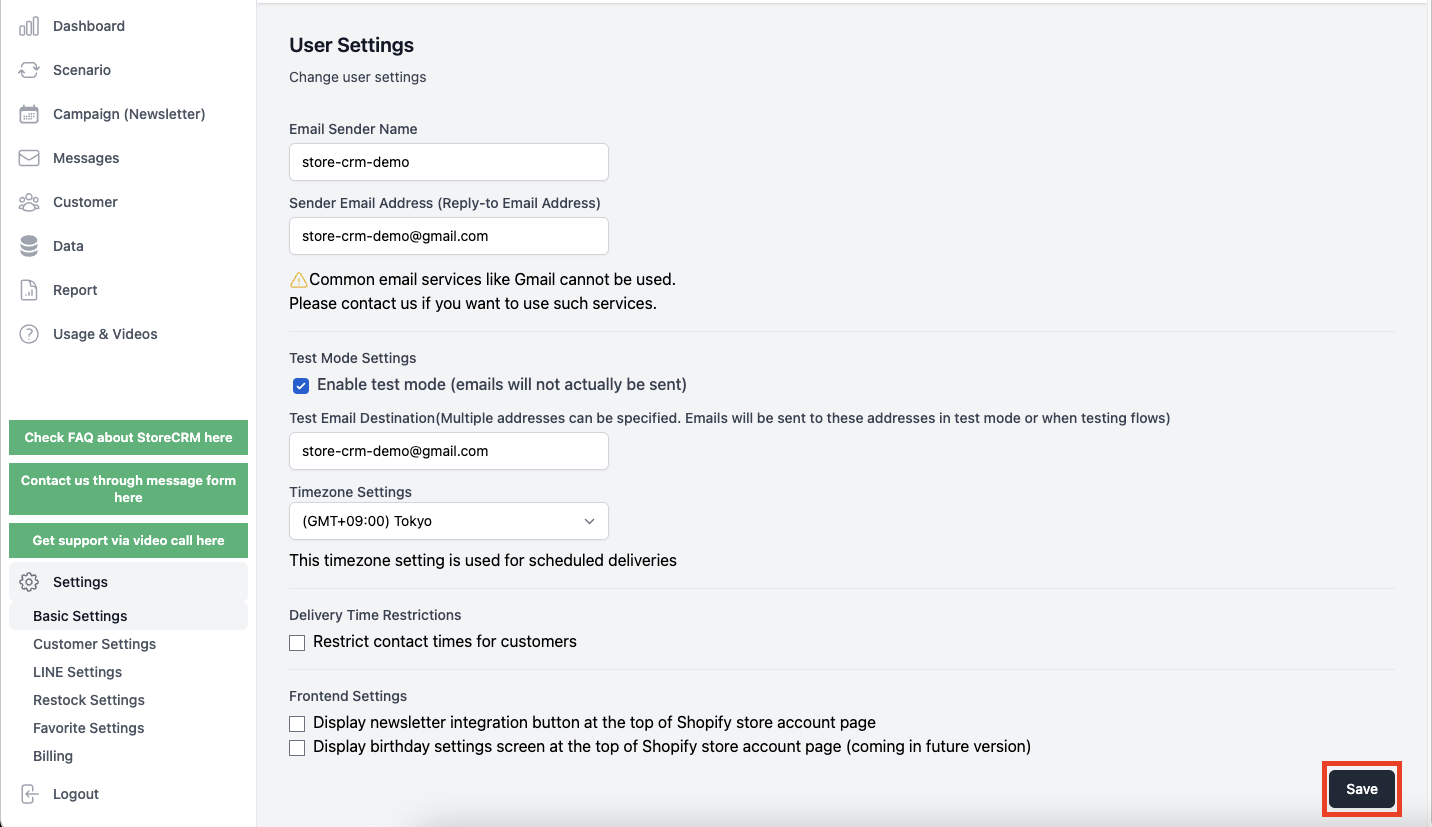
1. click on StoreCRM → [Settings] → [Basic Settings].
2. If the Test Mode setting is checked, the camera is in test mode.
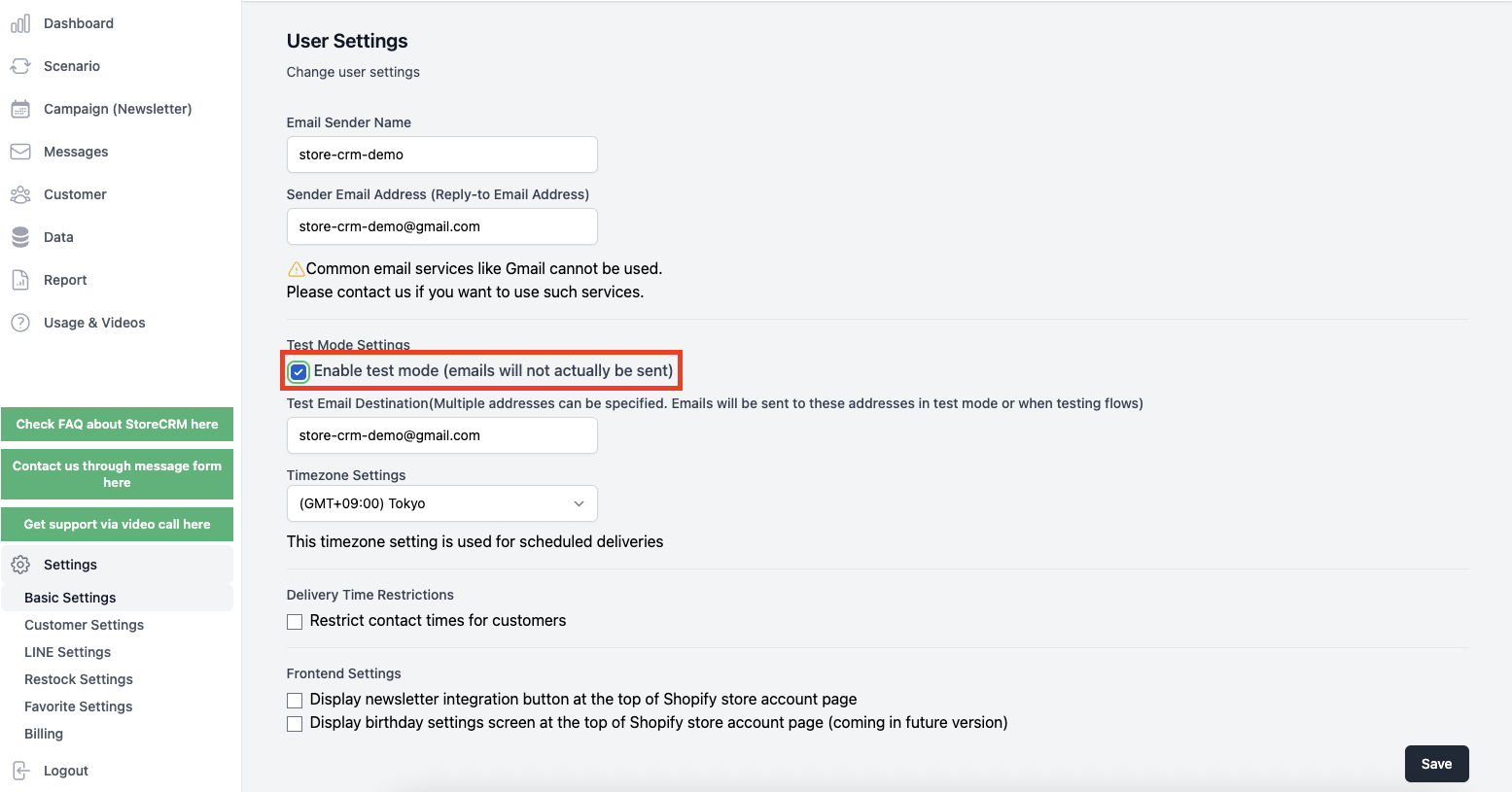
Enable test mode
1. click on StoreCRM → [Settings] → [Basic Settings].
2. Check the Test mode setting.
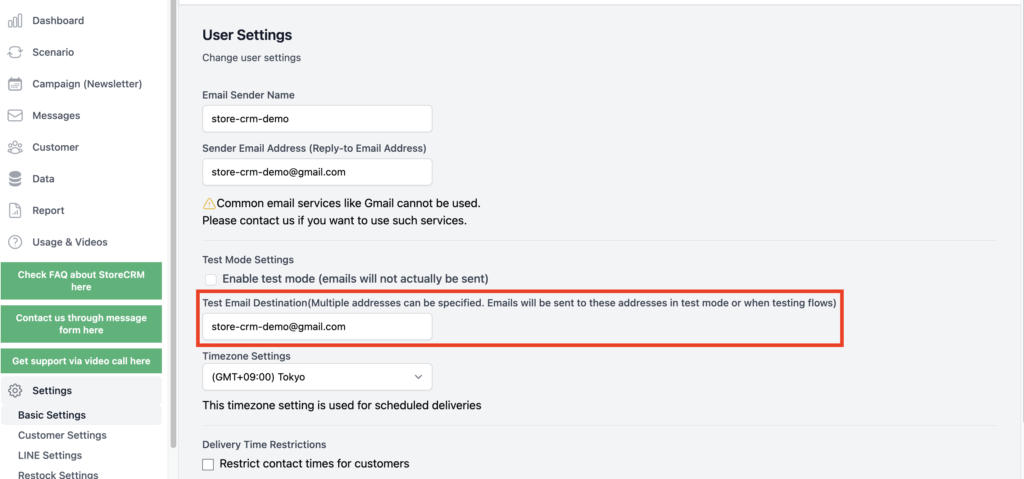
3. Enter the test recipient email addresses.
In Test mode, emails are sent to the addresses entered here.
To test LINE messages, a customer with the same email address must have connected LINE. If you configure multiple email addresses, LINE-connected customers matching each address become LINE test recipients.
Verify ownership of the test recipient email address
For a store whose review is incomplete, test delivery is limited to one verified email address. Click [Send verification code], enter the six-digit code you receive, and click [Verify]. Changing the email address resets its verification status.

You can send the verification email up to five times per hour. Enter the code before it expires; request a new code if it has expired. Five consecutive incorrect attempts lock verification for 30 minutes.
Confirm that [Recipient verified] is displayed, and then save. A store whose review is incomplete can send up to 20 test emails in a rolling 24-hour period. Suspended users cannot send test emails.

If verification fails:Check the spam folder, the address you entered, and the send limit. If verification is locked, wait 30 minutes and then request a new code.
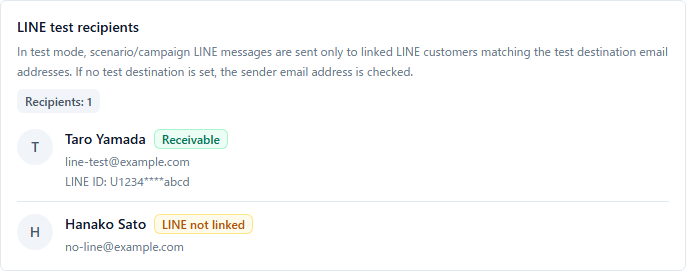
4. Check the LINE test recipients.
Check who will receive LINE messages under [LINE test recipients] in the Test mode section.
| Status | meaning | Action |
|---|---|---|
| Can receive | LINE messages can be sent | You can proceed with the test |
| No customer | No customer matches the test recipient email address | Check the email address in the customer record |
| LINE not connected | The customer exists but has not connected LINE | Connect LINE for the target customer |
| Blocked or unfollowed | LINE messages cannot be sent | Prepare another test recipient |
If there are no LINE test recipients, LINE messages from scenarios and campaigns are not sent. They are never sent to actual customers instead.
5. Click [Save].
Saving the settings updates the email and LINE recipients used in Test mode.
Exit test mode
To send email and LINE messages to customers in production,Standard planor higher and disable Test mode.
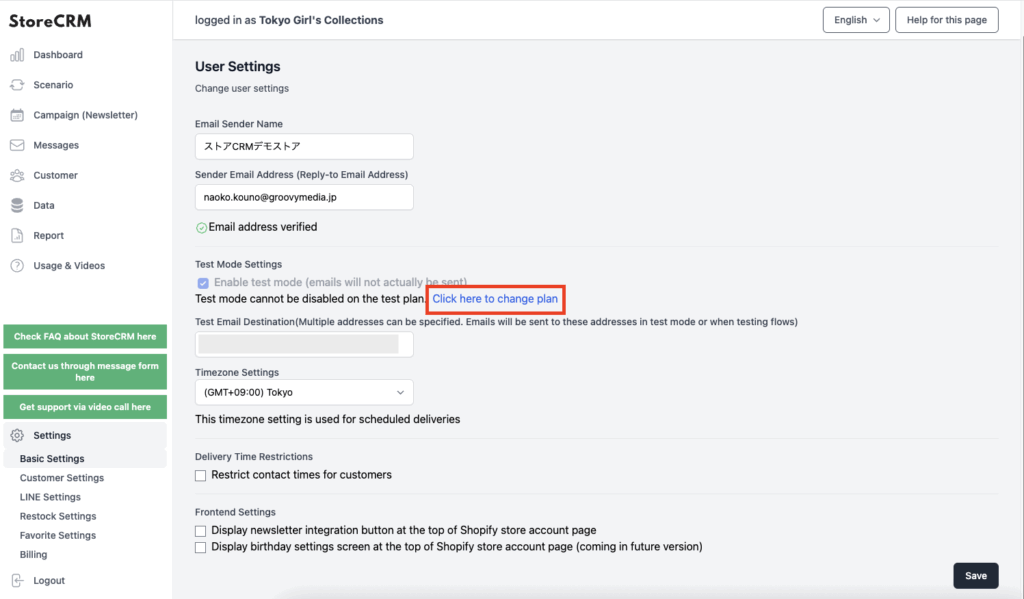
1. click on StoreCRM → [Settings] → [Basic Settings].
2. Click [Click here to change your plan].
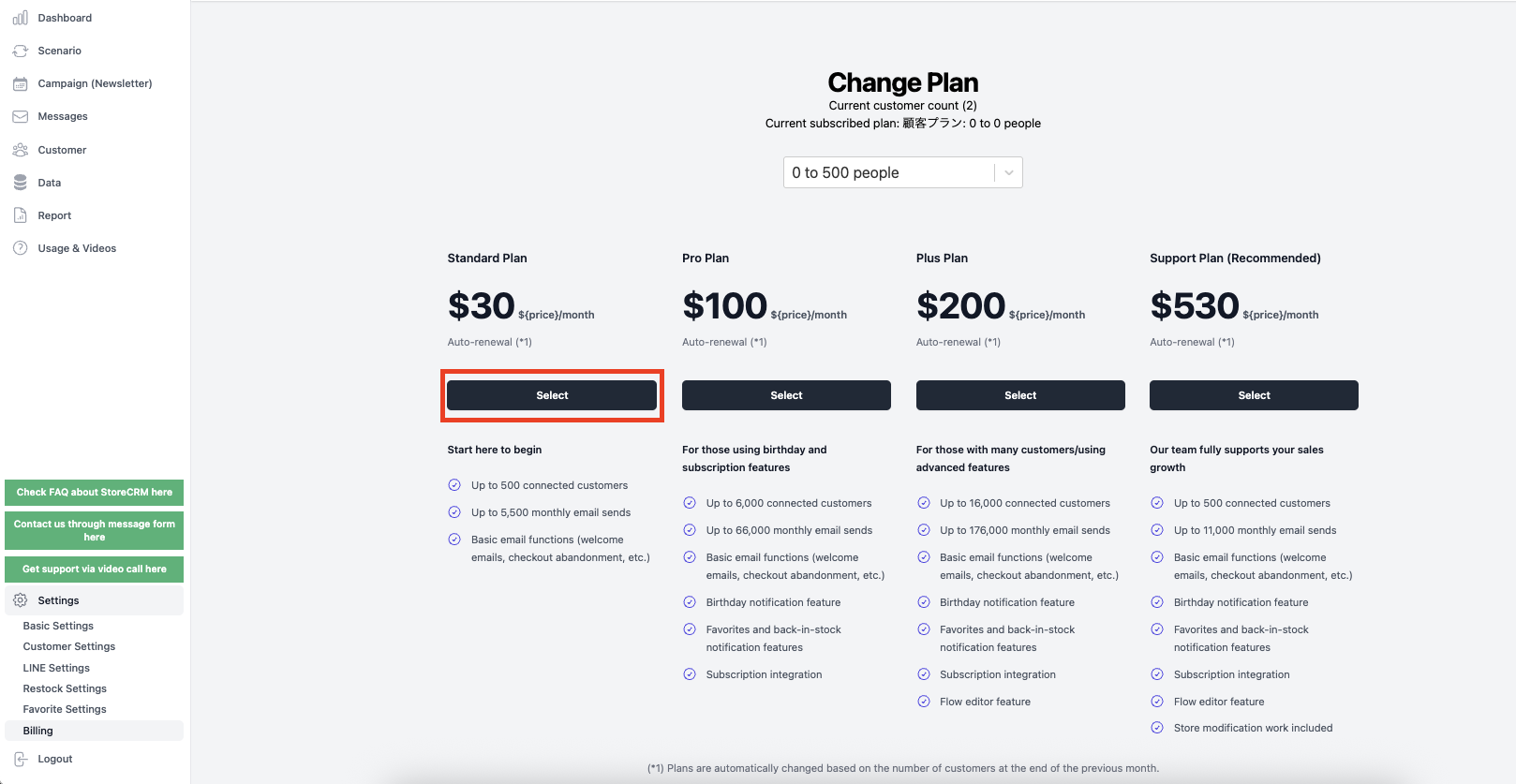
3. please subscribe to the Standard Plan or higher on the Plan Change screen.
Frequently asked questions
Who receives LINE messages in Test mode?
Messages are sent only to customers whose email address matches a test recipient address, who have connected LINE, and who can receive messages. They are not sent to actual customers who match the scenario or campaign conditions.
What happens if no LINE test recipient is found?
The LINE message is not sent, and it is never sent to actual customers instead. Check the email address and LINE connection status of the customer you want to use for testing.
Related pages
 English
  Japanese