

- Notify customers by email or LINE when a wishlisted product's inventory falls below the threshold you set.
- Sharing stock levels at the right moment raises customers' intent to buy.
- Depending on your notification timing and stock threshold, a product may already be sold out by the time a customer visits.
- See how to set up the wishlist button.
- Setting up the wishlist button requires the StoreCRM Pro plan or above.
Benefits for customers
- Low-stock alerts mean they never miss their chance to buy.
- They know stock levels in real time and can secure the products they want.
- Helps subscription customers avoid forgetting to reorder.
Benefits for your store
- See inventory levels in real time and restock before items sell out.
- Well-timed stock updates earn customers' trust.
- Keeps inventory from sitting idle and improves turnover.
What are wishlist low-stock alerts?
- The app automatically monitors inventory levels for wishlisted products.
- When stock falls below the threshold you set, everyone who wishlisted the product is notified by email or LINE.
- Keeps inventory from sitting idle and improves turnover.
- Depending on your notification timing and stock threshold, a product may already be sold out by the time a customer visits.
- To use this feature, set up the wishlist button first.
- Learn how to add a discount coupon.
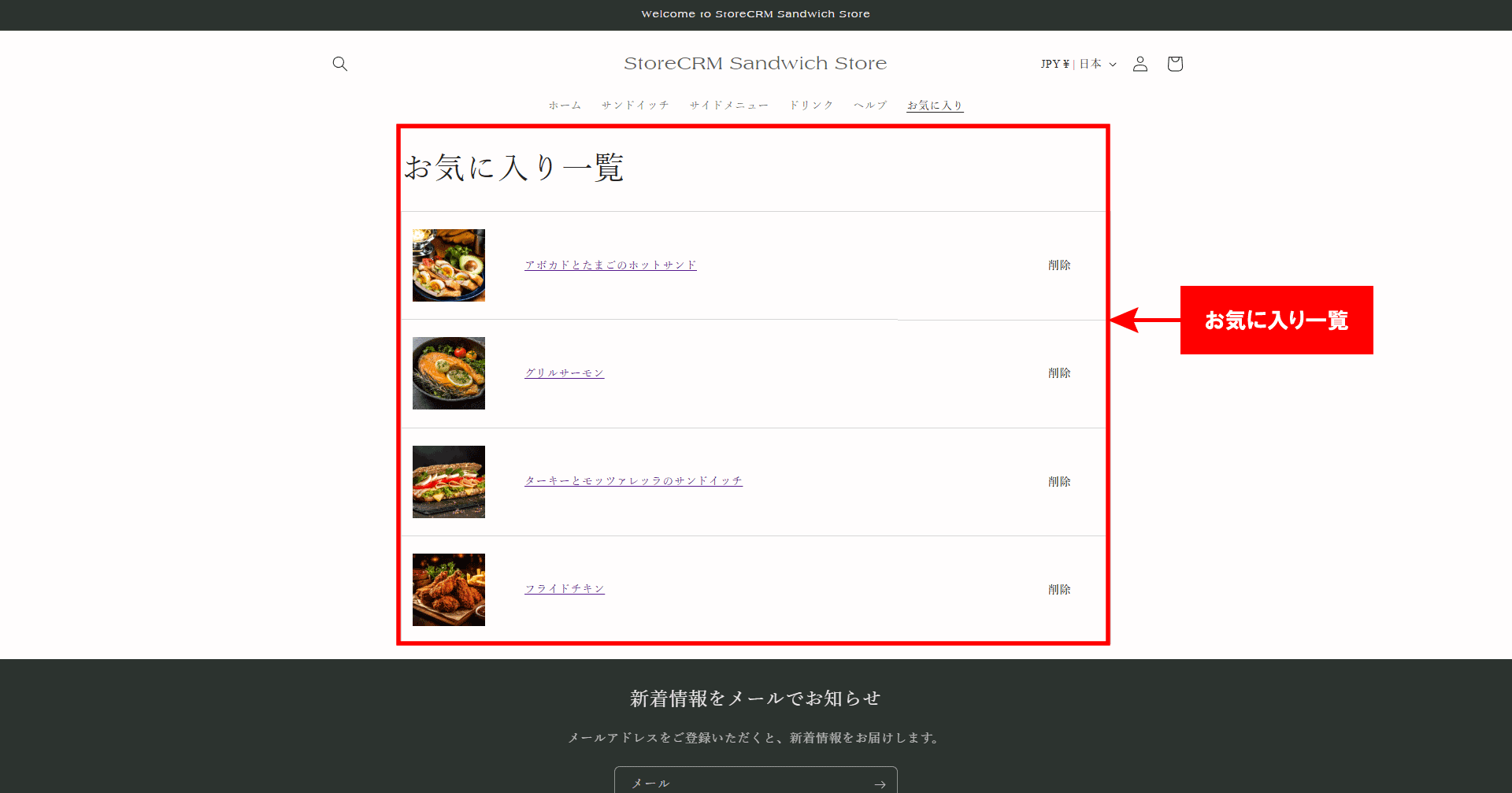
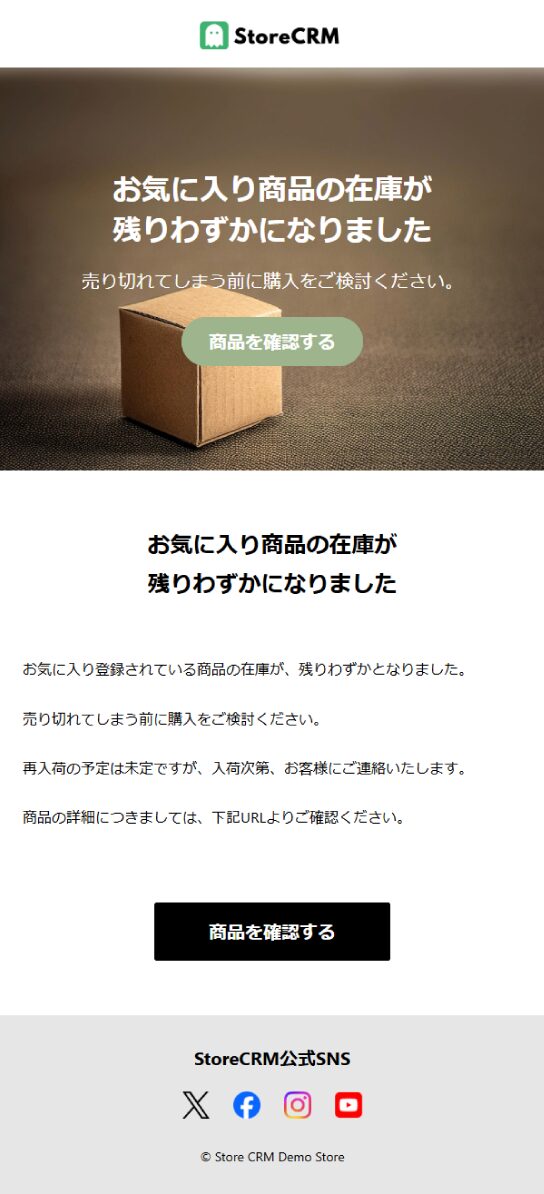
The low-stock notification email
- StoreCRM lets you send emails like this one from a template.
- You can also build an original email with your store's own photos and products.
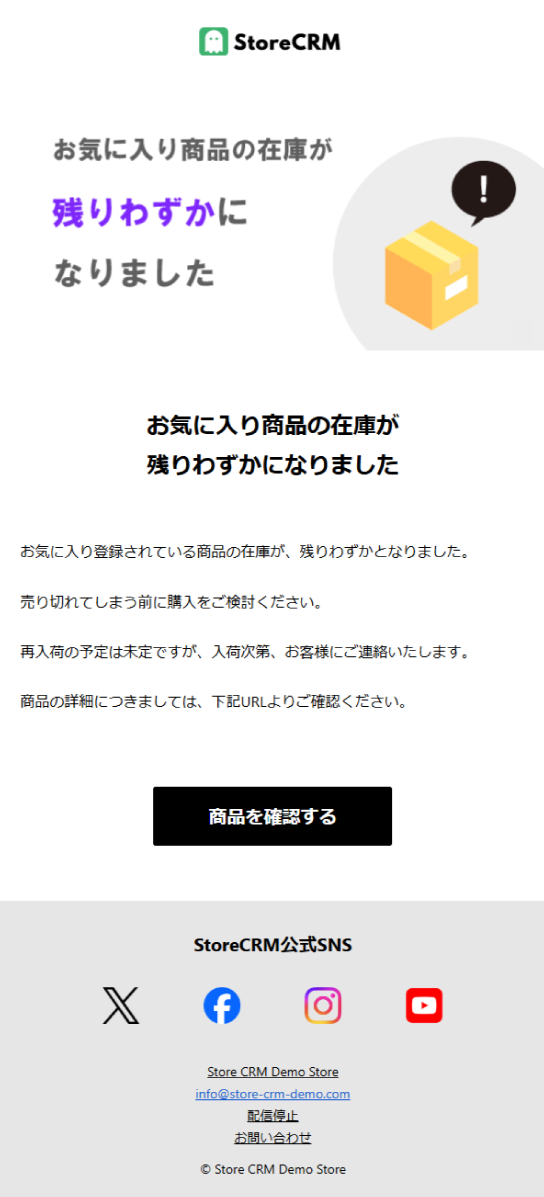
Add the wishlist button
- Place the wishlist button on your product pages.
- By clicking it, customers opt in to low-stock notifications for the products they wishlist.
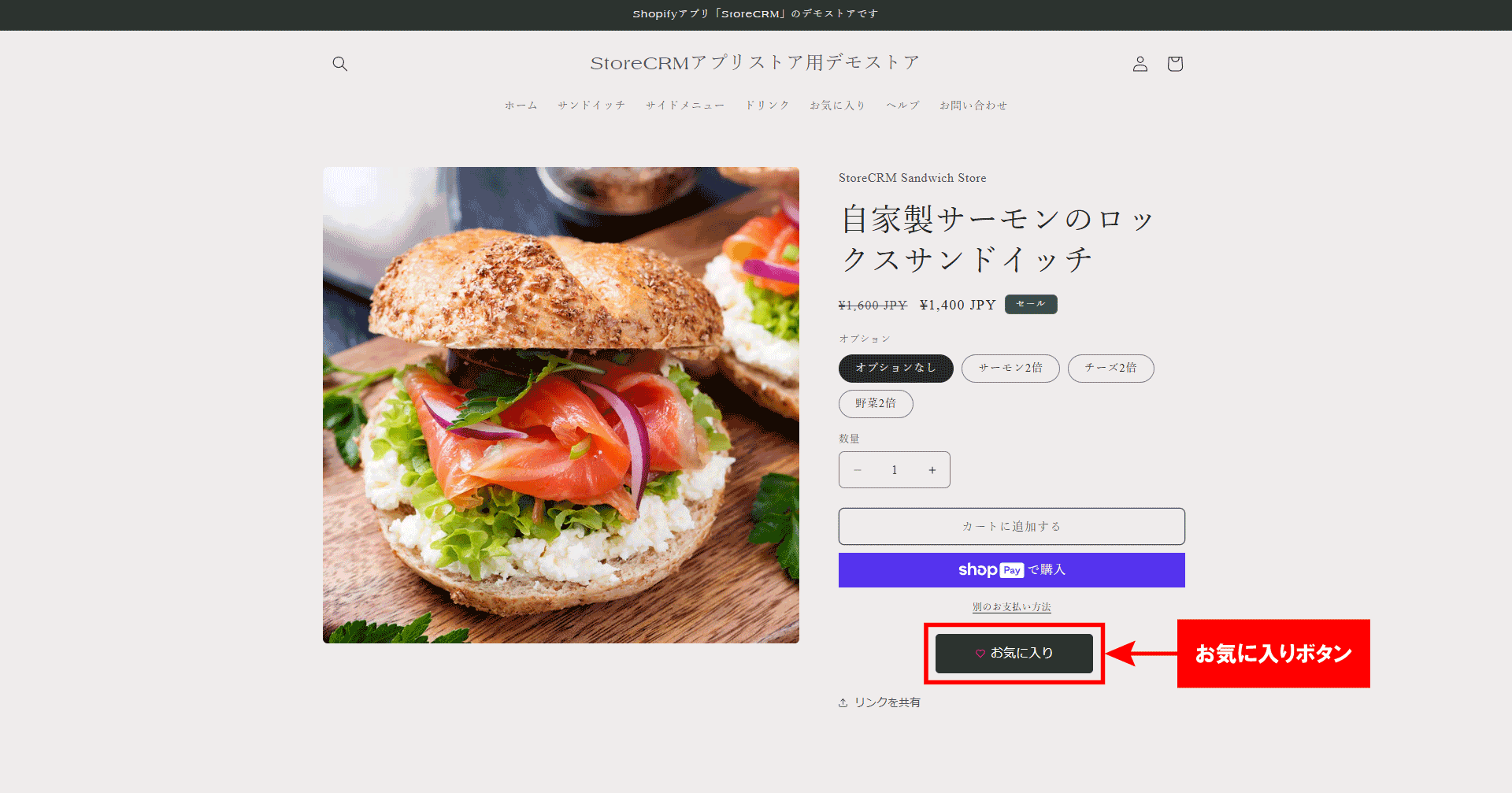
View the wishlist page
- When a logged-in customer clicks Favorites in your store's menu, their wishlist is displayed.
- In StoreCRM's Settings, you can also let customers use the wishlist button without logging in.
Email and LINE alerts as soon as one minute after stock drops below your threshold
- Notifications can go out by both email and LINE message as soon as one minute after stock falls below the threshold.
- Reaching customers as quickly as possible once stock runs low is what maximizes sales.
No additional apps required
- StoreCRM sends low-stock notifications without any additional app installs.
- Beyond low stock, you can also send price-rise and price-drop notifications.
Setting up low-stock alerts is easy
- With StoreCRM, low-stock notifications are easy to configure and need no additional apps.
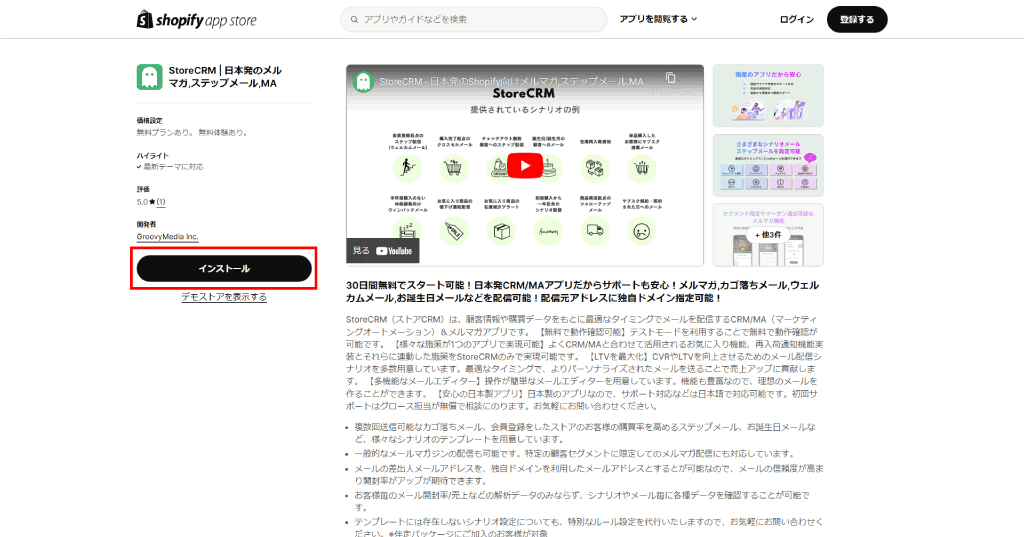
- Make sure the StoreCRM app is installed on your Shopify store first.
- Setting up the wishlist button requires the StoreCRM Standard plan or above.
- Before configuring the low-stock scenario, place the wishlist button on your product pages.
Add the scenario
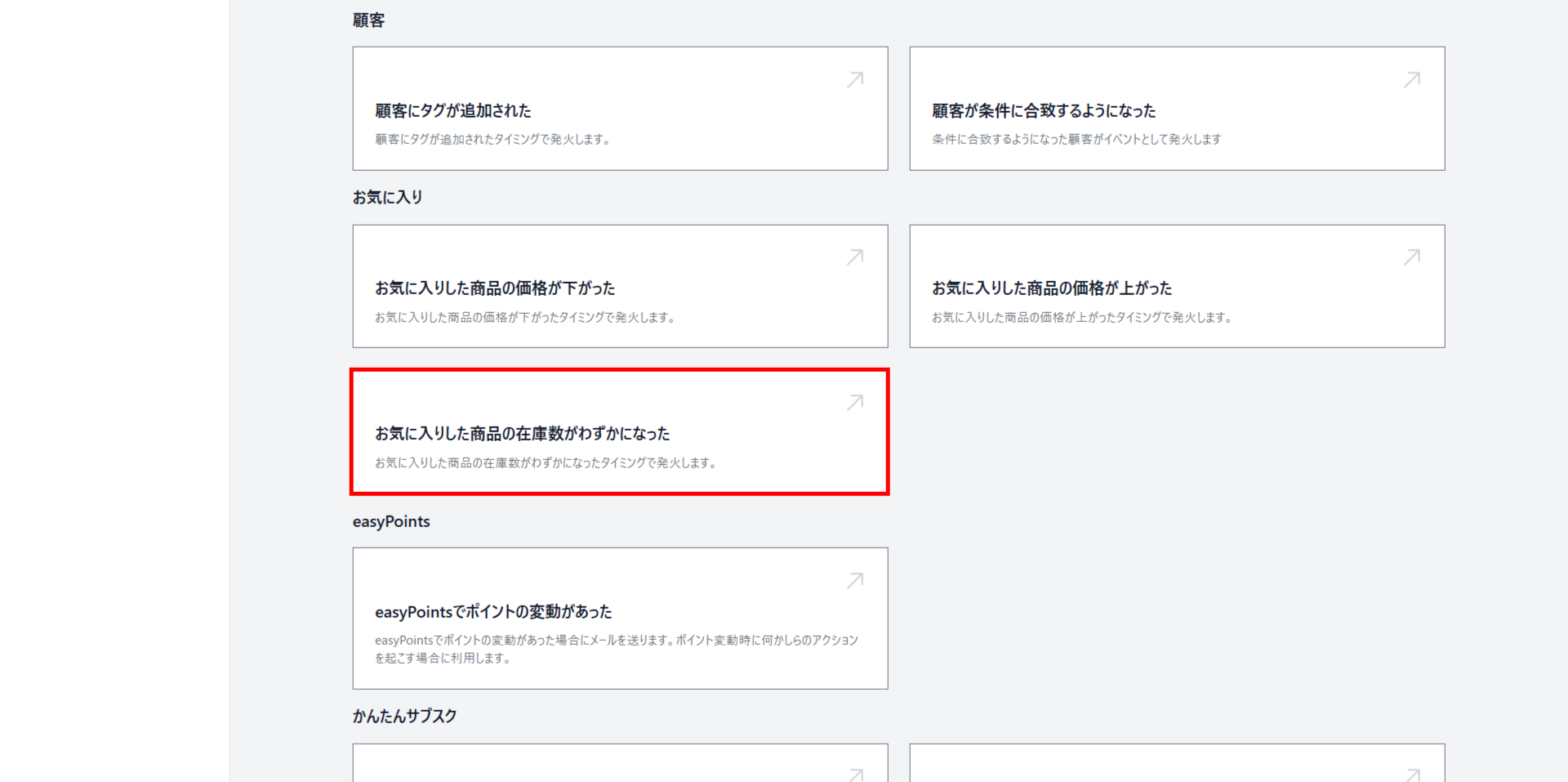
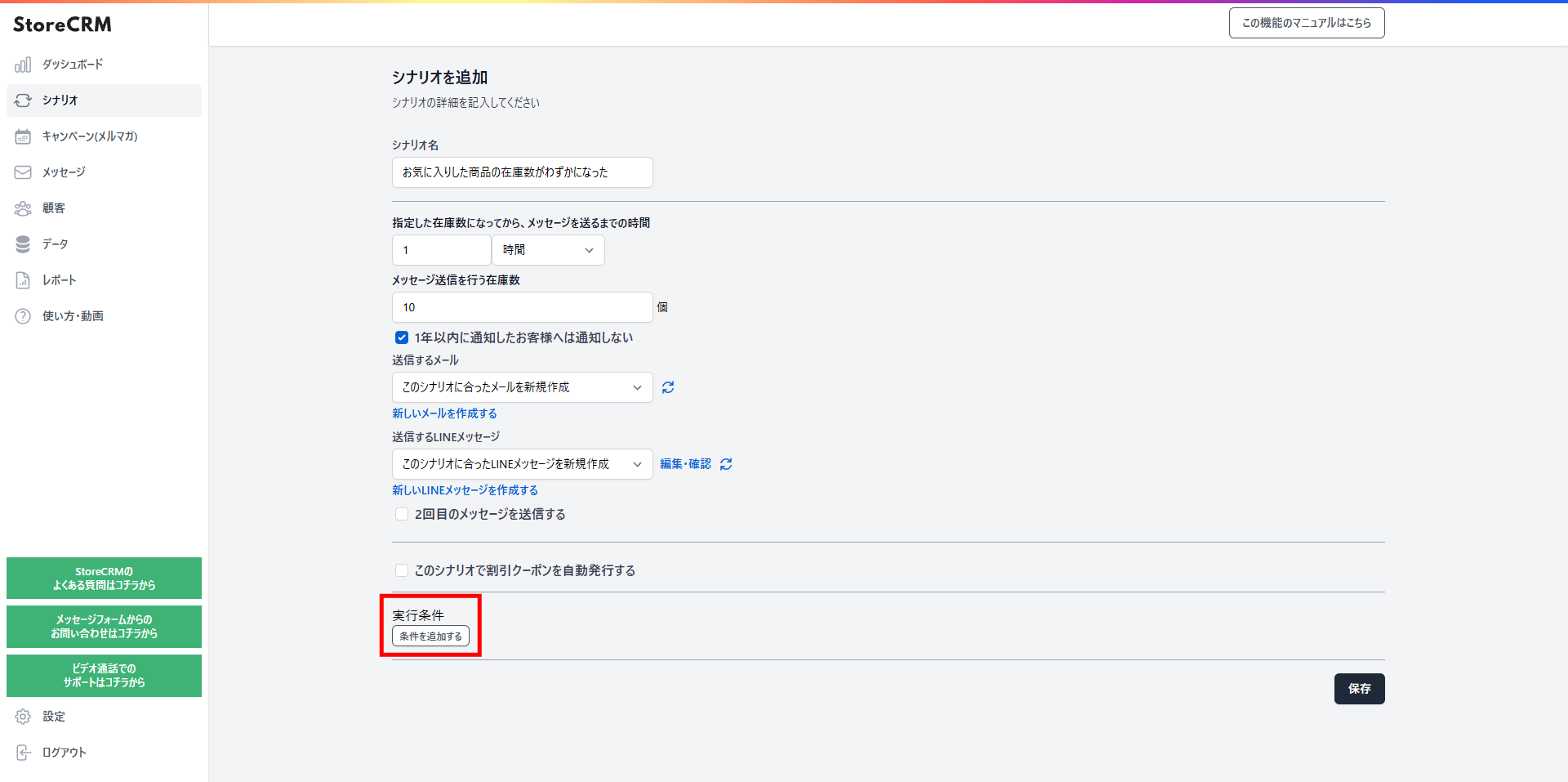
Click "A wishlisted product is almost out of stock" to add the scenario.
Set how long after stock runs low the first notification is sent
- Setting it as soon as possible after stock runs low works best.
- In this example, we chose one hour.
- You can choose a delay in minutes, hours, or days.
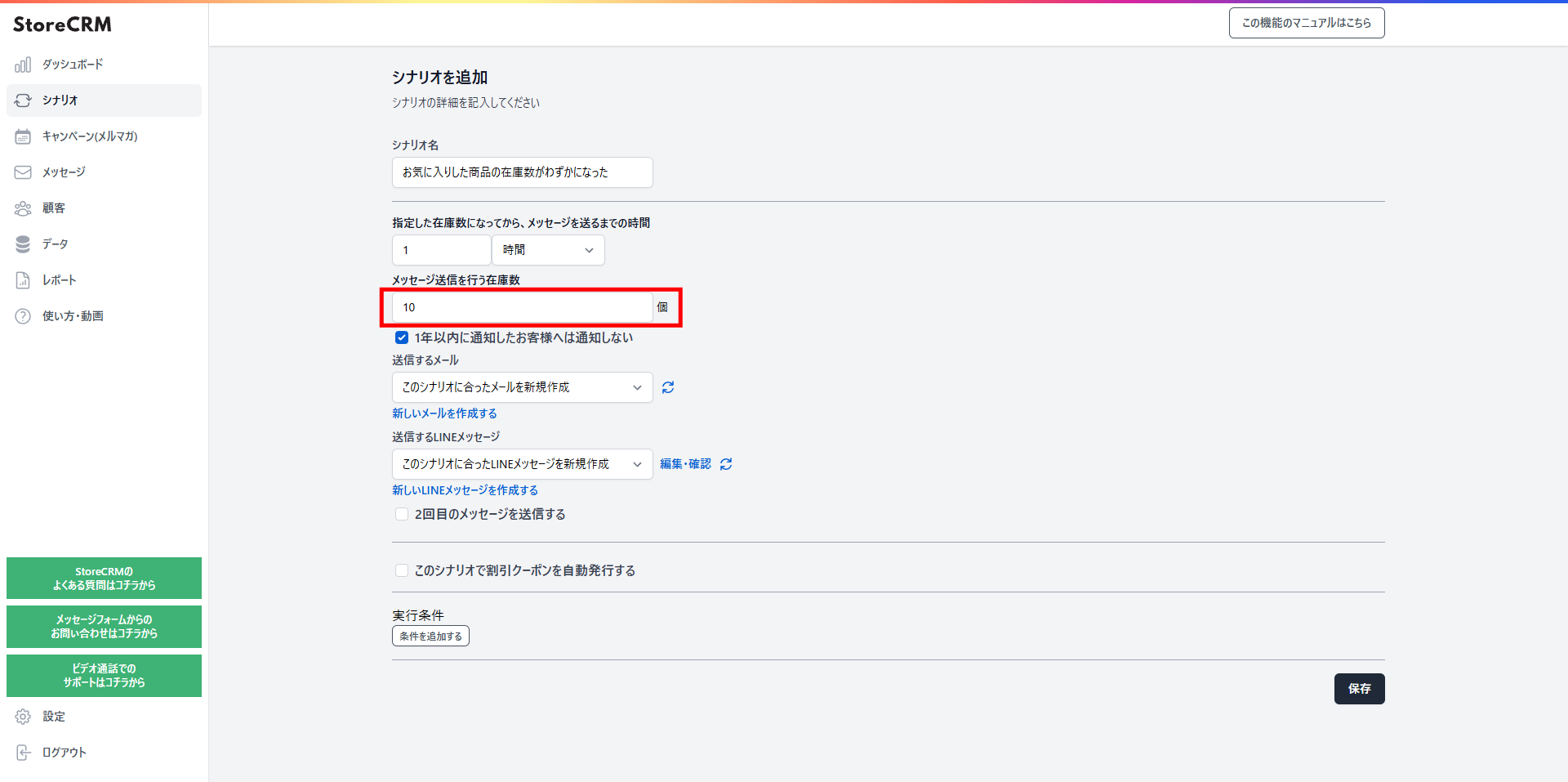
Set the stock threshold that triggers the message

- Set the inventory count at which the message is sent.
- In this example, we set it to 10.
- The message is sent the moment inventory reaches 10.
- Depending on your notification timing and stock threshold, a product may already be sold out by the time a customer visits.
- Adjust the threshold to your store's customer count, the product's popularity, and how many customers have it wishlisted.
- To create a new email, go to Messages and open the email list.
- Send from a template, or create an original email of your own.
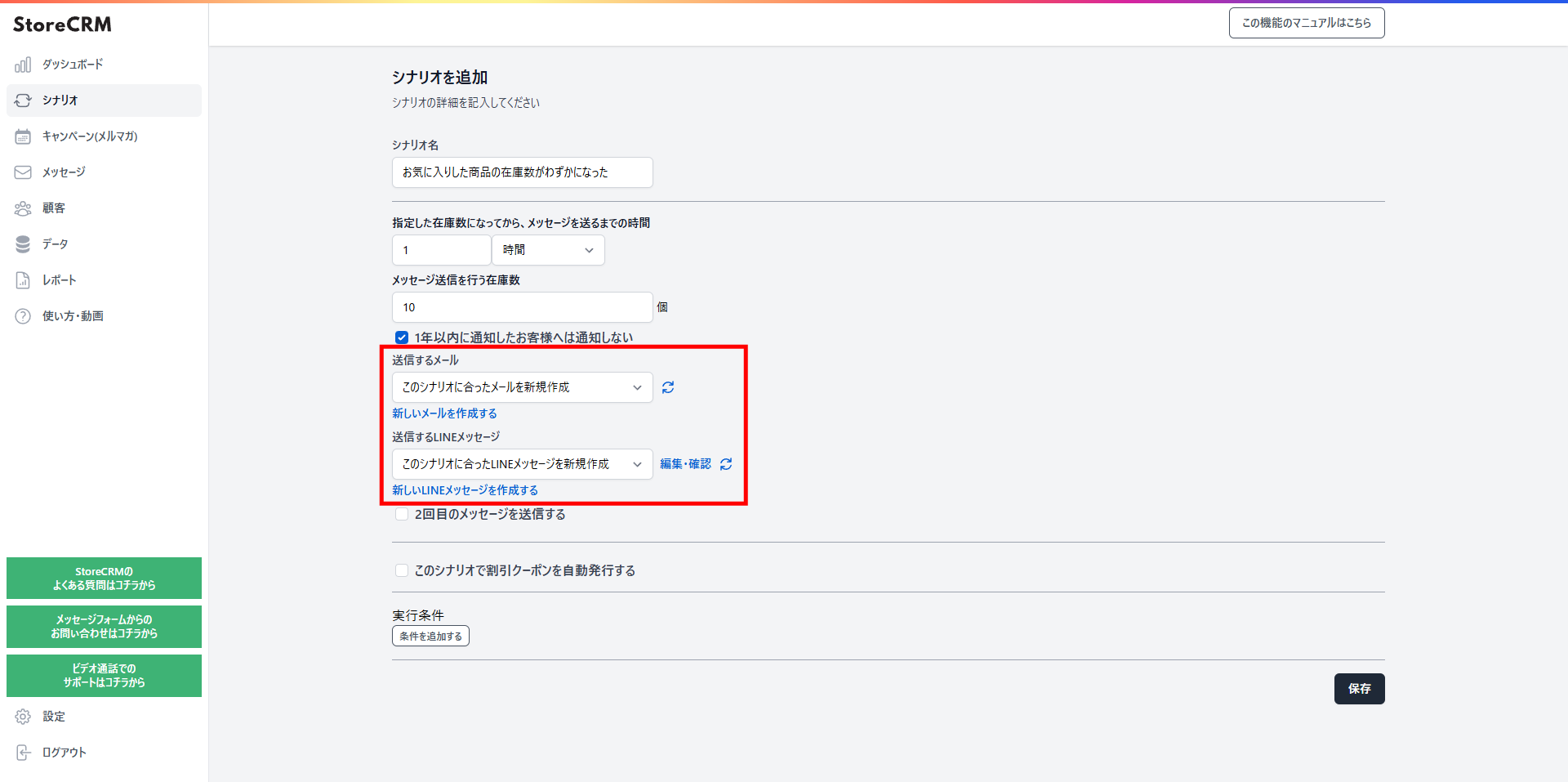
Choose the email and LINE message to send
- A LINE message can go out at the same time as the email.
- To create a new email, go to Messages and open the email list.
- Send from a template, or create an original email of your own.
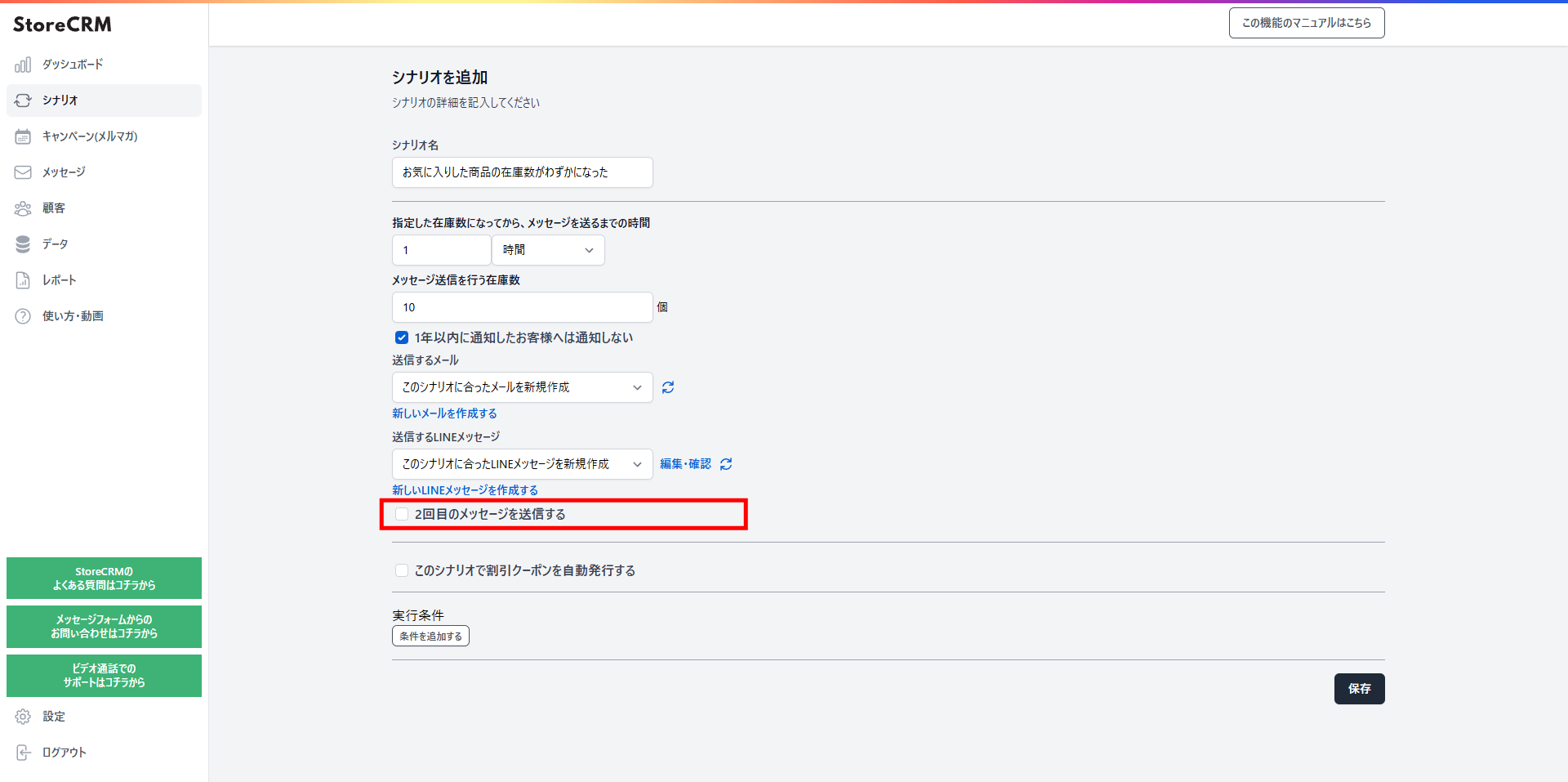
Set up a second notification and beyond
- Check "Send a second email".
- Configure it the same way as the first email.
- Varying the content between the first and later emails lifts your conversion rate.
- Sending a coupon in the second email and recommended products in the third helps drive sales.
- Coupons can be added, too. Learn how to add a coupon.
Target specific products, specific customers, subscription products, and more
- StoreCRM lets you send emails under a wide range of conditions.
- Learn more about scenario conditions.
Create the low-stock notification email
- Create the email you selected in the scenario.
- Send from a template, or create an original email of your own.
- From then on, customers who wishlisted the product automatically receive the low-stock notification email.
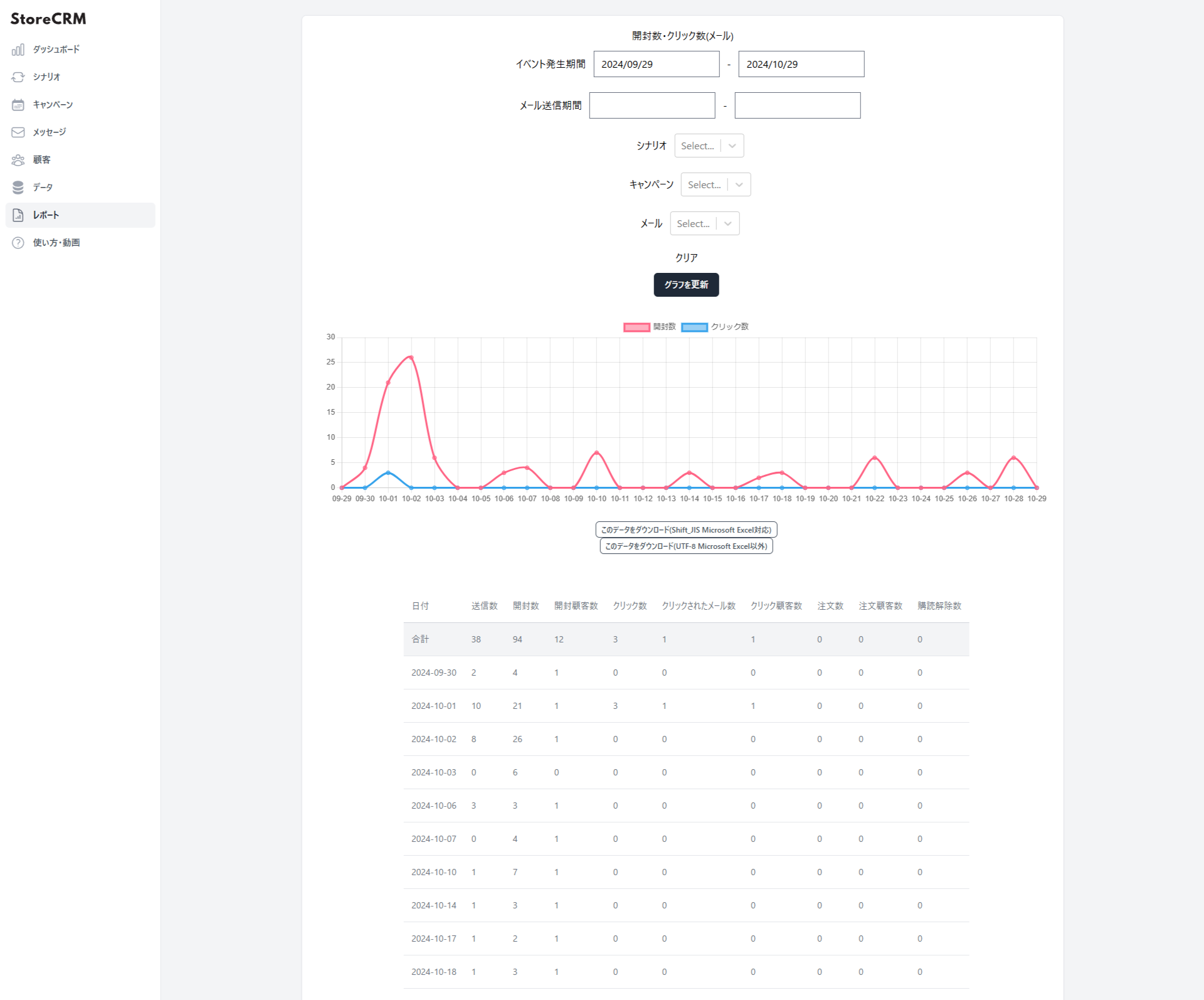
Check open rates, click rates, and sales in reports
- StoreCRM's reports show open rates, click rates, and sales.
- You can filter by a specific scenario or email.
- Click "Download this data (Shift_JIS, for Microsoft Excel)" or "Download this data (UTF-8, for other tools)" to export the data.
Summary
Building wishlist low-stock notifications with a patchwork of separate apps takes enormous time and effort. Why not use one convenient app to set up your wishlist button and automate delivery?