
Introduction
Back-in-stock notifications are one of the most important marketing tactics in ecommerce, and the back-in-stock email has the highest conversion rate of any email you send. Delivering that same notification over LINE — where open rates dwarf email — can be even more effective. And if a lot of your customers use LINE, it simply makes for a better experience on your store.
StoreCRM lets you add LINE back-in-stock notifications to a Shopify store with a single app. This article covers two approaches: registering for the notification over LINE (one-step LINE back-in-stock), and also sending a LINE message to customers who registered with an email address.
For back-in-stock notifications in general, see the links below.
About back-in-stock notifications /feature/back-in-stock/
How to set up back-in-stock notifications /knowhow/back-in-stock/
[Please note]
To use this feature you must have completed StoreCRM's basic LINE integration setup. Note also that messages can only be sent to customers who have completed the LINE link. If you have not set up the basic LINE integration yet, follow the article below first, then come back here for the Shopify Flow configuration. [How to connect Shopify with a LINE Official Account] https://storecrm.com/help/setting/line/
Related articles
How to add back-in-stock notifications and requests to Shopify
7 recommended Shopify back-in-stock notification apps compared
StoreCRM feature: back-in-stock notification emails
Registering for and receiving back-in-stock notifications over LINE
StoreCRM offers registering for and receiving back-in-stock notifications entirely over LINE as a feature called one-step LINE back-in-stock. For details of how it behaves, see the link below; this section covers how to set it up.
About one-step LINE back-in-stock /feature/line-back-in-stock/
What you will build in this section

We will add a "Get back-in-stock notifications on LINE" button to the product page and configure StoreCRM so that customers who register there receive the notification over LINE.
Adding the LINE back-in-stock button

1. Go to [Shopify admin] > [Online Store] > [Themes], select the theme you want and open the theme editor. Add StoreCRM's [LINE back-in-stock button] to the product page.

2. Open a product page and confirm that the [Get back-in-stock notifications on LINE] button is there.
Adjusting the look of the button and the popup

1. In StoreCRM, go to [Settings] > [Back-in-stock settings] > [LINE back-in-stock button] to adjust how the [Get back-in-stock notifications on LINE] button looks on your store.

2. Go to [Settings] > [Back-in-stock settings] > [LINE back-in-stock popup] to adjust the popup that appears when a customer clicks the button.
Adding the back-in-stock automation in StoreCRM

- Add the automation that sends the notification. Go to [Automations], start a new automation, and choose [Send back-in-stock notifications].

2. Configure the automation. Here we send no email at all, only LINE, and we let StoreCRM generate the back-in-stock LINE message automatically. You can edit the message afterwards. When you are finished, click save.

3. Activate the automation you just created.
Testing the notification
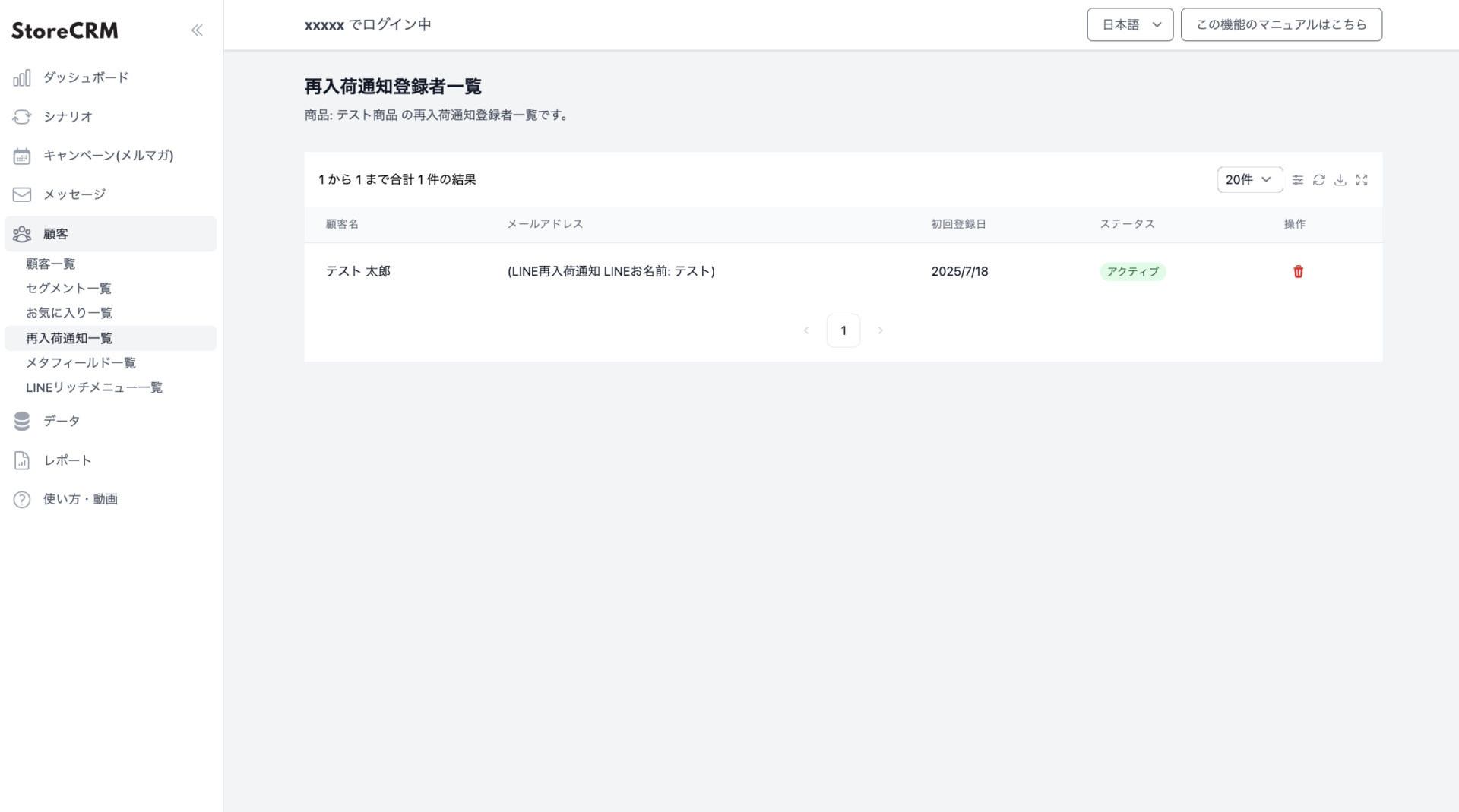
Register for a back-in-stock notification from a product page, and you will see the registration against that product under [Customers] > [Back-in-stock list] in StoreCRM. Registrations made over LINE show "LINE back-in-stock" in the email address column.
Adding stock for that product triggers the automation. We recommend confirming that the LINE message is delivered correctly.


