
- Notify customers by email and LINE message when the price of a wishlisted product goes up.
- A rising price makes the product look more valuable and prompts customers to buy.
- See how to set up the wishlist button.
- Setting up the wishlist button requires the StoreCRM Pro plan or above.
Benefits for customers
- A price increase creates the urge to buy before the price climbs any further.
- No more checking back on prices by hand.
- Personalized notifications build customer loyalty.
Benefits for your store
- Helps you clear excess inventory.
- A rising price makes the product look more valuable and prompts customers to buy.
- Other products whose prices stayed the same may sell as a result.
- Gives you marketing data on which price-rise timing converts best.
- Adding a discount coupon to the price-rise notification stimulates purchase intent even further.
What are wishlist price-rise alerts?
- Customers are notified by email and LINE message when the price of a wishlisted product goes up.
- A price increase creates the urge to buy before the price climbs any further.
- Explaining why the price is going up also deepens customers' trust in your store.
- To use this feature, set up the wishlist button first.
- Learn how to add a discount coupon.
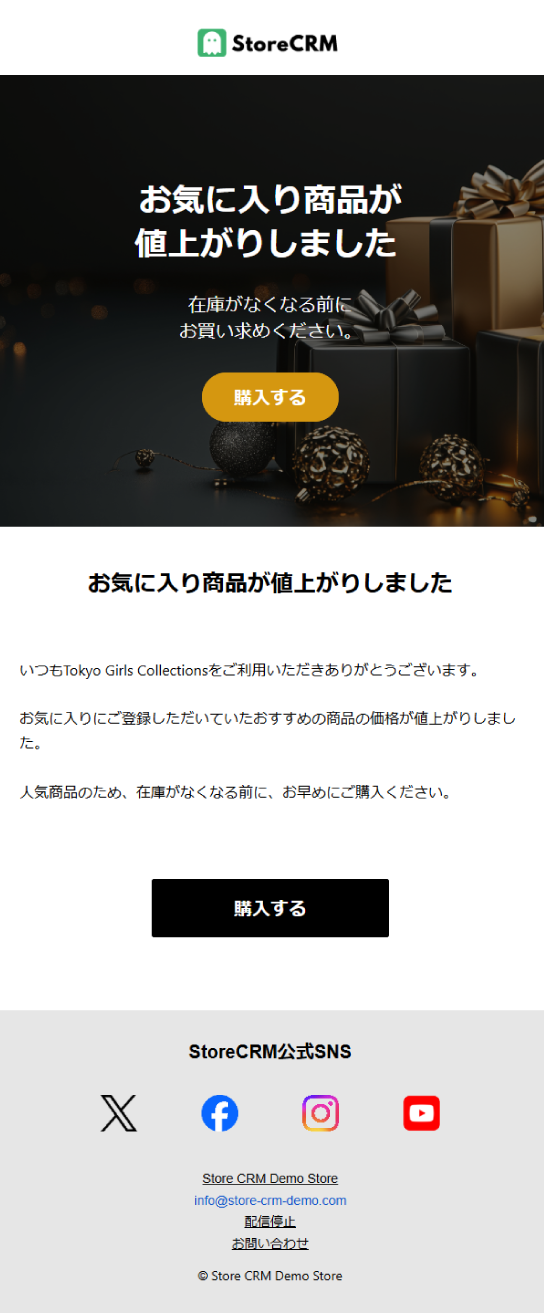
The price-rise notification email
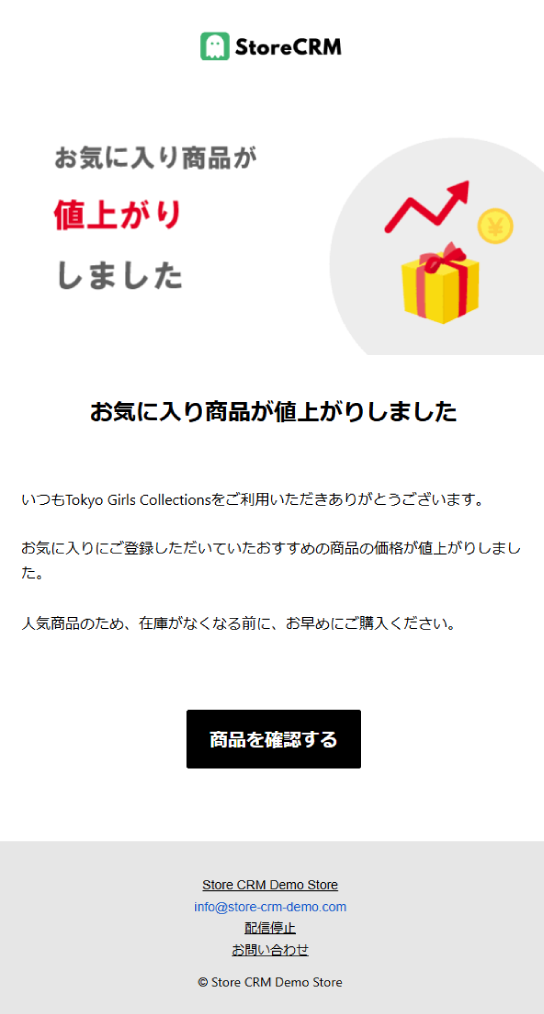
- StoreCRM lets you send emails like this one from a template.
- You can also build an original email with your store's own photos and products.
Add the wishlist button
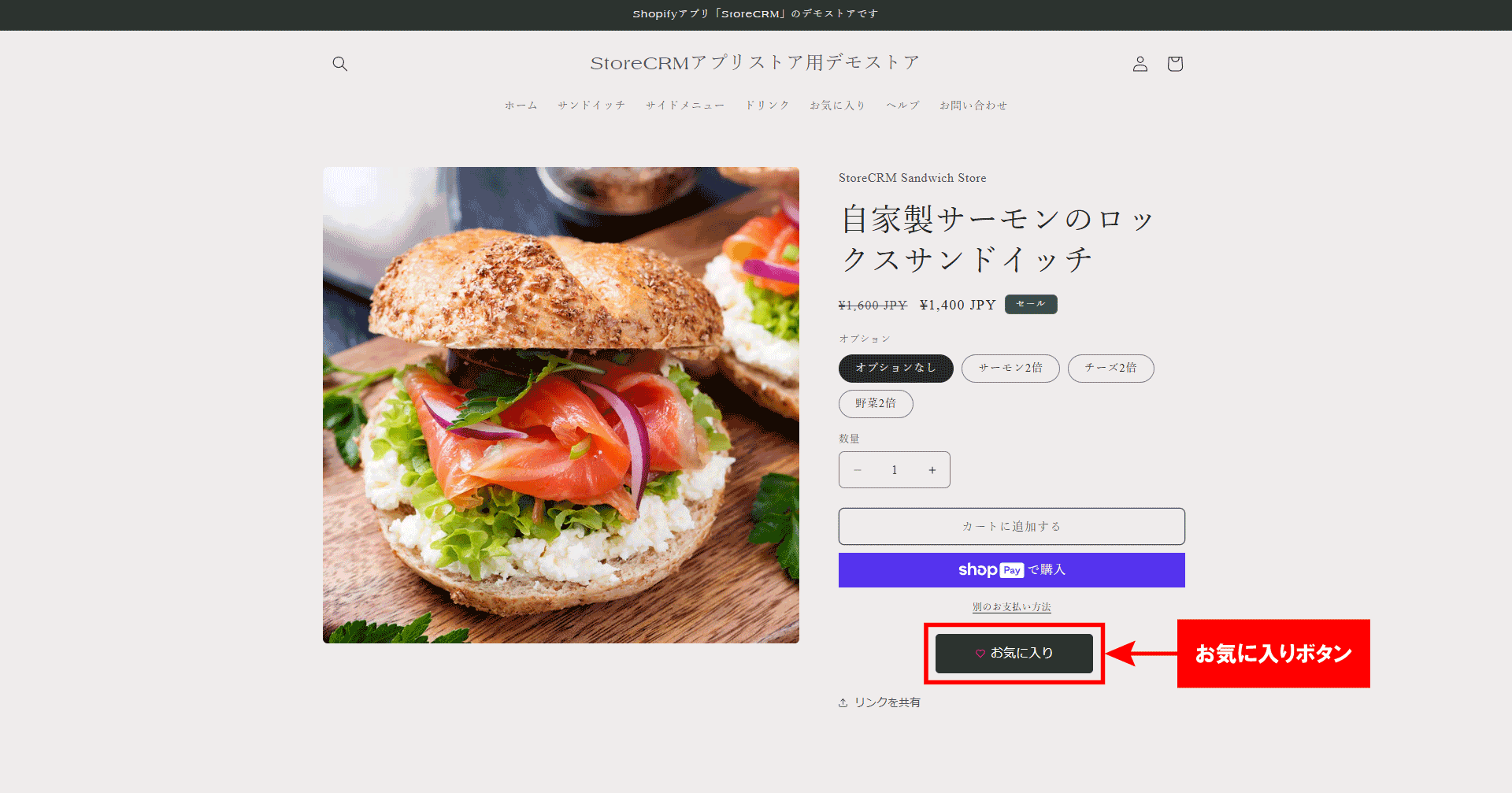
- Place the wishlist button on your product pages.
- By clicking it, customers opt in to price-rise notifications for the products they wishlist.
View the wishlist page
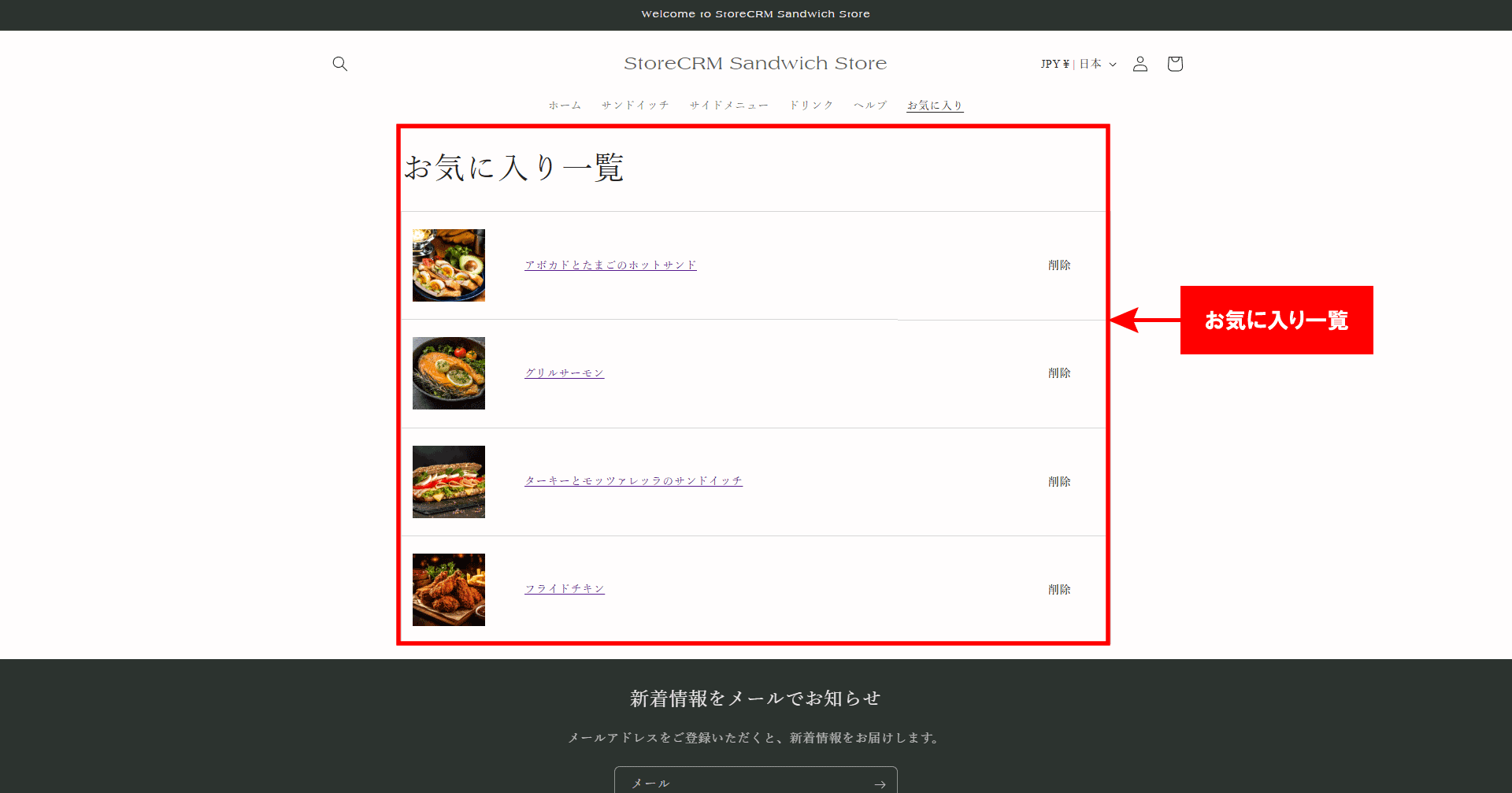
- When a logged-in customer clicks Favorites in your store's menu, their wishlist is displayed.
- In StoreCRM's Settings, you can also let customers use the wishlist button without logging in.
Email and LINE alerts as soon as one minute after a price rise
- Notifications can go out by both email and LINE message as soon as one minute after the price rises.
- Reaching customers as quickly as possible after a price rise is what maximizes sales.
No additional apps required
- StoreCRM sends price-rise notifications without any additional app installs.
- Beyond price rises, you can also send price-drop and low-stock notifications.
Setting up price-rise alerts is easy
- With StoreCRM, price-rise notifications are easy to configure and need no additional apps.
- Make sure the StoreCRM app is installed on your Shopify store first.
- Setting up the wishlist button requires the StoreCRM Standard plan or above.
- Before configuring the price-rise scenario, place the wishlist button on your product pages.
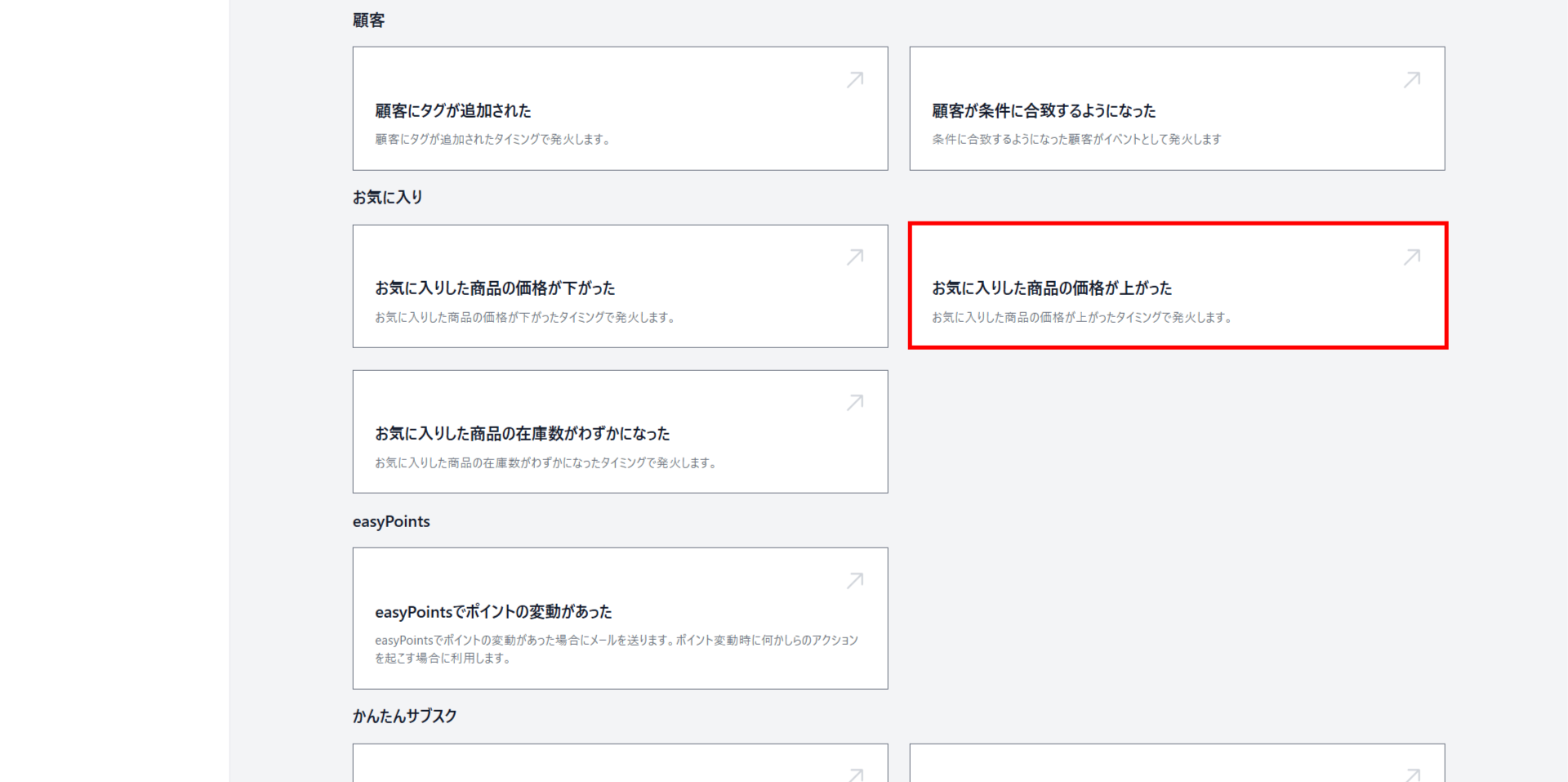
Add the scenario
Click "The price of a wishlisted product rose" to add the scenario.
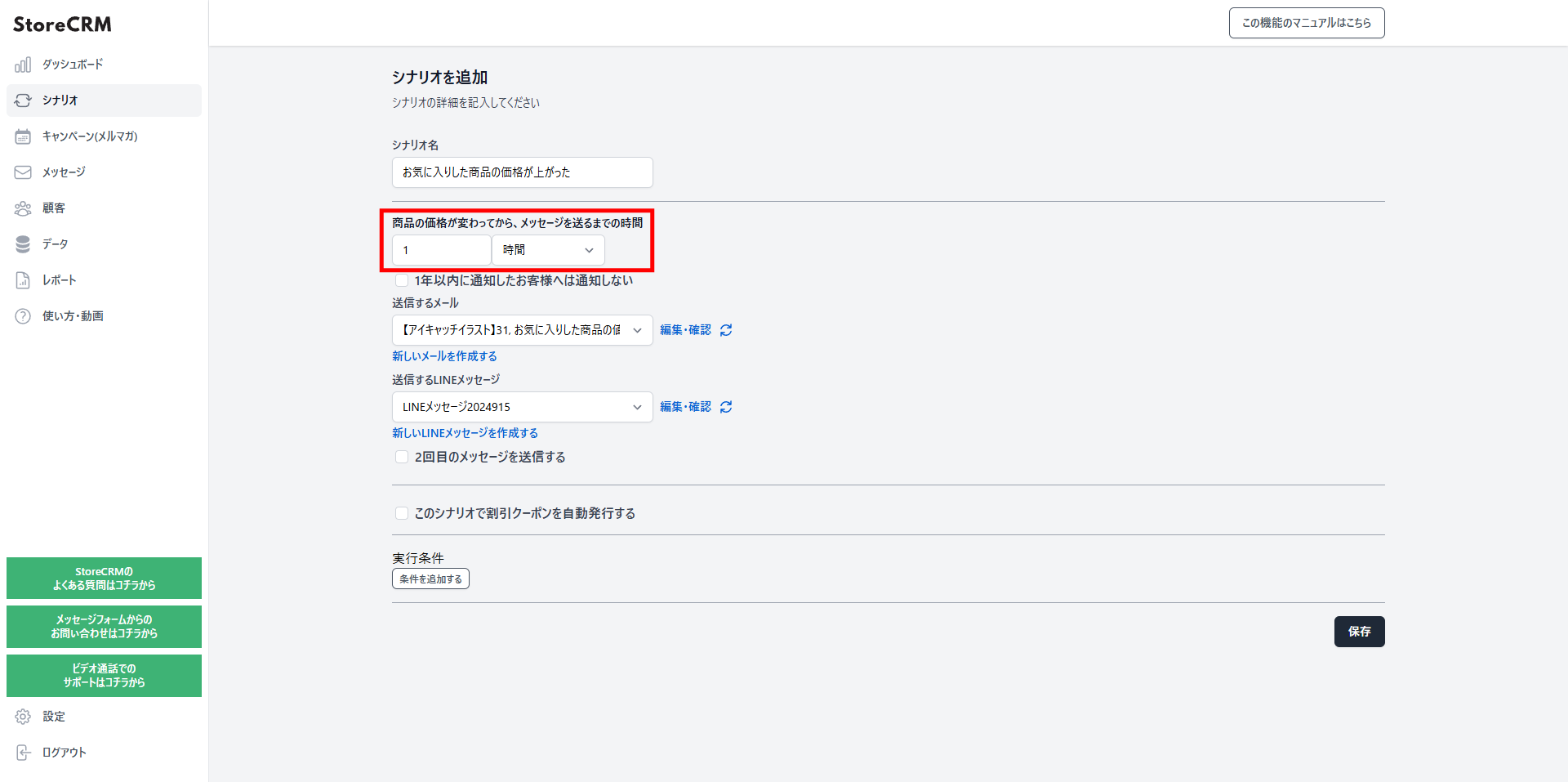
Set how long after the price rise the first notification is sent
- Setting it as soon as possible after the price rise works best.
- In this example, we chose one hour.
- You can choose a delay in minutes, hours, or days.
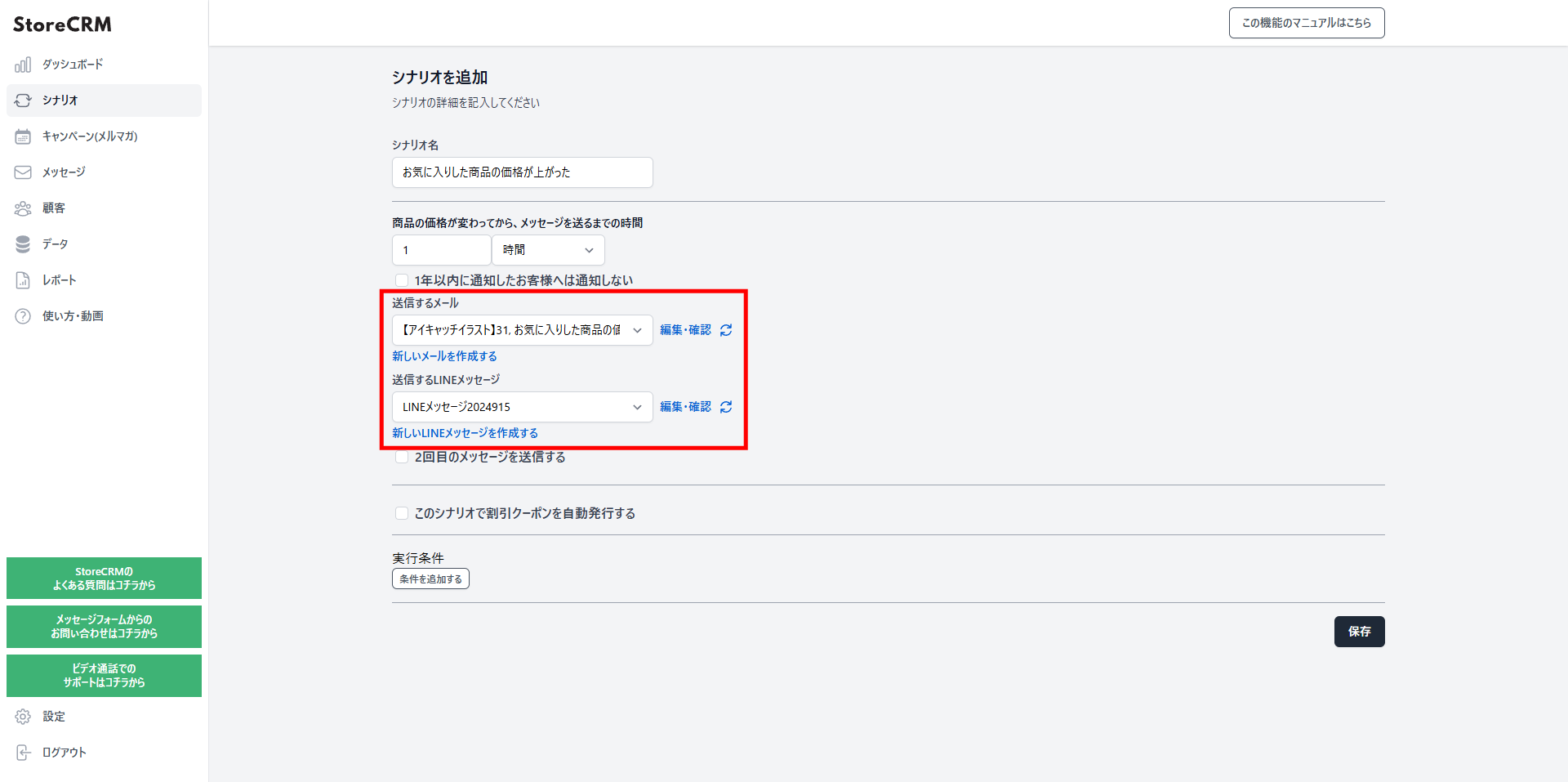
Choose the email and LINE message to send
- A LINE message can go out at the same time as the email.
- To create a new email, go to Messages and open the email list.
- Send from a template, or create an original email of your own.
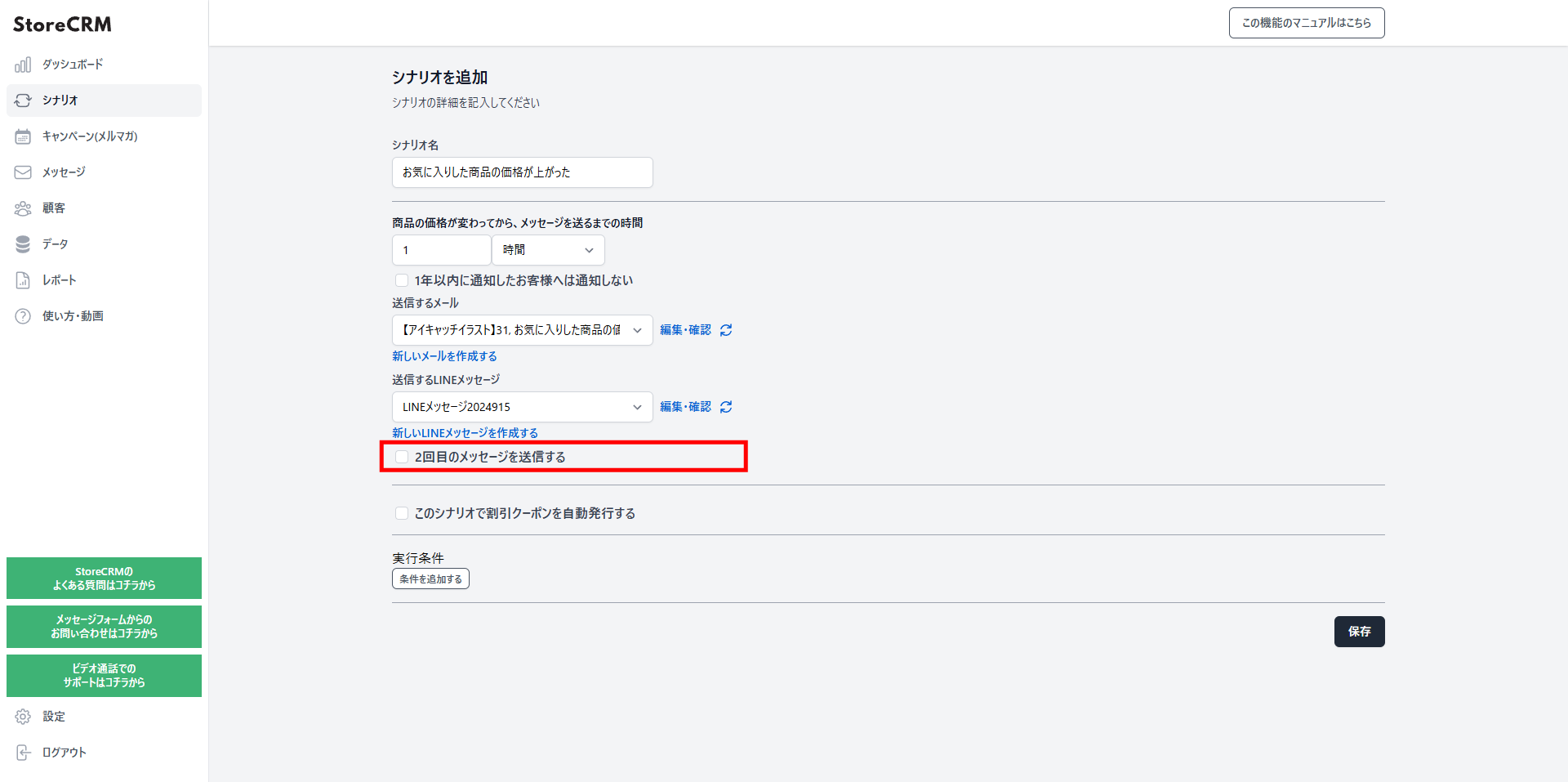
Set up a second notification and beyond
- Check "Send a second email".
- Configure it the same way as the first email.
- Varying the content between the first and later emails lifts your conversion rate.
- Sending a coupon in the second email and recommended products in the third helps drive sales.
- Coupons can be added, too. Learn how to add a coupon.
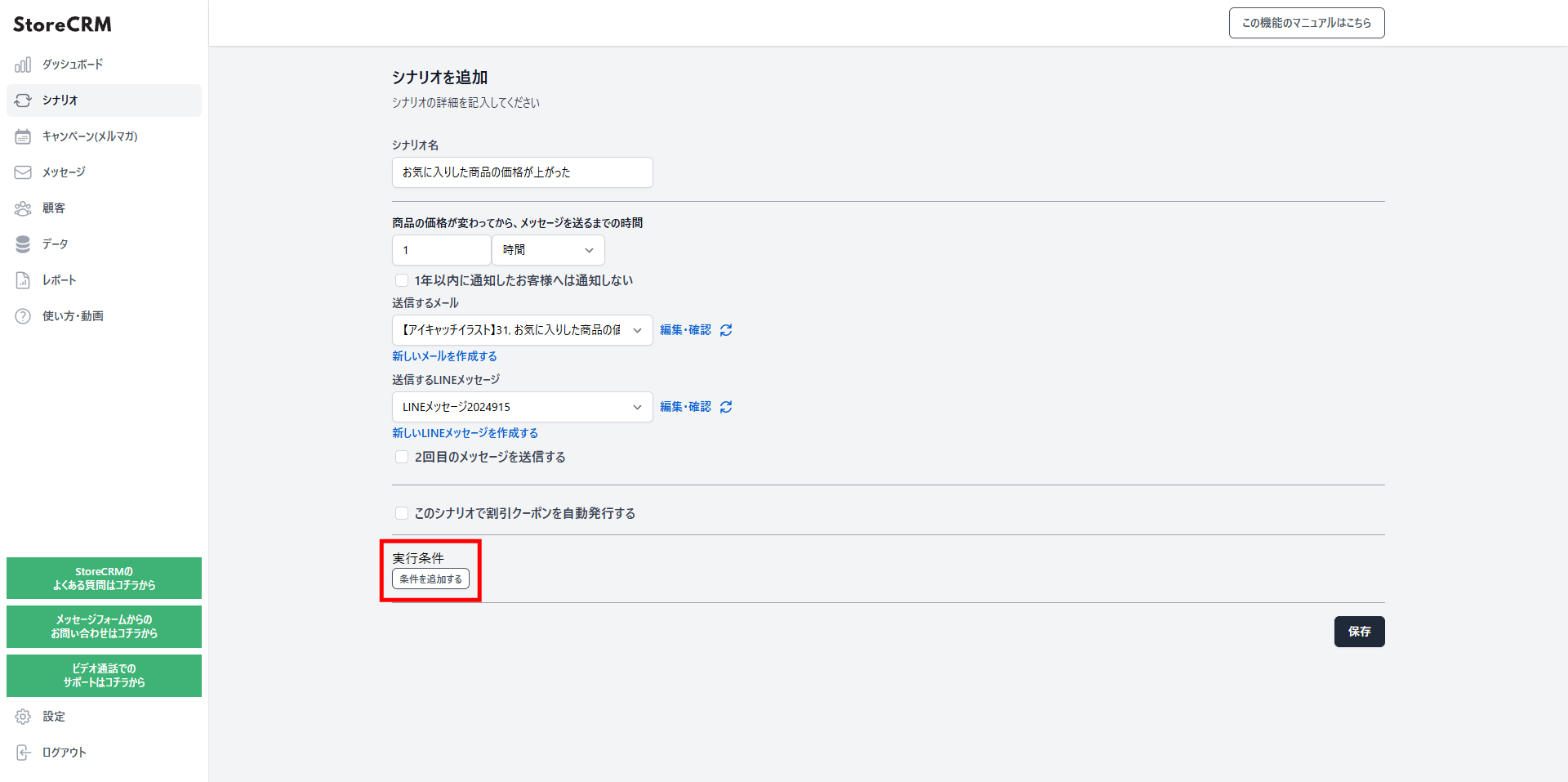
Target specific products, specific customers, subscription products, and more
- StoreCRM lets you send emails under a wide range of conditions.
- Learn more about scenario conditions.
Create the price-rise notification email
- Create the email you selected in the scenario.
- Send from a template, or create an original email of your own.
- From then on, customers who wishlisted the product automatically receive the price-rise notification email.
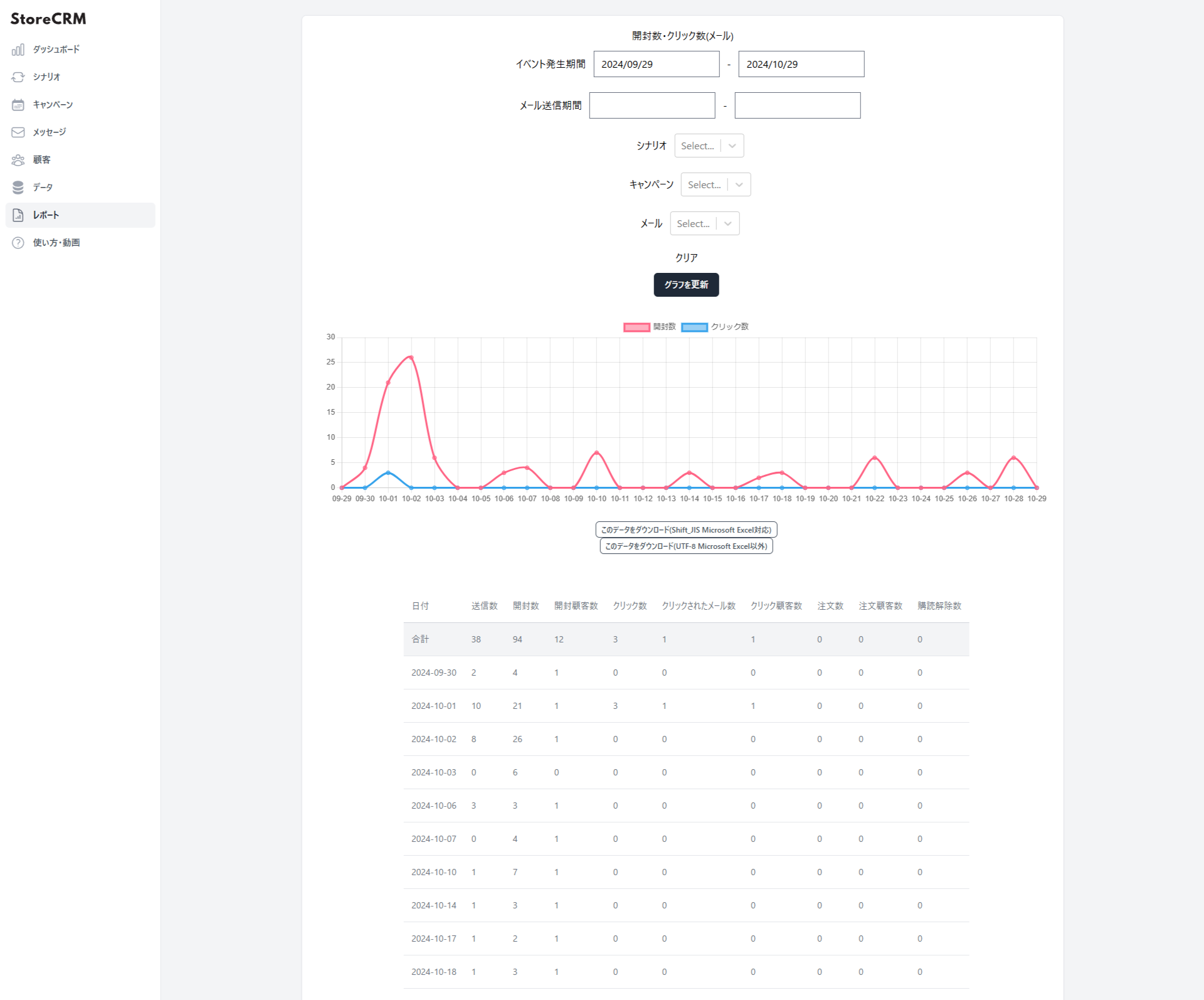
Check open rates, click rates, and sales in reports
- StoreCRM's reports show open rates, click rates, and sales.
- You can filter by a specific scenario or email.
- Click "Download this data (Shift_JIS, for Microsoft Excel)" or "Download this data (UTF-8, for other tools)" to export the data.
Summary
Building wishlist price-rise notifications with a patchwork of separate apps takes enormous time and effort. Why not use one convenient app to set up your wishlist button and automate delivery?