
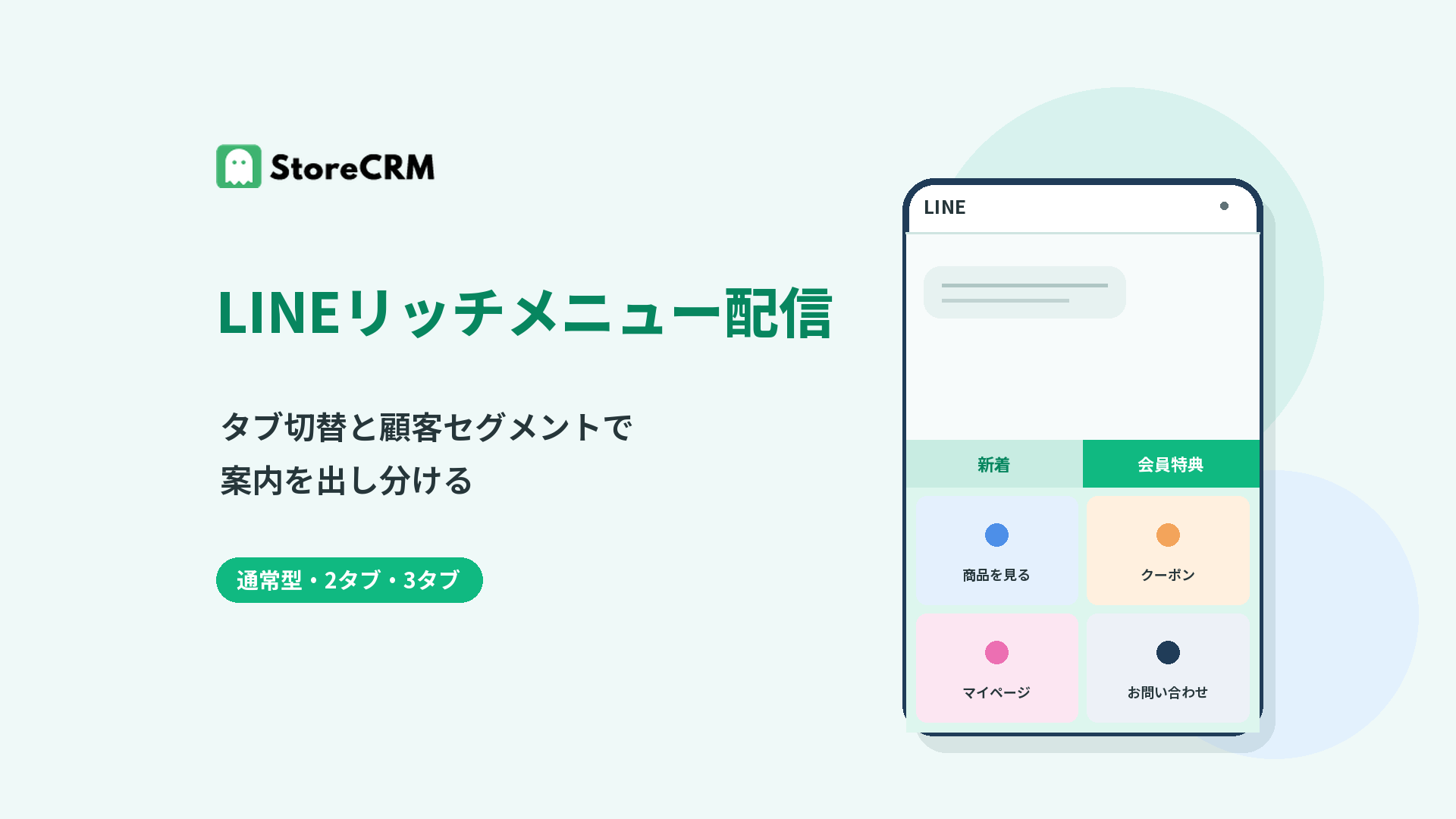
A LINE rich menu is the always-on menu shown at the bottom of your LINE Official Account chat screen. It gathers the entry points you want to promote in one place: product pages, campaigns, member pages, support contacts, and more.
With StoreCRM, you can build rich menus with two or three switchable tabs in addition to the standard single-panel layout for everyone. You can also show a different rich menu to each StoreCRM customer segment, tailoring what customers see to your relationship with them.
Don't settle for one menu for everyone
The rich menu is a path your friends see every time they open the chat screen. But when every customer gets the same menu, brand-new friends and loyal members all see identical information.
With StoreCRM, start with a menu for everyone, then show segment-specific menus to customers with linked LINE IDs as needed. Prompts for LINE ID linking, member services, and links to products and campaigns each get their place — without cramming everything into a single menu.
What StoreCRM's LINE rich menus can do
Choose a standard layout or two or three tabs
Beyond the standard single-panel layout, you can build menus with two or three switchable tabs. Set up purpose-driven tabs — say, "New arrivals," "Member perks," and "Support" — and keep your links organized even within the limited display area.
Each tab gets its own background image and tap areas. Use the standard layout when there's little to show, and the tabbed layout when you want to separate multiple purposes — whatever suits how your store operates.
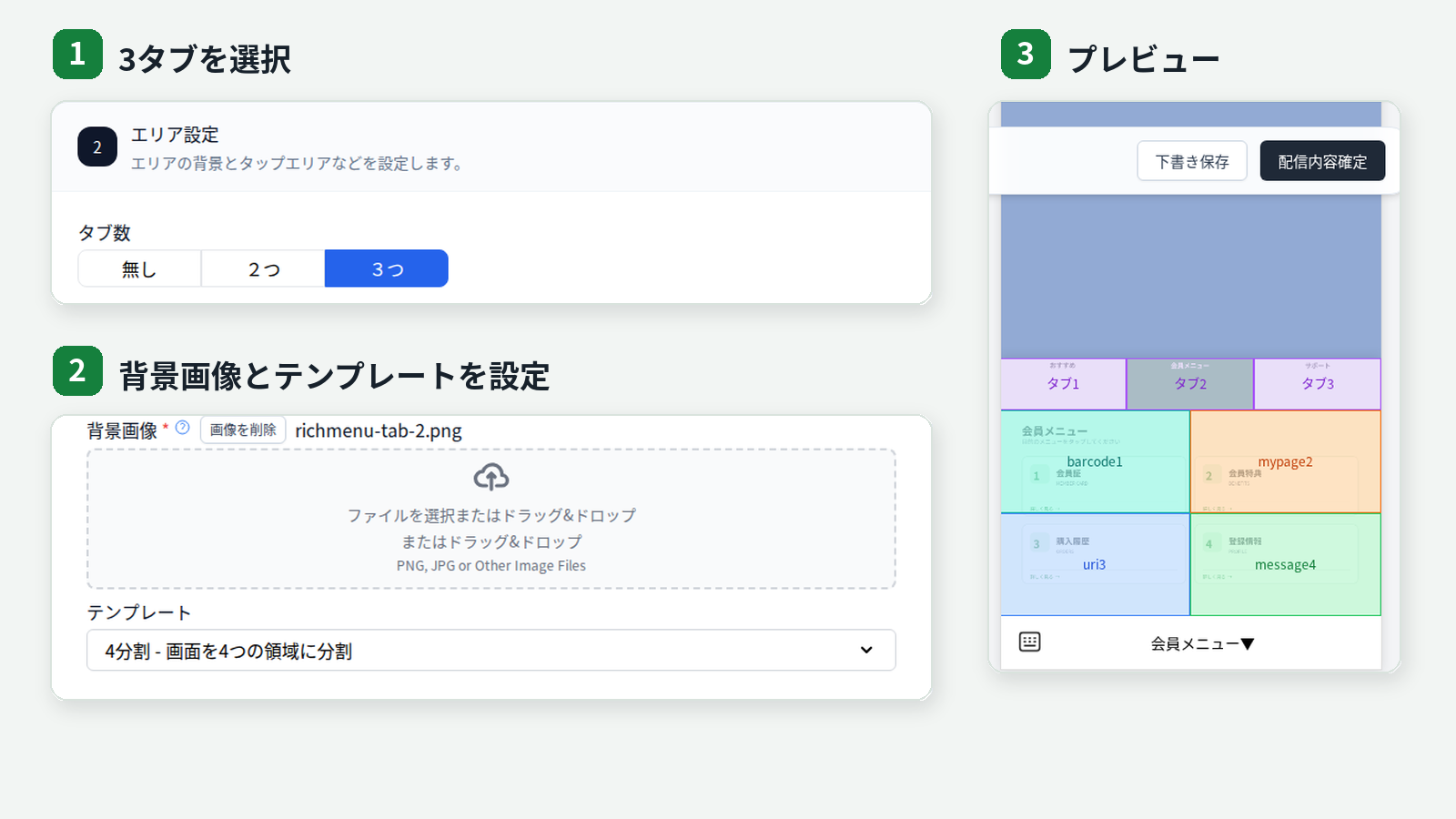
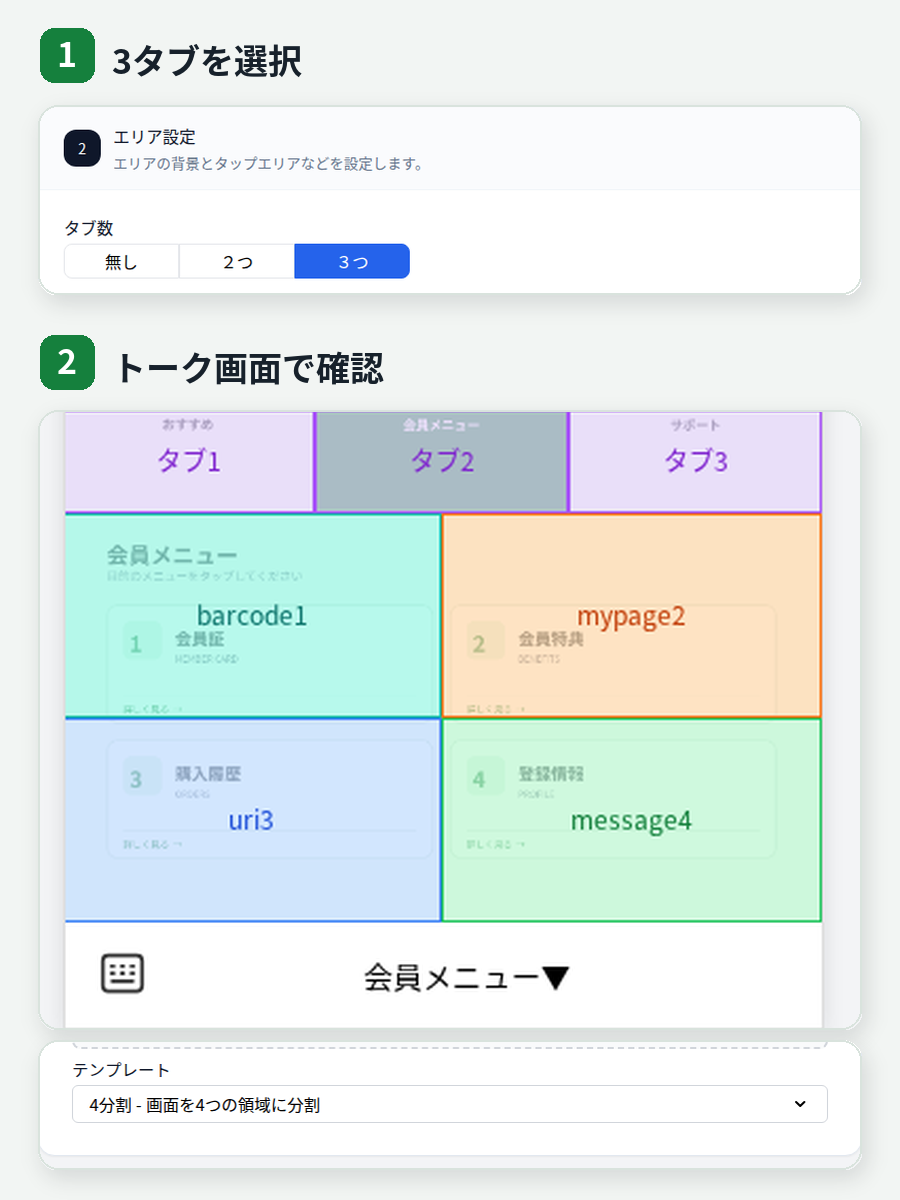
Actual StoreCRM admin interface with sample data. Click the image to enlarge.
Show a different menu to each customer segment
Pick a StoreCRM customer segment — built from purchase history, customer tags, LINE linking status, and more — and show a separate rich menu to the customers in it.
For example, members with linked LINE IDs might see links to their account page and member perks, while customers who bought a specific product see related products and usage guides. The rich menu stops being a broadcast and becomes another place your StoreCRM customer data powers personalized service on LINE.
Set a display period and tap actions
Each rich menu can have a start and end date and time, so limited-time campaigns and seasonal promotions appear only while they're relevant.
Tap areas within the image can link to any URL, such as a product page, or send a message. You can also configure whether the menu opens by default and the text shown in the chat bar.
Guide customers from the rich menu to their LINE membership card
First register the LINE channel ID and channel secret under LINE Login channel settings (for linking), then save the LIFF ID for the membership-card LIFF app under LINE membership card settings. You can then choose Membership barcode as the action for a rich-menu tap area. Customers can open the membership-card page from the menu and present their barcode in store.
On the membership-card page, customers who have not linked their LINE ID can be guided through account registration and LINE linking. Once linking is complete, the page displays their membership card.
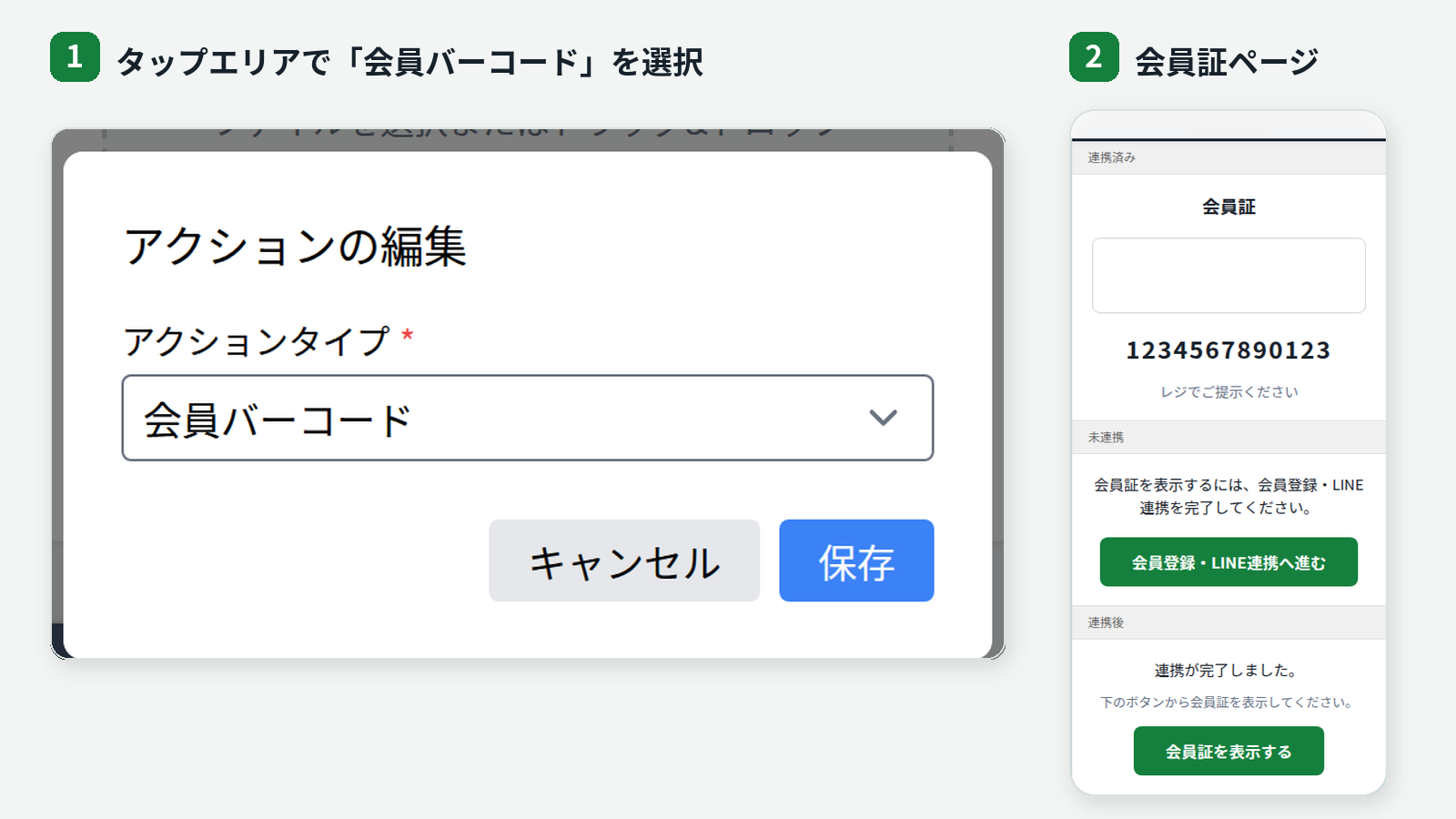
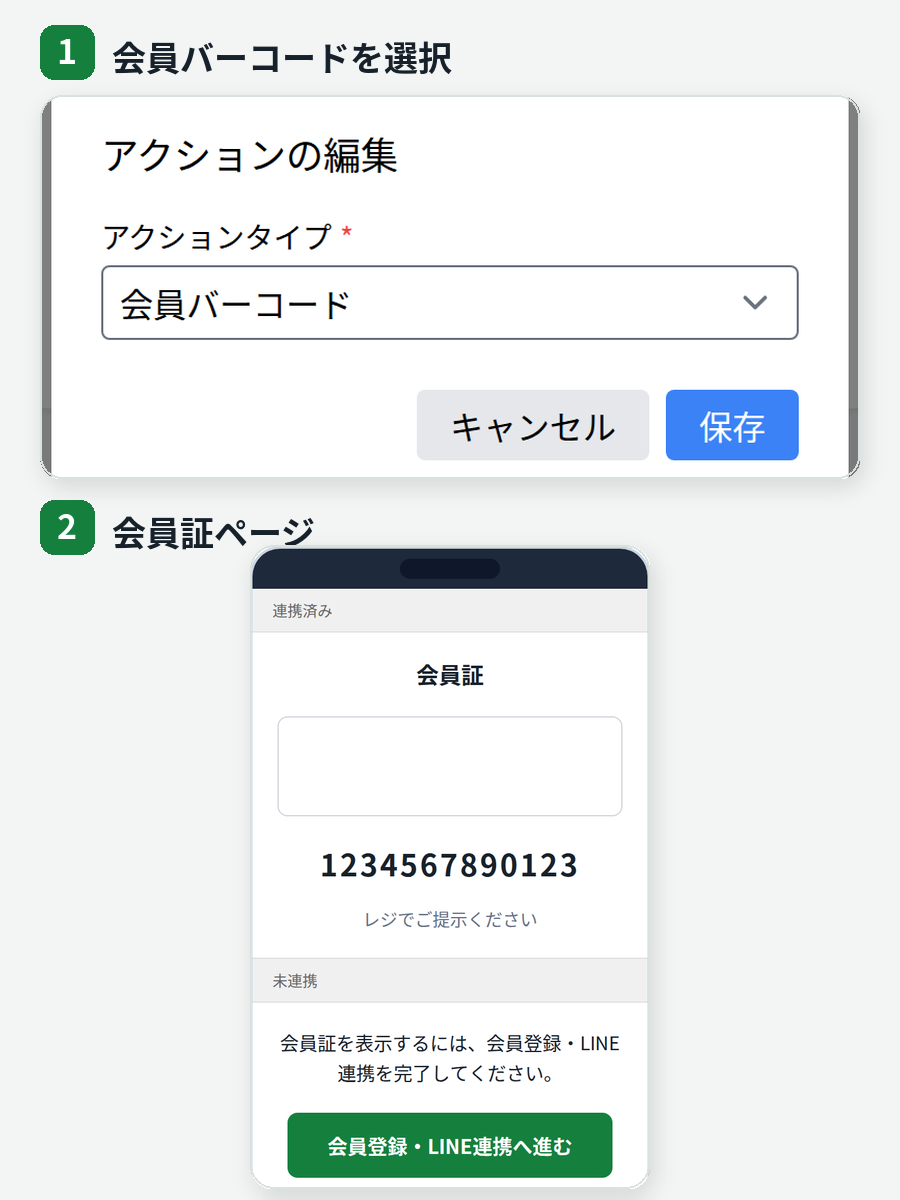
Actual settings and preview in the StoreCRM admin interface with sample data. Click the image to enlarge.
Combining menus by LINE ID linking status
To show different content to customers with and without linked LINE IDs, combine a menu for everyone with segment-targeted menus for linked customers. The key is to use the everyone menu as your foundation rather than trying to target unlinked friends individually.
Friends without an assigned segment menu see the everyone menu. Even customers with linked LINE IDs fall back to the everyone menu when they don't belong to a targeted segment.
For customers without linked LINE IDs: promote linking in the everyone menu
In the menu shown to everyone, present the benefits of LINE ID linking and a link to your LINE linking page. Explain what customers get after linking — updates and member services — and guide them straight to your store's linking page.
For customers with linked LINE IDs: show segment-specific menus
Create a customer segment with LINE linking status as a condition, and show a separate rich menu to linked customers. Split linked customers further by purchase history or customer tags, and you can design entry points matched to membership stage and interests.
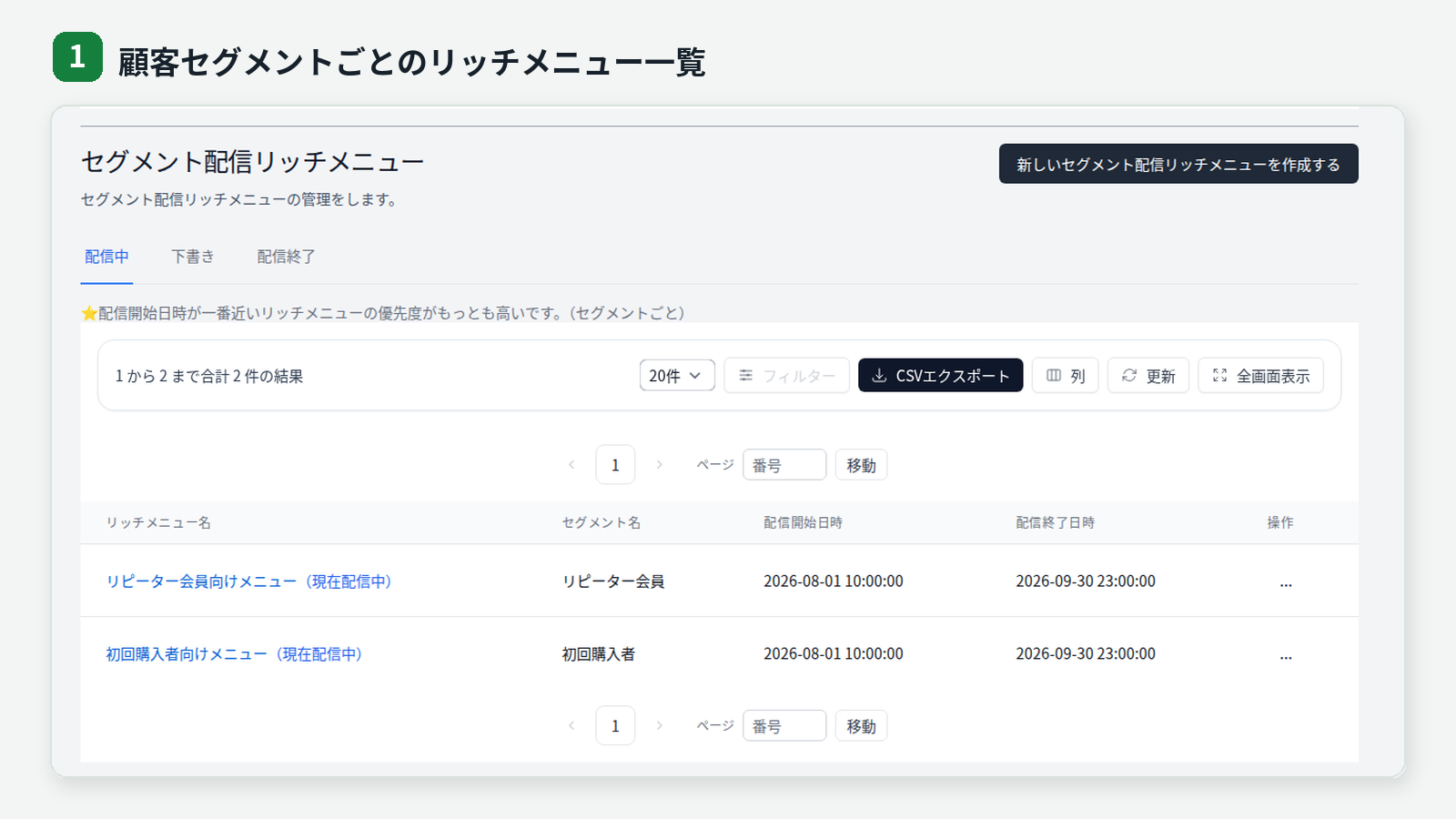
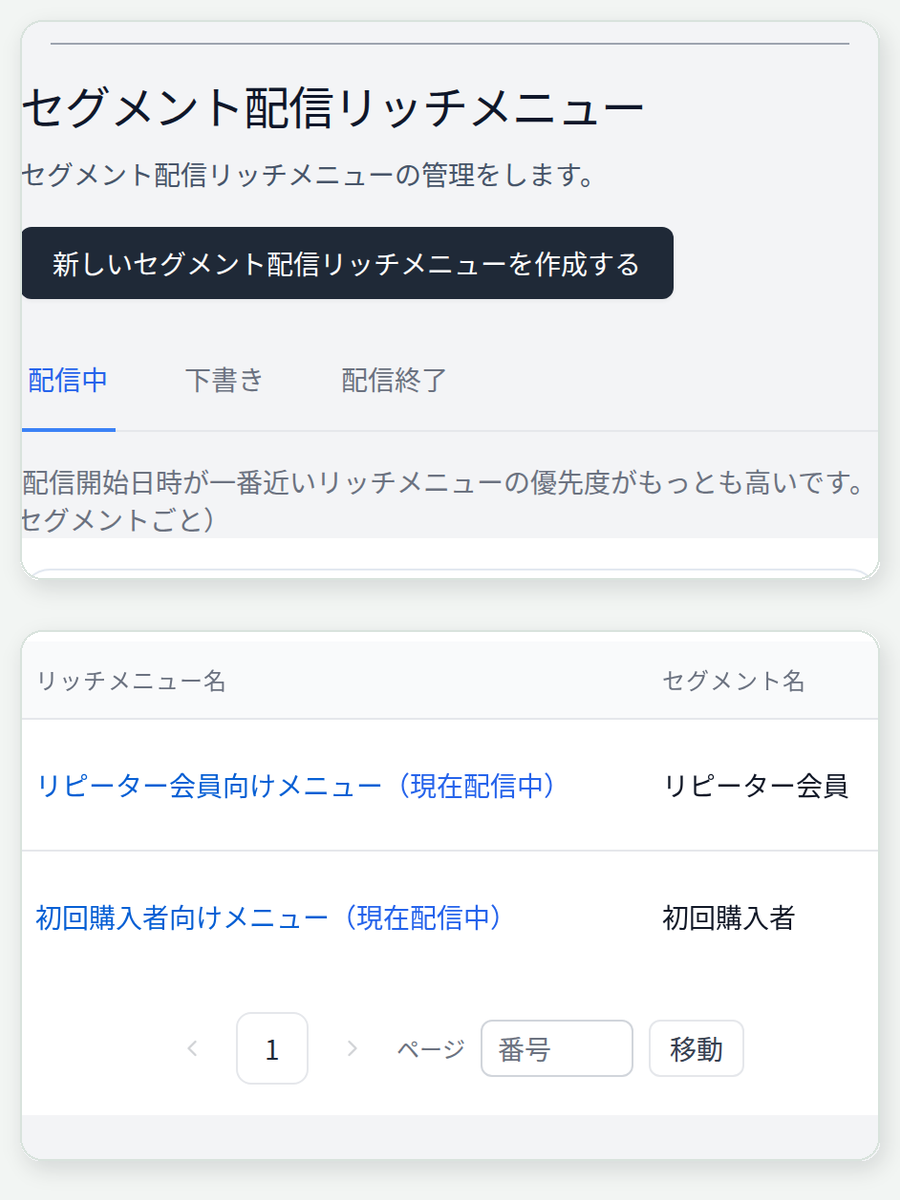
Actual StoreCRM admin interface with sample data. Click the image to enlarge.
Marketing use cases
Show new friends why linking LINE is worth it
In the everyone menu that customers see right after adding you as a friend, place an explanation of LINE ID linking and a button to the linking page. The always-visible menu on the chat screen tells them exactly what to do first.
Vary the entry points by membership and interest
Split customers with linked LINE IDs by products purchased, customer tags, order count, and more, and give each segment its own entry points — member perks, related products, product how-tos, whatever you most want that customer to see.
Switch menus just for a campaign
Set the display period to match a sale, early-access launch, or event. Build limited-time entry points knowing the menu reverts to your regular one when the campaign ends.
Organize products, membership cards, and support into tabs
Keep product discovery on one tab and the LINE membership card, account page, and support on another. Organizing your store's entry points on LINE helps customers find the page they're after.
From creation to delivery
- Choose the audience: everyone, or the customer segment that should see this rich menu.
- Set the display period: start and end date and time, default open state, and chat bar text.
- Pick a layout: standard, two-tab, or three-tab, and register a background image for each panel.
- Configure tap areas: choose a template and assign actions such as links, messages, and the membership barcode.
- Review and activate: check the display and behavior in the preview and in the actual LINE chat screen.
To deliver LINE rich menus, register a Messaging API channel access token in StoreCRM's LINE settings. For segment-targeted menus, the target customers must also have linked LINE IDs and be able to receive LINE messages. To use the membership card, also register the LINE channel ID and channel secret under LINE Login channel settings (for linking) and save the membership-card LIFF app's LIFF ID under LINE membership card settings.
FAQs
Can I create a standard rich menu?
Yes. Set the tab count to "none" to create a single-panel standard rich menu.
How many tabs can I set?
Two or three. When there's little to display, you can also choose the standard layout without tabs.
Can I show an individual rich menu to friends without linked LINE IDs?
Unlinked friends can't be identified as StoreCRM customers, so they see the everyone menu rather than an individually targeted one. Use the everyone menu to present the benefits of LINE linking and the linking page, then switch linked customers over to segment-targeted menus.
What customer segments can I use?
Any customer segment created in StoreCRM, with conditions such as LINE linking status, purchase history, customer tags, and order count. Segment-targeted rich menus are actually shown to customers who have linked their LINE IDs and can receive LINE messages.
Can the menu stop showing automatically when a campaign ends?
Yes. Set a start and end date and time, and outside that window the rich menu is no longer shown.
Turn your always-on LINE menu into a personalized touchpoint
Combine standard and tabbed layouts, and everyone and segment-targeted menus, and your LINE rich menu becomes more than a store signpost — it becomes a marketing channel powered by your customer data.