
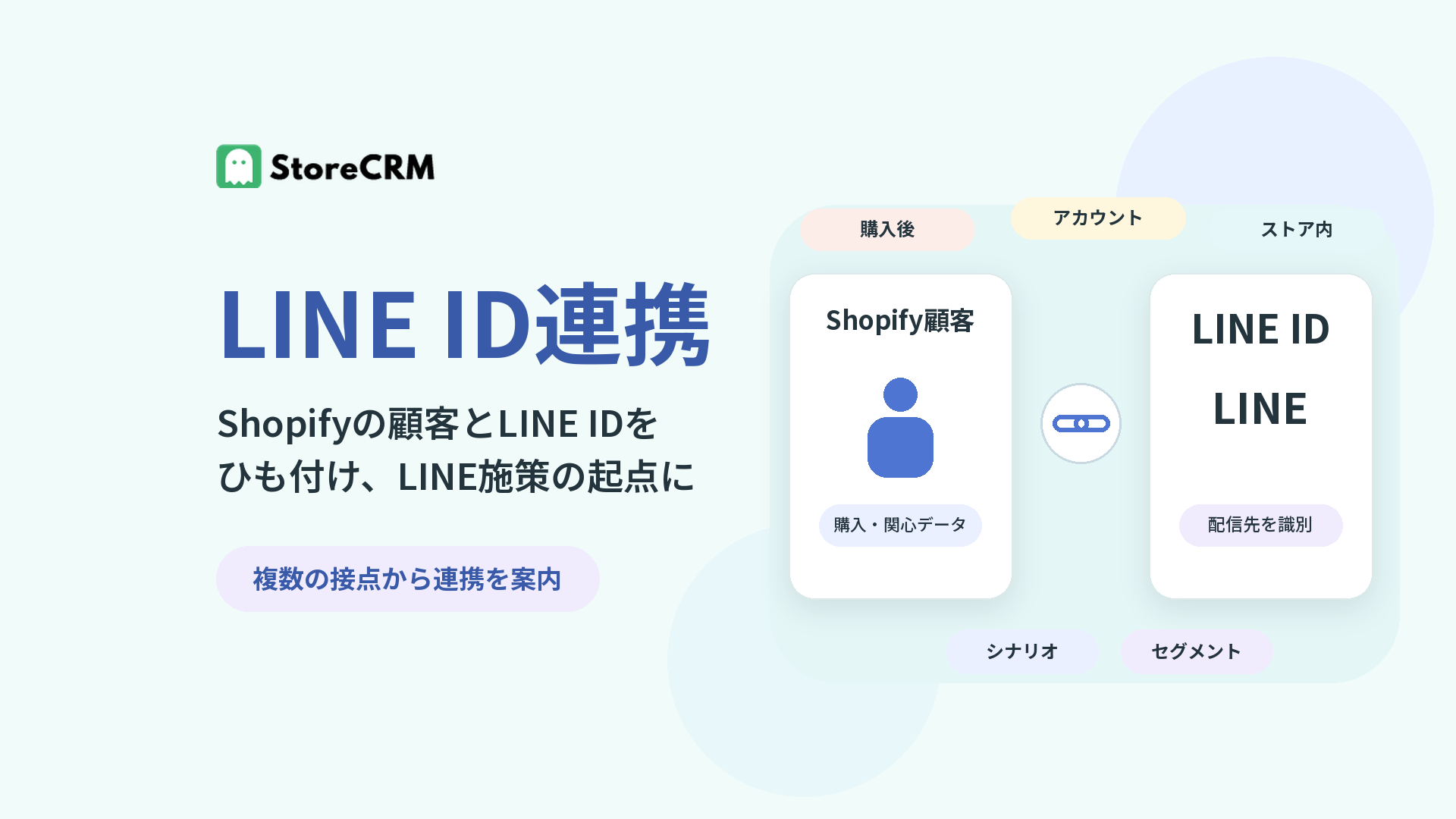
LINE ID linking ties a customer's LINE ID to their Shopify customer record. Email addresses and order data alone can't tell you whether a customer on your store and a user on LINE are the same person. Once their IDs are linked, StoreCRM treats them as one customer.
That link is the starting point for every kind of LINE marketing. StoreCRM not only lets you invite customers to link at multiple touchpoints across your store, but also brings journey-level measurement, post-link scenarios, dashboards, and journey reports into one admin interface.
LINE ID linking is where LINE marketing begins
Out of the box, your LINE Official Account friends and your Shopify customer records live in separate worlds. A friend-add alone doesn't tell StoreCRM which store customer that LINE user is.
Linking a LINE ID to a Shopify customer record lets you treat in-store data — purchases, wishlists, and more — and the LINE delivery target as one and the same customer. It gives you the foundation for deciding who to reach, with what, and when, so your LINE strategy no longer depends on bulk broadcasts alone.
StoreCRM gives you more touchpoints to invite linking
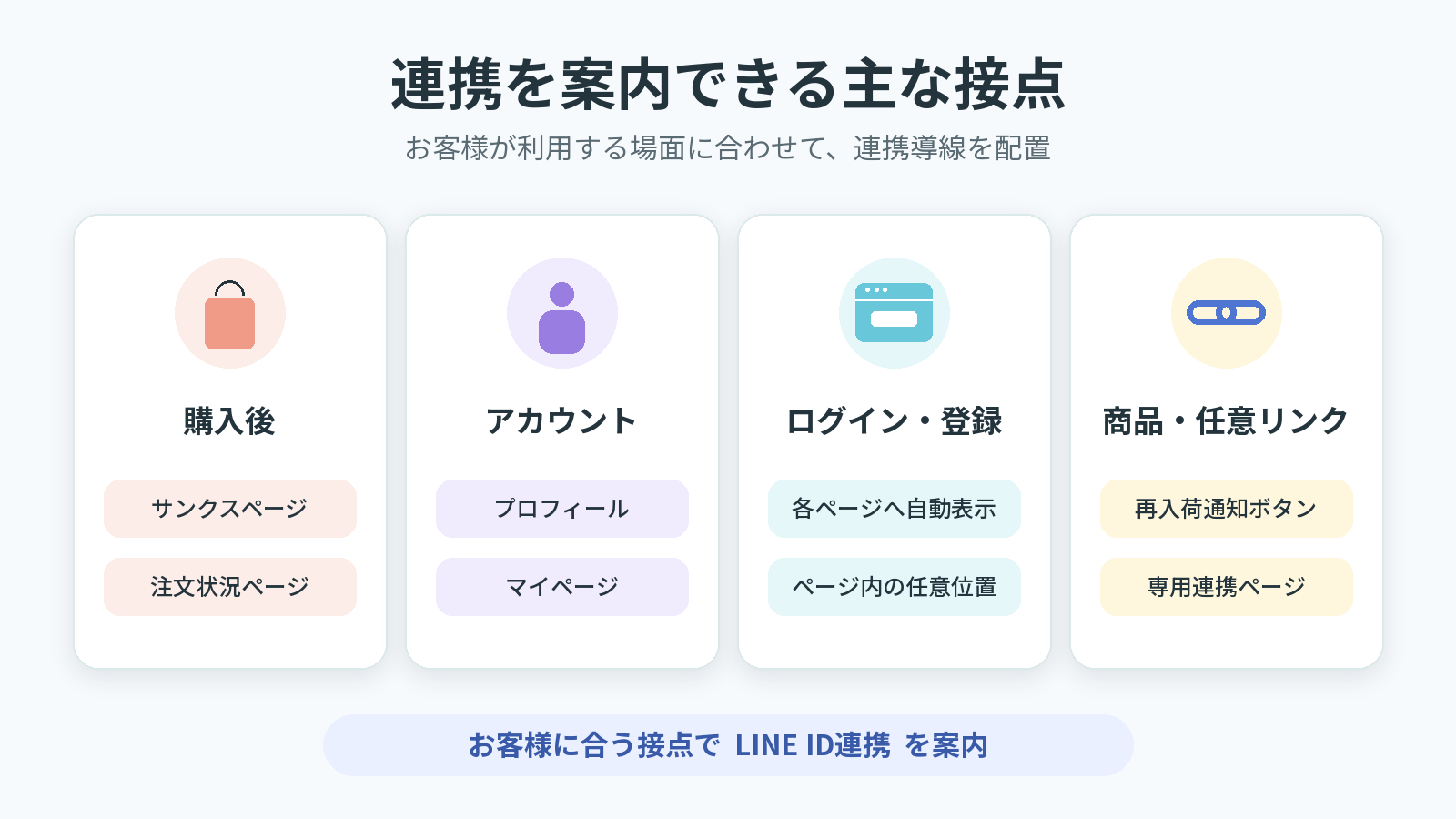
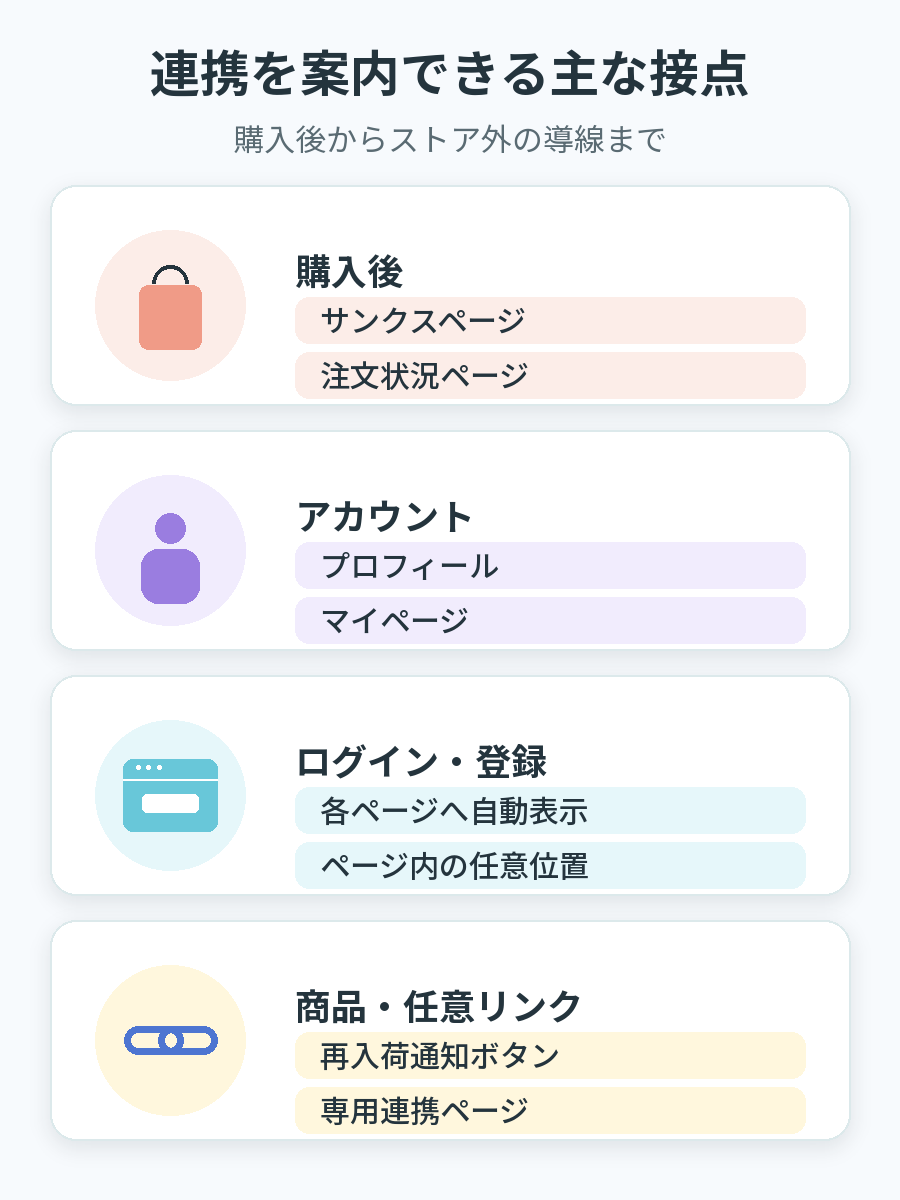
ID linking starts with putting the invitation where customers will actually see it. StoreCRM lets you place linking prompts wherever they fit each customer's context: after purchase, on the account page, at login, on product pages, and more.
Click the image to enlarge.
The post-purchase thank-you page and order status page
Add a LINE ID linking widget to the thank-you page shown right after checkout and to the order status page customers revisit later. It installs as a block from the checkout editor, with simple, detailed, and banner display modes, plus configurable headings, benefit copy, and images.
Beyond a widget dedicated to LINE ID linking, you can also show newsletter subscription preferences and LINE linking settings together in one place.
The new customer account profile page and the account page
On the new customer account profile page, a LINE linking button can appear within the profile settings. On theme-based account pages, customers can see their current linking status and link or unlink with a tap.
That means the opportunity to link isn't limited to right after purchase — it's there every time customers check their account details.
Anywhere on your login and signup pages
Add a "Log in with LINE" button to your login page and a "Sign up with LINE" button to your registration page. With a dedicated placement target on those pages, the LINE Login prompt can appear at any position you choose.
Match it to your store's membership flow: make it prominent where it matters most, and keep it available where customers might want it later.
Prompts from product pages and custom links
Product pages can carry a "Get back-in-stock alerts on LINE" button. When an unlinked customer taps it, they're guided through LINE linking and then on to notification signup. See one-step LINE back-in-stock alerts for details.
You can also set up a dedicated LINE linking page within your store. Link to it from your LINE rich menu, emails, or theme links — creating linking opportunities from paths both inside and outside your store.
Manage measurement and scenarios for each LINE linking journey
In the LINE linking journeys area of the admin, you can manage StoreCRM's built-in entry points alongside custom journeys you add yourself. Turn measurement on only for the journeys you want to track, then configure both linking performance and the scenario that should run after a customer links.
You can also measure a journey without selecting a scenario, so no automation starts after linking.
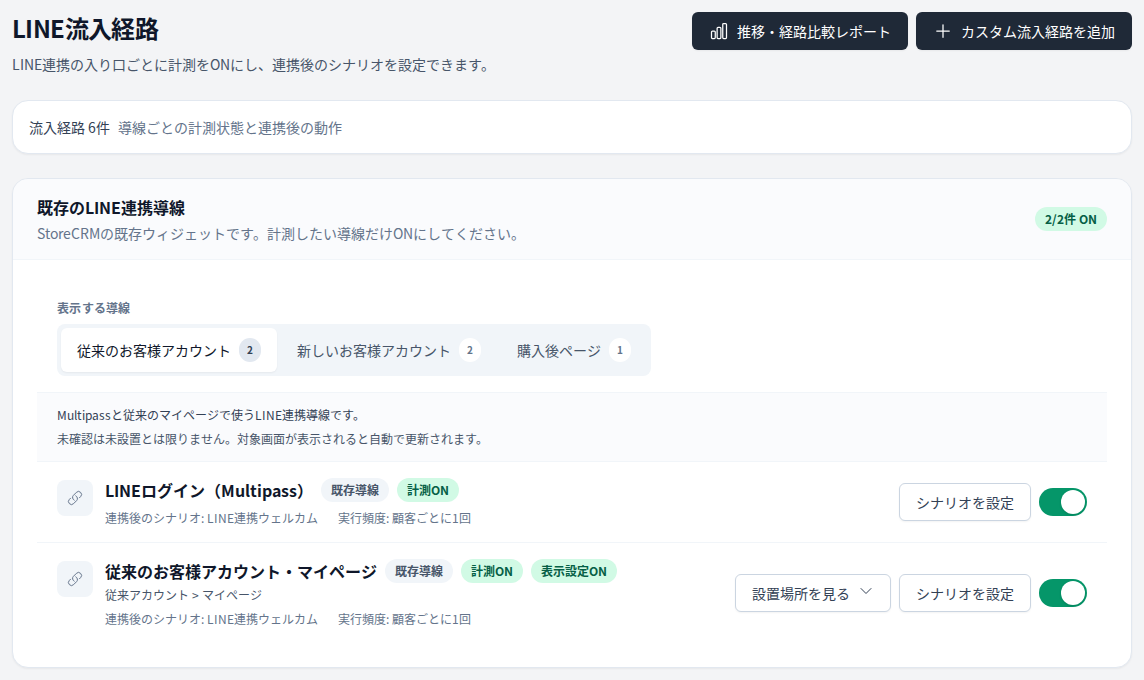
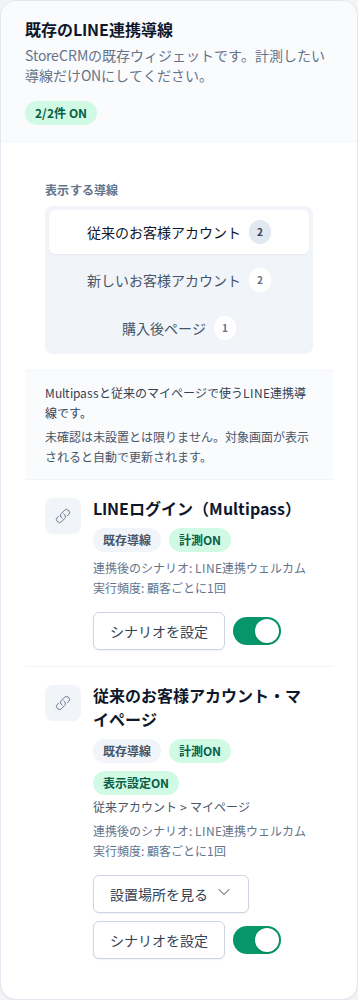
StoreCRM admin interface with sample data. Click the image to enlarge.
Start a journey-specific scenario when linking is complete
Each journey can use a dedicated scenario whose start condition is LINE linking completed. For example, you might send an onboarding message after a customer links from their account page and a buyer-focused follow-up after they link post-purchase. This lets the next interaction reflect the touchpoint where linking happened.
Choose whether the scenario can run once per customer, once after a specified number of days, or every time the customer presses the linking button. A scenario starts only when the journey's measurement is enabled, the dedicated scenario is active, LINE can receive the message, and the other required conditions are met.
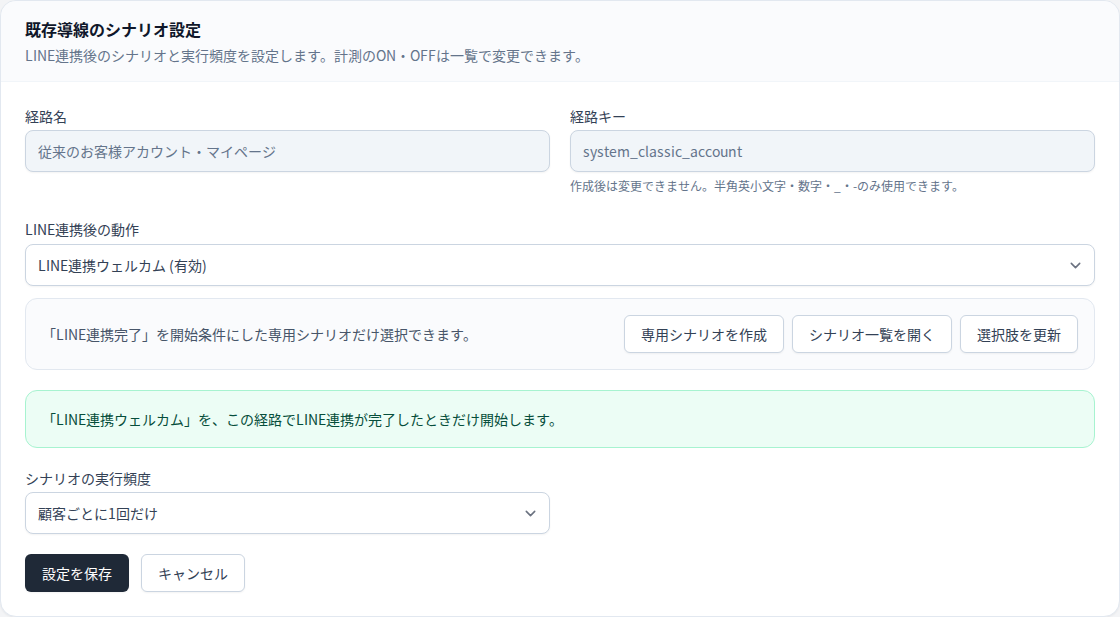
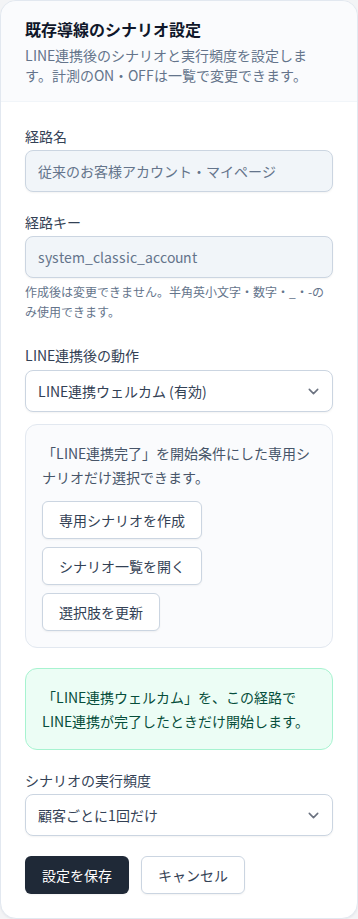
StoreCRM admin interface with sample data. Click the image to enlarge.
Compare progress across linking journeys
The journey report compares how customers progress through button start, LINE authentication succeeded, LINE ID linking completed, and scenario started for each journey. Filter by period, journey, or automation; review trends and records that need attention; and use the results to decide which entry points to improve. Data can also be reviewed as a CSV when needed.
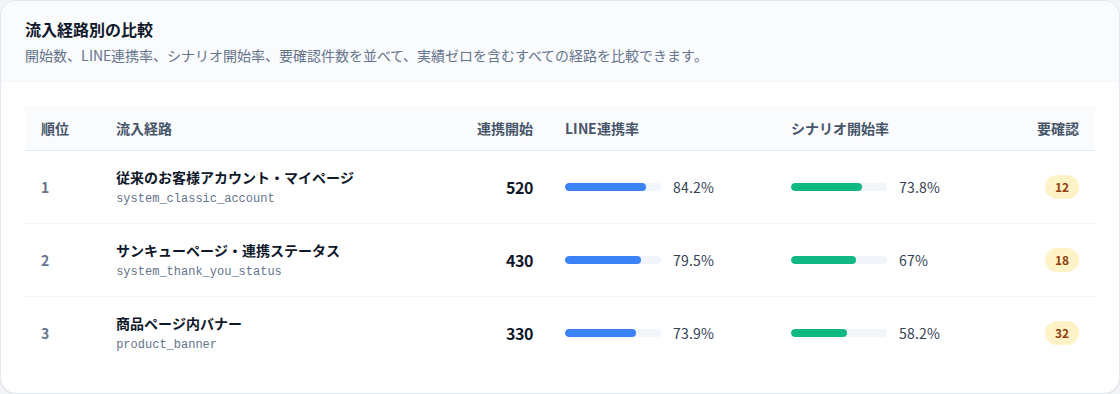
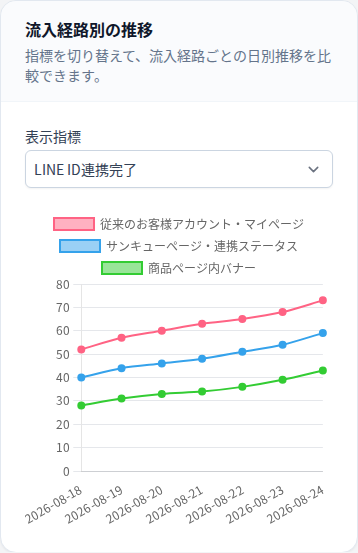
StoreCRM admin interface with sample data. Click the image to enlarge.
Track linking and campaign results from the dashboard
The LINE dashboard shows currently linked customers, new links, unlinks, net growth during the selected period, and daily trends. Choose the last 7 days, 30 days, or 3 months.
The same screen's Messaging and revenue results area shows LINE sends, click-through rates, orders, LINE-attributed revenue, and performance by scenario and campaign. After adding more linking journeys, you can move from customer growth to delivery results without leaving the dashboard, making it easier to decide which journey or campaign to improve next.
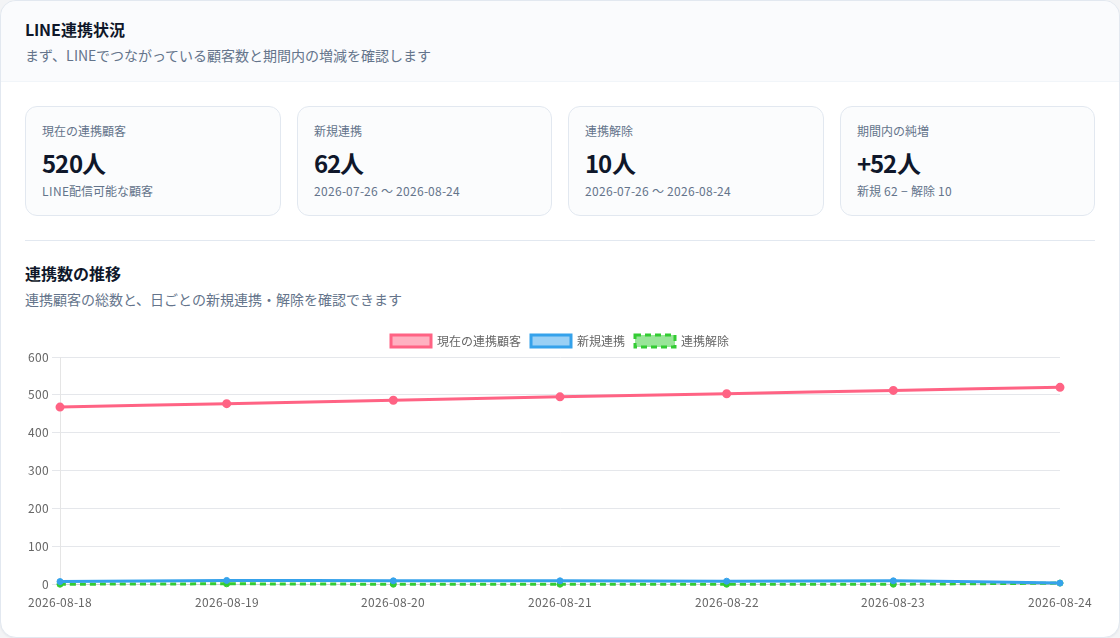
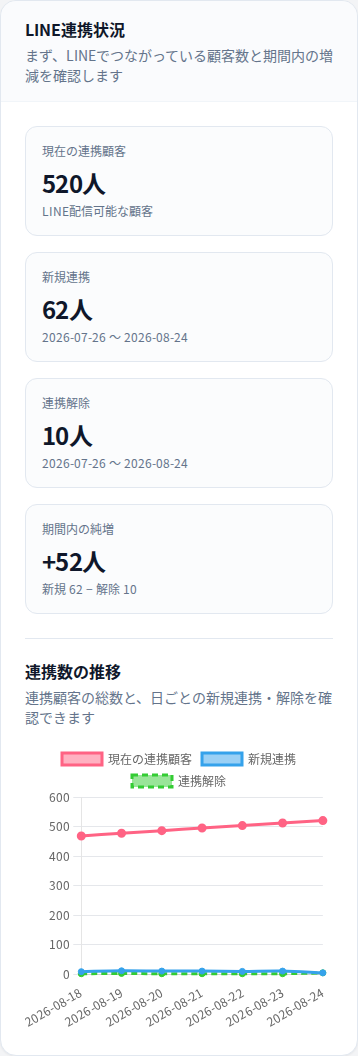
StoreCRM admin interface with sample data. Click the image to enlarge.
Put linked customer data to work in LINE campaigns
ID linking isn't just about growing a number. Feed the linked customer data into StoreCRM's scenario and segmented campaigns, and you can design LINE outreach shaped around each customer's situation.
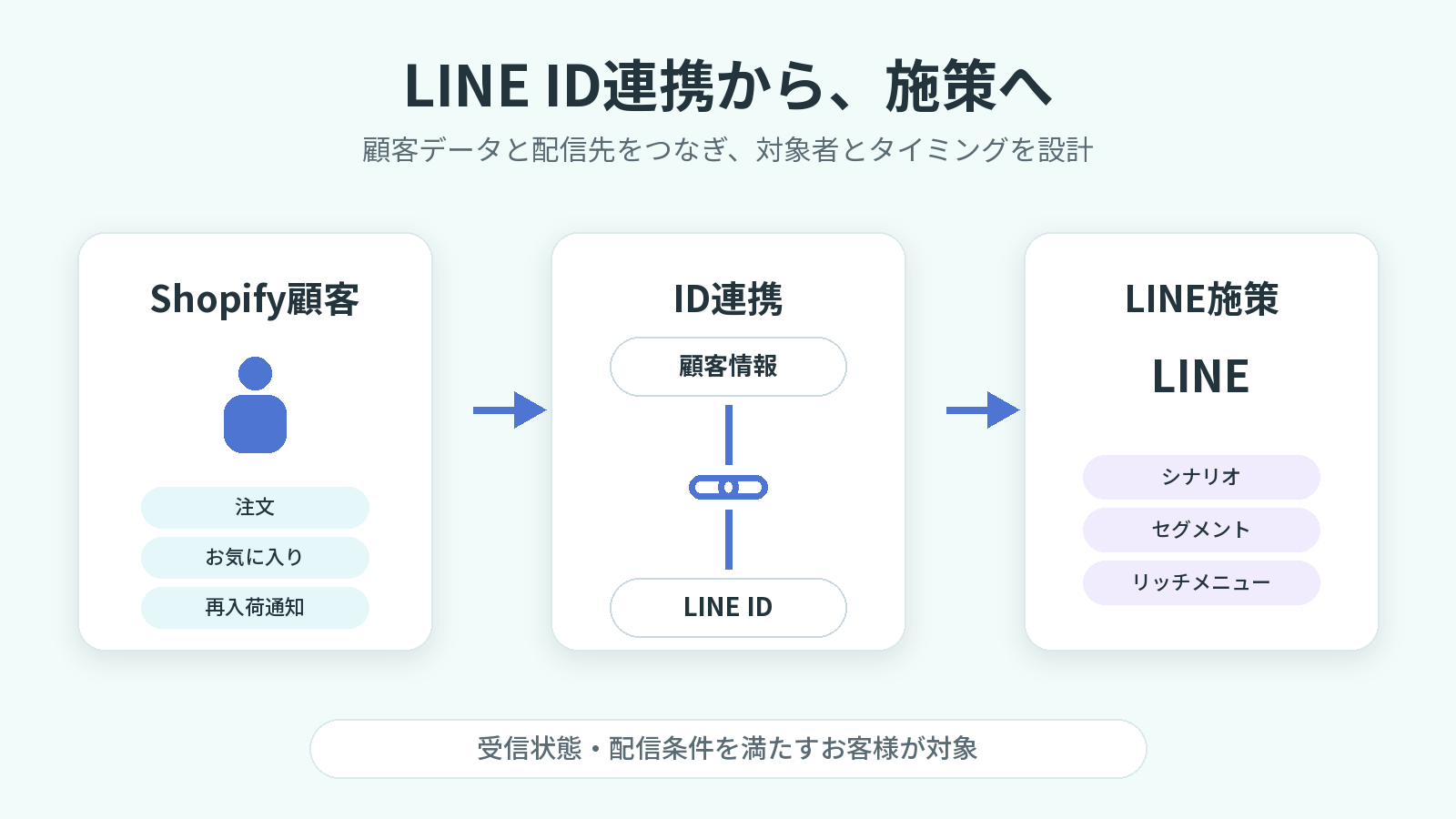
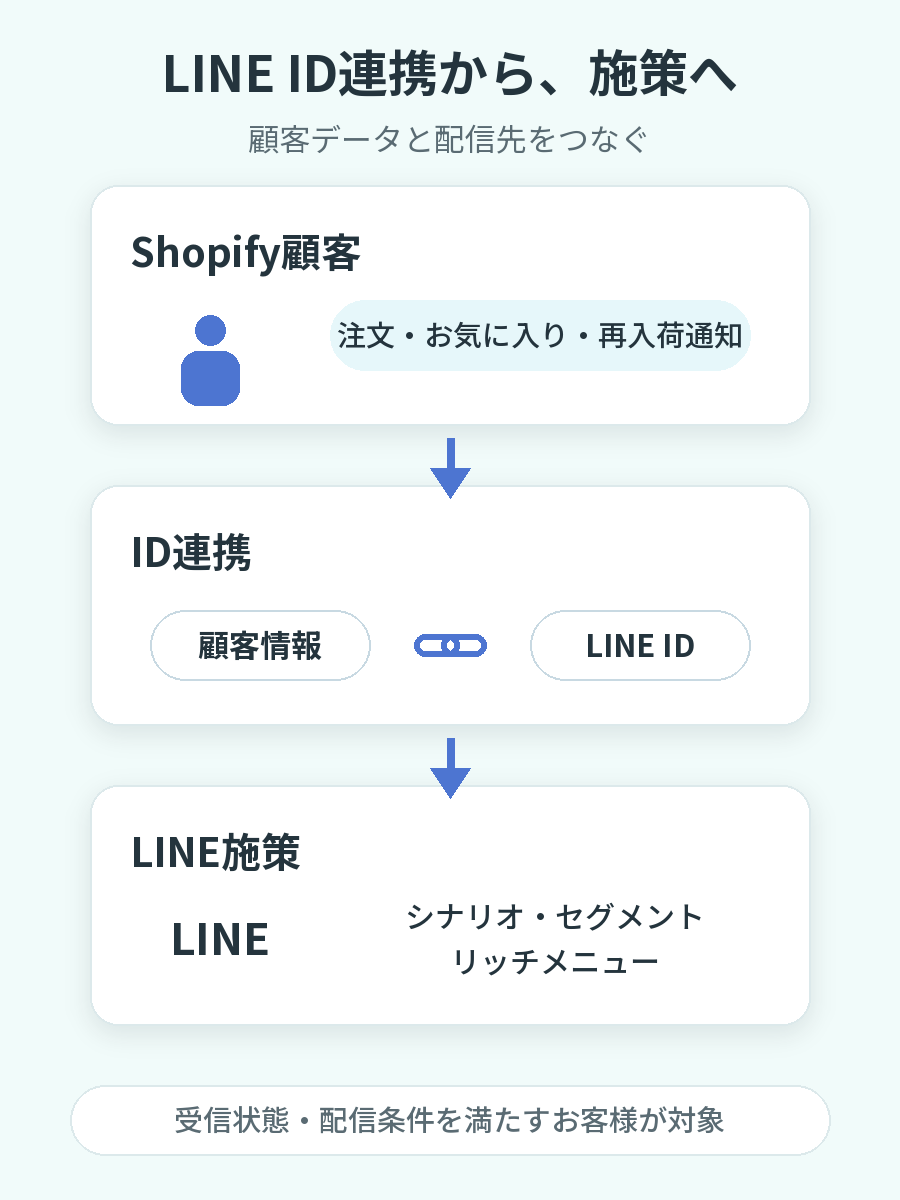
Click the image to enlarge.
Treat Shopify customers and LINE IDs as one customer
Orders, wishlists, back-in-stock signups — everything your Shopify store learns about a customer is managed as customer data tied to their LINE ID. Instead of fragmenting customers across channels, you get one foundation for deciding who to reach.
Feed scenarios and segmented campaigns
Customers with linked LINE IDs who can receive LINE messages become eligible targets for your scenarios and segments. Extend that into whatever fits your goals: post-purchase follow-up, back-in-stock notifications, win-back emails, and more.
The actual audience for each delivery is determined by the customer's LINE reception status together with the targeting conditions set in each scenario or segment.
Build LINE touchpoints around behavior and interests
Follow up with customers after a purchase, announce restocks of products they're watching, or reach out to customers who haven't bought in a while — all driven by customer data. Linked customer data can even power segment-based rich menu switching.
How LINE ID linking works
- Place LINE ID linking prompts at the touchpoints that fit your store, such as the thank-you page and the account page.
- The customer taps the button and authenticates with LINE. Some prompts have them log in to the store first.
- StoreCRM ties the Shopify customer record to the LINE ID and saves the linking status.
- For measured journeys, a dedicated post-link scenario starts when its configuration, delivery status, and other requirements are met.
- Use the dashboard and journey reports to track changes in linked customers and compare progress by entry point.
Give each placement its own role, and you can invite linking at a natural moment for everyone — customers discovering it right after their first purchase, and those returning to their account page later.
FAQs
Are LINE ID linking and LINE Login the same feature?
No, they're separate features. LINE Login is an authentication feature that lets customers log in to or sign up for your store with their LINE account. LINE ID linking ties a Shopify customer record and a LINE ID together as one customer. In StoreCRM, ID linking can also happen through the LINE Login flow.
Does linking an ID guarantee I can send LINE messages?
ID linking is a prerequisite for LINE delivery, but it doesn't start deliveries on its own. The customer must be able to receive LINE messages and meet the targeting conditions set in your scenarios and segments. When you use a journey-specific scenario, measurement for that journey and the scenario itself must also be enabled.
Can I place the widget on the checkout screen during payment?
No. The checkout screen mid-payment isn't supported. StoreCRM's checkout widgets work on the thank-you page shown right after purchase and on the post-purchase order status page.
Can I invite linking from links outside the store?
Yes. You can link to the dedicated LINE linking page from your LINE rich menu, emails, and elsewhere. Using the dedicated page requires logging in to the store; customers who aren't logged in are prompted to do so.
More doorways into LINE marketing, right inside your store
LINE ID linking is the first step in connecting your Shopify customer data with LINE. Place linking prompts post-purchase, on account and login pages, and on product pages, then manage journey-level measurement, post-link scenarios, and dashboard reporting in StoreCRM.