
Introduction
In ecommerce, increasing the number of touchpoints you have with customers is one of the keys to growing revenue. LINE in particular is a powerful channel, used by more than 86 million people a month in Japan. Even so, plenty of stores have customers who have added them as a LINE contact but have not linked that account to Shopify, which leaves a lot of reach on the table. This article walks through implementing a LINE link icon — a tactic for getting more customers to complete the LINE link in StoreCRM.
The steps below use the free Dawn theme. Paid themes and heavily customised themes may have a different file structure; if that is the case, contact StoreCRM customer support and we can carry out the implementation for you. Feel free to get in touch through the contact form.
[Please note]
The LINE icon used in this article belongs to LY Corporation. Before using it on your own store, read and follow the terms below. [LINE icon terms of use] https://www.line.me/ja/logo
Related pages
StoreCRM for LINE — the definitive Shopify and LINE integration app
How to connect Shopify with a LINE Official Account
How to let customers sign up and log in to Shopify with LINE Login
4 Shopify LINE ID linking apps compared
How to manage customers over LINE: 10 recommended CRM tools
Adding a LINE link icon to your store pages
What you will build in this section

Let us start by looking at the finished LINE link icon.
Adding a section to your theme

1. Open the theme list from [Shopify admin] > [Online Store] > [Themes]. Choose [...] > [Edit code] to the right of the theme you want to edit.

2. Open the [sections] folder and click [Add a new section].

3. Enter any name you like on the section creation screen and click [Done].

4. Paste the code below into the section you just created, then click [Save].
{% comment %}
Section: LINE Connect Popups
Hide for customers already linked with LINE (tag `storecrm-line` or metafield `storecrm.line`).
The close button uses a cookie to hide the popup for 7 days.
{% endcomment %}
{% assign is_design_mode = false %}
{% if request.design_mode %}
{% assign is_design_mode = true %}
{% endif %}
{% assign should_show_popup = false %}
{%- assign is_line_connected = false -%}
{%- if customer -%}
{%- if customer.tags contains 'storecrm-line' -%}
{%- assign is_line_connected = true -%}
{%- endif -%}
{%- if customer.metafields.storecrm.line -%}
{%- assign is_line_connected = true -%}
{%- endif -%}
{%- endif -%}
{% if is_design_mode %}
{% assign should_show_popup = true %}
{% elsif customer and is_line_connected == false %}
{% assign should_show_popup = true %}
{% endif %}
{% if should_show_popup %}
<style>
.popup-corner {
position: fixed;
padding: 10px 15px;
border-radius: 5px;
border: none;
z-index: 1000;
box-shadow: 0 2px 8px rgba(0,0,0,0.3);
display: block;
}
.popup-corner--top-left { top: 20px; left: 20px; }
.popup-corner--top-right { top: 20px; right: 20px; }
.popup-corner--bottom-left { bottom: 20px; left: 20px; }
.popup-corner--bottom-right{ bottom: 20px; right: 20px; }
.pop-icon {
width:35px;
height: 35px;
margin-right: 10px;
}
.line-subscribe {
display:flex;
align-items:center;
}
.popup-close {
position: absolute;
top: -8px;
right: -8px;
border: none;
border-radius: 50%;
width: 20px;
height: 20px;
font-size: 15px;
background-color: white !important;
color: black !important;
line-height: 20px;
text-align: center;
cursor: pointer;
box-shadow: 0 1px 4px rgba(0,0,0,0.2);
}
</style>
<div data-section-id="{{ section.id }}">
{% assign corners = 'top-left,top-right,bottom-left,bottom-right' | split: ',' %}
{% for pos in corners %}
{% assign enable_key = 'enable_' | append: pos %}
{% assign text_key = 'text_' | append: pos %}
{% assign image_key = 'image_' | append: pos %}
{% assign bg_key = 'bg_color_' | append: pos %}
{% assign text_color_key = 'text_color_' | append: pos %}
<style>
.popup-corner--{{ pos }} {
background-color: {{ section.settings[bg_key] }};
}
.popup-corner--{{ pos }} button {
background-color: {{ section.settings[bg_key] }};
border: none;
color: {{ section.settings[text_color_key] }};
cursor: pointer;
}
.popup-close {
color: black !important;
}
</style>
{% if section.settings[enable_key] %}
<div class="popup-corner popup-corner--{{ pos }}" id="popup-{{ pos }}" data-pos="{{ pos }}">
<button class="popup-close" aria-label="Close">×</button>
<button class="line-subscribe" data-action="line-subscribe">
<img class="pop-icon" src="{{ section.settings[image_key] | img_url }}" alt="">
{{ section.settings[text_key] }}
</button>
</div>
{% endif %}
{% endfor %}
</div>
<script>
document.addEventListener('DOMContentLoaded', function() {
// -----------------------------
// Cookie utilities
// -----------------------------
function setCookie(name, value, days) {
var expires = "";
if (days) {
var date = new Date();
date.setTime(date.getTime() + (days*24*60*60*1000));
expires = "; expires=" + date.toUTCString();
}
document.cookie = name + "=" + (value || "") + expires + "; path=/";
}
function getCookie(name) {
var nameEQ = name + "=";
var ca = document.cookie.split(';');
for(var i=0;i < ca.length;i++) {
var c = ca[i];
while (c.charAt(0)==' ') c = c.substring(1,c.length);
if (c.indexOf(nameEQ) == 0) return c.substring(nameEQ.length,c.length);
}
return null;
}
// -----------------------------
// Hide popup if cookie exists
// -----------------------------
document.querySelectorAll('.popup-corner').forEach(function(popup) {
var pos = popup.getAttribute('data-pos');
var cookieName = "storecrm_linepopup_closed_" + pos;
if (getCookie(cookieName)) {
popup.style.display = "none";
}
});
// -----------------------------
// ✕ close button → hide + set cookie(7 days)
// -----------------------------
document.querySelectorAll('.popup-close').forEach(function(btn) {
btn.addEventListener('click', function(e) {
e.preventDefault();
var popup = e.target.closest('.popup-corner');
if (!popup) return;
var pos = popup.getAttribute('data-pos');
var cookieName = "storecrm_linepopup_closed_" + pos;
popup.style.display = "none";
setCookie(cookieName, "1", 7); // Do not display for 7 days
});
});
// -----------------------------
// LINE registration button (minimal configuration)
// -----------------------------
document.querySelectorAll('[data-action="line-subscribe"]').forEach(function(btn) {
btn.addEventListener('click', function(e) {
e.preventDefault();
if (window.storecrm && typeof window.storecrm.lineSubscribe === 'function') {
try {
var r = window.storecrm.lineSubscribe();
if (r && typeof r.then === 'function') {
r.catch(function(err){
console.error("LINE registration error:", err);
});
}
} catch (err){
console.error("lineSubscribe call exception:", err);
}
}
});
});
});
</script>
{% endif %}
{% schema %}
{
"name": "LINE Connect Popups",
"settings": [
{"type":"checkbox","id":"enable_top-left","label":"Enable top left","default":false},
{"type":"text","id":"text_top-left","label":"Top-left content","default":"Link LINE"},
{"type":"image_picker","id":"image_top-left","label":"Select top-left image"},
{"type":"color","id":"bg_color_top-left","label":"Top-left background color","default":"#000000"},
{"type":"color","id":"text_color_top-left","label":"Top-left text color","default":"#FFFFFF"},
{"type":"checkbox","id":"enable_top-right","label":"Enable top right","default":false},
{"type":"text","id":"text_top-right","label":"Top-right content","default":"Link LINE"},
{"type":"image_picker","id":"image_top-right","label":"Select top-right image"},
{"type":"color","id":"bg_color_top-right","label":"Top-right background color","default":"#000000"},
{"type":"color","id":"text_color_top-right","label":"Top-right text color","default":"#FFFFFF"},
{"type":"checkbox","id":"enable_bottom-left","label":"Enable bottom left","default":false},
{"type":"text","id":"text_bottom-left","label":"Bottom-left content","default":"Link LINE"},
{"type":"image_picker","id":"image_bottom-left","label":"Select bottom-left image"},
{"type":"color","id":"bg_color_bottom-left","label":"Bottom-left background color","default":"#000000"},
{"type":"color","id":"text_color_bottom-left","label":"Bottom-left text color","default":"#FFFFFF"},
{"type":"checkbox","id":"enable_bottom-right","label":"Enable bottom right","default":false},
{"type":"text","id":"text_bottom-right","label":"Bottom-right content","default":"Link LINE"},
{"type":"image_picker","id":"image_bottom-right","label":"Select bottom-right image"},
{"type":"color","id":"bg_color_bottom-right","label":"Bottom-right background color","default":"#000000"},
{"type":"color","id":"text_color_bottom-right","label":"Bottom-right text color","default":"#FFFFFF"}
],
"presets": [{"name": "LINE Connect Popups"}]
}
{% endschema %}
Adding the section to your theme

1. Open the theme list from [Shopify admin] > [Online Store] > [Themes]. Choose [Customize] to the right of the theme you want to edit.

2. Open any page and add the section. To show it on one page only, add it to that [template]; to show it everywhere, add it to something that appears on every page, such as the [footer].

3. Configure what the icon shows. You can place it in the top right, bottom right, top left or bottom left. Click [Save] when you are done.
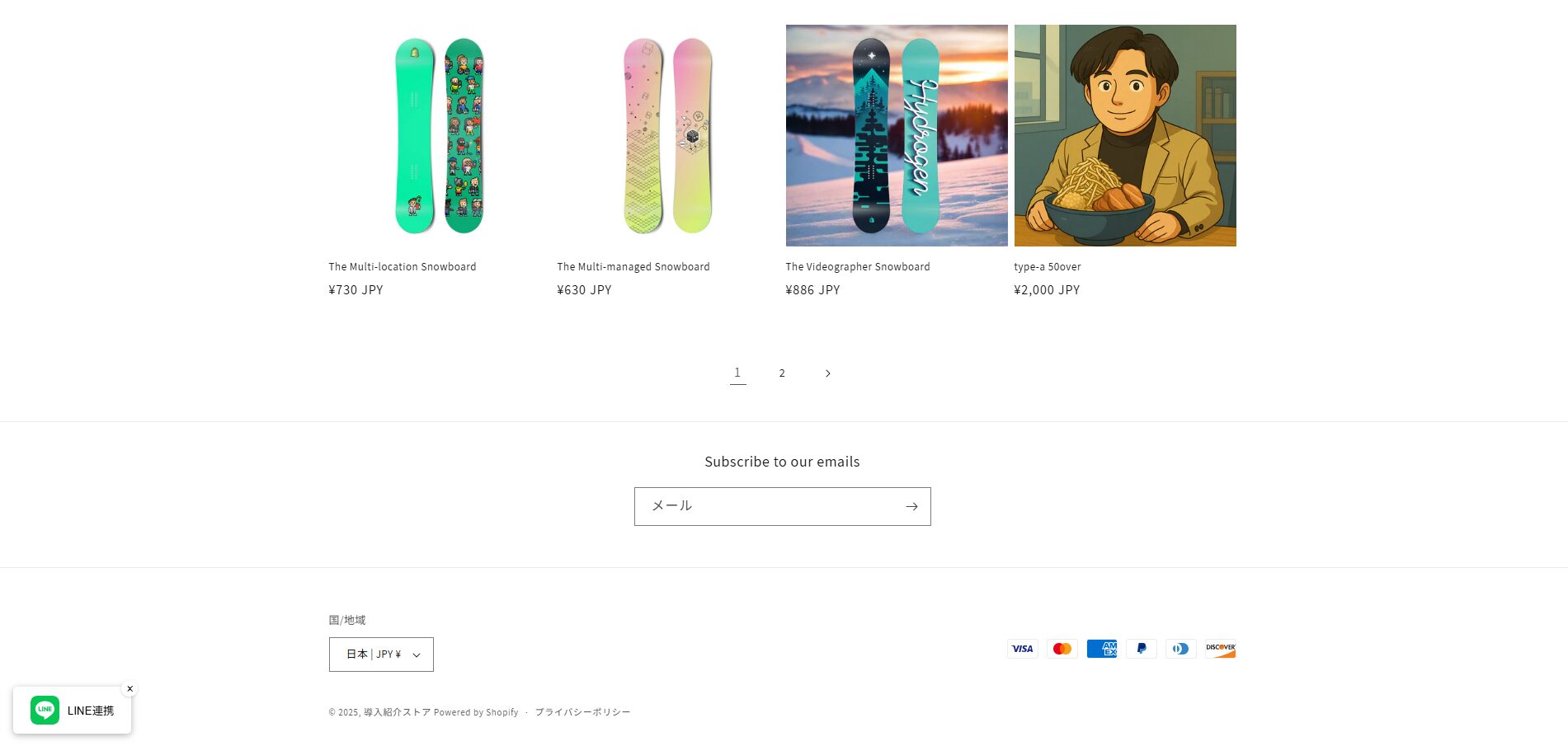
4. Log in to your store and confirm that the link icon appears correctly. Note that it does not appear when you are logged out. Note also that once the customer links their account or dismisses the icon with the ×, it stays hidden unless the local storage data is cleared.
Summary
Connecting Shopify and LINE opens up a lot of powerful campaigns, but the friction in the linking step itself is the bottleneck. A LINE link icon lets customers link from anywhere on the store, not just their account page, which lowers the barrier considerably. If you want to run LINE campaigns but your link numbers are not growing, adding StoreCRM's LINE link icon is a good place to start.


