
Introduction
In ecommerce, whether you can reach each customer at exactly the right moment is a major factor in lifetime value. LINE in particular is an overwhelmingly popular channel in Japan, used by more than 86 million people a month. Even so, plenty of campaigns remain email-centred and never make full use of it. So StoreCRM has released a new feature that sends LINE messages directly from Shopify Flow. This article covers how to use it to widen the range of automations you can build and push your conversion rate higher.
[Please note]
To use this feature you must have completed StoreCRM's basic LINE integration setup. Note also that messages can only be sent to customers who have completed the LINE link. If you have not set up the basic LINE integration yet, follow the article below first, then come back here for the Shopify Flow configuration. [How to connect Shopify with a LINE Official Account] https://storecrm.com/help/setting/line/
Sending a LINE text message from Shopify Flow
What you will build in this section

Let us start by looking at the finished Shopify Flow. Here is what it does.
[Trigger]
A customer is added to the "top customers" segment
[Condition]
The customer's tags do not include "top customer message sent"
[Actions]
-
Send a LINE message using StoreCRM
-
After sending, add the customer tag "top customer message sent"
Building the Flow (sending a LINE text message)

1. Open the Shopify Flow app from [Shopify admin] > [Apps] > [Flow] and click [Create workflow]. If Shopify Flow is not in the list, install it from the App Store.
[Shopify Flow] https://apps.shopify.com/flow?locale=ja

2. Click [Select a trigger].

3. Type "customer joined segment" into the trigger search box and select the trigger that appears.
Sending a LINE message requires the customer's details, so the trigger — or something else in the Flow — must make customer data available. If anything is unclear, use the contact button on this site and ask us.

4. Create the segment you want to target from [Select segment]. Here we choose [top customers].

- Click the ⊕ button to the right of [Then] at the bottom right of the trigger, then click [Condition].

6. Click [Add variable], search for [tag] and select [customer/tags].

7. Set the condition to [contains] and the tag to [top customer message sent]. This prevents a duplicate message being sent the second and subsequent times the Flow fires.
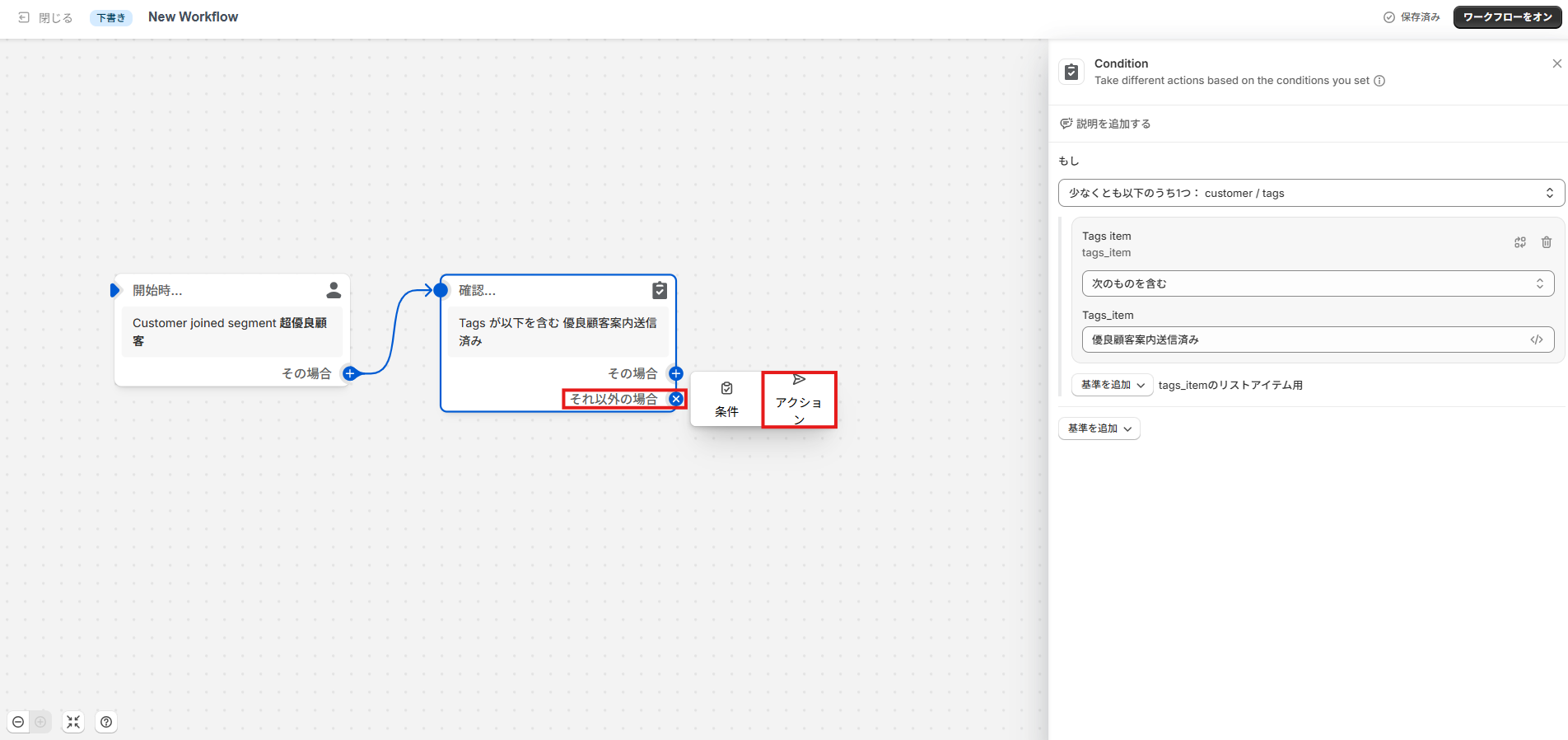
8. We only want to message customers who do not match that condition (those without the tag), so click the ⊕ button to the right of [Otherwise], then click [Action].
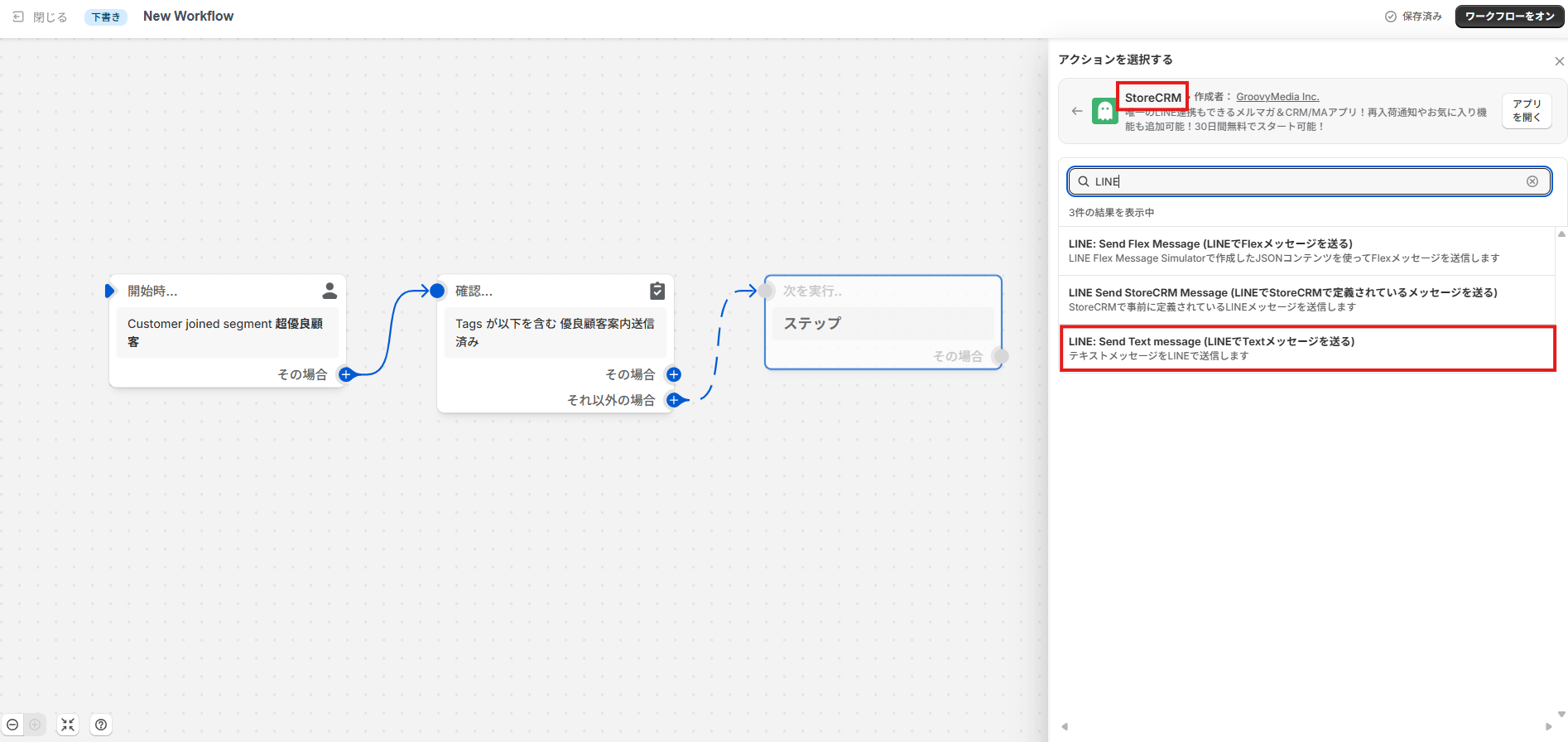
9. Choose [StoreCRM] from the action list, then [LINE: Send Text message].
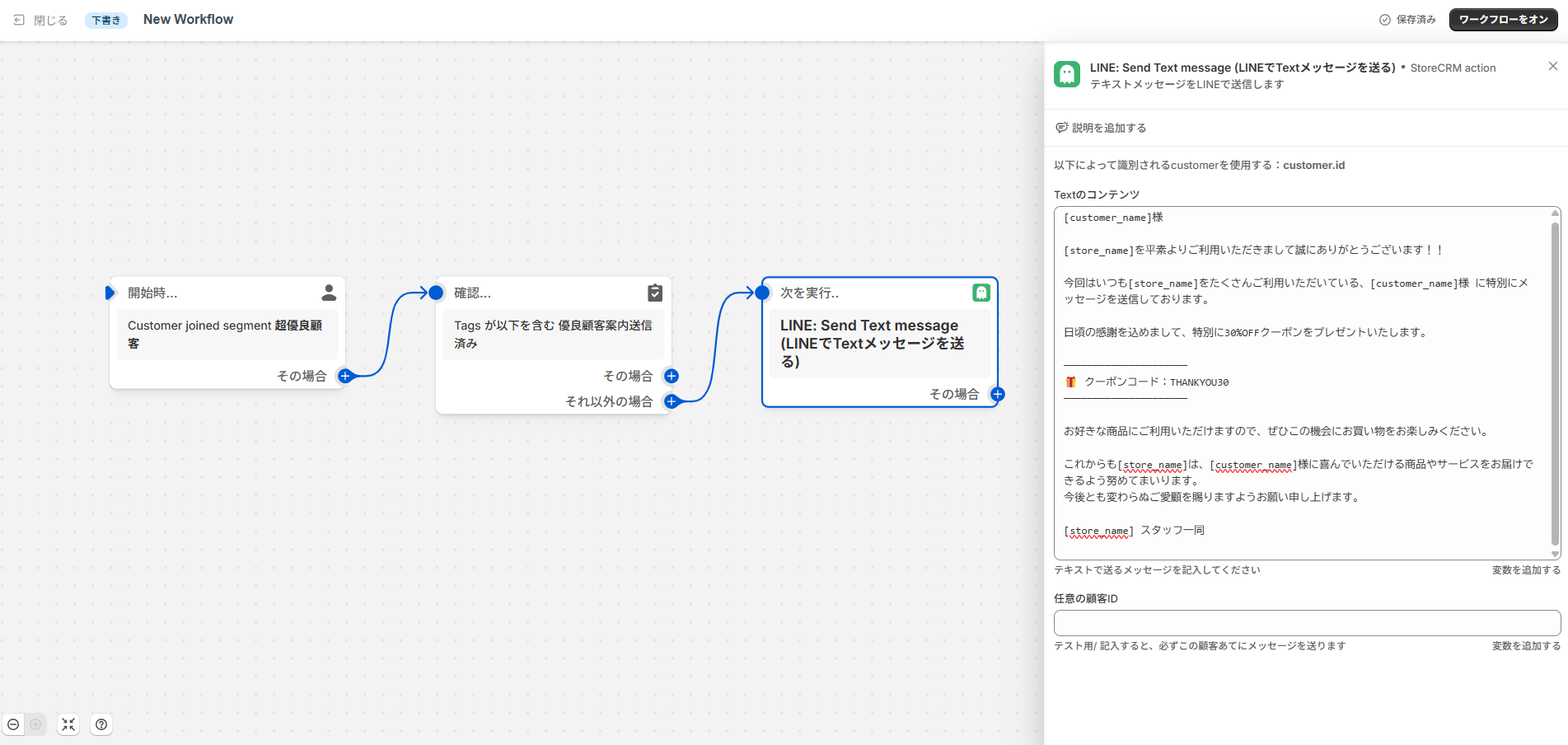
10. Write the message you want to send in [Text content]. The following variables are available.
[Available variables]
-
StoreCRM template tags [customer_name], [store_name], [store_url], and the values of any connected metafields
-
The variables Shopify Flow provides
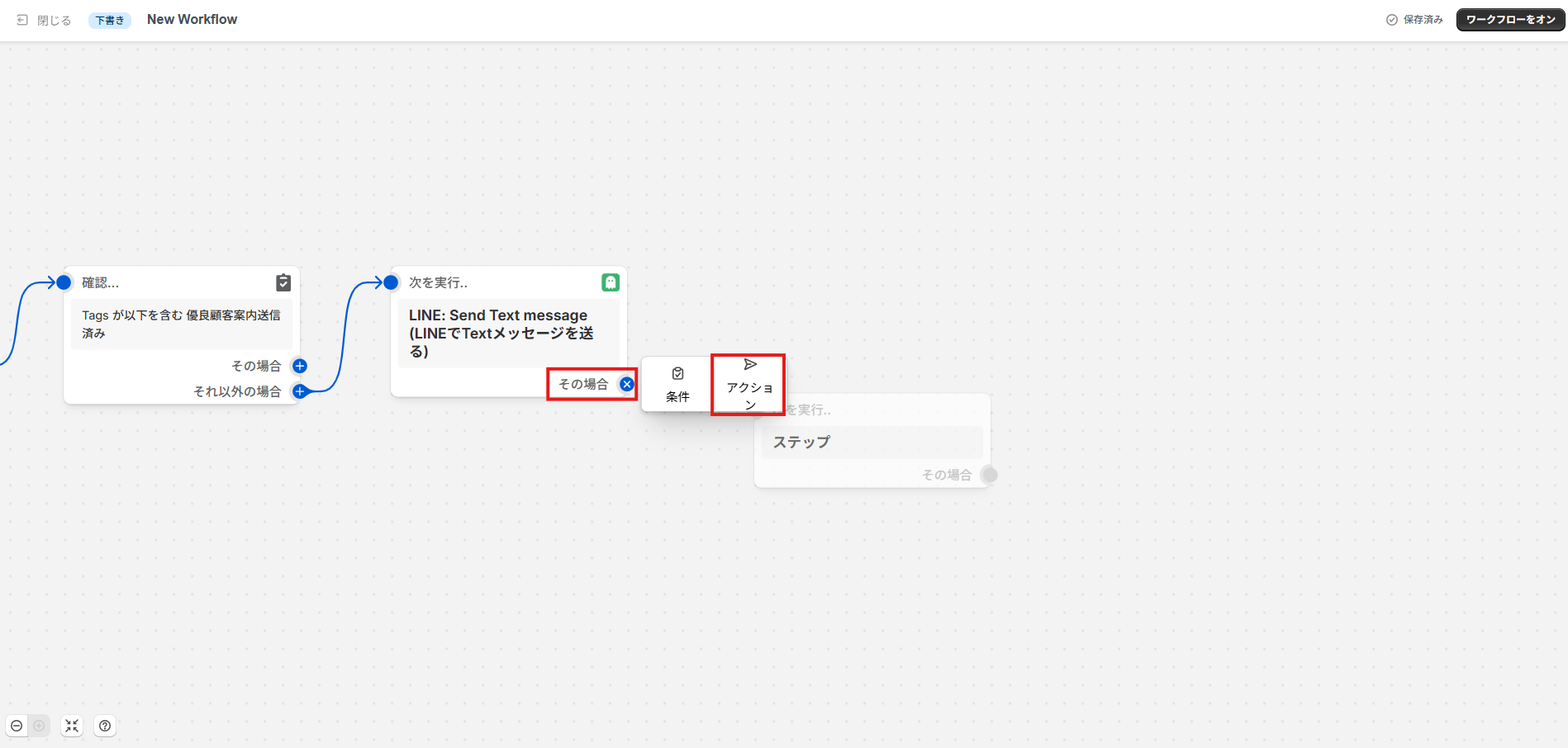
11. Click the ⊕ button to the right of [Then] at the bottom right of [LINE: Send Text message], then select an action.
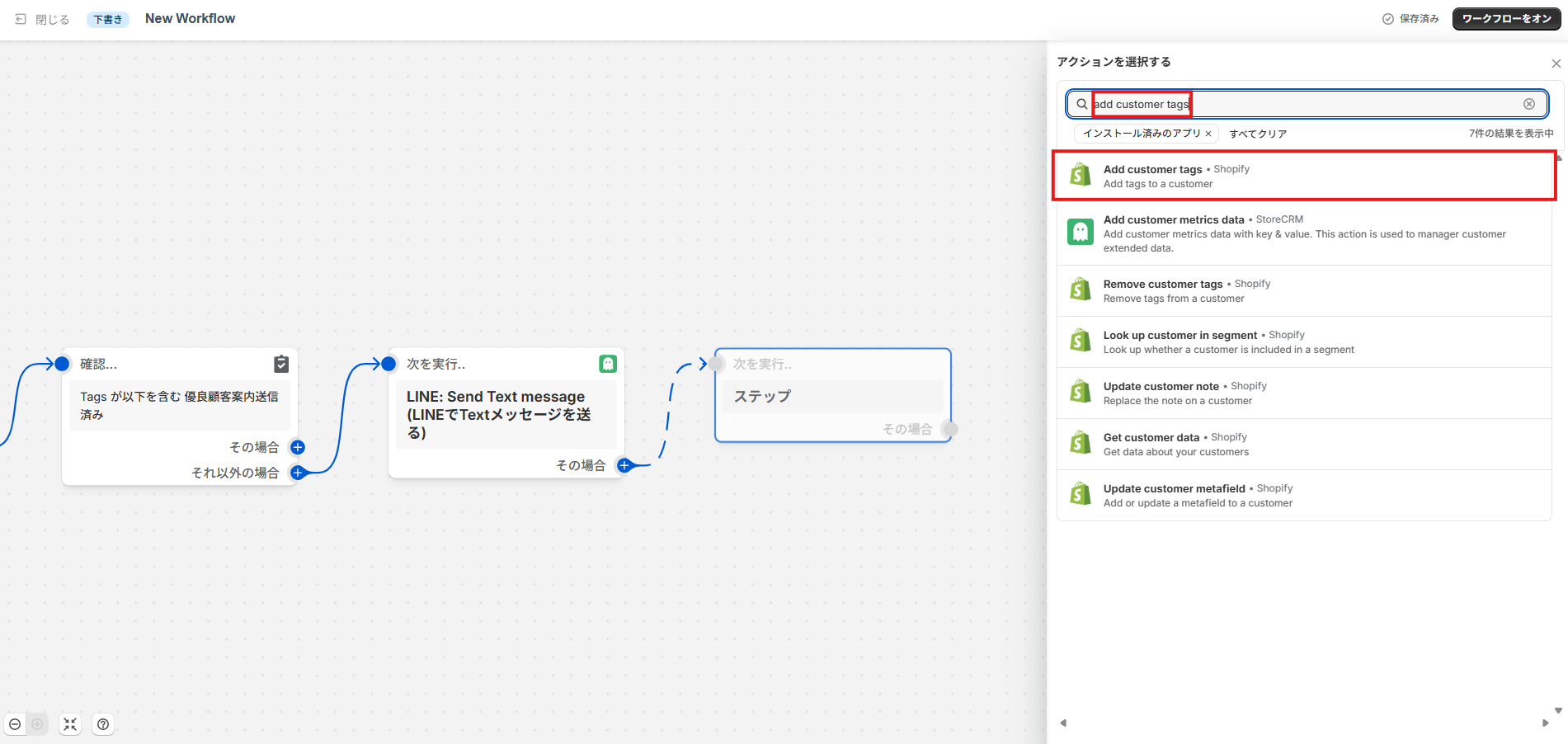
12. Search the action list for [add customer tags] and select the action that appears.
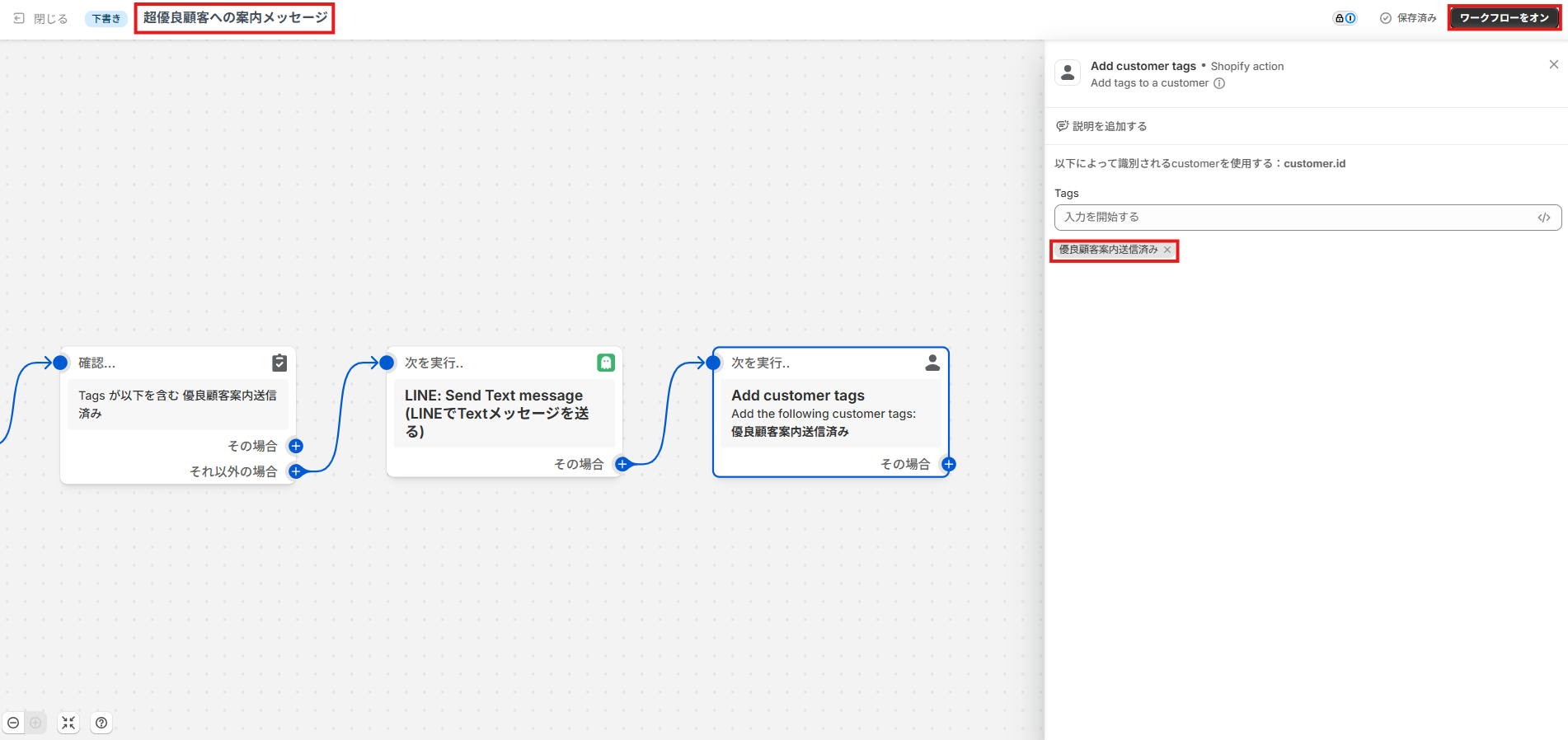
13. Set Tags to [top customer message sent]. Give the workflow a title at the top of the screen, then switch [Turn on workflow] at the top right, and the Flow is complete. Test it by adding a test account that has completed the LINE link to the segment you configured.
Sending a LINE Flex Message from Shopify Flow
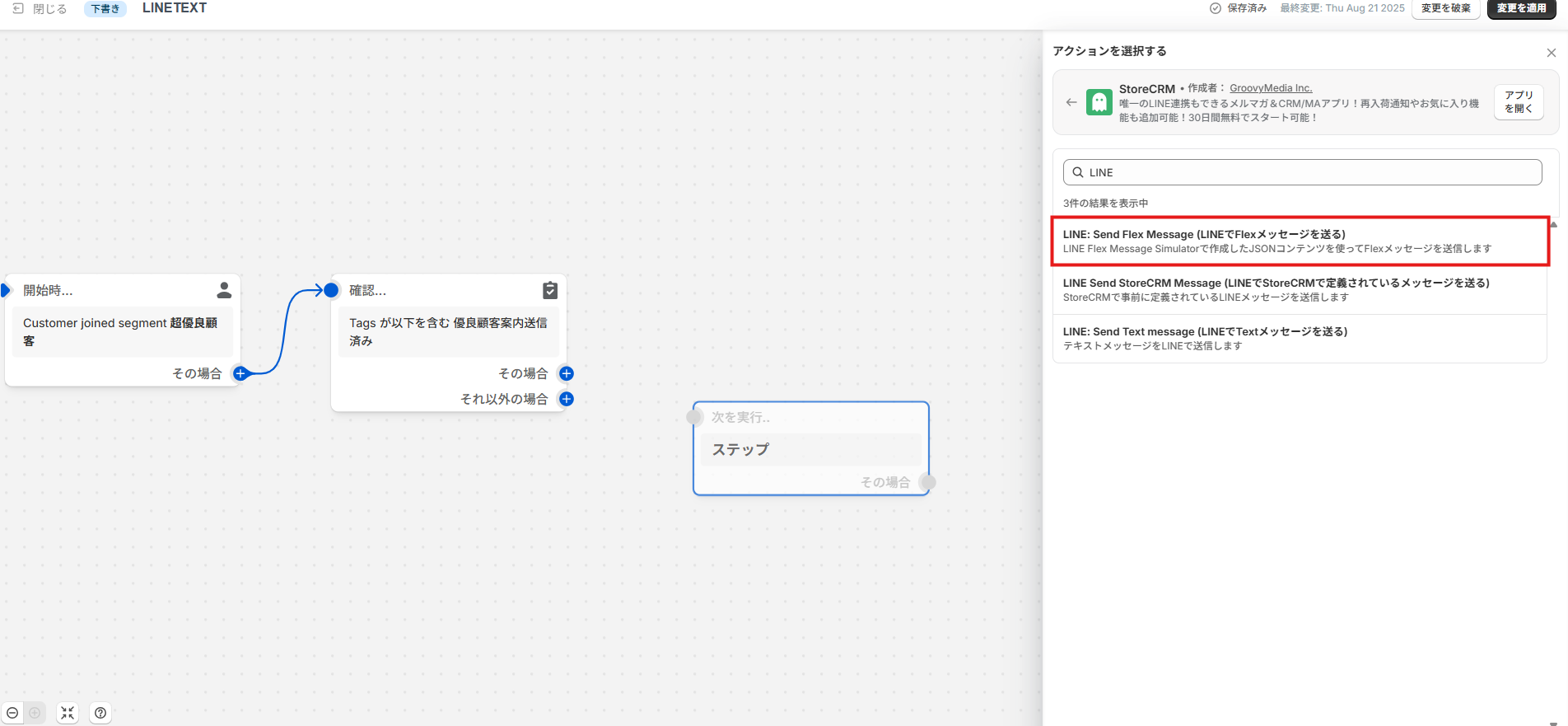
1. StoreCRM can send three kinds of LINE message, and the Flex Message is one of them. To send one, choose [LINE: Send Flex Message] when selecting the action.
What is a Flex Message?
A Flex Message is a rich, highly flexible message format you can send from a LINE Official Account. Beyond plain text and images, it combines cards, lists, buttons and links into layouts ideal for showcasing products or handing out coupons. Because you can put a product image, a price and a buy button in a single message, it brings the persuasive power of an email newsletter to LINE.
The video below covers how to edit a Flex Message in detail, if you are interested.
[Editing a Flex Message — YouTube] https://www.youtube.com/watch?v=rUV06rbc0Y0
2. Copy the JSON for the Flex Message you built and paste it in, and you are done. As with text messages, the available variables are as follows.
[Available variables]
-
StoreCRM template tags [customer_name], [store_name], [store_url], and the values of any connected metafields
-
The variables Shopify Flow provides
Sending a LINE message built in StoreCRM from Shopify Flow
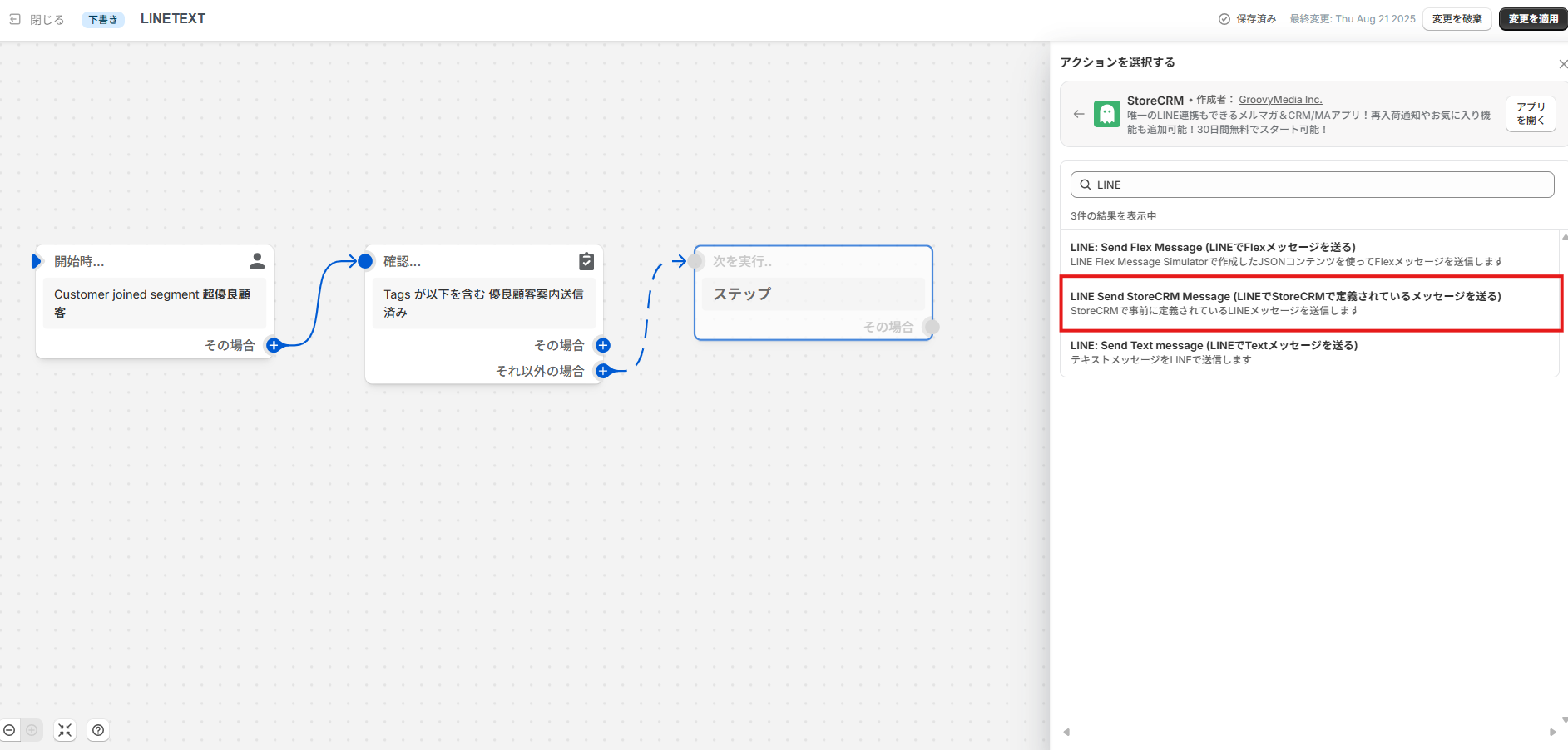
1. Besides LINE text messages and Flex Messages, StoreCRM can send a message you have already built in StoreCRM. To do that, choose [LINE: Send StoreCRM Message] when selecting the action.
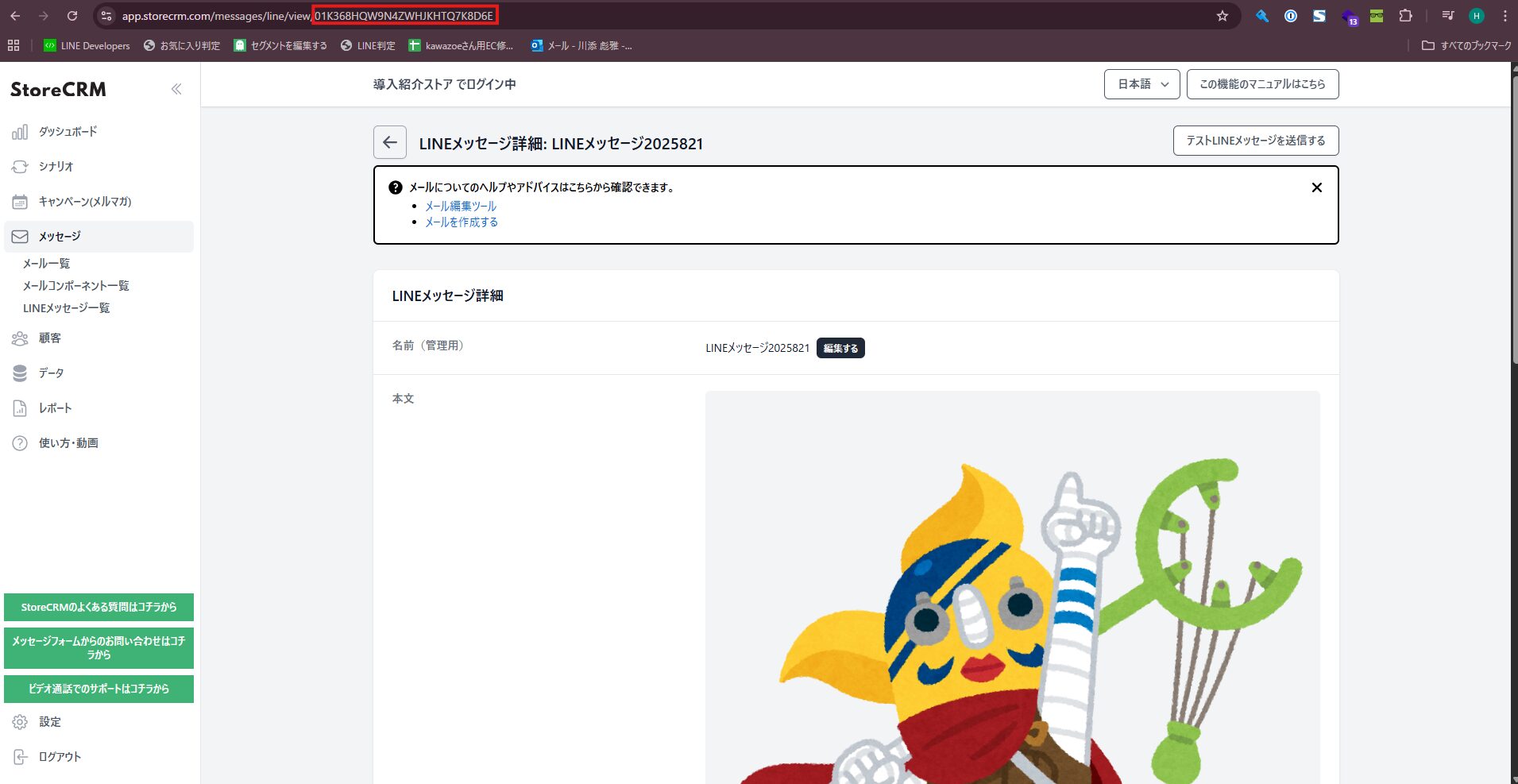
2. Open the LINE message you want to send in StoreCRM's editor and copy the string that follows [view/] in the URL.
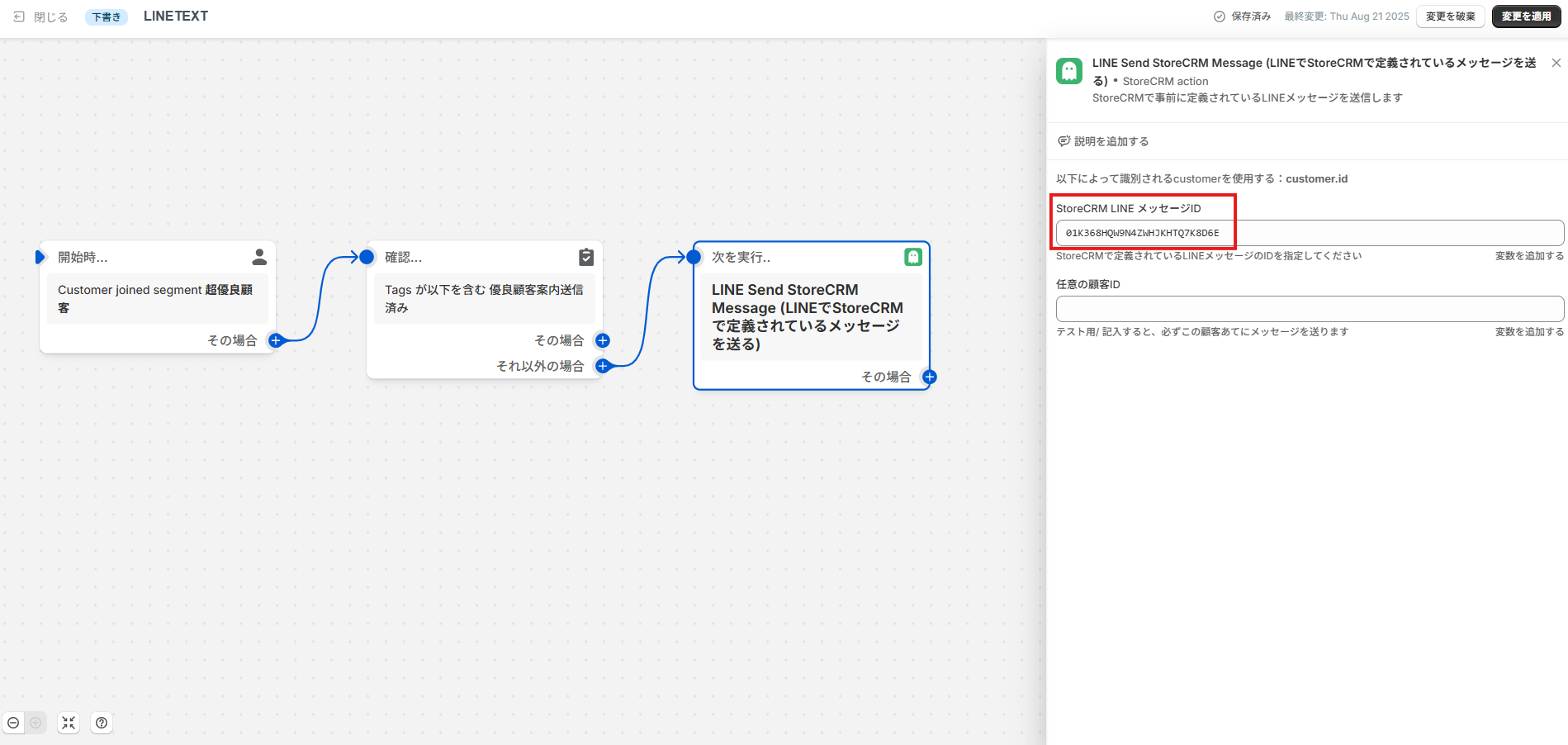
3. Paste that string into [StoreCRM LINE message ID] and you are done. Note that the available template tags are limited to the following.
[Available template tags]
- StoreCRM template tags [customer_name], [store_name], [store_url], and the values of any connected metafields
Summary
With Shopify Flow and StoreCRM connected, LINE messages can be sent automatically — which opens up campaigns tied to other apps and to your own systems that simply were not possible before.
And rich formats such as Flex Message let you present products and campaigns visually and clearly, which translates directly into a better conversion rate.
We hope this article helps you bring LINE messaging into your Shopify Flows, maximise your customer touchpoints and grow revenue.


