
StoreCRM's win-back emails automatically give customers a reason to come back and buy again once a set period has passed since their last purchase. Despite the name, the feature is not limited to email — you can use both email and LINE as delivery channels.
Beyond a single-message scenario, it also supports drip sequences where you define the content and wait time for the second message and beyond. Automatic coupon issuing and a reminder for coupons that go unused can all live in one scenario.
Give lapsed customers a reason to return
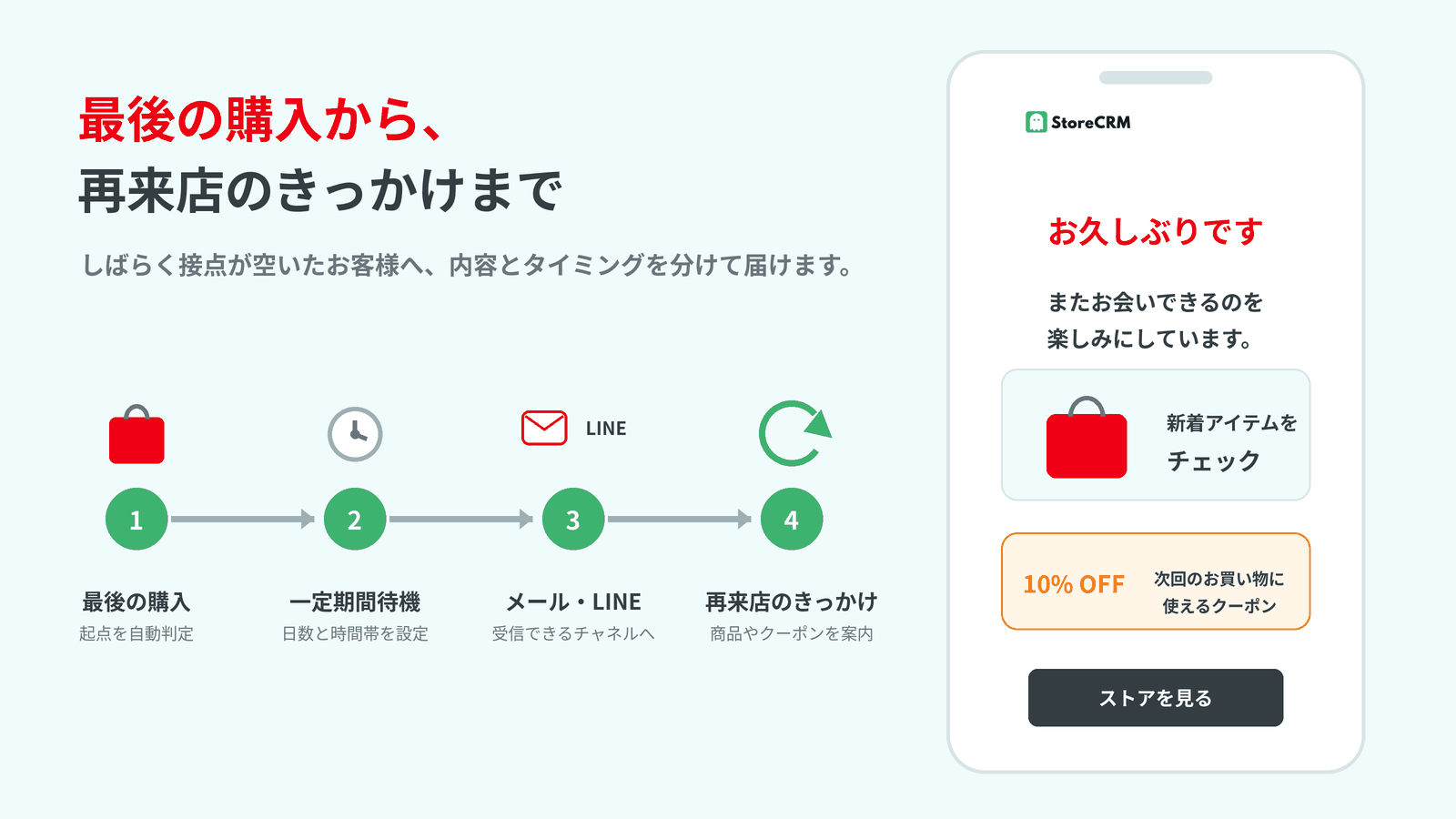
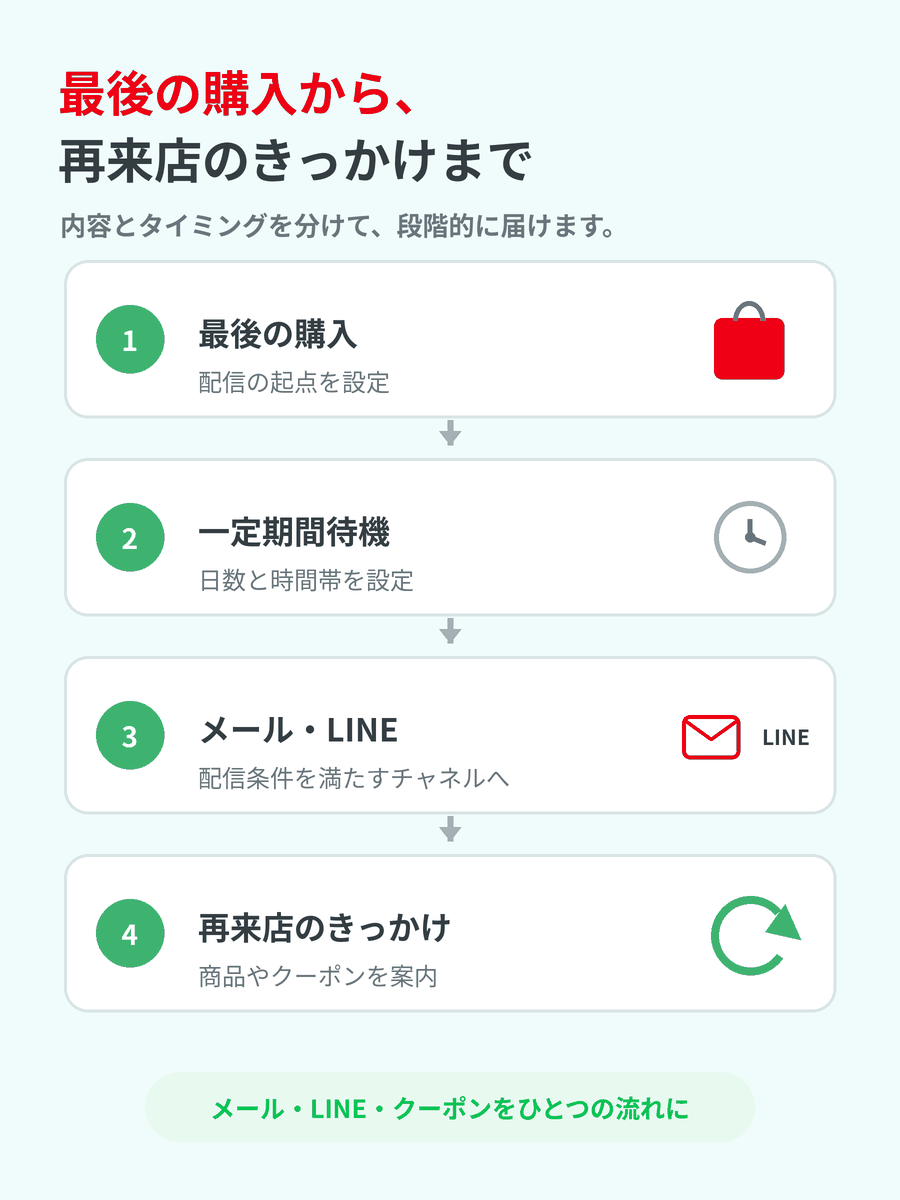
Even customers who have bought from you once can drift away if nothing brings them back to your store. Win-back emails use the last purchase date as the trigger, letting you share new arrivals, seasonal picks, and coupons by email and LINE at the timing you choose.
Click the image to enlarge.
Triggered automatically by the last purchase date
Set how many days after the last order to reach out and the time of day to start sending. Instead of building a list of eligible customers by hand each time, delivery to everyone who matches your conditions is fully automated.
Build touchpoints over email and LINE
Each step can include both an email and a LINE message. Messages go to customers who meet each channel's delivery requirements — a valid email address or linked LINE ID, plus marketing consent.
Keep each message focused
Split the roles across messages: start with a friendly reminder about your store, follow with recommended products, and add a coupon if needed. You can design what to say and when to say it, step by step.
Fine-tune delivery with scenarios and drip sequences
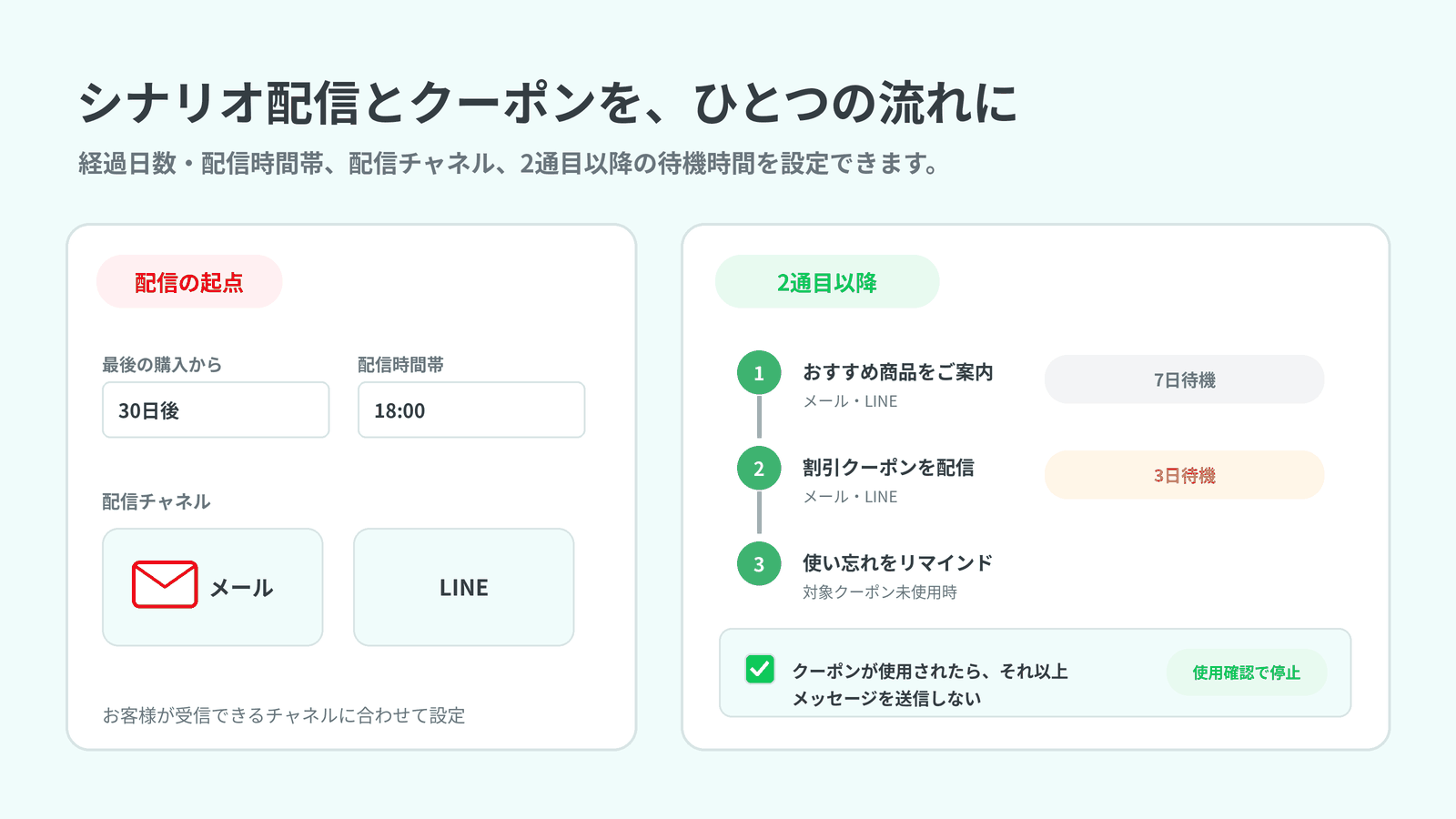
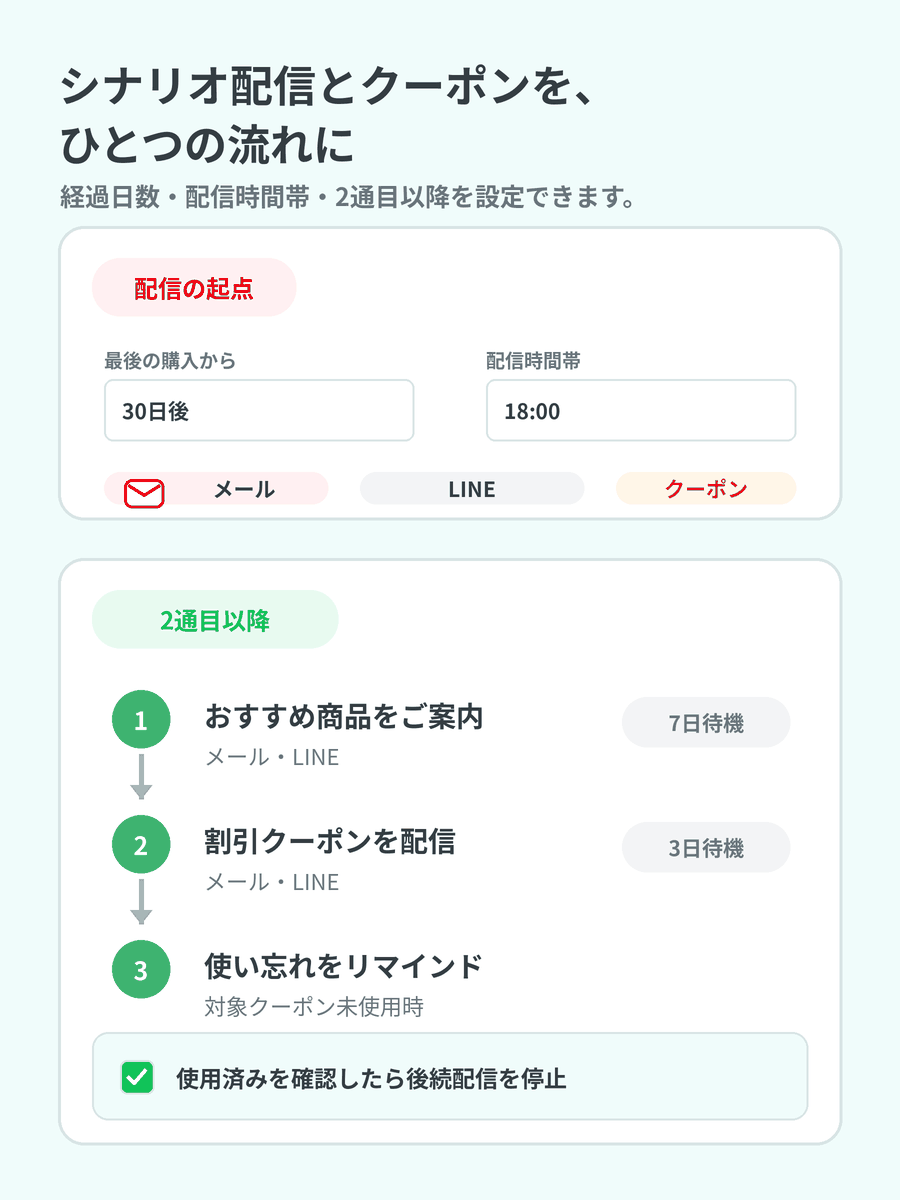
A win-back scenario lets you configure everything in one place: how many days to wait before the first message, the sending window, the email and LINE content, and the wait times for the second message and beyond. Keep it to a single message, or deliver a series in sequence.
Click the image to enlarge.
Set the delay and sending window for the first message
Choose the "Send a message X days after the last order date" scenario, then set the number of days and the time of day to start sending. Match the timing to your products' replacement cycle or your customers' purchase rhythm.
Turn follow-ups into a drip sequence
Enable "Send a second message" to define different content and a different wait time from the first message. Add further messages after that, spacing each step by minutes, hours, or days.
Narrow the audience with conditions
Use scenario conditions to target customers by purchased products, customer attributes, and more. See scenario conditions for details.
Pair coupons with unused-coupon reminders
Issue discount coupons automatically inside the scenario and share them by email or LINE. Set the coupon's expiration date and discount, and build it into your message as a reason to come back.
Once a second message is configured, enabling "Stop sending messages once the coupon is used" halts the remaining steps when the coupon has been redeemed. If it is still unused, the scenario moves on to the next message as scheduled.
This lets you announce a coupon in the first message and send an unused-coupon reminder a few days later — all within the same scenario. Learn more on the coupon expiry reminders page.
From coupon delivery to reminder
- Announce a discount coupon in the first message
- Wait for the time you set
- Check whether the coupon has been used before the next message
- Stop if it has been used; send a reminder if it has not
For the coupon fields and how to insert coupons into messages, see coupon settings.
Review the results and iterate
StoreCRM's reports show email opens and clicks, clicks on links inside LINE messages, and purchases attributed to StoreCRM. Filter by scenario or message to review performance and refine your content and timing.
FAQ
It is called a "win-back email" — can it be sent over LINE?
Yes. A win-back scenario can include both email and LINE messages. To receive it over LINE, the customer must have a linked LINE ID and be able to receive messages from your official account. Email has its own delivery requirements, such as marketing consent.
Can I send a second message and beyond?
Yes. Configure follow-up messages and wait times to build a drip sequence. Email and LINE content, messaging, and intervals can all be adjusted per step.
Can I remind customers about unused coupons?
Yes. Have the scenario issue a coupon automatically, set up a second message, and enable "Stop sending messages once the coupon is used". If the coupon has been redeemed, the remaining steps stop; if not, the scenario proceeds to the next message.
Which customers receive the messages?
Customers whose last purchase date matches the elapsed-days condition and who have a valid destination and marketing consent for the channel in use. For LINE, a linked LINE ID with the ability to receive messages is also required. Add scenario conditions to narrow the audience further.
Give customers who drifted away their next reason to return
Combine email and LINE, follow-up steps, and coupons in a single scenario triggered by the last purchase date. StoreCRM's win-back emails automate everything from the first nudge back to the unused-coupon reminder.
For setup steps, see the win-back email setup manual, creating emails, and coupon settings.