
- A welcome email is the very first email sent to a customer who has registered their email address with your store.
- Customers typically share their email address when they create an account at checkout or sign up for your newsletter.
- It is your first communication with the customer, and it strongly shapes their first impression of your company and brand.
- The sooner a welcome email arrives after sign-up, the better the impression it makes.
- StoreCRM can send a welcome email automatically as soon as one minute after the email address is registered.
- Sending welcome emails requires the StoreCRM Standard plan or above.
What to include in a welcome email
- Thank the customer for creating an account or making a purchase.
- Introduce your store and highlight your best-selling products.
- Encourage a first purchase with a first-order perk or a discount coupon.
Subject lines and design
- Drive opens with perks, urgency, and personalization — for example, "Your sign-up gift is waiting!", "[Limited time] A coupon you can use right now", or "A special gift for you, [Name]".
- Keep the layout easy to scan and easy to read.
- Place a clear call-to-action button where it is easy to spot.
Example welcome email
Subject: [Store name] Thanks for signing up! Here is a [gift] you can use right away!
Body:
Dear [Customer name],
Thank you for signing up with [Store name]!
At [Store name], we carry a wide range of products, including [Product category].
[First-time customer offer]
Right now, get [offer details] with your first purchase! Coupon code: [Coupon code] Expires: [Expiration date]
We hope you find something you love.
[Shop name] [Shop URL]
What is a welcome email?
- A welcome email is the very first email sent to a customer who has registered their email address with your store.
- It is your first communication with the customer, and it strongly shapes their first impression of your company and brand.
- The sooner a welcome email arrives after sign-up, the better the impression it makes.
- Learn how to add coupons in the help center.
Try the back-in-stock notification demo
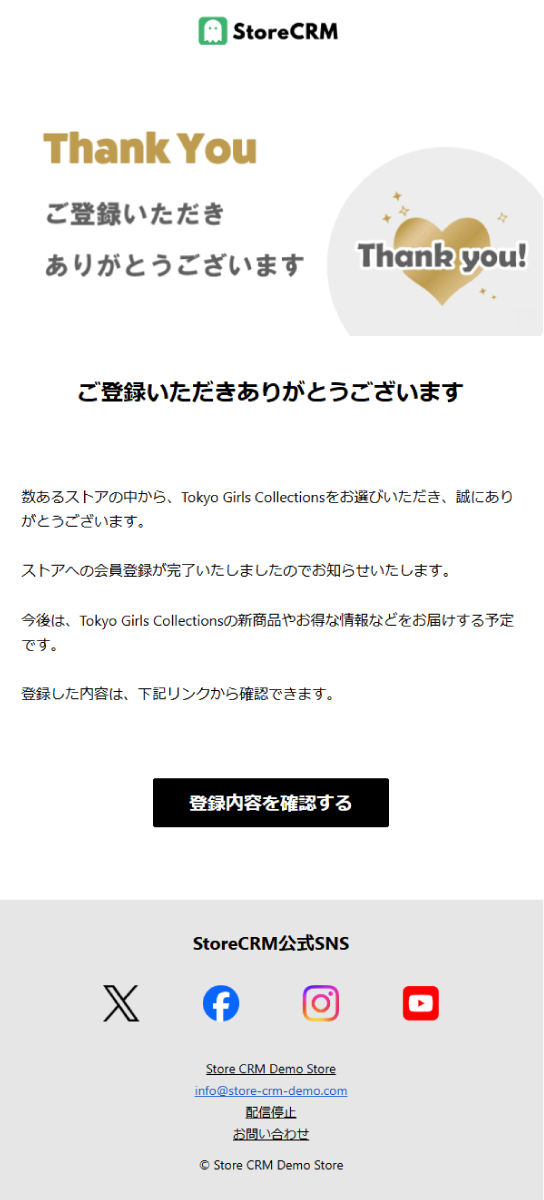
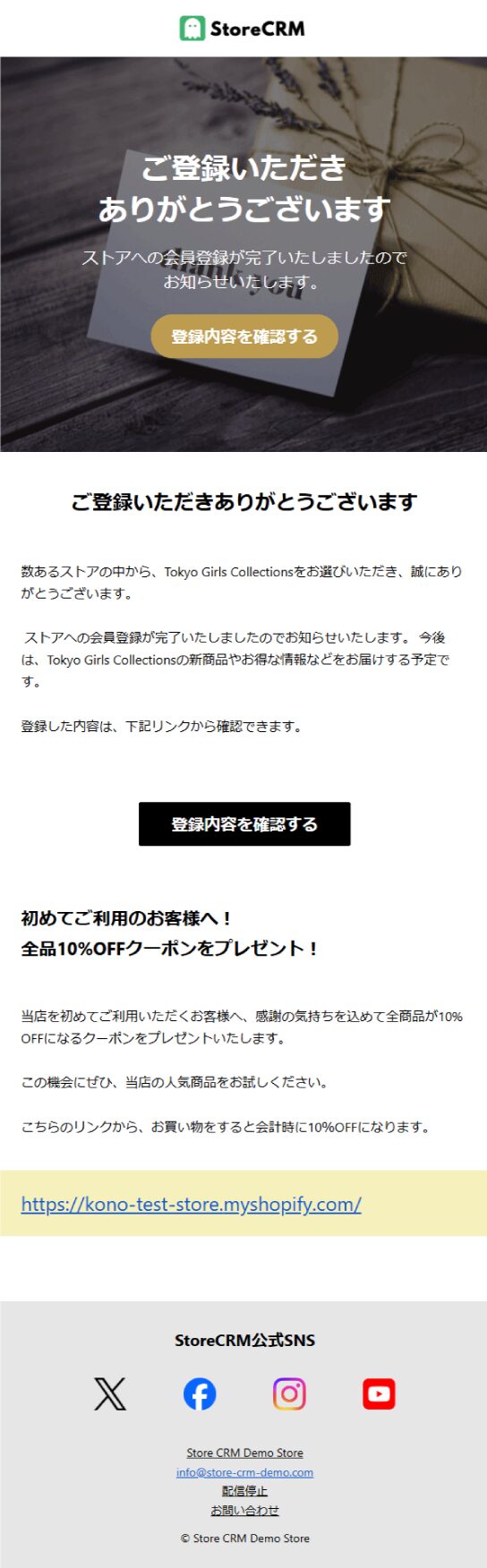
Welcome email
- With StoreCRM, you can send emails like this using ready-made templates.
- You can also build an original email featuring photos of your store and products.
Checkout abandonment LINE message
Reach customers by email and LINE as soon as one minute after sign-up
- Messaging customers right after they register builds goodwill toward your store and encourages a first purchase.
- StoreCRM can send LINE messages as well as email.
- Delivery can be scheduled minutes, hours, or days after registration.
No additional apps required
- StoreCRM sends welcome emails without any extra apps to install.
- Add coupons or recommended products directly to your welcome email.
Setting up a welcome email is easy
- With StoreCRM, you can set up welcome emails in just a few steps — no additional apps needed.
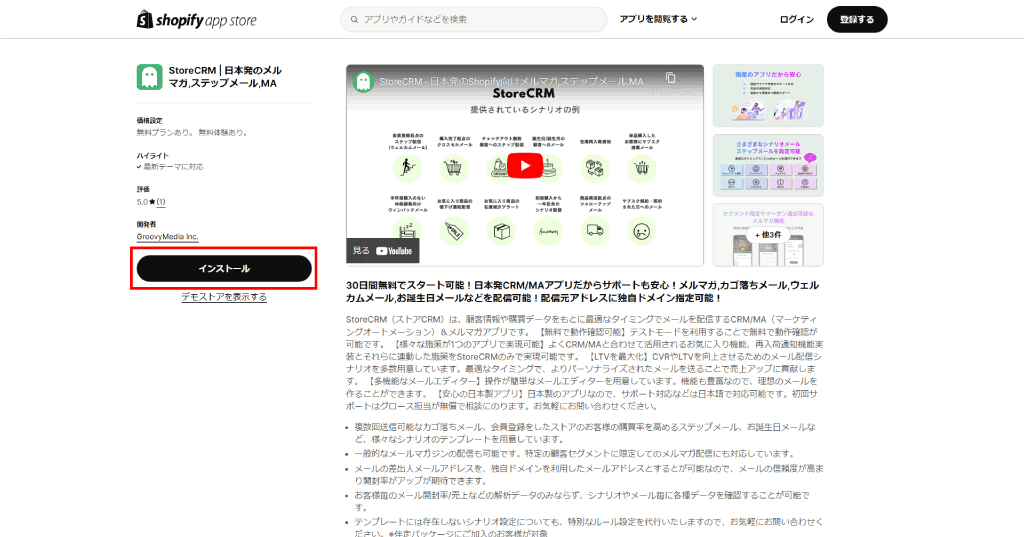
- Make sure the StoreCRM app is installed on your Shopify store first.
- Sending welcome emails requires the StoreCRM Standard plan or above.
Add a scenario
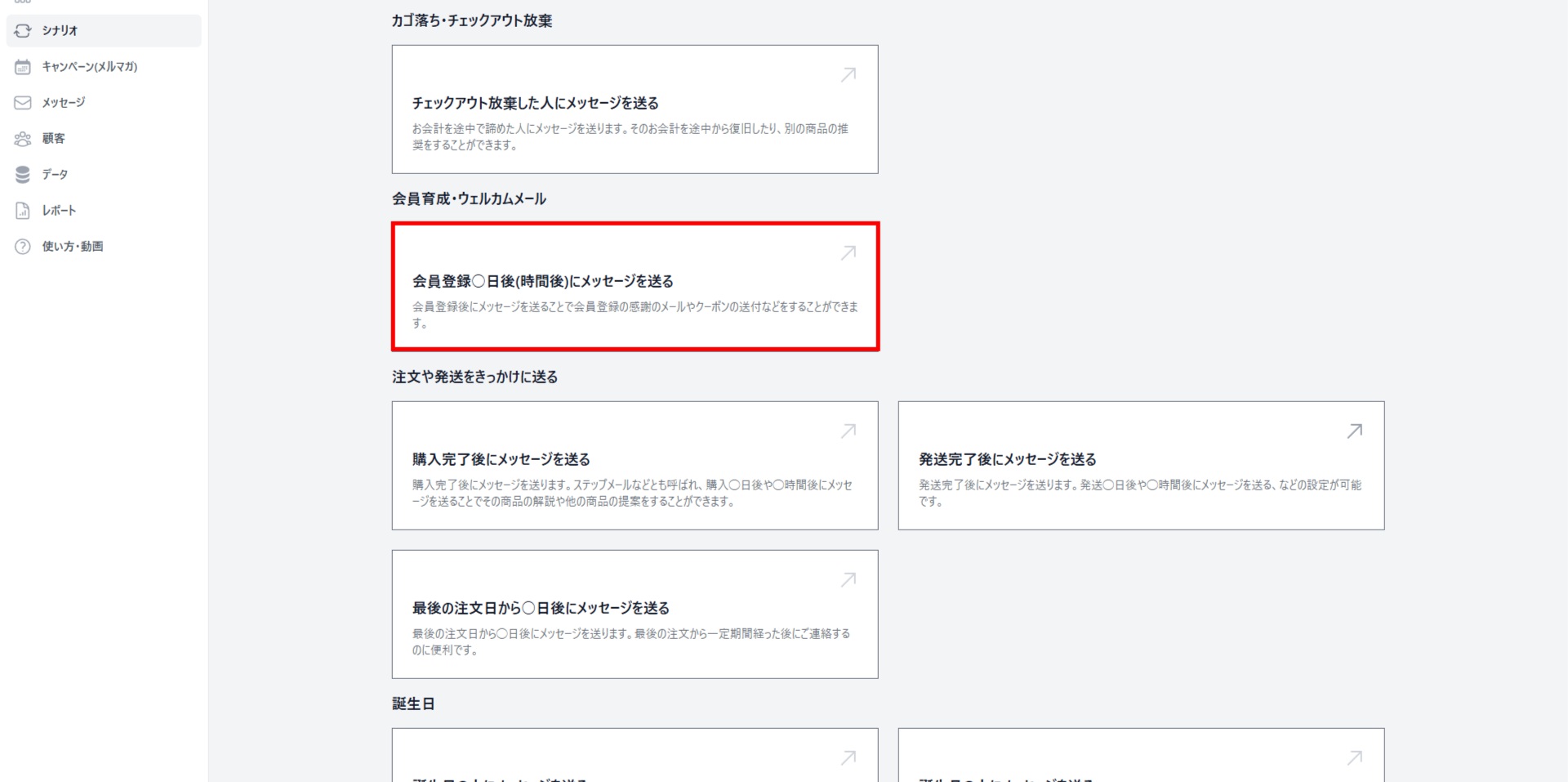
Click [Send a message X days (or hours) after account registration] to add a scenario.
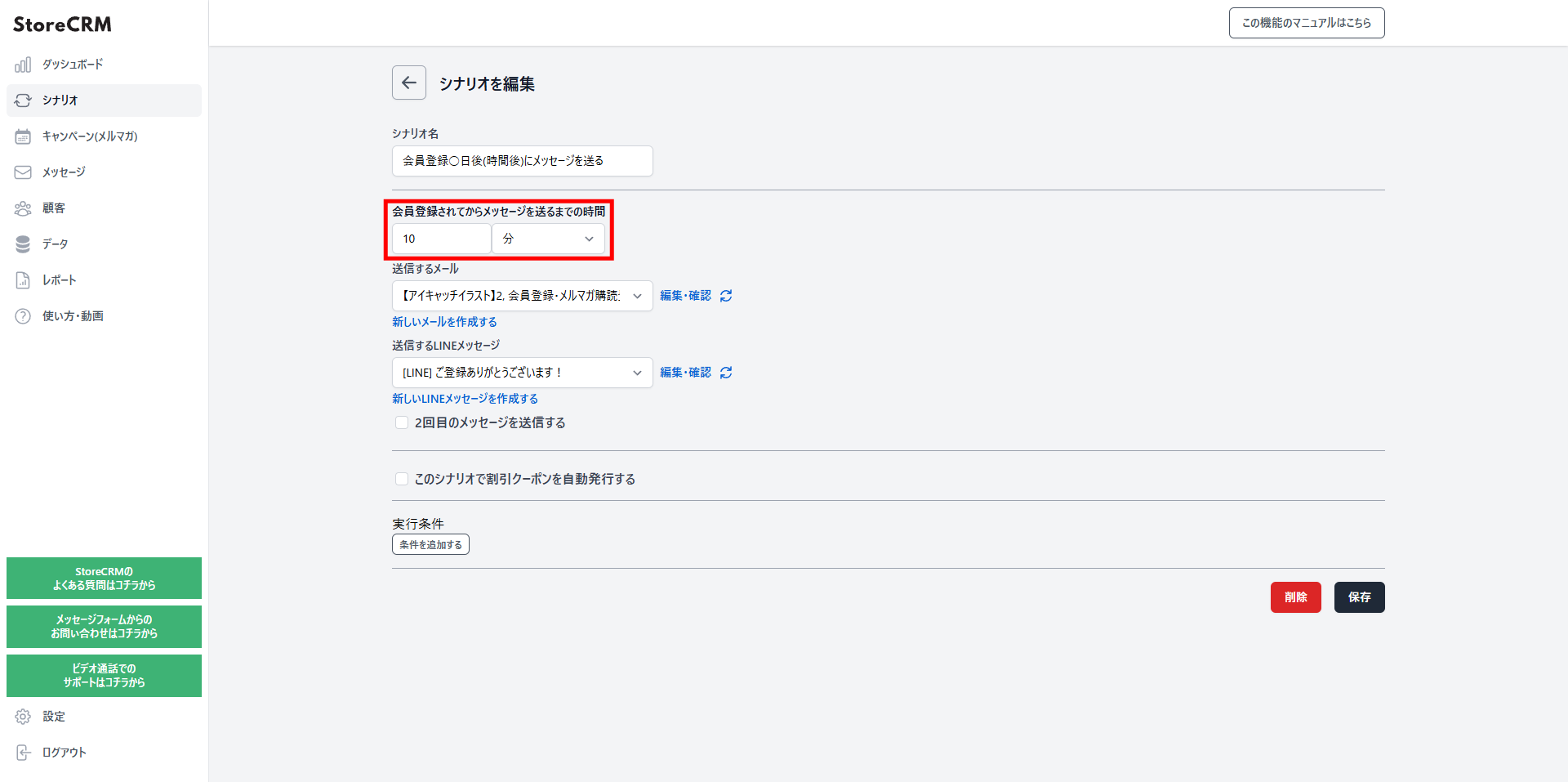
Set how long after registration the message is sent
- In this example, we chose "10 minutes".
- You can choose minutes, hours, or days as the unit.
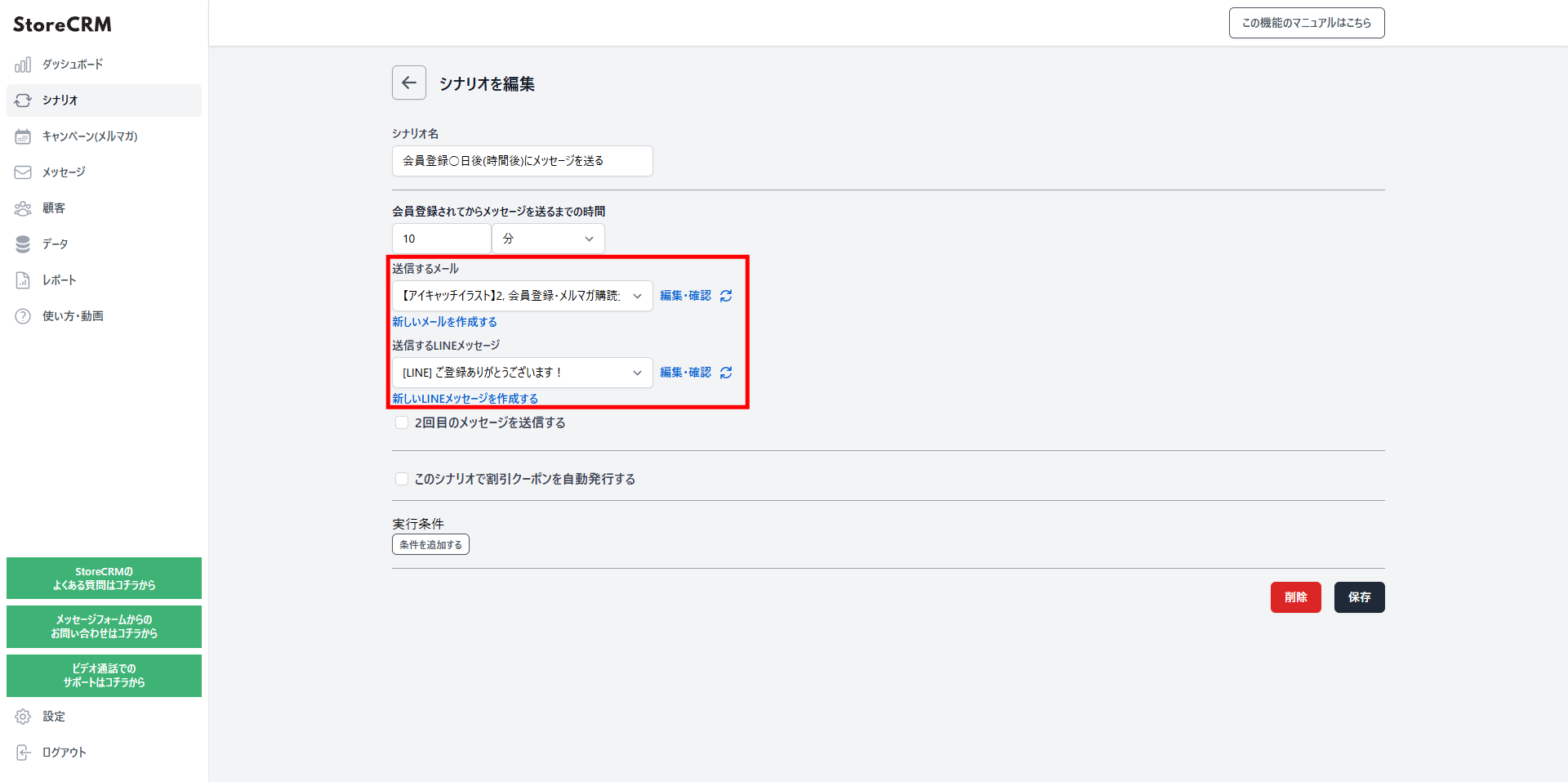
Choose the email and LINE message to send
- A LINE message can go out at the same time as the email.
- To create a new email, go to [Messages] and open [Email list].
- Use a template, or design an original email of your own.
Set up a second message and beyond
- Check [Send a second message].
- Configure the email to send, following the same steps as the first one.
- Varying the content between the first email and the follow-ups lifts your conversion rate.
- For example, sending a coupon in the second email and recommended products in the third helps drive sales.
- Coupons can be added here too — see how to add coupons.
- You can also skip the second email automatically once the coupon has been used.

Set how long to wait before the second message
- In this example, we chose "3 days".
- You can choose minutes, hours, or days as the unit.

Target specific products, specific customers, subscription products, and more
- StoreCRM lets you send emails based on a wide range of conditions.
- Learn more about scenario conditions in the help center.

Create your welcome email
- Create the email you selected in the scenario.
- Use a template, or design an original email of your own.
- Once set up, the email is sent automatically to customers after their first purchase.
- To include a coupon link, the scenario must be configured to send a coupon.
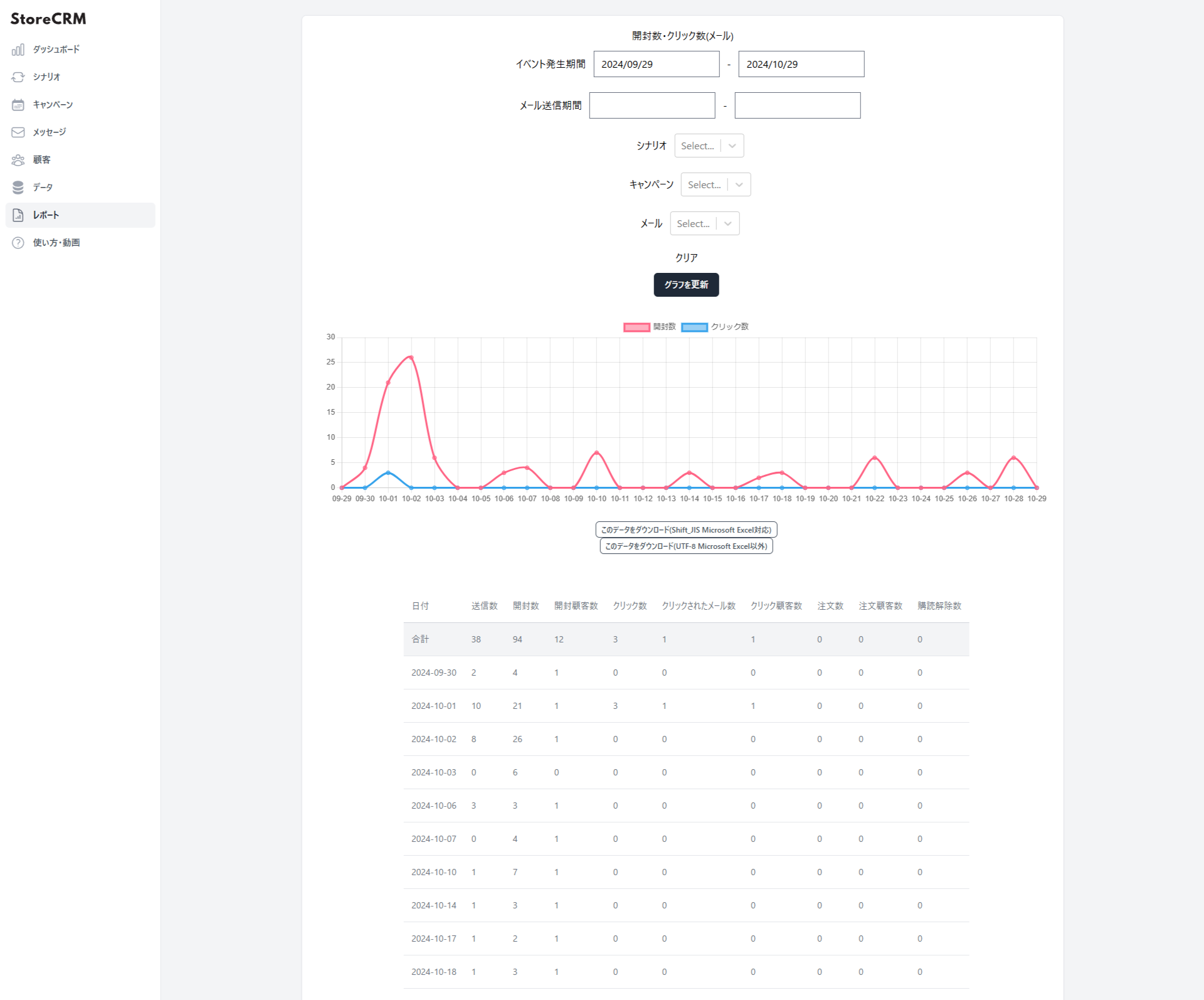
Track open rates, click rates, and revenue with reports
- StoreCRM's reporting shows open rates, click rates, and revenue at a glance.
- Filter the results by a specific scenario or email.
- Click [Download this data (Shift_JIS, for Microsoft Excel)] or [Download this data (UTF-8, for other tools)] to export the data.
Summary
Sending welcome emails by hand takes an enormous amount of time and effort. Automate them with an app built for the job.