- A cross-sell email recommends products related to what a customer just bought, encouraging an additional purchase.
- The benefits of cross-selling include:
- Raising average order value
- Improving customer satisfaction by recommending products that fit their needs
- Turning one-time buyers into repeat customers
- Successful cross-sell marketing means personalizing messages based on each customer's purchase and browsing history.
- Incentives that nudge a purchase — a limited-time discount coupon or reward points — work well too.
- StoreCRM can send email and LINE messages at the same time.
- Sending cross-sell emails requires the StoreCRM Standard plan or above.
What is a cross-sell email?
- A cross-sell email recommends products related to what a customer just bought, encouraging an additional purchase.
- The benefits of cross-selling include:
- Raising average order value
- Improving customer satisfaction by recommending products that fit their needs
- Turning one-time buyers into repeat customers
- Successful cross-sell marketing means personalizing messages based on each customer's purchase and browsing history.
- Incentives that nudge a purchase — a limited-time discount coupon or reward points — work well too.
- Learn how to add coupons in the help center.
Recommend related products by email and LINE hours after purchase
- Messaging customers soon after a purchase is the best moment to spark interest in buying more.
- StoreCRM can send email and LINE messages at the same time.
- Delivery can be scheduled minutes, hours, or days after the purchase.
No additional apps required
- StoreCRM sends cross-sell emails without any extra apps to install.
- Add coupons or recommended products directly to your cross-sell email.
Setting up a cross-sell email is easy
- With StoreCRM, you can set up cross-sell emails in just a few steps — no additional apps needed.
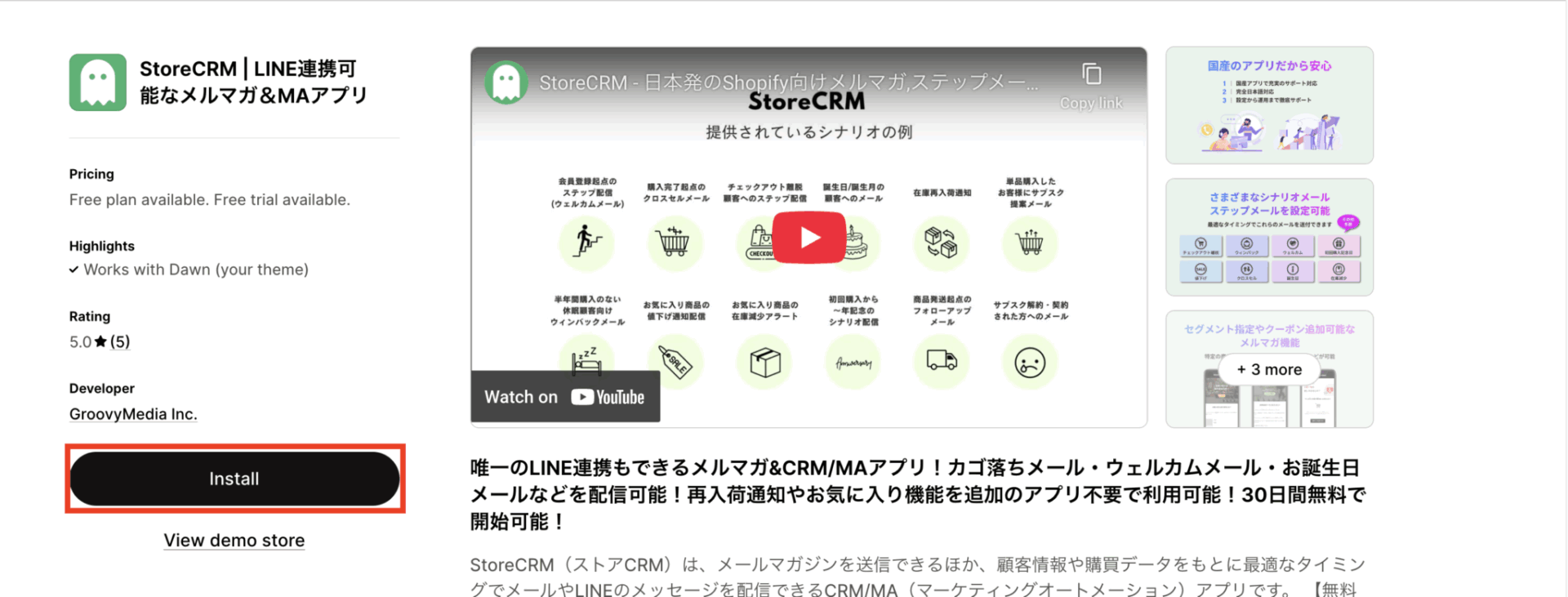
- Make sure the StoreCRM app is installed on your Shopify store first.
- Sending cross-sell emails requires the StoreCRM Standard plan or above.
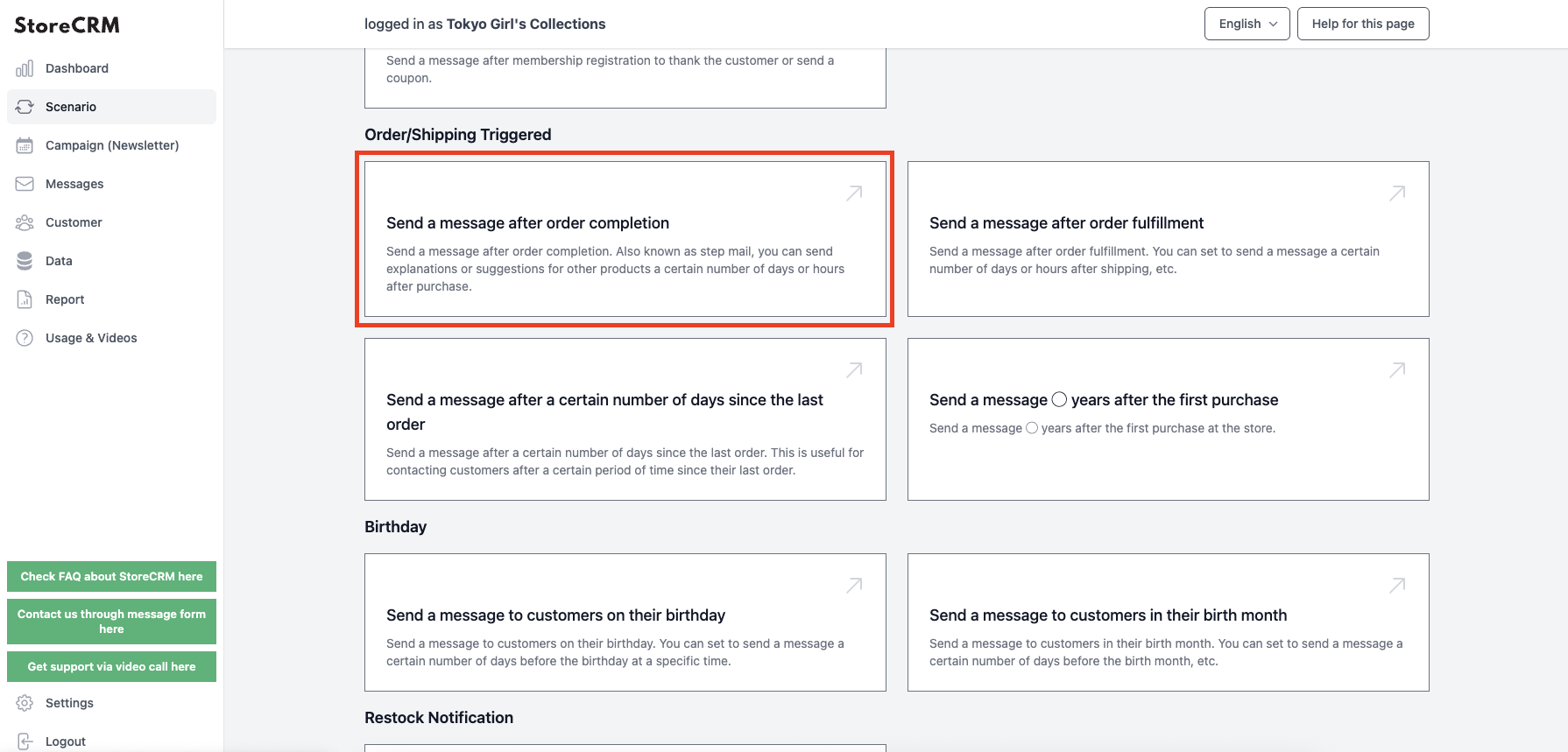
Add a scenario
Click [Send a message after purchase completion] to add a scenario.
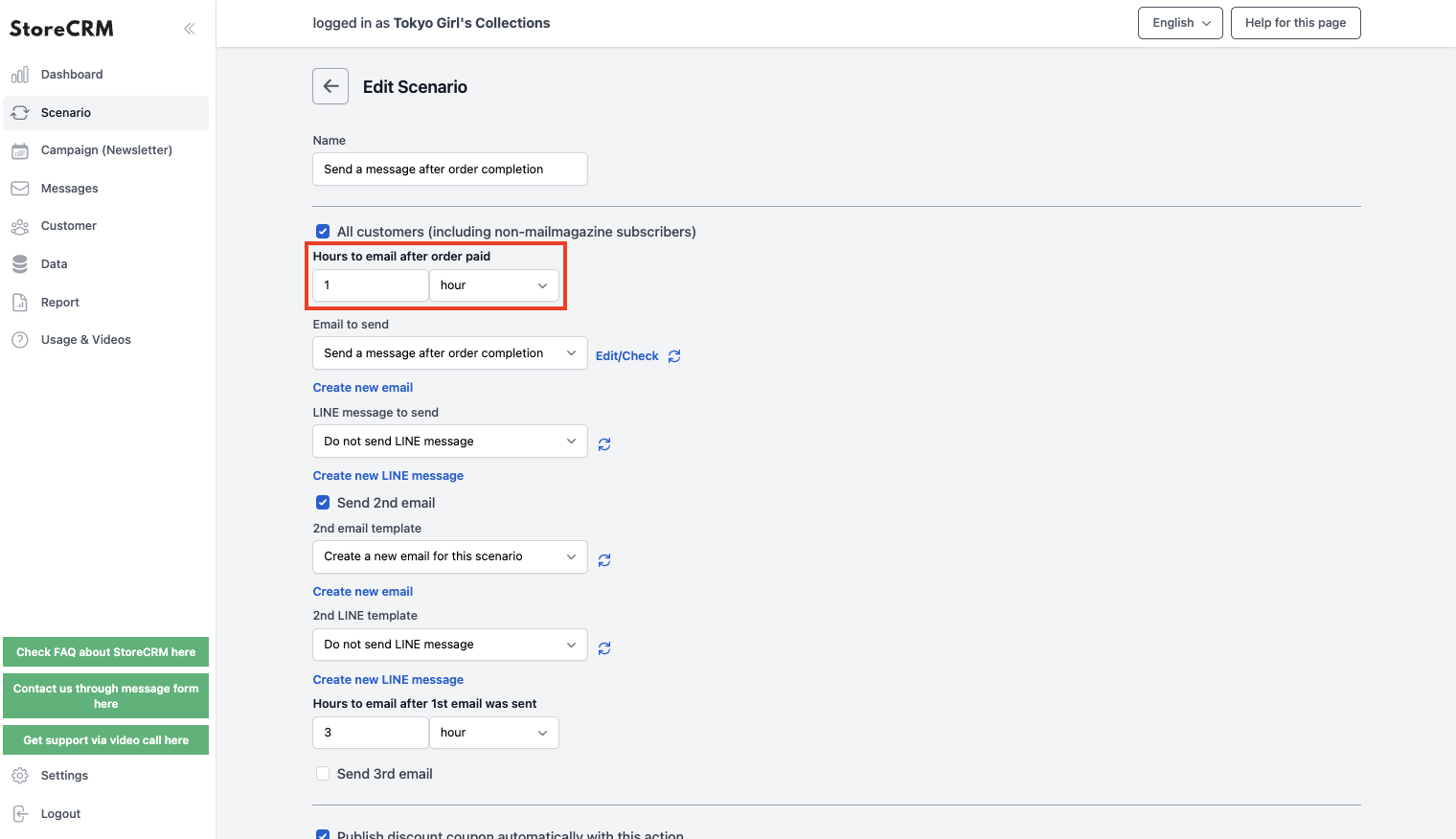
Set how long after purchase the message is sent
- In this example, we chose "1 hour".
- You can choose minutes, hours, or days as the unit.
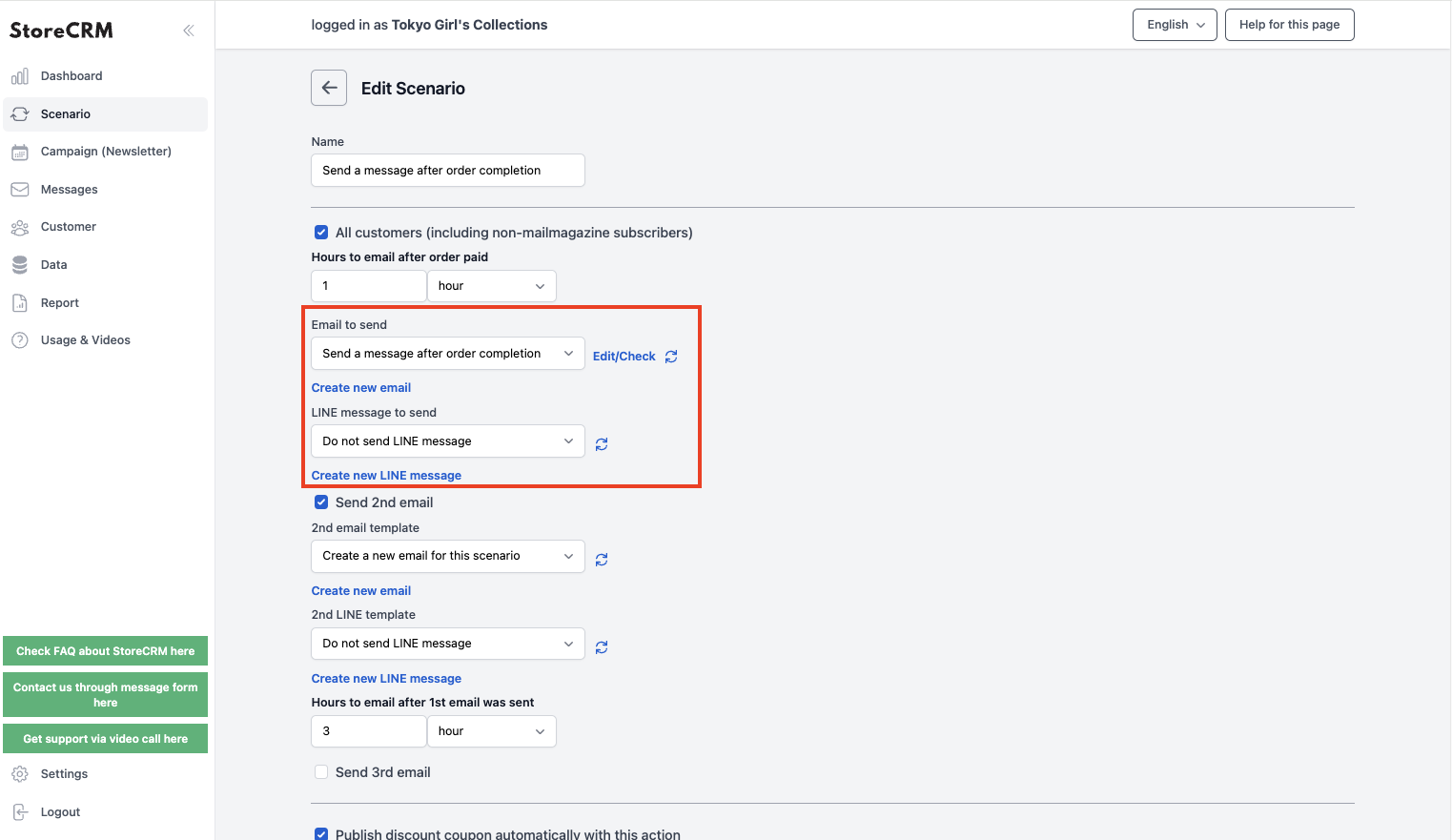
Choose the email and LINE message to send
- A LINE message can go out at the same time as the email.
- To create a new email, go to [Messages] and open [Email list].
- Use a template, or design an original email of your own.
Set up a second message and beyond
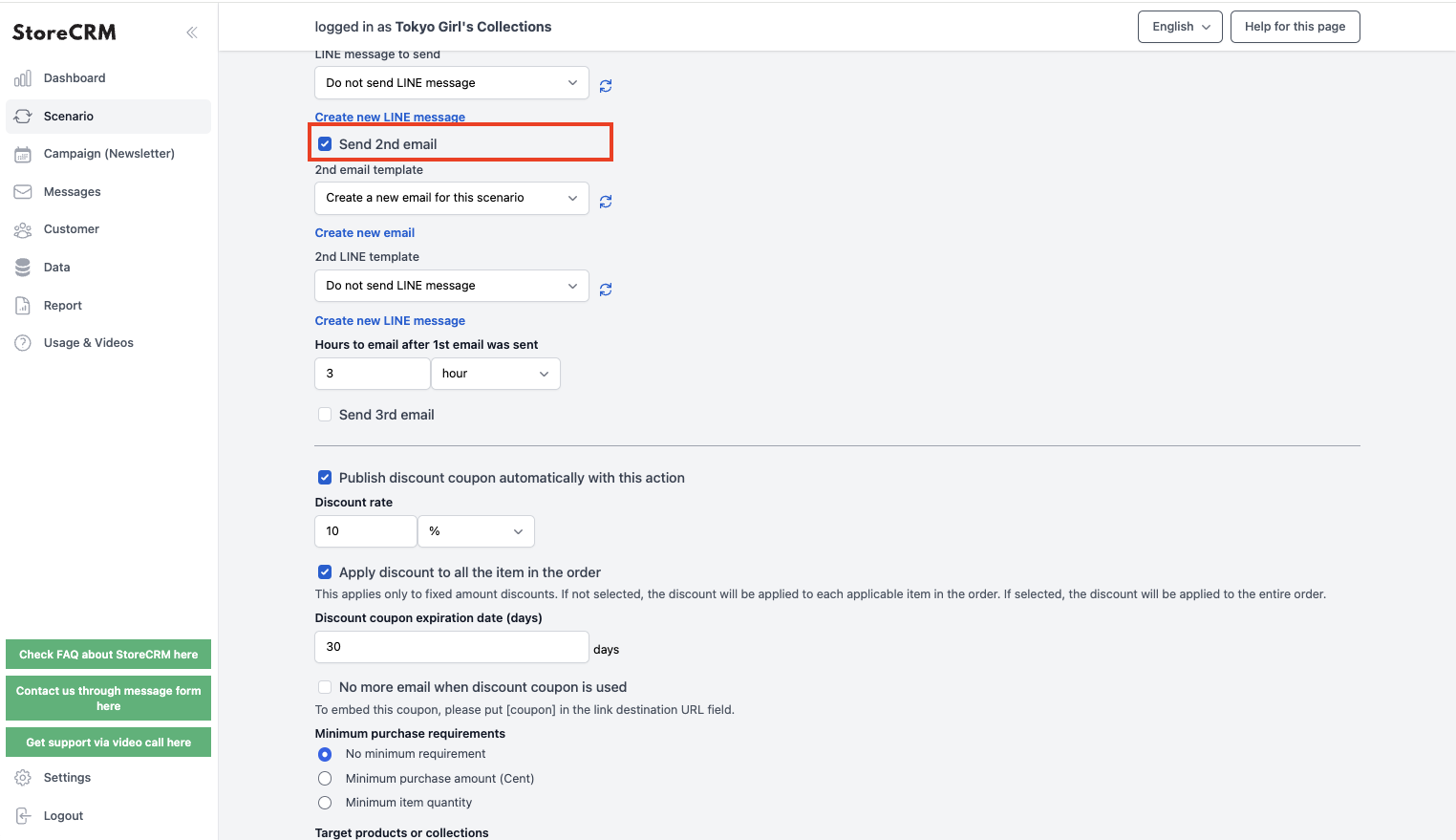
- Check [Send a second message].
- Configure the email to send, following the same steps as the first one.
- Varying the content between the first email and the follow-ups lifts your conversion rate.
- For example, sending a coupon in the second email and recommended products in the third helps drive sales.
- Coupons can be added here too — see how to add coupons.
- You can also skip the second email automatically once the coupon has been used.
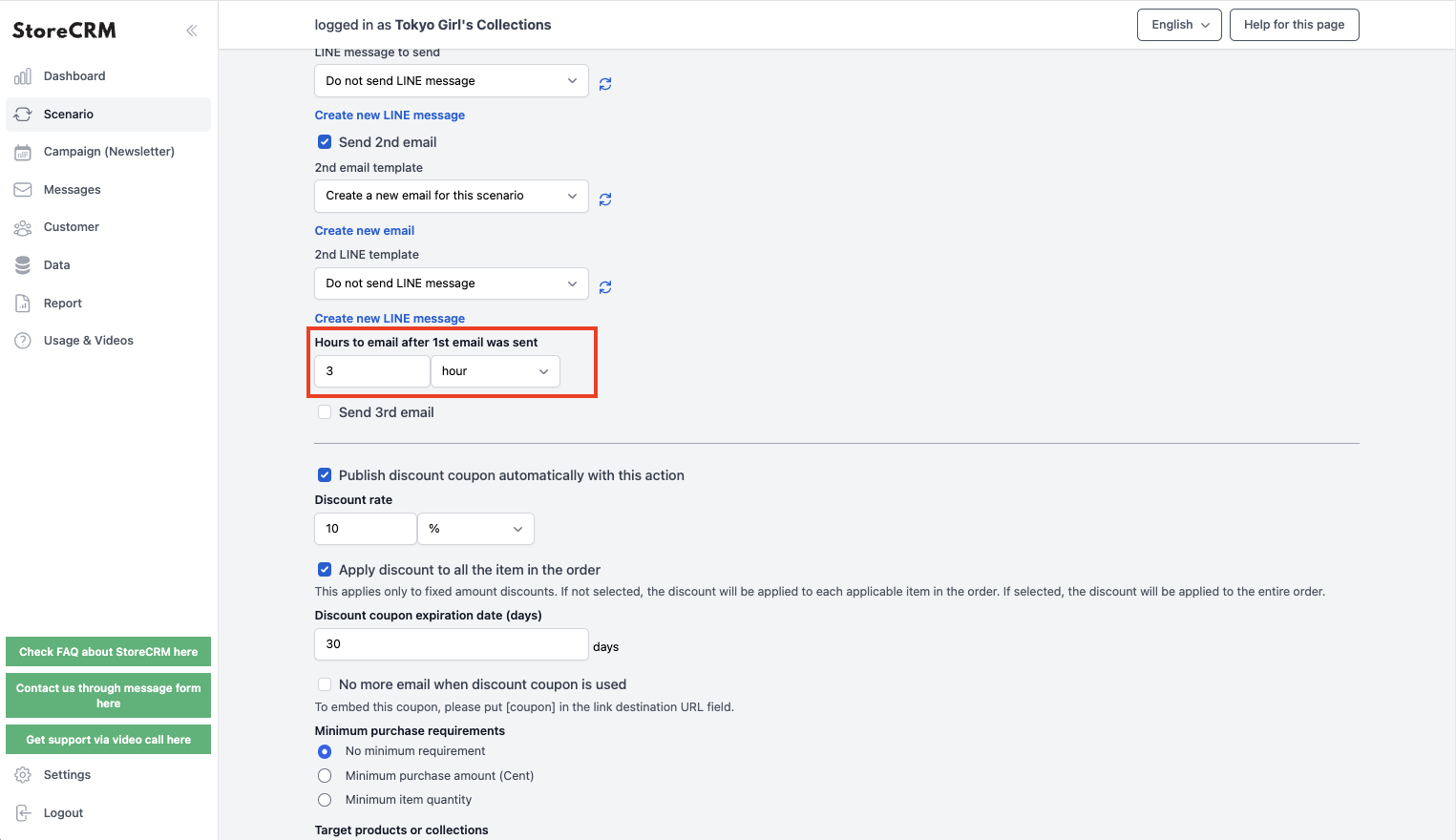
Set how long to wait before the second message
- In this example, we chose "3 hours".
- You can choose minutes, hours, or days as the unit.
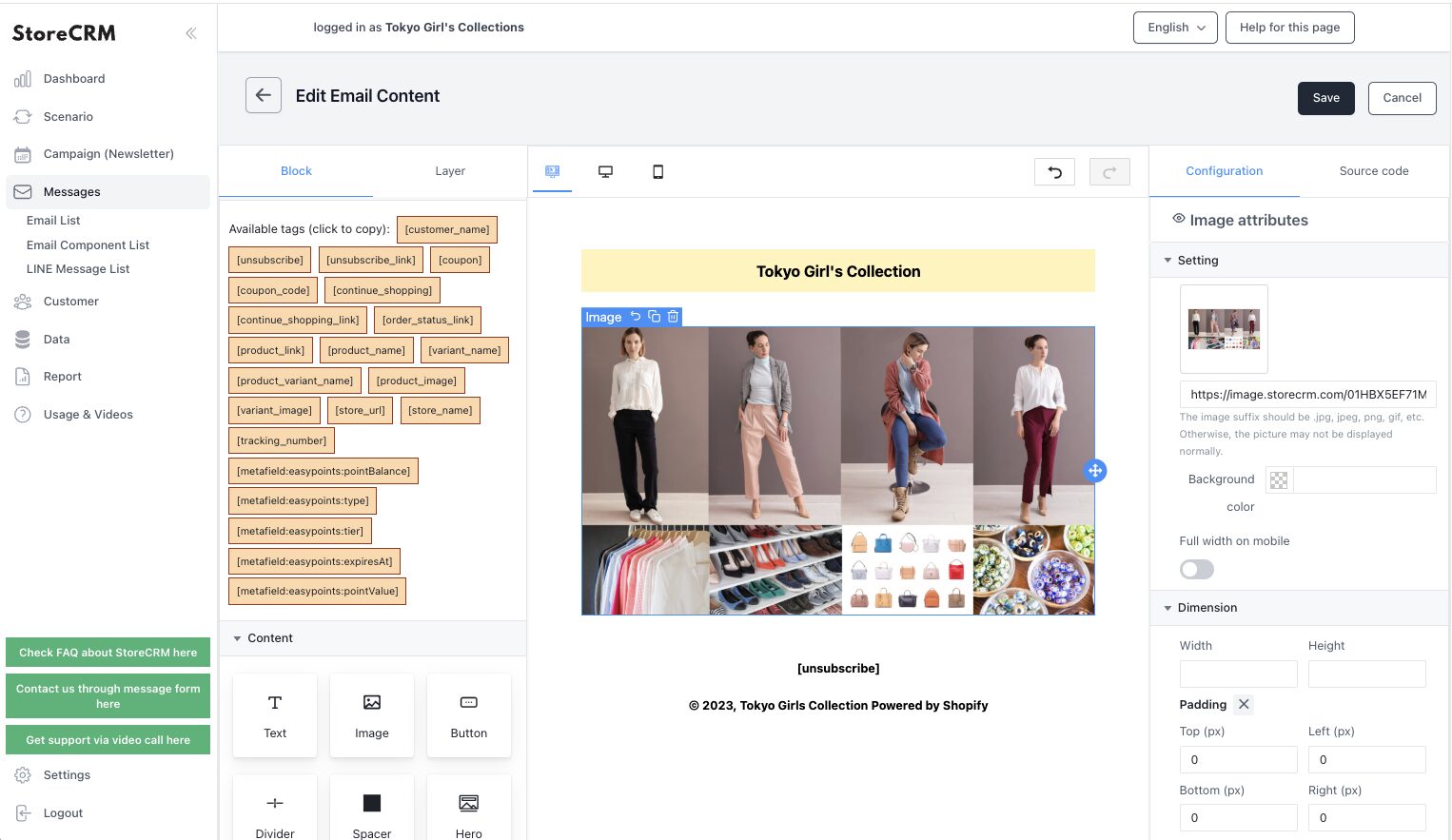
Create your cross-sell email
- Create the email you selected in the scenario.
- Use a template, or design an original email of your own.
- Once set up, the email is sent automatically to customers after their purchase.
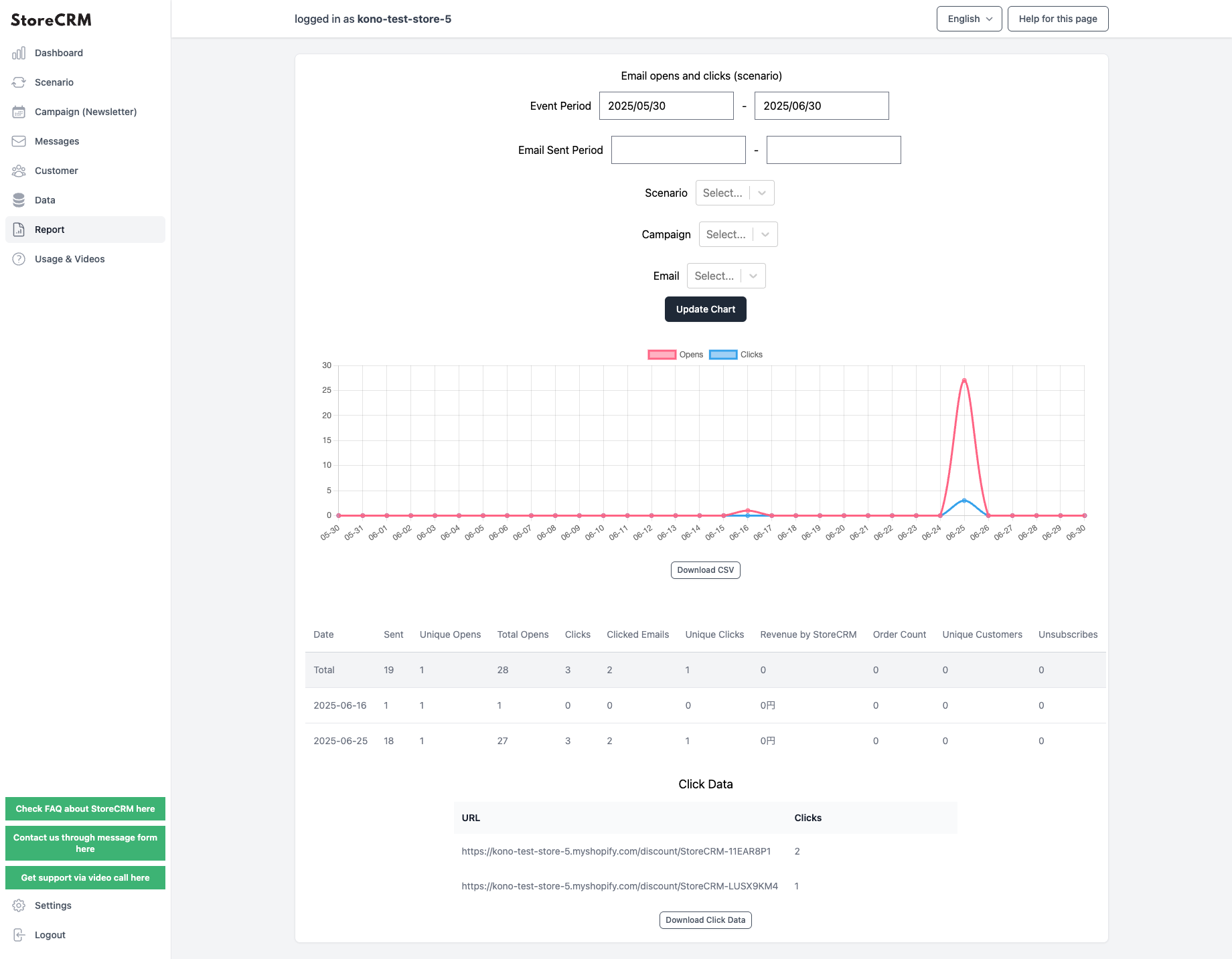
Track open rates, click rates, and revenue with reports
- StoreCRM's reporting shows open rates, click rates, and revenue at a glance.
- Filter the results by a specific scenario or email.
- Click [Download this data (Shift_JIS, for Microsoft Excel)] or [Download this data (UTF-8, for other tools)] to export the data.
Summary
Sending cross-sell emails by hand takes an enormous amount of time and effort. Automate them with an app built for the job.