
Introduction
This article explains how to send automated email sequences on Shopify with StoreCRM, along with the points and pitfalls to bear in mind, by actually building a welcome sequence triggered by a customer signing up.
Automated sequences are a staple of ecommerce marketing, but they are not so simple that sending indiscriminately produces results.
What the email says and when it arrives change both its purpose and what you can expect from it. And sending is not the end of the job: analysing how customers respond and what the open rate looks like, then upgrading the emails into something more personal to your customers, is what really matters.
With StoreCRM, everything from the conditions that trigger the sequence to the emails themselves takes only a few steps. You can also see open rates, click rates and email-attributed revenue at a glance inside the app.
Sending with a clear purpose and repeatedly analysing and improving produces real results — more revenue, a stronger relationship with your customers — so put StoreCRM to work and start sending.
[Video manual] Setting up StoreCRM automated email sequences on Shopify
Building the sequence (a welcome sequence after signup)
The goal of the sequence
Being clear about what a campaign is for matters. So let us start with the goals of the [welcome sequence after signup] we are about to build.
1. Brand awareness and promotion Introducing the brand and your flagship products immediately after signup holds the customer's interest and encourages them to buy. It also builds trust in the brand. Be careful not to send too much, though — it can lead to unsubscribes.
2. Collecting customer data Open and click rates tell you what information and which products newly registered customers are interested in. You can then use that to introduce information and products that are more personal to them.
Building the sequence
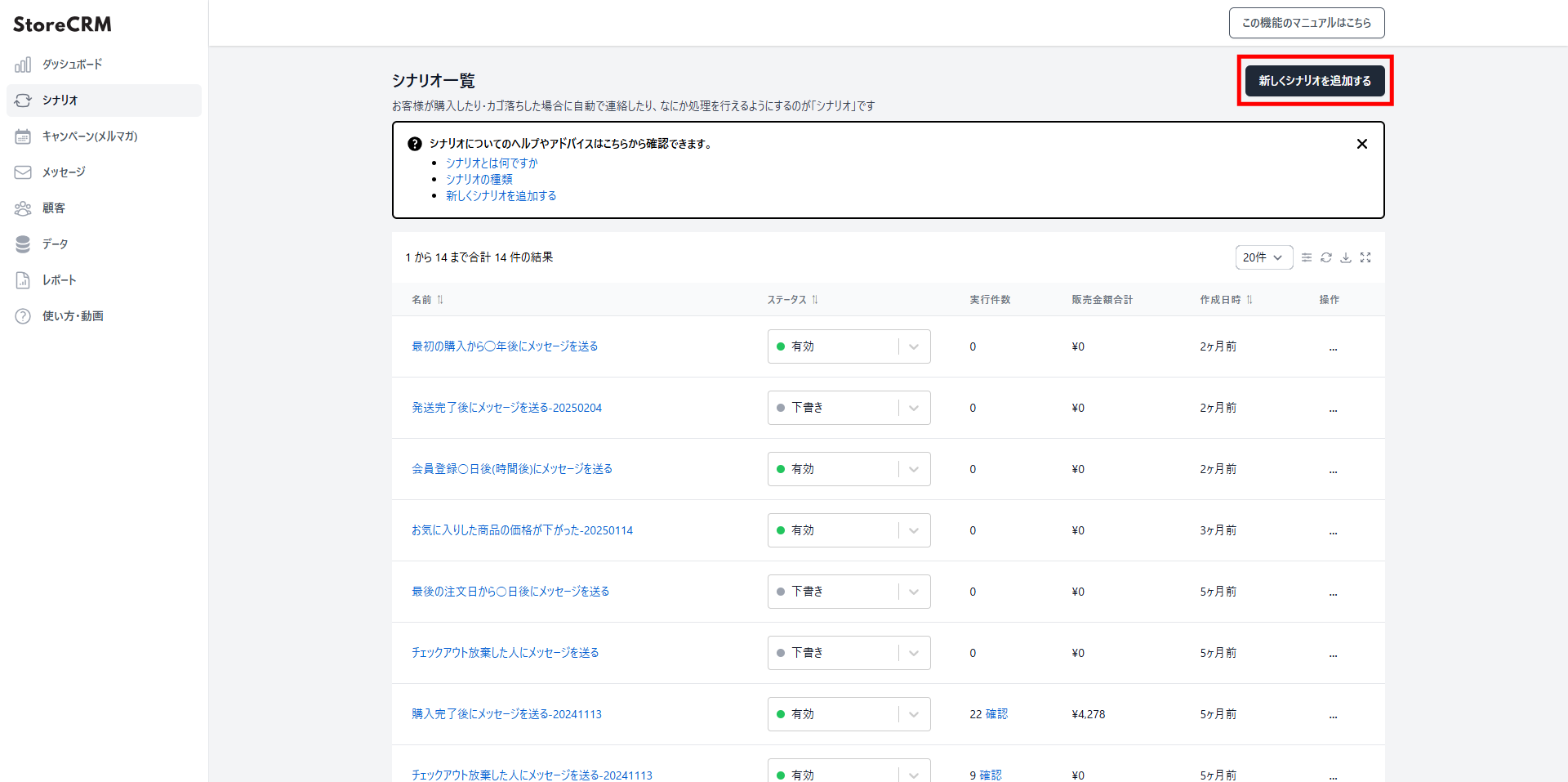
1. Open the automation list from [StoreCRM app] > [Automations]. Click [Add new automation] at the top right.
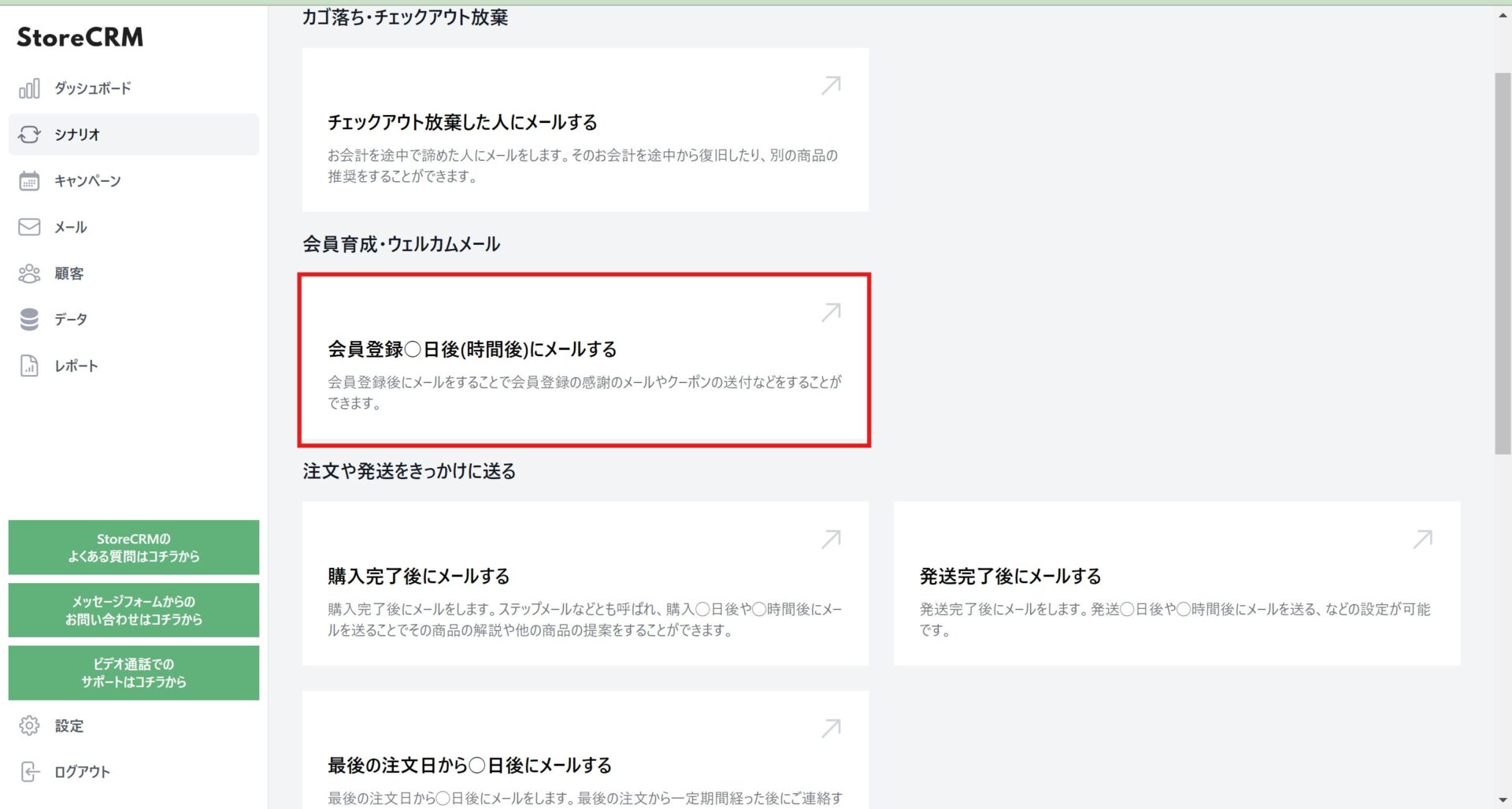
2. We are building a sequence that starts after signup, so click [Member nurture and welcome email] > [Email a set number of days (or hours) after signup].
To build a sequence for customers after a purchase instead, click [Triggered by an order or shipment] > [Email after purchase].
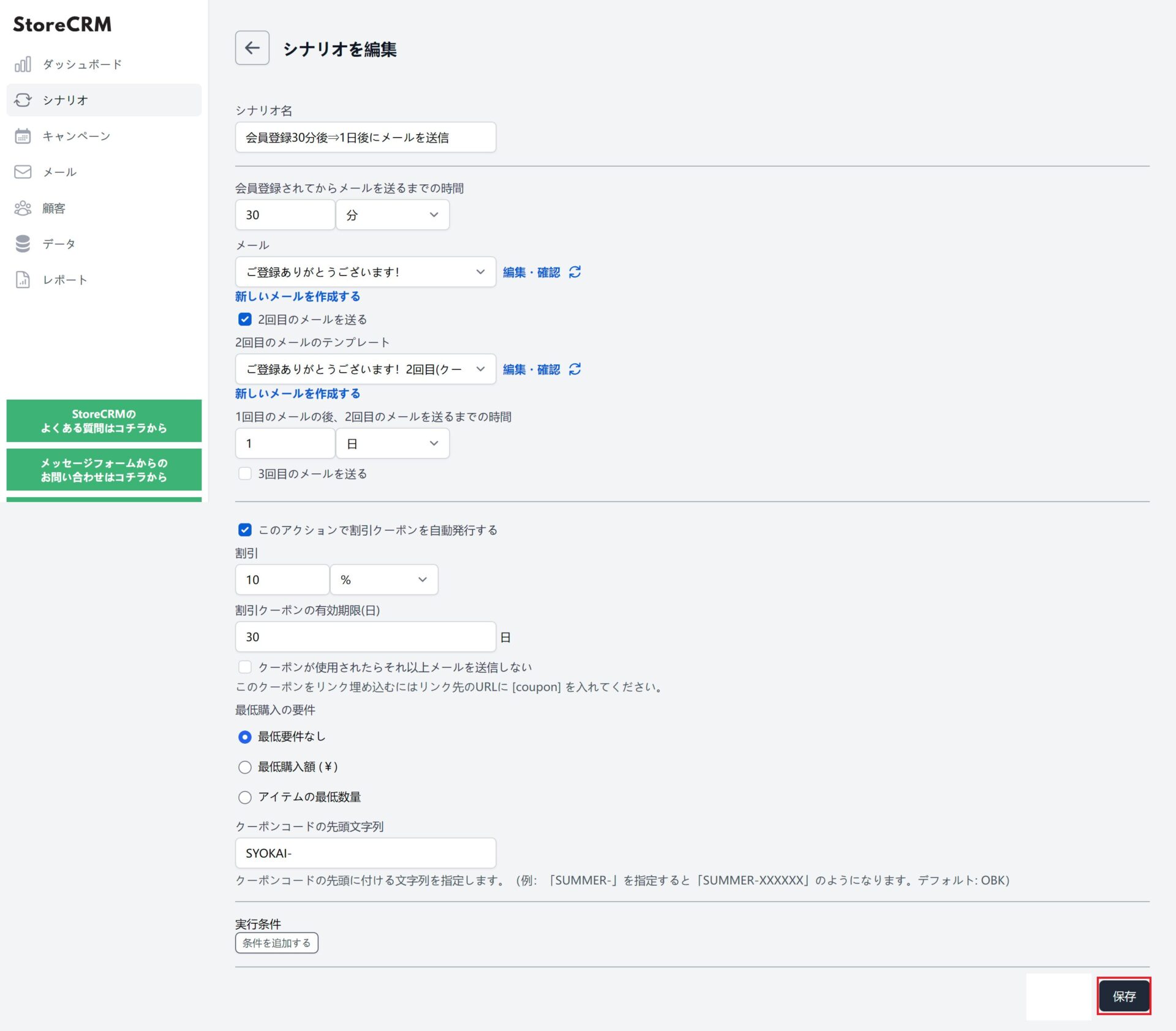
3. The automation settings appear; set when the emails go out and how many there are. Here we used the following. When you are finished, click [Save] at the bottom right.
- Send a thank-you email 30 minutes after signup.
- Send an email with a coupon one day after the first email.
- Prefix the coupon codes with [SYOKAI-].
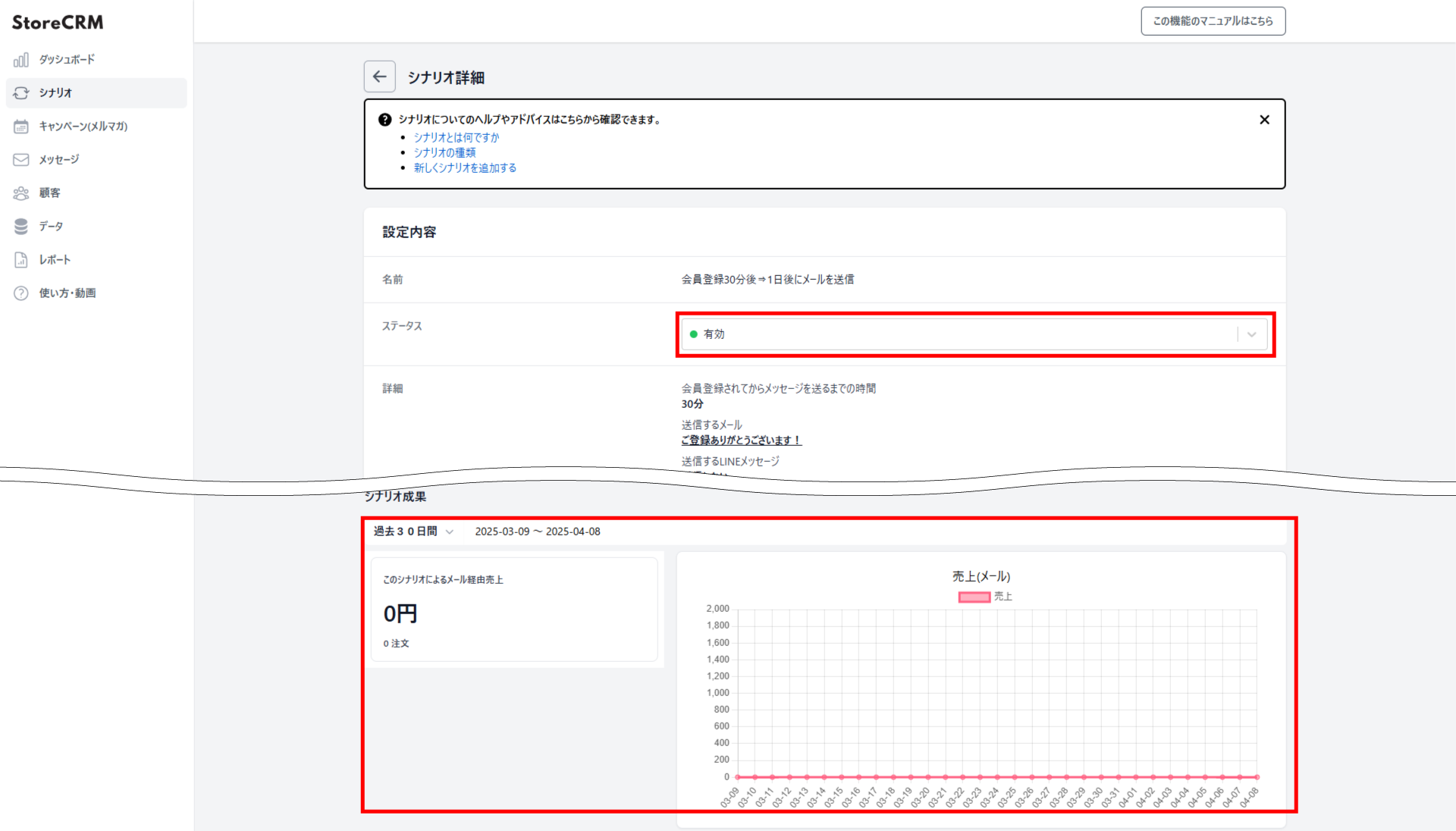
4. Click [Save] and the automation is created, and its detail page opens. Open the [Settings] > [Status] dropdown and set it to [Active], and the emails will go out according to the conditions you set. Note that the matching emails are generated automatically when the automation is created. If you want to customise them, follow the next section. [Automation results] shows the revenue, open rate and other performance figures for the automation. That completes the automation.
Editing the emails
StoreCRM ships email templates for sequences, and you can run the automation with them as they are. If you would rather match the copy and design to your store, or write the message in your own words, you can edit them in the email editor.
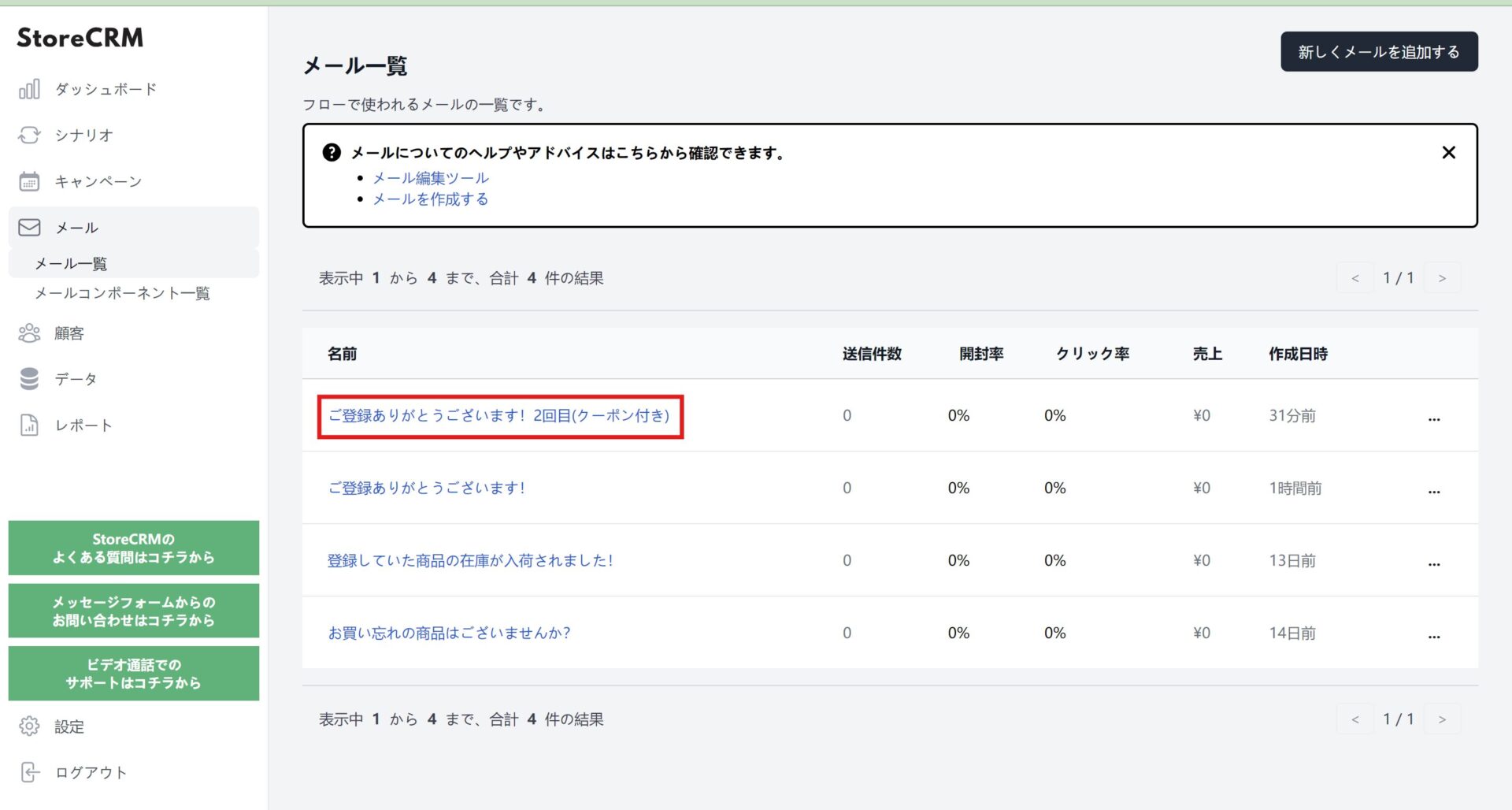
1. Open the StoreCRM app and click [Email] > [Email list]. Click the name of the email you want to edit.
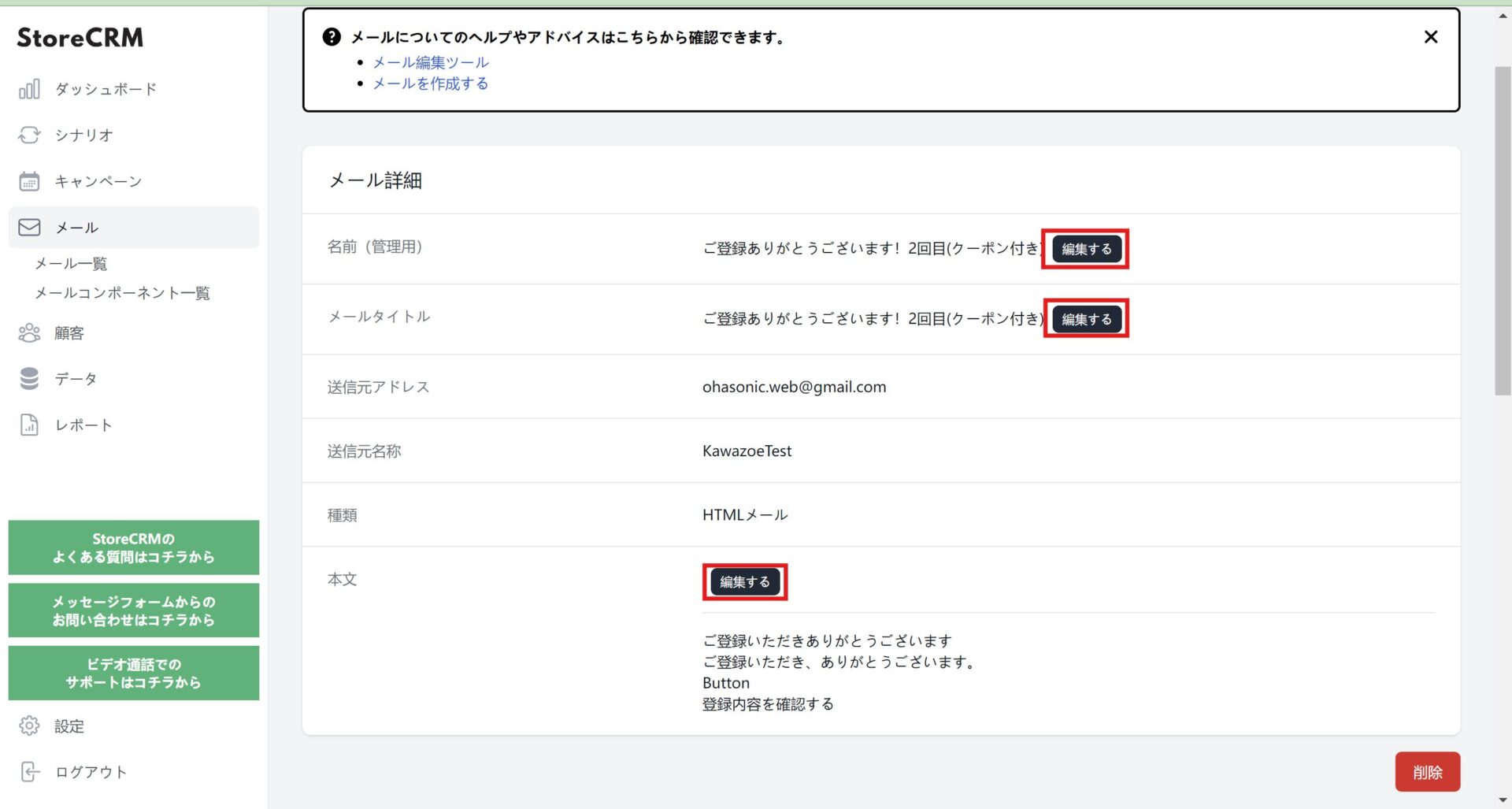
2. From [Edit] on the email detail page you can customise the [email name (internal)], the [subject line] and the [body]. Write an email that fits your store and use it to push up open rates and CVR. CVR stands for conversion rate: the share of visitors who complete the action you care about, such as buying a product or signing up.
To embed a coupon in an email, add a button or link whose destination is set to [coupon]. Do that from [Body] > [Edit].
Summary
StoreCRM makes campaigns like this signup (or post-purchase) sequence possible in a few steps, with no difficult configuration. It does not stop at sending the email — open rates, click rates and per-email or per-automation analysis all live in the same app. We also offer free setup support — we will configure the app for you — and consulting on growing revenue for customers who have adopted StoreCRM. Feel free to get in touch through the contact form linked below.
Get in touch any time through the contact form.


