# StoreCRM — Full site content
> StoreCRM is a CRM and marketing automation app built for Shopify. Manage email and LINE messaging, back-in-stock alerts, wishlists, automated journeys, customer segments, and LINE ID connections from one dashboard.
This file concatenates all 64 content pages from https://storecrm.com/ into a single file.
If you only need the index, see https://storecrm.com/llms.txt.
========================================================================
# Collecting dates of birth at signup on Shopify (new customer accounts)
> How to add a date-of-birth field to Shopify signup and send birthday coupons with it — the exact settings to use and the details to watch out for.
- URL: https://storecrm.com/knowhow/birth-date-app-block/
- Type: Blog
- Published: 2026-05-21
- Updated: 2026-05-22
- Category: tips
- Tags: StoreCRM, guides
- Author: StoreCRM
---
## Introduction
**Sending a coupon in a birthday email is a highly effective way to improve retention in an ecommerce store. Telling customers that they will receive a coupon on their birthday is also a good way to encourage them to create an account in the first place.**
**This article covers the groundwork for birthday email campaigns: how to add a date-of-birth form to Shopify with StoreCRM, and what to watch out for along the way.**
[Install StoreCRM here.](https://apps.shopify.com/obake-ma?locale=ja)
[Read here for how to send birthday emails.](https://storecrm.com/knowhow/shopify-birthday-mail/)
## How this differs from classic customer accounts
**With classic customer accounts, you added the date-of-birth form by editing the theme's**
**\`customer/register.liquid\` or**
**\`customer/account.liquid\` files.**
**New customer accounts work differently: instead of a password-based signup page, customers log in with a one-time code sent to their email. That means you cannot add Liquid code to a theme signup page any more.**
**With new customer accounts you add the StoreCRM app block from Shopify's checkout and customer accounts editor, and collect the date of birth at one of these moments:**
- **The customer account profile page**
- **The order confirmation (thank-you) page**
- **The order status page**
**Because the form can be shown after a first login or a first purchase, stores on new customer accounts can still collect everything a birthday email campaign needs.**
## Supported placements
**StoreCRM's support for new customer accounts covers the following app blocks.**
- **Profile page — the customer registers their date of birth on their account page after logging in. This is the primary placement.**
- **Order confirmation page — the customer registers immediately after checking out. Good for prompting registration right after a first purchase.**
- **Order status page — the customer registers while checking their order details. Reaches customers who come back after buying.**
**In the checkout and customer accounts editor you will see a \`StoreCRM Birthday\` block you can add to each placement. Select the page you want — profile, order confirmation or order status — and then add the app block.**
**Customers whose birthday is already on file do not see the form. On the profile page they see their registered birthday and a short note instead, and cannot register again.**
## Improving the collection rate right after signup
[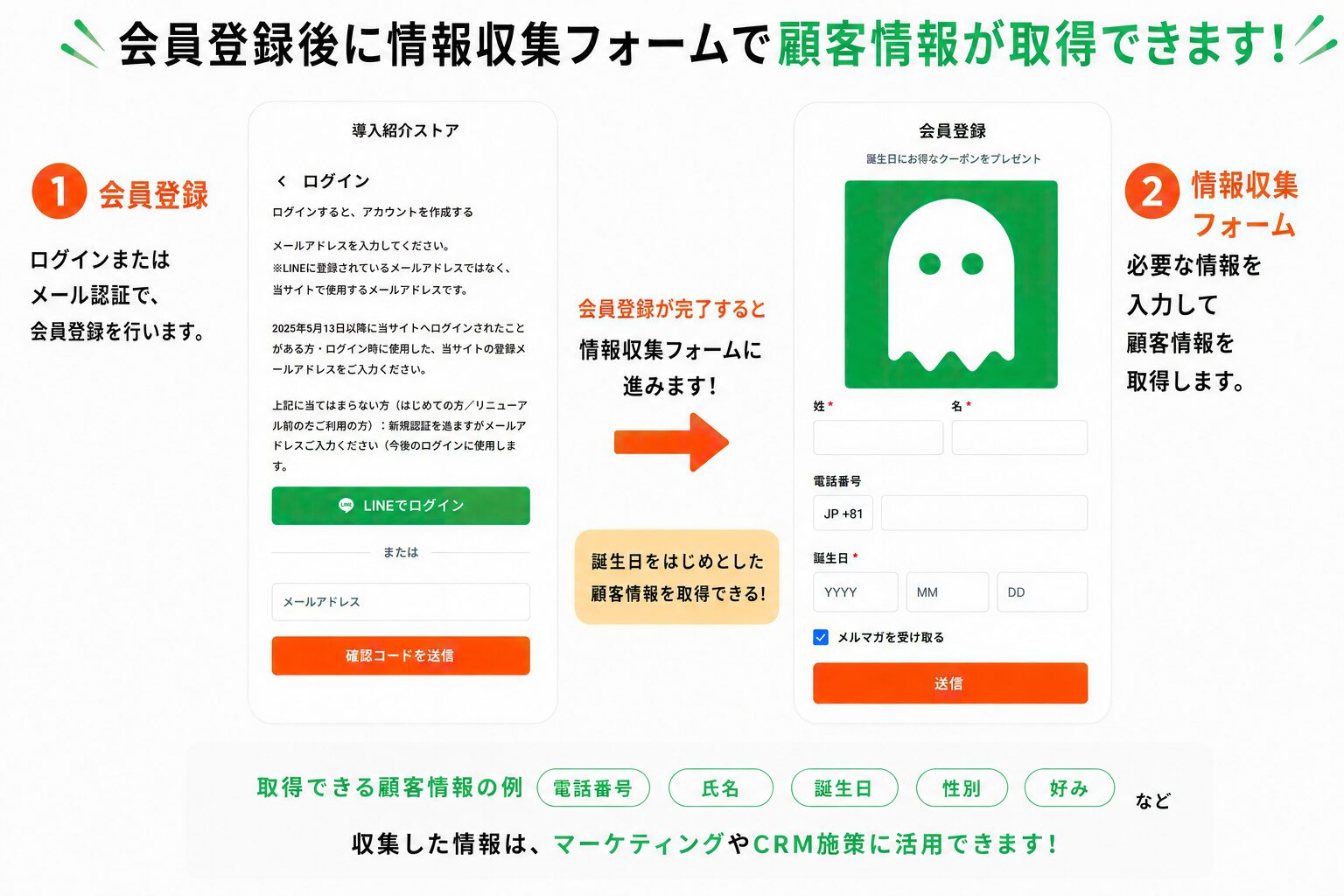](https://storecrm.com/wp-content/uploads/2026/05/07a68811-ea5c-44a4-b896-28ab0748ccae.jpg)
###### **The StoreCRM app block can collect dates of birth on the profile page, the order confirmation page and the order status page.**
###### Because new customer accounts do not let you edit the signup form freely from the theme, however, a dedicated app is worth considering if you want customers to be taken to an extra-information screen immediately after logging in or signing up.
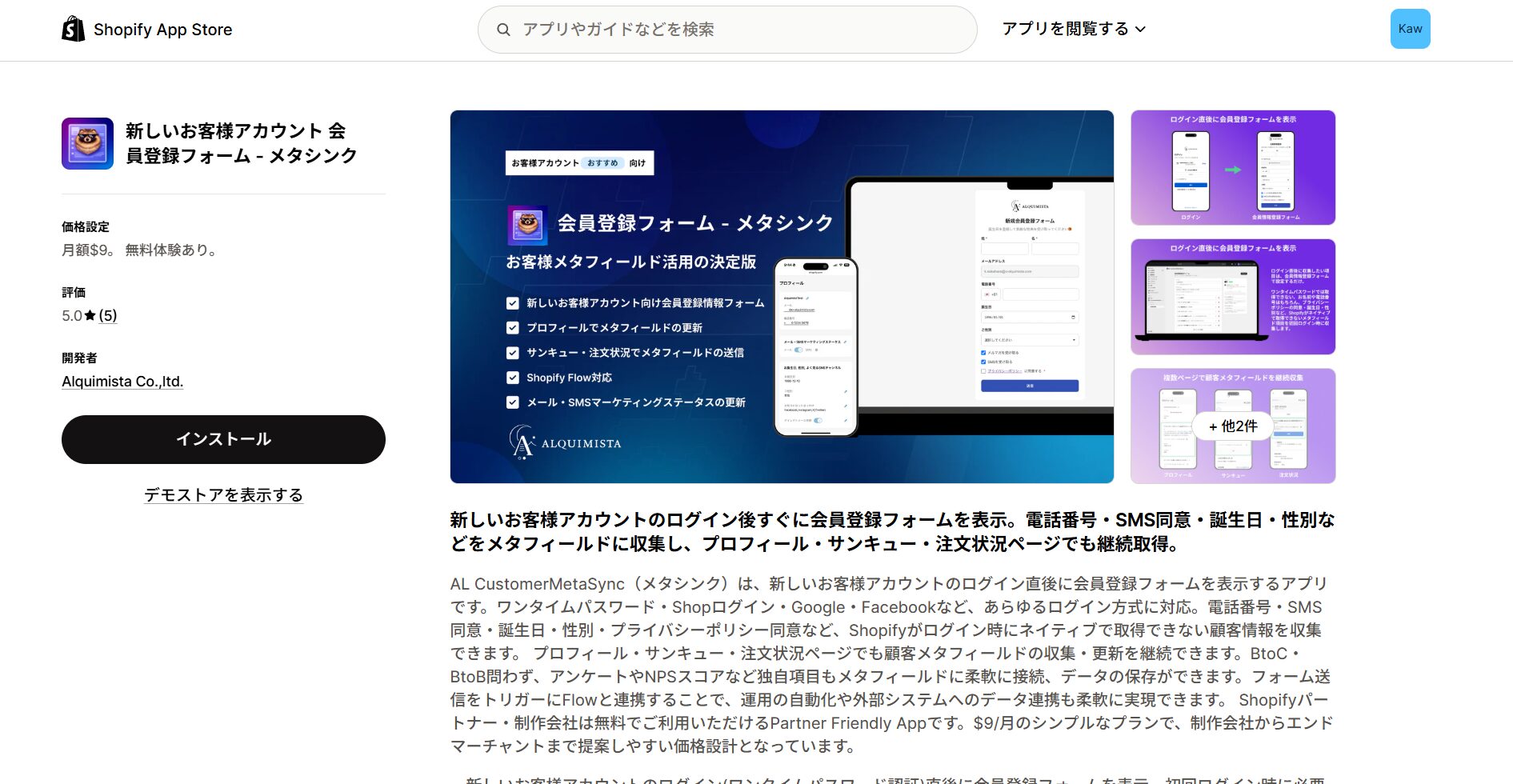
###### **For example, the Shopify app \[New customer accounts signup form - MetaSync\] can display a signup form immediately after a customer logs in with a new customer account.**
👇 Install it here
###### [https://apps.shopify.com/al-customermetasync](https://apps.shopify.com/al-customermetasync?utm_source=storecrm&utm_medium=media&utm_campaign=storecrm_article?locale=ja)
[](https://storecrm.com/wp-content/uploads/2026/05/スクリーンショット-2026-05-21-223234.jpg)
###### **Because the app can send customers straight to the date-of-birth field after signup, it tends to collect more birthdays than asking them to fill it in later on the profile page or the order confirmation page.**
###### MetaSync can also collect phone numbers, SMS consent, gender, privacy policy consent and survey answers as customer metafields, not just birthdays. If you want to use the dates it collects in StoreCRM, configure it to save to the same metafield as StoreCRM's \`birthday metafield\` — \`facts.birth\_date\`, for example.
###### **MetaSync is a separate app from StoreCRM, so please check its developer's documentation for pricing, specifications and support coverage.**
## Before you start
**Check the following before you begin.**
1. **The StoreCRM app is installed on your Shopify store.**
2. **New customer accounts are enabled under \`\[Settings\] > \[Customer accounts\]\` in the Shopify admin.**
3. **The customer account login link is live so that customers can reach the profile page.**
4. **You have a test customer account available.**
5. **You have told customers why you collect their date of birth, in your privacy policy or during signup.**
**With new customer accounts there is no need to edit theme Liquid or JavaScript directly.**
### Creating the customer metafield
**StoreCRM reads the date of birth stored in a Shopify customer metafield and copies it into the customer record on the StoreCRM side.**
**By default it uses the following Shopify standard metafield.**
- **Namespace: \`facts\`**
- **Key: \`birth\_date\`**
- **How it is written in StoreCRM: \`facts.birth\_date\`**
- **Content type: date**
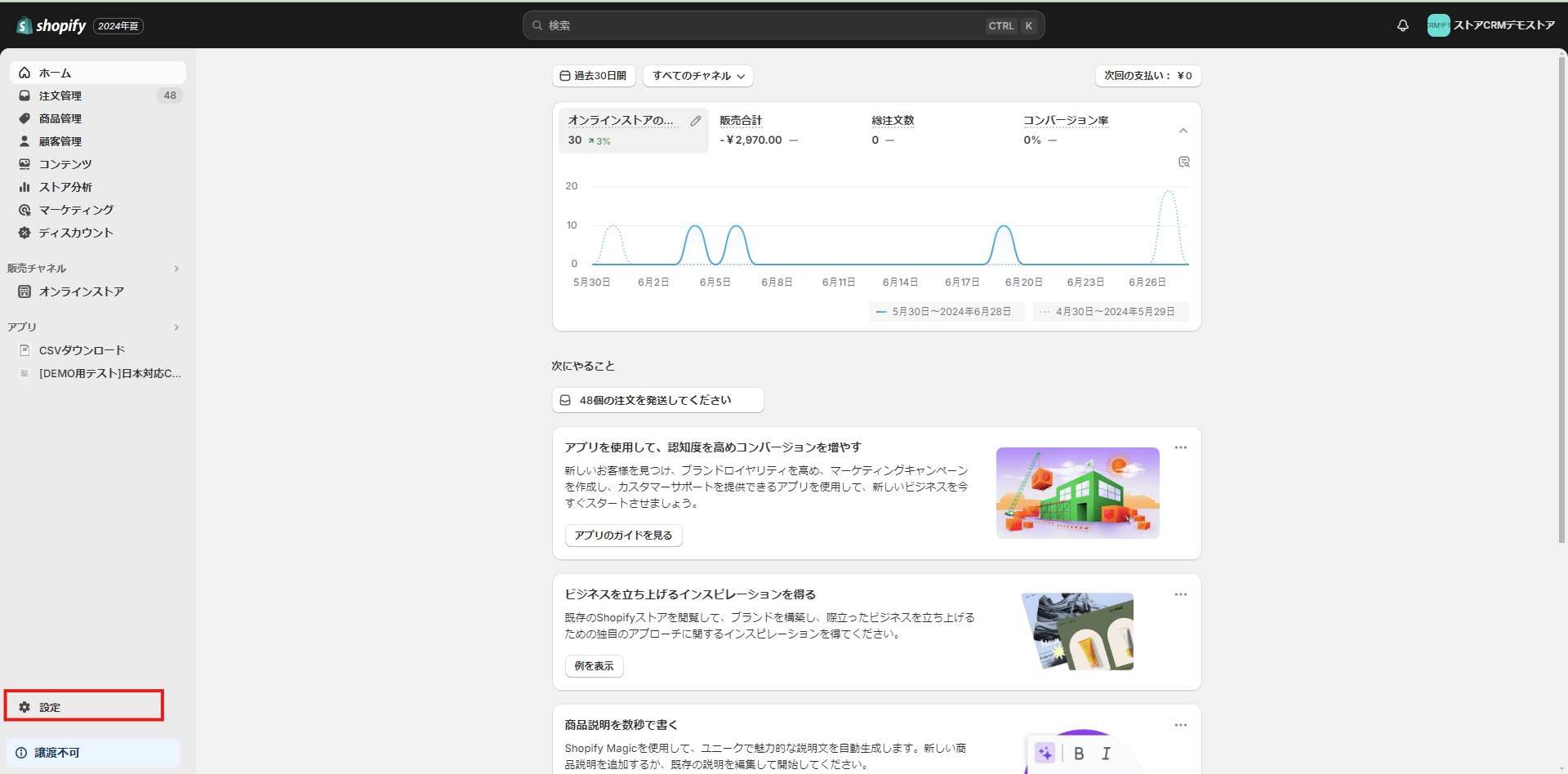
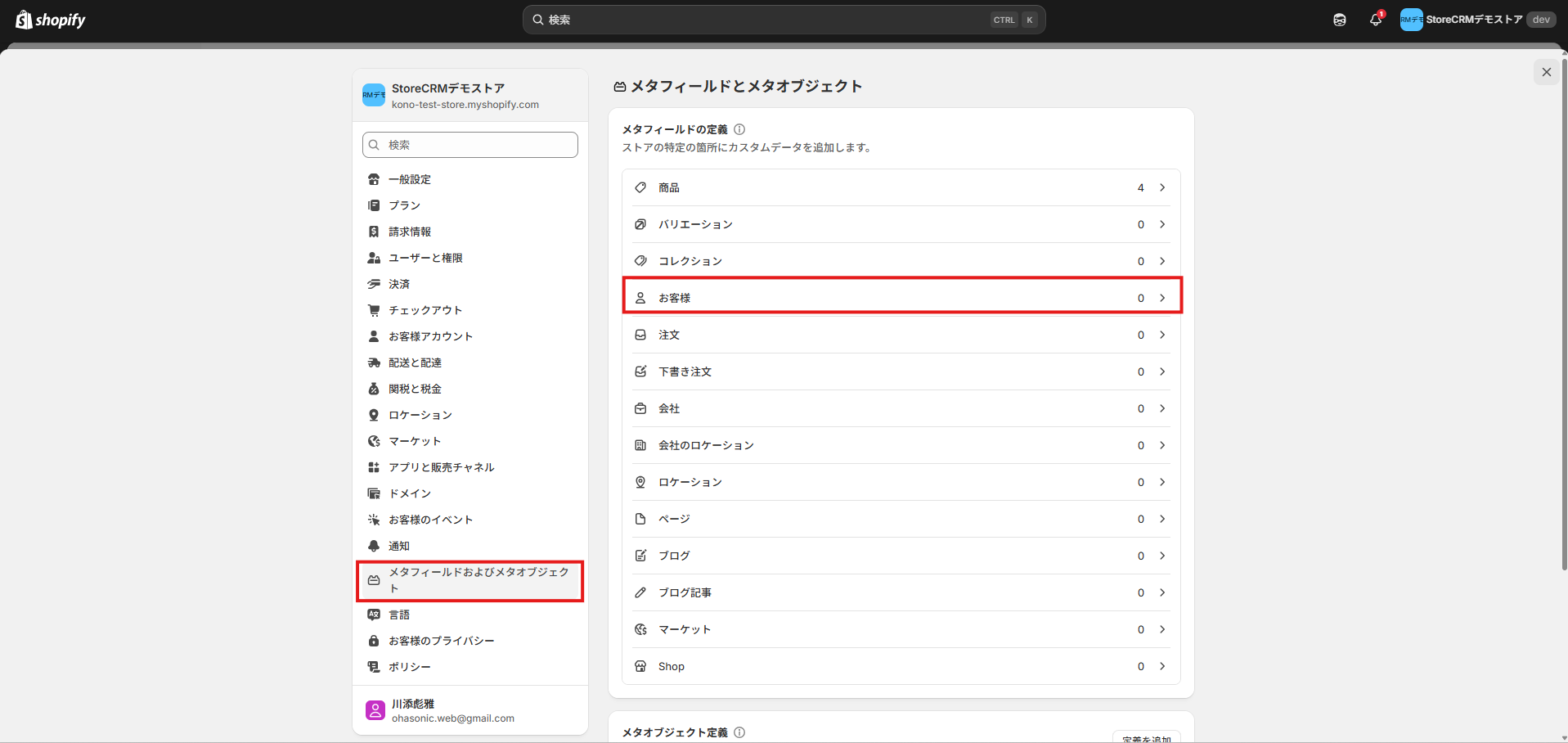
**If the metafield does not exist yet, create it as follows.**
[](https://storecrm.com/wp-content/uploads/2025/07/Untitled.png)
[](https://storecrm.com/wp-content/uploads/2024/09/スクリーンショット-2025-09-29-113228.png)
**To offer a birthday field you first need a customer metafield to store it in.**
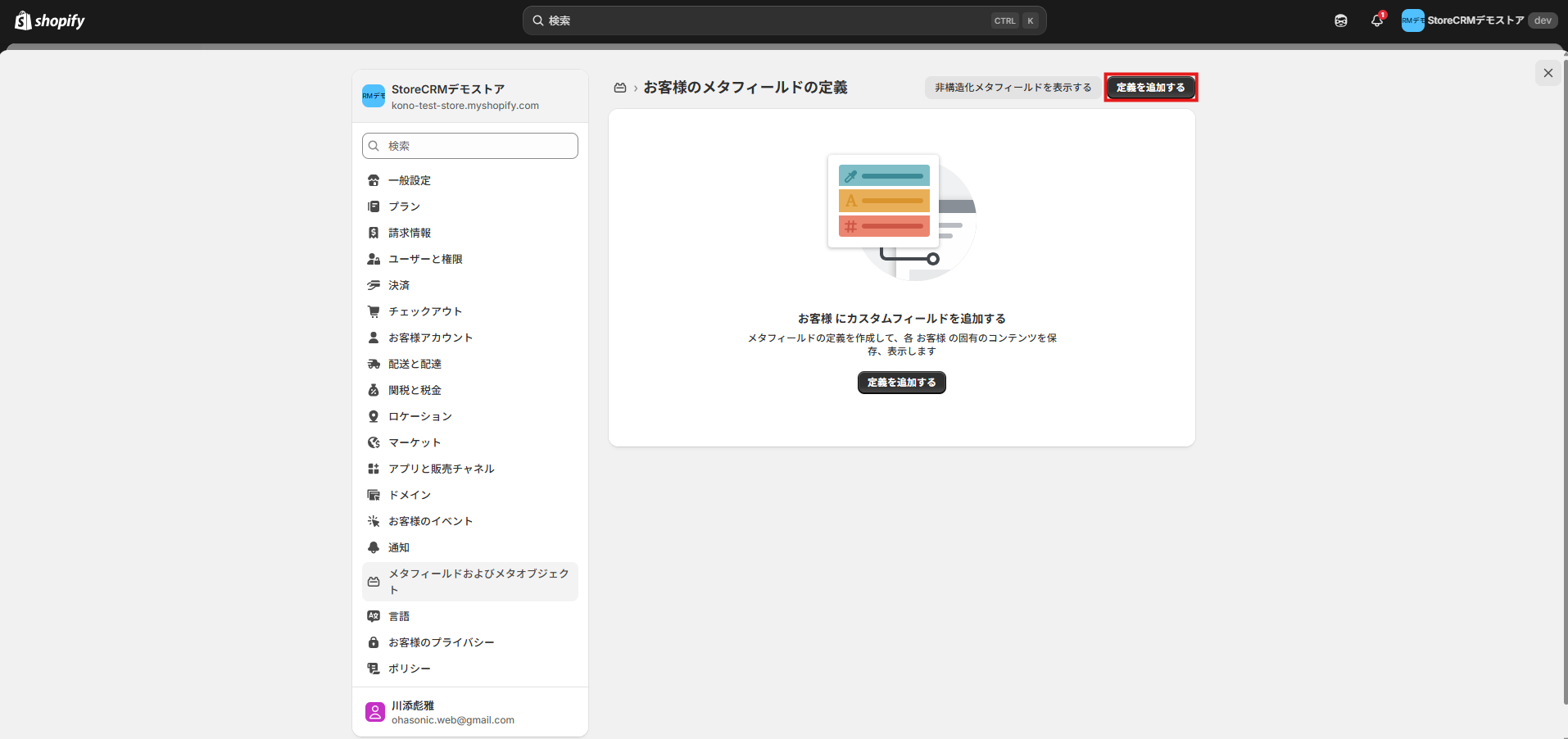
**1. In the Shopify admin, go to \[Settings\] > \[Custom data\] > \[Customers\].**
[](https://storecrm.com/wp-content/uploads/2024/09/スクリーンショット-2025-09-29-113400.png)
**2. Click \[Add definition\].**
[](https://storecrm.com/wp-content/uploads/2024/09/スクリーンショット-2025-09-29-113500.png)
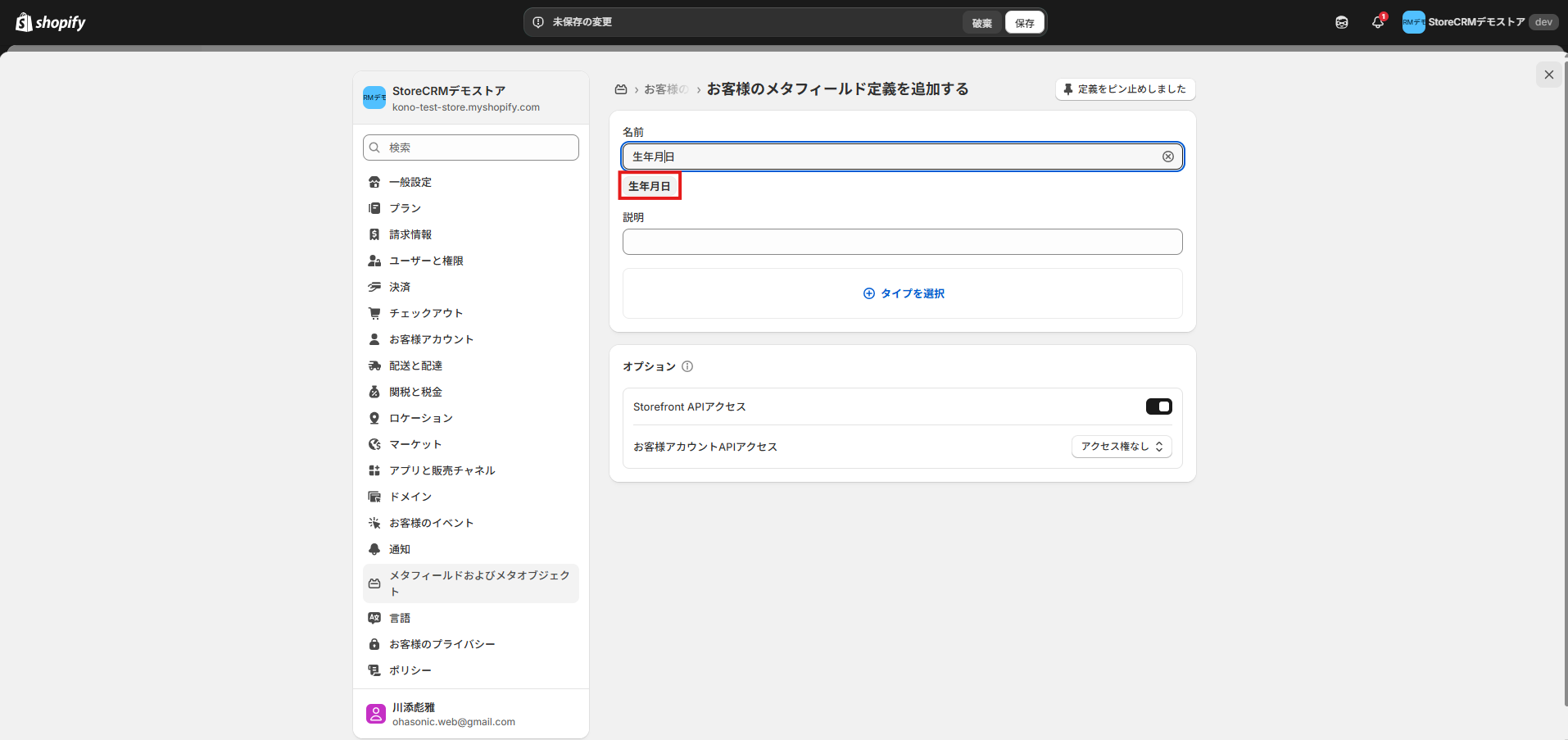
**3. Type \[Date of birth\] as the name and a suggestion appears below the field; click it.**
[](https://storecrm.com/wp-content/uploads/2026/05/スクリーンショット-2026-05-21-195842.png)
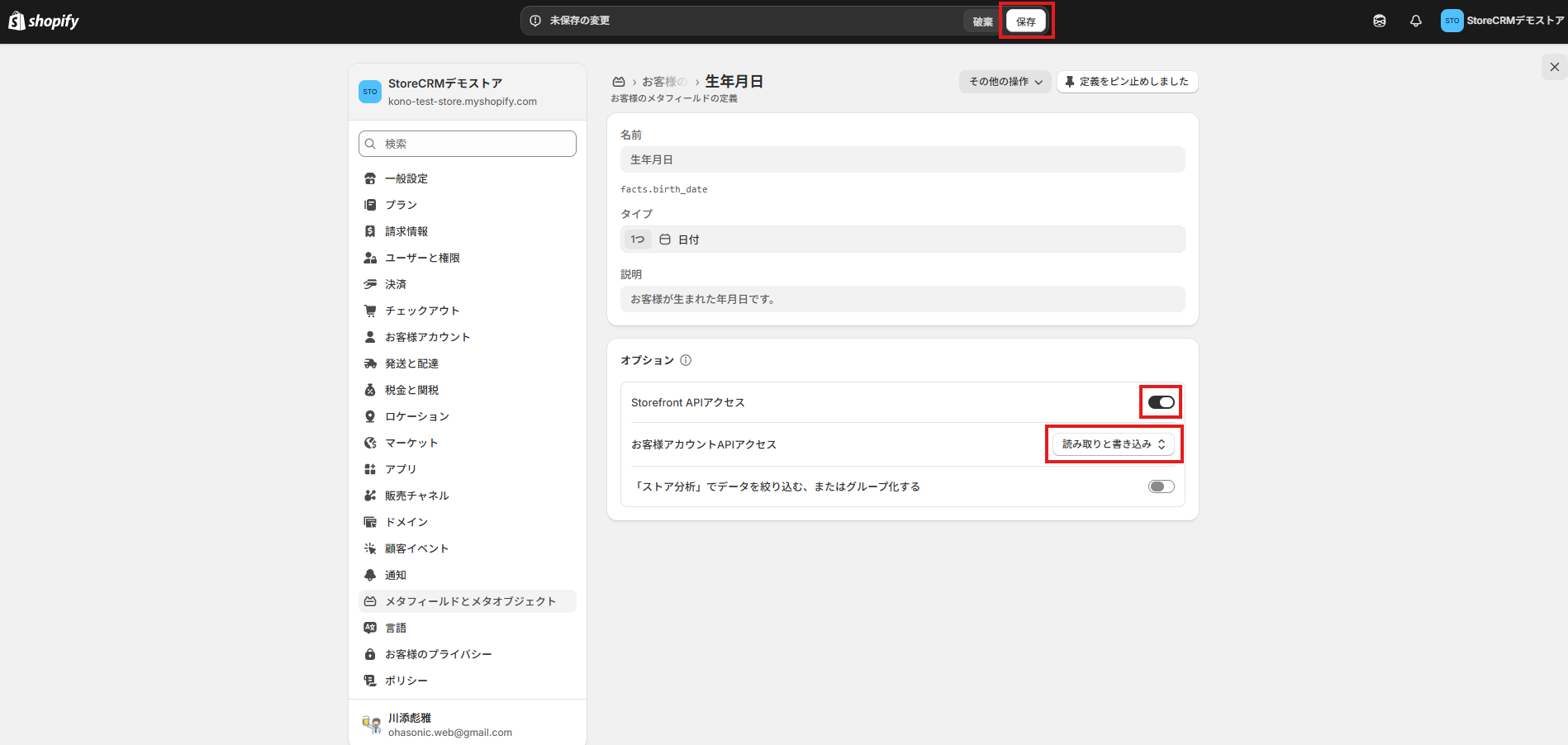
**4. Under Options > Customer account access, select \[Read and write\], turn on Storefront API access, and click \[Save\].**
##### If you already store dates of birth in a different metafield, make a note of its namespace and key. You will enter the same values in the StoreCRM settings below.
## Check the StoreCRM customer settings
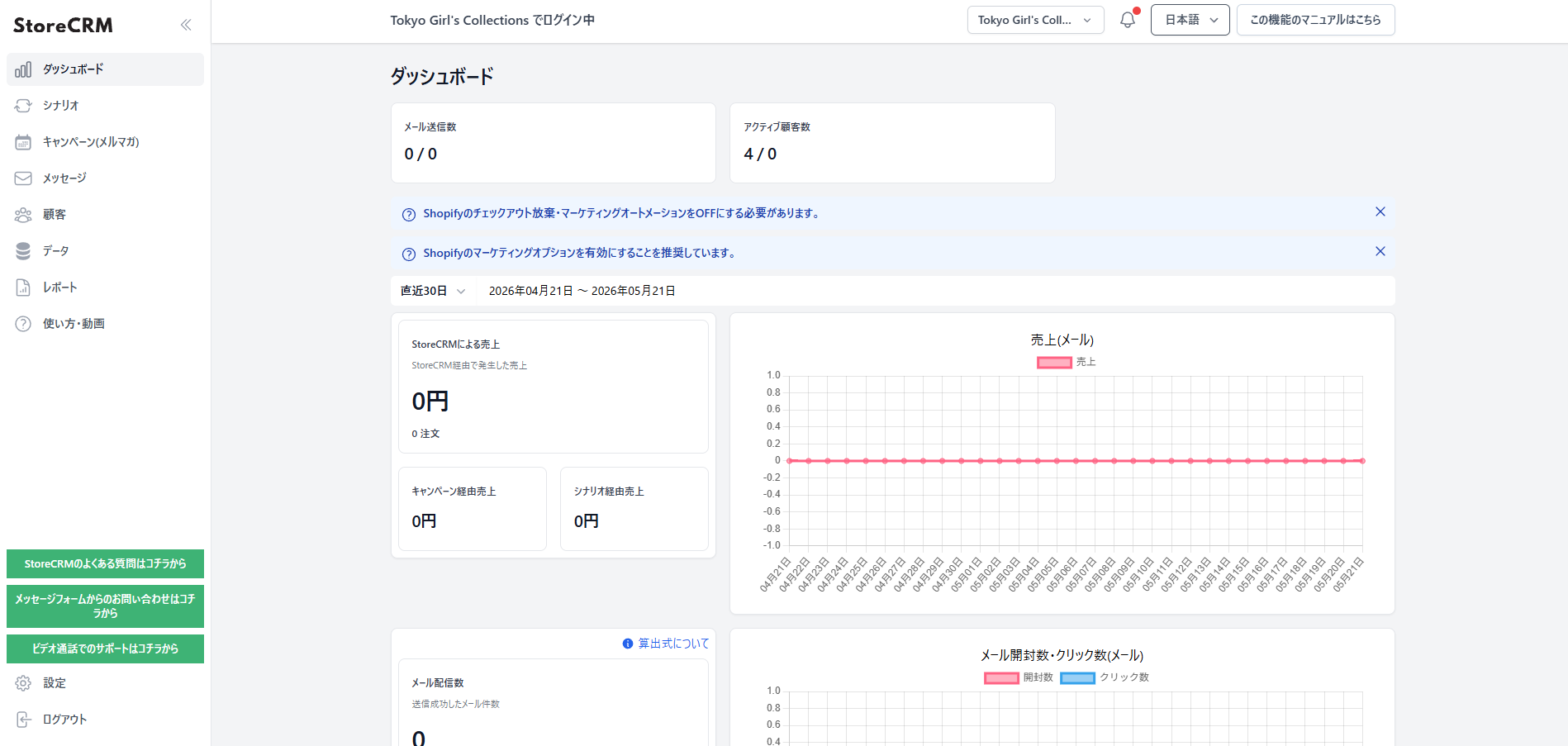
**Next, confirm which birthday metafield StoreCRM reads from.**
[](https://storecrm.com/wp-content/uploads/2026/05/スクリーンショット-2026-05-21-203719.png)
**1. Open the StoreCRM app.**
[](https://storecrm.com/wp-content/uploads/2026/05/スクリーンショット-2026-05-21-203947.png)
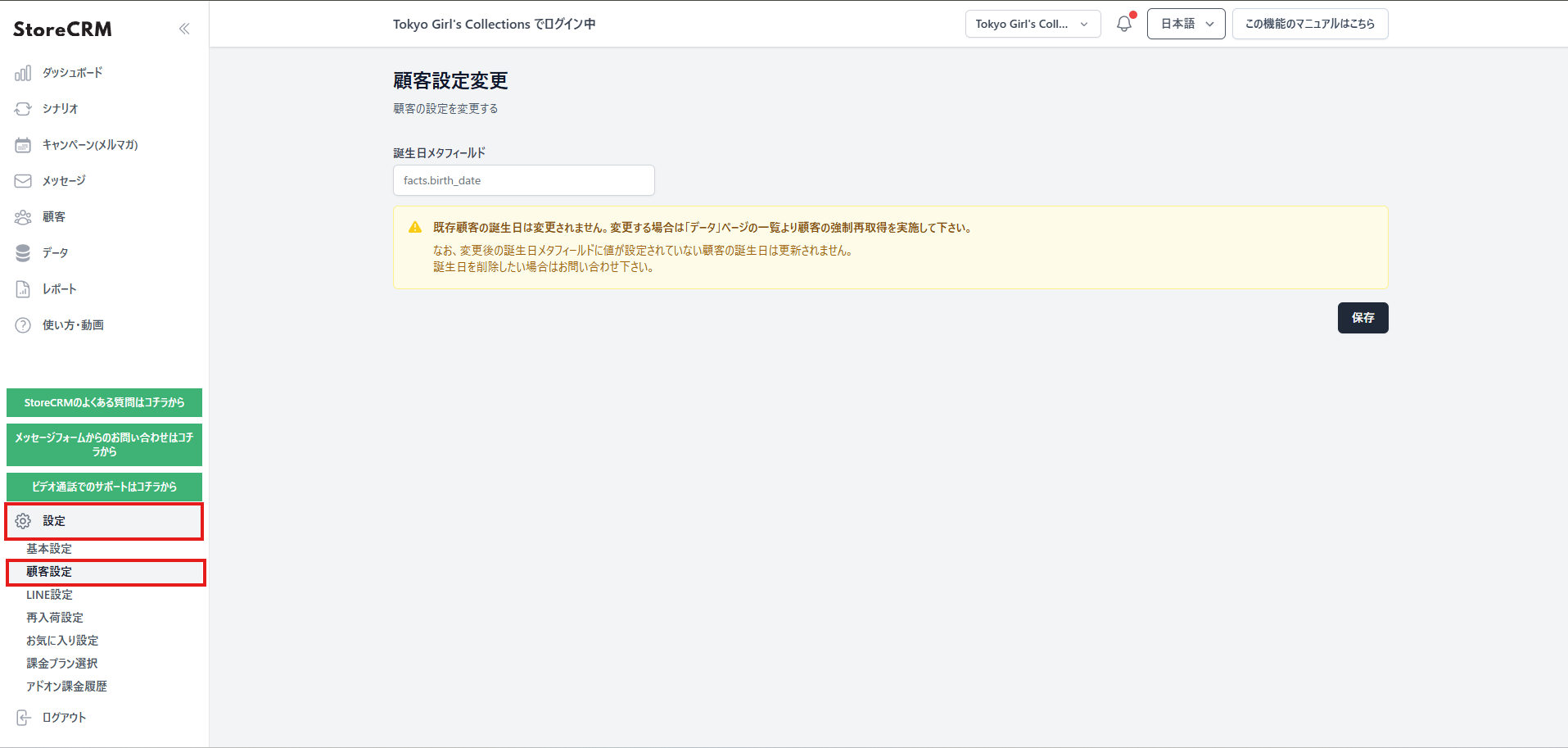
**2. Go to \[Settings\] > \[Customer settings\].**
[](https://storecrm.com/wp-content/uploads/2026/05/スクリーンショット-2026-05-21-204120.png)
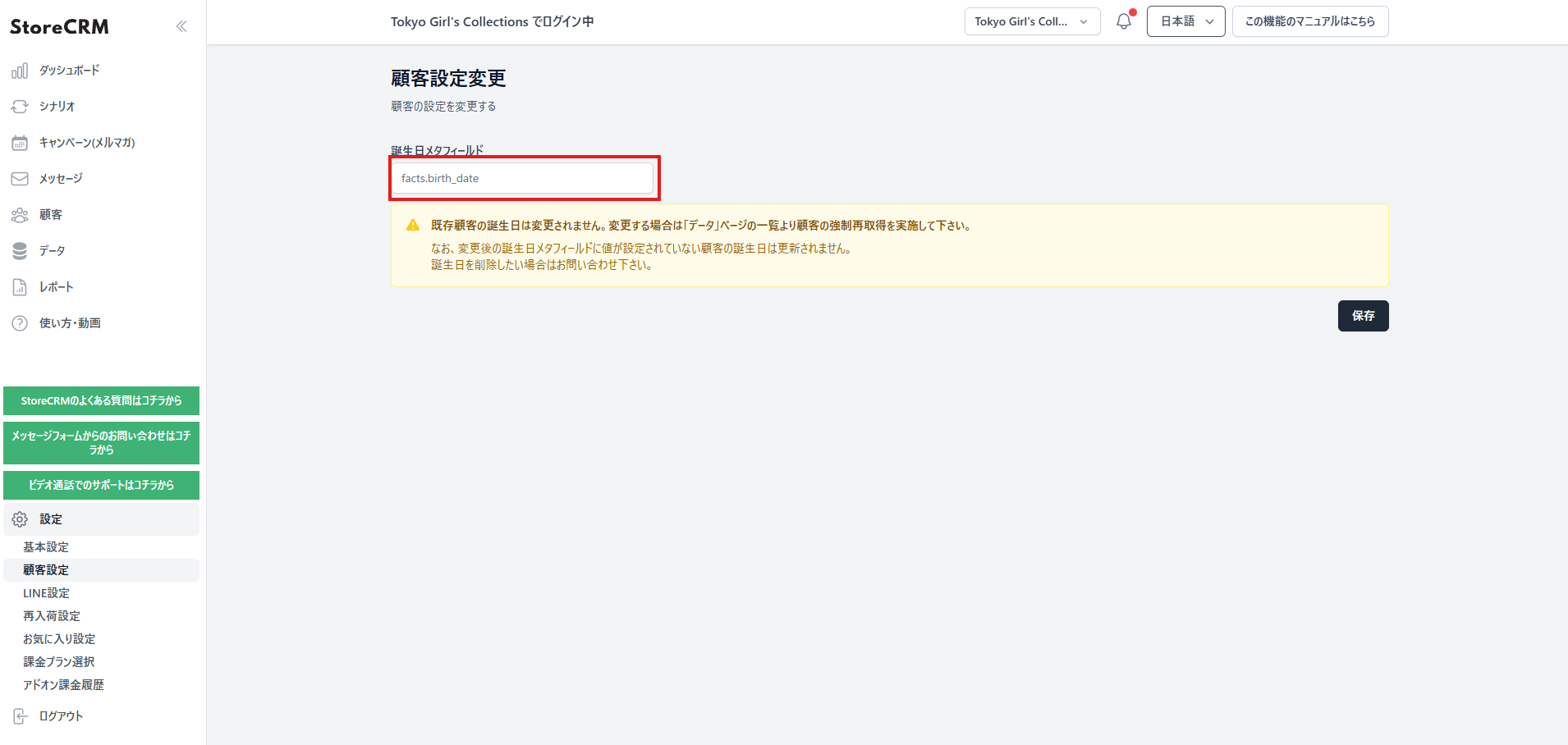
**3. Confirm that \`birthday metafield\` is set to \`facts.birth\_date\`.**
[](https://storecrm.com/wp-content/uploads/2026/05/スクリーンショット-2026-05-21-204431.png)
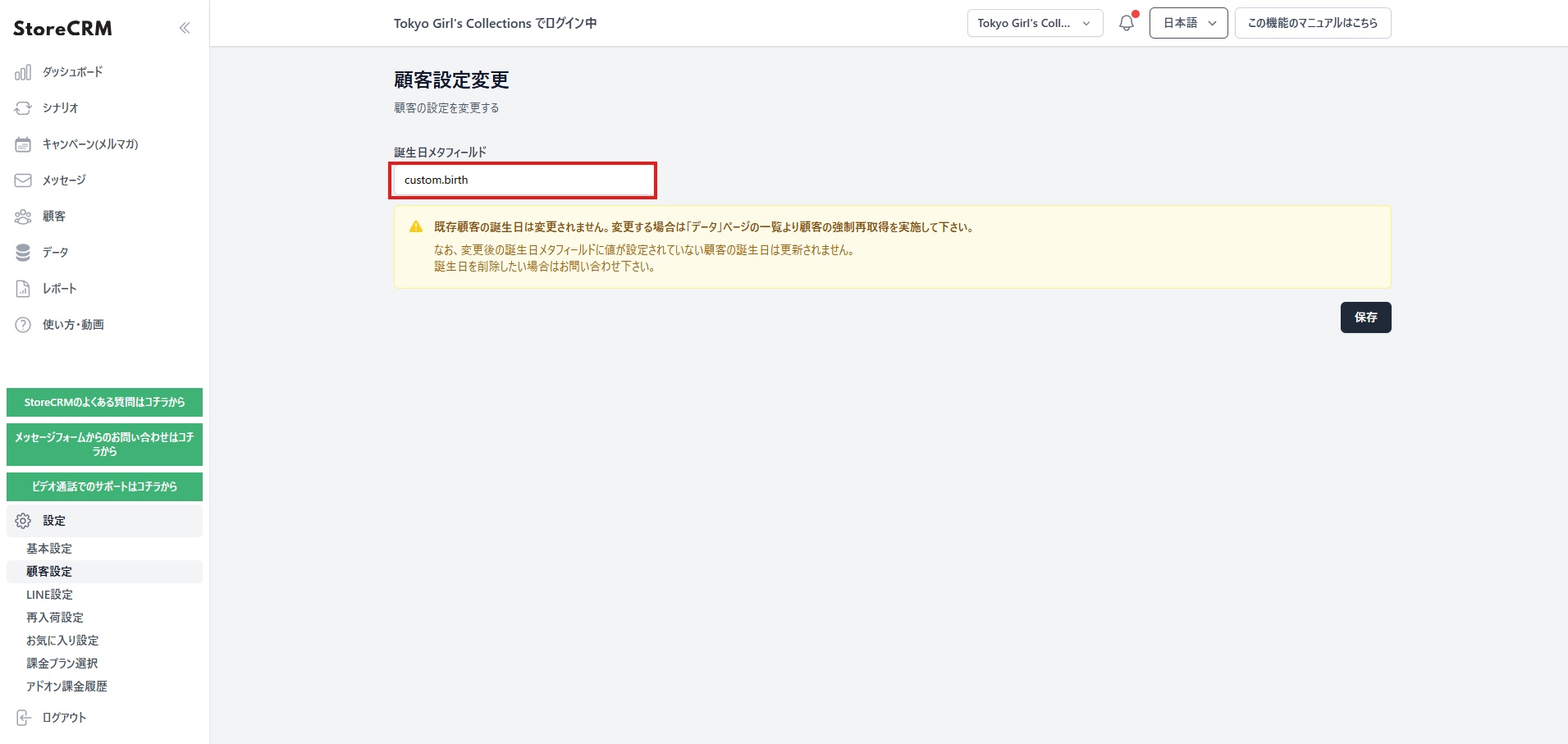
[This step is optional] 4. To use a different metafield, enter it in `namespace.key` form. For example `custom.birthday` — the namespace and the key joined with a dot.
[](https://storecrm.com/wp-content/uploads/2026/05/スクリーンショット-2026-05-21-204627.png)
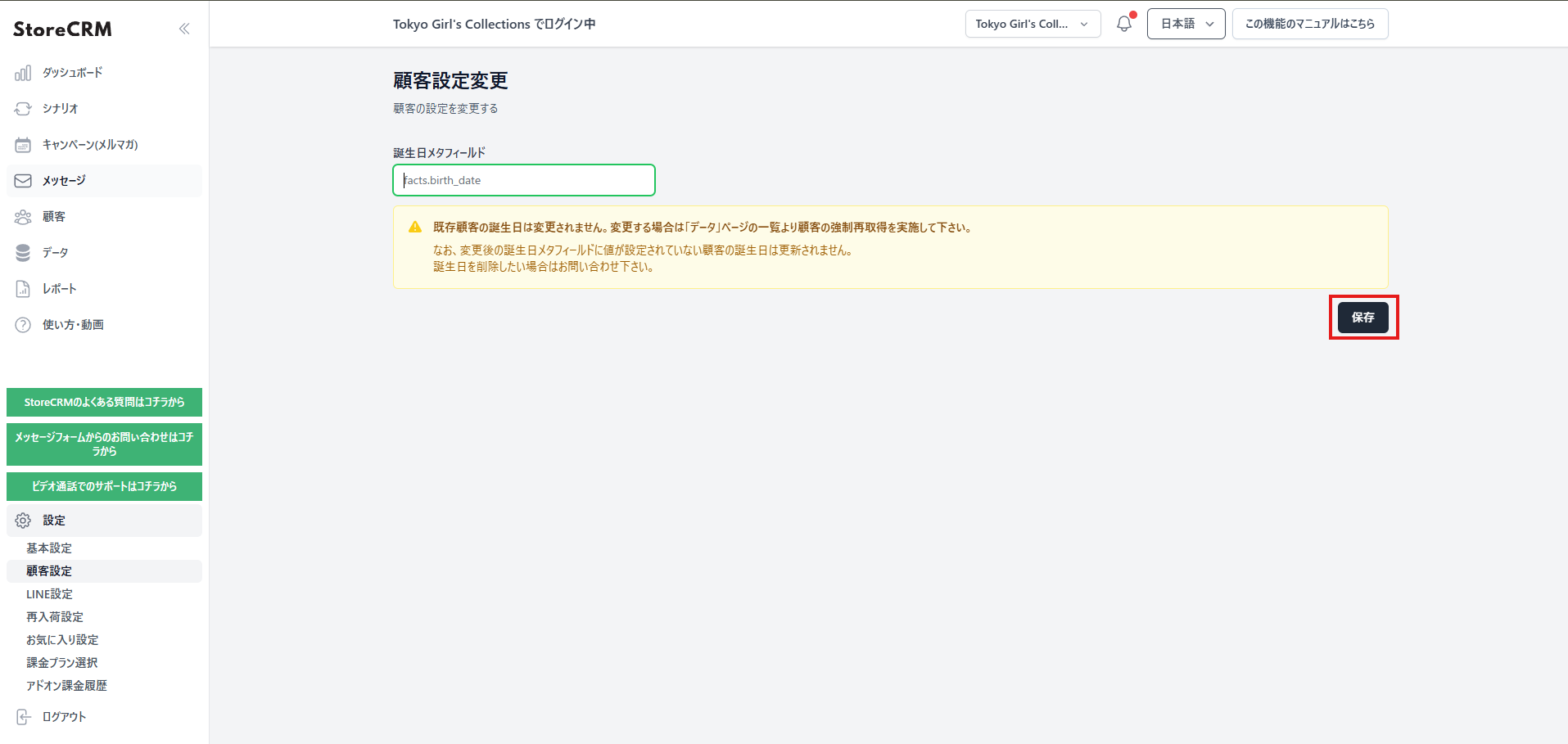
**5. Click \[Save\].**
## Adding the date-of-birth form to the profile page
**In this section we add the date-of-birth form to the customer account profile page.**
**The profile page is where a logged-in customer reviews their own information. Customers who have not registered a birthday see the form; those who have see their current birthday along with a short note.**
### What you will build in this section
[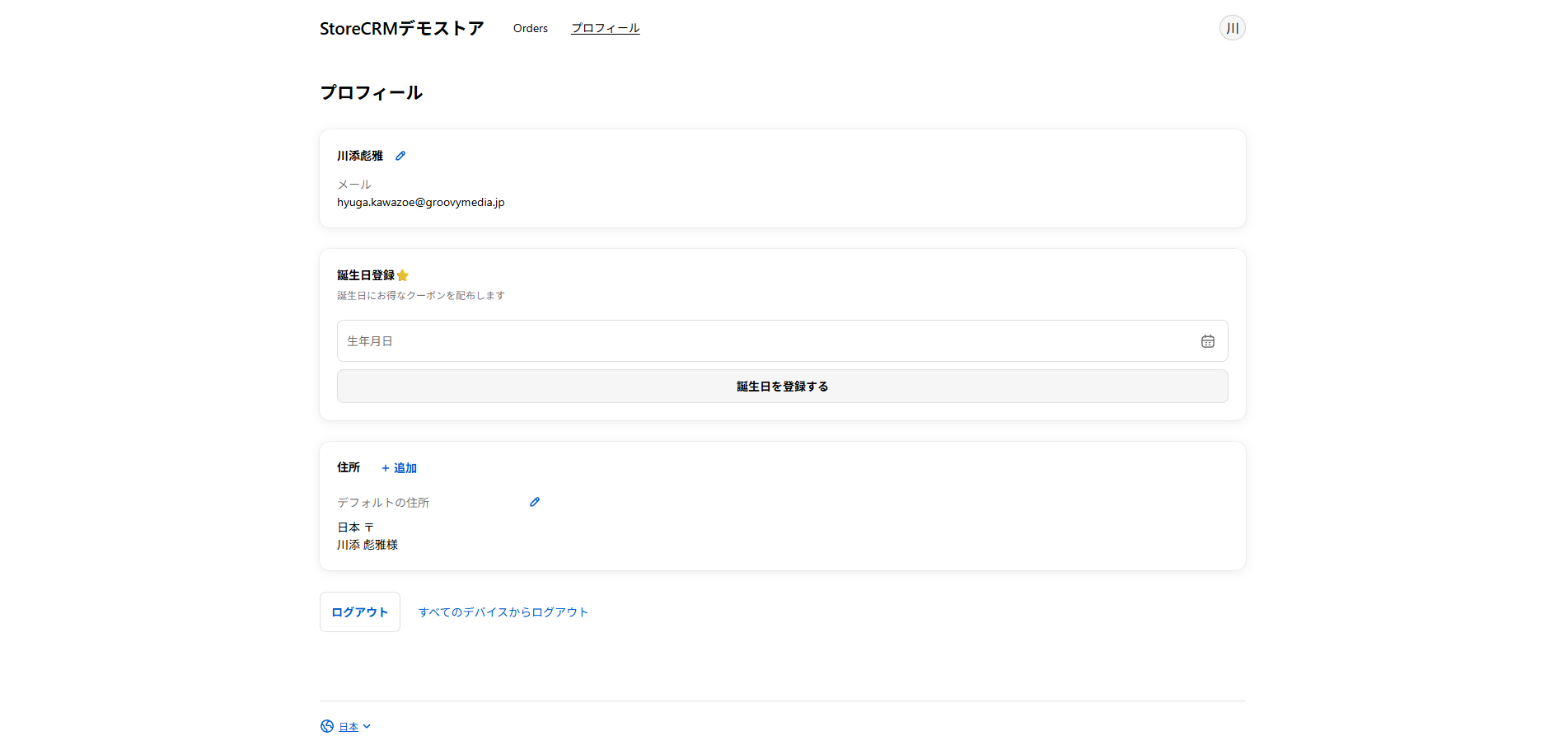](https://storecrm.com/wp-content/uploads/2026/05/スクリーンショット-2026-05-21-212504.png)
**The StoreCRM birthday block appears on the customer account profile page.**
**Before registration the customer sees a date field and a submit button. After registration, the birthday can no longer be changed from that screen.**
### Steps
[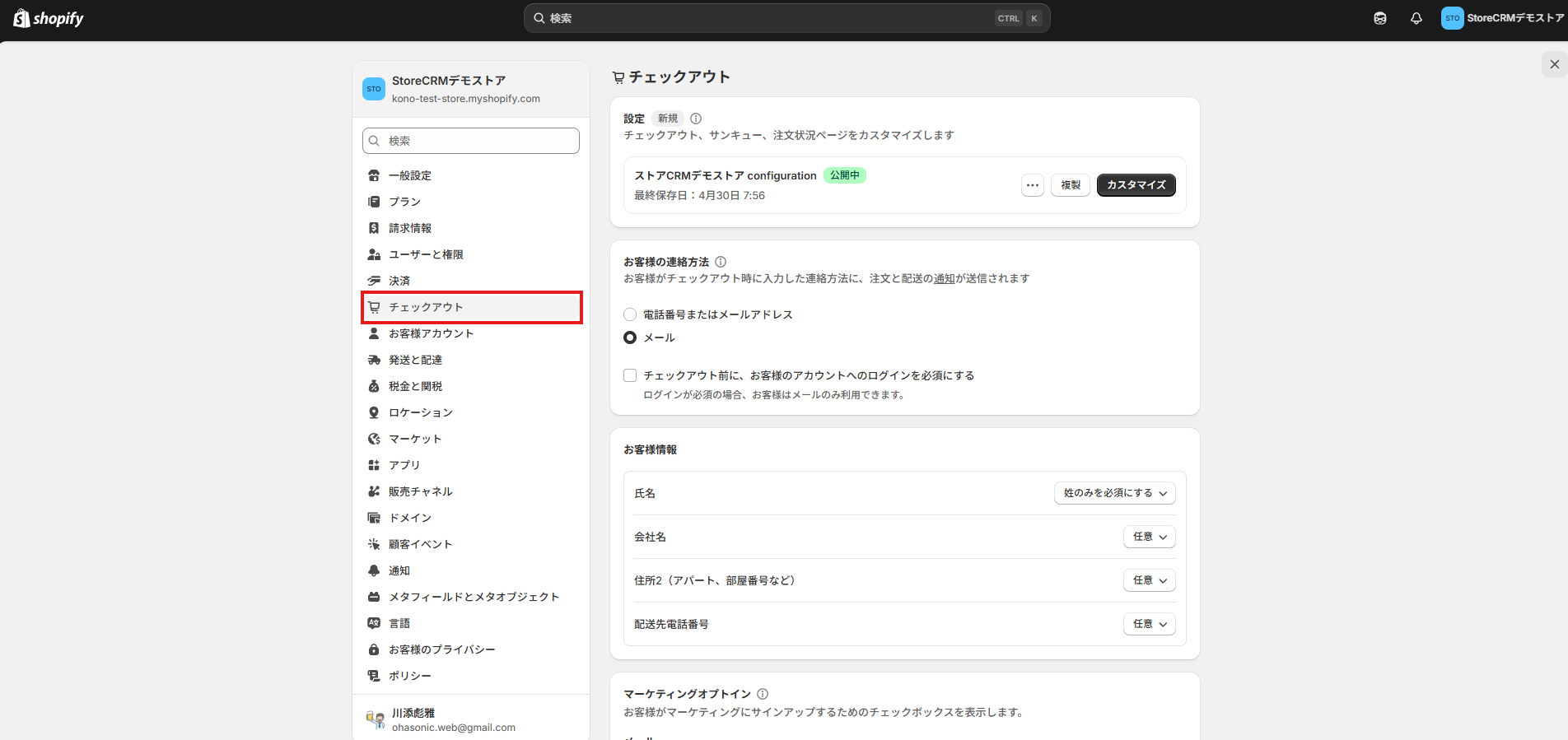](https://storecrm.com/wp-content/uploads/2026/05/スクリーンショット-2026-05-21-205138.png)
**1. In the Shopify admin, open \`\[Settings\] > \[Checkout\]\`.**
[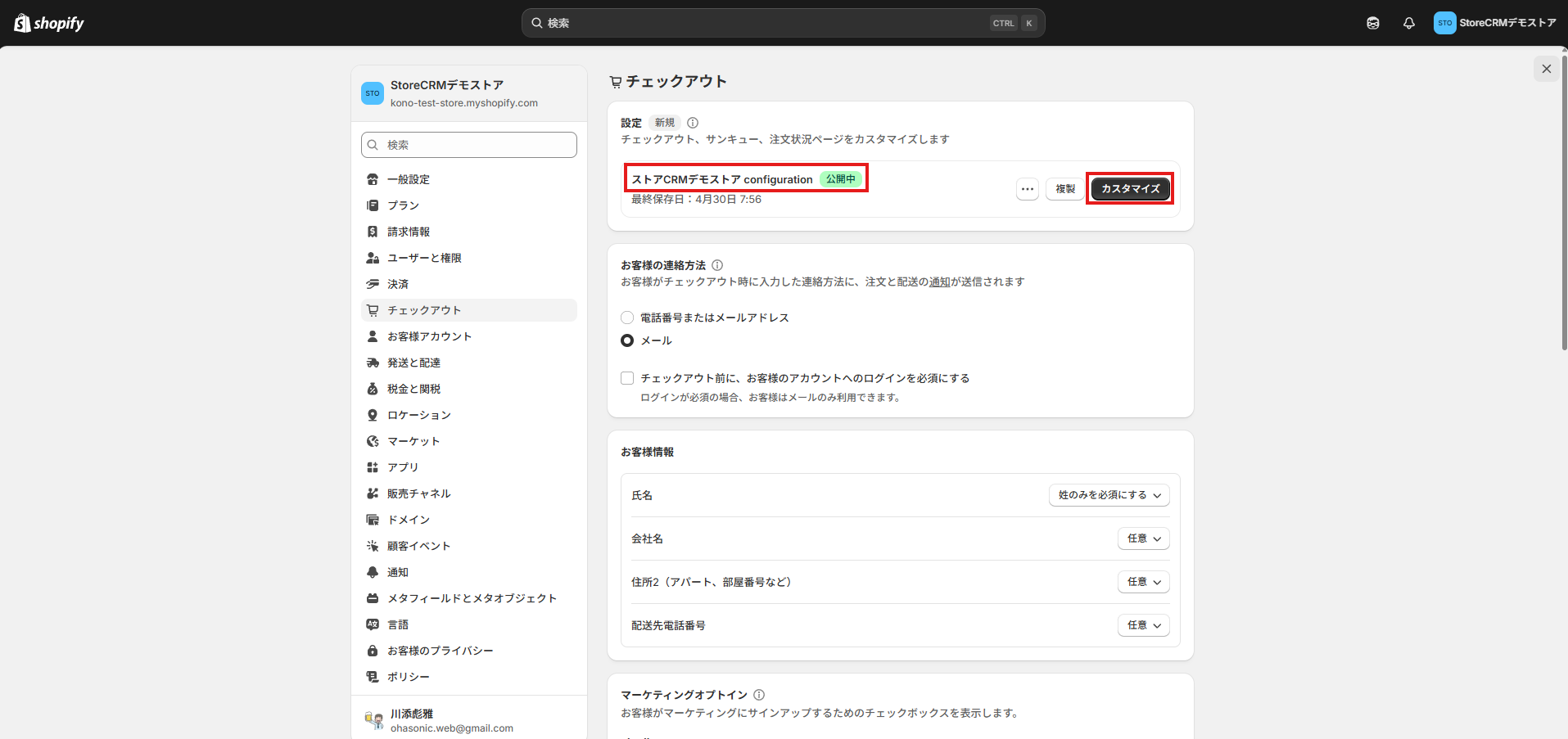](https://storecrm.com/wp-content/uploads/2026/05/スクリーンショット-2026-05-21-205253.png)
2. In the \`\[Settings\]\` section, click \`\[Customize\]\` next to the checkout configuration you want to edit.
[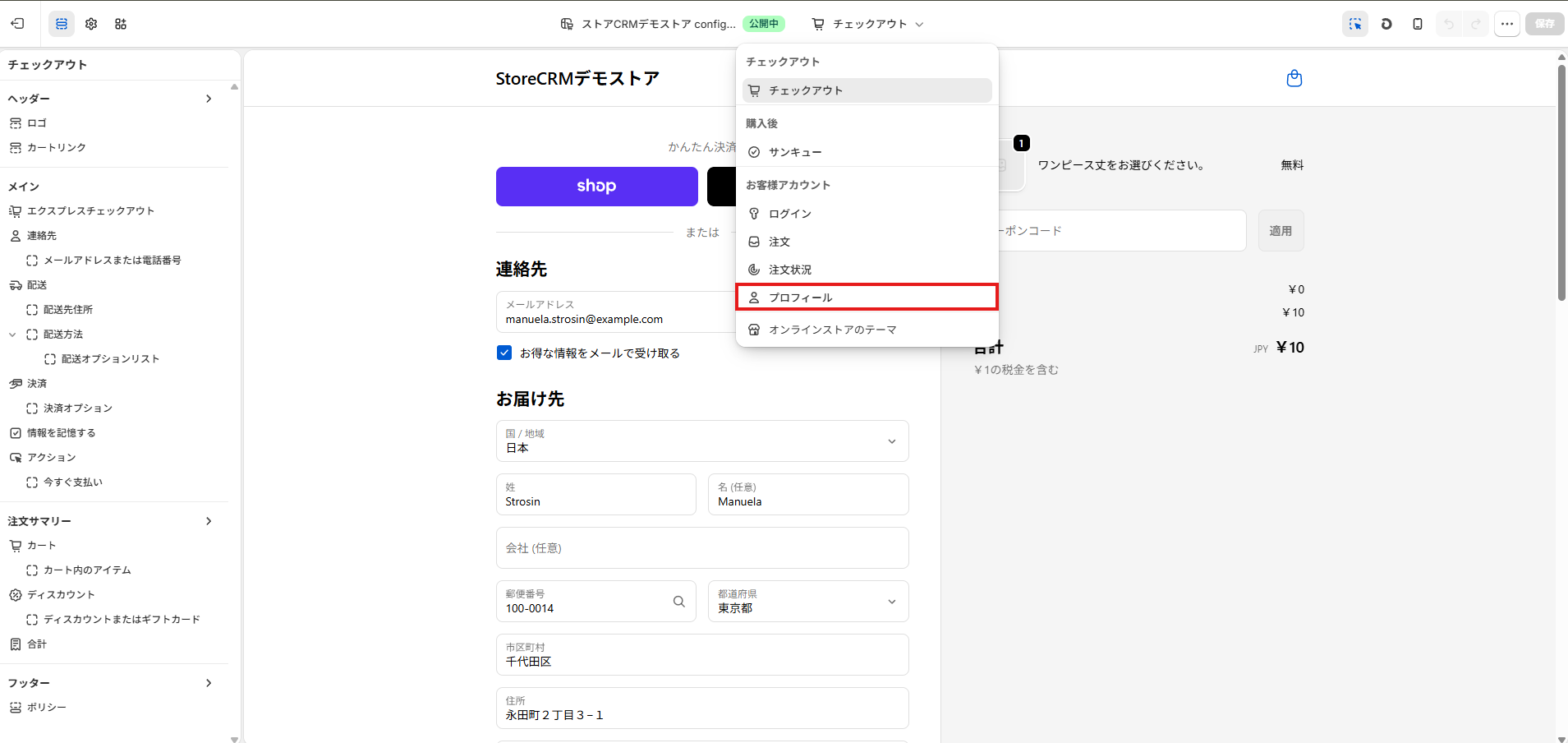](https://storecrm.com/wp-content/uploads/2026/05/スクリーンショット-2026-05-21-210943.png)
**3. When the checkout and customer accounts editor opens, choose \`\[Profile\]\` in the page selector.**
[](https://storecrm.com/wp-content/uploads/2026/05/スクリーンショット-2026-05-21-211114.png)
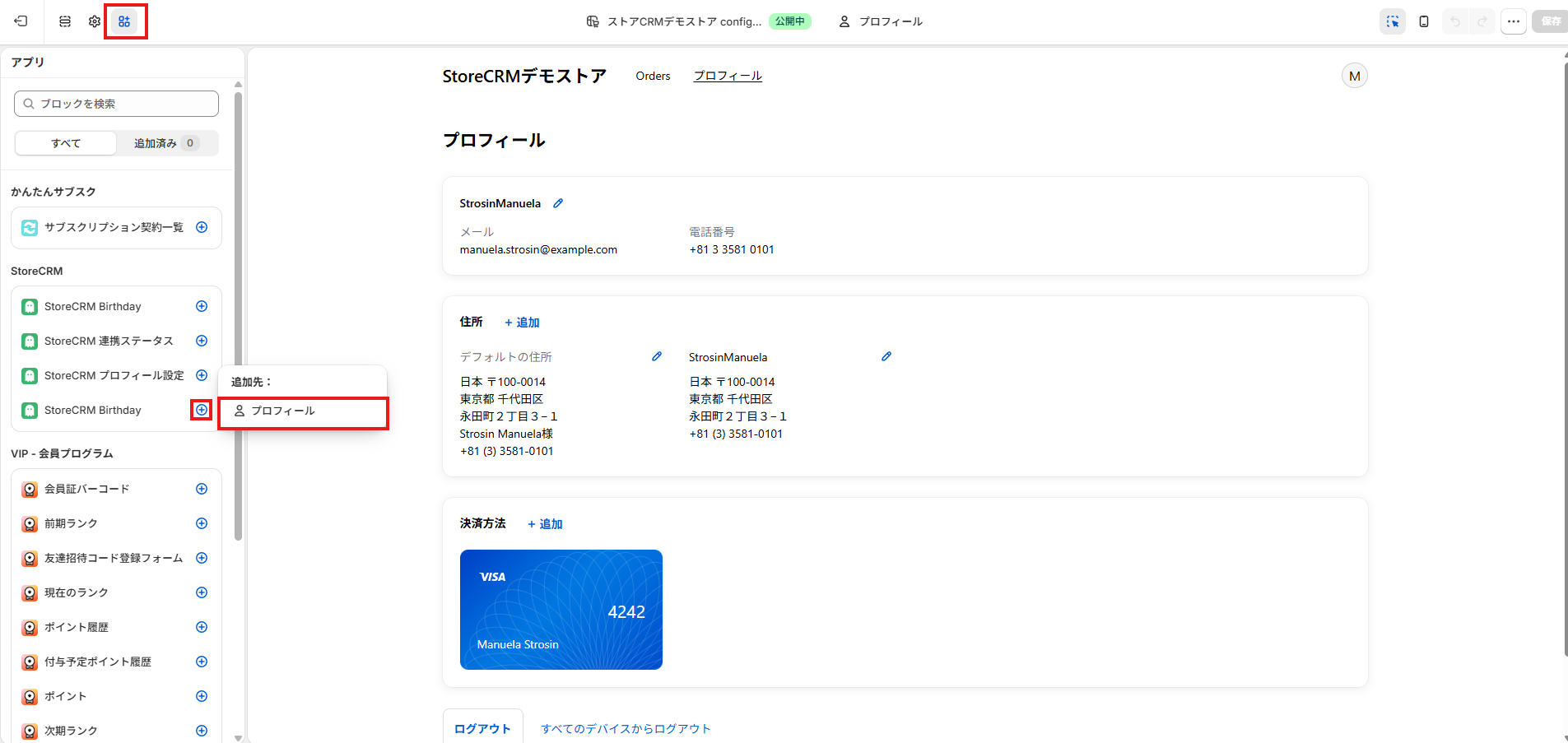
**4. Find \`StoreCRM Birthday\` under \`\[Apps\]\` on the left. \`\[Profile\]\` is listed as a destination, so add the block there.**
[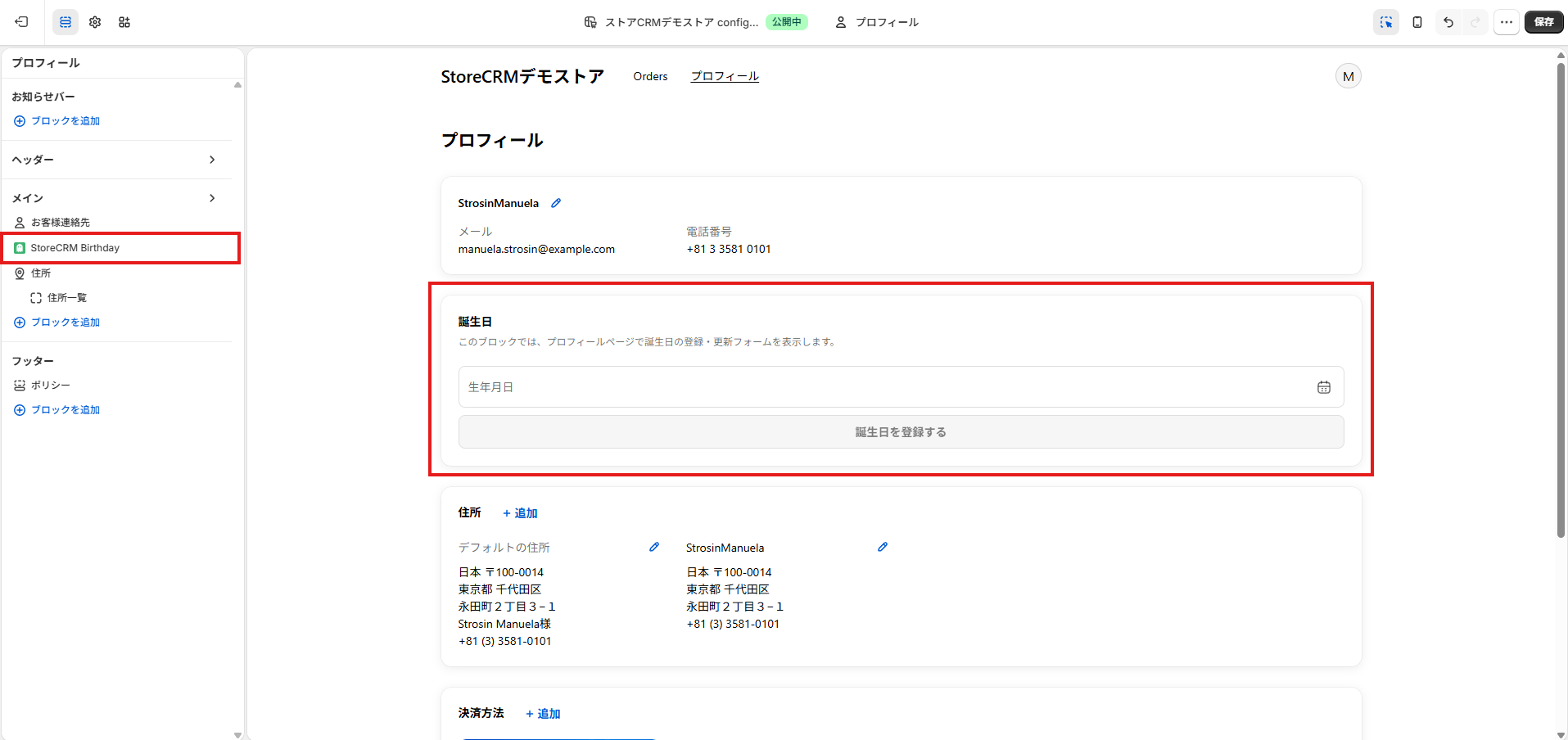](https://storecrm.com/wp-content/uploads/2026/05/スクリーンショット-2026-05-21-211409.png)
**5. Drag and drop the block in the left-hand panel to put it exactly where you want it.**
[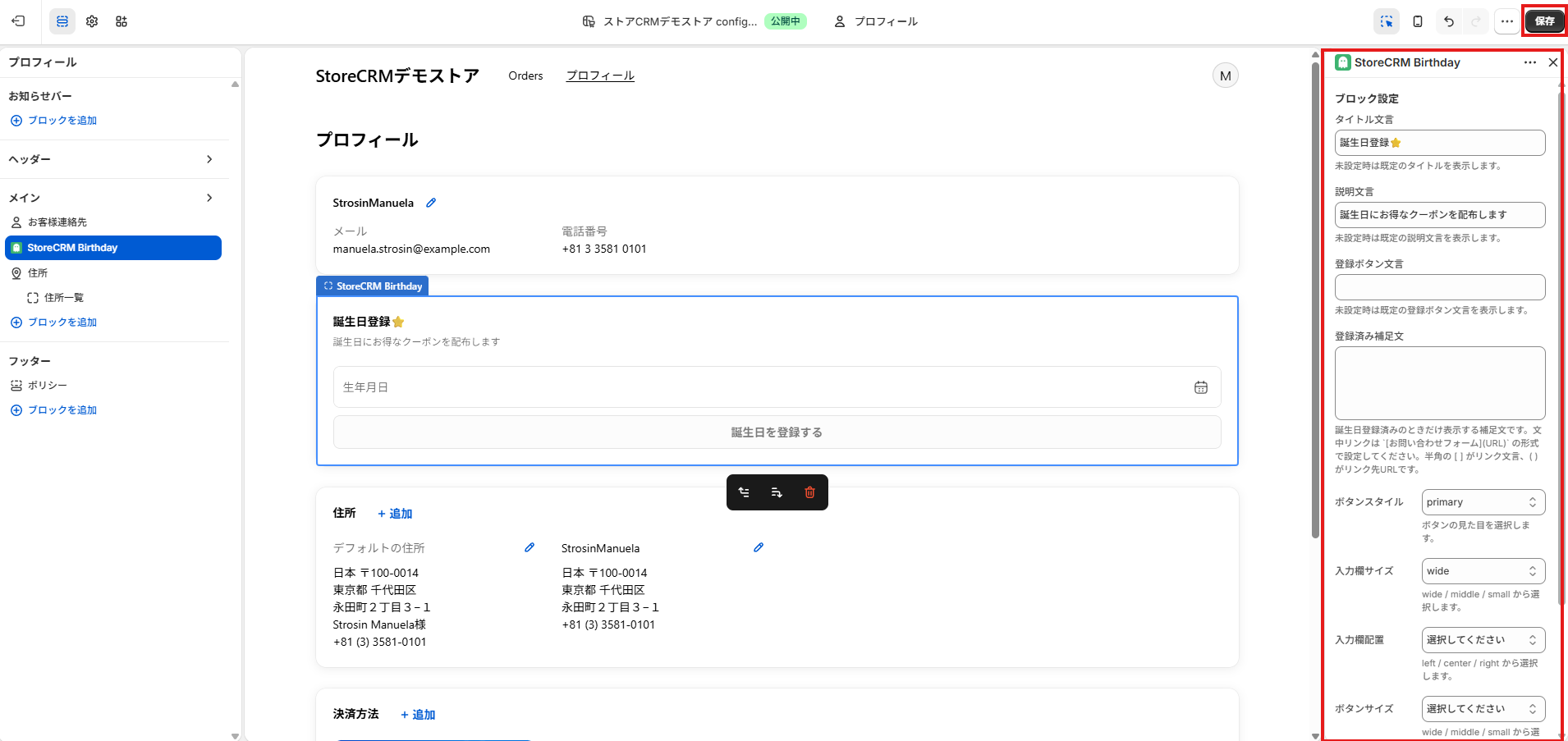](https://storecrm.com/wp-content/uploads/2026/05/スクリーンショット-2026-05-21-211852.png)
6. Adjust the wording and the button styling in the settings panel on the right if you need to. Remember to click save when you are done.
### Adding the form to the order confirmation and order status pages
###### The date-of-birth form is not limited to the profile page — you can also place it on the order confirmation page and the order status page.
###### That is a good option if you want to promote a birthday coupon right after purchase, or collect the date of birth before sending customers to their profile page.
### What you will build in this section
[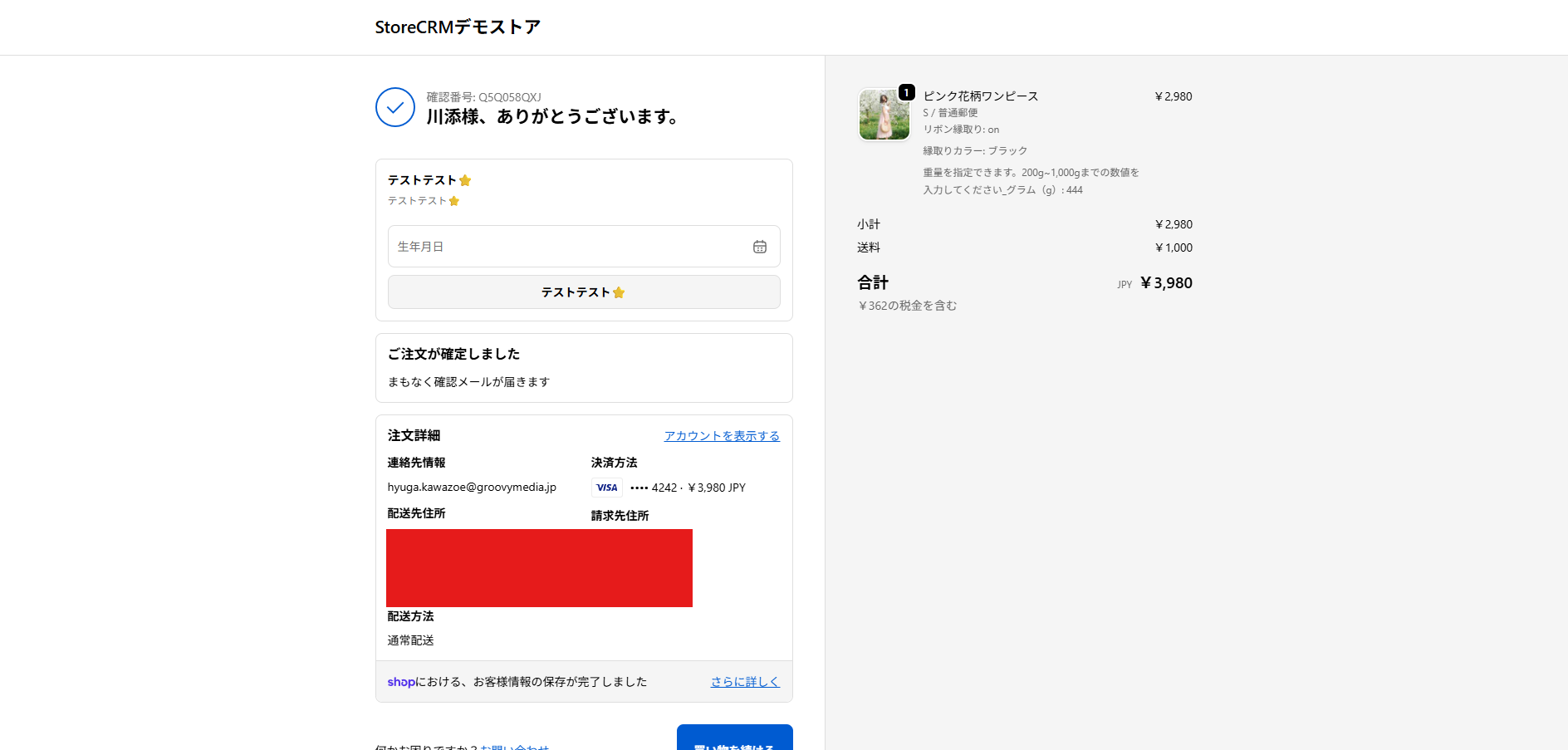](https://storecrm.com/wp-content/uploads/2026/05/スクリーンショット-2026-05-21-215303.png)
[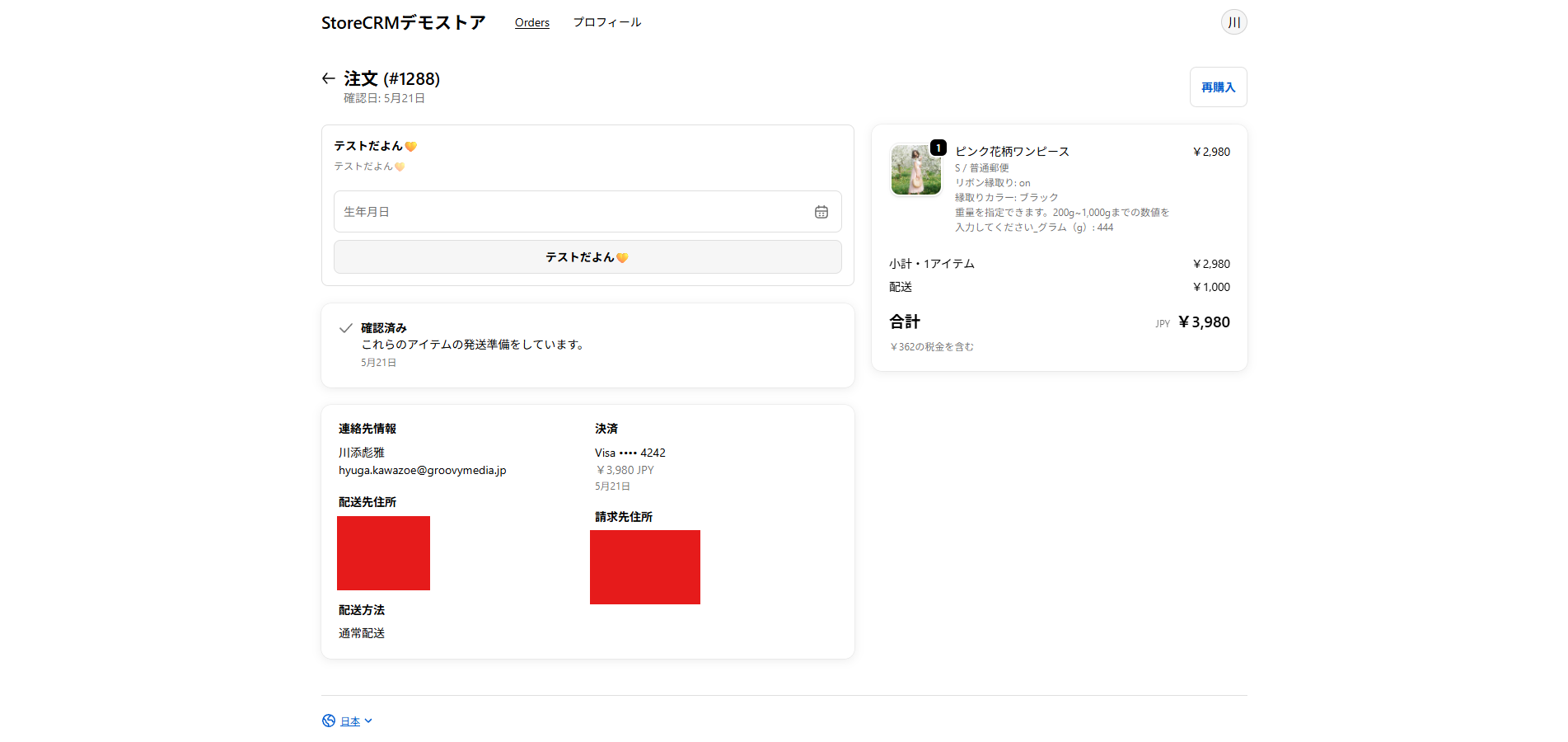](https://storecrm.com/wp-content/uploads/2026/05/スクリーンショット-2026-05-21-215408.png)
###### The blocks on the order confirmation and order status pages appear only when the customer can be identified and no birthday is on file.
### Adding it to the order confirmation page
[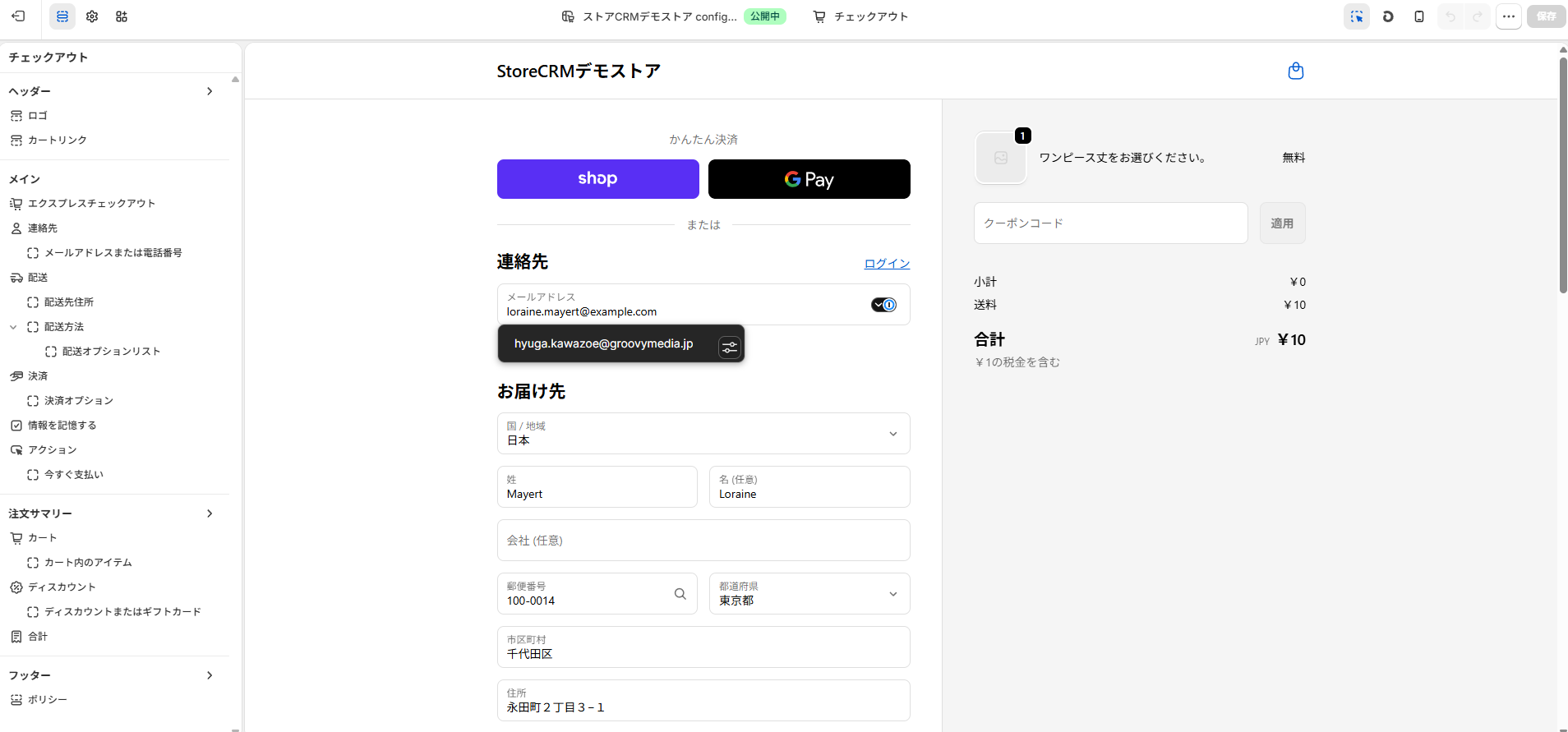](https://storecrm.com/wp-content/uploads/2026/05/スクリーンショット-2026-05-21-213129.png)
**1. Open the checkout customisation page exactly as before.**
[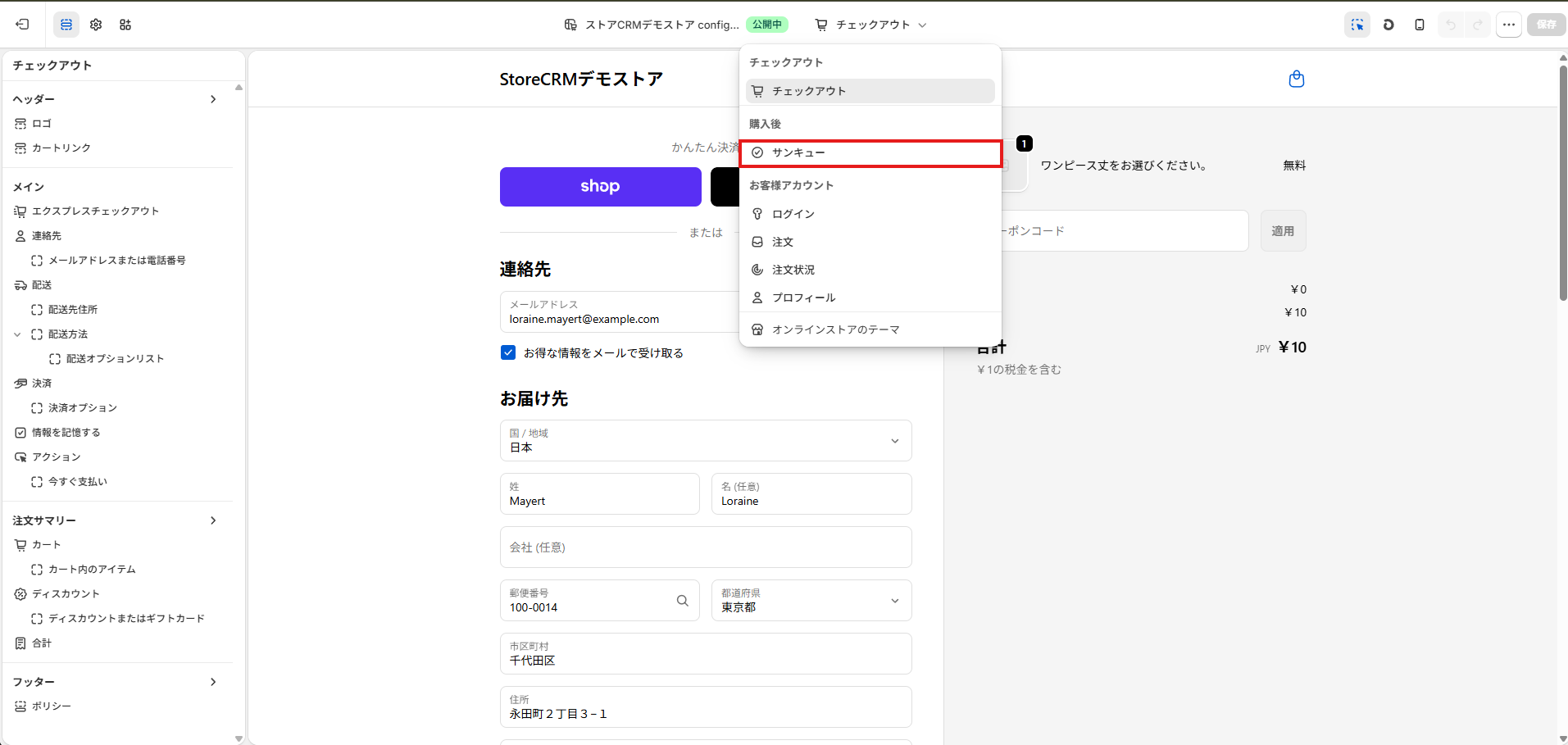](https://storecrm.com/wp-content/uploads/2026/05/スクリーンショット-2026-05-21-213247.png)
**2. Choose \`\[Thank you\]\` in the page selector.**
[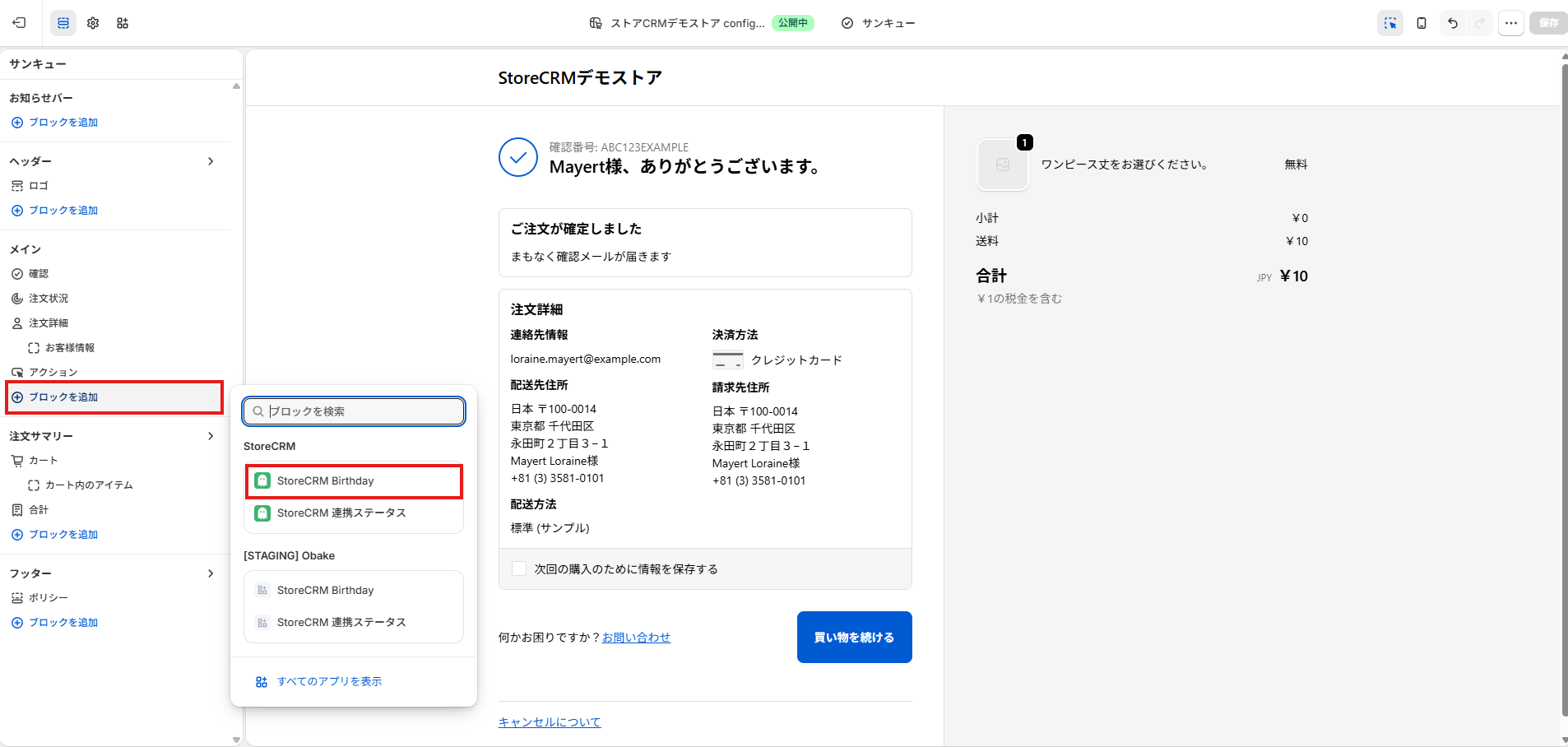](https://storecrm.com/wp-content/uploads/2026/05/スクリーンショット-2026-05-21-213433.png)
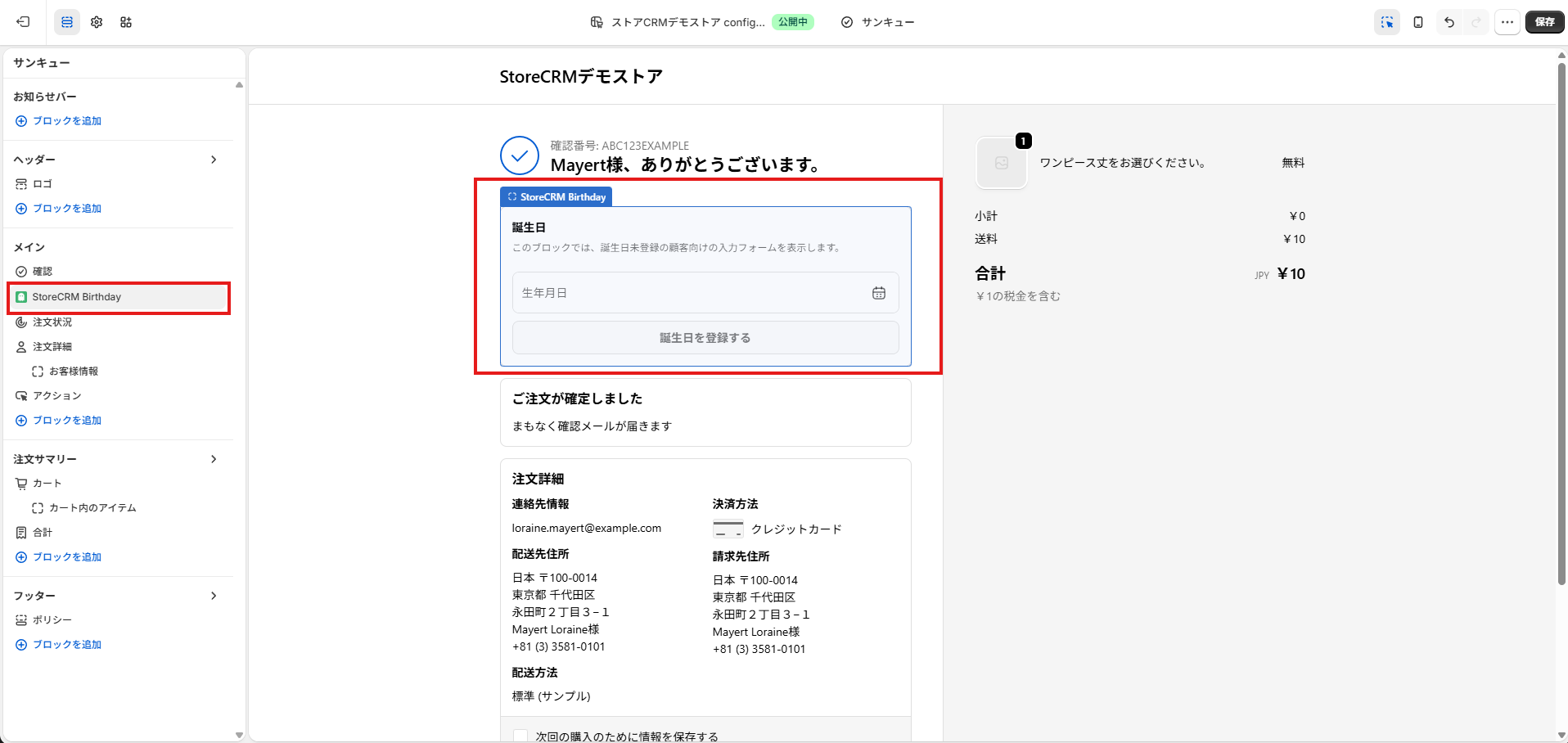
**3. Add \`StoreCRM Birthday\` from the block picker on the left.**
[](https://storecrm.com/wp-content/uploads/2026/05/スクリーンショット-2026-05-21-213612.png)
**4. Drag and drop the block in the left-hand panel to put it exactly where you want it.**
[](https://storecrm.com/wp-content/uploads/2026/05/スクリーンショット-2026-05-21-213822.png)
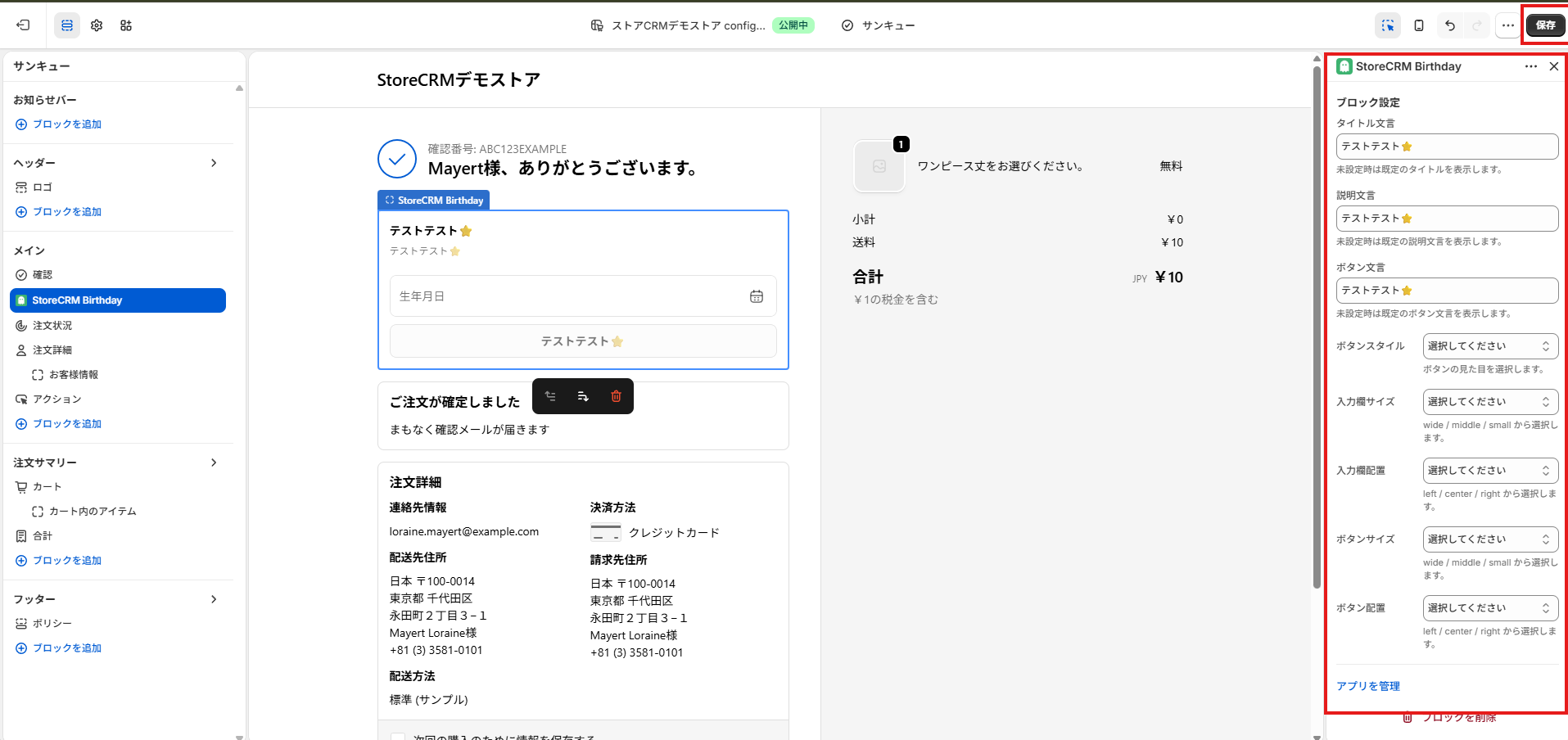
**5. Adjust the wording and the button styling in the settings panel on the right if you need to, then click \`\[Save\]\`.**
### Adding it to the order status page
[](https://storecrm.com/wp-content/uploads/2026/05/スクリーンショット-2026-05-21-213129.png)
**1. Open the checkout customisation page exactly as before.**
[](https://storecrm.com/wp-content/uploads/2026/05/スクリーンショット-2026-05-21-214150.png)
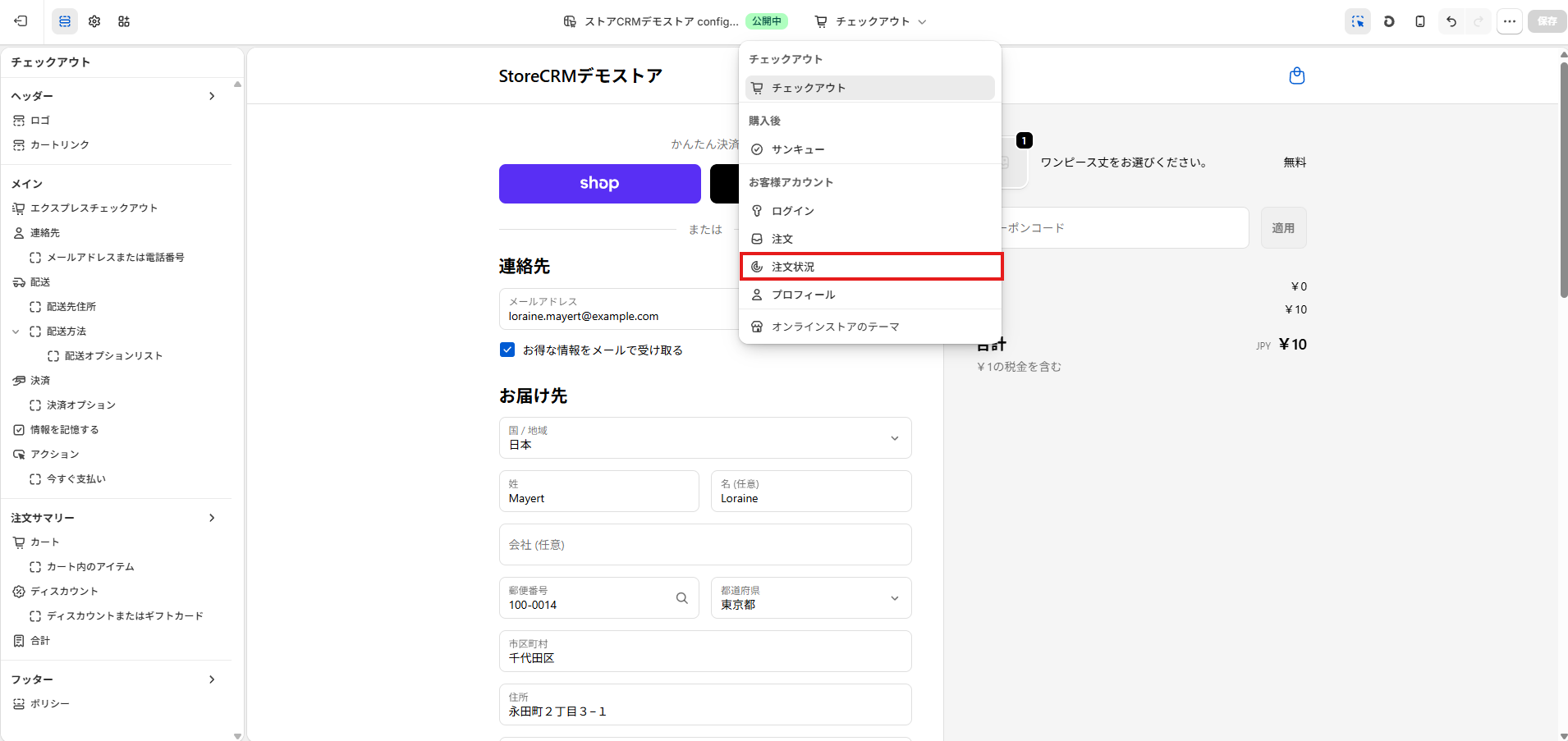
**2. Choose \`\[Order status\]\` in the page selector.**
[](https://storecrm.com/wp-content/uploads/2026/05/スクリーンショット-2026-05-21-214619.png)
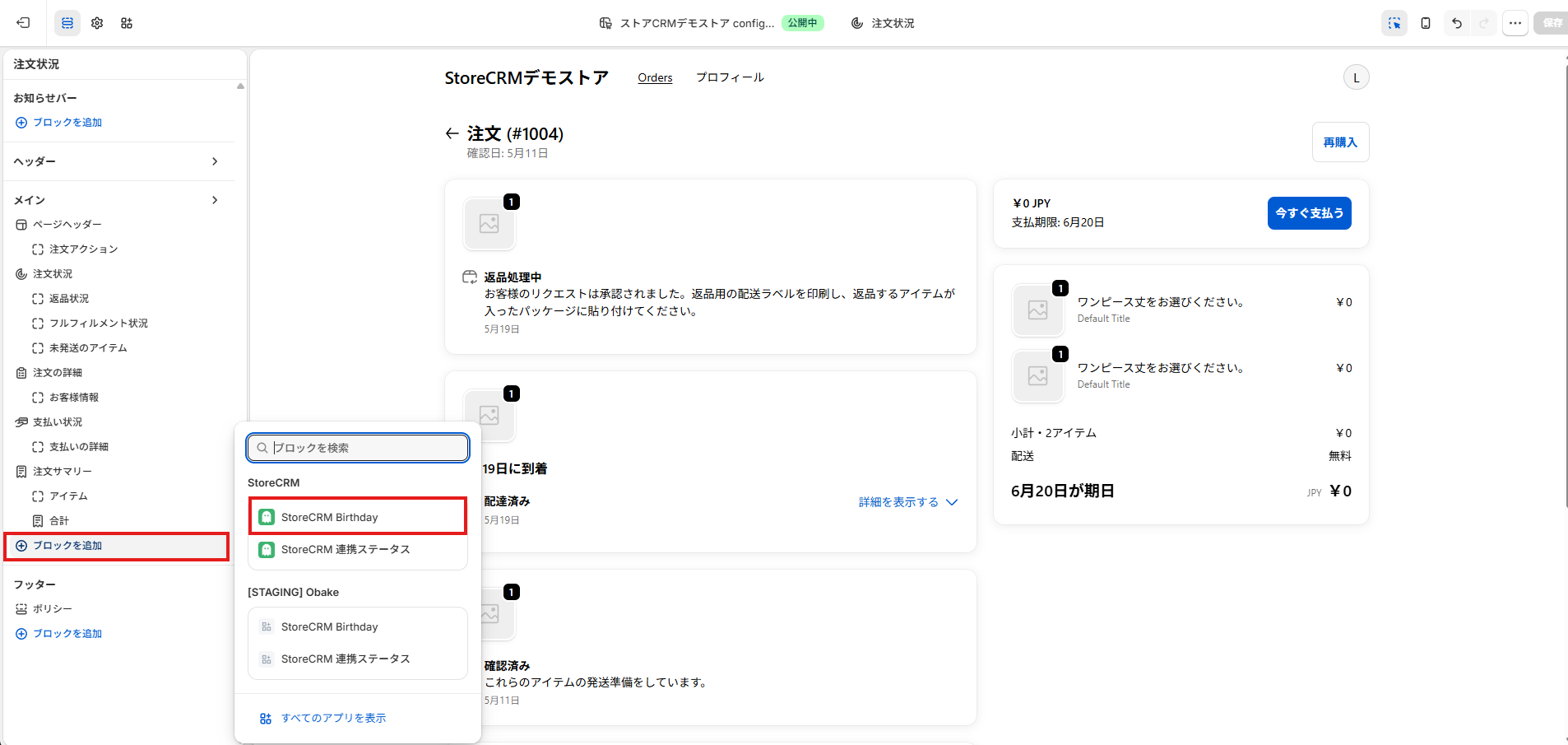
**3. Add \`StoreCRM Birthday\` from the block picker on the left.**
[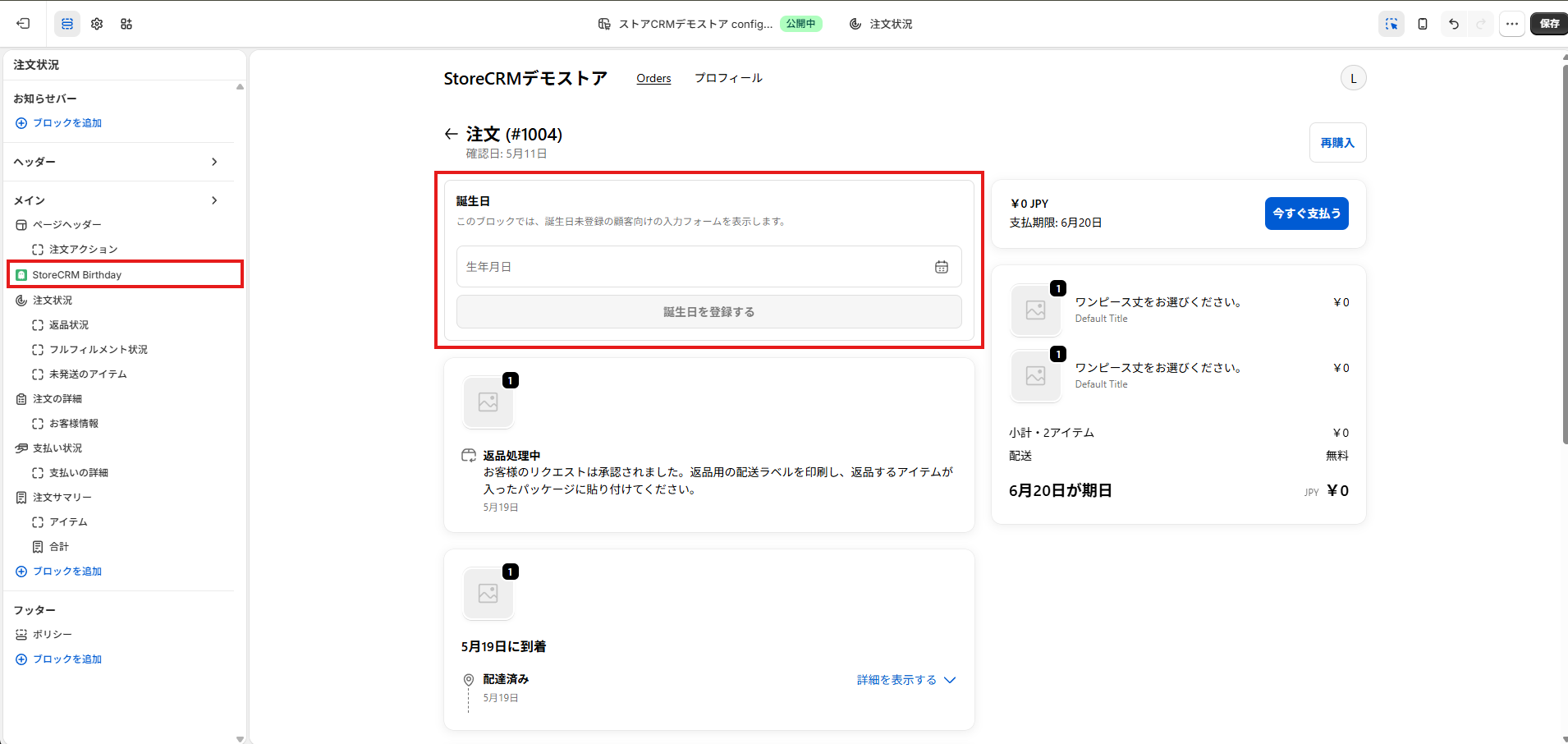](https://storecrm.com/wp-content/uploads/2026/05/スクリーンショット-2026-05-21-214837.png)
**4. Drag and drop the block in the left-hand panel to put it exactly where you want it.**
[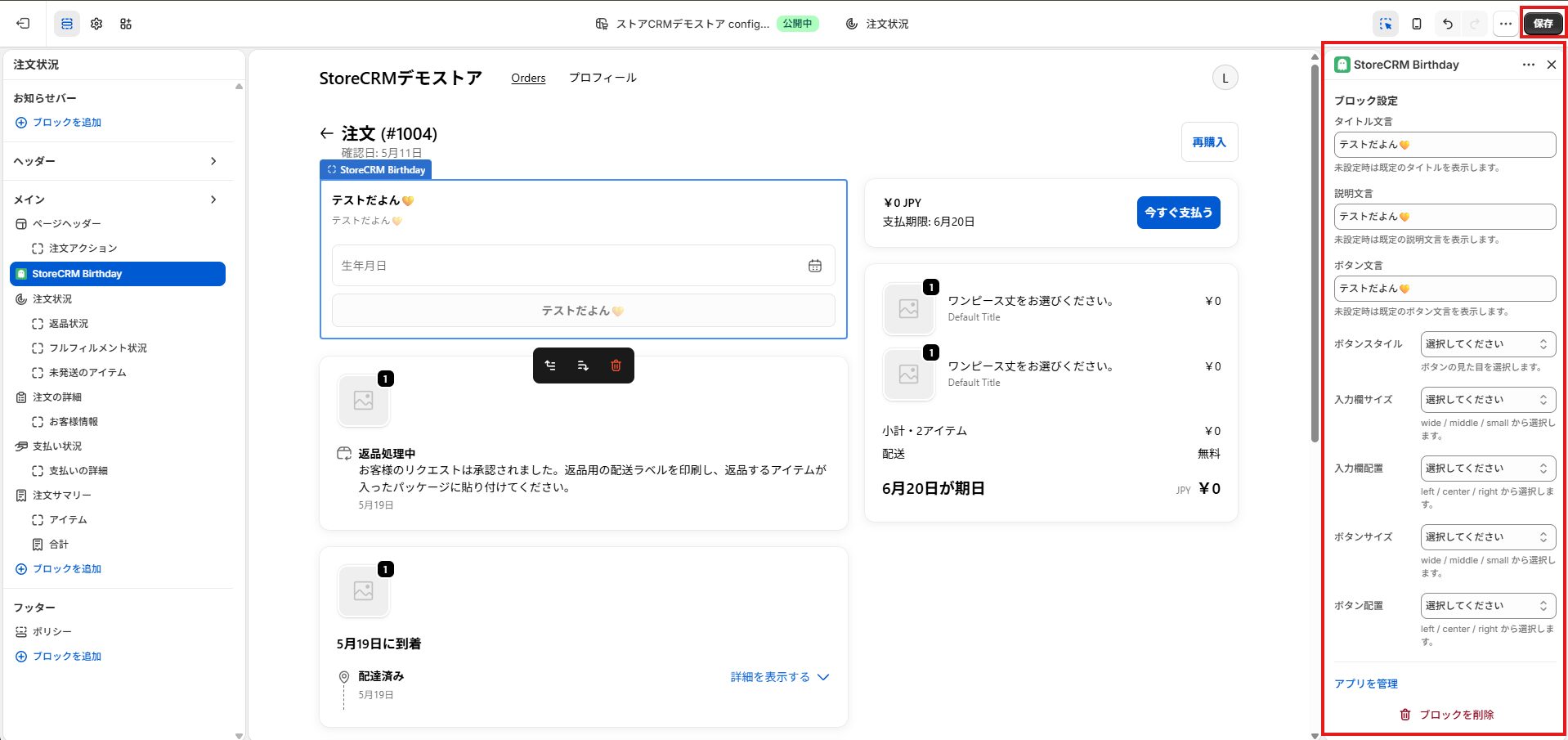](https://storecrm.com/wp-content/uploads/2026/05/スクリーンショット-2026-05-21-215008.jpg)
**5. Adjust the wording and the button styling in the settings panel on the right if you need to, then click \`\[Save\]\`.**
### Adjusting the copy and the design
[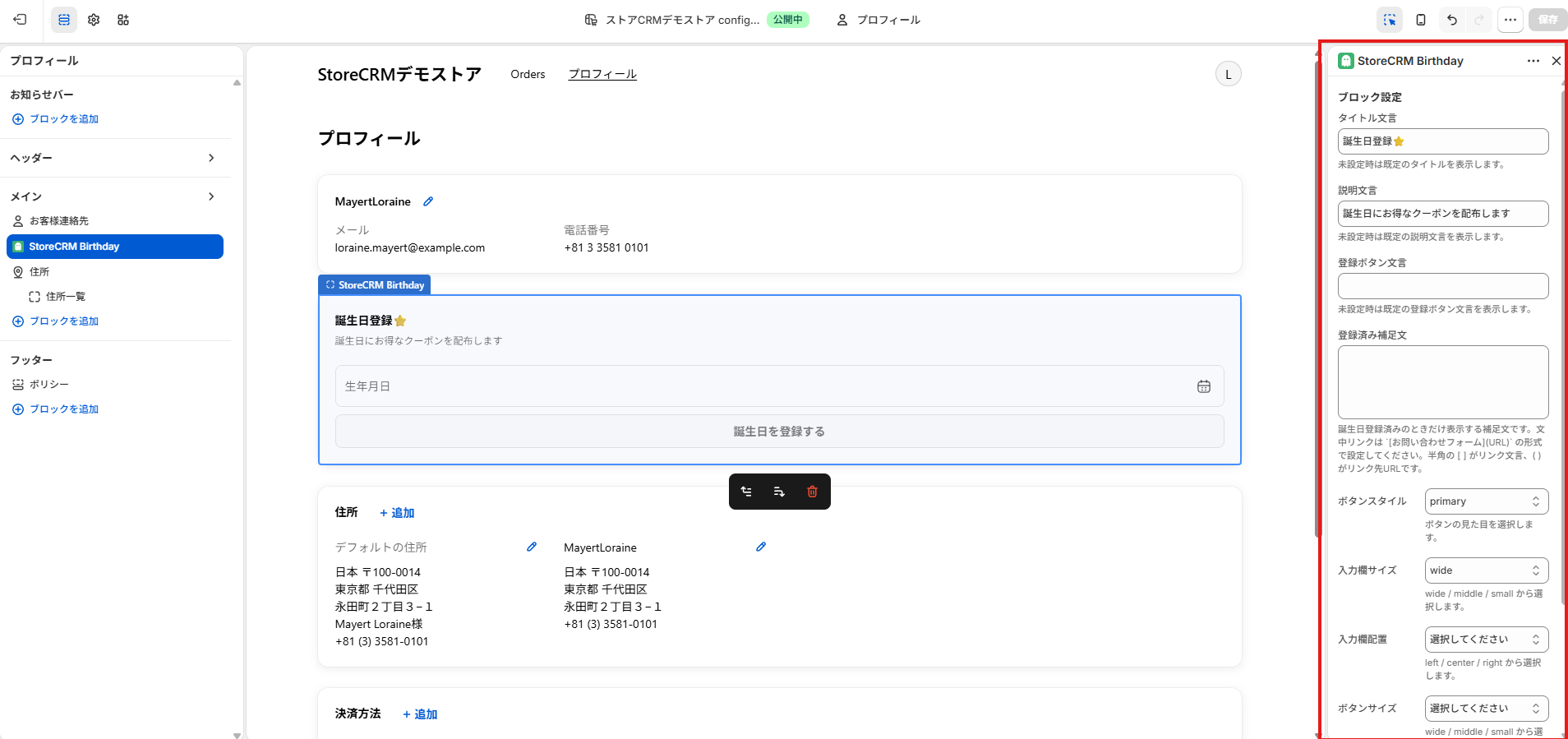](https://storecrm.com/wp-content/uploads/2026/05/スクリーンショット-2026-05-21-220304.png)
##### The following options are available for the StoreCRM Birthday block in the checkout and customer accounts editor.
1. **Title — the heading at the top of the block. Defaults to \`Birthday\` if left empty.**
2. **Description — the explanatory text next to the date field. Defaults to StoreCRM's standard wording if left empty.**
3. **Button label — the text on the save button. Defaults to \`Register your birthday\` if left empty.**
4. **Note for registered customers — text shown on the profile page only when a birthday is already on file.**
5. **Button style — choose from \`primary\`, \`secondary\`, \`critical\`, \`monochrome\` and \`plain\`.**
6. **Field size — choose from \`wide\`, \`middle\` and \`small\`.**
7. **Field alignment — choose from \`left\`, \`center\` and \`right\`.**
8. **Button size — choose from \`wide\`, \`middle\` and \`small\`.**
9. **Button alignment — choose from \`left\`, \`center\` and \`right\`.**
###### **\[Tip\]**
###### In the profile page's \`note for registered customers\` you can link to your contact form using the following format.
###### Your birthday cannot be changed from this screen once registered. If you need to change it, please get in touch through our \[contact form\](https://example.com/contact).
###### Links must start with \`https://\`, \`mailto:\` or \`tel:\`.
### Testing your setup
###### **Once everything is configured, test it as follows.**
##### Testing the profile page
1. **Prepare a test customer with no birthday on file.**
**2\. Log in to your store's customer account.**
**3\. Open the profile page.**
**4\. Confirm that the date-of-birth form appears.**
**5\. Enter a date and click \`Register your birthday\`.**
**6\. Confirm that \`Your birthday has been saved.\` appears.**
**7\. Reload the page and confirm that the form no longer appears and the registered birthday is displayed instead.**
[](https://storecrm.com/wp-content/uploads/2026/05/スクリーンショット-2026-05-21-221014.png)
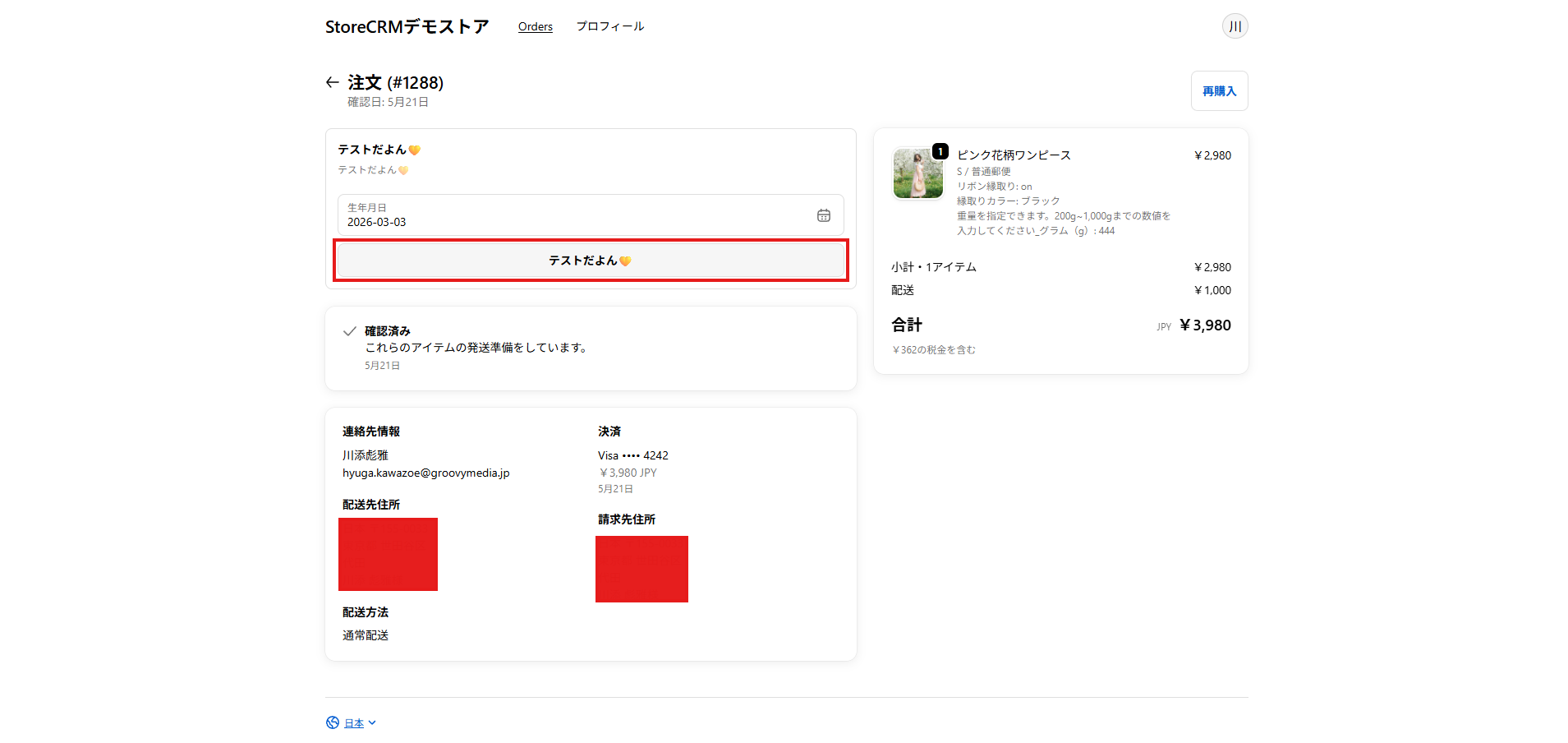
##### Testing the order confirmation and order status pages
**1\. Place a test order as a customer with no birthday on file.**
**2\. Open the order confirmation page or the order status page.**
**3\. Confirm that the date-of-birth form appears.**
**4\. Enter a date and click \`Register your birthday\`.**
**5\. Confirm that the save confirmation message appears.**
[](https://storecrm.com/wp-content/uploads/2026/05/スクリーンショット-2026-05-21-221014.png)
##### Checking in the Shopify admin
**1\. Open \`\[Customers\]\` in the Shopify admin.**
**2\. Open the test customer.**
**3\. Confirm that the date you entered is stored in the \`Date of birth\` metafield.**
[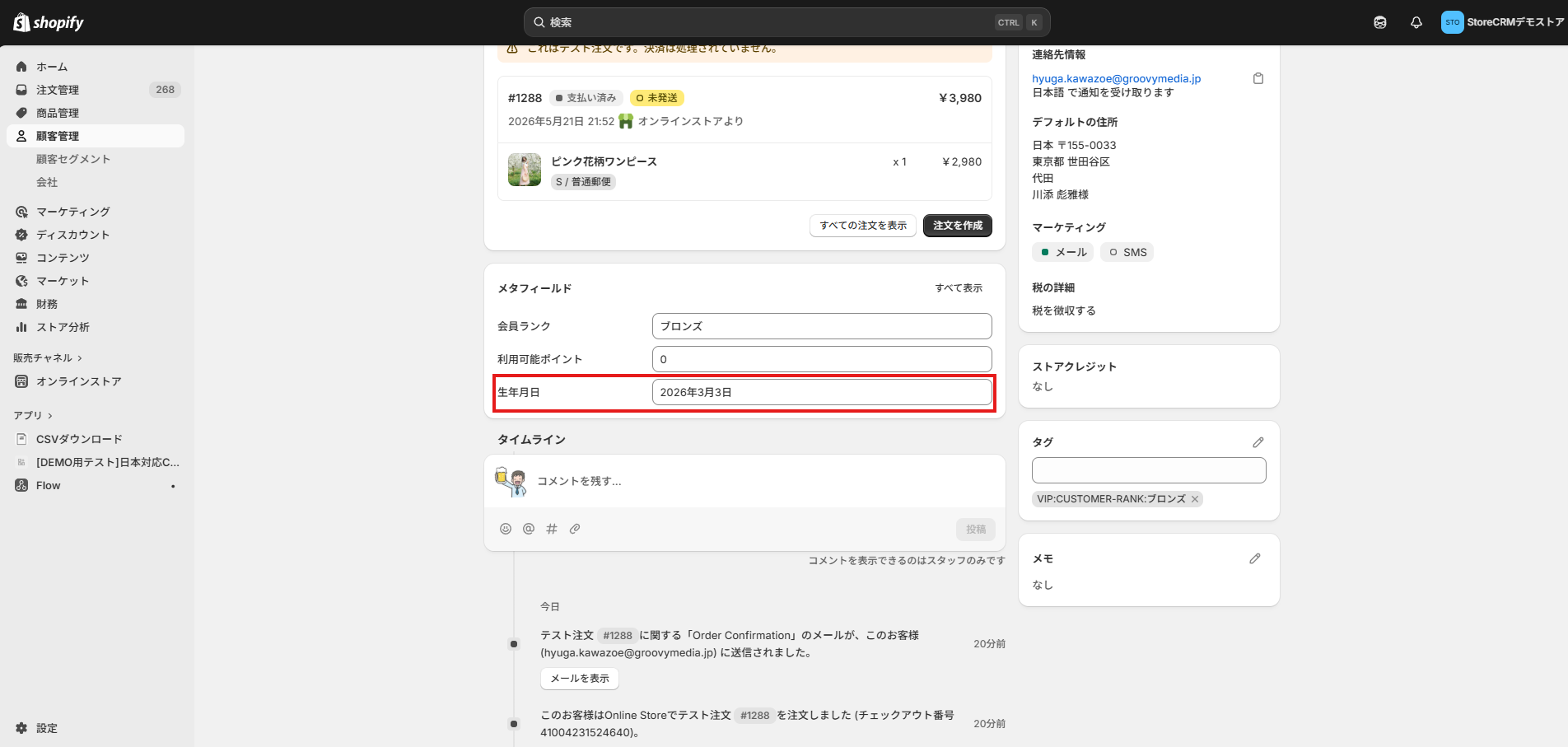](https://storecrm.com/wp-content/uploads/2026/05/スクリーンショット-2026-05-21-221254.png)
##### Checking in StoreCRM
**1\. Open the StoreCRM app.**
**2\. Go to \`\[Customers\] > \[Customer list\]\`.**
**3\. Click the test customer.**
**4\. Confirm that the birthday field on the customer detail page shows the date you registered.**
[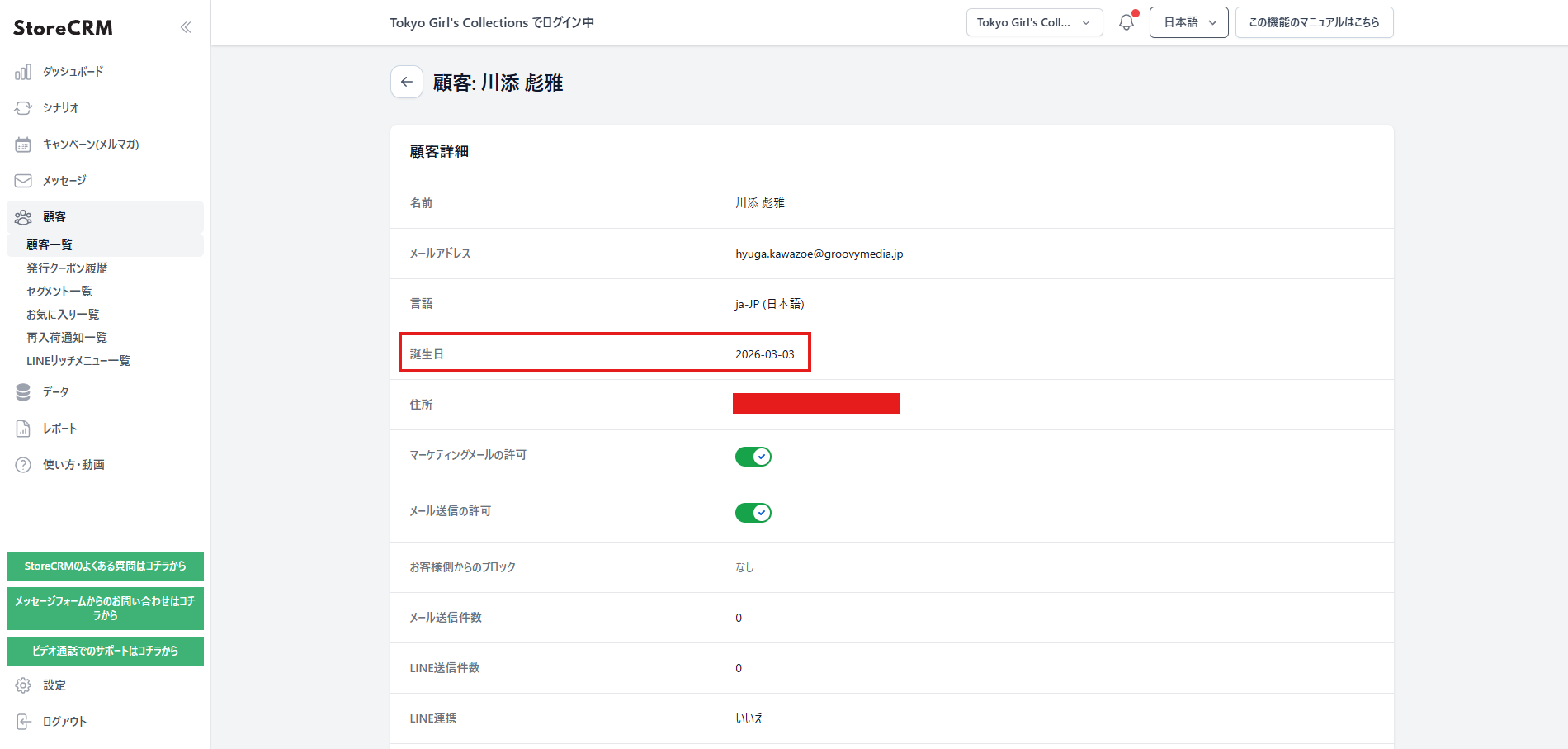](https://storecrm.com/wp-content/uploads/2026/05/スクリーンショット-2026-05-21-221510.png)
#### Once you have confirmed all of the above, the setup is complete.
## Common problems
##### **The StoreCRM Birthday block does not appear**
Check the following.
– Is the StoreCRM app installed?
– Are you in Shopify's checkout and customer accounts editor?
– Are you using new customer accounts?
– Is the page you are adding it to the profile, order confirmation or order status page?
If you still cannot find the block, contact us through the contact form and we will check StoreCRM's support status for your setup.
##### **The form does not appear for customers**
The form is hidden in the following cases.
– A birthday is already on file
– The customer is not logged in
– The customer cannot be identified on the order confirmation or order status page
– StoreCRM is still loading the customer data, or failed to load it
To test with a customer who already has a birthday, use a different test customer.
##### **The birthday cannot be saved**
Check the following.
– Is the date in the future?
– Is it a valid date?
– Is the connection between Shopify and StoreCRM active?
– Is StoreCRM's \`birthday metafield\` written in \`namespace.key\` form?
Saving repeatedly in a short space of time can trigger a temporary limit. Wait a while and try again.
##### **I need to change a birthday**
Once registered, a birthday cannot be changed from the customer account screens.
If a correction is needed, edit the customer metafield in the Shopify admin or contact StoreCRM support.
##### **Do the same steps work with classic customer accounts?**
If you are using classic customer accounts, follow the classic instructions — adding the form to the theme's signup page or account page — rather than the steps in this article.
> [How to add a date-of-birth form to a Shopify signup page](https://storecrm.com/knowhow/birth-date-form/)
## Summary
With new customer accounts, you collect dates of birth by adding the StoreCRM app block from the checkout and customer accounts editor, rather than editing theme Liquid.
StoreCRM lets stores on Shopify's new customer accounts collect the dates of birth that birthday email campaigns need, and put them to work in birthday and birth-month campaigns.
[Install StoreCRM here.](https://apps.shopify.com/obake-ma?locale=ja)
[Read here for how to send birthday emails.](https://storecrm.com/knowhow/shopify-birthday-mail/)
We also offer free setup support — we will configure the app for you — as well as suggestions for growing revenue once you are up and running.
Feel free to get in touch through the [contact form](https://storecrm.com/contact/).
========================================================================
# 6 Shopify chatbot and chat apps compared: which chat drives sales?
> Automatic customer tagging based on what people answer, plus real-time integration with tools like StoreCRM — removing manual work and letting your campaigns move far faster.
- URL: https://storecrm.com/knowhow/shopify-chat-apps/
- Type: Blog
- Published: 2026-04-15
- Updated: 2026-04-15
- Category: tips
- Tags: CRM, guides
- Author: StoreCRM
---
## Why a Shopify store needs chat now
Are you so buried in email that "I want to know right now" keeps getting pushed to the back of the queue? Those moments of silence cost real revenue. Today's shoppers will not wait for a reply, so serving them in real time is the single highest-priority way to raise customer satisfaction (CSAT) and stop them leaving.
## From FAQ handling to a revenue channel
The global trend has shifted towards instant gratification, and chat has evolved from answering FAQs into an agent that carries out work on its own — cancelling an order, for instance. The important shift in perspective is to stop treating support as a cost and start treating it as a place where revenue is made. The latest tools attribute revenue to chat conversations, so you can show quantitatively how much your customer service contributes to LTV. With AI handling the routine work, staff concentrate on deeper conversations, and customer service becomes a sales hub in its own right.
What chat captures does not stop at a support history, either. It accumulates as high-value zero-party data and behavioural logs: what customers are worried about and what they need. Integrated into a CRM in real time, that supports precise segments such as "customers who viewed a high-value product and then left". Those segments then feed email and SMS campaigns, or a popup shown when the customer returns. In other words, a modern chat tool is not only an immediate source of revenue but a data foundation for understanding customers and maximising LTV through a continuing relationship.
## Four concrete benefits for ecommerce businesses in Japan
#### Preventing abandoned carts
Answer the questions and doubts a customer has while they are still deciding, and they stop leaving. Responding now, rather than making them wait for an email, translates directly into fewer abandoned carts and a better conversion rate.
#### Serving customers with data in front of you
Your team can see the cart contents and browsing history while they talk. Suggestions tailored to what each person actually wants push average order value up substantially.
#### More efficient operations
AI resolves routine questions such as "where is my delivery?" on its own. That takes an enormous amount off your team and frees them for the higher-value, individual conversations and for planning.
#### Building repeat customers
Native integration with LINE and other channels keeps you in contact after the purchase, turning one-time buyers into fans of the brand and, in time, long-term repeat customers.
## Six leading Shopify chat apps
### Channel Talk
[](https://storecrm.com/wp-content/uploads/2026/04/Screenshot-2026-04-15-at-22.52.46.jpg)
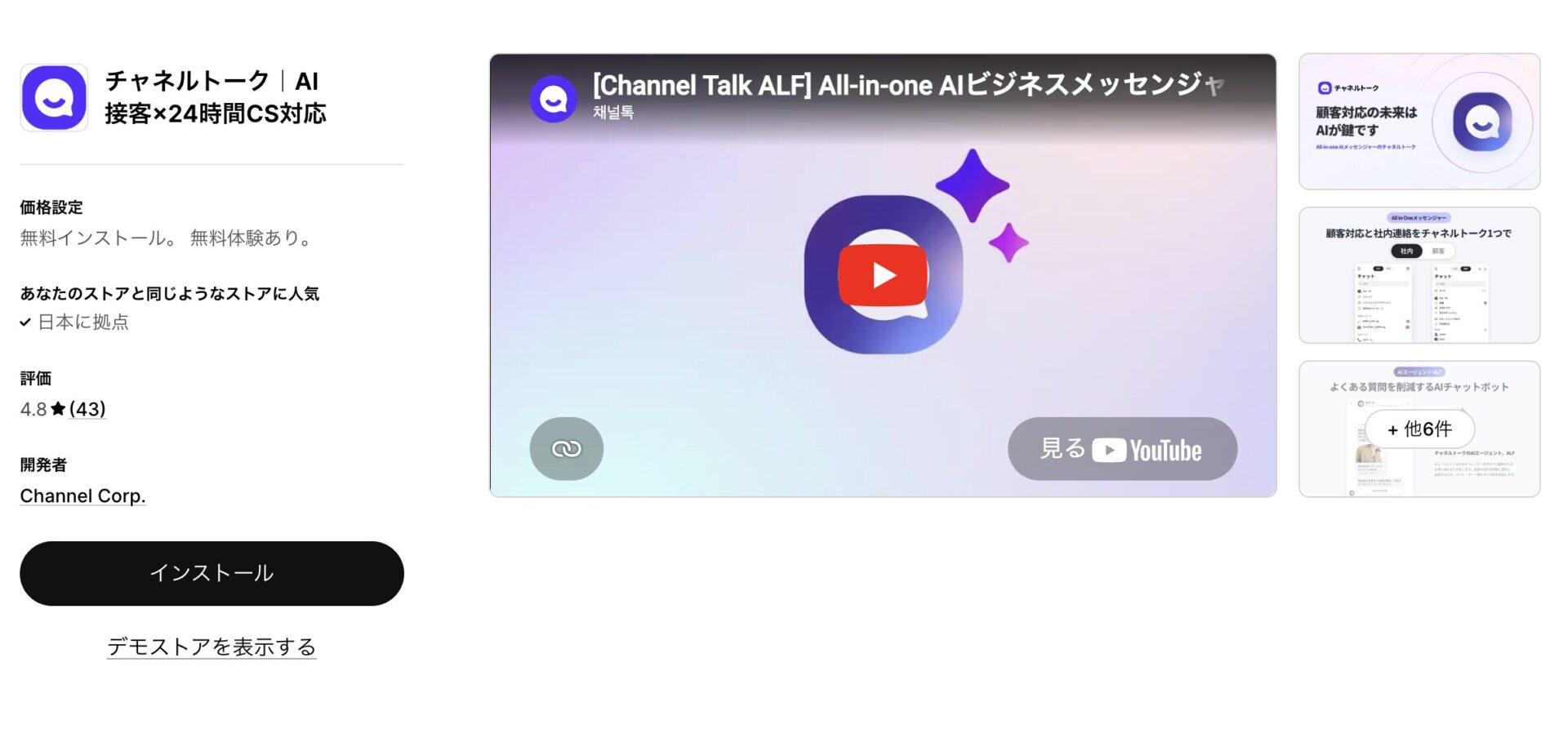
A CRM-integrated tool with the native LINE integration that is essential in Japan, managing customers as members. What we are watching is the progress of its AI agent, ALF. It does not stop at answering: using external APIs, it carries out tasks such as cancelling an order by itself.
Automated phone handling is planned for late 2025, taking the reduction in manual work further still. It is easy to adopt, and segmented campaigns based on member data make it a strong tool for building repeat business.
Pricing flexes with your customer count, so it scales with your growth phase. For raising loyalty in ecommerce in Japan, it is the definitive choice.
[Install the app](https://apps.shopify.com/channel-talk?locale=ja)
### Willdesk: Live Chat & AI
[](https://storecrm.com/wp-content/uploads/2026/04/Screenshot-2026-04-15-at-22.54.04.jpg)
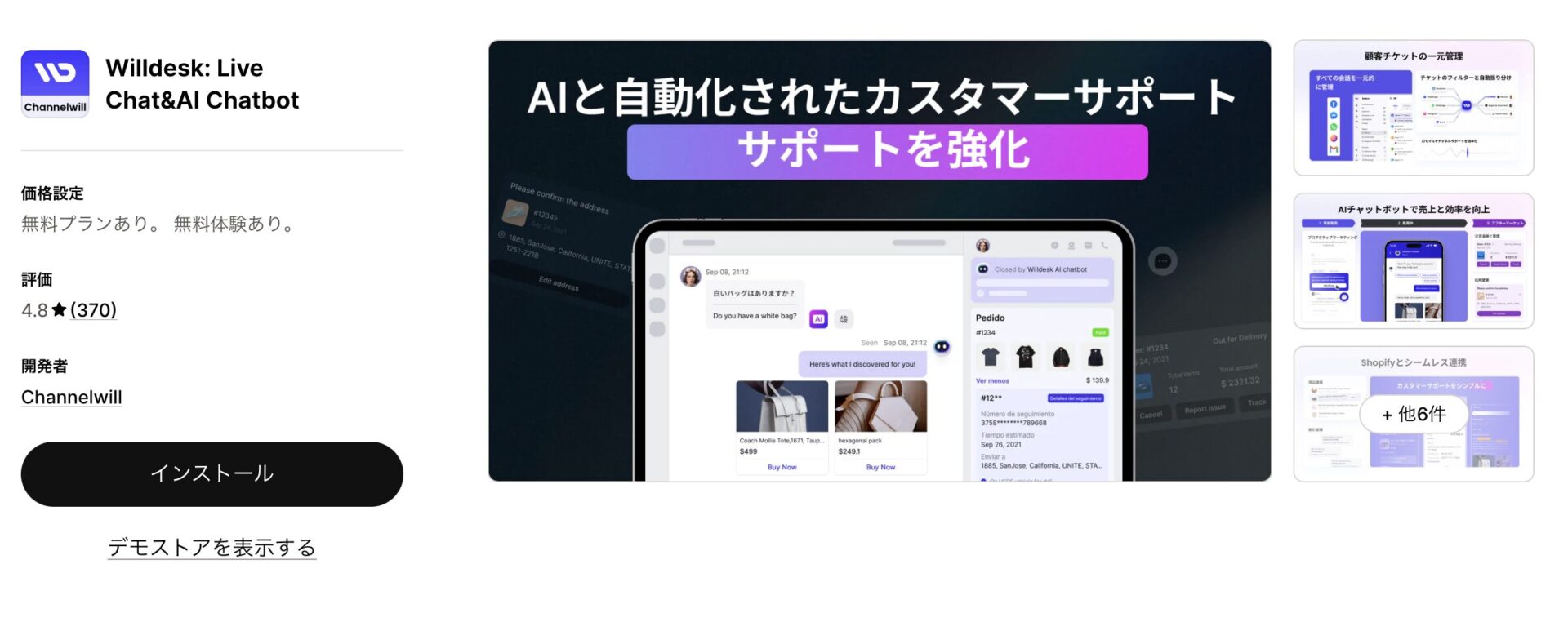
Willdesk specialises in automating delivery enquiries and integrates tightly with the major tracking apps — ParcelPanel, TrackingMore and Dropshipman. Customers check their own delivery status from a self-service portal inside the chat, which cuts your workload dramatically.
It runs on GPT-4, with sentiment recognition and answers trained on up to 1,000 products. Live translation across more than 20 languages makes it a good fit for cross-border selling too.
It is no-code to set up and can manage several stores from one place, which is why dropshippers running multiple storefronts with a small team rate it highly.
[Install the app](https://apps.shopify.com/self-faq?locale=ja)
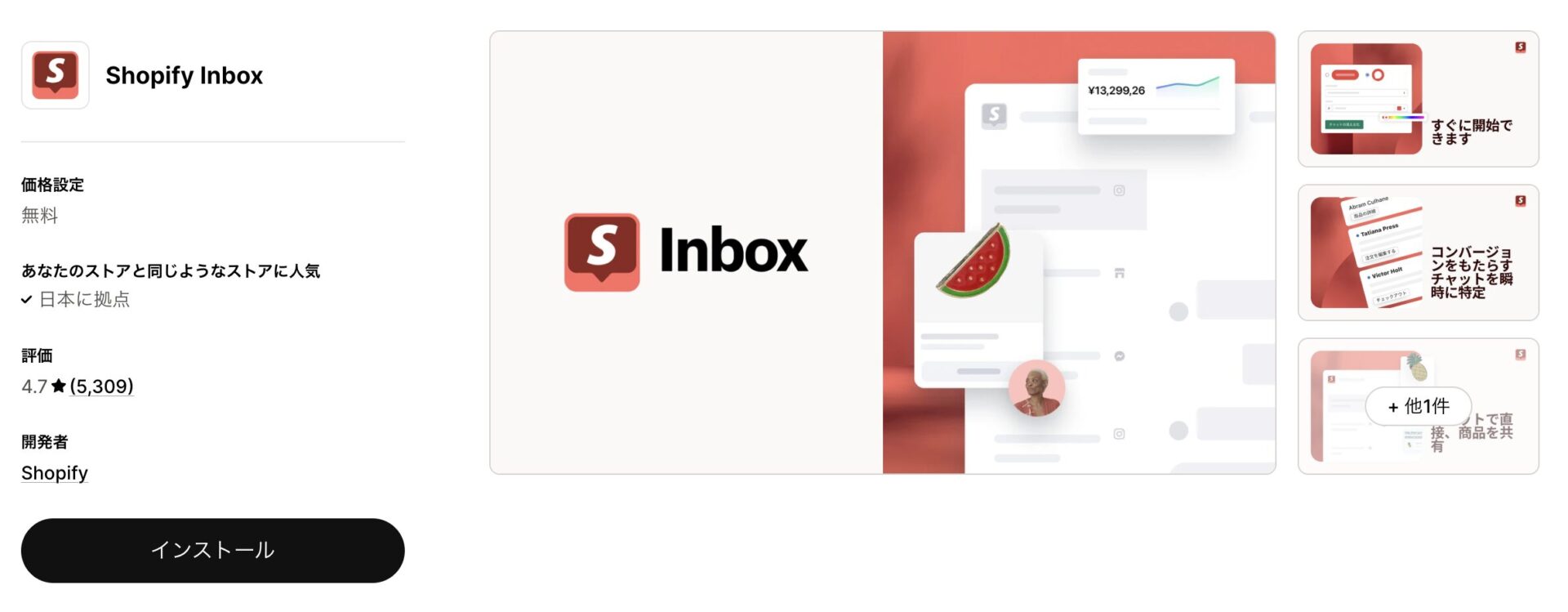
### Shopify Inbox
[](https://storecrm.com/wp-content/uploads/2026/04/Screenshot-2026-04-15-at-22.55.28.jpg)
Shopify's own app is completely free, which makes it about as easy to adopt as anything can be. The striking figure is that 70% of conversations lead directly to a purchase — a strong promotional effect at no cost.
You enable it from the theme editor with no code, and you can serve customers while looking at their cart in the admin, with all the convenience you would expect from a first-party app. AI-generated reply suggestions and a mobile app for replying on the move are included.
It does not offer advanced automation or LINE integration, but as a first step for a store that wants to experience what chat can do, nothing beats it.
[Install the app](https://apps.shopify.com/inbox?locale=ja)
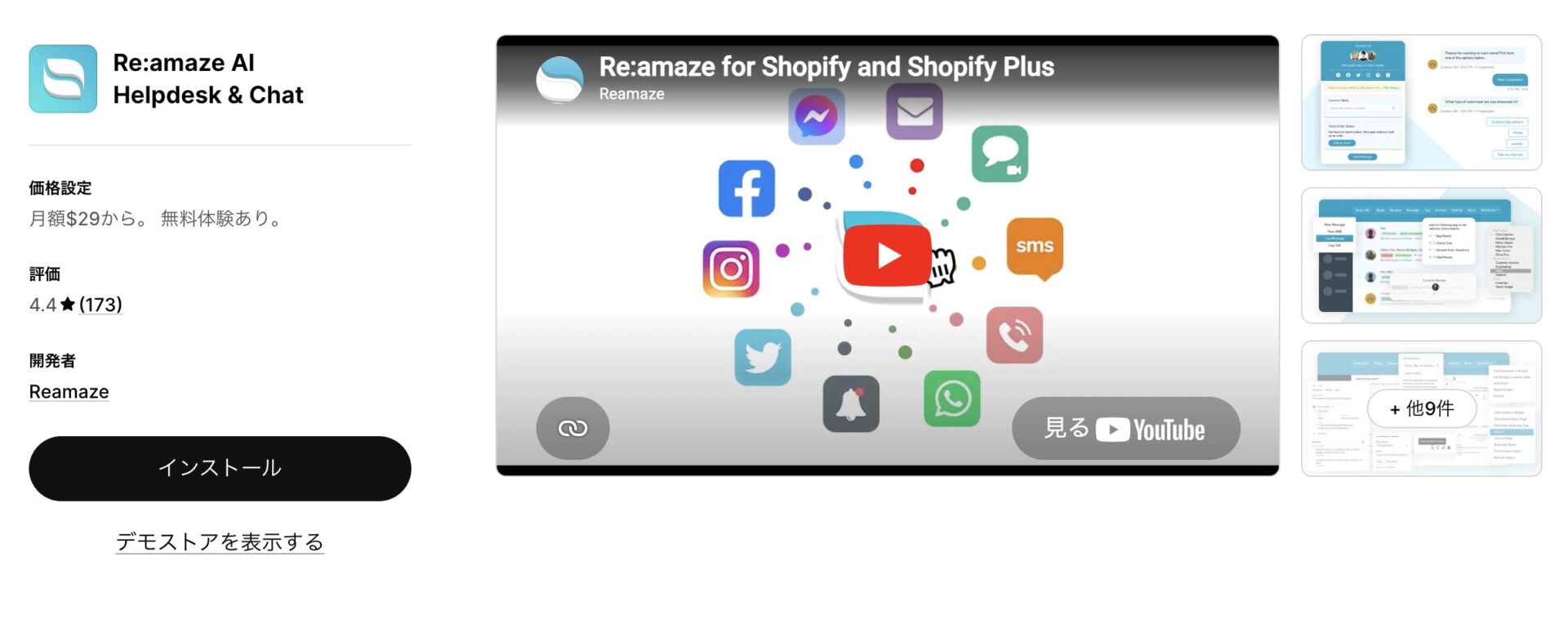
### Re:amaze AI Helpdesk & Chat
[](https://storecrm.com/wp-content/uploads/2026/04/Screenshot-2026-04-15-at-22.56.31.jpg)
As well as managing several brands from one place, Re:amaze has a powerful Cues feature that detects customer behaviour and starts a conversation automatically. Its standout capability is creating a draft order without leaving the chat and sending a payment link on the spot.
That turns a conversation straight into revenue. Its omnichannel strength — email, social, phone and SMS in a single screen — keeps information from fragmenting.
Beyond an AI agent that generates answers from your FAQ, it reports on the revenue attributed to support, which makes serious analysis possible. A professional tool.
[Install the app](https://apps.shopify.com/reamaze?locale=ja)
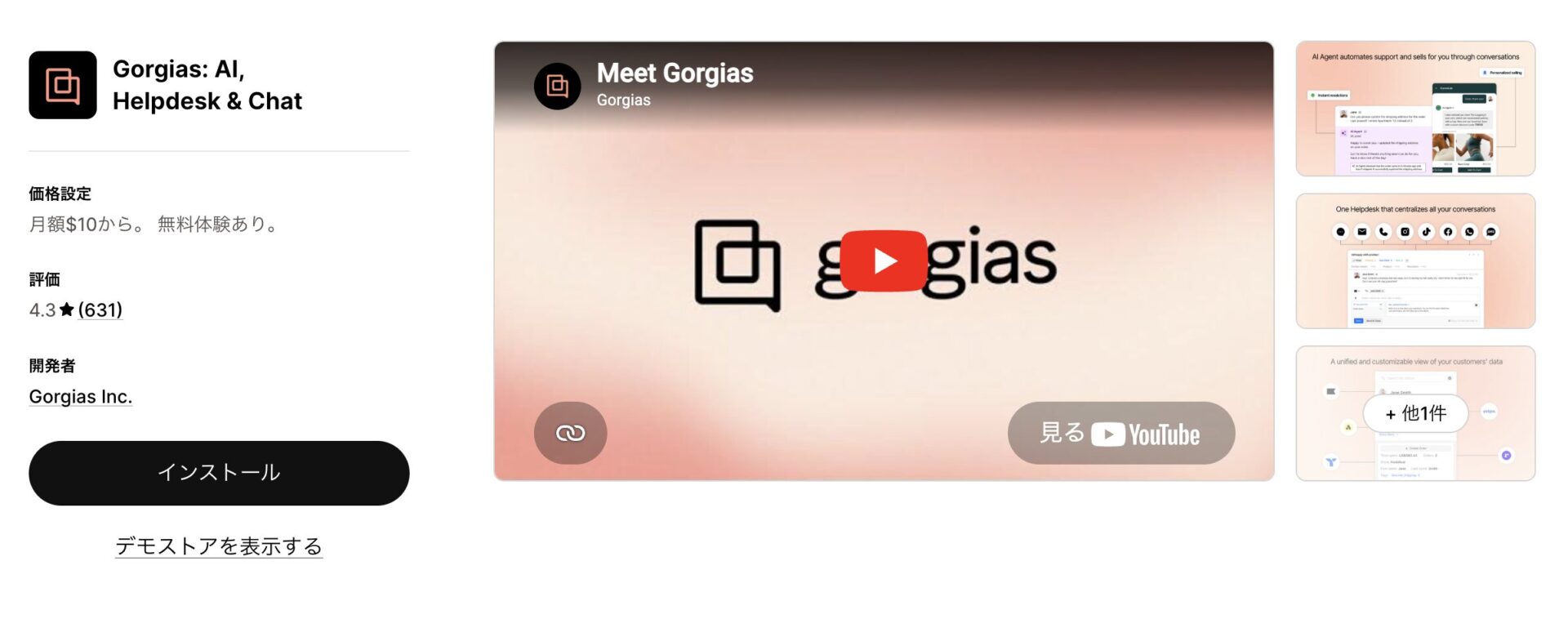
### Gorgias: AI, Helpdesk & Chat
[](https://storecrm.com/wp-content/uploads/2026/04/Screenshot-2026-04-15-at-22.57.28.jpg)
Gorgias has the deepest Shopify integration of any of these, executing refunds and order cancellations through the API directly from the chat sidebar. For operational efficiency it is the best of the lot.
The deciding factor for many is that pricing includes unlimited agents, so adding staff for a busy period costs nothing extra. Its AI agent resolves up to 60% of routine work by itself, and its revenue statistics show clearly how much revenue support activity generated.
It goes well beyond a support tool: it is a strategic operating system that improves how the whole organisation runs and maximises revenue.
[Install the app](https://apps.shopify.com/helpdesk?locale=ja)
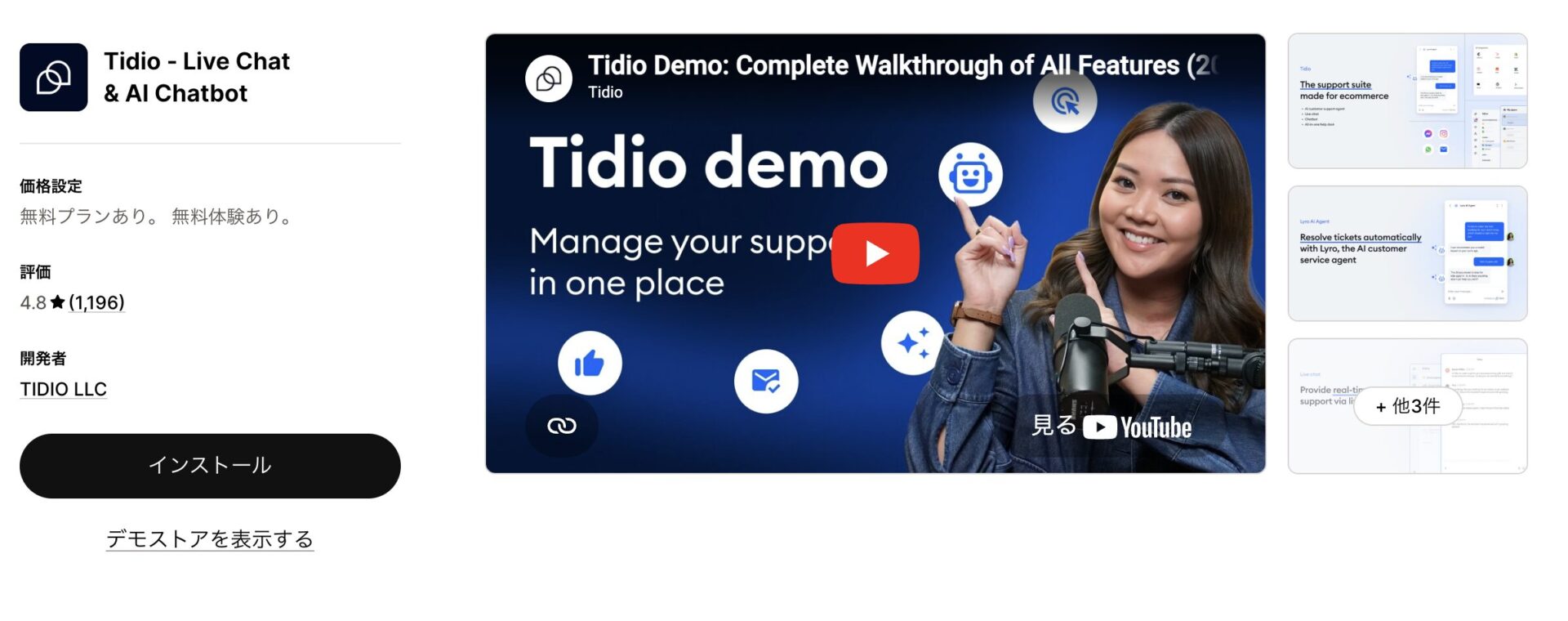
### Tidio — Live Chat & AI Chatbot
[](https://storecrm.com/wp-content/uploads/2026/04/Screenshot-2026-04-15-at-22.58.26.jpg)
Tidio's visual bot builder lets you assemble automation flows like a puzzle. Its latest AI, Lyro, learns from your documentation and generates answers from it — as if a staff member had read the manual thoroughly — with no complex configuration.
Particularly useful is its typing preview, which shows what the customer is typing before they send it, so you can respond faster. Setup is simply a matter of enabling the app embed in the theme editor.
Small and mid-sized stores can adopt it easily, and combined with visibility of the cart it lets you spot hesitation instantly and use precise AI-assisted service to maximise conversion.
[Install the app](https://apps.shopify.com/tidio-chat?locale=ja)
## How to choose the right app for your store
The key to choosing is your own objective. If cost comes first, Shopify Inbox; if you are working with LINE in Japan, Channel Talk; if delivery automation is the priority, Willdesk.
For sheer operational efficiency, Gorgias; for taking payment inside the chat, Re:amaze; for easy AI, Tidio. As AI moves from answering questions to completing work like a member of staff, chat becomes an investment you cannot skip. Pick the one that fits your store and put your growth in 2026 on a firm footing.
========================================================================
# Show a membership card in LINE from Shopify, no LINE mini app required
> StoreCRM can display a membership card in LINE, so customers no longer have to log in and pull up a barcode in store — which makes in-store operations far smoother.
- URL: https://storecrm.com/knowhow/line-barcode/
- Type: Blog
- Published: 2026-04-10
- Updated: 2026-06-01
- Category: tips
- Tags: LINE, StoreCRM, guides, Membership Card
- Author: StoreCRM
---
## Introduction
For stores that already use a LINE Official Account, being able to do everything in LINE — not just messages and coupons but showing a membership card as well — makes the in-store experience dramatically better.
With StoreCRM's LINE barcode feature, customers open their membership barcode in LINE and present it straight at the till. No paper card, no separate app to launch, so both the conversation and the checkout go more smoothly.
The feature does more than display a barcode. Customers who have linked their LINE account see their membership code, while customers who have not are pointed to your store's login page. There is also a route back to the barcode after linking, which makes it a useful way to drive signups and LINE connections.
## Setting up LINE integration and creating the LIFF app
## Confirm that LINE integration is already set up
To use StoreCRM's LINE barcode feature, LINE integration must already be configured.
For details of StoreCRM's LINE settings, see the page below.
> [How to connect Shopify with a LINE Official Account](https://storecrm.com/help/setting/line/)
## Creating the LIFF app
To use the LINE barcode feature, you need to create a LIFF app.
[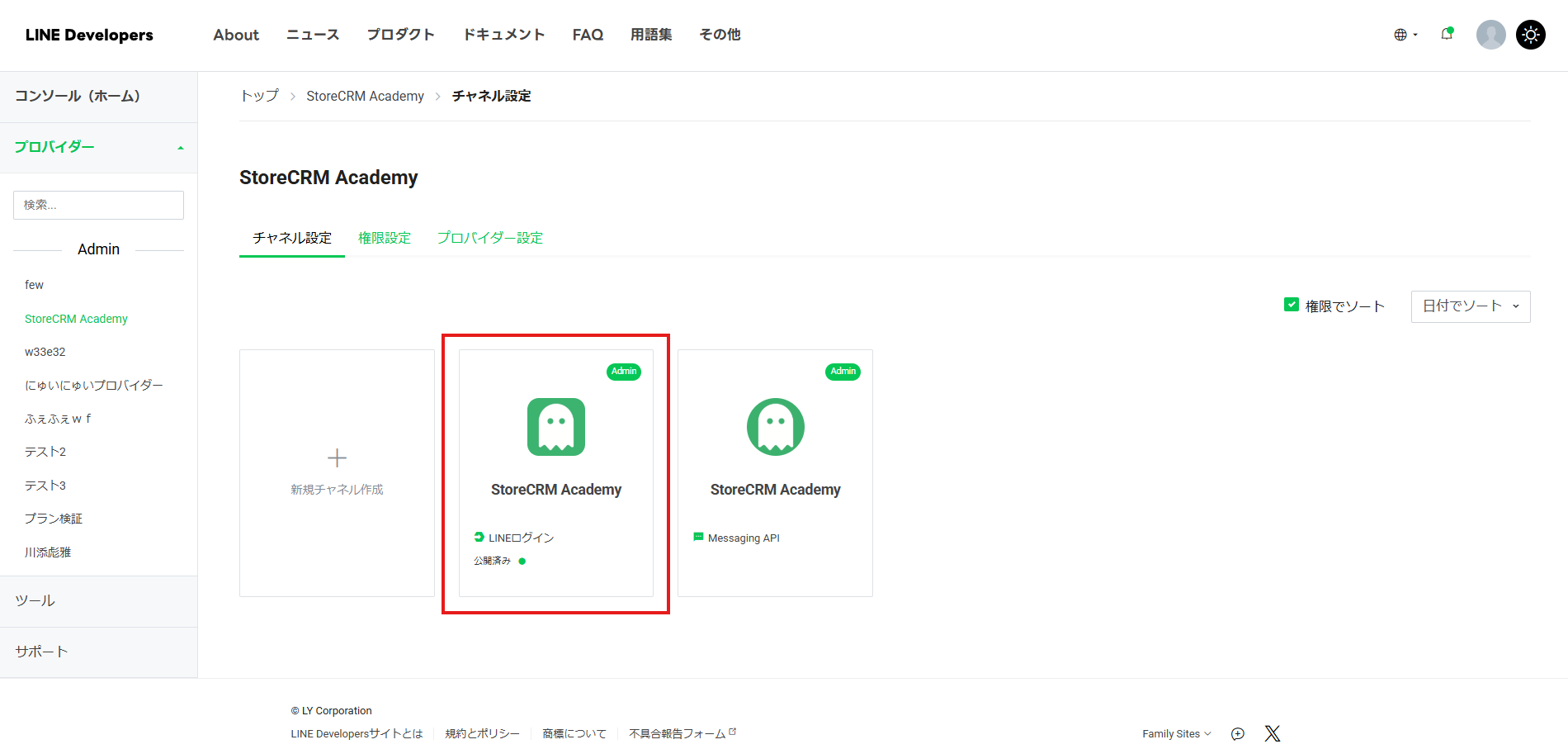](https://storecrm.com/wp-content/uploads/2026/04/スクリーンショット-2026-04-08-181753.png)
**Select the \[LINE Login channel\] you created when you set up LINE integration.**
[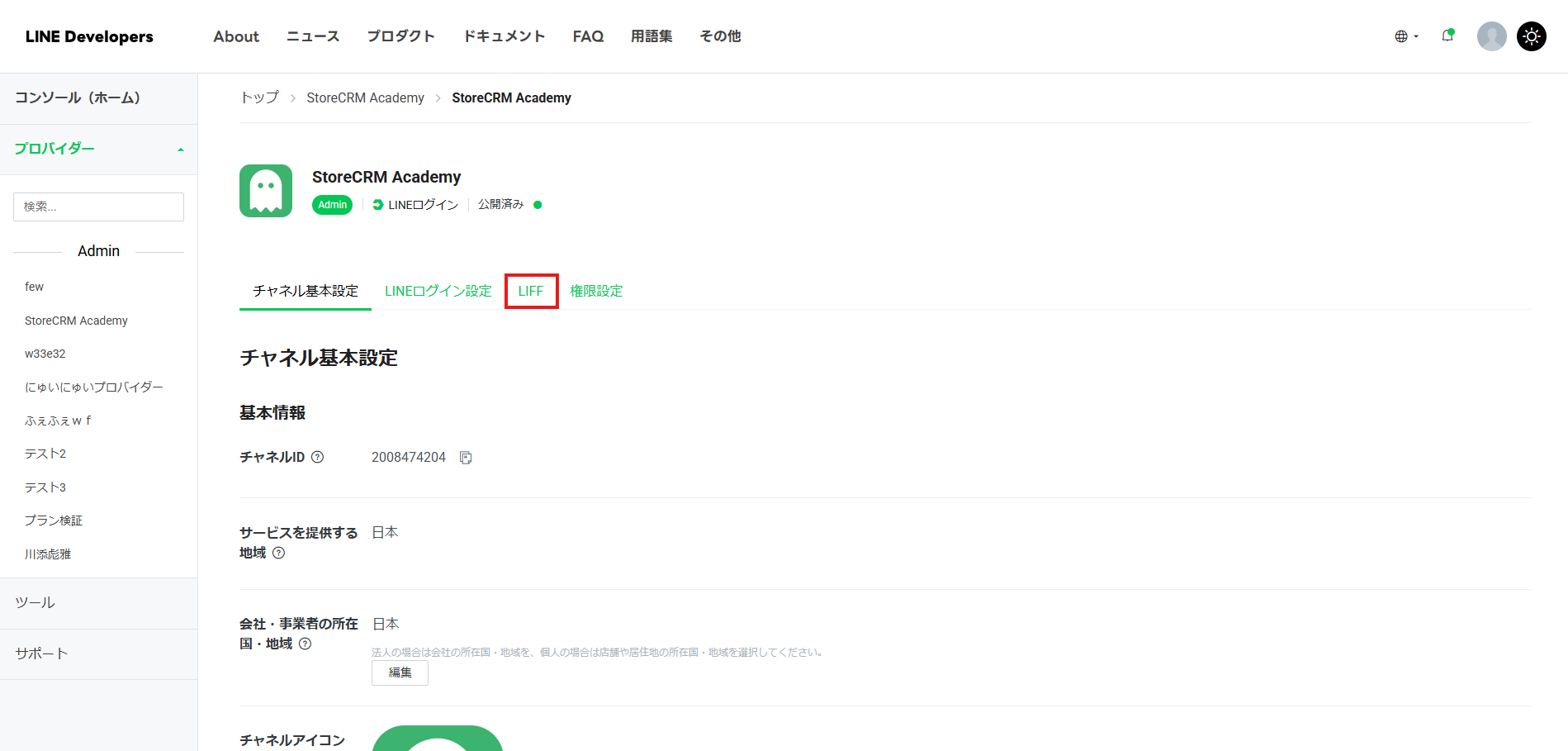](https://storecrm.com/wp-content/uploads/2026/04/スクリーンショット-2026-04-08-181810.png)
**Select the \[LIFF\] tab.**
[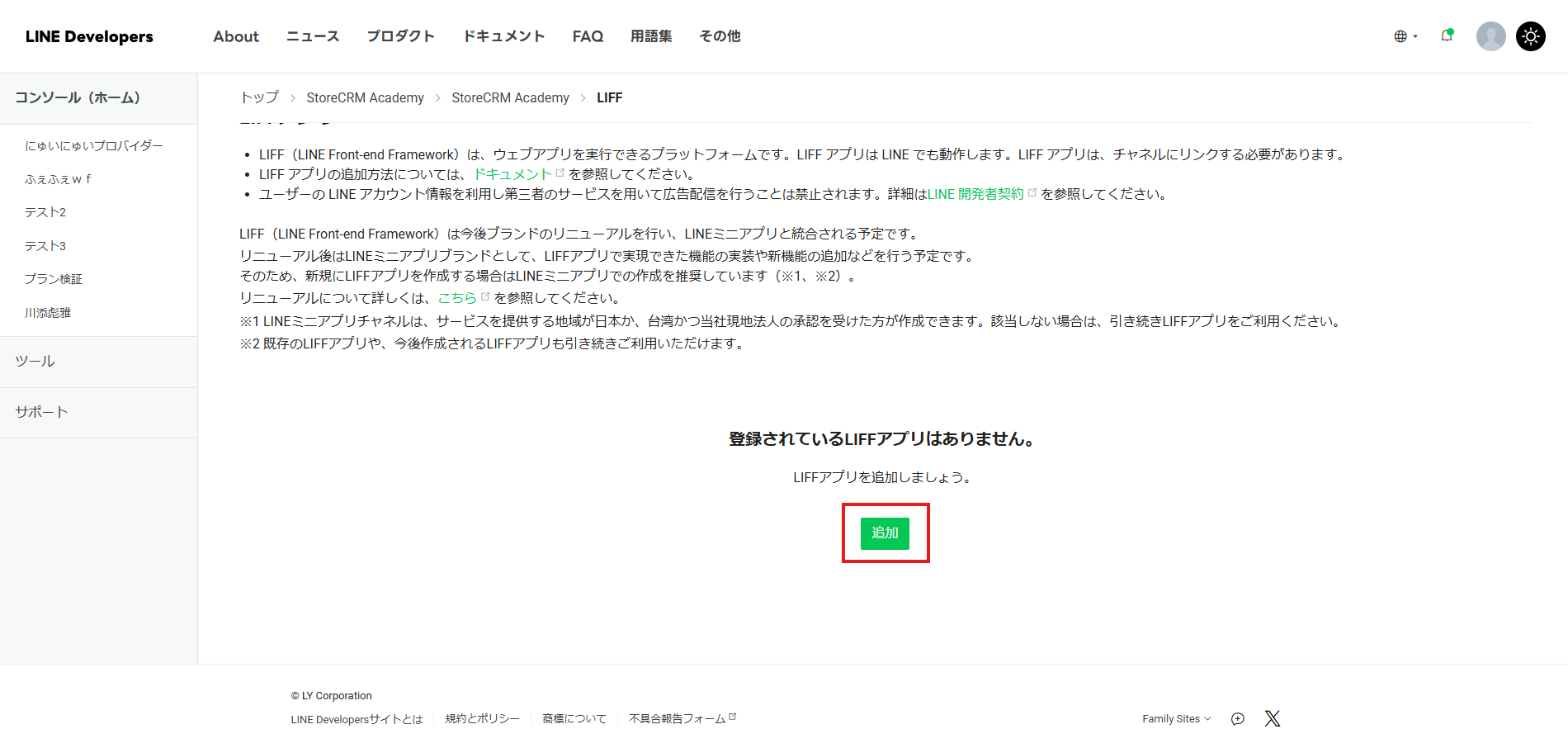](https://storecrm.com/wp-content/uploads/2026/04/スクリーンショット-2026-04-08-181827.png)
**Select \[Add\].**
[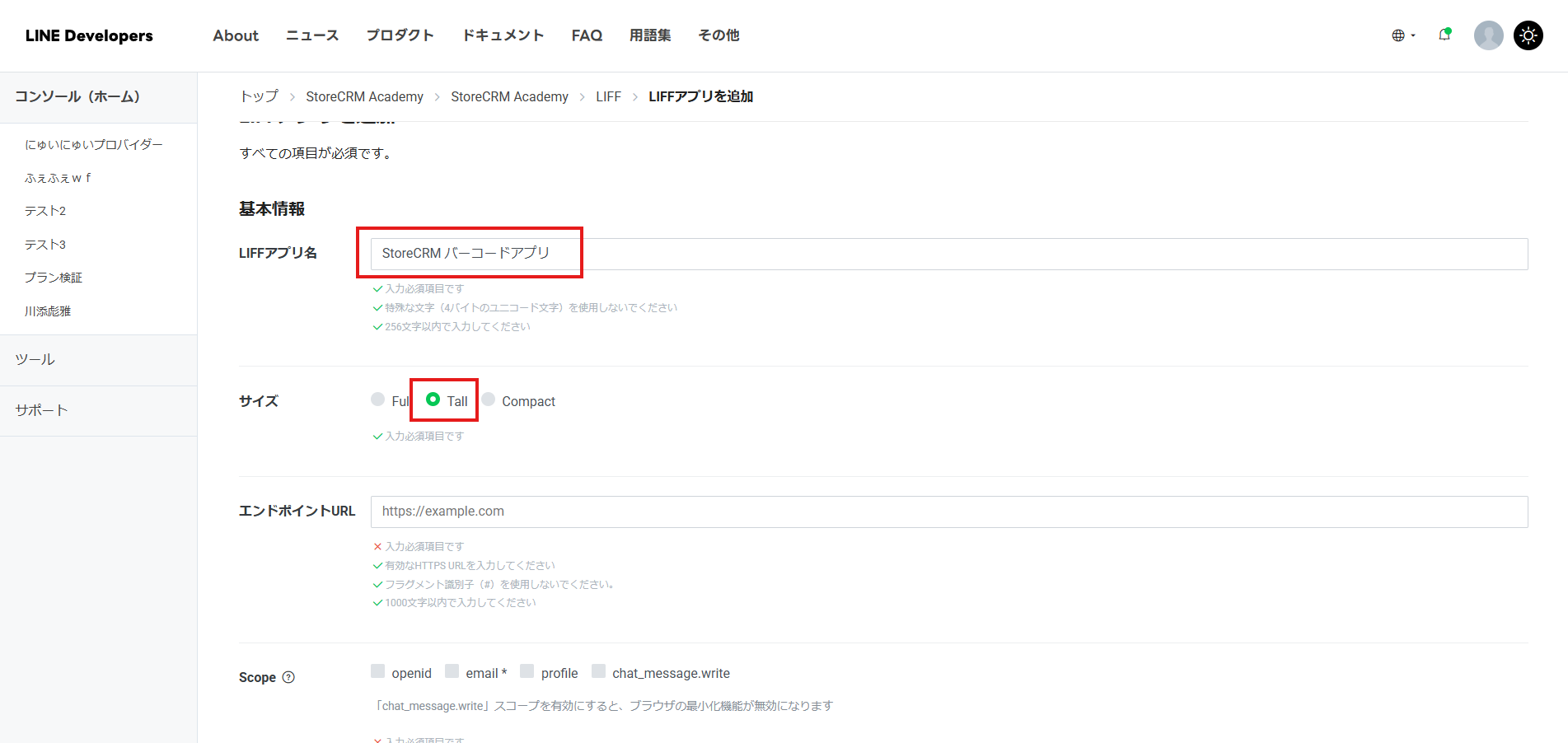](https://storecrm.com/wp-content/uploads/2026/04/スクリーンショット-2026-04-08-181909.png)
**Enter a \[LIFF app name\]. Any name will do.
\[Size\] controls how much of the screen the membership card occupies; unless you have a preference, we recommend Tall,
so that the barcode scans easily.**
[](https://storecrm.com/wp-content/uploads/2026/04/スクリーンショット-2026-04-23-145208.png)
[](https://storecrm.com/wp-content/uploads/2026/04/スクリーンショット-2026-04-08-182016.png)
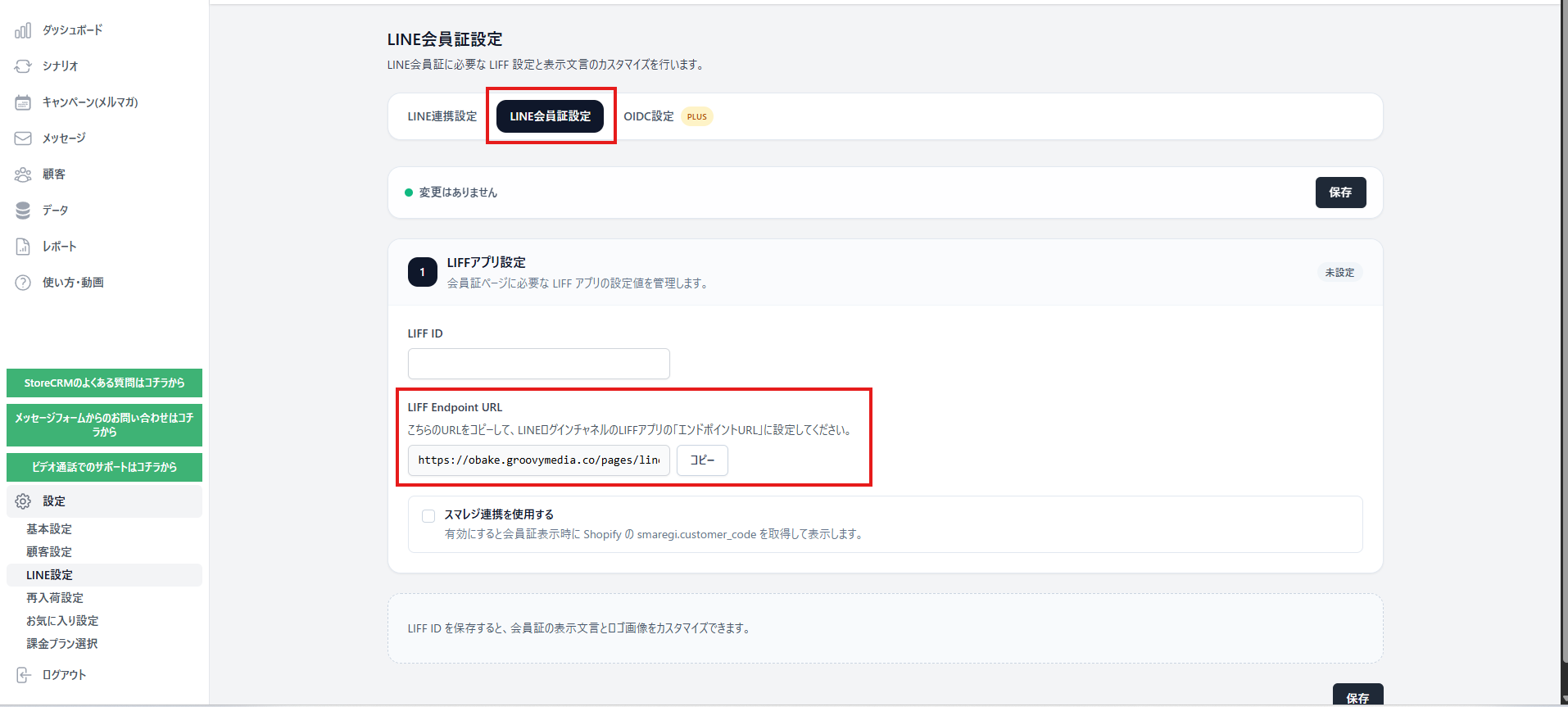
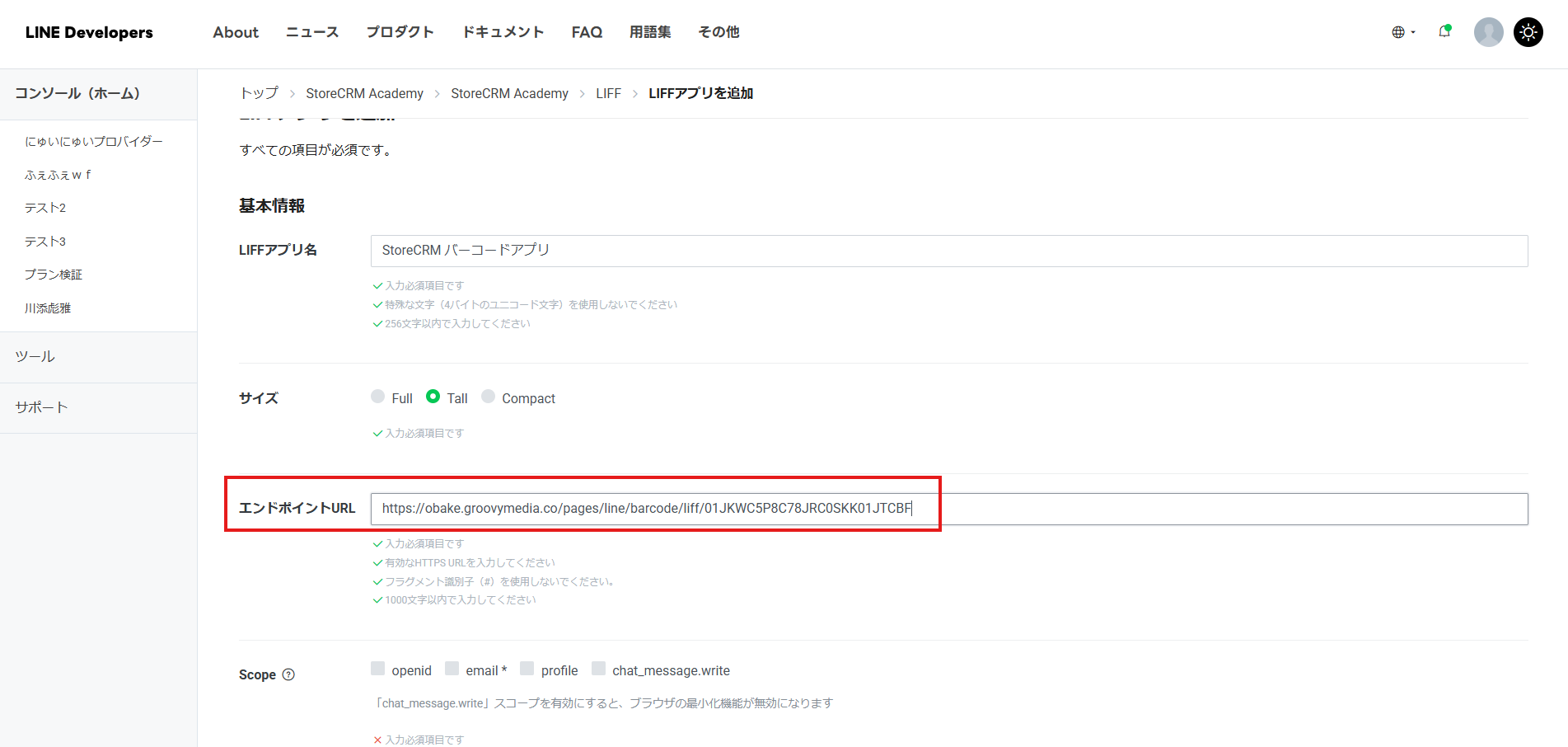
**In StoreCRM, go to \[Settings\] > \[LINE settings\] > \[LINE Login channel settings (for integration)\] and copy the \[LIFF Endpoint URL\] you find there.
Leave that screen open — you will need it again shortly.**
Paste the value into the \[Endpoint URL\] field on the LIFF app creation screen.
[](https://storecrm.com/wp-content/uploads/2026/04/スクリーンショット-2026-04-08-182150.png)
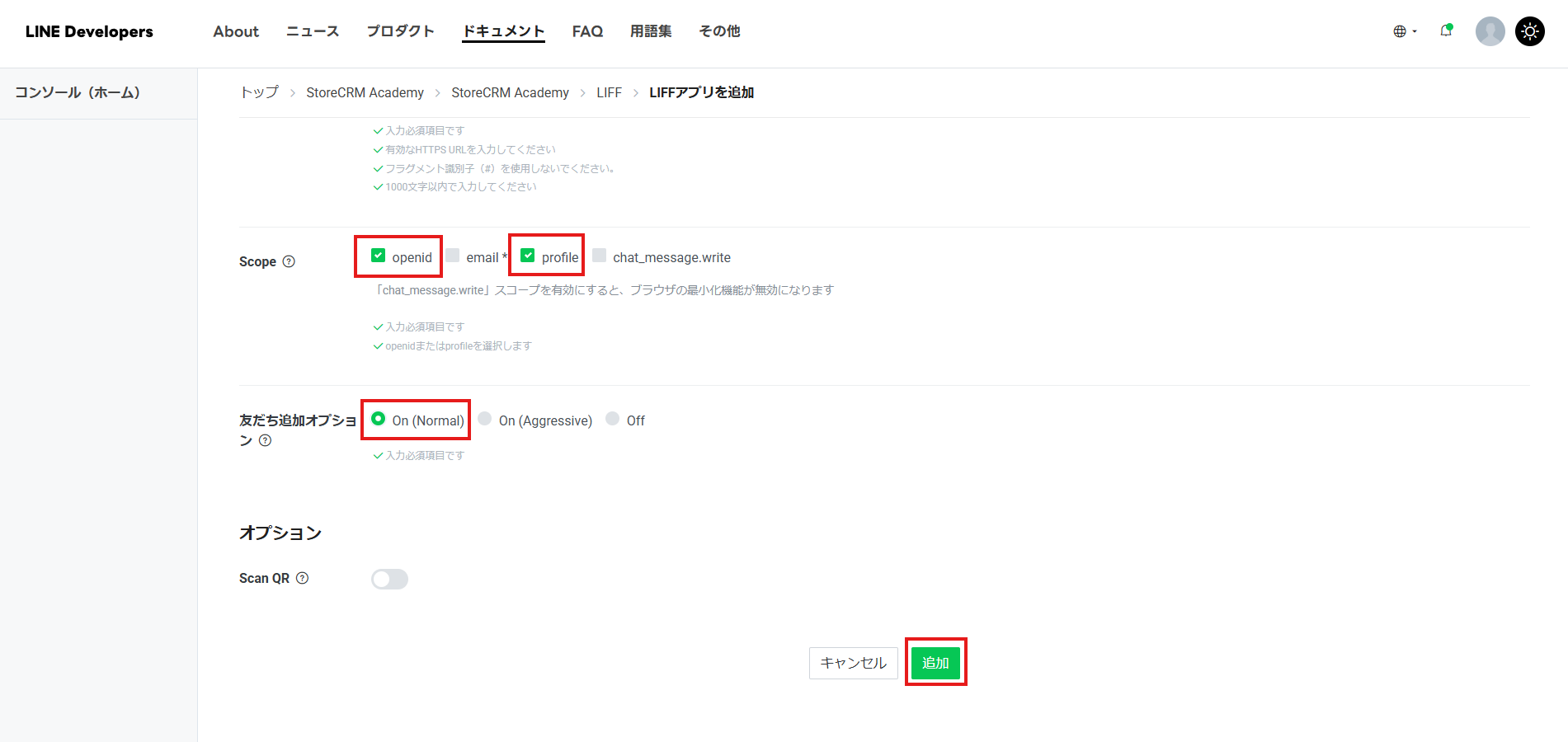
Tick openid and profile under \[Scope\]. \[Add friend option\] can be whatever you like. If you have no particular preference, set it to \[On (Normal)\].
Then press \[Add\] to create the LIFF app.
[](https://storecrm.com/wp-content/uploads/2026/04/スクリーンショット-2026-04-08-182214.png)
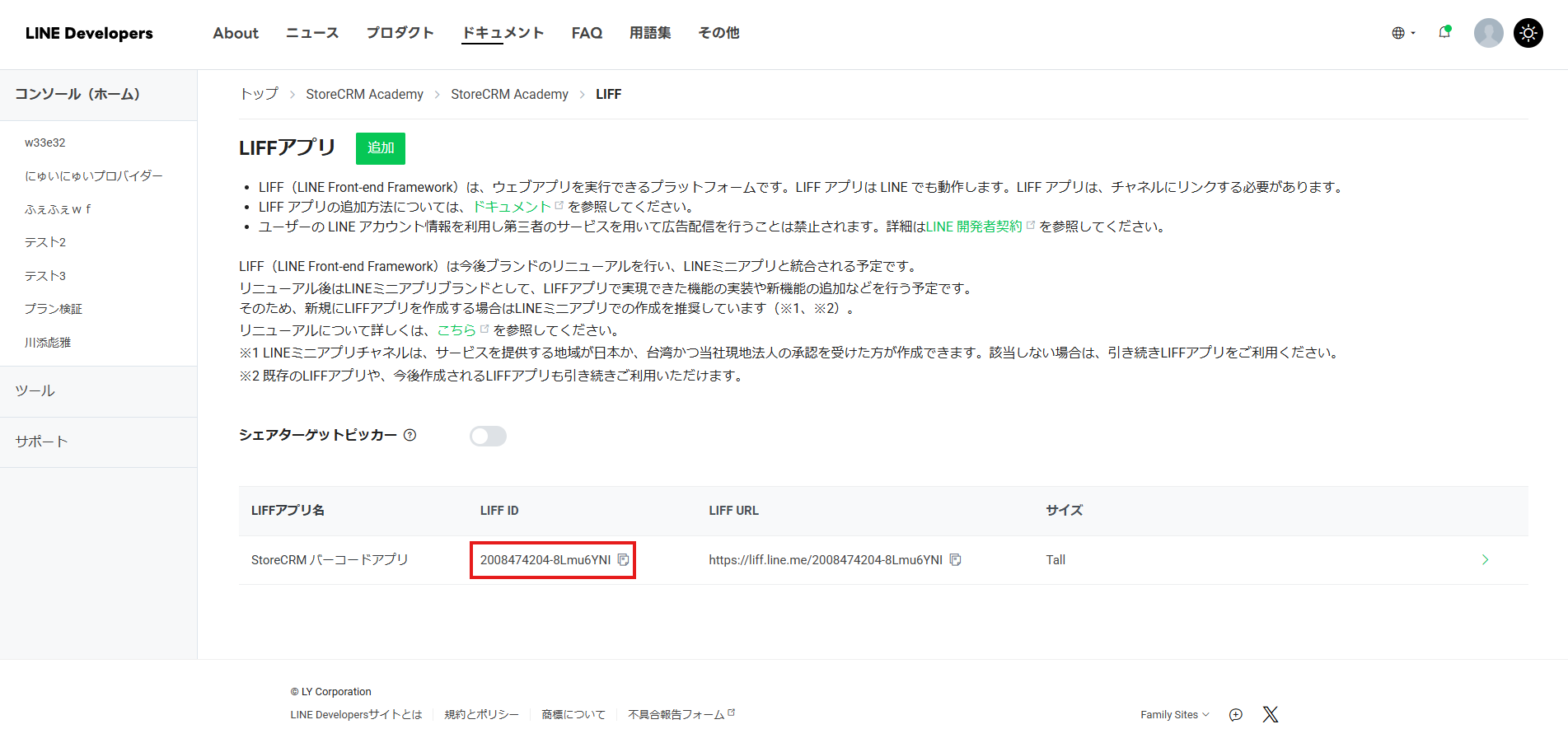
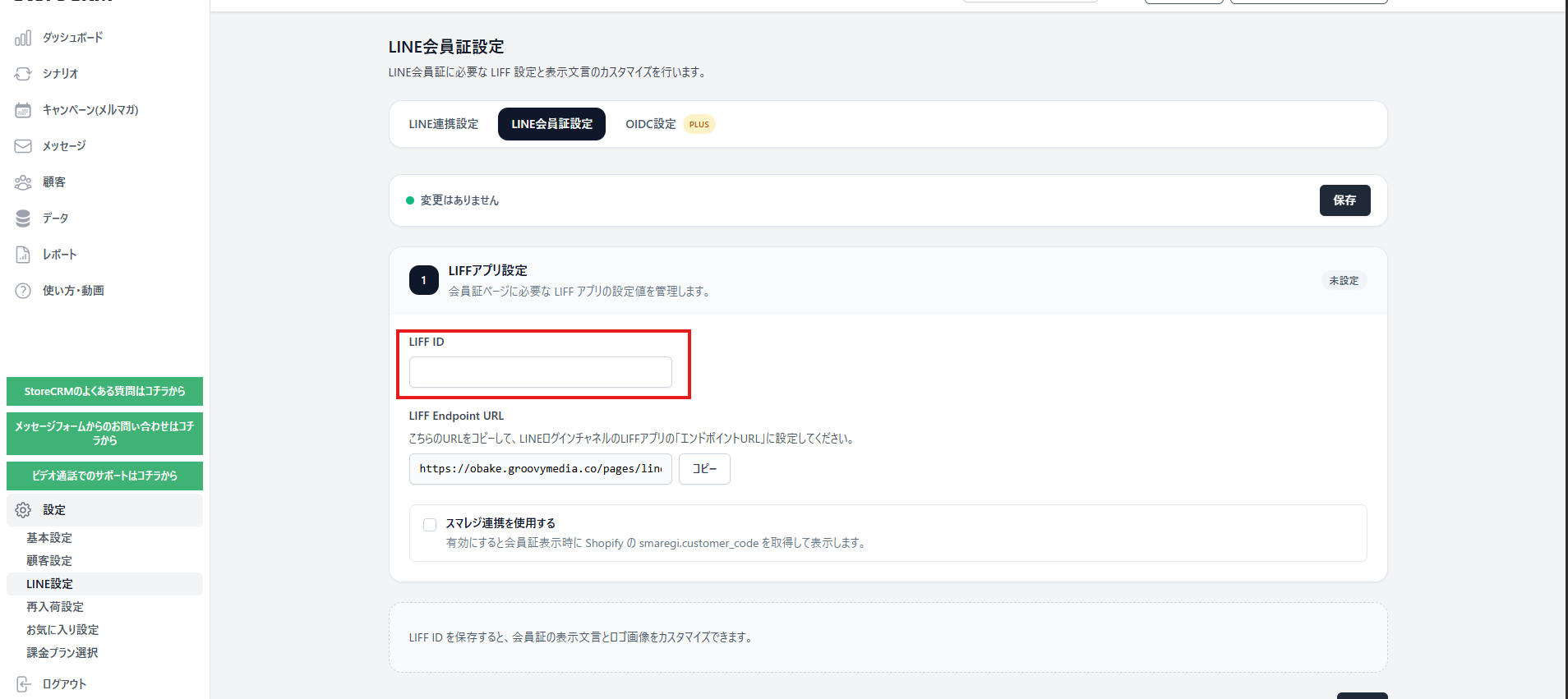
**The app appears in the LIFF app list; copy its \[LIFF ID\].**
[](https://storecrm.com/wp-content/uploads/2026/04/スクリーンショット-2026-04-23-145715.png)
**Back in StoreCRM, paste it into the \[LIFF ID\] field under \[Settings\] > \[LINE settings\] > \[LINE Login channel settings (for integration)\].**
**Remember to press \[Save\] afterwards.**
**That completes the LIFF setup. Next we will add the membership card to the rich menu.**
### Adding the membership card action to your rich menu
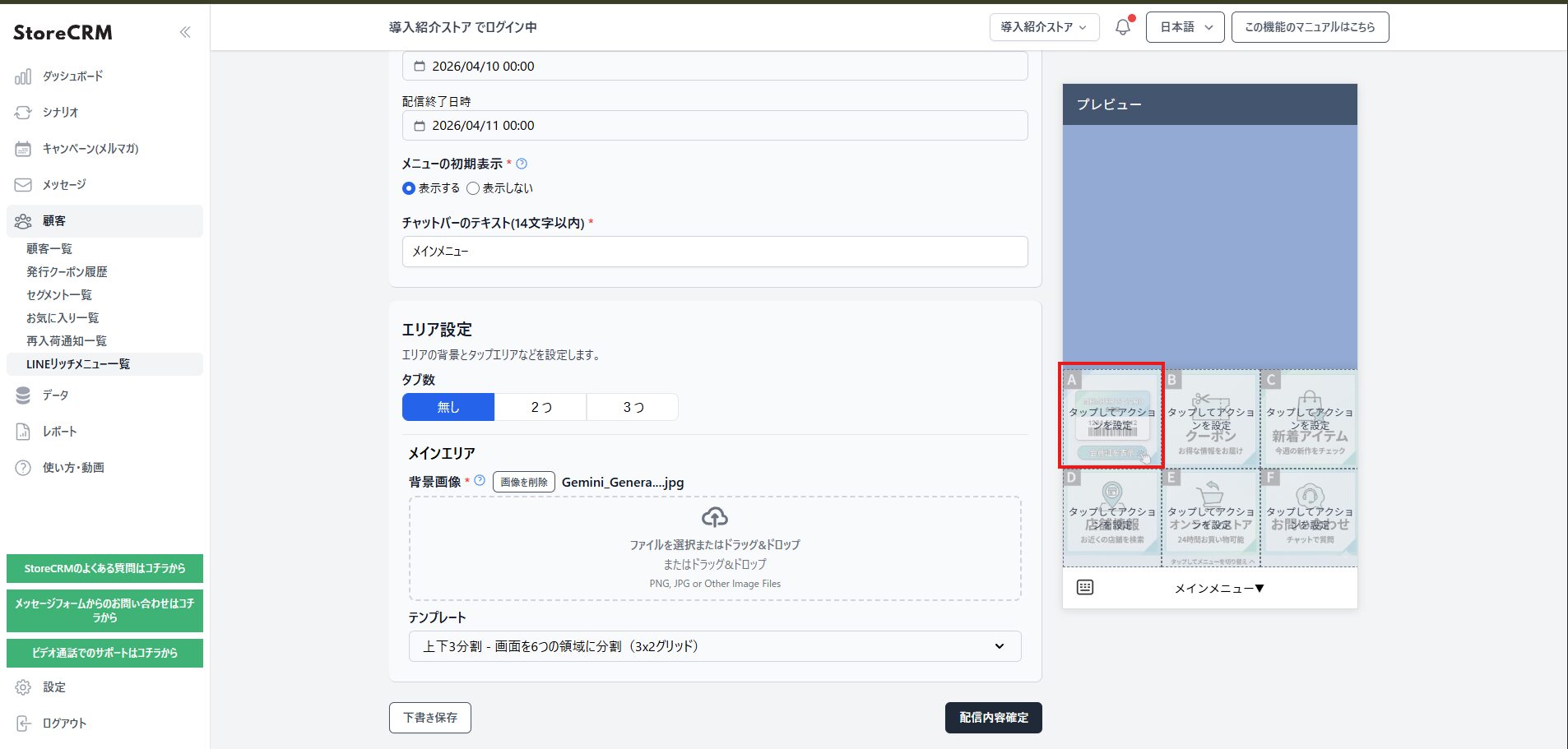
**Now add the membership card action to the rich menu you created in StoreCRM. If you have not set up a rich menu yet, follow the article below first.**
> [How to deliver a tabbed LINE rich menu from Shopify](https://storecrm.com/knowhow/line-lichmenu/)
[](https://storecrm.com/wp-content/uploads/2026/04/スクリーンショット-2026-04-10-165149.jpg)
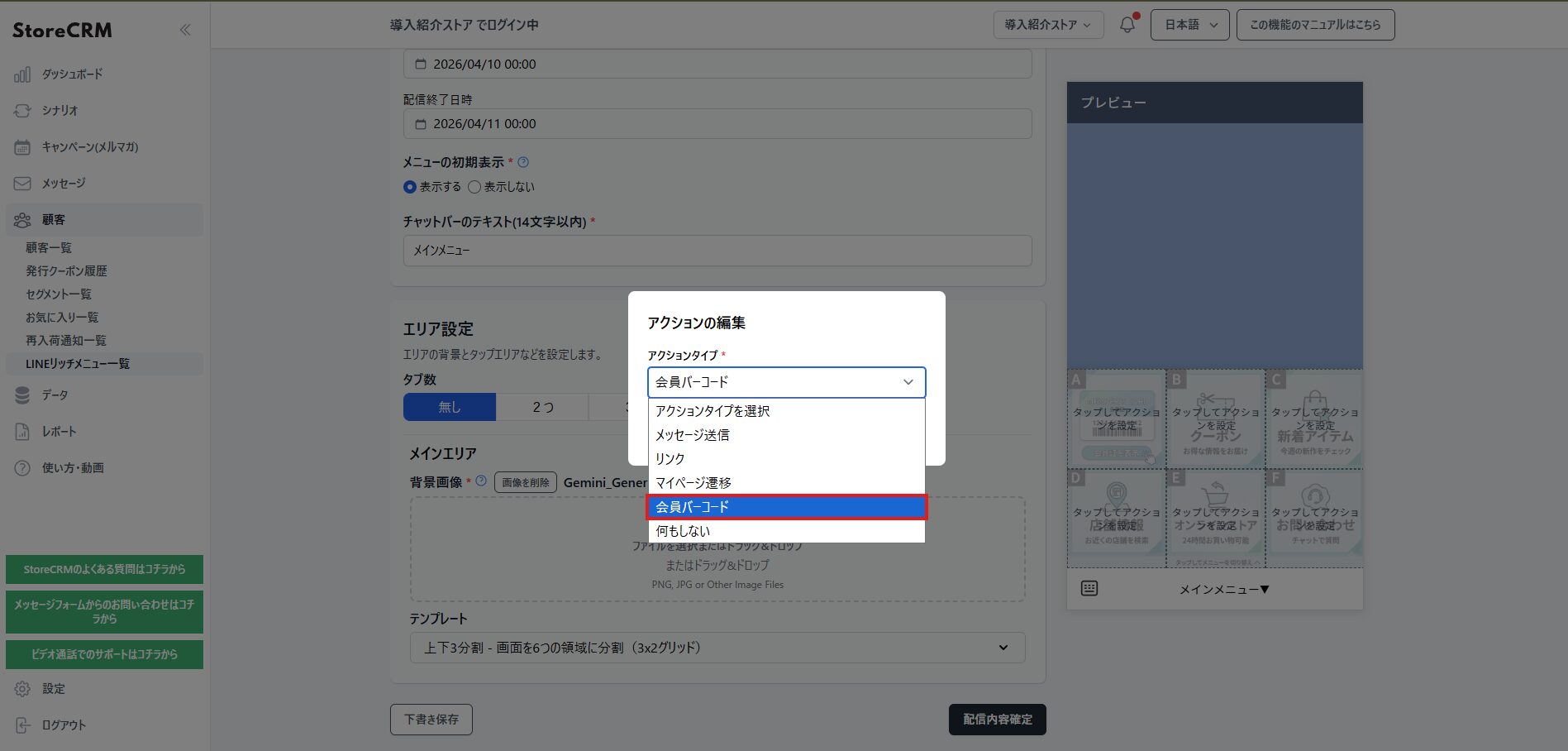
**The membership card is configured as an area action on the rich menu. Click the area where you want it.**
[](https://storecrm.com/wp-content/uploads/2026/04/スクリーンショット-2026-04-10-165236.jpg)
[](https://storecrm.com/wp-content/uploads/2026/04/スクリーンショット-2026-04-10-165300.jpg)
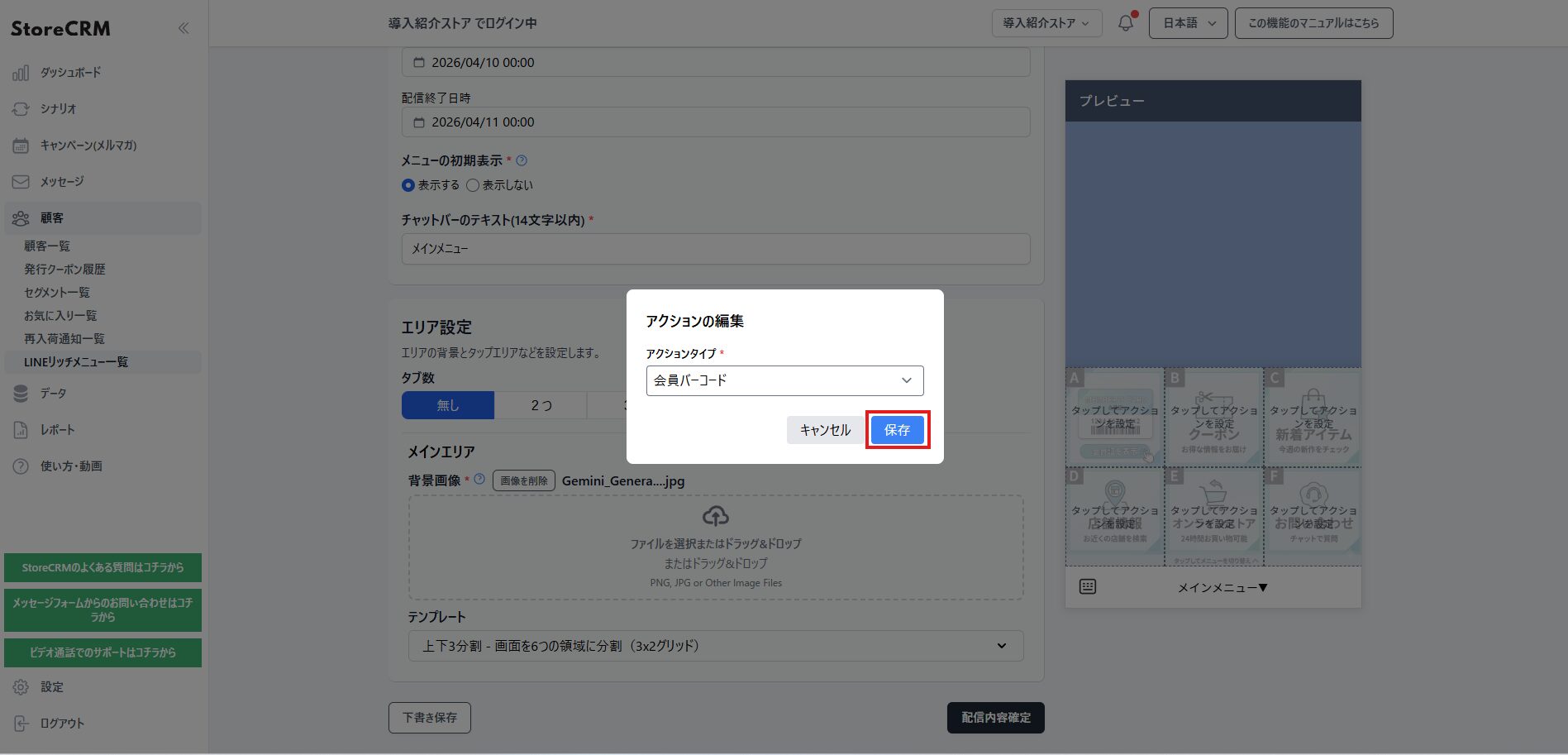
**Choose \[Membership barcode\] as the action type.**
[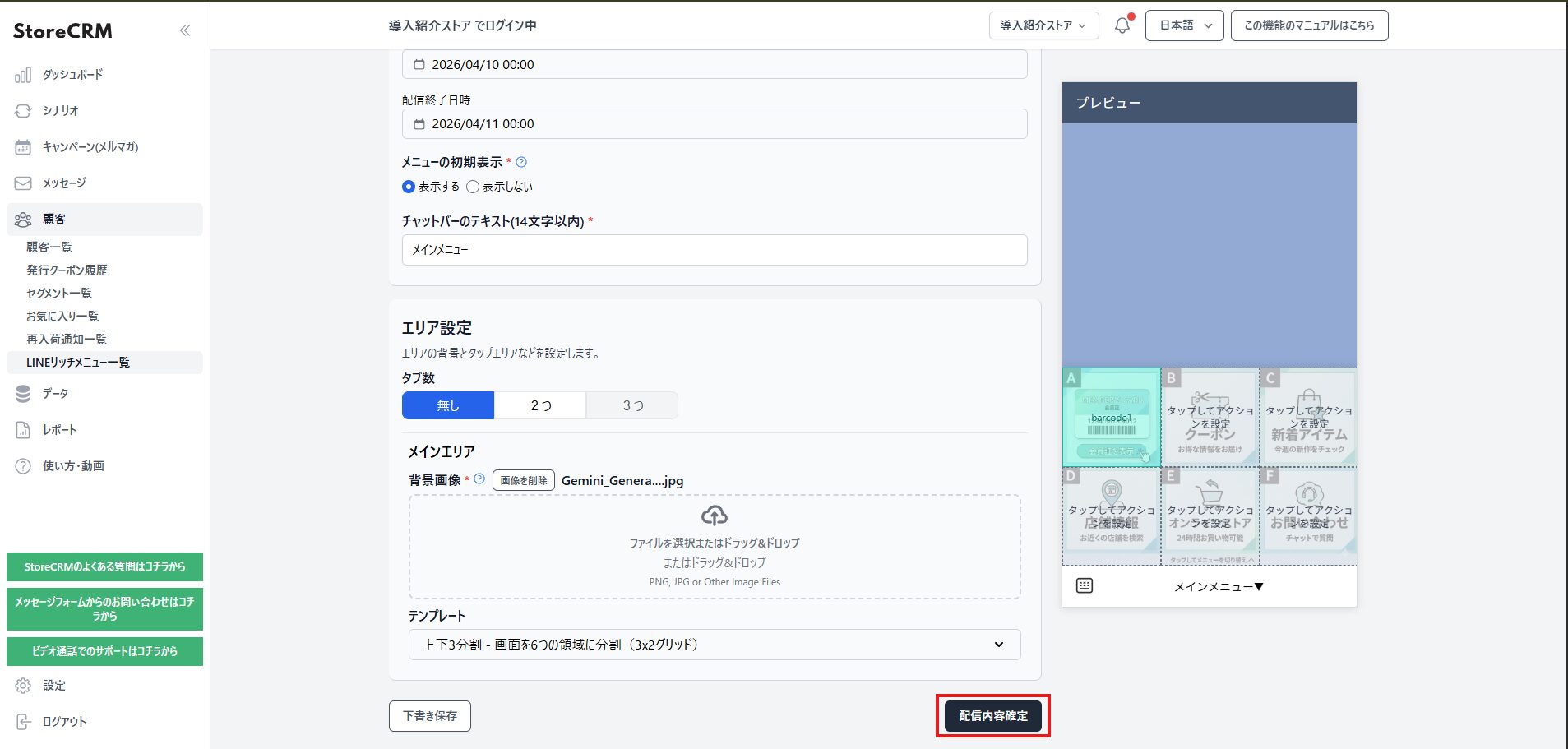](https://storecrm.com/wp-content/uploads/2026/04/スクリーンショット-2026-04-10-165714.jpg)
**That is the rich menu side done. Remember to save.**
[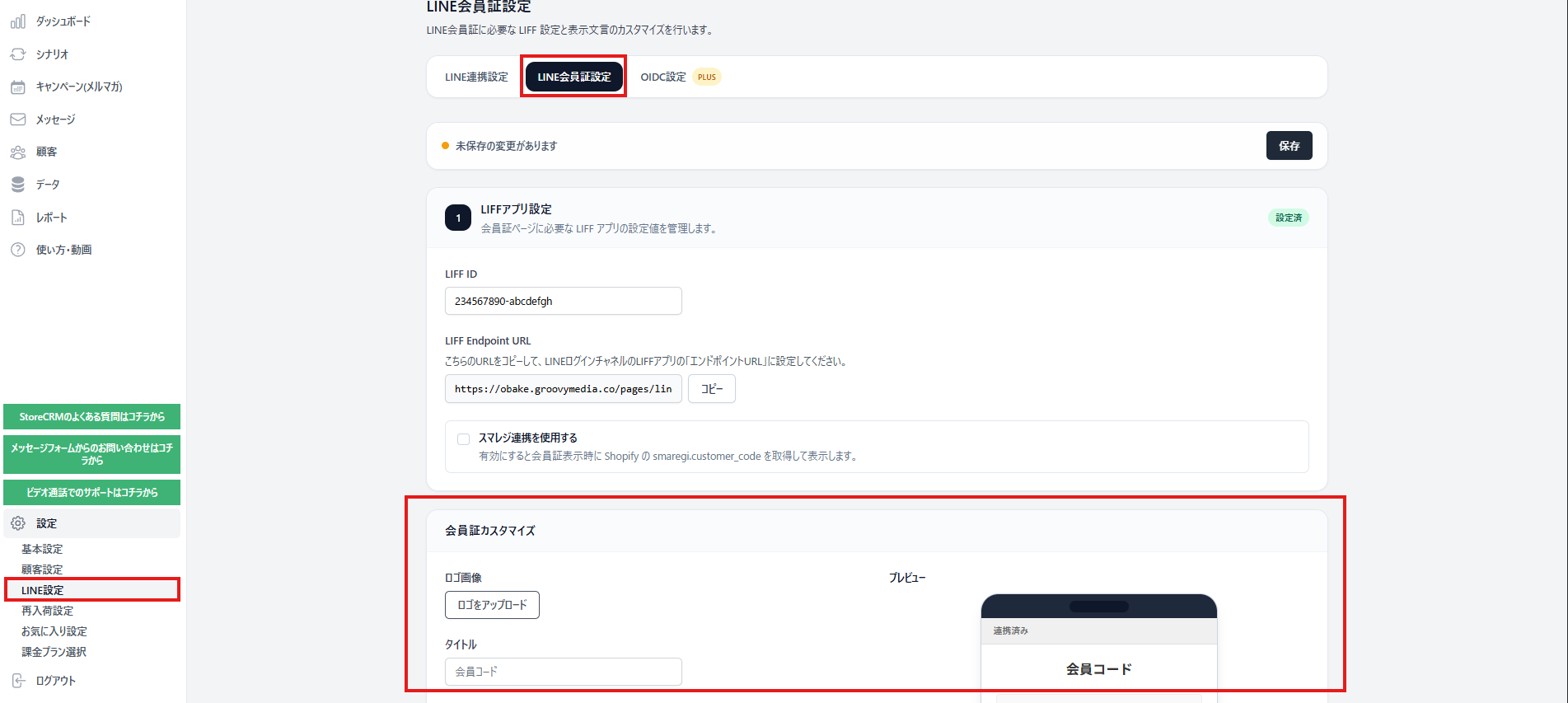](https://storecrm.com/wp-content/uploads/2026/04/スクリーンショット-2026-04-23-145921.png)
**At the bottom of \[Settings\] > \[LINE settings\] > \[LINE membership card settings\] you can customise how the card looks. You can add a logo and explanatory text, so design a card that fits your store.**
### Customising the design and copy of the LINE membership card
**Once the LIFF app is configured, you can customise the card's appearance and wording under Settings > LINE settings > LINE membership card settings in StoreCRM.**
**"Membership card customisation" covers the following.**
- **Logo image**
- **Card title**
- **Supporting text below the barcode**
- **Background colour, text colour and supporting text colour**
- **The message shown to customers who have not linked LINE**
- **The label on the button that prompts them to link**
- **The message and supporting text shown after linking**
- **The label on the button that reopens the card**
- **Background and text colours for the link and reopen buttons**
**The preview on the right shows the linked, unlinked and just-linked states. Matching the background and button colours to your brand makes the card feel like part of your store even inside LINE.**
**Customers who have not linked LINE see a message and a button prompting them to link instead of the card. Once they have signed up or logged in on your store and completed the link, the reopen button brings up the card.**
[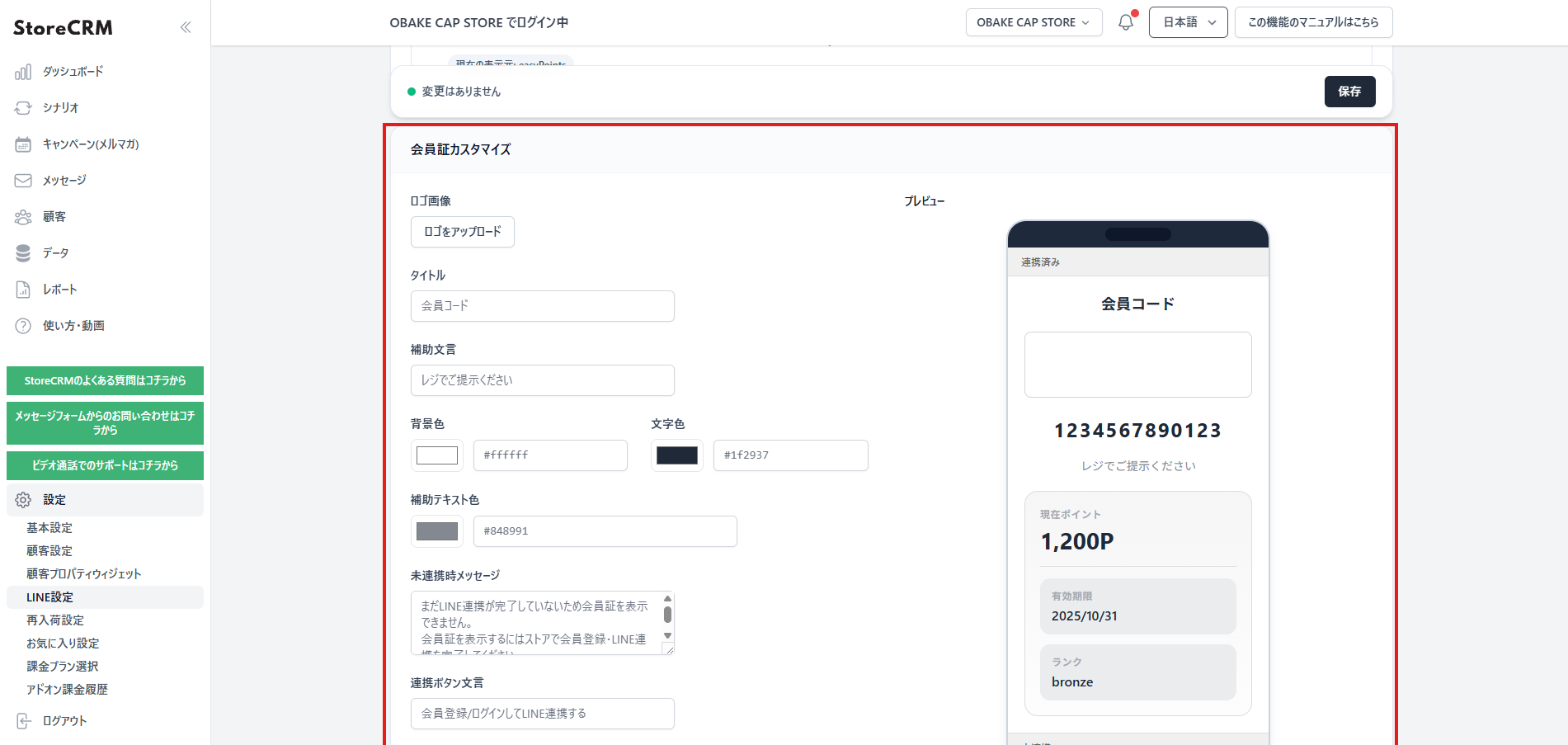](https://storecrm.com/wp-content/uploads/2026/04/image-8.png)
**After changing anything, press "Save" at the top or the bottom of the screen.**
### Showing easyPoints balances on the LINE membership card
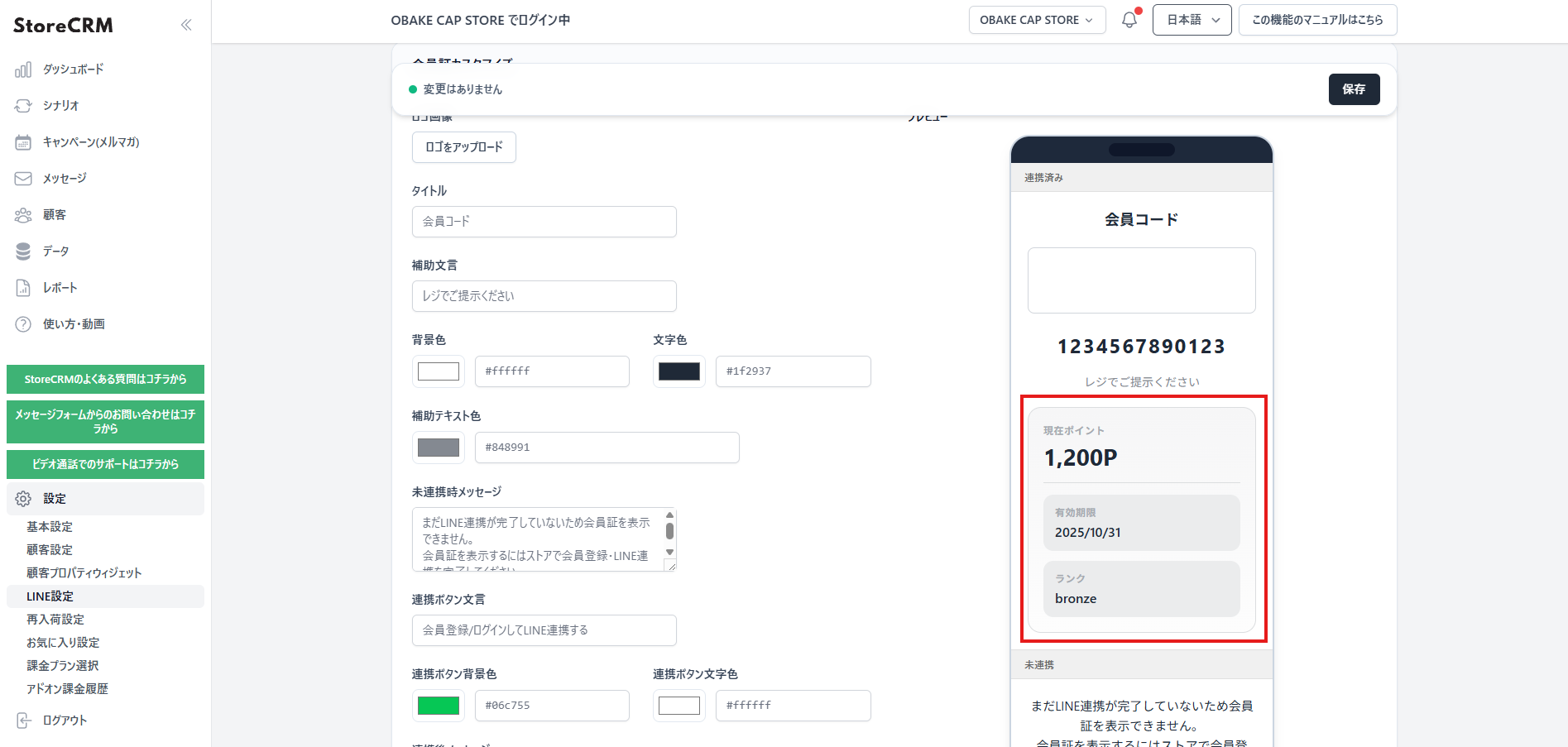
**If you use easyPoints, you can show point information on the card as well.**
**Open \[Settings\] > \[LINE settings\] > \[LINE membership card settings\], tick \[Show point information\] and save. The data currently comes from easyPoints.**
[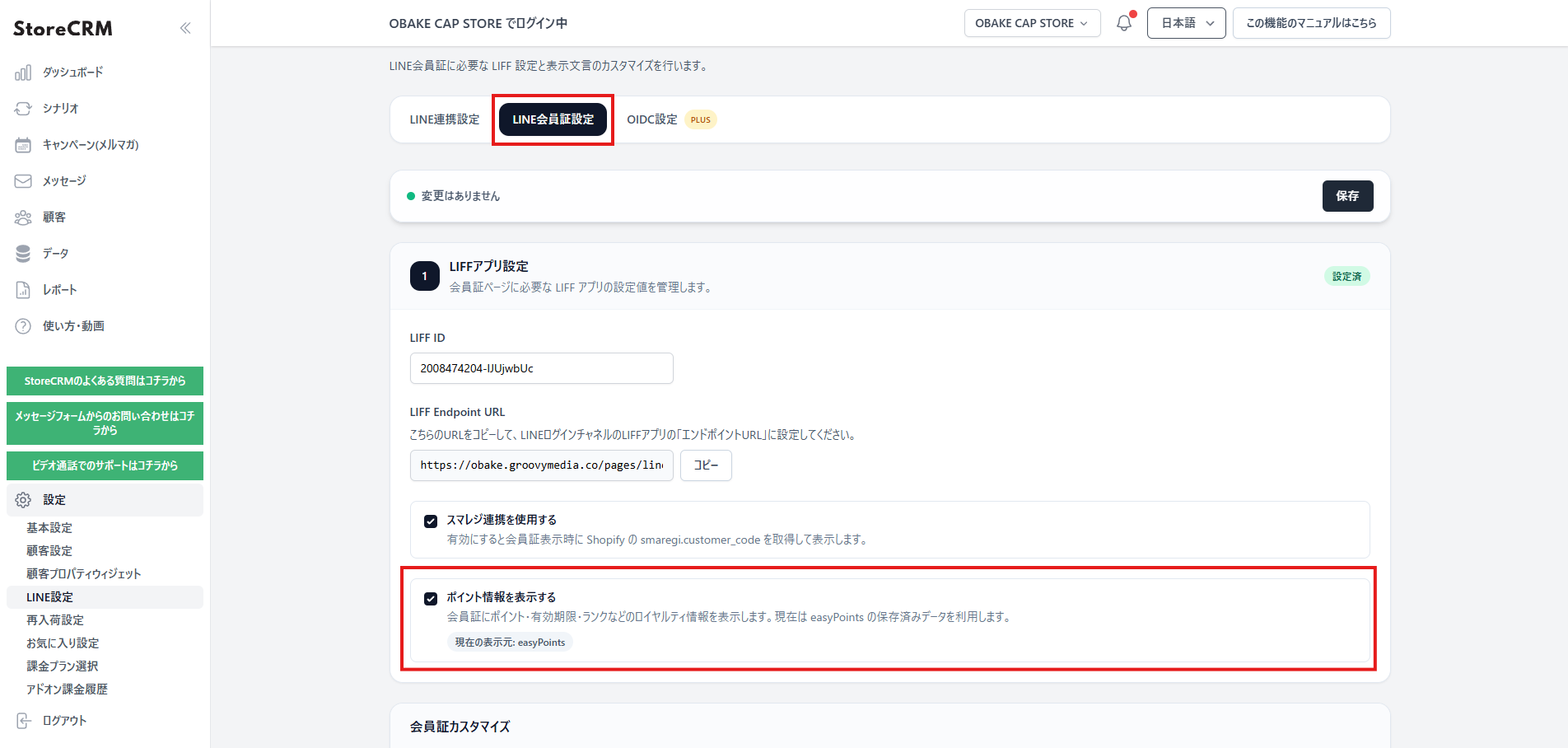](https://storecrm.com/wp-content/uploads/2026/04/スクリーンショット-2026-06-01-142645.png)
**With this enabled, a linked customer who opens their card sees the following below the barcode.**
- **Current points**
- **Point expiry date**
- **Rank**
**The point information comes from the easyPoints data stored in StoreCRM. Only the values that exist for that customer — balance, expiry or rank — are shown. Fields with no value are omitted, and if none of them is set, the point information panel itself does not appear.**
**Balances are shown in a readable format such as "1,200P", and expiry dates are shown as dates.**
[](https://storecrm.com/wp-content/uploads/2026/04/スクリーンショット-2026-06-01-142928.png)
**This is independent of the barcode itself, so even if the point lookup fails, the barcode still appears.**
### Connecting Smaregi (Smapify), for Smaregi and Smapify users
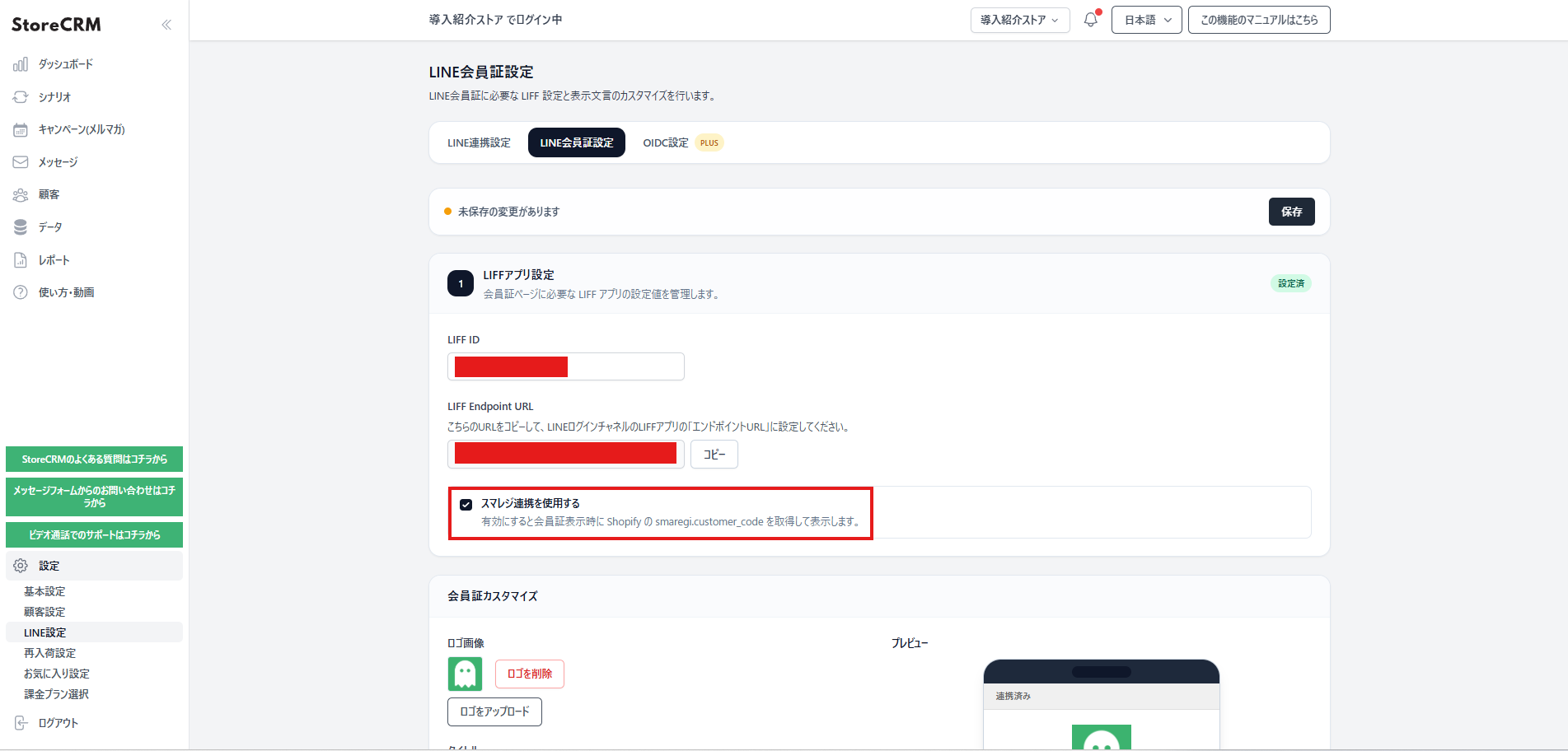
**If you use Smaregi and Smapify in your physical stores, you can use the Smaregi integration.
It displays the Smaregi membership number as the barcode,
and it also handles the case where the customer signed up on Shopify first.**
[](https://storecrm.com/wp-content/uploads/2026/04/スクリーンショット-2026-04-20-161935.png)
### Checking the membership card
[](https://storecrm.com/wp-content/uploads/2026/04/IMG_4446.png)
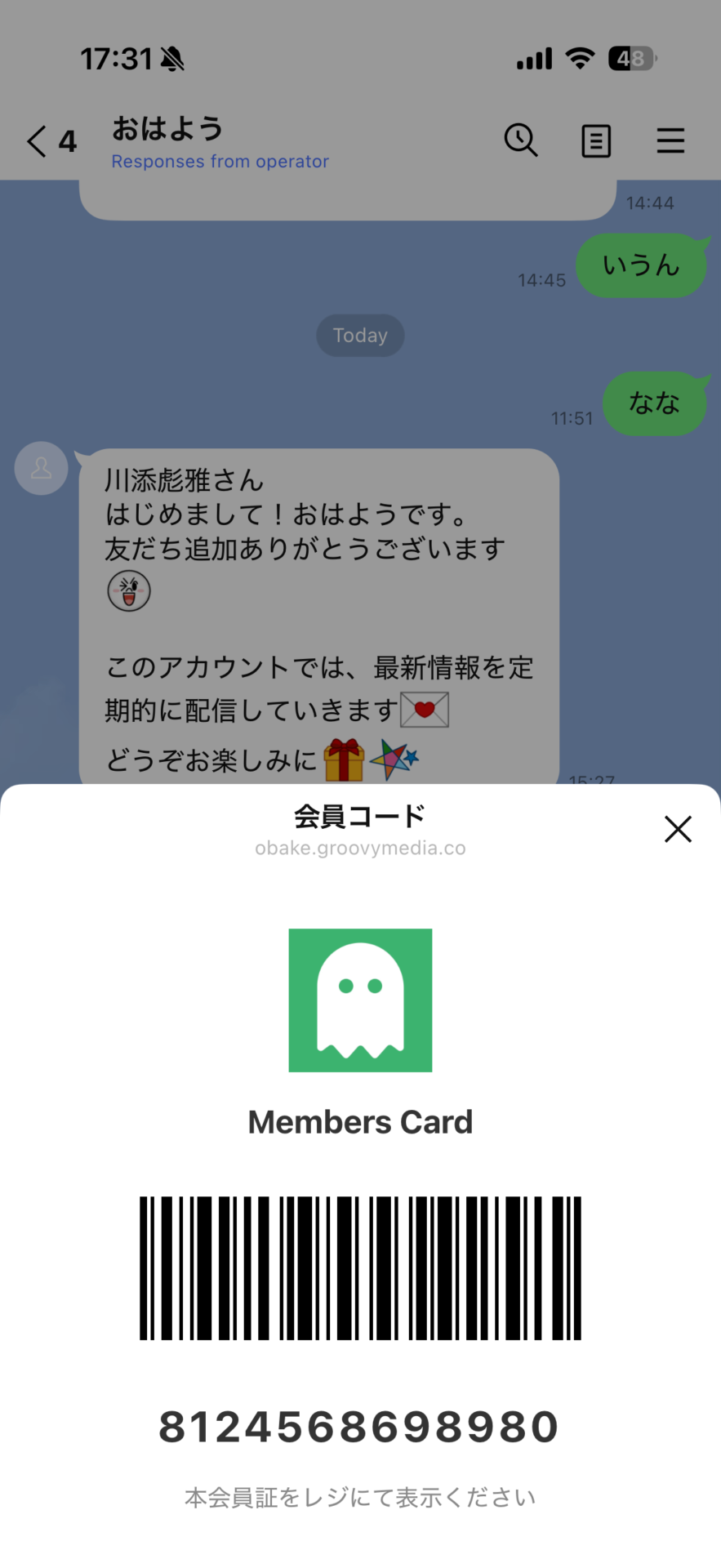
Open the LINE account that receives your rich menu, confirm that the membership card displays correctly, and the setup is complete. If the LINE account has not yet been linked to a Shopify account, a prompt to link appears instead; once linked, tapping again shows the card.
## Summary
With the LINE membership card set up, customers present their card from an app they already use every day, and your staff can verify membership far more quickly.
It creates a membership card people actually reach for. For any store looking to digitise its membership card and make more of LINE, it is an easy and genuinely practical feature to adopt.
========================================================================
# 6 Shopify signup customisation apps compared
> Customer tags applied automatically from what people answer, plus real-time integration with tools such as StoreCRM — removing manual work and letting your campaigns move far faster.
- URL: https://storecrm.com/knowhow/shopify-register-app/
- Type: Blog
- Published: 2026-04-08
- Updated: 2026-04-18
- Category: tips
- Tags: CRM, guides
- Author: StoreCRM
---
## Why customising signup matters now
Signing customers up is not about building a mailing list; it is the strategic entry point for maximising lifetime value. Whether you can design an experience that suits your business model, rather than accepting whatever the standard features give you, has a real bearing on how much customers trust your brand. This article goes beyond a feature comparison to offer a practical way of identifying the app your store actually needs. Let us start with where Shopify's standard features stand today.
## How far you can take Shopify signup without an app
Shopify has classic and new customer accounts. In the classic version, where you can edit Liquid (the templates behind the site), you can add fields — but the data ends up mixed into the customer note, which makes it hard to use. New customer accounts are more secure, requiring no password (they use a one-time code), but the form itself cannot be edited directly. To go beyond those limits, store data cleanly in metafields (the containers for your own information) and manage customers strategically, an app is essential.
## Related articles
[How to add a date-of-birth form to a Shopify signup page](https://storecrm.com/knowhow/birth-date-form/)
## Four main benefits of adding an app
#### Automation and efficiency
Customer tags applied automatically according to what someone answers, and real-time integration with external tools such as StoreCRM. Manual work disappears and your campaigns move dramatically faster.
#### Collecting zero-party data
Capture attributes such as birthdays and preferences and store them in metafields. Accurate data that customers provide themselves feeds your CRM and makes a personalised experience possible.
#### Gating content
Show products, pages or special prices only to particular members, creating a sense of exclusivity. Early access to limited products and other loyalty-building tactics are controlled by the system.
#### More sophisticated B2B and wholesale operations
An approval workflow means accounts are only issued to businesses an administrator has vetted. Protecting wholesale prices and running a closed site for particular customers becomes straightforward.
## Six Shopify signup apps
### AL CustomerMetaSync (new customer accounts signup form)
[](https://storecrm.com/wp-content/uploads/2026/04/Screenshot-2026-04-08-at-21.23.03.jpg)
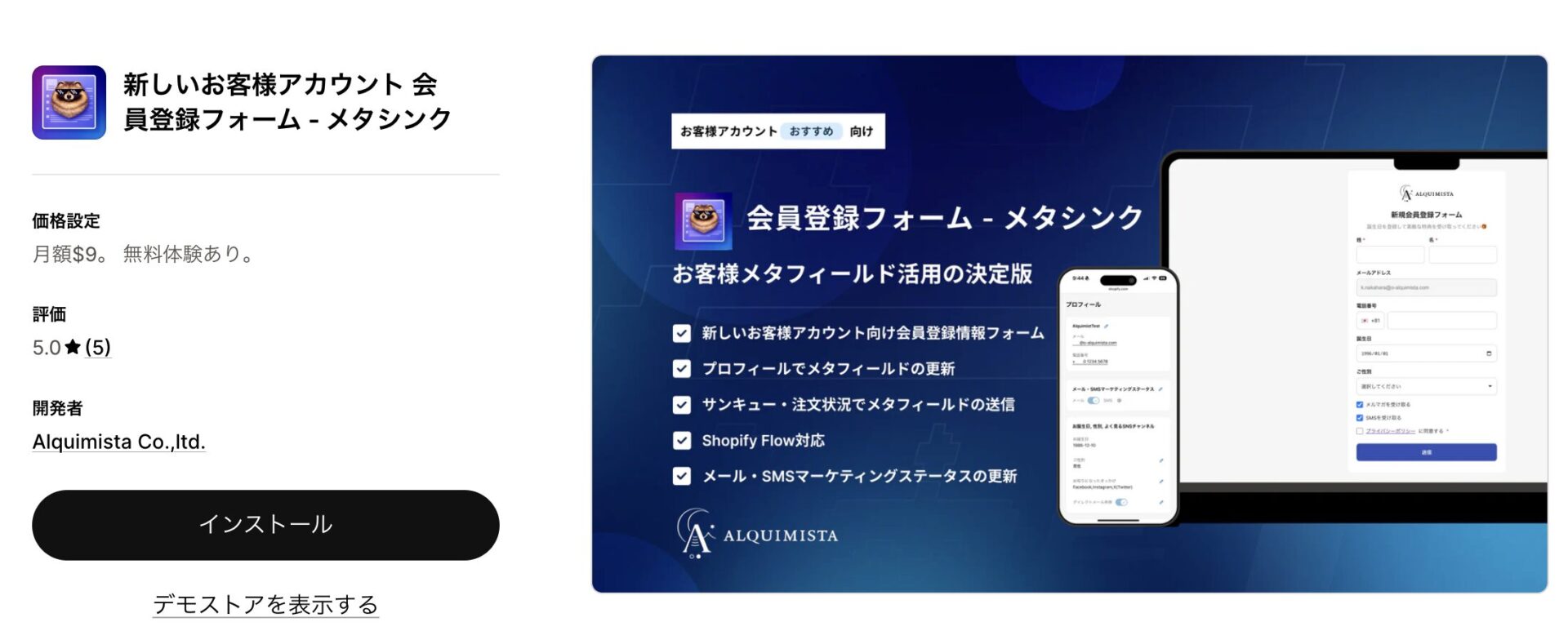
The best answer for Japanese companies that want to collect as much data as possible within the constraints of the new customer accounts Shopify recommends. It is built in Japan, and the fact that it can capture attributes not only immediately after login but on the thank-you page — where enthusiasm is highest, right after a purchase — is extremely useful in practice.
The data it collects syncs straight into Shopify metafields, and automatic tagging via Shopify Flow is easy. It supports app embeds in current themes, so it installs with no code.
[Install the app](https://apps.shopify.com/al-customermetasync?locale=ja)
### Helium Customer Fields
[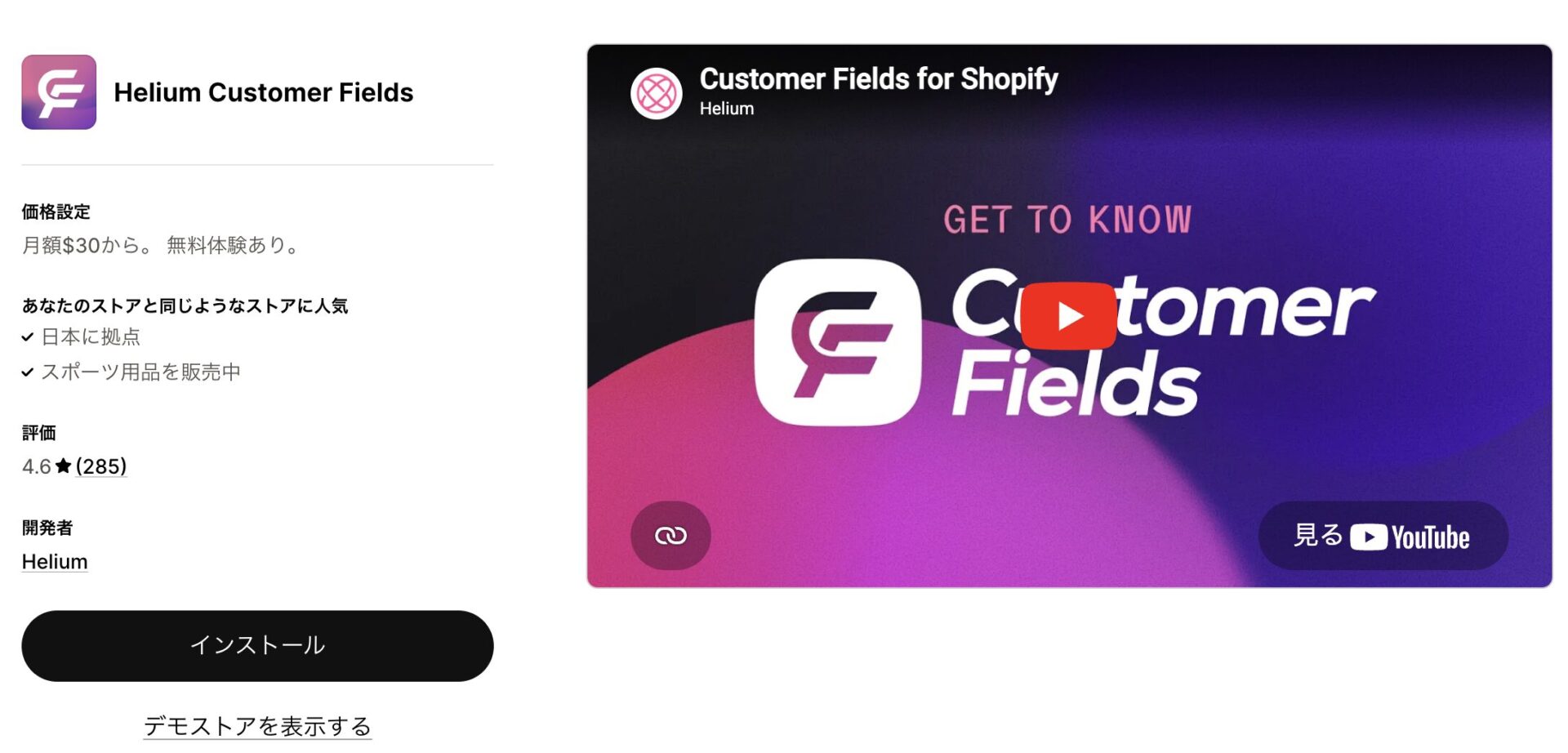](https://storecrm.com/wp-content/uploads/2026/04/Screenshot-2026-04-08-at-21.24.22.jpg)
An advanced form builder, and the right choice if you want to treat the data you collect as an asset and use it in other tools. Its defining feature is that data is saved directly to Shopify's own customer metafields rather than to a proprietary database, which makes integrating with other apps far easier.
Approval workflows are available, but they require a plan of $60 a month or more, so on cost it is worth comparing against Talon below. Its breadth suits data-driven D2C brands.
[Install the app](https://apps.shopify.com/customr?locale=ja)
### Bold Memberships
[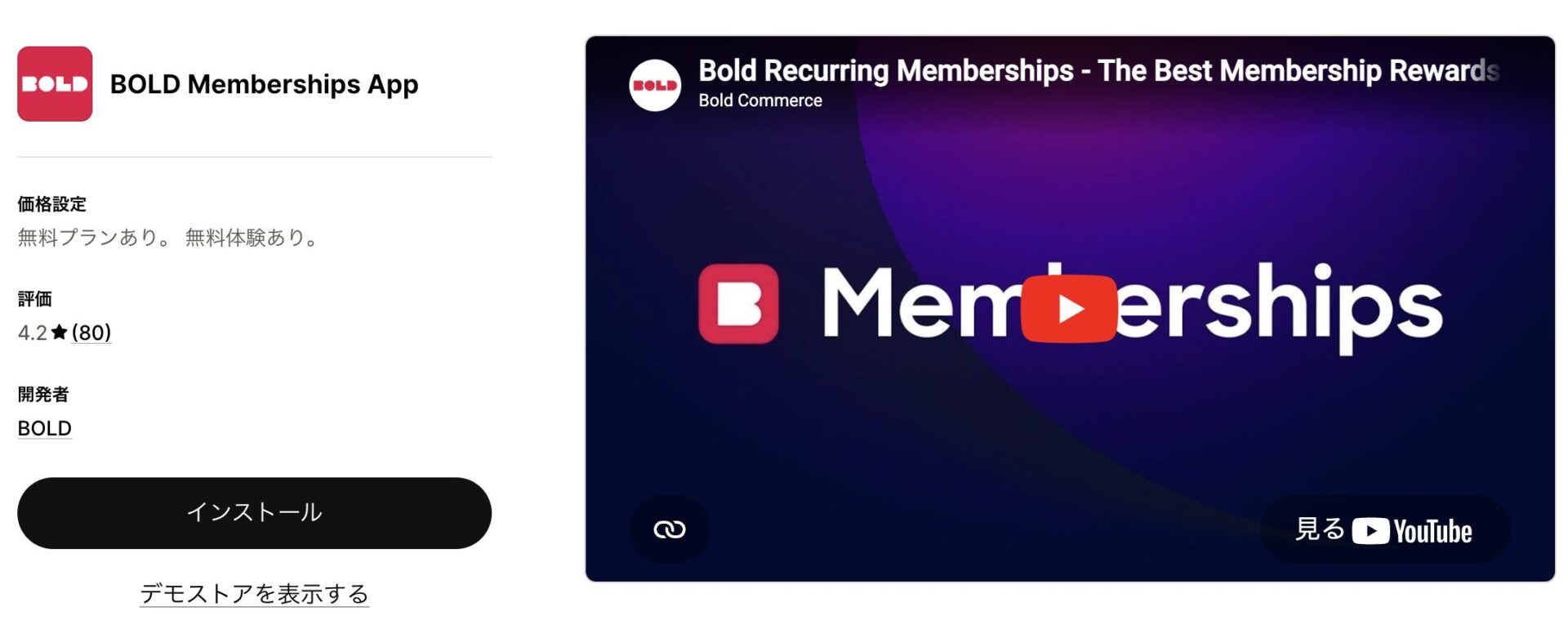](https://storecrm.com/wp-content/uploads/2026/04/Screenshot-2026-04-08-at-21.25.29.jpg)
A long-established app for controlling exactly what is shown and hidden, at the code level. Its gating is powerful — you can change the menu itself per membership tier — but there is one serious operational caveat.
Payment goes directly through Stripe rather than Shopify, which means membership revenue does not appear in the Shopify orders admin. Beginners, for whom that makes administration messy, should avoid it; it suits intermediate and advanced users who can live with payments sitting outside Shopify.
[Install the app](https://apps.shopify.com/pre-order-pro?locale=ja)
### Talon: Advanced Registration
[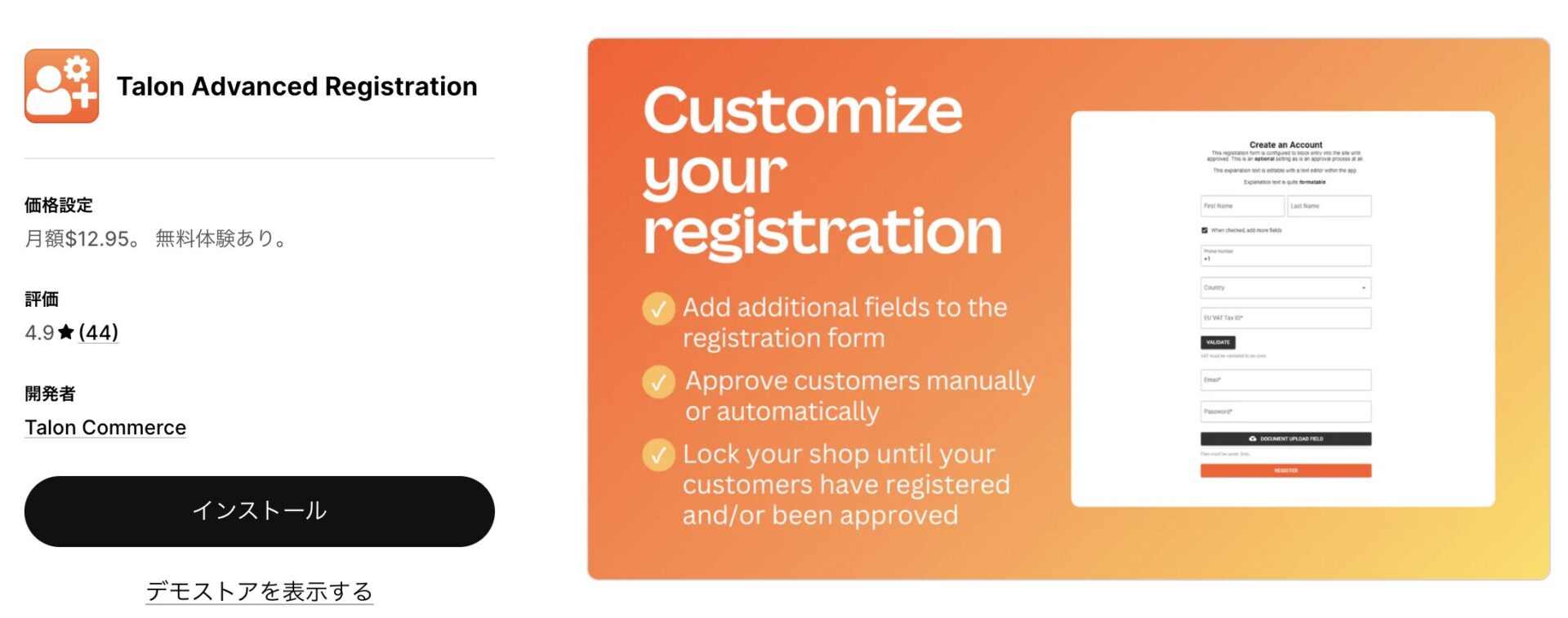](https://storecrm.com/wp-content/uploads/2026/04/Screenshot-2026-04-08-at-21.26.16.jpg)
For B2B and wholesale, Talon provides strict gatekeeping — no account is created until the application is approved — at low cost. The approval feature that costs $60 a month or more with Helium is available here for a flat $12.95 a month, which is outstanding value. It also supports file upload, so collecting trading licences is straightforward. Support from the developer is thorough, which goes a long way towards easing any concern about adopting an app built abroad.
[Install the app](https://apps.shopify.com/advanced-registration?locale=ja)
### Simplee Memberships & Loyalty
[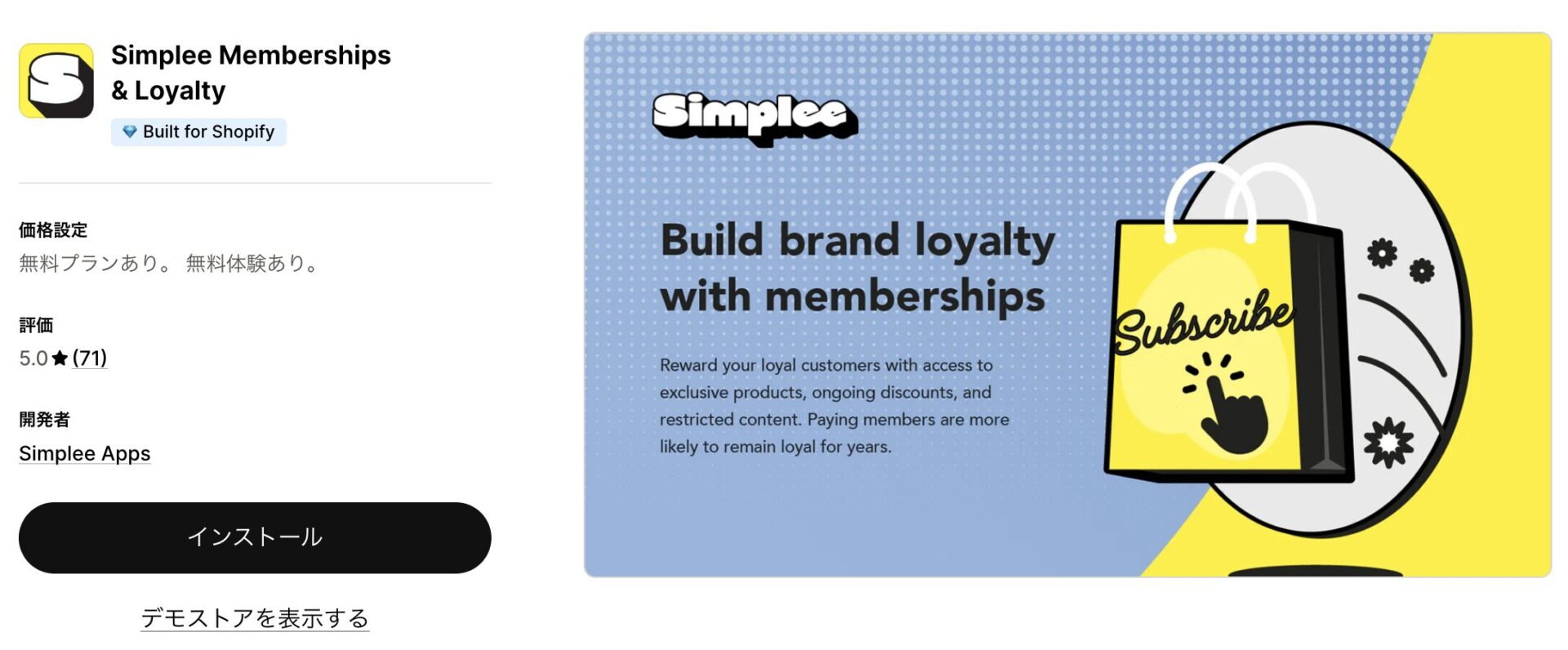](https://storecrm.com/wp-content/uploads/2026/04/Screenshot-2026-04-08-at-21.27.16.jpg)
Fully integrated with Shopify Payments, Simplee offers the best checkout experience of the group. Where most apps take a transaction fee, it charges 0%, which makes a substantial difference to margin when membership fees are high. Its greatest strength is omnichannel support through Shopify POS: an online member's benefits apply immediately at the till in a physical store. Support is fast and well regarded, making this the first choice for any business with physical stores.
[Install the app](https://apps.shopify.com/simplee-memberships?locale=ja)
### Conjured Memberships
[](https://storecrm.com/wp-content/uploads/2026/04/Screenshot-2026-04-08-at-21.28.19.jpg)
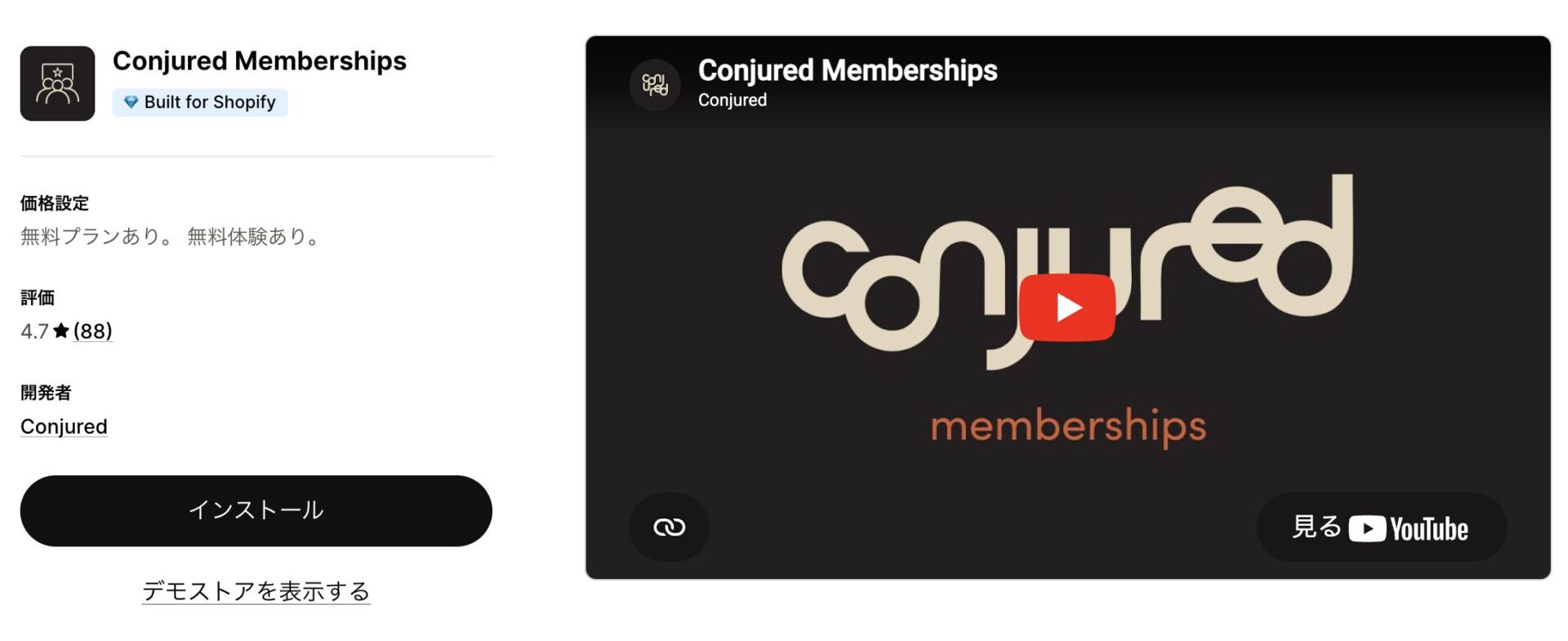
A loyalty-focused app that combines free shipping and digital perks, Amazon Prime style, to maximise repeat rates. You can create unlimited membership tiers and build complex workflows, such as automatically sending a gift per tier. It works well with Klaviyo and Shopify Flow, so automated emails based on membership status take no code at all. For a brand looking to build recurring revenue that does not depend on shifting product, it is a powerful ally.
[Install the app](https://apps.shopify.com/membership-program?locale=ja)
## What to watch out for in Japan, and how to compare apps
When you evaluate an app built abroad, work through this practical checklist.
- **Front-end localisation:** can the copy customers see — form labels, buttons — be changed into Japanese?
- **Fit with Japanese commercial practice:** can it capture the name in kana? This is essential for integration with delivery systems in Japan.
- **Reliability of support:** despite the time difference, will the developer go as far as resolving conflicts with your theme?
- **Total cost:** calculate not just the fixed monthly fee but any usage-based charges as your membership grows, and any transaction fees.
## Summary
Customising signup on Shopify is not about adding fields; it is the design of how you engage with customers.
Once your goal is clear, the answer follows: Talon for strict B2B vetting, AL CustomerMetaSync for a Japanese UI and support for new customer accounts, Simplee for integration with physical stores.
Most of these apps offer a 14-day free trial. Start by installing one in a development environment and getting a feel for how it works with your theme.
========================================================================
# Shopify B2B (wholesale) comes to non-Plus plans: features and caveats
> On 2 April 2026 Shopify made the core B2B features available on the Basic, Grow and Advanced plans — here is what you get, what stays on Plus, and what to check first.
- URL: https://storecrm.com/knowhow/shopify-b2b/
- Type: Blog
- Published: 2026-04-03
- Updated: 2026-04-03
- Category: tips
- Author: StoreCRM
---
On 2 April 2026, Shopify made the core B2B (business-to-business) features available on the Basic, Grow and Advanced plans at no extra cost. Functionality that until now required Shopify Plus (from ¥368,000 a month as of April 2026) is now available on plans costing a few thousand yen a month.
Working from the [official changelog](https://changelog.shopify.com/posts/key-b2b-features-now-available-on-non-plus-plans), here is what the update actually contains, a refresher on B2B ecommerce, and what merchants in Japan should be thinking about.
## What the announcement covers: what the standard plans now get
Pulling together what Shopify's changelog says, these are the B2B features now available on the standard plans.
- Companies (business customer management): create company profiles for wholesale buyers and manage customers at the company level
- Company locations and location-level permissions
- Up to three active catalogues: up to three price lists for different types of buyer
- Quantity rules and volume pricing: minimum lot sizes and volume discounts
- Net payment terms: deferred payment and payment on account
- Self-serve ordering: B2B customers log in and place orders, reorder and request returns themselves
- Saved credit card details
- Automation through Shopify Flow
Some features remain Plus-only.
- Unlimited catalogues (standard plans are capped at three)
- Assigning catalogues directly to companies or company locations
- Deposits and partial payments
- Payment requests per fulfilment
- Showing different content to B2B and D2C customers in the theme editor
In short, you can now run basic B2B operations on a standard plan. If you need finely differentiated pricing and product ranges per buyer, or complex payment terms, you still need Plus.
## A refresher on B2B ecommerce
This update will have plenty of merchants wondering whether wholesale is now within reach. So let us go over the fundamentals.
### How B2B differs from D2C
D2C (direct to consumer), the model most ecommerce merchants know, means selling straight to consumers. B2B means selling to other businesses, and the structure of the transaction is quite different.
Aspect
D2C
B2B
Who you sell to
Consumers
Retailers, distributors, businesses
Order size
One to a few units
Lots and cases
Pricing
List price, the same for everyone
Wholesale price per buyer
Payment
Card, paid immediately
On account, by invoice
Purchase frequency
Irregular
Regular and ongoing
Decision-making
An individual
An organisation (buyer, then approver)
The global B2B commerce market is estimated at roughly $36 trillion — literally orders of magnitude larger than D2C.
### What made wholesale on Shopify hard until now
Doing B2B on Shopify effectively required Plus. Without the B2B features, you ran into problems like these.
Wholesale prices managed in Excel or a spreadsheet and updated by hand. Orders arriving by email, phone and fax, then keyed into the system manually. Retail prices accidentally visible to wholesale buyers. Separate systems for D2C and wholesale, leaving inventory and customer data scattered across both.
Plugins and third-party apps could paper over the gaps, but the result was usually patchwork. This update turns most of those problems into things Shopify handles as standard.
## What it means for merchants in Japan
### You can now simply try it
The most important change is that trying B2B no longer means upgrading to Plus first.
Plenty of merchants running a D2C Shopify store find that enquiries from retailers are picking up, or want to supply a shop they know. Until now that meant migrating to Plus for that purpose alone, or standing up a separate system. From now on you can enable company customer management, wholesale pricing, payment on account and self-serve ordering on the plan you are already on.
Getting the basic wholesale machinery without any extra monthly cost makes a staged approach much easier: try it with a handful of accounts, and expand if it works.
### "Being able to do B2B" and "building a real B2B operation" are different things
What the standard plans give you is the foundation, no more.
Once you have a lot of accounts and need four or more catalogues, or deposits, partial payments or per-fulfilment invoicing, or a store design that clearly separates the B2B buying experience from D2C, the standard plans will not stretch that far.
Working out up front how complex your B2B operation really is makes the decision much easier.
## Four things to check before you enable B2B
There are four points that are easy to miss before you turn the B2B features on. Skip them and you may find that everything is configured but nothing works.
### 1. Check that you are on the new Markets
To use B2B catalogues on Basic, Grow or Advanced, your store must be on the new version of Shopify Markets (the version introduced from 2025 onwards). On the old Markets, B2B catalogue pricing does not work.
Open Settings > Markets in the Shopify admin and confirm you have been switched to the new Markets before you start. Miss this and you will find you have enabled B2B but cannot configure a catalogue.
### 2. New customer accounts must be enabled
B2B customers cannot see B2B pricing or B2B-only products unless they log in. Customer accounts must be enabled, and the classic customer accounts — the ones whose login page matches your theme — are not supported. Migrating to new customer accounts is a prerequisite.
If your D2C store is still on classic customer accounts, this is the most likely bottleneck. We recommend planning that migration first.
### 3. One store for both, or a dedicated B2B store?
Shopify supports two operating models for B2B.
The first is a blended store: one admin and one online store running D2C and B2B together, sharing inventory and theme. The second is a dedicated store: a separate storefront just for B2B.
For simple trading with a handful of wholesale accounts, a blended store is enough; if you want to give B2B customers their own screens and product range, a dedicated store suits better. Switching later is a lot of work, so decide at the outset.
### 4. Discounts and shipping behave differently
In a blended store, automatic discounts and discount codes are disabled for B2B by default. To use them for B2B, you must ask Shopify support to enable them — and once enabled, discounts apply to both B2B and D2C, so restricting them to B2B alone means controlling who sees what through customer segments.
Shipping has its own constraints too: local delivery and pickup points are not compatible with B2B. Discounts and shipping are where unexpected behaviour is most likely, so check the specifications before you go live.
## Who this suits
### Cases where the standard plans are a good place to start
You already run a D2C Shopify store, you have a handful of wholesale accounts, and two or three pricing tiers cover it. Payment on account and straightforward reordering are all you need. If that describes you, the standard-plan B2B features will do the job.
Concretely: retailers and buyers are already contacting you and you want to systematise orders currently taken by email and phone. Or your pricing splits cleanly into categories like "independent retail", "volume retail" and "distributor".
### Cases where you should plan around Plus
If each account needs its own price list and you will exceed three catalogues, if you have complex payment terms such as deposits or partial payments, or if you want a bespoke B2B store design, designing around Plus from the start will save you the rework of forcing it onto a standard plan.
### Industries that suit it
B2B ecommerce works best for products that get reordered. Food and drink manufacturers supplying restaurants and retailers on a regular cycle; apparel brands supplying select shops each season; cosmetics manufacturers selling professional lines to salons. Industries with recurring business orders, such as parts and consumables, suit it well too.
## After you start: keeping business customers trading with you
Enabling the B2B features is not the end of it. The next question is how you build an ongoing relationship with your business customers.
Compared with D2C consumers, B2B customers order more often and each order is worth more. In exchange there is administration D2C does not have: contacts change, purchase cycles fluctuate, and inventory has to be tracked by lot.
Because this update standardises order history and reordering through customer accounts, data about who bought what and when now accumulates far more readily. Whether you can put that data to work is what determines the return on your B2B operation.
Checking in with a business customer who has not ordered for a while. Reminders timed to their purchase cycle. Handling the handover when their contact changes. Designing those communications has a great deal in common with running CRM for D2C.
StoreCRM gives you segmentation based on purchase data, [automated emails to dormant customers](https://storecrm.com/knowhow/winback/), [staged communication through automated email sequences](https://storecrm.com/knowhow/step-mail/) and [automation via Shopify Flow](https://storecrm.com/knowhow/shopify-flow-line/). Bringing that CRM thinking to your business customers should improve both retention and average order value.
## Summary
This update is not a story about B2B getting cheaper. It is that the entry point for B2B now extends to the standard plans, and the basics of wholesale can be assembled from Shopify's standard features.
That said, Plus retains a clear advantage in catalogue flexibility, payment terms and how far you can take the store design.
Start by taking stock of your own wholesale business: which accounts you sell to, at what prices, on what terms. Once that is clear, whether a standard plan is enough or you need Plus becomes an easy call.
========================================================================
# Offering subscriptions on Shopify with the GO SUB app
> The benefits of offering subscriptions on Shopify, what makes the Japanese-built GO SUB app worth a look, and how pairing it with StoreCRM improves retention and LTV.
- URL: https://storecrm.com/knowhow/gosub/
- Type: Blog
- Published: 2026-03-10
- Updated: 2026-03-13
- Category: tips
- Tags: apps, guides
- Author: StoreCRM
---
### The benefits of offering subscriptions on Shopify
The great advantage of subscriptions in ecommerce is that they make revenue continuous. With one-off sales you have to get the customer to remember your product and clear the comparison-shopping hurdle all over again on every repeat purchase.
A subscription, by contrast, sets up a mechanism that delivers a product the customer likes at regular intervals, which makes repeat purchases feel natural. It is a particularly good fit for products consumed on a predictable cycle: food, supplements, cosmetics, household goods and pet supplies.
Subscriptions do not just stabilise revenue — they raise LTV. Turning a first purchase into a second, a third and beyond makes it far easier to recover your advertising and acquisition costs. That said, subscriptions do not grow on their own just because you have launched them. Early cancellations, skipped deliveries, falling retention and too few one-off buyers converting to a subscription are all common, which is why the experience after signup and the follow-up that keeps people subscribed matter so much.
To offer subscriptions on Shopify, with all these benefits, you need an app. This article introduces GO SUB as the app for the job.
### About GO SUB
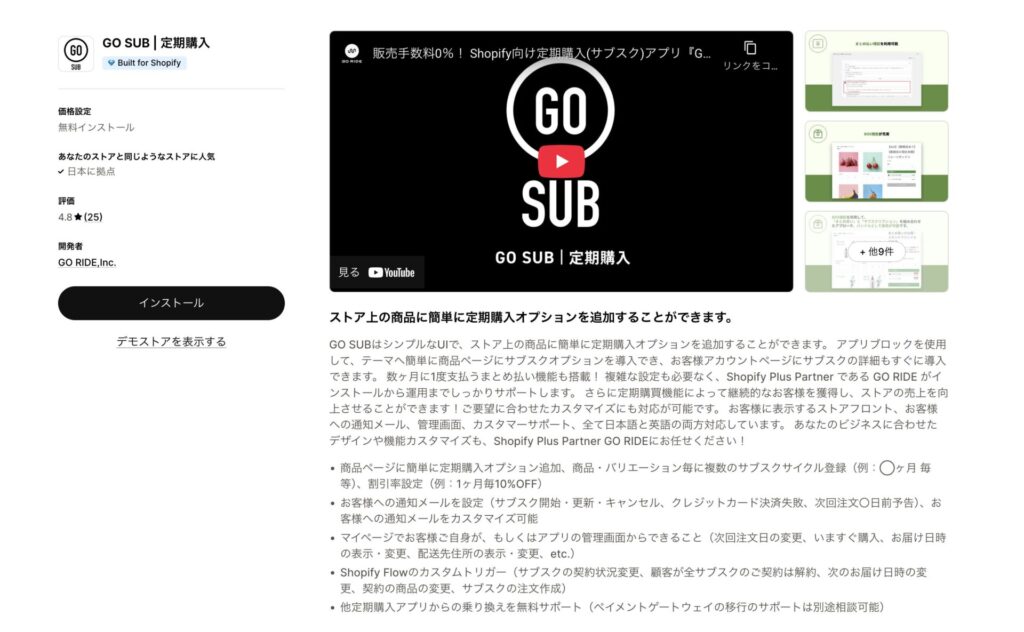
[https://apps.shopify.com/go-subscride?locale=ja](https://apps.shopify.com/go-subscride?locale=ja)
GO SUB is a Japanese-built subscription app for Shopify from GO RIDE Inc., a Shopify Plus Partner. It carries Shopify's Built for Shopify accreditation, awarded to high-quality apps, and covers a wide range of subscription functionality while staying easy to run for stores selling in Japan. Both its monthly plans and its starter plan, which charges transaction fees only, are among the cheapest in the category, so it is easy to adopt, and because it is available in both Japanese and English it suits cross-border stores as well as domestic ones.
#### GO SUB's features
Functionally, you can add a subscription option to the product page and configure delivery cycles flexibly per product or variant. Discounts can be set per delivery frequency, so it is easy to design a subscription around how the product is actually consumed. One of GO SUB's real strengths is **prepaid billing**: because the delivery cycle and the billing cycle are configured separately, you can ship monthly while billing every few months, which makes long-term and prepaid plans easy to design.
On top of that it offers **subscription boxes**, **fixed order dates**, **automatic customer tagging**, **analytics** and **multi-currency support** — the features that matter once you are actually running the thing. It integrates readily with other apps such as Shopify Flow and StoreCRM, so you can design the whole operation including what happens after the order.
### What GO SUB and StoreCRM can do together
GO SUB and StoreCRM work well together because the responsibilities divide cleanly. GO SUB handles the subscription contract, the recurring orders, billing, and the state of each contract. StoreCRM takes that state and delivers the right communication by email or LINE, raising retention and LTV. GO SUB builds the foundation; StoreCRM grows the retention on top of it.
For example, you can show one-time buyers the benefits of subscribing at the moment they would be reconsidering the product, and convert them from a single purchase to a subscription. For new subscribers, a staged sequence covering how to use the product, when the next delivery arrives and how to make changes reduces early cancellations. And for customers several deliveries in, exclusive perks, review requests and related product suggestions build loyalty and keep them subscribed.
Because GO SUB supports customer tags and Shopify Flow, it is easy to select customers by their subscription state. Combine that with StoreCRM's segmented campaigns, automated sequences and LINE messaging and you can be far more precise about who gets what, and when. Subscriptions are not just about winning signups — the design that keeps people subscribed is what counts. GO SUB and StoreCRM together let you design the whole path, from acquisition through to long-term retention.
[GO SUB links]
Official site: [https://goriderep.com/pages/go-sub](https://goriderep.com/pages/go-sub)
Shopify App Store: [https://apps.shopify.com/go-subscride?locale=ja](https://apps.shopify.com/go-subscride?locale=ja)
========================================================================
# Setting up LINE Login on Shopify new customer accounts (OIDC)
> A walkthrough of LINE Login on Shopify's new customer accounts: the OIDC settings in StoreCRM, what to enter in Shopify and LINE Developers, and the parts people trip over.
- URL: https://storecrm.com/knowhow/linelogin-new-customer-accounts/
- Type: Blog
- Published: 2026-02-26
- Updated: 2026-04-23
- Category: tips
- Tags: LINE, LINE, StoreCRM, guides
- Author: StoreCRM
---
## Introduction
With Shopify's **new customer accounts**, LINE Login is connected using OIDC (OpenID Connect) rather than the Multipass approach used before.
StoreCRM's OIDC support is what makes LINE Login possible on new customer accounts.
If you are still on classic customer accounts, follow the article below instead.
> [How to let customers sign up and log in to Shopify with LINE Login](https://storecrm.com/knowhow/linelogin/)
The steps below use the free Dawn theme.
Paid themes and heavily customised themes may have a different file structure; if that is the case, contact StoreCRM customer support and we can carry out the implementation for you. Feel free to [get in touch](https://storecrm.com/contact/) through the contact form.
#### [Please note]
The LINE Login functionality described here is **available only on Shopify Plus**. We also support merchants considering a move to Shopify Plus, so feel free to [get in touch](https://storecrm.com/contact/) through the contact form.
## Related pages
[StoreCRM (Shopify App Store)](https://apps.shopify.com/obake-ma?locale=ja)
[How to let customers sign up and log in to Shopify with LINE Login](https://storecrm.com/knowhow/linelogin/)
[StoreCRM for LINE — the definitive Shopify and LINE integration app](https://storecrm.com/line/)
[How to connect Shopify with a LINE Official Account](https://storecrm.com/help/setting/line/)
[How to add a LINE ID linking icon to your Shopify store](https://storecrm.com/knowhow/line-connect-banner/)
[4 Shopify LINE ID linking apps compared](https://storecrm.com/knowhow/shopify-line-app/)
[How to manage customers over LINE: 10 recommended CRM tools](https://storecrm.com/knowhow/line-crm-tools/)
##### Who this is for
- Stores on Shopify Plus
- Stores using Shopify's new customer accounts
- Anyone with permission to configure LINE integration in StoreCRM
##### Worth knowing before you start
- The steps differ from the LINE Login setup for classic accounts.
- Multipass is not available on new customer accounts, so OIDC configuration is required.
- If you are on classic accounts, use the article covering the classic procedure.
### What you will build
[](https://storecrm.com/wp-content/uploads/2026/02/スクリーンショット-2026-02-26-192046.png)
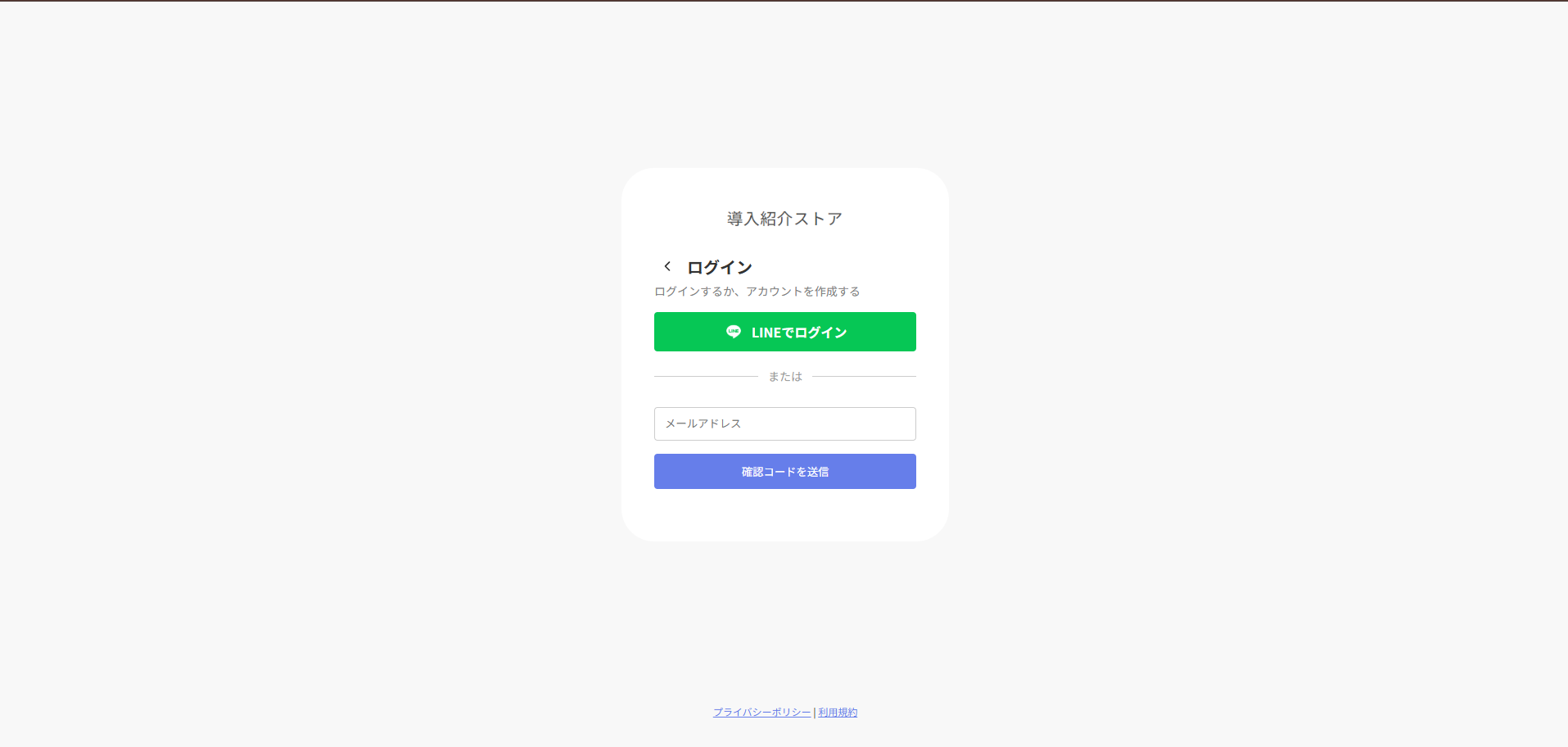
**Let us start with the signup screen you are building. Shopify's standard login and signup are replaced wholesale by the screen shown above.**
### Enabling OIDC in StoreCRM
[](https://storecrm.com/wp-content/uploads/2026/02/スクリーンショット-2026-04-23-142851.png)
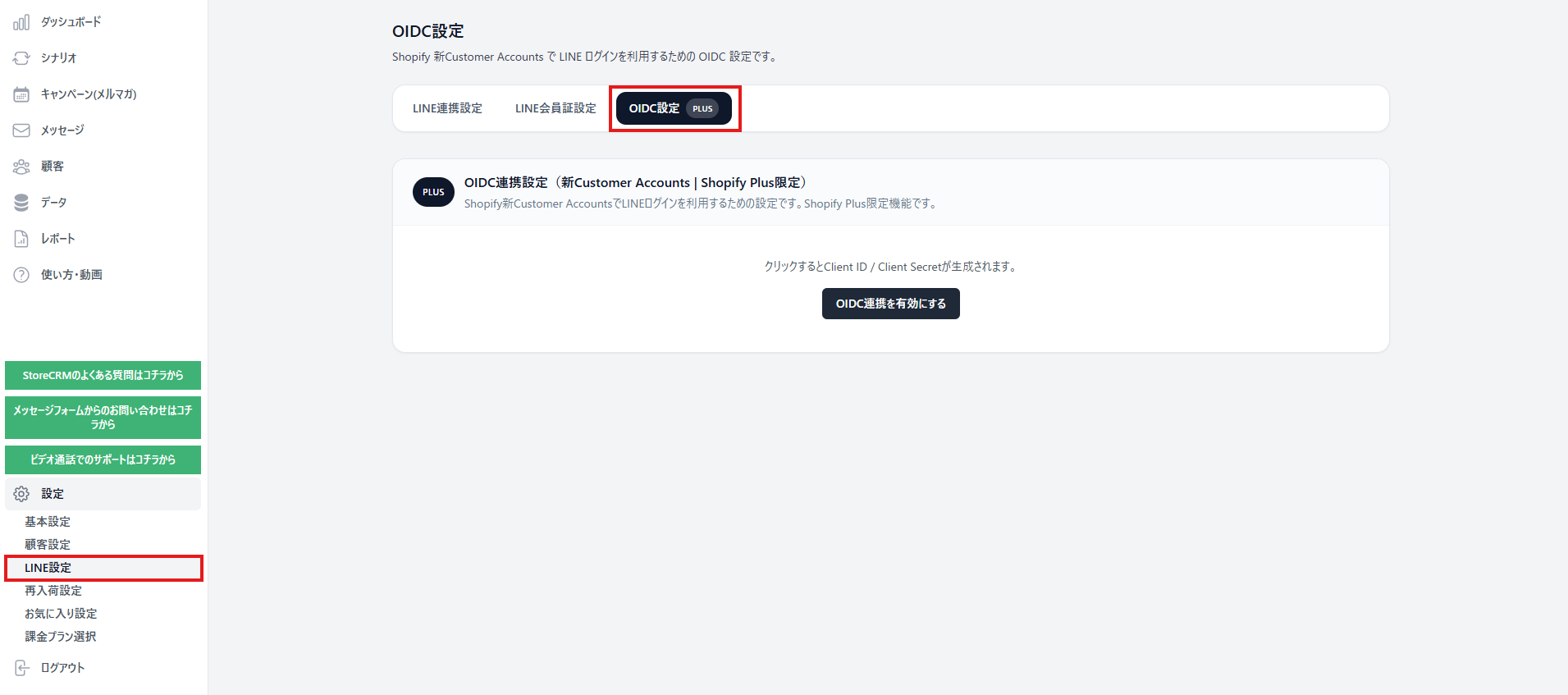
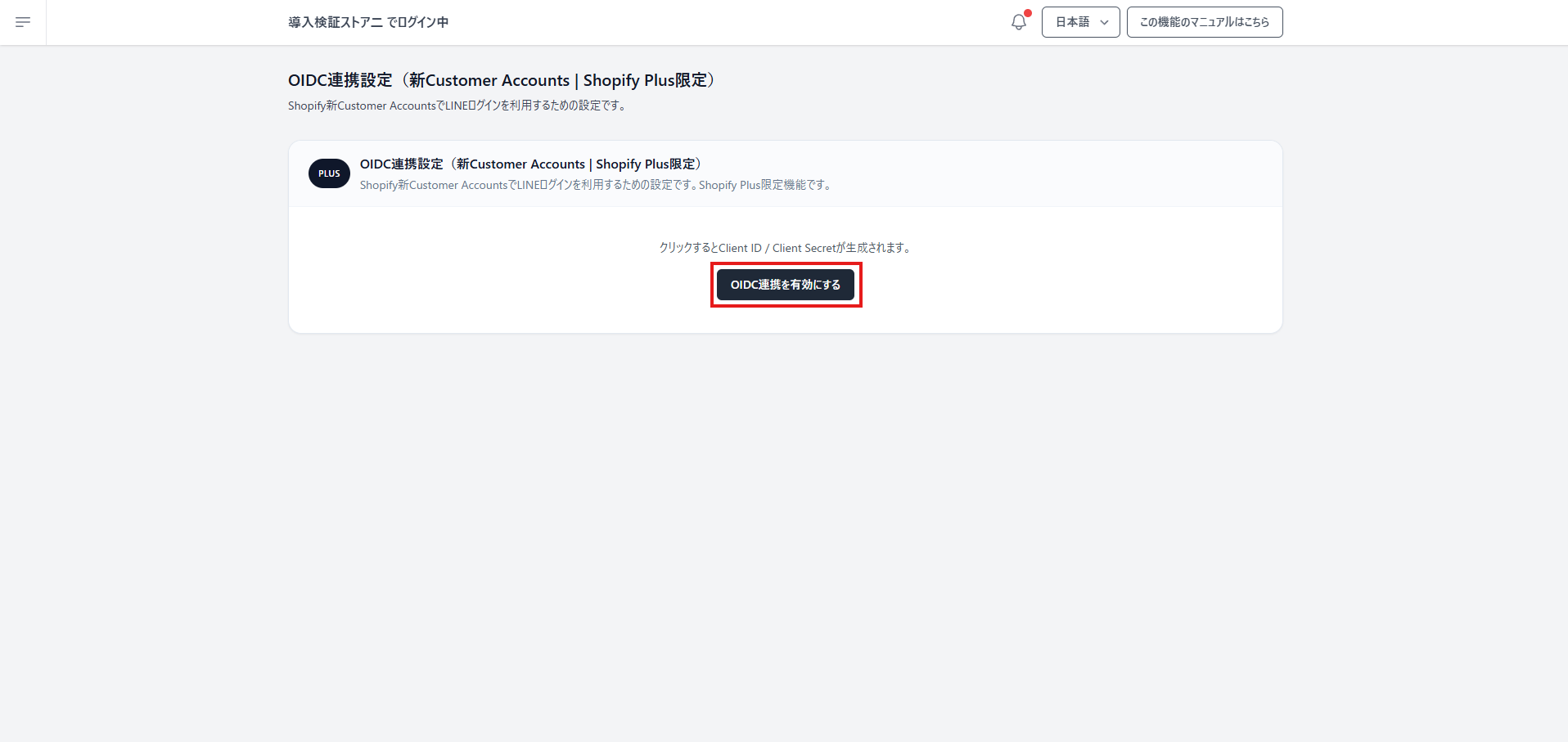
**1. In the StoreCRM admin, open \[LINE settings\] > \[OIDC settings\].**
[](https://storecrm.com/wp-content/uploads/2026/02/スクリーンショット-2026-03-11-173507.png)
**2.** In the \[OIDC integration (new customer accounts)\] section, click \[Enable OIDC integration\].
[](https://storecrm.com/wp-content/uploads/2026/02/スクリーンショット-2026-03-11-200634.png)
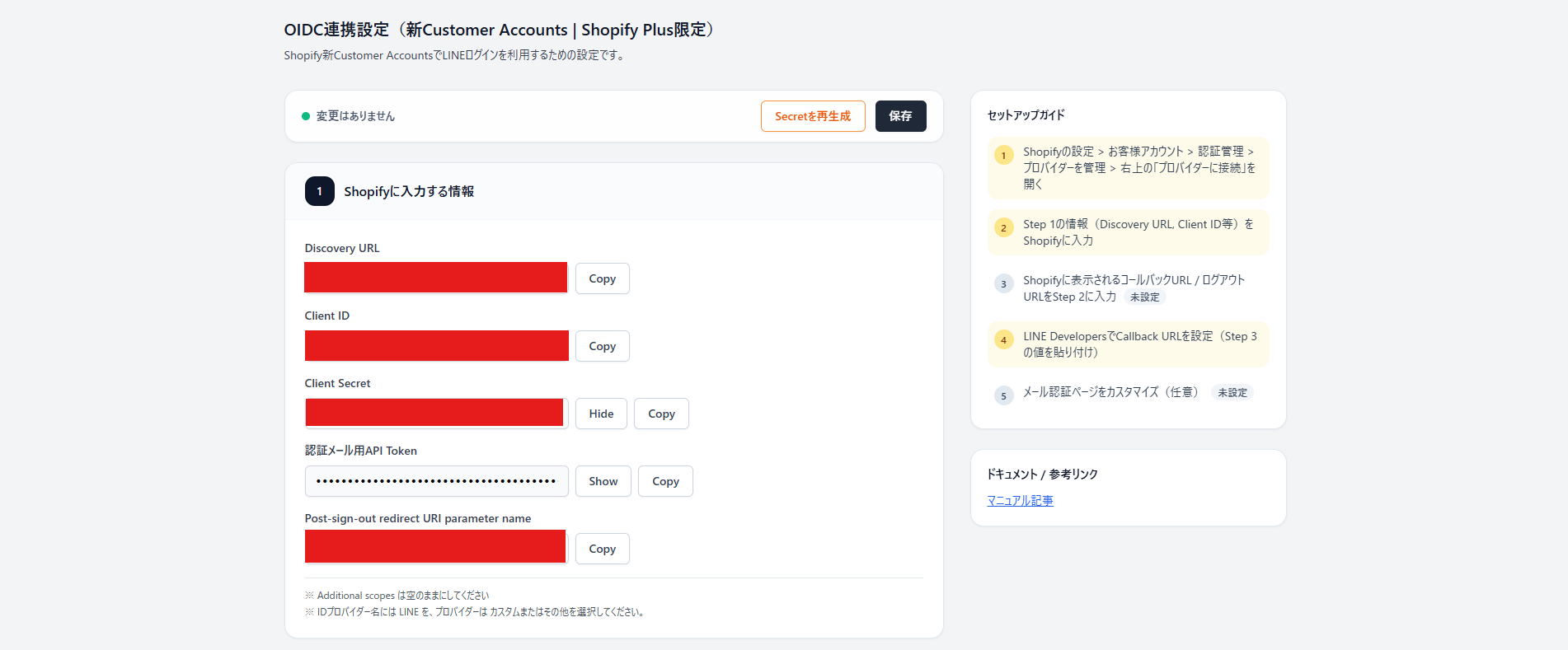
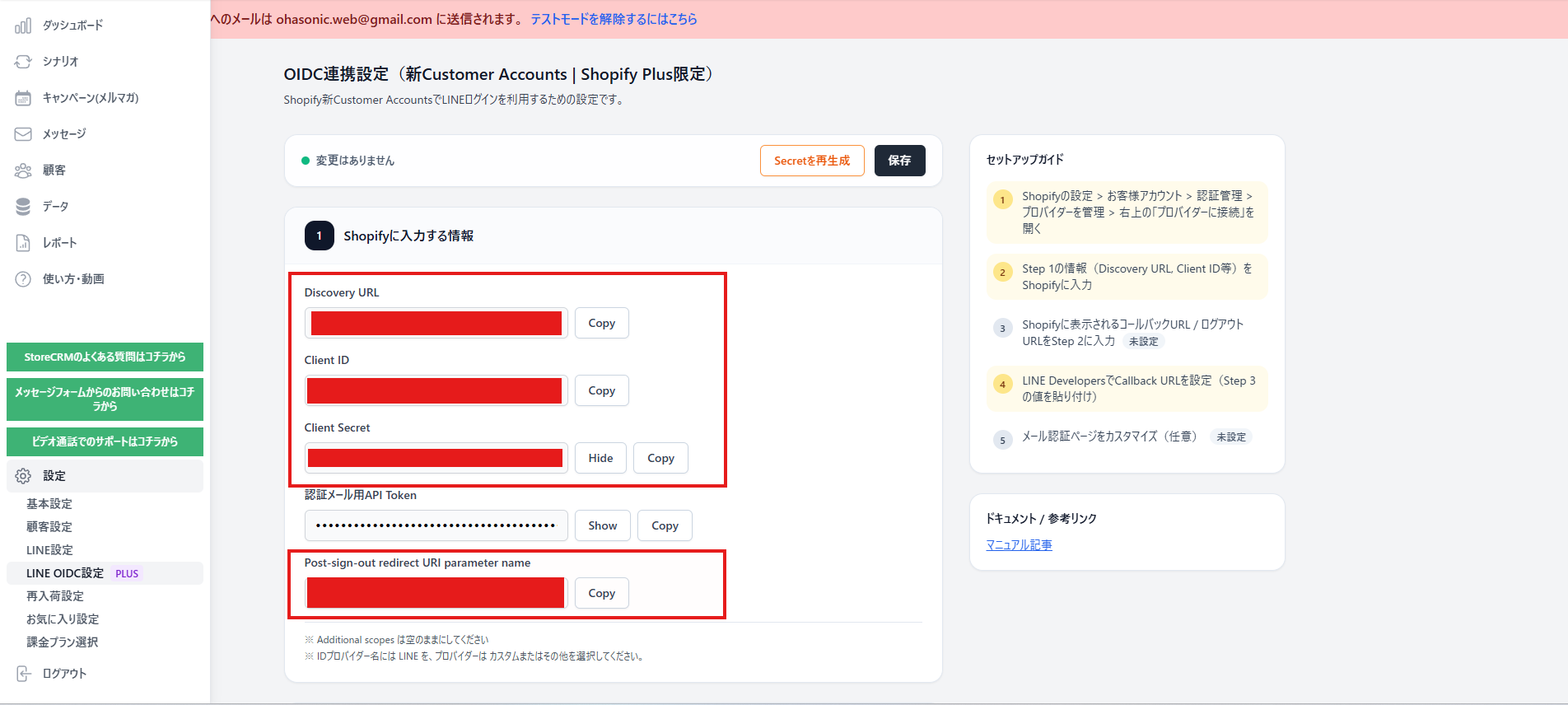
**3. Make a note of the generated values:
- Discovery URL
- Client ID
- Client Secret
- Post-sign-out redirect URI parameter name (post\_logout\_redirect\_uri)**
### Connecting the identity provider in Shopify
[](https://storecrm.com/wp-content/uploads/2026/02/スクリーンショット-2026-02-26-175842.png)
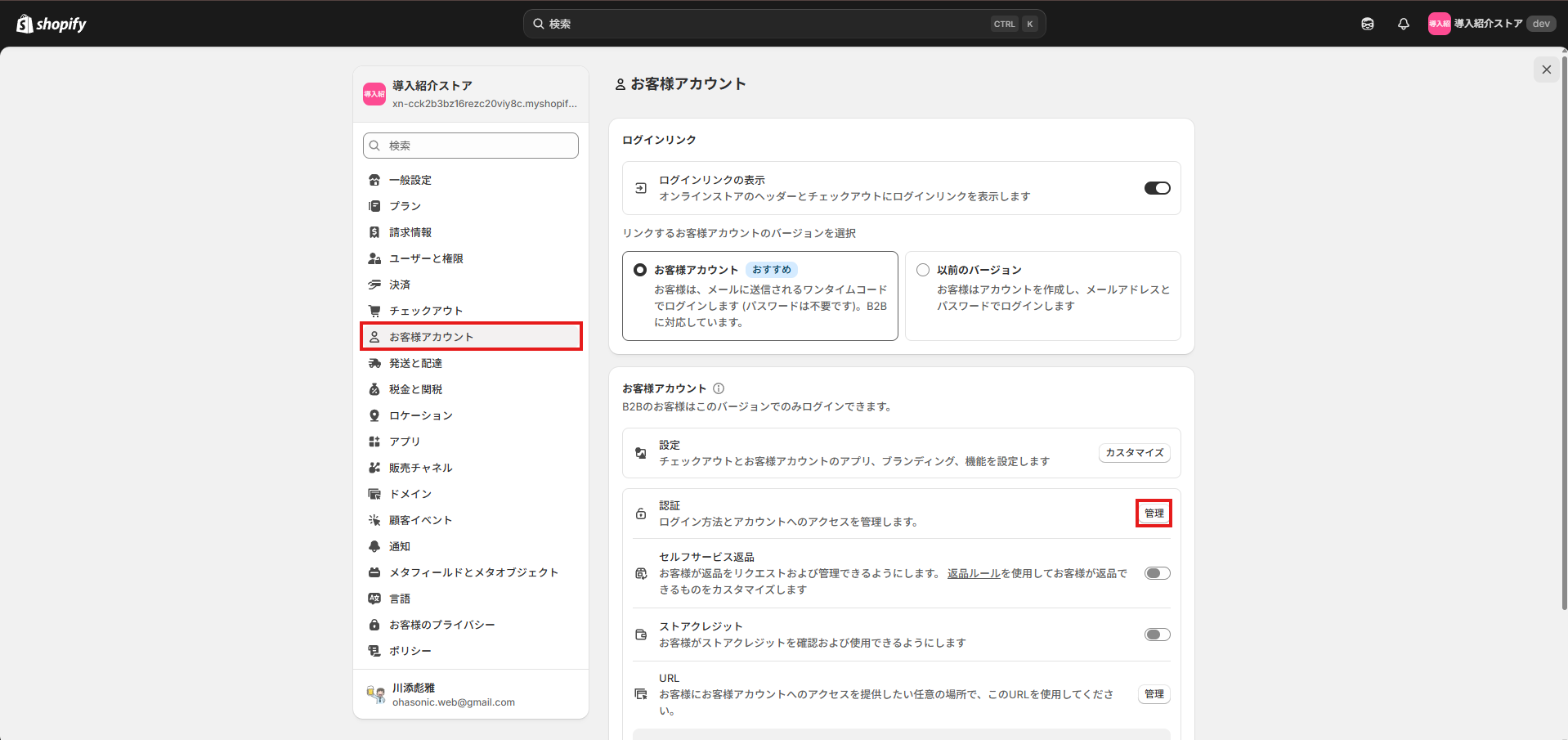
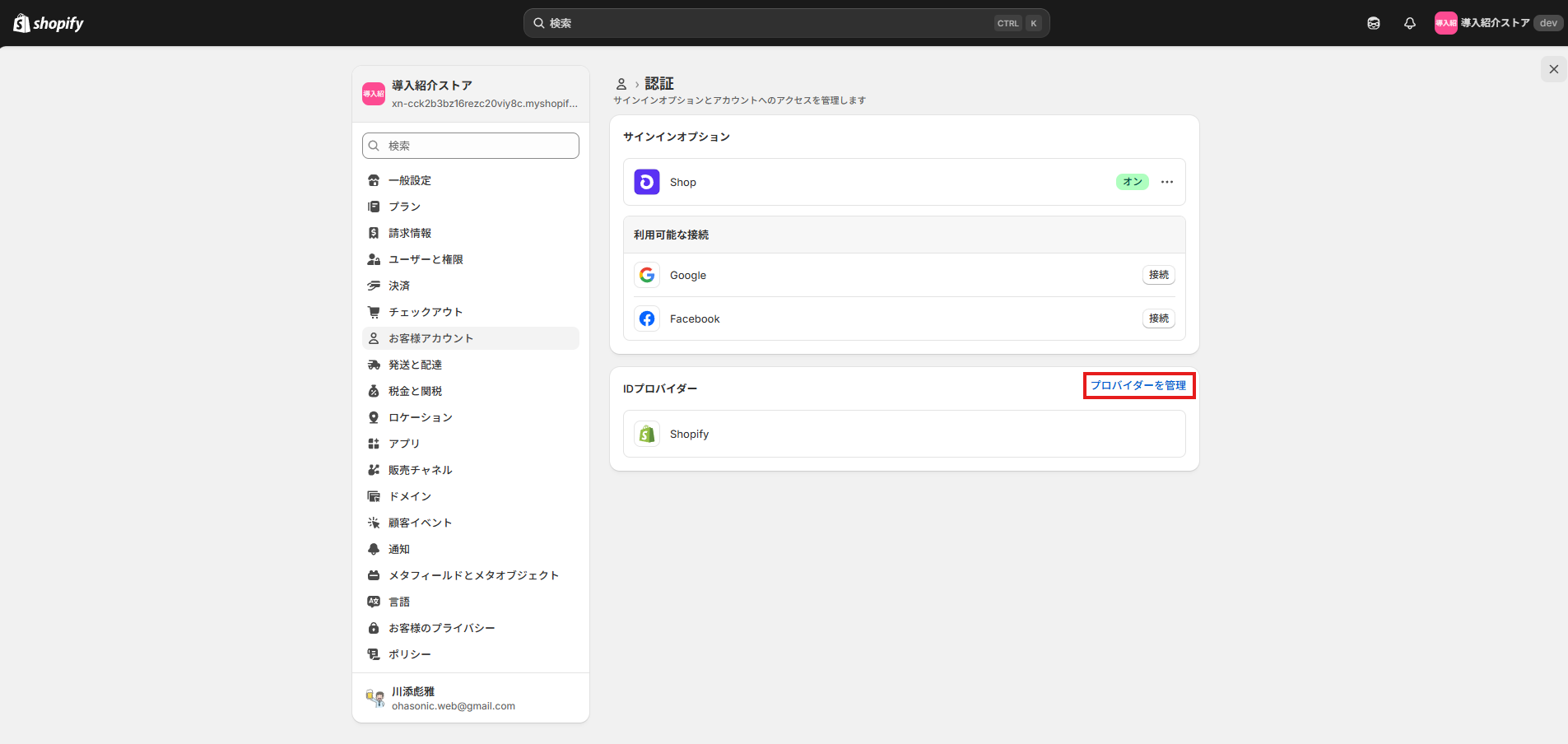
**1. Open \[Settings\] > \[Customer accounts\] > \[Authentication\] > \[Manage\]**.
[](https://storecrm.com/wp-content/uploads/2026/02/スクリーンショット-2026-02-26-180227.png)
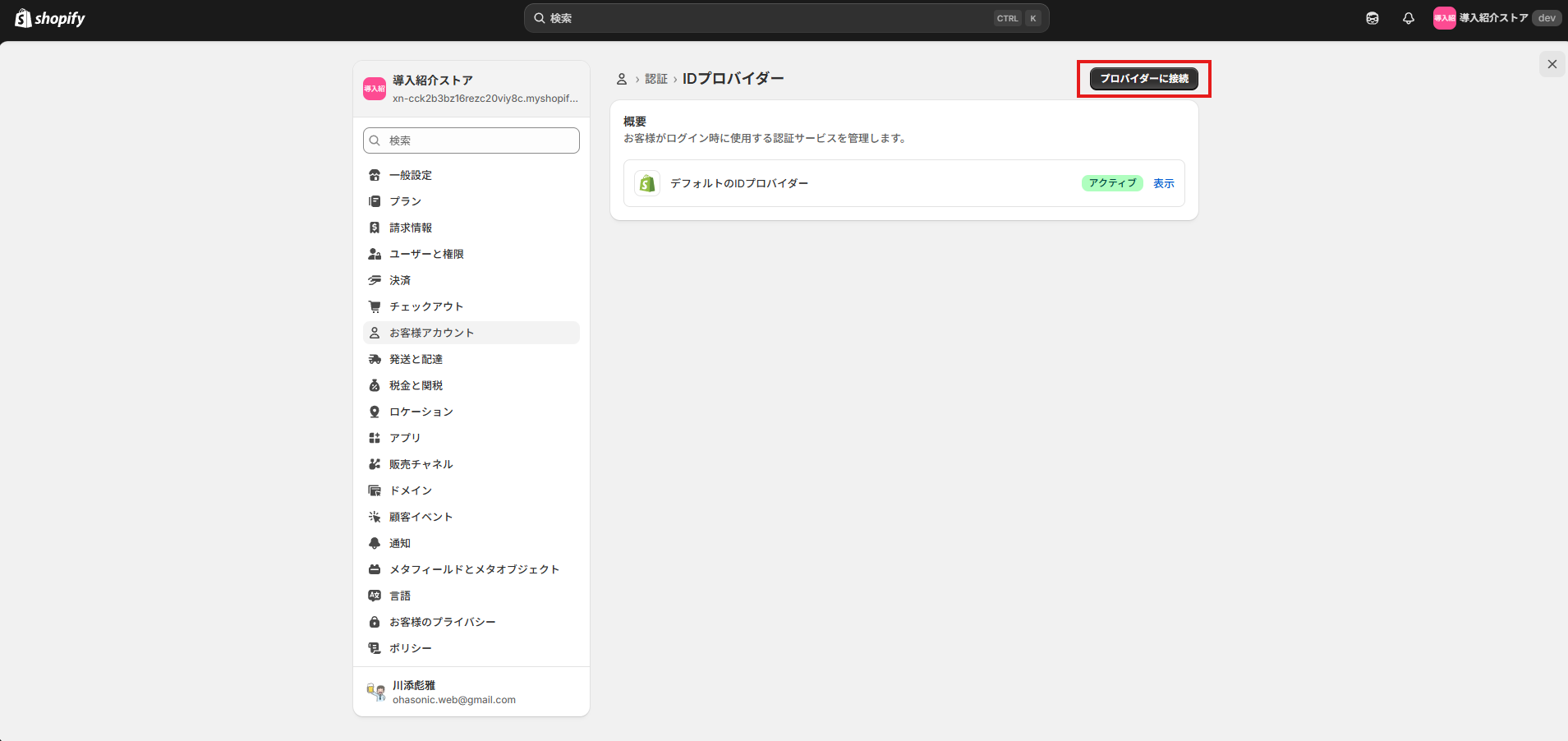
**2. Open \[Identity providers\] > \[Manage providers\].**
[](https://storecrm.com/wp-content/uploads/2026/02/スクリーンショット-2026-02-26-180416.png)
**3. Click "Connect provider".**
[](https://storecrm.com/wp-content/uploads/2026/02/スクリーンショット-2026-02-26-181201.png)
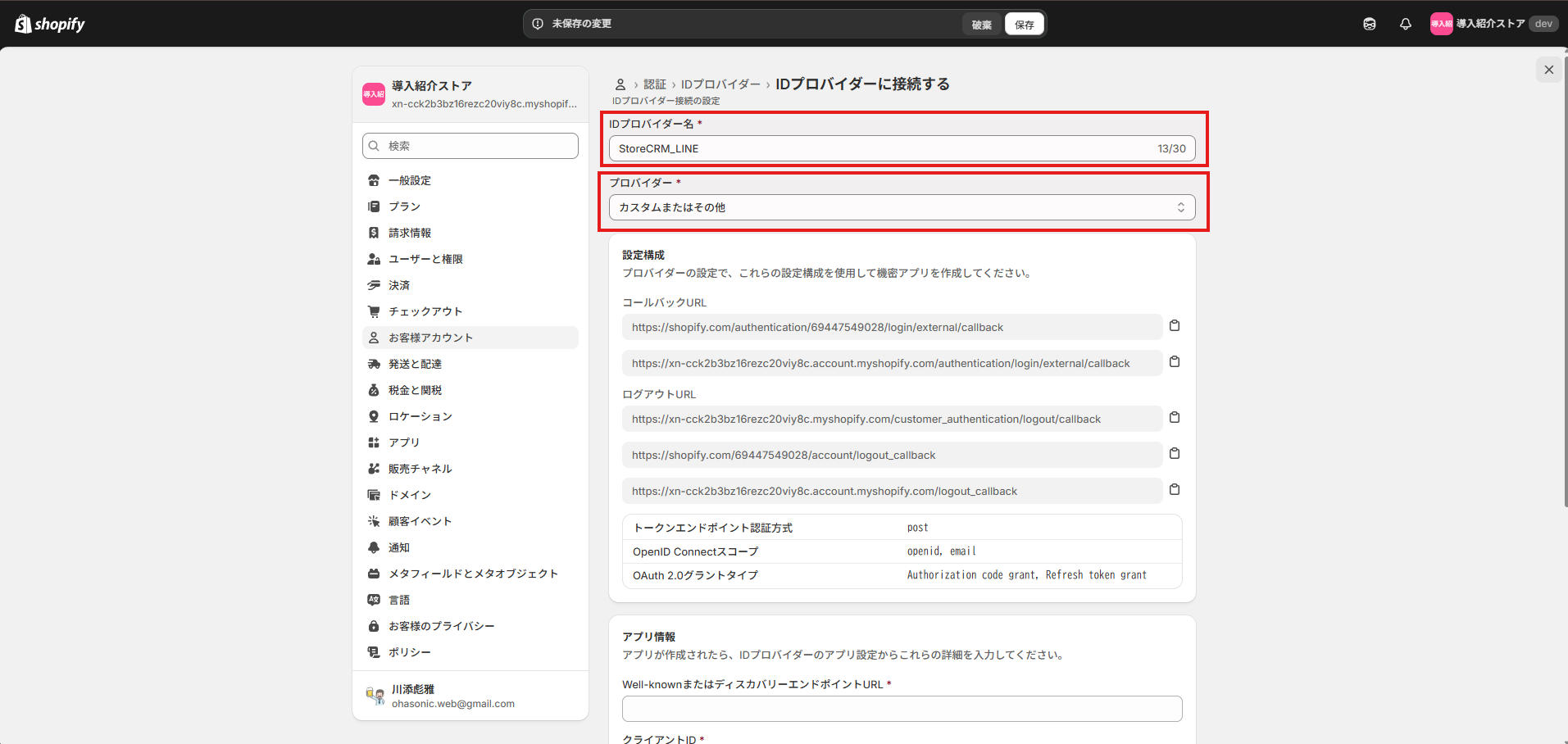
**4. Fill it in, noting the following.
Give the identity provider any name that makes clear it is the StoreCRM provider.
Set the provider type to \[Custom or other\].**
[](https://storecrm.com/wp-content/uploads/2026/02/スクリーンショット-2026-02-26-181554.png)
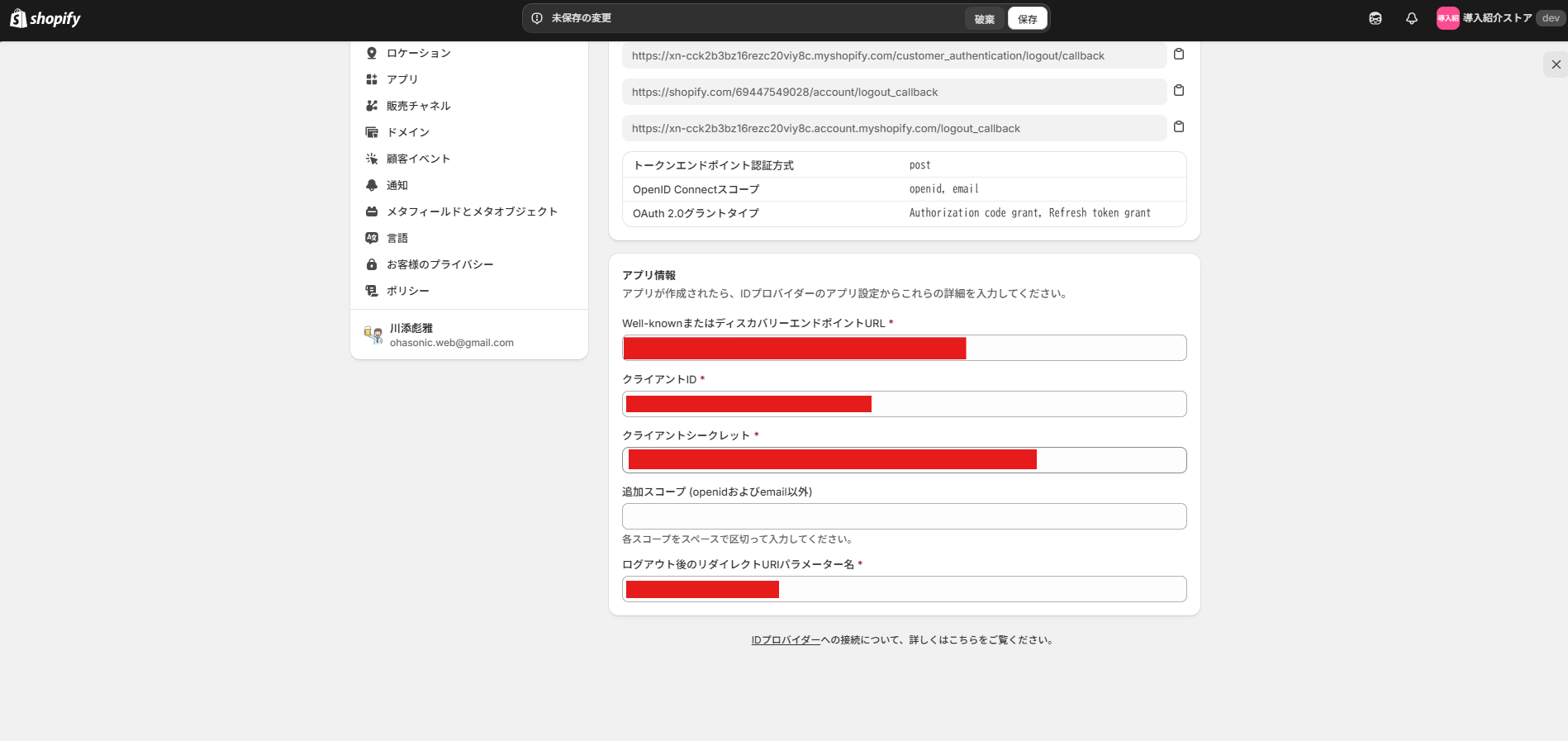
**5. Enter the values you noted from StoreCRM in the matching fields.**
**- Discovery URL → Well-known or discovery endpoint URL \*
- Client ID → Client ID
- Client Secret → Client secret
- Post-sign-out redirect URI parameter name → Post-logout redirect URI parameter name \***
**Leave additional scopes (beyond openid and email) empty.**
[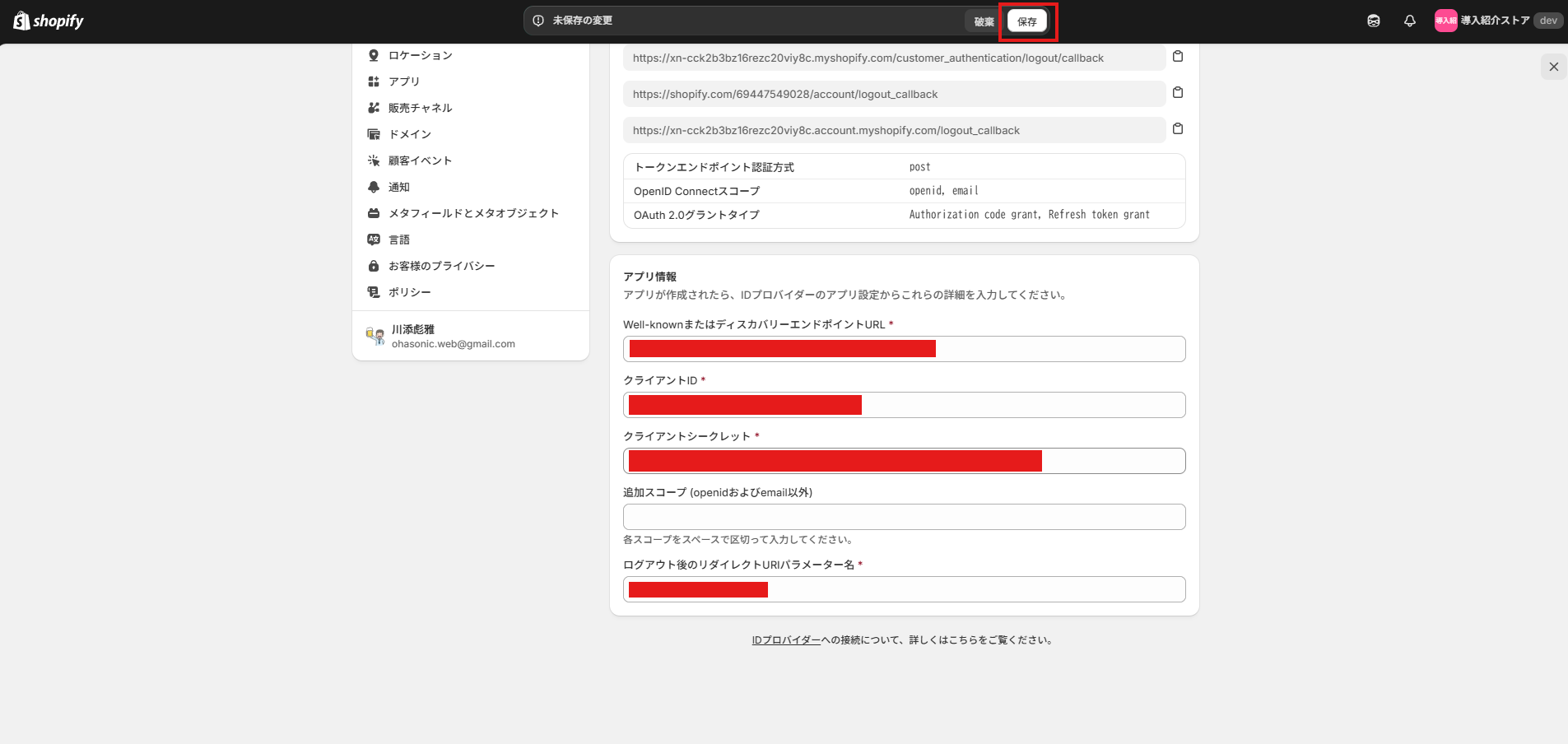](https://storecrm.com/wp-content/uploads/2026/02/スクリーンショット-2026-02-26-182118.png)
**6. Click save.**
### Copying the URLs Shopify generates back into StoreCRM
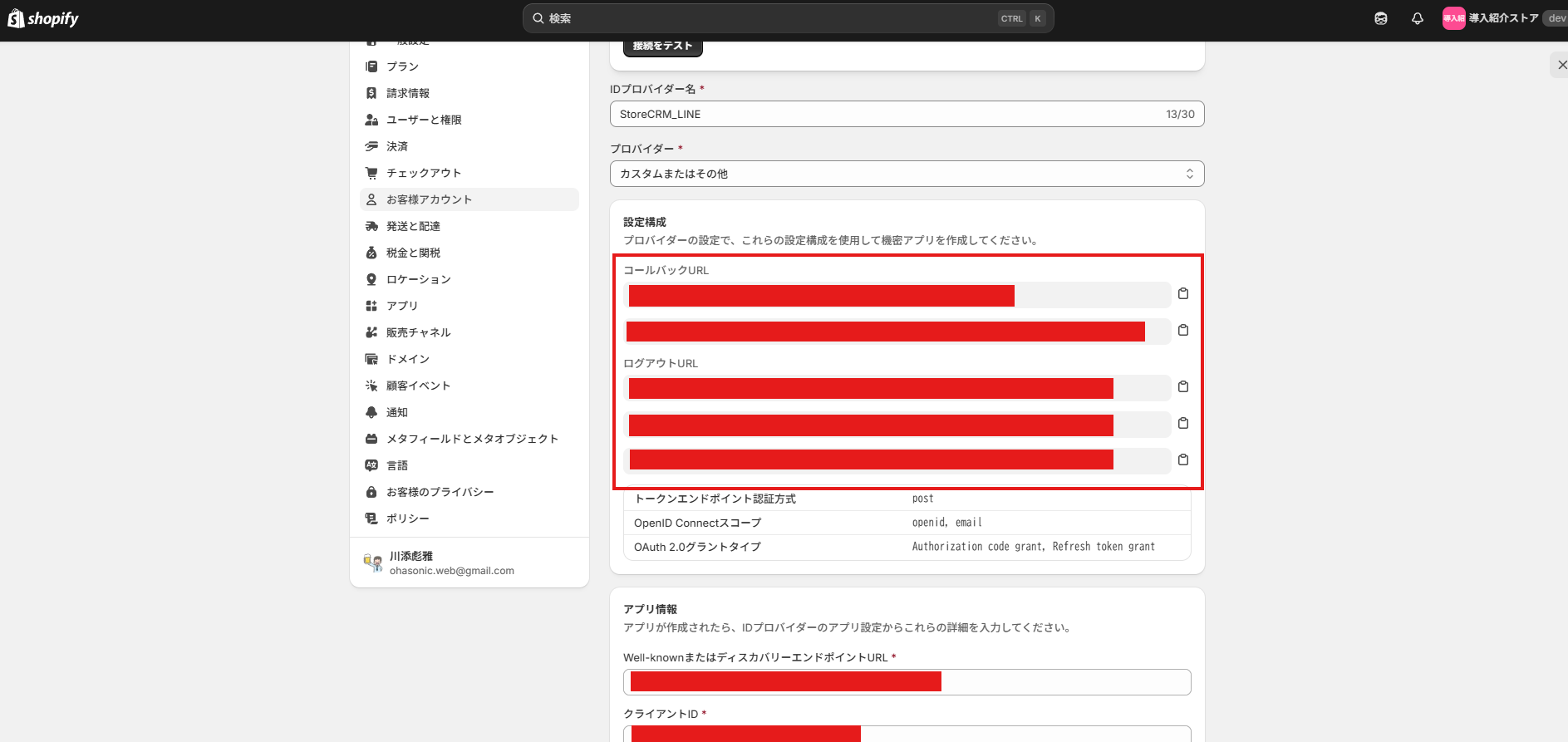
**1. Make a note of the "callback URL" and "logout URL" shown on Shopify's identity provider settings screen.**
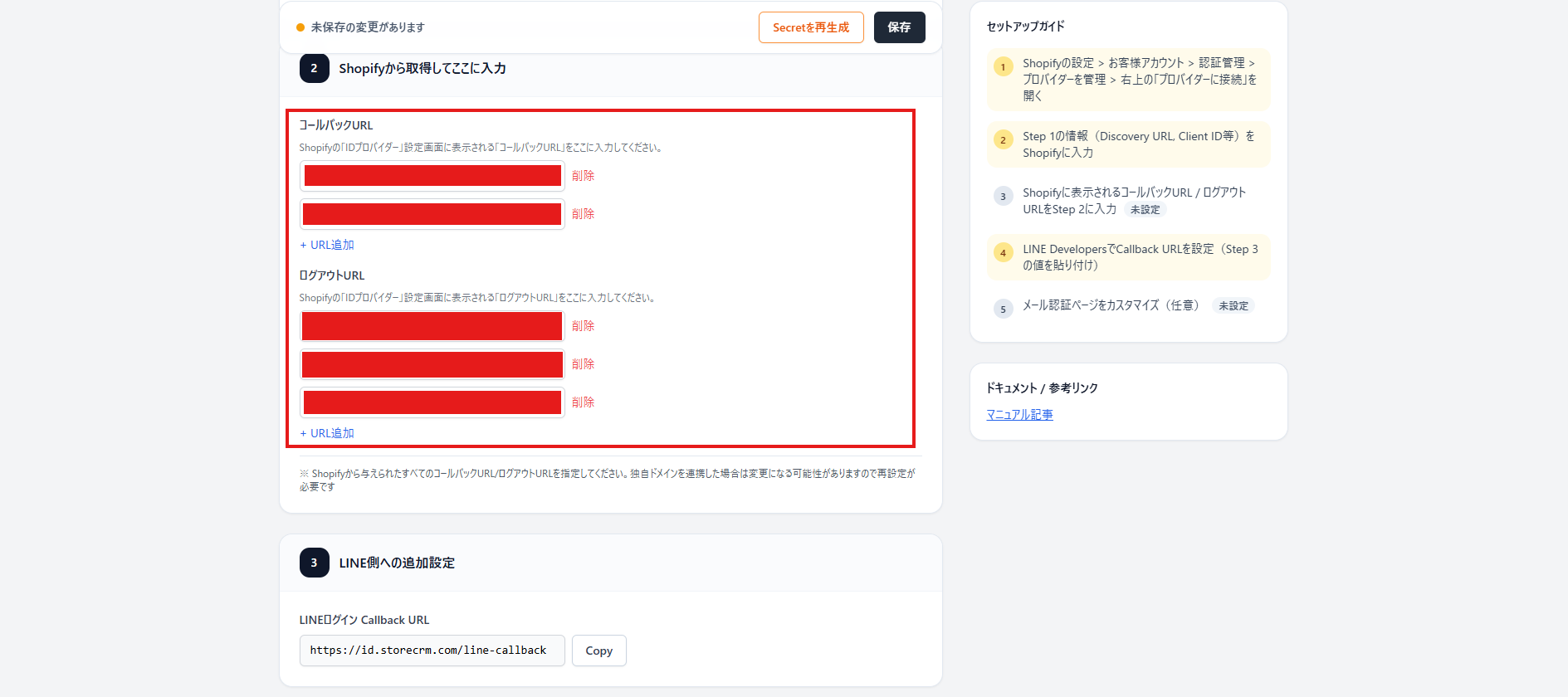
**2. Back in the StoreCRM settings, register every \[callback URL\] and \[logout URL\].
Register all of them, not just one of each.**
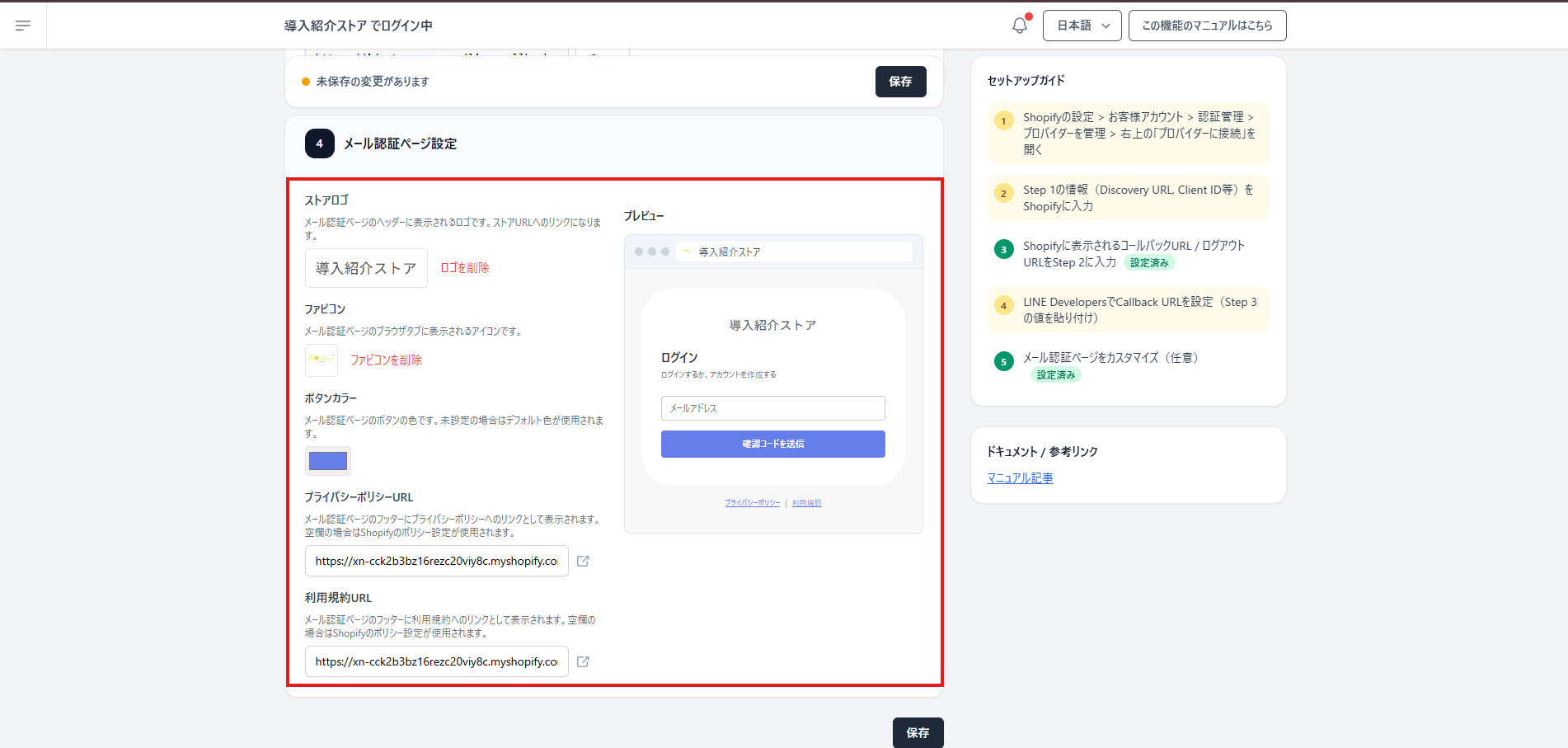
**3. Set the store logo, favicon and store page links that appear on the login screen.**
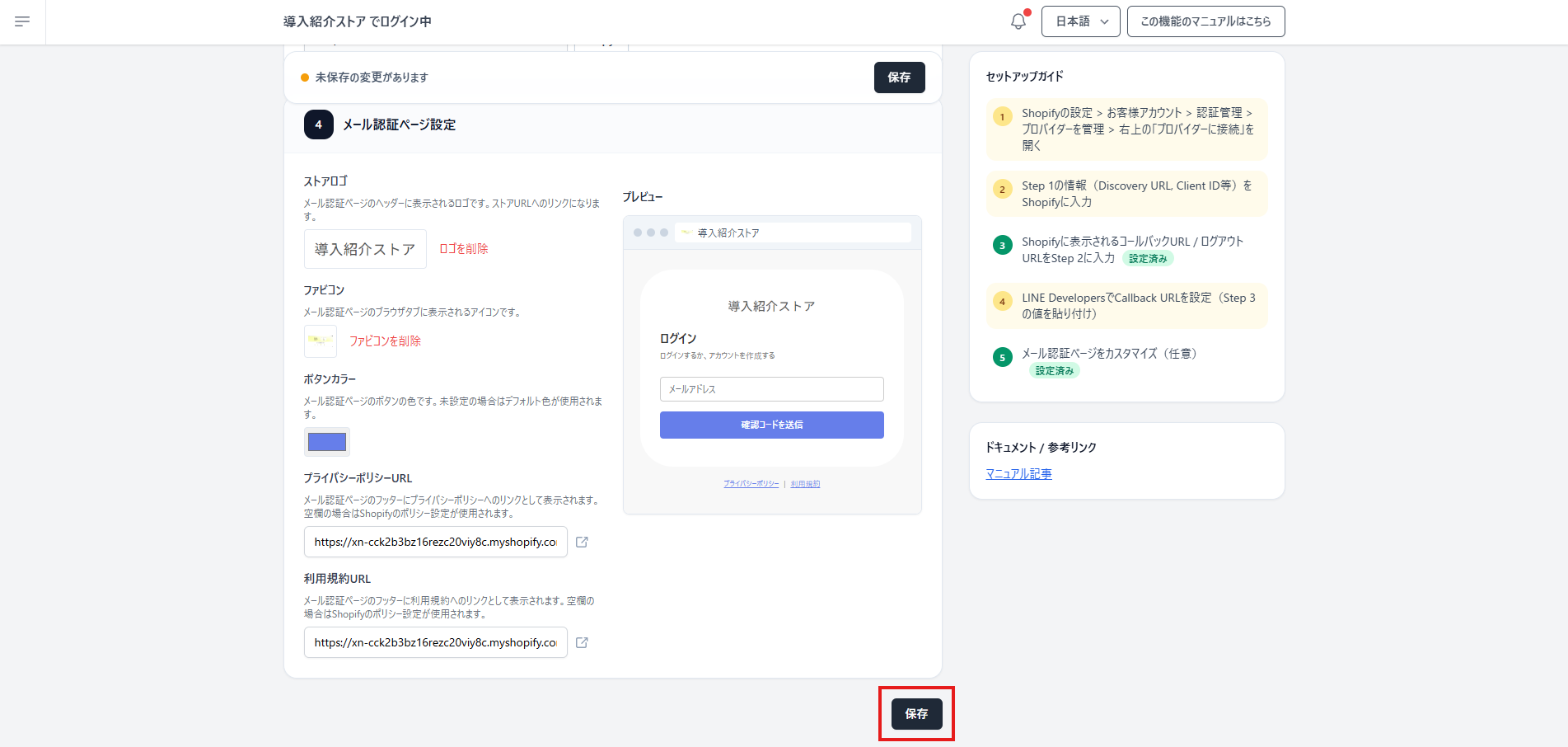
**4. Click \[Save\] when you are finished.**
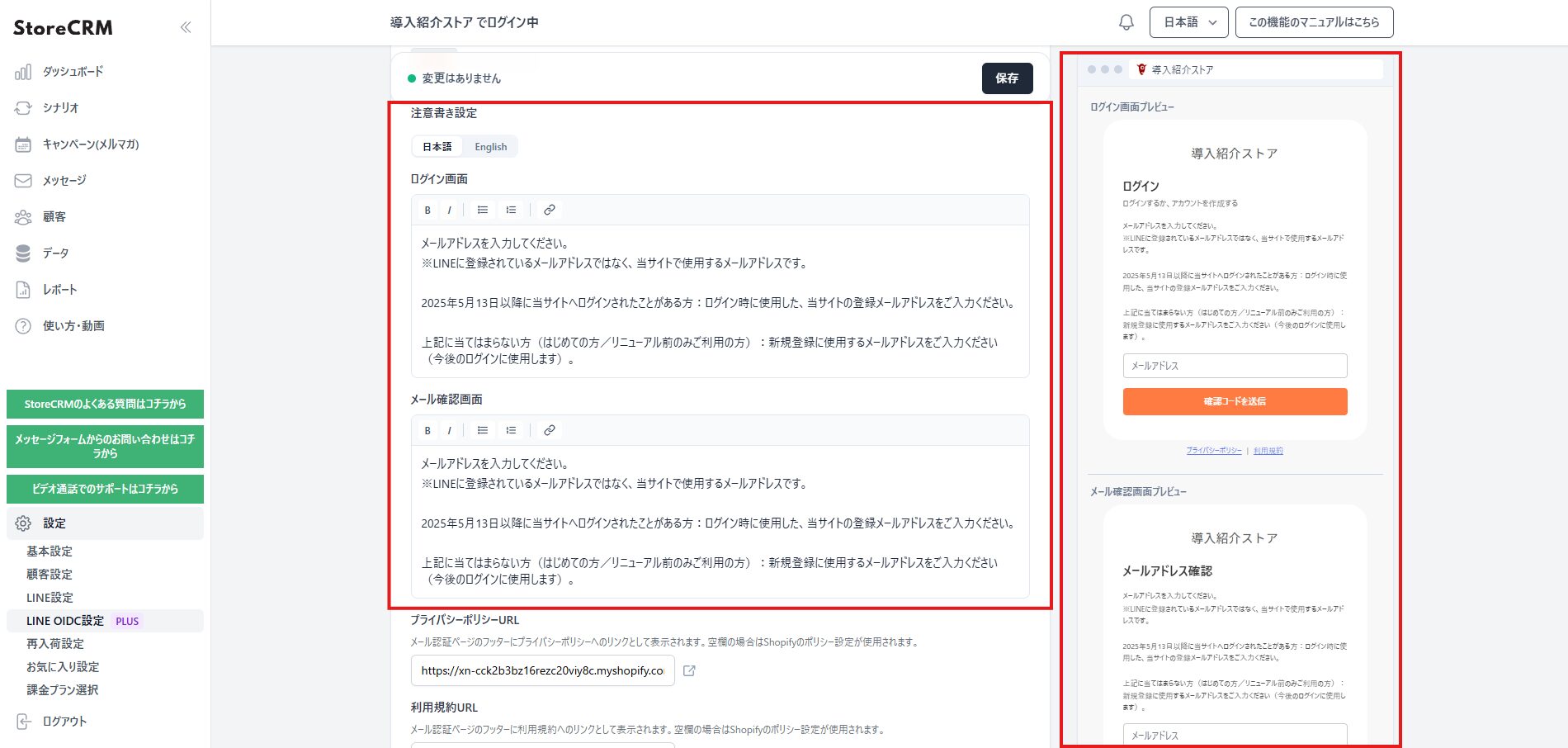
**5. If you need a notice on the login screen or the email verification screen, set it here.
Japanese and English are supported.
As of 23 March 2026, which language is shown follows the browser's language setting.**
### Setting the callback URL in LINE Developers
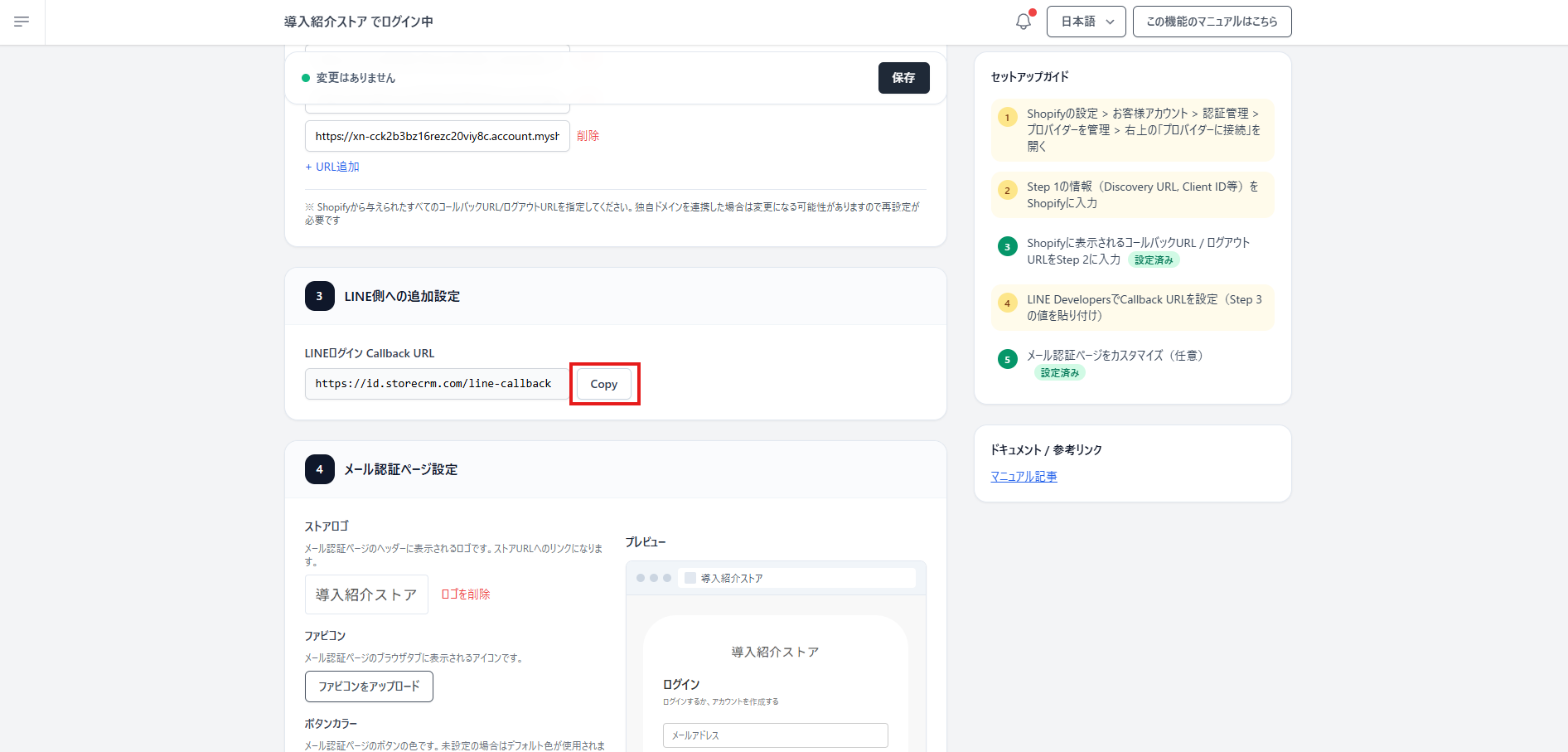
**1. Make a note of the \[LINE Login callback URL\] shown at step 3 of StoreCRM's LINE OIDC settings screen.**
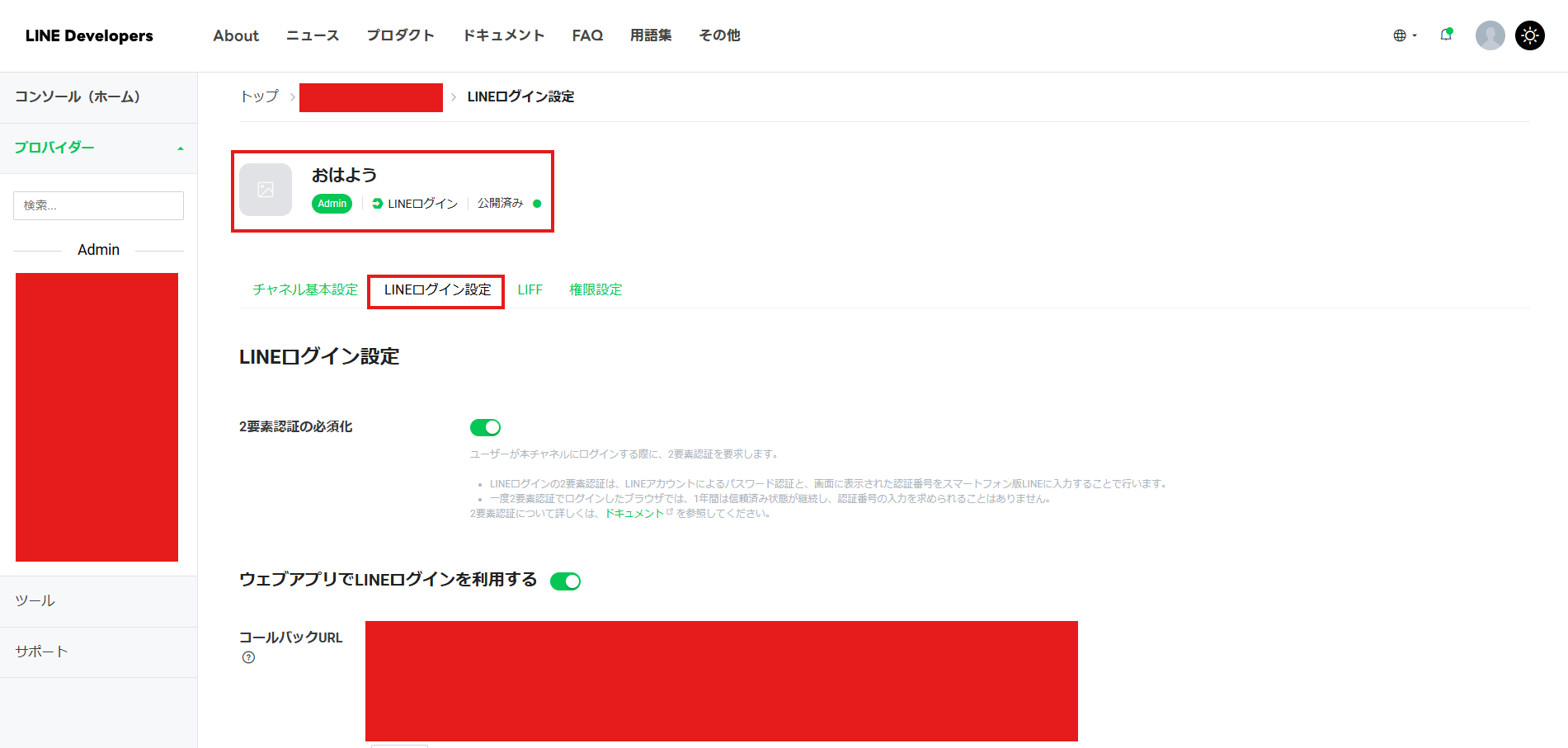
**2. Open LINE Developers and go to \[LINE Login channel\] > \[LINE Login settings\].**
**LINE Developers → [https://developers.line.biz/ja/](https://developers.line.biz/ja/)
LINE integration must already be set up.**
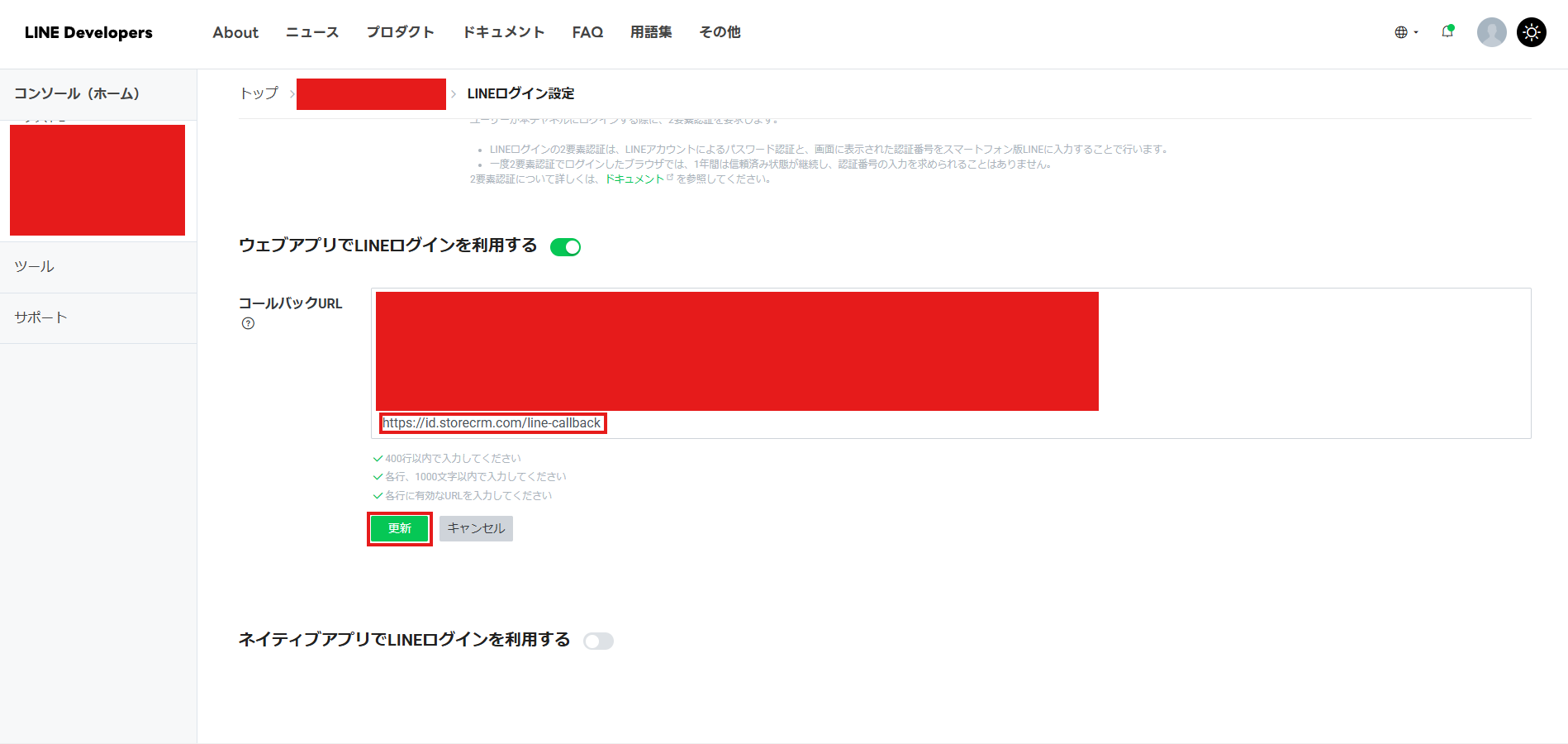
**3. Click \[Edit\] next to the callback URL and enter the URL you noted. Remember to click \[Update\] afterwards.**
### Testing it
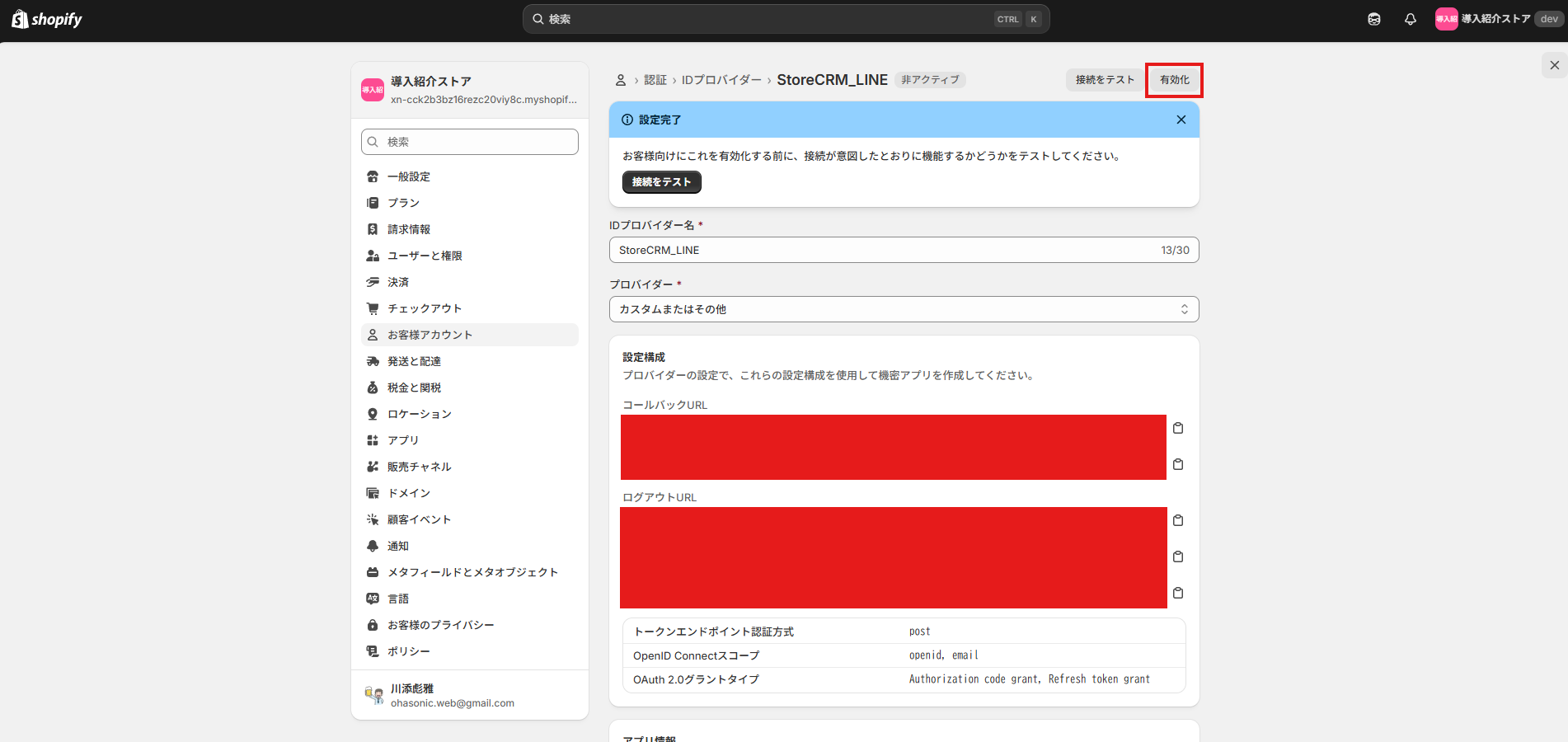
1. With everything configured, run the connection test to confirm it works. Start by clicking \[Activate\] to activate the provider.
! The intended order is test the connection, confirm it works, then activate — but as Shopify currently behaves, the connection test is unavailable until you activate. Note that activating switches the provider over to StoreCRM's, so we recommend confirming the behaviour on a development store before applying it to your live store. !
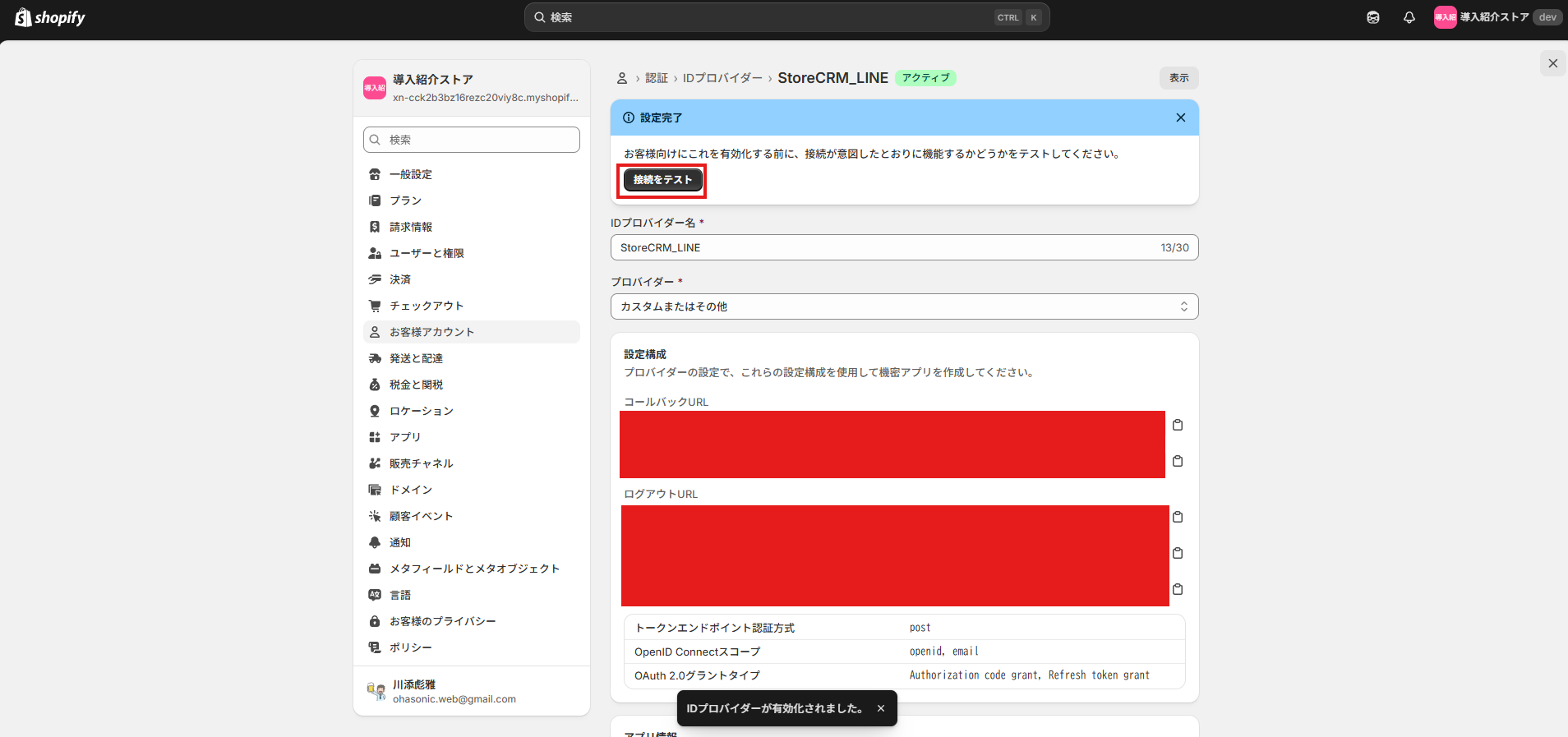
**2. Once it is activated, run the connection test to confirm the configuration.
Click \[Test connection\].**

**3. The StoreCRM login screen appears; test authentication with email or with LINE.**
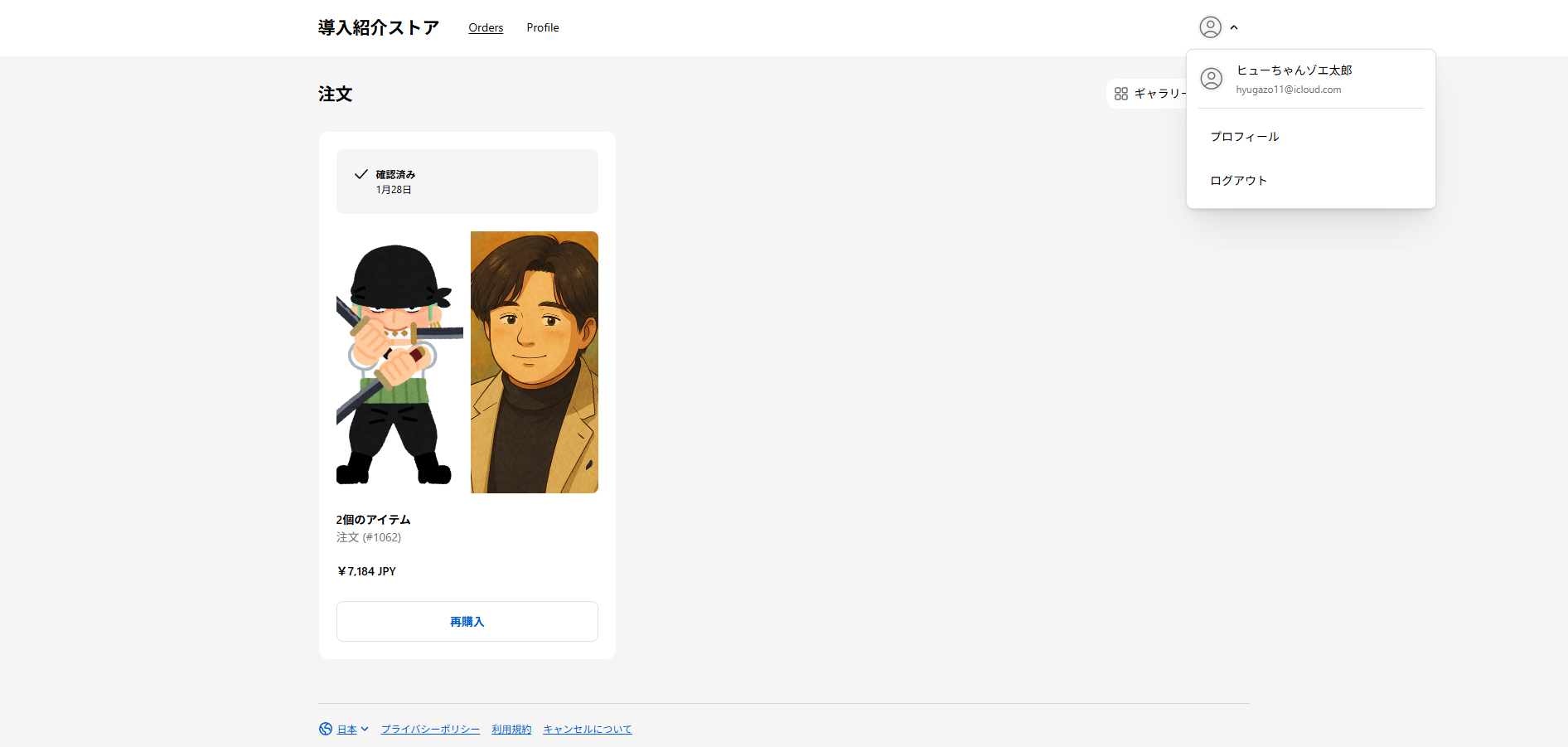
**4. Authenticate with LINE and with an email address, confirm that you land on the orders page, and the setup is complete.**
### Common stumbling blocks
- **If you regenerate the client secret, you must update the secret on the Shopify side too.**
- **After changing your store's custom domain, the callback and logout URLs Shopify issues can change, so they must be re-entered in StoreCRM.**
- **Following the classic account procedure will not work on new customer accounts. Use the OIDC procedure.**
## Summary
**Simply having customers think "logging in with LINE on the new customer accounts is handy" lowers the barrier to signing up dramatically.**
**With OIDC support in StoreCRM, that small convenience becomes a mechanism for growing revenue and winning repeat customers.**
**If you are not yet using LINE Login on new customer accounts, StoreCRM makes it easy to get started.**
========================================================================
# 7 Shopify loyalty points apps compared: growing revenue and repeat customers
> A thorough comparison of Shopify points apps: how a points programme grows revenue, repeat business and LTV, and which of seven apps suits which goal.
- URL: https://storecrm.com/knowhow/shopify-point-apps/
- Type: Blog
- Published: 2025-12-27
- Updated: 2026-04-27
- Category: tips
- Tags: App, Point, Repeat Customers
- Author: StoreCRM
---
## Introduction: loyalty points are now table stakes
In ecommerce in Japan, a points programme is not a promotional extra — it functions as a second currency and is effectively essential infrastructure. More than 90% of consumers actively collect points as part of everyday life. This article explains what a points programme does for you and compares seven popular Shopify apps, so you can choose the right one for your store.
## Why bother? Four benefits of offering points in a Shopify store
### 1. Repeat rates improve dramatically
Retention is the hardest problem in ecommerce: more than 80% of new customers buy once and never return. In one case, a points programme doubled the repeat rate. Points give customers a strong reason to come back, and that return visit is the first step towards an ongoing relationship.
### 2. Lifetime value rises
A points programme raises substantially what a customer spends with you over their lifetime. One study found that loyalty programme members spend 72% more than non-members and buy three times as often. Points are an investment in the future: they nurture relationships with your best customers and push both purchase frequency and order value up.
### 3. You collect reviews, and your store becomes more credible
Points do not have to reward purchases alone — they can reward actions such as leaving a review. In one case, offering points for reviews increased review volume sixfold. That user-generated content acts as social proof, attracting new customers and creating a virtuous circle.
### 4. Essential equipment for competing in Japan's points economy
Collecting points is its own culture in Japan, and most consumers simply expect to earn them. Without a points feature, you may not even make it onto a shopper's shortlist. To compete in the Japanese market, a points programme is no longer optional.
## Seven recommended Shopify points apps compared
Shopify has a great many points apps, and they differ considerably in features and pricing. Here are seven, chosen carefully, ranging from Japanese apps built around local commercial practice to global standards. Compare features and prices and find the one that matches your store's size and goals.
### easyPoints: the classic, built exactly for commerce in Japan
[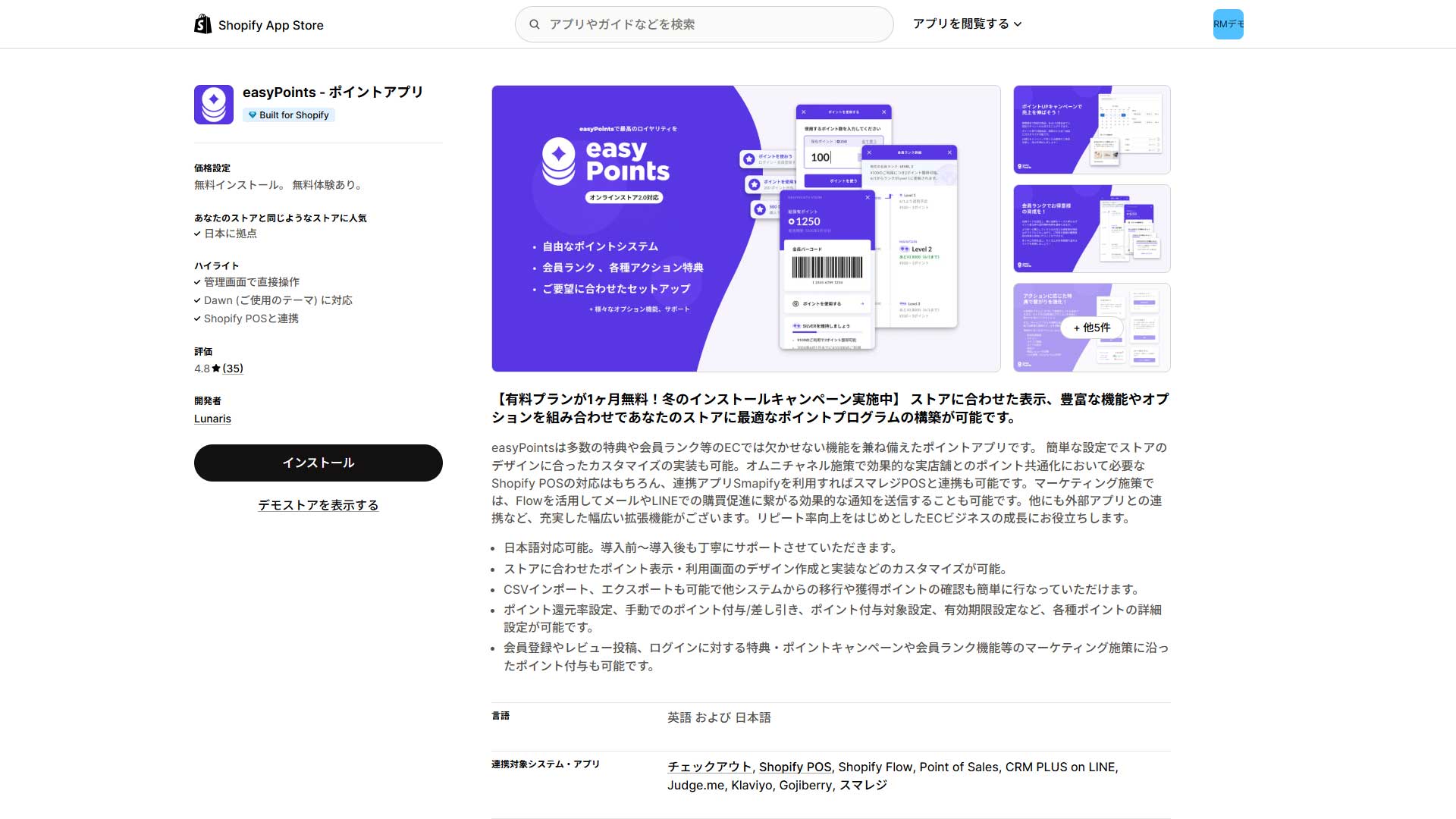](https://storecrm.com/wp-content/uploads/2025/12/shopify-point-app-1.jpg)
Developed in Japan and carrying Shopify's Built for Shopify accreditation for quality and reliability, easyPoints is the leading app of its kind. It uses the direct-discount model familiar from the large Japanese marketplaces: points apply straight to the cart or checkout as a discount, with no coupon exchange step in between, which makes for a seamless experience. Membership tiers, bonus campaigns, Shopify POS and LINE integration are all included. Installation is simply a matter of adding an app block in the theme editor.
[Install the app](https://apps.shopify.com/easy-points?locale=ja)
### VIP: an enterprise app for serious CRM and OMO
[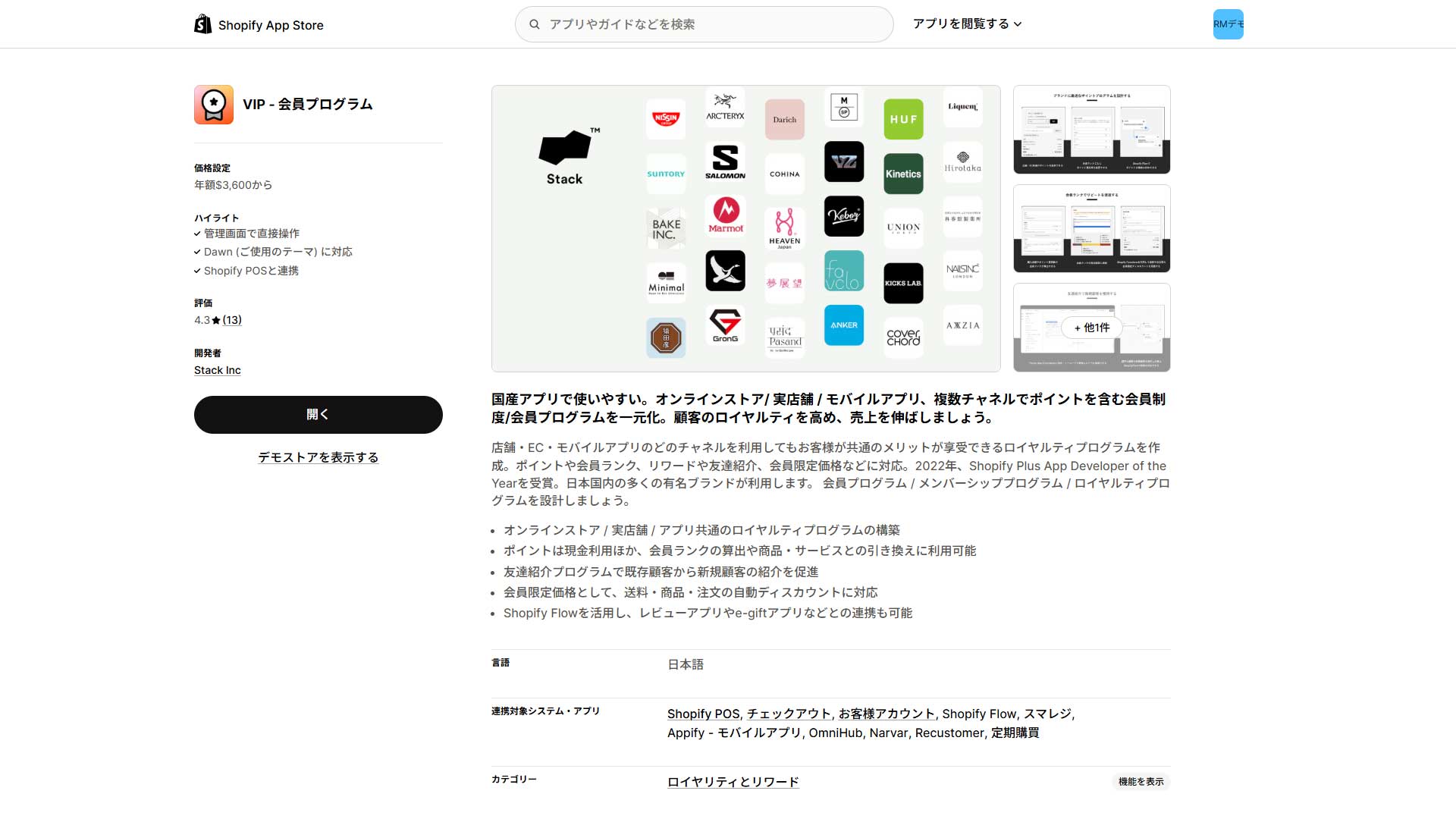](https://storecrm.com/wp-content/uploads/2025/12/shopify-point-app-2.jpg)
A high-end app for mid-sized and large businesses building a sophisticated loyalty programme. Its strength is a consistent customer experience across your online store, your physical stores (Shopify POS) and your own mobile app (Appify). It too uses the direct-discount model familiar from major Japanese ecommerce sites. Detailed membership tiers and referral programmes are among its advanced features. Adoption requires creating a custom app in Shopify for the API integration, so some technical knowledge or support is needed.
[Install the app](https://apps.shopify.com/vip)
### MR.POINT: the app to have when migrating points during a replatform
[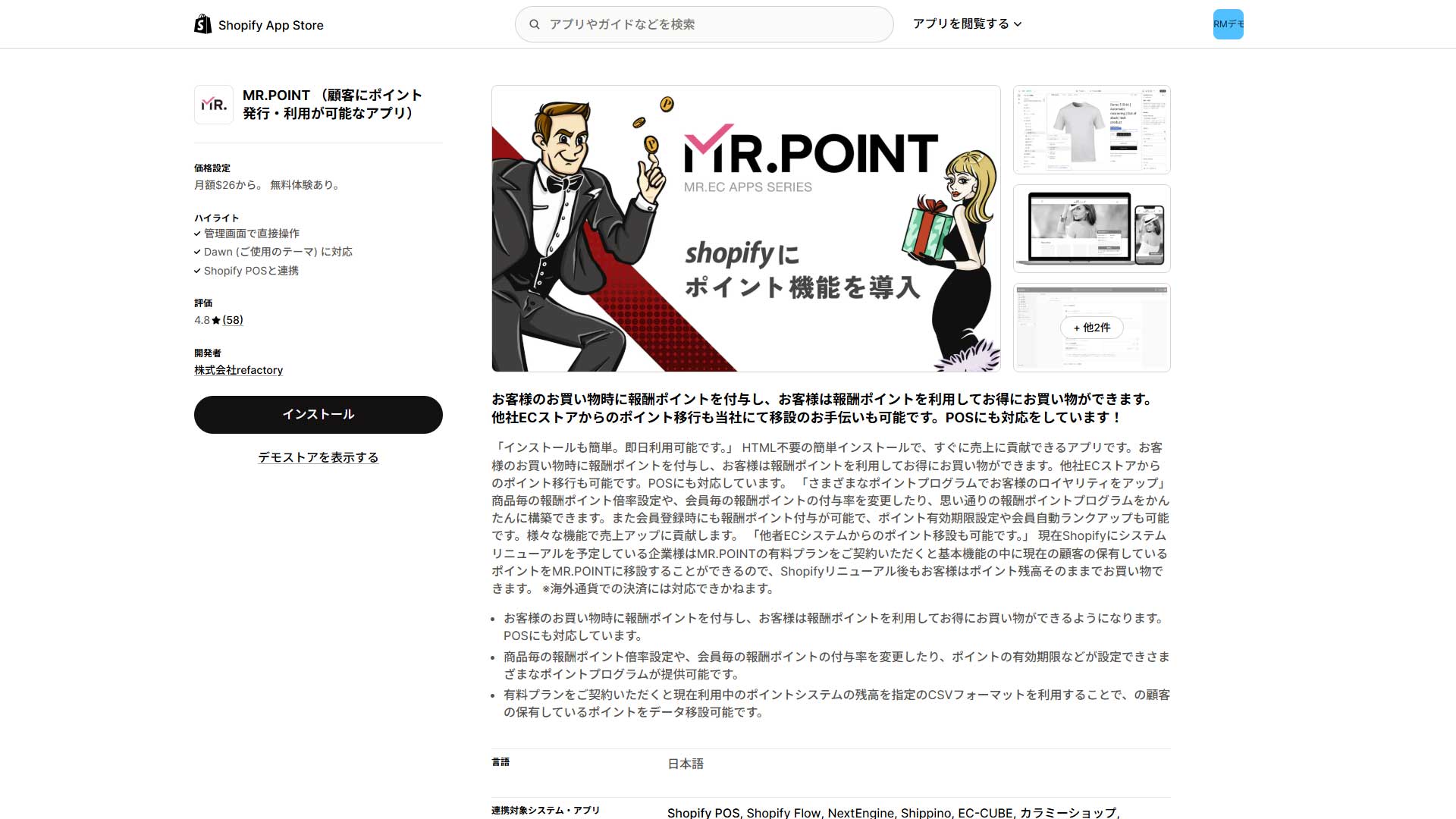](https://storecrm.com/wp-content/uploads/2025/12/shopify-point-app-3.jpg)
A Japanese app that is particularly reassuring for businesses moving to Shopify from another platform such as EC-CUBE. It includes point migration, which is critical for keeping customers through a replatform. Calculating points on the pre-tax amount and automatic tier upgrades are among the details tuned to Japanese commercial practice. Points are used through the direct-discount model, with the customer entering the number of points on the cart page, so there is no friction. Setup is done from the app admin with no coding.
[Install the app](https://apps.shopify.com/mr-point?locale=ja)
### PoingPoing: excellent value, with reviews built in
[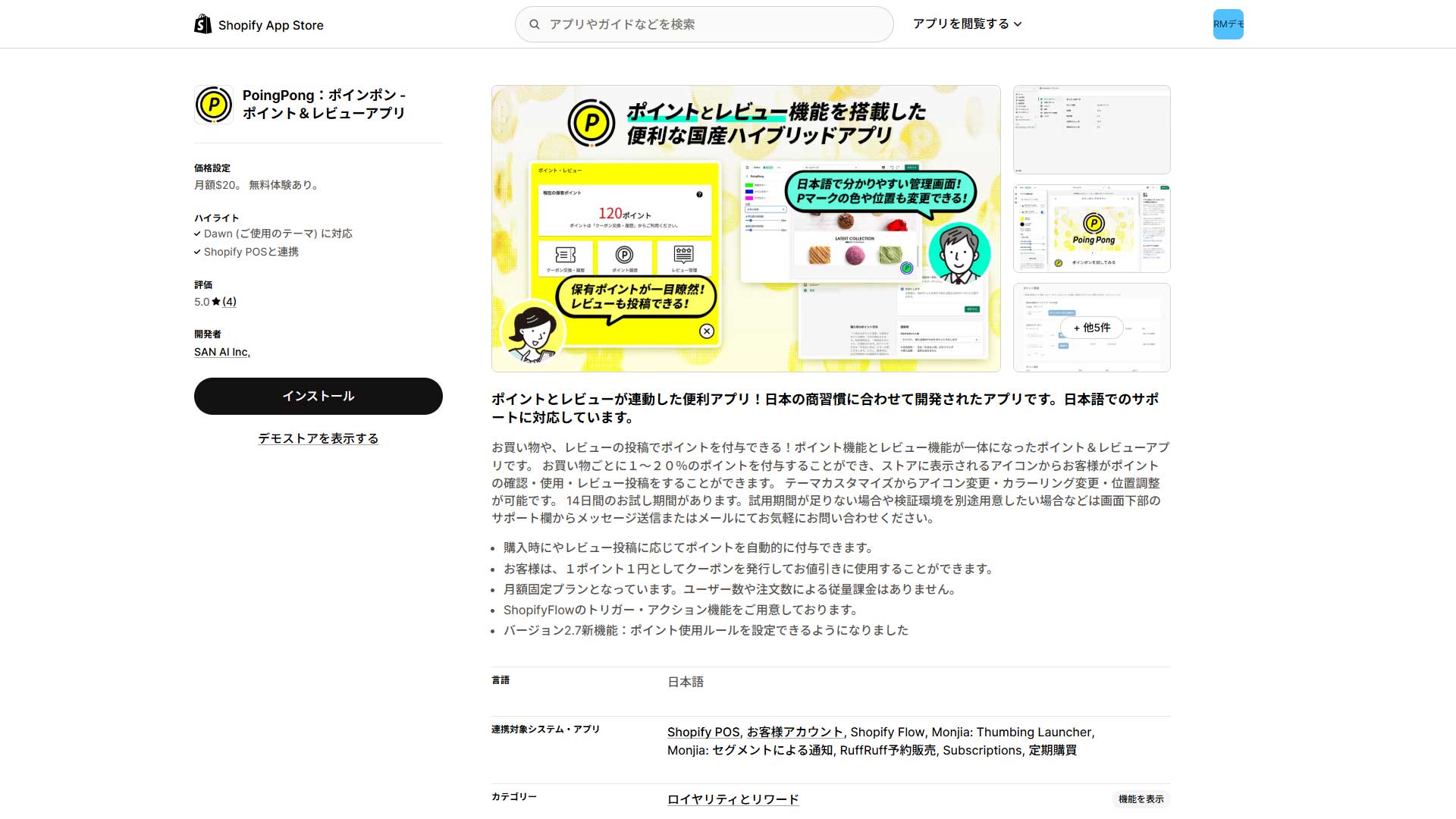](https://storecrm.com/wp-content/uploads/2025/12/shopify-point-app-4.jpg)
A distinctive Japanese app that combines points with product reviews. Its great attraction is the flat price of $20 a month **regardless of how many customers you have** — outstanding value. It is easy to set up automatic points for leaving a review, driving repeat business and credibility at the same time. Note that points are used through a coupon-exchange model: they are converted into a coupon first. Shopify POS is supported.
[Install the app](https://apps.shopify.com/poing-pong)
### KINCHAKU: a membership card delivered to the phone, no app required
[](https://storecrm.com/wp-content/uploads/2025/12/shopify-point-app-5.jpg)
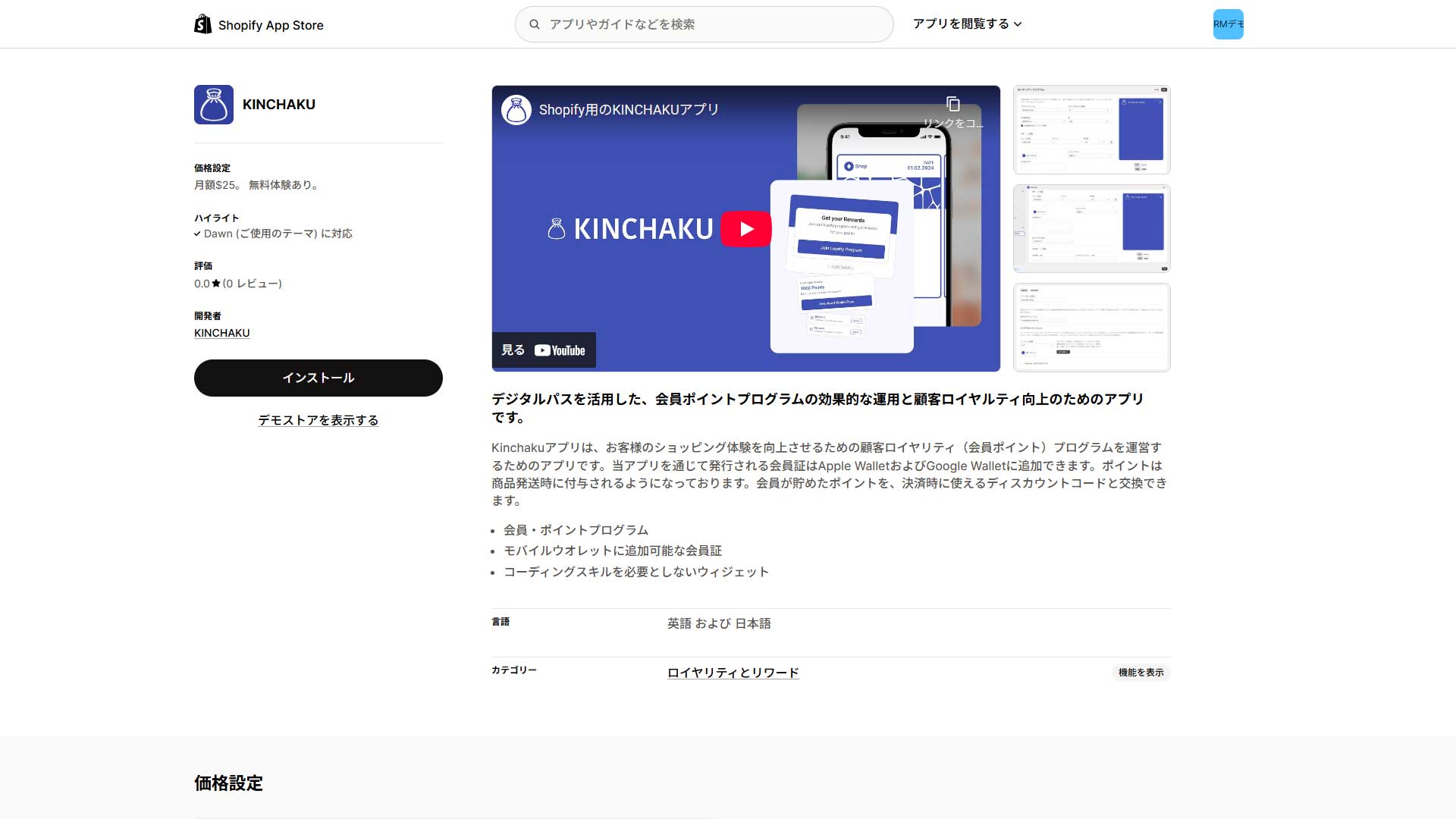
An inventive app that uses the wallet built into every phone (Apple Wallet and Google Wallet) rather than making customers download something. Scanning a QR code after a purchase issues a digital membership card instantly — a frictionless experience for the customer. Importantly, points use a coupon-exchange model: they are converted into a coupon code before being applied. Integration with POS systems such as Smaregi supports serious OMO work.
[Install the app](https://apps.shopify.com/kinchaku-loyalty)
### Dokopoi: marketing automation through Shopify Flow
[](https://storecrm.com/wp-content/uploads/2025/12/shopify-point-app-6.jpg)
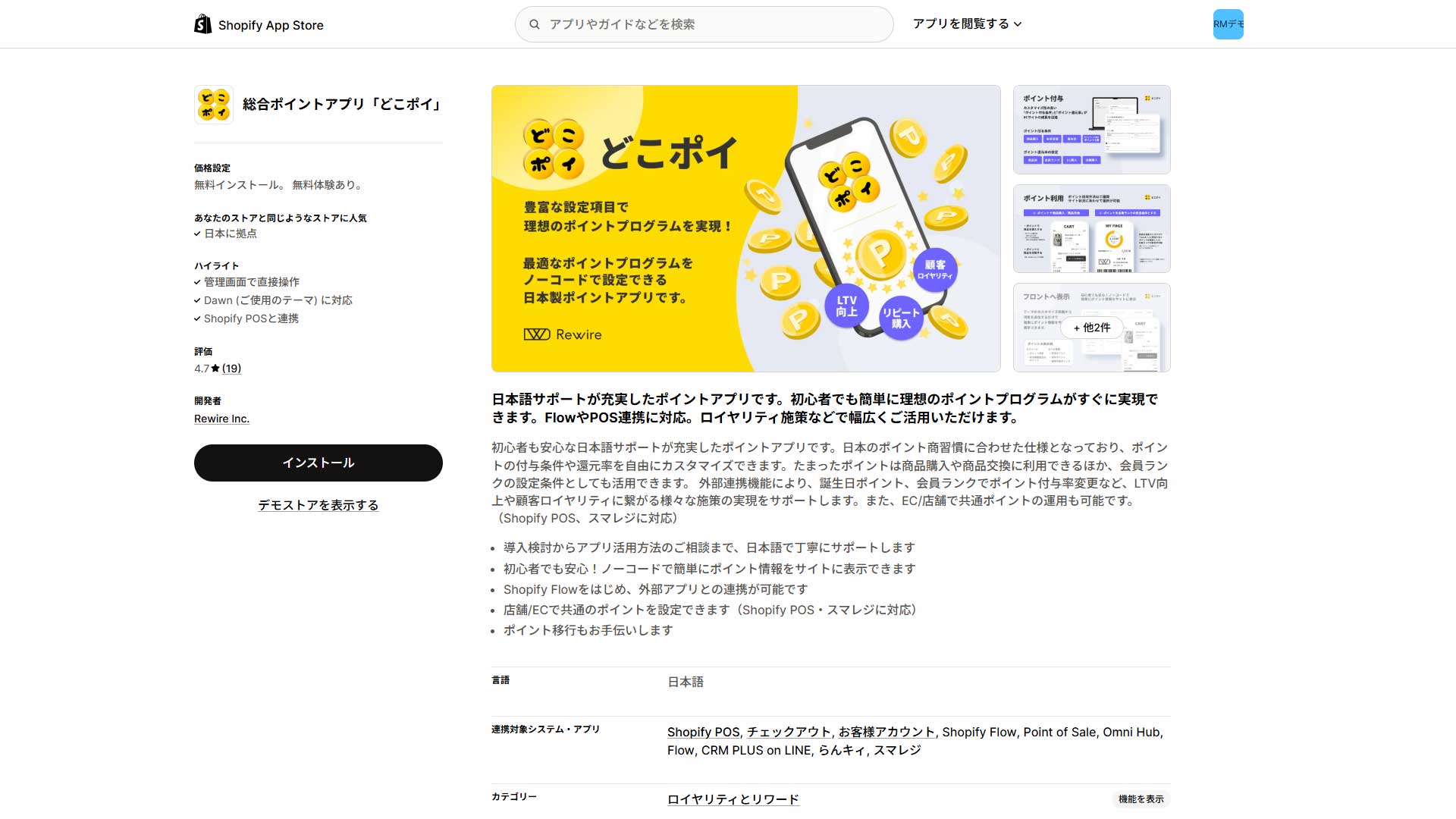
A comprehensive Japanese points app with a strong reputation for support. Its powerful Shopify Flow integration automates advanced tactics such as awarding points automatically on a customer's birthday. It uses the direct-discount model Japanese customers are used to, so points apply seamlessly on the cart page. OMO features are well covered too: Shopify POS, and Smaregi via Omni Hub. Installation is simply a matter of adding an app block in the theme editor.
[Install the app](https://apps.shopify.com/dokopoi?locale=ja)
### Smile: Loyalty & Rewards, the global standard used by over 100,000 stores
[](https://storecrm.com/wp-content/uploads/2025/12/shopify-point-app-7.jpg)
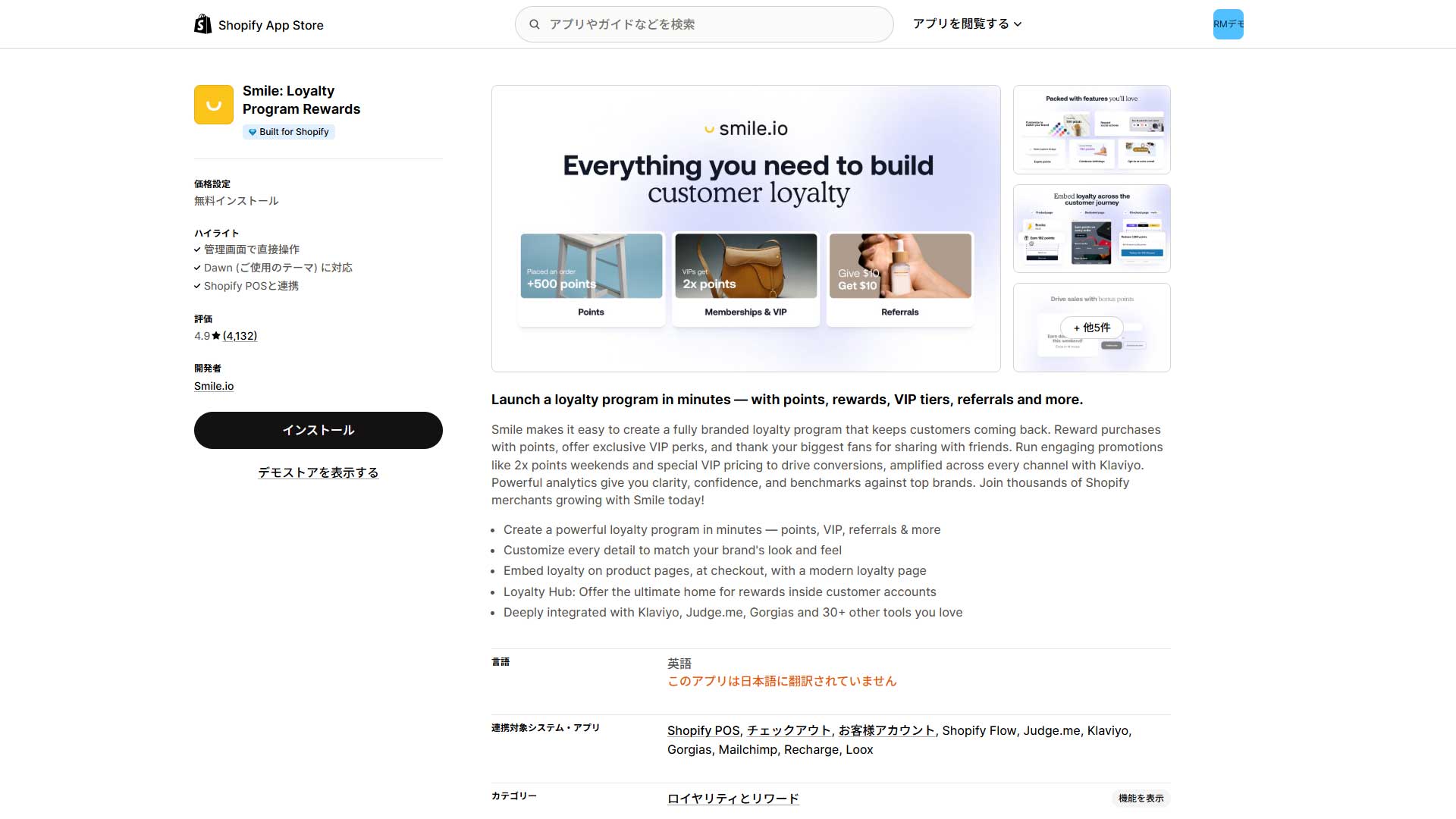
Used by more than 100,000 stores worldwide and carrying Built for Shopify accreditation, Smile is one of the most popular loyalty apps anywhere. It offers three core features: points, VIP tiers and referrals. Note that it uses a coupon-exchange model — points are converted into a coupon code before use — which is a different experience from the direct use Japanese customers expect. It is dependable and simple to configure, but the admin is in English. It suits stores focused on selling abroad or integrating with tools from outside Japan.
[Install the app](https://apps.shopify.com/smile-io)
## Summary: choose the app that matches your size and your goals
A points programme is a powerful way to grow repeat business and lifetime value, but success depends on choosing an app that matches your goals and the experience you want to give customers.
If a seamless purchase experience like the big Japanese marketplaces is the priority, a direct-discount app such as **easyPoints** or **Dokopoi** is your first choice. If you are migrating from another platform and must carry existing point balances across, **MR.POINT** and its migration feature is the only real option.
If value for money comes first and you want to strengthen review collection at the same time, **PoingPoing**, with its flat price regardless of customer count, is ideal for a growing store. For an advanced OMO strategy built on a digital membership card that needs no app, **KINCHAKU**; and for global-standard functionality and integration with tools from abroad, **Smile**. Choose the app that fits your strategy.
========================================================================
# 7 Shopify subscription apps compared, with examples
> Essential reading if you want more predictable revenue: seven subscription apps for the Japanese market compared, plus what actually drives LTV and stable sales.
- URL: https://storecrm.com/knowhow/shopify-subscription-app/
- Type: Blog
- Published: 2025-12-27
- Updated: 2026-03-11
- Category: tips
- Tags: CRM, guides
- Author: StoreCRM
---
The cost of acquiring a new customer in Japanese ecommerce keeps rising. In that environment, the subscription model — where the relationship does not end with a single purchase — matters more than ever.
Subscriptions are a powerful strategy for building a stable revenue base and maximising lifetime value. This article is intended as a compass for merchants in Japan who want to start selling subscriptions on Shopify: how to choose the app that suits your stage of business and your products, and take a confident first step.
## Four benefits of subscriptions on Shopify
Adding a subscription model to a Shopify store brings a number of concrete benefits. Here are the four that matter most, explained for anyone new to the idea.
### 1. Stable revenue and higher lifetime value
Subscriptions give you recurring revenue, which makes monthly sales far easier to forecast. Instead of reacting to short-term swings, you can plan the business with confidence.
Lifetime value per customer commonly reaches several times that of one-off purchases. As LTV rises, so does the amount you can afford to spend acquiring each new customer, which opens the door to more aggressive marketing.
### 2. A dramatically better repeat rate
In a typical ecommerce store, the share of first-time buyers who go on to buy a second time averages only 15–25%. In a subscription model, where continuation is the premise of the first purchase, that figure improves to over 40% on average.
In cosmetics and health foods — the heart of D2C in Japan — rates above 50% are realistic, and for everyday consumables above 60%. Marketing efficiency for new customer acquisition improves substantially, and growth accelerates with it.
### 3. Better demand forecasting and less inventory risk
A major advantage of subscriptions is knowing next month's shipment volume almost exactly in advance, which makes purchasing and production planning far easier.
That minimises both the storage cost of excess inventory and the lost sales of running out. For products with a shelf life or use-by date — food and cosmetics in particular — reducing waste feeds directly into margin.
### 4. An ongoing relationship with customers
Subscriptions do more than deliver a product regularly; they create a recurring touchpoint. Including a newsletter or a sample with each monthly shipment, or sending a subscriber-only newsletter, deepens the conversation.
That continuing relationship makes it natural to cross-sell related products and upsell to higher tiers, and it turns customers into genuine fans.
## Seven Shopify subscription apps compared
Here are seven of the main subscription apps available in the Japanese market, with what each one is good at. Use it to find the one that fits your situation.
### Kantan Subscription
[](https://storecrm.com/wp-content/uploads/2025/12/shopify-subscribe-app-1.jpg)
As the name (meaning "easy subscription") suggests, [Kantan Subscription](https://subscription.groovymedia.jp/) is a Japanese app built around ease of adoption and low cost. Its great attraction is a starter plan at $0 a month, so you begin paying nothing but the payment processing fee. For anyone trying subscriptions for the first time, starting small with no fixed-cost risk is genuinely reassuring.
Setup is entirely in Japanese, and on an Online Store 2.0 theme it is done by intuitive drag and drop, with no code editing — something merchants consistently praise. Functionally it focuses on single-product recurring orders; there is no box feature for combining several products.
All told, if you want to avoid the complexity and cost of a fully featured app from abroad and simply try recurring sales of a single product, it is the lowest-risk option available.
[Install the app](https://apps.shopify.com/sengine?locale=ja)
### Mikawaya Subscription
[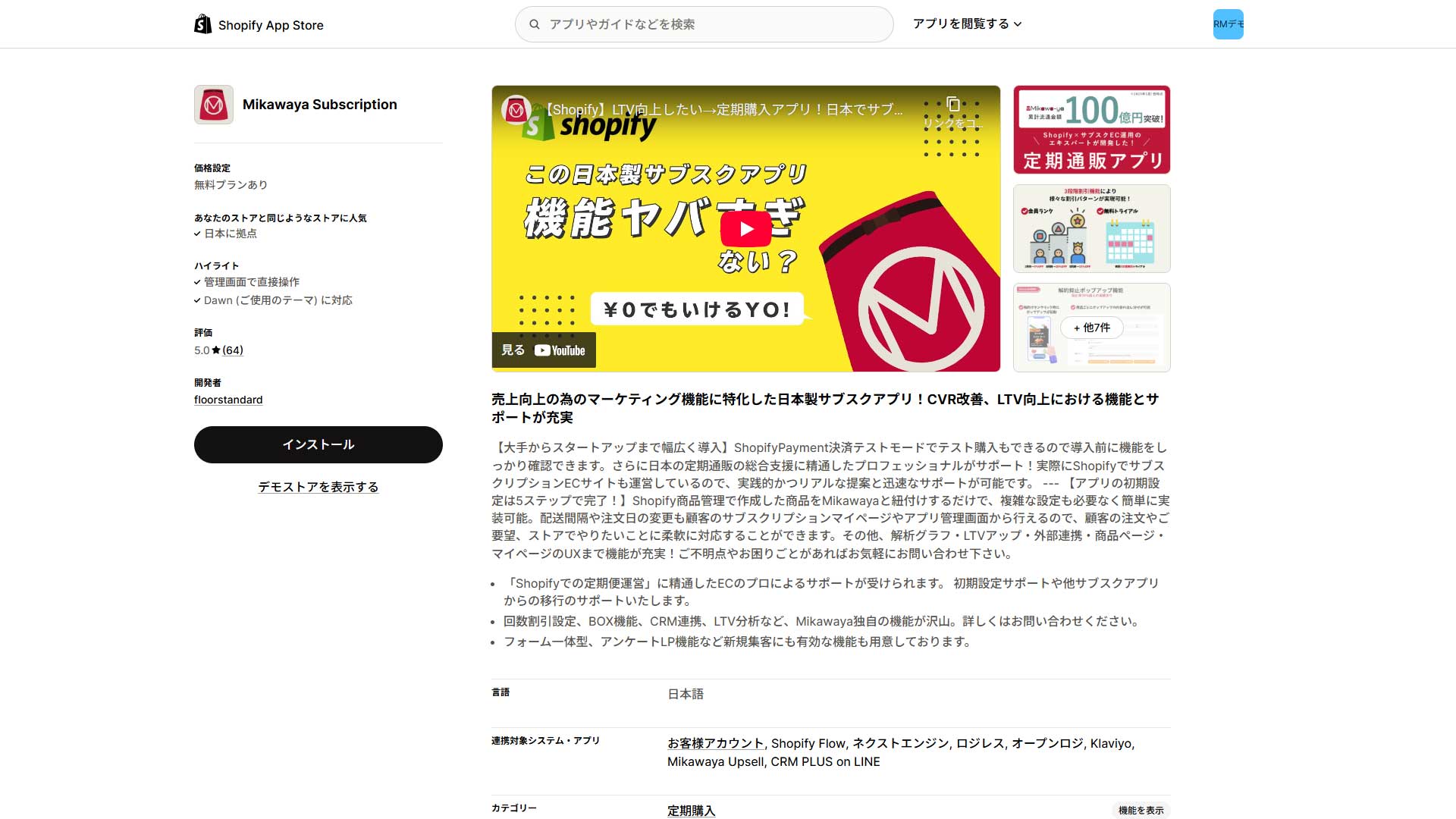](https://storecrm.com/wp-content/uploads/2025/12/shopify-subscribe-app-2.jpg)
Mikawaya Subscription is a Japanese app strong on marketing, built on what its developer learned running its own D2C business. Its real value is that it is not merely a tool for creating orders. It includes features that feed directly into lifetime value: cancellation prevention, which offers a special coupon when a customer tries to cancel from their account page, and staged discounts, where the discount rate rises with the number of orders.
Setup is entirely in Japanese, with thorough support from Shopify partners in Japan. That support is exactly what merchants in Japan value most about it: they will engage on how you run the programme, not just on the features. For a serious D2C brand that cares about branding and a high-quality customer experience, it makes a dependable partner.
[Install the app](https://apps.shopify.com/mikawaya?locale=ja)
### Teikikobai
[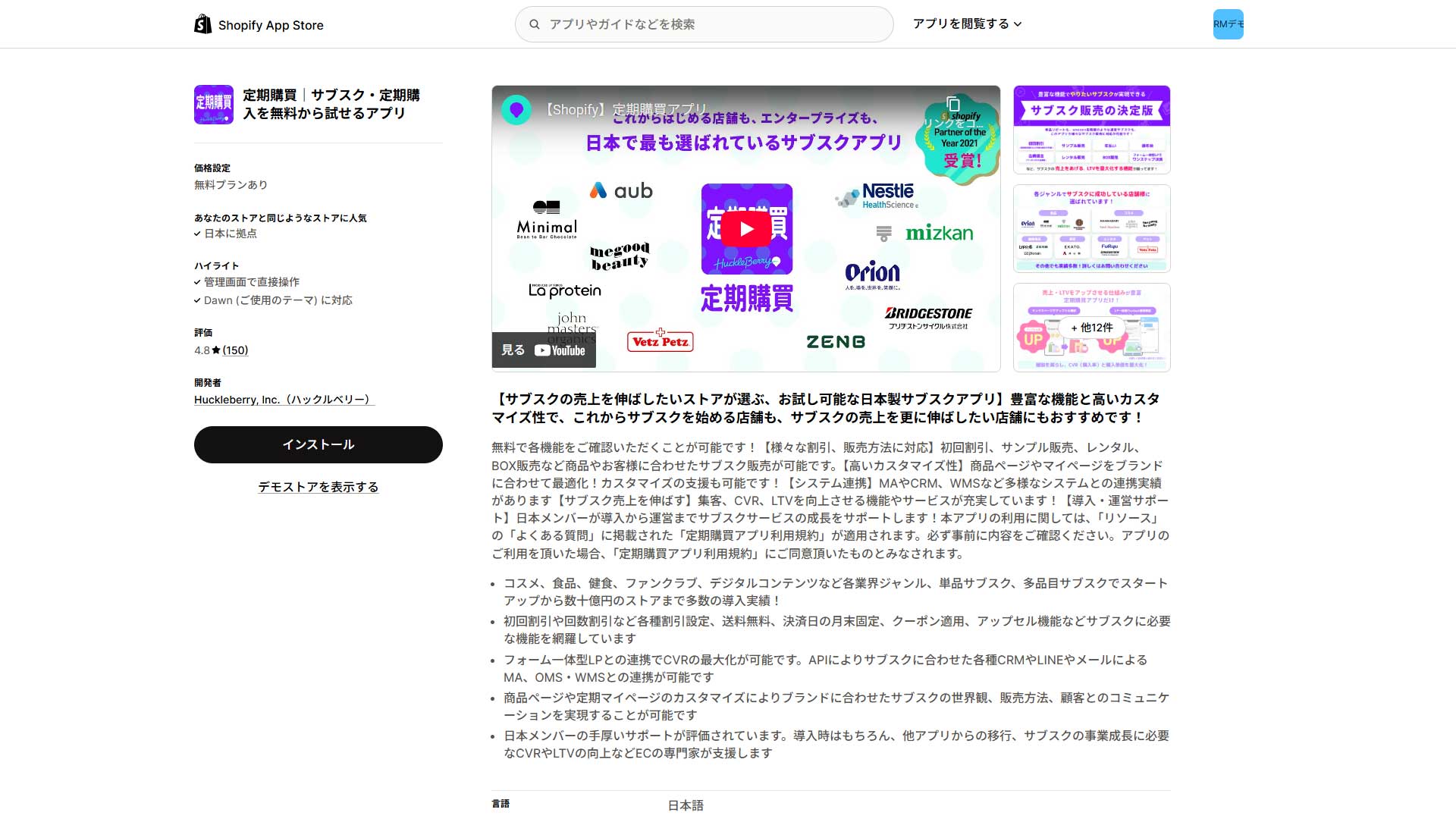](https://storecrm.com/wp-content/uploads/2025/12/shopify-subscribe-app-3.jpg)
Teikikobai is a long-established Japanese app with a deep understanding of how recurring commerce works in Japan. Merchants routinely describe its features as covering exactly the details others miss: fixed delivery dates such as "delivered on the 25th of every month", and a proper membership tier system where benefits change with spend or order count, both as standard.
Its most unusual feature lets a customer give the product to a friend or family member instead of skipping the next delivery. That avoids a lost sale while creating an opening for a new customer. Setup is entirely in Japanese and its onboarding support, including online meetings, is well regarded, which makes it ideal for building a traditional Japanese recurring commerce model properly on Shopify.
[Install the app](https://apps.shopify.com/huckleberry-subscription?locale=ja)
### GO SUB
[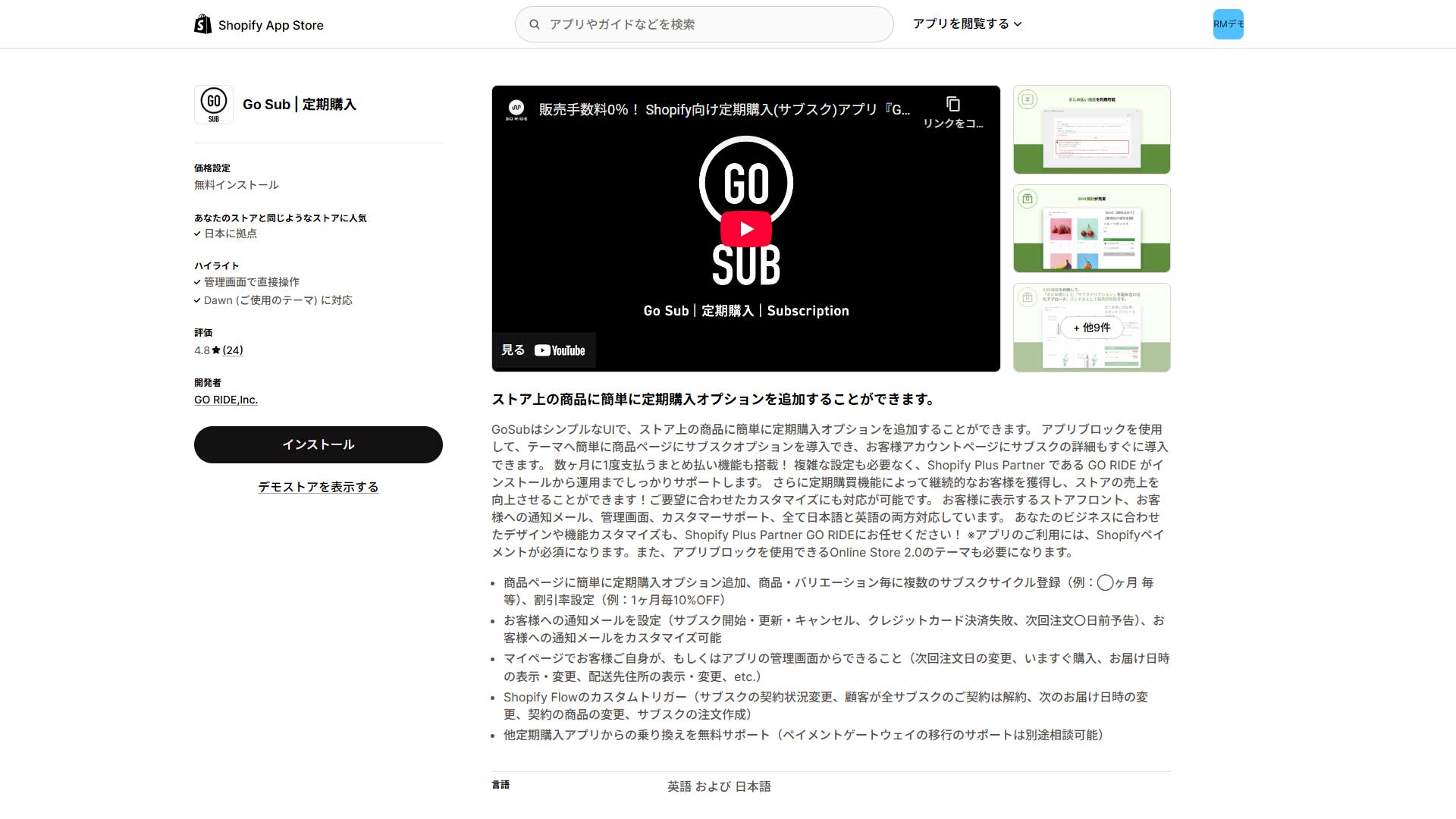](https://storecrm.com/wp-content/uploads/2025/12/shopify-subscribe-app-4.jpg)
GO SUB is a cost-effective Japanese app built by a Shopify Plus Partner in Japan. It is the first subscription app based in the country to earn Built for Shopify accreditation. Its standout feature is 0% transaction fees from the $39-a-month plan upwards. Where most apps take a share of revenue, GO SUB runs on a fixed cost, so the more you sell the greater the advantage.
The starter plan has no fixed monthly fee at all, charging only a 2% transaction fee on orders GO SUB is involved in, which appeals to stores that want to try subscriptions but worry about cost. The feature set is comprehensive too: flexible discount rates and delivery cycles, and multi-currency support that makes cross-border selling straightforward.
Its prepaid billing feature is another strong point, applying a discount in exchange for taking several months' payment up front — better cash flow for you, less payment admin and a discount for the customer. Setup is entirely in Japanese, with thorough support. For a growing store turning over several hundred thousand yen a month, where transaction fees start to matter, it is an extremely cost-efficient option to consider before moving to a fully featured app from abroad.
[Install the app](https://apps.shopify.com/go-subscride?locale=ja)
### BOLD Subscriptions App
[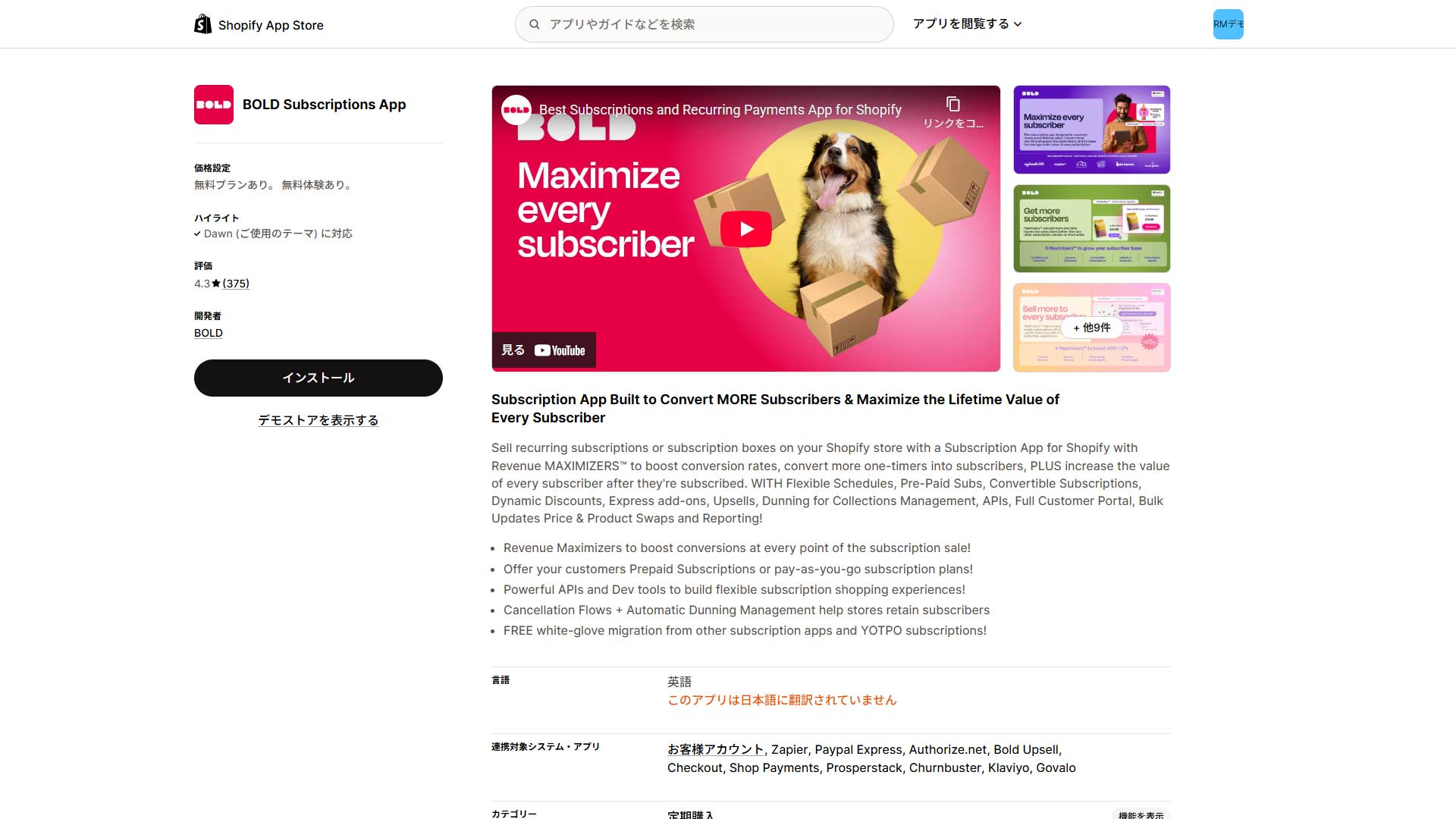](https://storecrm.com/wp-content/uploads/2025/12/shopify-subscribe-app-5.jpg)
BOLD Subscriptions is a well-known and highly capable Canadian app. Its real value comes not from using it alone but from the ecosystem around it — Bold Upsell, Bold Bundles and the rest. Those apps work together to automate upselling and cross-selling, designed to maximise order value and lifetime value.
There are caveats for the Japanese market, however. The admin is entirely in English, and localising what customers see requires editing your theme's code. It also does not support the fine-grained delivery date and time selection that is standard in Japan. Getting the most out of it therefore means having a developer in house or a reliable external partner — a choice for mid to large stores with technical resources.
[Install the app](https://apps.shopify.com/bold-subscriptions)
### Recharge
[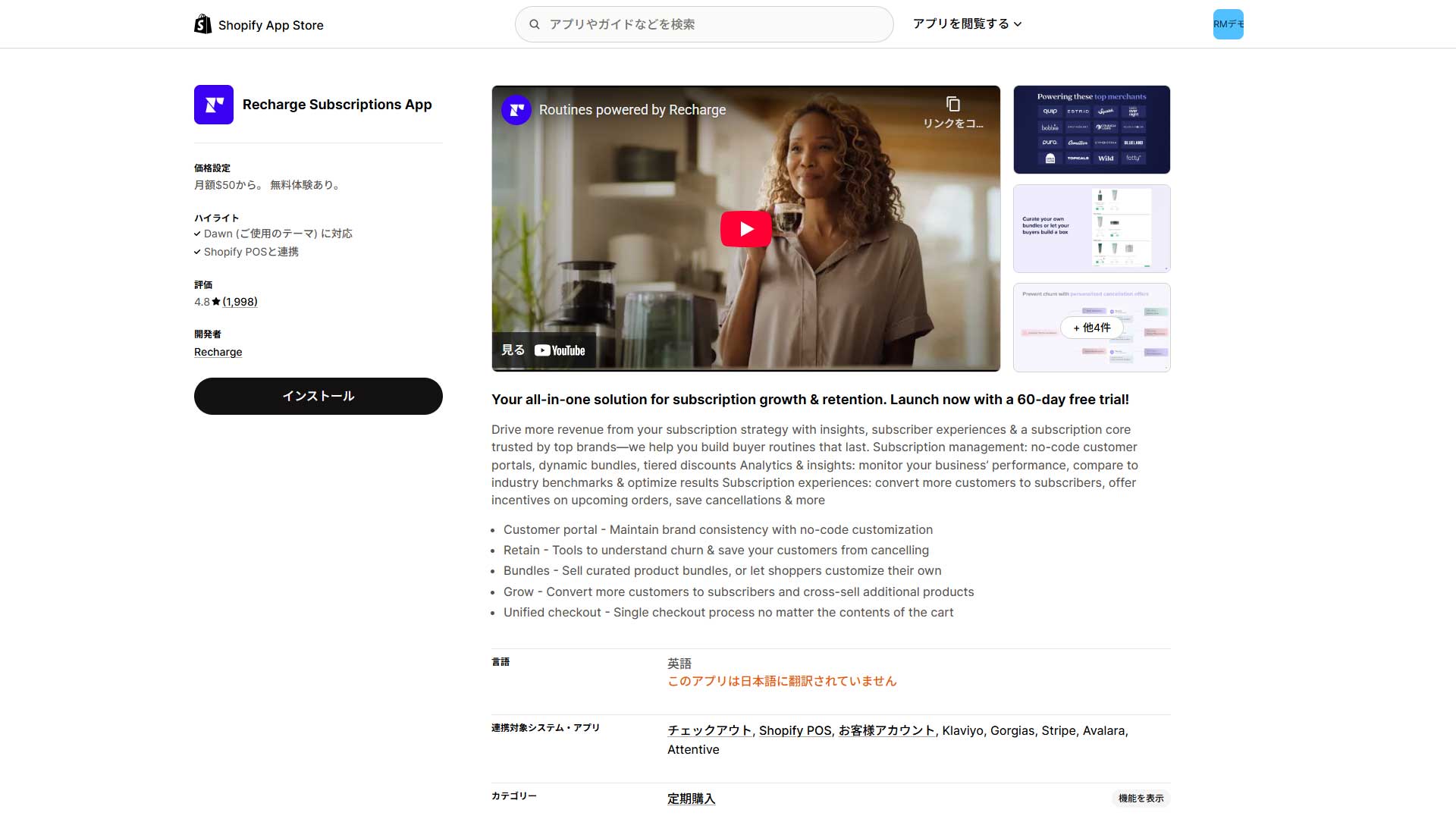](https://storecrm.com/wp-content/uploads/2025/12/shopify-subscribe-app-6.jpg)
Recharge is the most widely used Shopify subscription app in the world — the category king. Its enormous feature set and its extensibility through APIs are its greatest strengths, and it is used by many well-known brands operating at global scale. Using it in Japan, though, is demanding. It costs $99 a month plus a transaction fee of 1.25% of revenue and 19 cents, which is expensive. The admin and support are entirely in English, so running it requires both language and technical ability.
It also does not support convenience store payment, and complying with Japan's revised Act on Specified Commercial Transactions requires careful attention to how information is displayed. Extracting 100% of its capability means investing not only the monthly fee but the invisible cost of development and operations to localise it and fit it to Japanese commercial practice.
[Install the app](https://apps.shopify.com/subscription-payments)
### Shopify Subscriptions
[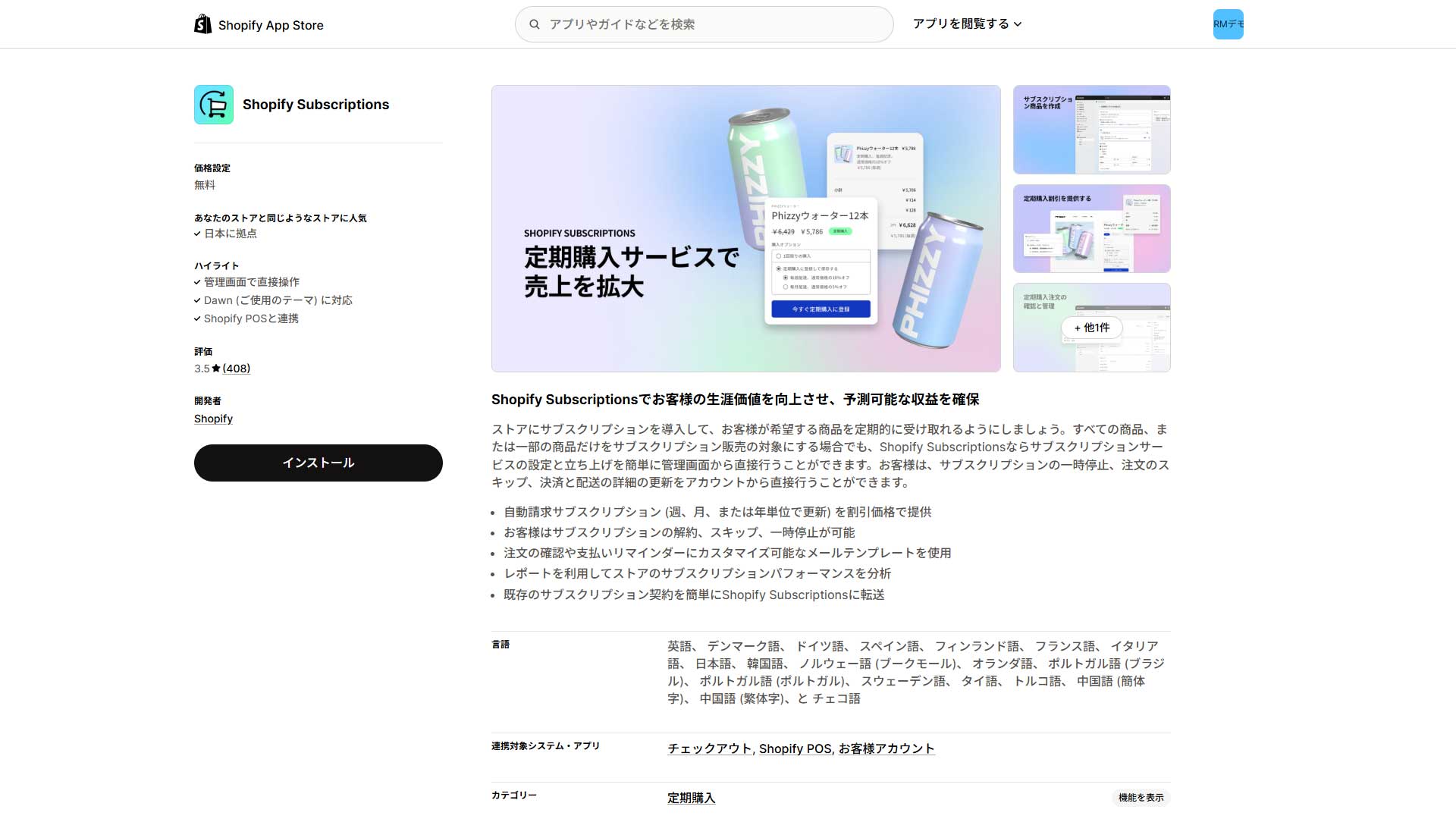](https://storecrm.com/wp-content/uploads/2025/12/shopify-subscribe-app-7.jpg)
Shopify Subscriptions is Shopify's own app, and it is **completely free** — no monthly fee and no additional payment processing charge. For anyone who wants to try the subscription model without spending anything, there is no better first step.
It is very easy to adopt, configured entirely within the Shopify admin. In exchange, the functionality is very simple: it cannot do the delivery date and time selection that serious recurring commerce in Japan expects, nor complex discounts such as a first-order-only rate. It supports little beyond credit card payment, which may limit who can buy from you.
That absence of cost is a direct trade-off against the quality of the customer experience Japanese customers expect: delivery scheduling and flexible discounts. Meeting the disclosure requirements of Japan's revised Act on Specified Commercial Transactions on the standard checkout also takes some ingenuity, so approach the regulatory side carefully.
[Install the app](https://apps.shopify.com/shopify-subscriptions?locale=ja)
## Summary
Seven apps in, it should be clear that no single app is perfect for every business. The right choice depends heavily on your stage (just starting, or scaling), the nature of your products, your budget and your technical knowledge.
A small store that wants to start with minimal risk should begin with Shopify's own app or a low-cost Japanese one. Once you reach the stage of marketing seriously and maximising lifetime value, step up to a more capable Japanese app. Being willing to revisit the choice as the business grows is what matters. We hope this article helps your store grow steadily.
========================================================================
# Shopify SMS marketing apps compared: choosing one for Japan
> Attentive, Postscript, Klaviyo and Omnisend compared for use in Japan — what each offers, and the costs, character limits and caveats of sending SMS domestically.
- URL: https://storecrm.com/knowhow/sns-marketing-apps/
- Type: Blog
- Published: 2025-12-27
- Updated: 2026-01-09
- Category: tips
- Tags: SMS, Apps, Marketing
- Author: StoreCRM
---
Does it feel as though email open rates fall every year and your messages no longer reach customers? SMS marketing, with its 98% open rate, is attracting attention as the answer. But the popular SMS apps for Shopify are mostly built outside Japan, and using them here comes with particular caveats.
This article covers the basics of SMS marketing, the cost and feature barriers you hit using apps from abroad in Japan, and a detailed comparison of the main options — Attentive, Postscript, Klaviyo and Omnisend — so that Shopify merchants in Japan can choose the right app for their business.
## Why SMS now? Four benefits, and what to watch out for
SMS is being reappraised as a marketing channel because it has strengths no other channel can match. Here are four points every ecommerce operator should know, covering both the upside and the caveats.
### A 98% open rate: near certainty that your customer sees it
The greatest benefit of SMS marketing is its extraordinary open rate. Various studies put it at around 98% — roughly five times the 20% typical of email. Information that only one person in five sees by email reaches almost everybody by SMS.
Being able to put something you absolutely need customers to see — a product launch, an important sale — onto their phone with that confidence is an attraction no other channel offers.
### Delivered instantly, read instantly: perfect for flash sales
SMS is not only opened; it is opened fast. Data suggests 90% of recipients open a text within three minutes of receiving it — in contrast to email, which is often read hours or days later.
That immediacy is enormously effective for time-critical information: flash sales that are won or lost in the first few hours, or an urgent announcement about a limited quantity. SMS reaches customers at their most active moment, which makes it a powerful defence against lost sales.
### The trump card for abandoned carts
Abandoned carts — customers who add something and never buy — are a shared frustration in ecommerce. Here too SMS is a very effective answer. Most people mean to buy later and simply forget, so reminding them while it is still fresh matters.
Case studies from KDDI Message Cast, KDDI's SMS delivery service, report that sending an SMS reminder to customers who abandoned a cart recovered purchase rates by 10–15%. Where an email reminder is easily missed, a text lands directly on the phone's lock screen, reawakening intent and recovering revenue.
### A caveat: the cost and character-count barriers in Japan
For all its benefits, sending SMS within Japan comes with important differences from elsewhere. The first is cost. Domestic SMS over a high-quality route costs roughly ¥8–18 per message. That is expensive compared with email, so sending indiscriminately adds up quickly. The second, and more important, is the character limit.
A text normally holds 160 single-byte alphanumeric characters, but a single Japanese (double-byte) character drops the limit to just 70. Anything over 70 characters counts as two messages and costs twice as much. Even something as short as "[Store name] Sale on now! Here: (URL)" easily exceeds 70 characters in Japanese, doubling the cost without your intending it.
## Four leading Shopify SMS apps compared for use in Japan
The popular SMS marketing apps for Shopify are Attentive, Postscript, Klaviyo and Omnisend. All four are best-in-class tools in the global market, particularly in North America — but they are designed around the North American market. That means merchants in Japan run into cost and feature problems that are specific, and sometimes fatal. Here is what each offers, and how well it works here.
### Attentive
[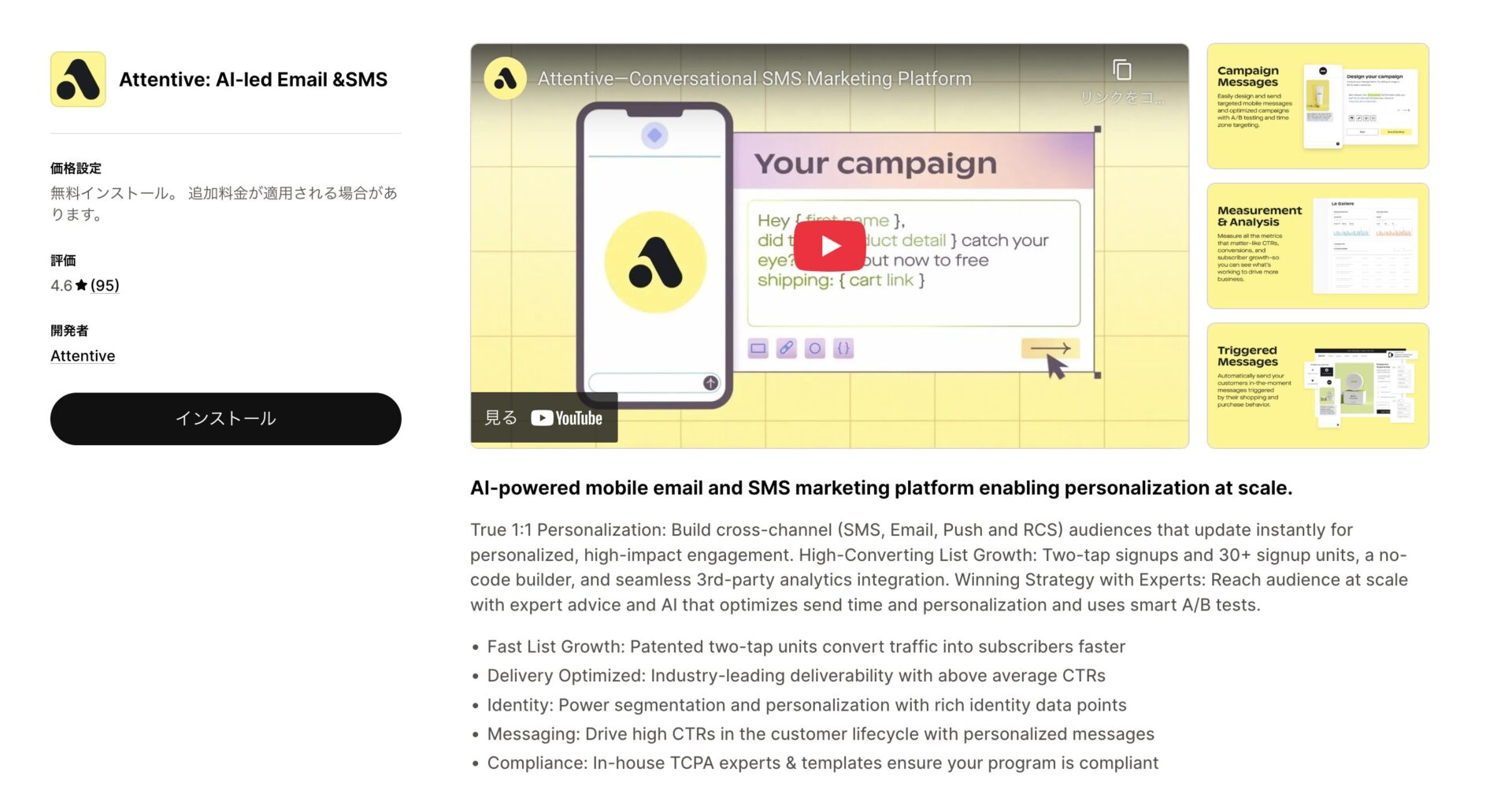](https://storecrm.com/wp-content/uploads/2025/12/Screenshot-2026-01-09-at-14.55.22.jpg)
[Attentive](https://apps.shopify.com/attentive?locale=ja) is unmatched at growing an SMS subscriber list — but that strength is built for North America. It targets large brands on Shopify Plus, and its greatest weapon is its patented "Two-Tap" technology: tapping a button on a popup launches the phone's messaging app automatically, and pressing send completes the signup.
Removing the need to type a phone number entirely produces a dramatic increase in list growth. Using it in Japan, however, comes with a significant constraint: picture messaging (MMS), one of Attentive's attractions, is not currently available here.
In short, Attentive is a powerful weapon for merchants who want serious results selling into North America, but for domestic use in Japan, losing MMS — its greatest strength — is a real drawback.
[Install the app](https://apps.shopify.com/attentive?locale=ja)
### Postscript
[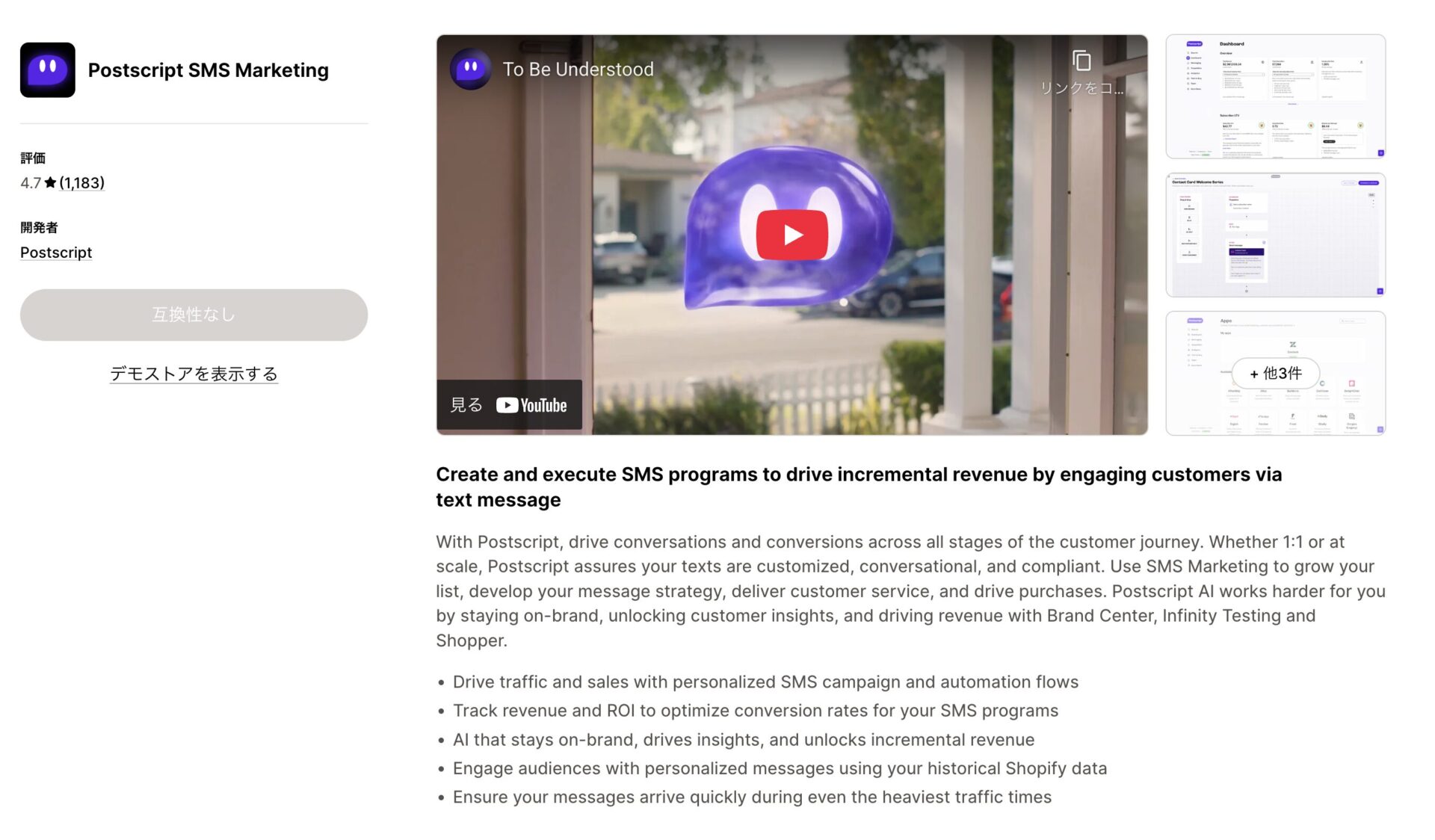](https://storecrm.com/wp-content/uploads/2025/12/Screenshot-2026-01-09-at-15.03.16.jpg)
Postscript positions itself consistently as the SMS specialist built purely for Shopify. Its strengths are automation flows deeply connected to Shopify data, and two-way communication built around conversation with the customer.
Integrated with the helpdesk tool Gorgias, for instance, SMS replies become support tickets and the whole conversation can be handled over SMS. Using it in Japan, though, presents serious problems. As with Attentive, MMS is unavailable, and sending to Japan costs about $0.20 per message against roughly $0.015 within the US — more than ten times as much.
In short, Postscript is ideal for North American merchants who want deep Shopify integration and conversational commerce. For running it in Japan, the sending cost is a major barrier.
[Install the app](https://apps.shopify.com/postscript-sms-marketing?locale=ja)
### Klaviyo
[](https://storecrm.com/wp-content/uploads/2025/12/Screenshot-2026-01-09-at-15.06.02.jpg)
Klaviyo is widely known as a CRM and marketing automation app combining email and SMS, but in the Japanese market its SMS functionality is effectively unusable. Its greatest strength is deep analysis of Shopify customer data — purchase history, on-site behaviour — and automated outreach to fine-grained segments such as "customers who viewed a particular product three times without buying".
The important caveat is that Klaviyo's SMS does not officially support sending to Japan (country code +81) at present, or supports it only in very limited form.
In short, for a business selling within Japan, the realistic use of Klaviyo is as a foundation for email and data analysis. Running its SMS here is not currently a practical option.
[Install the app](https://apps.shopify.com/klaviyo-email-marketing?locale=ja)
### Omnisend
[](https://storecrm.com/wp-content/uploads/2025/12/Screenshot-2026-01-09-at-15.07.01.jpg)
[Omnisend](https://apps.shopify.com/omnisend?locale=ja) is popular with small and mid-sized businesses for its balance of features and value, but its SMS needs care in Japan. It manages email, SMS and web push in one approachable platform, and it is cheaper and easier to adopt than Klaviyo.
Using SMS in Japan raises specific problems, though. The most serious is that texts sent to Japanese mobile numbers show an unfamiliar international number as the sender rather than your brand name, which customers may well mistake for a phishing attempt. On top of the 70-character limit for Japanese, the mandatory unsubscribe URL consumes more than 20 characters, so costs rise unintentionally.
In short, Omnisend is attractive for merchants who want a low-cost, capable tool centred on email marketing — but the international sender number alone risks damaging trust with customers in Japan.
[Install the app](https://apps.shopify.com/omnisend?locale=ja)
## Summary
All four of the apps covered here are highly capable in the global market. For a business whose main target is Japan, however, the reality is significant constraints: expensive sending, no picture messaging, and in some cases no ability to send to Japan at all.
To choose well for your business, use these criteria.
- **Selling mainly to North America or other markets abroad:** marketing built around local commercial practice is essential. **Attentive**, with its strength in list growth, and **Postscript**, with its smooth Shopify integration, are the strong candidates.
- **Selling mainly within Japan:** understand the constraints of apps built abroad. One effective strategy is to use these apps primarily to strengthen email marketing, while turning to a **LINE integration app** such as **StoreCRM** — far more familiar to Japanese users — as the alternative to SMS.
========================================================================
# How to manage customers over LINE: 10 CRM tools compared
> What a LINE Official Account can and cannot do as a CRM, what a LINE extension app adds, and a comparison of 10 tools by goal, channel and industry.
- URL: https://storecrm.com/knowhow/line-crm-tools/
- Type: Blog
- Published: 2025-11-23
- Updated: 2026-04-15
- Category: tips
- Tags: CRM, guides
- Author: StoreCRM
---
## What is customer management (CRM) on LINE?
The [LINE Official Account](https://manager.line.biz/) is a communication tool you can use as a CRM — from acquisition through to promotion — even on the free plan. A major strength is that it works equally well for physical stores and for ecommerce. It has everything you need to build a relationship with a customer: one-to-one messages to contacts who have added you, broadcasts announcing a campaign, coupon distribution, open-rate analysis and more. In physical stores you can also award points through a shop card, hand out coupons, and record visits with LINE Touch.
## Related pages
[StoreCRM (Shopify App Store)](https://apps.shopify.com/obake-ma?locale=ja)
[StoreCRM for LINE — the definitive Shopify and LINE integration app](https://storecrm.com/line/)
[How to connect Shopify with a LINE Official Account](https://storecrm.com/help/setting/line/)
[How to let customers sign up and log in to Shopify with LINE Login](https://storecrm.com/knowhow/linelogin/)
[How to add a LINE ID linking icon to your Shopify store](https://storecrm.com/knowhow/line-connect-banner/)
[4 Shopify LINE ID linking apps compared](https://storecrm.com/knowhow/shopify-line-app/)
[8 CRMs for Shopify compared, and what an app gets you](https://storecrm.com/knowhow/shopify-crm/)
[Using and integrating customer management and CRM apps on Shopify](https://storecrm.com/knowhow/customer-management/)
### Even the free LINE Official Account plan can win customers and grow sales
A LINE Official Account gives you a lot for free. The standard features do not, however, cover abandoned checkout recovery, back-in-stock notifications, price-drop alerts on wishlist items, chatbots, in-store booking, AI-driven sending or advanced reporting. That is where a LINE extension app — an app that connects to your LINE Official Account — comes in. Connect it to the CRM behind your ecommerce store or your shops and you can send accurate, automated messages driven by purchase and browsing history. LINE stops being a broadcast tool and becomes a genuine CRM foundation that grows revenue. **While your customer base is small the free features will take you a long way; consider a LINE extension app once your store grows or you start needing features the standard account does not have.**
#### What a LINE Official Account can do
Sending a series of messages automatically to new or long-standing contacts
Auto-reply
Keyword-based replies plus AI responses, 24 hours a day
Rich message formats
Persuasive image, card and video messages
Coupons
Creating and distributing online coupons to drive visits and purchases
Shop cards
Digital stamp cards that award stamps and points to encourage repeat visits
Surveys
Multi-question surveys that capture customer needs and satisfaction
Account satisfaction surveys
Collecting ratings of your store or service inside LINE
LINE Touch
Recording visits and usage via QR check-in
Greeting message
Sending an automatic first message when someone adds you
Rich menu
An image menu at the bottom of the chat, with tabs, that guides customers where you want them
Audiences
Segmenting and messaging people who took a particular action
Tracking (LINE Tag)
Embedding a tag on your website to measure customer behaviour
Add-friend ads
Running ads to grow your contacts and optimise cost per acquisition
### Bookings, points, prize draws and AI chatbots come from extension apps
A LINE extension app gives you **advanced segmented campaigns** based on customer attributes and web or ecommerce behaviour, and **automated sequences** triggered by what a customer does. On top of that you get **booking management inside LINE**, **digital membership cards, points and prize draws** to drive visits and purchases, and **24-hour automated responses from an AI chatbot**. **Open rates and detailed reports** make the results visible so you can improve on them.
#### What a LINE extension app can do
Feature
What it covers
Advanced segmented sending
Personalised messages based on customer attributes and web or ecommerce behaviour
Advanced automated sequences
Sequences triggered automatically by customer attributes or behaviour
Booking management
Handling bookings and form submissions entirely inside LINE
Subscriptions and made-to-order
Automating signup, changes and follow-up for subscriptions and made-to-order products inside LINE
Membership cards, points and prize draws
Issuing digital membership cards, awarding points for visits and purchases, and running prize draws
AI chatbot
Automating enquiry handling with 24-hour AI responses
Open rates and reporting
Analysing marketing performance from message and coupon open rates and detailed reports
#### How a LINE extension app fits together
#### Website, ecommerce store and CRM
**Product data**
Inventory, prices, categories
**Customer data**
Account details, wishlists, purchase history
**Behavioural data**
Cart additions, pages viewed, when they dropped off
#### LINE extension app
- Automations for abandoned carts, restocks, price drops, coupons and more
- Booking management and follow-up
- Subscription and made-to-order messaging
- Digital membership cards, points and prize draws
- AI chatbot
- Open rates and advanced reporting
#### LINE delivery (LINE Official Account)
- Abandoned cart, back-in-stock, price-drop and birthday messages
- Booking management and follow-up messages inside LINE
- Subscription and made-to-order messaging
- Issuing digital membership cards, awarding points for visits and purchases, running prize draws
- 24-hour AI responses
This illustrates data flowing from your website, ecommerce store and CRM into a LINE extension app, which then sends automatically from your LINE Official Account according to the conditions you set.
## The benefits of running CRM on LINE
Managing customers with a LINE extension app adds **useful features the LINE Official Account does not have on its own**. It also lets you **send the right message automatically according to purchase history and visit frequency**, so effective promotion takes very little effort. And because you can **analyse open rates and coupon usage as hard numbers**, you can tell which campaigns are working and improve from there.
### Advanced CRM the LINE Official Account cannot do
The biggest benefit of a LINE extension app is the CRM functionality it adds. You get fine-grained management of customer records and the ability to send based on purchase history, visit history and how the customer signed up. You can also add exactly the features your industry and your operation need — back-in-stock notifications, booking management, points, membership cards — which makes your customer communications far more strategic.
### Automatically personalised messages for every customer
A LINE CRM sends each customer the message that suits their attributes and behaviour. Purchase count, browsing history, visit frequency, birthday and more all feed into who gets what, which cuts pointless broadcasts and raises response rates. Automated sequences and birthday coupons run themselves, so consistent follow-up costs you almost nothing.
### Open rates and coupon redemption, visible and analysable
An extended LINE CRM gives you detailed analysis of open rates, click rates and coupon redemption. Because you can see in numbers which campaigns are producing results, improvement stops being guesswork. Measure each campaign, keep and refine the ones that land, and you will maximise revenue. The more customers you have, the more that data-driven approach is worth.
## What you can do with marketing on LINE (CRM)
A LINE extension app lets you **run CRM that sends each customer the right message automatically**, based on purchase history and visit data. In ecommerce that means back-in-stock notifications and abandoned checkout recovery; in physical stores it means membership cards, booking management and post-visit follow-up. Revenue goes up and operations get more efficient at the same time. Because ecommerce-oriented and store-oriented apps differ substantially, choosing one that matches your goal is what determines the result.
### CRM that turns customer data into revenue
A LINE extension app enables CRM connected to real behavioural data — the kind that actually moves revenue. Its greatest strength is sending each customer a message optimised for them, based on purchase history, visit count and what they told you when they signed up. Automatic birthday coupons, nurture sequences and AI-optimised send timing all become possible, so revenue growth and operational efficiency advance together.
### Customer management tuned to ecommerce or to physical stores
[A complete guide to using CRM effectively in ecommerce, with benefits and how to choose a tool (2026 edition, in Japanese)](https://finner.co.jp/ec-crm/)
LINE extension apps come in ecommerce-oriented and store-oriented varieties, so **choosing one that matches your industry and your goal is the key to results**. In ecommerce you can automate back-in-stock notifications, abandoned checkout follow-up and recommendations based on purchase history. Connected to Shopify in particular, you can build a system that prevents missed purchases and drop-off while growing revenue efficiently. For physical stores, you get LINE membership cards, visit history, bookings, post-visit follow-up and 24-hour AI chat — the machinery for turning a first-time visitor into a regular. **If you run both an ecommerce store and physical stores, using more than one app, each suited to its purpose, is often the right answer.**
## Choosing a LINE extension app by goal, channel and industry
The best LINE extension app varies enormously with your goal, your business model, your industry, your channels (physical stores or ecommerce), how you operate and your budget. If you are primarily an ecommerce business, choose an app that supports personalised automated messaging — inventory-linked notifications and campaigns driven by purchase data — and you will capture far more of the demand you already have. For physical stores, or a mix of stores and online, look for apps that handle visit management, membership cards, bookings and points, so acquisition turns into repeat business. Whether you want one person running it or a full team, and what you can spend up front and monthly, matter too. **Pick the extension app that fits how you actually operate and what you can afford, and getting value out of LINE becomes much more manageable.**
### Choosing by goal
Example goal
Tools commonly considered
Connect Shopify, a CRM and LINE
StoreCRM, KUZEN, Liny, MAAC and others
Also selling on marketplaces (Rakuten, Amazon)
KUZEN, Mico Engage AI, MAAC and others. Check how data is connected and what it covers first.
Running physical stores and online together
KAKERU, DECA for LINE, Mico Engage AI and others
Using AI and automated responses on LINE
Ligla and others. What can be automated varies with the configuration.
Small ecommerce, sole traders, schools, beauty, clinics
L Step, Liny, TalkLabel and others
Advanced segmentation over large data sets
KUZEN, Mico Engage AI, MAAC and others
This table is a guide based on publicly available information about each service and on common adoption patterns. Actual features, integrations, pricing and coverage depend on each service's specification, your contract and your systems. Always check the official information before you commit.
### Choosing by channel and industry
Category
Industry
Best-fit app
Why
Physical stores
Hair salons, chiropractors, beauty salons
L Step
Bookings, automated sequences and post-visit follow-up all managed in one place inside LINE
Physical stores
Restaurants
KAKERU
LINE membership cards, points and visit coupons run together as one programme
Physical stores
Fitness and education
Liny
Good support for course sequences, rich menu switching and surveys
Stores + ecommerce
Retail (stores plus online)
KAKERU
Visit management and ecommerce integration together, so customer data works across both
Stores + ecommerce
Made-to-order production
Liny
Consultation, quoting, progress updates and delivery notices all managed in LINE
Behaviour-driven sequences suited to products with long consideration periods
Ecommerce
Low-volume and solo ecommerce
L Step
Product information, bookings, enquiries and the path to purchase built simply inside LINE
Several of these apps (KUZEN, MAAC, Liny, L Step among them) work across more than one model; the table classifies them by their most common use.
### LINE extension apps by platform
Key: **◎ = strong / ◯ = supported / △ = limited or needs another app / × = not supported / orange = ecommerce-leaning / purple = store-leaning / blue = both**
App
Shopify
Custom store / API
Industry
Store size
Key features
StoreCRM
◎
△
Retail, apparel, cosmetics, food
Small to mid-sized ecommerce
Back-in-stock and price-drop alerts, birthday messages, subscriptions, segmentation on purchase history, CRM data management
Visit management, LINE membership cards, store and ecommerce customer data, points, post-visit follow-up
L Step
○
○
Beauty, education, small businesses
Small to mid-sized
Automated sequences, bookings, surveys, tag management, segmented sending, conversion measurement
This table is a guide based on publicly available information about each LINE extension app and on common adoption patterns. Actual features, integrations, coverage, pricing and API availability may differ depending on each service's specification, your contract and your systems. Nothing here guarantees a particular result. Always check each service's own site and documentation before you commit, and satisfy yourself that it suits your goals and environment.
## 10 CRMs for LINE
The best LINE extension app depends heavily on your store's size, your industry, your platform and the features you need. If you run ecommerce primarily on Shopify, StoreCRM is the best fit thanks to its native integration. It automates ecommerce-specific tactics: abandoned checkout recovery, back-in-stock notifications and campaigns driven by purchase data. If you run physical stores alongside online, KAKERU, DECA for LINE and Mico Engage AI are strong on visit data, membership cards and POS integration. For smaller stores, L Step works well; at mid to large scale, data-integration-led tools such as KUZEN and MAAC suit better. **Choose with your goals, your budget and the platform you already use in mind.**
### StoreCRM
[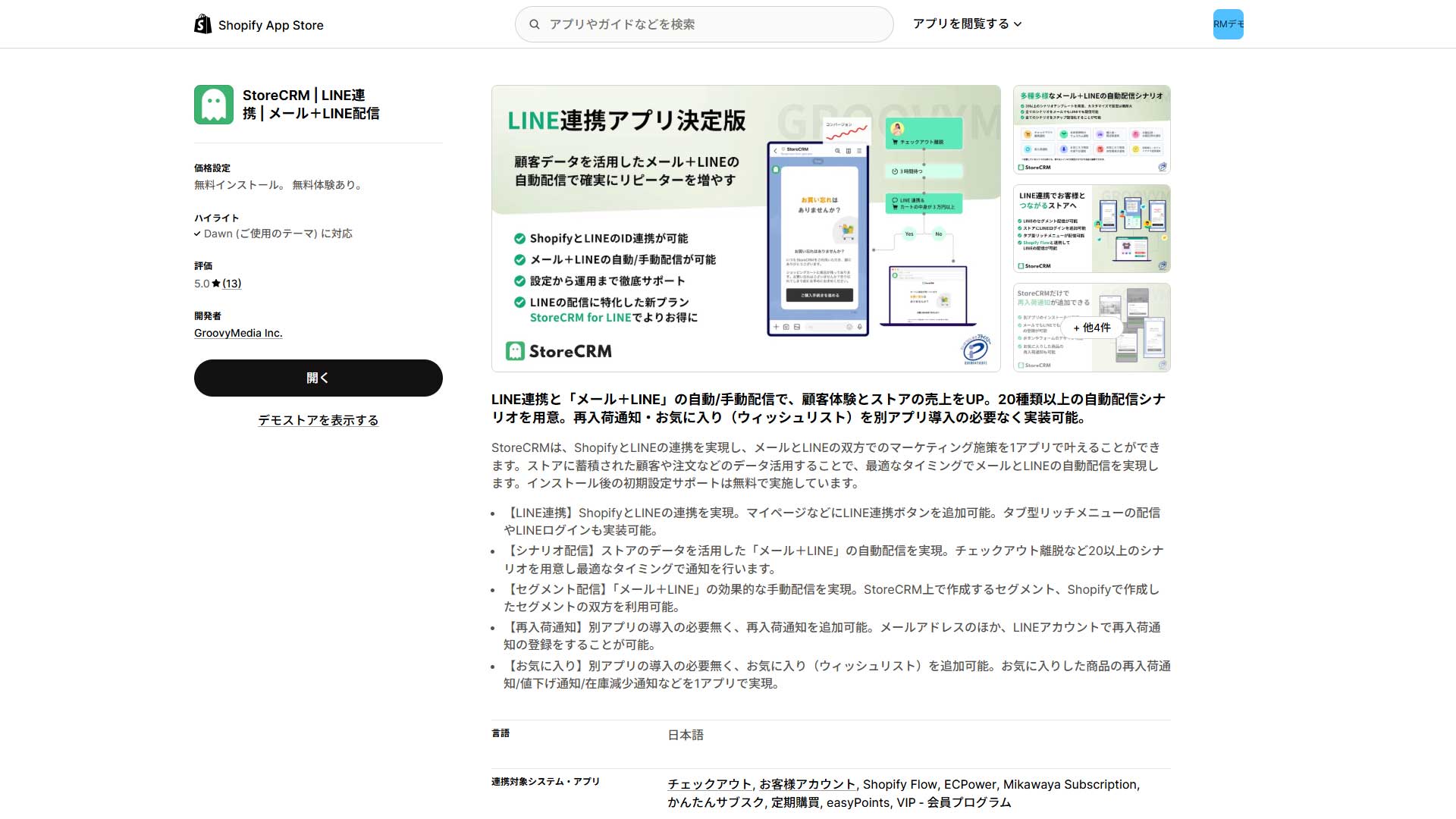](https://storecrm.com/wp-content/uploads/2025/11/shopify-line-customer-app-1.jpg)
#### Grow revenue with Shopify and LINE — the strongest CRM for managing LINE and email together
##### ★ Ecommerce-focused / built for Shopify / repeat revenue / back-in-stock and abandoned checkout
[StoreCRM](https://apps.shopify.com/obake-ma?locale=ja) is a LINE extension app for Shopify stores. It sends email notifications and email marketing alongside LINE, so all your customer communication and promotion happens in one admin. Its main features include abandoned cart follow-up, back-in-stock notifications, price-drop alerts on wishlist items, product recommendations based on purchase history, and birthday coupons. Post-purchase follow-up and subscription invitations can be automated too.
Because customer attributes and purchase data are linked to the LINE ID, you have fine-grained control over who receives what. You can vary the content by customer condition, or send a series of messages in order. Setup is simple: an ecommerce manager can configure it without specialist knowledge. Japanese-language support means even first-timers can get started comfortably. **Connecting your LINE Official Account is done from the app's admin.**
[Install the app](https://apps.shopify.com/obake-ma?locale=ja)
### KUZEN
[](https://storecrm.com/wp-content/uploads/2025/11/shopify-line-customer-app-2.jpg)
#### CRM, bookings and chat automation that extend a LINE Official Account
##### ★ Large ecommerce / high-value products / serious CRM / LINE and data integration
[KUZEN](https://www.kuzen.io/) substantially extends the basic LINE Official Account with CRM, marketing automation and chatbot functionality. It sends messages tailored to each contact based on their attributes, survey answers and behaviour on your website. Varying content by gender, age or interest, or sending a staged sequence, is straightforward to configure.
Its chatbot for automating enquiry handling is another major strength. It answers common questions, takes bookings and handles documentation requests, and it is used across ecommerce, physical stores, schools and staffing services. Because it is no-code, it is easy to adopt and run without specialist IT knowledge, and it integrates flexibly with external CRM, POS and marketing automation tools.
**Connecting it is simple: select your LINE Official Account in the KUZEN admin and follow the on-screen authentication. Once connected, you can configure flows and chatbots.**
[Official site](https://www.kuzen.io/)
### Liny
[](https://storecrm.com/wp-content/uploads/2025/11/shopify-line-customer-app-4.jpg)
#### Chatbots, surveys and automated sequences — a full-featured LINE extension
##### ★ Schools / education and courses / made-to-order / stores plus ecommerce
[Liny](https://line-sm.com/) makes things that are hard with a plain Official Account — customer management, fine-grained targeting, chat automation — comparatively easy. You can tag each user and vary what you send by age, interest or visit history, which means information reaches only the people who need it, and response and acquisition improve accordingly.
You can also configure chatbots, auto-replies, survey forms and button-based menus, automating enquiries, bookings and documentation requests. Measurement is well covered too — URL click tracking and acquisition-source analysis let you see the results of your LINE programme in numbers. It is no-code, so no specialist knowledge is needed. **To connect it, select your LINE Official Account in the Liny admin and follow the on-screen authentication.**
[Official site](https://line-sm.com/)
### Mico Engage AI
[](https://storecrm.com/wp-content/uploads/2025/11/shopify-line-customer-app-5.jpg)
#### Connecting with customers through AI — Mico Engage AI
##### ★ Stores and ecommerce / AI-optimised sending / enterprise
[Mico Engage AI](https://mico-inc.com/engage/) (formerly MicoCloud) extends the LINE Official Account into a CRM and marketing automation tool that makes the relationship between a company and its customers deeper and more efficient. AI-driven data analysis and send optimisation are its distinguishing features, delivering the right communication to each individual.
It ingests website behaviour, survey responses and purchase history, then supports segmented sending and automated sequences by age, gender, interest and behaviour, with AI choosing the best moment to send. Auto-reply chatbots and multi-location, multi-operator management are supported as well, making enquiry handling, booking management and visit campaigns more efficient. It is used across many industries as a practical LINE marketing foundation for growing revenue and repeat rates. **To adopt it, enquire through the official site; a dedicated representative supports you through connecting your LINE Official Account, and you can start quickly from there.**
[Official site](https://mico-inc.com/engage/)
### DECA for LINE
[](https://storecrm.com/wp-content/uploads/2025/11/shopify-line-customer-app-6.jpg)
#### Segmented sending, chatbots, bookings, membership cards and points, all run through LINE
##### ★ Shopping centres / membership cards and points / in-store digital transformation
[DECA for LINE](https://deca.marketing/service/cloud/line/) is a LINE-specific marketing automation and CRM tool that substantially extends the Official Account. Beyond LINE itself it connects to your website behaviour data and external databases, so you can send each contact messages matched to their age, interests and purchase history. You can implement membership cards, points and booking management inside LINE, split sends by segment, and nurture and follow up automatically with sequences and flows. Chatbots and auto-replies mean enquiries and bookings can be handled entirely in LINE, making customer support more efficient. It has been adopted across ecommerce, physical stores and services, so companies new to LINE marketing can adopt it with confidence. **After an initial consultation, you configure the connection between your LINE Official Account and your database, and you can start with segmented sending and chatbots.**
[Official site](https://deca.marketing/service/cloud/line/)
### MAAC (LINE × CRM / LINE marketing automation)
[](https://storecrm.com/wp-content/uploads/2025/11/shopify-line-customer-app-7.jpg)
#### Customer management, automated sending, abandoned cart recovery and visit campaigns on LINE
##### ★ Subscription ecommerce / subscription-focused / health foods and beauty
[MAAC (LINE × CRM / LINE marketing automation)](https://www.cresclab.com/jp/product/maac) is a LINE marketing tool that works for both ecommerce and physical stores. Its defining feature is handling everything from customer management to promotional automation through your LINE Official Account. In ecommerce that covers abandoned cart follow-up, automatic post-purchase follow-up and repeat purchase campaigns; in physical stores it covers visit campaigns, coupons and return-visit follow-up. Because content varies by customer attributes and behaviour, you deliver only what each person needs. To adopt it, enquire through the official site, discuss requirements with your representative, and configure the LINE Official Account connection. Set up your flows and you are ready to run. **Growing revenue and improving efficiency at the same time, in stores and online, is MAAC's great strength.**
[Official site](https://www.cresclab.com/jp/product/maac)
### Ligla
[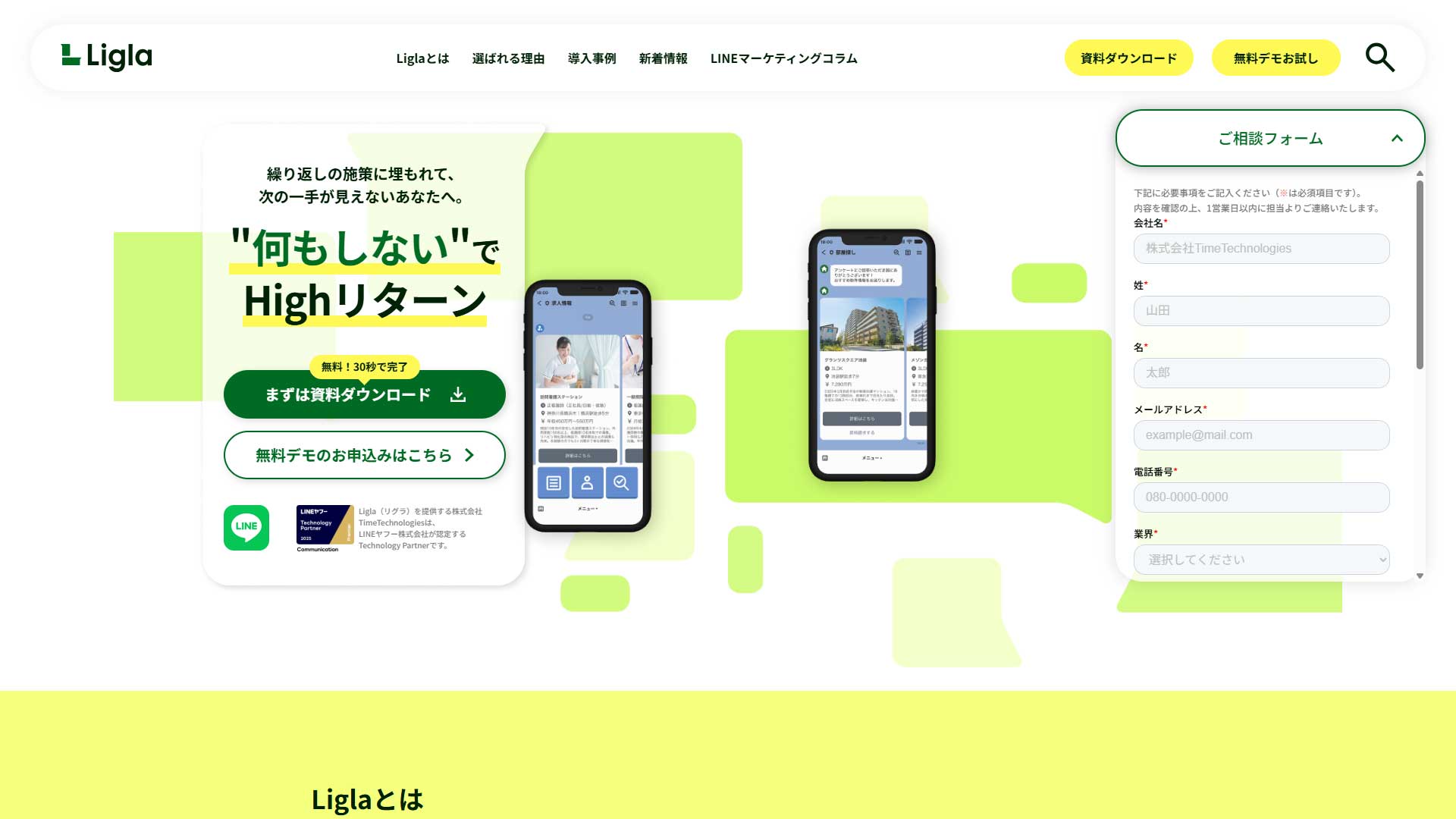](https://storecrm.com/wp-content/uploads/2025/11/shopify-line-customer-app-8.jpg)
#### LINE and AI for automated sending, chat, coupons, purchases and visit campaigns
##### ★ AI automation / efficient enquiry handling / made-to-order
[Ligla](https://ligla.jp/) ingests store visits, purchase history and customer attributes as data, and sends each user the message that suits them. That covers a wide range of tactics: driving purchases and return visits online, and driving visits and distributing coupons in store.
With AI and data analysis you can configure sending timed to a user's behaviour, along with automated chat responses, so effective communication costs you very little effort. From winning contacts through campaign sending, purchase campaigns and repeat nurture, you can design the whole customer experience around LINE.
Adoption is simple: sign up through the official site and configure the LINE Official Account connection. The UI is approachable for beginners, and no knowledge of data or automation is required.
[Official site](https://ligla.jp/)
### TalkLabel
[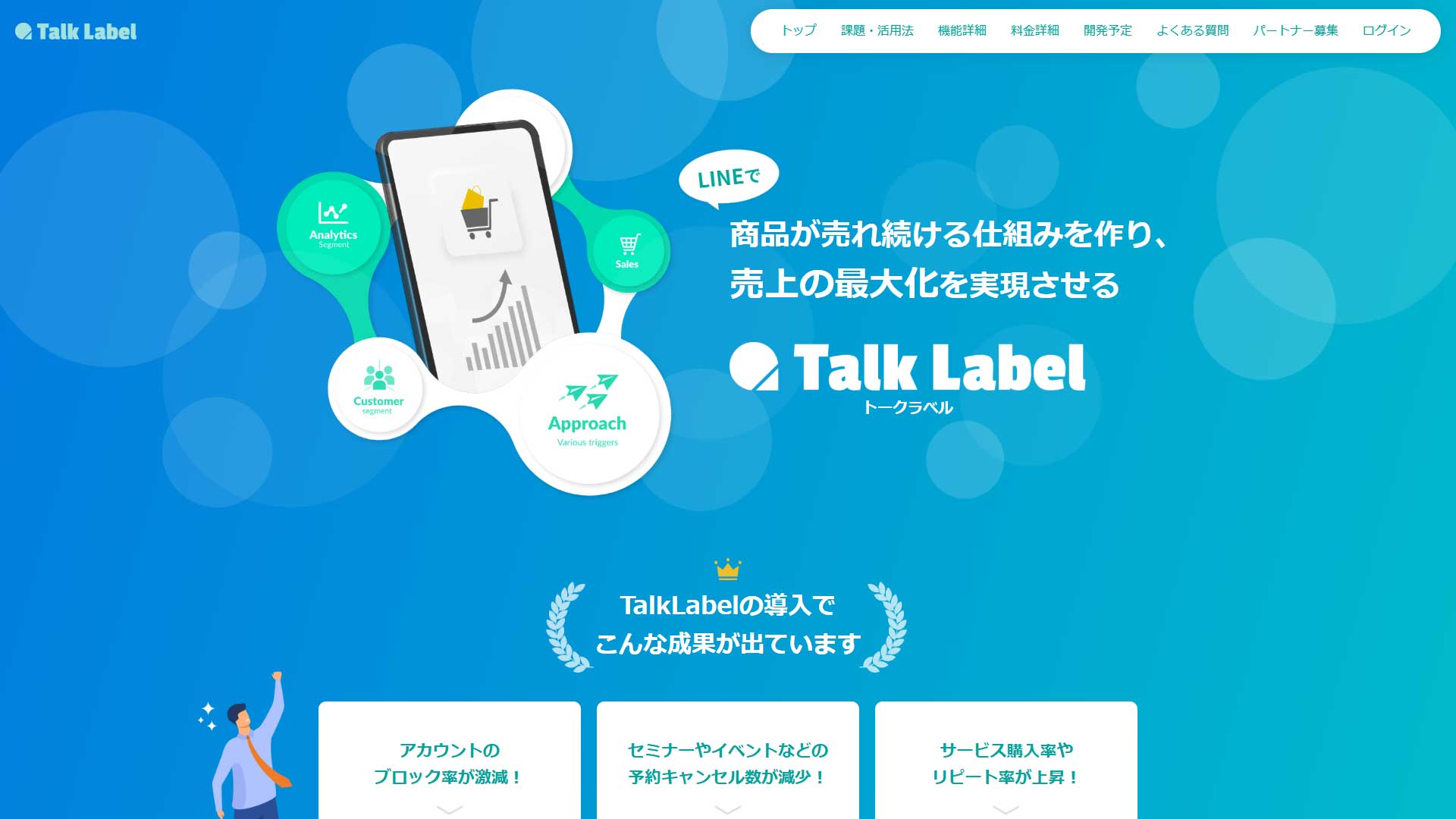](https://storecrm.com/wp-content/uploads/2025/11/shopify-line-customer-app-9.jpg)
#### Membership management, automated sending and repeat purchase campaigns, all on LINE
##### ★ Small businesses / schools and instructors / bookings and nurture
[TalkLabel](https://talk-label.com/) strengthens the LINE Official Account into a marketing tool covering customer management, promotional automation and ongoing sales campaigns. You can group contacts by gender, age, area or interest and send each group what suits them, so you reach prospects and existing customers effectively.
You can also set up reminder flows and automated sequences that send at the right moment — just after someone adds you, before and after an event, after a purchase — so nurturing customers and driving repeat business takes very little work. Chatbots and surveys let you handle bookings and enquiries entirely inside LINE. And because you can analyse open rates, click rates and how contacts found you, you can see which campaigns work and improve from there.
Adoption is simple: sign up on the TalkLabel site and link your LINE Official Account. If you want membership management, promotion, nurture and repeat business all automated inside LINE, TalkLabel is a dependable option.
[Official site](https://talk-label.com/)
### KAKERU
[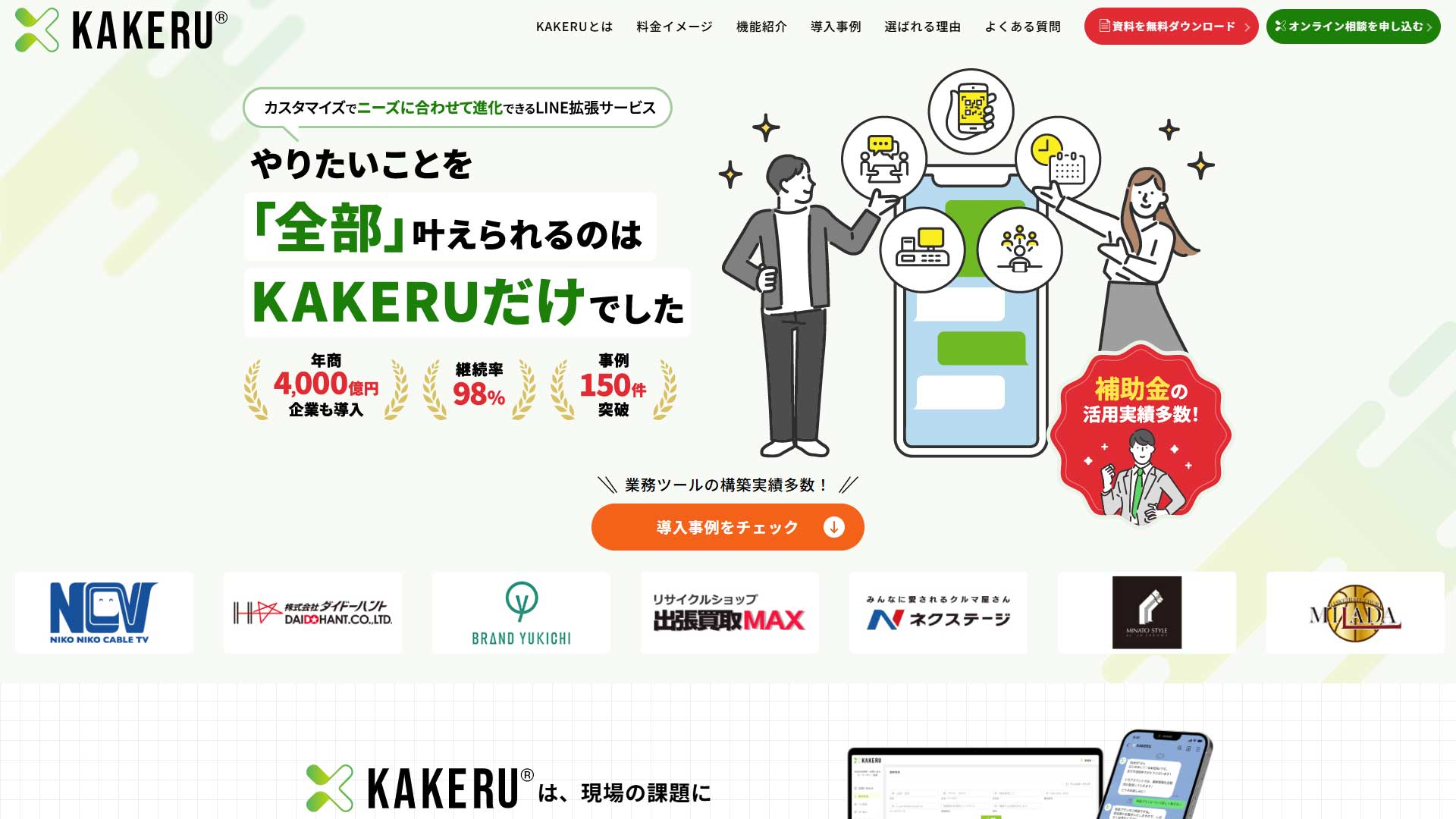](https://storecrm.com/wp-content/uploads/2025/11/shopify-line-customer-app-10.jpg)
#### Bookings, membership cards, stamp cards, coupons and prize draws for stores and ecommerce alike
##### ★ All-rounder / sole traders, stores and ecommerce / beginner-friendly
[KAKERU](https://x-kakeru.com/) extends the LINE Official Account so that customer management, bookings, segmented sending and coupon distribution are all managed inside LINE. It suits ecommerce, physical stores and service businesses alike: take bookings for events, services, store visits or property viewings through LINE, then handle reminders, booking status and post-visit follow-up automatically.
It also has a strong set of promotional features for driving visits and purchases — membership cards, digital stamp cards, coupons and prize draws. Customers can be classified by age, gender, visit count and interests for targeted sending, which cuts wasted messages and produces communication people actually respond to.
KAKERU is semi-modular, so you pick only the features you need: start with the basics and extend later as your operation grows. **To adopt it, enquire through the official site, go through requirements with your representative and configure the LINE Official Account connection; you can be live very quickly.**
[Official site](https://x-kakeru.com/)
### L Step
[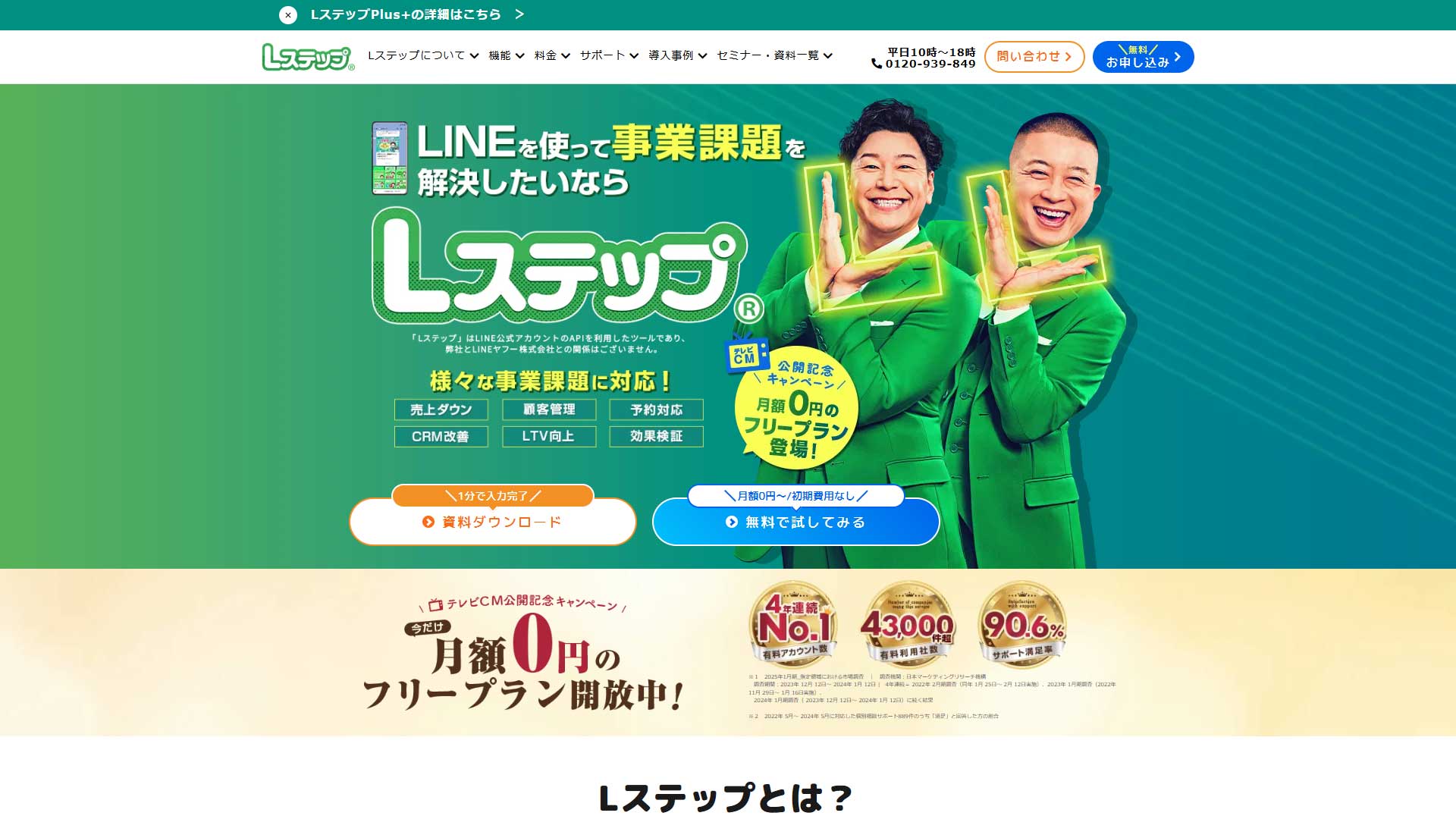](https://storecrm.com/wp-content/uploads/2025/11/shopify-line-customer-app-11.jpg)
#### Automated sending, bookings, nurture and analytics for B2C, all in one place
##### ★ Ecommerce-focused / built for Shopify / repeat revenue / back-in-stock and abandoned checkout
[L Step](https://linestep.jp/lp/01/) is a marketing automation tool for B2C. Auto-replies, automated sequences, segmented sending, booking management, customer management and analytics together cover the sophisticated marketing that plain LINE cannot. Capture attributes and interests in a survey after signup, vary your messages accordingly, and you can take a prospect through nurture, purchase or a store visit, and follow-up, entirely inside LINE.
For hair salons, beauty salons, classes and restaurants, it takes bookings through LINE 24 hours a day, and reminder messages reduce no-shows and improve attendance. Analysis of open rates and responses lets you learn which content and timing work and improve as you go. **To adopt it, sign up through the L Step site and configure the LINE Official Account connection.**
[Official site](https://linestep.jp/lp/01/)
## Summary
LINE extension tools vary widely in what they emphasise. Rather than reaching for the most capable tool immediately, **spend a while with the standard LINE Official Account features first and work out what is missing and what you want to automate.** Then choose the app that suits your industry and how you operate. **For ecommerce on Shopify, for instance, StoreCRM is the right fit, with its strength in back-in-stock notifications and abandoned checkout recovery.** For physical stores, **KAKERU**, **L Step** and **DECA for LINE** are strong on bookings, membership cards and driving visits. And for large-scale operations or advanced automation, **KUZEN**, **MAAC** and **Mico Engage AI** are worth considering. **Choosing on the basis of your goals, your budget and the platform you already use is the shortest path to getting value out of LINE.**
========================================================================
# 7 Shopify back-in-stock notification apps compared
> A detailed comparison of seven Shopify back-in-stock notification apps — pre-orders, low-stock alerts, LINE integration and conversion analytics — to help you find the right one for your store.
- URL: https://storecrm.com/knowhow/back-in-stock-apps/
- Type: Blog
- Published: 2025-11-10
- Updated: 2026-04-17
- Category: tips
- Tags: CRM, guides
- Author: StoreCRM
---
## What is a back-in-stock notification?
A back-in-stock notification app automatically emails or LINE-messages the customers who registered their interest as soon as a sold-out product is restocked. In ecommerce it is precisely the popular products that run out, and customers who find an empty product page usually buy from another store instead, so back-in-stock notifications are an important way to stop losing those sales. The number of registrations is also valuable data in its own right: it shows how much demand exists for each product, which helps you make better purchasing and merchandising decisions.
If you want to grow sales on Shopify, reducing the revenue you lose to stockouts is one of the highest-leverage things you can do. Because so many customers drop off the moment a popular product sells out, an app that adds back-in-stock notifications is close to essential. This article **compares seven back-in-stock notification apps available for Shopify and explains what actually matters when you choose one: features, pricing, Japanese-language support and LINE integration.**
## Related articles
[How to send Shopify back-in-stock notifications over LINE](https://storecrm.com/knowhow/line-backinstock-setting/)
[How to add back-in-stock notifications and back-in-stock requests to Shopify](https://storecrm.com/knowhow/back-in-stock/)
[StoreCRM feature: back-in-stock notification emails](https://storecrm.com/feature/back-in-stock/)
### Back-in-stock emails are opened 65% of the time
According to [research by Barilliance](https://www.barilliance.com/email-marketing-statistics/), back-in-stock emails average a 65% open rate and a 24% click rate — roughly three times the performance of a typical promotional email. Send to 100 people and around 65 of them open the message, while about 24 click through to the product page. Because the customer asked for exactly this information about a product they already wanted, it is one of the easiest emails to get opened and one of the most productive you can send.
### Why back-in-stock notifications can lift sales by up to 15%
A [report from Smaily](https://smaily.com/back-in-stock-notification-emails/?utm_source=chatgpt.com) finds that ecommerce stores that introduced back-in-stock notifications saw sales increase by 5–15% on average. For a store doing ¥1 million a month, simply adding the notification is worth an extra ¥50,000–150,000 in monthly revenue. Without it, customers who leave because of a stockout rarely come back — they move on to another store. With it, you can automatically bring those customers back and turn a lost opportunity into a sale. Many brands have recovered significant revenue this way and report returns of several hundred percent on the investment.
## The benefits of adding back-in-stock notifications to a Shopify store
The single biggest benefit is that you stop losing sales to stockouts. A customer who finds the product they want but no stock will simply leave; if you can notify them automatically when it arrives, you keep the customers with the highest purchase intent.
An app that reports on registrations, open rates and purchase rates also lets you see which products are in demand and how well your notifications perform, so you can improve the copy and the timing. Because it **grows sales without any additional ad spend**, it is one of the most cost-effective tactics available, and a great many stores rely on it.
Back-in-stock notifications win back repeat customers and lift revenue at the same time, which makes them a genuinely important part of running a Shopify store.
The impact of back-in-stock notifications
A bar chart comparing each figure on the same scale
Open rate of back-in-stock emails
65%
Click rate of back-in-stock emails
24%
Average sales lift among stores that use them
15%
Sources: "[2023 Email Marketing ROI Statistics: Open Rate to Revenue](https://www.barilliance.com/email-marketing-statistics/)" and "[Back-in-Stock Notification Emails: Happy Customers, Thriving Business](https://smaily.com/back-in-stock-notification-emails/?utm_source=chatgpt.com)"
### Timing is everything: why the hours after a restock decide your revenue
How long you wait between receiving stock and sending the notification has a large effect on sales. In fact, send timing is one of the biggest factors in how much revenue the notification produces. A customer's "I want this" fades with time, so the sooner the message goes out after the restock, the higher the purchase rate tends to be. If your stock tends to land late at night or early in the morning, it is also worth shifting delivery to a time when customers actually read their email. In short, choose an app that lets you fine-tune when the message is sent and the notification is far more likely to translate into sales. Pay close attention to how flexible the scheduling options are.
### The numbers matter: pick an app that tracks everything from signups to purchase rate
Choose an app that reports not only how many people registered but also open rate, click rate and purchase rate. With that data in hand it becomes obvious which products are in demand, whether your send timing is right, and whether the subject line and email content need work. With an app that shows you nothing, you cannot measure anything, and you will never know how much the notifications actually contribute to revenue — which is a real loss, however good the app is otherwise. When you can see the numbers, the improvements to make are clear and the notifications are much easier to turn into sales.
## Seven Shopify back-in-stock apps
The right back-in-stock app for your Shopify store depends entirely on what you want to prioritise. **In short, the best fit for stores selling in Japan is StoreCRM. Alongside back-in-stock notifications it brings LINE, email and CRM into one place, with full support in Japanese. You can also schedule how long after the restock the message goes out, and it includes detailed post-send reporting.**
Price, features, Japanese-language support and depth of analytics all pull in different directions, so the best app varies with your priorities. Choosing one that matches your goals and the size of your store is what makes the difference.
Key: **◎ = strong / ◯ = supported / △ = limited or needs another app / × = not supported**
App
Free plan
Japanese admin / support
Back in stock
Scheduled send after restock
Full CRM
Send history
Conversion rate (CVR)
LINE
Strengths
Key features
StoreCRM
◯ (30-day trial)
◎ (fully Japanese)
◎
◎ (scheduling available)
◎
◎
◎
◎ (built-in LINE integration)
Built for the Japanese market; LINE and CRM in one place
Back-in-stock and price-drop alerts, LINE/email, birthday messages, segments
AMP Back in Stock | PreOrder
◎
△ (partly Japanese)
◎
△
×
◯
△
×
Strong on back-in-stock at a low price
Back in stock, pre-orders, email notifications
PreOrder Globo | Back in Stock
◎
△
◎
×
×
◯
×
×
Flexible pre-orders and restock alerts
Pre-orders, back in stock, product badges
Stoq: Back In Stock, PreOrder
◎
×
◎
×
×
◯
△
×
Simple and inexpensive
Back in stock, pre-orders, analytics
Back In Stock (Japanese edition)
◎
◎
◎
×
×
◯
△
△ (possible with a companion app)
Focused on back-in-stock for stores in Japan
Back-in-stock notifications, Japanese UI, LINE notifications
Klaviyo
◎
×
◎
◎
◎
◎
◎
△
Best-in-class automation and analytics
Email/SMS, back in stock, segmentation
Omnisend
◎
×
◎
◎
◎
◎
◎
×
Email and SMS in one tool
Email/SMS, automation, back in stock, A/B testing
### StoreCRM
[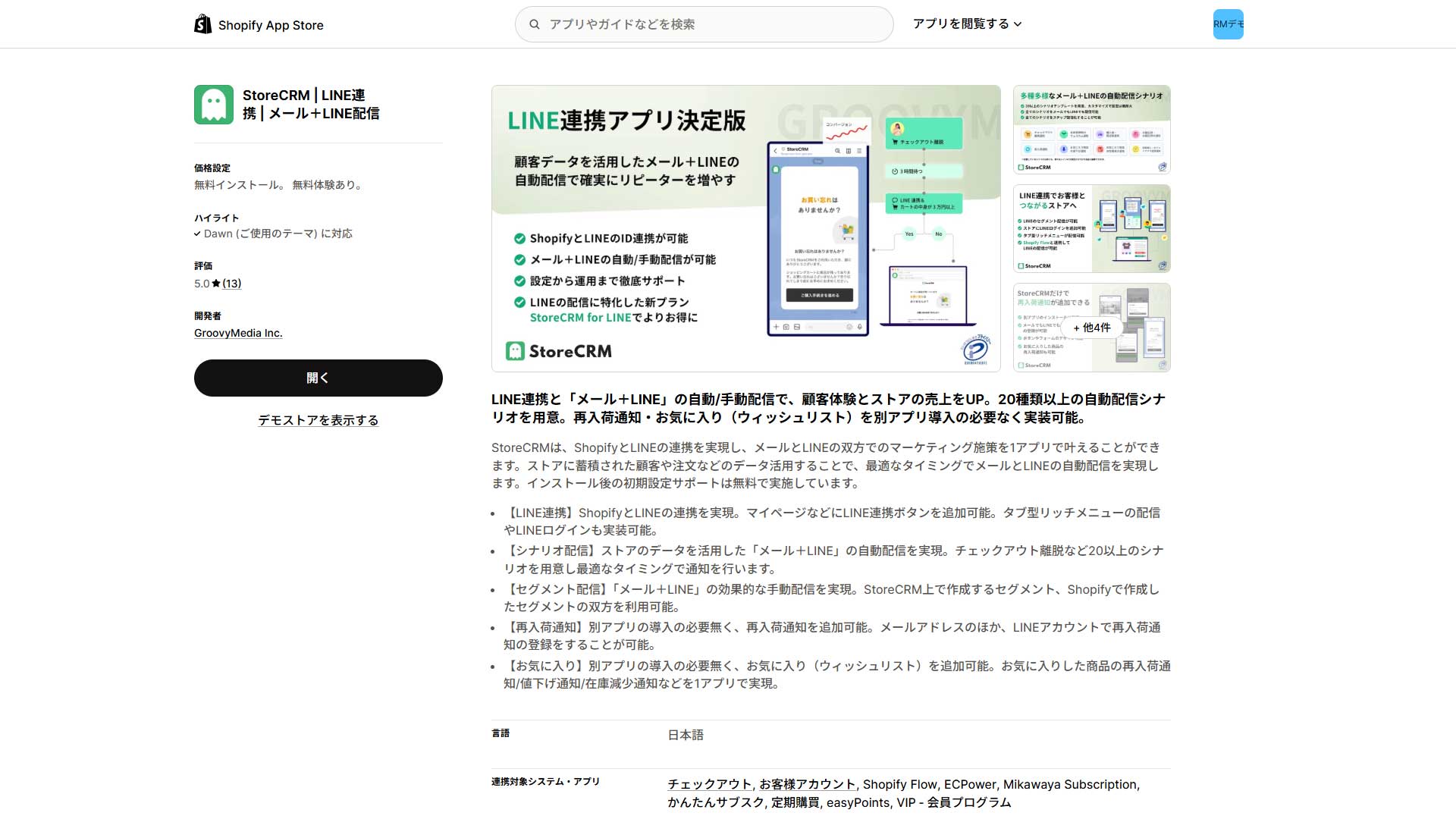](https://storecrm.com/wp-content/uploads/2025/11/shopify-line-customer-app-1.jpg)
#### The strongest CRM for Shopify stores in Japan, with back-in-stock, LINE and email in one place
[StoreCRM](https://apps.shopify.com/obake-ma?locale=ja) is a full CRM and marketing automation app that includes back-in-stock notifications. Adding the notify-me button, sending the email or LINE message, scheduling when it goes out, and reporting on signups and conversion rate are all handled in a single app. On a sold-out product page the customer registers with an email address or LINE, and is notified automatically the moment the product is restocked. The button can be added without any additional app, though some Shopify themes need minor adjustment. Send times are fully configurable. Because you can export reports on registrations, open rate, click rate and revenue, and send segmented campaigns, StoreCRM also covers the follow-up after the restock: alongside back-in-stock alerts you can send birthday messages and segmented email or LINE campaigns to the same audience and turn them into repeat customers. It is fully localised into Japanese with local support, and it gives you everything you need to turn a stockout into a sales opportunity.
[Install the app](https://apps.shopify.com/obake-ma?locale=ja)
### AMP Back in Stock | PreOrder
[](https://storecrm.com/wp-content/uploads/2025/11/shopify-sainyuka-app-1.jpg)
#### Keep selling while you are out of stock, with strong back-in-stock and pre-order support
[AMP Back in Stock | PreOrder](https://apps.shopify.com/back-in-stock?locale=ja) is a non-Japanese Shopify app with a strong feature set for back-in-stock alerts and pre-orders. You can add a notify-me button or a pre-order button to sold-out items, and once a customer registers, the app reaches them immediately by email, SMS or browser push (which requires the customer's permission) as soon as the product arrives. It also includes analytics that show how much demand each product has, which helps with inventory planning and with deciding when to restock. It runs comfortably across large numbers of SKUs, so it suits growing stores and catalogues with a lot of products. Button styling can be matched to your brand and multiple languages are supported, so the path from restock to notification to purchase can be set up in a single click. There is no stated Japanese UI or local support, so check theme compatibility and translation before you commit.
[Install the app](https://apps.shopify.com/back-in-stock)
### PreOrder Globo | Back in Stock
[](https://storecrm.com/wp-content/uploads/2025/11/shopify-sainyuka-app-2.jpg)
#### PreOrder Globo, strong on both restock alerts and pre-orders
[PreOrder Globo | Back in Stock](https://apps.shopify.com/pre-order-pro?locale=ja) is a Shopify app for recovering the sales you would otherwise lose while out of stock. You can place a "Notify Me" button on the product page and the app emails customers automatically when the item is back. It also supports pre-orders, so you can take orders before stock arrives and secure the sale in advance. Sold out stops meaning "no longer available" and starts meaning "the next chance to sell". Multi-language support, broad theme compatibility and customisable notification templates make it a good fit for international stores and large catalogues. Purely in terms of Japanese support and a Japanese-optimised UI it falls behind apps built for the domestic market, so if you sell in Japan, check the theme and the rendered output before rolling it out.
[Install the app](https://apps.shopify.com/pre-order-pro?locale=ja)
### Stoq: Back In Stock, PreOrder
[](https://storecrm.com/wp-content/uploads/2025/11/shopify-sainyuka-app-3.jpg)
#### Back in stock and pre-orders on a budget, with notifications you can write in Japanese
[Stoq: Back In Stock, PreOrder](https://apps.shopify.com/back-in-stock-restock-alerts) is a good-value app that covers back-in-stock notifications and pre-orders together. Add a notify-me button to the product page and the app sends email or SMS automatically when stock arrives. Because you can also take orders before the restock, you capture as much demand as possible.
The Stoq admin is in English, but the button label and the notification emails can be customised in Japanese. The settings are simple and easy to work with, which makes it a good choice for stores that want back-in-stock notifications at a low cost. Compared with PreOrder Globo it is less flexible, but noticeably easier to run day to day. **If you want both back-in-stock notifications and pre-orders, this is the app to look at.**
[Install the app](https://apps.shopify.com/back-in-stock-restock-alerts)
### Back In Stock (Japanese edition)
[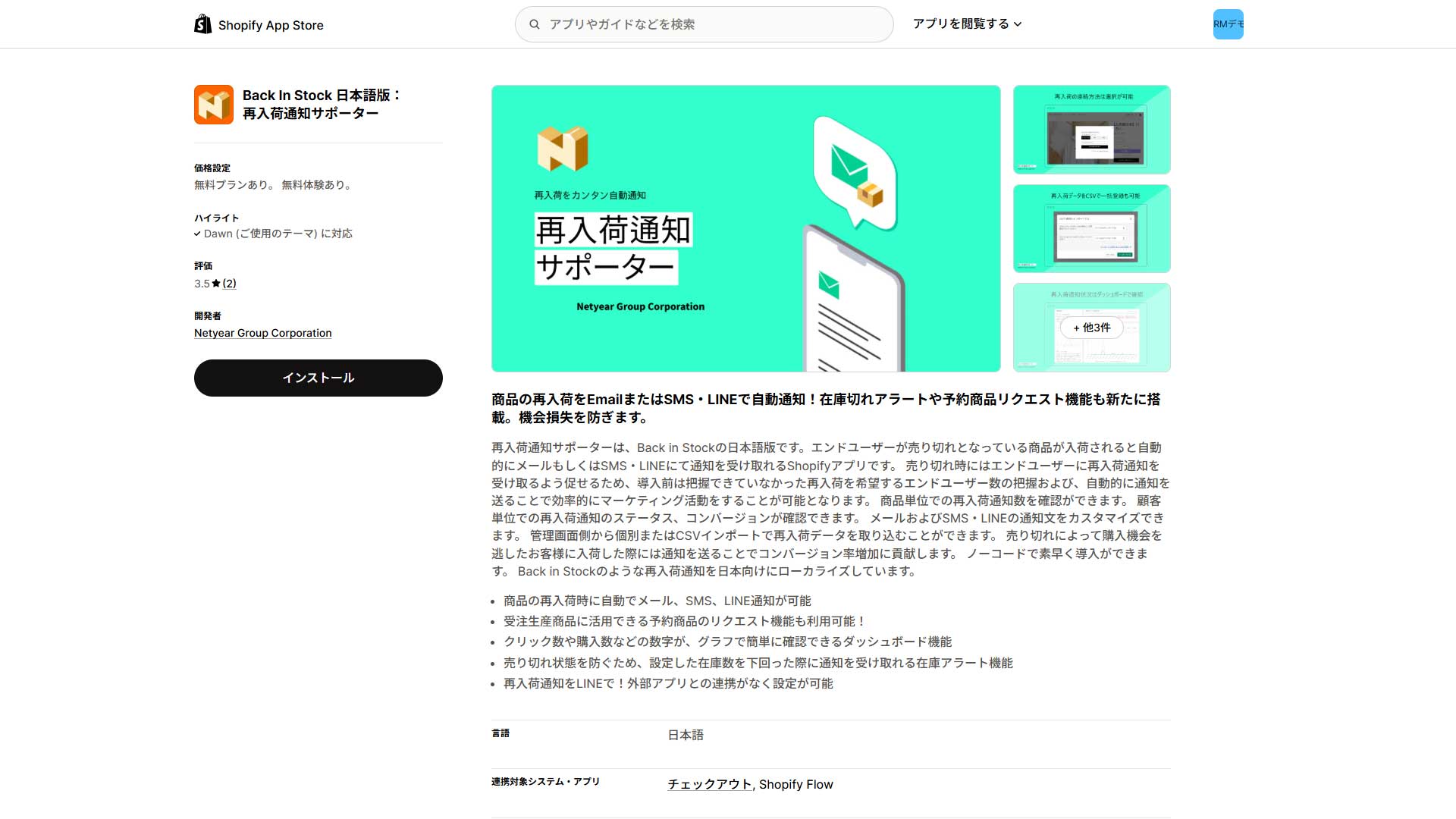](https://storecrm.com/wp-content/uploads/2025/11/shopify-sainyuka-app-4.jpg)
#### A Japanese admin and LINE notifications, turning sellouts into opportunities
[Back In Stock (Japanese edition)](https://apps.shopify.com/shopify-application-306?locale=ja) is a Japanese-language app that emails customers automatically when a sold-out product is restocked, and can send LINE notifications when combined with another app. LINE delivery is configured using an integration app or Shopify Flow. Because you can see how many customers asked to be told about each sold-out item, it also makes demand visible. Adding the button and customising the notification copy are both no-code. It also includes a low-stock alert that warns the store when inventory falls below a threshold, so you can act before you lose sales. That is separate from a pre-order feature — no payment is taken. Its main strength is that everything, including the admin, is in Japanese and easy to follow, which suits stores operating in Japan. Plans start at $9.50 a month (around ¥1,500), so smaller stores can adopt it easily, and there is a free plan (up to five notifications) to try it out. It is a strong option if you sell in Japan and want to start with back-in-stock notifications at low cost.
[Install the app](https://apps.shopify.com/shopify-application-306?locale=ja)
### Klaviyo: Email Marketing & SMS
[](https://storecrm.com/wp-content/uploads/2025/09/shopify-csv-app-2.jpg)
#### A serious international CRM for growing on Shopify, covering email, SMS and back-in-stock alerts
[Klaviyo: Email Marketing & SMS](https://apps.shopify.com/klaviyo-email-marketing?locale=ja) is an email and SMS marketing app for Shopify that works from real-time store data and covers everything from the purchase experience through to nurturing repeat customers. It handles post-purchase follow-up, automation flows, back-in-stock notifications and AI-assisted segmentation, so you can be precise about what you send, when, and to whom. Its advantage over the other apps here is that it is not a dedicated back-in-stock tool: where Stoq or the Japanese edition of Back In Stock cover the simple "sold out to restocked" path, Klaviyo works as a **full CRM spanning email, SMS, push notifications, and purchase-data analysis**. Push requires Klaviyo Mobile Push, a separate app. Back-in-stock automation is supported as well. Setup cost and complexity are on the high side, but it is an excellent fit for stores in a growth phase or any team that wants to work from data. Note that the admin and support are in English only.
[Install the app](https://apps.shopify.com/klaviyo-email-marketing?locale=ja)
### Omnisend Email Marketing & SMS
[](https://storecrm.com/wp-content/uploads/2025/09/shopify-csv-app-3.jpg)
#### Easier to get started with than Klaviyo, with a broad feature set
[Omnisend Email Marketing & SMS](https://apps.shopify.com/omnisend?locale=ja) is a marketing automation app for Shopify that manages email, SMS and push notifications together. A large library of email templates, popups and ready-made automation flows such as abandoned cart can be enabled in one click, and back-in-stock notifications and follow-up campaigns are straightforward to configure. Back-in-stock automation is supported. Its segmentation, based on purchase history and email behaviour, is accurate and makes campaigns easy to optimise. Compared with Klaviyo, which is stronger on advanced analysis and finely built segments, Omnisend is cheaper and less complex to configure, while still covering multiple channels behind a clear UI — which is why growing stores find it manageable. It is not limited the way a dedicated back-in-stock app is, and combining email and SMS gives you more dimensions to work with, so it tends to show up quickly in revenue. The admin and support are in English, but it is simple enough to operate that many Shopify stores choose it.
[Install the app](https://apps.shopify.com/omnisend?locale=ja)
## Summary
**Of all the back-in-stock apps, StoreCRM is the one to look at first. It is a CRM built for the Japanese market that handles not just the notification but conversion analytics, LINE integration and segmented campaigns in one place, and it is particularly strong on the follow-up after the notification goes out.**
There are also apps like **AMP Back in Stock** that simply do back-in-stock notifications well, and multi-purpose options like **Stoq** and **PreOrder Globo** that combine restock alerts, pre-orders and low-stock warnings.
Beyond those, **Klaviyo** and **Omnisend** offer advanced analytics on top of an English UI, while the **Japanese edition of Back In Stock** gives you a Japanese interface and local support.
Which one is right depends on the size of your store, how your team works, and how much functionality you actually need. Decide first whether you are optimising for simplicity, breadth of features, CRM depth or Japanese-language support, and choose the app that matches the stage your store is at.
========================================================================
# 7 recommended Shopify email marketing apps compared
> How email marketing grows revenue for a Shopify store — low cost, high ROI, and made more effective by AI and segmentation — plus seven apps that are easy to get started with.
- URL: https://storecrm.com/knowhow/shopify-newsletter-apps/
- Type: Blog
- Published: 2025-10-27
- Updated: 2026-01-08
- Category: tips
- Tags: CRM, guides
- Author: StoreCRM
---
## What is email marketing?
An email newsletter is a marketing channel that sends new product news and campaigns to your customers on a regular basis. It costs far less to run than print or advertising, and **Shopify's research puts the average ROI of email marketing at 36×** — $36 in revenue for every $1 invested.
A Shopify email app makes it easy to add product links and buy buttons, and choosing a template gets you an on-brand design in minutes. AI-driven automation and personalisation are increasingly part of the picture, letting you send each customer what suits them and lifting open rates and engagement.
## Related pages
[How to send email newsletters from Shopify](https://storecrm.com/help/setting/newsletter-delivery/)
### Email: the most effective low-cost way to grow revenue
Email is inexpensive to run and highly effective. According to Shopify's [2025 email marketing statistics report](https://www.shopify.com/blog/email-marketing-statistics?utm_source=chatgpt.com), **average ROI reaches 36×, or $36 in revenue for every $1 invested.**
Ecommerce stores use it for everything from announcing new products and campaigns to driving repeat purchases and retention. Because you own the list, reach is stable — no algorithm stands between you and your customers the way it does on social. It is cost-effective and a genuinely powerful way to deepen the relationship.
### Getting results from email on Shopify without spending all your time on it
Shopify's report finds that the main goals of email marketing are **product awareness** and **promotion**, each named as the top priority by around 16% of marketers. **Retention** and **newsletters** follow at around 14.6%, so relationship-building matters too.
At the same time, many marketers say **it takes them more than two weeks to produce an email**, which makes efficiency the real problem. A Shopify email app lets you drop in product links and buy buttons and produce an on-brand design quickly. It is an essential tool for getting results without the overhead.
### Raising open rates with AI and personalisation
Shopify's research puts average email engagement in retail at 33.1%, with **around 21% of messages opened within an hour** of sending. Email is a fast-acting promotional channel.
The keys to making it work are **AI** and **personalisation**. Around 80% of marketers report better results from dynamically personalising subject lines and body copy. A further 56% have optimised for mobile, 34% write email copy with generative AI, and 35% are considering expanding automated sending. This use of AI is what makes email marketing both efficient and high-performing.
## The benefits of adding an email app to your Shopify store
An email app makes your sending both efficient and effective. Shopify's own tool, Shopify Email, handles composition and basic segmentation, but advanced targeting on personal data such as purchase history and birthdays calls for a third-party app alongside it.
Research finds that around 90% of marketers say segmented sending improved their results, and that behaviour-triggered emails generate roughly ten times the revenue of other sends.
The key to growing revenue is optimising what you send according to each customer's purchase history and saved products, rather than broadcasting to everyone. Combining that with a LINE-integrated tool such as StoreCRM raises open and response rates further still.
The impact of email marketing
A bar chart comparing each figure on the same scale
Improvement from segmented sending
90%
Improvement from personalised subject lines
77%
Used for promotion
55%
Used for retention and repeat purchases
44%
Open rate in retail
33%
Opened within an hour
22%
Source: [Shopify, "Email Marketing Statistics 2025"](https://www.shopify.com/blog/email-marketing-statistics?utm_source=chatgpt.com)
### Reaching only the people you mean to: segmentation with Shopify and a third-party email app
A third-party app connects to your Shopify store data and gives you much finer segmentation. Instead of broadcasting, you generate recipient lists automatically from sales data, customer tags, membership status, first purchase date and birthday. You might target "customers who have not bought in the last 30 days", "customers who saved something but never bought", or "customers whose birthday falls within a month" — the conditions are yours to set. Open rates, click rates and revenue are analysed in real time, so reviewing and improving a campaign after it lands is straightforward. StoreCRM goes further still, sending across channels — email alongside LINE — for better results again.
### Automation for efficiency: the email techniques large stores cannot do without
Email is not just a promotional tool; it is an important way to build trust with customers. Shopify connects behavioural data — purchase history, saved products, abandoned carts — so that once you set the conditions, customers are segmented automatically and emailed at the right moment. Post-purchase follow-up, back-in-stock notifications and birthday coupons sent automatically make customers feel remembered, which lifts satisfaction and repeat rates. This kind of automation handles exactly what manual work cannot keep up with as a store grows, and it sits at the centre of any CRM programme aimed at long-term customer relationships.
## Seven Shopify email marketing apps
Shopify email apps install easily from the App Store and are configured without code, which makes them very approachable. Whether the admin and support are available in Japanese matters a great deal to running one smoothly. So does whether the app can send automatically in response to customer behaviour — a saved product, an abandoned cart.
StoreCRM, for instance, is available in Japanese and easy for beginners, with strengths in LINE integration and triggered sends such as back-in-stock alerts. Shopify Email, as Shopify's own app, is easy to adopt and suits straightforward sending.
Key: **◎ = strong / ◯ = supported / △ = limited or needs another app / × = not supported**
App
Beginners
Japanese admin / support
Segmented sending
Abandoned cart
Birthday
Back in stock
Wishlist
LINE
AI
Strengths
Key features
StoreCRM
◎ (easy setup)
◎ (fully Japanese)
◎
◎
◎
◎
◎
◎
◯
Built for the Japanese market; LINE and CRM campaigns in one place
Wishlists, back-in-stock and price-drop alerts, LINE and email campaigns, coupons, birthdays and anniversaries, segmented sending, rich menus, abandoned cart recovery
### StoreCRM
[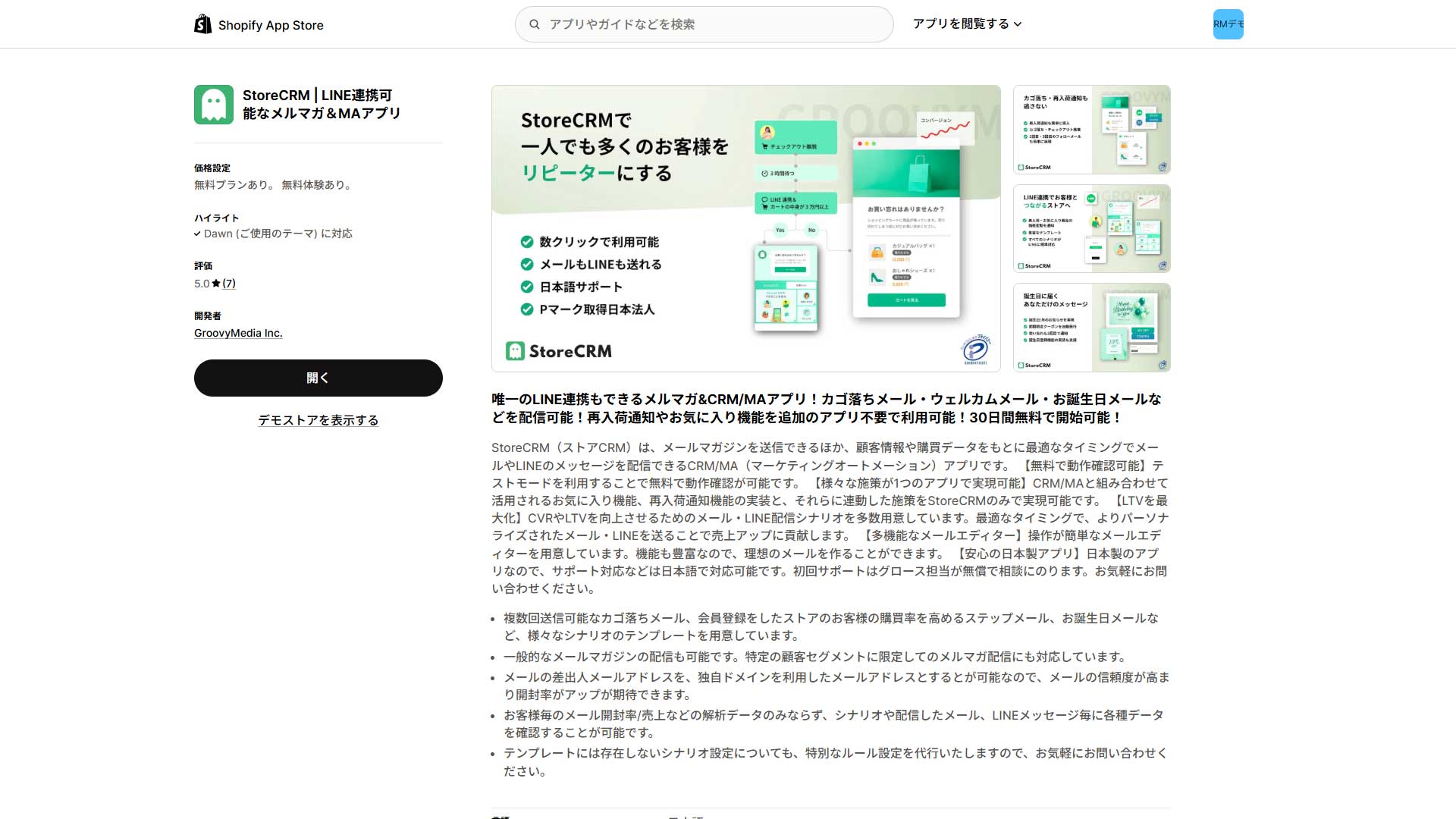](https://storecrm.com/wp-content/uploads/2025/09/shopify-line-app-2.jpg)
#### The serious CRM app for Shopify stores in Japan, managing LINE and email in one place
[StoreCRM](https://apps.shopify.com/obake-ma?locale=ja) is a **Japanese-built CRM and marketing automation app for Shopify that works for stores from small to large**. The admin, the support and the documentation are all fully localised into Japanese, so there is none of the language friction that comes with tools built abroad.
Using Shopify's customer data and purchase history, it supports **flexible segmentation** combining conditions such as **purchase frequency, spend, saved products and tags**. It also detects **behavioural triggers** — back-in-stock, abandoned cart, birthdays, anniversaries, price drops — automatically and sends at the right moment. You can also **send newsletters to a segment at the moment that suits it best**. Choose the segment for your goal and audience, pick a template, and **anyone can create and send an on-brand email**.
Its defining feature is **sending LINE and email together**. Reaching customers across channels means your messages actually land, which feeds directly into lifetime value. The UI is intuitive enough that you can run sophisticated campaigns with no specialist knowledge. Optimised for the Japanese market and for Shopify, StoreCRM is **the CRM app to recommend to any Shopify store that wants results**.
[Install the app](https://apps.shopify.com/obake-ma?locale=ja)
### Shopify Email
[](https://storecrm.com/wp-content/uploads/2025/10/shopify-newsletter-app-2.jpg)
#### Shopify's own free email tool, available in Japanese and easy to adopt
[Shopify Email](https://apps.shopify.com/stories/spotlight-app-shopify-email?locale=ja) is **Shopify's official free email marketing feature**, and it lets you **compose and send newsletters directly from your store admin**. The **admin and templates are fully localised into Japanese**, so there is no language barrier and **beginners can use it intuitively**.
Templates **pick up your store logo and colour palette automatically**, so **producing an on-brand email is simple**. **Drag and drop** lets you insert product images, links and coupons, and you can produce a polished email with no specialist knowledge. It supports **simple segmentation on customer tags and purchase history**, and **automated sends** based on behaviour, such as messaging **customers who left something in their cart** or **following up after a first purchase**.
You can also send **up to 10,000 messages a month free**, so **the additional cost is close to nothing**. It is not built for advanced analysis or complex automations, but as a **low-cost email marketing tool available in Japanese** it is **the natural choice for anyone new to running a Shopify store**.
[Install the app](https://apps.shopify.com/stories/spotlight-app-shopify-email?locale=ja)
### Klaviyo
[](https://storecrm.com/wp-content/uploads/2025/09/shopify-csv-app-2.jpg)
#### The high-end automation app chosen by ecommerce businesses worldwide
[Klaviyo](https://apps.shopify.com/klaviyo-email-marketing?locale=ja) is an **AI-equipped email and SMS marketing app with a deep Shopify integration. It syncs customer data, purchase history and browsing history in real time, and the AI uses that behavioural data to segment automatically, personalise, and suggest the best moment to send.** The result is communication optimised for each individual, which feeds directly into **repeat rates and lifetime value**.
It also integrates with more than 350 external apps. Templates and a drag-and-drop editor let you produce attractive emails quickly. **A/B testing, ROI analysis and workflow automation** support continuous improvement and data-led marketing.
Pricing is **usage-based**, according to list size and volume sent. The admin and support are English-only, but it is **an excellent fit for mid to large Shopify stores selling globally**. Where **Omnisend** suits stores that want automation at low cost, **Klaviyo is the step up for anyone who needs precise AI-driven analysis and advanced automation**.
[Install the app](https://apps.shopify.com/klaviyo-email-marketing?locale=ja)
### Omnisend
[](https://storecrm.com/wp-content/uploads/2025/09/shopify-csv-app-3.jpg)
#### Marketing automation from abroad, built around value for money
[Omnisend](https://apps.shopify.com/omnisend?locale=ja) is **a marketing automation app that connects to Shopify and manages email, SMS, popups and landing pages in one place**. It offers more than 100 templates and a drag-and-drop editor, with AI generating subject lines and body copy. **Automations for abandoned carts, welcome emails and back-in-stock alerts** take a few clicks to set up.
**Spin-to-win wheels, exit-intent popups and form building** strengthen lead capture, and **newsletters, SMS campaigns and push notifications** all live in the same place. The UI is in English but intuitive, which makes it **ideal for Shopify stores that want serious automation at low cost**.
Pricing is usage-based, according to list size and volume sent. The Standard plan, covering up to 500 contacts and 6,000 emails a month, starts at around USD 16 a month with the introductory discount, while the Pro plan, with unlimited email from 2,500 contacts upwards, starts at around USD 59.
Where **Klaviyo specialises in AI analysis and Sendvio offers a Japanese-language all-rounder**, **Omnisend stands out for how quickly you can adopt it and get automations running** — a high-end automation tool that prioritises value.
[Install the app](https://apps.shopify.com/omnisend?locale=ja)
### Mailchimp
[](https://storecrm.com/wp-content/uploads/2025/10/shopify-newsletter-app-3-1.jpg)
#### The best choice for sending globally
[Mailchimp](https://apps.shopify.com/mailchimp?locale=ja) is **an email app for Shopify with an English-only admin and English-only support**, which makes it particularly suitable for **Shopify stores targeting customers abroad or multilingual markets**. **Email is at its centre, but it also covers SMS, popups, forms and landing pages**.
Connected to Shopify, it syncs customer records and purchase history automatically and supports **detailed segmentation** on **purchase frequency, spend, region and tags**. It also supports **behaviour-triggered sending** for abandoned carts, birthdays, restocks and post-purchase follow-up, so messages arrive at the right moment.
**Templates and a drag-and-drop editor** make attractive emails easy to produce, and **A/B testing and detailed reporting** let you improve them. Pricing is usage-based on volume sent and list size, with the main features available even on the free plan.
**Mailchimp is offered both as a Shopify app and as standalone software.** The Shopify app connects to your customer data and purchase history for marketing integrated with your store. The standalone version, a separate web platform, also handles non-Shopify stores and unified operation across several storefronts. Where **Klaviyo** is strong on analysis and **Omnisend** on cost efficiency, **Mailchimp stands out for global reach and flexibility in how you run it**.
[Install the app](https://apps.shopify.com/mailchimp?locale=ja)
### Privy
[](https://storecrm.com/wp-content/uploads/2025/10/shopify-newsletter-app-4.jpg)
#### An all-in-one tool combining popups, email and SMS
[Privy](https://apps.shopify.com/privy?utm_source=chatgpt.com&locale=ja) is a marketing automation app that connects to Shopify and manages **popups, email and SMS in one place**. The admin and support are English-only, but a simple, intuitive UI and a large library of design templates mean you can adopt it immediately. Popups and coupons appear automatically during a visit to prevent drop-off and to drive signups and purchases. It also supports **behaviour-triggered sending** for abandoned carts, post-purchase follow-up and birthdays, so messages match what the customer is doing.
Combining email, SMS and popups gives you a **layered approach**, automating everything from acquisition to repeat purchases. Real-time analytics and A/B testing let you keep improving as results come in. Pricing is **usage-based** on list size and volume sent, and the free plan covers the main features, so stores that want effective marketing on a small budget are well served. It is regarded as **an all-in-one Shopify marketing tool more focused on promotion than Mailchimp**.
[Install the app](https://apps.shopify.com/privy?utm_source=chatgpt.com&locale=ja)
### Sendvio
[](https://storecrm.com/wp-content/uploads/2025/10/shopify-newsletter-app-5.jpg)
#### Email, SMS and reviews together, with Japanese-language support
[Sendvio](https://apps.shopify.com/sendvio-email-marketing-sms) is **a marketing automation app built for Shopify with Japanese-language support**. It manages email, SMS, popups and reviews together, connecting to Shopify's customer records and purchase history to automate **behaviour-triggered sending** for abandoned carts, post-purchase follow-up, birthdays and restocks. An intuitive admin and a large template library mean you can produce attractive emails with no specialist knowledge.
It also supports the whole path from acquisition to repeat business: **popups and coupons** to prevent drop-off, and review display to build trust. **A/B testing** and **performance reporting** are included as standard, so you can keep improving on the basis of results. Pricing is **usage-based** on volume sent and list size, with the main features available on the free plan.
Compared with the other apps here — **Klaviyo oriented towards advanced analysis, Privy towards promotion** — **Sendvio is the balanced option**, combining **Japanese-language support, breadth of features and low cost**. It suits any store that wants to automate its marketing easily, from a Shopify beginner to a serious operation.
[Install the app](https://apps.shopify.com/sendvio-email-marketing-sms)
## Summary
When you start sending email, the first thing that matters is choosing a tool that matches your goal and the size of your store. **If the basics are enough, Shopify's own Shopify Email** gets you free email marketing in Japanese with very little effort. If you want more advanced automation, design or customer analysis, **a Japanese-built CRM app such as StoreCRM** or **an app from abroad such as Klaviyo or Omnisend** is the better choice. Where you sell matters too: **choose an app from abroad if you are going global, and a Japanese one if your focus is the domestic market.** Email apps offer a wide range of capabilities — **segmentation, triggered sending, social integration, reviews, popups and templates** — and choosing the one that matches your goal is what determines the result.
========================================================================
# 8 CRMs for Shopify compared, and what an app gets you
> Five Shopify CRM apps compared — from free plans for beginners to full-featured tools strong on LINE and customer analysis — plus three external CRMs, and how to choose for your size and setup.
- URL: https://storecrm.com/knowhow/shopify-crm/
- Type: Blog
- Published: 2025-09-08
- Updated: 2026-04-15
- Category: tips
- Tags: CRM, guides
- Author: StoreCRM
---
## What is CRM?
CRM (customer relationship management) is a category of tool that holds customer records, purchase history, support enquiries and email or LINE open and click history in one place, and puts them to work in sales, marketing and support. Bringing that data together deepens your understanding of each customer and makes well-judged recommendations and personalisation possible. Companies that adopt CRM [report](https://www.kixie.com/sales-blog/crm-statistics-and-market-insights-for-2025/?utm_source=chatgpt.com) substantial results. It also improves the quality and speed of support, cutting hours worked and easing the load on staff. Cloud-based, mobile-ready and AI-equipped CRMs are now the norm, adopted by companies of every size.
## Related pages
[StoreCRM (Shopify App Store)](https://apps.shopify.com/obake-ma?locale=ja)
[8 CRMs for Shopify compared, and what an app gets you](https://storecrm.com/knowhow/shopify-crm/)
[How to manage customers over LINE: 10 recommended CRM tools](https://storecrm.com/knowhow/line-crm-tools/)
### One place for all your customer data
One of the main benefits of a CRM is that your data lives in one place. Basic customer details, purchase history, wishlist items, support enquiries, email and LINE click and open history all come together, replacing fragments with a single picture — and a much better understanding of the customer. Consolidating data that was scattered across separate tools also cuts the time spent looking for it, which speeds up marketing analysis and sales decisions. One study found that companies using a CRM save five to ten hours a week and improve sales productivity by up to 40%, easing the load on staff and raising output. A CRM cuts effort and raises productivity at the same time.
### Better personalisation
A CRM's analytics let you recommend products and send coupons tailored to each customer, which makes email and LINE campaigns far more effective. Companies that adopted a CRM improved customer retention by 27% and raised satisfaction by 75% — a substantial improvement in customer experience. Used well, a CRM can also improve lead conversion by up to 300%, making customer acquisition more efficient. Personalisation in particular outperforms broadcasting, with email click rates rising 14% in one study. Personalisation through a CRM is therefore not just a way to grow revenue but a strategy for building long-term trust and encouraging repeat purchases.
### More efficient customer success
Adopting a CRM improves both the quality and the speed of support. With previous enquiries and purchase history in one view, your team grasps a customer's situation instantly and responds appropriately. That builds trust, which in turn leads to renewals and upsell opportunities. In practice, 47% of companies report that a CRM made their customer success work more efficient and reduced the burden on staff. Accumulating and sharing case histories and resolutions spreads knowledge across the organisation and strengthens the whole team. The result is not only higher customer satisfaction but fewer hours spent and a more energised customer success function.
## The benefits of connecting a CRM to Shopify
Shopify has basic customer management, but as of September 2025 it does not include a full CRM as standard. You can manage purchase history and customer records and build simple segments, but that is not enough for advanced analysis or marketing automation. Which is why so many companies combine Shopify with a dedicated CRM app or an external CRM tool.
For the Japanese market, StoreCRM is the leading app, covering back-in-stock notifications, wishlists and LINE integration to improve the customer experience and drive repeat purchases. Among external CRMs, HubSpot, Salesforce and Zoho are widely used; syncing them with Shopify data enables advanced customer analysis and sales support. Extending Shopify with a CRM to improve customer experience and run marketing automation is, in short, the standard approach.
The impact of adopting a CRM
Bars shown relative to the highest value (300%)
Lead conversion rate (maximum)
300%
Improvement in customer satisfaction
75%
More efficient customer success
47%
Improvement in sales productivity (maximum)
40%
Revenue growth
29%
Improvement in customer retention
27%
Increase in email clicks
14%
Source: [Kixie, "CRM Statistics and Market Insights for 2025"](https://www.kixie.com/sales-blog/crm-statistics-and-market-insights-for-2025/?utm_source=chatgpt.com)
### StoreCRM installs with no code
CRM has a reputation for being difficult, but StoreCRM, the CRM app for Shopify, installs straight from the [Shopify App Store](https://apps.shopify.com/obake-ma?locale=ja). No programming knowledge is required and your current Shopify theme works as it is. Once installed you can immediately start sending LINE and email campaigns matched to the customer: checkout abandonment notices, back-in-stock alerts, price-drop alerts on wishlist items, coupons, reminders to people who saved a product, and birthday messages. The bundled templates only need their images and copy swapped out, so running them is simple. That cuts the effort of running your store considerably while improving the customer experience and driving repeat purchases and revenue.
At the same time, there are plenty of CRMs outside the Shopify app ecosystem that can be integrated. Each has its own character: some offer advanced enterprise functionality, some let you build your own landing pages and forms, some embed into an ordinary website, some are built around chat. External CRMs offer a great deal, but you have to configure the Shopify integration yourself, which makes them somewhat more advanced than a Shopify app.
### Fully automated LINE and email notifications
As your store grows and your customer count rises, sending LINE messages and emails by hand becomes a burden — and the risk of sending the wrong thing rises with it. Automation is the answer. Prepare messages in advance for abandoned carts, back-in-stock alerts, price drops, coupons, reminders to people who saved a product and birthday messages. Configure the customer name, product name and coupon code to be filled in automatically, and every message is personalised. Then set up the automations, and those messages go out on their own, triggered by a specific action or moment. LINE and email notifications become entirely automatic, and your customer communication becomes both efficient and accurate.
### Extensions for birthdays, back-in-stock, wishlists and LINE
An app adds a wide range of functionality that Shopify does not have as standard. You can nudge a purchase along with an abandoned cart notice, avoid losing sales with a back-in-stock alert, or push sales with price drops and coupons. Reminders to customers who saved a product, birthday messages and timely communication over LINE all become possible. Which of these you add is entirely up to you, according to your store's size, your products and your customers. Used well, these extensions make your CRM efficient and your customers more likely to buy again.
## Five Shopify CRM apps
Every Shopify CRM app installs easily from the App Store and is configured without code, which makes them very approachable. Whether the admin and the support are available in Japanese is essential to running one smoothly. **StoreCRM**, for instance, is available in Japanese and easy for beginners, with strengths in LINE integration, wishlists and back-in-stock notifications. **ECPower** specialises in customer analysis and segmentation, and pairs with StoreCRM to get the most out of both. **CRM PLUS on LINE** sends over LINE only, which suits campaigns designed for the Japanese market. Choosing the app that matches your store's size and how your team works is what makes the difference.
Key: **◎ = strong / ◯ = supported / △ = limited or needs another app / × = not supported**
App
Free plan
Beginners
Japanese admin / support
Abandoned cart
Birthday
Back in stock
Wishlist
LINE
Strengths
Key features
StoreCRM
◯ (30-day trial)
◎ (easy setup)
◎ (fully Japanese)
◎
◎
◎
◎
◎
Works from small to large stores, built for Japan, LINE and ecommerce campaigns in one place
Wishlists, back-in-stock and price-drop alerts, LINE and email campaigns, coupons, birthdays, anniversaries, rich menus, abandoned cart recovery
Klaviyo
◎ (free plan available)
△ (English UI, some difficulty)
△ (no Japanese)
◎
◎
◎
△ (needs another app)
△ (possible via an integration app)
Advanced analytics and automation for mid to large stores
Email and SMS, abandoned cart, birthdays, coupons, landing pages and popups, A/B testing, measurement
ECPower
◎ (free plan available)
◎ (simple to use)
◎ (fully Japanese)
△ (notifications need an integration)
△
△
△
△ (possible in combination with StoreCRM)
Strong on customer analysis and segmentation
Segment CRM, LTV and purchase frequency analysis, dashboards, StoreCRM integration, reporting
CRM PLUS on LINE
◎ (free plan available)
◎ (LINE-centred and easy to handle)
◎ (fully Japanese)
◎
◎
◎
△ (weak on wishlists)
◎ (LINE specialist)
Specialises in LINE Official Account integration; strong in Japan
Abandoned cart, back-in-stock and shipping notifications, segmented sending, rich menus, LINE Login (Shopify Plus only)
### StoreCRM
[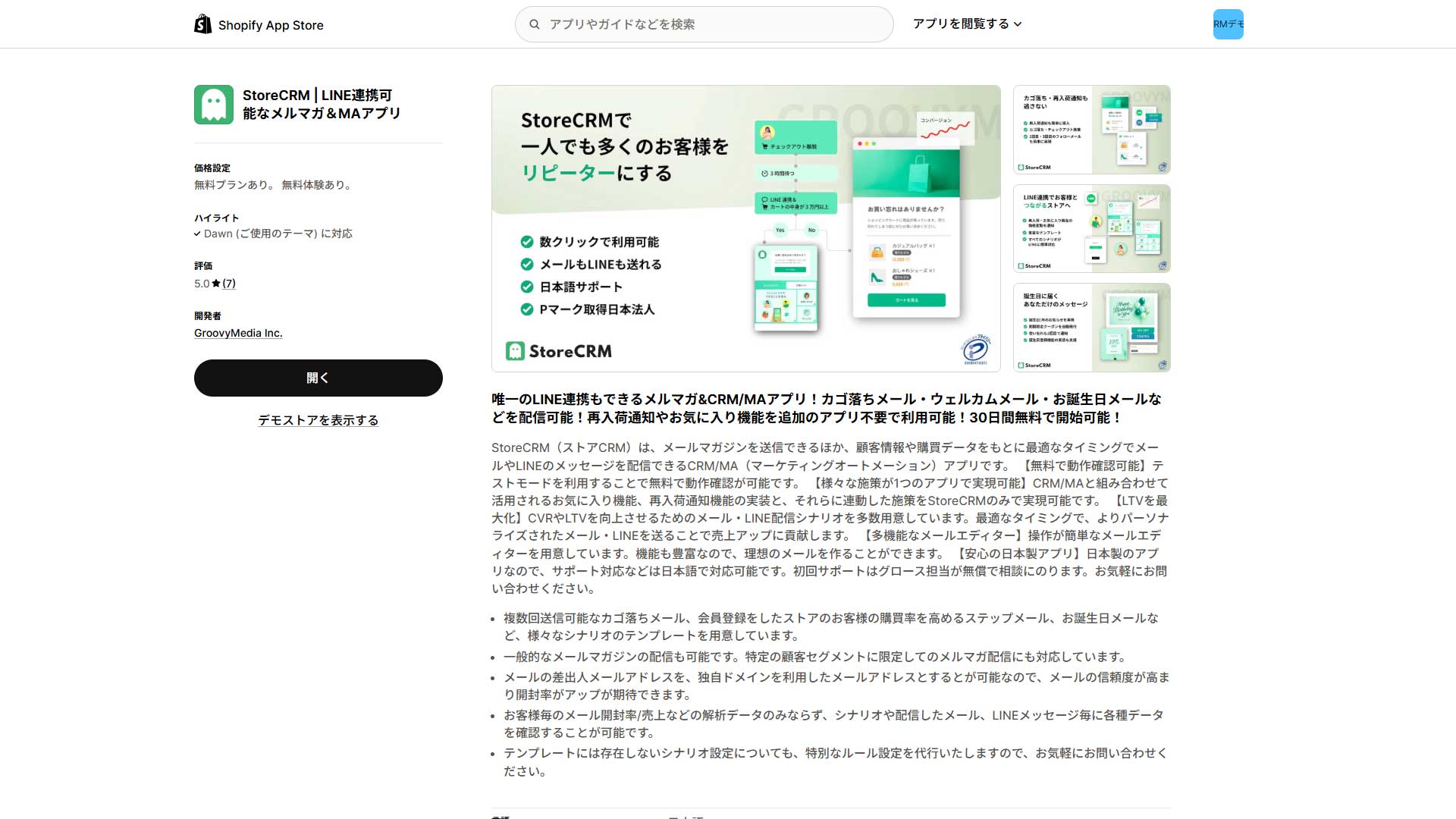](https://storecrm.com/wp-content/uploads/2025/09/shopify-line-app-2.jpg)
#### A Japanese-built, full-featured CRM that sends both email and LINE
[StoreCRM](https://apps.shopify.com/obake-ma?locale=ja) is a Japanese-built CRM and marketing automation app that works for stores from small to large. The admin and the help documentation are fully localised into Japanese, so Japanese-language stores can adopt it with confidence. Connecting Shopify's customer records and purchase history puts that data to work in personalised marketing.
The app on its own adds back-in-stock notifications and a wishlist, and covers everything built on top of them — back-in-stock alerts and price-drop alerts for saved products, end to end. The wishlist works for logged-in and logged-out customers alike, and you can restrict it to logged-in customers if you want to push signups.
Every automation can reach the customer through two channels, LINE and email, which raises conversion. Reminders about unused coupons, restocks and price changes on saved products, and anniversary campaigns for birthdays and purchase anniversaries are all available as ready-made automations, which makes it excellent for growing repeat business. Integration with Shopify Flow gives you flexible connections to other apps, such as points apps.
Running LINE and email together reaches a wide range of customers, and with templates you only need to swap the images and the copy, so you can put it to work the day you install it. It also adds LINE Login to your store and delivers tabbed LINE rich menus.
[Install the app](https://apps.shopify.com/obake-ma?locale=ja)
### Klaviyo
[](https://storecrm.com/wp-content/uploads/2025/09/shopify-csv-app-2.jpg)
#### A capable email and SMS marketing app from outside Japan that pairs beautifully with Shopify
[Klaviyo](https://apps.shopify.com/klaviyo-email-marketing?locale=ja) has no Japanese admin or support, but it integrates smoothly with Shopify as a dedicated email and SMS marketing app. It collects purchase history and on-site behaviour automatically and uses them to send personalised messages.
A large template library and a drag-and-drop editor let you produce attractive, on-brand emails quickly without specialist knowledge. SMS is supported as well (though not for sending within Japan), so you can combine email and SMS for an omnichannel approach that reaches a broader audience.
Because it is built outside Japan it is less suitable for stores that need a Japanese admin and Japanese support, but it has a strong track record with ecommerce businesses worldwide and is a serious option for anyone looking to grow repeat customers efficiently and raise lifetime value.
[Install the app](https://apps.shopify.com/klaviyo-email-marketing?locale=ja)
### Omnisend
[](https://storecrm.com/wp-content/uploads/2025/09/shopify-csv-app-3.jpg)
#### An email and SMS marketing app from outside Japan, with a free plan
[Omnisend](https://apps.shopify.com/omnisend?locale=ja) is a CRM and marketing automation app with no Japanese admin or support, but it stands out for having a free plan. Its Shopify integration is excellent, so you can start automating email and SMS marketing from your customer and purchase data very quickly.
With a large template library and a drag-and-drop editor, you can produce on-brand emails immediately without specialist knowledge. Ready-made automations for abandoned carts, welcome flows and birthday campaigns help build repeat business.
Initial setup is simple — install it on your Shopify store and you are away — which makes it a good fit for ecommerce businesses that want serious CRM and marketing automation at low cost. As with Klaviyo, it is less suitable if you need a Japanese admin and Japanese support, but it is a strong option for growing repeat customers efficiently and raising lifetime value.
[Install the app](https://apps.shopify.com/omnisend?locale=ja)
### ECPower
[](https://storecrm.com/wp-content/uploads/2025/09/shopify-csv-app-4.jpg)
#### A Japanese-built segmentation CRM that integrates with StoreCRM
[ECPower](https://apps.shopify.com/ecpower?locale=ja) is a Japanese segmentation CRM and customer analytics tool built for Shopify, with a free plan available. Every screen and all support are in Japanese, which is a considerable advantage. It integrates with StoreCRM, syncing customer lists built from segment conditions automatically, so your email and LINE campaigns always work from the latest data.
ECPower builds fine-grained segments from purchase count, total spend, frequency, coupon usage, subscription status and tags. Metrics such as LTV, average order value, purchase frequency and repurchase interval are visualised in real time in charts and dashboards, making analysis that feeds directly into repeat rate and LTV straightforward.
More than 50 "insight" reports help you understand purchasing patterns and customer characteristics and make decisions from data. It has been adopted by stores in Japan and abroad, and is a dependable tool.
[Install the app](https://apps.shopify.com/ecpower?locale=ja)
### CRM PLUS on LINE
[](https://storecrm.com/wp-content/uploads/2025/09/shopify-csv-app-5.jpg)
#### A Japanese-built, LINE-focused CRM with a free plan
[CRM PLUS on LINE](https://apps.shopify.com/socialplus?locale=ja) is a Japanese-language, LINE-focused CRM and marketing automation app with a free plan. It connects Shopify's customer data and purchase history to your LINE Official Account and sends each customer a message optimised for them. It is strong on LINE-led campaigns, and combining it with StoreCRM gives you a broader CRM strategy still.
Its main features include automated LINE messages for abandoned carts, back-in-stock alerts and shipping notifications, segmented sending by customer attributes and purchase status, and tabbed rich menus. LINE Login (Shopify Plus only) makes signup and login seamless, improving the customer experience directly.
The admin and support are in Japanese and initial setup support is free, so it is an app that stores focused on LINE can adopt with confidence.
[Install the app](https://apps.shopify.com/socialplus?locale=ja)
## Three external CRMs for Shopify
Compared with a Shopify app, an external CRM **takes rather more work to adopt and integrate**, but offers deeper and more extensible functionality. **HubSpot** is an all-in-one platform for small and mid-sized businesses, starting from a free plan and covering forms, landing pages, email and SMS, and automation. **Salesforce** targets the enterprise, with extensive functionality, advanced automation and analytics, and it excels at scale. **Channel Talk** is strong on customer service, raising the quality of the experience through live chat, internal collaboration and bots. All three offer more than a Shopify app, but defining requirements and designing the implementation can take time. Weigh the implementation effort against the benefit and choose according to **your products, the size of your company and how your team works**.
Key: **◎ = strong / ◯ = supported / △ = limited or needs another app / × = not supported**
Service
Free plan
Beginners
Japanese admin / support
Abandoned cart
Birthday
Back in stock
Wishlist
LINE
Strengths
Key features
HubSpot
◎ (free plan available)
◎ (intuitive UI)
◎ (fully Japanese)
◎
◎
◎
△ (needs an integration)
△ (via the LINE Official app integration)
An all-in-one platform for small and mid-sized businesses that scales as you grow
Comprehensive extensibility and reliability for the enterprise
Marketing Cloud, email, landing pages and forms, AI personalisation, automation, Data Cloud integration
Channel Talk
◎ (free plan available)
◎ (easy setup)
◎ (fully Japanese)
◯ (some notifications)
△ (weak as standard)
△ (weak as standard)
△ (weak as standard)
◎ (strong LINE Official integration)
Specialises in customer service, combining chat with CRM
Live chat, team chat, AI bots, workflow automation, order sync, support management
### HubSpot
[](https://storecrm.com/wp-content/uploads/2025/09/shopify-csv-app-6.jpg)
#### An all-in-one CRM for small and mid-sized businesses, in Japanese, with a free plan
[HubSpot](https://www.hubspot.jp/) is an all-in-one CRM and marketing automation platform aimed at small and mid-sized businesses, with a Japanese admin and Japanese support and a free plan to start from. Connected to Shopify, it syncs customer, order and cart data automatically and manages your marketing in one place.
Form building, landing pages with embedded forms and popup cards are standard features, all configured intuitively by drag and drop. A workflow feature automates emails and actions based on conditions, so you can market effectively with less manual work.
Even the free plan covers basic forms, email, popups and landing pages, and you can move up to a paid plan as you grow. For an ecommerce business it is a powerful tool covering everything from lead capture through nurture to lifetime value.
Note that the [HubSpot Shopify app](https://apps.shopify.com/hubspot-2?locale=ja) makes the basics — forms, landing pages, popups and automation — easy to adopt, but for serious use we recommend working in the main platform.
[Install the app](https://www.hubspot.jp/)
### Salesforce
[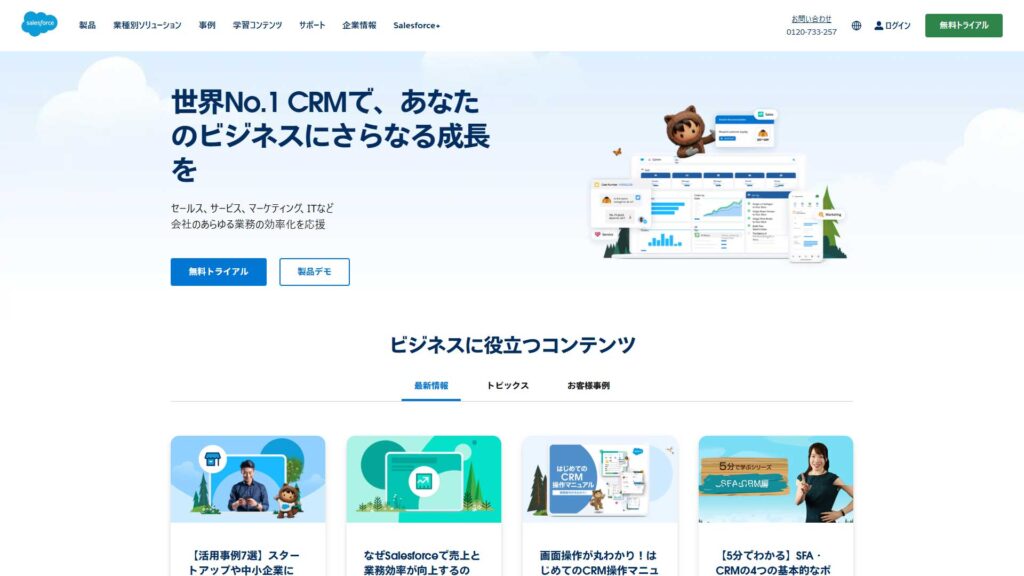](https://storecrm.com/wp-content/uploads/2025/09/shopify-csv-app-7.jpg)
#### Extremely capable, but priced for large enterprises
[Salesforce](https://www.salesforce.com/jp/) is a comprehensive enterprise CRM and marketing automation platform with a fully localised Japanese admin and support. There is no free plan and licences are expensive, but the functionality is correspondingly deep.
With Marketing Cloud at its centre it covers email marketing and newsletters, form building, landing pages with embedded forms and popup cards. Automation with workflows and conditional branches, and AI-driven personalisation, give it the capability that large ecommerce operations and brands need.
Overall, Salesforce excels in breadth of functionality, reliability and extensibility, and enables marketing to a global standard — at a price above the other options here. It is the right solution for large ecommerce businesses and for companies running comprehensive marketing across several channels.
There are two ways to connect Shopify and Salesforce. One is the [Salesforce Sync app](https://apps.shopify.com/salesforce-sync?locale=ja) (English only), which handles simple data transfer from Shopify to Salesforce. The other, more enterprise-oriented, is a connector through Data Cloud, which syncs customer, order and cart data in real time and supports advanced analysis and LTV work built on your ecommerce data.
[Install the app](https://www.salesforce.com/jp/)
### Channel Talk
[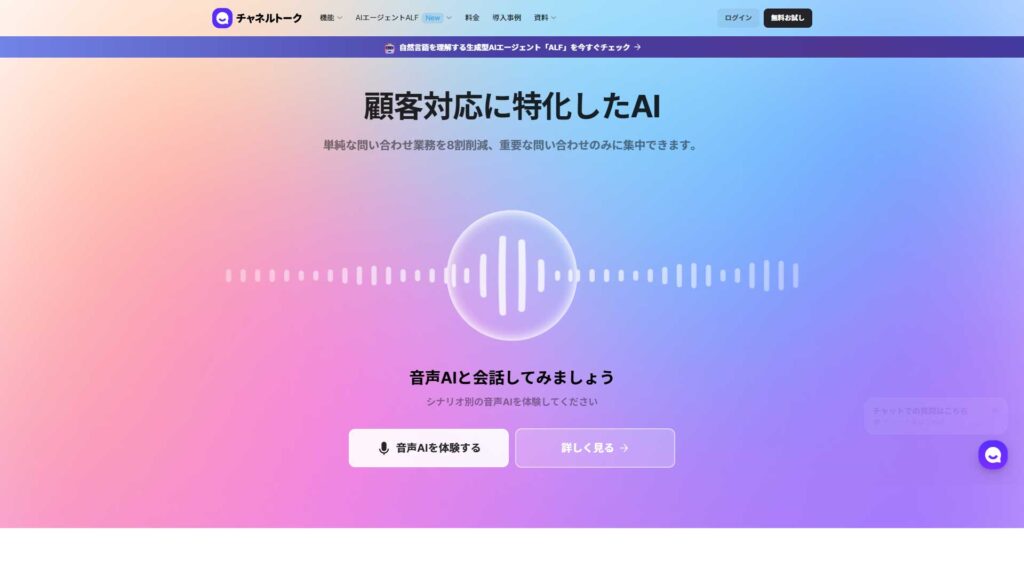](https://storecrm.com/wp-content/uploads/2025/09/shopify-csv-app-8.jpg)
#### An AI-equipped CRM built around customer service
[Channel Talk](https://channel.io/ja) is a customer-service-focused CRM from South Korea with a Japanese admin and Japanese support. There is a free plan, and it offers live chat, team chat, an AI chatbot (ALF) and workflow automation, making enquiry handling more efficient and customers happier at the same time.
Connected to Shopify, it syncs customer and order data into the chat so your team can confirm orders and answer delivery questions immediately, strengthening your support operation. It also includes internal team chat, so customer conversations and internal coordination live in the same place. It is capable and extensible enough for anything from a small store to a large enterprise, though the higher plans are expensive.
The Shopify app version of [Channel Talk](https://channel.io/ja) focuses mainly on live chat and basic chatbot functionality; its scope is narrower than the full Channel.io product, which includes the advanced AI and CRM automation.
[Install the app](https://channel.io/ja)
## Summary
There are two broad ways to bring CRM to Shopify: a **Shopify app** or an **external CRM**. The **five Shopify apps here (StoreCRM, Klaviyo, Omnisend, ECPower and CRM PLUS on LINE)** install easily, ask little of you up front, and let you start using your customer data straight away. Japanese-language support, LINE integration and other characteristics mean you can pick one to suit your store's size and needs. The **three external CRMs (HubSpot, Salesforce and Channel Talk)** take a little more work to connect to Shopify, but offer deeper functionality and more advanced automation, which suits larger companies and anyone taking a long view of customer strategy. Choose based on the size of your store, how your team works and the features that matter most to you.
========================================================================
# 7 Shopify wishlist apps compared
> What you gain by adding a wishlist to Shopify, how to set up back-in-stock and price-drop notifications, which apps to consider, and how to use it to grow revenue and conversion.
- URL: https://storecrm.com/knowhow/shopify-wishlist/
- Type: Blog
- Published: 2025-09-02
- Updated: 2026-01-08
- Category: tips
- Tags: wishlist, guides
- Author: StoreCRM
---
## What is a wishlist app?
A wishlist lets a customer **save a product to buy later**. **As of September 2025 Shopify has no such feature**, so you need an app. With one installed, you can add a heart or star button to the product page and customers save a product with a single tap. Saved products are available any time on a wishlist page, which makes comparing and considering products straightforward. Combined with email and LINE, price-drop and back-in-stock notifications go out automatically, so nobody misses out. For the store, sending the latest information immediately turns stock over faster and grows revenue. Most wishlist apps are built outside Japan; for the Japanese market, [StoreCRM](https://apps.shopify.com/obake-ma?locale=ja) provides this functionality.
## Related pages
[How to add a wishlist to Shopify](https://storecrm.com/knowhow/wishlist/)
[How to add a wishlist button to Shopify collection pages](https://storecrm.com/knowhow/favourites-to-collection/)
### Checking the price is the top reason people use a wishlist, at 16.77%
According to [research by Bizrate Insights](https://bizrateinsights.com/consumer-insights-wishlist/?utm_source=chatgpt.com), the most common reason consumers use a wishlist is to check the price, at 16.77% — a way to watch for price movements and discounts. Sharing follows at 9.64%, where people share products they want with family and friends as a reference for gifts or for their own decisions. A further 7.49% use it as a buy list for items that are out of stock, so they can buy smoothly once stock returns. The wishlist, in other words, is not merely a place to save things: it plays several roles at once — comparison, sharing and a nudge towards buying.
Why people use a wishlist (Bizrate Insights)
Bars shown relative to the highest value (16.77%)
To check the price
16.77%
To share
9.64%
As a buy list for out-of-stock items
7.49%
Source: Bizrate Insights, "[Consumer Insights on the Wishlist Feature](https://bizrateinsights.com/consumer-insights-wishlist/)"
### Comparing products, so nothing gets missed
As noted above, saved products are listed on the customer's account page, so they can compare colours, sizes and variants and check stock and prices. And if they are logged in to your Shopify store, they can save something interesting on the commute, compare properly on a computer at home, and go straight to a purchase. That convenience shortens the time from comparison to decision and reduces the drop-off that comes from deliberating over several products.
### Back-in-stock and price-drop alerts that bring customers back
With StoreCRM, customers who saved a product are notified automatically over LINE or email when it is restocked or its price drops. That brings them back to the store and stops them missing out. Timing and channel are configurable per product, so you can aim for the moment a customer is most likely to respond. Adding a coupon or related products to the notification encourages browsing: pairing a restock announcement with other sizes and colours, for instance, invites more than one purchase.
### Using wishlist data to optimise inventory
A wishlist benefits the store as much as the customer. A wishlist app accumulates data on product, colour, size, price band and date added, which shows you which colours and sizes are popular and how long people take to decide. If, for the same T-shirt, black in medium is saved far more often, order more of it; if red in XL is not, order less or discount it earlier. Sending restock and price-drop notifications automatically to the people who saved an item also reduces the risk of overstocking.
## The benefits of a wishlist app on Shopify
An app adds a wishlist without any awkward theme work. Using the saved data for notifications, and measuring the results on a dashboard, then lets you run considerably more sophisticated marketing.
### Save, compare and decide, with no theme changes
The apps covered here install without rebuilding your theme or switching to a compatible one. Adding a wishlist button to product and collection pages is simple, and customers can then save what interests them and compare later.
### Notifications that translate directly into revenue
A wishlist on its own does not realise the feature's potential. Combined with immediate price-drop and back-in-stock alerts and a "buy later" flow, it drives real purchase intent. Some apps, StoreCRM among them, handle email and LINE inside the same app; where that is not possible, connect notification, review, points or subscription apps to fill the gaps. Building on the wishlist as a starting point gives you a far more powerful promotional system. Smaller stores should start with a wishlist plus price-drop and back-in-stock alerts; larger ones should add reviews and likes and aim for more precise targeting.
### Visibility through analytics
Making wishlist additions, notification open rates and post-notification purchase rates visible lets you iterate quickly on subject lines, copy, timing and incentives. Managing analysis and execution in one place speeds up decisions, which feeds into repeat purchases and lifetime value. If one app does not cover everything, combine it with an external analytics tool or an integration.
## LINE and email marketing beyond the wishlist
Three further tactics are worth adopting alongside a wishlist. The first is **abandoned cart reminders**. Telling customers who left just before buying that "your cart is waiting" or that "stock is running low" brings them back, and adding a coupon pushes the purchase along considerably. The second is **anniversary campaigns**: automatically sending a coupon or an exclusive offer on a birthday or the anniversary of a first purchase creates a sense of occasion and improves both repeat rates and loyalty. The third is **segmented sending combined with LINE rich menus**: varying what you send by purchase history and customer attributes, and offering the right route through a rich menu, raises purchase intent. Together, these three contribute enormously to lifetime value — and StoreCRM does all of them in a single app.
### Abandoned cart reminders
Customers frequently add something to the cart and then leave without buying. A LINE message or email a while later — "your cart is waiting", "stock is running low" — brings them back to the cart and pushes the purchase along. Adding a coupon supplies the motivation of "buying now is the better deal", which improves the conversion rate. Reminders do more than recover lost sales; they build trust in the brand. Get the timing and the content right and you can expect both more revenue and a better repeat rate.
### Anniversary campaigns: turning birthdays and purchase anniversaries into fans
Celebrating a customer's birthday or the anniversary of their first purchase works beautifully as an automated LINE or email campaign, and it builds genuine fans. A discount coupon or an exclusive offer makes the customer feel singled out, which deepens their attachment to the store. Combined with the wishlist the effect is stronger still: a birthday coupon for a saved product, or a suggestion of related items on a purchase anniversary, contributes substantially to repeat purchases and lifetime value. A small store will delight customers with nothing more than a simple coupon on a birthday or a purchase anniversary. A large one can personalise using customer data — a discount on a saved product, a recommendation of related items. Combine LINE and email with a points programme or reviews and you give customers something that genuinely feels special.
### Segmented sending × LINE rich menus × wishlists
Segmented sending delivers the right information based on purchase history, browsing history and customer attributes: new arrivals for repeat customers, a review request for first-time buyers, an invitation to a VIP-only sale for high spenders.
Adding a LINE rich menu makes it more effective still. A rich menu is the large, permanently visible menu at the bottom of a LINE Official Account chat. You design it freely from images and buttons so that a single tap takes the user to a product page, a coupon or a contact form. Showing different rich menus to different customers improves the experience considerably: a shortcut to a favourite category for customers who buy from it, or a coupon page added for people in a campaign.
Bring the wishlist into that and it becomes more personal again. A button that shows coupons for saved categories, a flash sale announcement, a back-in-stock button — combining what the customer cares about with the right notification means they can buy at exactly the right moment. Segmented sending, rich menus and wishlists together create a genuinely distinctive customer experience and improve both repeat rates and lifetime value.
## Seven Shopify wishlist apps
Wishlist apps are easy to add to a Shopify store, and well worth using. Japanese-language apps in particular offer both the admin and support in Japanese, which is reassuring the first time. Some are simple and quick to adopt; some are full-featured, handling notifications and analytics in one place; some extend flexibly through integrations. Free plans and trials let you check the fit for your store easily. This article covers seven popular apps, comparing what each is good at, and how to choose according to your store's size and needs.
Wishlists, back-in-stock and price-drop alerts on saved products, LINE and email campaigns, segmented and automated sequences, coupons, abandoned cart, back-in-stock alerts, birthdays, anniversaries, email marketing, rich menus, Flow integration
Swym Wishlist Plus
◎ (free plan available)
◎
△ (mainly English UI, no Japanese)
◎
Klaviyo, Mailchimp, Omnisend, Yotpo, Flow, SMS
Wishlists, guest use, sharing by social and email, automated reminders, multilingual display
Wishlist Hero
◎ (free plan: 500 a month)
◎
△ (English admin, multilingual display)
◯
Klaviyo, Facebook, GA4, TikTok
Wishlists, list sharing, multilingual, reporting
Swish (formerly Wishlist King)
◯ (14-day trial)
△ (requires Liquid editing)
△ (English admin, no Japanese)
◯
Klaviyo, GA4, Meta, CSV
Guest wishlists, public lists, save for later, CSV import and export, social sharing, automated notifications
Wishlist Pro (formerly Wishlist Supply List)
◎ (free plan available)
◎
△ (English admin, multilingual)
◯
Bulk ordering by CSV, reordering, B2B
Multiple lists, save for later, sharing, dashboards
Prime Review
◯ (7-day free trial)
◎
◎ (Japanese available)
◎
Flow, automated notifications
Reviews, likes and wishlists, Q&A, photo and video reviews, coupons, notification automation
Simple Wishlist
◯ (7-day free trial, $9.99/month)
◎ (easy setup)
◎ (fully Japanese)
◯ (focused on the basics)
—
Add and remove from wishlist, display on the account page, 50-product limit, theme support
### StoreCRM
[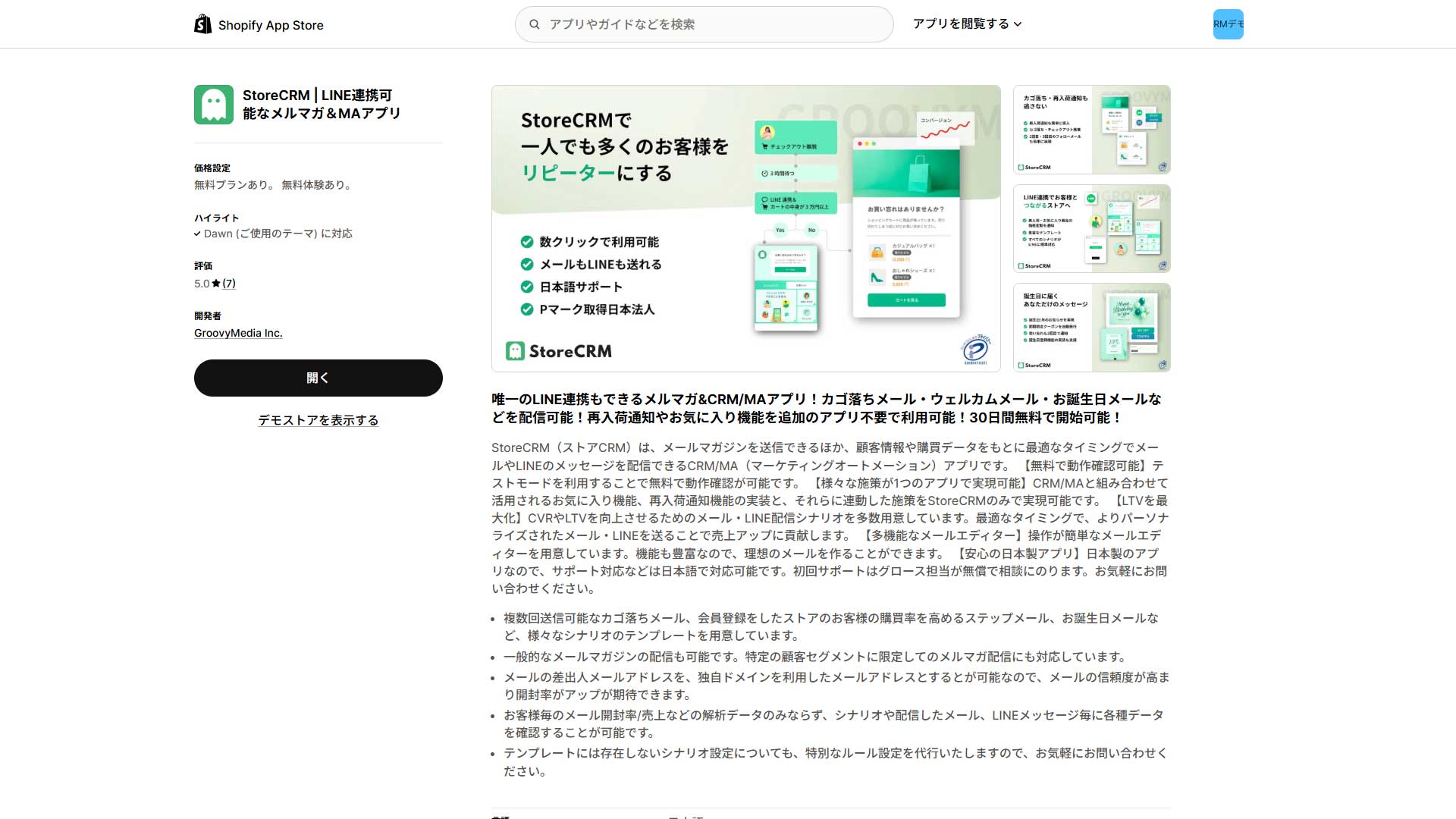](https://storecrm.com/wp-content/uploads/2025/09/shopify-line-app-2.jpg)
#### A full-featured CRM app that sends both email and LINE
[StoreCRM](https://apps.shopify.com/obake-ma?locale=ja) is a Japanese-built CRM and marketing automation app that adds a wishlist to your Shopify store. The admin and the documentation are fully localised into Japanese, so Japanese-language stores can adopt it with confidence. The app on its own adds the wishlist and covers everything built on top of it — back-in-stock and price-drop alerts for saved products — end to end. The wishlist works for logged-in and logged-out customers alike, and you can restrict it to logged-in customers if you want to push signups.
Every automation can reach the customer through two channels, LINE and email, which raises conversion. Reminders about unused coupons, restocks and price changes on saved products, and anniversary campaigns for birthdays and purchase anniversaries are all available as ready-made automations, which makes it excellent for growing repeat business. Running LINE and email together reaches a wide range of customers, and with templates you only need to swap the images and the copy, so you can put it to work the day you install it. LINE rich menus are supported too.
[Install the app](https://apps.shopify.com/obake-ma?locale=ja)
### Swym Wishlist Plus
[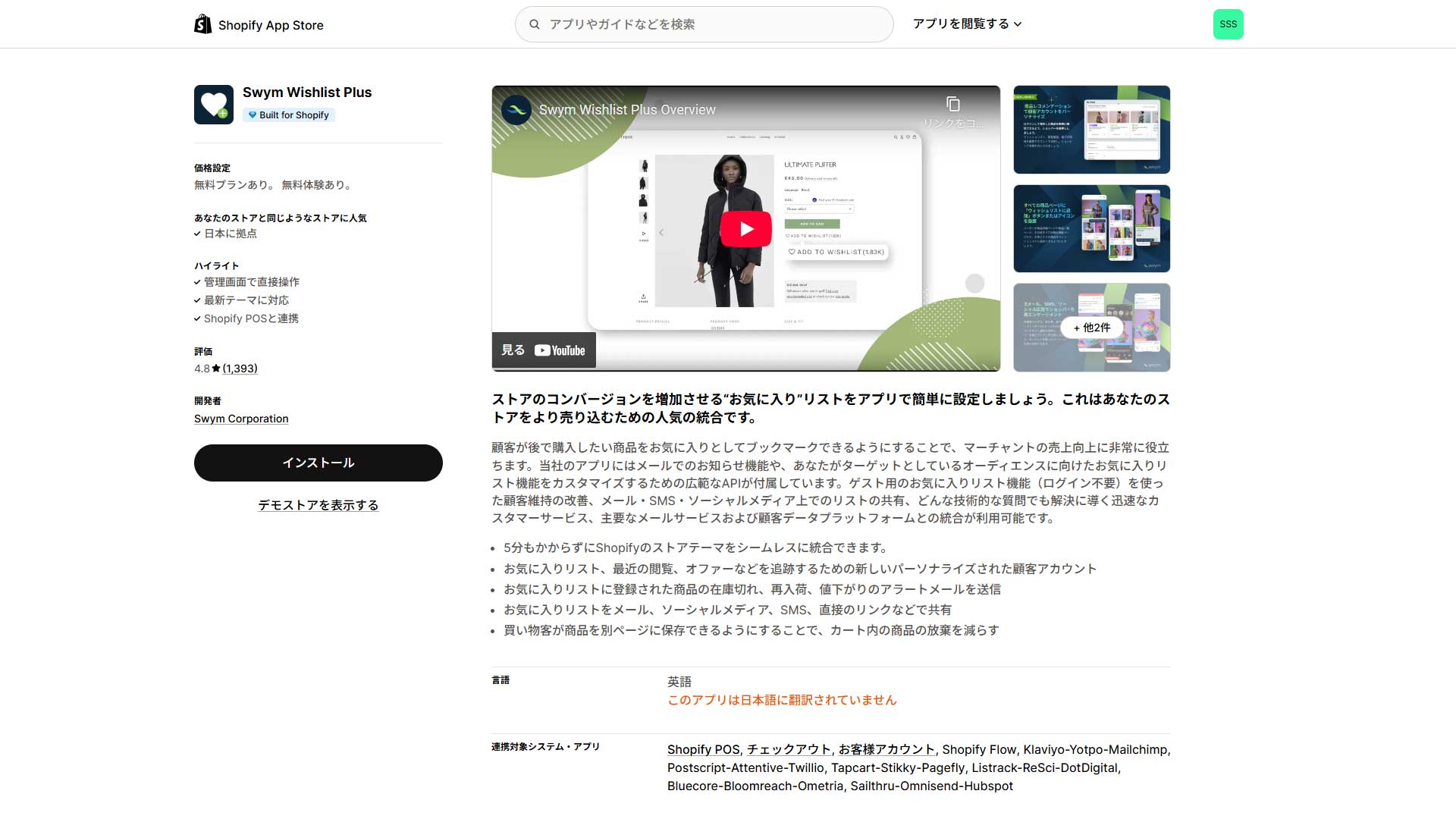](https://storecrm.com/wp-content/uploads/2025/09/shopify-wishlist-app-3.jpg)
#### A full-featured wishlist that works for guests too
[Swym Wishlist Plus](https://apps.shopify.com/swym-relay?locale=ja) has an English-only admin and documentation, but its feature set is exceptionally complete. Customers can save products without logging in and reach their list from any device. The free plan holds up to 500 items; paid plans cover larger use and more advanced features. Setup takes only a few minutes, and it supports current themes, Shopify POS, checkout and Flow. Integrating external marketing tools adds automatic out-of-stock, back-in-stock and price-drop notifications, and lists can be shared by social media or email. The lack of Japanese support is worth noting, but its convenience and extensibility make it a powerful driver of repeat purchases and revenue.
[Install the app](https://apps.shopify.com/swym-relay?locale=ja)
### Wishlist Hero
[](https://storecrm.com/wp-content/uploads/2025/09/shopify-wishlist-app-4.jpg)
#### Flexible and multilingual: a wishlist with reminders
[Wishlist Hero](https://apps.shopify.com/wishlist-hero?locale=ja) adds a wishlist and reminders to a Shopify store with very little effort. The admin and support are not available in Japanese, but multilingual display is supported, so a Japanese-language store can use it without trouble. It sets up in one click and is compatible with the popular themes, which makes it approachable for beginners. Customers can save products without logging in, from product pages, collection pages and quick view. It also detects stock-outs and price drops and sends reminder emails automatically, and supports sharing by social media and email. The free plan covers up to 500 saves a month, so you can use the core features at minimal cost. Paid plans add reporting and integrations with external services, including marketing tools.
[Install the app](https://apps.shopify.com/wishlist-hero?locale=ja)
### Swish (formerly Wishlist King)
[](https://storecrm.com/wp-content/uploads/2025/09/shopify-wishlist-app-7.jpg)
#### B2C and B2B, with efficient CSV workflows
[Swish](https://apps.shopify.com/wishlist-king?locale=ja) is a highly customisable wishlist app that integrates seamlessly into a Shopify store. The admin and documentation are English-only with no Japanese support, but multilingual display is available. Integration with your theme is straightforward and the result looks like part of your store. Free setup and customisation support is included, so the display is tuned for you immediately after installation — a considerable advantage. It offers guest wishlists, save-for-later from the cart, several list formats (public lists, favourites, saved items), sharing by email and social media, multiple wishlists, and CSV import and export. External marketing integrations are supported, as are automated emails for stock and price changes. Pricing runs from $4.95 to $49 a month according to your Shopify plan, with all features available on every plan. It is particularly well suited to stores that value usability and room to grow.
[Install the app](https://apps.shopify.com/wishlist-king?locale=ja)
### Wishlist Pro (formerly Wishlist Supply List)
[](https://storecrm.com/wp-content/uploads/2025/09/shopify-wishlist-app-6.jpg)
#### Multilingual, with strong support for both B2C and B2B
[Wishlist Pro](https://apps.shopify.com/wishlist-supply-list?locale=ja) is a capable wishlist app covering both B2C and B2B. The admin and documentation are English-based, but multilingual display including Japanese means a Japanese-language store can use it without trouble. Customers can create and manage multiple lists freely, and a CSV-driven bulk order form handles large orders and distributor reordering. Save-for-later and social sharing smooth the buying experience. It integrates with the Shopify admin and supports current themes, so installation takes under five minutes. Unlimited lists, a dashboard for demand analysis, and B2B reordering and bulk ordering make it flexible enough for a wide range of businesses and sizes.
[Install the app](https://apps.shopify.com/wishlist-supply-list?locale=ja)
### Prime Review
[](https://storecrm.com/wp-content/uploads/2025/09/shopify-wishlist-app-8.jpg)
#### Reviews, wishlists and Q&A in one
[Prime Review](https://apps.shopify.com/prime-review?locale=ja) adds three things at once: product reviews, likes and wishlists, and Q&A. It is available in Japanese, so it slots into a Japanese-language store easily. Installation is one click, and you can enable only the features you need. Reviews accept images and video, and custom fields can be added; replying to reviewers from the admin is simple. Product pages show the average rating and its breakdown, and coupons can be issued to encourage reviews. Users can also build lists with the wishlist and like features, and move straight from a list to the cart — behaviour that indicates strong purchase intent. Q&A answers pre-purchase questions on the store itself, raising engagement. It integrates with Shopify Flow, so notifications for restocks and price changes can be automated.
[Install the app](https://apps.shopify.com/prime-review?locale=ja)
### Simple Wishlist
[](https://storecrm.com/wp-content/uploads/2025/09/shopify-wishlist-app-9.jpg)
#### A straightforward, Japanese-built wishlist app
[Simple Wishlist](https://apps.shopify.com/wishlist-38?locale=ja) is a Japanese app that adds a wishlist to a Shopify store with minimal effort. The admin and the documentation are **fully localised into Japanese**, so Japanese-language stores can adopt it with confidence. An add-and-remove button goes onto product and collection pages in one click, and each customer's list of up to 50 products appears on their account page. There is no complicated pricing: no limit on products or saves, just a flat $9.99 a month, with a seven-day free trial.
[Install the app](https://apps.shopify.com/wishlist-38?locale=ja)
## Summary
Every app covered here adds a wishlist to your Shopify store and helps push customers towards a purchase. If managing it in Japanese and getting support in Japanese matter to you, choose a Japanese app or one with Japanese support; apps built abroad support you mainly in English. When you adopt one, start with the free plan or the trial and check the fit for your store. And use the wishlist data to understand which products are popular and when saves turn into purchases: that drives repeat business, raises average customer value and, in the end, grows revenue.
========================================================================
# 4 Shopify LINE ID linking apps compared
> Connecting Shopify to LINE gets your messages opened more than 80% of the time. Here are four apps for abandoned cart, back-in-stock and coupon messaging that build repeat customers and revenue.
- URL: https://storecrm.com/knowhow/shopify-line-app/
- Type: Blog
- Published: 2025-09-01
- Updated: 2026-01-12
- Category: tips
- Tags: LINE
- Author: StoreCRM
---
## What is a LINE Official Account, and why does it matter in ecommerce?
LINE is used by 99 million people a month in Japan (as of the end of June 2025) and reaches every age group — a genuinely national communication app. Within it, a LINE Official Account is how a company or shop sends service and product information directly to users. Its reach is far greater than email, and open rates are high. People who have added you as a contact are already interested in what you sell, so you reach exactly the right audience efficiently.
## Related pages
[StoreCRM (Shopify App Store)](https://apps.shopify.com/obake-ma?locale=ja)
[StoreCRM for LINE — the definitive Shopify and LINE integration app](https://storecrm.com/line/)
[How to connect Shopify with a LINE Official Account](https://storecrm.com/help/setting/line/)
[How to let customers sign up and log in to Shopify with LINE Login](https://storecrm.com/knowhow/linelogin/)
[How to add a LINE ID linking icon to your Shopify store](https://storecrm.com/knowhow/line-connect-banner/)
[How to manage customers over LINE: 10 recommended CRM tools](https://storecrm.com/knowhow/line-crm-tools/)
### Over 80% opened the same day: what a LINE Official Account does for acquisition
A LINE Official Account brings a lot with it. The first thing is reach. Because LINE can push a notification, your message arrives, and with 80% of messages opened the same day you can get campaign and sale information in front of people immediately. Communicating consistently also deepens the relationship, which feeds directly into repeat customers and lifetime value. One-to-one chat support and a smoother purchase experience through LINE Login round out a set of features that raise customer satisfaction.
Immediately on receipt
3–6 hours
Same day
20% opened
50% opened
80% opened
3–6 hours
50% opened
Same day
80% opened
### A range of message formats that drive purchases
LINE offers several message formats. Alongside the simple text message there is the rich message, which combines an image and text into a single visual, and the card-type message, which presents several products or items in a horizontal carousel. Using the right format for the job holds attention and makes a concrete action — a purchase, a store visit — much more likely. A LINE Official Account is free to create. Start with the basic features, then build a considered programme on top, and the results for an ecommerce or retail business grow substantially.
[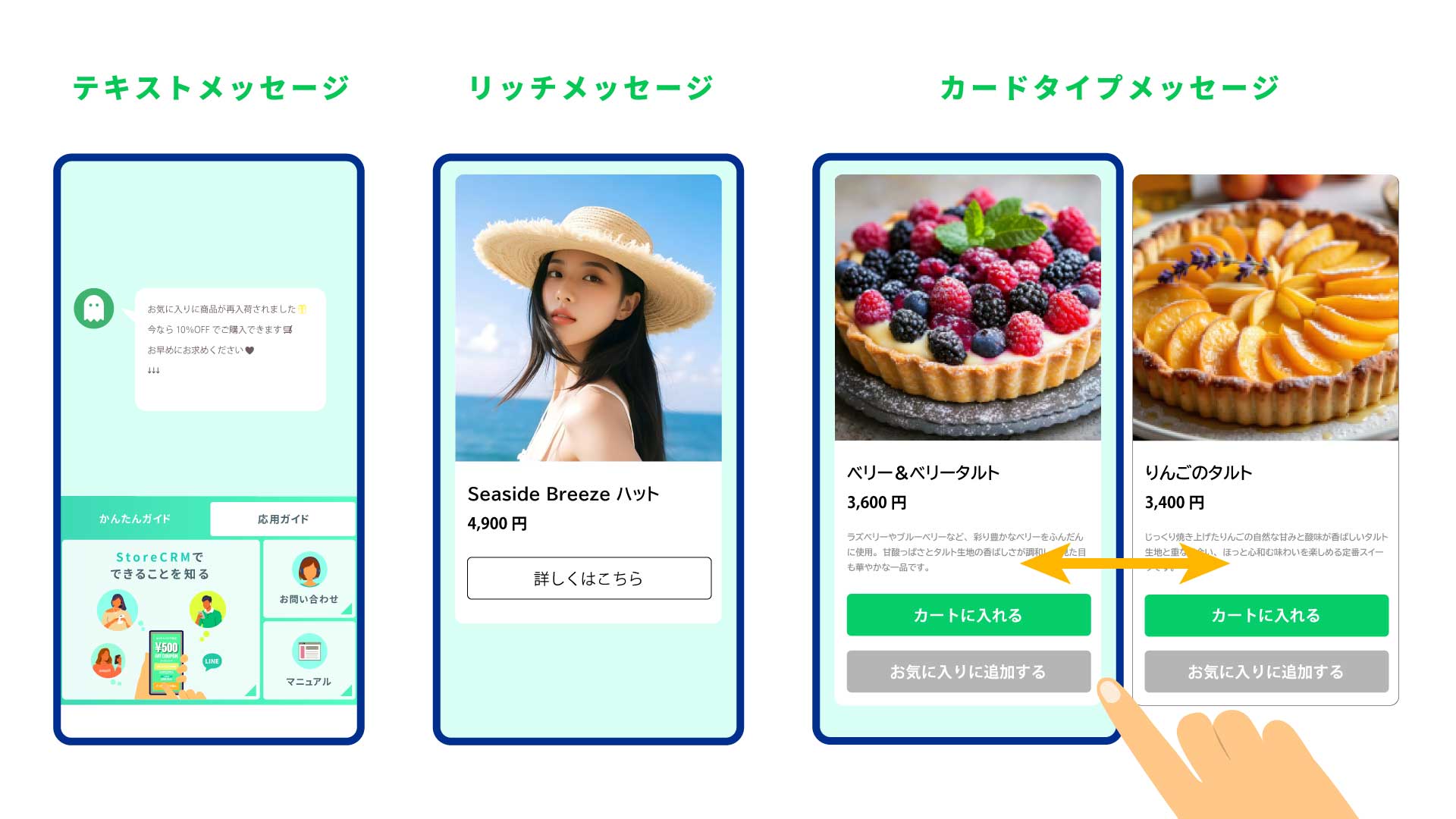](https://storecrm.com/wp-content/uploads/2025/09/shopify-line-app-7-2.jpg)
### Ideal for trying it out: the free LINE Official Account plan
The LINE Official Account has a free plan (the Communication plan) that costs nothing per month. It includes up to 200 messages a month with no setup fee, so there is almost no barrier to getting started. It suits stores and ecommerce businesses messaging a small number of customers, or trialling the channel. Because you cannot send beyond the 200-message allowance, serious marketing or frequent sending calls for the Light or Standard plan.
Plan
Monthly
Included messages
Additional messages
Setup fee
Best for
Communication
¥0
200 / month
Not available
¥0
Trying it out; sending infrequently
Light
¥5,000
5,000 / month
Not available
¥0
One or two campaigns a month plus routine announcements
Standard
¥15,000
30,000 / month
About ¥3 each
¥0
Regular sending plus promotion; scales as your list grows
- Pricing and specifications are subject to change. Check the official information for the latest details.
## The benefits of connecting Shopify to LINE
Connecting Shopify to LINE lets you deliver important messages — checkout abandonment notices, back-in-stock alerts — at open rates far above email. With a Shopify app such as StoreCRM you can follow up customers who left right before buying and get campaign news out immediately, which translates directly into revenue.
Shopify covers most of what running an ecommerce store requires, but at present (end of August 2025) its standard features cannot connect directly to a LINE Official Account. With a LINE integration app, you can send customers checkout abandonment notices, discount coupons, birthday messages and back-in-stock alerts. Promotion becomes fast, and repeat rates improve.
### Winning customers with a Shopify LINE integration app
LINE's high open rate means information reaches people faster and more efficiently than email, which makes it a very effective channel for acquisition and promotion. Connecting it to Shopify amplifies that further. With a LINE integration app, checkout abandonment notices that were previously email-only go out over LINE, and both open rates and purchase rates improve. Combining discount codes and product recommendations in the same message increases the effect again.
The apps also add features Shopify does not have as standard — wishlists and back-in-stock notifications — and then let you message the customers who used them over LINE. Used well, this makes promotion faster and more effective, and feeds directly into repeat customers and lifetime value.
### Push notifications so you never miss the moment
Because LINE pushes notifications, news reaches customers immediately and your communication is timely. You can announce a flash sale when people are most likely to act, and reach audiences email never gets to, which lifts purchase rates. In practice that means reminders about unused coupons, flash sale announcements, back-in-stock alerts for saved products and price change notices. Used well, they reach the people most ready to buy and grow revenue.
### Signing up and logging in with a LINE account
Signing up or logging in to a Shopify store normally means typing an email address and a password. Connecting Shopify to LINE enables LINE Login, which skips all that and uses the LINE account the customer already has. Usability improves dramatically, and it is a considerable help in situations like asking a customer to create an account while you are serving them in store.
### Building repeat customers and raising LTV
A plain LINE broadcast goes to everyone at once, which tends to feel like an impersonal mailshot. With a Shopify LINE app you can send something far more personal, based on purchase history and saved products. Send a coupon to thank someone for signing up, on their birthday, or on the anniversary of their first purchase, and satisfaction rises along with the repeat rate. Sending based on browsing and purchase history means each person gets what suits them, which is an efficient way to build repeat business. Distributing coupons and points issued in Shopify or another app over LINE drives repurchases and store visits, and keeping that up builds the kind of trust that maximises lifetime value.
## Four popular LINE apps that pair well with Shopify
Growing a Shopify store depends on deepening your relationship with customers and building repeat business. Connecting Shopify to LINE — used by an enormous number of people in Japan — means messages that would never land by email get through reliably.
None of this is in Shopify's standard features, so you need a dedicated app. This article covers four well-established apps that work well with Shopify: StoreCRM, CRM PLUS on LINE, Lipify and Omise Connect, along with what each one is good at.
All of them install from the [Shopify App Store](https://apps.shopify.com/?locale=ja).
App
Free plan
Beginners
Email
Breadth of features
Strengths
Key features
StoreCRM
30-day trial
◎
◎
◎
Runs email and LINE together
LINE and email campaigns, segmented and automated sequences, coupons, abandoned cart, back in stock, wishlists, birthdays, anniversaries, email marketing, rich menus, Shopify Flow integration
CRM PLUS on LINE
Yes (up to 100 linked IDs)
◎
–
〇
Breadth of LINE integration
LINE campaigns, segmented and automated sequences, coupons, rich menus, Shopify Flow integration
LINE campaigns, one-to-one chat, coupons, shop cards, browsing and abandoned cart
### StoreCRM
[](https://storecrm.com/wp-content/uploads/2025/09/shopify-line-app-2.jpg)
#### A full-featured CRM app that sends both email and LINE
[StoreCRM](https://apps.shopify.com/obake-ma?locale=ja) is a full-featured CRM app that sends LINE and email from every automation. Reaching customers through two channels raises the conversion rate. Reminders about unused coupons, restocks and price changes on saved products, and anniversary campaigns for birthdays and purchase anniversaries are all available as ready-made automations, which makes it excellent for growing repeat business. Running LINE and email together reaches a wide range of customers, and with templates you only need to swap the images and the copy, so you can put it to work the day you install it.
[Install the app](https://apps.shopify.com/obake-ma?locale=ja)
### CRM PLUS on LINE
[](https://storecrm.com/wp-content/uploads/2025/09/shopify-line-app-3.jpg)
#### A full-featured CRM app built around LINE
[CRM PLUS on LINE](https://apps.shopify.com/socialplus?locale=ja) is a full-featured CRM app specialising in LINE. It connects Shopify's customer and purchase data to LINE and sends effective messages from it. It supports Shopify Flow, so automated sequences triggered by a purchase, a shipment or a restock, and automatic abandoned cart recovery messages, are all possible. You can also place an add-as-friend block on the order confirmation page and the account page, which enables shipping notifications and repeat purchase campaigns over LINE. Segmented sending — to first-time buyers, for instance — supports efficient promotion alongside a better customer experience. Six kinds of social login, including LINE Login and membership cards, simplify the purchase process and improve conversion. It is available in Japanese and English, which suits a wide range of stores.
[Install the app](https://apps.shopify.com/socialplus?locale=ja)
### Lipify
[](https://storecrm.com/wp-content/uploads/2025/09/shopify-line-app-4.jpg)
#### An OMO tool that merges online and physical stores
[Lipify](https://apps.shopify.com/lipify-crm?locale=ja) is an OMO (online merges with offline) tool that handles everything from in-store LINE signup through Shopify POS integration to LINE messaging. After a customer signs up via QR code, a barcode is issued in LINE; scanning it on a Shopify POS terminal completes the ID link. Points and coupons are then managed in one place, and your staff have less to do. Individual chat can be sent to customers whether or not their ID is linked. Order confirmations, shipping notifications, abandoned cart and back-in-stock reminders, automated sequences and carousel messages are all available. Because everything lives in one app, adoption is both economical and efficient.
[Install the app](https://apps.shopify.com/lipify-crm?locale=ja)
### Omise Connect
[](https://storecrm.com/wp-content/uploads/2025/09/shopify-line-app-6.jpg)
#### Configured in just ten minutes
[Omise Connect](https://apps.shopify.com/omiseconnect?locale=ja) is a CRM app specialising in LINE. Setup takes ten minutes after installation, and you can send personalised LINE messages without requiring customers to sign up or log in. It covers abandoned cart reminders, retargeting reminders for products a customer viewed, back-in-stock notifications over LINE, automated sequences triggered by a purchase or a shipment, segmented sending, configuring the routes by which people add you on LINE, purchase analysis by route, different greeting messages per route, an add-as-friend popup banner, a LINE link button, and automatic analysis of the revenue each LINE campaign produced.
[Install the app](https://apps.shopify.com/omiseconnect?locale=ja)
## Summary
Used strategically, **Shopify and LINE integration and LINE notifications** strengthen exactly what ecommerce struggles with: staying connected to customers. Doing it requires a LINE integration app. The four covered here — StoreCRM, CRM PLUS on LINE, Lipify and Omise Connect — each have their own strengths, so you can choose according to your store's size and your goals.
If you want to use email and LINE together to reach the widest audience, StoreCRM. If you want to run LINE campaigns from many angles, CRM PLUS on LINE. If you want to run online and physical stores efficiently as one, Lipify. If you simply want to start easily, Omise Connect. All of them have features that show results quickly and contribute substantially to growing a Shopify store and winning repeat customers. Choose the one that matches how you operate and what your customers need, and get the most out of marketing on LINE.
========================================================================
# How to register for and send Shopify back-in-stock notifications over LINE
> StoreCRM lets customers sign up for back-in-stock notifications over LINE and receive them there, all from a single Shopify app.
- URL: https://storecrm.com/knowhow/line-backinstock-setting/
- Type: Blog
- Published: 2025-08-26
- Updated: 2026-04-15
- Category: tips
- Tags: LINE, StoreCRM, guides
- Author: StoreCRM
---
## Introduction
Back-in-stock notifications are one of the most important marketing tactics in ecommerce, and the back-in-stock email has the highest conversion rate of any email you send. Delivering that same notification over LINE — where open rates dwarf email — can be even more effective. And if a lot of your customers use LINE, it simply makes for a better experience on your store.
StoreCRM lets you add LINE back-in-stock notifications to a Shopify store with a single app. This article covers two approaches: registering for the notification over LINE (one-step LINE back-in-stock), and also sending a LINE message to customers who registered with an email address.
For back-in-stock notifications in general, see the links below.
About back-in-stock notifications
[/feature/back-in-stock/](https://storecrm.com/feature/back-in-stock/)
How to set up back-in-stock notifications
[/knowhow/back-in-stock/](https://storecrm.com/knowhow/back-in-stock/)
#### [Please note]
To use this feature you must have completed StoreCRM's basic LINE integration setup. Note also that messages can only be sent to customers who have completed the LINE link. If you have not set up the basic LINE integration yet, follow the article below first, then come back here for the Shopify Flow configuration.
[How to connect Shopify with a LINE Official Account]
[https://storecrm.com/help/setting/line/](https://storecrm.com/help/setting/line/)
## Related articles
[How to add back-in-stock notifications and requests to Shopify](https://storecrm.com/knowhow/back-in-stock/)
[7 recommended Shopify back-in-stock notification apps compared](https://storecrm.com/knowhow/back-in-stock-apps/)
[StoreCRM feature: back-in-stock notification emails](https://storecrm.com/feature/back-in-stock/)
## Registering for and receiving back-in-stock notifications over LINE
StoreCRM offers registering for and receiving back-in-stock notifications entirely over LINE as a feature called one-step LINE back-in-stock. For details of how it behaves, see the link below; this section covers how to set it up.
About one-step LINE back-in-stock
[/feature/line-back-in-stock/](https://storecrm.com/feature/line-back-in-stock/)
### What you will build in this section
[](https://storecrm.com/wp-content/uploads/2025/07/Screenshot-2025-07-19-at-0.17.28.jpg)
We will add a "Get back-in-stock notifications on LINE" button to the product page and configure StoreCRM so that customers who register there receive the notification over LINE.
### Adding the LINE back-in-stock button
[](https://storecrm.com/wp-content/uploads/2025/07/Screenshot-2025-07-19-at-0.11.12.jpg)
**1. Go to \[Shopify admin\] > \[Online Store\] > \[Themes\], select the theme you want and open the theme editor. Add StoreCRM's \[LINE back-in-stock button\] to the product page.**
[](https://storecrm.com/wp-content/uploads/2025/07/Screenshot-2025-07-19-at-0.57.34.jpg)
**2.** Open a product page and confirm that the \[Get back-in-stock notifications on LINE\] button is there.
### Adjusting the look of the button and the popup
[](https://storecrm.com/wp-content/uploads/2025/07/Screenshot-2025-07-19-at-0.14.36.jpg)
**1. In StoreCRM, go to \[Settings\] > \[Back-in-stock settings\] > \[LINE back-in-stock button\] to adjust how the \[Get back-in-stock notifications on LINE\] button looks on your store.**
[](https://storecrm.com/wp-content/uploads/2025/07/Screenshot-2025-07-19-at-0.15.11.jpg)
**2. Go to \[Settings\] > \[Back-in-stock settings\] > \[LINE back-in-stock popup\] to adjust the popup that appears when a customer clicks the button.**
### Adding the back-in-stock automation in StoreCRM
[](https://storecrm.com/wp-content/uploads/2025/08/Screenshot-2025-08-26-at-16.02.54.jpg)
1. **Add the automation that sends the notification. Go to \[Automations\], start a new automation, and choose \[Send back-in-stock notifications\].**
[](https://storecrm.com/wp-content/uploads/2025/08/Screenshot-2025-08-26-at-16.11.33.png)
**2. Configure the automation. Here we send no email at all, only LINE, and we let StoreCRM generate the back-in-stock LINE message automatically. You can edit the message afterwards. When you are finished, click save.**
[](https://storecrm.com/wp-content/uploads/2025/08/Screenshot-2025-08-26-at-16.27.39.png)
**3. Activate the automation you just created.**
### Testing the notification
**Register for a back-in-stock notification from a product page, and you will see the registration against that product under \[Customers\] > \[Back-in-stock list\] in StoreCRM. Registrations made over LINE show "LINE back-in-stock" in the email address column.**
**Adding stock for that product triggers the automation. We recommend confirming that the LINE message is delivered correctly.**
========================================================================
# How to send LINE messages from Shopify Flow
> StoreCRM can send LINE messages from inside Shopify Flow, not just from its own automations and campaigns.
- URL: https://storecrm.com/knowhow/shopify-flow-line/
- Type: Blog
- Published: 2025-08-22
- Updated: 2026-01-08
- Category: tips
- Tags: LINE, StoreCRM, guides
- Author: StoreCRM
---
## Introduction
In ecommerce, whether you can reach each customer at exactly the right moment is a major factor in lifetime value. LINE in particular is an overwhelmingly popular channel in Japan, used by more than 86 million people a month. Even so, plenty of campaigns remain email-centred and never make full use of it. So **StoreCRM has released a new feature that sends LINE messages directly from Shopify Flow**. This article covers how to use it to widen the range of automations you can build and push your conversion rate higher.
#### [Please note]
To use this feature you must have completed StoreCRM's basic LINE integration setup. Note also that messages can only be sent to customers who have completed the LINE link. If you have not set up the basic LINE integration yet, follow the article below first, then come back here for the Shopify Flow configuration.
[How to connect Shopify with a LINE Official Account]
[https://storecrm.com/help/setting/line/](https://storecrm.com/help/setting/line/)
## Sending a LINE text message from Shopify Flow
### What you will build in this section
[](https://storecrm.com/wp-content/uploads/2025/08/スクリーンショット-2025-08-21-191802.png)
Let us start by looking at the finished Shopify Flow.
Here is what it does.
[Trigger]
A customer is added to the "top customers" segment
[Condition]
The customer's tags do not include "top customer message sent"
[Actions]
- Send a LINE message using StoreCRM
- After sending, add the customer tag "top customer message sent"
### Building the Flow (sending a LINE text message)
[](https://storecrm.com/wp-content/uploads/2025/08/スクリーンショット-2025-08-21-192847.png)
**1. Open the Shopify Flow app from \[Shopify admin\] > \[Apps\] > \[Flow\] and click \[Create workflow\]. If Shopify Flow is not in the list, install it from the App Store.**
[Shopify Flow]
[https://apps.shopify.com/flow?locale=ja](https://apps.shopify.com/flow?locale=ja)
[](https://storecrm.com/wp-content/uploads/2025/08/スクリーンショット-2025-08-21-193234.png)
**2.** Click \[Select a trigger\].
[](https://storecrm.com/wp-content/uploads/2025/08/スクリーンショット-2025-08-21-193827.png)
**3. Type "customer joined segment" into the trigger search box and select the trigger that appears.**
Sending a LINE message requires the customer's details, so the trigger — or something else in the Flow — must make customer data available. If anything is unclear, use the contact button on this site and ask us.
[](https://storecrm.com/wp-content/uploads/2025/08/スクリーンショット-2025-08-21-195142.png)
**4. Create the segment you want to target from [Select segment]. Here we choose [top customers].**
[](https://storecrm.com/wp-content/uploads/2025/08/スクリーンショット-2025-08-21-195440.png)
5. **Click the ⊕ button to the right of \[Then\] at the bottom right of the trigger, then click \[Condition\].**
[](https://storecrm.com/wp-content/uploads/2025/08/スクリーンショット-2025-08-21-195753.png)
**6. Click \[Add variable\], search for \[tag\] and select \[customer/tags\].**
[](https://storecrm.com/wp-content/uploads/2025/08/スクリーンショット-2025-08-21-200100.png)
**7. Set the condition to \[contains\] and the tag to \[top customer message sent\]. This prevents a duplicate message being sent the second and subsequent times the Flow fires.**
**8. We only want to message customers who do not match that condition (those without the tag), so click the ⊕ button to the right of [Otherwise], then click [Action].**
**9. Choose \[StoreCRM\] from the action list, then \[LINE: Send Text message\].**
**10. Write the message you want to send in \[Text content\]. The following variables are available.**
[Available variables]
- StoreCRM template tags
\[customer\_name\], \[store\_name\], \[store\_url\], and the values of any connected metafields
- The variables Shopify Flow provides
**11. Click the ⊕ button to the right of \[Then\] at the bottom right of \[LINE: Send Text message\], then select an action.**
**12. Search the action list for \[add customer tags\] and select the action that appears.**
**13. Set Tags to \[top customer message sent\]. Give the workflow a title at the top of the screen, then switch \[Turn on workflow\] at the top right, and the Flow is complete.
Test it by adding a test account that has completed the LINE link to the segment you configured.**
## Sending a LINE Flex Message from Shopify Flow
**1. StoreCRM can send three kinds of LINE message, and the Flex Message is one of them. To send one, choose \[LINE: Send Flex Message\] when selecting the action.**
#### What is a Flex Message?
A Flex Message is a **rich, highly flexible message format** you can send from a LINE Official Account. Beyond plain text and images, it combines cards, lists, buttons and links into layouts ideal for showcasing products or handing out coupons.
Because you can put a product image, a price and a buy button in a single message, it **brings the persuasive power of an email newsletter to LINE**.
The video below covers how to edit a Flex Message in detail, if you are interested.
[Editing a Flex Message — YouTube]
[https://www.youtube.com/watch?v=rUV06rbc0Y0](https://www.youtube.com/watch?v=rUV06rbc0Y0)
**2. Copy the JSON for the Flex Message you built and paste it in, and you are done. As with text messages, the available variables are as follows.**
[Available variables]
- StoreCRM template tags
\[customer\_name\], \[store\_name\], \[store\_url\], and the values of any connected metafields
- The variables Shopify Flow provides
## Sending a LINE message built in StoreCRM from Shopify Flow
**1. Besides LINE text messages and Flex Messages, StoreCRM can send a message you have already built in StoreCRM. To do that, choose \[LINE: Send StoreCRM Message\] when selecting the action.**
**2. Open the LINE message you want to send in StoreCRM's editor and copy the string that follows \[view/\] in the URL.**
**3. Paste that string into \[StoreCRM LINE message ID\] and you are done. Note that the available template tags are limited to the following.**
[Available template tags]
- StoreCRM template tags
\[customer\_name\], \[store\_name\], \[store\_url\], and the values of any connected metafields
## Summary
With Shopify Flow and StoreCRM connected, LINE messages can be sent automatically — which opens up campaigns tied to other apps and to your own systems that simply were not possible before.
And rich formats such as Flex Message let you present products and campaigns visually and clearly, which translates directly into a better conversion rate.
We hope this article helps you bring LINE messaging into your Shopify Flows, maximise your customer touchpoints and grow revenue.
========================================================================
# How to add a LINE ID linking icon to your Shopify store
> StoreCRM lets you put the LINE linking prompt on every page as a banner, not just on the customer account page.
- URL: https://storecrm.com/knowhow/line-connect-banner/
- Type: Blog
- Published: 2025-06-30
- Updated: 2026-01-08
- Category: tips
- Tags: LINE, StoreCRM, guides
- Author: StoreCRM
---
## Introduction
In ecommerce, increasing the number of touchpoints you have with customers is one of the keys to growing revenue. LINE in particular is a powerful channel, used by more than **86 million people a month** in Japan. Even so, plenty of stores have customers who have added them as a LINE contact but **have not linked that account to Shopify**, which leaves a lot of reach on the table. This article walks through implementing a LINE link icon — a tactic for getting more customers to complete the LINE link in StoreCRM.
The steps below use the free Dawn theme.
Paid themes and heavily customised themes may have a different file structure; if that is the case, contact StoreCRM customer support and we can carry out the implementation for you. Feel free to [get in touch](https://storecrm.com/contact/) through the contact form.
#### [Please note]
The LINE icon used in this article belongs to **LY Corporation**. Before using it on your own store, read and follow the terms below.
[LINE icon terms of use]
[https://www.line.me/ja/logo](https://www.line.me/ja/logo)
## Related pages
[StoreCRM (Shopify App Store)](https://apps.shopify.com/obake-ma?locale=ja)
[StoreCRM for LINE — the definitive Shopify and LINE integration app](https://storecrm.com/line/)
[How to connect Shopify with a LINE Official Account](https://storecrm.com/help/setting/line/)
[How to let customers sign up and log in to Shopify with LINE Login](https://storecrm.com/knowhow/linelogin/)
[4 Shopify LINE ID linking apps compared](https://storecrm.com/knowhow/shopify-line-app/)
[How to manage customers over LINE: 10 recommended CRM tools](https://storecrm.com/knowhow/line-crm-tools/)
## Adding a LINE link icon to your store pages
### What you will build in this section
[](https://storecrm.com/wp-content/uploads/2025/06/スクリーンショット-2025-06-27-162047.jpg)
Let us start by looking at the finished LINE link icon.
### Adding a section to your theme
[](https://storecrm.com/wp-content/uploads/2025/06/スクリーンショット-2025-06-27-162331-1.jpg)
**1. Open the theme list from \[Shopify admin\] > \[Online Store\] > \[Themes\]. Choose \[...\] > \[Edit code\] to the right of the theme you want to edit.**
[](https://storecrm.com/wp-content/uploads/2025/06/スクリーンショット-2025-06-27-162829.png)
**2.** Open the \[sections\] folder and click \[Add a new section\].
[](https://storecrm.com/wp-content/uploads/2025/06/スクリーンショット-2025-06-27-163314.png)
**3. Enter any name you like on the section creation screen and click \[Done\].**
[](https://storecrm.com/wp-content/uploads/2025/06/スクリーンショット-2025-06-27-164126.png)
**4. Paste the code below into the section you just created, then click \[Save\].**
```javascript
{% comment %}
Section: LINE Connect Popups
Hide for customers already linked with LINE (tag `storecrm-line` or metafield `storecrm.line`).
The close button uses a cookie to hide the popup for 7 days.
{% endcomment %}
{% assign is_design_mode = false %}
{% if request.design_mode %}
{% assign is_design_mode = true %}
{% endif %}
{% assign should_show_popup = false %}
{%- assign is_line_connected = false -%}
{%- if customer -%}
{%- if customer.tags contains 'storecrm-line' -%}
{%- assign is_line_connected = true -%}
{%- endif -%}
{%- if customer.metafields.storecrm.line -%}
{%- assign is_line_connected = true -%}
{%- endif -%}
{%- endif -%}
{% if is_design_mode %}
{% assign should_show_popup = true %}
{% elsif customer and is_line_connected == false %}
{% assign should_show_popup = true %}
{% endif %}
{% if should_show_popup %}
{% endif %}
{% schema %}
{
"name": "LINE Connect Popups",
"settings": [
{"type":"checkbox","id":"enable_top-left","label":"Enable top left","default":false},
{"type":"text","id":"text_top-left","label":"Top-left content","default":"Link LINE"},
{"type":"image_picker","id":"image_top-left","label":"Select top-left image"},
{"type":"color","id":"bg_color_top-left","label":"Top-left background color","default":"#000000"},
{"type":"color","id":"text_color_top-left","label":"Top-left text color","default":"#FFFFFF"},
{"type":"checkbox","id":"enable_top-right","label":"Enable top right","default":false},
{"type":"text","id":"text_top-right","label":"Top-right content","default":"Link LINE"},
{"type":"image_picker","id":"image_top-right","label":"Select top-right image"},
{"type":"color","id":"bg_color_top-right","label":"Top-right background color","default":"#000000"},
{"type":"color","id":"text_color_top-right","label":"Top-right text color","default":"#FFFFFF"},
{"type":"checkbox","id":"enable_bottom-left","label":"Enable bottom left","default":false},
{"type":"text","id":"text_bottom-left","label":"Bottom-left content","default":"Link LINE"},
{"type":"image_picker","id":"image_bottom-left","label":"Select bottom-left image"},
{"type":"color","id":"bg_color_bottom-left","label":"Bottom-left background color","default":"#000000"},
{"type":"color","id":"text_color_bottom-left","label":"Bottom-left text color","default":"#FFFFFF"},
{"type":"checkbox","id":"enable_bottom-right","label":"Enable bottom right","default":false},
{"type":"text","id":"text_bottom-right","label":"Bottom-right content","default":"Link LINE"},
{"type":"image_picker","id":"image_bottom-right","label":"Select bottom-right image"},
{"type":"color","id":"bg_color_bottom-right","label":"Bottom-right background color","default":"#000000"},
{"type":"color","id":"text_color_bottom-right","label":"Bottom-right text color","default":"#FFFFFF"}
],
"presets": [{"name": "LINE Connect Popups"}]
}
{% endschema %}
```
### Adding the section to your theme
[](https://storecrm.com/wp-content/uploads/2025/06/スクリーンショット-2025-06-27-165217.png)
**1. Open the theme list from \[Shopify admin\] > \[Online Store\] > \[Themes\]. Choose \[Customize\] to the right of the theme you want to edit.**
[](https://storecrm.com/wp-content/uploads/2025/06/スクリーンショット-2025-06-27-165451.png)
**2. Open any page and add the section. To show it on one page only, add it to that \[template\]; to show it everywhere, add it to something that appears on every page, such as the \[footer\].**
[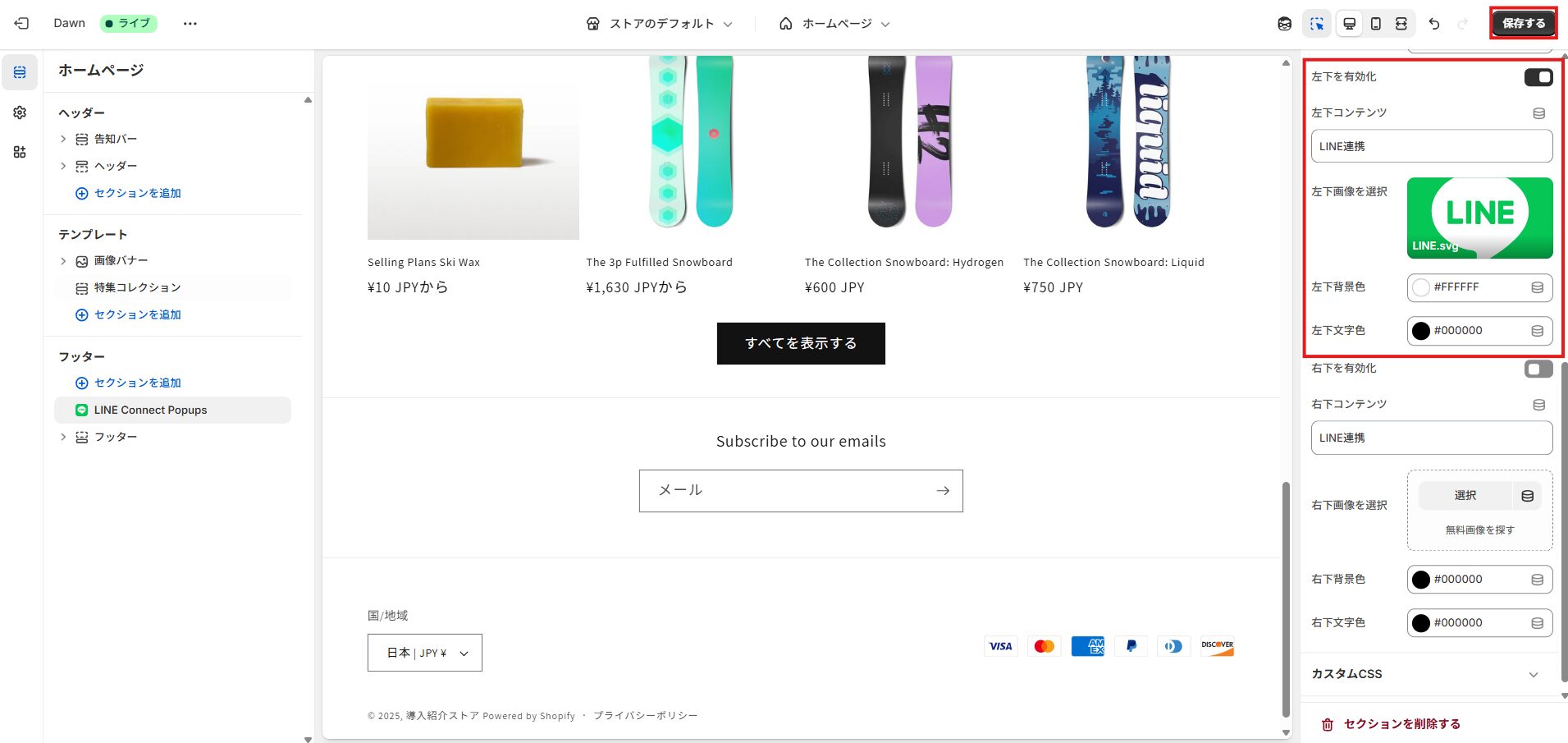](https://storecrm.com/wp-content/uploads/2025/06/スクリーンショット-2025-06-27-171127.jpg)
**3. Configure what the icon shows. You can place it in the top right, bottom right, top left or bottom left. Click \[Save\] when you are done.**

**4. Log in to your store and confirm that the link icon appears correctly.
Note that it does not appear when you are logged out.
Note also that once the customer links their account or dismisses the icon with the ×, it stays hidden unless the local storage data is cleared.**
## Summary
Connecting Shopify and LINE opens up a lot of powerful campaigns, but the friction in the linking step itself is the bottleneck. A LINE link icon lets customers link from anywhere on the store, not just their account page, which lowers the barrier considerably.
If you want to run LINE campaigns but your link numbers are not growing, adding StoreCRM's LINE link icon is a good place to start.
========================================================================
# How to deliver a tabbed LINE rich menu from Shopify
> StoreCRM can deliver tabbed LINE rich menus and send a different rich menu to each customer segment.
- URL: https://storecrm.com/knowhow/line-lichmenu/
- Type: Blog
- Published: 2025-06-13
- Updated: 2026-02-10
- Category: tips
- Tags: LINE, LINE, StoreCRM, guides
- Author: StoreCRM
---
## Introduction
If you run an online store on Shopify, chances are you run a LINE Official Account alongside it. For an ecommerce store, the rich menu on that account acts as **a permanent landing page**, and its click-through rate is very high — there is really no reason not to use it.
StoreCRM lets you send tabbed rich menus, which a LINE Official Account cannot do on its own, and send different rich menus to different customer segments.
That means customers who have not yet linked their LINE account to your Shopify store can get a rich menu that prompts them to link, while everyone else gets one that features recommended products.
This article explains how rich menu delivery works.
## Sending a tabbed rich menu from your LINE Official Account
### Check that your LINE settings are complete
[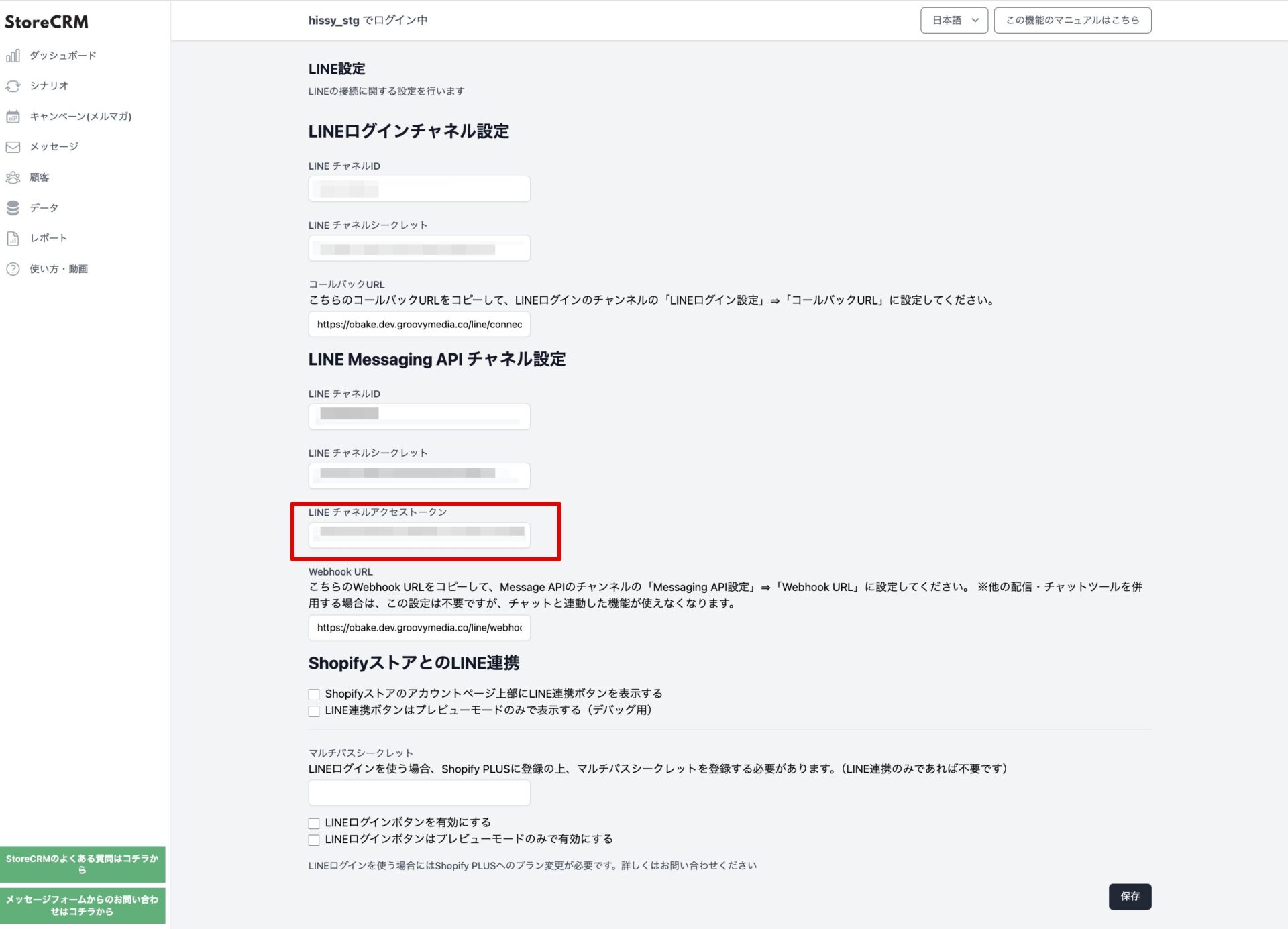](https://storecrm.com/wp-content/uploads/2025/06/lineリッチメニュー設定.jpg)
Make sure nothing is missing from the LINE settings that connect StoreCRM to LINE.
Sending LINE messages from StoreCRM does not require the LINE channel access token, but delivering rich menus does, so it must be filled in.
For details of StoreCRM's LINE settings, see the page below.
> [How to connect Shopify with a LINE Official Account](https://storecrm.com/help/setting/line/)
### Setting up the rich menu
[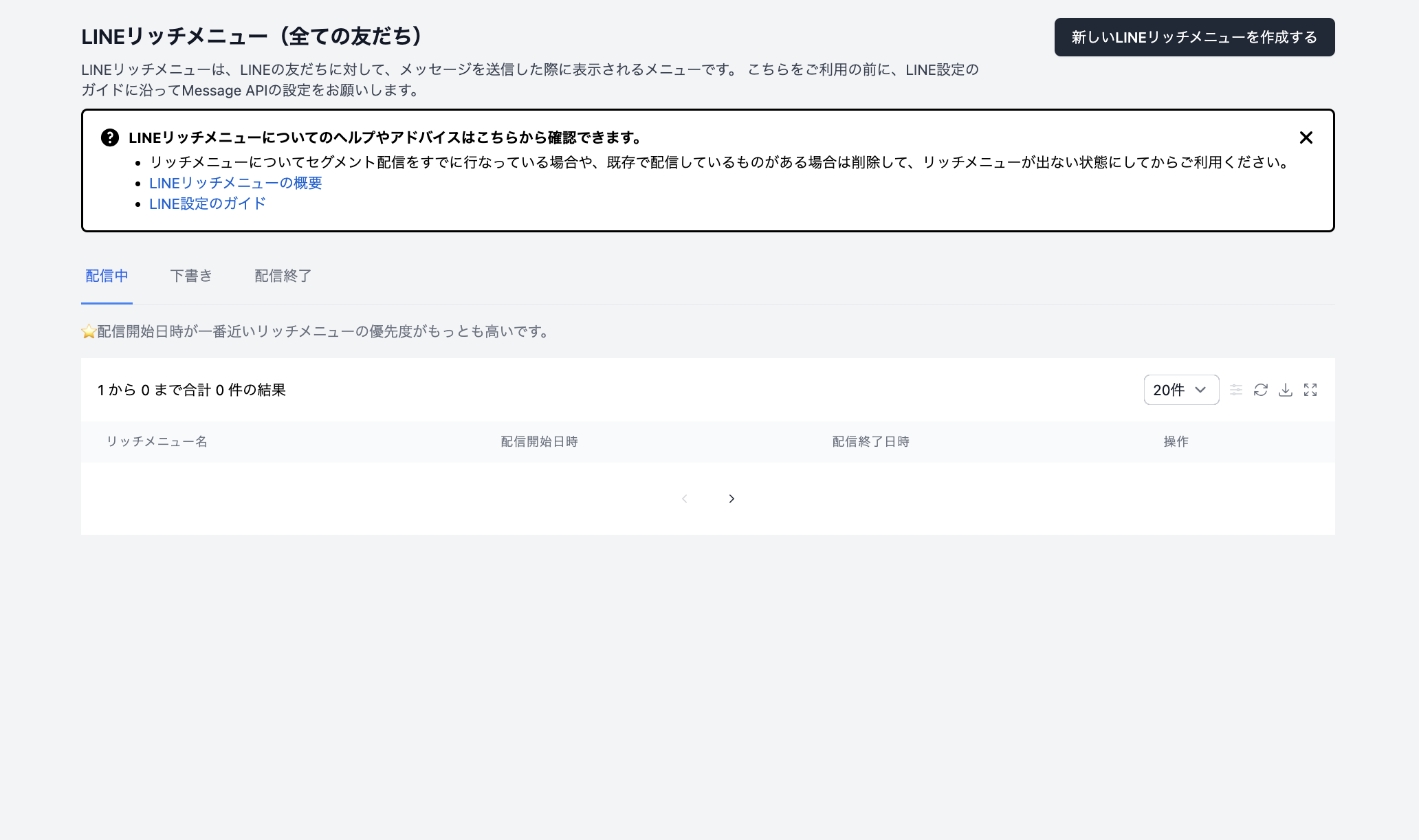](https://storecrm.com/wp-content/uploads/2025/06/lineリッチメニュー一覧.png)
**Open the rich menu list from \[StoreCRM dashboard\] > \[Customers\] > \[LINE rich menus\]. Click "Create a new rich menu" to start one.**
[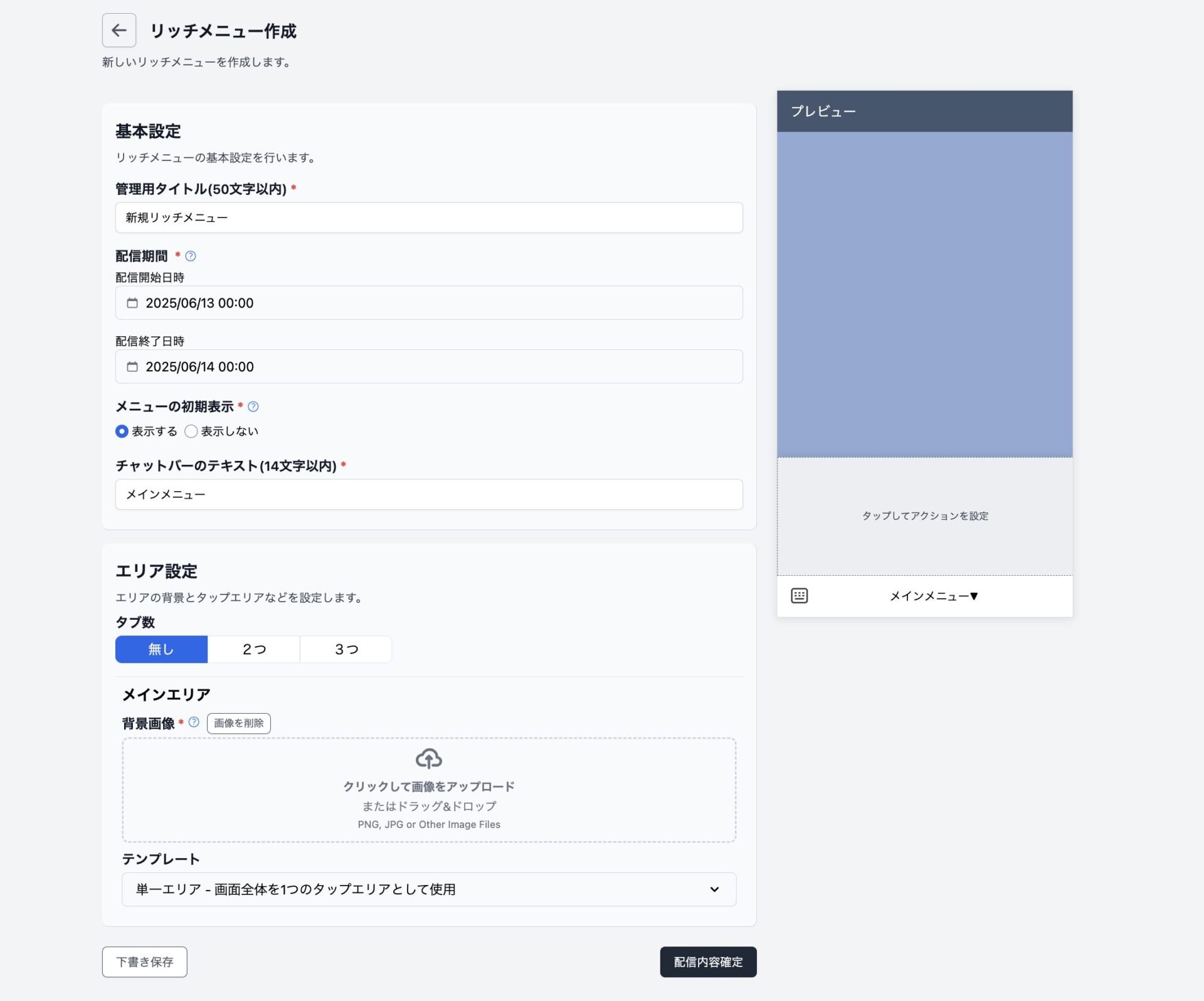](https://storecrm.com/wp-content/uploads/2025/06/lineリッチメニュー設定2.jpg)
The rich menu editor opens. It has basic settings, which cover things like the delivery period, and area settings, which cover how the menu behaves.
Here is what each of the basic settings does.
[Internal title] The name shown for this rich menu in the list.
[Delivery period] The period during which the rich menu is delivered. Outside that period it does not appear.
[Initial state] Whether the rich menu is already open or closed when the customer opens the LINE chat.
**[Chat bar text]**
Any text you like, shown in the bar below the rich menu.
Here is what each of the area settings does.
[Number of tabs] StoreCRM can deliver rich menus with switchable tabs. Selecting a number of tabs enables them.
**[Tab being edited]**
Appears when you choose two or three tabs. Selects which tab you are editing.
**[Tab height]**
Appears when you choose two or three tabs. Sets how much of the delivered menu functions as the tab strip.
**[Background image]**
Upload the image that appears as the LINE rich menu. Recommended image sizes are as follows.
Template type
High resolution
Medium resolution
Low resolution
Typical use
Large
2500 × 1686
1200 × 810
800 × 540
Menus carrying a lot of information, such as six panels or tab switching
Small
2500 × 843
1200 × 405
800 × 270
When you want to leave more of the chat visible above
**[Template]**
Sets how the rich menu is divided up and which action each button carries.
[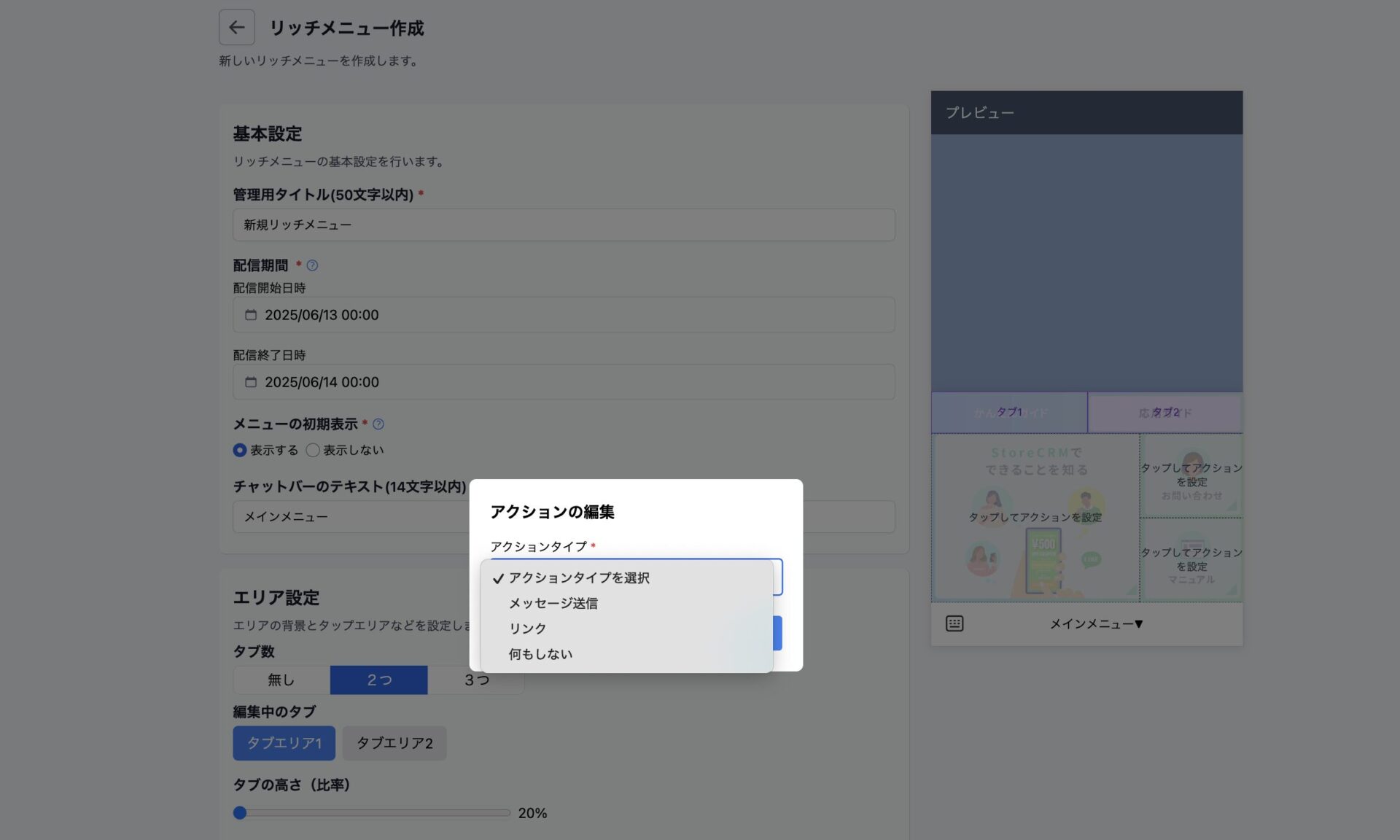](https://storecrm.com/wp-content/uploads/2025/06/lineリッチメニュー設定3.jpg)
Upload the background image, choose a template, then click "Tap to set an action" on any area of the preview to assign its action type. The available action types are sending a message, opening a link, going to the customer account page, and doing nothing.
Every button that can carry an action must be assigned one of those action types.
When everything is set, click the button to confirm the menu.
### [New] Added 10 February 2026: an action that opens the customer account page
**This action takes the customer to their Shopify account page (/account).**
**StoreCRM generates the destination URL automatically, so there is no URL to type in.**
**It gives customers who have linked LINE a smoother route to their account.**
##### At present this is limited to Shopify Plus stores using classic customer accounts. It requires Multipass to be configured, so follow the article below to set that up first.
> [How to let customers sign up and log in to Shopify with LINE Login](https://storecrm.com/knowhow/linelogin/)
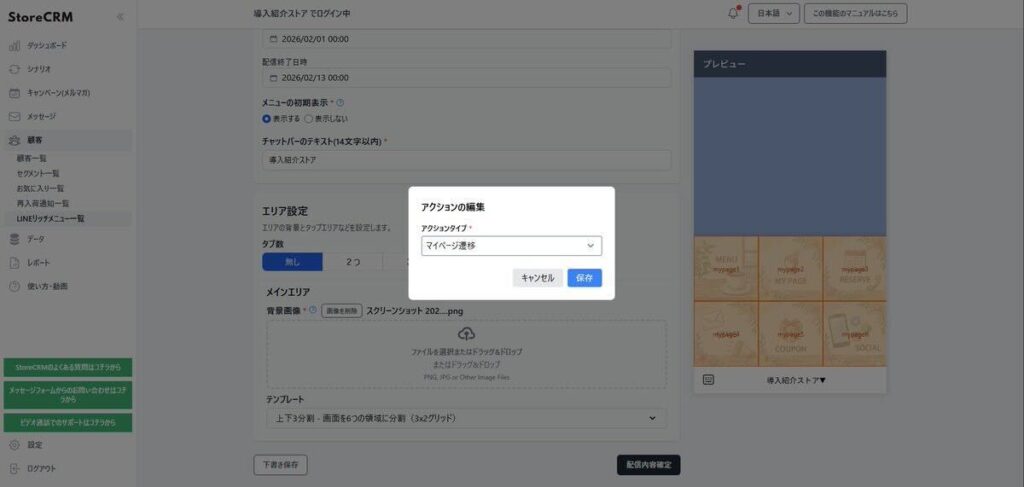
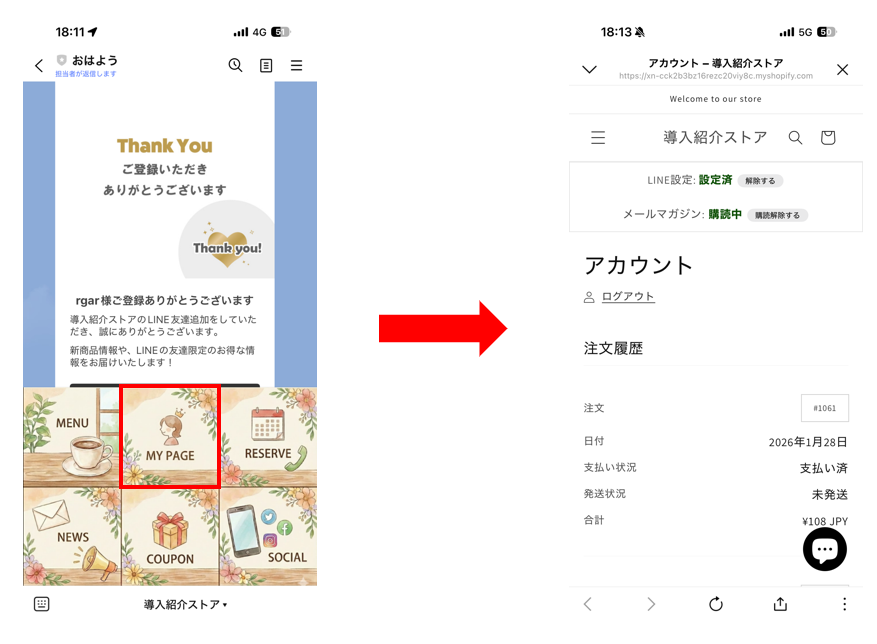
### Delivering the rich menu you created
[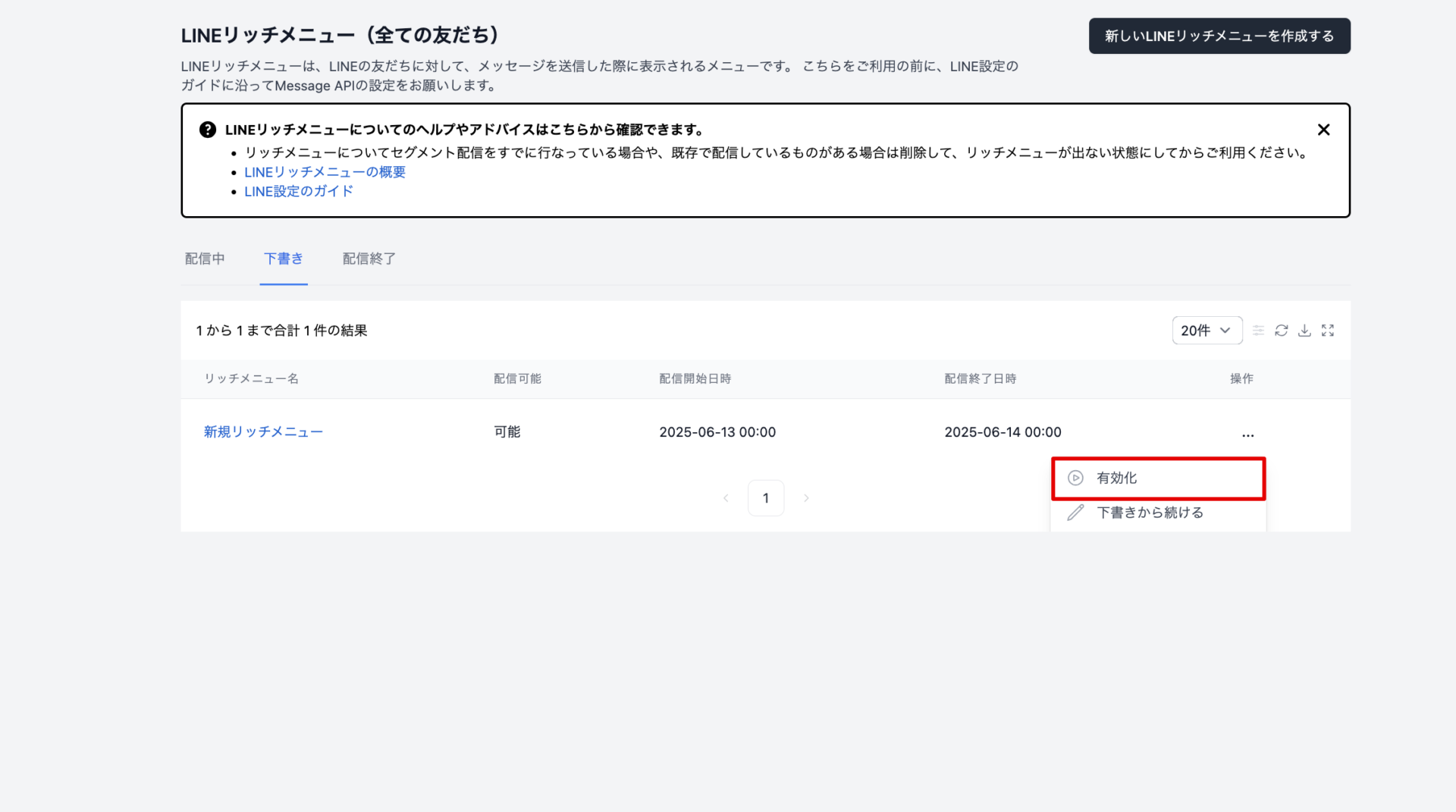](https://storecrm.com/wp-content/uploads/2025/06/lineリッチメニュー配信.png)
**Once saved, you are returned to the rich menu list, where your new menu appears as a draft.**
**Open the menu from the button to its right and click "Activate" to deliver it. It takes a few minutes to appear in LINE chats.**
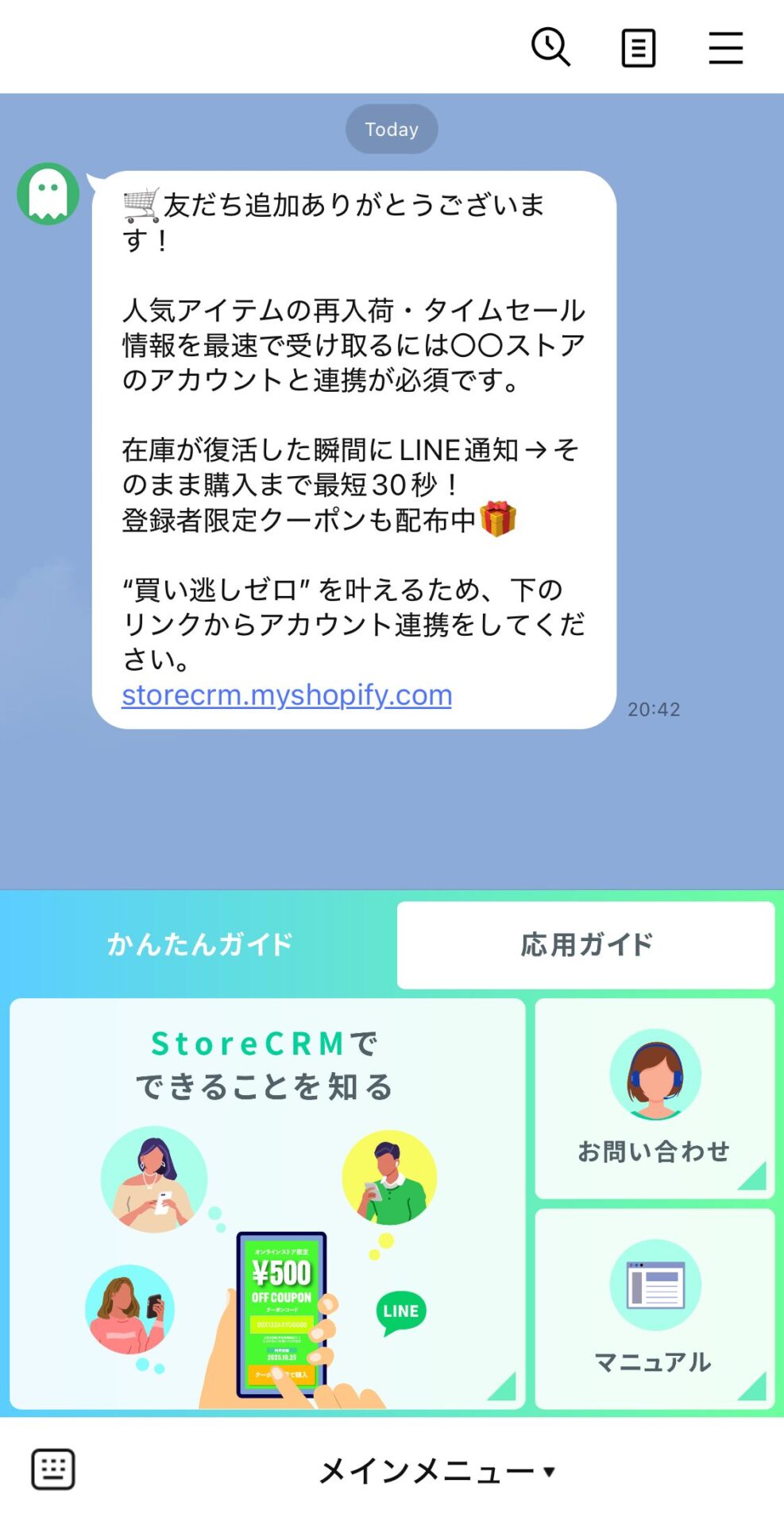
**Open the chat for that LINE Official Account and confirm that the rich menu displays correctly and that every button behaves as intended.**
## Summary
A well-designed LINE rich menu makes the path to whatever your customers want to do completely clear. The pay-off shows up in several places at once: better conversion, higher coupon redemption, stronger click-through and less load on support.
If you have a LINE Official Account but no rich menu, or you have not yet moved to a richer tabbed menu, StoreCRM makes it easy to get started.
========================================================================
# How to let customers sign up and log in to Shopify with LINE Login
> LINE Login lets customers create an account with nothing but their LINE account, cutting signup friction and linking LINE at the same time.
- URL: https://storecrm.com/knowhow/linelogin/
- Type: Blog
- Published: 2025-06-11
- Updated: 2026-02-26
- Category: tips
- Tags: LINE, LINE, StoreCRM, guides
- Author: StoreCRM
---
## Introduction
Are customers dropping out halfway through signing up?
Now that most people shop on a phone, plenty of them abandon signup for no reason other than "this is too much typing".
The same is true in physical stores: asking a customer to set an email address and a password while you are serving them is a real imposition, and many simply do not sign up.
With StoreCRM's **LINE Login**, signup completes in moments using nothing but a LINE account. Less work for the customer, and a **measurable improvement in signup and conversion rates**.
Because the LINE link happens as part of signup, you also skip the extra step of asking customers to link from a button on their account page.
This article walks through setting up LINE Login.
Note that this page covers classic customer accounts (the earlier version). For new customer accounts, see the link below.
[Setting up LINE Login on Shopify new customer accounts (OIDC)](https://storecrm.com/knowhow/linelogin-new-customer-accounts/)
The steps below use the free Dawn theme.
Paid themes and heavily customised themes may have a different file structure; if that is the case, contact StoreCRM customer support and we can carry out the implementation for you. Feel free to [get in touch](https://storecrm.com/contact/) through the contact form.
#### [Please note]
The LINE Login functionality described here is **available only on Shopify Plus**. We also support merchants considering a move to Shopify Plus, so feel free to [get in touch](https://storecrm.com/contact/) through the contact form.
## Related pages
[StoreCRM (Shopify App Store)](https://apps.shopify.com/obake-ma?locale=ja)
[StoreCRM for LINE — the definitive Shopify and LINE integration app](https://storecrm.com/line/)
[How to connect Shopify with a LINE Official Account](https://storecrm.com/help/setting/line/)
[How to add a LINE ID linking icon to your Shopify store](https://storecrm.com/knowhow/line-connect-banner/)
[4 Shopify LINE ID linking apps compared](https://storecrm.com/knowhow/shopify-line-app/)
[How to manage customers over LINE: 10 recommended CRM tools](https://storecrm.com/knowhow/line-crm-tools/)
## Adding LINE signup and login buttons to your signup and account pages
### What you will build in this section
[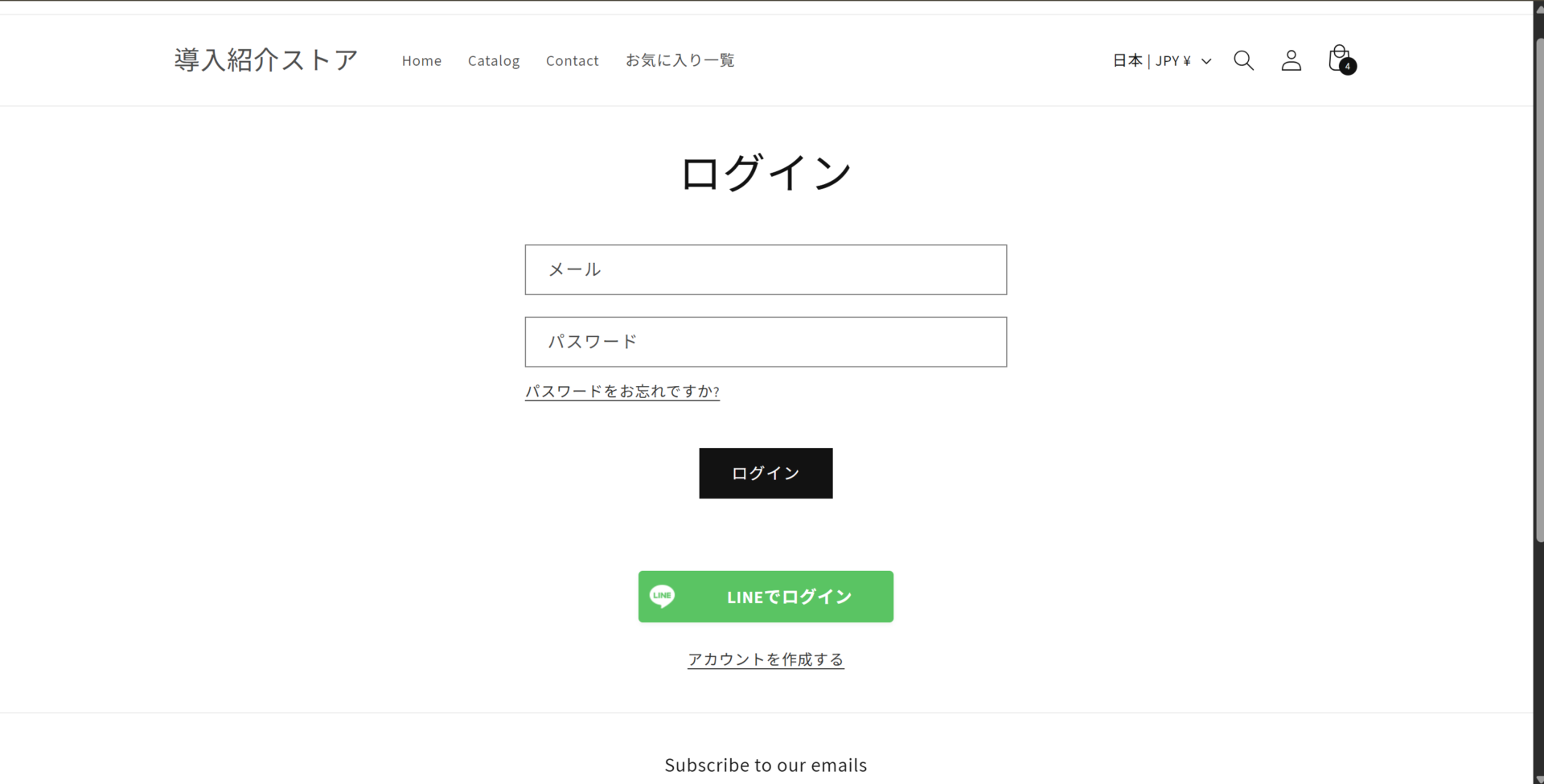](https://storecrm.com/wp-content/uploads/2025/06/LINEログイン.png)
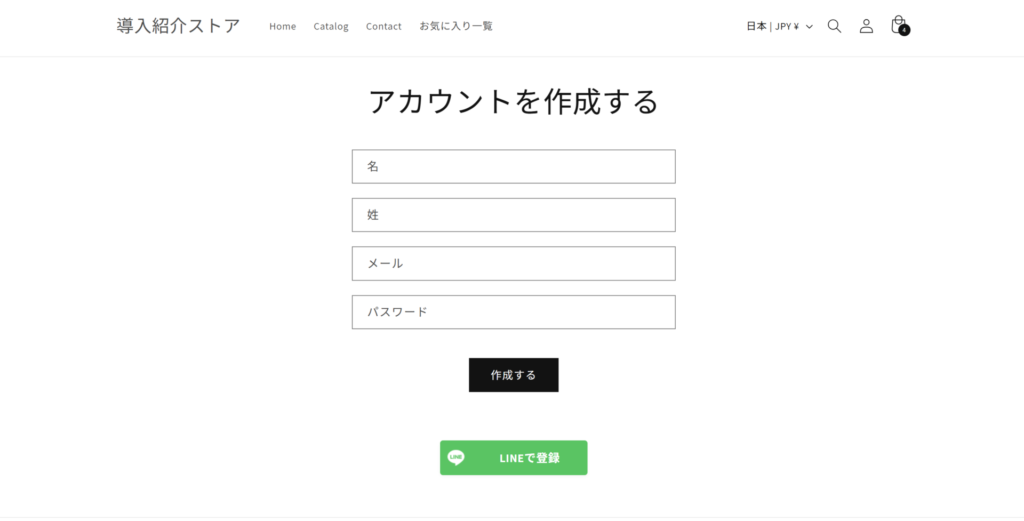
Let us start by looking at the LINE signup button on the signup page and the LINE login button on the login page.
### Enabling Multipass in Shopify
[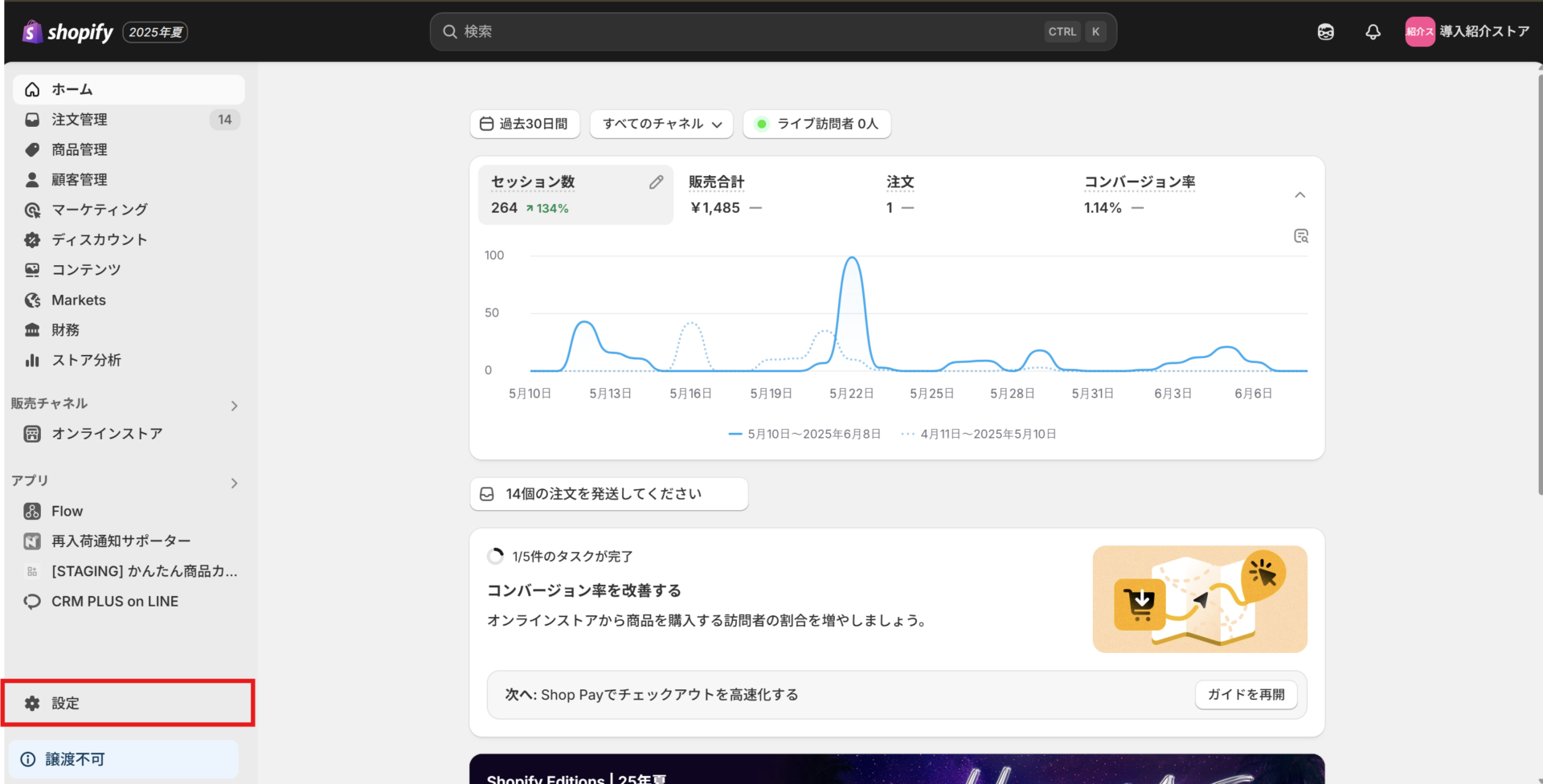](https://storecrm.com/wp-content/uploads/2025/06/ホーム⇒設定.png)
**1. Open the settings from \[Shopify admin\] > \[Settings\].**
[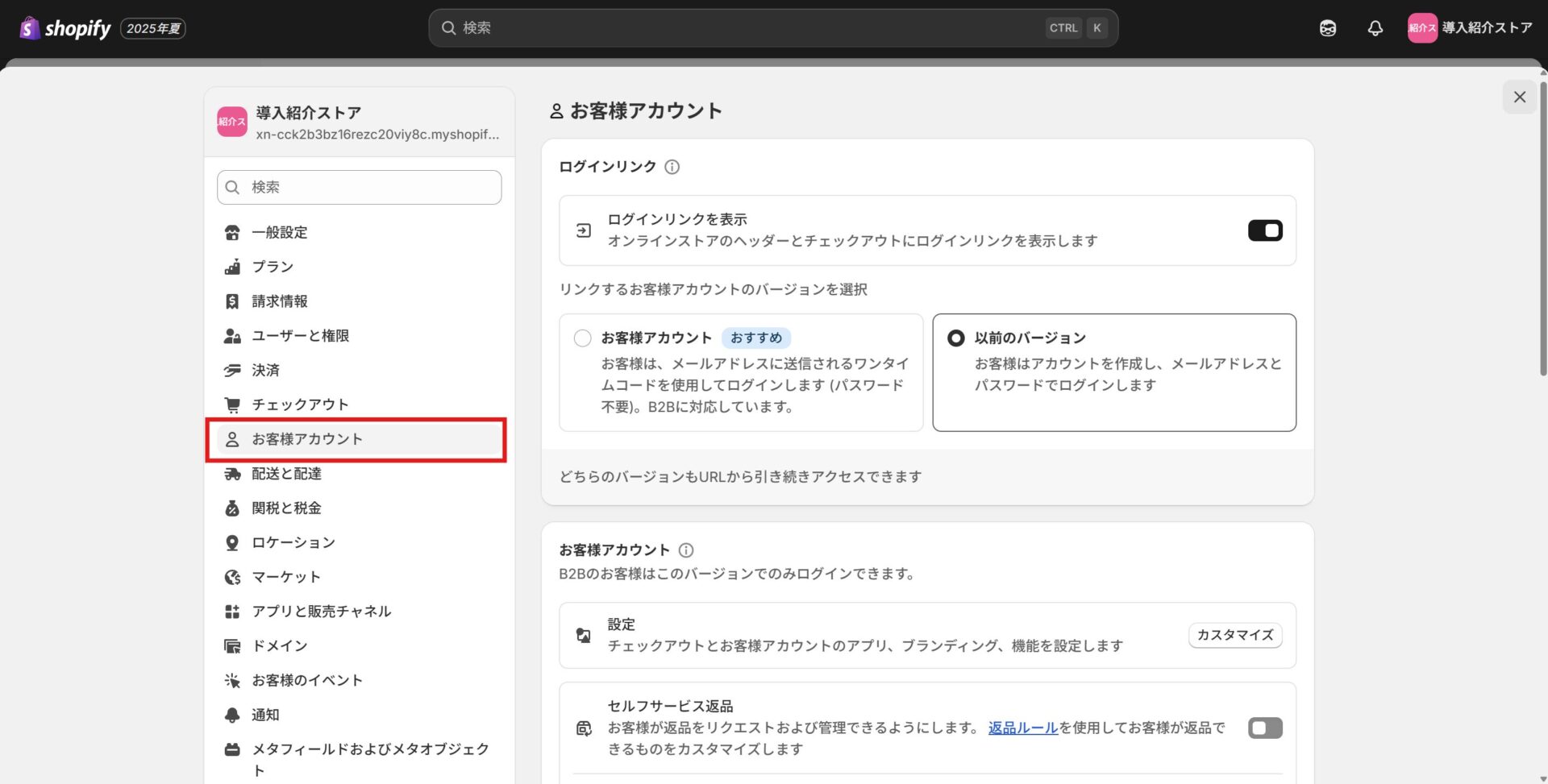](https://storecrm.com/wp-content/uploads/2025/06/お客様アカウント.jpg)
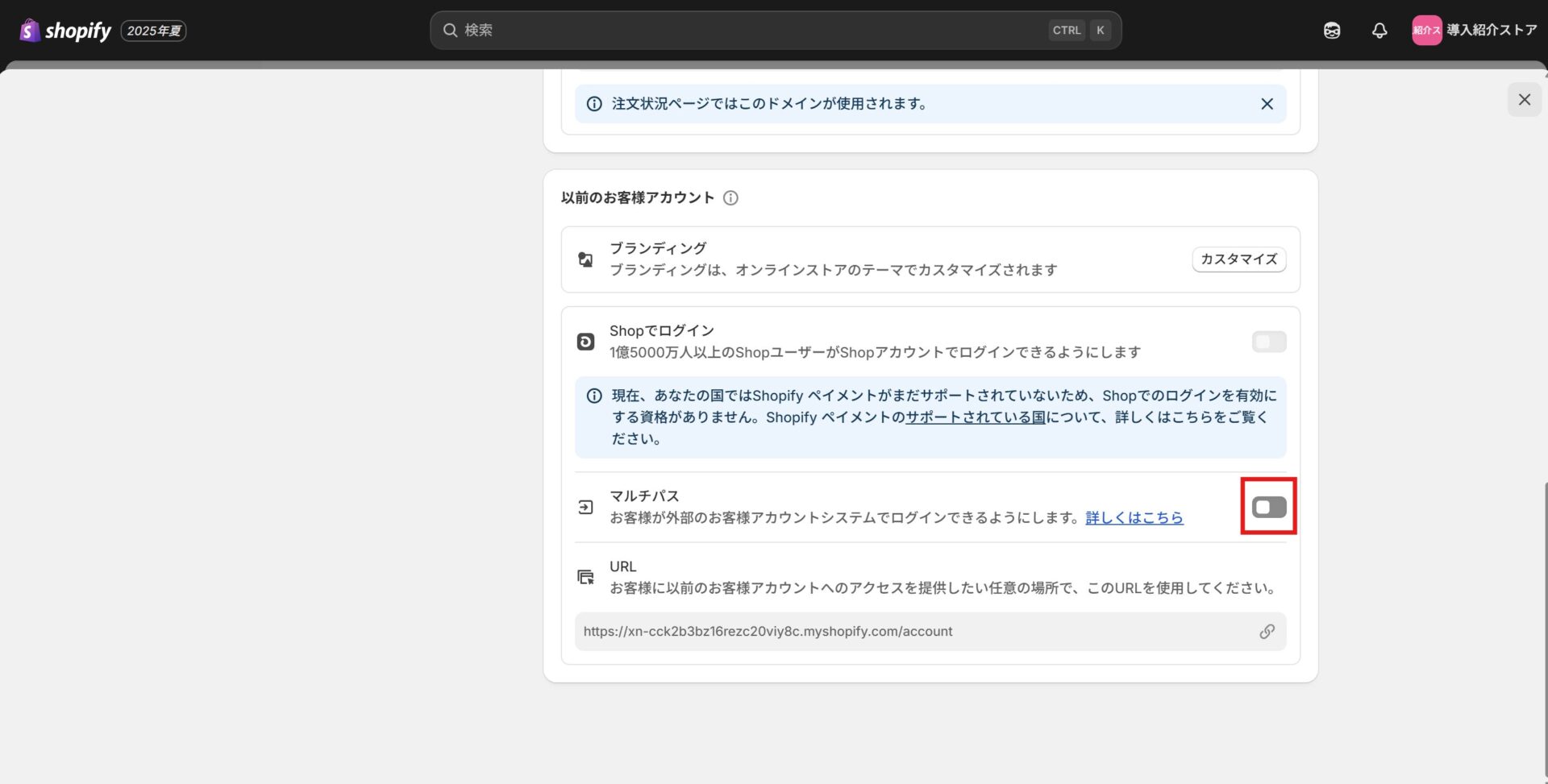
**2.** Enable \[Customer accounts\] > \[Multipass\].
[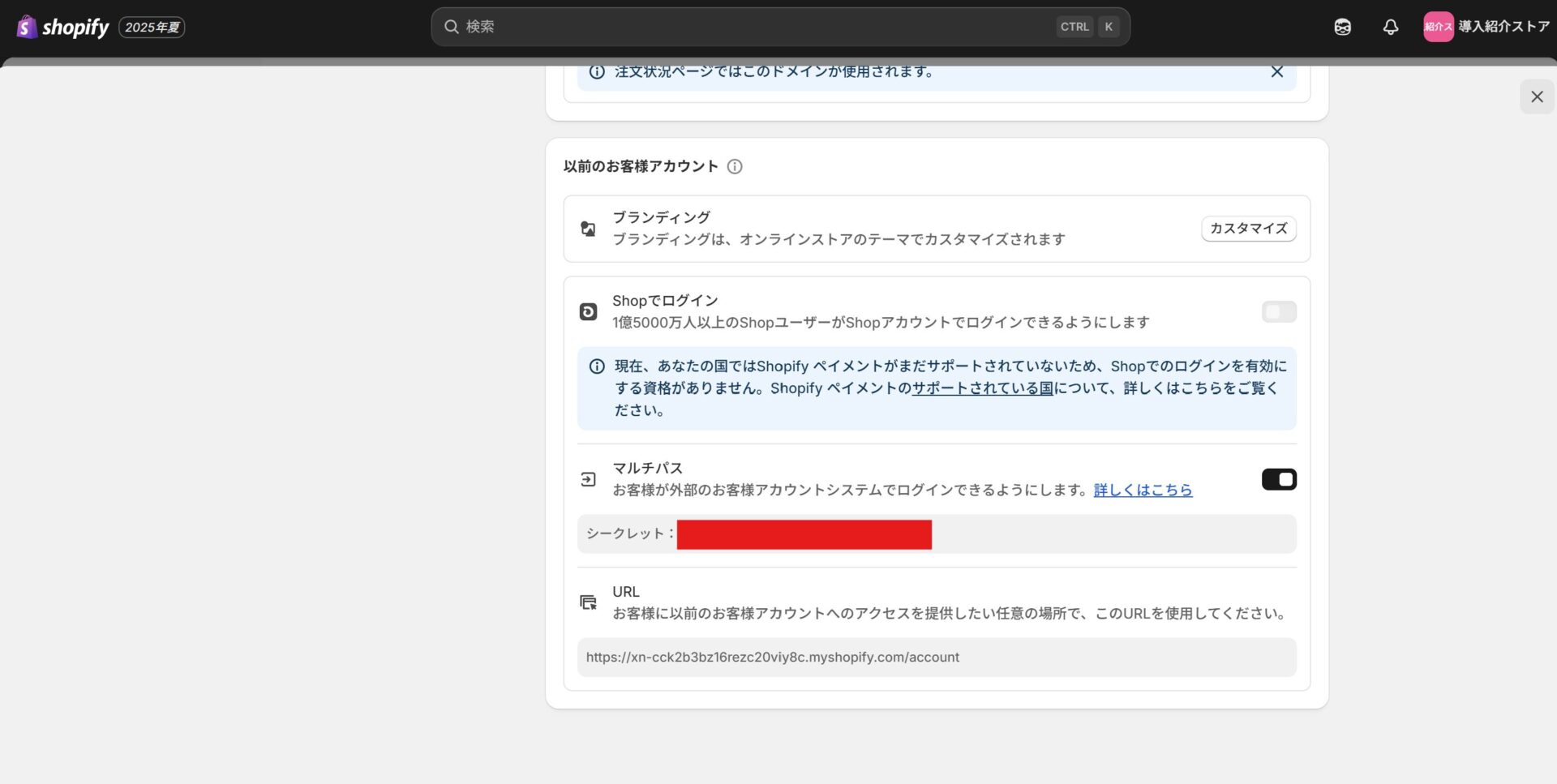](https://storecrm.com/wp-content/uploads/2025/06/マルチパスシークレット.jpg)
**3.** Enabling it reveals the **Multipass secret**; make a note of the value.
### Registering the Multipass secret in StoreCRM
[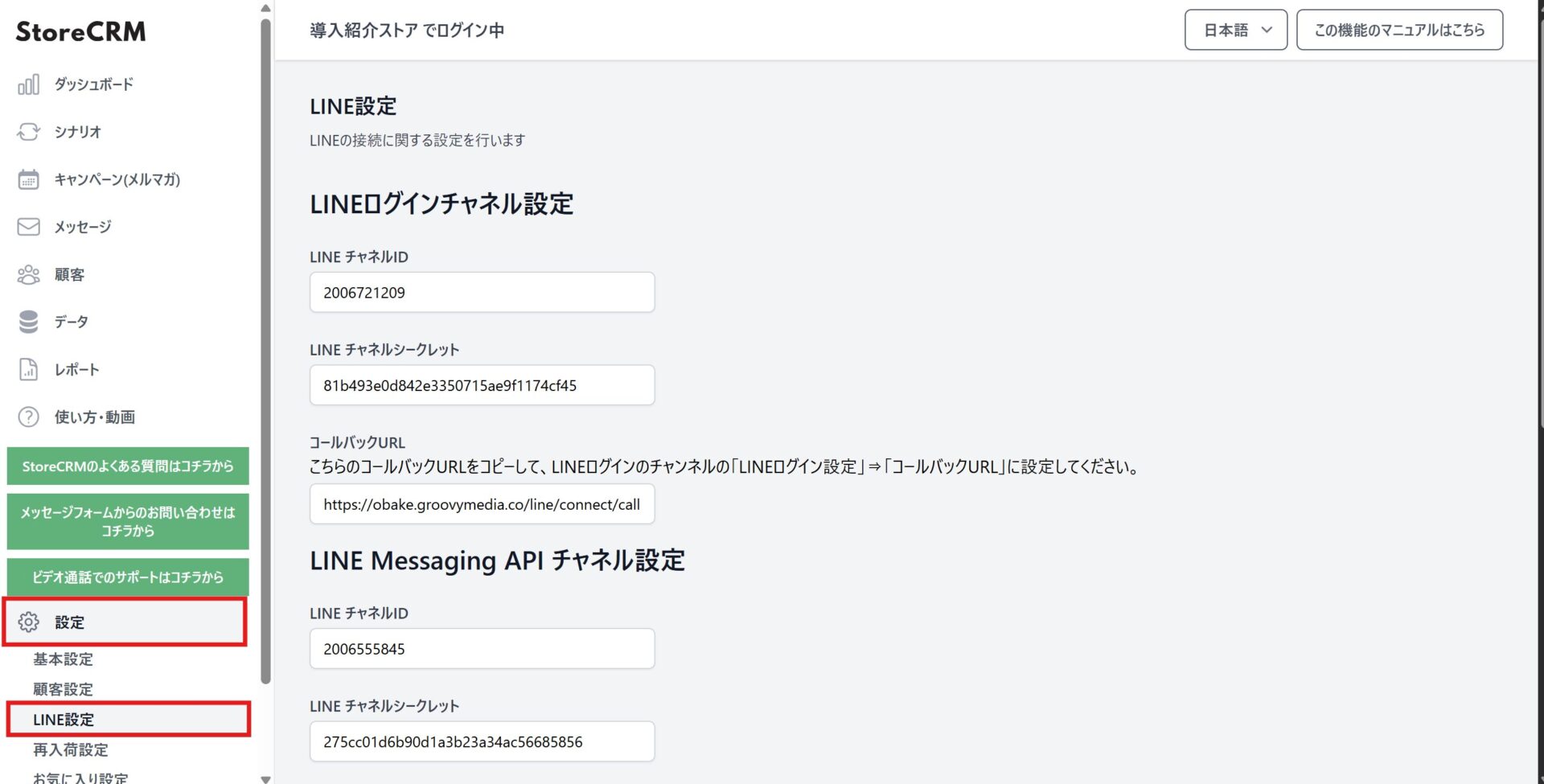](https://storecrm.com/wp-content/uploads/2025/06/StoreCRMーLINE設定.jpg)
**1. Open \[Settings\] > \[LINE settings\]**.
[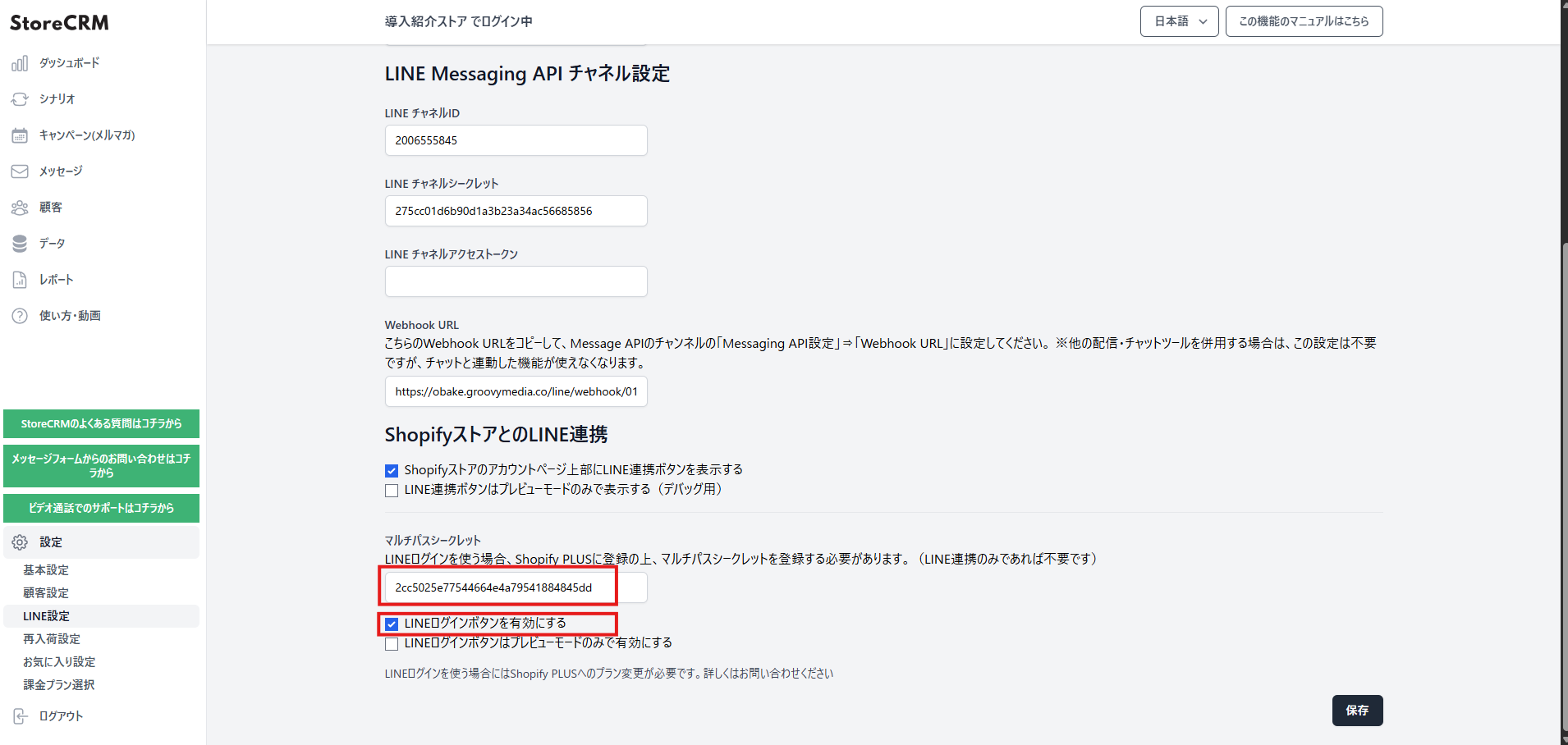](https://storecrm.com/wp-content/uploads/2025/06/LINEマルチパス画面.png)
**2. Enter the Multipass secret you just noted. To show the LINE login button on your storefront, tick [Enable the LINE login button]. Remember to press [Save] at the end.
If you want to test it first, tick [Enable the LINE login button in preview mode only] and check it in preview mode.**
[](https://storecrm.com/wp-content/uploads/2025/06/LINEログイン.png)
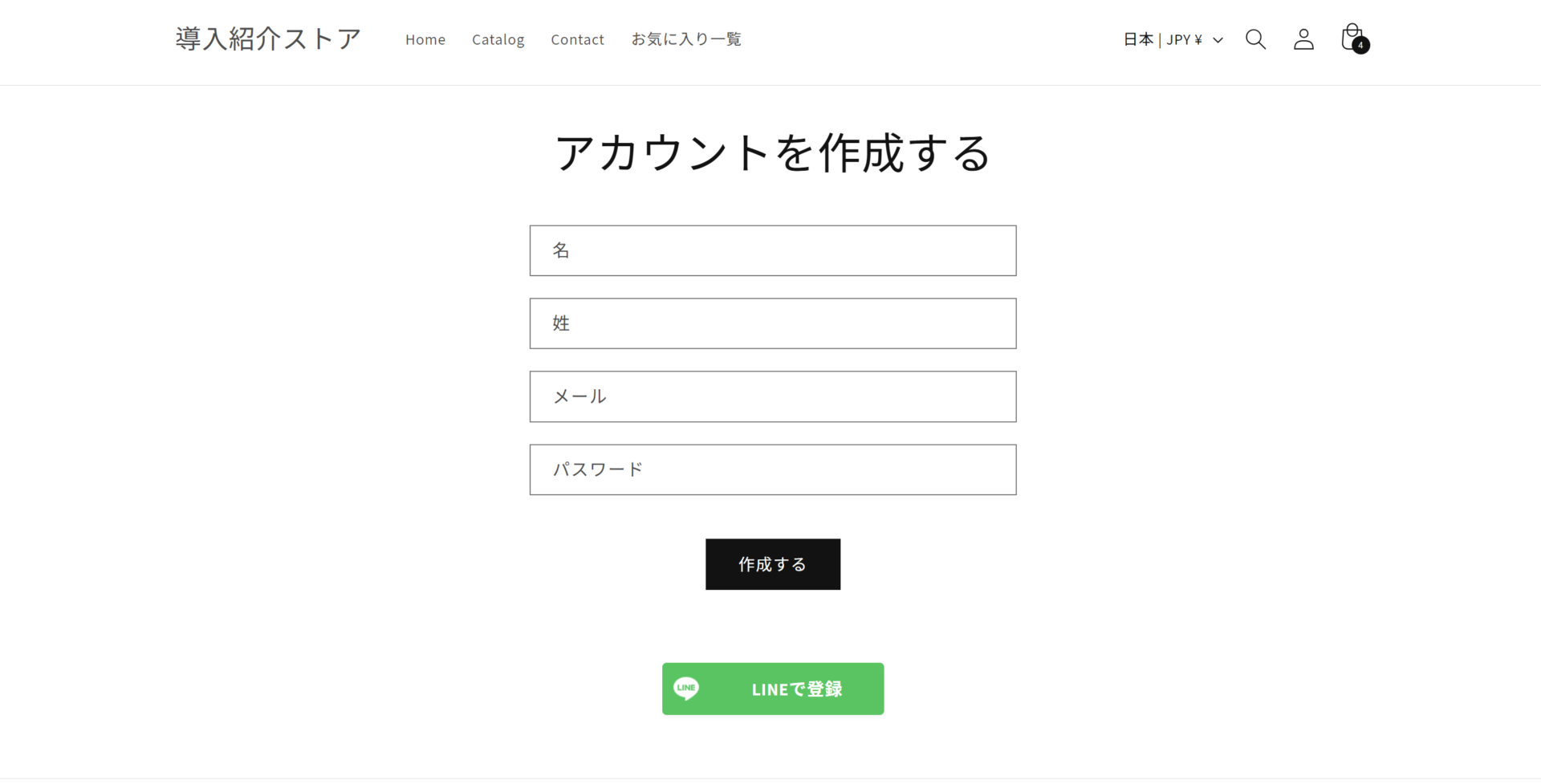
**3. Open the login page and the account creation page and confirm that the [Sign up with LINE] and [Log in with LINE] buttons appear.**
### Applying for permission to retrieve email addresses
**This application is required in order to retrieve the email address of a user who logs in with LINE Login.
Pulling the email address registered with LINE means the signup form is pre-filled when a customer signs up with LINE,
which saves them work and makes it much easier to sign people up in a physical store.**
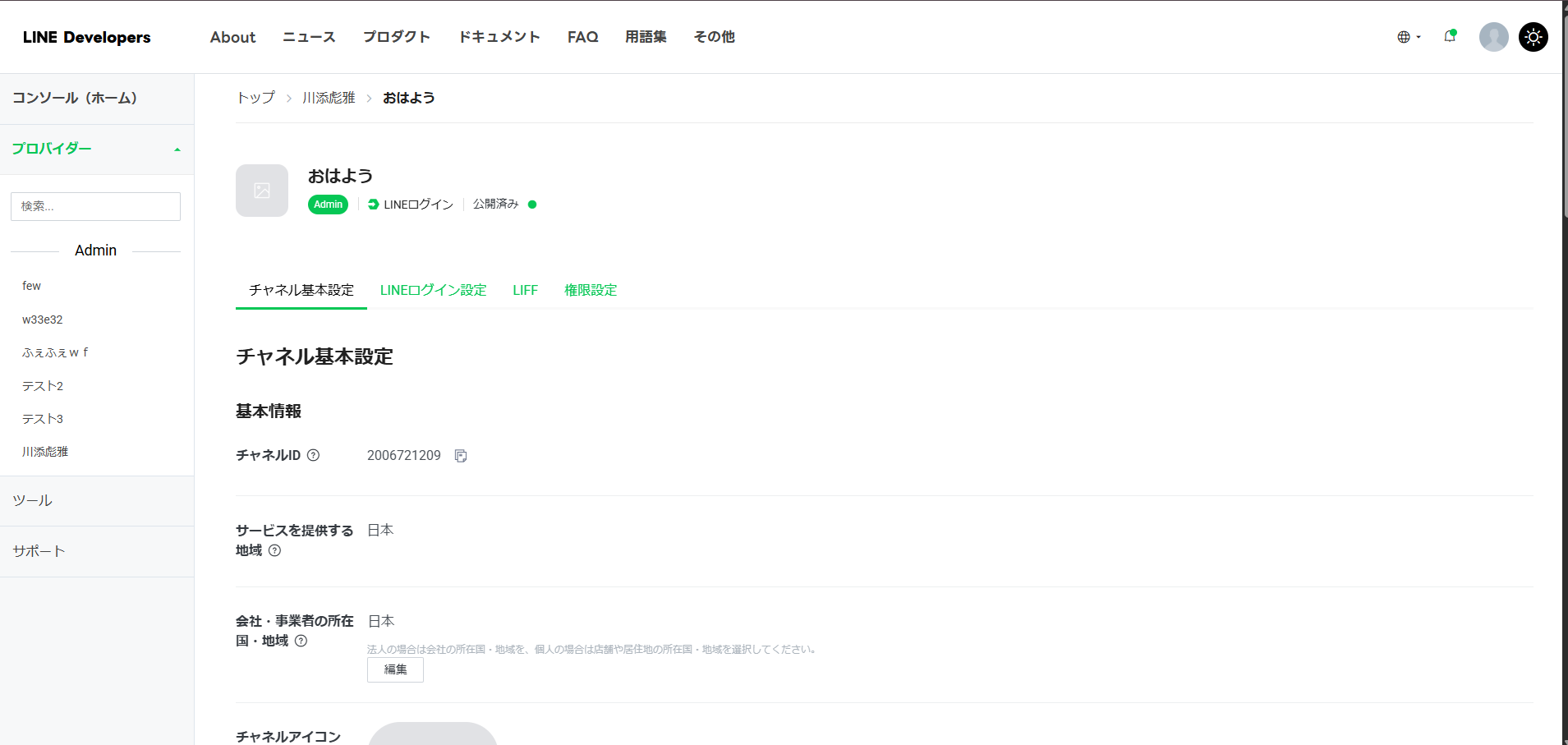
**1. Open the basic channel settings for your LINE Login channel.**
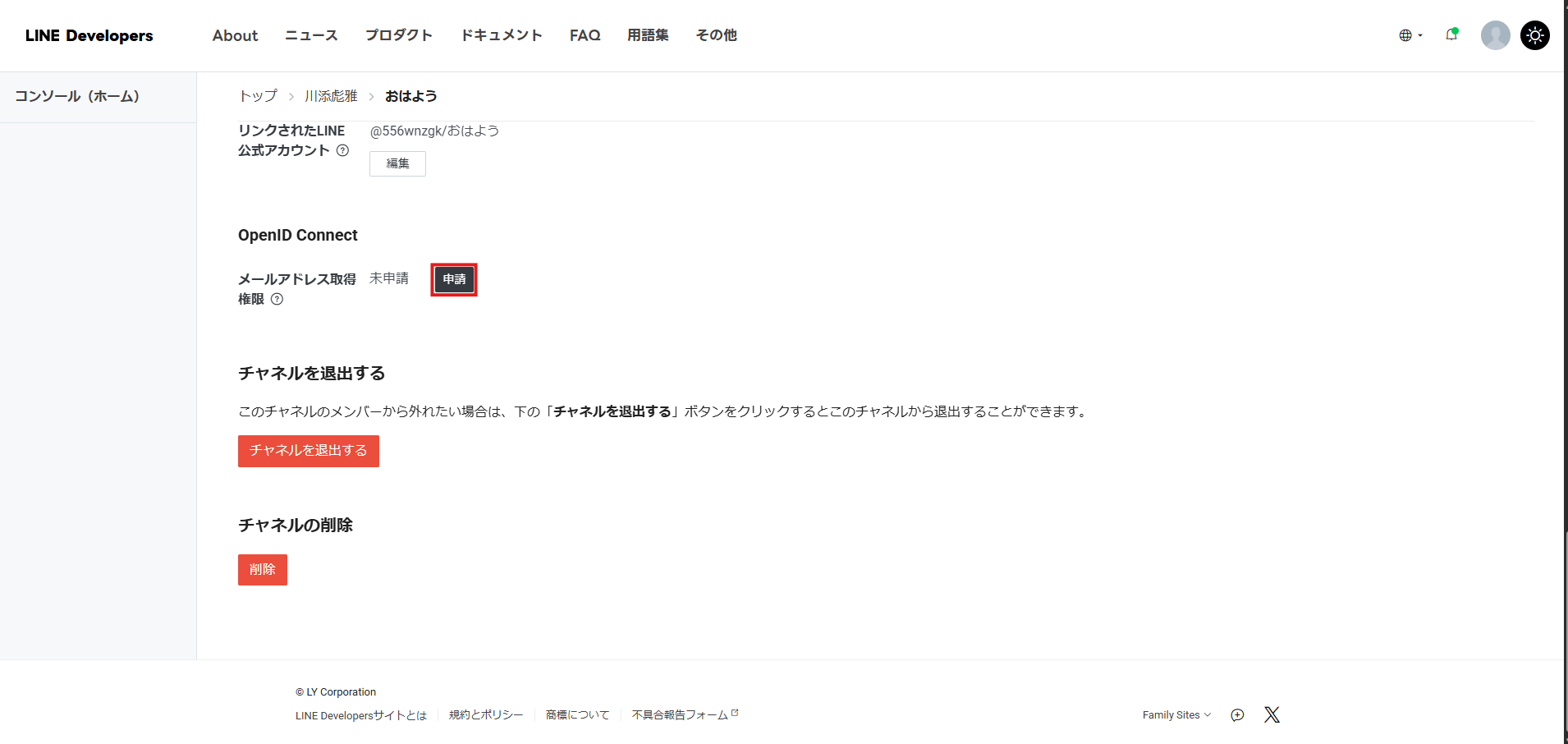
**2. Press [Apply] under email address permission.**
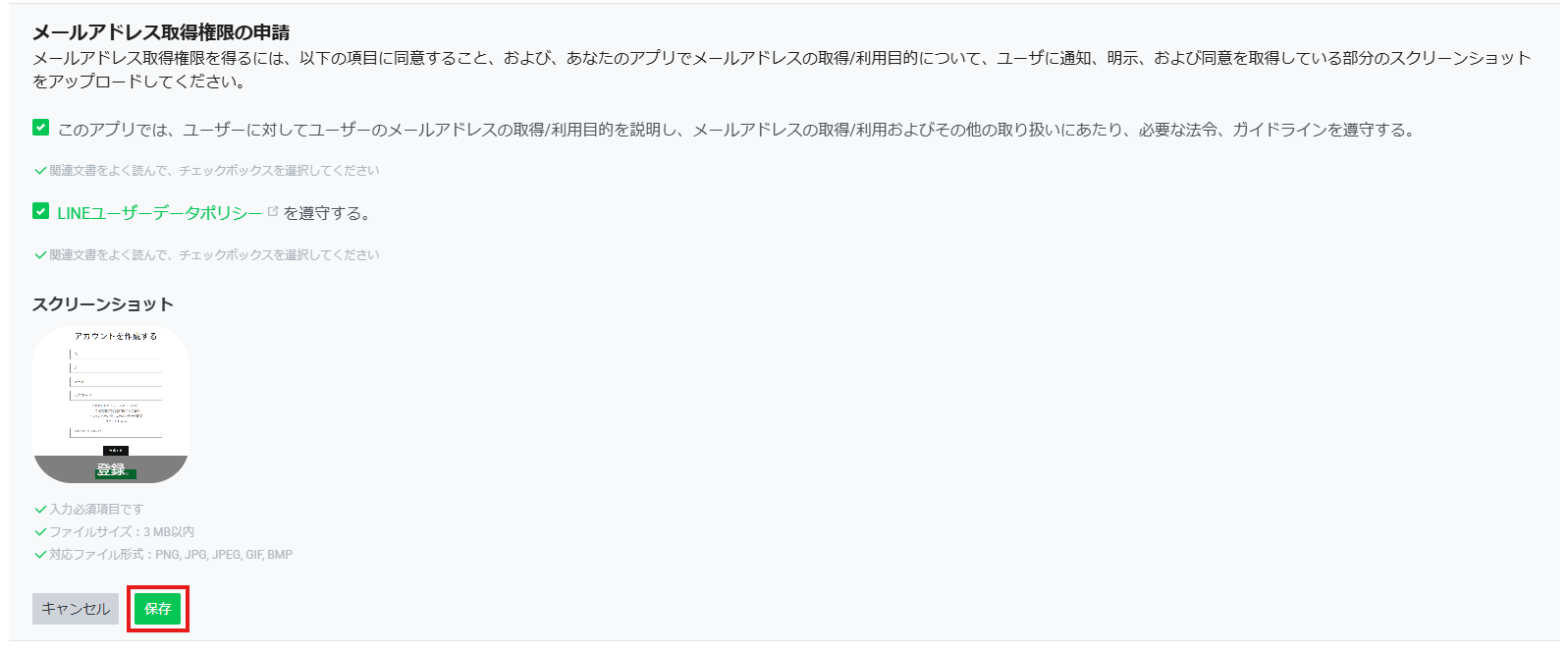
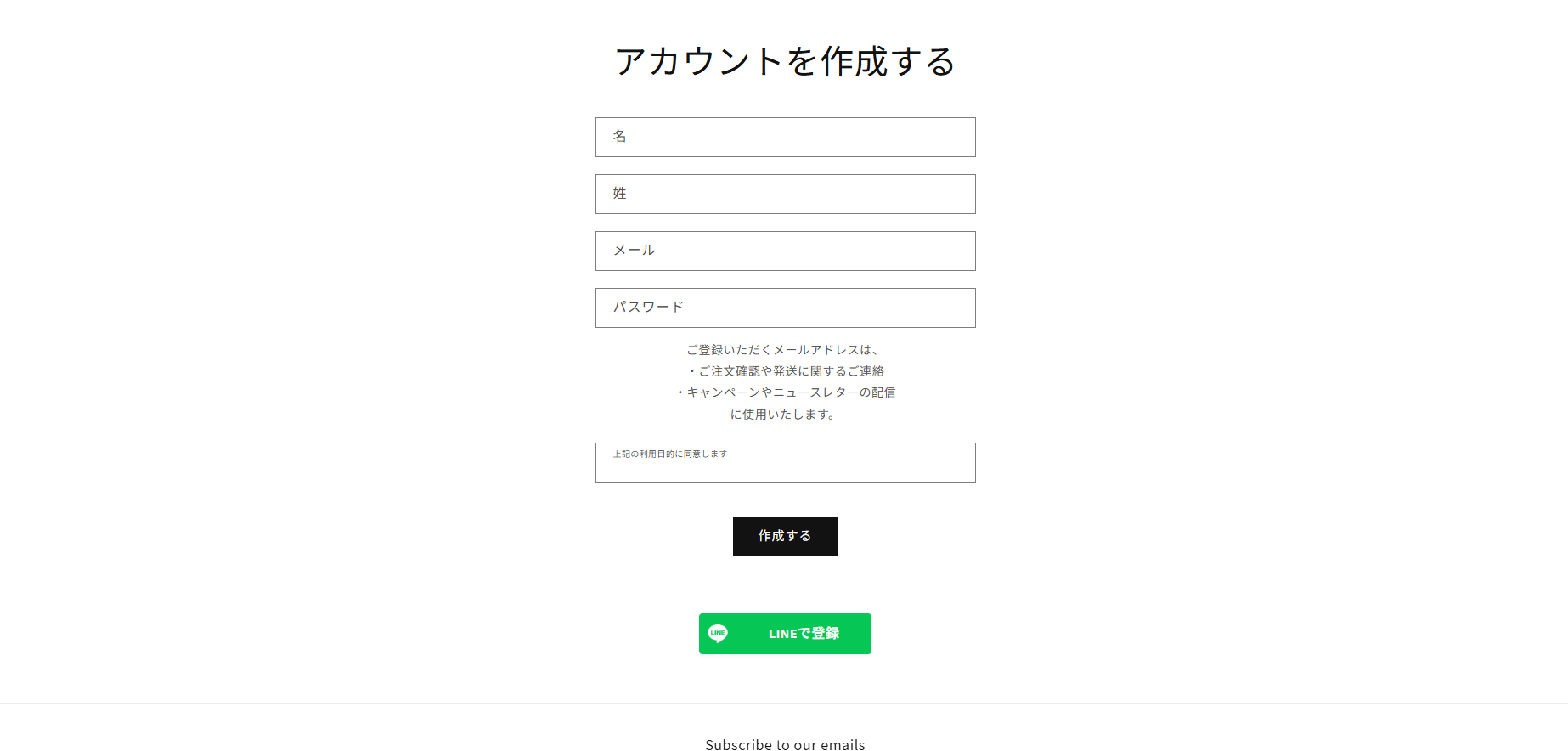
**3. Tick both confirmation items and attach a screenshot of the page where LINE signup is used. What matters in the screenshot is that the LINE signup button is visible and that the purpose for which the email address is used is stated clearly.
Then press [Save] to submit the application.
Once it is approved, you will be able to retrieve email addresses.**
### Placing the LINE signup and login buttons wherever you want them
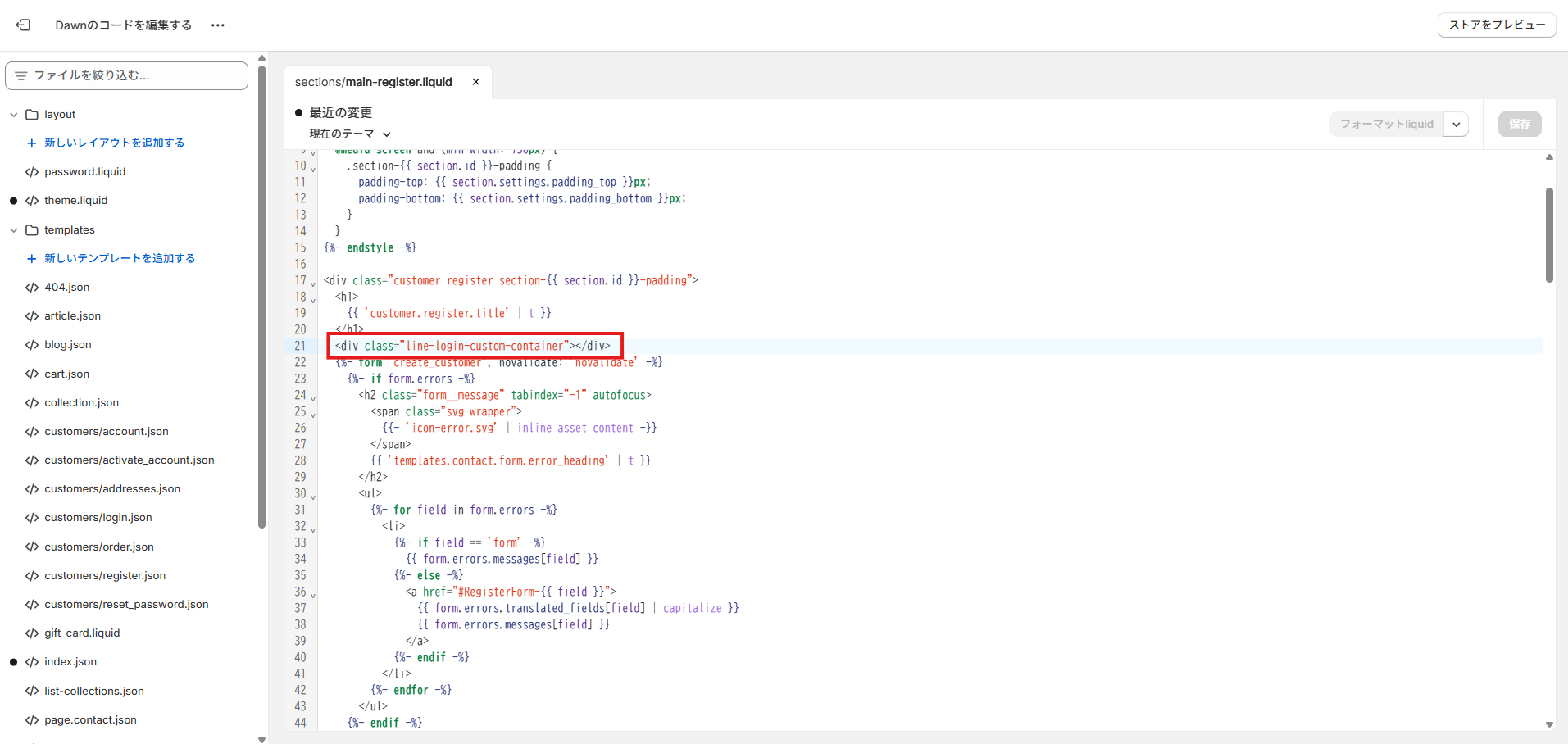
**The LINE login and signup buttons can be placed anywhere you like by embedding a snippet of code.**
```javascript
```
**Embed the code above wherever you want the button on the signup page and the login page.**
## Summary
Simply having customers think "logging in with LINE is handy" lowers the barrier to signing up dramatically.
With StoreCRM, that small convenience becomes a mechanism for **growing revenue and winning repeat customers**.
If you are not using LINE Login yet, StoreCRM makes it easy to get started.
========================================================================
# How to add a wishlist button to Shopify collection pages
> With StoreCRM, the wishlist feature itself and the campaigns built on the data it collects are all handled in a single app.
- URL: https://storecrm.com/knowhow/favourites-to-collection/
- Type: Blog
- Published: 2025-02-07
- Updated: 2026-10-02
- Category: tips
- Tags: StoreCRM, guides, Restock
- Author: StoreCRM
---
## Introduction
This article explains how to add a wishlist button to collection pages as part of StoreCRM's wishlist feature for Shopify.
A wishlist is an important addition to any ecommerce store. It saves customers from having to search for a product again, and it gives them an easy route from a saved product to related items and offers they will care about — a better experience all round.
For the merchant, it also reveals what each customer is interested in, which sharpens your marketing, and it opens up extra sales through recommendations and campaigns based on saved items (cross-selling and upselling).
With StoreCRM you do not need a separate wishlist app: the wishlist itself and the campaigns built on the data it collects are all handled inside this one app.
Because a wishlist benefits both the customer and the store, it is well worth adding.
For how to add the wishlist button to product pages and how to customise it, see [this article](https://storecrm.com/knowhow/wishlist/).
The steps below use the free Dawn theme.
Paid themes and heavily customised themes may have a different file structure; if that is the case, contact StoreCRM customer support and we can carry out the implementation for you. Feel free to [get in touch](https://storecrm.com/contact/) through the contact form.
## Related pages
[How to add a wishlist to Shopify](https://storecrm.com/knowhow/wishlist/)
[7 Shopify wishlist apps compared](https://storecrm.com/knowhow/shopify-wishlist/)
## Adding a wishlist button to collection pages
### What you will build in this section
[](https://storecrm.com/wp-content/uploads/2025/07/スクリーンショット-2025-02-07-165543.jpg)
Let us start by looking at the finished wishlist button.
### Opening the code editor
The steps that follow involve editing your theme, so if you are at all unsure, use "Duplicate" to make a copy of the theme and edit the copy instead.
[](https://storecrm.com/wp-content/uploads/2025/07/スクリーンショット-2025-02-07-165802.png)
**1. Open the code editor from \[Shopify admin\] > \[Sales channels\] > \[Online Store\] > \[Themes\] > \[...\] > \[Edit code\].**
[](https://storecrm.com/wp-content/uploads/2025/07/スクリーンショット-2025-02-07-170514.jpg)
**2.** Open \[snippets\] > \[card-product.liquid\].
[](https://storecrm.com/wp-content/uploads/2025/07/スクリーンショット-2025-02-07-170739.jpg)
3. On line 207, paste the code below beneath `\{% render 'price', product: card_product, price_class: '', show_compare_at_price: true %\}`. You can choose whether or not the button carries a label, so pick whichever suits your store.
Remember to save.
**[With a label]**
```liquid
```
**[Without a label]**
```liquid
```
### Keeping the page HTML small
Output only `id` and `title` in `data-variants`, the fields used by the current wishlist button. Serialising the complete variants object repeats prices, images, inventory details and other unused fields for every product card. Pages with many variants or product cards can become much larger as a result.
These examples are for wishlist buttons. Restock buttons also use fields such as `available`, so do not apply this reduction to restock buttons unchanged. If your theme uses a product variable such as `product`, replace `card_product` with that variable. Use straight double quotes (`"`) for attributes.
Leave `data-variant-id` unset when showing the variant selector on a collection page. For a product with only one variant, the app selects its ID automatically.
For an existing installation, duplicate the theme before replacing the button's `data-variants` attribute with the format above. An app update does not change manually pasted theme code. After updating, check the heart icon, selection of multiple variants, registration of a single variant, adding and removing wishlist items, and the wishlist page.
[](https://storecrm.com/wp-content/uploads/2025/07/スクリーンショット-2025-02-07-171429.png)
**4. Open \[assets\] > \[component-card.css\]**.
[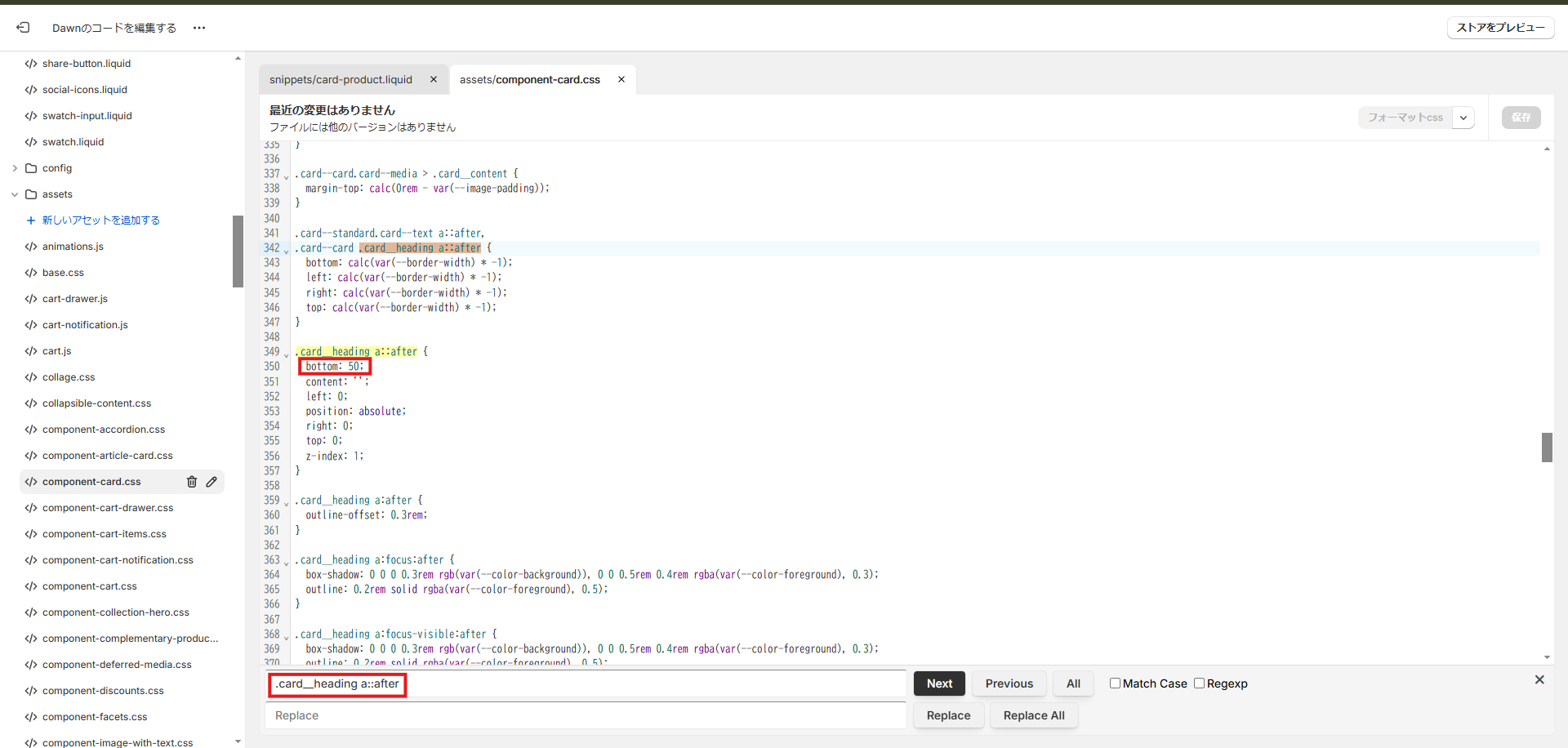](https://storecrm.com/wp-content/uploads/2025/07/スクリーンショット-2025-02-07-171922.png)
**5. Search for \[.card\_\_heading a::after\] and, on line 350, change**
bottom: 0; → bottom: 50;.
Remember to save.
[](https://storecrm.com/wp-content/uploads/2025/07/スクリーンショット-2025-02-07-165543.jpg)
**6. Open a collection page and confirm that the wishlist button appears correctly.**
## Summary
As this wishlist example shows, StoreCRM lets you run in a single app the kind of features that previously required installing another app or wiring up a separate marketing automation tool.
Automations built on the wishlist data you are now collecting are in the works, so watch this space.
We also offer free setup support — we will configure the app for you — and consulting on growing revenue for customers who have adopted StoreCRM.
Feel free to [get in touch](https://storecrm.com/contact/) through the contact form.
========================================================================
# Using and integrating customer management and CRM apps on Shopify
> The basics of CRM, what you gain by connecting one to Shopify, and how to choose between the apps available — including language support and security.
- URL: https://storecrm.com/knowhow/customer-management/
- Type: Blog
- Published: 2024-11-29
- Updated: 2026-01-08
- Category: tips
- Tags: guides
- Author: StoreCRM
---
## Introduction
Customer relationship management (CRM) is essential to running a successful ecommerce or mail-order business. For merchants on Shopify in particular, a CRM that integrates with the platform turns customer data into marketing tailored to each individual — and that is what drives revenue and growth.
This article covers the basics of CRM, how integrating one with Shopify sharpens your marketing strategy, and what that looks like in practice. It also covers the benefits of running CRM on Shopify, which apps are worth considering, and how to choose between them. Shopify's flexibility and its app ecosystem make CRM surprisingly easy to adopt, so use what follows to improve how you run your store.
[Install StoreCRM here.](https://apps.shopify.com/obake-ma?locale=ja)
## Related pages
[How to manage customers over LINE: 10 recommended CRM tools](https://storecrm.com/knowhow/line-crm-tools/)
[8 CRMs for Shopify compared, and what an app gets you](https://storecrm.com/knowhow/shopify-crm/)
## What is CRM?
CRM — customer relationship management — refers to the systems and the thinking a company uses to build and maintain good relationships with customers and prospects. The aim is to understand customers deeply, offer services that match what they need, raise satisfaction, and build a relationship that lasts. That in turn grows revenue and maximises customer lifetime value (LTV).
A CRM tool holds customer information and transaction data in one place and uses it to deliver a service tailored to each customer. It can recommend products based on purchase history and preferences, or send a birthday message — the kind of personal touch that makes a customer feel valued, which builds trust in and loyalty to the brand.
Customer data used to live in spreadsheets or bespoke in-house systems. Modern CRM tools automate that work and make marketing far more efficient. Shopify supports customer segmentation from the Basic plan upwards, and with the right app on top you get a genuinely capable CRM. That puts data-driven marketing within easy reach and supports the growth of the business.
CRM is what "putting the customer first" looks like when expressed through data and technology, and it is now an indispensable part of business strategy.
## The benefits of connecting a CRM to Shopify
### Managing customer data
Connecting a CRM to Shopify brings every kind of data — purchase history, personal details and more — into one place. Linking Shopify customers to the IDs of your LINE Official Account contacts also ties accounts on different platforms together. The result is consistent data that every team can work from.
### Analysing customers
A CRM connected to Shopify uses the data it accumulates to give you a detailed picture of purchase patterns, preferences and LTV.
### Growing revenue and maximising LTV
With Shopify and a CRM connected, personalised marketing automation becomes straightforward. Automated email sequences that encourage repeat purchases, or checkout abandonment emails, can lift average order value. A CRM app makes those campaigns easy to configure and manage, which translates into more revenue and higher LTV.
## How to choose a CRM
### The integrations and features on offer
Not every CRM offers the same features. Most CRM apps for Shopify are built around marketing automation for email, often combined with SMS and push notifications. StoreCRM adds automated email to LINE integration — indispensable for marketing in Japan — including automated LINE campaigns.
### Language and support
Most CRM services for Shopify are built outside Japan and many are unavailable in Japanese. With a service as configurable and wide-ranging as a CRM, it is not unusual to end up configuring the app in English while working through dense English documentation. Support in English only adds further friction.
StoreCRM is a CRM for Shopify built by a Japanese company and fully localised into Japanese. Support is provided by Japanese staff, and help with initial setup is free.
### Security
Almost every CRM syncs the personal data your Shopify store holds about its customers. As noted above, most CRM services for Shopify are built overseas, and their handling of personal data and security is not necessarily aligned with Japanese standards.
Groovy Media Inc., which builds StoreCRM, holds Japan's PrivacyMark certification, so personal data and security are handled to Japanese standards.
========================================================================
# How to add a date-of-birth form to a Shopify signup page
> How to add a date-of-birth field to Shopify signup and send coupons based on it — the exact settings to use and the details to watch out for.
- URL: https://storecrm.com/knowhow/birth-date-form/
- Type: Blog
- Published: 2024-09-19
- Updated: 2026-04-08
- Category: tips
- Tags: StoreCRM, guides
- Author: StoreCRM
---
## Introduction
Sending a coupon in a birthday email is a highly effective way to improve retention in an ecommerce store. Telling customers that they will receive a coupon on their birthday is also a good way to encourage them to create an account in the first place.
This article covers the groundwork for birthday email campaigns: how to add a date-of-birth form to Shopify with StoreCRM, and what to watch out for along the way.
[Install StoreCRM here.](https://apps.shopify.com/obake-ma?locale=ja)
[Read here for how to send birthday emails.](https://storecrm.com/knowhow/shopify-birthday-mail/)
## Related articles
[6 Shopify signup form customisation apps compared](https://storecrm.com/knowhow/shopify-register-app/)
## Store settings
The steps below use the free Dawn theme. Paid themes and heavily customised themes may have a different file structure.
We are happy to make the theme changes for you at no charge — just ask through the [contact form](https://storecrm.com/contact/). (Requests for a bespoke design may need a separate quote.)
This method only works when Shopify > \[Settings\] > \[Customer accounts\] is set to \[Classic\]. With new customer accounts, login uses a one-time code and the customer's input is not carried over, so it cannot be used.
### Creating the customer metafield
[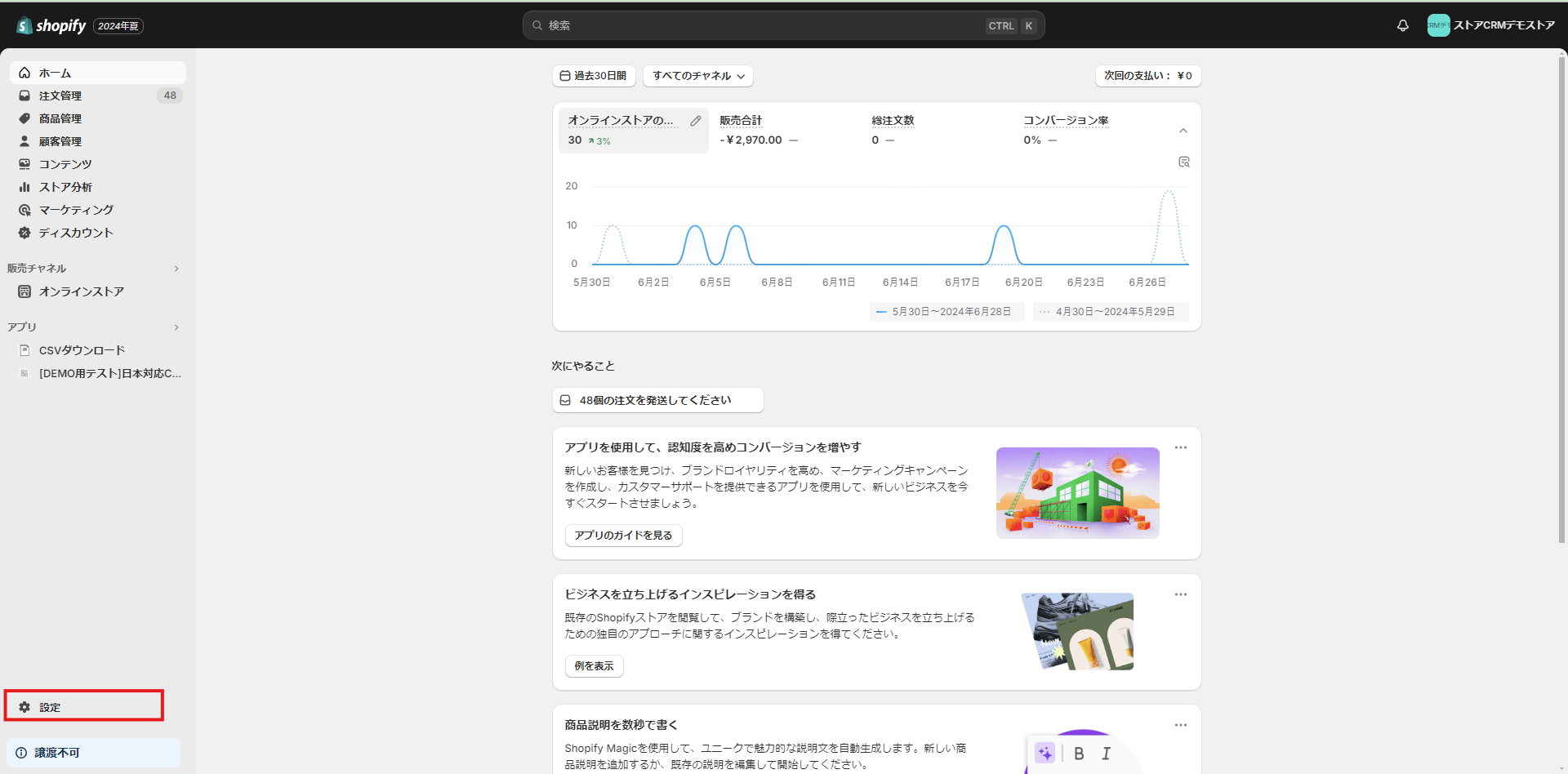](https://storecrm.com/wp-content/uploads/2025/07/Untitled.png)
[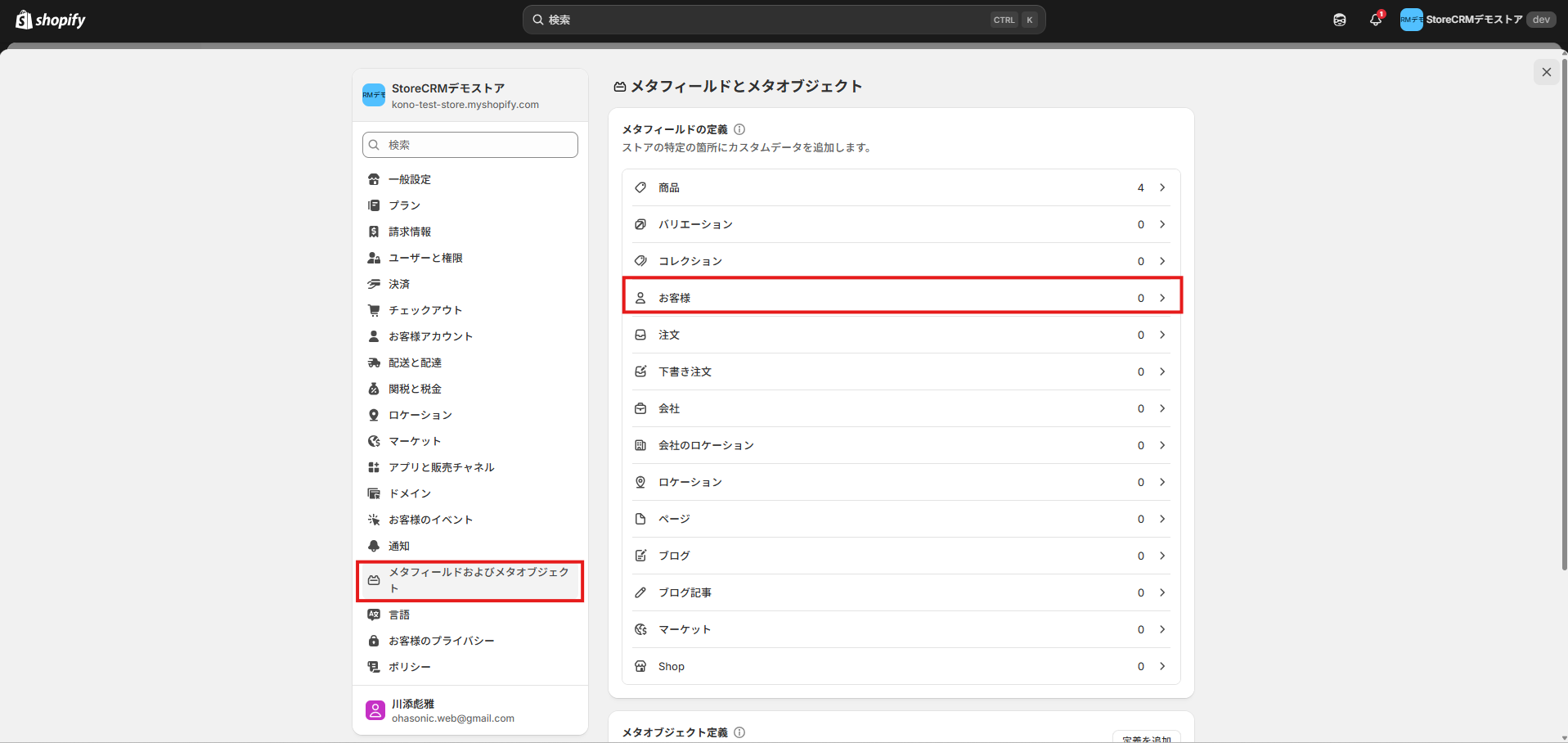](https://storecrm.com/wp-content/uploads/2024/09/スクリーンショット-2025-09-29-113228.png)
To offer a birthday field you first need a customer metafield to store it in.
**1. In the Shopify admin, go to \[Settings\] > \[Custom data\] > \[Customers\].**
[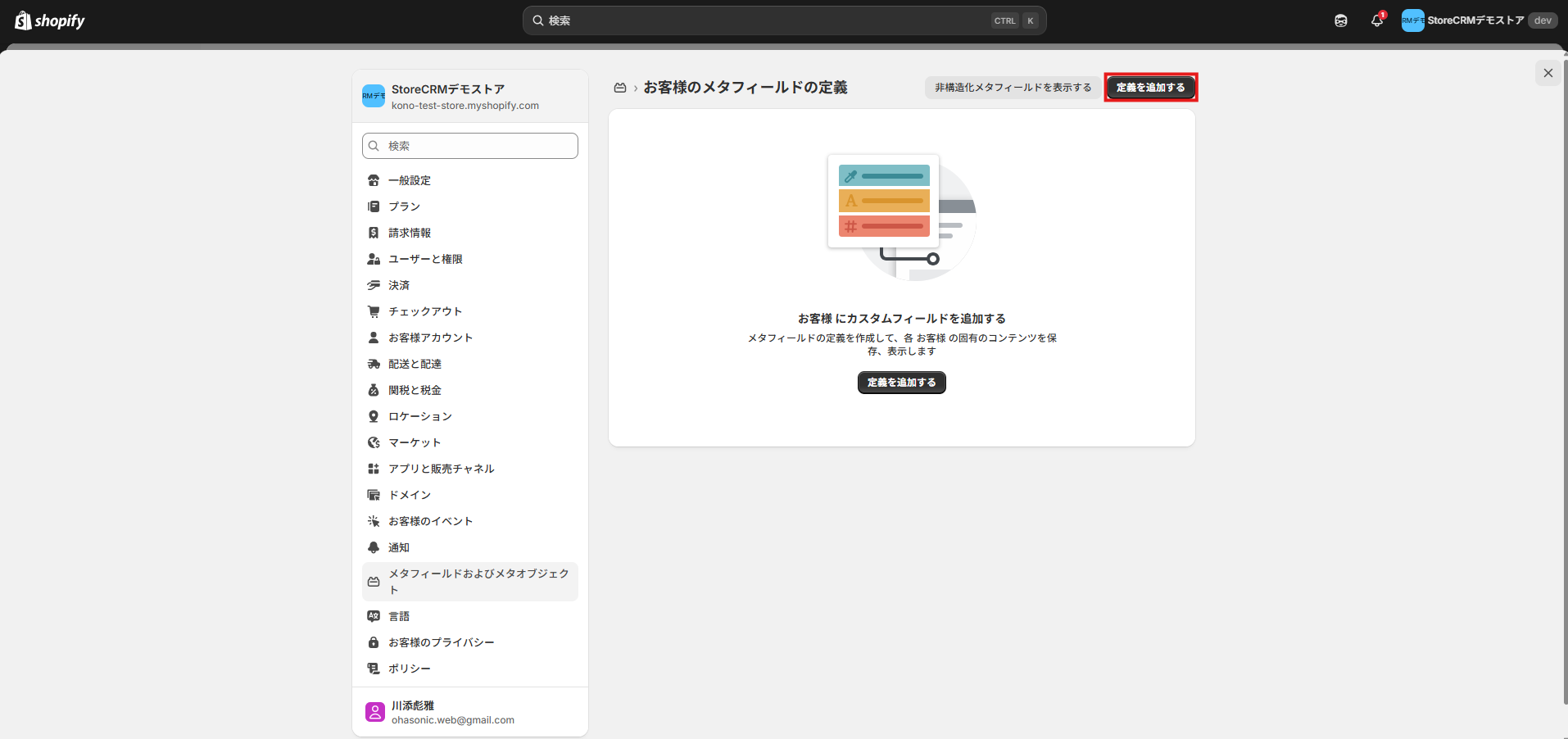](https://storecrm.com/wp-content/uploads/2024/09/スクリーンショット-2025-09-29-113400.png)
**2. Click \[Add definition\].**
[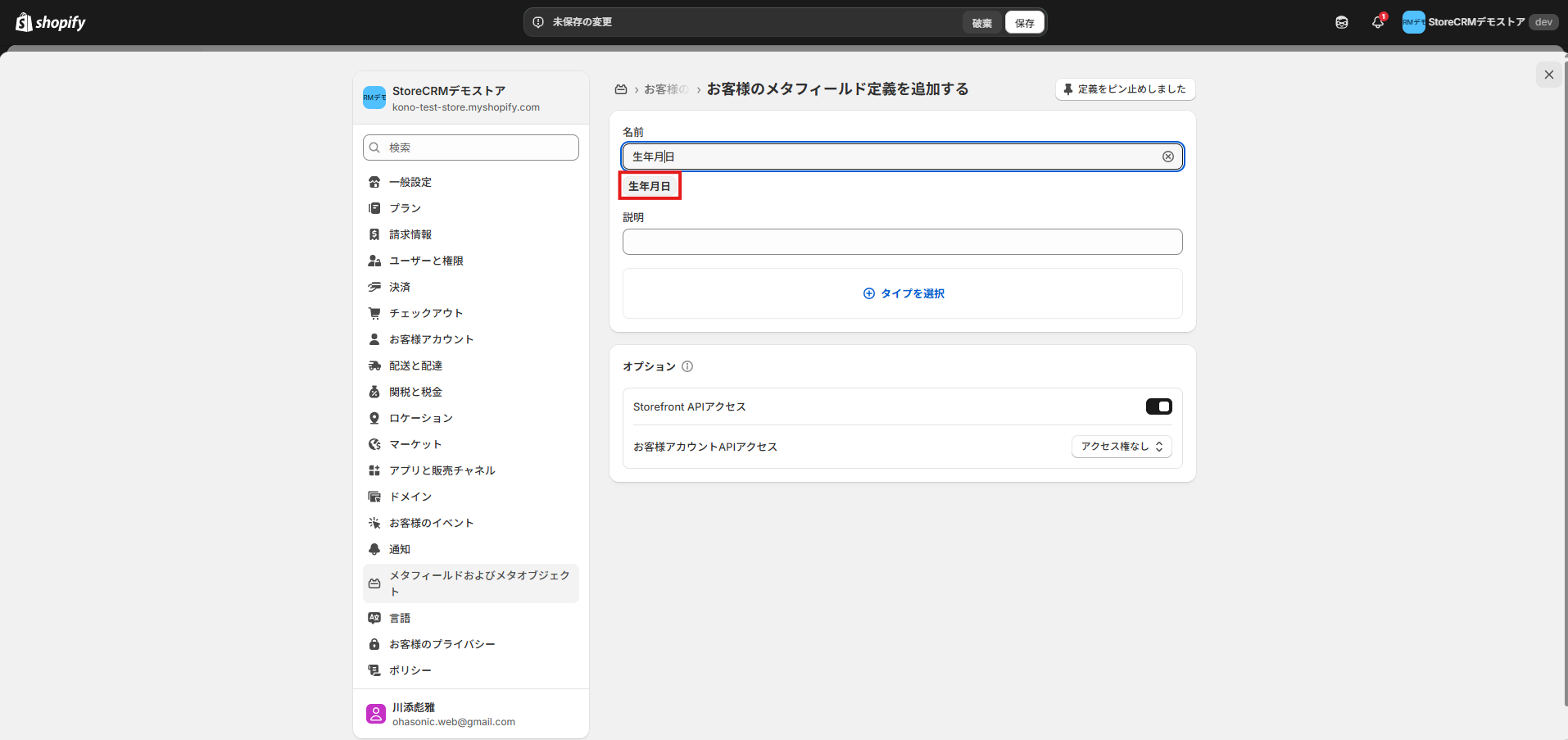](https://storecrm.com/wp-content/uploads/2024/09/スクリーンショット-2025-09-29-113500.png)
**3. Type \[Date of birth\] as the name and a suggestion appears below the field; click it.**
[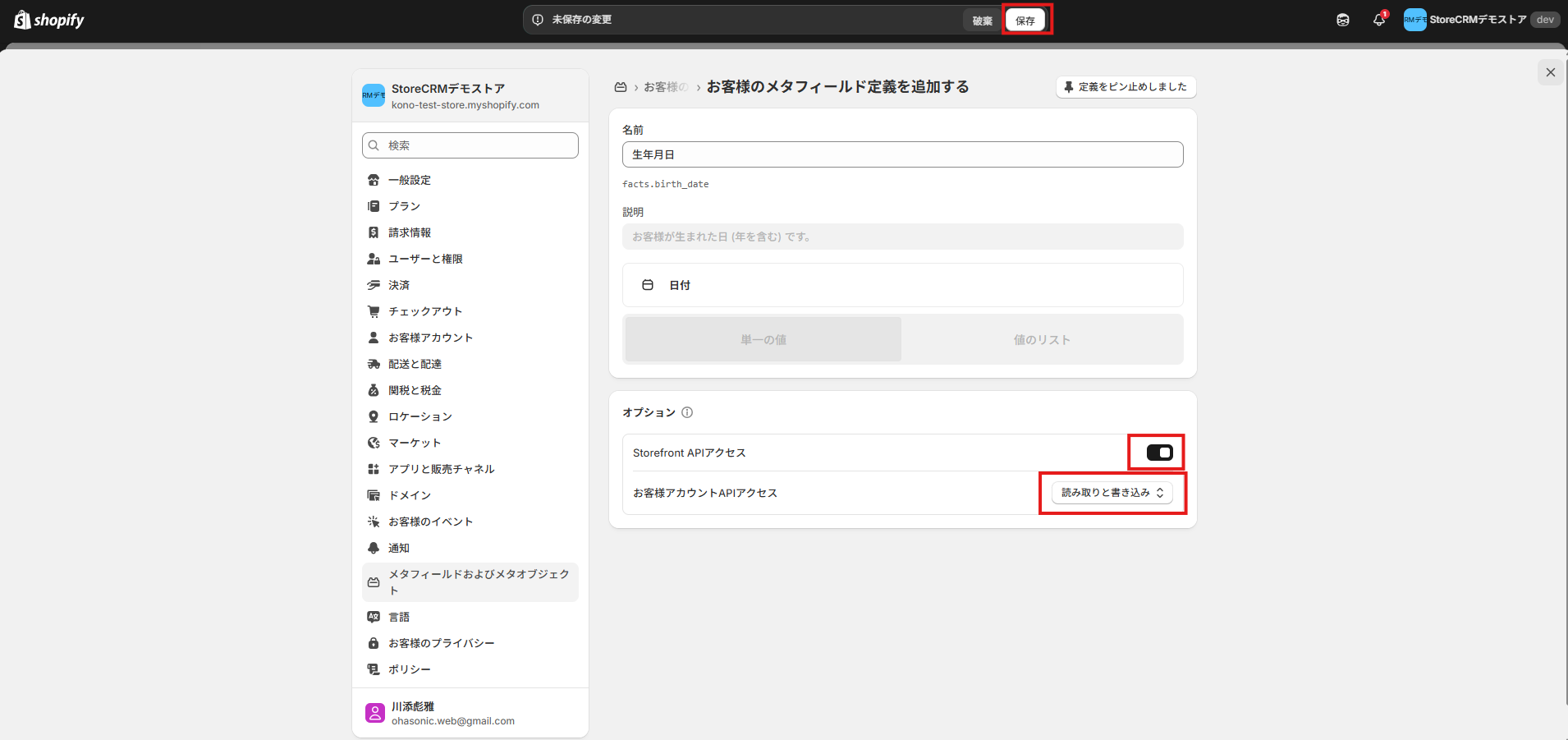](https://storecrm.com/wp-content/uploads/2024/09/スクリーンショット-2025-09-29-113536.png)
**4. Under Options > Customer account access, select \[Read and write\], turn on Storefront API access, and click \[Save\].**
## Adding the birthday form to the signup page
### What you will build in this section
[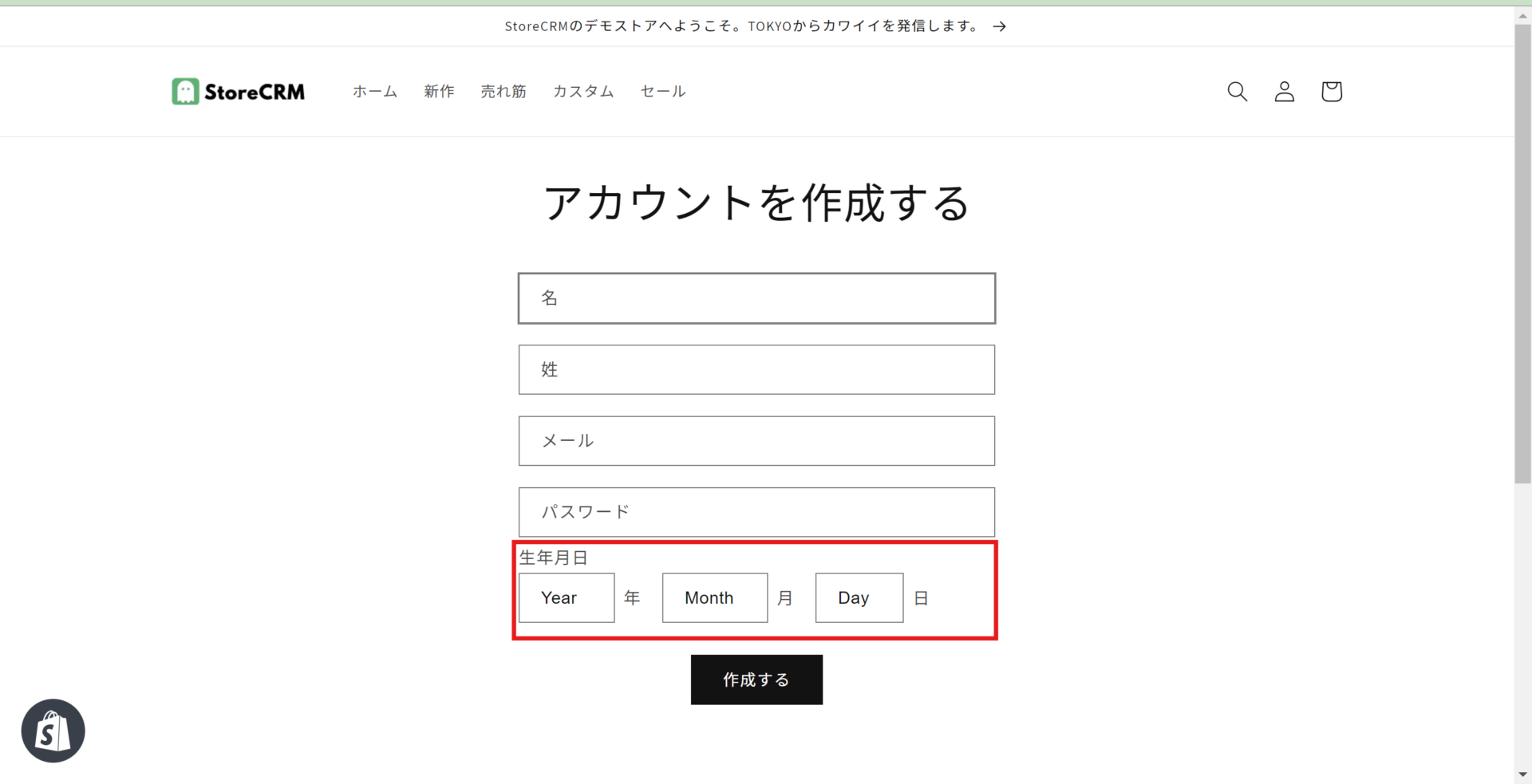](https://storecrm.com/wp-content/uploads/2025/07/スクリーンショット-2024-09-19-123206.png)
Let us start by looking at the finished birthday form.
The red box marks the date-of-birth field.
### Opening the code you need to edit
[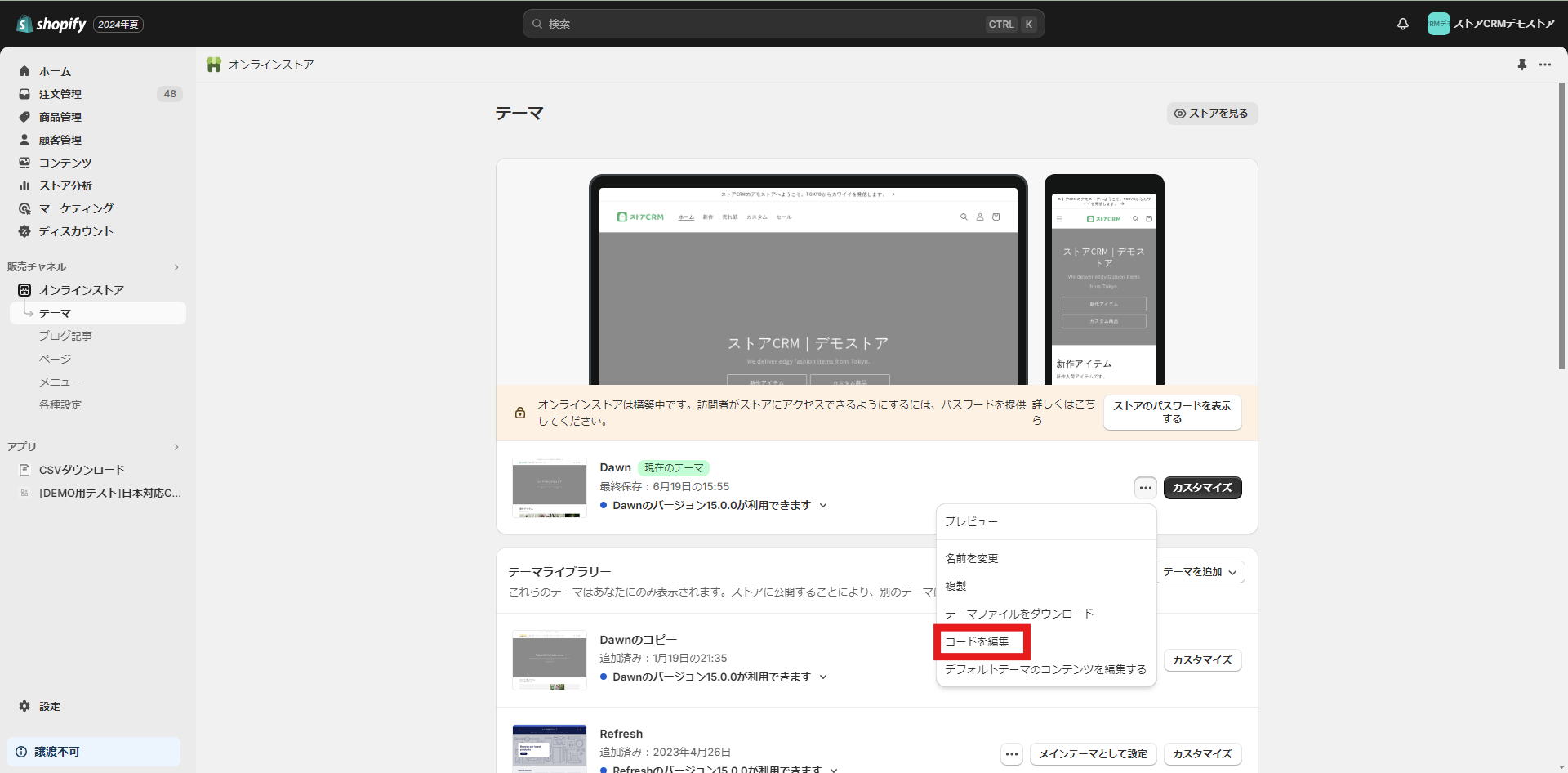](https://storecrm.com/wp-content/uploads/2025/07/Untitled-5.png)
**1. Open the theme list from \[Shopify admin\] > \[Sales channels\] > \[Online Store\] > \[Themes\].**
Click \[...\] and then \[Edit code\].
The steps that follow involve editing theme code, so if you are at all unsure, duplicate the theme first and edit the copy.
[](https://storecrm.com/wp-content/uploads/2025/07/Untitled-6.png)
**2. As an example, here is how it works in the Dawn theme.**
The file you need differs from theme to theme, so check the Liquid/JSON mapping for customer templates.
This method only works when Shopify > \[Settings\] > \[Customer accounts\] is set to \[Classic\]. With new customer accounts, login uses a one-time code, the customer's input is not carried over, and there are no Liquid files to edit.
**Clicking \[Edit code\] opens the file list. Because we are editing the signup page, open**
**\[Templates\] > \[customer/register.json\].**
Open the file and look at the value written at sections > main > type.
In the Dawn theme it says \[main-register\].
That tells you where the signup page's code lives — in this case
\[Sections\] > \[main-register.liquid\].
[](https://storecrm.com/wp-content/uploads/2025/07/Untitled-7.png)
**3. Click \[Sections\] > \[main-register.liquid\] to open that file.**
[](https://storecrm.com/wp-content/uploads/2025/07/Untitled-8.png)
Here we want the field below the password input and above the \[Create\] button, so we insert the code between lines 137 and 138.
**1. Copy and paste the HTML below.**
```html
Date of birth
Year
Month
Day
```
[](https://storecrm.com/wp-content/uploads/2025/07/Untitled-9.png)
**2. Next, add the CSS and JavaScript. The CSS is deliberately minimal, so feel free to restyle it to taste.**
The JavaScript simply populates the year, month and day selectors, so paste it as it is. Paste the code, click \[Save\], and you are done.
```html
```
### Testing your setup
[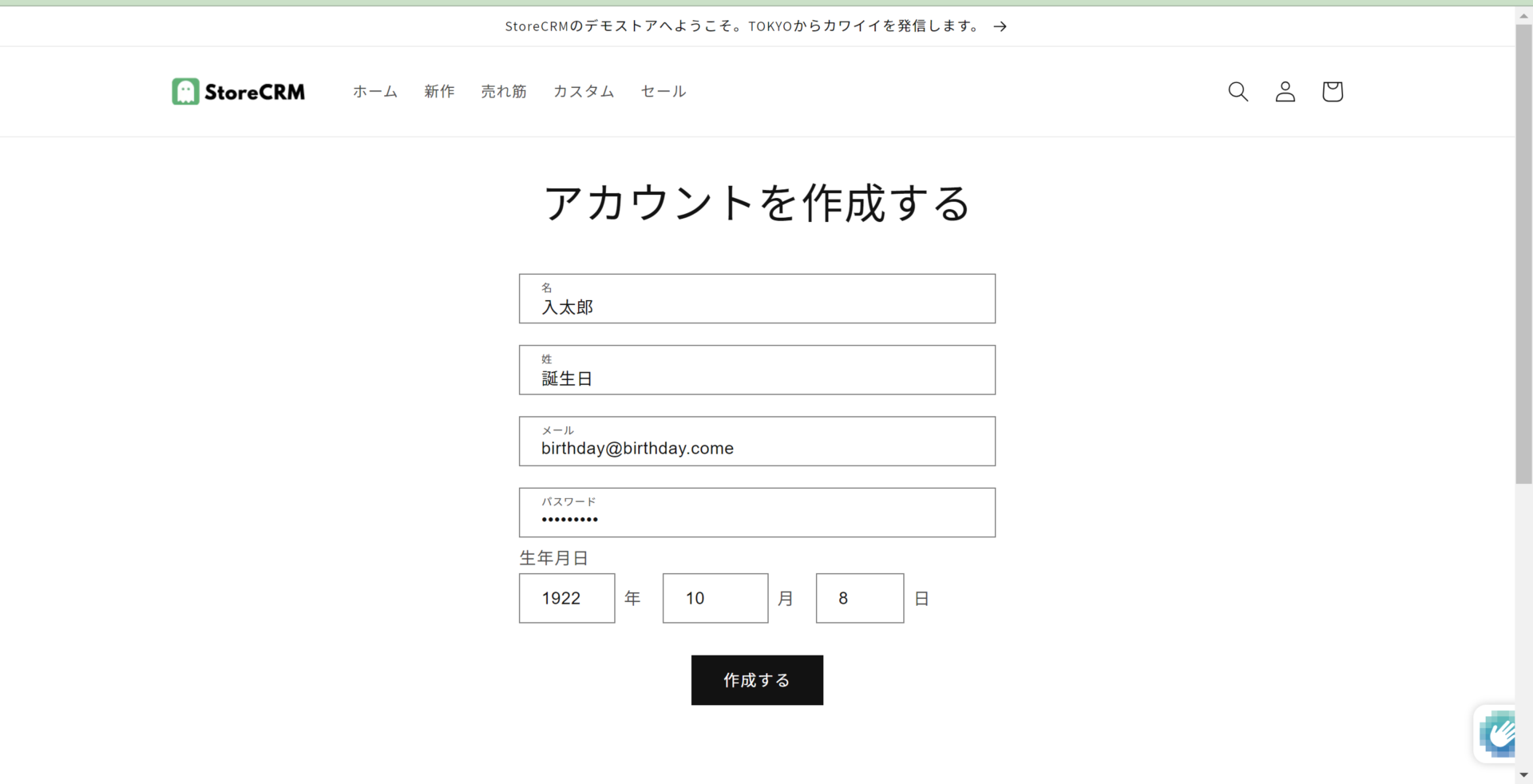](https://storecrm.com/wp-content/uploads/2025/07/スクリーンショット-2024-09-19-123625.png)
Once the code is in place, test it.
**1. Open the account creation page and the birthday form should be there. Fill in the account details and a date of birth, then click \[Create\].**
[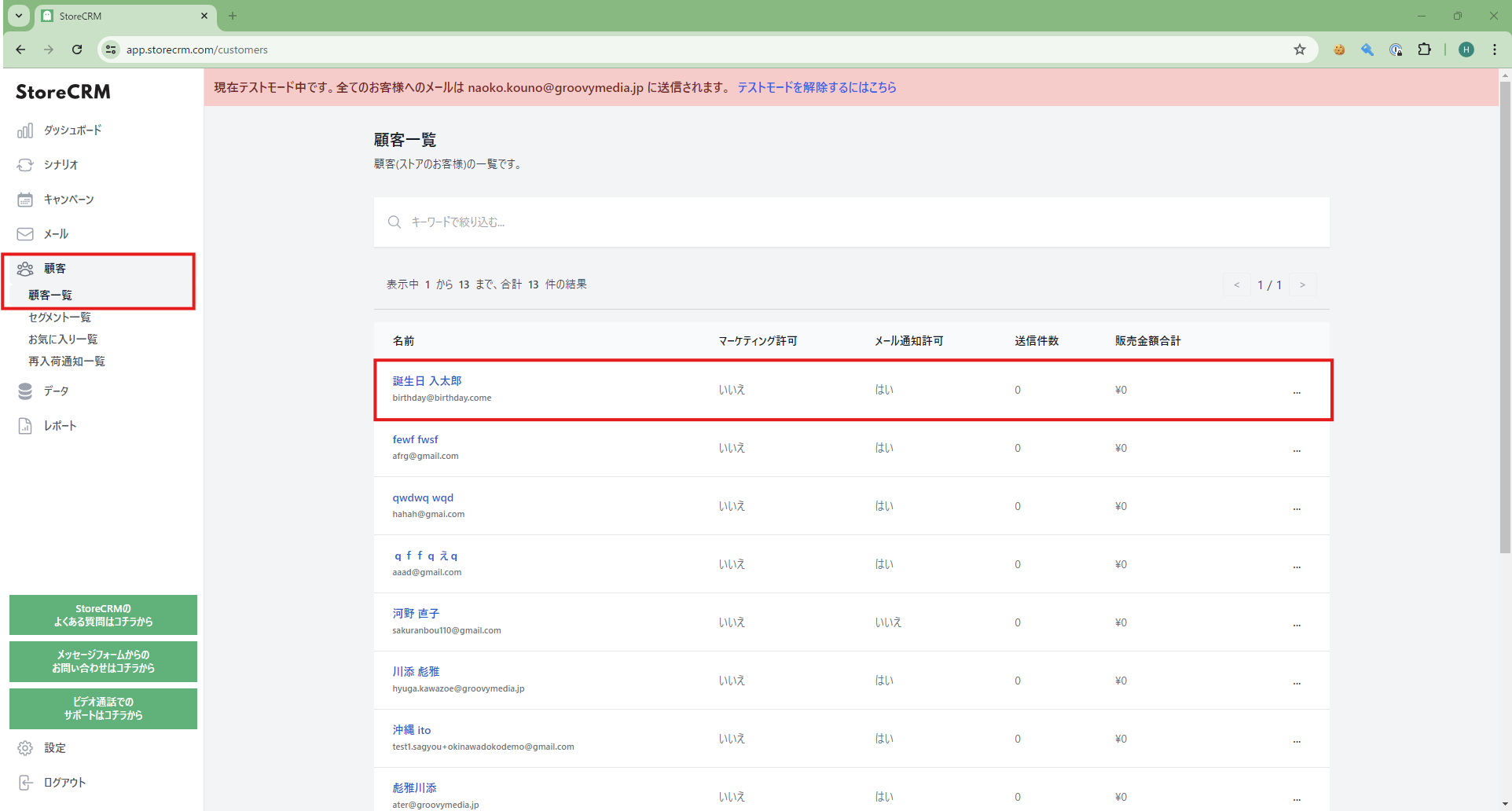](https://storecrm.com/wp-content/uploads/2025/07/Untitled-11.png)
**2. With the account created, check that the birthday was captured.**
Open the StoreCRM app and click \[Customers\] > \[Customer list\].
The account you just created is at the top of the list; click the name to open the customer detail page.
[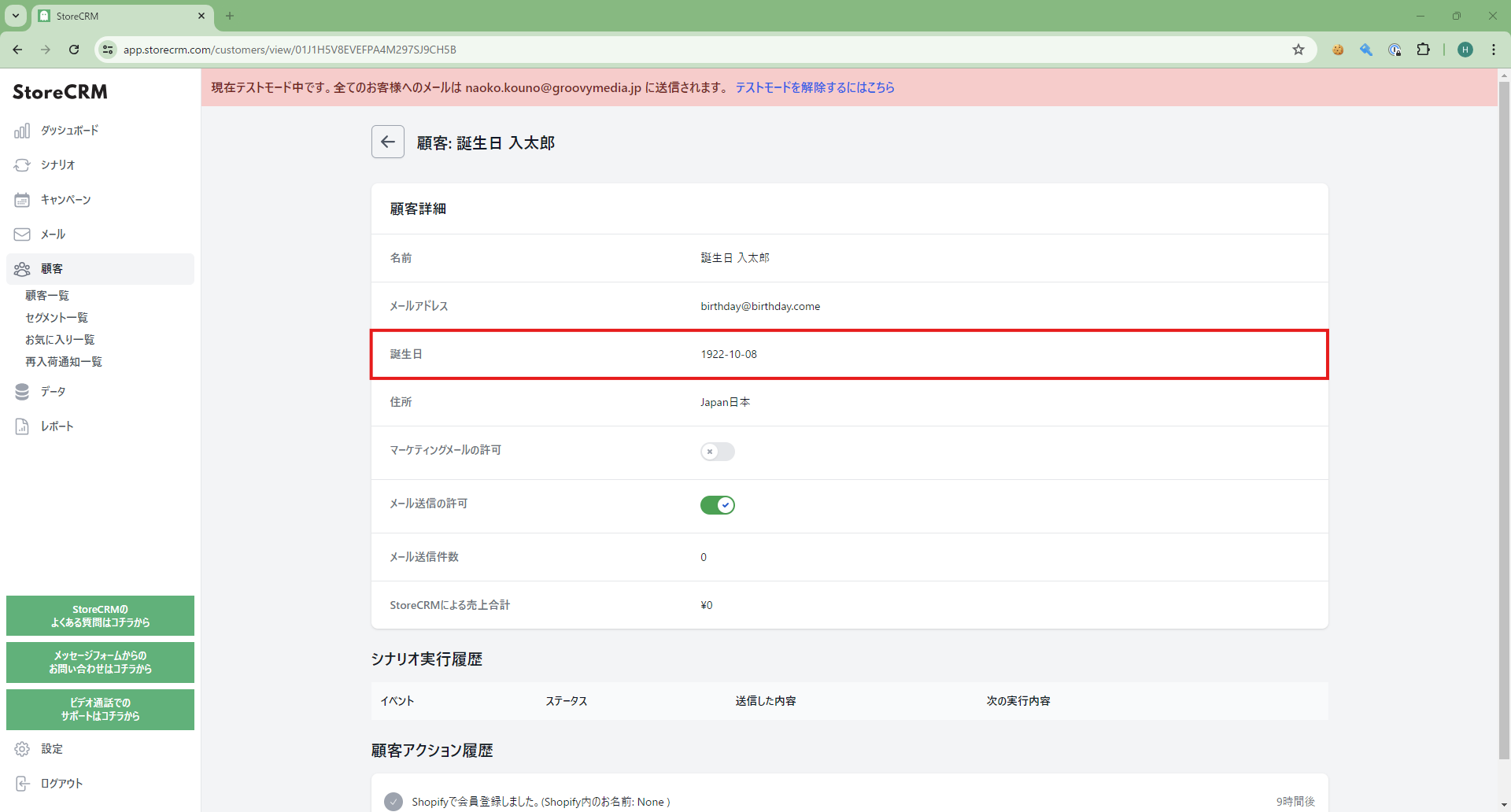](https://storecrm.com/wp-content/uploads/2025/07/Untitled-12.png)
**3. Check the birthday field on the customer detail page. If it shows the date you entered, everything is working.**
If it does not, compare the code you pasted with the code in the section above and make sure there are no differences.
## Adding the birthday form to the account page
### What you will build in this section
[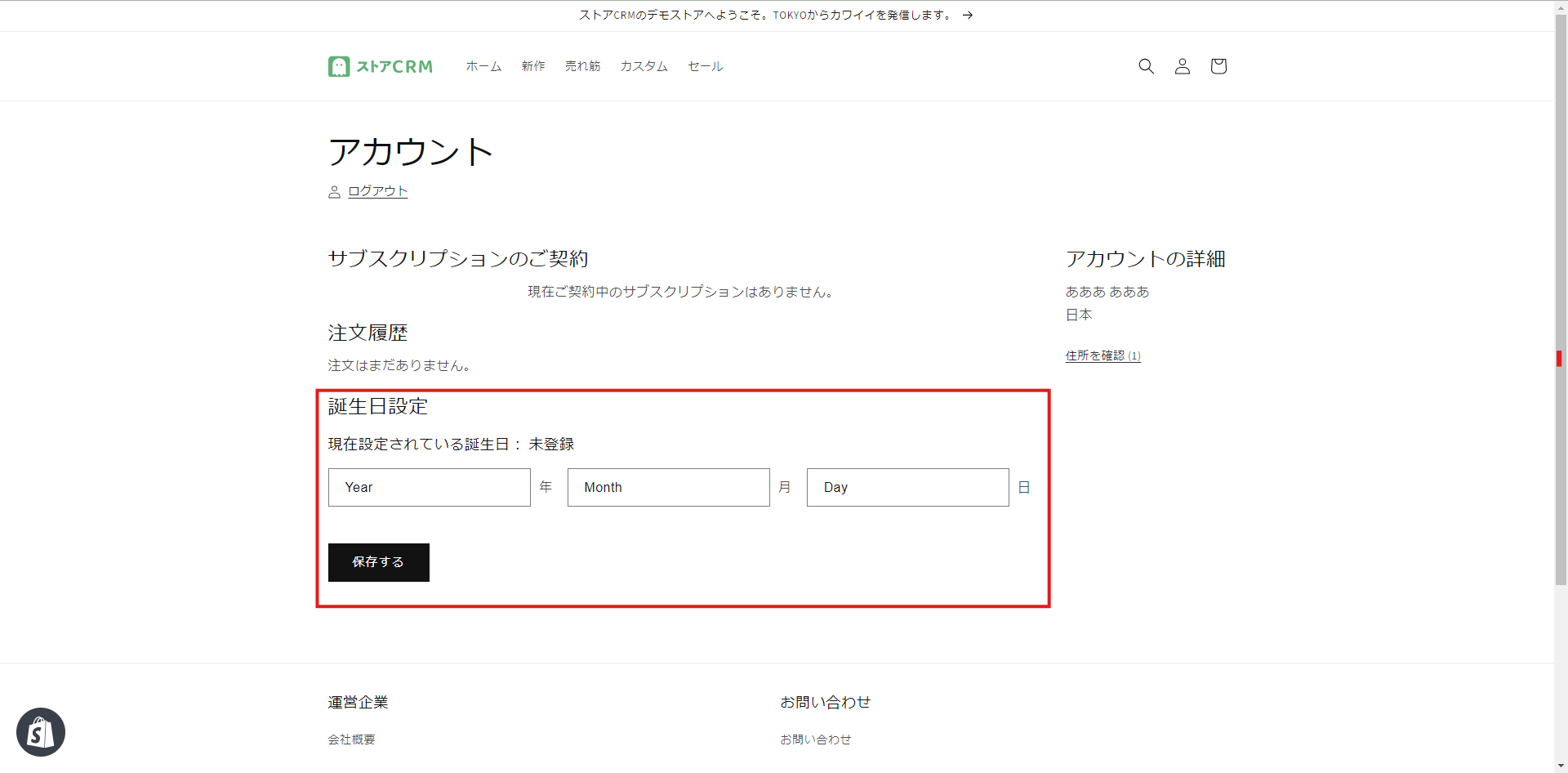](https://storecrm.com/wp-content/uploads/2025/07/Untitled-13.png)
Let us start by looking at the finished form.
Unlike the signup page, the account page can be revisited any number of times, so the birthday must be locked once it has been registered.
[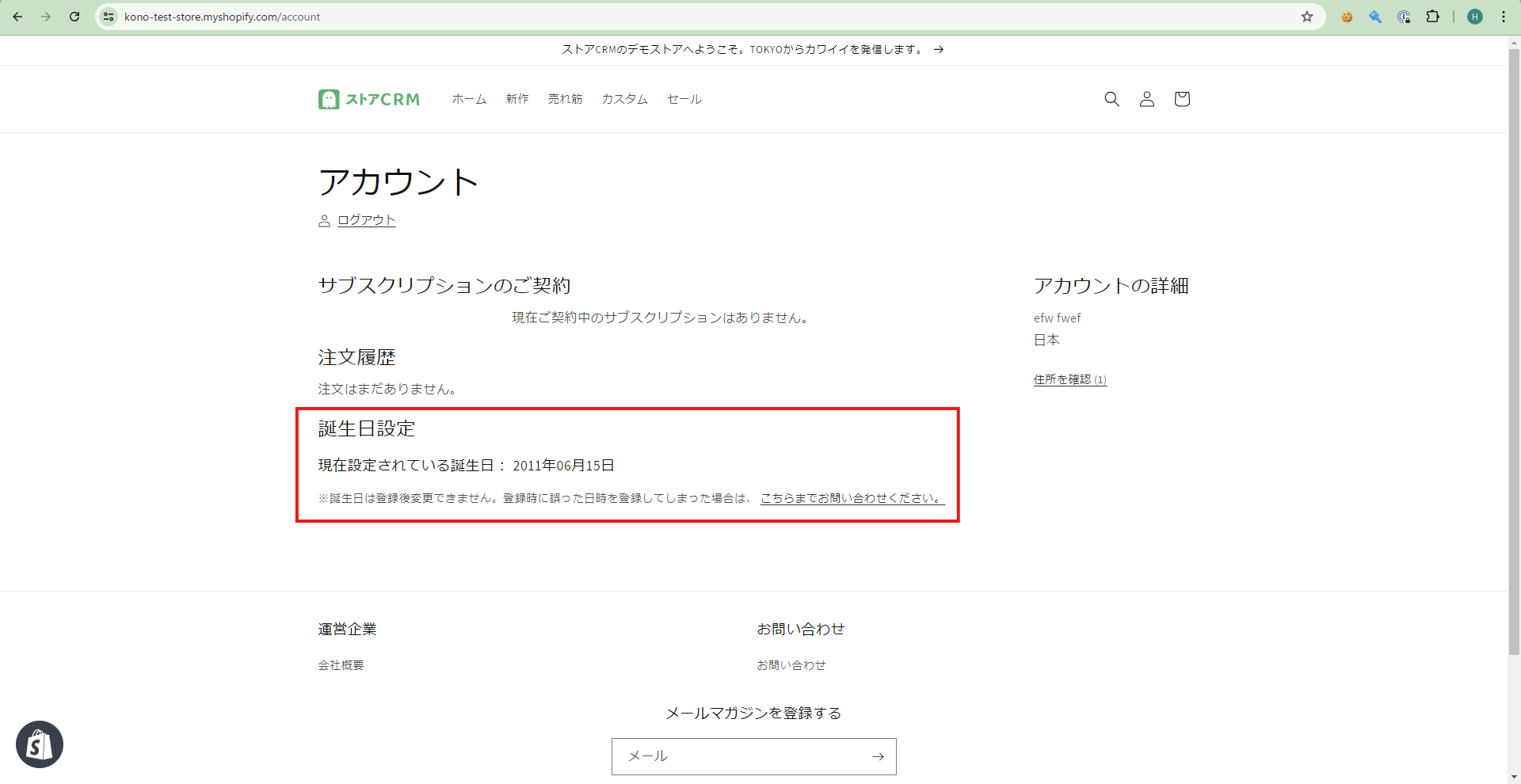](https://storecrm.com/wp-content/uploads/2025/07/Untitled-14.png)
The implementation below checks whether a birthday is already registered and shows different content accordingly.
### Opening the code you need to edit
[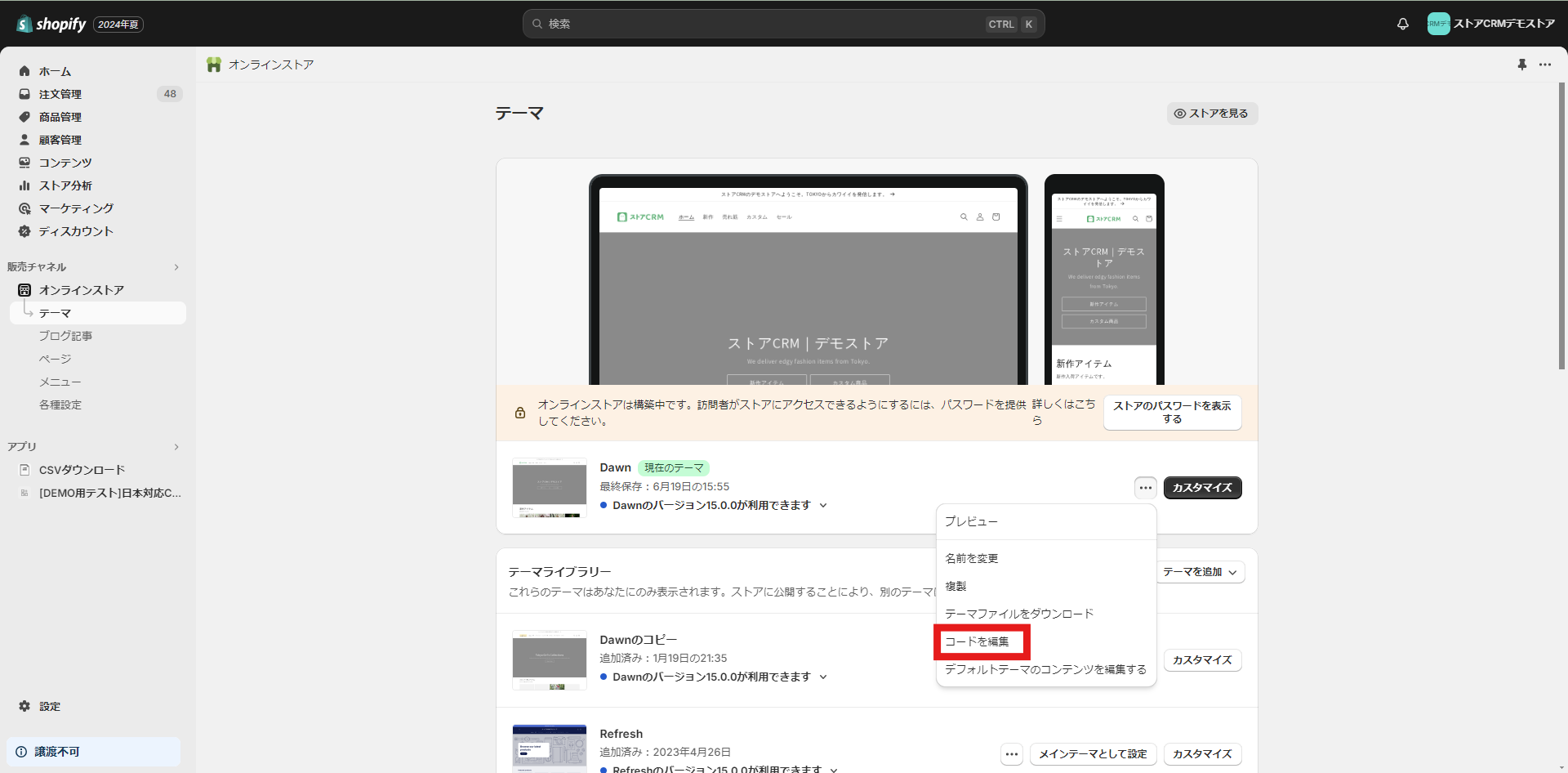](https://storecrm.com/wp-content/uploads/2025/07/Untitled-15.png)
Open the theme list from \[Shopify admin\] > \[Sales channels\] > \[Online Store\] > \[Themes\].
Click \[...\] and then \[Edit code\].
The steps that follow involve editing theme code, so if you are at all unsure, duplicate the theme first and edit the copy.
[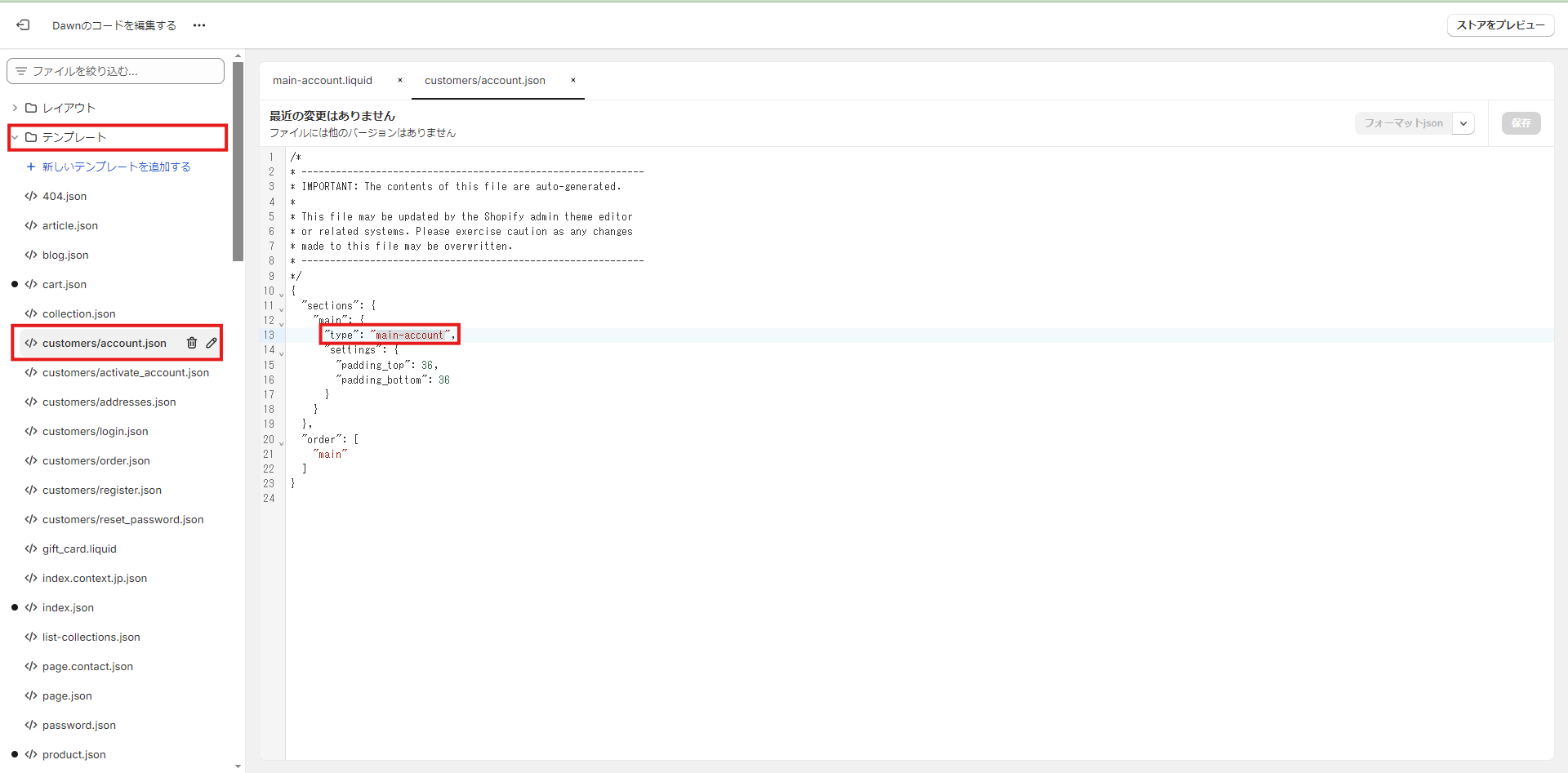](https://storecrm.com/wp-content/uploads/2025/07/Untitled-31.png)
**1. Clicking \[Edit code\] opens the file list.**
This time we are editing the account page, so open \[Templates\] > \[customer/account.json\].
Open the file and look at the value written at sections > main > type.
In the Dawn theme it says \[main-account\].
That tells you where the page's code lives — in this case \[Sections\] > \[main-account.liquid\].
[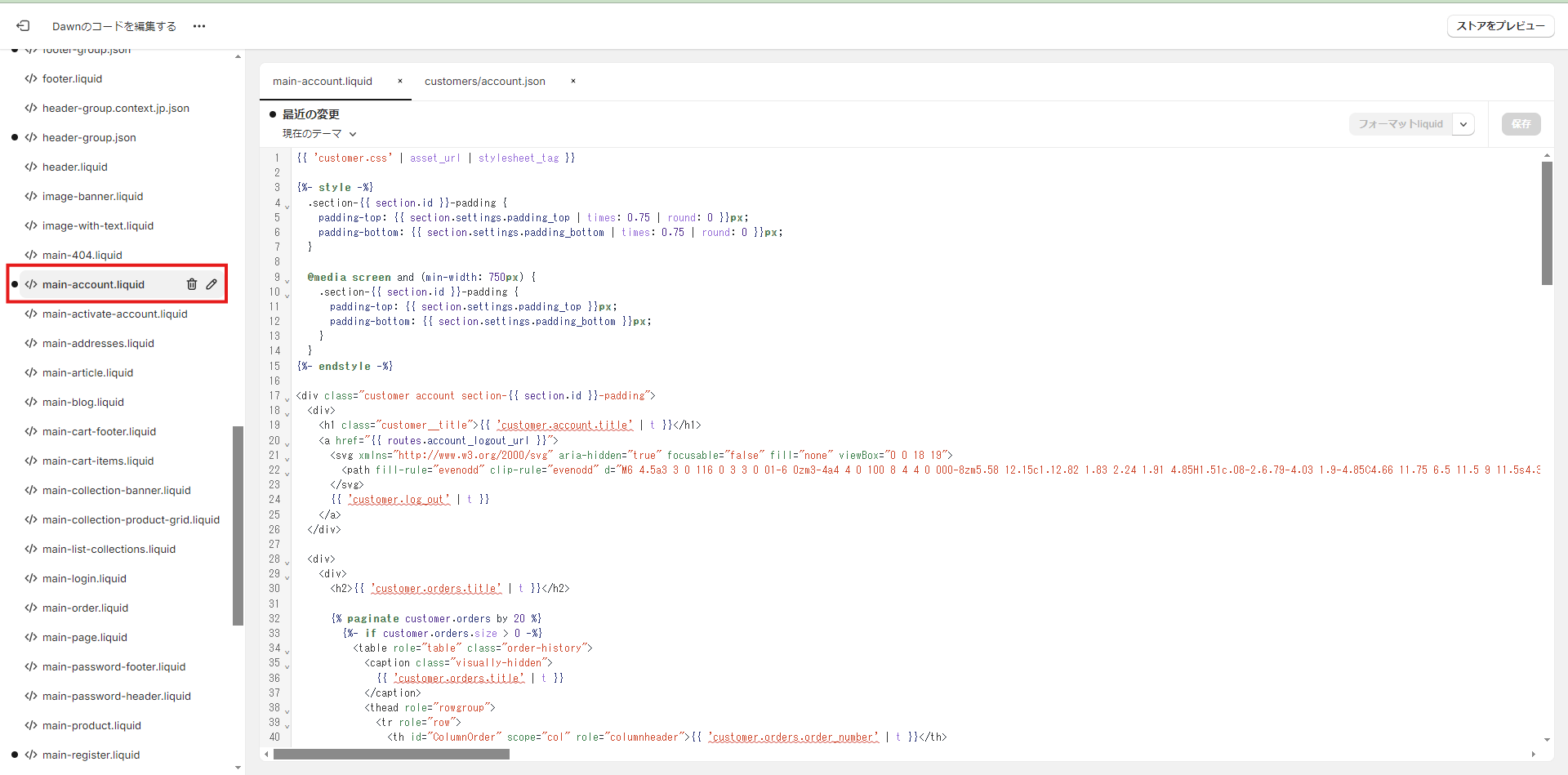](https://storecrm.com/wp-content/uploads/2025/07/Untitled-16.png)
**2. Click \[Sections\] > \[main-account.liquid\] to open that file.**
### Adding the code
[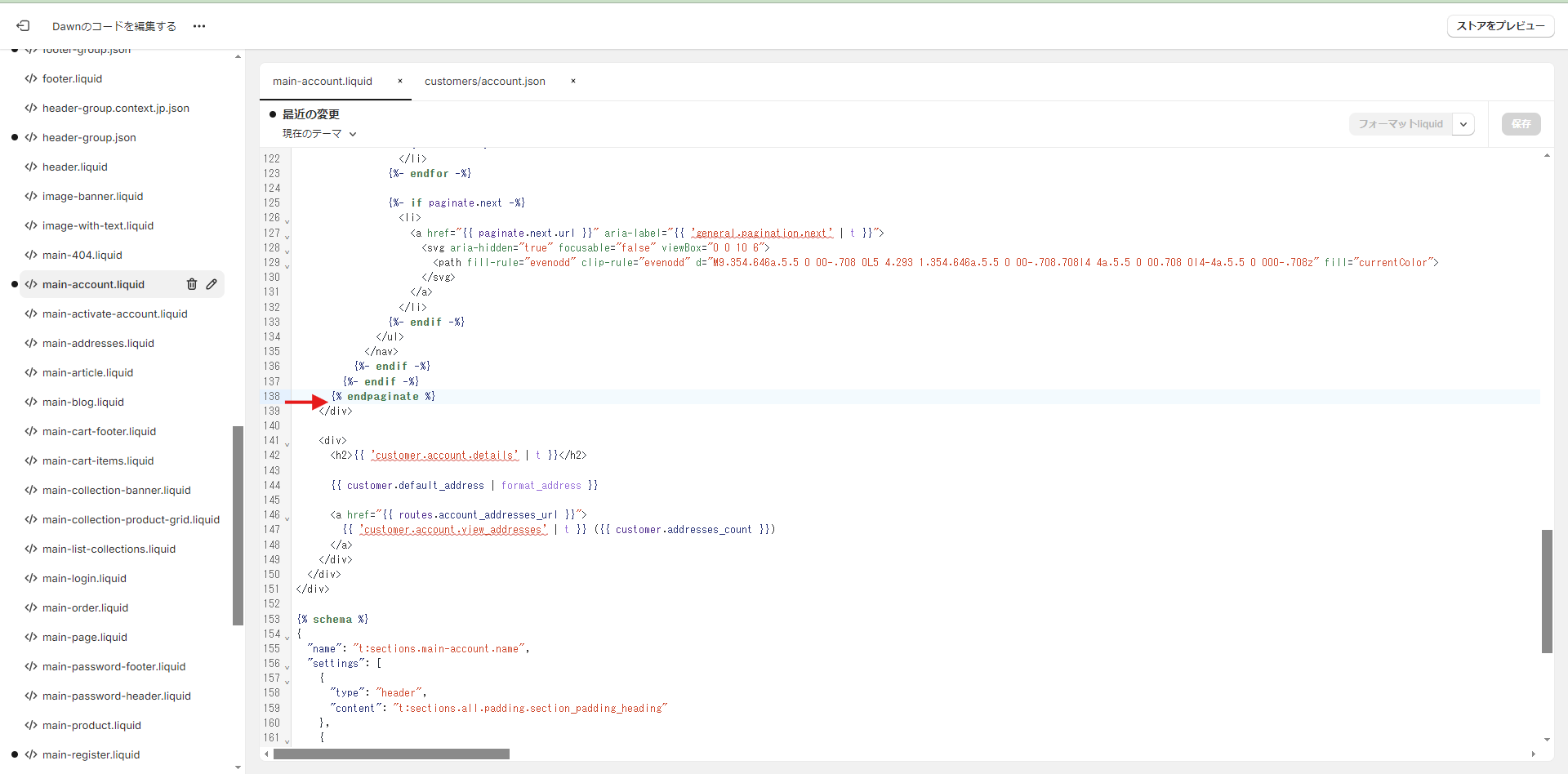](https://storecrm.com/wp-content/uploads/2025/07/Untitled-17.png)
Here we want the form below the order history, so we insert the code between lines 137 and 138.
**1. Copy and paste the HTML below.**
On line 24, replace href="#" with a link to your own store's contact form.
```html
Birthday settings
Current birthday:
{% if customer.metafields.facts.birth_date == null %}
Not registered
{% else %}
{{ customer.metafields.facts.birth_date | date: "%Y/%m/%d" }}
{% endif %}
{% if customer.metafields.facts.birth_date == null %}
Year
Month
Day
Your birthday has been added
{% else %}
Your birthday cannot be changed after registration. If you registered an incorrect date,
please contact us here.
{% endif %}
```
**2. Next, add the CSS and JavaScript.**
The CSS is deliberately minimal, so feel free to restyle it to taste.
[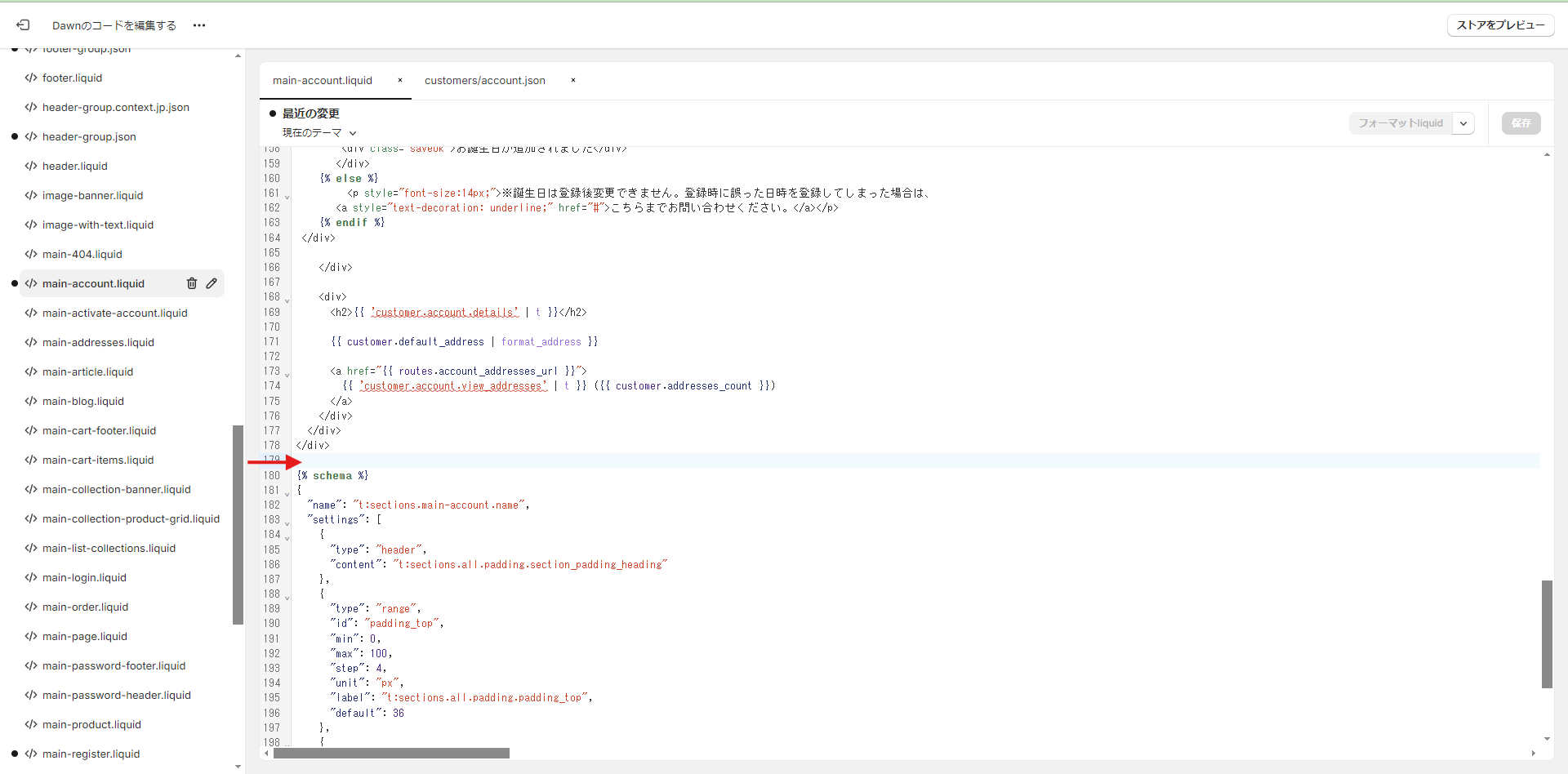](https://storecrm.com/wp-content/uploads/2025/07/Untitled-18.png)
**3. Paste the code, click \[Save\], and you are done.**
```html
```
### Testing your setup
[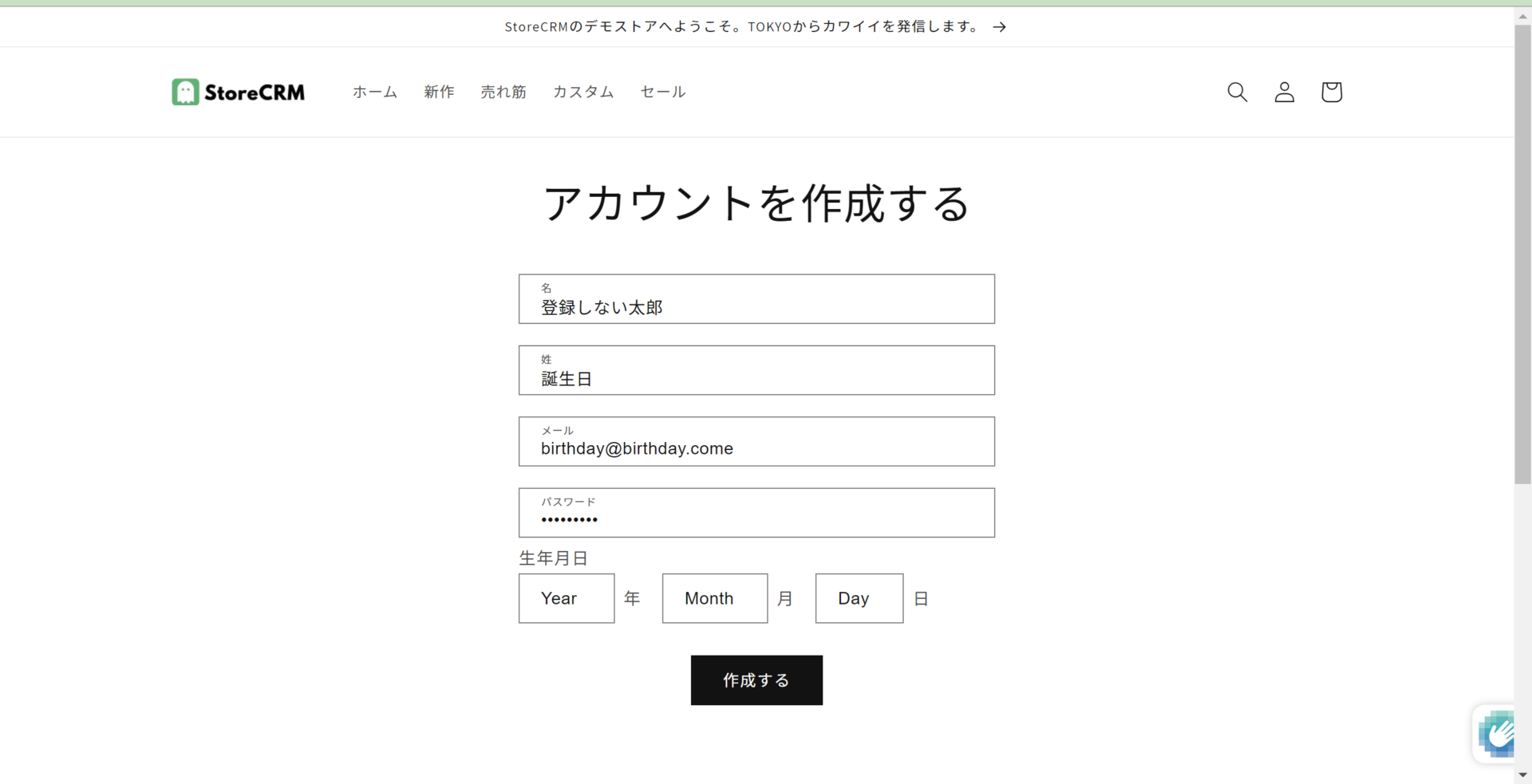](https://storecrm.com/wp-content/uploads/2025/07/スクリーンショット-2024-09-19-123745.png)
Once the code is in place, test it.
**1. Create an account from the signup page without entering a birthday.**
[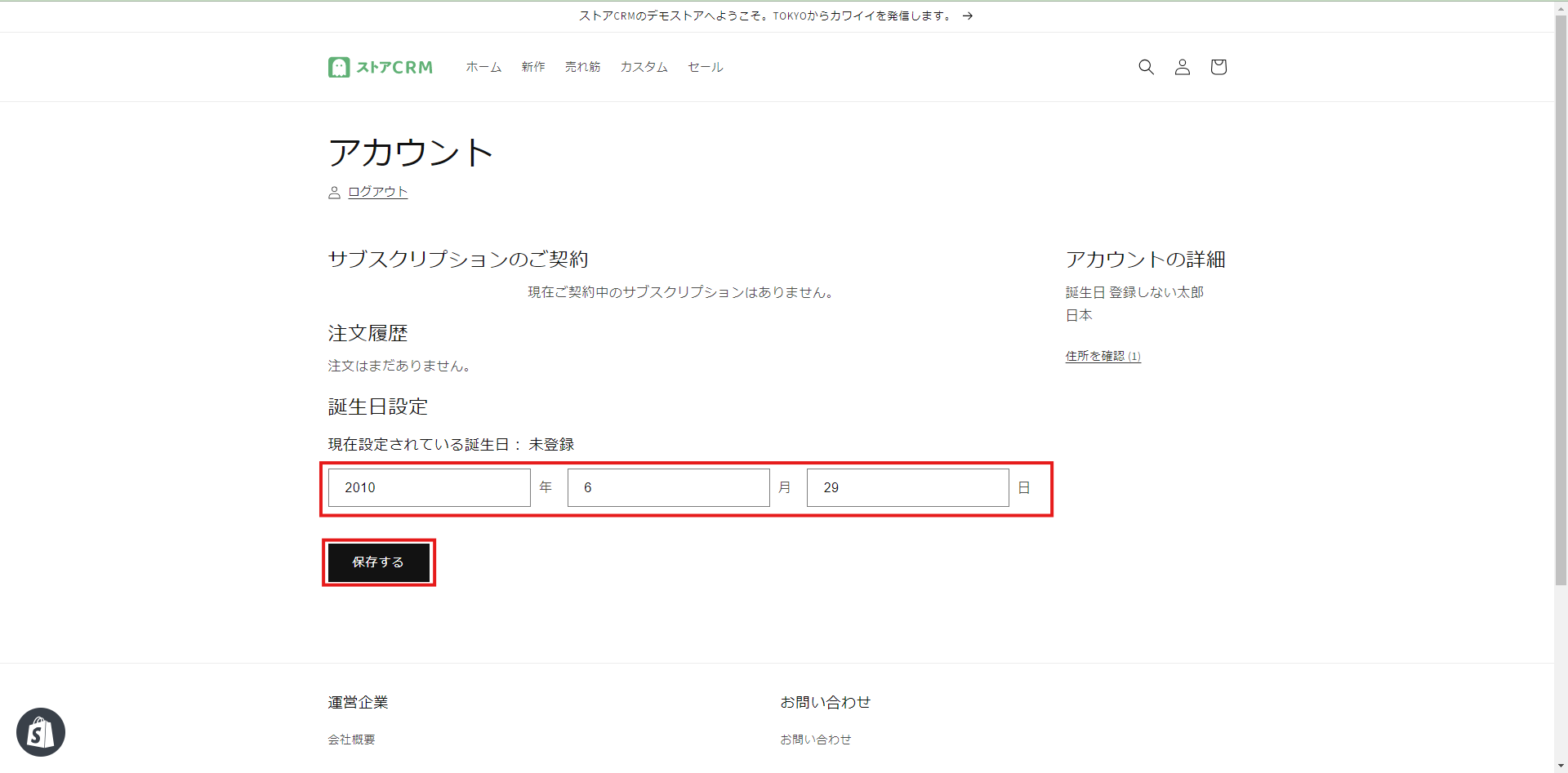](https://storecrm.com/wp-content/uploads/2025/07/Untitled-20.png)
**2. After the account is created, open the account page. The birthday field is displayed; choose a date and click the save button.**
[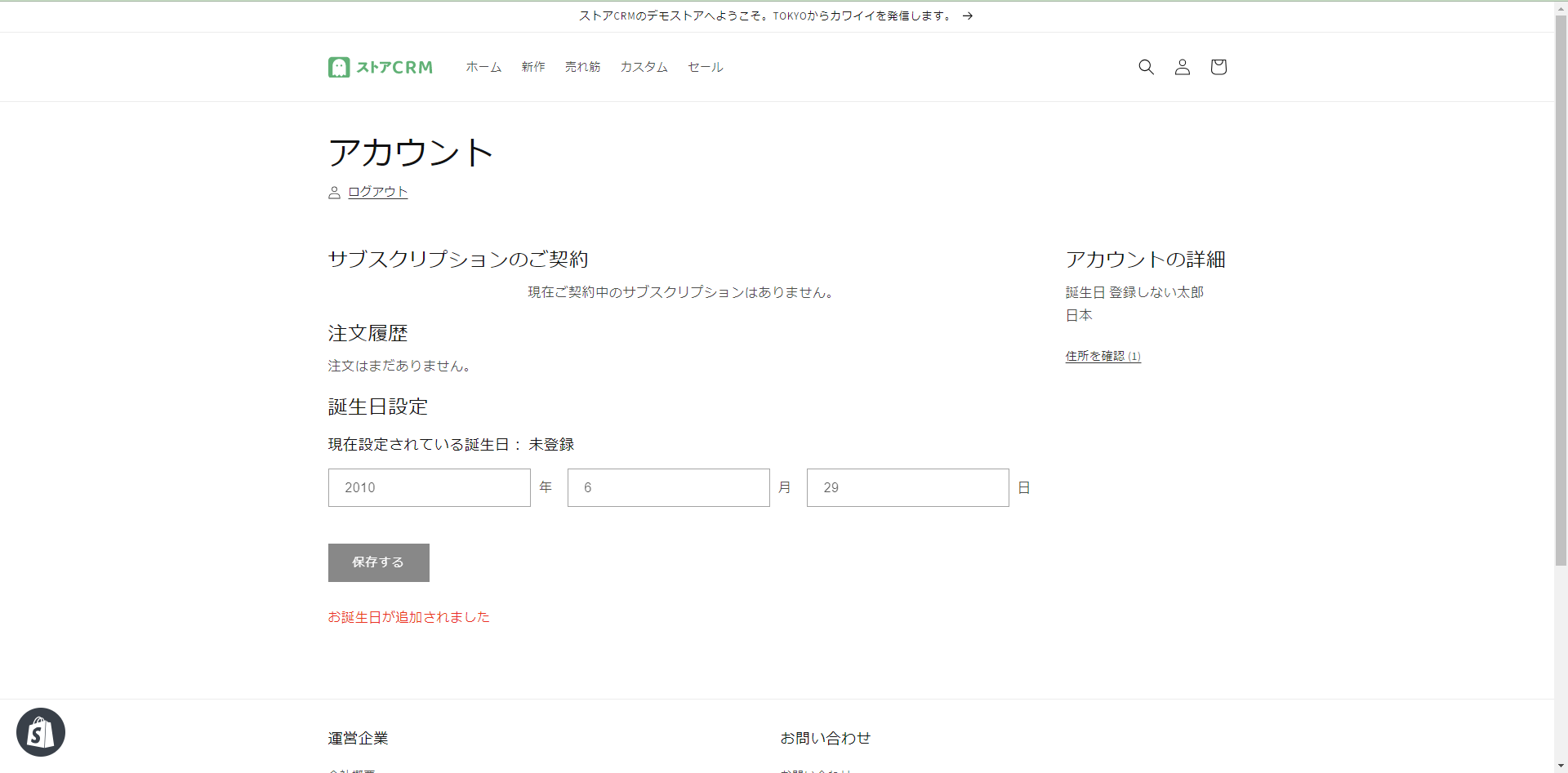](https://storecrm.com/wp-content/uploads/2025/07/Untitled-21.png)
[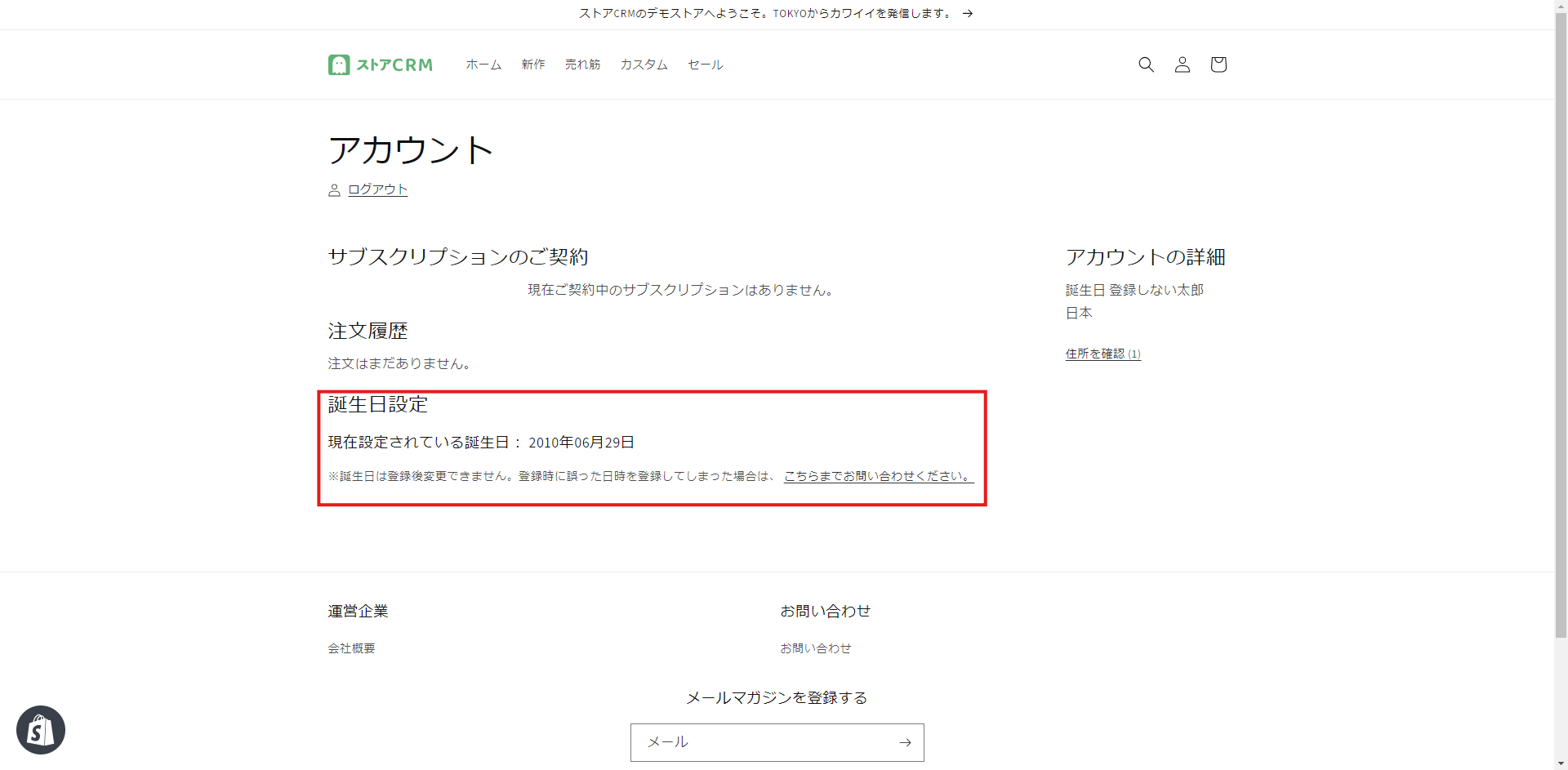](https://storecrm.com/wp-content/uploads/2025/07/Untitled-22.png)
Check the following behaviour while you do it.
- Once saving completes, \[Your birthday has been added\] appears below the \[Save\] button.
- The date select boxes and the \[Save\] button become unusable.
- Reloading the page or returning to the account page shows the registered state, with no way to change the birthday.
[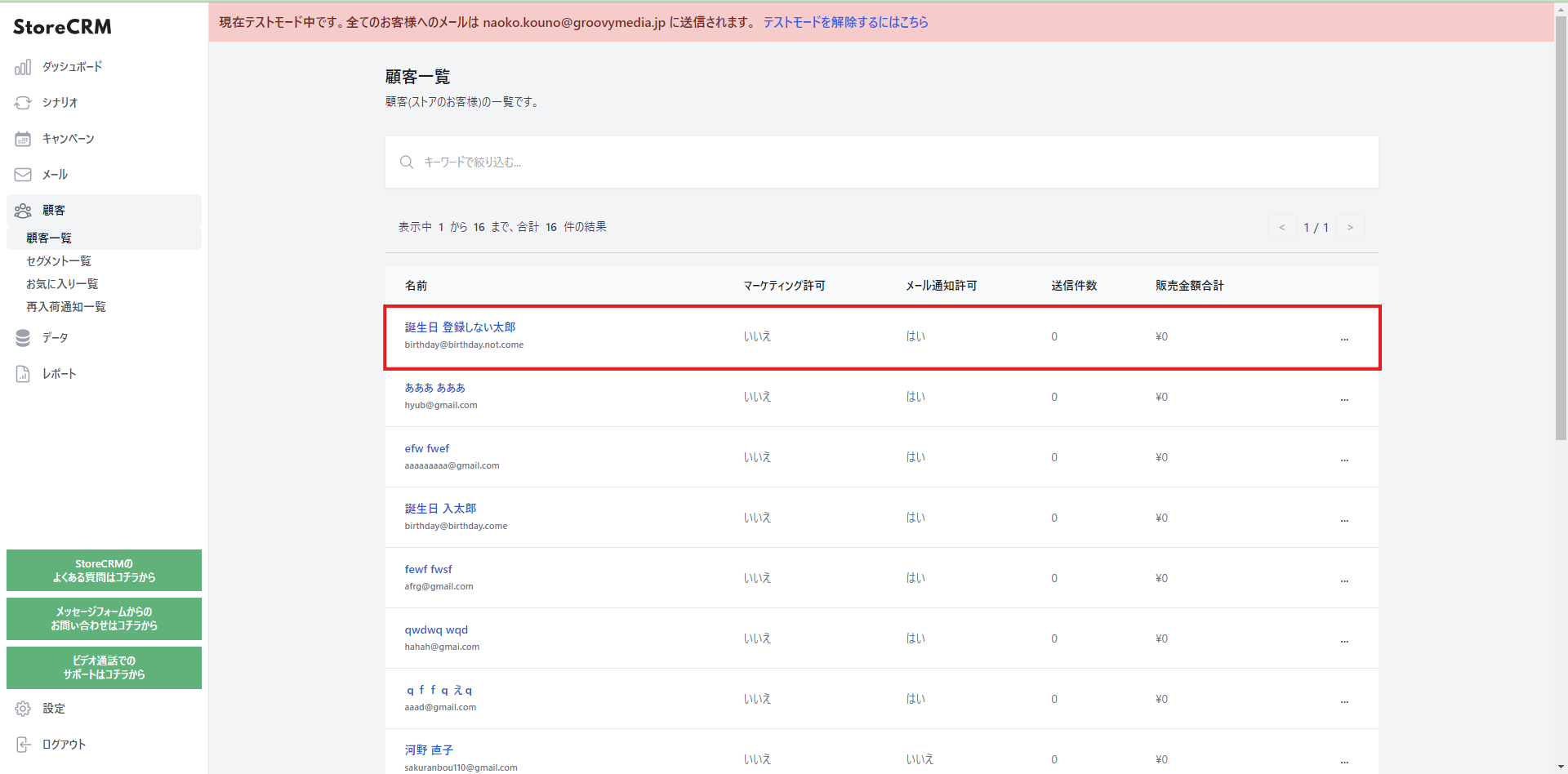](https://storecrm.com/wp-content/uploads/2025/07/Untitled-23.png)
**3. Open the StoreCRM app and click \[Customers\] > \[Customer list\].**
The account you just created is at the top of the list; click the name to open the customer detail page.
[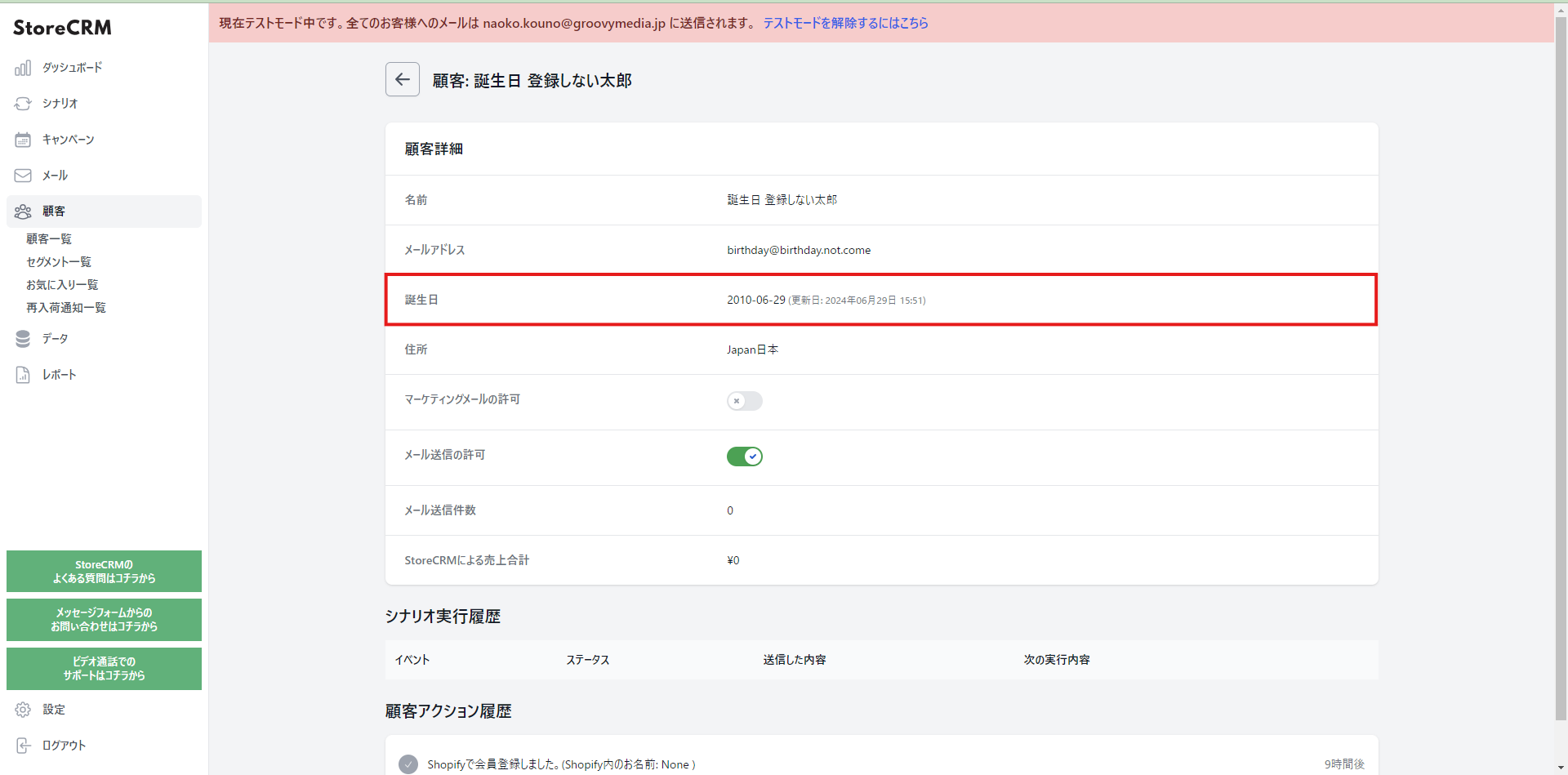](https://storecrm.com/wp-content/uploads/2025/07/Untitled-24.png)
**4. Check the birthday field on the customer detail page. If it shows the date you registered, everything is working.**
If it does not, compare the code you pasted with the code in the section above and make sure there are no differences.
## Summary
StoreCRM brings campaigns like this birthday form — which previously meant writing code or combining Shopify Flow with other Shopify apps and configuring all of it — into a single app.
[Install StoreCRM here.](https://apps.shopify.com/obake-ma?locale=ja)
[Read here for how to send birthday emails.](https://storecrm.com/knowhow/shopify-birthday-mail/)
We also offer free setup support — we will configure the app for you — as well as suggestions for growing revenue once you are up and running.
Feel free to get in touch through the [contact form](https://storecrm.com/contact/).
========================================================================
# Sending segmented email on Shopify with the flow editor
> How to use StoreCRM's flow editor to branch on customer and order data and send personalised email campaigns from your Shopify store.
- URL: https://storecrm.com/knowhow/flow-editor/
- Type: Blog
- Published: 2024-09-16
- Updated: 2026-01-08
- Category: tips
- Tags: StoreCRM, guides
- Author: StoreCRM
---
## Introduction
This article explains how to use the flow editor, one of StoreCRM's features.
StoreCRM lets you run all kinds of campaigns — checkout abandonment emails, welcome sequences after signup and much more — with very little configuration.
What makes those campaigns work is delivering information that is personalised to each customer's interests.
With the flow editor you can set that up intuitively: send different emails and branch the processing based on customer and order data, down to fine-grained conditions.
Personalised campaigns built in the flow editor raise LTV and reduce unsubscribes, so they are well worth setting up.
## How the flow editor works
### Opening the flow editor
[](https://storecrm.com/wp-content/uploads/2025/07/checkout-2.png)
**1. Open the automation list from \[StoreCRM app\] > \[Automations\].**
Click \[Add new automation\] at the top right.
[](https://storecrm.com/wp-content/uploads/2025/07/2024-09-11-183406.jpg)
2. **Click the automation you want to build**.
Here we choose \[Email after purchase\].
[](https://storecrm.com/wp-content/uploads/2025/07/スクリーンショット-2024-09-11-184132.png)
**3. The automation settings open, but since we will configure everything in the flow editor, just save.**
[](https://storecrm.com/wp-content/uploads/2025/07/purchase-complete-1-1.png)
**4. On the automation detail page, click \[Settings\] > \[Details\] > \[(Advanced) Edit in the flow editor\].**
[](https://storecrm.com/wp-content/uploads/2025/07/スクリーンショット-2024-09-11-185350.png)
**5. The flow editor opens, and that is this section done.**
You can open the flow editor for an existing automation the same way, from step 4 onwards.
### The parts of the flow editor
[](https://storecrm.com/wp-content/uploads/2025/07/グラフィックス2.png)
**Here is what each part of the flow editor does. An automation starts from the trigger (1) and then works through the nodes (2) from top to bottom.**
**1. The trigger**
The event that starts the automation. We chose \[Email after purchase\], so processing begins when a customer buys something. The trigger depends on the automation you selected, so pick the automation that matches the event you want to act on. Note that the trigger cannot be changed or removed afterwards.
**2. Nodes**
The steps that actually run once the trigger fires, executed from top to bottom. They include waiting a number of days or hours, sending a specific email, and branching on a condition.
**3. Add-node button**
Inserts a new node between two existing steps. There are several node types, covered below.
4. Add-node button (append to the end) Adds a new node at the end of the current flow.
**5. Automation conditions**
Sets whether the automation runs at all, based on the order or the customer. You can restrict it to customers carrying a particular tag, for example, or to orders above a given value.
When a node is selected, that node's settings appear here instead.
[](https://storecrm.com/wp-content/uploads/2025/07/グラフィックス3.png)
**Clicking either add-node button (3 or 4 above) opens the node picker.
Here is what each node type is for.**
**1. Check whether a coupon has been used**
Checks whether a coupon you generated has been redeemed and, if it has, stops the rest of the flow.
Use it when an automation sends several emails and you want to stop once the coupon is used.
2. Generate a coupon
To send an email containing a coupon, add this node before the email node.
Selecting it lets you set the discount rate, the expiry date and the usage conditions.
You can also specify a prefix for the coupon code if you want to keep the codes organised.
3. Send an email
Sends the email you specify.
4. Condition
Like the automation conditions, this looks at order and customer data and splits the flow depending on whether the condition is met. (Multiple conditions are supported.)
The usual use is to send a different email down each branch.
5. Filter
Like conditions and branches, this looks at order and customer data: if the condition is met the flow continues, and if it is not, the flow stops there.
(Multiple conditions are supported.)
Use it when you do not need a full branch but only want the rest of the flow to run for certain customers or orders.
6. Wait
Use it to put time between one step and the next. The wait can be set in days, hours or minutes.
**7. Wait until a specific time**
Use it when the gap between steps should be based on a clock time rather than a duration.
You can express things like "wait until 10am, three days from now".
## Advanced customisation
### What we are building
In this section we use the flow editor to build a more advanced automation.
From here on we refer to nodes and the steps for adding them by name, so if you are unsure, keep the previous section open as you go. As the base template we continue with \[Email after purchase\].
The specification is as follows.
- Send first-time customers a follow-up email designed to convert them into repeat buyers, chosen according to what they bought.
- Seven days after the purchase, for customers with no returns or refunds, split the email as follows:
1. If the purchased product carries the \[coffee\] tag, send the "top coffee gear" ranking email.
2. If the purchased product carries the \[Beer\] tag, send the beer server rental email.
3. If neither 1 nor 2 applies, send the recommended collection email.
4. If the order was over ¥10,000, include a 20% off coupon in the email.
[](https://storecrm.com/wp-content/uploads/2025/07/スクリーンショット-2024-09-13-172547.png)
This is what the finished flow looks like.
It may look complicated, but taking it one step at a time makes it straightforward.
### Writing the emails
[](https://storecrm.com/wp-content/uploads/2025/07/2024-09-13-173334.jpg)
Write the emails before you edit the flow. This automation sends six variants, so create the following.
1. Coffee buyers (with coupon)
2. Coffee buyers (without coupon)
3. Beer buyers (with coupon)
4. Beer buyers (without coupon)
5. All other buyers (with coupon)
6. All other buyers (without coupon)
If you are not sure how to create an email, watch this video.
### Building the flow
Now let us edit the flow editor and build the automation. If the previous sections gave you a feel for how it works, feel free to skip the walkthrough and build it from the specification alone.
[](https://storecrm.com/wp-content/uploads/2025/07/スクリーンショット-2024-09-13-180357.png)
**1. Open the flow editor you created in the previous section.**
Once you save in the flow editor, you cannot go back to the simple settings mode. If you want to experiment with an automation that is already live, always duplicate it and customise the copy.
[](https://storecrm.com/wp-content/uploads/2025/07/2024-09-13-180639.jpg)
**2. Select the \[Wait\] node and set the wait to seven days. Give the node any name that makes sense to you.**
[](https://storecrm.com/wp-content/uploads/2025/07/2024-09-13-181318.jpg)
**3. Add a \[Filter\] node between the \[Wait\] node and the \[Email\] node.**
We only want to email customers who are buying for the first time (order count of one) and who actually paid for the product (no refund or return), so we set those conditions to narrow down who the rest of the flow applies to.
You can also click \[Add condition\] and join several conditions with \[AND\], \[OR\] and \[NOT\].
[](https://storecrm.com/wp-content/uploads/2025/07/2024-09-13-183437.jpg)
**4. Add a \[Condition\] node between the \[order count is 1 and amount paid is above ¥0\] node and the \[Email\] node.
This checks whether the purchase carries the \[coffee\] tag.**
[](https://storecrm.com/wp-content/uploads/2025/07/2024-09-13-184040-1.jpg)
**5. Add a \[Condition\] node between the \[has the coffee tag\] node and the \[Email\] node.
This checks whether the order total is ¥10,000 or more.**
[](https://storecrm.com/wp-content/uploads/2025/07/2024-09-13-184452.jpg)
**6. Add a \[Generate a coupon\] node between the \[spent ¥10,000 or more?\] node and the \[Email\] node.**
Customers who spent ¥10,000 or more get a coupon in their email, and this is the step that creates it.
Set the discount, the expiry and the usage conditions however you like. This automation issues several different coupons, so use the prefix to make it clear which audience each one is for.
[](https://storecrm.com/wp-content/uploads/2025/07/2024-09-13-185138.jpg)
**7. Click the \[Email\] node below the \[Generate a 20% off coupon\] node and choose the email template.**
Here, choose \[Coffee buyers (with coupon)\], and rename the node to match.
**Put the string \[coupon\] in the body of a coupon email and it is replaced with the generated coupon code when the email is sent.**
[](https://storecrm.com/wp-content/uploads/2025/07/2024-09-13-185540.jpg)
**8. Add a \[Send an email\] node under the NO branch of the \[spent ¥10,000 or more?\] node.**
Here, choose \[Coffee buyers (without coupon)\], and name the node to match.
[](https://storecrm.com/wp-content/uploads/2025/07/2024-09-13-191832.jpg)
**9. Add a \[Condition\] node under the NO branch of the \[has the coffee tag\] node.**
This checks whether the purchase carries the \[Beer\] tag.
[](https://storecrm.com/wp-content/uploads/2025/07/2024-09-13-191949.jpg)
**10. Add a \[Condition\] node under the YES branch of the \[has the Beer tag\] node.**
This checks whether the order total is ¥10,000 or more.
[](https://storecrm.com/wp-content/uploads/2025/07/2024-09-13-192301.jpg)
11. Add a \[Generate a coupon\] node under the YES branch of the \[spent ¥10,000 or more?\] node.
Customers who spent ¥10,000 or more get a coupon in their email, and this is the step that creates it.
Set the discount, the expiry and the usage conditions however you like. This automation issues several different coupons, so use the prefix to make it clear which audience each one is for.
[](https://storecrm.com/wp-content/uploads/2025/07/2024-09-13-192501.jpg)
12. Add an \[Email\] node under the \[Generate a 20% off coupon\] node and choose the email template. Here, choose \[Beer buyers (with coupon)\], and rename the node to match.
Put the string \[coupon\] in the body of a coupon email and it is replaced with the generated coupon code when the email is sent.
[](https://storecrm.com/wp-content/uploads/2025/07/2024-09-13-194906.jpg)
**13. Add a \[Send an email\] node under the NO branch of the \[spent ¥10,000 or more?\] node.**
Here, choose \[Beer buyers (without coupon)\], and name the node to match.
[](https://storecrm.com/wp-content/uploads/2025/07/2024-09-13-195214-1.jpg)
**14. Add a \[Condition\] node under the NO branch of the \[has the Beer tag\] node.**
This checks whether the order total is ¥10,000 or more.
[](https://storecrm.com/wp-content/uploads/2025/07/2024-09-13-195519.jpg)
15. Add a \[Generate a coupon\] node under the YES branch of the \[spent ¥10,000 or more?\] node.
Customers who spent ¥10,000 or more get a coupon in their email, and this is the step that creates it.
Set the discount, the expiry and the usage conditions however you like.
This automation issues several different coupons, so use the prefix to make it clear which audience each one is for.
[](https://storecrm.com/wp-content/uploads/2025/07/2024-09-13-195759.jpg)
16. Add an \[Email\] node under the \[Generate a 20% off coupon\] node and choose the email template.
Here, choose \[All other buyers (with coupon)\], and rename the node to match.
Put the string \[coupon\] in the body of a coupon email and it is replaced with the generated coupon code when the email is sent.
[](https://storecrm.com/wp-content/uploads/2025/07/2024-09-13-200015-1.jpg)
17. Add a \[Send an email\] node under the NO branch of the \[spent ¥10,000 or more?\] node.
Here, choose \[All other buyers (without coupon)\], and name the node to match.
That completes the flow, so remember to click \[Save\] at the top of the screen.
[](https://storecrm.com/wp-content/uploads/2025/07/purchase-complete-2-1.png)
18. After saving the flow, open \[Settings\] > \[Status\] on the automation detail page and set it to \[Active\]; the emails will then go out according to the conditions you set.
Once the automation is active, this section is done.
Before you activate an automation, check that no other active automation uses the same trigger. Completely different automations are fine. This matters most with duplicates: make sure you actually want the original to stay active too.
## Summary
The flow editor in StoreCRM lets you send campaigns personalised to each customer's interests. Personalised campaigns are highly effective at raising LTV and reducing unsubscribes.
Work through this article and you can send sophisticated segmented campaigns without being an engineer, so give it a try.
We also offer support with the app's settings and consulting on growing revenue for customers who have adopted StoreCRM.
Get in touch any time through the [contact form](https://storecrm.com/contact/).
========================================================================
# Improving engagement on Shopify with win-back emails
> A win-back email offers a coupon or related products to customers who have gone quiet, renewing their interest and bringing them back.
- URL: https://storecrm.com/knowhow/winback/
- Type: Blog
- Published: 2024-08-28
- Updated: 2026-01-08
- Category: tips
- Tags: StoreCRM, guides
- Author: StoreCRM
---
## Introduction
This article explains how to use StoreCRM to send win-back emails on Shopify — messages that bring back customers who have not bought for a while — and what to watch out for, by actually building an automation that encourages a repeat purchase from lapsed customers.
The ecommerce market keeps growing, and with more competitors than ever, it is common for a customer's interest to drift to another brand as time passes since their last purchase.
In that environment, sending a win-back email to customers whose interest has faded, encouraging a repeat purchase and heading off the loss, matters a great deal to growing an ecommerce store.
Because win-back emails target existing customers, they cost far less than acquiring new ones, and recommending products related to what the customer bought makes the marketing efficient.
With StoreCRM, everything from the conditions that trigger the win-back email to the email itself takes only a few steps.
You can also see open rates, click rates and email-attributed revenue at a glance inside the app.
Win-back emails lift LTV, so put StoreCRM to work and start emailing the customers who have bought from you.
#### [Video manual] Setting up StoreCRM win-back emails (a given number of days after the last purchase)
## Building the email automation (a win-back email to lapsed customers)
### The goal of the automation
Being clear about what a campaign is for matters. So let us start with the goal of the \[win-back email to lapsed customers\] automation we are about to build.
**Reactivating customers**
Offering a coupon, or products related to what they bought before, to customers who have been quiet for a while renews their interest and brings them back.
### Building the automation
[](https://storecrm.com/wp-content/uploads/2025/07/checkout-2.png)
**1. Open the automation list from \[StoreCRM app\] > \[Automations\].**
Click \[Add new automation\] at the top right.
[](https://storecrm.com/wp-content/uploads/2025/07/2024-08-26-192212.jpg)
**2. We are building a win-back email for lapsed customers, so click \[Triggered by an order or shipment\] > \[Email a set number of days after the last order\].**
[](https://storecrm.com/wp-content/uploads/2025/07/FireShot-Capture-020-StoreCRM-app.storecrm.com_.jpg)
**3. The automation settings appear; set when the email should go out. Here we used the following. When you are finished, click \[Save\] at the bottom right.**
- Send an email with a coupon at 3pm to customers whose last purchase was 30 or more days ago.
[](https://storecrm.com/wp-content/uploads/2025/07/2024-08-26-193519.jpg)
4. Next, create the email itself. Select \[Email\] > \[Email list\] in the left-hand menu to open the email list, then click \[Add new email\] at the top right.
[](https://storecrm.com/wp-content/uploads/2025/07/スクリーンショット-2024-08-26-193832.png)
**5. On the creation screen, enter an internal name under \[Name\] and the subject line under \[Email title\].**
When you are done, click \[Next\].
[](https://storecrm.com/wp-content/uploads/2025/07/スクリーンショット-2024-08-26-194031.png)
6. The email is created and its detail page opens. Click \[Body\] > \[Details\].
[](https://storecrm.com/wp-content/uploads/2025/07/2024-07-30-172823.jpg)
7. The email editor opens. Drag and drop content blocks to lay the email out however you like. When you are finished, remember to click \[Save\].
[](https://storecrm.com/wp-content/uploads/2025/07/2024-08-17-193804.jpg)
To include products in the email, use the Shopify collection block. Add it wherever it fits your message.
[](https://storecrm.com/wp-content/uploads/2025/07/2024-08-26-194603.jpg)
To show the coupon code in the email, write \[coupon\] where you want it to appear.
[](https://storecrm.com/wp-content/uploads/2025/07/winback-mamual-1.png)
**8. With the email written, attach it to the automation.**
Click \[Automations\] > \[Automation list\] > the automation you created.
[](https://storecrm.com/wp-content/uploads/2025/07/winback-mamual-2.png)
**9. On the automation detail page, click \[Details\] > \[Edit\].**
[](https://storecrm.com/wp-content/uploads/2025/07/FireShot-Capture-022-StoreCRM-app.storecrm.com_.jpg)
**10. Set the email template to the email you just created (it is listed under its internal name).**
Select it and click \[Save\].
[](https://storecrm.com/wp-content/uploads/2025/07/winback-mamual-3.png)
11. Click \[Save\] and the automation detail page appears.
Open the \[Settings\] > \[Status\] dropdown and set it to \[Active\], and the emails will go out according to the conditions you set.
\[Automation results\] shows the revenue, open rate and other performance figures for the automation.
That completes the automation.
## Advanced customisation
### About the flow editor
As the previous section shows, a general-purpose automation takes only a few steps to build.
Once a store reaches a certain size, though, we often hear that merchants want something more complex — sending different emails depending on a customer's attributes or status.
For mid-sized and larger stores, and for anyone comfortable with CRM, StoreCRM offers a flow editor for building more advanced automations.
In this section we take the \[win-back email (30 days)\] automation from above and customise it in the flow editor, covering how the editor works and what to watch out for.
### The customisation, and duplicating the automation first
Let us define what we want to build. In this example:
- Send the special coupon email only to customers who have ordered five or more times.
Before customising anything, duplicate the automation.
When you already have a base automation like this one, duplicating it is the smoothest way to work.
[](https://storecrm.com/wp-content/uploads/2025/07/winback-mamual-4.png)
1. Click \[Automations\] to open the list. Click \[…\] to the right of the automation you built earlier and choose \[Duplicate\] from the menu.
[](https://storecrm.com/wp-content/uploads/2025/07/winback-mamual-5-1.png)
**2. Click \[OK\] in the popup, and you should see a new automation with "(copy)" added to the name.**
That is the one we will customise.
You can rename an automation from its edit screen.
### Customising the automation
[](https://storecrm.com/wp-content/uploads/2025/07/winback-mamual-7.png)
**1. Open the detail page of the automation you want to customise. Click \[Details\] > \[(Advanced) Edit in the flow editor\].**
Read the warning that appears, and click \[OK\] if you are happy to proceed.
Once you save in the flow editor, you cannot go back to the simple settings mode. If you want to experiment with an automation that is already live, always duplicate it and customise the copy.
[](https://storecrm.com/wp-content/uploads/2025/07/スクリーンショット-2024-08-26-200930.png)
**2. The flow editor opens. We want to narrow down who receives the email, so click the + between \[Wait\] and \[Email\].**
[](https://storecrm.com/wp-content/uploads/2025/07/スクリーンショット-2024-08-26-201229.png)
**3. In the node picker, click \[Filter\].**
[](https://storecrm.com/wp-content/uploads/2025/07/2024-08-26-201428.jpg)
**4. The filter node is created. Click the** filter **node, then click \[Add condition\].**
[](https://storecrm.com/wp-content/uploads/2025/07/2024-08-26-201719.jpg)
**5. In the condition select boxes, choose \[Customer\] > \[Order count\] > \[at least\] and enter \[5\].**
[](https://storecrm.com/wp-content/uploads/2025/07/スクリーンショット-2024-08-26-202024.png)
**6. We want to create a special coupon for customers who have bought five or more times, so click the + between \[Filter\] and \[Email\].**
[](https://storecrm.com/wp-content/uploads/2025/07/スクリーンショット-2024-08-26-202219.png)
**7. In the node picker, click \[Generate a coupon\].**
[](https://storecrm.com/wp-content/uploads/2025/07/2024-08-26-2025dwq21.jpg)
8. With the node created, configure the coupon. Then click \[Save\] to save the automation.
[](https://storecrm.com/wp-content/uploads/2025/07/2024-08-26-203129.jpg)
**9. Once it is saved, click \[←\] at the top of the screen to return to the automation detail page.**
[](https://storecrm.com/wp-content/uploads/2025/07/winback-mamual-6.png)
**10. Open the \[Settings\] > \[Status\] dropdown, activate the automation, and this section is done.**
Before you activate an automation, check that no other active automation uses the same trigger. Completely different automations are fine. This matters most with duplicates: make sure you actually want the original to stay active too.
## Summary
StoreCRM lets you send win-back emails to lapsed customers whose interest has faded, and bring them back. It does not stop at sending the email — open rates, click rates and per-email or per-automation analysis all live in the same app.
We also offer support with the app's settings and consulting on growing revenue for customers who have adopted StoreCRM.
Feel free to get in touch through the contact form linked below.
Get in touch any time through the [contact form](https://storecrm.com/contact/).
========================================================================
# Effective upselling and cross-selling by email on Shopify
> How to use StoreCRM to send cross-sell emails that recommend related products to customers who have bought from your Shopify store, and what to watch out for.
- URL: https://storecrm.com/knowhow/cross-sell-mail/
- Type: Blog
- Published: 2024-08-26
- Updated: 2026-01-08
- Category: tips
- Tags: StoreCRM, guides
- Author: StoreCRM
---
## Introduction
This article explains how to use StoreCRM to send cross-sell emails — messages that introduce recommended and related products to customers who have just bought from your Shopify store — and what to watch out for. We will do it by actually building an automation that emails product recommendations to customers after they buy.
The ecommerce market keeps growing, and with more competitors than ever, acquiring new customers keeps getting harder.
In that environment, growing an ecommerce store depends on increasing revenue from existing customers and raising LTV (lifetime value).
Cross-sell emails are one of the most effective ways to do that.
A cross-sell email is a marketing message that suggests another product related to something the customer has already bought.
Because it targets existing customers, it costs far less than acquiring new ones, and recommending products based on what the customer actually purchased makes the marketing efficient.
With StoreCRM, everything from the conditions that trigger the cross-sell email to the email itself takes only a few steps.
You can also see open rates, click rates and email-attributed revenue at a glance inside the app.
Cross-sell emails lift LTV, so put StoreCRM to work and start emailing the customers who have bought from you.
#### [Video manual] Setting up StoreCRM cross-sell emails on Shopify
## Building the email automation (a cross-sell email after purchase)
### The goal of the automation
Being clear about what a campaign is for matters. So let us start with the goal of the \[cross-sell email after purchase\] automation we are about to build.
**Increase average customer value**
Thanking customers immediately after purchase and suggesting products they will find genuinely useful — related items, for instance — encourages an additional purchase and raises LTV.
### Building the automation
[](https://storecrm.com/wp-content/uploads/2025/07/checkout-2.png)
**1. Open the automation list from \[StoreCRM app\] > \[Automations\].**
Click \[Add new automation\] at the top right.
[](https://storecrm.com/wp-content/uploads/2025/07/2024-08-17-192136.jpg)
2. We are building a cross-sell email that goes out after the purchase completes, so click \[Triggered by an order or shipment\] > \[Email after purchase\]. If you would rather send the cross-sell email after shipping, choose \[Email after shipping\] instead.
[](https://storecrm.com/wp-content/uploads/2025/07/スクリーンショット-2024-08-17-192933.png)
**3. The automation settings appear; set when the email should go out. Here we used the schedule below. When you are finished, click \[Save\] at the bottom right.**
- Send the thank-you and product recommendation email one hour after the purchase.
[](https://storecrm.com/wp-content/uploads/2025/07/2024-08-17-193137.jpg)
4. Next, create the email itself. Select \[Email\] > \[Email list\] in the left-hand menu to open the email list, then click \[Add new email\] at the top right.
[](https://storecrm.com/wp-content/uploads/2025/07/スクリーンショット-2024-08-17-193306.png)
**5. On the creation screen, enter an internal name under \[Name\] and the subject line under \[Email title\].**
When you are done, click \[Next\].
[](https://storecrm.com/wp-content/uploads/2025/07/スクリーンショット-2024-08-17-193558.png)
6. The email is created and its detail page opens. Click \[Body\] > \[Details\].
[](https://storecrm.com/wp-content/uploads/2025/07/2024-07-30-172823.jpg)
7. The email editor opens. Drag and drop content blocks to lay the email out however you like. When you are finished, remember to click \[Save\].
[](https://storecrm.com/wp-content/uploads/2025/07/2024-07-30-172823.jpg)
To include products in the email, use the Shopify collection block. Add it wherever it fits your message.
[](https://storecrm.com/wp-content/uploads/2025/07/2024-08-17-193804.jpg)
**8. With the email written, attach it to the automation.**
Click \[Automations\] > \[Automation list\] > the automation you created.
[](https://storecrm.com/wp-content/uploads/2025/07/manual-crosse-sell-1.png)
**9. On the automation detail page, click \[Details\] > \[Edit\].**
[](https://storecrm.com/wp-content/uploads/2025/07/スクリーンショット-2024-08-17-195410.png)
**10. Set the email template to the email you just created (it is listed under its internal name).**
Select it and click \[Save\].
[](https://storecrm.com/wp-content/uploads/2025/07/manual-crosse-sell-2.png)
11. Click \[Save\] and the automation detail page appears.
Use the \[Status\] dropdown to activate the automation, and the emails will go out according to the conditions you set.
\[Automation results\] shows the revenue, open rate and other performance figures for the automation.
That completes the automation.
## Advanced customisation
### About the flow editor
As the previous section shows, a general-purpose automation takes only a few steps to build.
Once a store reaches a certain size, though, we often hear that merchants want something more complex — sending different emails depending on a customer's attributes or status.
For mid-sized and larger stores, and for anyone comfortable with CRM, StoreCRM offers a flow editor for building more advanced automations.
In this section we take the \[cross-sell email after purchase\] automation from above and customise it in the flow editor, covering how the editor works and what to watch out for.
### The customisation, and duplicating the automation first
Let us define what we want to build. In this example:
- Customers whose purchased product carries the tag \[2024AW\_TOPS\] receive an email featuring the 2024AW\_BOTTOMS collection.
- Customers whose purchased product does not carry \[2024AW\_TOPS\] receive an email featuring the TOPSELLS collection.
Before customising anything, duplicate the automation.
When you already have a base automation like this one, duplicating it is the smoothest way to work.
[](https://storecrm.com/wp-content/uploads/2025/07/manual-crosse-sell-3.png)
1. Click \[Automations\] to open the list. Click \[…\] to the right of the \[cross-sell email after purchase\] automation you built earlier and choose \[Duplicate\] from the menu.
[](https://storecrm.com/wp-content/uploads/2025/07/manual-crosse-sell-4-1.png)
**2. Click \[OK\] in the popup, and you should see a new automation with "(copy)" added to the name.**
That is the one we will customise.
You can rename an automation from its edit screen.
### Customising the automation
[](https://storecrm.com/wp-content/uploads/2025/07/manual-crosse-sell-6-1.png)
**1. Open the detail page of the automation you want to customise. Click \[Details\] > \[(Advanced) Edit in the flow editor\].**
Read the warning that appears, and click \[OK\] if you are happy to proceed.
Once you save in the flow editor, you cannot go back to the simple settings mode. If you want to experiment with an automation that is already live, always duplicate it and customise the copy.
[](https://storecrm.com/wp-content/uploads/2025/07/スクリーンショット-2024-08-17-201041.png)
**2. The flow editor opens. We want to branch between two emails, so click the + between \[Wait\] and \[Email\].**
[](https://storecrm.com/wp-content/uploads/2025/07/スクリーンショット-2024-08-17-204902.png)
**3. In the node picker, click \[Condition\].**
[](https://storecrm.com/wp-content/uploads/2025/07/2024-07-30-194034.jpg)
**4. The condition node is created. Click it, then click \[Add condition\].**
[](https://storecrm.com/wp-content/uploads/2025/07/aaaaa.jpg)
**5. In the condition select boxes, choose \[Product\] > \[Product tag\] > \[Includes the following tag\] and enter \[2024AW\_TOPS\].**
[](https://storecrm.com/wp-content/uploads/2025/07/2024-08-17-205306.jpg)
**6. We want to send a different email to customers whose purchase did not carry the \[2024AW\_TOPS\] tag, so click the + on the NO branch to add an action.**
[](https://storecrm.com/wp-content/uploads/2025/07/2024-08-17-205543.jpg)
**7. In the node picker, click \[Send an email\].**
[](https://storecrm.com/wp-content/uploads/2025/07/2024-08-17-205728.jpg)
**8. With the node created, select the email template you want to send. Then click the \[Email\] node on the YES branch and select its email the same way. Finally, click \[Save\] to save the automation.**
[](https://storecrm.com/wp-content/uploads/2025/07/2024-08-17-205827.jpg)
**9. Once it is saved, click \[←\] at the top of the screen to return to the automation detail page.**
[](https://storecrm.com/wp-content/uploads/2025/07/manual-crosse-sell-7.png)
**10. Open the \[Settings\] > \[Status\] dropdown, activate the automation, and this section is done.**
Before you activate an automation, check that no other active automation uses the same trigger. Completely different automations are fine. This matters most with duplicates: make sure you actually want the original to stay active too.
## Summary
StoreCRM lets you grow revenue through cross-selling. It does not stop at sending the email — open rates, click rates and per-email or per-automation analysis all live in the same app.
We also offer support with the app's settings and consulting on growing revenue for customers who have adopted StoreCRM.
Feel free to get in touch through the contact form linked below.
Get in touch any time through the [contact form](https://storecrm.com/contact/).
========================================================================
# Maximising LTV on Shopify with subscriptions and email
> How to use StoreCRM to email customers who subscribe to a recurring order on Shopify, and what to watch out for — with a worked example.
- URL: https://storecrm.com/knowhow/subscription-and-email/
- Type: Blog
- Published: 2024-08-01
- Updated: 2026-01-08
- Category: tips
- Tags: StoreCRM, guides
- Author: StoreCRM
---
## Introduction
This article explains how to use StoreCRM to email customers who subscribe to a recurring order on Shopify, and what to watch out for, by actually building an automation that emails customers when they start a new subscription.
The ecommerce market keeps growing, and with more competitors than ever, acquiring new customers keeps getting harder.
In that environment, growing an ecommerce store depends on increasing revenue from existing customers and raising LTV (lifetime value).
Subscriptions are one of the most effective ways to do that: they give you stable revenue over the long term.
Subscribers also stay interested in your store, so pairing subscriptions with email deepens the relationship and creates opportunities to cross-sell related products.
With StoreCRM, everything from the conditions that target subscribers to the emails themselves takes only a few steps.
You can also see open rates, click rates and email-attributed revenue at a glance inside the app.
Combining subscriptions with email strengthens the customer relationship and raises LTV through cross-selling, so put StoreCRM to work and start emailing your subscribers.
## Supported apps and the customer actions that trigger an email
StoreCRM supports a range of subscription apps. Emails can be triggered not only when someone subscribes but also when they cancel or pause.
### Supported apps
1. Mikawaya Subscription (Floor Standard Inc.)
2. Teikikobai (Huckleberry Inc.)
3. Kantan Subscription (Groovy Media Inc.)
### Customer actions that act as triggers
1. Starting a subscription
2. Cancelling a subscription
3. Pausing a subscription
## Building the email automation (an email when someone subscribes)
### The goal of the automation
Being clear about what a campaign is for matters. So let us start with the goals of the \[email on subscription\] automation we are about to build.
**1. A stronger relationship and higher satisfaction**
Thanking the customer immediately after they subscribe strengthens the relationship. Including how to use the product and where to get support raises satisfaction too.
**2. Personalised suggestions that create additional purchases**
Introducing products related to what they bought makes for a much better-targeted cross-sell. An exclusive coupon adds further reason to buy.
### Building the automation
[](https://storecrm.com/wp-content/uploads/2025/07/checkout-2.png)
**1. Open the automation list from \[StoreCRM app\] > \[Automations\].**
Click \[Add new automation\] at the top right.
[](https://storecrm.com/wp-content/uploads/2025/07/2024-07-30-160846.jpg)
2. We are building an automation that fires after a Kantan Subscription signup, so click \[Kantan Subscription\] > \[Kantan Subscription: new subscription started\]. If you use Mikawaya Subscription or Teikikobai, choose the automation from the \[Mikawaya Subscription\] or \[Teikikobai\] section instead.
[](https://storecrm.com/wp-content/uploads/2025/07/FireShot-Capture-015-StoreCRM-app.storecrm.com_.jpg)
**3. The automation settings appear; set when the emails go out and how many there are. Here we used the following. When you are finished, click \[Save\] at the bottom right.**
- Send a thank-you email one hour after the subscription starts.
- Send an email with a coupon one day after the first email.
[](https://storecrm.com/wp-content/uploads/2025/07/2024-07-30-171001.jpg)
4. Next, create the emails. Select \[Email\] > \[Email list\] in the left-hand menu to open the email list, then click \[Add new email\] at the top right.
[](https://storecrm.com/wp-content/uploads/2025/07/スクリーンショット-2024-07-30-171425.png)
**5. On the creation screen, enter an internal name under \[Name\] and the subject line under \[Email title\].**
When you are done, click \[Next\].
[](https://storecrm.com/wp-content/uploads/2025/07/スクリーンショット-2024-07-30-172104.png)
6. The email is created and its detail page opens. Click \[Body\] > \[Details\].
[](https://storecrm.com/wp-content/uploads/2025/07/2024-07-30-172823.jpg)
**7. The email editor opens. Drag and drop content blocks to lay the email out however you like.
When you are finished, remember to click \[Save\].
Repeat steps 4 to 7 to create the second email, the post-subscription cross-sell with a coupon.**
To embed a coupon in an email, add a button or link whose destination is set to \[coupon\]. Do that from \[Body\] > \[Edit\].
[](https://storecrm.com/wp-content/uploads/2025/07/manual-subscription-mail-1.png)
**8. With the emails written, attach them to the automation.**
Click \[Automations\] > \[Automation list\] > the automation you created.
[](https://storecrm.com/wp-content/uploads/2025/07/manual-subscription-mail-2.png)
**9. On the automation detail page, click \[Details\] > \[Edit\].**
[](https://storecrm.com/wp-content/uploads/2025/07/FireShot-Capture-017-StoreCRM-app.storecrm.com_.jpg)
**10. Set the email templates to the emails you just created (they are listed under their internal names).**
Select them and click \[Save\].
[](https://storecrm.com/wp-content/uploads/2025/07/manual-subscription-mail-3.png)
11. Click \[Save\] and the automation detail page appears.
Use the \[Settings\] > \[Status\] dropdown to activate the automation, and the emails will go out according to the conditions you set.
\[Automation results\] shows the revenue, open rate and other performance figures for the automation.
That completes the automation.
## Advanced customisation
### About the flow editor
As the previous section shows, a general-purpose automation takes only a few steps to build.
Once a store reaches a certain size, though, we often hear that merchants want something more complex — sending different emails depending on a customer's attributes or status.
For mid-sized and larger stores, and for anyone comfortable with CRM, StoreCRM offers a flow editor for building more advanced automations.
In this section we take the \[email on subscription\] automation from above and customise it in the flow editor, covering how the editor works and what to watch out for.
### The customisation, and duplicating the automation first
Let us define what we want to build. In this example:
- Customers buying from the store for the first time receive a second email introducing the brand, with a special coupon.
- Customers buying for the second time receive a cross-sell email featuring related products.
Before customising anything, duplicate the automation.
When you already have a base automation like this one, duplicating it is the smoothest way to work.
[](https://storecrm.com/wp-content/uploads/2025/07/manual-subscription-mail-4.png)
1. Click \[Automations\] to open the list. Click \[…\] to the right of the \[subscription thank-you, then coupon cross-sell\] automation you built earlier and choose \[Duplicate\] from the menu.
[](https://storecrm.com/wp-content/uploads/2025/07/manual-subscription-mail-5.png)
**2. Click \[OK\] in the popup, and you should see a new automation with "(copy)" added to the name.**
That is the one we will customise.
You can rename an automation from its edit screen.
### Customising the automation
[](https://storecrm.com/wp-content/uploads/2025/07/manual-subscription-mail-6.png)
**1. Open the detail page of the automation you want to customise. Click \[Details\] > \[(Advanced) Edit in the flow editor\].**
Read the warning that appears, and click \[OK\] if you are happy to proceed.
Once you save in the flow editor, you cannot go back to the simple settings mode. If you want to experiment with an automation that is already live, always duplicate it and customise the copy.
[](https://storecrm.com/wp-content/uploads/2025/07/2024-07-30-193350.jpg)
**2. The flow editor opens. We want to branch on the second email, so click the + between \[After the first email…\] and \[Send the second email\].**
[](https://storecrm.com/wp-content/uploads/2025/07/2024-07-30-193711.jpg)
**3. In the node picker, click \[Condition\].**
[](https://storecrm.com/wp-content/uploads/2025/07/2024-07-30-194034.jpg)
**4. The condition node is created. Click it, then click \[Add condition\].**
[](https://storecrm.com/wp-content/uploads/2025/07/2024-07-30-195019.jpg)
**5. In the condition select boxes, choose \[Customer\] > \[Order count\] > \[greater than\] and enter \[1\].**
[](https://storecrm.com/wp-content/uploads/2025/07/2024-07-31-173558.jpg)
**6. We want to email first-time buyers, so click the + on the NO branch to add an action.**
[](https://storecrm.com/wp-content/uploads/2025/07/2024-07-31-174108.jpg)
**7. In the node picker, click \[Send an email\].**
[](https://storecrm.com/wp-content/uploads/2025/07/2024-07-31-175717.jpg)
**8. With the node created, select the email template you want to send, then click \[Save\] to save the automation.**
[](https://storecrm.com/wp-content/uploads/2025/07/2024-07-31-180353.jpg)
**9. Once it is saved, click \[←\] at the top of the screen to return to the automation detail page.**
[](https://storecrm.com/wp-content/uploads/2025/07/manual-subscription-mail-7.png)
**10. Open the \[Settings\] > \[Status\] dropdown, activate the automation, and this section is done.**
Before you activate an automation, check that no other active automation uses the same trigger. Completely different automations are fine. This matters most with duplicates: make sure you actually want the original to stay active too.
## Summary
With StoreCRM working alongside your subscription app, email strengthens the customer relationship and grows revenue through cross-selling. It does not stop at sending the email — open rates, click rates and per-email or per-automation analysis all live in the same app.
We also offer support with the app's settings and consulting on growing revenue for customers who have adopted StoreCRM.
Feel free to get in touch through the contact form linked below.
Get in touch any time through the [contact form](https://storecrm.com/contact/).
========================================================================
# How to send automated email sequences on Shopify
> StoreCRM sends effective automated email sequences on their own — after signup, after an email marketing subscription, after a purchase and more.
- URL: https://storecrm.com/knowhow/step-mail/
- Type: Blog
- Published: 2024-07-22
- Updated: 2026-01-08
- Category: tips
- Tags: StoreCRM, guides
- Author: StoreCRM
---
## Introduction
This article explains how to send automated email sequences on Shopify with StoreCRM, along with the points and pitfalls to bear in mind, by actually building a welcome sequence triggered by a customer signing up.
Automated sequences are a staple of ecommerce marketing, but they are not so simple that sending indiscriminately produces results.
What the email says and when it arrives change both its purpose and what you can expect from it. And sending is not the end of the job: analysing how customers respond and what the open rate looks like, then upgrading the emails into something more personal to your customers, is what really matters.
With StoreCRM, everything from the conditions that trigger the sequence to the emails themselves takes only a few steps.
You can also see open rates, click rates and email-attributed revenue at a glance inside the app.
Sending with a clear purpose and repeatedly analysing and improving produces real results — more revenue, a stronger relationship with your customers — so put StoreCRM to work and start sending.
#### [Video manual] Setting up StoreCRM automated email sequences on Shopify
## Building the sequence (a welcome sequence after signup)
### The goal of the sequence
Being clear about what a campaign is for matters. So let us start with the goals of the \[welcome sequence after signup\] we are about to build.
**1. Brand awareness and promotion**
Introducing the brand and your flagship products immediately after signup holds the customer's interest and encourages them to buy.
It also builds trust in the brand.
Be careful not to send too much, though — it can lead to unsubscribes.
**2. Collecting customer data**
Open and click rates tell you what information and which products newly registered customers are interested in. You can then use that to introduce information and products that are more personal to them.
### Building the sequence
[](https://storecrm.com/wp-content/uploads/2025/07/checkout-2.png)
**1. Open the automation list from \[StoreCRM app\] > \[Automations\].**
Click \[Add new automation\] at the top right.
[](https://storecrm.com/wp-content/uploads/2025/07/2024-07-19-213140.jpg)
2. We are building a sequence that starts after signup, so click \[Member nurture and welcome email\] > \[Email a set number of days (or hours) after signup\]. To build a sequence for customers after a purchase instead, click \[Triggered by an order or shipment\] > \[Email after purchase\].
[](https://storecrm.com/wp-content/uploads/2025/07/FireShot-Capture-013-StoreCRM-app.storecrm.com_.jpg)
**3. The automation settings appear; set when the emails go out and how many there are. Here we used the following. When you are finished, click \[Save\] at the bottom right.**
- Send a thank-you email 30 minutes after signup.
- Send an email with a coupon one day after the first email.
- Prefix the coupon codes with \[SYOKAI-\].
[](https://storecrm.com/wp-content/uploads/2025/07/manual-step-mail-1-3.png)
**4. Click \[Save\] and the automation is created, and its detail page opens.**
Open the \[Settings\] > \[Status\] dropdown and set it to \[Active\], and the emails will go out according to the conditions you set.
Note that the matching emails are generated automatically when the automation is created.
If you want to customise them, follow the next section.
\[Automation results\] shows the revenue, open rate and other performance figures for the automation.
That completes the automation.
### Editing the emails
StoreCRM ships email templates for sequences, and you can run the automation with them as they are. If you would rather match the copy and design to your store, or write the message in your own words, you can edit them in the email editor.
[](https://storecrm.com/wp-content/uploads/2025/07/2024-07-19-224239.jpg)
**1. Open the StoreCRM app and click \[Email\] > \[Email list\].**
Click the name of the email you want to edit.
[](https://storecrm.com/wp-content/uploads/2025/07/2024-07-19-224357.jpg)
**2. From \[Edit\] on the email detail page you can customise the \[email name (internal)\], the \[subject line\] and the \[body\].**
Write an email that fits your store and use it to push up open rates and CVR.
CVR stands for conversion rate: the share of visitors who complete the action you care about, such as buying a product or signing up.
To embed a coupon in an email, add a button or link whose destination is set to \[coupon\]. Do that from \[Body\] > \[Edit\].
## Summary
StoreCRM makes campaigns like this signup (or post-purchase) sequence possible in a few steps, with no difficult configuration. It does not stop at sending the email — open rates, click rates and per-email or per-automation analysis all live in the same app.
We also offer free setup support — we will configure the app for you — and consulting on growing revenue for customers who have adopted StoreCRM.
Feel free to get in touch through the contact form linked below.
Get in touch any time through the [contact form](https://storecrm.com/contact/).
========================================================================
# How to add a wishlist to Shopify
> With StoreCRM, the wishlist feature itself and the campaigns built on the data it collects are all handled in a single app.
- URL: https://storecrm.com/knowhow/wishlist/
- Type: Blog
- Published: 2024-07-16
- Updated: 2026-10-02
- Category: tips
- Tags: StoreCRM, guides, Restock
- Author: StoreCRM
---
## Introduction
This article explains how to add StoreCRM's wishlist and wishlist page to Shopify, including the settings to use and the details to watch out for.
A wishlist is an important addition to any ecommerce store. It saves customers from having to search for a product again, and it gives them an easy route from a saved product to related items and offers they will care about — a better experience all round.
For the merchant, it also reveals what each customer is interested in, which sharpens your marketing, and it opens up extra sales through recommendations and campaigns based on saved items (cross-selling and upselling).
With StoreCRM you do not need a separate wishlist app: the wishlist itself and the campaigns built on the data it collects are all handled inside this one app.
Because a wishlist benefits both the customer and the store, it is well worth adding.
The steps below use the free Dawn theme.
Paid themes and heavily customised themes may have a different file structure; if that is the case, [contact](https://storecrm.com/contact/) StoreCRM customer support and we can carry out the implementation for you.
## Related pages
[7 Shopify wishlist apps compared](https://storecrm.com/knowhow/shopify-wishlist/)
[How to add a wishlist button to Shopify collection pages](https://storecrm.com/knowhow/favourites-to-collection/)
## Adding the wishlist button
### What you will build in this section
[](https://storecrm.com/wp-content/uploads/2025/07/2024-07-12-175227.jpg)
Let us start by looking at the finished wishlist button.
The red box marks the button.
### Open the theme editor for the page you want to edit
The steps that follow involve editing your theme, so if you are at all unsure, use "Duplicate" to make a copy of the theme and edit the copy instead.
[](https://storecrm.com/wp-content/uploads/2025/07/2024-07-06-150748.jpg)
**1. Open the theme list from \[Shopify admin\] > \[Sales channels\] > \[Online Store\] > \[Themes\].**
Click \[Customize\] to the right of the theme you want to edit.
[](https://storecrm.com/wp-content/uploads/2025/07/2024-07-06-151226.jpg)
**2. Clicking \[Customize\] opens the theme editor. Because we are editing the product page, click \[Home page\] > \[Products\] at the top of the screen.**
[](https://storecrm.com/wp-content/uploads/2025/07/2024-07-12-143252.jpg)
**3. Clicking \[Products\] lists the product page templates. Select the template you want to add the wishlist button to.**
If you only want the button on certain products, you can use \[Create template\] to make a new template based on an existing one and add the button there instead. In this example we create a template named \[Default product\] and use that.
### Adding the wishlist app block
- If you are on theme architecture 2.0 or later, no code is required to add the wishlist button.
- You add the app's theme block instead, which is what this section covers.
- If you are on theme 1.0, you need to [add code](#theme1-0) to the product page.
[](https://storecrm.com/wp-content/uploads/2025/07/2024-07-12-144647-1.jpg)
**1. First decide where the button should sit.**
Here we place it below the \[product price\]. Start by clicking \[Product information\] > \[Add block\] in the left-hand menu.
[](https://storecrm.com/wp-content/uploads/2025/07/2024-10-07-1814dewd26.jpg)
**2. When the block list appears, switch the tab at the top from \[Blocks\] to \[Apps\].**
Click \[Wishlist button\] under the apps.
The block is added to the product information section; drag and drop it to the position you want.
Then click \[Save\] at the top right of the page to save the theme, and this section is done.
[](https://storecrm.com/wp-content/uploads/2025/07/2024-07-12-175330.jpg)
**3. Open a product page and confirm that clicking the wishlist button changes its state, and that the state persists when you reload the page. That completes this section.** If the button does not appear, go back and check that you followed steps 1 and 2 correctly.
### If you are using theme 1.0
- On theme 1.0, add the following code to the product page.
- You can find the product page from Shopify > \[Sales channels\] > \[Online Store\] > \[Themes\] > \[Edit code\], then searching for "product".
- The file name depends on your Shopify theme. It is usually something like main-product.liquid, but if there is a product.json file, use the .liquid file named inside it.
- As for where to insert it — to place the button above \[Add to cart\], for example, search for "buy-button" and you will find the right spot.
##### **To add the wishlist icon only**
```liquid
```
##### **To add the wishlist icon with a label**
```liquid
```
### Keeping the page HTML small
Output only `id` and `title` in `data-variants`, the fields used by the current wishlist button. Serialising the complete variants object also outputs prices, images, inventory details and other unused fields, making the HTML larger for products with many variants.
Set `data-no-label` only for the icon-only version. Omit it when displaying a label. These examples are for wishlist buttons. Restock buttons also use fields such as `available`, so do not apply this reduction to restock buttons unchanged.
For an existing installation, duplicate the theme before replacing the button's `data-variants` attribute with the format above. An app update does not change manually pasted theme code. After updating, check the heart icon and label, registration after changing the selected variant, adding and removing wishlist items, and the wishlist page.
## Adding the wishlist page
### What you will build in this section
[](https://storecrm.com/wp-content/uploads/2025/07/スクリーンショット-2024-07-12-153627.png)
Let us start by looking at the finished wishlist page.
The page itself is generated by the app, so adding it is simply a matter of pointing a menu at the URL the app provides.
Here we add it as a \[Wishlist\] item in the header menu.
### Adding the wishlist URL to the header menu
[](https://storecrm.com/wp-content/uploads/2025/07/favorites-1.png)
**1. Open the menu list from \[Shopify admin\] > \[Content\] > \[Menus\].**
We are adding a link to the header menu, so click \[Main menu\].
[](https://storecrm.com/wp-content/uploads/2025/07/favorites-2.png)
**2. Click \[Add menu item\].**
[](https://storecrm.com/wp-content/uploads/2025/07/favorites-3.png)
3. Fields for the name and the link appear; fill them in. The name can be whatever you like; here we use \[Wishlist\].
Enter the URL below, then click \[Add\].
```javascript
/apps/obake/favorites
```
[](https://storecrm.com/wp-content/uploads/2025/07/favorites-4.png)
4. **Confirm that the new item appears in the menu, then click \[Save\] at the top of the screen.**
[](https://storecrm.com/wp-content/uploads/2025/07/2024-07-12-180303.jpg)
[](https://storecrm.com/wp-content/uploads/2025/07/スクリーンショット-2024-07-12-180352.png)
5. Open your home page, confirm that the new menu item is there, and click it to confirm that it opens the wishlist page. That completes this section. If the menu item does not appear, go back and check that you followed steps 1 to 4 correctly.
## Customising the button and the wishlist page
### Customising the wishlist button and page
StoreCRM ships a deliberately simple button and wishlist page that stay out of the way in any store. If you want the design to match your store down to the details, or you want the button to stand out more, you can customise how both look from the app.
[](https://storecrm.com/wp-content/uploads/2025/07/2024-07-12-183543.jpg)
**1. Open the StoreCRM app. Click \[Settings\] at the bottom left of the page, then \[Wishlist settings\] underneath it.**
[](https://storecrm.com/wp-content/uploads/2025/07/FireShot-Capture-011-StoreCRM-app.storecrm.com_.jpg)
2. Using the preview on the right, adjust the wording, colours and size of the wishlist button and page to suit your store. When you are finished, do not forget to click the save button at the bottom of the page.
After saving, check your live store or the theme preview to confirm that the changes look the way you expected.
## Summary
As this wishlist example shows, StoreCRM lets you run in a single app the kind of features that previously required installing another app or wiring up a separate marketing automation tool.
Automations built on the wishlist data you are now collecting are in the works, so watch this space.
We also offer free setup support — we will configure the app for you — and consulting on growing revenue for customers who have adopted StoreCRM.
Feel free to get in touch through the [contact form](https://storecrm.com/contact/).
========================================================================
# How to add back-in-stock notifications and requests to Shopify
> With StoreCRM, everything from the back-in-stock notification feature itself to the campaigns built on top of it is handled in a single app.
- URL: https://storecrm.com/knowhow/back-in-stock/
- Type: Blog
- Published: 2024-07-08
- Updated: 2026-01-08
- Category: tips
- Tags: StoreCRM, guides, Restock
- Author: StoreCRM
---
## Introduction
Adding back-in-stock notifications to an ecommerce store is one of the most effective ways to stop losing sales when a product runs out.
This article walks through how to add Shopify back-in-stock notifications with StoreCRM and how to build an automated campaign around them, including the settings to use and the details to watch out for.
With StoreCRM you do not need a separate back-in-stock app: the notification feature itself and the campaigns built on top of it are all handled inside this one app.
Back-in-stock notifications do more than recover lost sales — they also collect customer data — so they are well worth setting up.
The steps below use the free Dawn theme.
Paid themes and heavily customised themes may have a different file structure; if that is the case, [contact](https://storecrm.com/contact/) StoreCRM customer support and we can carry out the implementation for you.
With StoreCRM you can also send back-in-stock notifications from your Shopify store over LINE. See the link below for how to set that up.
[/knowhow/line-backinstock-setting/](https://storecrm.com/knowhow/line-backinstock-setting/)
## Related pages
[How to send Shopify back-in-stock notifications over LINE](https://storecrm.com/knowhow/line-backinstock-setting/)
[7 recommended Shopify back-in-stock notification apps compared](https://storecrm.com/knowhow/back-in-stock-apps/)
[StoreCRM feature: back-in-stock notification emails](https://storecrm.com/feature/back-in-stock/)
#### [Video manual] Setting up StoreCRM back-in-stock notifications on Shopify
## Adding the back-in-stock notification feature
### What you will build in this section
[](https://storecrm.com/wp-content/uploads/2025/07/2024-07-06-145334.jpg)
[](https://storecrm.com/wp-content/uploads/2025/07/2024-07-06-145524.jpg)
Let us start by looking at the finished back-in-stock feature.
The red boxes mark the back-in-stock button and the back-in-stock signup form.
### Open the theme editor for the page you want to edit
The steps that follow involve editing your theme, so if you are at all unsure, use **Duplicate** to make a copy of the theme and edit the copy instead.
[](https://storecrm.com/wp-content/uploads/2025/07/2024-07-06-150748.jpg)
**1. Open the theme list from \[Shopify admin\] > \[Sales channels\] > \[Online Store\] > \[Themes\].**
Click \[Customize\] to the right of the theme you want to edit.
[](https://storecrm.com/wp-content/uploads/2025/07/2024-07-06-151226.jpg)
**2. Clicking \[Customize\] opens the theme editor. Because we are editing the product page, click \[Home page\] > \[Products\] at the top of the screen.**
[](https://storecrm.com/wp-content/uploads/2025/07/2024-07-06-151822-3.jpg)
**3. Clicking \[Products\] lists the product page templates. Select the template you want to add back-in-stock notifications to.**
If you only want the feature on certain products, you can use \[Create template\] to make a new template based on an existing one and add the feature there instead. In this example we create a template named \[restock\] and use that.
### Add the back-in-stock app block
- If you are on theme architecture 2.0 or later, no code is required to add back-in-stock notifications.
- You add the app's theme block instead, which is what this section covers.
- If you are on theme 1.0, you need to [add code](#theme1-0) to the product page.
[](https://storecrm.com/wp-content/uploads/2025/07/2024-07-06-152744.jpg)
**1. First decide where the back-in-stock button should sit.**
Here we want it below the \[Buy it now\] button, so click \[Product information\] > \[Add block\] in the left-hand menu.
[](https://storecrm.com/wp-content/uploads/2025/07/2024-10-07-181426-1.jpg)
**2. When the block list appears, switch the tab at the top from \[Blocks\] to \[Apps\].**
Click \[Back-in-stock button\] under the apps.
The block is added to the product information section; drag and drop it to the position you want.
Then click \[Save\] at the top right of the page to save the theme, and this section is done.
### If you are using theme 1.0
- On theme 1.0, add the following code to the product page.
- You can find the product page from Shopify > \[Sales channels\] > \[Online Store\] > \[Themes\] > \[Edit code\], then searching for "product".
- The file name depends on your Shopify theme. It is usually something like main-product.liquid, but if there is a product.json file, use the .liquid file named inside it.
- As for where to insert it — to place the button above \[Add to cart\], for example, search for "buy-button" and you will find the right spot.
```javascript
```
## Customising the button and the signup form
StoreCRM ships a deliberately simple button and signup form that stay out of the way in any store. If you want the design to match your store down to the details, or you want the button to stand out more, you can customise how both look from the app.
### Customising the back-in-stock button and signup form
[](https://storecrm.com/wp-content/uploads/2025/07/2024-07-06-160148.jpg)
**1. Open the StoreCRM app. Click \[Settings\] at the bottom left of the page, then \[Back-in-stock settings\] underneath it.**
[](https://storecrm.com/wp-content/uploads/2025/07/FireShot-Capture-010-StagingStoreCRM-dev.obakeapp.com-1-1.jpg)
2. Using the preview on the right, adjust the wording, colours and size of the back-in-stock button and signup form to suit your store. When you are finished, do not forget to click the save button at the bottom of the page.
After saving, check your live store or the theme preview to confirm that the changes look the way you expected.
## Building an automated campaign around back-in-stock notifications
In this section we use the signup data collected in the previous two sections to build an automation that emails registered customers automatically as soon as stock comes back in.
### Creating the automation
StoreCRM provides a \[Send back-in-stock notifications\] automation template, so a few simple settings are all it takes to send the emails automatically.
Let us actually create that automation.
[](https://storecrm.com/wp-content/uploads/2025/07/2024-07-06-162233.jpg)
**1. Open the StoreCRM app and click \[Automations\] > \[Send back-in-stock notifications\].**
[](https://storecrm.com/wp-content/uploads/2025/07/2024-07-06-163732.jpg)
2. The automation settings appear; set when the email should be sent. Here we used the schedule below. Open rates can vary with send time, so decide the schedule with your restocking hours in mind. Sending more than one message can also lift open and click rates.
When you have finished, click \[Save\] at the bottom right of the page.
- Wait five hours after the restock, then send the back-in-stock email to everyone who registered.
- Wait eight hours after the first email, then send a follow-up.
[](https://storecrm.com/wp-content/uploads/2025/07/manual-back-in-stock-1.png)
3. Click \[Save\] and the automation is created, and its detail page opens. Open the \[Settings\] > \[Status\] dropdown and set it to \[Active\], and the emails will go out according to the conditions you set.
Note that the matching email is generated automatically when the automation is created.
If you want to customise it, follow the next section.
That completes the automation.
### Editing the email
StoreCRM generates the email automatically when you create the automation, and you can run the automation as it is.
If you would rather match the copy and design to your store, or write the message in your own words, you can customise it in the email editor.
[](https://storecrm.com/wp-content/uploads/2025/07/スクリーンショット-2024-07-06-164445.png)
**1. Open the StoreCRM app and click \[Email\] > \[Email list\].**
Click the name of the email you want to edit.
[](https://storecrm.com/wp-content/uploads/2025/07/2024-07-06-164552.jpg)
2. From \[Edit\] on the email detail page you can customise the \[email name (internal)\], the \[subject line\] and the \[body\]. Write an email that fits your store and use it to push up open rates and CVR.
CVR stands for conversion rate: the share of visitors who complete the action you care about, such as buying a product or signing up.
## Summary
As this back-in-stock example shows, StoreCRM lets you run in a single app the kind of campaigns that previously required installing another app or wiring up a separate marketing automation tool. We also offer free setup support — we will configure the app for you — and consulting on growing revenue for customers who have adopted StoreCRM.
Feel free to get in touch through the [contact form](https://storecrm.com/contact/).
========================================================================
# Send birthday coupons by email without Shopify Flow
> How to collect dates of birth on Shopify and send birthday coupon emails with StoreCRM — the settings to use and the details to watch out for.
- URL: https://storecrm.com/knowhow/shopify-birthday-mail/
- Type: Blog
- Published: 2024-07-03
- Updated: 2026-01-08
- Category: tips
- Tags: StoreCRM, guides
- Author: StoreCRM
---
## Introduction
Sending a coupon in a birthday email is a highly effective way to improve retention in an ecommerce store. Telling customers that they will receive a coupon on their birthday is also a good way to encourage them to create an account in the first place.
This article explains how to add birthday collection to Shopify with StoreCRM and how to send coupons based on it, including the settings to use and the details to watch out for.
[Read here for how to add birthday collection.](https://storecrm.com/knowhow/shopify-birthday-mail/)
[Install StoreCRM here.](https://apps.shopify.com/obake-ma?locale=ja)
## What StoreCRM can do
StoreCRM sends birthday and birth-month emails without Shopify Flow. With a small theme change, you can also capture the date of birth at signup.
Adding a birthday form to the customer account page lets you collect birthdays from existing customers as well as new ones. Beyond sending coupons, that data also tells you a lot about who your customers are.
An automation in StoreCRM can send more than just the coupon email — it can also send a reminder that the coupon is about to expire. Adding that second, expiry-reminder email to the single coupon email has been shown to increase revenue from the automation by 40%.
This feature only works when Shopify > \[Settings\] > \[Customer accounts\] is set to \[Classic\]. With new customer accounts, login uses a one-time code and the customer's input is not carried over, so it cannot be used.
## Building an automated email around birthday data
In this section we use the birthday and birth-month data you have collected to build an automation that emails customers automatically each month as their birthday or birth month comes around.
A birthday-only or birth-month-only coupon in that email gives customers a reason to buy and lifts revenue.
### Creating the automation
StoreCRM provides \[Email customers on their birthday\] and \[Email customers in their birth month\] automation templates, so a few simple settings are all it takes to send the emails automatically.
Let us actually build the \[Email customers on their birthday\] automation.
[](https://storecrm.com/wp-content/uploads/2025/07/Untitled-25.png)
**1. Open the StoreCRM app and click \[Automations\] > \[Email customers on their birthday\].**
For a birth-month automation, click \[Email customers in their birth month\] instead; every subsequent step is the same.
[](https://storecrm.com/wp-content/uploads/2025/07/Untitled-26.png)
**2. The automation settings appear; set when the email should go out. Here we used the following.**
- Close birthday registration seven days before the email is sent.
- Send the birthday email at midnight on the day itself.
[](https://storecrm.com/wp-content/uploads/2025/07/Untitled-27.png)
**3. Next, because we want a birthday coupon in the email, tick \[Automatically issue a discount coupon with this action\] and configure the coupon.**
Here we used the following.
- 25% off orders of ¥1,000 or more.
- Coupon codes prefixed with \[happybirthday-\].
[](https://storecrm.com/wp-content/uploads/2025/07/birthday-mail-1.png)
**4. Click \[Save\] and the automation is created, and its detail page opens.**
Open the \[Settings\] > \[Status\] dropdown and set it to \[Active\], and the emails will go out according to the conditions you set.
Note that the matching email is generated automatically when the automation is created.
If you want to customise it, follow the next section.
That completes the automation.
### Editing the email
StoreCRM ships birthday email templates, and you can run the automation with them as they are. If you would rather match the copy and design to your store, or write the message in your own words, you can edit them in the email editor.
For how to edit an email, watch this video.
## Summary
StoreCRM brings campaigns like this birthday email — which previously meant writing code or combining Shopify Flow with other Shopify apps and configuring all of it — into a single app. We also offer free setup support, where we configure the app for you, along with suggestions for growing revenue once you are up and running. Feel free to [get in touch](https://storecrm.com/contact/) through the contact form.
========================================================================
# LINE ID linking
> Link Shopify customer records to LINE IDs, manage linking performance and scenarios by customer journey, and put linked customer data to work across your LINE marketing.
- URL: https://storecrm.com/feature/line-id-linking/
- Type: Features
- Published: 2026-08-15
- Updated: 2026-08-31
---
LINE ID linking ties a customer's LINE ID to their Shopify customer record. Email addresses and order data alone can't tell you whether a customer on your store and a user on LINE are the same person. Once their IDs are linked, StoreCRM treats them as one customer.
That link is the starting point for every kind of LINE marketing. StoreCRM not only lets you invite customers to link at multiple touchpoints across your store, but also brings journey-level measurement, post-link scenarios, dashboards, and journey reports into one admin interface.
[Start for free (Shopify App Store)](https://apps.shopify.com/obake-ma)
## LINE ID linking is where LINE marketing begins
Out of the box, your LINE Official Account friends and your Shopify customer records live in separate worlds. A friend-add alone doesn't tell StoreCRM which store customer that LINE user is.
Linking a LINE ID to a Shopify customer record lets you treat in-store data — purchases, wishlists, and more — and the LINE delivery target as one and the same customer. It gives you the foundation for deciding who to reach, with what, and when, so your LINE strategy no longer depends on bulk broadcasts alone.
## StoreCRM gives you more touchpoints to invite linking
ID linking starts with putting the invitation where customers will actually see it. StoreCRM lets you place linking prompts wherever they fit each customer's context: after purchase, on the account page, at login, on product pages, and more.
[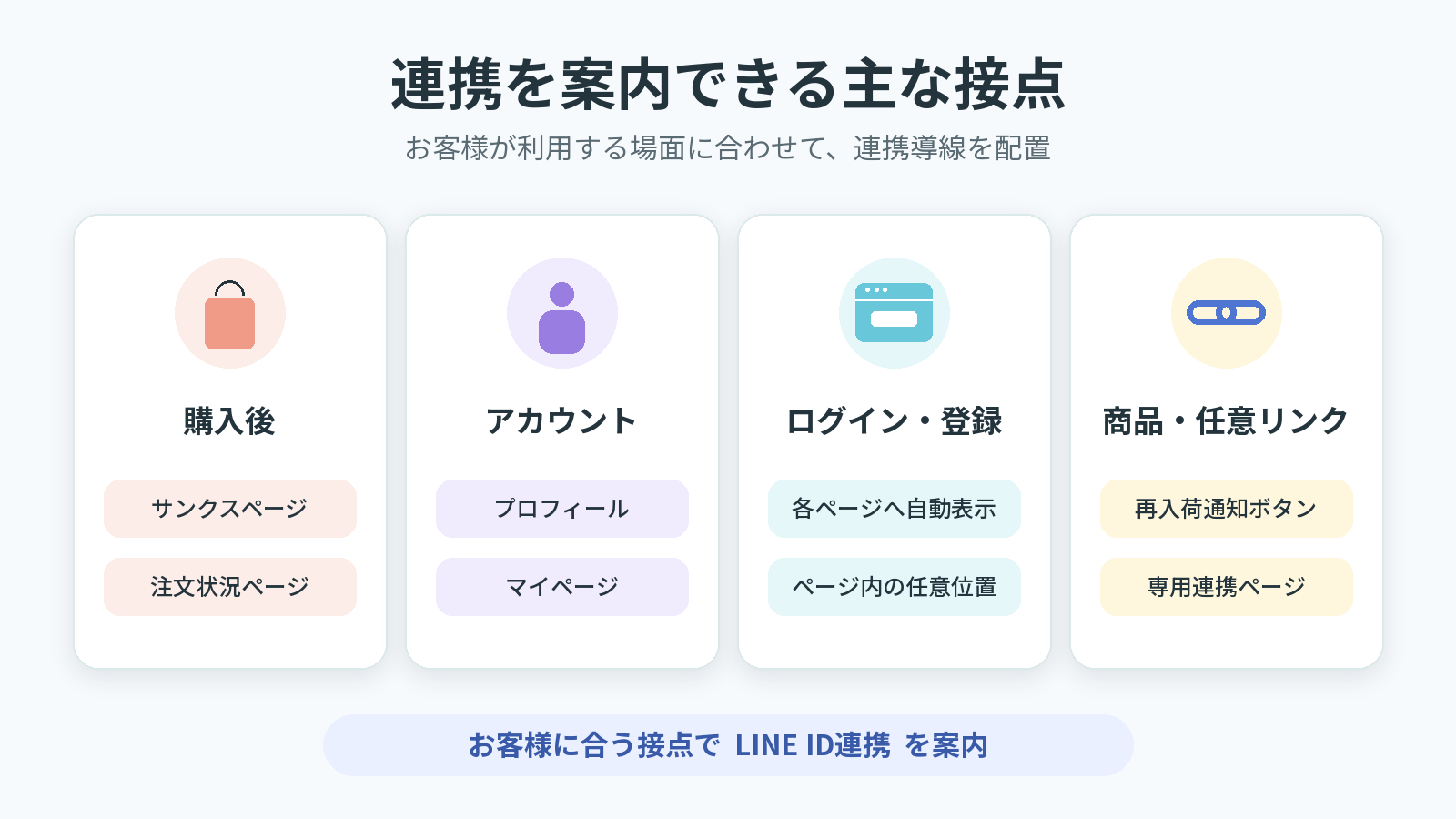](https://storecrm.com/content/features/line-id-linking/line-id-linking-touchpoints.png)
[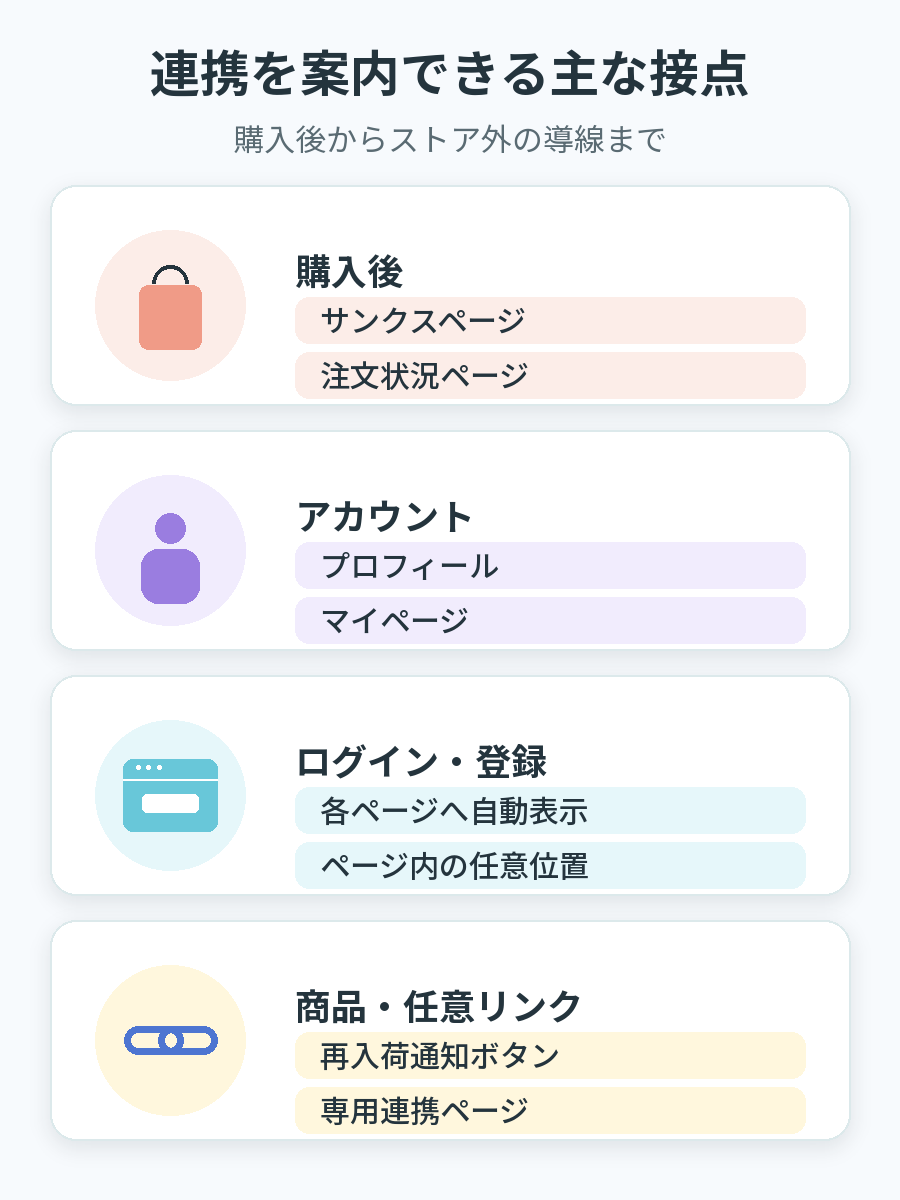](https://storecrm.com/content/features/line-id-linking/line-id-linking-touchpoints-mobile.png)
*Click the image to enlarge.*
### The post-purchase thank-you page and order status page
Add a LINE ID linking widget to the thank-you page shown right after checkout and to the order status page customers revisit later. It installs as a block from the checkout editor, with simple, detailed, and banner display modes, plus configurable headings, benefit copy, and images.
Beyond a widget dedicated to LINE ID linking, you can also show newsletter subscription preferences and LINE linking settings together in one place.
### The new customer account profile page and the account page
On the new customer account profile page, a LINE linking button can appear within the profile settings. On theme-based account pages, customers can see their current linking status and link or unlink with a tap.
That means the opportunity to link isn't limited to right after purchase — it's there every time customers check their account details.
### Anywhere on your login and signup pages
Add a "Log in with LINE" button to your login page and a "Sign up with LINE" button to your registration page. With a dedicated placement target on those pages, the LINE Login prompt can appear at any position you choose.
Match it to your store's membership flow: make it prominent where it matters most, and keep it available where customers might want it later.
### Prompts from product pages and custom links
Product pages can carry a "Get back-in-stock alerts on LINE" button. When an unlinked customer taps it, they're guided through LINE linking and then on to notification signup. See [one-step LINE back-in-stock alerts](https://storecrm.com/feature/line-back-in-stock/) for details.
You can also set up a dedicated LINE linking page within your store. Link to it from your LINE rich menu, emails, or theme links — creating linking opportunities from paths both inside and outside your store.
## Manage measurement and scenarios for each LINE linking journey
In the **LINE linking journeys** area of the admin, you can manage StoreCRM's built-in entry points alongside custom journeys you add yourself. Turn measurement on only for the journeys you want to track, then configure both linking performance and the scenario that should run after a customer links.
You can also measure a journey without selecting a scenario, so no automation starts after linking.
[](https://storecrm.com/content/features/line-id-linking/line-id-linking-route-settings.png)
[](https://storecrm.com/content/features/line-id-linking/line-id-linking-route-settings-mobile.png)
*StoreCRM admin interface with sample data. Click the image to enlarge.*
### Start a journey-specific scenario when linking is complete
Each journey can use a dedicated scenario whose start condition is **LINE linking completed**. For example, you might send an onboarding message after a customer links from their account page and a buyer-focused follow-up after they link post-purchase. This lets the next interaction reflect the touchpoint where linking happened.
Choose whether the scenario can run once per customer, once after a specified number of days, or every time the customer presses the linking button. A scenario starts only when the journey's measurement is enabled, the dedicated scenario is active, LINE can receive the message, and the other required conditions are met.
[](https://storecrm.com/content/features/line-id-linking/line-id-linking-route-scenario.png)
[](https://storecrm.com/content/features/line-id-linking/line-id-linking-route-scenario-mobile.png)
*StoreCRM admin interface with sample data. Click the image to enlarge.*
### Compare progress across linking journeys
The journey report compares how customers progress through **button start**, **LINE authentication succeeded**, **LINE ID linking completed**, and **scenario started** for each journey. Filter by period, journey, or automation; review trends and records that need attention; and use the results to decide which entry points to improve. Data can also be reviewed as a CSV when needed.
[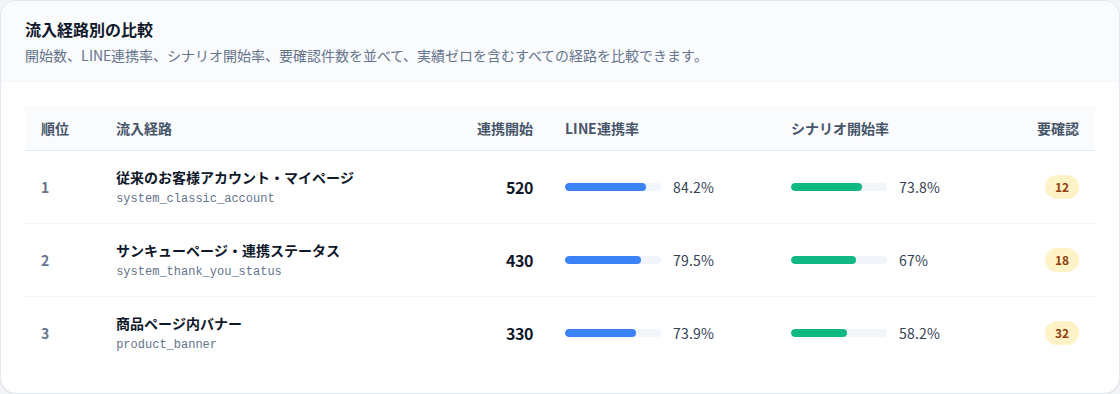](https://storecrm.com/content/features/line-id-linking/line-id-linking-route-report.png)
[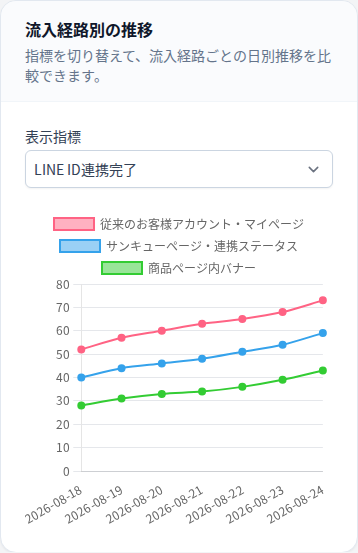](https://storecrm.com/content/features/line-id-linking/line-id-linking-route-report-mobile.png)
*StoreCRM admin interface with sample data. Click the image to enlarge.*
## Track linking and campaign results from the dashboard
The LINE dashboard shows currently linked customers, new links, unlinks, net growth during the selected period, and daily trends. Choose the last 7 days, 30 days, or 3 months.
The same screen's **Messaging and revenue results** area shows LINE sends, click-through rates, orders, LINE-attributed revenue, and performance by scenario and campaign. After adding more linking journeys, you can move from customer growth to delivery results without leaving the dashboard, making it easier to decide which journey or campaign to improve next.
[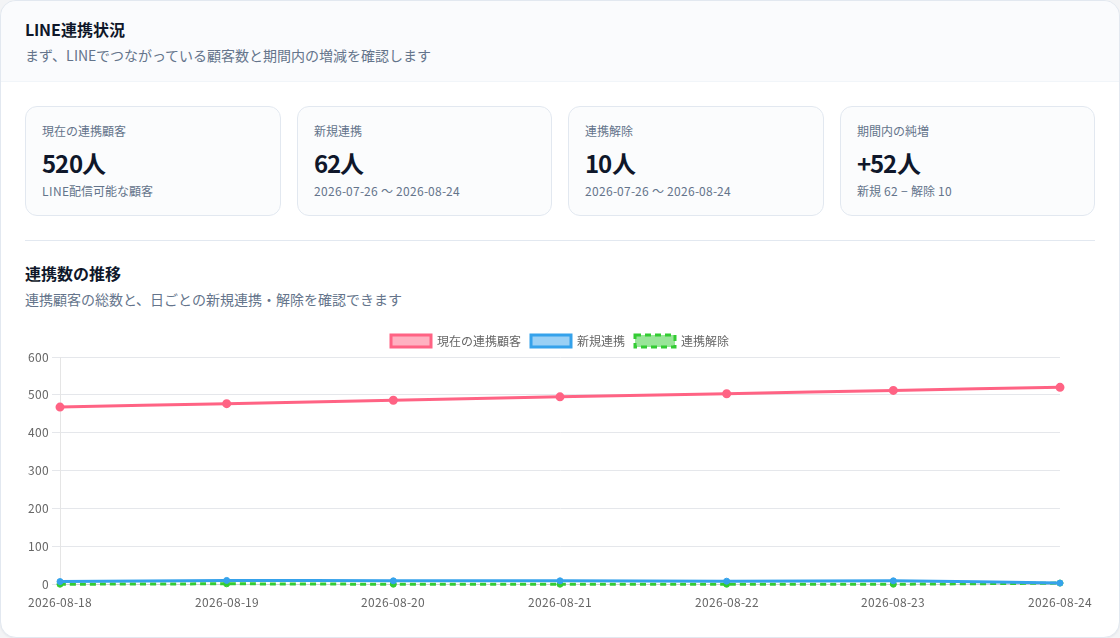](https://storecrm.com/content/features/line-id-linking/line-id-linking-dashboard.png)
[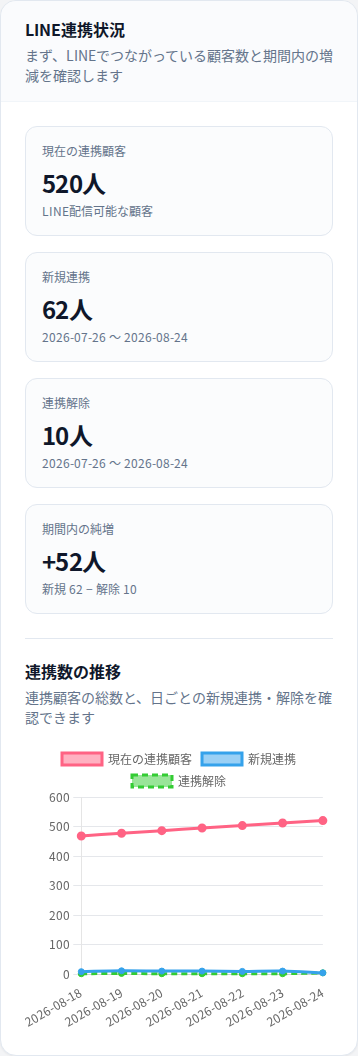](https://storecrm.com/content/features/line-id-linking/line-id-linking-dashboard-mobile.png)
*StoreCRM admin interface with sample data. Click the image to enlarge.*
## Put linked customer data to work in LINE campaigns
ID linking isn't just about growing a number. Feed the linked customer data into StoreCRM's scenario and segmented campaigns, and you can design LINE outreach shaped around each customer's situation.
[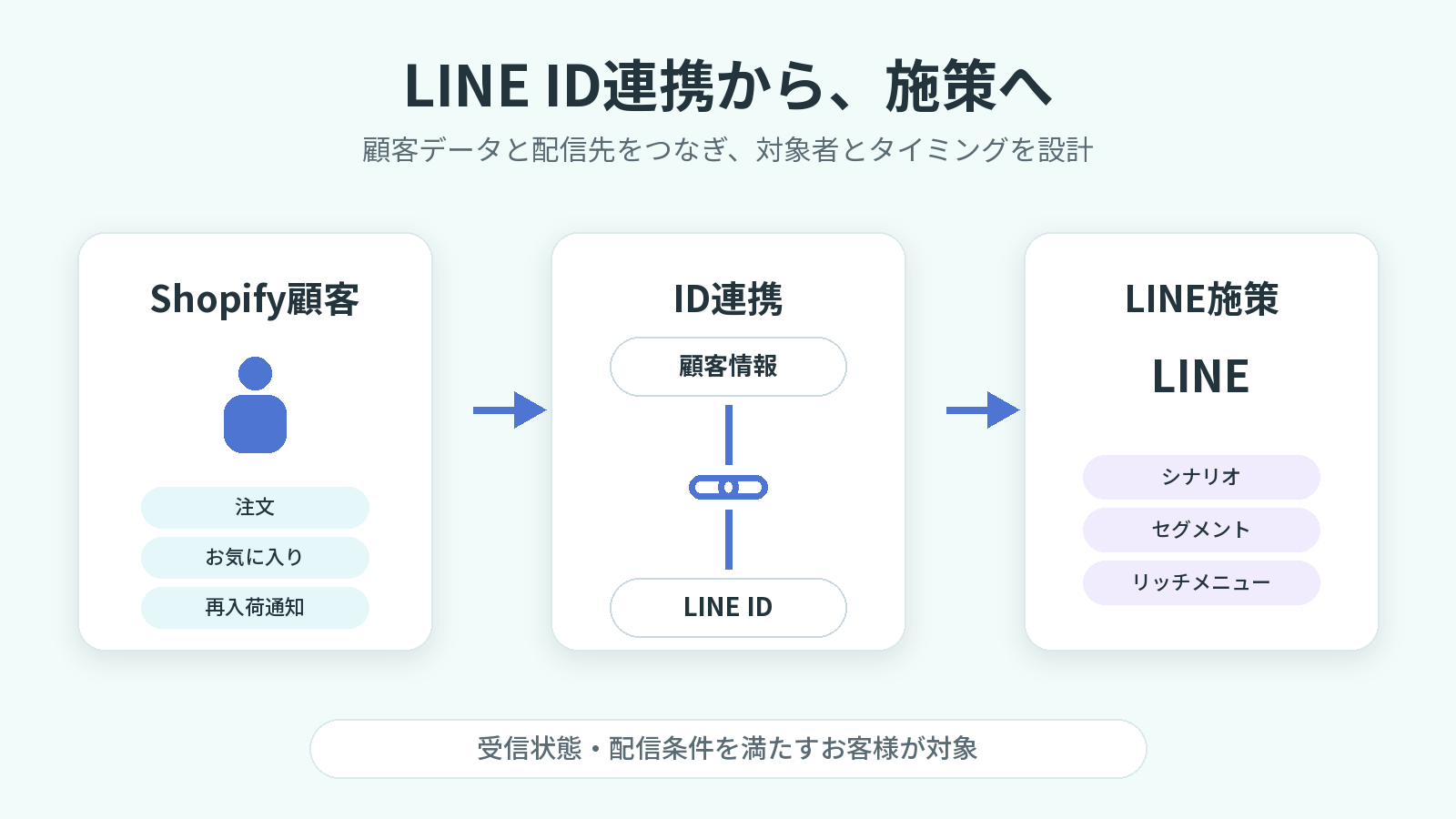](https://storecrm.com/content/features/line-id-linking/line-id-linking-marketing-flow.png)
[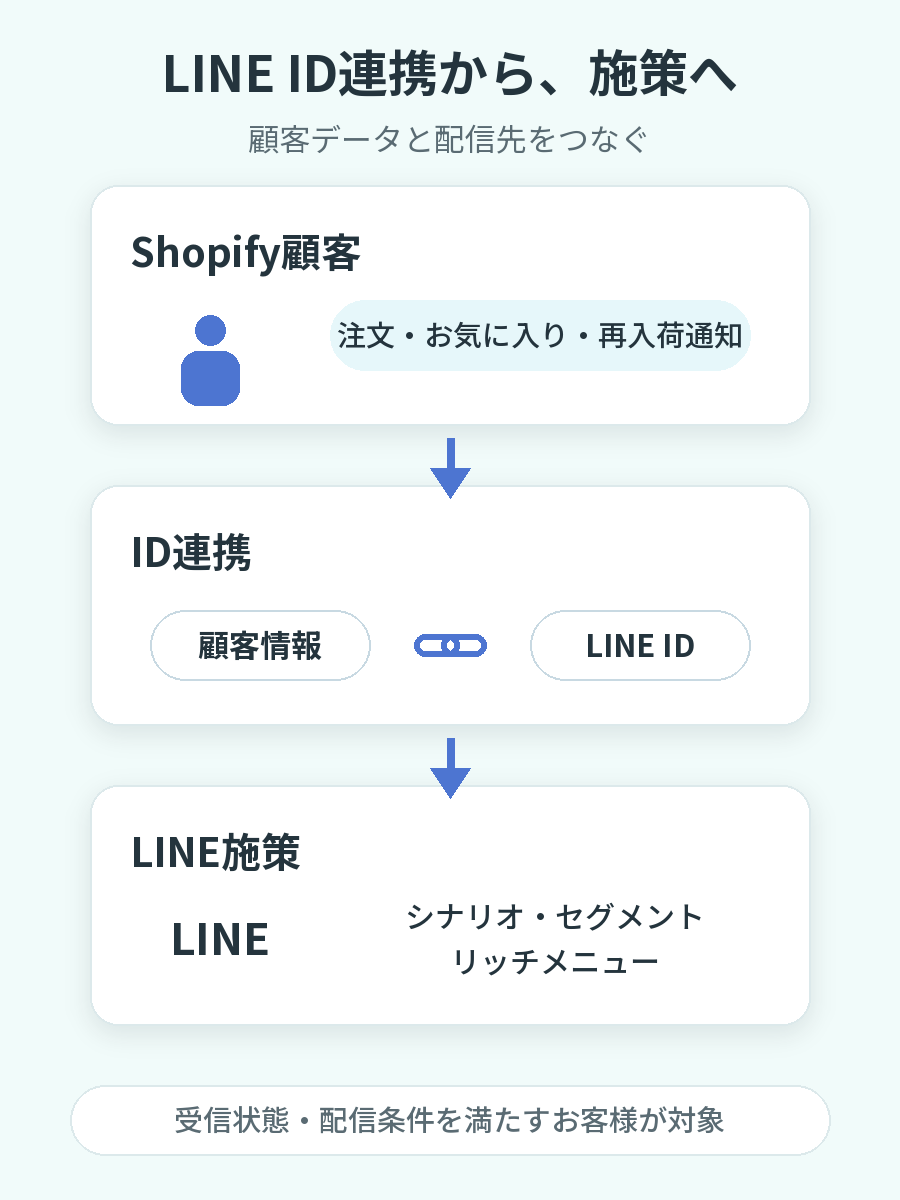](https://storecrm.com/content/features/line-id-linking/line-id-linking-marketing-flow-mobile.png)
*Click the image to enlarge.*
### Treat Shopify customers and LINE IDs as one customer
Orders, wishlists, back-in-stock signups — everything your Shopify store learns about a customer is managed as customer data tied to their LINE ID. Instead of fragmenting customers across channels, you get one foundation for deciding who to reach.
### Feed scenarios and segmented campaigns
Customers with linked LINE IDs who can receive LINE messages become eligible targets for your scenarios and segments. Extend that into whatever fits your goals: [post-purchase follow-up](https://storecrm.com/feature/purchase-complete/), [back-in-stock notifications](https://storecrm.com/feature/back-in-stock/), [win-back emails](https://storecrm.com/feature/win-back/), and more.
The actual audience for each delivery is determined by the customer's LINE reception status together with the targeting conditions set in each scenario or segment.
### Build LINE touchpoints around behavior and interests
Follow up with customers after a purchase, announce restocks of products they're watching, or reach out to customers who haven't bought in a while — all driven by customer data. Linked customer data can even power segment-based rich menu switching.
## How LINE ID linking works
1. Place LINE ID linking prompts at the touchpoints that fit your store, such as the thank-you page and the account page.
2. The customer taps the button and authenticates with LINE. Some prompts have them log in to the store first.
3. StoreCRM ties the Shopify customer record to the LINE ID and saves the linking status.
4. For measured journeys, a dedicated post-link scenario starts when its configuration, delivery status, and other requirements are met.
5. Use the dashboard and journey reports to track changes in linked customers and compare progress by entry point.
Give each placement its own role, and you can invite linking at a natural moment for everyone — customers discovering it right after their first purchase, and those returning to their account page later.
## FAQs
### Are LINE ID linking and LINE Login the same feature?
No, they're separate features. LINE Login is an authentication feature that lets customers log in to or sign up for your store with their LINE account. LINE ID linking ties a Shopify customer record and a LINE ID together as one customer. In StoreCRM, ID linking can also happen through the LINE Login flow.
### Does linking an ID guarantee I can send LINE messages?
ID linking is a prerequisite for LINE delivery, but it doesn't start deliveries on its own. The customer must be able to receive LINE messages and meet the targeting conditions set in your scenarios and segments. When you use a journey-specific scenario, measurement for that journey and the scenario itself must also be enabled.
### Can I place the widget on the checkout screen during payment?
No. The checkout screen mid-payment isn't supported. StoreCRM's checkout widgets work on the thank-you page shown right after purchase and on the post-purchase order status page.
### Can I invite linking from links outside the store?
Yes. You can link to the dedicated LINE linking page from your LINE rich menu, emails, and elsewhere. Using the dedicated page requires logging in to the store; customers who aren't logged in are prompted to do so.
## More doorways into LINE marketing, right inside your store
LINE ID linking is the first step in connecting your Shopify customer data with LINE. Place linking prompts post-purchase, on account and login pages, and on product pages, then manage journey-level measurement, post-link scenarios, and dashboard reporting in StoreCRM.
[Start for free (Shopify App Store)](https://apps.shopify.com/obake-ma)
========================================================================
# LINE rich menus
> Build LINE rich menus with two or three switchable tabs alongside the standard layout, and show different menus based on customer segments and LINE ID linking status.
- URL: https://storecrm.com/feature/line-rich-menu/
- Type: Features
- Published: 2026-08-14
- Updated: 2026-08-31
---
A LINE rich menu is the always-on menu shown at the bottom of your LINE Official Account chat screen. It gathers the entry points you want to promote in one place: product pages, campaigns, member pages, support contacts, and more.
With StoreCRM, you can build rich menus with two or three switchable tabs in addition to the standard single-panel layout for everyone. You can also show a different rich menu to each StoreCRM customer segment, tailoring what customers see to your relationship with them.
[Start for free (Shopify App Store)](https://apps.shopify.com/obake-ma)
## Don't settle for one menu for everyone
The rich menu is a path your friends see every time they open the chat screen. But when every customer gets the same menu, brand-new friends and loyal members all see identical information.
With StoreCRM, start with a menu for everyone, then show segment-specific menus to customers with linked LINE IDs as needed. Prompts for LINE ID linking, member services, and links to products and campaigns each get their place — without cramming everything into a single menu.
## What StoreCRM's LINE rich menus can do
### Choose a standard layout or two or three tabs
Beyond the standard single-panel layout, you can build menus with two or three switchable tabs. Set up purpose-driven tabs — say, "New arrivals," "Member perks," and "Support" — and keep your links organized even within the limited display area.
Each tab gets its own background image and tap areas. Use the standard layout when there's little to show, and the tabbed layout when you want to separate multiple purposes — whatever suits how your store operates.
[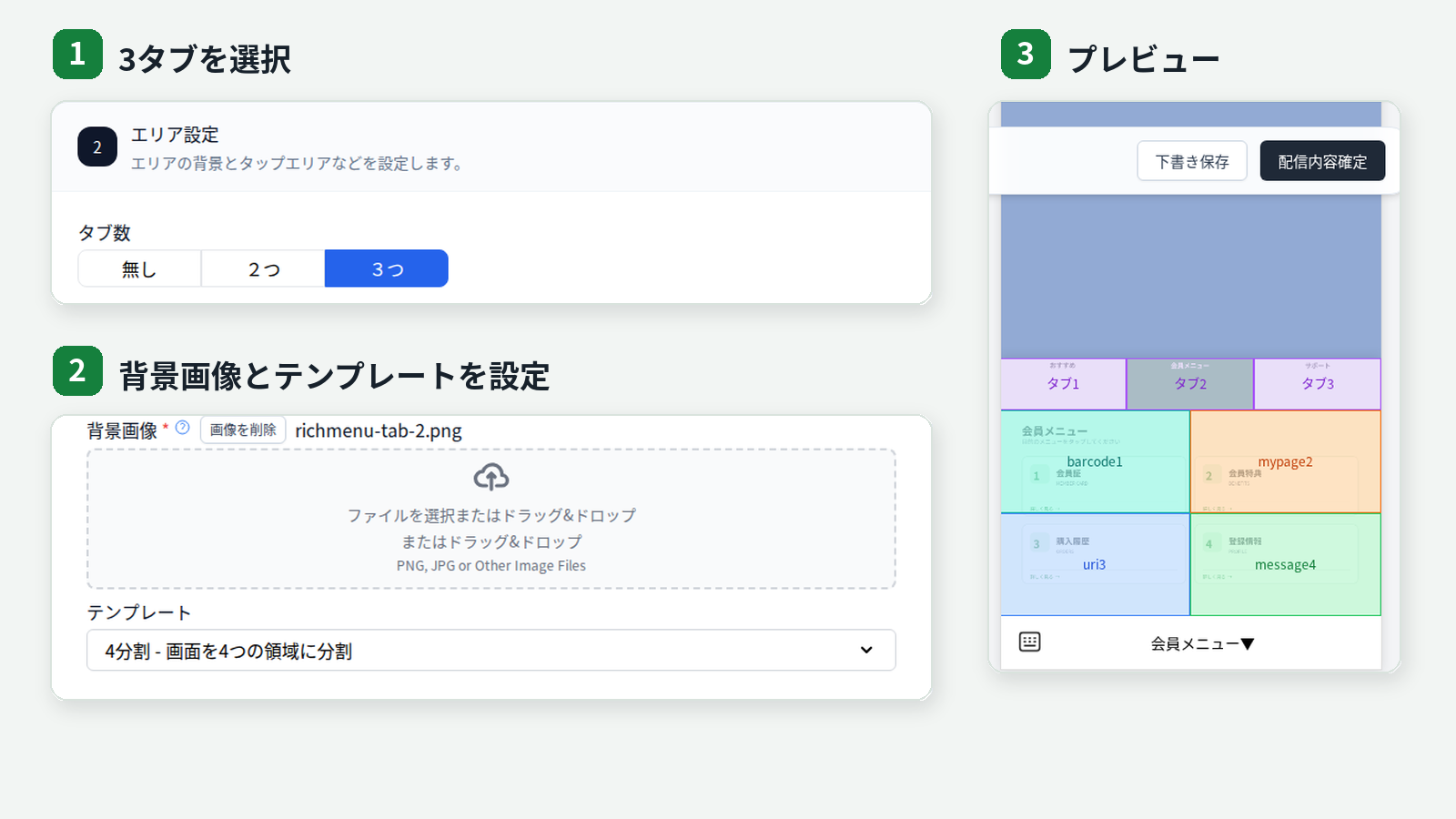](https://storecrm.com/content/features/line-rich-menu/line-rich-menu-editor-ui.png)
[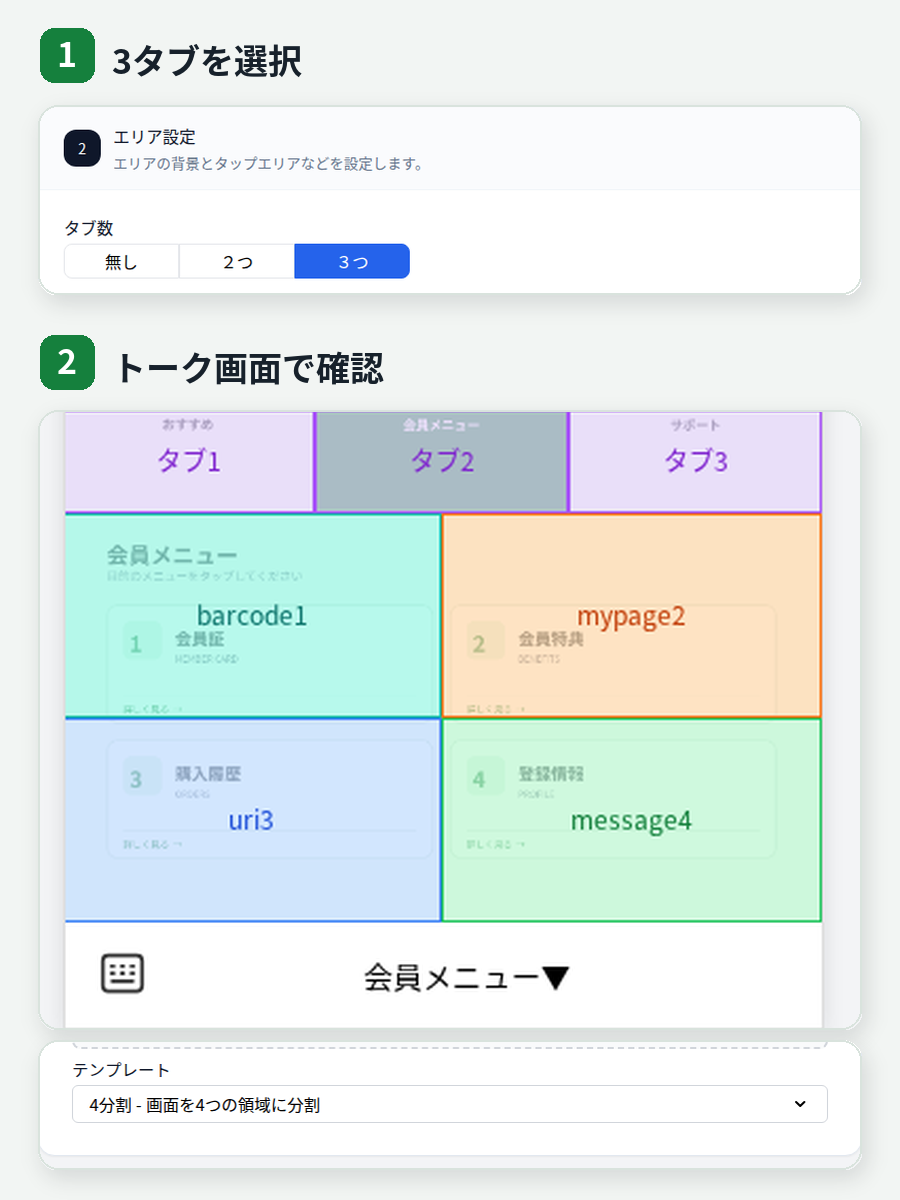](https://storecrm.com/content/features/line-rich-menu/line-rich-menu-editor-ui-mobile.png)
*Actual StoreCRM admin interface with sample data. Click the image to enlarge.*
### Show a different menu to each customer segment
Pick a StoreCRM customer segment — built from purchase history, customer tags, LINE linking status, and more — and show a separate rich menu to the customers in it.
For example, members with linked LINE IDs might see links to their account page and member perks, while customers who bought a specific product see related products and usage guides. The rich menu stops being a broadcast and becomes another place your StoreCRM customer data powers personalized service on LINE.
### Set a display period and tap actions
Each rich menu can have a start and end date and time, so limited-time campaigns and seasonal promotions appear only while they're relevant.
Tap areas within the image can link to any URL, such as a product page, or send a message. You can also configure whether the menu opens by default and the text shown in the chat bar.
### Guide customers from the rich menu to their LINE membership card
First register the LINE channel ID and channel secret under **LINE Login channel settings (for linking)**, then save the LIFF ID for the membership-card LIFF app under **LINE membership card settings**. You can then choose **Membership barcode** as the action for a rich-menu tap area. Customers can open the membership-card page from the menu and present their barcode in store.
On the membership-card page, customers who have not linked their LINE ID can be guided through account registration and LINE linking. Once linking is complete, the page displays their membership card.
[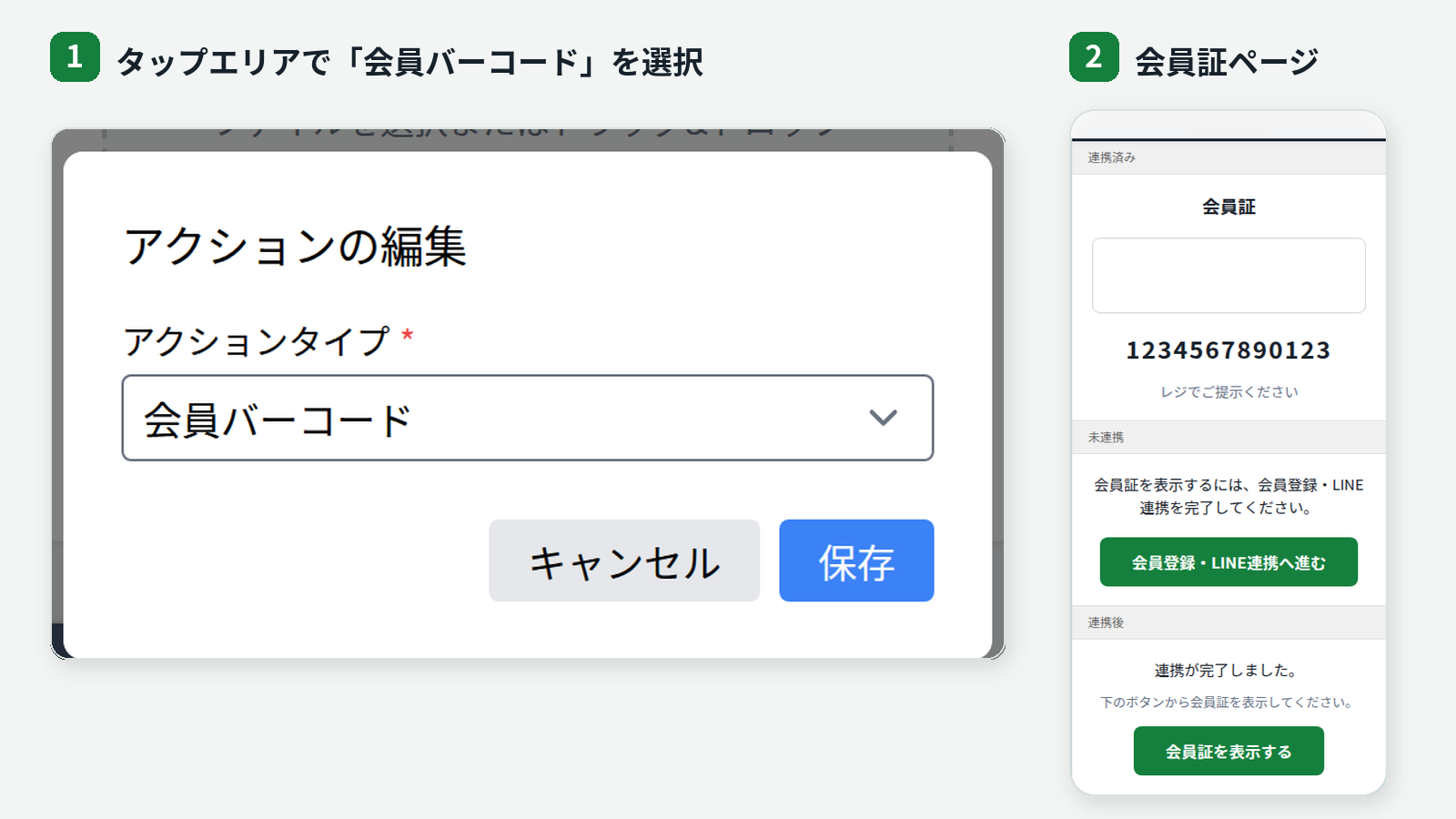](https://storecrm.com/content/features/line-rich-menu/line-rich-menu-member-card-ui.png)
[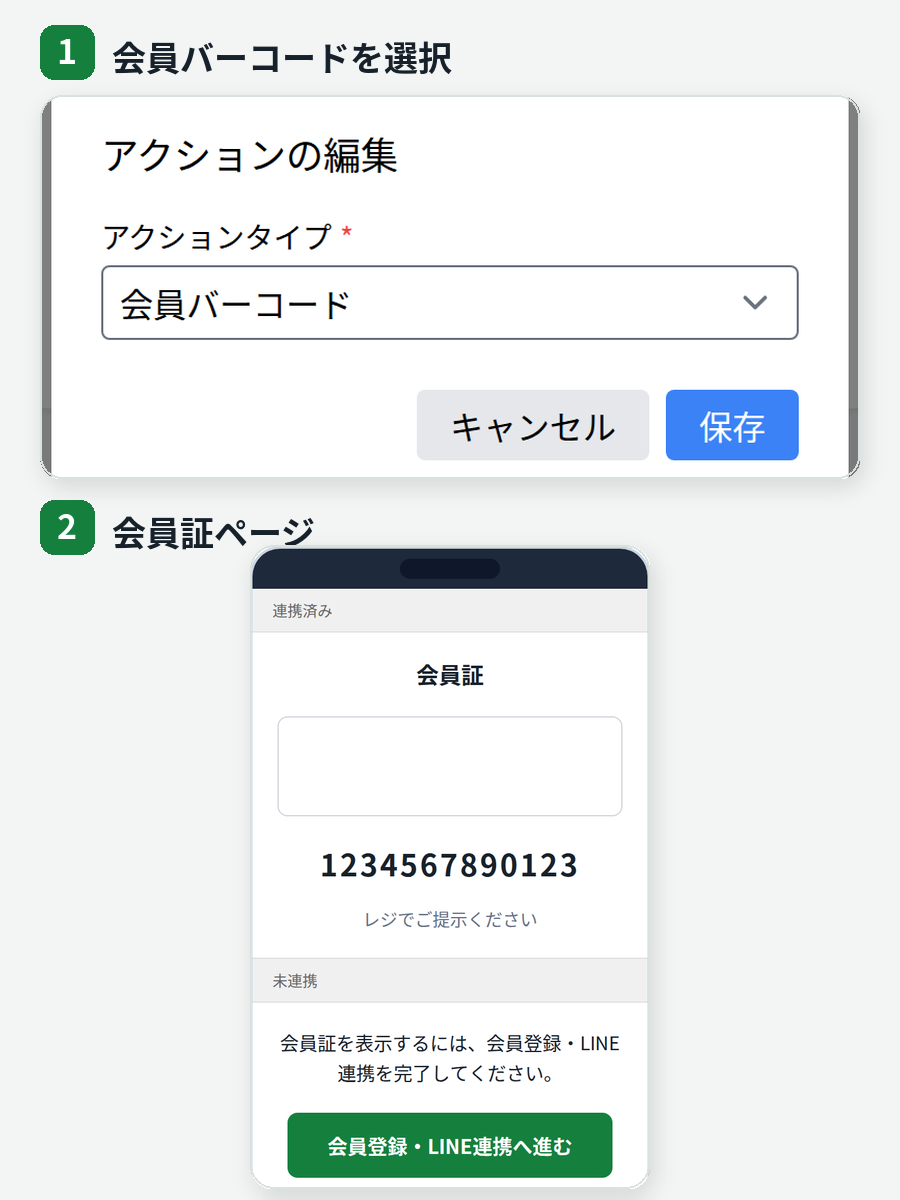](https://storecrm.com/content/features/line-rich-menu/line-rich-menu-member-card-ui-mobile.png)
*Actual settings and preview in the StoreCRM admin interface with sample data. Click the image to enlarge.*
## Combining menus by LINE ID linking status
To show different content to customers with and without linked LINE IDs, **combine a menu for everyone with segment-targeted menus for linked customers**. The key is to use the everyone menu as your foundation rather than trying to target unlinked friends individually.
Friends without an assigned segment menu see the everyone menu. Even customers with linked LINE IDs fall back to the everyone menu when they don't belong to a targeted segment.
### For customers without linked LINE IDs: promote linking in the everyone menu
In the menu shown to everyone, present the benefits of LINE ID linking and a link to your LINE linking page. Explain what customers get after linking — updates and member services — and guide them straight to your store's linking page.
### For customers with linked LINE IDs: show segment-specific menus
Create a customer segment with LINE linking status as a condition, and show a separate rich menu to linked customers. Split linked customers further by purchase history or customer tags, and you can design entry points matched to membership stage and interests.
[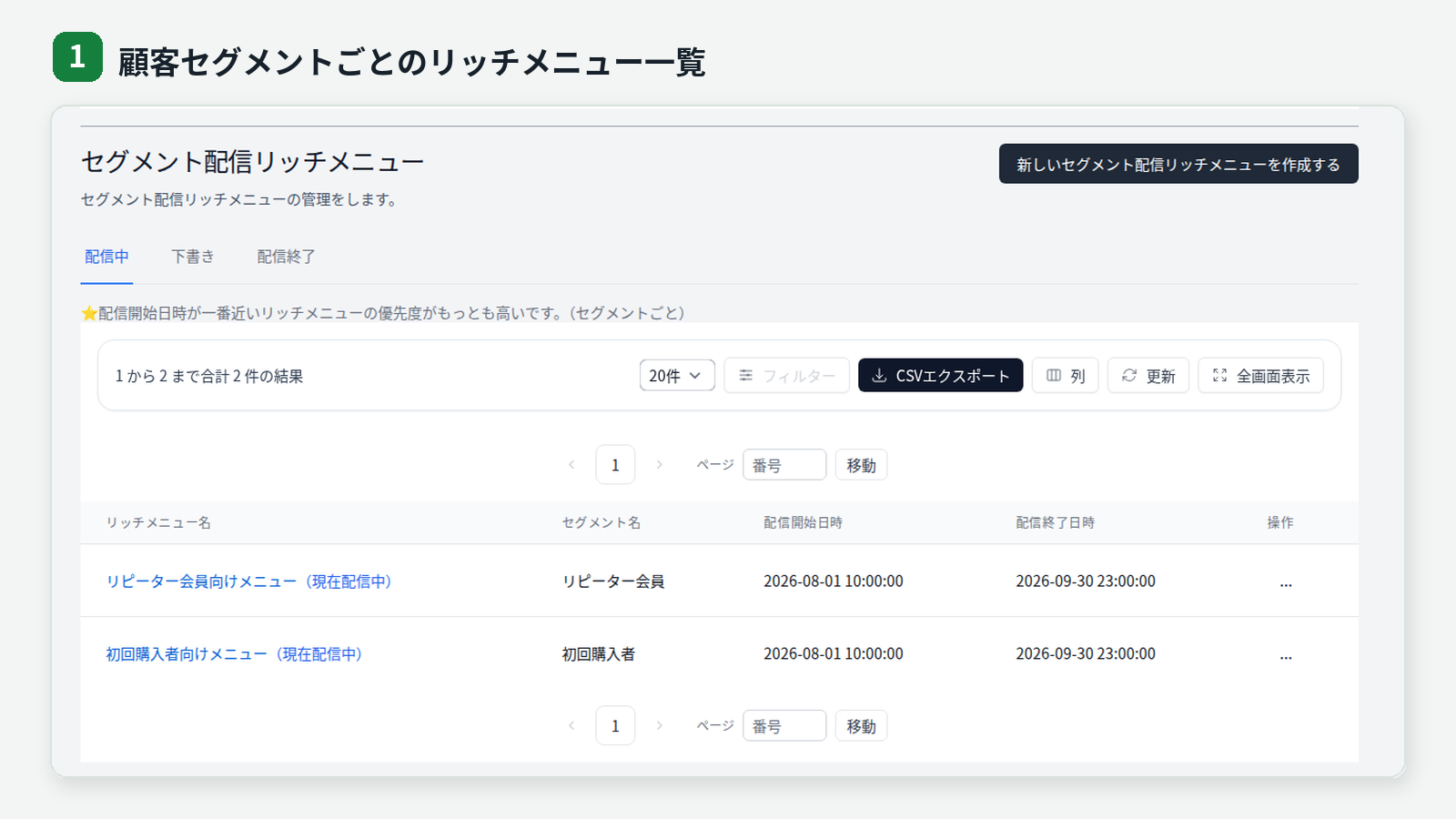](https://storecrm.com/content/features/line-rich-menu/line-rich-menu-segment-list-ui.png)
[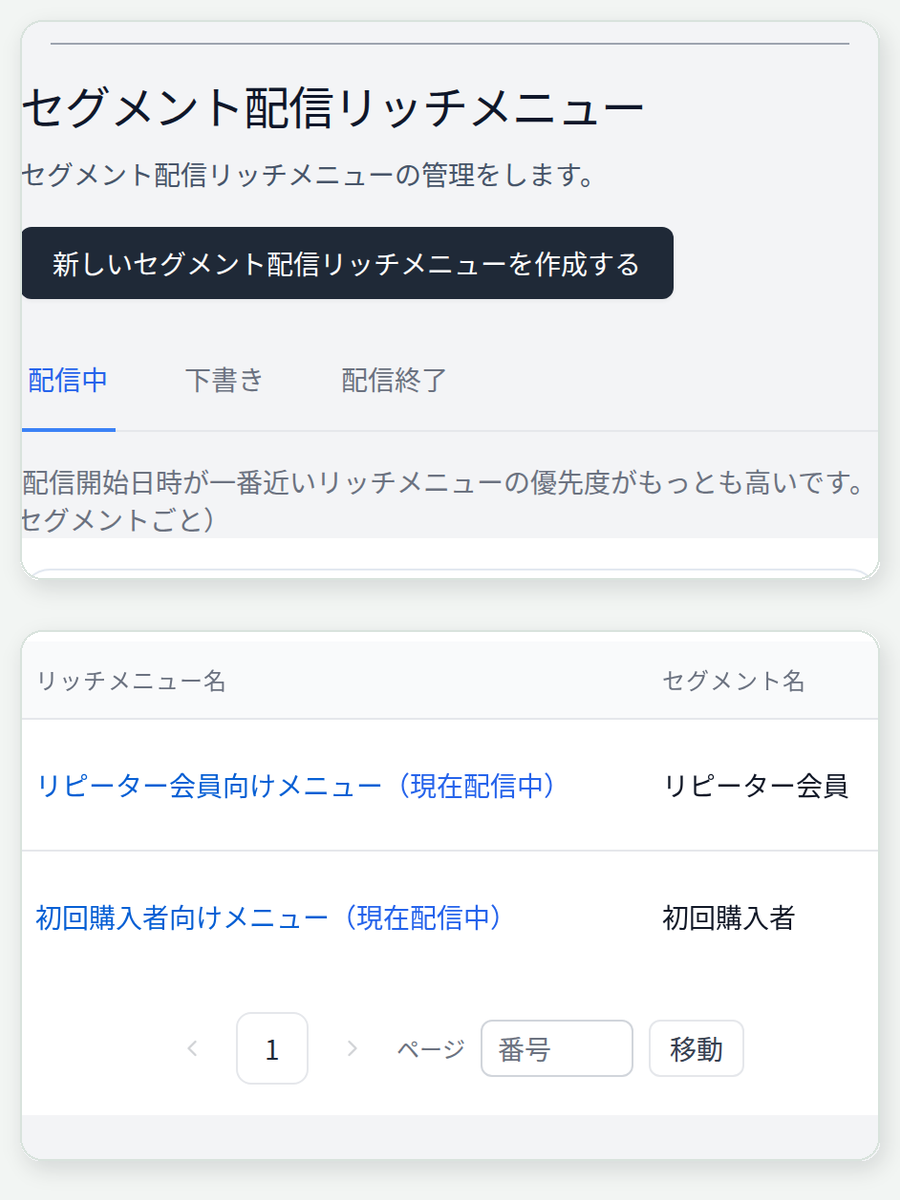](https://storecrm.com/content/features/line-rich-menu/line-rich-menu-segment-list-ui-mobile.png)
*Actual StoreCRM admin interface with sample data. Click the image to enlarge.*
## Marketing use cases
### Show new friends why linking LINE is worth it
In the everyone menu that customers see right after adding you as a friend, place an explanation of LINE ID linking and a button to the linking page. The always-visible menu on the chat screen tells them exactly what to do first.
### Vary the entry points by membership and interest
Split customers with linked LINE IDs by products purchased, customer tags, order count, and more, and give each segment its own entry points — member perks, related products, product how-tos, whatever you most want that customer to see.
### Switch menus just for a campaign
Set the display period to match a sale, early-access launch, or event. Build limited-time entry points knowing the menu reverts to your regular one when the campaign ends.
### Organize products, membership cards, and support into tabs
Keep product discovery on one tab and the LINE membership card, account page, and support on another. Organizing your store's entry points on LINE helps customers find the page they're after.
## From creation to delivery
1. **Choose the audience**: everyone, or the customer segment that should see this rich menu.
2. **Set the display period**: start and end date and time, default open state, and chat bar text.
3. **Pick a layout**: standard, two-tab, or three-tab, and register a background image for each panel.
4. **Configure tap areas**: choose a template and assign actions such as links, messages, and the membership barcode.
5. **Review and activate**: check the display and behavior in the preview and in the actual LINE chat screen.
To deliver LINE rich menus, register a Messaging API channel access token in StoreCRM's LINE settings. For segment-targeted menus, the target customers must also have linked LINE IDs and be able to receive LINE messages. To use the membership card, also register the LINE channel ID and channel secret under **LINE Login channel settings (for linking)** and save the membership-card LIFF app's LIFF ID under **LINE membership card settings**.
## FAQs
### Can I create a standard rich menu?
Yes. Set the tab count to "none" to create a single-panel standard rich menu.
### How many tabs can I set?
Two or three. When there's little to display, you can also choose the standard layout without tabs.
### Can I show an individual rich menu to friends without linked LINE IDs?
Unlinked friends can't be identified as StoreCRM customers, so they see the everyone menu rather than an individually targeted one. Use the everyone menu to present the benefits of LINE linking and the linking page, then switch linked customers over to segment-targeted menus.
### What customer segments can I use?
Any customer segment created in StoreCRM, with conditions such as LINE linking status, purchase history, customer tags, and order count. Segment-targeted rich menus are actually shown to customers who have linked their LINE IDs and can receive LINE messages.
### Can the menu stop showing automatically when a campaign ends?
Yes. Set a start and end date and time, and outside that window the rich menu is no longer shown.
## Turn your always-on LINE menu into a personalized touchpoint
Combine standard and tabbed layouts, and everyone and segment-targeted menus, and your LINE rich menu becomes more than a store signpost — it becomes a marketing channel powered by your customer data.
[Start for free (Shopify App Store)](https://apps.shopify.com/obake-ma)
### Setup guides
- [How to deliver tabbed LINE rich menus on Shopify](https://storecrm.com/knowhow/line-lichmenu/)
- [How to connect Shopify with a LINE Official Account](https://storecrm.com/help/en/setting/line/)
- [How to create customer segments](https://storecrm.com/help/en/setting/segment/)
- [How to add LINE ID linking prompts to your Shopify store](https://storecrm.com/knowhow/line-connect-banner/)
========================================================================
# Coupon expiry reminders
> Add follow-up email and LINE messages to the coupon scenarios you already run, such as birthday notifications and win-back emails. Set up a drip sequence that reminds customers before their coupon expires.
- URL: https://storecrm.com/feature/missed-coupon/
- Type: Features
- Published: 2025-08-15
- Updated: 2026-07-31
---
Coupon expiry reminders build on the coupon scenarios you already run, such as [birthday notifications](https://storecrm.com/knowhow/shopify-birthday-mail/) and [win-back emails](https://storecrm.com/feature/win-back/). Rather than adding a separate delivery trigger, you add follow-up messages and wait times to an existing scenario, turning the run-up to the expiration date into a drip sequence.
The first message delivers the coupon; as the deadline approaches, a second message goes out via email or LINE. You can also enable a setting that stops the remaining messages once the coupon has been used.
[Start for free (Shopify App Store)](https://apps.shopify.com/obake-ma)
## A second expiry reminder lifted scenario revenue by 40%
StoreCRM's data shows that announcing the coupon's upcoming expiration in a second email—rather than sending the coupon just once—increased revenue through the scenario by 40%.
\* This is an observed result comparing a single coupon send against a sequence that added an expiry reminder as the second message.
\* It is an observed value based on StoreCRM's delivery data; results vary by message content, audience, store, and other conditions. It is not a guarantee of results.
\* The second-message expiry reminder approach is also featured in [the +CLOTHET case study](https://storecrm.com/introduction/crossclothet-interview/).
## Don't let your coupon campaign end after one send
Beyond delivering the coupon in the first message, remind customers again as the expiration date approaches. It gives shoppers who forgot the deadline a reason to come back to the product they were considering.
[](https://storecrm.com/content/features/missed-coupon/missed-coupon-scenario-flow.png)
[](https://storecrm.com/content/features/missed-coupon/missed-coupon-scenario-flow-mobile.png)
*Click the image to enlarge.*
### Deliver the coupon in the first message
Embed a coupon in messages to customers celebrating a birthday or those who have not purchased in a while. Set the discount and expiration date to match your store's campaign.
### Announce the expiration date in the second
Set a wait time after the first message, then let the second one tell customers the deadline is near. Instead of packing everything into the first message, you can split the content and timing across the sequence.
### Stop remaining messages once the coupon is used
Enable "stop sending messages once the coupon is used," and the remaining messages halt when the target coupon is confirmed as redeemed. This keeps customers who have already used their coupon from receiving further expiry reminders.
## Remind customers via email and LINE, timed to the deadline
Each step can carry both an email and a LINE message. You can vary the channel and content between the first and second messages, or use both channels within the same scenario.
[](https://storecrm.com/content/features/missed-coupon/missed-coupon-step-settings.png)
[](https://storecrm.com/content/features/missed-coupon/missed-coupon-step-settings-mobile.png)
*Click the image to enlarge.*
### Choose the channel that fits each customer
Email and LINE can each be configured. Actual delivery goes to customers who meet each channel's requirements—marketing consent for email, and LINE ID linking and a reachable receiving status for LINE.
### Set a wait time for each message
The interval from the first message to the second can be set in minutes, hours, or days, so each store can time its reminders to the coupon's expiration date.
## Turn existing scenarios into drip sequences
Coupon expiry reminders are not a standalone scenario with their own audience selection. You add follow-up messages to an existing coupon scenario and run it as a drip sequence.
### Build on birthday notifications
Add a second message announcing the expiration date to a scenario that delivers birthday coupons. The celebration and the deadline reminder arrive at separate moments.
### Build on win-back emails
You can also add an expiry reminder to win-back emails that deliver coupons to customers who have not purchased in a while. Instead of a single nudge to return, the invitation arrives in stages.
### Turn follow-ups into a drip sequence
The same approach works in any scenario that supports automatic coupon issuance and follow-up messages. Give each message its own content and wait time, designing the sequence around the run-up to the deadline.
## Review the results and improve
Delivery reports show email opens, clicks on links in your messages, and purchases attributed to StoreCRM. Filter by scenario or message to review performance and refine the second message's content and timing.
## Frequently asked questions
### Do I create a new scenario just for coupon expiry reminders?
No. You build on an existing coupon scenario, such as a birthday notification or win-back email, adding follow-up messages and wait times to run it as a drip sequence.
### Can I send via both email and LINE?
Yes. Each step can carry both an email and a LINE message. Emails go to customers who meet requirements such as marketing consent; LINE messages go to customers who have linked their LINE ID with your store and can receive messages.
### Will expiry reminders keep going out after the coupon is used?
You can enable a setting that stops the remaining messages once the target coupon is confirmed as used. Turn it on if you don't want customers to receive expiry reminders after redeeming their coupon.
## Turn coupon redemptions into the next purchase
Don't let birthday notifications or win-back emails end after a single send—bring the expiry reminder into the same scenario. With StoreCRM, you can build a drip sequence that combines email, LINE, and follow-up messages.
[Start for free (Shopify App Store)](https://apps.shopify.com/obake-ma)
For setup instructions, see [creating emails](https://storecrm.com/help/en/setting/mail/), [scenario execution conditions](https://storecrm.com/help/en/setting/scenario-conditions/), and [coupon settings](https://storecrm.com/help/en/setting/coupon/).
========================================================================
# One-step LINE back-in-stock alerts
> Invite customers waiting for a sold-out product to sign up for LINE back-in-stock alerts right on the product page. Even customers who are not logged in to your store can register just by linking their LINE account.
- URL: https://storecrm.com/feature/line-back-in-stock/
- Type: Features
- Published: 2025-07-19
- Updated: 2026-07-29
---
Add a signup path to your product pages so customers waiting for a sold-out item can get notified via LINE when it comes back in stock.
Customers tap a button on the product page, link their LINE account, and sign up for the back-in-stock alert in one flow — no store login required. For customers who are already logged in with a linked LINE ID, you can optionally enable one-click signup with a single button press.
When stock returns to your configured threshold, StoreCRM kicks off the back-in-stock scenario and notifies customers on LINE according to the wait times and delivery conditions you set. Signup collection, delivery, and subscriber tracking are all managed in StoreCRM.
[Start for free (Shopify App Store)](https://apps.shopify.com/obake-ma)
## LINE back-in-stock alerts get stronger responses than email
Across StoreCRM's delivery data, LINE back-in-stock notifications outperformed email back-in-stock notifications on both click rate and revenue per message.
Delivery results: LINE back-in-stock notifications vs. email back-in-stock notifications
Metric
LINE back-in-stock alerts
Email back-in-stock alerts
Difference
Click rate
38.9%
16.3%
~2.4x
Revenue per message was also roughly 2.4 times that of email back-in-stock notifications.
LINE messages arrive as push notifications that are hard to miss — a great match for the "I want to buy it the moment it's back" mindset — so even a small number of deliveries tends to produce a strong response.
* The aggregation period covers all deliveries in StoreCRM (excluding test deliveries): 9,403 LINE back-in-stock notifications and 419,295 email back-in-stock notifications. Messages were classified as back-in-stock notifications when their template name or subject line indicated a restock.
* Because LINE does not support open tracking, this comparison uses click rate and revenue per message.
* Revenue is based on orders that StoreCRM attributed to each delivery (the attribution window follows the system's own logic).
* This comparison is an observation based on StoreCRM's delivery data and does not demonstrate a causal effect of LINE back-in-stock notifications.
## Signup flows that adapt to each customer's LINE status
By linking their LINE account, customers can sign up for back-in-stock alerts even without logging in to your store. For customers who are logged in with a linked LINE ID, enabling one-click signup lets them register with a single button press.
Customers who haven't linked LINE yet are guided through the linking screen and can sign up once linking is complete. For logged-in customers, you can optionally have the selected product and variant registered automatically after linking.
Because this works as part of StoreCRM's back-in-stock feature, there's no need to add a separate back-in-stock app. You do need StoreCRM installed and an initial connection to your LINE Official Account.
## What one-step LINE back-in-stock alerts can do
### Add a LINE notification button to sold-out products
Add the app block to your product template to show a "Get back-in-stock alerts on LINE" button on sold-out product pages.
It works alongside the email back-in-stock button, so customers can choose how they want to be notified.
[](https://storecrm.com/content/features/line-back-in-stock/line-restock-storefront-button.jpg)
For standard back-in-stock notifications via email and LINE, see the [back-in-stock notifications feature page](https://storecrm.com/feature/back-in-stock/).
### Fewer steps for customers who are already set up
Customers who are logged in with a linked LINE ID can complete signup with a single button press, if you enable it. For products and variants they've already registered, the button can switch to a "signed up" state.
Customers who haven't linked LINE are guided through linking first. No email address is required to sign up for LINE notifications.
### LINE delivery triggered by restocks
When the target product's stock returns to your configured threshold, StoreCRM starts the back-in-stock scenario. Delivery then follows the wait times and conditions defined in the scenario.
Notifications are triggered by restocks of the specific variant each customer selected at signup.
### Track subscribers in the admin
Back-in-stock subscribers are visible in the StoreCRM admin. Email and LINE signups live in the same feature, so you can manage your restock audience in one place instead of across separate tools.
## The signup flow for customers without a linked LINE account
### 1. Tap the button on the product page
The customer starts from the "Get back-in-stock alerts on LINE" button shown on the sold-out product page.
### 2. Link their LINE account
The signup screen leads them into LINE linking. The first time, a step such as LINE Login is required to confirm where notifications should be sent.
### 3. Return to the product page and sign up
After linking, the customer returns to the product page. If post-linking auto-registration is enabled, the selected product and variant are registered automatically. Otherwise, the customer enables the LINE back-in-stock alert from the signup screen.
Here's an example of the flow where the customer returns to the product page and turns on the notification.
[](https://storecrm.com/content/features/line-back-in-stock/line-restock-customer-flow.png)
[](https://storecrm.com/content/features/line-back-in-stock/line-restock-customer-flow-mobile.png)
* With one-click signup for logged-in customers with linked LINE IDs, or with post-linking auto-registration enabled, some of these steps are skipped.
## Style it to match your store
From the LINE tab under Settings > Back-in-stock settings, you can adjust the wording, color, size, corner radius, font weight, and placement of the LINE notification button on product pages — a signup path that stands out on sold-out items while staying true to your theme.
The signup screen is also configurable: title, description, button labels, colors, and the completion message can all match your store's tone.
## Before you start
To use one-step LINE back-in-stock alerts, you'll need:
- StoreCRM connected to your LINE Official Account
- Messaging API and LINE Login channel configured
- The LINE back-in-stock block added to your product template
- A back-in-stock scenario created and enabled
- A pricing plan that includes back-in-stock notifications
For the initial LINE Official Account connection, see [how to connect Shopify with a LINE Official Account](https://storecrm.com/help/en/setting/line/). For how signup behaves for each login/membership and LINE-linking state, see [back-in-stock login and membership settings](https://storecrm.com/help/en/setting/restock-member-login/). For back-in-stock configuration overall, see [how to set up back-in-stock notifications](https://storecrm.com/help/en/setting/back-in-stock/).
Check features and pricing by plan in the [pricing simulator](https://storecrm.com/price/).
## FAQs
### Do customers need to log in to the Shopify store?
No. By linking their LINE account, customers can sign up for back-in-stock alerts without logging in to your store. For customers who are logged in with a linked LINE ID, you can also enable one-press "one-click signup."
### Can customers who haven't linked LINE sign up?
Yes. From the signup screen on the product page, they proceed to LINE linking and can register once it's complete. For logged-in customers, depending on your settings, the selected product and variant can be registered automatically when they return to the product page after linking.
### Can I use this alongside email back-in-stock notifications?
Yes. You can place both email and LINE back-in-stock buttons on your product pages, giving customers more than one way to receive alerts.
### Do I need a separate LINE Official Account?
Yes. You'll need a LINE Official Account for your store and connect it to StoreCRM. If you already run a LINE Official Account, you can use that account.
### Which plans include this feature?
Availability depends on your pricing model. In the "email and LINE" pricing model it's available on the Pro plan or above, and the "LINE only" pricing model also has plans that include back-in-stock notifications. See the [pricing simulator](https://storecrm.com/price/) for current pricing and features.
## Turn stockouts into your next sale with LINE
Just by linking LINE from the product page, even customers who aren't logged in to your store can sign up for back-in-stock alerts. For logged-in customers with linked LINE IDs, you can offer one-press "one-click signup" too.
Combined with email back-in-stock notifications, it's one more way to stay connected with customers waiting for your products.
[Start for free (Shopify App Store)](https://apps.shopify.com/obake-ma)
========================================================================
# Shipping follow-up
> Automatically send email and LINE messages after an order ships in Shopify. From delivery details to post-arrival follow-up, scenario and drip campaigns enrich the customer experience after shipping.
- URL: https://storecrm.com/feature/shipping-completed/
- Type: Features
- Published: 2025-02-03
- Updated: 2026-07-31
---
StoreCRM's shipping follow-up automatically sends post-shipping information and follow-up messages via email and LINE, separate from Shopify's standard shipping notification. Using the moment an order finishes shipping in Shopify as the trigger, you set wait times and bring everything—from delivery details to follow-up after the package arrives—into a single scenario.
Because you can also configure follow-up messages and their wait times, it works not just for a one-off message but as a full post-shipping drip sequence.
[Start for free (Shopify App Store)](https://apps.shopify.com/obake-ma)
## Ease pre-delivery anxiety with a post-shipping message
The window between shipping and delivery is when customers care most about where their package is. Beyond confirming the shipment, a clear message with the tracking number, contact details, and anything else needed before delivery tells customers exactly what to check next.
You don't have to stop at the shipping confirmation, either: usage tips, care instructions, and support information can follow in stages after the package arrives. By keeping delivery updates and promotions out of the same message and timing each one to fit its content, you connect the post-shipping customer experience with care.
## Shipping follow-up emails outperform regular newsletters
When we aggregated actual StoreCRM delivery data, shipping follow-up emails outperformed regular newsletters and other sends on click rate, conversion rate, and revenue per email sent.
Delivery performance comparison between shipping follow-up emails and regular newsletters and other sends
Metric
Shipping follow-up emails
Regular newsletters and other sends
Difference
Click rate
36.0%
4.4%
About 8.2x
Conversion rate
0.55%
0.19%
About 2.9x
Revenue per email sent was also about 6.6 times that of regular newsletters and other sends.
Shipping follow-up emails also tend to be opened repeatedly as customers check on their delivery, and total opens during the aggregation period exceeded the number of emails sent. While waiting for a package to arrive, customers are highly engaged with your store—making it an ideal moment to build a touchpoint.
\* The aggregation period covers all deliveries in StoreCRM (excluding test sends), comprising 58,697 shipping follow-up emails and 20,909,757 regular newsletters and other emails. Deliveries whose email name or subject contains "shipping" or "shipment" (excluding those containing "schedule" or "apology") are classified as shipping follow-up; all other email deliveries are aggregated as "regular newsletters and other sends."
\* Open rate is not used in the table because opens are counted cumulatively, including repeat opens of the same email.
\* Conversion rate and revenue are aggregated from orders that StoreCRM attributed to each delivery (revenue is limited to orders denominated in Japanese yen; the attribution window after delivery follows the system's own logic).
\* This comparison reflects observed results from StoreCRM's delivery data and does not demonstrate a causal effect of shipping follow-up messages.
## Bring the whole post-shipping experience into one scenario
With shipping completion as the trigger, you can automate everything from pre-delivery updates to follow-up after the package arrives. Give each message its own role and timing, and the right information reaches customers in the right order.
[](https://storecrm.com/content/features/shipping-completed/shipping-notification-customer-experience.png)
[](https://storecrm.com/content/features/shipping-completed/shipping-notification-customer-experience-mobile.png)
*Click the image to enlarge.*
### Confirm the shipment and share what customers need before delivery
The first message can announce that the order has shipped and include the tracking number, contact details, and more. Making it easy to check delivery status gives customers a clear picture of when to expect their package.
### Deliver helpful information when the product is in use
Follow-up messages can cover product usage, care instructions, frequently asked questions, and where to get support. Time them to arrive around delivery, and you can answer the questions customers are likely to have right after unboxing.
### Deliver messages that build the next stage of the relationship
Review requests, related-product recommendations, coupons, and more can be woven in wherever they fit the post-shipping flow. By splitting content and timing across messages, you avoid cramming everything into the initial delivery update.
## Email and LINE, delivered on your schedule
StoreCRM's shipping follow-up supports both email and LINE within a scenario. You can adjust the delay from shipping completion to the first message, as well as the wait times between the first message and each follow-up, in minutes, hours, or days.
[](https://storecrm.com/content/features/shipping-completed/shipping-notification-step-settings.png)
[](https://storecrm.com/content/features/shipping-completed/shipping-notification-step-settings-mobile.png)
*Click the image to enlarge.*
### Choose the channel that fits each customer
Post-shipping follow-up can combine email and LINE. LINE delivery requires that the purchasing customer has linked their LINE ID and can receive messages, such as being a friend of your account. Email delivery also has its own requirements, such as a valid recipient and consent, which you configure to match the purpose and content of each send.
### Turn follow-ups into a drip sequence
Enable "send a second message" to configure content and a wait time different from the first message. You can keep adding messages, delivering them in stages that follow the journey before and after delivery.
## Scenario campaigns triggered by shipping completion
In the flow editor, you can combine wait steps with multiple conditional branches and place a different message on each branch. Messages route according to the conditions you set, letting you design multiple post-shipping touchpoints as a single scenario.
[](https://storecrm.com/content/features/shipping-completed/shipping-notification-flow-editor.png)
*Click the image to enlarge.*
### Set the delay before sending
Choose how long to wait after the order ships before each message goes out, in minutes, hours, or days. Vary the timing to fit the content—delivery details right after shipping, a usage guide once the product has arrived.
### Split shipments wait until everything has shipped
When an order ships in multiple parts, the scenario does not start when only some items have shipped. Once every item in the order has shipped and Shopify marks the order as fulfilled, the wait time you configured starts counting from that moment.
If multiple shipments produce separate tracking numbers, the message's tracking number tag inserts all of them together.
### Refine the audience with conditions
Use execution conditions to narrow a scenario's audience by purchased products, customer attributes, and more. For a message to actually be delivered, the order must be linked to a customer who can receive messages on the channel you use.
### Tailor the message content
Use StoreCRM's email and LINE templates, or create messages that match your store and products. Insert details like tracking numbers, and weave in related-product recommendations and coupons wherever they fit the post-shipping flow.
## Review the results and improve
Delivery reports show email opens and clicks on links in your messages, plus purchases attributed to StoreCRM that occurred within your configured attribution window. Filter by scenario or message to review performance and refine content and timing.
## Frequently asked questions
### How is this different from Shopify's standard shipping notification?
StoreCRM's shipping follow-up is a feature for turning post-shipping communication into a scenario, separate from Shopify's standard shipping notification. Configure email, LINE, wait times, and follow-up messages to build touchpoints before and after delivery. Check for overlap with your Shopify notification settings and use each according to how your store operates.
### Can I use both email and LINE?
Yes. Email and LINE messages can each be configured within a scenario. LINE delivery applies when the purchasing customer has linked their LINE ID and can receive messages, such as being a friend of your account. Email delivery also has its own requirements, such as a valid recipient and consent.
### When does the message go out for split shipments (orders shipped in multiple parts)?
It is not sent when only some items have shipped. Once every item in the order has shipped and Shopify marks the order as fulfilled, the message goes out after the wait time you configured. If there are multiple tracking numbers, they are all inserted into the tracking number tag.
### What kind of content can a drip sequence include?
Shipping confirmations, tracking numbers, contact details, product usage tips, care instructions, review requests, related-product recommendations, coupons, and more. Because content and wait times can differ between the first message and follow-ups, you can shape the sequence around the post-shipping customer experience.
## Turn post-shipping messages into the next touchpoint
Don't let the shipping confirmation end with a single email—bring LINE and follow-up messages into one scenario. With StoreCRM, you can start a drip sequence that supports the customer experience before and after delivery.
[Start for free (Shopify App Store)](https://apps.shopify.com/obake-ma)
For setup instructions, see [creating emails](https://storecrm.com/help/en/setting/mail/), [drip campaigns](https://storecrm.com/help/en/setting/step/), and [scenario execution conditions](https://storecrm.com/help/en/setting/scenario-conditions/).
========================================================================
# Wishlist low-stock alerts
> Notify customers by email or LINE when a wishlisted product's inventory falls below a threshold you set. Well-timed stock updates raise customers' intent to buy.
- URL: https://storecrm.com/feature/inventory-reduction/
- Type: Features
- Published: 2025-01-26
- Updated: 2025-11-15
---
- Notify customers by email or LINE when a wishlisted product's inventory falls below the threshold you set.
- Sharing stock levels at the right moment raises customers' intent to buy.
- **Depending on your notification timing and stock threshold, a product may already be sold out by the time a customer visits.**
- **See [how to set up the wishlist button](https://storecrm.com/feature/favorite-button/).**
- Setting up the wishlist button requires the StoreCRM [Pro plan](https://storecrm.com/#pricing) or above.
Benefits for customers
- Low-stock alerts mean they never miss their chance to buy.
- They know stock levels in real time and can secure the products they want.
- Helps subscription customers avoid forgetting to reorder.
Benefits for your store
- See inventory levels in real time and restock before items sell out.
- Well-timed stock updates earn customers' trust.
- Keeps inventory from sitting idle and improves turnover.
## What are wishlist low-stock alerts?
- The app automatically monitors inventory levels for wishlisted products.
- When stock falls below the threshold you set, everyone who wishlisted the product is notified by email or LINE.
- Keeps inventory from sitting idle and improves turnover.
- **Depending on your notification timing and stock threshold, a product may already be sold out by the time a customer visits.**
- To use this feature, set up the [wishlist button](https://storecrm.com/feature/favorite-button/) first.
- Learn [how to add a discount coupon](https://storecrm.com/help/en/setting/coupon/).
[Try the wishlist button demo](https://apps.shopify.com/obake-ma?locale=ja)
#### The low-stock notification email
- StoreCRM lets you send emails like this one from a template.
- You can also build an [original email](#heading-5) with your store's own photos and products.
[](https://storecrm.com/wp-content/uploads/2025/07/low-1.png)
#### Add the wishlist button
- Place the [wishlist button](https://storecrm.com/feature/favorite-button/) on your product pages.
- By clicking it, customers opt in to low-stock notifications for the products they wishlist.
[](https://storecrm.com/wp-content/uploads/2025/07/favorites-button-1.png)
#### View the wishlist page
- When a logged-in customer clicks Favorites in your store's menu, their wishlist is displayed.
- In StoreCRM's Settings, you can also [let customers use the wishlist button without logging in](https://storecrm.com/help/en/setting/favorites/).
[](https://storecrm.com/wp-content/uploads/2025/07/favorites-button-2.png)
## Email and LINE alerts as soon as one minute after stock drops below your threshold
- Notifications can go out by both email and LINE message as soon as one minute after stock falls below the threshold.
- Reaching customers as quickly as possible once stock runs low is what maximizes sales.
## No additional apps required
- StoreCRM sends low-stock notifications without any additional app installs.
- Beyond low stock, you can also send [price-rise](https://storecrm.com/feature/favorite-price-up/) and [price-drop](https://storecrm.com/feature/favorite-price-down/) notifications.
## Setting up low-stock alerts is easy
- With StoreCRM, low-stock notifications are easy to configure and need no additional apps.
- Make sure the StoreCRM app is installed on your Shopify store first.
- Setting up the wishlist button requires the StoreCRM [Standard plan](https://storecrm.com/#pricing) or above.
- Before configuring the low-stock scenario, place the [wishlist button](https://storecrm.com/feature/favorite-button/) on your product pages.
[Install the app](https://apps.shopify.com/obake-ma?locale=ja)
[](https://storecrm.com/wp-content/uploads/2025/07/sainyuka-pic-2.png)
### Add the scenario
Click "A wishlisted product is almost out of stock" to add the scenario.
[](https://storecrm.com/wp-content/uploads/2025/07/low-2.png)
### Set how long after stock runs low the first notification is sent
- Setting it as soon as possible after stock runs low works best.
- In this example, we chose one hour.
- You can choose a delay in minutes, hours, or days.
### Set the stock threshold that triggers the message
[](https://storecrm.com/wp-content/uploads/2025/07/low-3.png)
- Set the inventory count at which the message is sent.
- In this example, we set it to 10.
- **The message is sent the moment inventory reaches 10.**
- **Depending on your notification timing and stock threshold, a product may already be sold out by the time a customer visits.**
- **Adjust the threshold to your store's customer count, the product's popularity, and how many customers have it wishlisted.**
- To create a new email, go to [Messages](https://storecrm.com/help/en/setting/mail/) and open the email list.
- Send from a template, or create an original email of your own.
[](https://storecrm.com/wp-content/uploads/2025/07/low-3-1.png)
### Choose the email and LINE message to send
- A LINE message can go out at the same time as the email.
- To create a new email, go to [Messages](https://storecrm.com/help/en/setting/mail/) and open the email list.
- Send from a template, or create an original email of your own.
[](https://storecrm.com/wp-content/uploads/2025/07/low-4.png)
### Set up a second notification and beyond
- Check "Send a second email".
- Configure it the same way as the first email.
- Varying the content between the first and later emails lifts your conversion rate.
- Sending a coupon in the second email and recommended products in the third helps drive sales.
- Coupons can be added, too. Learn [how to add a coupon](https://storecrm.com/help/en/setting/coupon/).
[](https://storecrm.com/wp-content/uploads/2025/07/low-5.png)
### Target specific products, specific customers, subscription products, and more
- StoreCRM lets you send emails under a wide range of conditions.
- Learn more about [scenario conditions](https://storecrm.com/help/en/setting/scenario-conditions/).
[](https://storecrm.com/wp-content/uploads/2025/07/low-6.png)
## Create the low-stock notification email
- Create the email you selected in the scenario.
- Send from a template, or create an original email of your own.
- From then on, customers who wishlisted the product automatically receive the low-stock notification email.
[](https://storecrm.com/wp-content/uploads/2025/07/low-11-1.jpg)
## Check open rates, click rates, and sales in reports
- StoreCRM's reports show open rates, click rates, and sales.
- You can filter by a specific scenario or email.
- Click "Download this data (Shift_JIS, for Microsoft Excel)" or "Download this data (UTF-8, for other tools)" to export the data.
[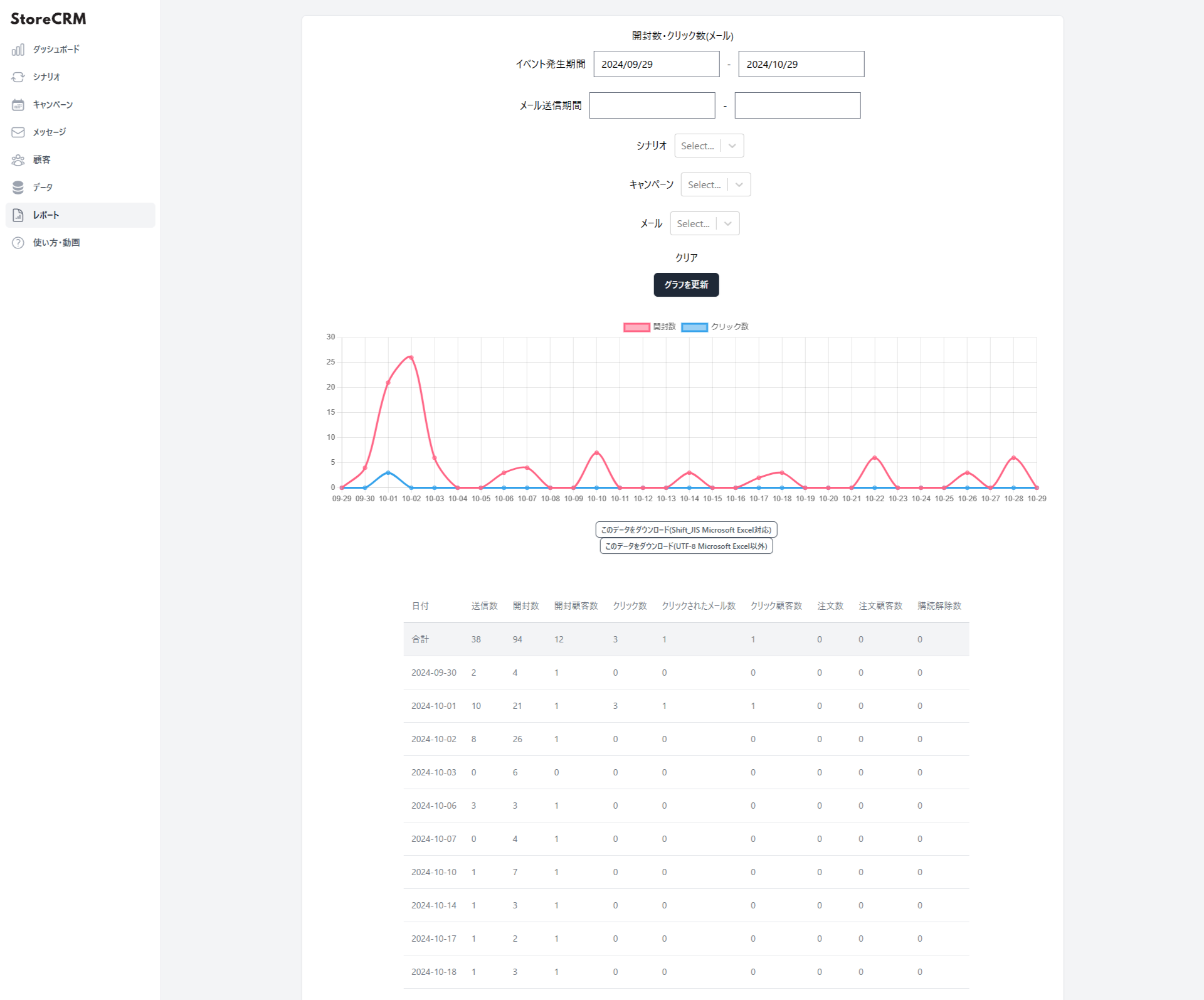](https://storecrm.com/wp-content/uploads/2025/07/obake_report._5.png)
## Summary
Building wishlist low-stock notifications with a patchwork of separate apps takes enormous time and effort. Why not use one convenient app to set up your wishlist button and automate delivery?
[Install the app](https://apps.shopify.com/obake-ma?locale=ja)
[Wishlist button setup manual](https://storecrm.com/help/en/setting/wishlist/)
[Customize the wishlist button](https://storecrm.com/help/en/setting/favorites/)
[View the wishlist list](https://storecrm.com/help/en/setting/favorites-list/)
========================================================================
# Wishlist price-rise alerts
> Notify customers by email and LINE message when a wishlisted product goes up in price. A rising price makes the product feel more valuable and prompts customers to buy.
- URL: https://storecrm.com/feature/favorite-price-up/
- Type: Features
- Published: 2025-01-15
- Updated: 2025-11-15
---
- Notify customers by email and LINE message when the price of a wishlisted product goes up.
- A rising price makes the product look more valuable and prompts customers to buy.
- **See [how to set up the wishlist button](https://storecrm.com/feature/favorite-button/).**
- Setting up the wishlist button requires the StoreCRM [Pro plan](https://storecrm.com/#pricing) or above.
Benefits for customers
- A price increase creates the urge to buy before the price climbs any further.
- No more checking back on prices by hand.
- Personalized notifications build customer loyalty.
Benefits for your store
- Helps you clear excess inventory.
- A rising price makes the product look more valuable and prompts customers to buy.
- Other products whose prices stayed the same may sell as a result.
- Gives you marketing data on which price-rise timing converts best.
- Adding a discount coupon to the price-rise notification stimulates purchase intent even further.
## What are wishlist price-rise alerts?
- Customers are notified by email and LINE message when the price of a wishlisted product goes up.
- A price increase creates the urge to buy before the price climbs any further.
- Explaining why the price is going up also deepens customers' trust in your store.
- To use this feature, set up the [wishlist button](https://storecrm.com/feature/favorite-button/) first.
- Learn [how to add a discount coupon](https://storecrm.com/help/en/setting/coupon/).
[Try the wishlist button demo](https://apps.shopify.com/obake-ma)
#### The price-rise notification email
- StoreCRM lets you send emails like this one from a template.
- You can also build an [original email](#heading-5) with your store's own photos and products.
[](https://storecrm.com/wp-content/uploads/2025/07/price-up-1-1.png)
#### Add the wishlist button
- Place the [wishlist button](https://storecrm.com/feature/favorite-button/) on your product pages.
- By clicking it, customers opt in to price-rise notifications for the products they wishlist.
[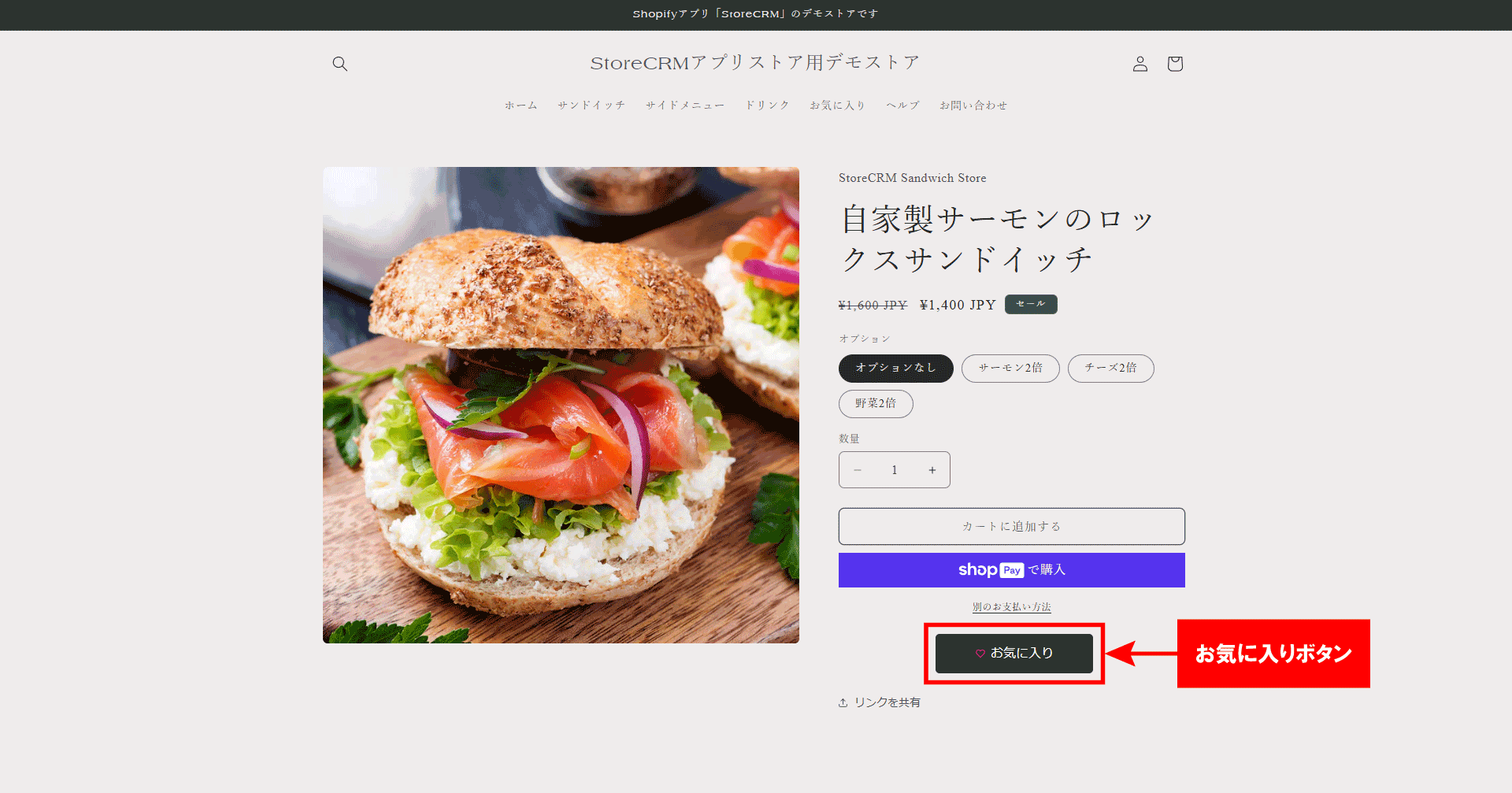](https://storecrm.com/wp-content/uploads/2025/07/favorites-button-1.png)
#### View the wishlist page
- When a logged-in customer clicks Favorites in your store's menu, their wishlist is displayed.
- In StoreCRM's Settings, you can also [let customers use the wishlist button without logging in](https://storecrm.com/help/en/setting/favorites/).
[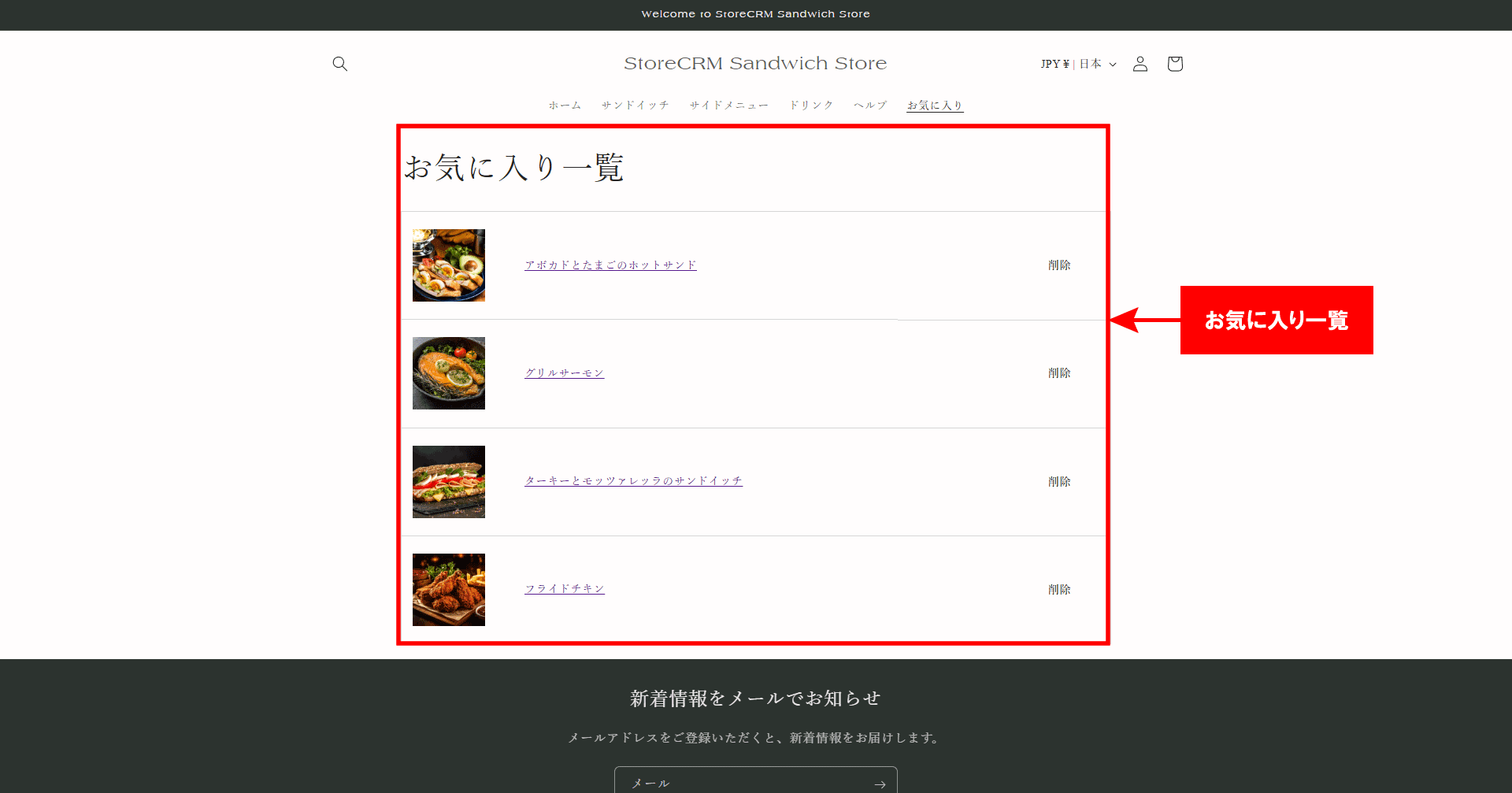](https://storecrm.com/wp-content/uploads/2025/07/favorites-button-2.png)
## Email and LINE alerts as soon as one minute after a price rise
- Notifications can go out by both email and LINE message as soon as one minute after the price rises.
- Reaching customers as quickly as possible after a price rise is what maximizes sales.
## No additional apps required
- StoreCRM sends price-rise notifications without any additional app installs.
- Beyond price rises, you can also send price-drop and low-stock notifications.
## Setting up price-rise alerts is easy
- With StoreCRM, price-rise notifications are easy to configure and need no additional apps.
- Make sure the StoreCRM app is installed on your Shopify store first.
- Setting up the wishlist button requires the StoreCRM [Standard plan](https://storecrm.com/#pricing) or above.
- Before configuring the price-rise scenario, place the [wishlist button](https://storecrm.com/feature/favorite-button/) on your product pages.
[Install the app](https://apps.shopify.com/obake-ma?locale=ja)
[](https://storecrm.com/wp-content/uploads/2025/07/sainyuka-pic-2.png)
### Add the scenario
Click "The price of a wishlisted product rose" to add the scenario.
[](https://storecrm.com/wp-content/uploads/2025/07/price-up-2.png)
### Set how long after the price rise the first notification is sent
- Setting it as soon as possible after the price rise works best.
- In this example, we chose one hour.
- You can choose a delay in minutes, hours, or days.
[](https://storecrm.com/wp-content/uploads/2025/07/price-up-3.png)
### Choose the email and LINE message to send
- A LINE message can go out at the same time as the email.
- To create a new email, go to [Messages](https://storecrm.com/help/en/setting/mail/) and open the email list.
- Send from a template, or create an original email of your own.
[](https://storecrm.com/wp-content/uploads/2025/07/price-up-4.png)
### Set up a second notification and beyond
- Check "Send a second email".
- Configure it the same way as the first email.
- Varying the content between the first and later emails lifts your conversion rate.
- Sending a coupon in the second email and recommended products in the third helps drive sales.
- Coupons can be added, too. Learn [how to add a coupon](https://storecrm.com/help/en/setting/coupon/).
[](https://storecrm.com/wp-content/uploads/2025/07/price-up-5.png)
### Target specific products, specific customers, subscription products, and more
- StoreCRM lets you send emails under a wide range of conditions.
- Learn more about [scenario conditions](https://storecrm.com/help/en/setting/scenario-conditions/).
[](https://storecrm.com/wp-content/uploads/2025/07/price-up-6.png)
## Create the price-rise notification email
- Create the email you selected in the scenario.
- Send from a template, or create an original email of your own.
- From then on, customers who wishlisted the product automatically receive the price-rise notification email.
[](https://storecrm.com/wp-content/uploads/2025/07/price-up-11.png)
## Check open rates, click rates, and sales in reports
- StoreCRM's reports show open rates, click rates, and sales.
- You can filter by a specific scenario or email.
- Click "Download this data (Shift_JIS, for Microsoft Excel)" or "Download this data (UTF-8, for other tools)" to export the data.
[](https://storecrm.com/wp-content/uploads/2025/07/obake_report._5.png)
## Summary
Building wishlist price-rise notifications with a patchwork of separate apps takes enormous time and effort. Why not use one convenient app to set up your wishlist button and automate delivery?
[Install the app](https://apps.shopify.com/obake-ma?locale=ja)
[Wishlist button setup manual](https://storecrm.com/help/en/setting/wishlist/)
[Customize the wishlist button](https://storecrm.com/help/en/setting/favorites/)
[View the wishlist list](https://storecrm.com/help/en/setting/favorites-list/)
========================================================================
# Wishlist price-drop alerts
> Notify customers by email and LINE message the moment a wishlisted product drops in price. By adding items to their wishlist, shoppers can buy the products they want at the lowest price.
- URL: https://storecrm.com/feature/favorite-price-down/
- Type: Features
- Published: 2025-01-14
- Updated: 2025-11-15
---
- Notify customers by email and LINE message when the price of a wishlisted product drops.
- By adding the products they want to their wishlist, customers can buy them at the lowest price.
- **See [how to set up the wishlist button](https://storecrm.com/feature/favorite-button/).**
- Setting up the wishlist button requires the StoreCRM [Pro plan](https://storecrm.com/#pricing) or above.
Benefits for customers
- A message that arrives while they are still deciding raises their intent to buy.
- No more checking back on prices by hand.
- Personalized notifications build customer loyalty.
Benefits for your store
- Helps you clear excess inventory.
- Can lead to new purchases.
- Gives you marketing data on which price-drop timing converts best.
- Adding a discount coupon to the price-drop notification stimulates purchase intent even further.
## What are wishlist price-drop alerts?
- Customers are notified by email and LINE message when the price of a wishlisted product drops.
- By adding the products they want to their wishlist, customers can buy them at the lowest price.
- To use this feature, set up the [wishlist button](https://storecrm.com/feature/favorite-button/) first.
- Learn [how to add a discount coupon](https://storecrm.com/help/en/setting/coupon/).
[Try the wishlist button demo](https://apps.shopify.com/obake-ma)
#### The price-drop notification email
- StoreCRM lets you send emails like this one from a template.
- You can also build an [original email](#heading-5) with your store's own photos and products.
[](https://storecrm.com/wp-content/uploads/2025/07/price-down-1.png)
#### Add the wishlist button
- Place the [wishlist button](https://storecrm.com/feature/favorite-button/) on your product pages.
- By clicking it, customers opt in to price-drop notifications for the products they wishlist.
[](https://storecrm.com/wp-content/uploads/2025/07/favorites-button-1.png)
#### View the wishlist page
- When a logged-in customer clicks Favorites in your store's menu, their wishlist is displayed.
- In StoreCRM's Settings, you can also [let customers use the wishlist button without logging in](https://storecrm.com/help/en/setting/favorites/).
[](https://storecrm.com/wp-content/uploads/2025/07/favorites-button-2.png)
## Email and LINE alerts as soon as one minute after a price drop
- Notifications can go out by both email and LINE message as soon as one minute after the price drops.
- Reaching customers as quickly as possible after a price drop is what maximizes sales.
## No additional apps required
- StoreCRM sends price-drop notifications without any additional app installs.
- Beyond price drops, you can also send price-rise and low-stock notifications.
## Setting up price-drop alerts is easy
- With StoreCRM, price-drop notifications are easy to configure and need no additional apps.
- Make sure the StoreCRM app is installed on your Shopify store first.
- Setting up the wishlist button requires the StoreCRM [Standard plan](https://storecrm.com/#pricing) or above.
- Before configuring the price-drop scenario, place the [wishlist button](https://storecrm.com/feature/favorite-button/) on your product pages.
[Install the app](https://apps.shopify.com/obake-ma?locale=ja)
[](https://storecrm.com/wp-content/uploads/2025/07/sainyuka-pic-2.png)
### Add the scenario
Click "The price of a wishlisted product dropped" to add the scenario.
[](https://storecrm.com/wp-content/uploads/2025/07/price-down-2.png)
### Set how long after the price drop the first notification is sent
- Setting it as soon as possible after the price drop works best.
- In this example, we chose one hour.
- You can choose a delay in minutes, hours, or days.
[](https://storecrm.com/wp-content/uploads/2025/07/price-down-3.png)
### Choose the email and LINE message to send
- A LINE message can go out at the same time as the email.
- To create a new email, go to [Messages](https://storecrm.com/help/en/setting/mail/) and open the email list.
- Send from a template, or create an original email of your own.
[](https://storecrm.com/wp-content/uploads/2025/07/price-down-4.png)
### Set up a second notification and beyond
- Check "Send a second email".
- Configure it the same way as the first email.
- Varying the content between the first and later emails lifts your conversion rate.
- Sending a coupon in the second email and recommended products in the third helps drive sales.
- Coupons can be added, too. Learn [how to add a coupon](https://storecrm.com/help/en/setting/coupon/).
[](https://storecrm.com/wp-content/uploads/2025/07/price-down-5.png)
### Target specific products, specific customers, subscription products, and more
- StoreCRM lets you send emails under a wide range of conditions.
- Learn more about [scenario conditions](https://storecrm.com/help/en/setting/scenario-conditions/).
[](https://storecrm.com/wp-content/uploads/2025/07/price-down-6.png)
## Create the price-drop notification email
- Create the email you selected in the scenario.
- Send from a template, or create an original email of your own.
- From then on, customers who wishlisted the product automatically receive the price-drop notification email.
[](https://storecrm.com/wp-content/uploads/2025/07/price-down-11-1.jpg)
## Check open rates, click rates, and sales in reports
- StoreCRM's reports show open rates, click rates, and sales.
- You can filter by a specific scenario or email.
- Click "Download this data (Shift_JIS, for Microsoft Excel)" or "Download this data (UTF-8, for other tools)" to export the data.
[](https://storecrm.com/wp-content/uploads/2025/07/obake_report._5.png)
## Summary
Building wishlist price-drop notifications with a patchwork of separate apps takes enormous time and effort. Why not use one convenient app to set up your wishlist button and automate delivery?
[Install the app](https://apps.shopify.com/obake-ma?locale=ja)
[Wishlist button setup manual](https://storecrm.com/help/en/setting/wishlist/)
[Customize the wishlist button](https://storecrm.com/help/en/setting/favorites/)
[View the wishlist list](https://storecrm.com/help/en/setting/favorites-list/)
========================================================================
# Wishlist
> Add a wishlist button to your product pages so shoppers can save the items they are considering. With StoreCRM, wishlist data flows straight into reports, email campaigns, and LINE campaigns.
- URL: https://storecrm.com/feature/favorite-button/
- Type: Features
- Published: 2025-01-07
- Updated: 2026-07-28
---
A wishlist lets customers save the products they are considering and come back to them later. Whether an item takes time to compare or a shopper is waiting for a price or stock change, they never have to hunt for it again.
With StoreCRM, everything is connected in a single app: the wishlist button on product pages, the wishlist page itself, per-customer and per-product management, reports, and email and LINE campaigns.
[Start for free (Shopify App Store)](https://apps.shopify.com/obake-ma)
## Turn purchase consideration into the next visit
Every product saved to a wishlist is a signal of what a customer is interested in. StoreCRM lets you act on that signal with automated campaigns triggered by wishlist sign-ups, price drops, restocks, or low stock, as well as one-off campaigns targeted at everyone who wishlisted a specific product. You reach customers at the moment they are most likely to resume their purchase decision, nudging them toward the next visit or order.
In fact, when we analyzed StoreCRM's delivery history, wishlist-triggered automated emails outperformed regular newsletters on every metric: open rate, click rate, conversion rate, and revenue per email.
Delivery results: wishlist-triggered automated emails vs. regular newsletters
Metric
Wishlist-triggered automated emails
Regular newsletters
Difference
Open rate
55.7%
26.5%
About 2.1x
Click rate
7.6%
2.1%
About 3.6x
Conversion rate
0.66%
0.09%
About 7.3x
Revenue per email was also about 5.8 times higher than regular newsletters.
Wishlist-triggered automation works because it tells customers who have already shown interest in a product about what happens to it next. Among individual templates, the "price dropped on a wishlisted product" email saw a 50.4% open rate, and the "wishlisted product is almost out of stock" email saw a 65.3% open rate.
\* The analysis covers all deliveries sent through StoreCRM (excluding test sends): 36,277 wishlist-triggered automated emails and 19,642,098 regular newsletters. Wishlist-related automated emails were classified by delivery route and by keywords in the email name and subject line. Regular newsletters were classified as campaigns sent manually from the admin screen.
\* Conversion rates and revenue are based on orders that StoreCRM attributed to each delivery (the attribution window follows the system's own logic).
\* This comparison reflects observed results from StoreCRM's delivery history and does not demonstrate a causal effect of wishlist-triggered automation.
## What StoreCRM's wishlist can do
### Save from the product page
Add a wishlist button to your product pages. Customers save the items that catch their eye, then return from their wishlist to the product page to compare and buy.
You can let shoppers save at the product level or at the variant level, such as by color or size.
[](https://storecrm.com/content/features/favorite-button/favorite-storefront-experience.png)
*Click the image to enlarge.*
### Announce product changes by email and LINE
Trigger email and LINE messages from wishlist sign-ups and from price or stock changes on wishlisted products, reaching customers at moments when they are ready to reconsider a purchase.
- Reminders for identifiable customers who wishlisted a product but never bought it
- Price-drop and price-rise alerts for wishlisted products
- Back-in-stock notifications for wishlisted products
- Low-stock alerts for wishlisted products
With these scenarios in place, a wishlist is no longer just a place to park products; it turns interest into the next purchase opportunity. Sending requires the scenario to be enabled on an eligible plan, an identified customer, a delivery destination, delivery consent, and the relevant channel configured. Products saved as a guest are not eligible for the purchase reminder.
### Track sign-ups in lists and reports, and use them in campaigns
The wishlist list in StoreCRM's admin screen shows each customer's current wishlist. The wishlist report shows, per product and variant, how many customers wishlisted an item during a period, how many currently have it wishlisted, and the first and most recent sign-up dates, with CSV export.
In campaign automations triggered by restocks or price changes, you can target email delivery at everyone who wishlisted the product. Beyond seeing which products draw attention, you can turn that interest into targeted campaigns.
## Tailor it to your membership strategy and design
Choose whether guests can use the wishlist, or make it members-only and direct visitors to log in or sign up. You can also set where guests are sent when they tap the button.
Customize the wishlist button's label, color, and size, and choose from four display presets for the wishlist page.
- Standard view
- Card view
- Lookbook view
- Detailed list view
Combine product-level or variant-level saving, member and guest flows, and the wishlist page layout to match how your store operates.
[](https://storecrm.com/content/features/favorite-button/favorite-settings-layouts.png)
*Click the image to enlarge.*
## From wishlist sign-up to CRM campaign
1. **Save a product**: A customer taps the wishlist button on a product page.
2. **Review the list**: They compare saved items on their wishlist and jump back to product pages.
3. **See what products and customers care about**: In the admin screen, check current wishlists and sign-up counts by product and variant.
4. **Deliver the nudge to buy**: Follow up with email and LINE campaigns triggered by forgotten purchases, price changes, restocks, or low stock.
## Frequently asked questions
### Do customers need an account to use the wishlist?
No. You can allow guests to use it or restrict it to members. If it is members-only, you can direct visitors to any URL you choose, such as the login page.
### Can customers wishlist by color or size instead of by product?
Yes. You can choose between product-level and variant-level saving. Pick whichever fits your store's catalog and operations.
### Can I switch between product-level and variant-level later?
You can change the setting, but data saved under the previous mode is excluded from display and reporting after the switch. Decide on the unit when you set up the feature, and contact us in advance if you need to migrate existing data.
### Can changes to wishlisted products be announced automatically?
Yes. For identifiable customers, you can set up email and LINE delivery triggered by forgotten purchases after a wishlist sign-up, price drops and rises, restocks, and low stock. Sending requires the scenario to be enabled on an eligible plan, a delivery destination, delivery consent, and the relevant channel configured. Products saved as a guest are not eligible for the purchase reminder.
### Can I see which products are drawing attention?
Yes. The wishlist report shows sign-ups during a period and current sign-ups per product and variant, along with first and most recent sign-up dates and CSV export.
## A wishlist that does more than save products
From the saving experience to interest data to email and LINE campaigns timed to the moment of purchase: with StoreCRM's wishlist, your wishlist becomes the front door to your CRM.
[Start for free (Shopify App Store)](https://apps.shopify.com/obake-ma)
### Learn how to set it up
- [How to set up the wishlist](https://storecrm.com/help/en/setting/favorites/)
- [How to view the wishlist list](https://storecrm.com/help/en/setting/favorites-list/)
- [How to view the wishlist report](https://storecrm.com/help/en/setting/favorite-report/)
========================================================================
# Post-purchase follow-up
> Automatically send email and LINE messages after an order is paid in Shopify. From a thank-you note to usage tips and what to buy next, scenario and drip campaigns enrich the post-purchase customer experience.
- URL: https://storecrm.com/feature/purchase-complete/
- Type: Features
- Published: 2025-01-05
- Updated: 2026-08-03
---
StoreCRM's post-purchase follow-up automatically sends thank-you and follow-up messages via email and LINE, separate from Shopify's standard order confirmation. Using the moment an order becomes paid in Shopify as the trigger, you set wait times and bring everything—from the initial thank-you to guidance a few days later—into a single scenario.
Because you can also configure follow-up messages and their wait times, it works not just for a one-off message but as a full post-purchase drip sequence.
[Start for free (Shopify App Store)](https://apps.shopify.com/obake-ma)
## Post-purchase emails outperform regular newsletters
Right after completing a purchase is when customers are most engaged with your store and products. Separate from Shopify's order confirmation, a post-purchase email lets you deliver a thank-you, product usage tips, and information useful for the next purchase at exactly that moment. Post-purchase emails are generally known to get opened more often, and they serve as a starting point for the post-purchase relationship—easing post-order anxiety, requesting reviews, and prompting repeat purchases.
When we aggregated actual StoreCRM delivery data, post-purchase emails (automated) outperformed regular newsletters (bulk sends) on every metric: open rate, click rate, conversion rate, and revenue per email sent.
Delivery performance comparison between post-purchase emails and regular newsletters
Metric
Post-purchase emails
Regular newsletters
Difference
Open rate
61.7%
26.5%
About 2.3x
Click rate
17.1%
2.1%
About 8.1x
Conversion rate
1.81%
0.09%
About 20x
Revenue per email sent was also about 28 times that of regular newsletters.
Customers who have just purchased are highly engaged with your store and products. An automated message that arrives at this moment of peak interest tends to draw a stronger response than a newsletter broadcast to a large audience at once.
\* The aggregation period covers all deliveries in StoreCRM (excluding test sends), comprising 252,893 post-purchase emails and 19,764,080 regular newsletters. Post-purchase emails are classified as automated deliveries triggered by payment completion; regular newsletters are classified as manual campaigns sent in bulk from the admin screen.
\* Conversion rate and revenue are aggregated from orders that StoreCRM attributed to each delivery (the attribution window after delivery follows the system's own logic).
\* This comparison reflects observed results from StoreCRM's delivery data and does not demonstrate a causal effect of post-purchase emails.
## Bring the whole post-purchase experience into one scenario
Instead of stopping at a thank-you after payment, keep the relationship going by delivering usage tips, related products, and information that helps with the next purchase—connecting every post-purchase touchpoint with care.
[](https://storecrm.com/content/features/purchase-complete/purchase-notification-customer-experience.png)
*Click the image to enlarge.*
### Start following up right after payment
Along with a thank-you after payment, deliver anything customers should know before their order arrives, plus support information. The first follow-up runs on autopilot.
### Deliver helpful information when the product is in use
Follow-up messages can cover how to use the product, care instructions, frequently asked questions, and more. Tailor the guidance to what was purchased, and you support the experience after the product arrives too.
### Deliver information that leads to the next purchase
You can also include [related-product recommendations](https://storecrm.com/feature/cross-sell/), coupons, and other information useful for the next purchase. By splitting content and timing across messages, you avoid cramming everything into the first one.
For related products, the [recommendation feature](https://storecrm.com/help/en/setting/recommend/) helps too. It automatically inserts recommended products—selected from your store's purchase and browsing data—into emails and LINE messages. Just pick a recommendation type, such as items similar to the purchased product or per-customer personalization, and each customer gets suggestions tailored to them.
## Email and LINE, delivered on your schedule
StoreCRM's post-purchase follow-up supports both email and LINE within a scenario. You can adjust the delay from when the order is paid to the first message, as well as the wait times between the first message and each follow-up, in minutes, hours, or days.
[](https://storecrm.com/content/features/purchase-complete/purchase-notification-step-settings.png)
*Click the image to enlarge.*
### Choose the channel that fits each customer
Post-purchase follow-up can combine email and LINE. All customers need to do is link their LINE account with your store—no further steps required. For customers with linked LINE IDs, purchases are identified as theirs, and as long as they can receive LINE messages, post-purchase follow-ups arrive on LINE automatically.
### Turn follow-ups into a drip sequence
Enable "send a second message" to configure content and a wait time different from the first message. You can keep adding messages, delivering them in stages that follow the post-purchase journey.
## Scenario campaigns triggered by payment completion
In the flow editor, you can combine wait steps with multiple conditional branches and place a different message on each branch. Messages route according to the conditions you set, letting you design multiple post-purchase touchpoints as a single scenario.
[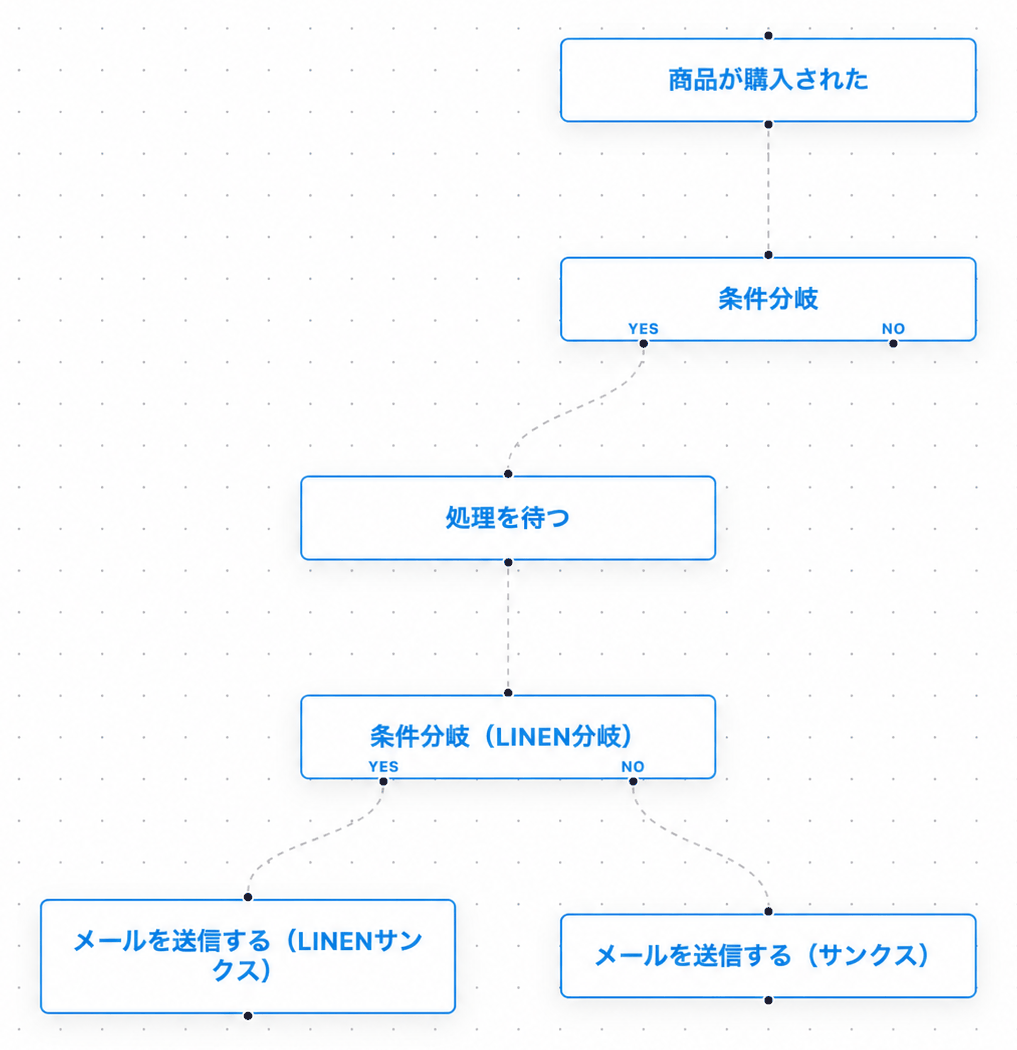](https://storecrm.com/content/features/purchase-complete/purchase-notification-flow-editor.png)
*Click the image to enlarge.*
### Set the delay before sending
Choose how long to wait after the order is paid before each message goes out, in minutes, hours, or days. Vary the timing to fit the content—a thank-you right after payment, a usage guide a few days later.
### Refine the audience with conditions
Use execution conditions to narrow a scenario's audience, for example to first-time buyers. Even without conditions, the scenario targets customers whose purchase can be linked to them and who can receive messages on the channel you use.
### Tailor the message content
Use StoreCRM's email templates or original emails to craft messages that match your store and products. Coupons and related-product recommendations can be woven in wherever they fit the post-purchase flow.
## Review the results and improve
Delivery reports show email opens and clicks on links in your messages, plus purchases attributed to StoreCRM that occurred within your configured attribution window. Filter by scenario or message to review performance and refine content and timing.
## Frequently asked questions
### How is this different from Shopify's order confirmation notification?
StoreCRM's post-purchase follow-up is a feature for turning post-purchase communication into a scenario. Configure email, LINE, wait times, and follow-up messages to build post-purchase touchpoints that run alongside Shopify's standard notifications.
### Can I use both email and LINE?
Yes. Email and LINE messages can each be configured within a scenario. On the customer's side, linking their LINE account with your store is all it takes—there is no need to re-register with each purchase. LINE delivery applies when the purchasing customer has linked their LINE ID and can receive messages, such as being a friend of your account (not blocked). Email delivery also has its own requirements, such as marketing consent.
### What kind of content can a drip sequence include?
Order thank-yous, product usage tips, care instructions, related-product recommendations, coupons, and more. Because content and wait times can differ between the first message and follow-ups, you can shape the sequence around the post-purchase customer experience.
## Turn post-purchase messages into the next touchpoint
Don't let post-purchase communication end with a single email—bring LINE and follow-up messages into one scenario. With StoreCRM, you can start a drip sequence that supports the whole post-purchase customer experience.
[Start for free (Shopify App Store)](https://apps.shopify.com/obake-ma)
For setup instructions, see [creating emails](https://storecrm.com/help/en/setting/mail/), [scenario execution conditions](https://storecrm.com/help/en/setting/scenario-conditions/), [coupon settings](https://storecrm.com/help/en/setting/coupon/), and [recommendation settings](https://storecrm.com/help/en/setting/recommend/).
========================================================================
# First-purchase anniversary
> A first-purchase anniversary message celebrates each anniversary (1st, 2nd, ...) of a customer's first purchase. Marking the occasion with a special discount, gift, or campaign is a powerful way to bring customers back.
- URL: https://storecrm.com/feature/anniversary/
- Type: Features
- Published: 2024-11-24
- Updated: 2025-11-15
---
- **A first-purchase anniversary message lets customers know that a full year — or several — has passed since their first purchase.**
- **Celebrating the anniversary with a special discount, gift, or campaign makes the message far more effective.**
- Expressing gratitude to your customers builds loyalty.
- Personalize the content using each customer's purchase history and other details.
- Choose the milestones — 1st, 2nd, 5th anniversary, and so on — to match your store's strategy.
- StoreCRM sends the message automatically on each anniversary of the first purchase, helping you maximize customer lifetime value.
- Sending first-purchase anniversary messages requires the StoreCRM [Standard plan](https://storecrm.com/#pricing) or above.
What to include in a first-purchase anniversary message
- Thank the customer for their first purchase.
- Personalize the body based on customer attributes and purchase history.
- Encourage a repeat purchase with a special offer or coupon.
Example first-purchase anniversary message
Subject: \[Store name\] It has been a year since your first purchase! Here is a 10% off coupon
Dear \[Customer name\],
Thank you for shopping with \[Store name\].
It has been a year since your very first purchase with us.
We know you have especially enjoyed \[Product name\].
We will keep working to bring you products you love.
**Your 10% off coupon**
To mark the occasion, we have prepared a small thank-you coupon.
We hope you enjoy it.
\[Coupon URL\]
Note: valid for 30 days from the arrival of this email.
Thank you for your continued support.
\[Store name\]
## What is a first-purchase anniversary message?
- **A first-purchase anniversary message is sent to celebrate each anniversary (1st, 2nd, ...) of a customer's first purchase.**
- **Celebrating the anniversary with a special discount, gift, or campaign makes the message far more effective.**
- Reaching out at regular milestones — the 1st anniversary, the 2nd, and beyond — keeps customers motivated to buy again.
- Making the coupon time-limited helps lift your repeat purchase rate.
- Learn [how to add coupons](https://storecrm.com/help/en/setting/coupon/) in the help center.
#### First-purchase anniversary message
- With StoreCRM, you can send emails like this using ready-made templates.
- You can also build an [original email](#heading-5) featuring photos of your store and products.
[](https://storecrm.com/wp-content/uploads/2025/07/anni-21.png)
## Reach customers by email and LINE on each anniversary of their first purchase
- StoreCRM lets you schedule messages for any number of years after the first purchase.
- Set it to one year, two years, and more, and the messages go out automatically.
- Messages can be sent over both email and LINE.
## No additional apps required
- StoreCRM sends first-purchase anniversary messages without any extra apps to install.
- Add coupons or recommended products directly to your message.
## Setting up an anniversary message is easy
- With StoreCRM, you can set up anniversary messages in just a few steps — no additional apps needed.
- Make sure the StoreCRM app is installed on your Shopify store first.
- Sending first-purchase anniversary messages requires the StoreCRM [Standard plan](https://storecrm.com/#pricing) or above.
[Install the app](https://apps.shopify.com/obake-ma?locale=ja)
[](https://storecrm.com/wp-content/uploads/2025/07/sainyuka-pic-2.png)
### Add a scenario
Click \[Send a message X years after the first purchase\] to add a scenario.
[](https://storecrm.com/wp-content/uploads/2025/07/anni-1.png)
### Set the time of day to send the message
In this example, we chose "6:00 PM".
[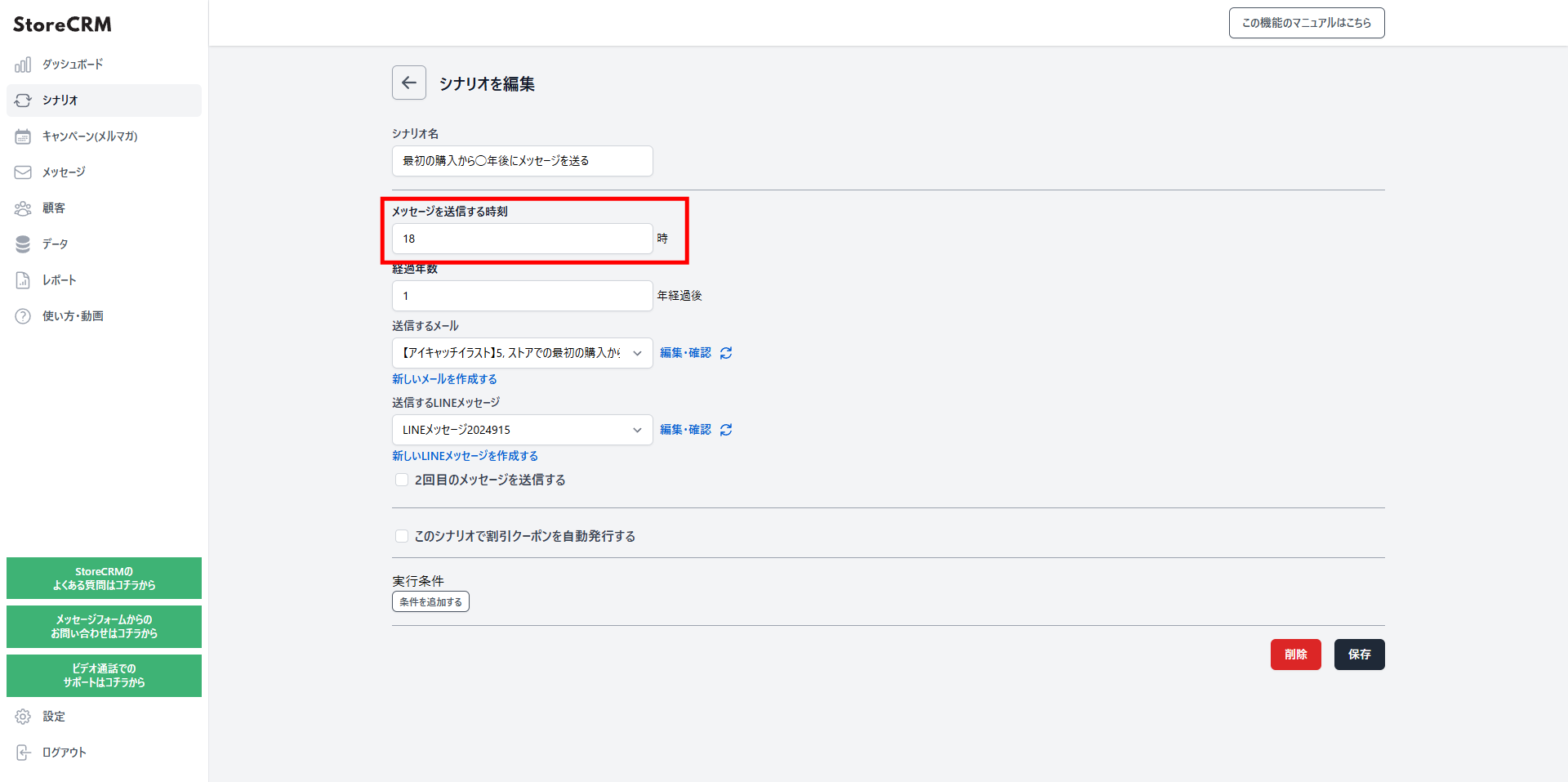](https://storecrm.com/wp-content/uploads/2025/07/anni-2.png)
### Set the number of years
- Choose how many years after the first purchase the message should be sent.
- In this example, we chose "after 1 year".
[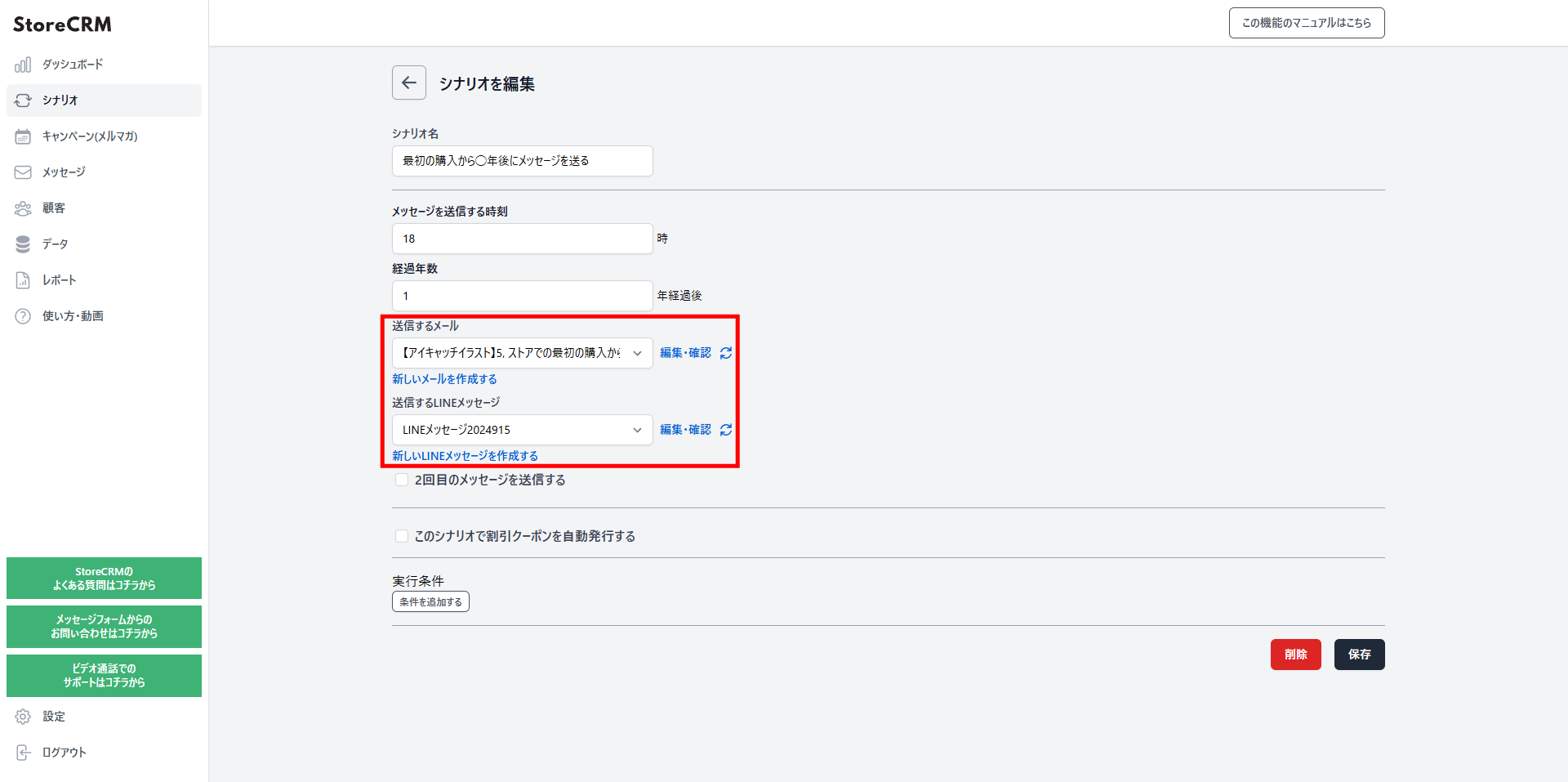](https://storecrm.com/wp-content/uploads/2025/07/anni-3.png)
### Choose the email and LINE message to send
- A LINE message can go out at the same time as the email.
- To create a new email, go to \[[Messages](https://storecrm.com/help/en/setting/mail/)\] and open \[Email list\].
- Use a template, or design an original email of your own.
[](https://storecrm.com/wp-content/uploads/2025/07/anni-3.png)
### Set up a second message and beyond
- Check \[Send a second message\].
- Configure the email to send, following the same steps as the first one.
- Varying the content between the first email and the follow-ups lifts your conversion rate.
- Coupons can be added here too — see [how to add coupons](https://storecrm.com/help/en/setting/coupon/).
- You can also skip the second email automatically once the coupon has been used.
[](https://storecrm.com/wp-content/uploads/2025/07/anni-4.png)
### Issue coupons automatically
- Generate coupon codes automatically, or issue coupon links that apply the discount on click.
- Learn [how to add coupons](https://storecrm.com/help/en/setting/coupon/) in the help center.
[](https://storecrm.com/wp-content/uploads/2025/07/anni-5.png)
### Target specific products, specific customers, subscription products, and more
- StoreCRM lets you send emails based on a wide range of conditions.
- Learn more about [scenario conditions](https://storecrm.com/help/en/setting/scenario-conditions/) in the help center.
- In most cases, you can leave these unset and simply send the message.
[](https://storecrm.com/wp-content/uploads/2025/07/anni-6.png)
## Create your first-purchase anniversary message
- Create the email you selected in the scenario.
- Use a template, or design an original email of your own.
- Once set up, the message is sent automatically at 6:00 PM one year after each customer's first purchase.
[](https://storecrm.com/wp-content/uploads/2025/07/anni-31.jpg)
## Track open rates, click rates, and revenue with reports
- StoreCRM's reporting shows open rates, click rates, and revenue at a glance.
- Filter the results by a specific scenario or email.
- Click \[Download this data (Shift_JIS, for Microsoft Excel)\] or \[Download this data (UTF-8, for other tools)\] to export the data.
[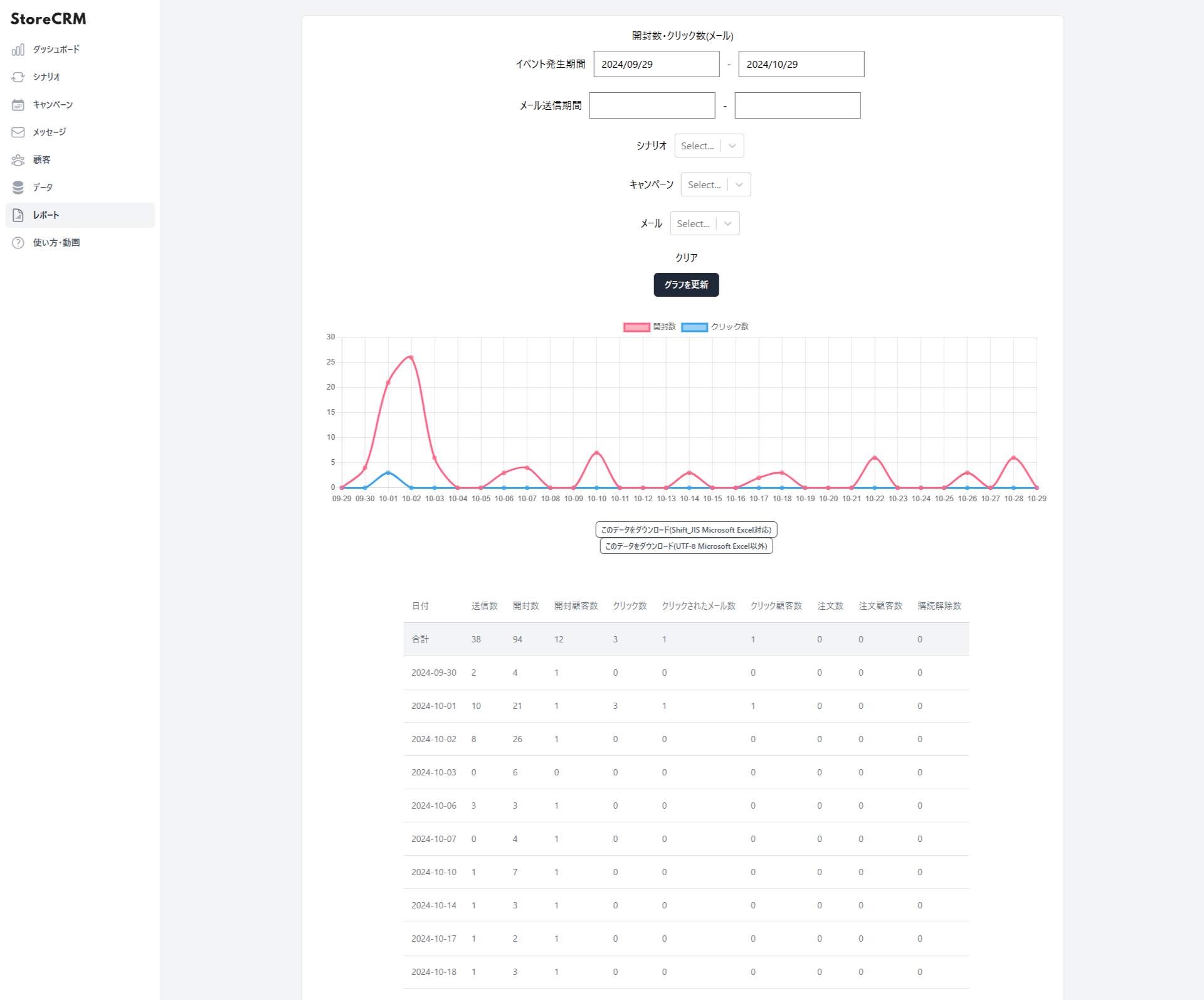](https://storecrm.com/wp-content/uploads/2025/07/obake_report._5.png)
## Summary
Sending anniversary messages by hand takes an enormous amount of time and effort. Automate them with an app built for the job.
[Install the app](https://apps.shopify.com/obake-ma?locale=ja)
========================================================================
# Cross-sell emails
> Cross-sell emails recommend products related to what a customer just bought, encouraging additional purchases. Cross-selling raises average order value, improves customer satisfaction, and drives repeat business.
- URL: https://storecrm.com/feature/cross-sell/
- Type: Features
- Published: 2024-11-24
- Updated: 2025-11-15
---
- **A cross-sell email recommends products related to what a customer just bought, encouraging an additional purchase.**
- **The benefits of cross-selling include:**
- **Raising average order value**
- **Improving customer satisfaction by recommending products that fit their needs**
- **Turning one-time buyers into repeat customers**
- Successful cross-sell marketing means personalizing messages based on each customer's purchase and browsing history.
- Incentives that nudge a purchase — a limited-time discount coupon or reward points — work well too.
- StoreCRM can send email and LINE messages at the same time.
- Sending cross-sell emails requires the StoreCRM [Standard plan](https://storecrm.com/#pricing) or above.
## What is a cross-sell email?
- **A cross-sell email recommends products related to what a customer just bought, encouraging an additional purchase.**
- **The benefits of cross-selling include:**
- **Raising average order value**
- **Improving customer satisfaction by recommending products that fit their needs**
- **Turning one-time buyers into repeat customers**
- Successful cross-sell marketing means personalizing messages based on each customer's purchase and browsing history.
- Incentives that nudge a purchase — a limited-time discount coupon or reward points — work well too.
- Learn [how to add coupons](https://storecrm.com/help/en/setting/coupon/) in the help center.
## Recommend related products by email and LINE hours after purchase
- Messaging customers soon after a purchase is the best moment to spark interest in buying more.
- StoreCRM can send email and LINE messages at the same time.
- Delivery can be scheduled minutes, hours, or days after the purchase.
## No additional apps required
- StoreCRM sends cross-sell emails without any extra apps to install.
- Add coupons or recommended products directly to your cross-sell email.
## Setting up a cross-sell email is easy
- With StoreCRM, you can set up cross-sell emails in just a few steps — no additional apps needed.
- Make sure the StoreCRM app is installed on your Shopify store first.
- Sending cross-sell emails requires the StoreCRM [Standard plan](https://storecrm.com/#pricing) or above.
[Install the app](https://apps.shopify.com/obake-ma?locale=ja)
[](https://storecrm.com/wp-content/uploads/2025/07/sainyuka-pic-2.png)
### Add a scenario
Click \[Send a message after purchase completion\] to add a scenario.
[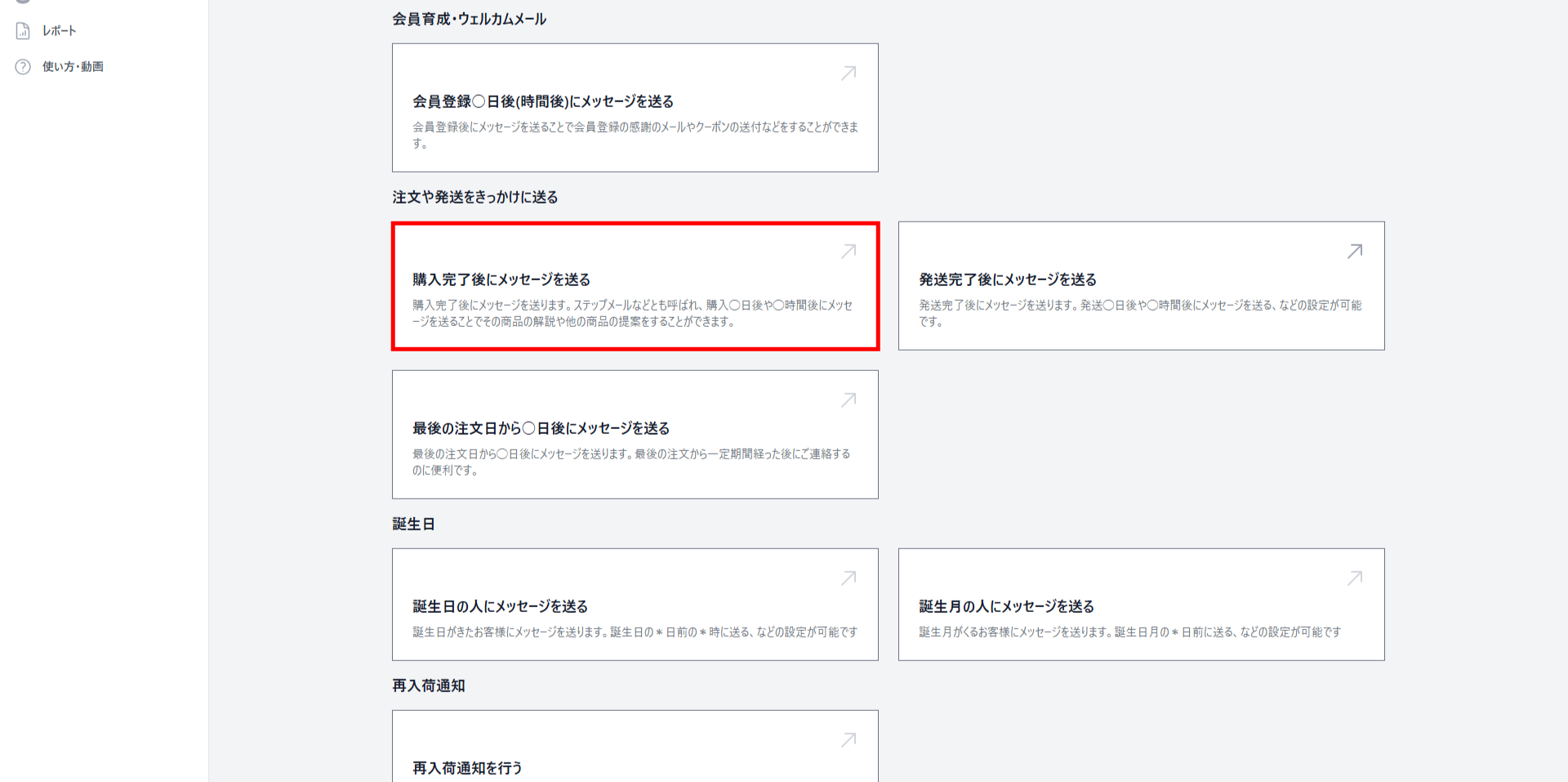](https://storecrm.com/wp-content/uploads/2025/07/welcome-3.png)
### Set how long after purchase the message is sent
- In this example, we chose "1 hour".
- You can choose minutes, hours, or days as the unit.
[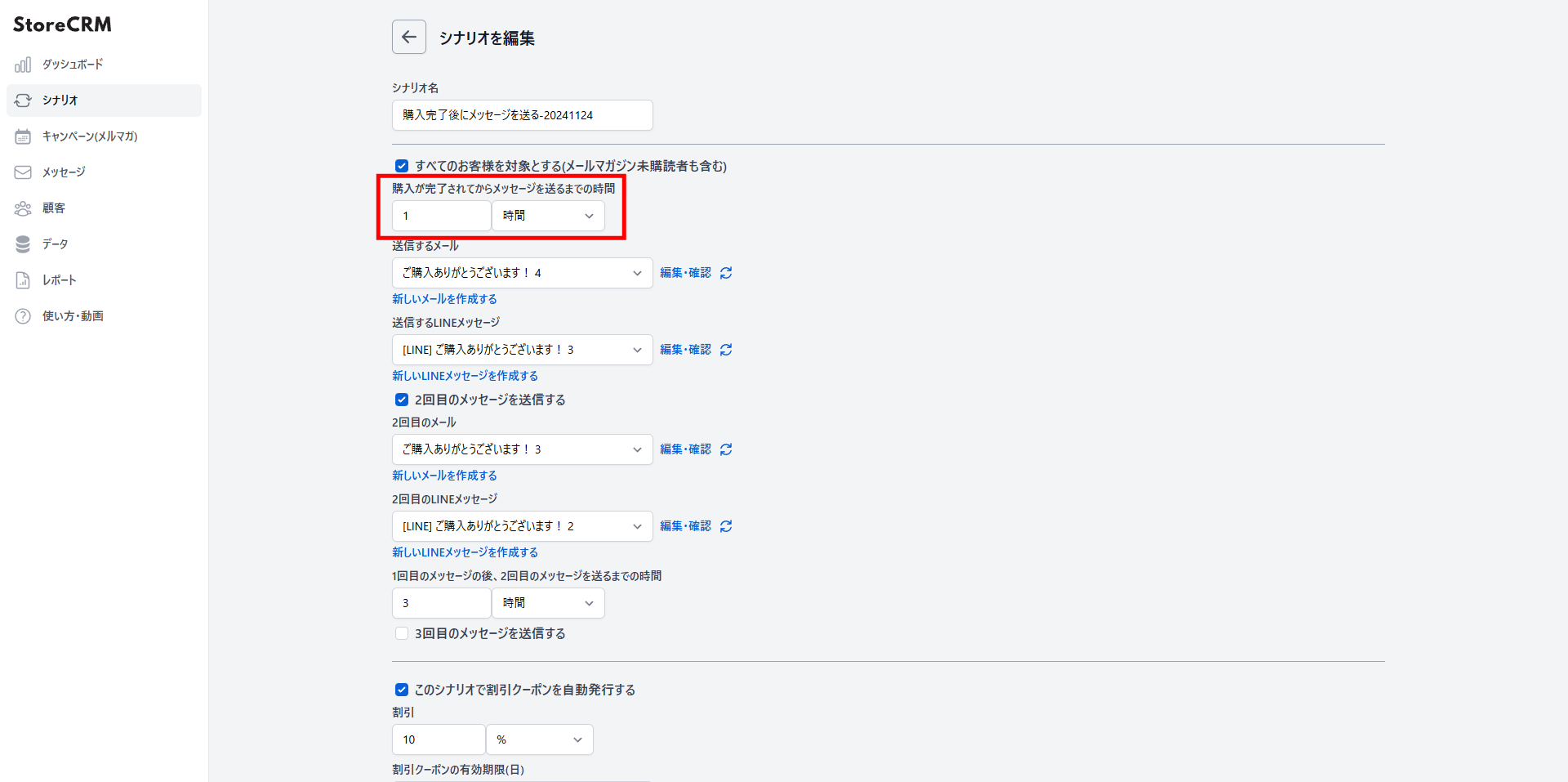](https://storecrm.com/wp-content/uploads/2025/07/crosse-sell-5.png)
### Choose the email and LINE message to send
- A LINE message can go out at the same time as the email.
- To create a new email, go to \[[Messages](https://storecrm.com/help/en/setting/mail/)\] and open \[Email list\].
- Use a template, or design an original email of your own.
[](https://storecrm.com/wp-content/uploads/2025/07/crosse-sell-6.png)
### Set up a second message and beyond
- Check \[Send a second message\].
- Configure the email to send, following the same steps as the first one.
- Varying the content between the first email and the follow-ups lifts your conversion rate.
- For example, sending a coupon in the second email and recommended products in the third helps drive sales.
- Coupons can be added here too — see [how to add coupons](https://storecrm.com/help/en/setting/coupon/).
- You can also skip the second email automatically once the coupon has been used.
[](https://storecrm.com/wp-content/uploads/2025/07/crosse-sell-7.png)
### Set how long to wait before the second message
- In this example, we chose "3 hours".
- You can choose minutes, hours, or days as the unit.
[](https://storecrm.com/wp-content/uploads/2025/07/crosse-sell-8-1.png)
## Create your cross-sell email
- Create the email you selected in the scenario.
- Use a template, or design an original email of your own.
- Once set up, the email is sent automatically to customers after their purchase.
[](https://storecrm.com/wp-content/uploads/2025/07/crosse-sell-9.jpg)
## Track open rates, click rates, and revenue with reports
- StoreCRM's reporting shows open rates, click rates, and revenue at a glance.
- Filter the results by a specific scenario or email.
- Click \[Download this data (Shift_JIS, for Microsoft Excel)\] or \[Download this data (UTF-8, for other tools)\] to export the data.
[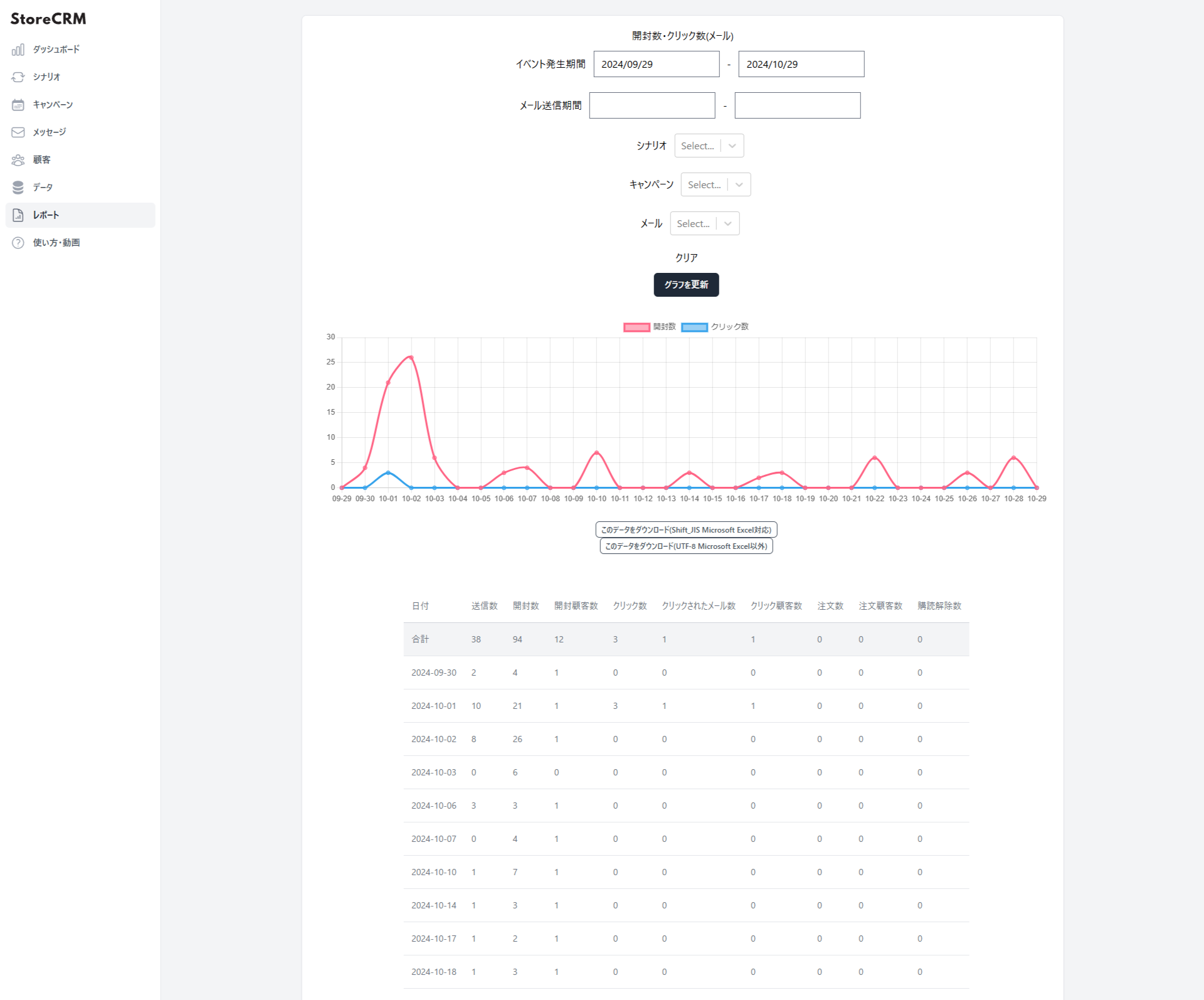](https://storecrm.com/wp-content/uploads/2025/07/obake_report._5.png)
## Summary
Sending cross-sell emails by hand takes an enormous amount of time and effort. Automate them with an app built for the job.
[Install the app](https://apps.shopify.com/obake-ma?locale=ja)
[Cross-sell email setup manual](https://storecrm.com/help/en/setting/cross-sell/)
========================================================================
# Welcome emails
> A welcome email is the very first email a customer receives after sharing their email address with your store. As your first touchpoint, it shapes the customer's first impression of your brand.
- URL: https://storecrm.com/feature/welcome/
- Type: Features
- Published: 2024-11-23
- Updated: 2025-11-15
---
- A welcome email is the very first email sent to a customer who has registered their email address with your store.
- **Customers typically share their email address when they create an account at checkout or sign up for your newsletter.**
- It is your first communication with the customer, and it strongly shapes their first impression of your company and brand.
- **The sooner a welcome email arrives after sign-up, the better the impression it makes.**
- StoreCRM can send a welcome email automatically as soon as one minute after the email address is registered.
- Sending welcome emails requires the StoreCRM [Standard plan](https://storecrm.com/#pricing) or above.
What to include in a welcome email
- Thank the customer for creating an account or making a purchase.
- Introduce your store and highlight your best-selling products.
- Encourage a first purchase with a first-order perk or a discount coupon.
Subject lines and design
- Drive opens with perks, urgency, and personalization — for example, "Your sign-up gift is waiting!", "[Limited time] A coupon you can use right now", or "A special gift for you, [Name]".
- Keep the layout easy to scan and easy to read.
- Place a clear call-to-action button where it is easy to spot.
Example welcome email
Subject: \[Store name\] Thanks for signing up! Here is a \[gift\] you can use right away!
Body:
Dear \[Customer name\],
Thank you for signing up with \[Store name\]!
At \[Store name\], we carry a wide range of products, including \[Product category\].
\[First-time customer offer\]
Right now, get \[offer details\] with your first purchase!
Coupon code: \[Coupon code\]
Expires: \[Expiration date\]
We hope you find something you love.
\[Shop name\]
\[Shop URL\]
## What is a welcome email?
- A welcome email is the very first email sent to a customer who has registered their email address with your store.
- It is your first communication with the customer, and it strongly shapes their first impression of your company and brand.
- **The sooner a welcome email arrives after sign-up, the better the impression it makes.**
- Learn [how to add coupons](https://storecrm.com/help/en/setting/coupon/) in the help center.
[Try the back-in-stock notification demo](https://storecrm-demo.myshopify.com/products/avocado-salmon)
#### Welcome email
- With StoreCRM, you can send emails like this using ready-made templates.
- You can also build an [original email](#heading-5) featuring photos of your store and products.
#### Checkout abandonment LINE message
[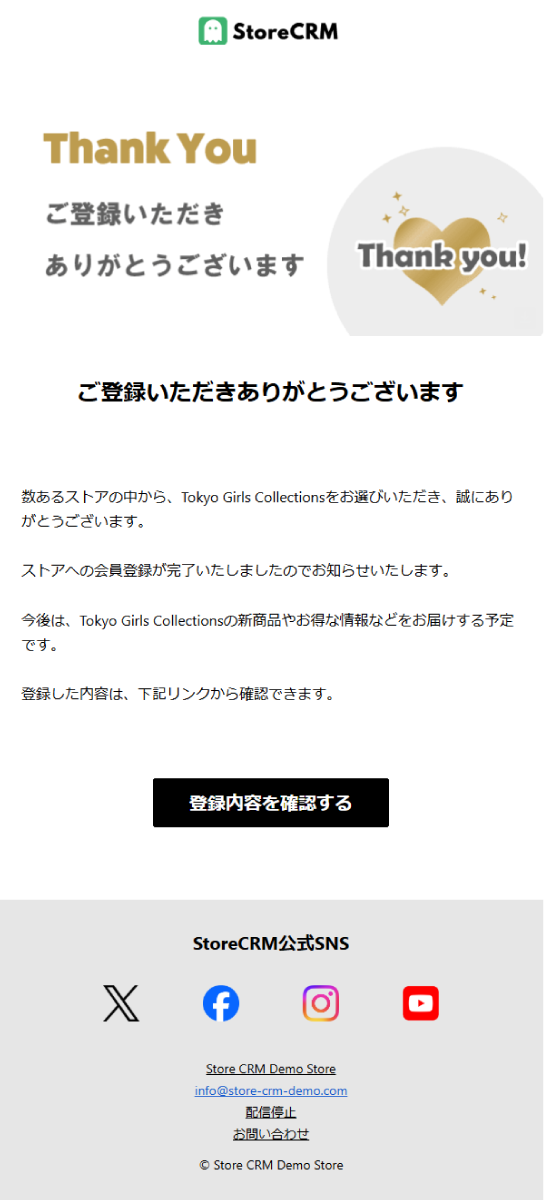](https://storecrm.com/wp-content/uploads/2025/07/welcome-21.png)
## Reach customers by email and LINE as soon as one minute after sign-up
- Messaging customers right after they register builds goodwill toward your store and encourages a first purchase.
- StoreCRM can send LINE messages as well as email.
- Delivery can be scheduled minutes, hours, or days after registration.
## No additional apps required
- StoreCRM sends welcome emails without any extra apps to install.
- Add coupons or recommended products directly to your welcome email.
## Setting up a welcome email is easy
- With StoreCRM, you can set up welcome emails in just a few steps — no additional apps needed.
- Make sure the StoreCRM app is installed on your Shopify store first.
- Sending welcome emails requires the StoreCRM [Standard plan](https://storecrm.com/#pricing) or above.
[Install the app](https://apps.shopify.com/obake-ma?locale=ja)
[](https://storecrm.com/wp-content/uploads/2025/07/sainyuka-pic-2.png)
### Add a scenario
Click \[Send a message X days (or hours) after account registration\] to add a scenario.
[](https://storecrm.com/wp-content/uploads/2025/07/welcome-3-1.png)
### Set how long after registration the message is sent
- In this example, we chose "10 minutes".
- You can choose minutes, hours, or days as the unit.
[](https://storecrm.com/wp-content/uploads/2025/07/welcome-2-1.png)
### Choose the email and LINE message to send
- A LINE message can go out at the same time as the email.
- To create a new email, go to \[[Messages](https://storecrm.com/help/en/setting/mail/)\] and open \[Email list\].
- Use a template, or design an original email of your own.
[](https://storecrm.com/wp-content/uploads/2025/07/welcome-4-1.png)
### Set up a second message and beyond
- Check \[Send a second message\].
- Configure the email to send, following the same steps as the first one.
- Varying the content between the first email and the follow-ups lifts your conversion rate.
- For example, sending a coupon in the second email and recommended products in the third helps drive sales.
- Coupons can be added here too — see [how to add coupons](https://storecrm.com/help/en/setting/coupon/).
- You can also skip the second email automatically once the coupon has been used.
[](https://storecrm.com/wp-content/uploads/2025/07/welcome-5-1-1.png)
### Set how long to wait before the second message
- In this example, we chose "3 days".
- You can choose minutes, hours, or days as the unit.
[](https://storecrm.com/wp-content/uploads/2025/07/welcome-7-1-1.png)
### Target specific products, specific customers, subscription products, and more
- StoreCRM lets you send emails based on a wide range of conditions.
- Learn more about [scenario conditions](https://storecrm.com/help/en/setting/scenario-conditions/) in the help center.
[](https://storecrm.com/wp-content/uploads/2025/07/welcome-6-1-1.png)
## Create your welcome email
- Create the email you selected in the scenario.
- Use a template, or design an original email of your own.
- Once set up, the email is sent automatically to customers after their first purchase.
- To include a coupon link, the scenario must be configured to send a coupon.
[](https://storecrm.com/wp-content/uploads/2025/07/welcome-31-1.jpg)
## Track open rates, click rates, and revenue with reports
- StoreCRM's reporting shows open rates, click rates, and revenue at a glance.
- Filter the results by a specific scenario or email.
- Click \[Download this data (Shift_JIS, for Microsoft Excel)\] or \[Download this data (UTF-8, for other tools)\] to export the data.
[](https://storecrm.com/wp-content/uploads/2025/07/obake_report._5.png)
## Summary
Sending welcome emails by hand takes an enormous amount of time and effort. Automate them with an app built for the job.
[Install the app](https://apps.shopify.com/obake-ma?locale=ja)
========================================================================
# Win-back emails
> Automatically reach customers by email and LINE once a set period has passed since their last purchase. Combine scenarios, drip sequences, and coupons to bring customers back and remind them of unused coupons.
- URL: https://storecrm.com/feature/win-back/
- Type: Features
- Published: 2024-11-20
- Updated: 2026-07-30
---
StoreCRM's win-back emails automatically give customers a reason to come back and buy again once a set period has passed since their last purchase. Despite the name, the feature is not limited to email — you can use both email and LINE as delivery channels.
Beyond a single-message scenario, it also supports drip sequences where you define the content and wait time for the second message and beyond. Automatic coupon issuing and a reminder for coupons that go unused can all live in one scenario.
[Start for free (Shopify App Store)](https://apps.shopify.com/obake-ma)
## Give lapsed customers a reason to return
Even customers who have bought from you once can drift away if nothing brings them back to your store. Win-back emails use the last purchase date as the trigger, letting you share new arrivals, seasonal picks, and coupons by email and LINE at the timing you choose.
[](https://storecrm.com/content/features/win-back/win-back-customer-journey.png)
[](https://storecrm.com/content/features/win-back/win-back-customer-journey-mobile.png)
*Click the image to enlarge.*
### Triggered automatically by the last purchase date
Set how many days after the last order to reach out and the time of day to start sending. Instead of building a list of eligible customers by hand each time, delivery to everyone who matches your conditions is fully automated.
### Build touchpoints over email and LINE
Each step can include both an email and a LINE message. Messages go to customers who meet each channel's delivery requirements — a valid email address or linked LINE ID, plus marketing consent.
### Keep each message focused
Split the roles across messages: start with a friendly reminder about your store, follow with recommended products, and add a coupon if needed. You can design what to say and when to say it, step by step.
## Fine-tune delivery with scenarios and drip sequences
A win-back scenario lets you configure everything in one place: how many days to wait before the first message, the sending window, the email and LINE content, and the wait times for the second message and beyond. Keep it to a single message, or deliver a series in sequence.
[](https://storecrm.com/content/features/win-back/win-back-step-coupon.png)
[](https://storecrm.com/content/features/win-back/win-back-step-coupon-mobile.png)
*Click the image to enlarge.*
### Set the delay and sending window for the first message
Choose the "Send a message X days after the last order date" scenario, then set the number of days and the time of day to start sending. Match the timing to your products' replacement cycle or your customers' purchase rhythm.
### Turn follow-ups into a drip sequence
Enable "Send a second message" to define different content and a different wait time from the first message. Add further messages after that, spacing each step by minutes, hours, or days.
### Narrow the audience with conditions
Use scenario conditions to target customers by purchased products, customer attributes, and more. See [scenario conditions](https://storecrm.com/help/en/setting/scenario-conditions/) for details.
## Pair coupons with unused-coupon reminders
Issue discount coupons automatically inside the scenario and share them by email or LINE. Set the coupon's expiration date and discount, and build it into your message as a reason to come back.
Once a second message is configured, enabling "Stop sending messages once the coupon is used" halts the remaining steps when the coupon has been redeemed. If it is still unused, the scenario moves on to the next message as scheduled.
This lets you announce a coupon in the first message and send an unused-coupon reminder a few days later — all within the same scenario. Learn more on the [coupon expiry reminders](https://storecrm.com/feature/missed-coupon/) page.
### From coupon delivery to reminder
1. Announce a discount coupon in the first message
2. Wait for the time you set
3. Check whether the coupon has been used before the next message
4. Stop if it has been used; send a reminder if it has not
For the coupon fields and how to insert coupons into messages, see [coupon settings](https://storecrm.com/help/en/setting/coupon/).
## Review the results and iterate
StoreCRM's reports show email opens and clicks, clicks on links inside LINE messages, and purchases attributed to StoreCRM. Filter by scenario or message to review performance and refine your content and timing.
## FAQ
### It is called a "win-back email" — can it be sent over LINE?
Yes. A win-back scenario can include both email and LINE messages. To receive it over LINE, the customer must have a linked LINE ID and be able to receive messages from your official account. Email has its own delivery requirements, such as marketing consent.
### Can I send a second message and beyond?
Yes. Configure follow-up messages and wait times to build a drip sequence. Email and LINE content, messaging, and intervals can all be adjusted per step.
### Can I remind customers about unused coupons?
Yes. Have the scenario issue a coupon automatically, set up a second message, and enable "Stop sending messages once the coupon is used". If the coupon has been redeemed, the remaining steps stop; if not, the scenario proceeds to the next message.
### Which customers receive the messages?
Customers whose last purchase date matches the elapsed-days condition and who have a valid destination and marketing consent for the channel in use. For LINE, a linked LINE ID with the ability to receive messages is also required. Add scenario conditions to narrow the audience further.
## Give customers who drifted away their next reason to return
Combine email and LINE, follow-up steps, and coupons in a single scenario triggered by the last purchase date. StoreCRM's win-back emails automate everything from the first nudge back to the unused-coupon reminder.
[Start for free (Shopify App Store)](https://apps.shopify.com/obake-ma)
For setup steps, see the [win-back email setup manual](https://storecrm.com/help/en/setting/win-back/), [creating emails](https://storecrm.com/help/en/setting/mail/), and [coupon settings](https://storecrm.com/help/en/setting/coupon/).
========================================================================
# Checkout abandonment notifications
> Reach customers who left checkout partway through and invite them back to finish their order via email and LINE. Scenario and drip campaigns let you fine-tune the timing and content of each message.
- URL: https://storecrm.com/feature/check-out-abandonment/
- Type: Features
- Published: 2024-11-03
- Updated: 2026-07-30
---
StoreCRM's checkout abandonment notifications target customers who entered their email address, proceeded to checkout, and then left without completing their order, inviting them to resume it via email and LINE. Using the abandoned checkout as the trigger, you set a wait time and deliver the products along with a link to continue the order.
Beyond the wait time before the first message, you can also configure follow-up messages and the intervals between them. Instead of a single one-off notification, you can build a drip sequence that addresses each customer's hesitation, all within a single scenario.
[Start for free (Shopify App Store)](https://apps.shopify.com/obake-ma)
## Why checkout abandonment notifications matter for recovering abandoned carts
According to the [average of 50 studies published by the Baymard Institute](https://baymard.com/lists/cart-abandonment-rate), the online shopping cart abandonment rate is 70.22% (as of July 29, 2026). This figure is an average across all carts; it is not limited to sessions that reached checkout, nor does it reflect the results of using StoreCRM. It also includes shoppers who simply were not ready to buy yet, such as those closing the page mid-comparison.
As Shopify explains, [checkout abandonment](https://help.shopify.com/ja/manual/promoting-marketing/create-marketing/abandoned-checkouts) refers to a session where a customer entered their email address and proceeded to checkout but never completed payment. By showing these customers the products they left behind and a link to resume the order, you give shoppers who made it almost all the way to purchase a reason to reconsider.
Some causes of cart abandonment—shipping costs, delivery conditions, a clunky checkout screen—cannot be fixed by notifications alone. Alongside improving the checkout experience itself, it is important to give customers who want to come back a clear, friction-free path to pick up where they left off.
## Checkout abandonment notifications outperform regular newsletters
When we aggregated actual StoreCRM delivery data, checkout abandonment notification emails outperformed regular email newsletters on every metric: open rate, click rate, conversion rate, and revenue per email sent.
Delivery performance comparison between checkout abandonment notification emails and regular newsletters
Metric
Checkout abandonment emails
Regular newsletters
Difference
Open rate
47.7%
26.6%
About 1.8x
Click rate
9.3%
2.1%
About 4.4x
Conversion rate
1.92%
0.09%
About 21x
Revenue per email sent was also about 32 times that of regular newsletters.
Customers who reach checkout have already signaled their intent to buy. Because the products and a link to resume the order arrive shortly after they leave, these messages tend to draw a stronger response than newsletters broadcast to a large audience at once.
\* The aggregation period covers all deliveries in StoreCRM (excluding test sends), comprising 11,907 checkout abandonment notification emails and 19,806,367 regular newsletters. Checkout abandonment notifications are classified as automated deliveries triggered by an abandoned checkout; regular newsletters are classified as manual campaigns sent in bulk from the admin screen.
\* Conversion rate and revenue are aggregated from orders that StoreCRM attributed to each delivery (the attribution window after delivery follows the system's own logic).
\* This comparison reflects observed results from StoreCRM's delivery data and does not demonstrate a causal effect of checkout abandonment notifications.
## Give hesitant customers a reason to resume their order
Checkout abandonment notifications are not about pressuring customers into a purchase. By delivering a link to resume the order along with the information they need to decide, you create an experience that makes it easy for customers to keep considering.
[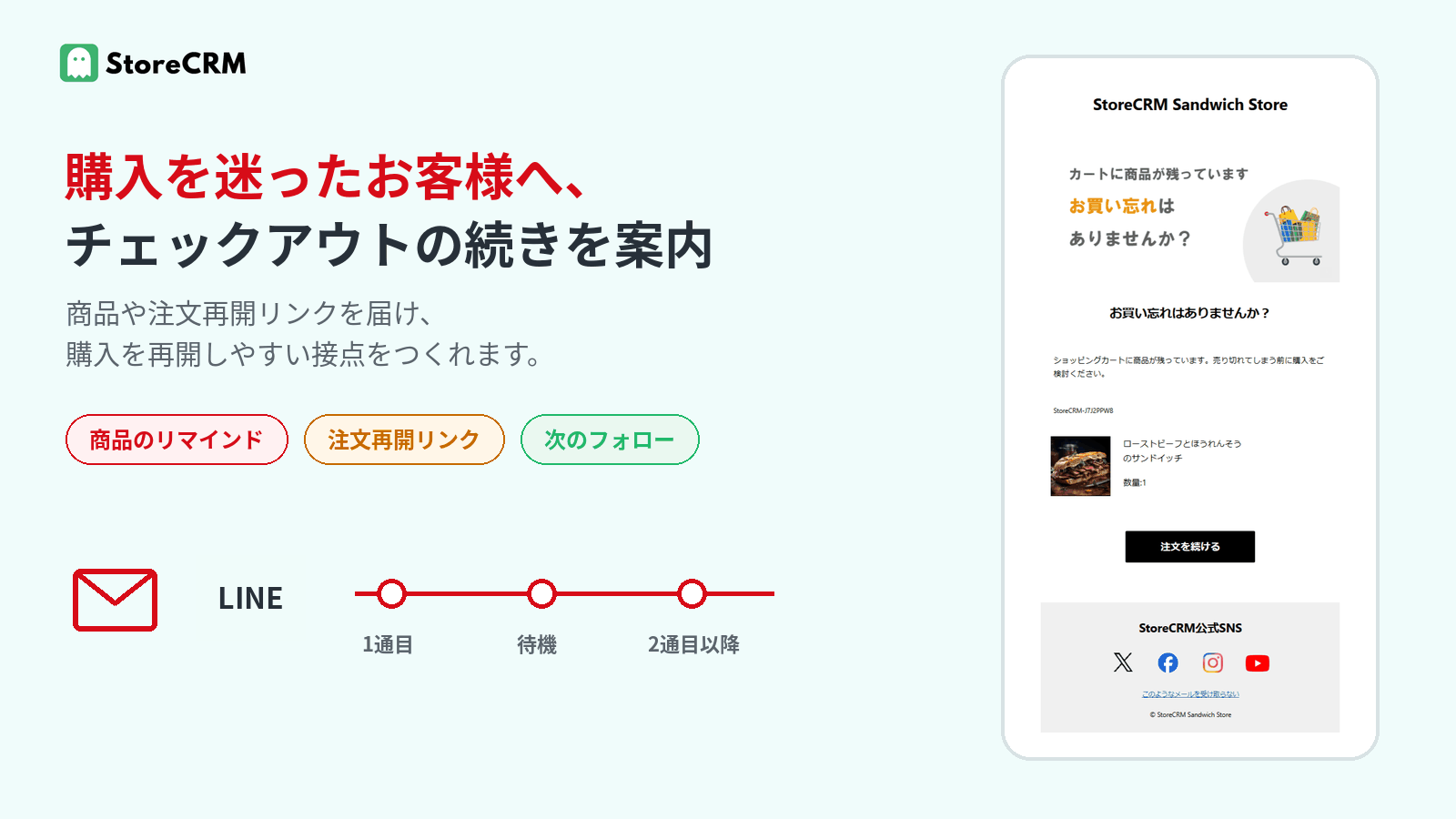](https://storecrm.com/content/features/check-out-abandonment/checkout-abandonment-customer-experience.png)
*Click the image to enlarge.*
### Resume the order in one tap
Emails and LINE messages can include a link that takes customers straight back to their order. There is no need to search for the products again or rebuild the cart, making it easy to pick up checkout where they left off.
### Answer the questions holding them back
You can add the information customers want to confirm before buying—product highlights, shipping details, contact information, and more. Rather than relying on discounts alone, your message can address exactly what is making them hesitate.
### Avoid cramming everything into one message
The first message can simply show the products and invite the customer to resume the order; follow-ups can then add supplementary information, coupons, or product recommendations as needed. Giving each stage its own role means you never have to pack everything into a single message.
## Email and LINE, delivered on your schedule
StoreCRM's checkout abandonment notifications support both email and LINE within a scenario. You can adjust the delay from checkout abandonment to the first message, as well as the wait times between the first message and each follow-up.
[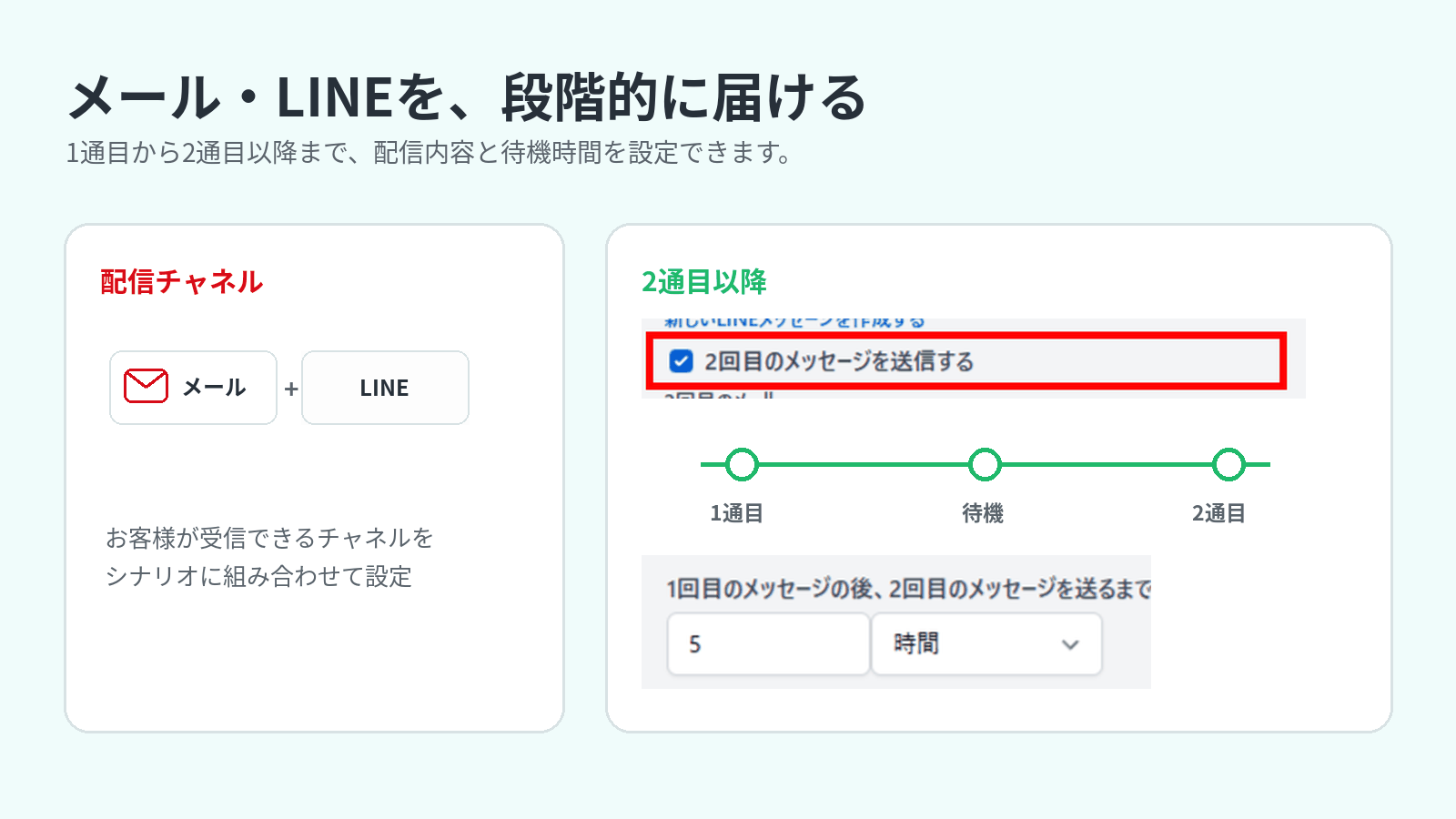](https://storecrm.com/content/features/check-out-abandonment/checkout-abandonment-step-settings.png)
*Click the image to enlarge.*
### Choose the channel that fits each customer
Scenarios can send email, LINE messages, or both. To deliver via LINE, StoreCRM must be connected to your LINE Official Account, and the customer must have linked their LINE ID and be able to receive messages from the account.
### Turn follow-ups into a drip sequence
Set a wait time after the first message, then configure second and subsequent emails or LINE messages. Vary the content to match the post-abandonment journey—a product reminder, an invitation to resume the order, supplementary information, and more.
## Scenario campaigns triggered by checkout abandonment
### Set the delay before sending
Using an incomplete checkout with a captured email address as the trigger, you can set the wait time before the first message in minutes, hours, or days. To make sure the resume-order link works reliably, we recommend waiting at least 15 minutes due to Shopify's specifications.
### Refine the audience with conditions
Narrow a scenario's audience by purchase amount, products, customer attributes, customer segments, and more. Even without conditions, the scenario targets customers who can be identified as recipients and can receive messages on the channel you use.
### Tailor the message content
Use StoreCRM's templates, or create original messages that match your store and products. Once the scenario is enabled, it runs automatically according to the conditions and wait times you set.
## Stop sending after purchase, then review the results
When StoreCRM detects that the target checkout has been completed or deleted, it stops any messages still in progress—so customers never keep receiving abandonment notifications after they have ordered.
Afterward, StoreCRM's reports show how the scenario ran, email opens and clicks, and the orders and revenue attributed to clicks on StoreCRM's delivery links. Treat these as indicators for reviewing timing and content, not as a measure of net incremental lift.
## Adjust sending and product display based on inventory
Even if inventory changes after a checkout is abandoned, you can combine conditional branches with the email's product display settings to control both whether the message is sent and which products it shows.
[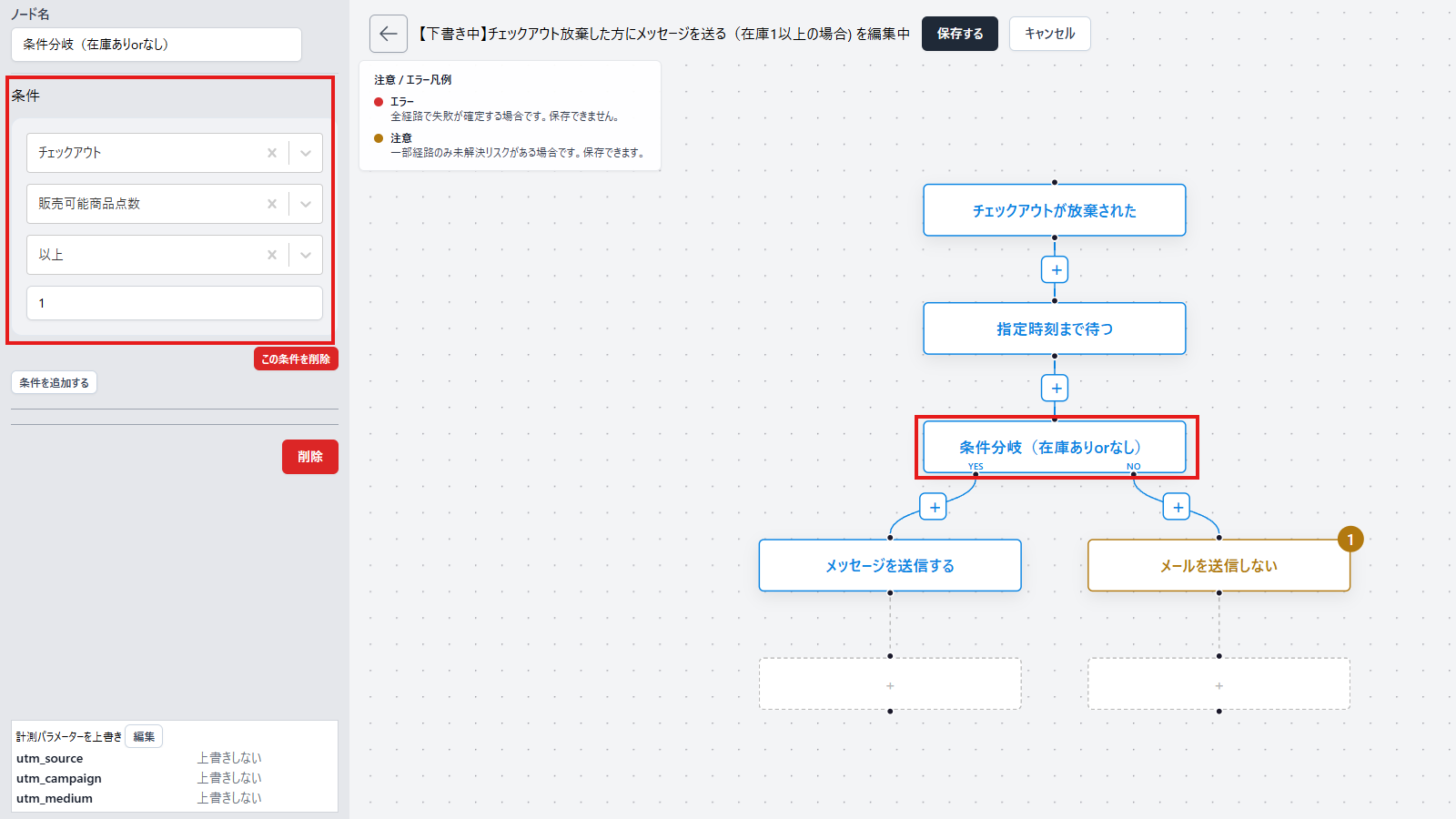](https://storecrm.com/content/features/check-out-abandonment/checkout-abandonment-inventory-branch.png)
[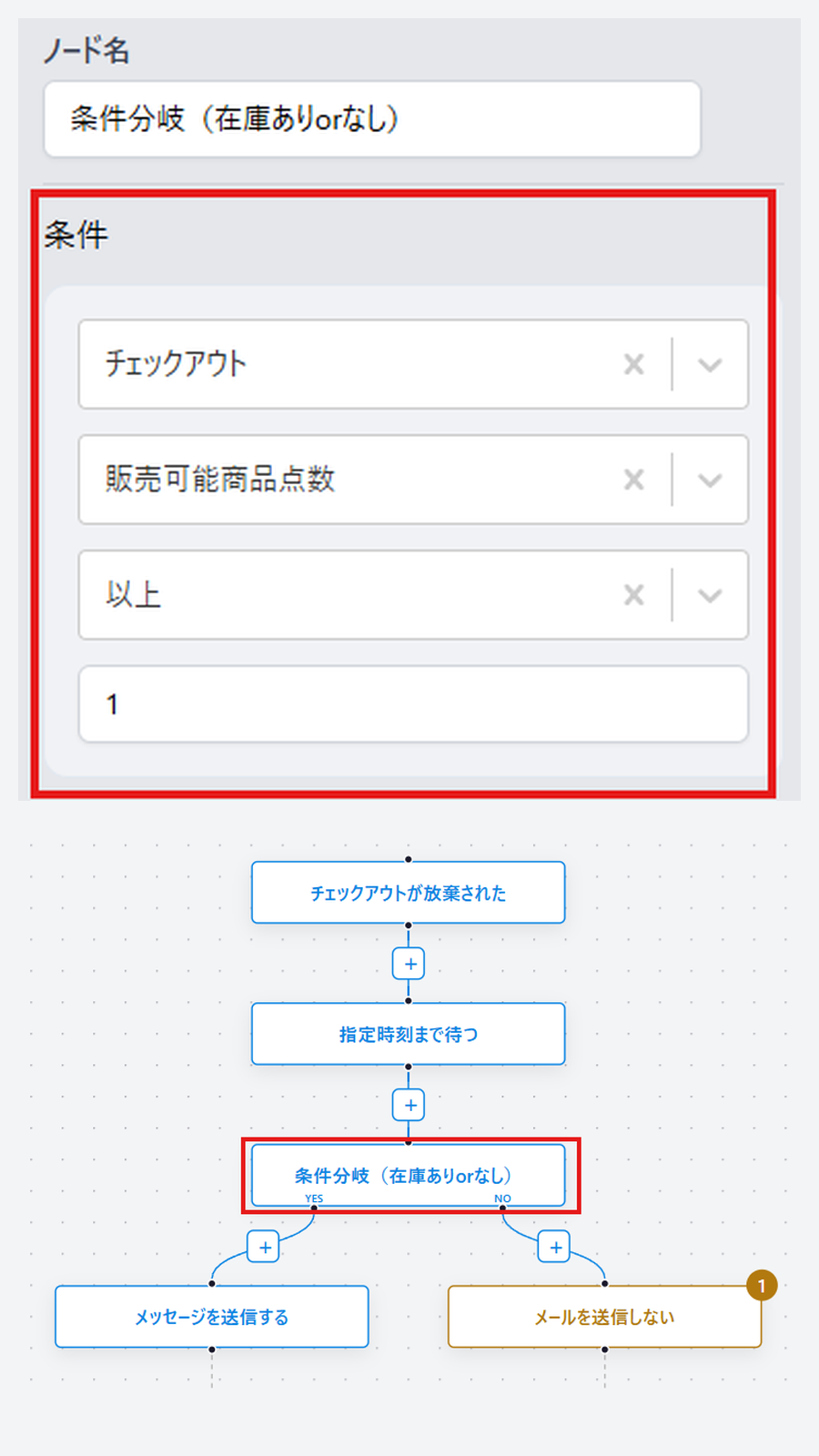](https://storecrm.com/content/features/check-out-abandonment/checkout-abandonment-inventory-branch-mobile.png)
*Click the image to enlarge.*
### Send only when items are in stock
In the flow editor's conditional branch, you can use the checkout's "number of available items" as a condition. For example, send the message when the count is 1 or more and skip it when it is 0, so the reminder only goes to checkouts that still contain in-stock products.
### Automatically hide sold-out products
The email editor's Shopify cart/order block includes a setting to hide items whose stock is 0. When enabled, it automatically removes out-of-stock items from the product list at send time. This works independently of the conditional branch that controls whether the scenario sends at all, letting you fine-tune which products appear in the email.
## Frequently asked questions
### Are "cart abandonment" and "checkout abandonment" the same thing?
No. Cart abandonment broadly refers to any case where a customer added products to their cart but did not buy. Checkout abandonment is a subset of that: the customer proceeded to checkout and entered their email address, but did not complete the purchase.
### Can I send via both email and LINE?
Yes. Each step of a scenario can include both an email and a LINE message. LINE delivery requires that StoreCRM is connected to your LINE Official Account and that the customer has linked their LINE ID and can receive messages from the account. Email delivery also has its own requirements, such as a valid recipient and marketing consent.
### Can I send follow-up messages after the first one?
Yes. Set a wait time after the first message and configure the follow-ups as a drip sequence. When StoreCRM detects that the target checkout has been completed or deleted, it stops any remaining messages in the sequence.
## Guide customers back to checkout on the channel they prefer
Checkout abandonment notifications are scenarios that make it easy for customers who stopped just short of purchase to resume their order. Combine email and LINE, wait times, and follow-up content to build the follow-up flow that fits your store.
[Start for free (Shopify App Store)](https://apps.shopify.com/obake-ma)
For setup instructions, see [checkout abandonment notifications](https://storecrm.com/help/en/setting/check-out-abandonment/), [creating emails](https://storecrm.com/help/en/setting/mail/), and [scenario execution conditions](https://storecrm.com/help/en/setting/scenario-conditions/).
========================================================================
# Back-in-stock notifications
> Automatically notify customers by email or LINE the moment a product is back in stock. Control how many people are notified, in what order, and when they are re-notified — all tuned to your inventory and the way you sell.
- URL: https://storecrm.com/feature/back-in-stock/
- Type: Features
- Published: 2024-10-01
- Updated: 2026-07-28
---
Back-in-stock notifications send an email or LINE message to customers waiting for a sold-out product the moment it comes back in stock.
StoreCRM does more than blast everyone at once. You can design the whole flow around how your store sells — how many people are notified based on stock levels, in what order, at what intervals, and under which conditions they are notified again.
[Start for free (Shopify App Store)](https://apps.shopify.com/obake-ma)
## Back-in-stock notifications outperform regular newsletters
Across StoreCRM's delivery data, back-in-stock notification emails beat regular email newsletters on every metric: open rate, click rate, conversion rate, and revenue per email.
Delivery results: back-in-stock notification emails vs. regular email newsletters
Metric
Back-in-stock emails
Regular newsletters
Difference
Open rate
66.0%
26.5%
~2.5x
Click rate
20.4%
2.1%
~9.7x
Conversion rate
6.29%
0.09%
~70x
Revenue per email was also roughly 40 times higher than regular newsletters.
Customers who sign up for a back-in-stock notification have already shown interest in the product. Because the message arrives at the exact moment the product can be purchased again, it tends to draw a far stronger response than a bulk newsletter.
* The aggregation period covers all deliveries in StoreCRM (excluding test deliveries): 178,791 back-in-stock notifications and 19,642,098 regular email newsletters. Back-in-stock notifications are classified as automated deliveries triggered by restocking; regular newsletters are manual campaigns sent in bulk from the admin.
* Conversion rate and revenue are based on orders that StoreCRM attributed to each delivery (the attribution window follows the system's own logic).
* This comparison is an observation based on StoreCRM's delivery data and does not demonstrate a causal effect of back-in-stock notifications.
## What StoreCRM's back-in-stock notifications can do
### Notify customers by email and LINE
Customers can receive back-in-stock alerts through whichever channel suits them: email or LINE.
With [one-step LINE back-in-stock alerts](https://storecrm.com/feature/line-back-in-stock/), customers can sign up straight from the product page just by linking their LINE account — no store login required. For customers who are already logged in with a linked LINE ID, you can even enable one-click signup.
[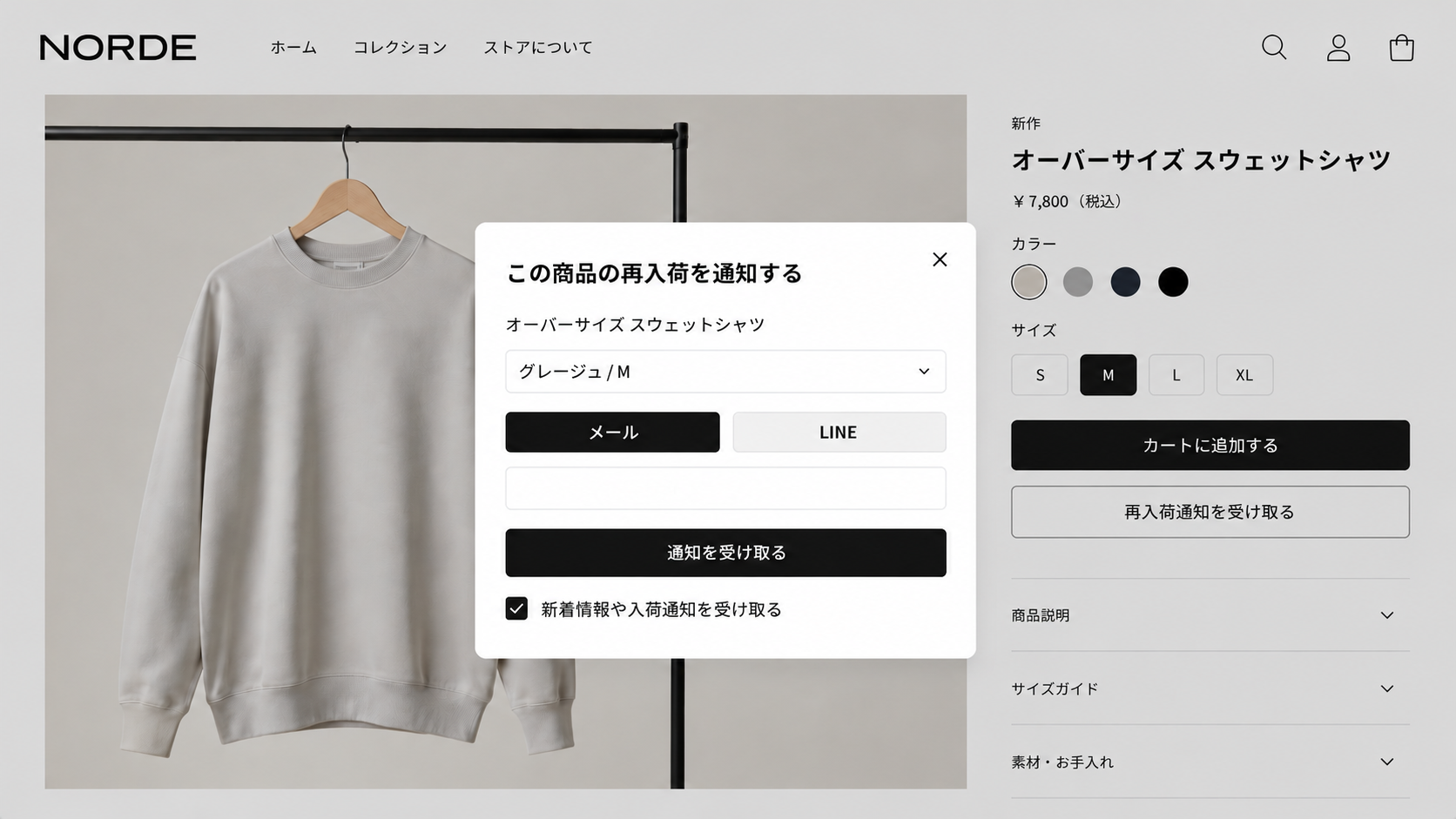](https://storecrm.com/content/features/back-in-stock/restock-storefront-modal.png)
### Deliver in step with your inventory and sales strategy
Flexibly configure how many people are notified, in what order, at what intervals, and when they are re-notified. For products that come back in small quantities, you can notify subscribers in stages matched to your stock levels instead of alerting everyone at once.
- Set the number of people notified as a fixed count or based on stock levels
- Choose delivery order: oldest signups first or newest first
- Configure batch size, delivery intervals, and re-notification conditions
- Set a minimum stock threshold and optionally notify wishlist subscribers too
- Hold notifications until a time specified in a product metafield (works with inventory management system integrations)
[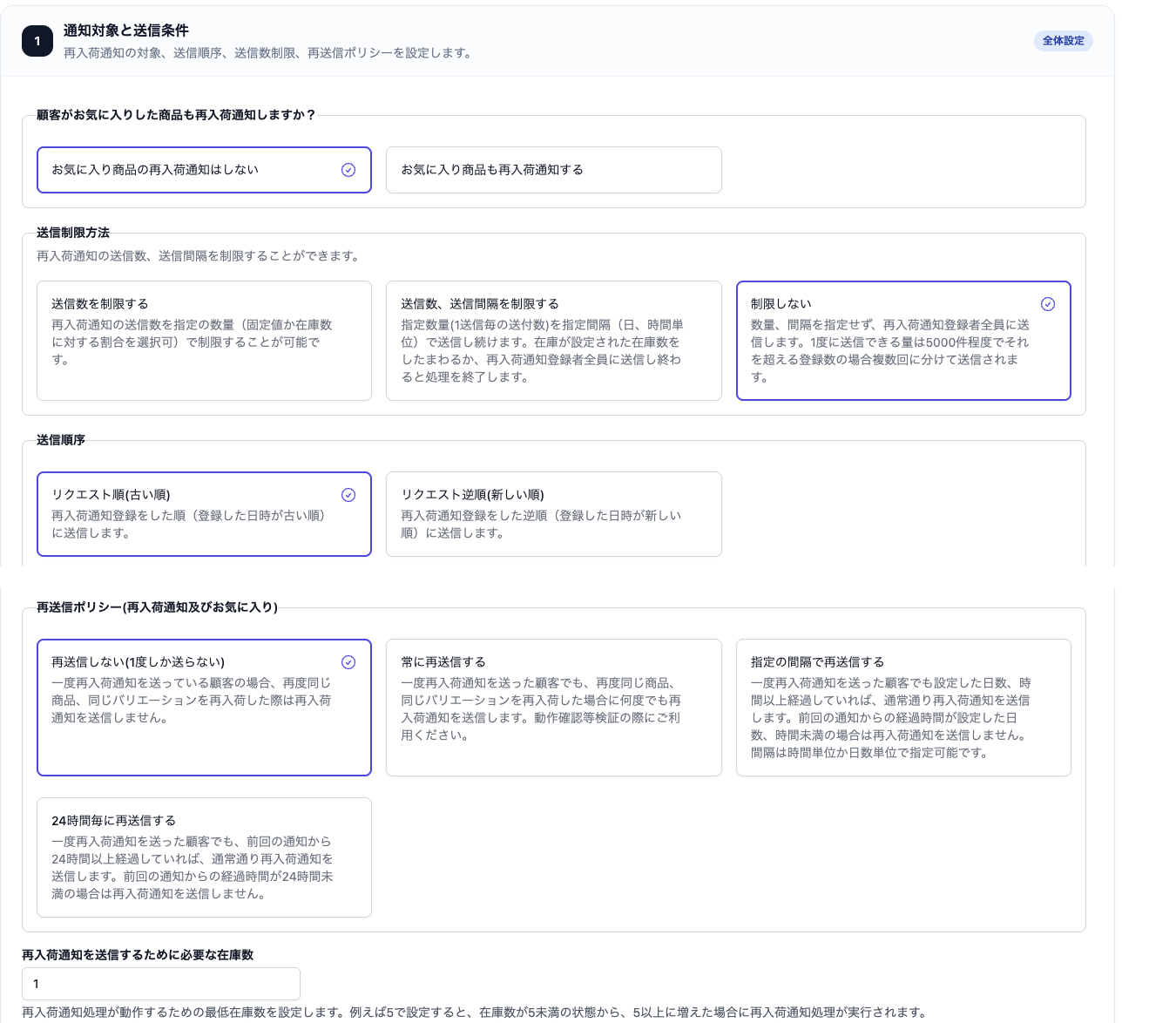](https://storecrm.com/content/features/back-in-stock/restock-delivery-settings.png)
### Track signups in lists and reports, then feed your next CRM campaign
The back-in-stock list in the admin shows exactly who is waiting for which product. You can also build customer segments from signups for specific products and use them in follow-up email and LINE campaigns.
Reports break down signup and delivery counts by product, variant, and channel, along with open rates, click rates, and revenue — all exportable to CSV. Knowing which products customers are waiting for helps inform purchasing, restocking, and your next campaigns.
## From signup to purchase
1. A customer signs up for notifications on a sold-out product
2. The product comes back in stock
3. StoreCRM automatically sends email and LINE notifications under your configured rules
4. The customer returns to the product page from the notification and buys
No more manually pulling lists of waiting customers or sending emails product by product after every restock.
## Tailor the signup experience to your store
Adapt the signup flow to your membership strategy: allow guest email signups, restrict signups to members, or let logged-in customers register with a single click.
You can also customize the wording, colors, and design of the button and signup screens, the "already signed up" state, and the display text for multilingual stores.
[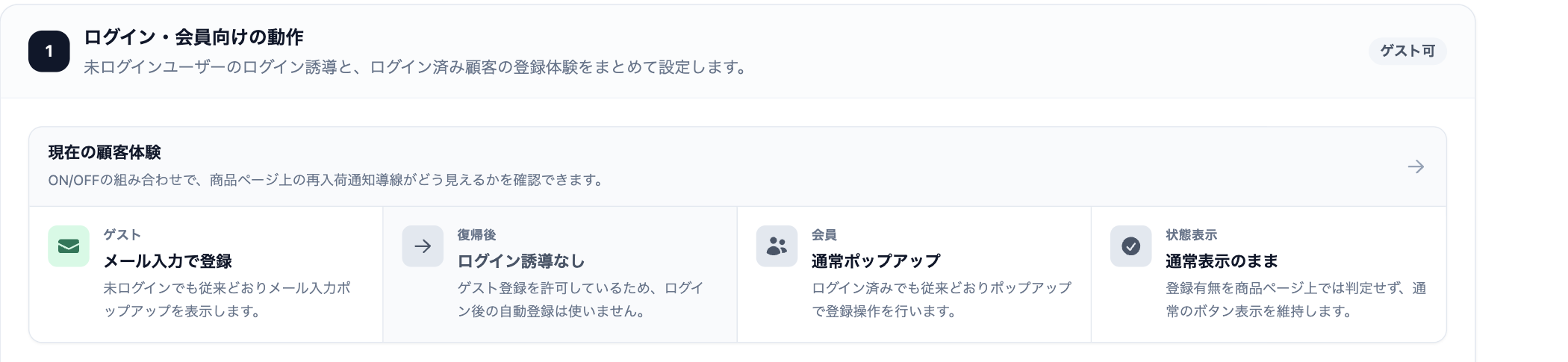](https://storecrm.com/content/features/back-in-stock/restock-customer-experience.png)
## FAQs
### Can I notify customers by both email and LINE?
Yes. Customers can sign up for back-in-stock notifications by email or LINE.
### Does it work for small restocks?
Yes. You can adjust how many people are notified based on stock levels and deliver to subscribers in stages.
### Can guests sign up?
You can choose between allowing guest email signups and directing customers to log in or create an account first.
## Back-in-stock notifications, built around how you sell
From email and LINE notifications to stock-aware delivery rules and customer management, StoreCRM covers it all in one app.
[Start for free (Shopify App Store)](https://apps.shopify.com/obake-ma)
### Setup guides
For setup steps and details on each option, see the [back-in-stock email setup manual](https://storecrm.com/help/en/setting/back-in-stock/).
- [How to add back-in-stock notifications and restock requests to Shopify](https://storecrm.com/knowhow/back-in-stock/)
- [How to send Shopify back-in-stock notifications via LINE](https://storecrm.com/knowhow/line-backinstock-setting/)
- [Comparing the best Shopify back-in-stock notification apps](https://storecrm.com/knowhow/back-in-stock-apps/)
========================================================================
# How +CLOTHET grows both revenue and customer experience with CRM and MA
> +CLOTHET uses StoreCRM automated journeys and segmented campaigns to deepen customer relationships and grow revenue.
- URL: https://storecrm.com/introduction/crossclothet-interview/
- Type: Customer stories
- Industry: Apparel
- Published: 2025-07-29
- Updated: 2025-11-13
---
+CLOTHET is the apparel brand of STYLEM Ltd., a textile trading company with more than 160 years of history. It launched as a D2C brand selling primarily through ecommerce, and as its customer base grew the team wanted to get serious about automated email campaigns driven by CRM and MA tools — which is why they adopted StoreCRM. [1] [2]
+CLOTHET has always been strong at marketing built around its email newsletter. Last year the brand began sending automated journeys with StoreCRM, and revenue from email and social has grown to 150% of the same month a year earlier. More recently the team has started sending newsletters to specific customer segments through StoreCRM, with striking results. [3] [4]
[1] CRM: a way of centralising customer information, strengthening relationships through better-targeted communication and maximising revenue.
[2] MA: a way of automatically delivering information at the right moment, based on the behavioural data of prospective customers.
[3] Automated journey: a staged series of emails sent automatically according to a customer's behaviour and attributes.
[4] Customer segment: a group of customers sharing common characteristics or conditions.
**Interviewee**
STYLEM Ltd.
Business Headquarters, Second Business Division, Garment Department 3
Manager, +CLOTHET Section
Toshio Okada
**— Tell us about +CLOTHET.**
We started out as a textile trading company: our main business is selling fabric to Japanese apparel companies and overseas brands. I spent close to 20 years myself on that side, supplying fabric to apparel makers.
Along the way we began to think that we wanted to launch our own brand and deliver directly to customers, and seven years ago we started +CLOTHET. The original idea was to take high-quality fabrics selected from around the world and put them straight into customers' hands.
**— What makes +CLOTHET distinctive?**
Above all, our commitment to materials. Given the company's history, we have the advantage of being able to source raw materials from suppliers all over the world, and delivering that quality D2C — good things at an accessible price — is the brand's single biggest selling point.
*The +CLOTHET website*
**— Why did you set the brand up as a D2C business?**
Simply selling fabric to apparel companies would have been no different from the business we already had. If we were going to do it, we needed to get better materials to customers while keeping the cost base down as far as possible. So we decided to keep physical stores to an absolute minimum, avoid costs such as store staffing, and build the business around ecommerce.
**— What did you weigh up when you launched the store, and why did you choose Shopify?**
At the time we were choosing, Shopify was not as mainstream as it is now and there was very little information available in Japanese. But the low upfront cost and the sheer variety of apps we could extend it with were appealing, so we started with it on a trial basis. It took some nerve to launch on Shopify back then, but in hindsight it was the right call.
Because we planned to run the brand without stores, the hard part was working out how to convey the quality of the materials, the care that goes into them and the story behind them, when customers cannot pick the product up.
**— You are known for being strong at email newsletter marketing. What is your approach?**
The top priority is never breaking the consistency of the brand's philosophy and mood. It is a little hard to put into words, but this is an earnest brand, and we are always thinking about keeping that consistent.
On timing: some brands send email every day, but at +CLOTHET we only send when we have something we believe customers will genuinely benefit from.
When the brand launched we had few products, so we sent once a week. As the brand has grown and we have more products and content, that has risen to two or three times a week — but the policy is still to send only when we have something worth saying.
We review performance weekly and monthly, looking at open rate, click rate and revenue from conversions.

**— What was your impression of CRM and MA tools before you adopted one, and what changed afterwards?**
We knew tools like this existed and we wanted to use one, but we assumed they would not be effective until we had a reasonably large audience to send to.
At around the five-year mark for the brand, we decided it was time to start running CRM and MA campaigns such as automated journeys. Email is still the channel that generates the most conversions for +CLOTHET, so this was also about strengthening that.
When we decided to adopt StoreCRM, we had only just got as far as segmenting our customers, looking at the results and thinking "so this is who our customers are — I would like to grow revenue from this segment." After installing StoreCRM, it became a question of how we could win back lapsed customers under our own steam, using approaches such as RFM analysis. [5]
[5] RFM analysis: a method of evaluating and classifying customers by the recency, frequency and monetary value of their purchases.
Last month we ran a segmented campaign for the first time, targeting people who had not bought from us yet this year, and it converted far better than we had expected. Compared with a standard newsletter, the click rate on links in the email was 2.6 times higher and CVR was 4.5 times higher, so we are really feeling the impact of segmented sending. We plan to repeat it.
We currently have around five automated journeys running. One characteristic of +CLOTHET is that a certain number of customers make their second purchase the following month or the month after — faster than at other companies — so we are using automation to push that further.
For example, we send a thank-you email two weeks after purchase with content on how to care for and wash the item, and it often leads to another purchase. Creating those small touchpoints really does matter. [6]
[6] Thank-you email: an email of thanks sent automatically straight after a purchase or sign-up.
With birthday emails, we send the first one at the start of the month and a second on the 25th, only to people who have not yet used the coupon from the first. That second email picks up a lot of purchases customers would otherwise have forgotten about — revenue is 40% higher than when we do not send it.
Revenue from email and social is now 150% of the same month last year. Revenue from advertising is falling while email and social grow, and StoreCRM is a big part of that increase.
Revenue attributed to StoreCRM is five times what it was a year ago, because we have become much better at running the journeys properly.
*The birthday email journey +CLOTHET built in StoreCRM. An email goes out on the first day of the customer's birthday month, and a second follows on the 25th if the coupon has not been used.*
**— Are you doing anything to improve LTV? Has it changed?**
Honestly, I understood the concept, but until now we had not done anything to improve LTV. We have since made it a focus, though, and we watch the numbers closely. LTV has doubled compared with three or four years ago, and it has become an important metric for us. [7]
[7] LTV: a measure of the cumulative profit or revenue a customer brings to a business over the course of the relationship.
For example, customers who come to our offline events have an LTV around 1.5 times higher than those who do not. Using CRM, we have built journeys that suggest complementary items to customers who bought a T-shirt, show them other sizes and cuts, or recommend trousers to go with a knit they have purchased. In ecommerce we cannot make those recommendations face to face, so we run these journeys as our way of growing LTV.
*The journey +CLOTHET built for first-time buyers. The email a customer receives depends on the product they purchased.*
**— Now that you have been running CRM and MA campaigns for a while, how has your relationship with customers changed?**
Honestly, at the start I wondered whether it would really have that much impact. As a customer myself, I do not pay much attention when emails keep arriving, so I was not sure what to expect. Once we actually started running it, the response was very good. We do not send all that often, and even so the effect was clearly visible — that was encouraging.
I also feel the distance between us and our customers has narrowed. We deliberately keep the content close to the customer, covering things like product care, so we would like to keep adding journeys in the same vein.
We run offline events a few times a season, and some of the customers who come along have seen our emails; the reactions are positive. CRM has become a real strength for the brand in terms of building relationships with customers, too.

**— What are you doing on LINE?**
When the brand started we were not especially active on LINE, but as part of strengthening our CRM work we decided to grow the number of friends on our LINE official account. Our customers skew male, and we had a hypothesis that more of them were using LINE than email, so we ran campaigns to encourage friend adds.
We still have more subscribers on email, but on revenue alone LINE has come very close to it. So we send on LINE just as we do on email, and we make a point of refreshing the rich menu regularly.
**— With advertising costs moving as they have recently, has the importance of CRM changed?**
We have increased overall ad spend by about 20% compared with before, but CPA has risen — this may be a global effect — and the results have not matched the extra budget. We put 80% of the budget into acquiring new customers, and that is exactly where returns have thinned out and we are struggling. [8]
[8] CPA: cost per acquisition — the advertising cost of winning a single conversion.
On the other hand, from this year CRM has come to be treated as one of the three pillars of our marketing and promotion, alongside advertising and the newsletter. Two years ago we were not running CRM campaigns at all and had nobody assigned to it; today we have one person dedicated to sending the newsletter and managing the apps.
**— Are there CRM campaigns you would like to run in future?**
Honestly, I think we have only just started. We are nowhere near using every feature or getting the full potential out of the tool, but I would like to work on winning back customers who have lapsed, and on deepening relationships with the customers we meet offline.

*Fabric samples line an entire wall of STYLEM's Tokyo office.*
========================================================================
# +CLOTHET adopts StoreCRM to automate birthday and post-purchase email campaigns
> +CLOTHET, the fashion brand from STYLEM, uses StoreCRM to automate birthday, post-purchase and shipping emails.
- URL: https://storecrm.com/introduction/crossclothet/
- Type: Customer stories
- Industry: Apparel
- Published: 2025-06-10
- Updated: 2025-11-13
---
GroovyMedia Inc. (head office: Minato City, Tokyo; Representative Director: Shota Watanabe) is pleased to announce that StoreCRM, its Shopify app, has been adopted as the customer relationship management (CRM) and email marketing automation (MA) platform for the ecommerce store of +CLOTHET, the fashion brand run by STYLEM Ltd.
## What +CLOTHET achieved with StoreCRM
- Birthday-triggered automated email sequences
- Automated post-purchase and shipping notification emails
## Comment from Toshio Okada, STYLEM Ltd.
StoreCRM finally let us do something we had wanted to do for years: send a coupon in a birthday email. Because StoreCRM can detect whether a coupon has been redeemed partway through an automated sequence, we can follow up with a reminder to everyone who has not used theirs — and that reminder has performed far better than we expected. We also send order confirmation and shipping notifications as automated emails, and those generate significant revenue as well. Store-wide revenue is growing at 120% year on year, and StoreCRM's contribution to that has been immeasurable.
## About +CLOTHET
+CLOTHET is an apparel brand developed by STYLEM, a textile trading company with over 150 years of history. It manages the entire process in house — from raw material procurement and fabric development through to sewing and sales — bringing high-quality materials from around the world to customers at a fair price.
Distinctive construction details such as three-dimensional patterns and set-in sleeves combine comfort with a clean silhouette, and the brand makes active use of sustainable materials. Under the concept "From CLOTH to CLOSET," it offers a unisex range centred on T-shirts and shirts, which customers can also see and buy in person at pop-up stores.
+CLOTHET
[https://crossclothet.jp/](https://crossclothet.jp/)
## Partner programme
We are looking for Shopify agencies and developers who can recommend and implement StoreCRM, partners who can help merchants maximise store LTV with StoreCRM, and app vendors interested in building integrations.
Please see the page below for details.
[https://storecrm.com/partner/](https://storecrm.com/partner/)
## About GroovyMedia Inc.
Company name: GroovyMedia Inc.
Representative: Shota Watanabe
Established: April 2007
Business:
1. Application development for online stores
2. Online store development and marketing support
3. Systems development
URL: [https://www.groovymedia.jp/](https://www.groovymedia.jp/)
========================================================================
# MINIMAL WARDROBE adds wishlists and automated campaigns with StoreCRM
> MINIMAL WARDROBE, the select shop directed by Yoshimasa Hoshiba, uses StoreCRM wishlists and automated campaigns to lift conversion.
- URL: https://storecrm.com/introduction/minimalwardrobe/
- Type: Customer stories
- Industry: Apparel
- Published: 2025-05-27
- Updated: 2025-11-13
---
GroovyMedia Inc. (head office: Minato City, Tokyo; Representative Director: Shota Watanabe) is pleased to announce that StoreCRM, its Shopify app, has been adopted as the customer relationship management (CRM) and email marketing automation (MA) platform for the ecommerce store of MINIMAL WARDROBE, the select shop operated by Growth Associates Inc. under the direction of Yoshimasa Hoshiba.
## What MINIMAL WARDROBE achieved with StoreCRM
- Automated emails, including checkout abandonment notifications
- A product wishlist feature
## Comment from Abukawa, Growth Associates Inc.
Since introducing StoreCRM we have been able to design a wide range of automated journeys, starting with checkout abandonment, and run our marketing automation exactly the way we always wanted to. We also added a wishlist to the store, which makes it easy for shoppers to come back to a product that caught their eye while browsing; paired with reminder campaigns, it has lifted our conversion rate. The fine-grained adjustments we could never get from overseas apps are proposed and implemented by the StoreCRM team as we go, which has been a great help.
## About MINIMAL WARDROBE
MINIMAL WARDROBE is a select shop stocked exclusively with pieces genuinely loved by Yoshimasa Hoshiba, the fashion director and editor-in-chief of FORZA STYLE.
Great-value, simple white shirts and T-shirts you can wear every day, black silk-cashmere knitwear, and more. Rather than chasing brand names, the shop introduces a carefully curated selection of simple, timeless, well-priced pieces, a few at a time.
MINIMAL WARDROBE
[https://minimalwardrobe.jp/](https://minimalwardrobe.jp/)
## Partner programme
We are looking for Shopify agencies and developers who can recommend and implement StoreCRM, partners who can help merchants maximise store LTV with StoreCRM, and app vendors interested in building integrations.
Please see the page below for details.
[https://storecrm.com/partner/](https://storecrm.com/partner/)
## About GroovyMedia Inc.
Company name: GroovyMedia Inc.
Representative: Shota Watanabe
Established: April 2007
Business:
1. Application development for online stores
2. Online store development and marketing support
3. Systems development
URL: [https://www.groovymedia.jp/](https://www.groovymedia.jp/)
========================================================================
# August StoreCRM Updates
> August 2026 updates include LINE source tracking and follow-up flows, automated LINE campaigns, scenario testing, product browsing segments, and product display options.
- URL: https://storecrm.com/news/08_2026_update/
- Type: News
- Published: 2026-10-13
- Keywords: StoreCRM, August 2026, LINE source tracking, automated campaigns, scenario testing
---
In August 2026, StoreCRM added features that support campaign preparation and delivery, including follow-up flows after LINE account linking, automated LINE campaign creation, and scenario testing. Product browsing segments and additional product display options for emails also make it easier to design CRM campaigns around your store's operations.
## Track LINE linking sources and run source-specific follow-up flows
*Configure the source name, source key, and action to run after LINE account linking.*
You can now track which entry point a customer used to link their LINE account and start a dedicated scenario for that source. Tailor your follow-up messages to entry points such as product pages or campaign pages. For example, customers who link from a campaign page can receive related product recommendations, while customers who link through a members-only entry point can receive benefit information. Comparing linking and scenario start rates across sources also helps you review the paths that encourage LINE account linking.
*Compare linking and scenario start rates across sources, including product pages and quiz content.*
### Feature details
- In addition to existing LINE linking entry points, you can configure custom sources for your own buttons.
- Choose tracking only or start an active dedicated scenario after LINE account linking is complete. Enable tracking for the relevant source before using it.
- The source report shows account linking starts, completed links, and scenario starts by source.
### Recommended for stores that
- Promote LINE account linking from multiple pages.
- Want to tailor follow-up flows to the customer's reason for linking.
See [LINE source settings and analysis](https://storecrm.com/help/setting/line-routes/) for details.
## Automated campaign creation now supports LINE
*Choose LINE as the delivery channel and select the message to use.*
Automated campaign creation now supports LINE as well as email. Events such as a product becoming available or coming back in stock can trigger the creation of a campaign using a prepared LINE message. This reduces the work required to prepare campaigns for each update and makes it easier to turn timely announcements into campaigns. Choose whether the resulting campaign is saved as a draft, scheduled, or sent immediately, so you can also have a team member review the content before delivery.
### Feature details
- Select LINE as the delivery channel and choose the LINE message to use.
- Preview the content and send a test message before use. Execution history also shows the triggering product, recipients, and generated campaign.
- LINE delivery requires a connected LINE Official Account and customers who are eligible to receive messages.
### Recommended for stores that
- Want to announce new products or restocks through LINE.
- Want to automate LINE campaign creation alongside email campaigns.
See [automated campaign settings](https://storecrm.com/help/%E8%A8%AD%E5%AE%9A/campaign-automation/) for details.
## Test scenarios before activating them
*Reuse a past event or enter test conditions to choose what to test.*
The new scenario testing feature lets you try conditions and execution paths before putting a scenario into operation. Enter customer attributes and product information manually, or reuse a past event to test the conditions you have in mind. By changing values such as purchase count or total purchase amount, you can check which branch the scenario follows and prepare scenarios with multiple paths more easily. Agencies creating campaigns for client stores can also use this feature to review their settings.
*Review the nodes and results, then change the conditions and test again.*
### Feature details
- Choose manual test conditions or reuse a past event.
- Review the nodes and branches followed in the test results, then test again with different conditions.
- If you choose an external operation such as an actual test send, check the registered test recipient and the operation to be performed.
### Recommended for stores that
- Use multiple branches based on customer attributes.
- Want to reduce the work required to configure and review scenarios.
See [scenario testing](https://storecrm.com/help/setting/scenario-test/) for details.
## Create customer segments based on product browsing
*Use product browsing as a condition when creating a customer segment.*
You can now create customer segments based on product browsing behavior. This adds information about product interest that purchase history alone cannot provide when considering campaign recipients. Using browsed products alongside purchased products helps you plan campaigns around a broader view of each customer's relationship with your products. Combine browsing-based segments with existing campaigns, such as post-purchase follow-ups, to organize audiences around your store's goals.
See [segment conditions](https://storecrm.com/help/setting/segmet-conditions/) for details.
### Recommended for stores that
- Want to use product interest as well as purchase history in campaigns.
- Want to consider customer behavior when selecting recipients.
## Show compare-at and current prices in email product blocks
*An illustrative example using sample product names and prices.*
Email product displays can now show Shopify compare-at prices alongside current prices. The same price information is available when featuring a single product, multiple products, collections, or recommendations. This makes it easier to communicate price differences for sale products within the email, giving customers useful information before they visit the product page. You can build emails using Shopify product information when you want to include those price differences in your product presentation.
### Feature details
- Supported blocks are Shopify Product, Shopify Products (Multiple), Shopify Collection, and Recommendations.
- This uses the compare-at price set on the Shopify product. It is separate from discounts applied at checkout through coupons or automatic discounts.
### Recommended for stores that
- Want to highlight sale price differences in emails.
- Create feature emails with multiple products.
## Display variant option names in email and LINE messages
*Adding option names makes it easier to understand values such as size and color. This is an illustrative display example.*
New template tags let you display Shopify variant option names together with their selected values, such as size and color. Instead of showing values alone, you can present them as "Size: 1 / Color: Black." Customers can understand the variant they purchased more easily, even when products have different types of options. This is useful when creating order-related email and LINE messages that need to convey specific product information.
### Feature details
- Available in email bodies, email subject lines, and LINE messages.
- Combines the variant option names configured in Shopify with their selected values.
### Recommended for stores that
- Sell products with multiple options, such as size and color.
- Want to explain order details clearly through email and LINE.
## Return customers to the original store page after registration or login
*Choose to return customers to the page where they started logging in.*
After the customer information collection flow during registration is complete, you can now choose to return customers to the product page or other page they were viewing before logging in. Customers who register or log in while shopping no longer need to find the same product again. You can collect member information while designing an experience that makes it easier to continue shopping. This is useful for stores that invite customers to register from product pages and want to tailor the destination after registration to their operations.
### Recommended for stores that
- Invite customers to register or log in while shopping.
- Want customers to continue considering products after providing their information.
## Other updates
- Improved full product name display, search, and CSV export in wishlist reports.
- Wishlist and back-in-stock notification button widths can be set from 1% to 100%.
- Scenario email and LINE templates can be searched by name.
- Product buttons in emails can be shown or hidden.
- Recommendation emails can use a one-column or two-column layout on smartphones.
StoreCRM will continue expanding features that support sales campaigns and day-to-day store operations.
Please contact us if you have questions about any feature or how to use it.
========================================================================
# September StoreCRM Updates
> September 2026 updates include friend referrals, AI Assistant, LINE product blocks, restock request transfers, Shopify image selection, and order quantity conditions.
- URL: https://storecrm.com/news/09_2026_update/
- Type: News
- Published: 2026-10-13
- Keywords: StoreCRM, September 2026, friend referrals, AI Assistant, restock notifications, LINE
---
In September 2026, StoreCRM expanded features for friend referrals, campaign preparation with AI Assistant, product promotion through LINE, and customers waiting for restocks. Image selection, separate email reply addresses, and multilingual product information also support work from content creation through customer follow-up.
## Turn customer recommendations into purchases with friend referrals
The new friend-referral feature lets existing customers share a referral link or QR code. Configure a coupon for the referred customer and a reward for the referrer when the campaign's conversion conditions are met. Tailor who can refer and what counts as a conversion to your store, helping you attract new customers or encourage dormant customers to return. StoreCRM manages campaign creation, conversion review, and reward issuance together.
### Feature details
- A paid add-on subscription is required. Install the relevant display in your store so customers can share referral links or QR codes.
- Referred customers can be first-time buyers, or first-time buyers and customers who have not purchased for a specified period. Use payment completion or fulfillment completion as the conversion starting point, with manual or automatic approval.
- Coupons for referred customers apply to all products and one-time purchases. They cannot be combined with other discounts or subscriptions.
### Recommended for stores that
- Want to turn existing customers' recommendations into purchases.
- Want to manage referral conditions and results together.
See [friend-referral campaign settings](https://storecrm.com/help/setting/friend-referral/) for details.
## Use the refreshed AI Assistant to move from conversation to campaign drafts
AI Assistant has been refreshed to help you move from a conversation into campaign drafts and editing screens. In addition to asking how to perform an operation, describe the email, LINE message, or scenario you want to create and review the proposed content as you prepare it. Find the resulting assets through the conversation and adjust them in the usual editor. This helps store teams turn ideas into settings and gives agencies a way to explore campaign drafts.
### Feature details
- Answers about operations include help references. You can also continue conversations from the last 30 days.
- Review generated drafts and adjust them in the usual editor as needed. Check the content and recipients before sending, scheduling, or activating anything.
- Available to stores where AI Assistant is enabled. Contact StoreCRM support if it is not displayed or to confirm availability.
### Recommended for stores that
- Want to turn campaign ideas into email or scenario drafts.
- Want help with setup instructions while creating content.
See [AI Assistant](https://storecrm.com/help/setting/ai-assistant/) for details.
## Add product and collection slots to LINE messages
*A concept diagram of product and collection insertion.*
The LINE editor now lets you place slots for products and collections. Configure fixed selections separately from empty slots used for automatic insertion. Reusing the same message structure for announcements such as new product launches reduces repetitive content preparation. Combined with automated LINE campaign creation introduced in August, these slots let you prepare templates with clearly defined insertion positions.
### Feature details
- Add product or collection slots, save them, and edit them again.
- Automatic insertion uses empty slots and does not replace fixed product or collection selections.
- Available in ordinary LINE editing, test sends, campaigns, and automated campaign creation.
### Recommended for stores that
- Regularly promote new products or collections through LINE.
- Want to reuse product-promotion templates across campaigns.
## Transfer restock requests to a new product variant
When you recreate a product or SKU, you can now transfer restock notification requests from the old product to a new variant. This lets you retain registrations from customers waiting for a restock when colors are refreshed or product pages are rebuilt. Choose the source and destination on screen, or specify multiple pairs with a CSV file. Store staff can organize registrations around product replacements with less individual administrative work.
### Feature details
- Only active, unsent requests are transferred. Sent history remains unchanged, and transferring a request does not itself send a notification.
- CSV files can use SKUs or Shopify variant IDs. September also increased the limit to 100 transfer pairs per CSV file.
- Available to store owners or staff with the required permissions in enabled stores. Contact support if the option is not displayed.
### Recommended for stores that
- Replace products, colors, or SKUs.
- Want to carry old product registrations over to a new selling product.
See [restock request transfers](https://storecrm.com/help/setting/restock-transfer/) for details.
## Exclude Shopify locations from restock checks
You can now exclude selected Shopify locations from restock inventory checks. Decide how to treat inventory reserved for physical stores or other purposes that should not trigger online restock notifications. Stores with several warehouses or retail locations can align notifications with inventory used for online sales, without changing how they manage the inventory itself.
### Feature details
- Inventory at excluded locations is not added to the restock check.
- While additional Shopify permissions or inventory synchronization are being prepared, checks continue to use the previous total inventory until preparation is complete.
### Recommended for stores that
- Allocate inventory differently for retail and online sales.
- Manage inventory across multiple Shopify locations.
See [restock notification settings](https://storecrm.com/help/setting/back-in-stock/) for details.
## Select Shopify images when creating emails and LINE messages
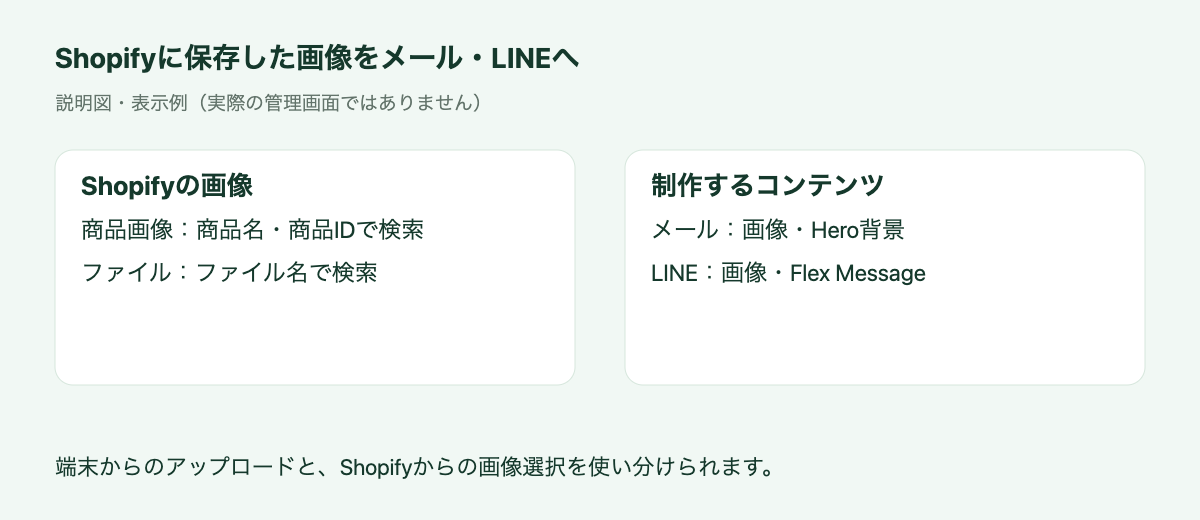
*A concept diagram of using images stored in Shopify.*
You can now select Shopify product images and files while creating email and LINE content. Reduce the steps of downloading an existing image to your device and uploading it again. Search by product name, file name, or other supported identifiers to find suitable images, making it easier to prepare email and LINE campaigns using the same assets. Local uploads remain available alongside this option.
### Feature details
- Supported in email image blocks and Hero backgrounds, LINE image messages, and images within Flex Messages.
- Switch between Product Images and Shopify Files to search. Images larger than 10 MB are not listed.
- When first using Shopify Files, follow the on-screen instructions to grant file-reading permission.
### Recommended for stores that
- Want to reuse Shopify product photography in email and LINE.
- Want to avoid uploading the same images repeatedly.
See [email editing tools](https://storecrm.com/help/setting/mail-edit-tool/) for details.
## Configure separate email sender and reply addresses
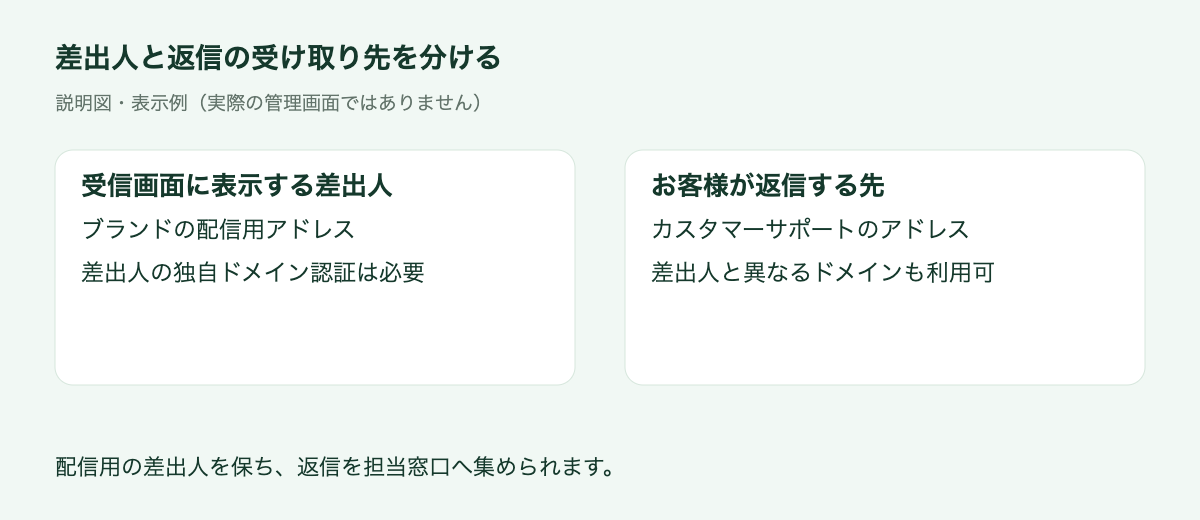
You can now configure the sender address separately from the address that receives customer replies. Send marketing messages from your brand's designated address while directing replies to customer support. This preserves the sender customers recognize and aligns responses with your team structure, particularly when content preparation and customer support are handled by different teams.
### Feature details
- Enable the option to configure sender and reply addresses separately, then enter a reply address.
- The reply address can use a different domain. Authentication for a custom sender domain is still required separately.
- The reply setting applies to campaign, scenario, and test emails, among other email delivery paths.
### Recommended for stores that
- Use separate marketing and support mailboxes.
- Want support staff to receive replies while preserving the brand's sender address.
See [email information settings](https://storecrm.com/help/setting/setting/) for details.
## Branch scenarios by the number of items in an order
*Item count is the sum of quantities, rather than the number of distinct products.*
Scenario order conditions now include total item quantity. For example, tailor post-purchase messages to customers buying one item versus two or more. Recommend related products to customers making larger purchases, or encourage an additional purchase after a single-item order. This enables segmentation that purchase amount alone cannot provide and also counts multiple units of the same product.
### Feature details
- Two units of product A and one unit each of products A and B both count as two items.
- Numeric comparisons are available in supported scenarios that evaluate orders, including purchase and fulfillment completion. The count covers the whole order, rather than a partial shipment.
### Recommended for stores that
- Want to tailor post-purchase follow-up by quantity.
- Want different suggestions for single-item and larger orders.
See [scenario conditions](https://storecrm.com/help/setting/scenario-conditions/) for details.
## Use Translate & Adapt translations for email variant information
*An example using registered translations. It does not represent automatic translation or size conversion.*
Shopify Translate & Adapt product option translations can now appear in email variant information. Adapt color and size labels as well as product names to the recipient's language. Together with the option-name display introduced in August, this helps customers understand the choices in their order. Stores selling in multiple languages can reuse wording already prepared in Shopify rather than rebuilding that information in each email.
### Feature details
- Registered option names and values are used in cart and order product blocks and order details.
- Options without translations use their original wording. No automatic translation or size conversion takes place during delivery.
- Check the result in a scenario test containing product or order information, or in a received email. A normal template test email alone cannot verify a specific product's translation.
### Recommended for stores that
- Manage multilingual product information in Shopify.
- Want to describe purchased sizes and colors in each recipient's language.
See [email product option translations](https://storecrm.com/help/setting/mail/) for details.
## Let customers using LINE login change their email address
Customers using an external identity provider such as LINE can now change their email address from their profile. After the store configures the display, customers can complete the change using a verification code sent to the new address. This provides a way to keep contact details up to date without a support request and makes member information easier to maintain after purchase.
### Feature details
- Check the Shopify customer account display settings and external authentication requirements before setup.
- A verification code is sent to the new address. Customers must log in again after the change is complete.
- The external identity provider connection is removed during the change, so review the customer's subsequent login method as part of your setup.
### Recommended for stores that
- Use LINE login.
- Want customers to update their own contact details.
See [email changes with an external identity provider](https://storecrm.com/help/setting/external-idp-email-change/) for details.
## Other updates
- LINE display names are now shown in customer details.
- The flow editor's wait action now supports seconds for short tests.
- Birthday entry in new customer accounts now uses separate year, month, and day selectors.
- Management menus have been reorganized to make email, LINE, wishlist, and restock features easier to find.
StoreCRM will continue expanding features that support sales campaigns and day-to-day store operations.
Please contact us if you have questions about any feature or how to use it.
========================================================================
# July StoreCRM Updates
> July 2026 Free Shipping Coupons, Customer Extraction and Scenario Conditions, Terms of Use Management, wishlist ・ back-in-stock notification UI/UX has been updated.
- URL: https://storecrm.com/news/07_2026_update/
- Type: News
- Published: 2026-08-03
- Updated: 2026-08-05
---
In July 2026, StoreCRM coupon issuance, customer segment scenario conditions, terms of service management, wishlist ・ back-in-stock notification UI/UX of management screen This time, we will introduce updates that will help increase sales opportunities, improve customer experience, design measures and reduce operational hours of the day.
## Free Shipping Coupon
Free shipping coupons can be issued automatically from scenarios. You can use both simple settings and flow editor, and you can set the shipping limit, minimum purchase amount, quantity, expiration date, etc. according to the measures. In order to increase initial purchase and re-purchase campaign, you can easily incorporate shipping benefits and reduce the number of operational hours for individual coupons.
### Features Details
- Maximum shipping amount can be set optionally, and if not set, it can be issued without the limit of the shipping amount.
- Minimum purchase conditions can be selected from "None", "Minimum purchase amount" and "Minimum quantity"
- Expires, target customers, number of uses, and other discounts can also be set
### Recommended for this store
- Stores that want to reduce purchase withdrawal due to shipping costs
- Stores that want to automate benefits according to the purchase amount
## Support customer extraction using Shopify order tags
You can now use tags assigned to Shopify orders as conditions to create segments of customers who placed those orders or customers who did not. If order tags are assigned according to operational rules such as store, sales channel, or campaign, that information can be used to select recipients in StoreCRM. This lets stores organize customers using their existing Shopify operations, reducing manual preparation for campaigns and making it easier to tailor delivery content.
### Features Details
- You can extract customers in terms of "include" or "not include" the specified order tag
- The order tag is determined by the tag unit, and it is considered confusing with another tag containing a similar string
### Recommended for this store
- Stores with custom tags for each store or sales route
- Stores that want to run ongoing campaigns for customers who purchased through a specific campaign
## Added "Customer who purchased this order product for the first time" to scenario conditions
You can now determine whether the product included in this order is the first purchase for that customer. The first purchaser of each product will be automatically sorted out the usage guide, proposal of related products, and follow-up after purchase. It is easy to design communication according to the product's relationship, not post-purchase delivery, and helps to improve customer experience and create next purchasing opportunities.
### Features Details
- In addition to regular purchases, you can select only single purchases and only sub-scr、 purchases.
- Target products can be specified by product name, product tag, product ID, variation etc.
- Only manual collections are eligible when using collection conditions, and automatic collections are not eligible
### Recommended for this store
- Stores that want to separate the following after purchase by product
- Stores that want to connect from initial purchase to continuous purchase
## Supports the extraction of multiple links, version control and consent status of the Terms of Use
You can now set multiple links such as terms of use and privacy policy to the consent statement displayed at the time of membership registration. You can manage sentences, links and number of versions by language, and you can use it as a condition of the customer segment whether you have agreed or not to the latest terms currently set. Re-agreement guides after the revision of the Terms are easy to be performed according to the target person, and even stores dealing with multiple terms can reduce operational man-hours for confirmation and extraction.
### Features Details
- Manage display names, URLs, and number of versions for multiple convention links
- You can link with consent statement according to the display language such as Japanese and English.
- You can extract the target customer according to your consent or unagreement.
### Recommended for this store
- Stores that require consent to multiple terms and policies
- Stores that want to streamline re-agreement notices after renewal
## wishlist Adding reports wishlist Support list display customization
We added a report for checking products added to wishlists and expanded display customization for the storefront wishlist. The report shows products for a specified period by product or variant and supports searching, sorting, and CSV export. On the list screen, stores can select a design preset or create displays using Shopify product information, improving both customer-interest analysis and the shopping experience.
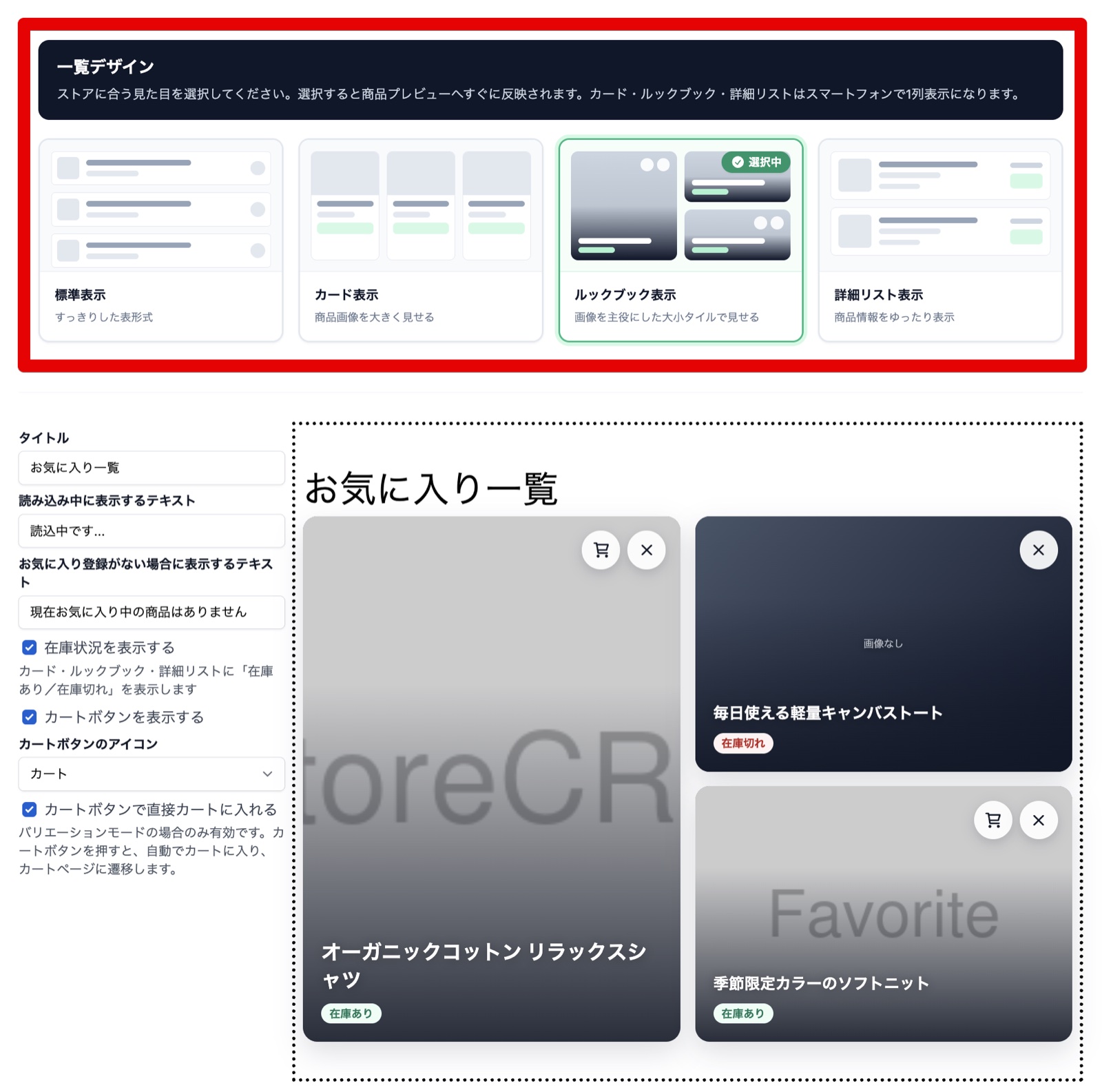
* wishlist "Easy setting" screen in the list. Simply select the list design (standard, card, lookbook, detail list), wishlist It is reflected on the list screen. *
### Features Details
- wishlist Period and current in reports wishlist signup Number of persons per item
- You can select the display of the standard, card, lookbook, and details list in easy setting mode.
- In advanced mode, it supports display and additional reading using prices, tags, product meta fields, etc.
### Recommended for this store
- Stores that want to utilize products that are highly interested in customers
- wishlist Store to match the list of stores
## back-in-stock notification can be selected as customer segment conditions
back-in-stock notification You can choose "Unsubmitted Only", "Send Only", "Unsubmitted and Transmitted" as the condition of the customer segment. You will be divided according to the status, such as checking the status of the customer who has not yet received the notification, and following the customer after sending the notification. It is easy to assemble measures to the customer's situation waiting for re-stocking, and you can expand the opportunity of re-purchase while reducing the extraction work for distribution.
### Recommended for this store
- Stores that want to guide customers waiting for re-stocking
- Stores that want to follow after sending notifications
## UI/UX
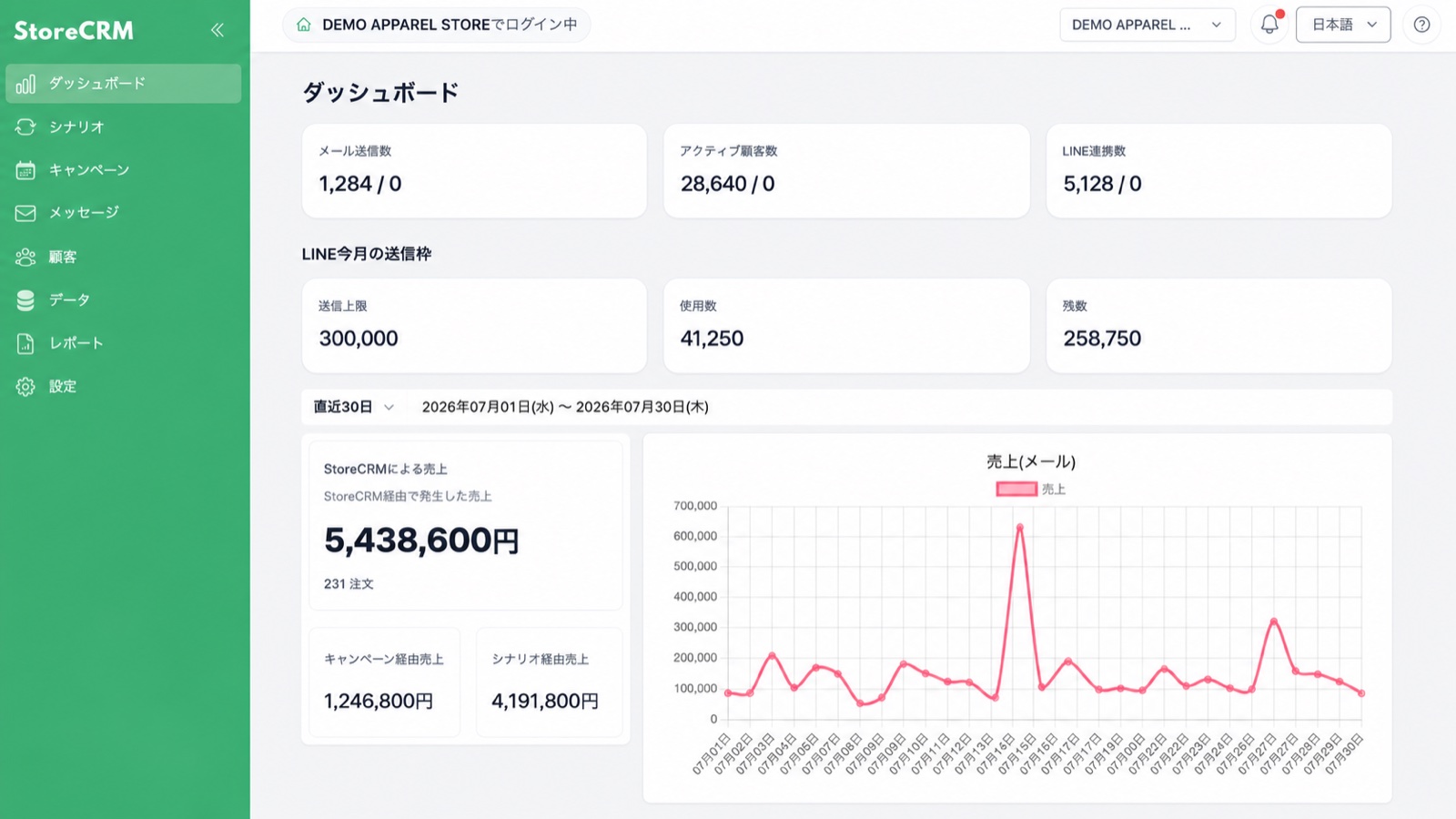
We revised the layout and operation line of the entire StoreCRM management screen to UI/UX which is easy to move to the desired function and setting. We organize the configuration of the setting screen, list screen, creation and editing screen, and improve the display and unsave changes when the screen width is narrow. It is easy to understand the location and the view of the operation that is used daily, and it is easy to work with an agent that supports existing users and operations.
### Features Details
- The side menu and settings screens have been reorganized to make desired actions easier to find
- Unified layout and operation feeling of listing, creation, editing, details and report screen
- Improve the check line when the display on a narrow screen and the unsaved changes
## Other Updates
- Shopify LINE integration Reduced time-to-screen transitions, enabling you to subscribe and unsubscribe emails without screen movement.
StoreCRM ecommerce businesses We will continue to improve sales growth and daily operational efficiency.
Please feel free to contact us if you have any questions or concerns about each feature.
========================================================================
# June StoreCRM Updates
> Shopify Customer Accounts back-in-stock notification We updated the block and tag that can be used for mail and LINE distribution.
- URL: https://storecrm.com/news/06_2026_update/
- Type: News
- Published: 2026-07-02
- Updated: 2026-07-02
---
Shopify Customer Accounts back-in-stock notification We updated product blocks and template tags that can be used for mail and LINE delivery. This time, we will introduce updates that will help improve customer experience, increase sales opportunities, and reduce operational hours for daily production and delivery operations.
## LINErate easyPoints information to LINE membership card
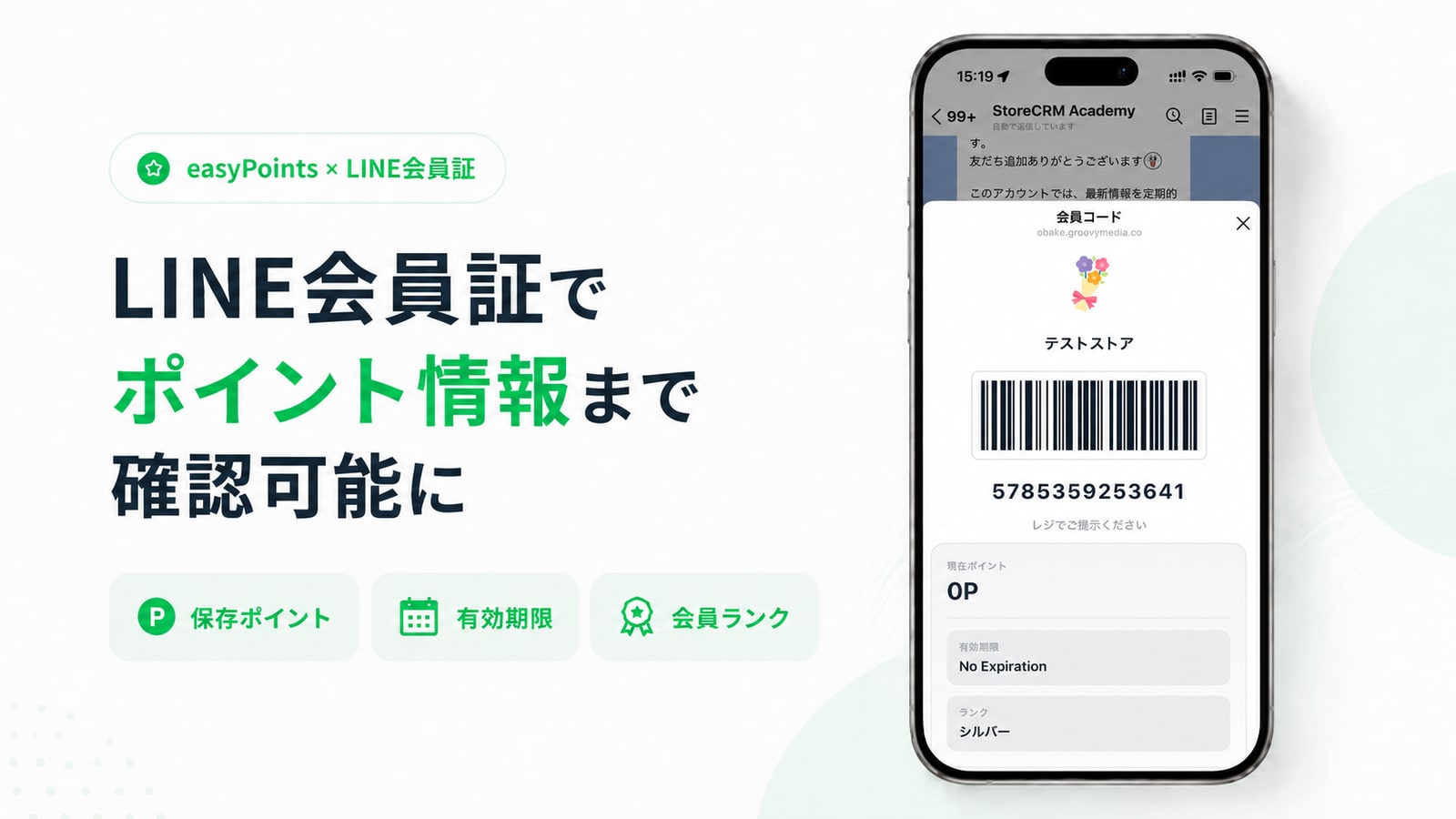
In addition to the membership code, you can check the points, expiration dates and membership ranks of easyPoints. Customers can understand the status of points only with the membership card on LINE. ecommerce Make it easier to design a member experience. For Shopify agency, it is easy to propose repeat promotion with point app and LINE membership card to improve customer experience.
### Features Details
- Point balance, expiration date and membership rank can be displayed in the linked display of the LINE Membership Card.
- You can use the saved easyPoints related data and present it together with the member code display.
### Recommended for this store
- Stores that want to guide point measures on LINE
- Shop ecommerce Stores that want to connect your experience
## Shopify New Customer Accounts Profile Page
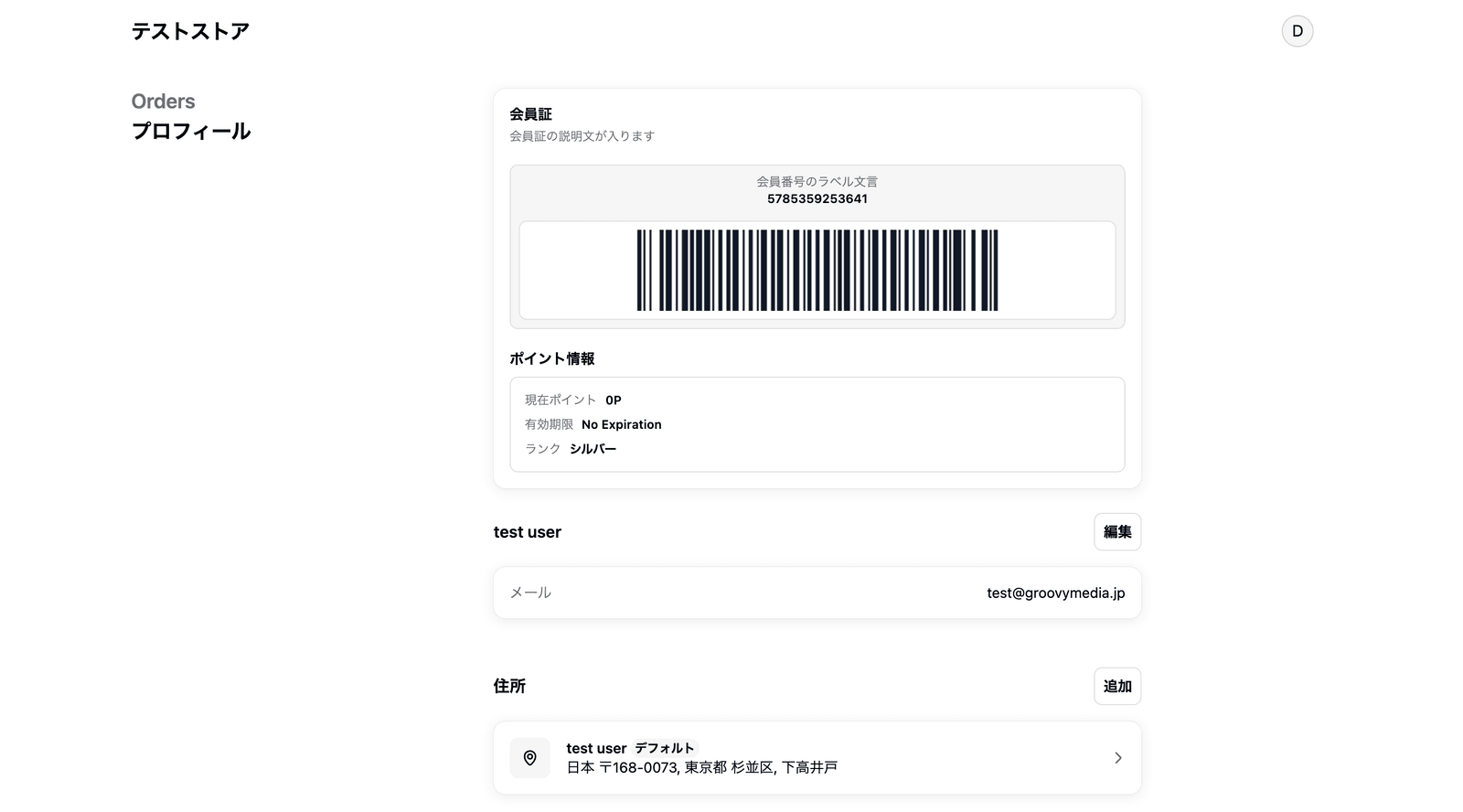
StoreCRM membership card barcodes can now be displayed on Shopify's new Customer Accounts profile page. Even customers who do not open LINE can present their membership code from the account screen after logging in, making it easier to connect online membership information with in-store customer service and membership verification. Because the display content can be configured separately from the LINE membership card, this helps stores design a customer experience suited to their membership operations.
### Features Details
- You can display your membership card on your profile page as a dedicated app block for Customer Account.
- You can set the reference source for barcode values such as member number and Suma register number.
- You can adjust the display contents for the profile screen, such as the display position and description of the member number
### Recommended for this store
- New Customer Accounts Store
- Stores that want to check member barcodes at stores
## back-in-stock notification Login required LINE integration Supports after automatic registration line
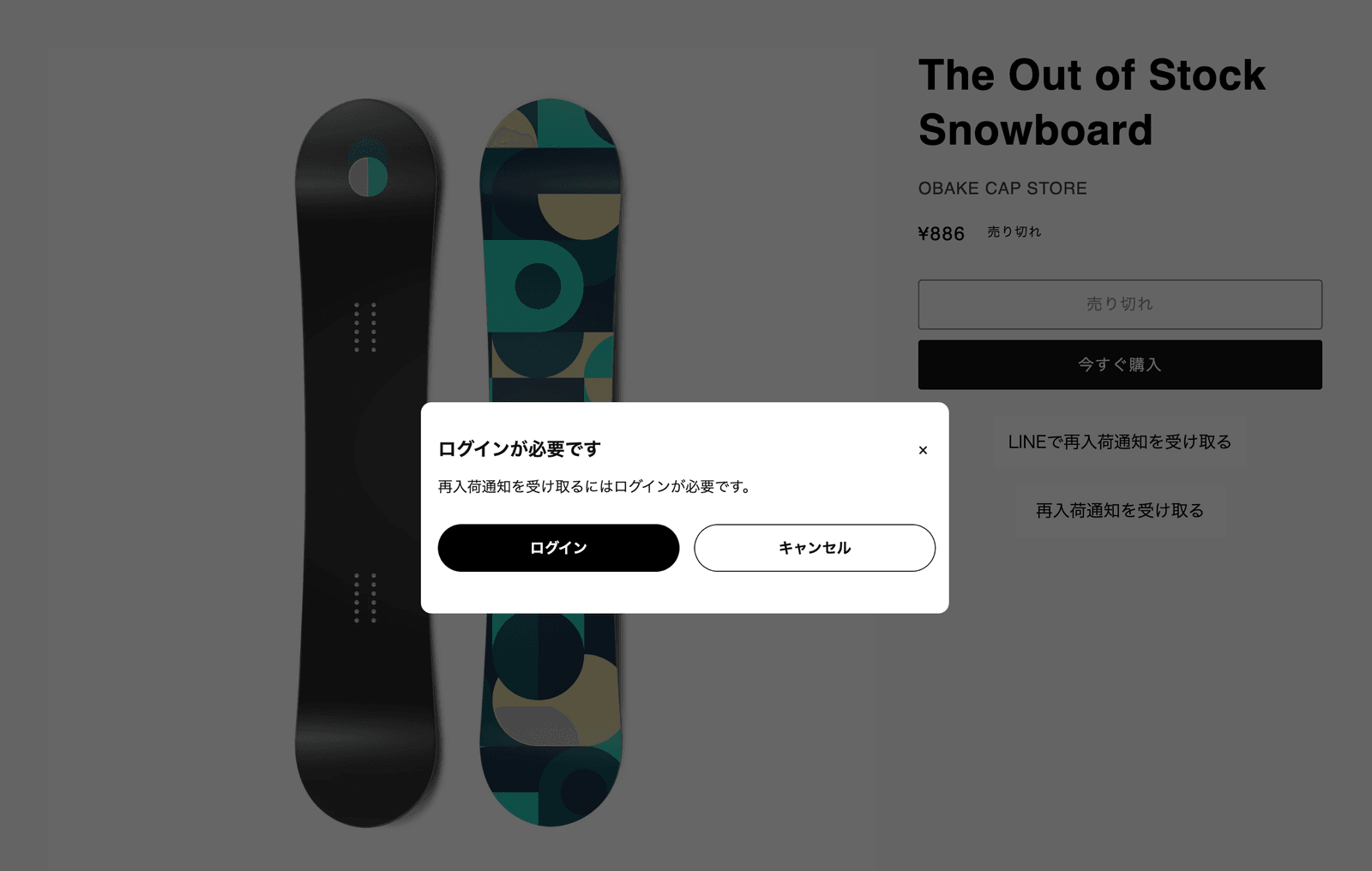
back-in-stock notification You can now set up a line to connect to the notification registration after returning to your account. LINE back-in-stock notification But after login LINE integration Home back-in-stock notification You can connect to the registration naturally. Because customers waiting for re-stocking of popular products are difficult to spill, it helps to improve sales opportunities at re-stocking and improve membership experience.
### Features Details
- If you do not log in, you can return to the product page after logging in or registering.
- Email after login according to settings back-in-stock notification Complete registration automatically
- If LINE is not linked, LINE integration Close back-in-stock notification You can prepare a lead wire for registration
### Recommended for this store
- Stores with many items waiting for re-stocking
- Register LINE integration Stores that want to increase
## Register and register customer information (metafield) customer data Add or modify pages
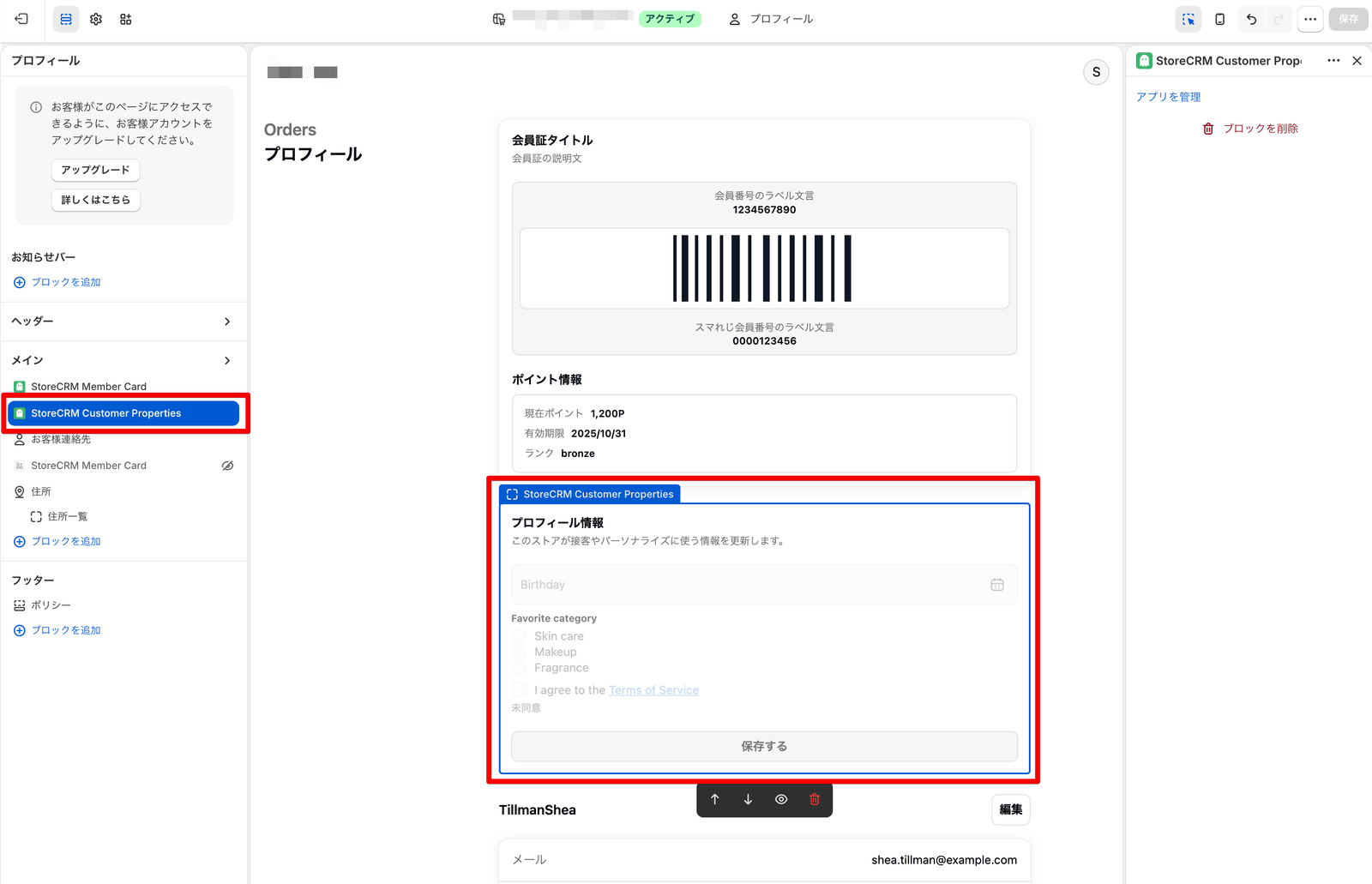
You can now add and modify meta fields to your information on Shopify’s Customer Account and related pages. In addition to free input, it also supports information acquisition such as selective items and agreement of the terms and conditions, making it easy to enter and update information required by the customer. It is easy to design CRM measures according to customer attributes and information gathering after membership registration, leading to reduction of operational man-hours and improvement of customer experience.
### Features Details
- customer data You can display and store Shopify customer meta fields on extension blocks such as pages
- Set options and consent items and answers customer data can be retained as
- Wording, links, and required settings can be adjusted to match the information the store wants to collect
### Recommended for this store
- Stores that want to utilize member attributes for CRM measures
- After registration customer data Stores that want to promote updates
## Added a block that can display Shopify products together in the mail editor
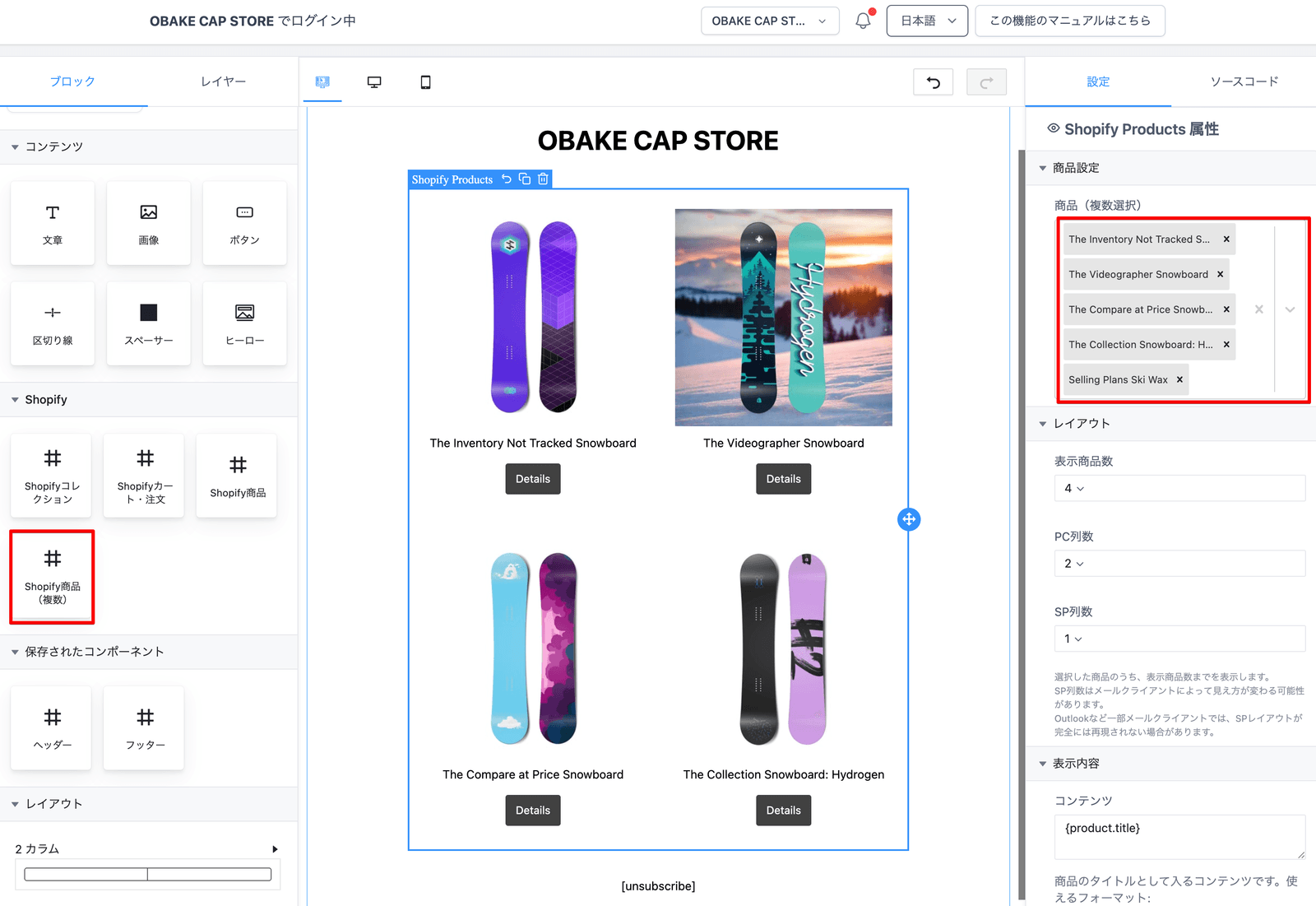
Added a product block that can be arranged together multiple Shopify products in the mail editor. In addition to the non-consolidated product block, you can choose multiple products and view them within the email content, making it easier to create new product introductions, set proposals, and ranking styles. The product image, name, price, and buttons can be easily appealed, which helps reduce the number of operators in mail production and increase sales opportunities.
### Features Details
- You can add multiple product blocks from the Shopify category in the email editor
- You can select multiple items and display them together in the mail body.
- Even if the product is not selected, it is adjusted so that it is easy to handle on the editing screen
### Recommended for this store
- Stores that want to make special mails for multiple products
- Stores that want to make set sales and related product proposals
## Enable order meta fields as mail and LINE order template tags
You can now use the meta field linked to the order as an order template tag for mail and LINE. Check the order meta field registered by data management from the list of template tags and send it to the delivery body. It is easy to reflect additional information for each order, such as delivery, receiving, and gift handling, to improve customer experience while reducing the number of individual information creation.
### Features Details
- You can display the registered order meta field in the order template tag category
- Mail body and LINE message body.
- Flexible integration of additional information with existing custom template tags
### Recommended for this store
- Stores that want to guide supplementary information per order
- Stores that want to convey gifts and shipping specifications
## Add a shipping number raw tag for LINE Flex URI
LINE Flex Message's URI has been added only the shipping number. You can use the traditional display tag as it is, and you can choose the number only tag if you insert it into the URL such as the tracking page. Easy to embed the delivery status check line within the LINE message, leading to reduced purchase inquiries and improved customer experience. Even for agents who make a notification template after purchase, it is easier to propose designs that naturally guide the shipping company's tracking URL.
### Features Details
- Aside from the shipping number tag for display, you can use tags for URL only to return the number
- Even if you have multiple shipping numbers, you can convert it to a convenient format with the LINE Flex URI
### Recommended for this store
- LINE mailing notifications
- Stores that want to make a line to the delivery tracking page
## Added recommended app page for StoreCRM
Added recommended app page to introduce partner apps that can be used according to StoreCRM management screen. Not only features of StoreCRM, but also easy to see the operation image combined with the surrounding app. In order to help you build a Shopify agency, you can easily find candidates for additional proposals to expand your CRM and membership experience, and you will be able to expand your usage after introduction.
### Features Details
- You can list recommended apps on the user screen
- Depending on the display language, you can introduce Japanese and English.
- App name, vendor name, description, category, navigation button, and other details can be reviewed
### Recommended for this store
- Stores that want to combine StoreCRM with related apps
- Agents that want to find candidates for additional proposals
## Other Updates
- You can set the destination of the link button to any URL such as login, registration, description page, etc. on the unlinked screen of the LINE membership card.
- Shopify products, collections, and recommended product links used by e-mails and LINEs are automatically applied.
- Customer property widgets provide answers from choices and consent to the terms and conditions customer data can be retrieved and saved.
- This is a recommended product (recommended) block for e-mail and LINE body. It complements the candidate product so that the number of displayed items will be changed even after。.
StoreCRM ecommerce businesses We will continue to improve sales growth and daily operational efficiency.
Please feel free to contact us if you have any questions or concerns about each feature.
========================================================================
# May StoreCRM Updates
> In May 2026, we conducted a update to help out CRM measures, focusing on segment conditions using email and LINE responses and collection purchase history.
- URL: https://storecrm.com/news/05_2026_update/
- Type: News
- Published: 2026-06-30
- Updated: 2026-06-30
---
In May 2026, we updated StoreCRM's segment conditions and recommendation functions. This time, we will introduce a plan design according to the customer's behavior and purchase history, and update to help organize the proposed product.
## Added mail & LINE opening and click as segment conditions
You can now set customer segments and scenario execution conditions based on email opening, click and LINE messages. For example, you can remove customers who have no response for a certain period of time, or provide the following guidance to customers with reaction. Improve communication with customers’ interests and reduce operational hours.
### Features Details
- Emails are open, click, and LINE messages can be clicked, and can be extracted with or without reaction.
- You can combine the specified period and target range for campaign delivery and scenario registration.
### Recommended for this store
- Stores that want to review restless customers
- Stores that want to separate delivery by reaction
- Agencies to propose MA measures
## Add purchase history of manual collections as segment conditions
You can now extract customers who purchased goods in Shopify’s manual collection as segment conditions. You can approach customers based on the product group intended by the store, such as by brand, planning, and category. We make it easy to assemble proposals and re-purchase promotions based on the purchase history, leading to improved customer experience and creating sales opportunities.
### Features Details
- Shopify's manual collection. The automatic collection is not included in this condition.
- You can determine whether or not you have purchased past products based on valid products included in the current manual collection.
### Recommended for this store
- Stores that want to extract buyers by brand
- Stores that want to promote repurchase with special products
- Agents that want to strengthen segment proposals
## Other Updates
- The contents of the proposal have been made easier by tagging products that do not want to be put into the recommendation in the delivered message.
StoreCRM ecommerce businesses We will continue to improve sales growth and daily operational efficiency.
Please feel free to contact us if you have any questions or concerns about each feature.
========================================================================
# March StoreCRM Update Information
> March StoreCRM Update Information March 2026, LI
- URL: https://storecrm.com/news/03_2026_update/
- Type: News
- Published: 2026-04-17
- Updated: 2026-04-17
---
In March 2026, we updated the distribution function, scenario management function and LINE Login function of StoreCRM. This time, we will introduce four updates that lead to expanding sales opportunities and improving operational efficiency.
### wishlist Add follow delivery templates to additional users
[](https://storecrm.com/wp-content/uploads/2026/04/Screenshot-2026-04-17-at-17.39.00.jpg)
StoreCRM Auto Delivery Scenario Template wishlist Added a template for following delivery to added customers.
wishlist Functions (Wishlists) are important data to understand customers who are unsure of purchases or customers with high interest. With this update, automatic follow-up measures using these behavioral data can be implemented more easily than ever before.
wishlist A follow-up email after adding is one of the measures that are easy to achieve compared to the general one-time delivery mail. You can expect to revisit and boost purchases by re-minding your products at the right time.
**Recommended for this store.**
- Stores using the wishlist feature
- I want to approach customers revisited and revisited
- I want to increase sales measures other than single delivery
**Plan**
All plans are available.
### Added automatic retransmission function to unopened customers
[](https://storecrm.com/wp-content/uploads/2026/04/Screenshot-2026-04-17-at-16.35.48.jpg)
StoreCRM**Automatic retransmission function to unopened customers**Added.
When creating a new campaign, you can use it by enabling "Booking Resend" in the \ [Auto Resend to Unopened Enclosed Enclosed Enclosed Enclosed Enclosed Enclosed Enclosed Enclosed Enclosed Enclosed Enclosed Enclosed Enclosed Enclosed Enclosed Enclosed Enclosed Enclosed Enclosed Enclosed Enclosed Enclosed Enclosed
In the email campaigns, even if the contents are good, there will be a constant number of unopened seal depending on the subject and delivery timing. re-send to unopened sealant reduces such distortion and**Measures to increase total reach and total opening**Comment
In general, re-transmission to unopened parties can expect additional openings, ecommerce In some cases, sales may increase.
On the other hand, the effect is。ctuated depending on the content of the delivery, the subject, the timing of retransmission, the quality of the distribution list, etc.
**It is recommended for this person.**
- email marketing I want to increase the number of openings of the delivery
- I want to increase further results with the same content
- Want to reduce manual re- bution
**Plan**
All plans are available.
### In the scenario details screen, you can check each node setting of advanced scenarios
[](https://storecrm.com/wp-content/uploads/2026/04/Screenshot-2026-04-17-at-17.01.38.png)
In the scenario detail screen,**You can now check each node configuration for advanced scenarios using flow editor.**
In the past, it was necessary to open the flow editor screen to confirm detailed settings.
With this improvement, you can check the setting contents of each node by simply clicking the corresponding flow on the scenario details screen.
This makes it easier to check the contents and operation of the scenario, making it easier to understand the complex delivery flow.
It is useful in this situation.
- When you want to check the setting contents of the running scenario immediately
- When you want to know the scenario created by another person
- When you want to check the settings while watching the entire flow
### LINE Login Supports Multilingual Display
LINE Login**Multilingual support**
If you are using the latest version of your account, you can find the relevant page displayed when using LINE Login.**Display according to the language settings of the store**Contact Us
This makes it easier to provide a more natural experience for overseas users and multilingual users.
Recommended for this store.
- Operate multilingual store
- LINE Login for overseas customers
- I want to focus on the language unification of the login experience
**Terms of Use**
Stores using the latest version of customer accounts are eligible.
### March Update Summary
In this update, we have implemented the following improvements:
- wishlist Add follow delivery templates to additional users
- Added automatic retransmission function to unopened customers
- You can check each node setting of advanced scenario in the scenario details screen
- Multilingual support for LINE Login
StoreCRM ecommerce businesses We will continue to improve sales growth and daily operational efficiency.
Please feel free to contact us if you have any questions or concerns about each feature.
========================================================================
# Grow Shopify Sales with Marketing Automation
> Learn how StoreCRM uses upselling, cross-selling, and customer engagement to help Shopify stores improve customer lifetime value.
- URL: https://storecrm.com/seminar/how-to-use-ma/
- Type: Seminars
- Date and time: 2025-01-28T14:00:00+09:00
- Format: Online
- Published: 2025-01-13
---
[Closed](https://storecrm.com/seminar)
##
For those who are not familiar with Shopify’s CRM or MA, we will introduce the basic functions and usage of StoreCRM.
This seminar is a MA tool that maximizes LTV (customer lifetime value) through increased customer up、, cross、 and engagement.**StoreCRM**We will explain carefully. Also, after introduction "**Increased sales**Realize marketing automation We will introduce the system in detail and respond to your concerns.
There are more scenes that contribute to maximizing LTV by e-mail and automatic delivery of LINE by CRM and MA such as increasing advertising costs. However, I don’t know what to do because it’s hard to set up, etc. ecommerce I think there are few people in charge. This seminar will solve all these questions.
##
- Using StoreCRM**Increased sales by double the previous year**Examples
- Easy-to-use and effective way to use even for beginners with MA and CRM
- The secret to increasing sales even for busy people
## Recommended for:
- People who do not know about MA or CRM
- Anyone who wants to take measures that lead to something busy
- If you want to know the case of other stores
## Date
Date: January 28 (Tue) 14:00-15:30
Online
Fee: Free
Organizer: Groove Media Inc.
[Closed](https://storecrm.com/seminar)
[Seminar List](https://storecrm.com/seminar)
========================================================================
# Seminars
> We run seminars that walk you through StoreCRM's core features and how to use them, designed for anyone new to CRM and marketing automation on Shopify.
- URL: https://storecrm.com/seminar/
- Type: Page
- Published: 2025-01-13
- Updated: 2025-11-15
---
We run seminars that walk you through StoreCRM's core features and how to use them, designed for anyone new to CRM and marketing automation on Shopify.
[](https://storecrm.com/seminar/how-to-use-ma/)
Discover how marketing automation can grow your Shopify store's sales on autopilot!
2025.1.28 14:00–15:30
Online seminar
[See seminar details](https://storecrm.com/seminar/how-to-use-ma/)
[Registration has closed](https://storecrm.com/seminar/how-to-use-ma/)
========================================================================
# Recommended Apps
> A selection of Shopify apps we recommend.
- URL: https://storecrm.com/special/
- Type: Page
- Published: 2024-06-26
- Updated: 2025-11-15
---
### Easy Subscription
A simple, easy-to-use subscription app for Shopify.
### Easy Product Custom Options
Add text fields, checkboxes, and other custom options to your product pages.
### Easy freee Accounting Data Integration
Post your Shopify order data to freee accounting automatically or manually.
### CSV Download
Download your Shopify order data as Excel/CSV files, with formats tailored to accounting apps and shipping carriers.
========================================================================
# CSV Download
> Download your Shopify order data as Excel/CSV files, with formats tailored to accounting apps and shipping carriers.
- URL: https://storecrm.com/special/csv/
- Type: Page
- Published: 2024-06-25
- Updated: 2025-11-15
---
## Download Shopify order data and product information as Excel/CSV
An app that lets you download your Shopify order data and product information as Excel/CSV files.
## No garbled characters
- CSV files open in Excel without garbled characters.
- Prefectures can be output by name (e.g., Tokyo) instead of by code (e.g., JP-13).
## CSV downloads formatted for accounting services
- On the [Professional plan](https://csv.groovymedia.jp/help/price/plan/), you can download CSV files in formats tailored to accounting services.
- See the [sample formats](https://csv.groovymedia.jp/help/faq/acccountant-format/) for details.
- The supported services are listed below.
## CSV downloads formatted for shipping carriers
- On the [Professional plan](https://csv.groovymedia.jp/help/price/plan/), you can download CSV files in formats tailored to shipping carriers.
- See the [sample formats](https://csv.groovymedia.jp/help/setting/delivery-format/) for details.
- The supported carriers are listed below.
## Filter by individual orders, date range, or unfulfilled orders
Download CSV files for specific orders, a date range, or unfulfilled orders only.
## Works with Google Drive and Numbers
Export CSV files compatible with Excel, Google Drive, and Numbers.
## Customization and feature requests welcome
We also accept [customization and feature requests](https://csv.groovymedia.jp/help/contact/contact_info/) tailored to your needs.
## Made in Japan, with dedicated support
Because the app is made in Japan, the UI is easy to use and customer support is handled by our Japanese staff.
[Get the app](https://apps.shopify.com/csv-2?locale=ja)
[Pricing plans](https://csv.groovymedia.jp/help/price/plan/)
[Help center](https://csv.groovymedia.jp/help/)
[Contact us](https://www.groovymedia.jp/contact_app?user_id=&company=&name=&email=&appname=%E6%97%A5%E6%9C%AC%E5%AF%BE%E5%BF%9CCSV/Excel%E3%83%80%E3%82%A6%E3%83%B3%E3%83%AD%E3%83%BC%E3%83%89)
## Related pages

### Easy freee Accounting Data Integration
Post your Shopify order data to freee accounting automatically or manually.
### Easy Subscription
A simple, easy-to-use subscription app for Shopify.

### Easy Product Custom Options
Easily add text fields, checkboxes, and more to your Shopify product pages.
========================================================================
# Easy Product Custom Options
> Easily add text fields, checkboxes, and more to your Shopify product pages.
- URL: https://storecrm.com/special/custom-option/
- Type: Page
- Published: 2024-06-25
- Updated: 2025-11-15
---
- Easily add text fields, checkboxes, and more to your Shopify product pages.
- **Integrates with Easy Subscription for data sharing.**
## Add text fields and checkboxes to your Shopify product pages
Add text fields, checkboxes, and other custom options to your Shopify product pages in just a few steps.
**Example: a text field added to a product page**
**Example: checkboxes added to a product page**
## Custom development by our engineers
Our engineers can customize the app to fit your store. Feel free to [contact us](https://customorder.groovymedia.jp/help/contact/contact_info/).
[Get the app](https://apps.shopify.com/shopify-application-347?locale=ja)
[Demo store](https://apps.shopify.com/shopify-application-347?locale=ja)
[Pricing plans](https://customorder.groovymedia.jp/help/price/plan/)
[Help center](https://customorder.groovymedia.jp/help/)
[Contact us](https://www.groovymedia.jp/contact_app?user_id=&company=&name=&email=&appname=%E3%81%8B%E3%82%93%E3%81%9F%E3%82%93%E5%95%86%E5%93%81%E3%82%AB%E3%82%B9%E3%82%BF%E3%83%A0%E3%82%AA%E3%83%BC%E3%83%80%E3%83%BC)
## Related pages
### Easy Subscription
A simple, easy-to-use subscription app for Shopify.

### Easy freee Accounting Data Integration
Post your Shopify order data to freee accounting automatically or manually.

### CSV Download
Download your Shopify order data as Excel/CSV files, with formats tailored to accounting apps and shipping carriers.
========================================================================
# Freee Accounting Data Integration
> An app that posts your Shopify order data to freee accounting, automatically or manually.
- URL: https://storecrm.com/special/shopify-freee/
- Type: Page
- Published: 2024-06-25
- Updated: 2025-11-15
---
An app that posts your Shopify order data to freee accounting, automatically or manually.
## Post Shopify order data to freee accounting
- Post each day's order data to freee accounting automatically or manually.
- Group entries by day or by individual order. (*1)
- Choose whether entries are posted at order time or at shipment. (*1)
- Record consumption tax, payment method, customer, order number, product name, store name, and more. (*1)
## Sync with freee account items, partners, and memo tags
- Sync with your freee account items, departments, items, partners, and memo tags. (*1)
## Post discounts and shipping separately from product charges
- Record product discounts under a separate account item from the products themselves.
- You can also choose not to post discounts, or to post them under the same account item as the product. (*1)
## Re-sync data deleted in freee accounting
- Even data you have deleted in freee accounting can be re-synced with the Force Post option.
## Supports reduced tax rates and POS
- Supports Japan's reduced consumption tax rates.
- Supports POS. (*2)
## Stocktaking support
- Run a stocktake to download each month's product stock counts and total inventory as a CSV file.
*1: Available on the Basic plan or above.
*2: Available on the Advanced plan or above.
[Download the app](https://apps.shopify.com/freee?locale=ja)
[Pricing](https://freee.groovymedia.jp/help/price/plan/)
[Help](https://freee.groovymedia.jp/help/)
[Contact us](https://www.groovymedia.jp/contact_app?user_id=&company=&name=&email=&appname=%E4%BC%9A%E8%A8%88freee%E9%80%A3%E5%8B%95%E3%82%A2%E3%83%97%E3%83%AA)
## Related pages

### CSV Download
Download your Shopify order data as Excel/CSV files, with support for accounting apps and shipping formats.
### Easy Subscription
An easy-to-use subscription (recurring purchase) app for Shopify.

### Easy Product Custom Options
Easily add text fields, checkboxes, and more to your Shopify product pages.
========================================================================
# Easy Subscription
> An easy-to-use subscription (recurring purchase) app for Shopify.
- URL: https://storecrm.com/special/subscription/
- Type: Page
- Published: 2024-06-25
- Updated: 2025-11-15
---
**Easy Subscription can sync its data with [StoreCRM](https://csv.groovymedia.jp/help/special/storecrm/).**
## Simple and easy to use
- Set up subscriptions in minutes through a simple, uncluttered interface.
- Its outstanding ease of use lets you launch subscriptions and recurring purchases right away.
- Even after your subscriptions go live, intuitive controls keep day-to-day store operations easy.
## Simple, yet fully featured
- Everything you need to offer subscriptions and recurring purchases to your customers is included.
- It also includes features that improve the customer purchase experience and help you run your store more efficiently.
- We continually update the app based on customer feedback.
## Support and customization only a Japanese company can offer
- As an app built by a Japan-based company, it comes with attentive, hands-on support.
- Having built many Shopify stores and systems, we can also propose app and store customizations and help you migrate from other apps. Feel free to get in touch.
## Free trial and demo site available
- Interested in a **free trial of Easy Subscription**? See [how to start your free trial](https://subscription.groovymedia.jp/help/setting/free-trial/).
- To try the full purchase experience — from choosing a product to a test checkout — completely free, visit our [demo site](https://apps.shopify.com/sengine?locale=ja).
[Official site](https://subscription.groovymedia.jp/)
[Download the app](https://apps.shopify.com/sengine?locale=ja)
[Demo store](https://apps.shopify.com/sengine?locale=ja)
[Pricing](https://subscription.groovymedia.jp/help/price/price_plan/)
[Help](https://subscription.groovymedia.jp/help/)
[Contact us](https://www.groovymedia.jp/contact_app?user_id=&company=&name=&email=&appname=%E3%81%8B%E3%82%93%E3%81%9F%E3%82%93%E3%82%B5%E3%83%96%E3%82%B9%E3%82%AF)
## Related pages

### Easy Product Custom Options
Easily add text fields, checkboxes, and more to your Shopify product pages.

### Freee Accounting Data Integration
An app that posts your Shopify order data to freee accounting, automatically or manually.

### CSV Download
Download your Shopify order data as Excel/CSV files, with support for accounting apps and shipping formats.